'Neo Store' is an F-Droid client with fast repository synchronization times, a modern UI, and a wealth of additional features.
While F-Droid is convenient for easily obtaining apps that aren't available on Google Play, apps installed via F-Droid may not be the latest version. This can happen because the F-Droid repository itself is slow to update or the F-Droid client app fails to synchronize with the repository. ' Neo Store ' is a highly functional F-Droid client that uses multiple repositories, including F-Droid, to quickly synchronize repositories and help keep apps up-to-date.
NeoApplications/Neo-Store: An F-Droid client with modern UI and an arsenal of extra features.
◆Features
According to the official GitHub repository, the features of Neo Store are as follows:
UX aimed at empowering users
• High-speed repository synchronization
• Excellent built-in repository
• Easily search for new apps
Minimalism based on the KISS principle
◆Installation
The official GitHub page lists the following download sites:
IzzyOnDroid
F-Droid
Codeberg
GitHub
This time, we will install it via F-Droid. We assume that the F-Droid app is already installed in your app store, so please refer to the following for installation and usage instructions.
'F-Droid' allows you to easily install and automatically update free, open-source Android apps other than those on Google Play - GIGAZINE
https://gigazine.net/news/20260504-f-droid/
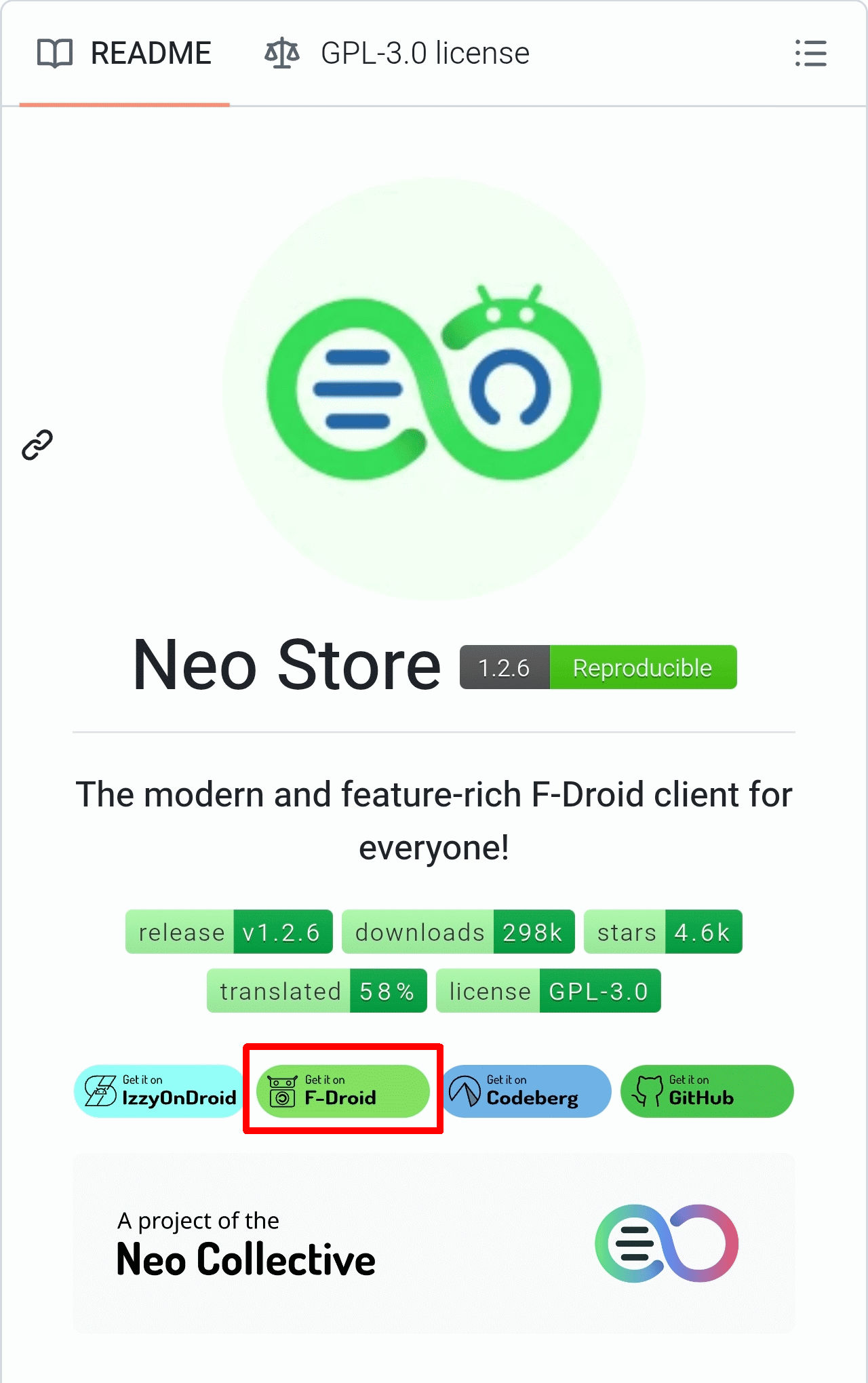
Tap the 'Get it on F-Droid' banner on the official GitHub page.
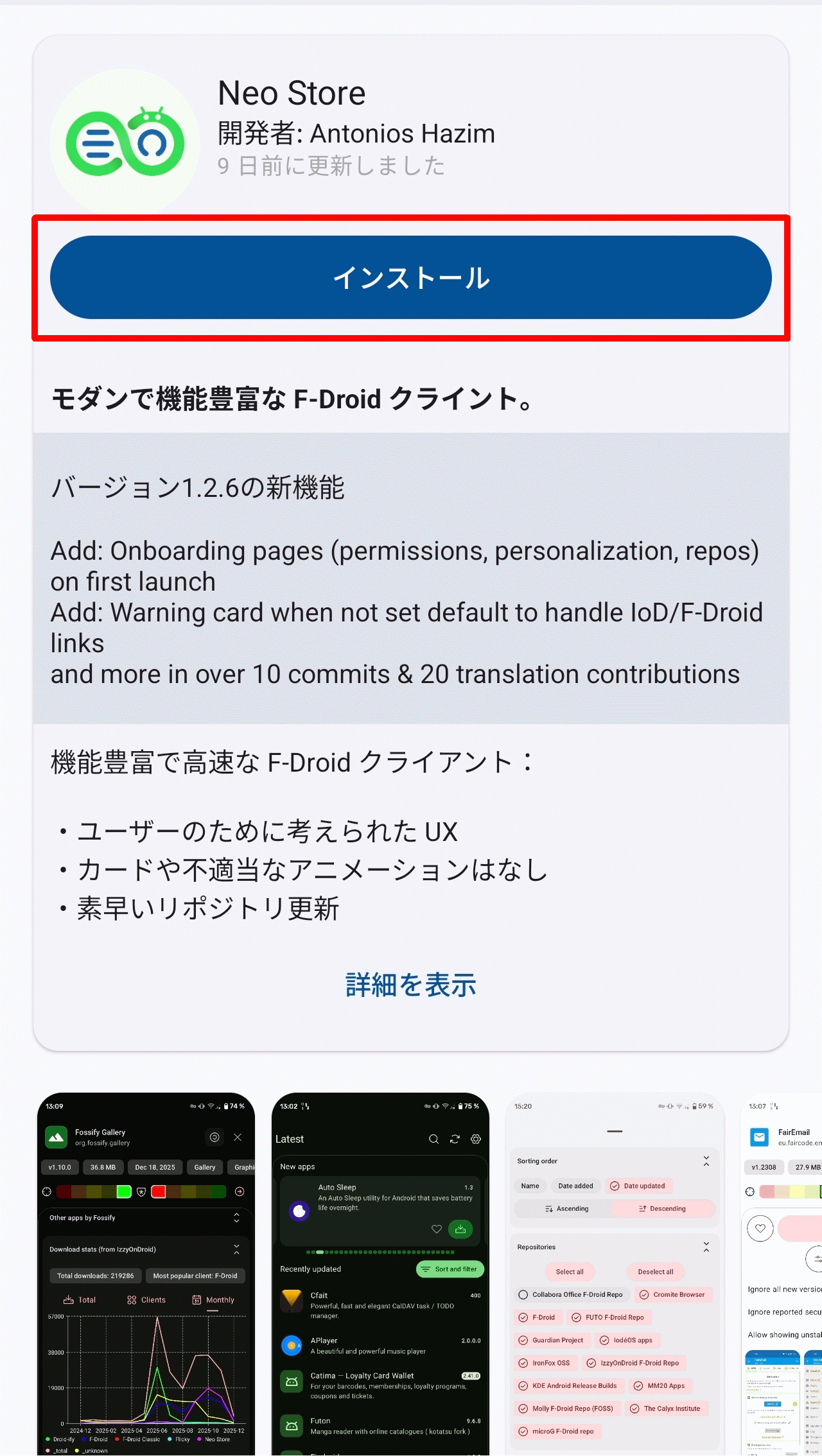
The F-Droid app will launch and the Neo Store screen will open, so tap the 'Install' button.
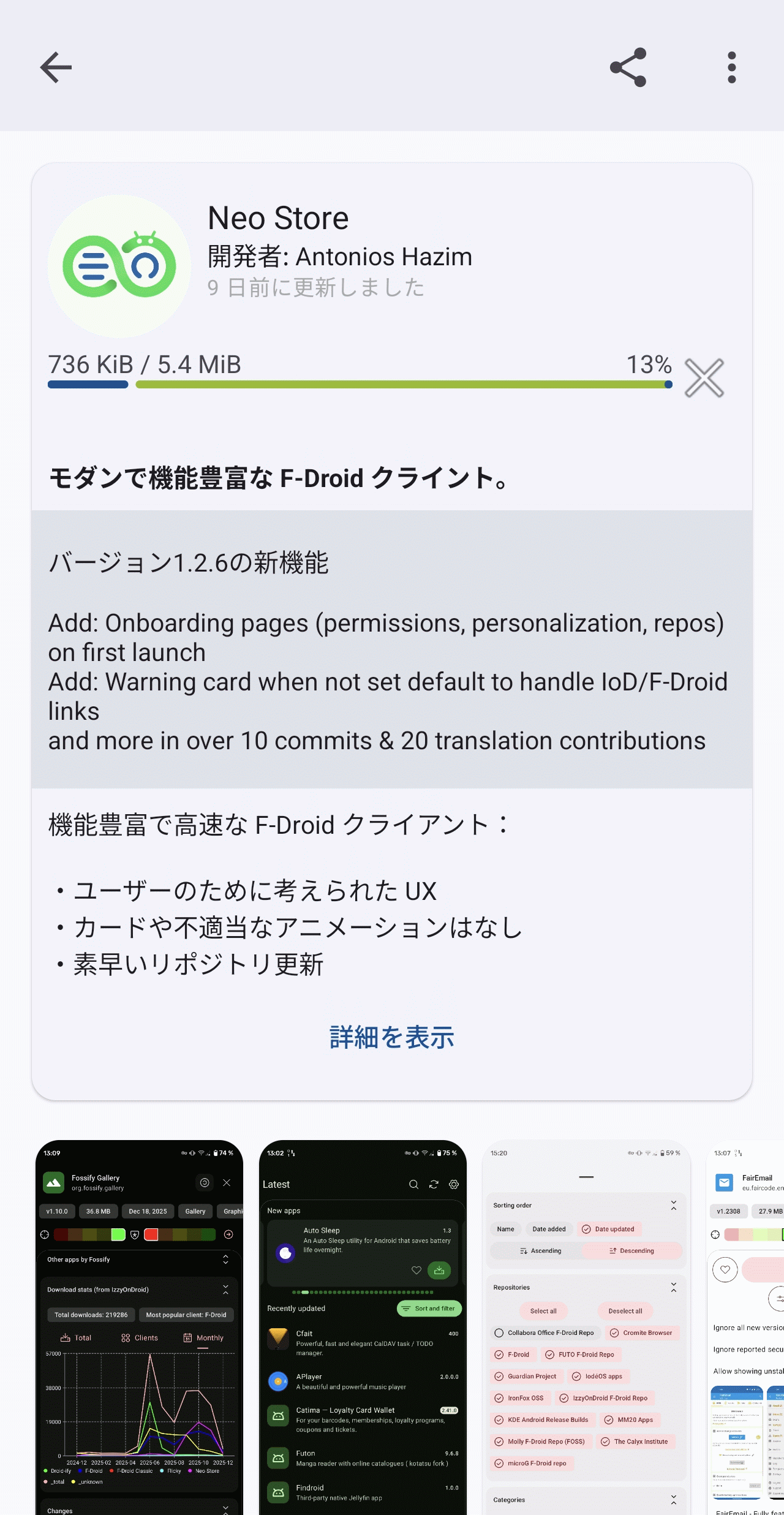
A progress bar will appear once the download begins.
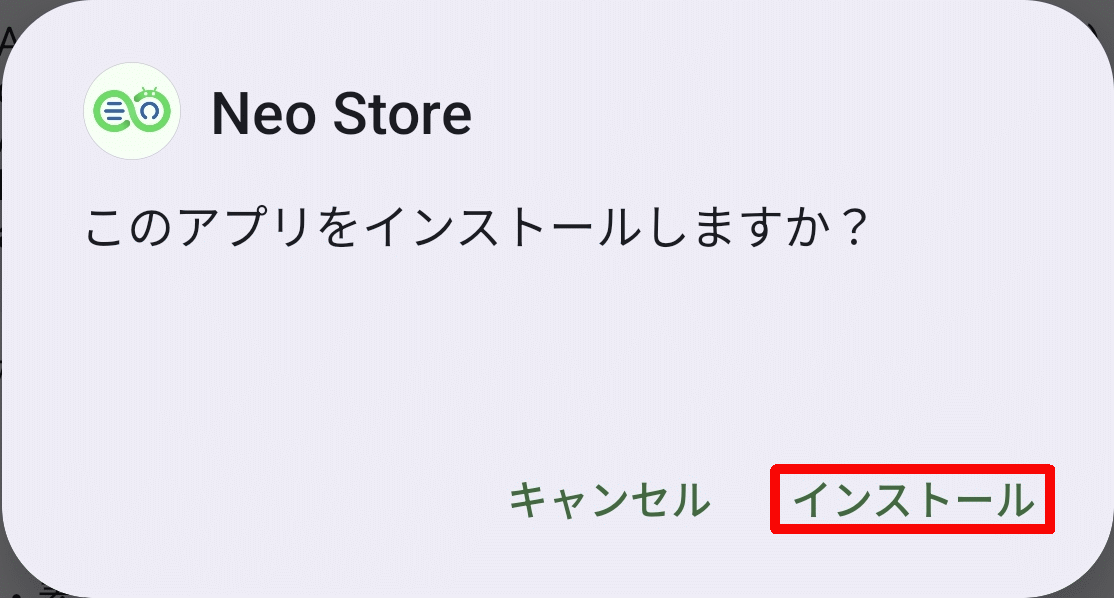
Once the download is complete, a pop-up will appear asking 'Do you want to install this app?'. Tap 'Install'.
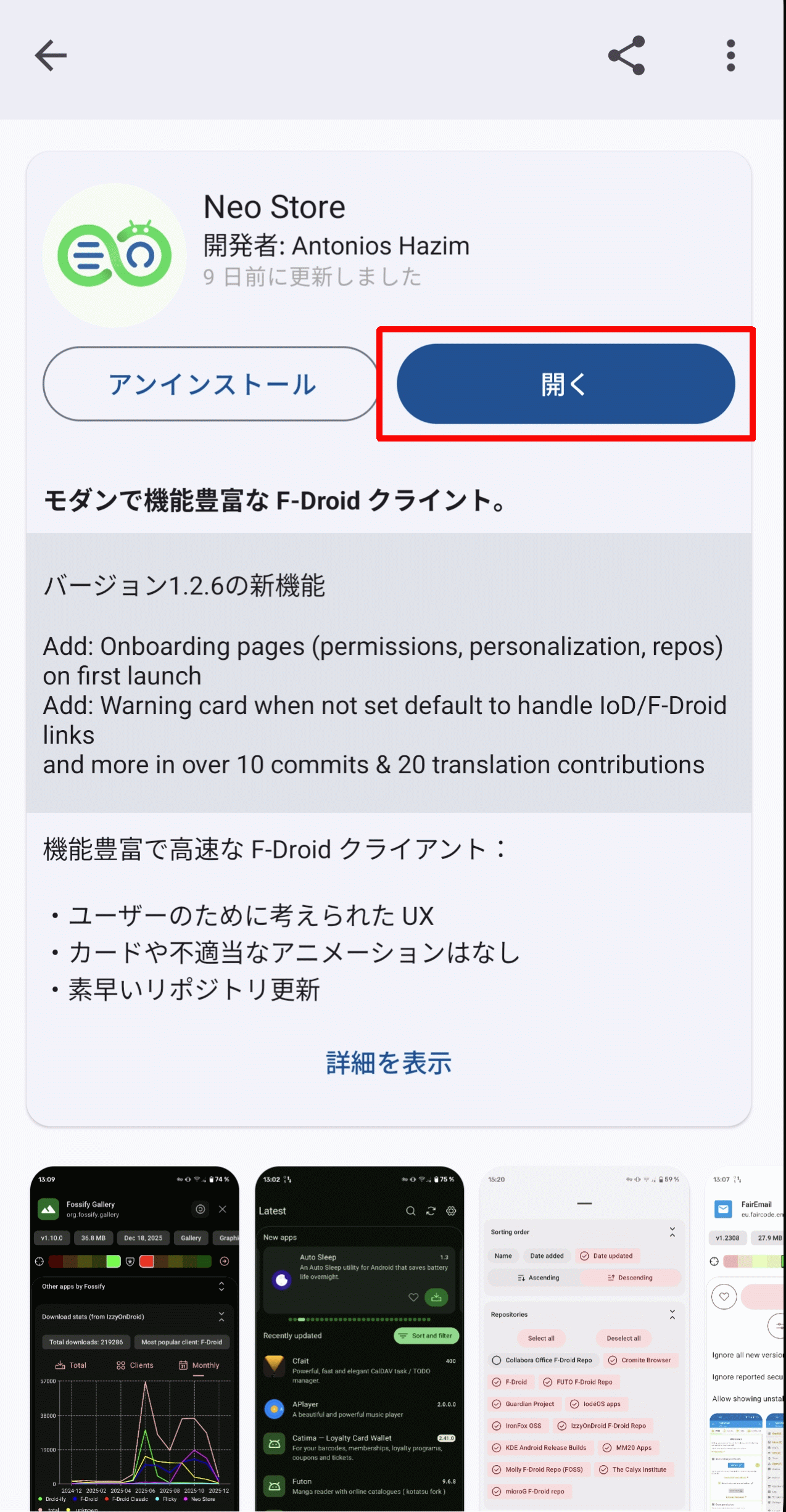
Once the installation is complete, an 'Open' button will appear; tap it.
◆Permission settings
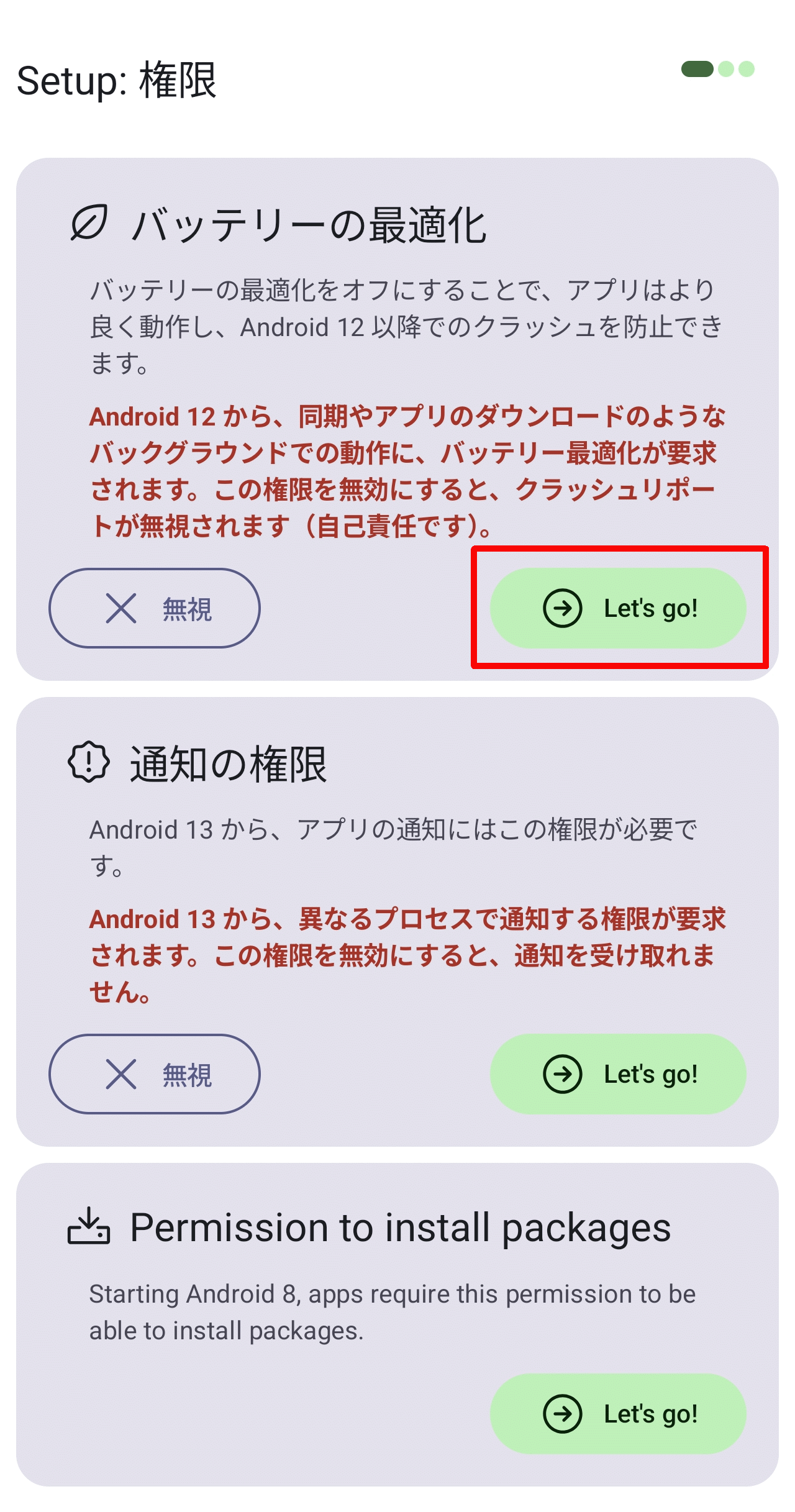
The first time you launch the app, you will be asked to add permissions. The 'Setup: Permissions' screen will appear, so first tap the 'Let's go!' button under 'Battery Optimization'.
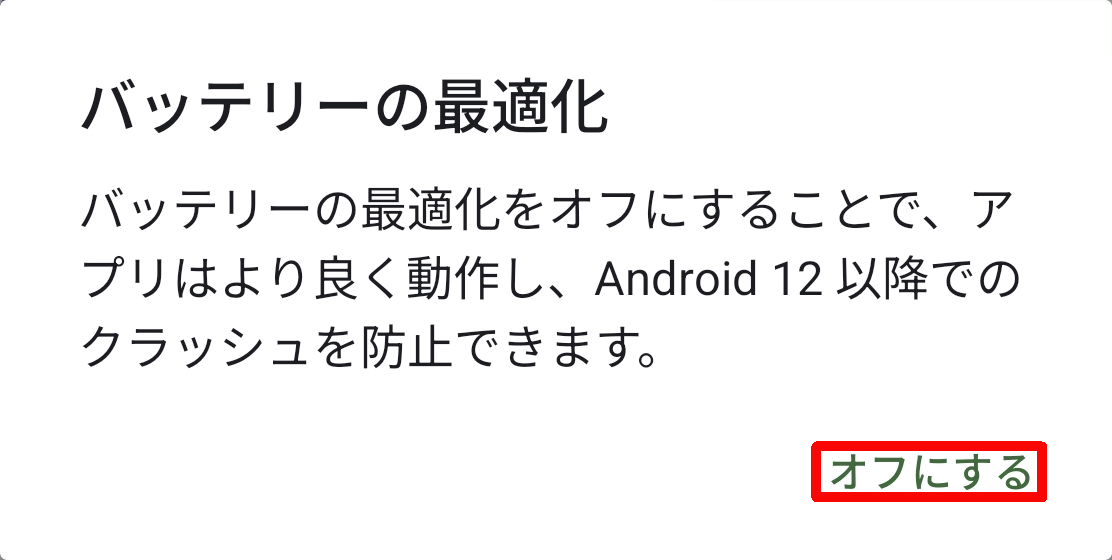
A 'Battery Optimization' pop-up will appear, so tap 'Turn Off'.
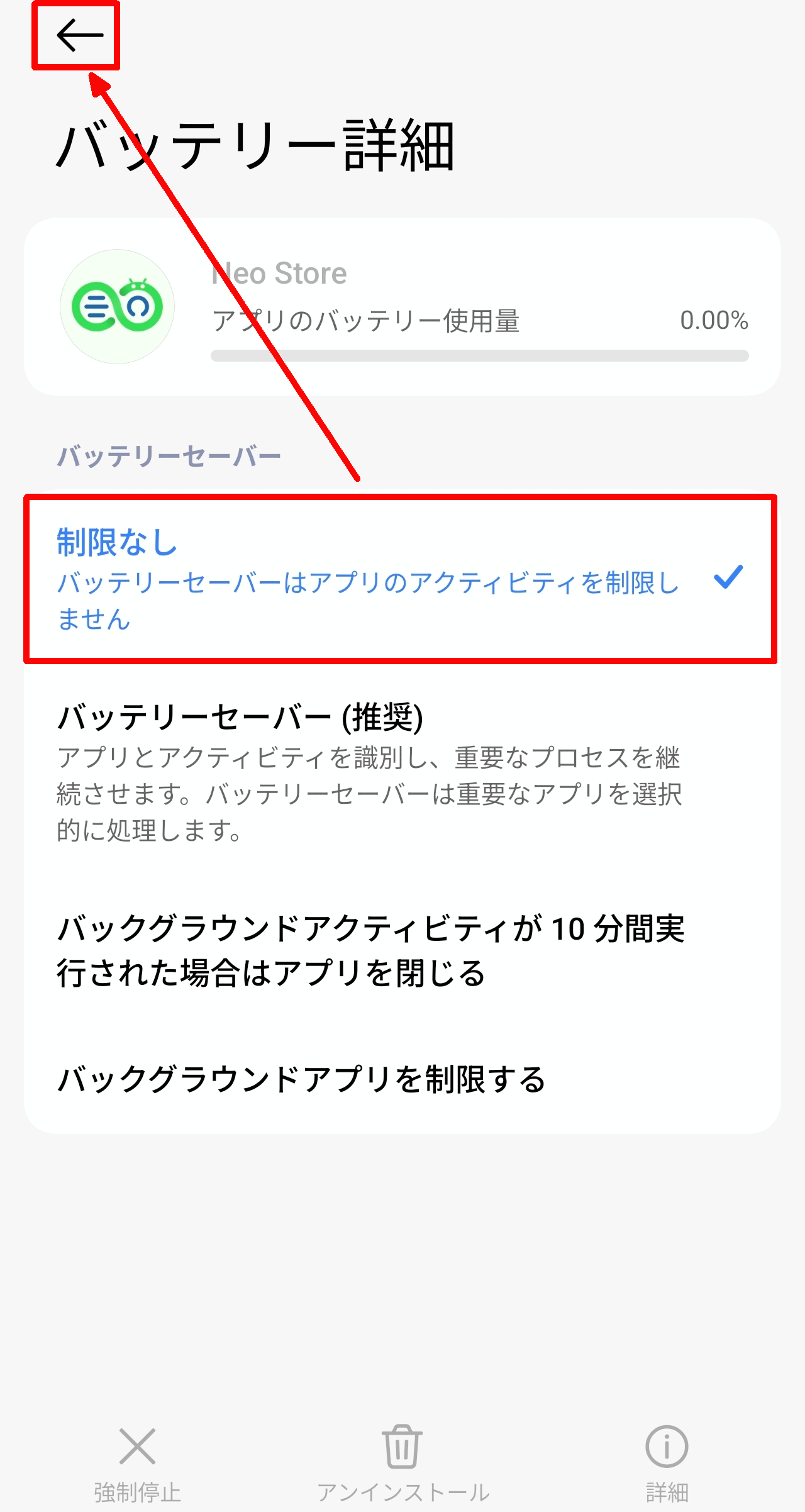
The OS's 'Battery Details' screen will appear, so tap 'Unlimited' and then tap the left arrow icon to return to the app.
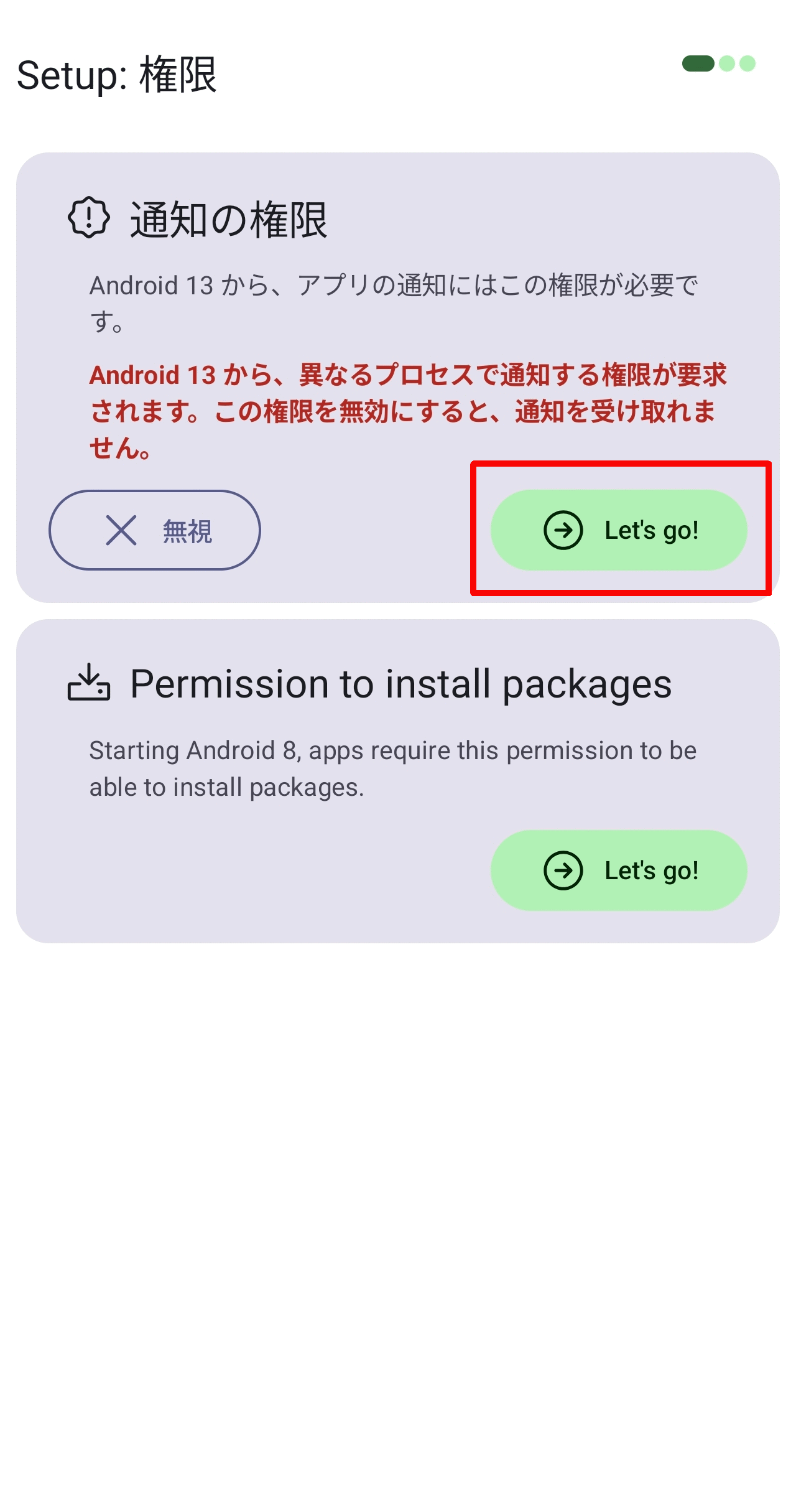
Return to the 'Setup: Permissions' screen and next tap the 'Let's go!' button under 'Notification Permissions'.
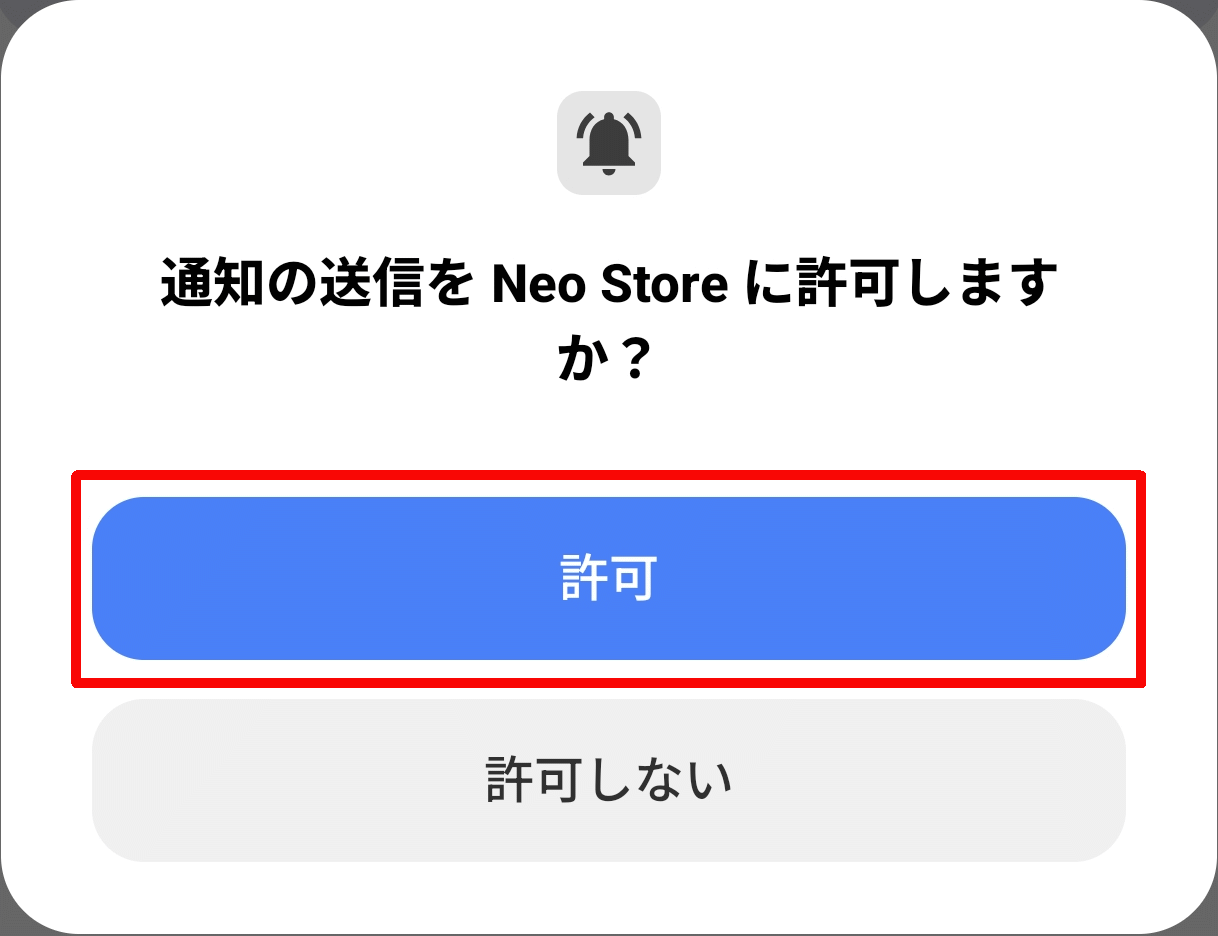
A pop-up will appear asking, 'Do you want to allow Neo Store to send notifications?' Tap the 'Allow' button.
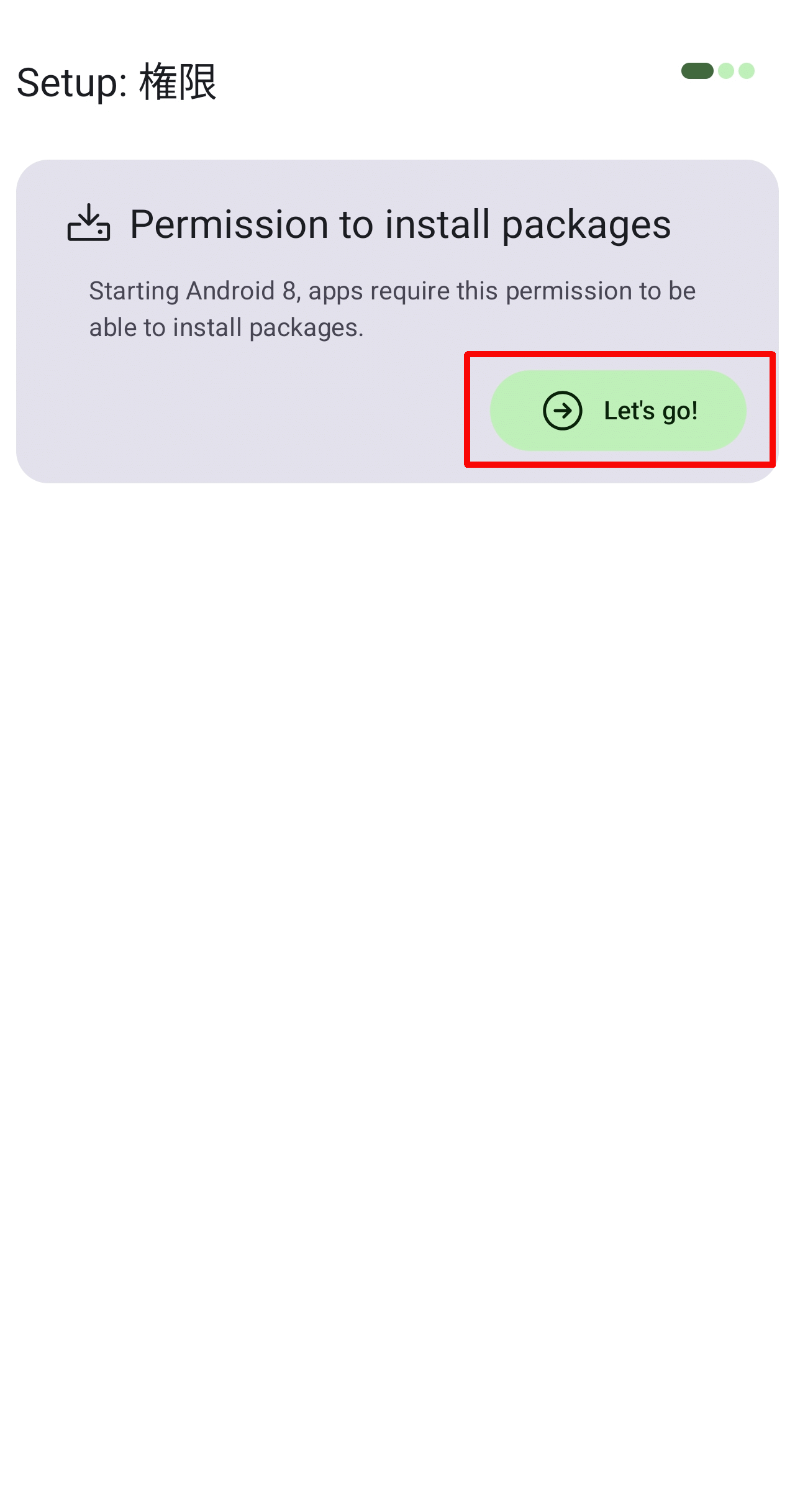
Return to the 'Setup: Permissions' screen and finally tap the 'Let's go!' button under 'Permission to install packages'.
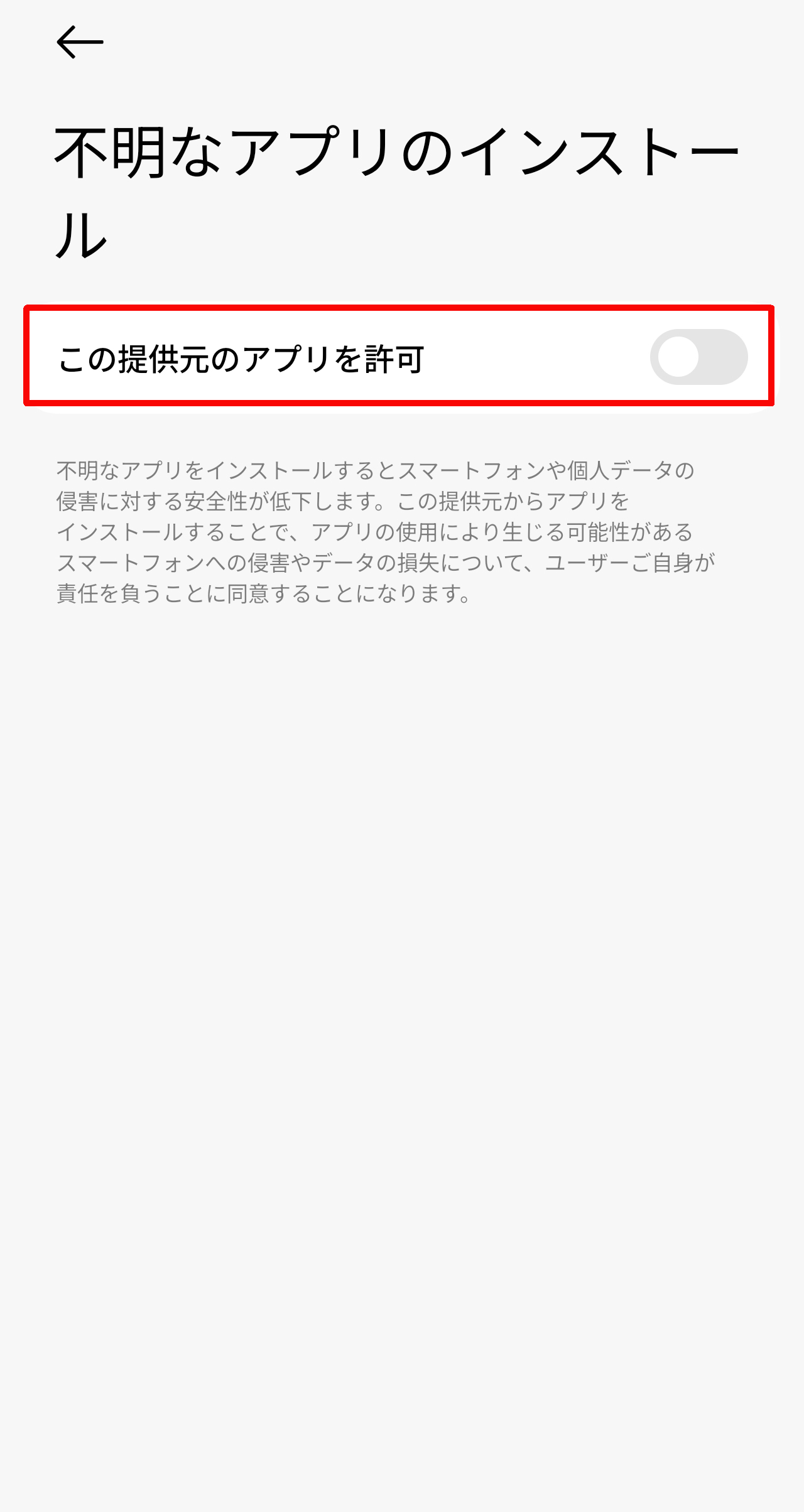
A 'Install Unknown App' pop-up will appear, so turn on 'Allow apps from this source'.
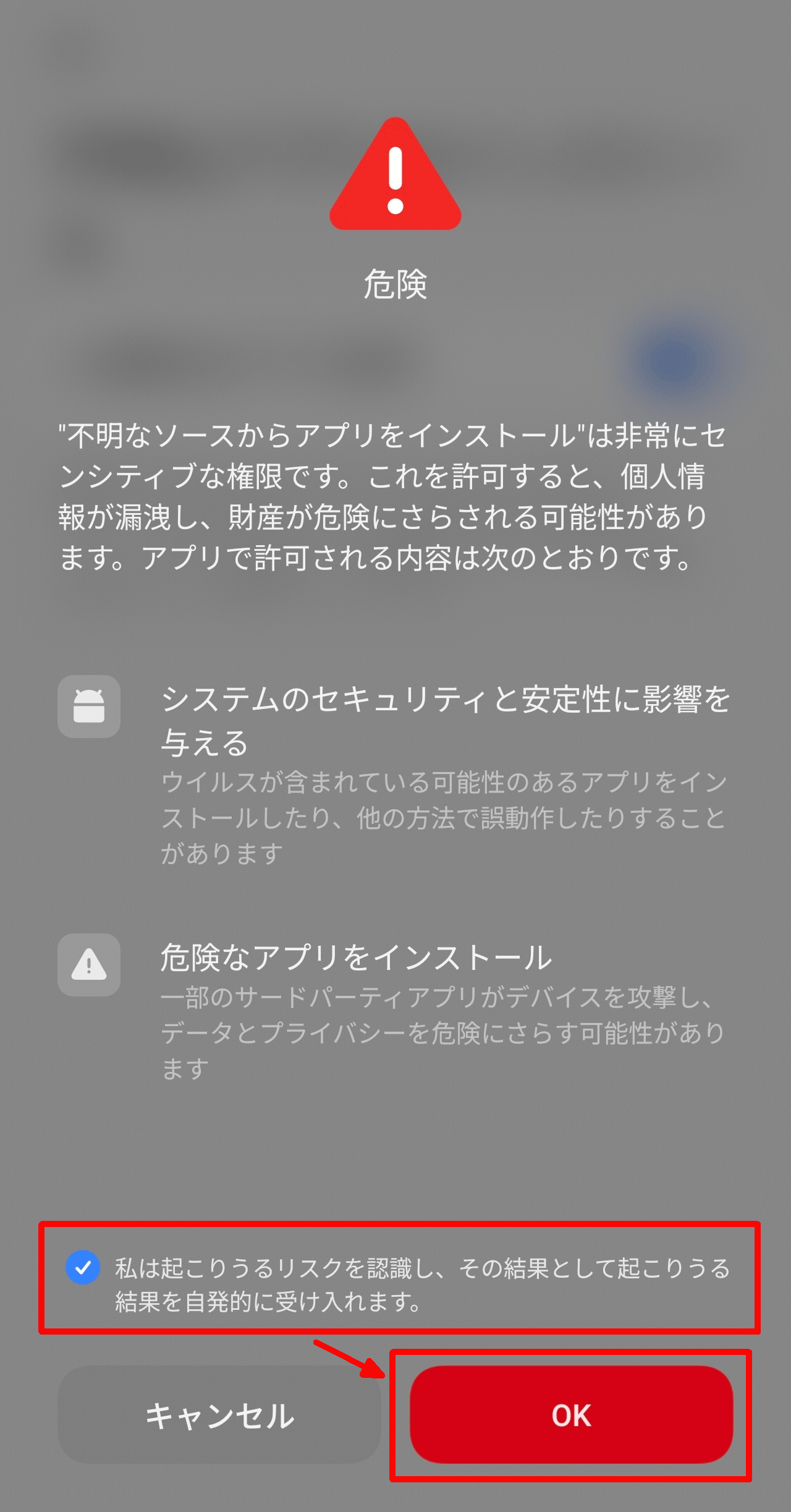
A 'Danger' overlay will appear, so check 'I understand the potential risks' and tap the 'OK' button.
◆Installation and Update
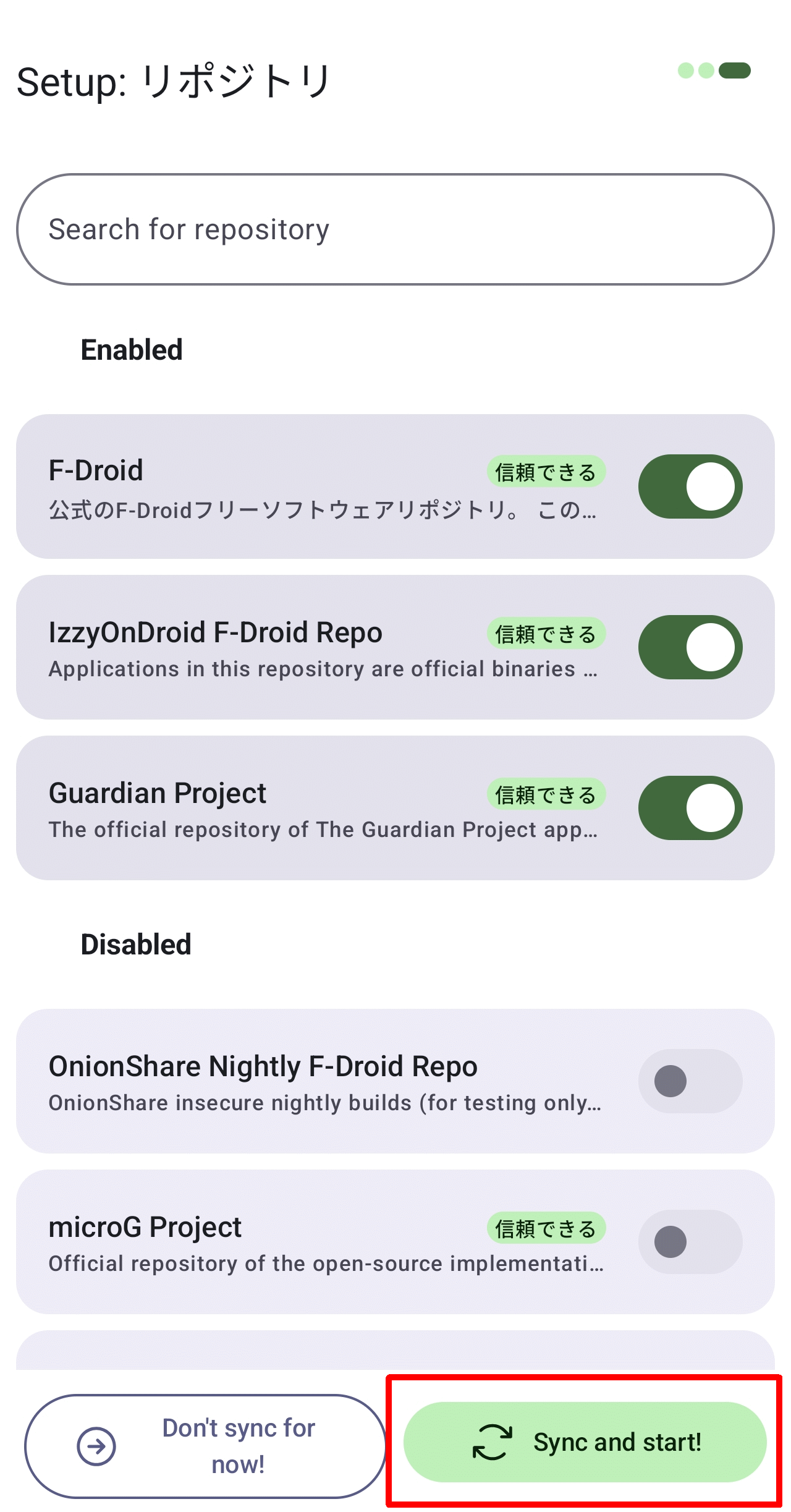
When you first launch the application, the repository settings haven't been configured, so the 'Setup: Repository' screen will appear. Tap the 'Sync and start!' button at the bottom of the screen.
Immediately after launching, a pop-up will appear asking if you want to update '
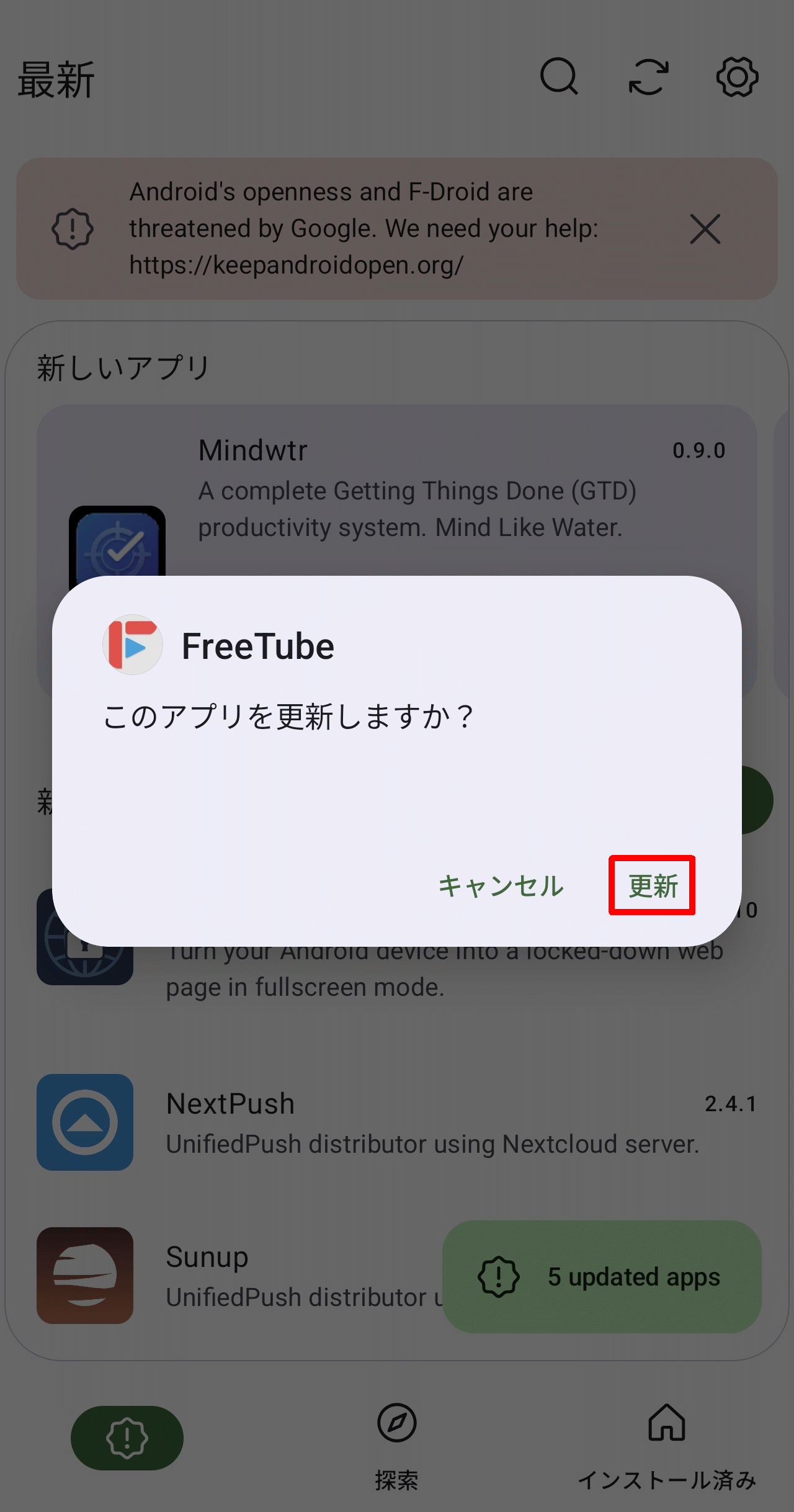
When you launch the app, the 'Latest' tab will be displayed. Here, you'll see '4 updated apps' in the bottom right corner of the screen, so tap it.
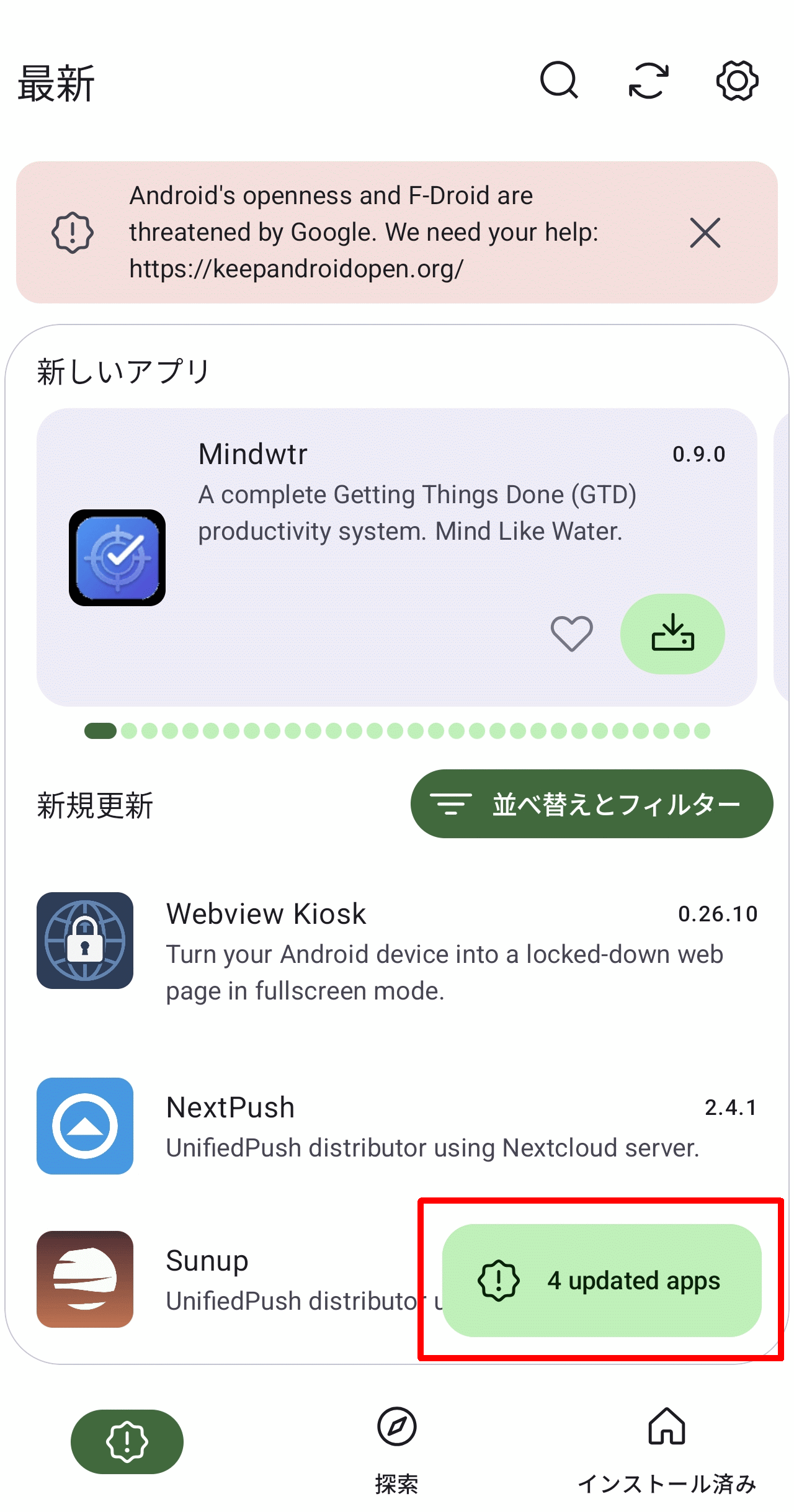
Then, the names of the apps that could be updated were displayed in a tile-like pattern, and upon checking, they were all apps that I had installed using the F-Droid app. I tapped 'Install All' to update them.
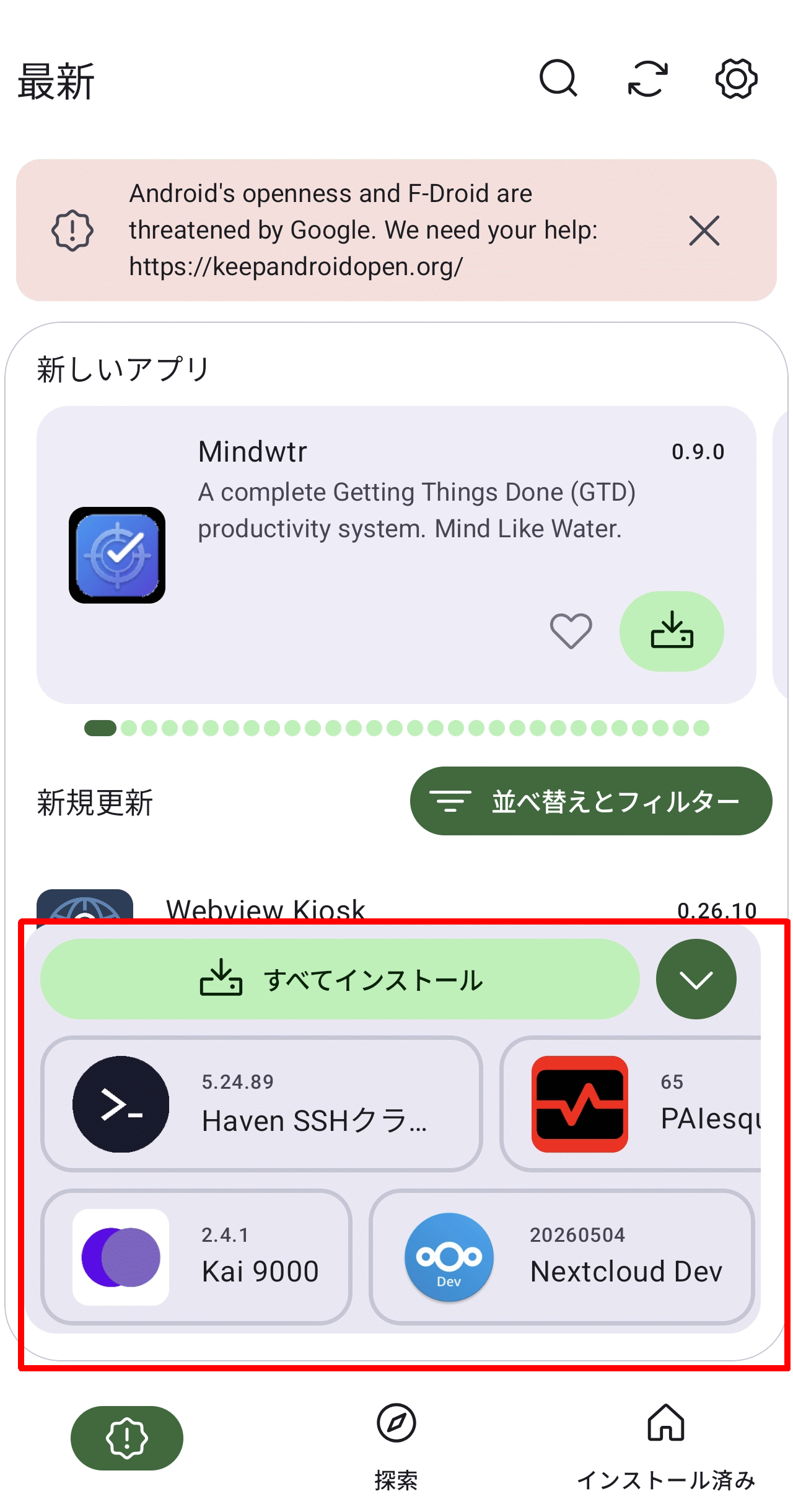
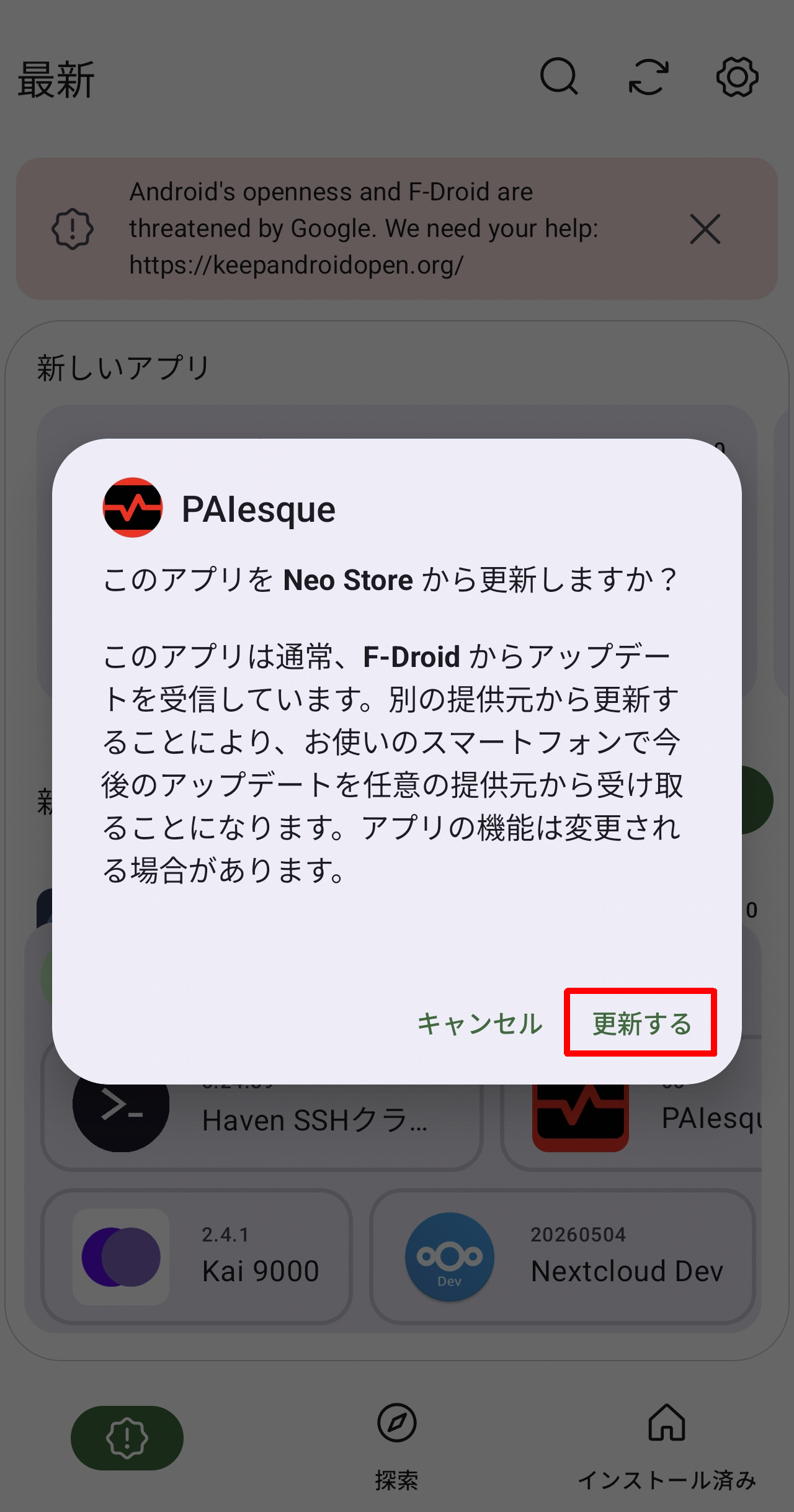
Apps installed via the F-Droid app are set to receive update notifications from F-Droid, so a pop-up will appear confirming that future notifications will be sent from the Neo Store. Since confirmation is made for every single app, the 'Install All' option is essentially no different from updating each app individually.
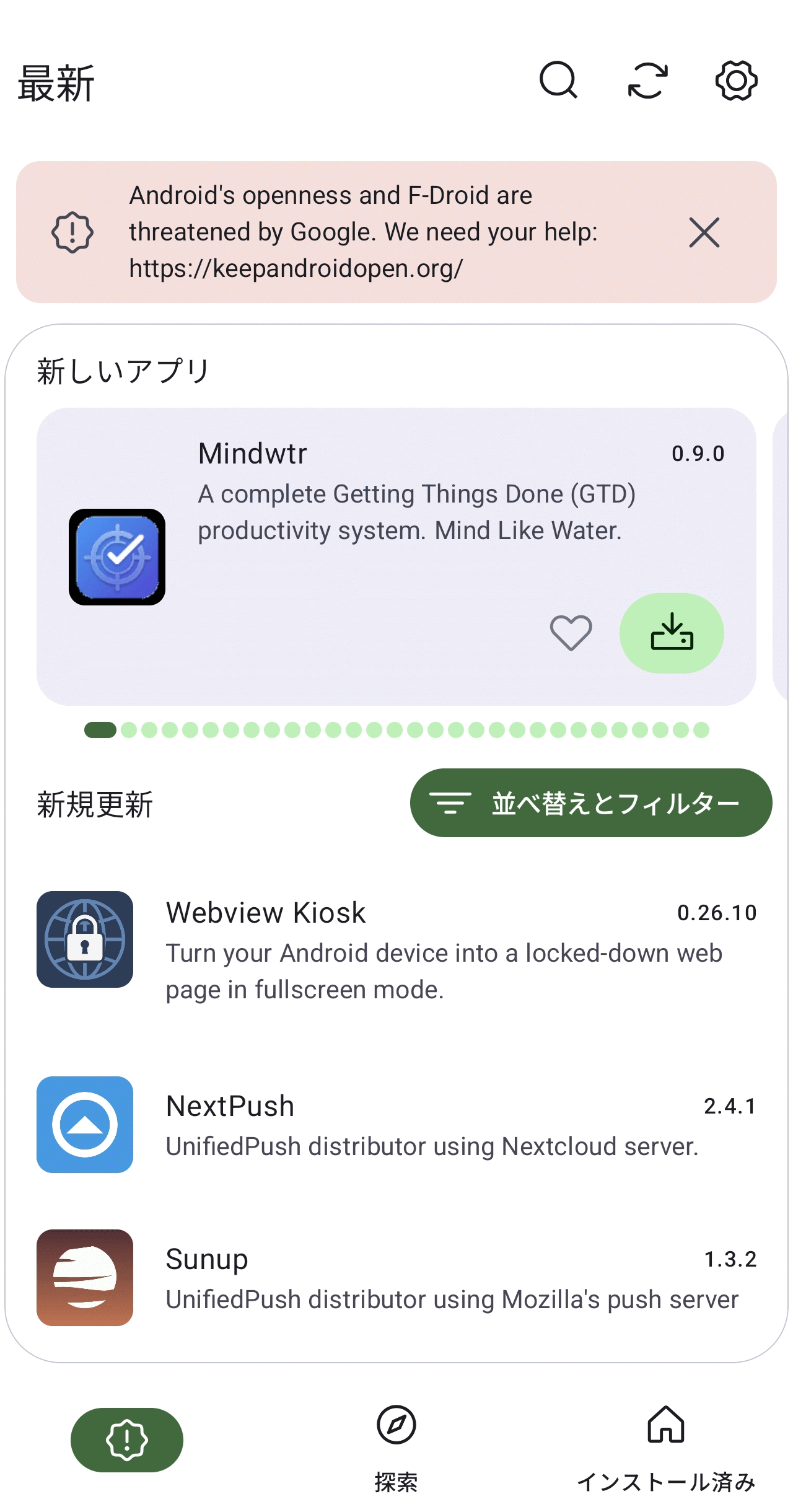
This is what the 'Latest' tab looks like after updating all apps. 'New Apps' and 'New Updates' are displayed.
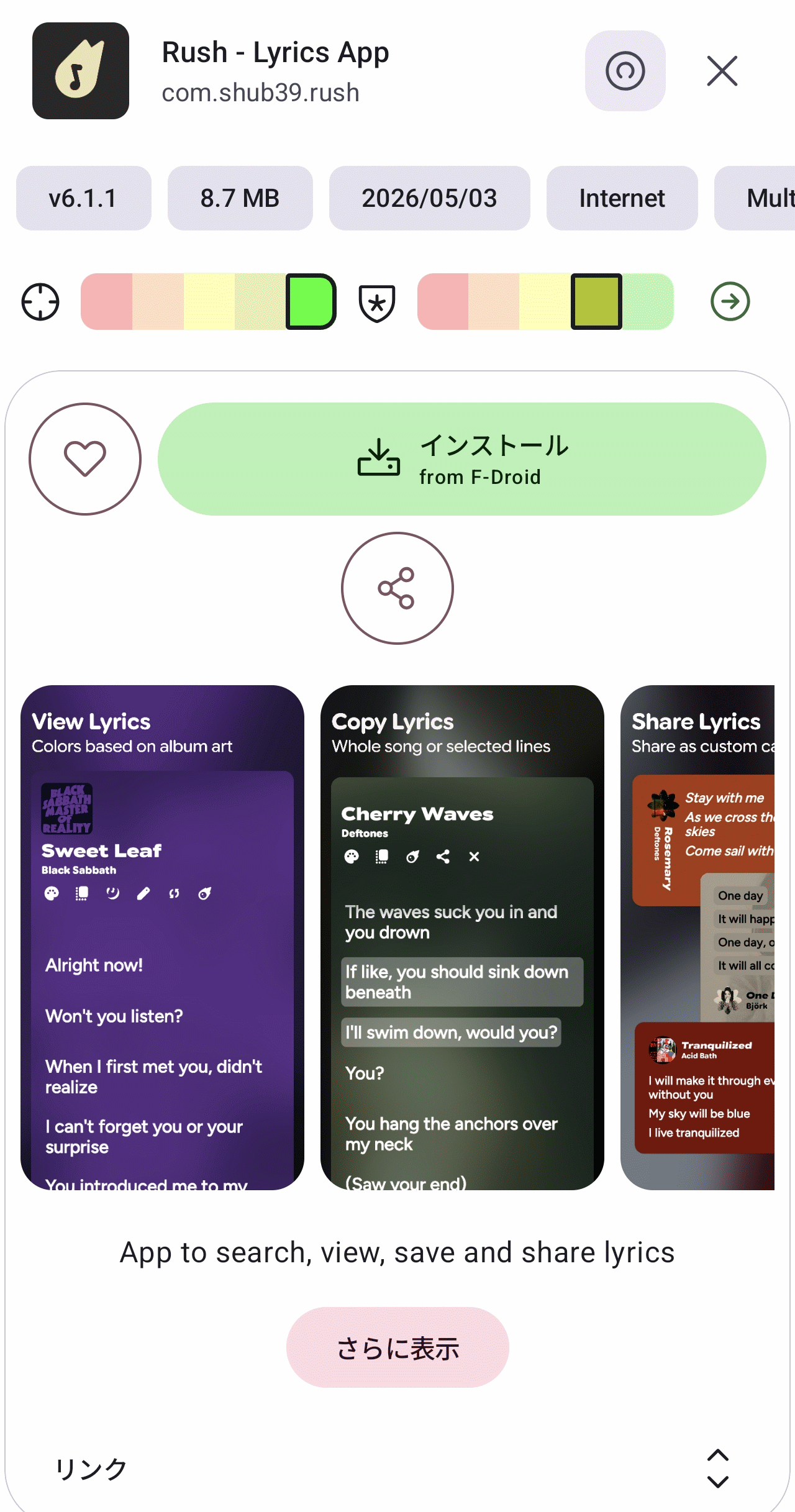
When I tapped the app, the app information was displayed after the 'Install' button.
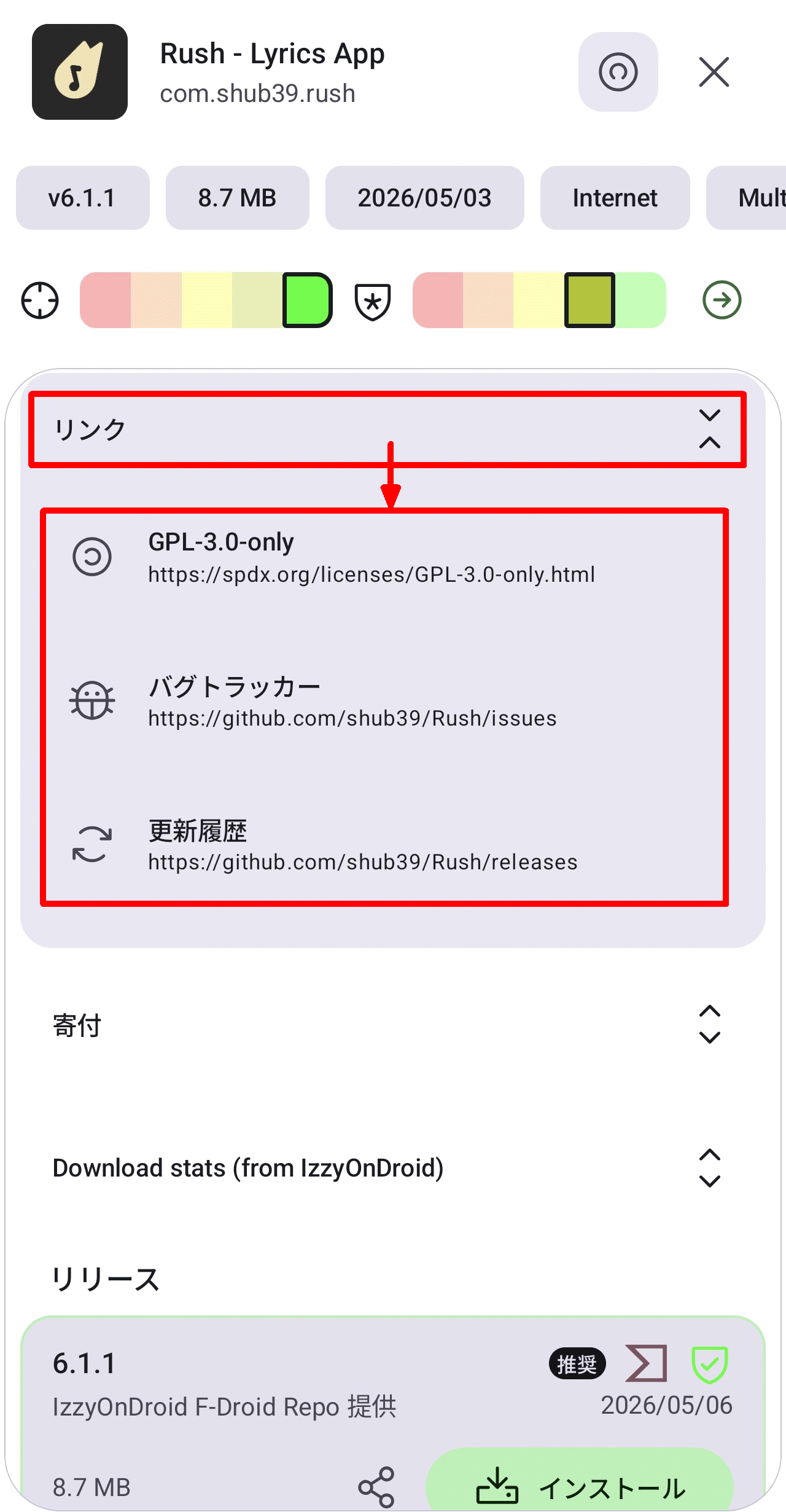
Tapping 'Links' will display various links.
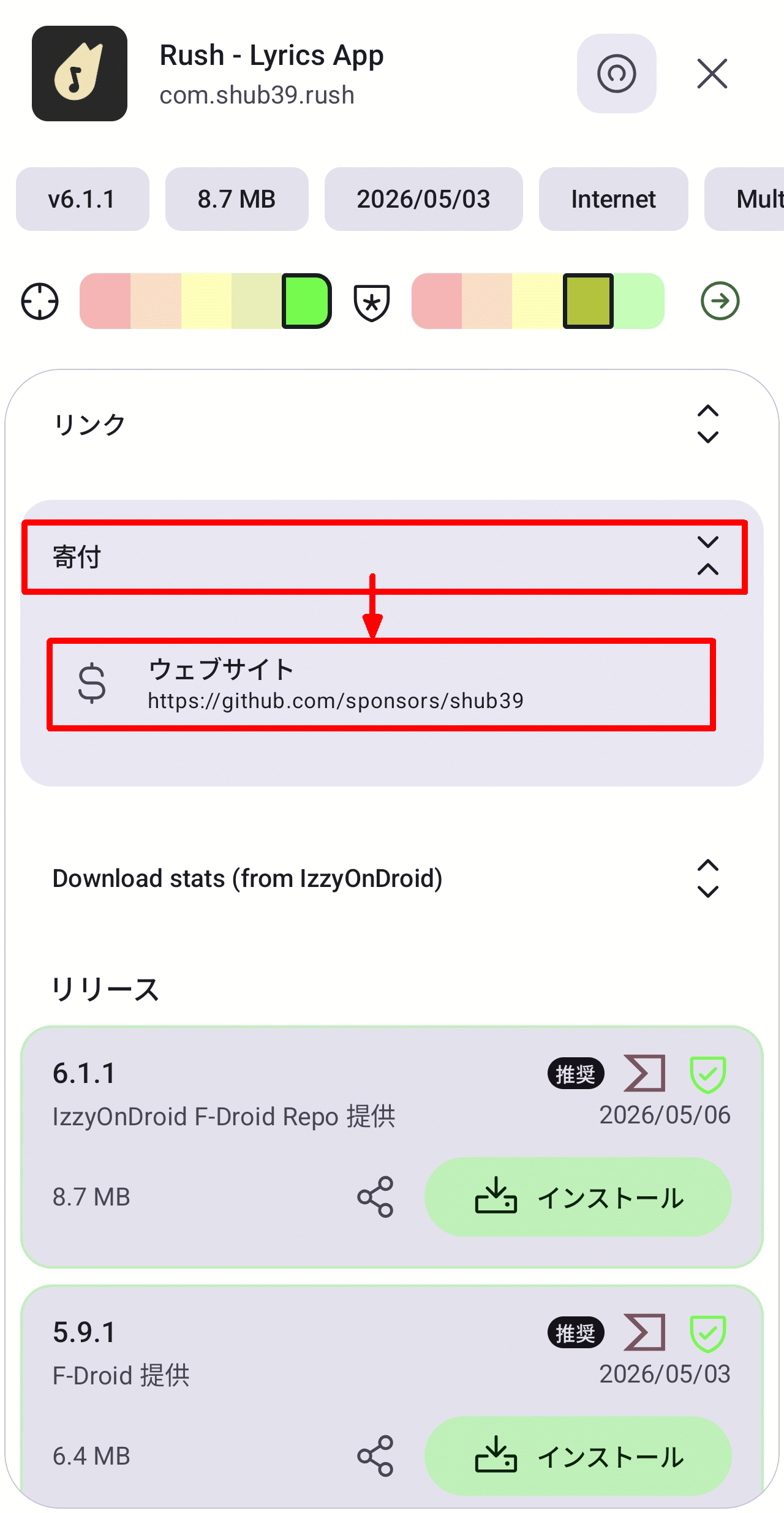
Tapping 'Donate' will display a URL for donation information.
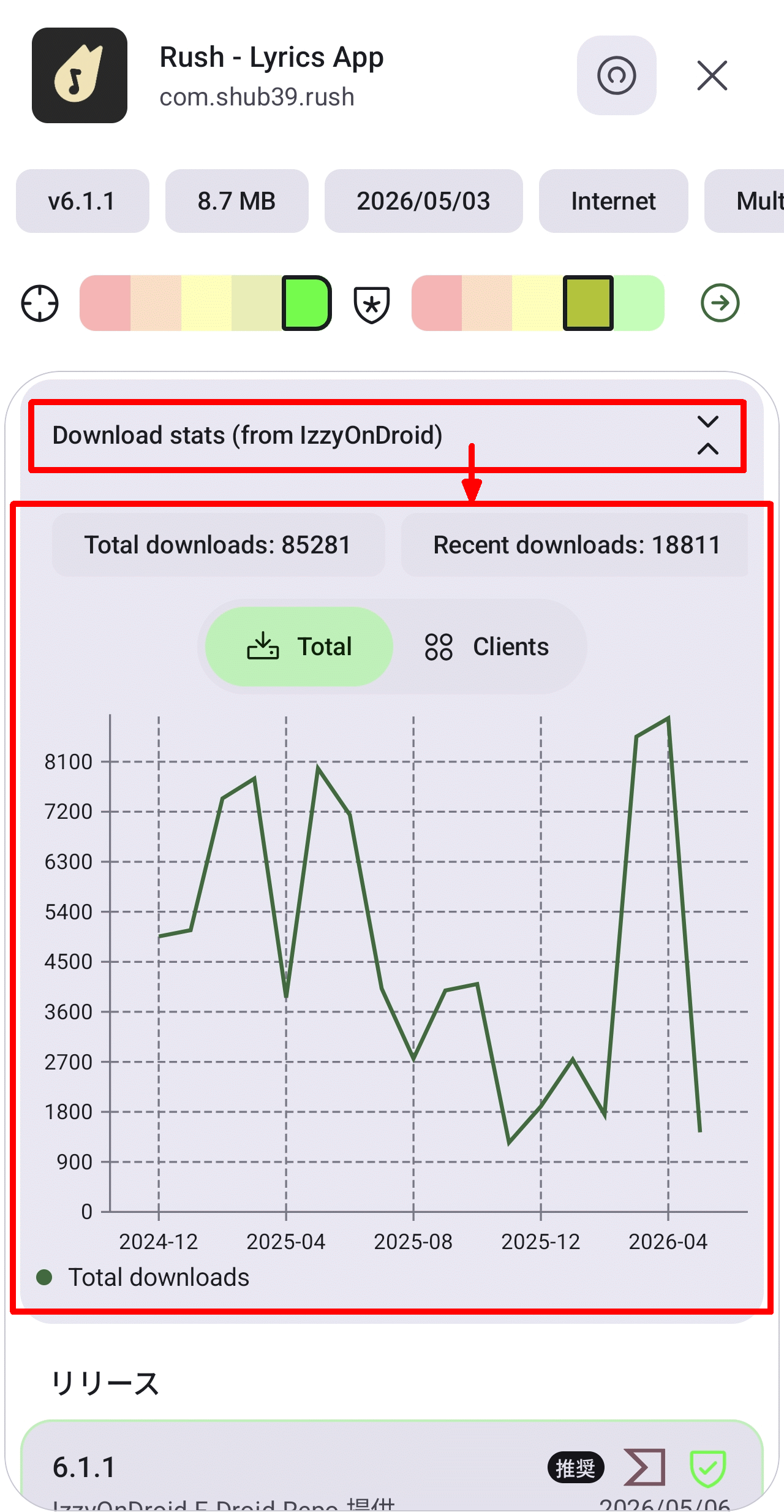
Tapping 'Download stats (from IzzyOnDroid)' will display a graph showing the latest download status.
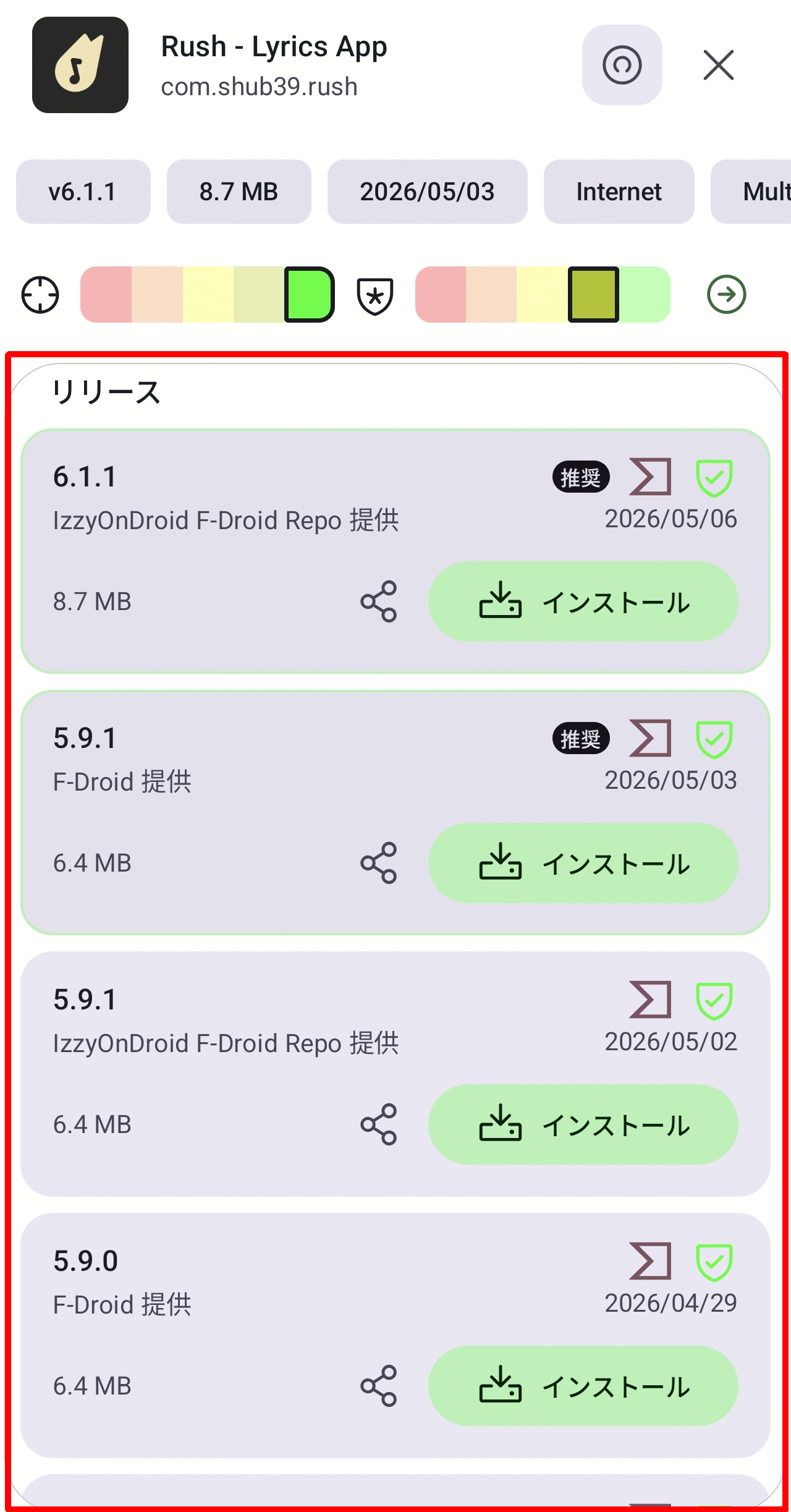
The 'Releases' section displays the latest release information. However, upon closer inspection, it becomes clear that the latest version is not yet reflected in the F-Droid repository.
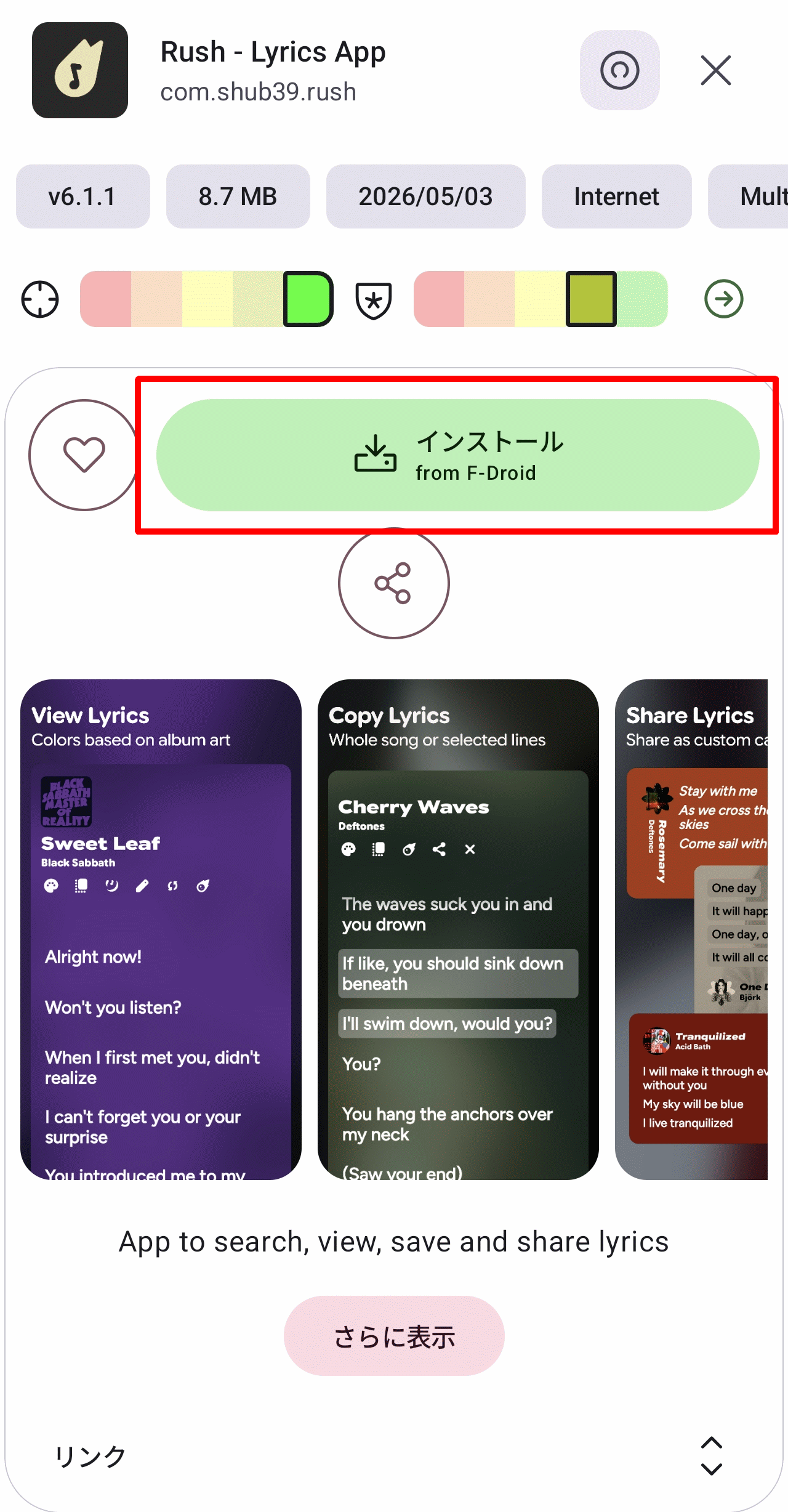
Tap the 'Install' button to begin the installation. The button displays 'from F-Droid,' indicating that the repository being referenced is from F-Droid.
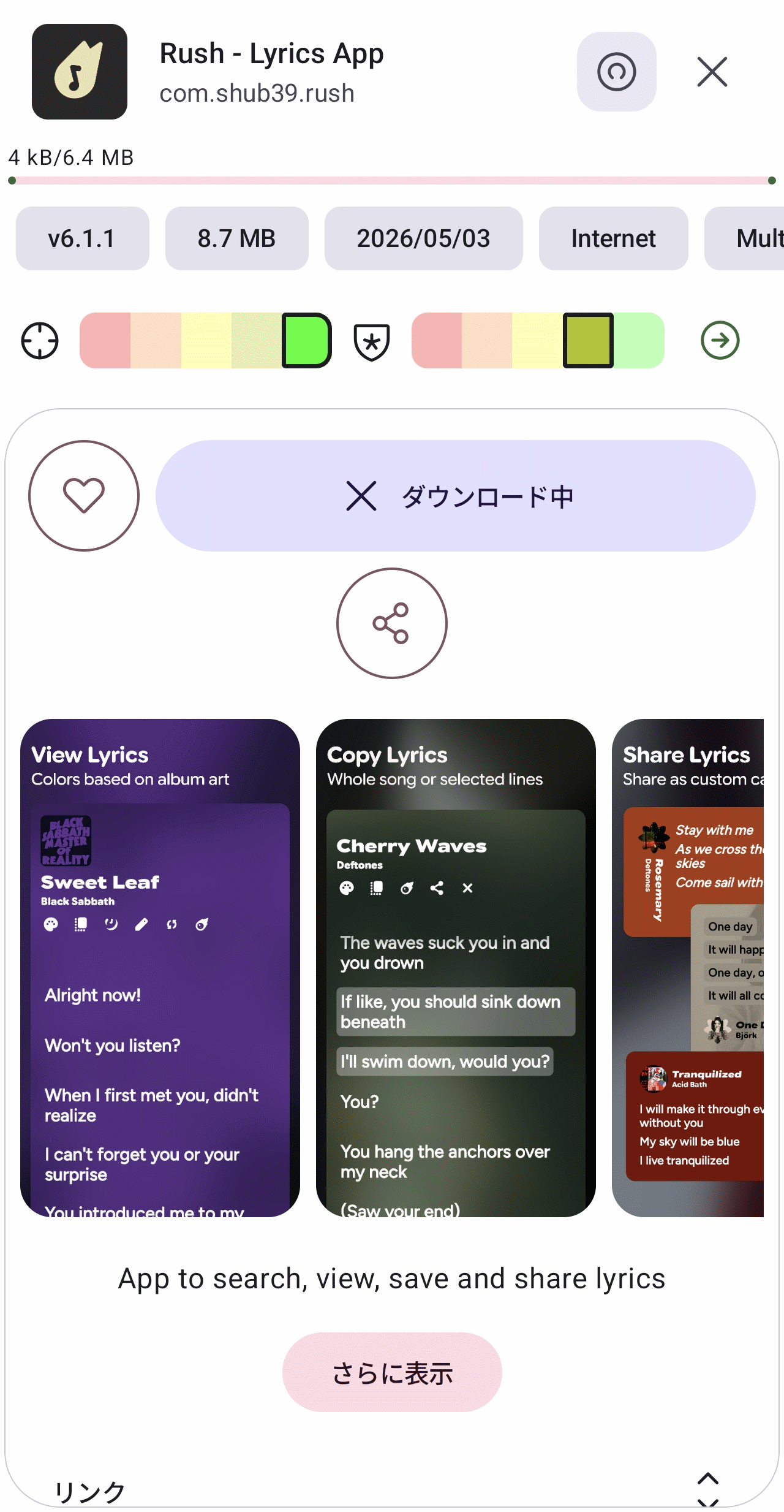
Downloading...
Once the download is complete, a pop-up will appear asking 'Do you want to install this app?'. Tap 'Install'.
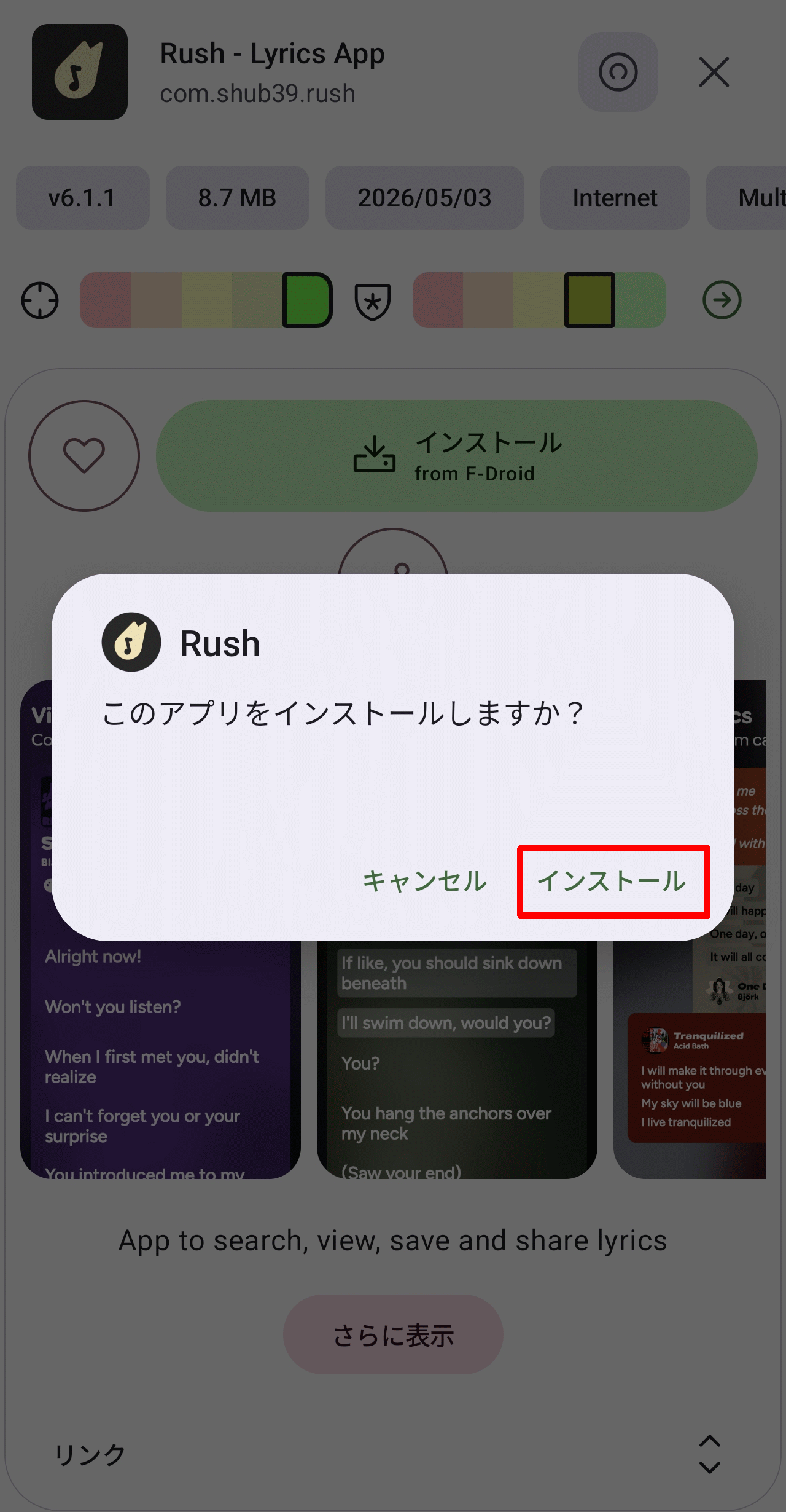
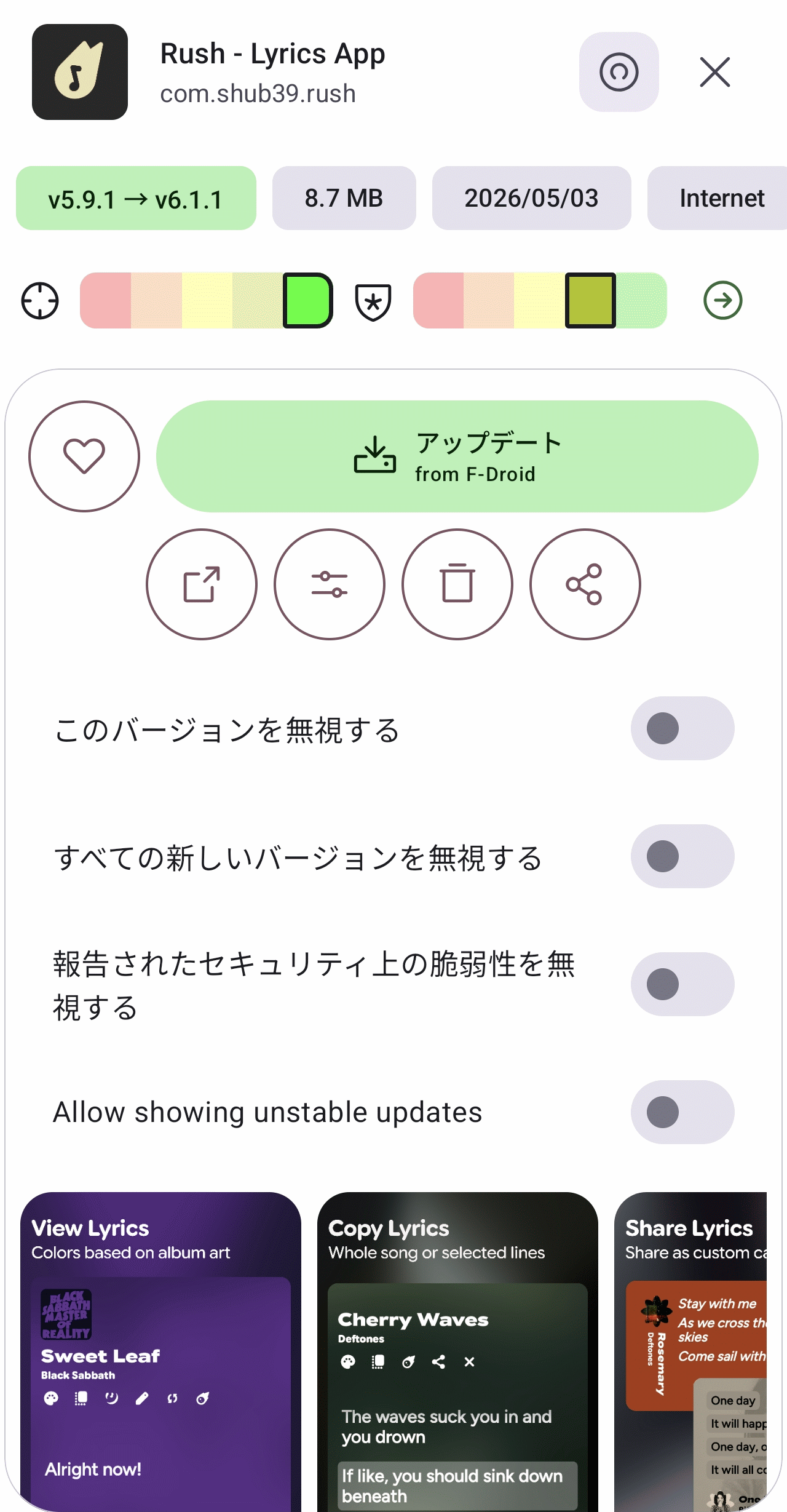
Once the installation was complete, an 'Update' button appeared. This was because although I had installed the latest version from the F-Droid repository, a newer version existed from another repository.
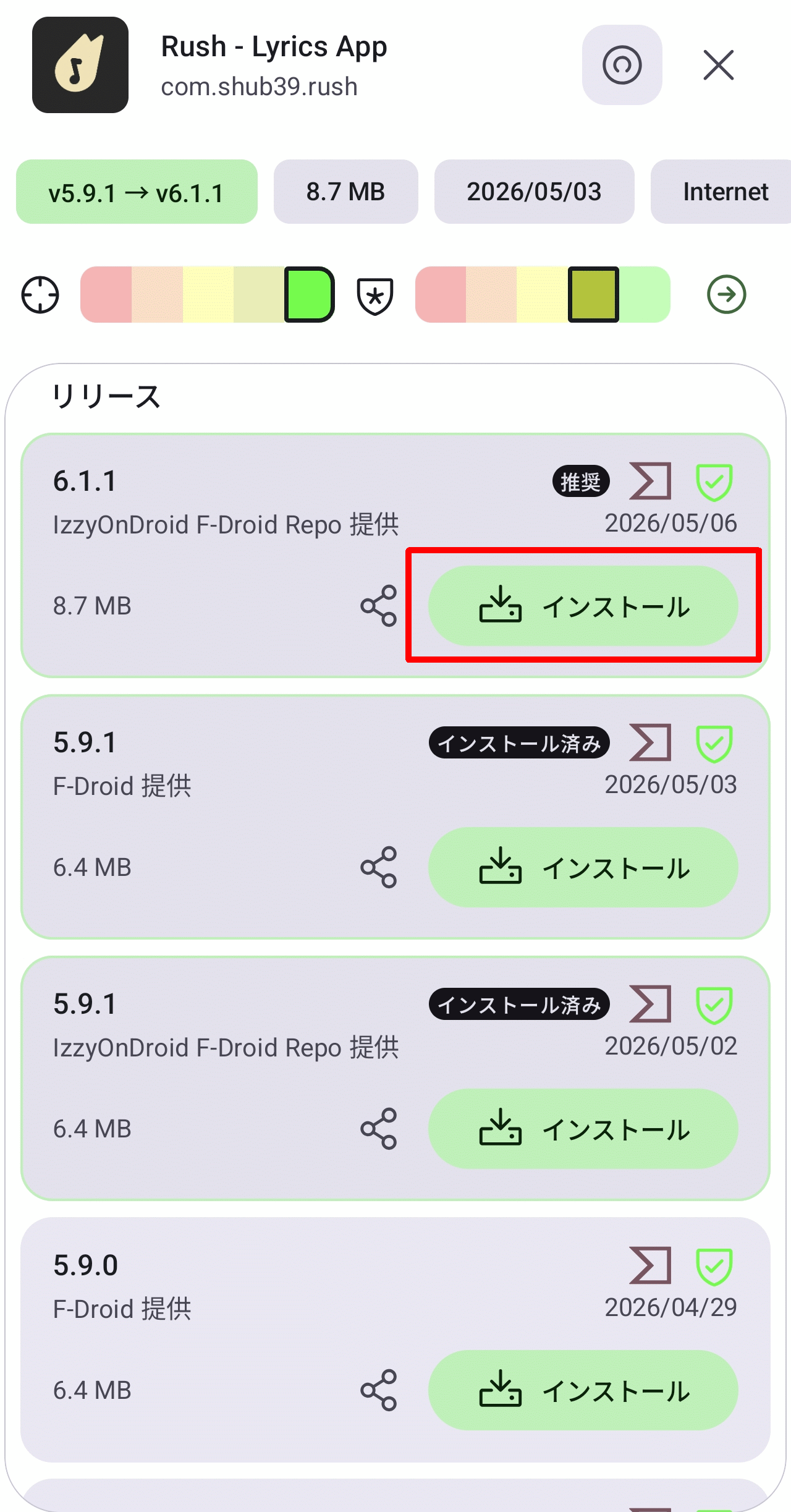
Upon checking the 'Releases' again, you'll see that the latest version is available in the IzzyOnDroid repository. To update, tap the 'Install' button for the latest version.
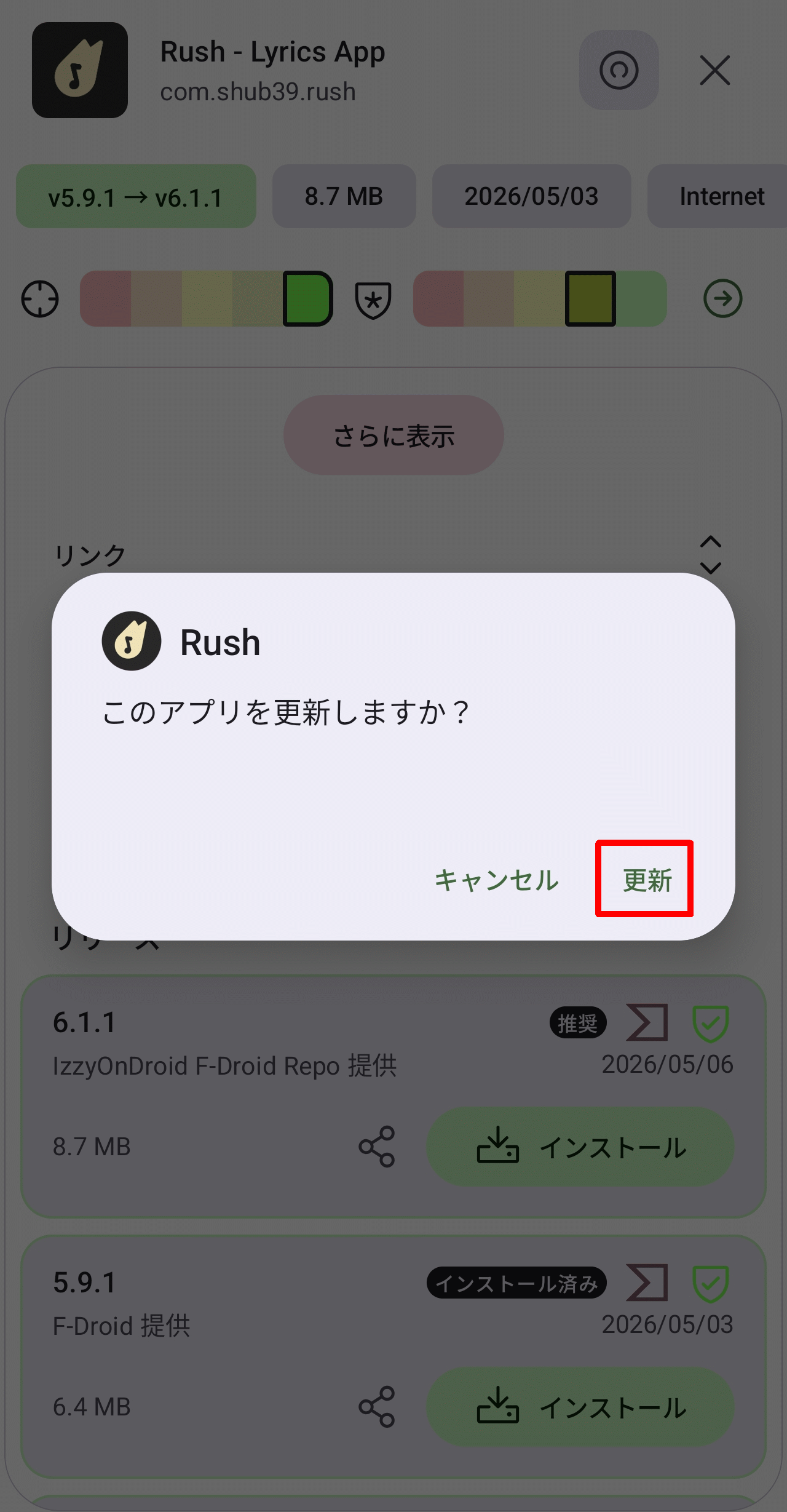
A pop-up will appear asking, 'Do you want to update this app?' Tap 'Update'.
The download progress will begin to be displayed.
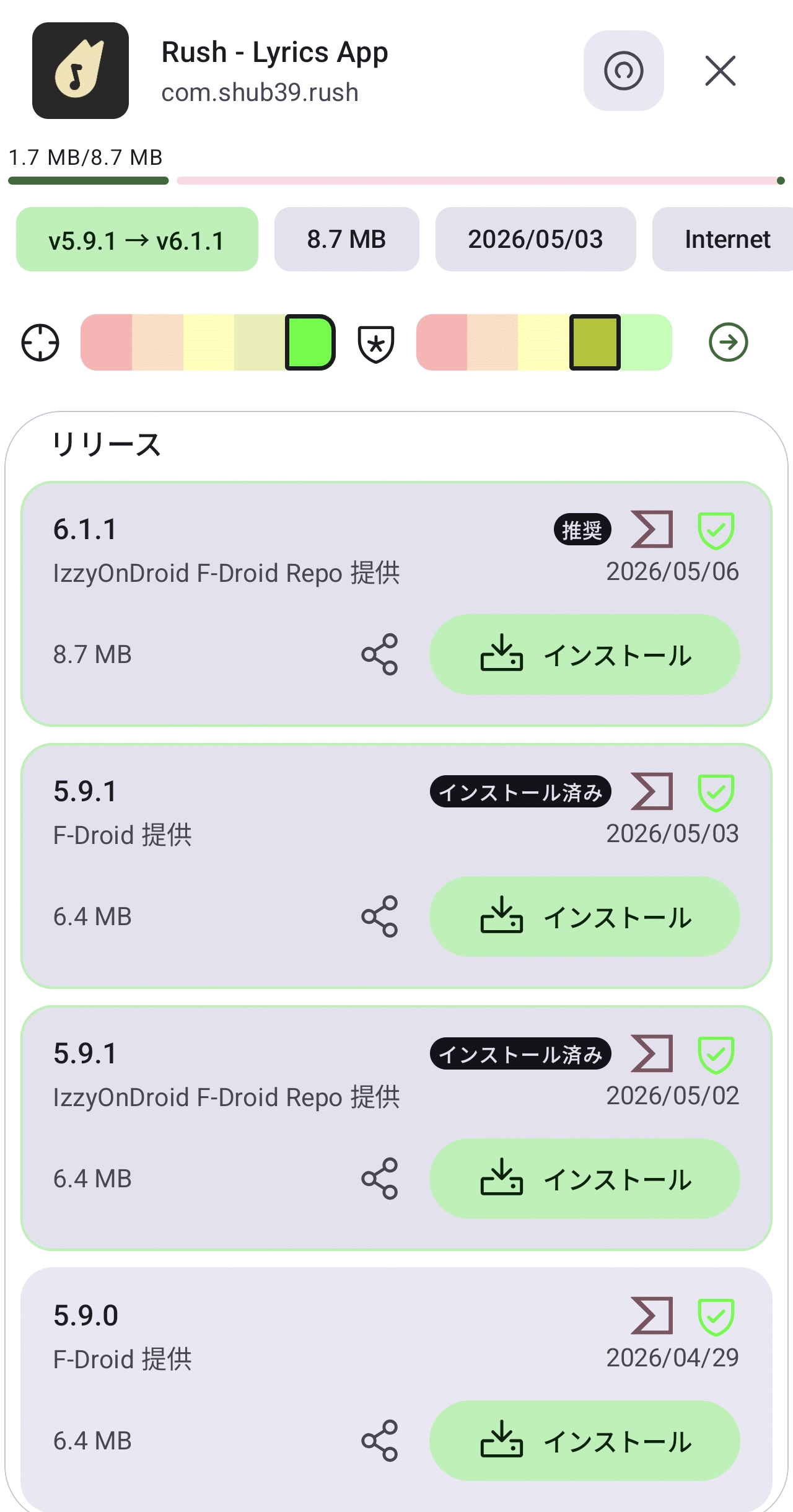
The update appears to be complete. The latest version of 'Release' is now listed as 'Installed'.
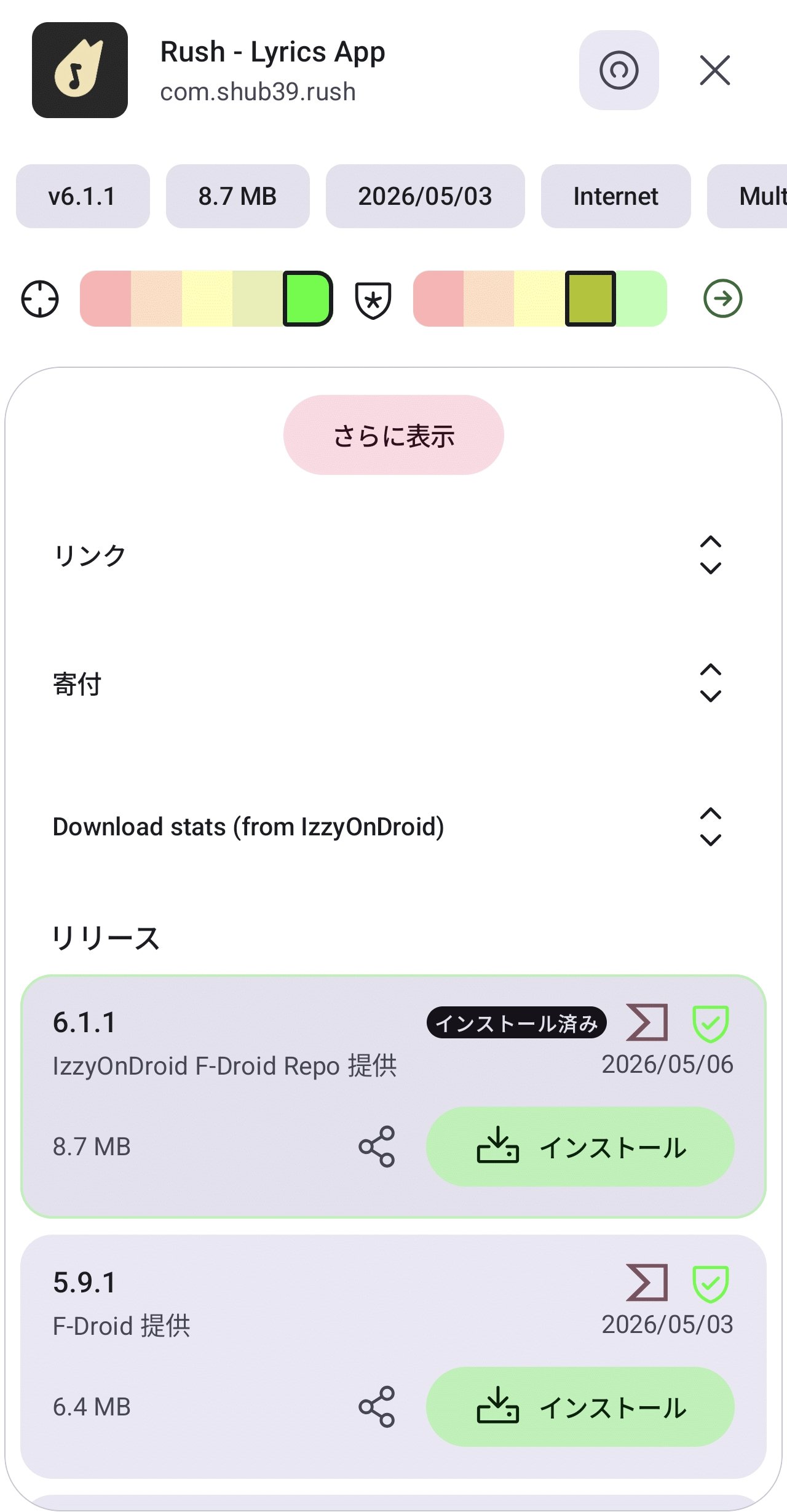
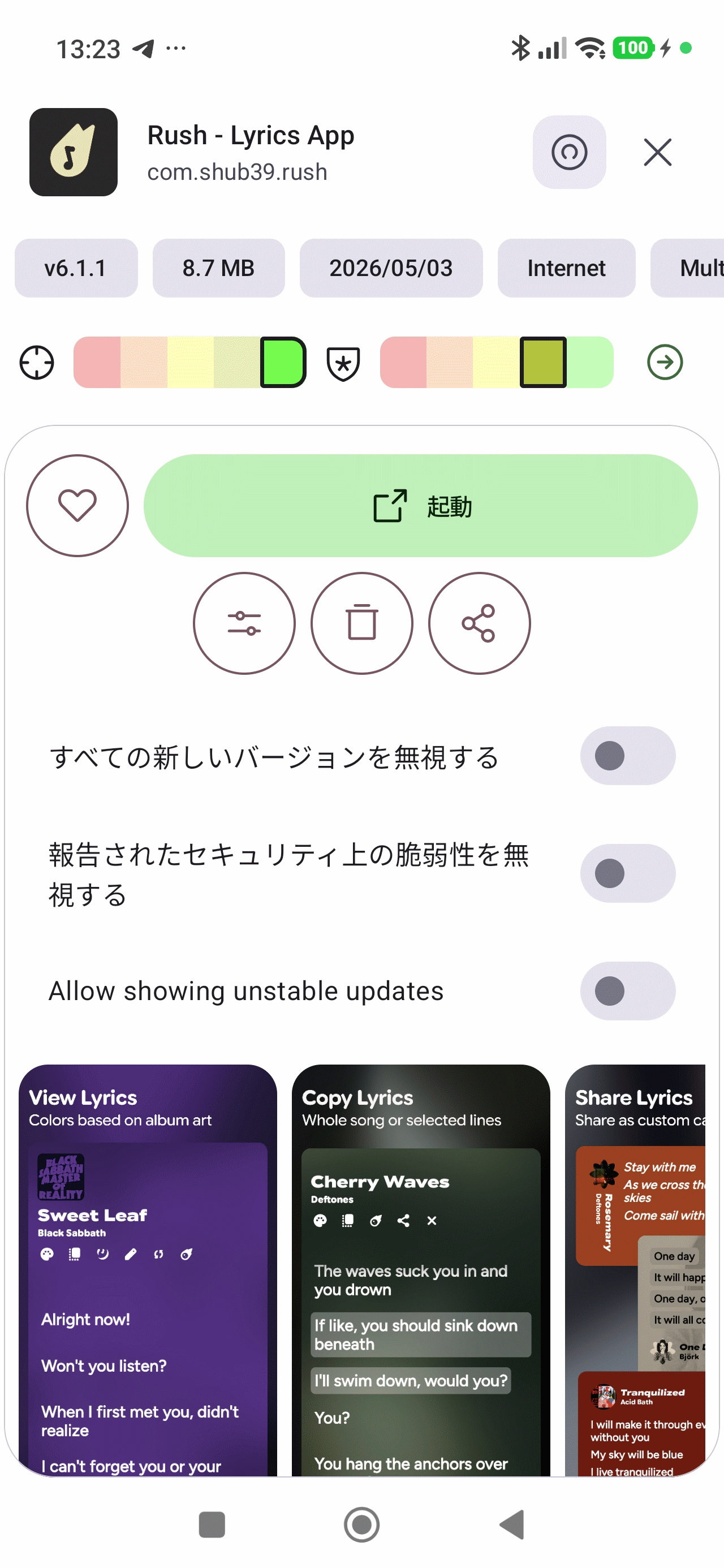
Returning to the top of the screen, you'll see 'Launch' instead of the 'Update' button; tapping it will open the app.
◆Other features
Tapping the heart-shaped icon allows you to add or remove the app from your 'Favorites.'
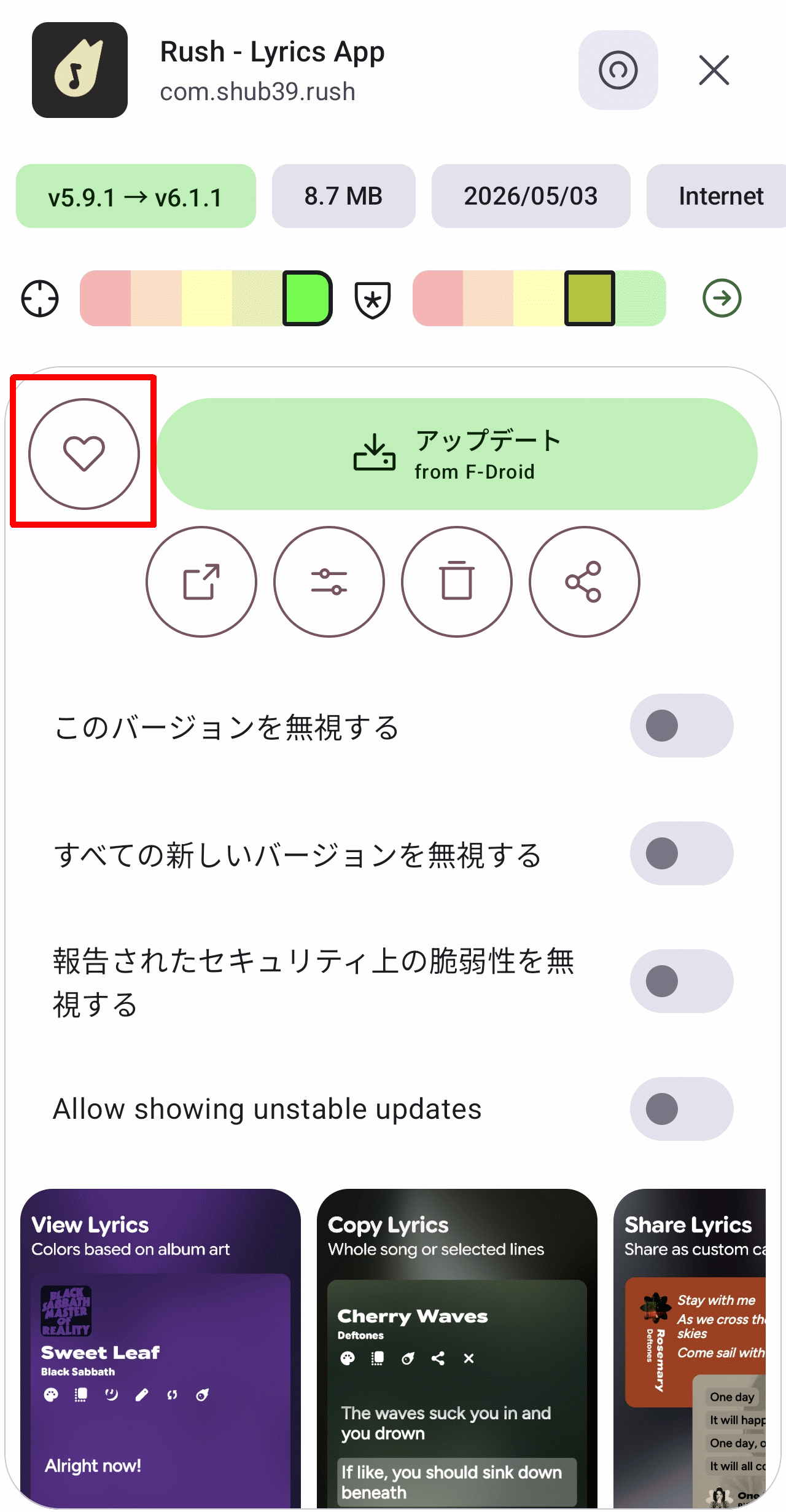
You can launch the app by tapping the launch icon. If the app is already the latest version, the 'Launch' button will be displayed instead of the 'Update' button, so the launch icon, which has a redundant function, will not be displayed.
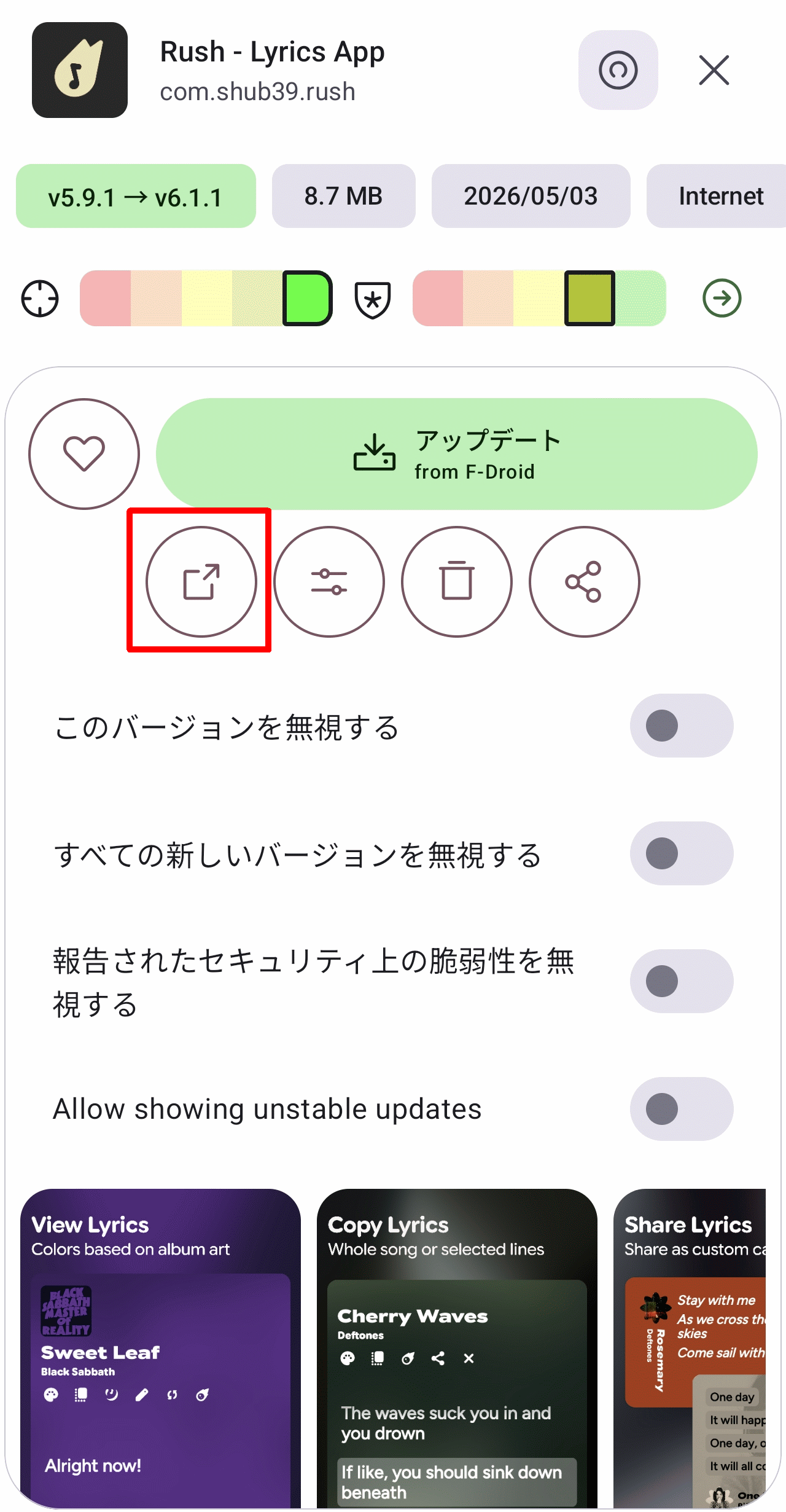
Tapping the settings icon will allow you to view information about the app in question on the OS's 'App Info' screen.
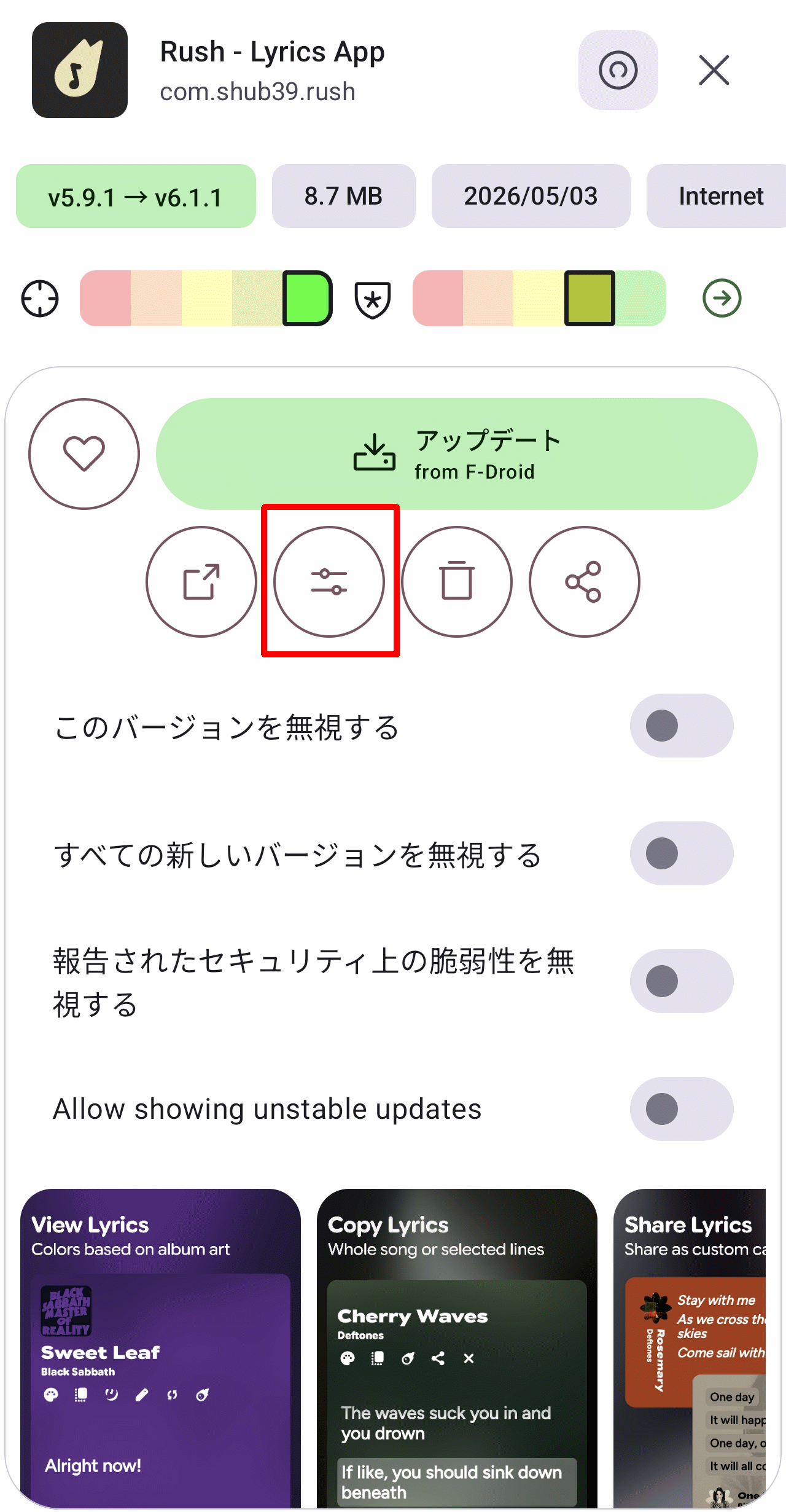
You can uninstall the app by tapping the trash can icon.
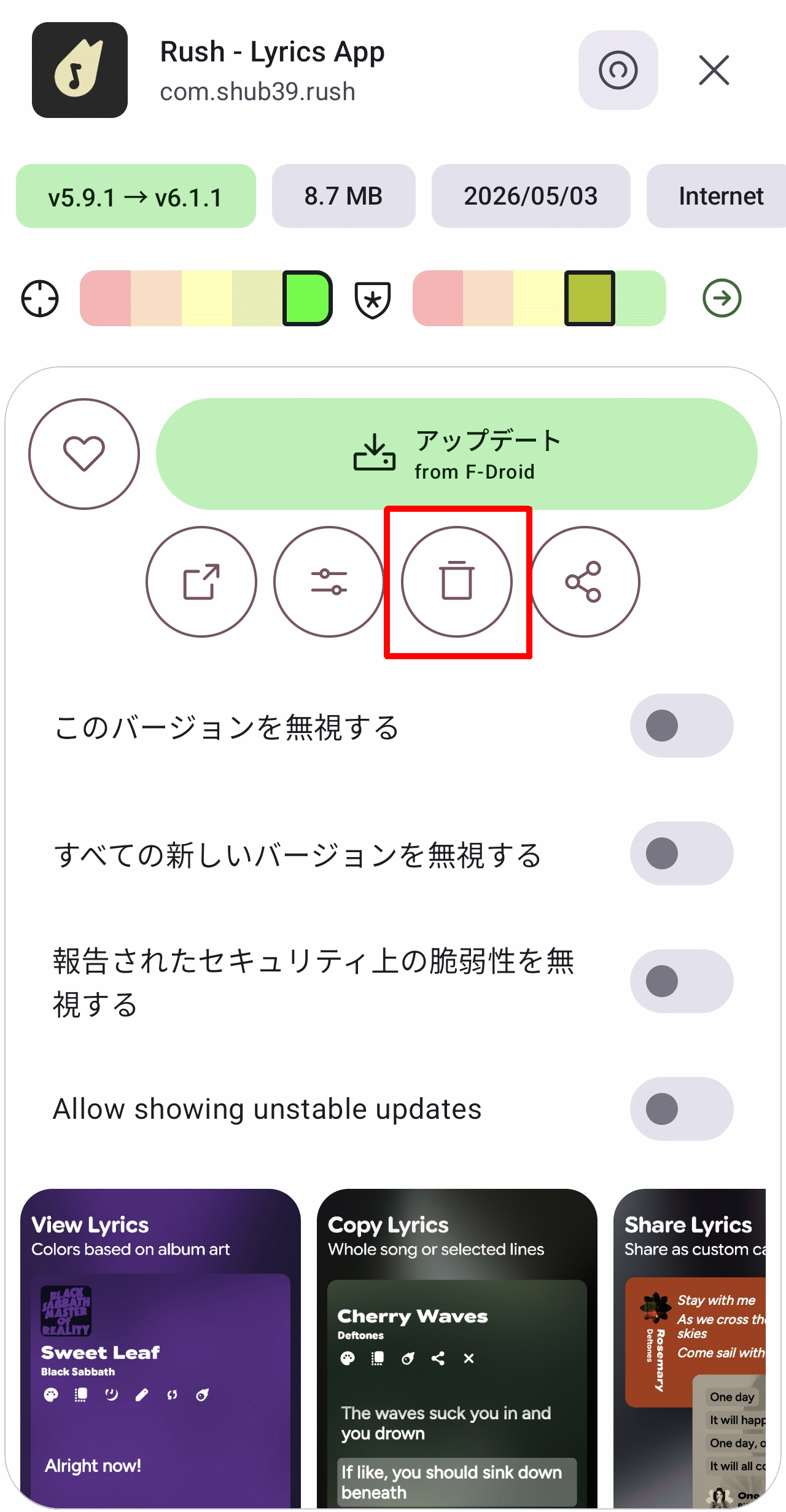
Tapping the share icon will share the page for that app on F-Droid.
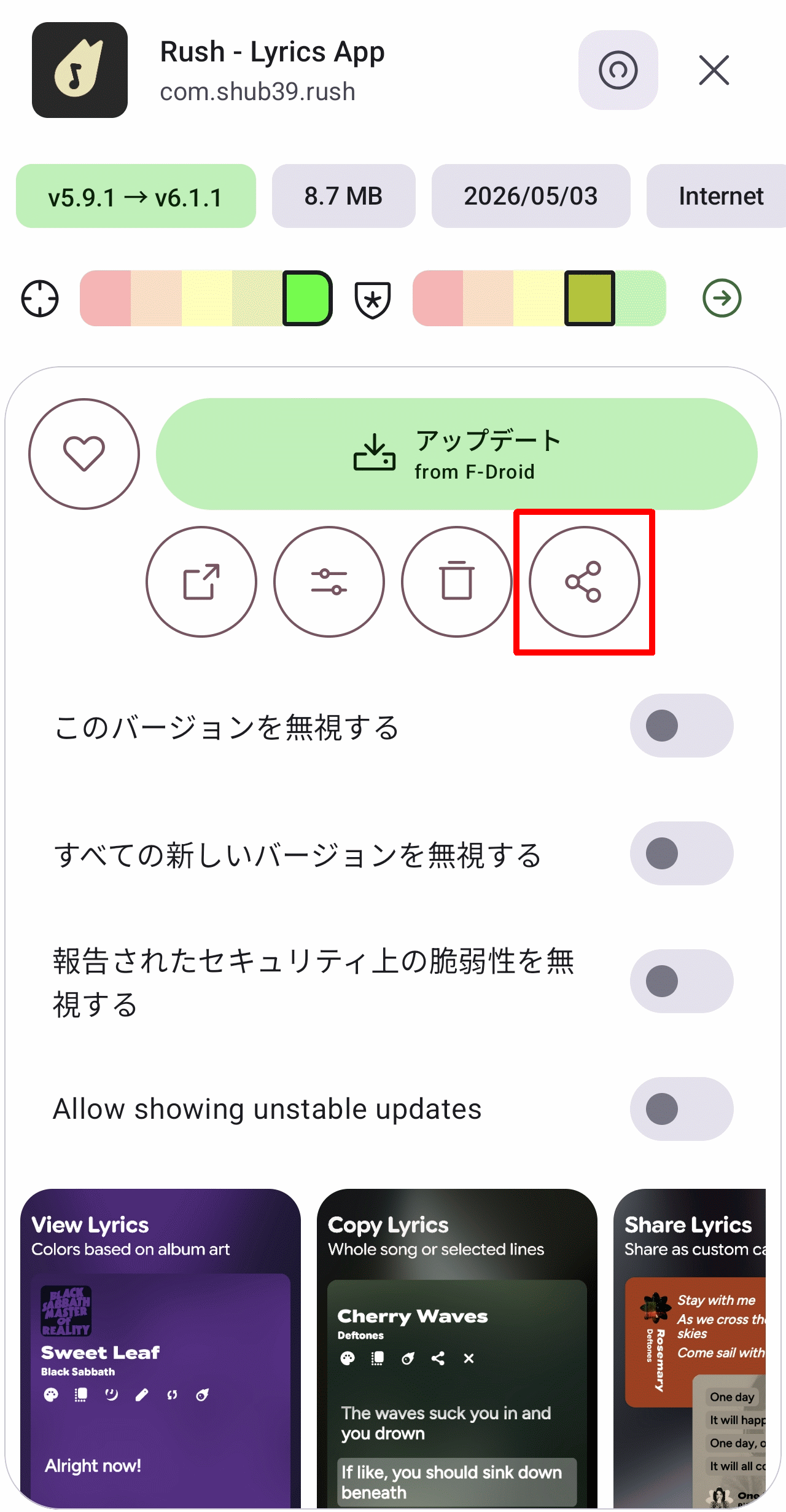
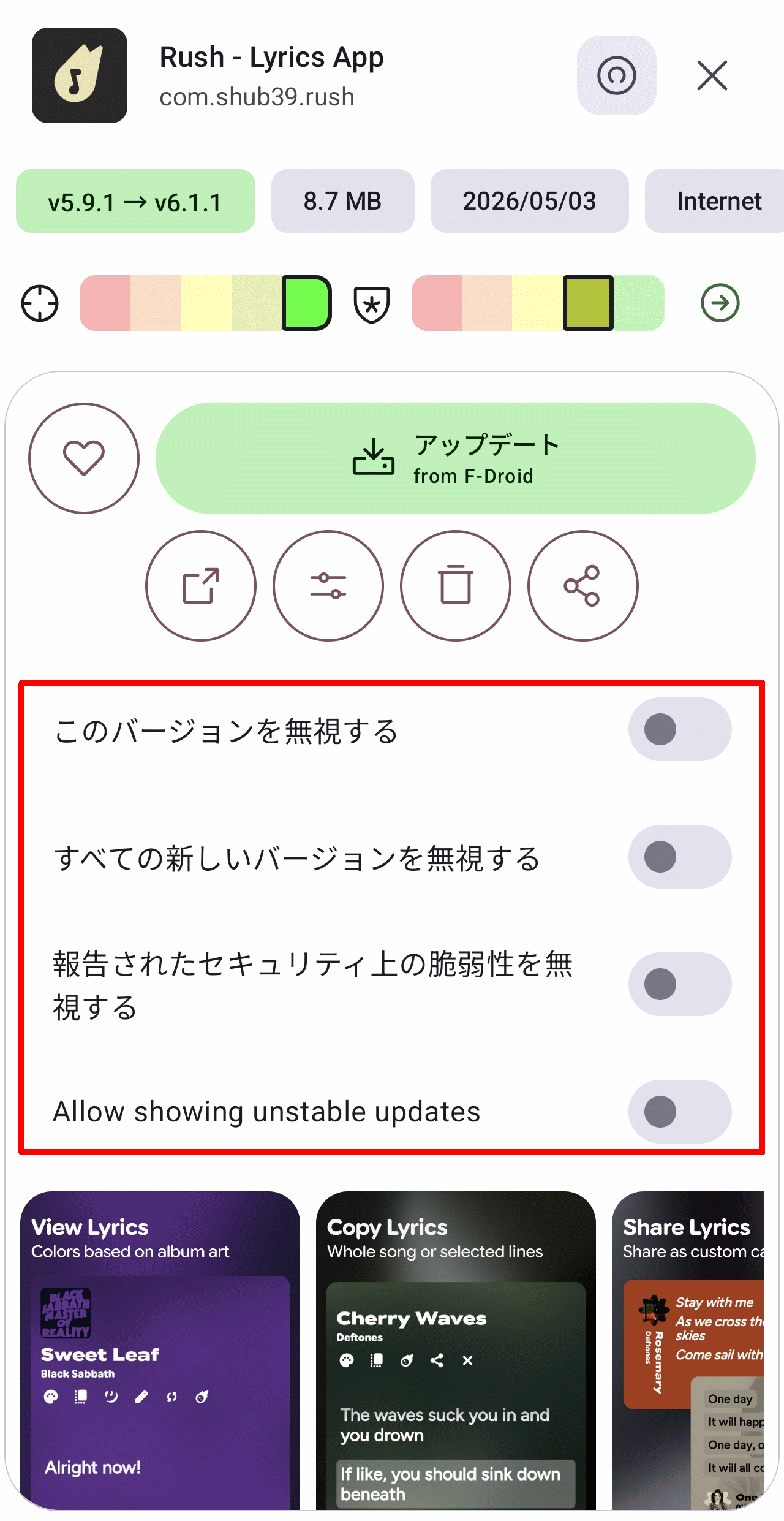
In addition, the following settings can be adjusted by turning the on/off switches on the screen.
- Ignore this version: You will no longer be prompted to update to the latest version.
- Ignore all new versions: You will no longer be prompted to update to future versions.
- Ignoring reported security vulnerabilities
• Allow showing unstable updates: Show unstable versions as well.
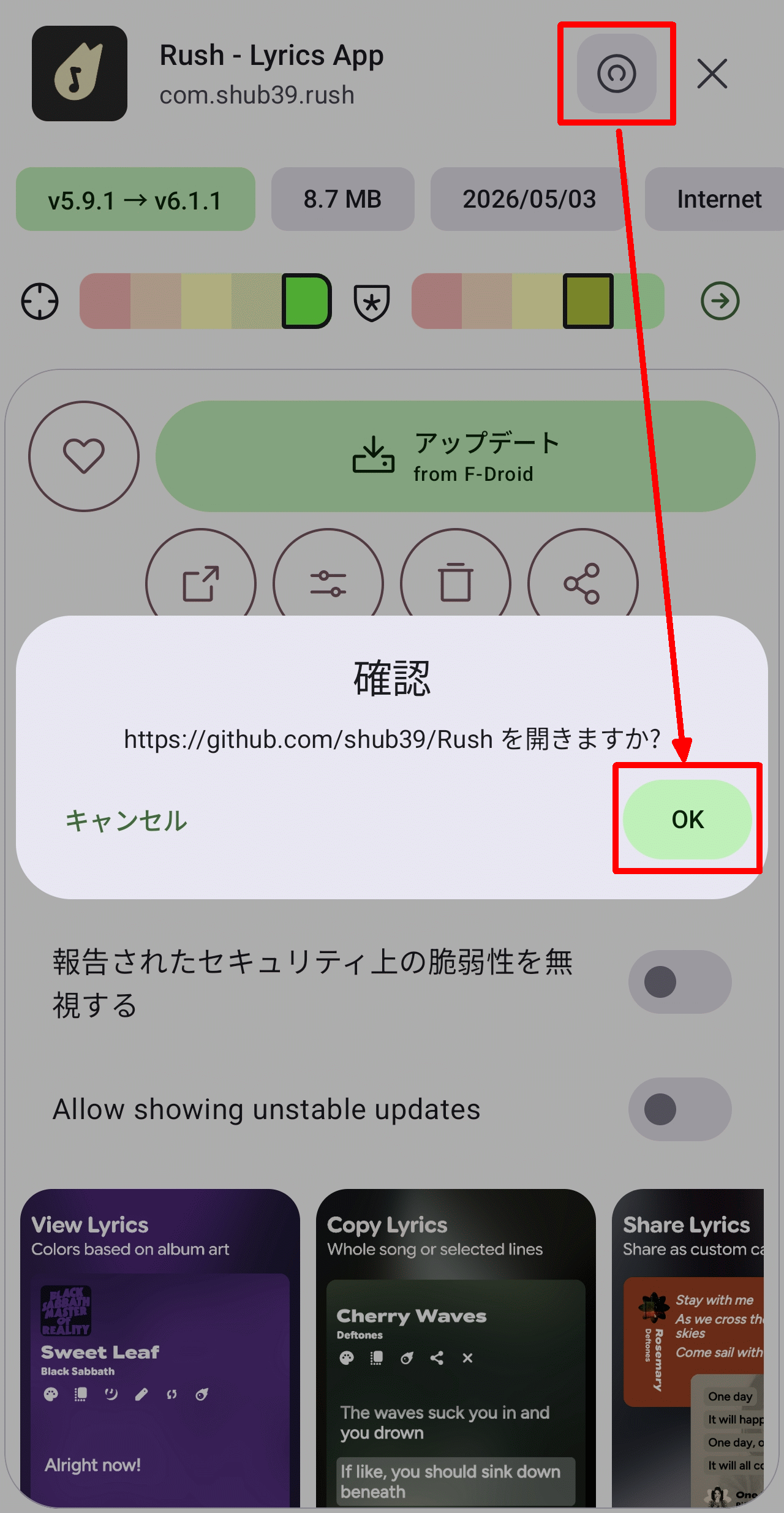
Tapping the © icon at the top of the screen, which is rotated 90 degrees clockwise, will take you to the page of the corresponding Git repository hosting service (such as GitHub or Codeberg).
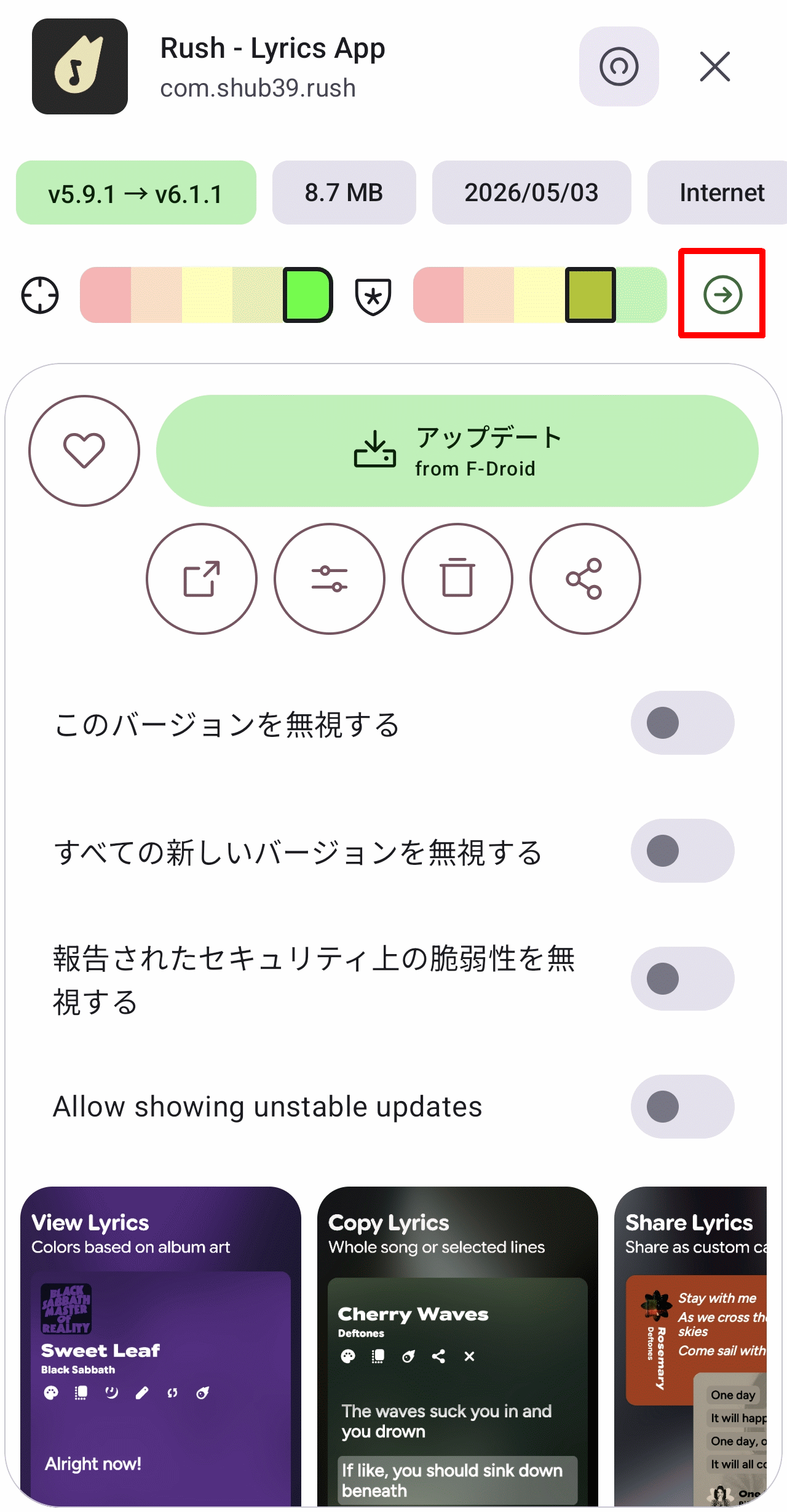
Tapping the right arrow icon in the upper left corner of the screen will take you to a screen that displays the permissions required by the app.
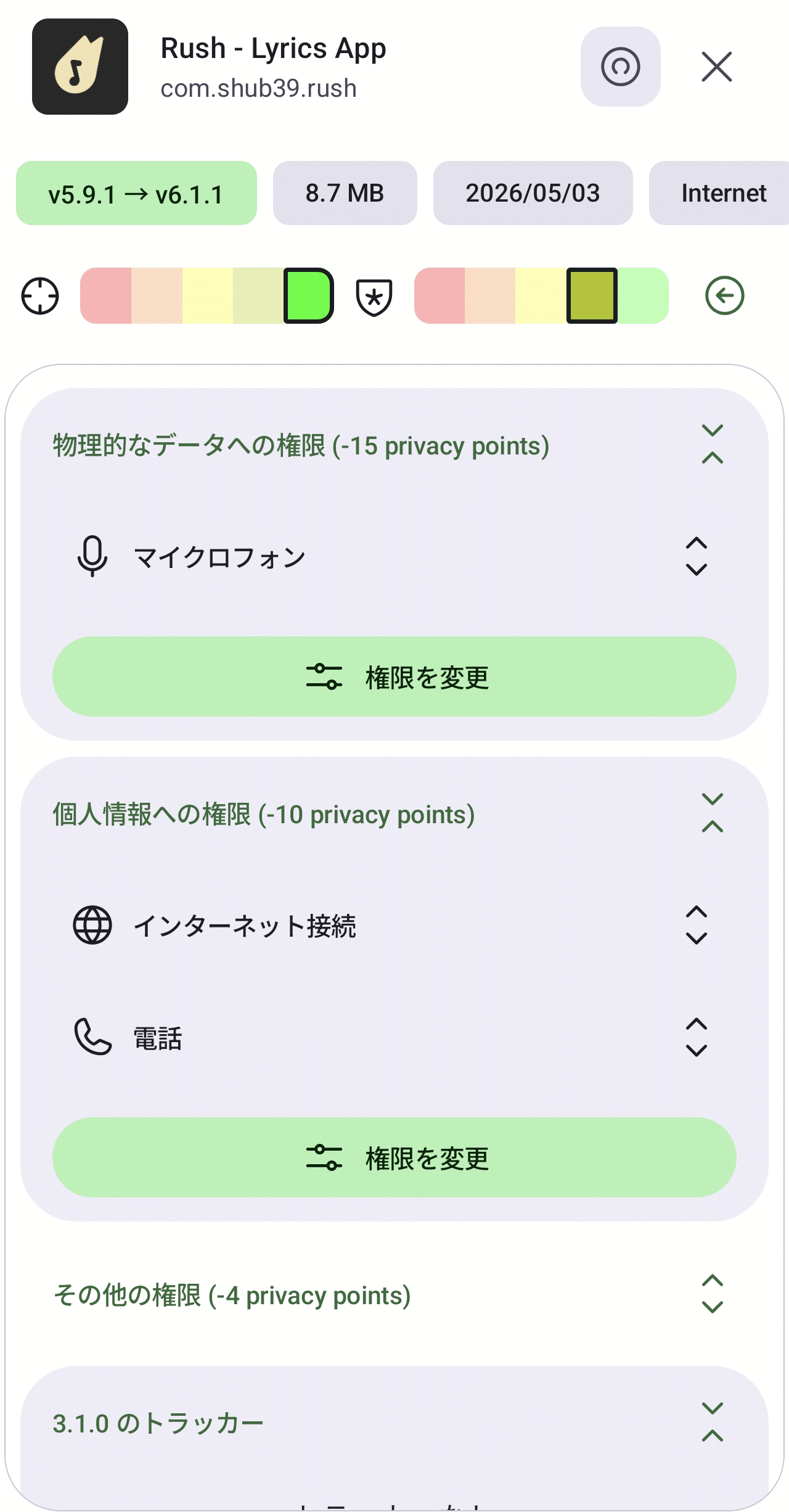
You can check and change the required permissions as follows:
◆Settings
To access the settings screen, tap the gear icon in the upper right corner of the main screen.
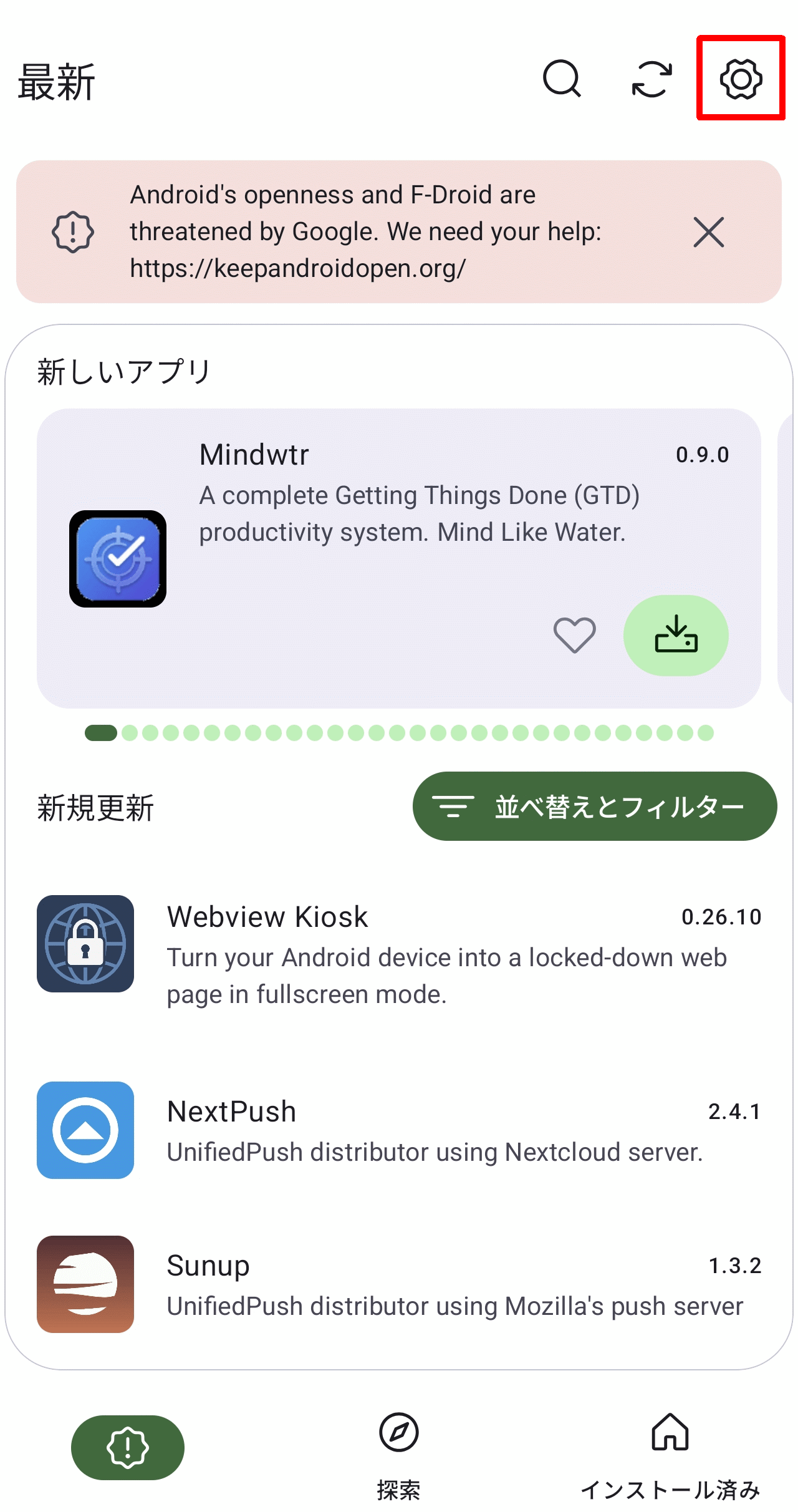
The settings screen consists of four tabs.
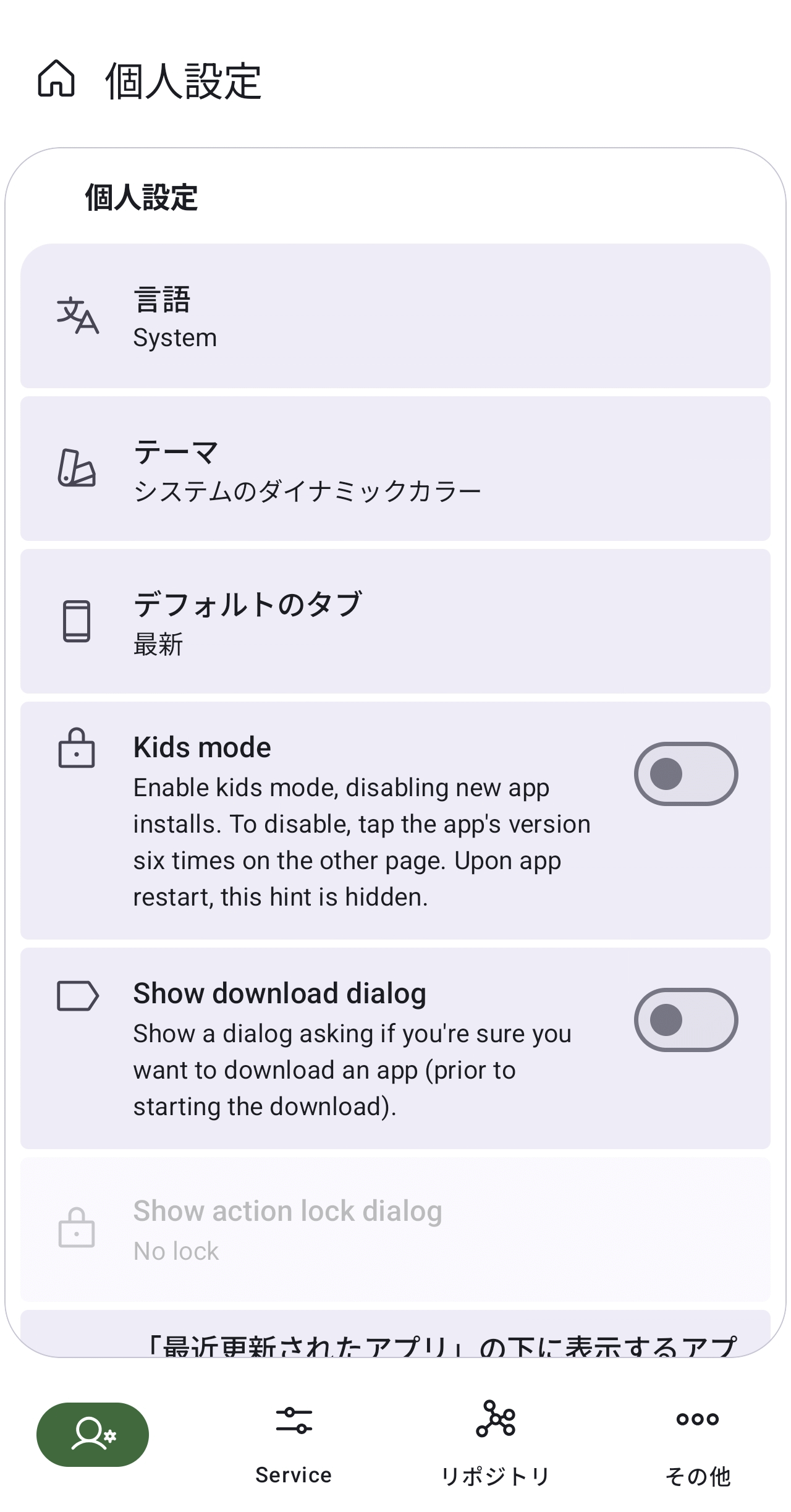
Personal settings
The 'Personal Settings' tab contains the following settings:
·language
·theme
- Default tab
Kids mode
Show download dialog
Show action lock dialog
- Number of apps to display under 'Recently updated apps'
- Number of apps to display under 'New Apps'
・Use alternative layout for page blocks
・Use alternative navigation bar item
・Use alternative new apps layout
Hide new apps bar
• Bottom search bar
• Disable list-detail layout
Show screenshot
Show tracker
・Show Android version instead of SDK
- Use a custom download folder
- Retaining the cache of downloaded APKs
- Retention of image cache
Service
The settings for the 'Service' tab are as follows:
- Automatically synchronize repositories
• Automatic renewal (hourly)
Automatic updates
・Enable Index-V2
Show disabled apps
Download stats provider
・Reproducible build logs provider
• System Download Manager
- Notify users of new app versions
- Unstable updates
- Incompatible versions
- Disable download version check
Disable signature checks
• Disable permissions check
・Disable auto-update on new critical permissions
・Disable auto-update on non-reproducible updates
Keep the installation notification
Types of installers
- Use the root session installer
Allow downgrading apps
・Allow installing older apps
・Maximum number of parallel downloads when Neo Store's download manager is used.
・Maximum number of idle connections across all addresses to be kept alive.
・Disable SSL certificate check (requires restart the app)
Proxy type
Proxy URL
Proxy host
Proxy port
Repository
The 'Repository' tab contains the same content as the 'Setup: Repository' screen that appeared when the application was first launched.
·others
The items in the 'Other' tab are not settings, but rather export and import functions.
- Export data (favorites, updates to ignore, etc.)
- Import data (favorites, updates to ignore, etc.)
Export the repository
- Import the repository (overwrite the current state)
- Import a list of installed apps and install the app (if one exists, retrieve it from a valid repository).
◆Summary
Using Neo Store allows you to check multiple repositories across different platforms, enabling you to update your apps to the latest version more quickly. If you're an Android user and using F-Droid, try Neo Store to keep your apps up to date.
Related Posts:




in Software, Smartphone, Review, Posted by log1c_sh