'Amaze File Manager' is a free and simple file manager for Android that can handle multiple tabs simultaneously without ads or in-app purchases.
When trying to manage files on Android, you generally use something like
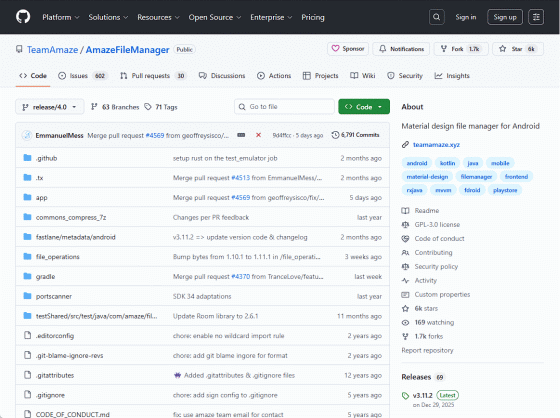
GitHub - TeamAmaze/AmazeFileManager: Material design file manager for Android
https://github.com/TeamAmaze/AmazeFileManager/tree/release/4.0
◆Features
The features of Amaze File Manager listed on the official GitHub site are as follows:
・Open source and lightweight
・UI based on Material Design guidelines
- Basic functions such as cut, copy, delete, compress, and decompress can be easily used
- Multiple tabs can be operated at the same time
-Multiple themes with cool icons
Navigation drawer for quick navigation
- Launch, backup, and uninstall any app using the app manager
- Quickly access your history and bookmarks, and search for any file.
・Root explorer for advanced users
- AES encryption and decryption of files (Jellybean v4.3+)
- Cloud service support (Jellybean v4.3+, requires additional plugin)
- Built-in database reader, Zip/Rar reader, APK reader, and text reader.
- No ads or in-app purchases
◆Installation
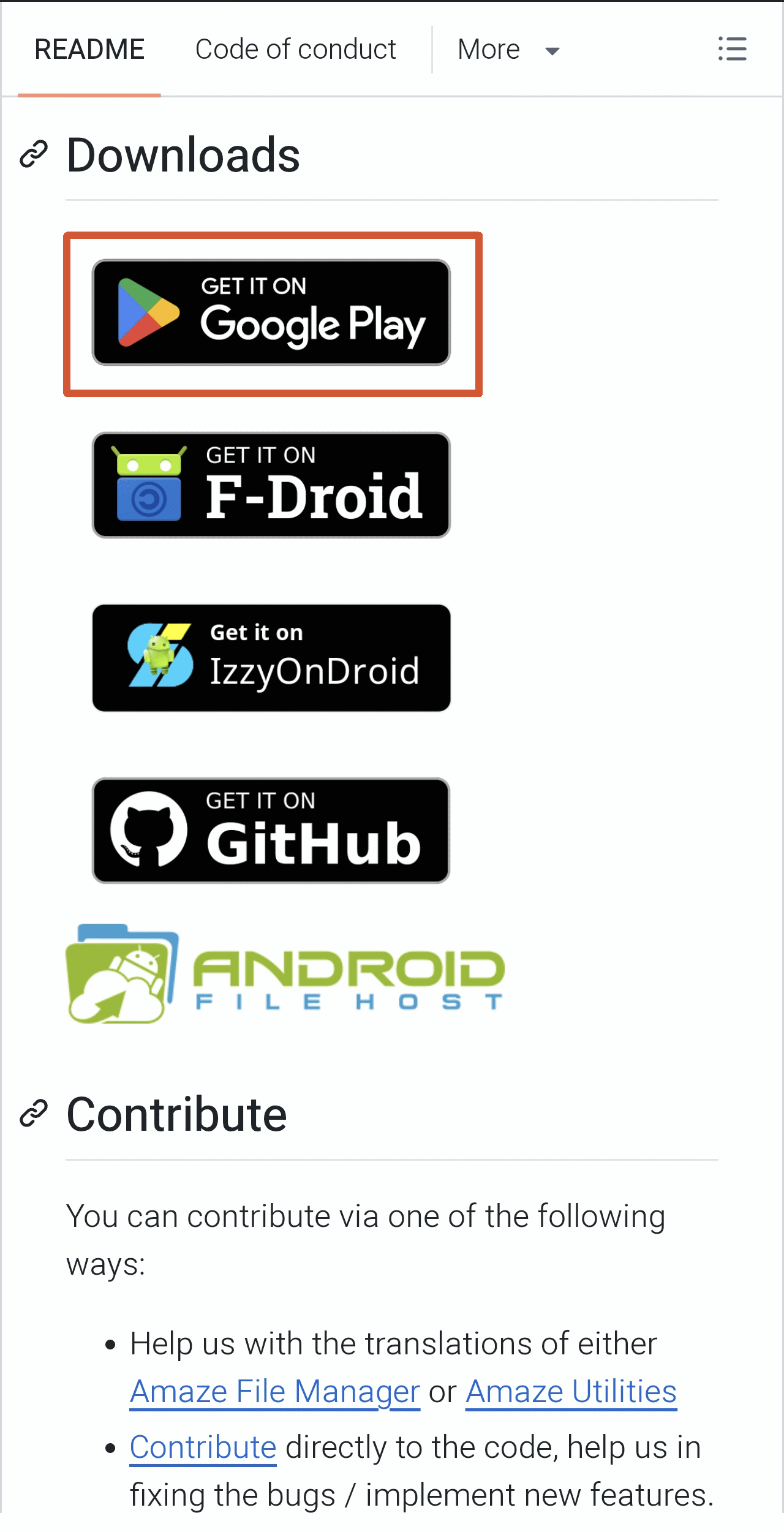
If you check the 'Downloads' section on the official GitHub site, you will see a banner with the following options:
・
・F-Droid
・IzzySoft
・GitHub
・AndroidFileHost
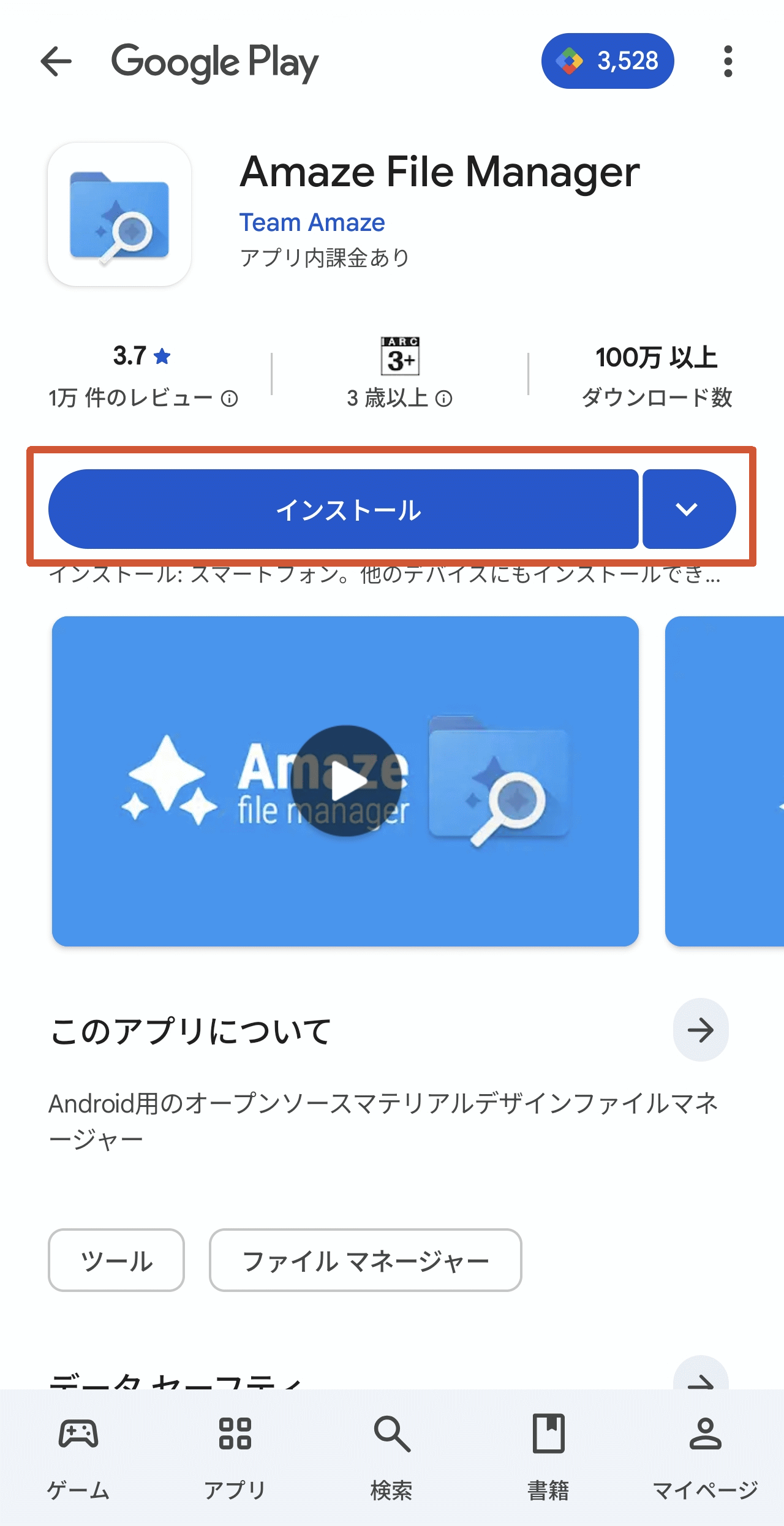
This time, we will install it via Google Play. Tap the Google Play banner to go to the Amaze File Manager installation page.
Tap the 'Install' button to begin installing Amaze File Manager.
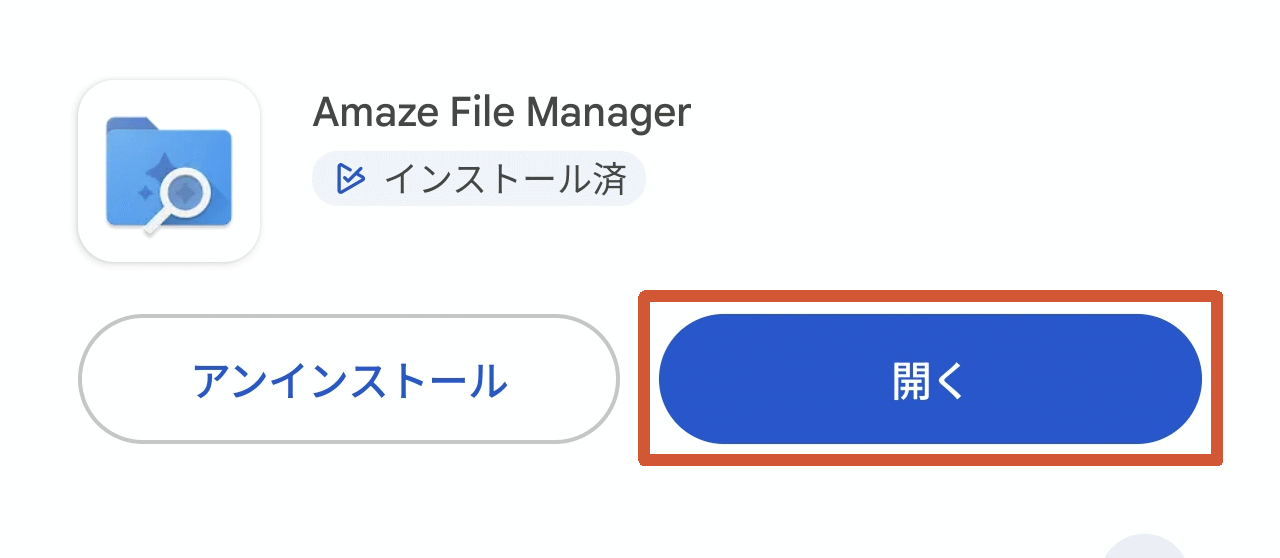
Once the installation is complete, the 'Open' button will appear, so tap it to launch the app.
◆Operation
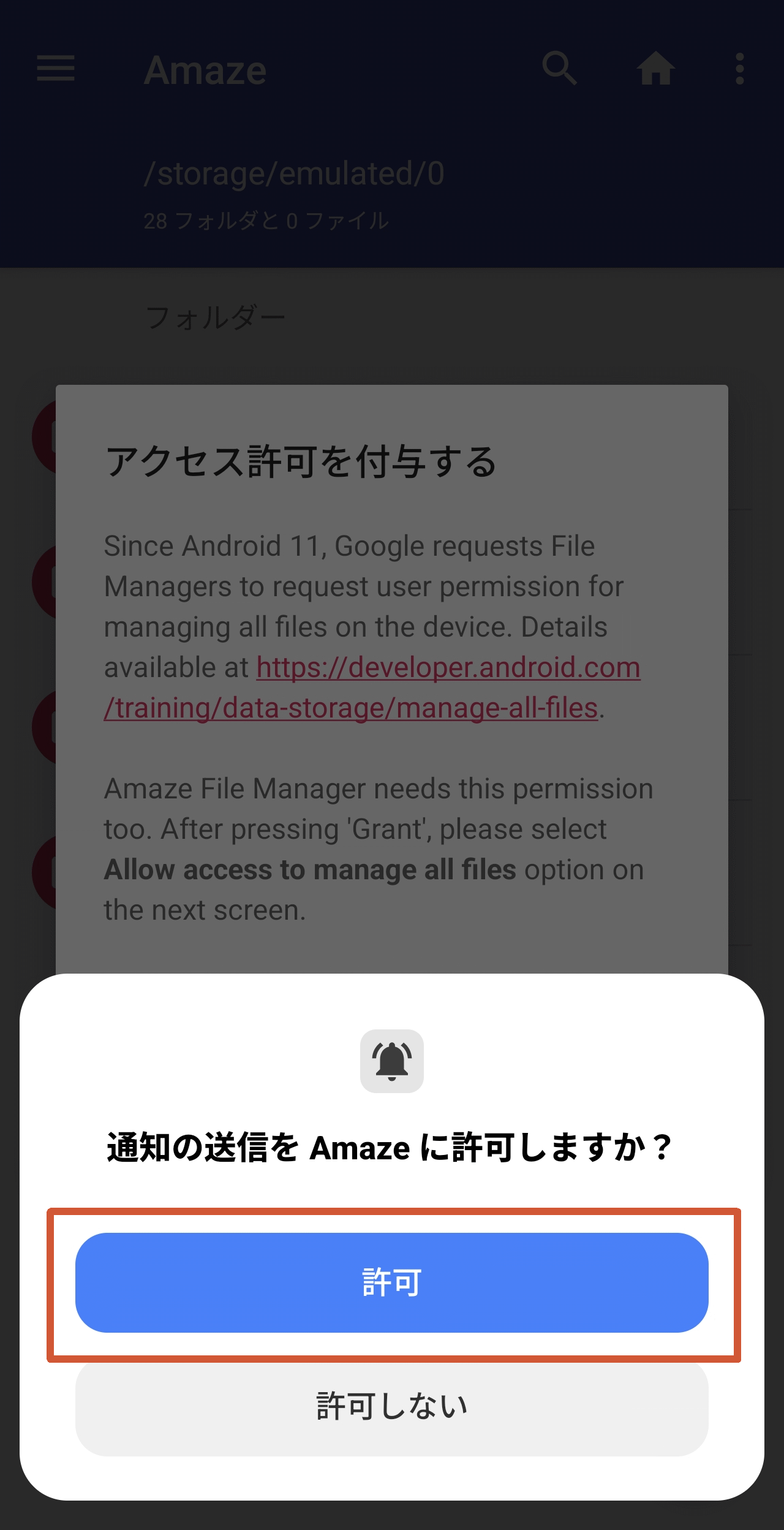
If this is your first time using the app, a pop-up will appear asking you whether you want to allow notifications to be sent. Tap the 'Allow' button to proceed.
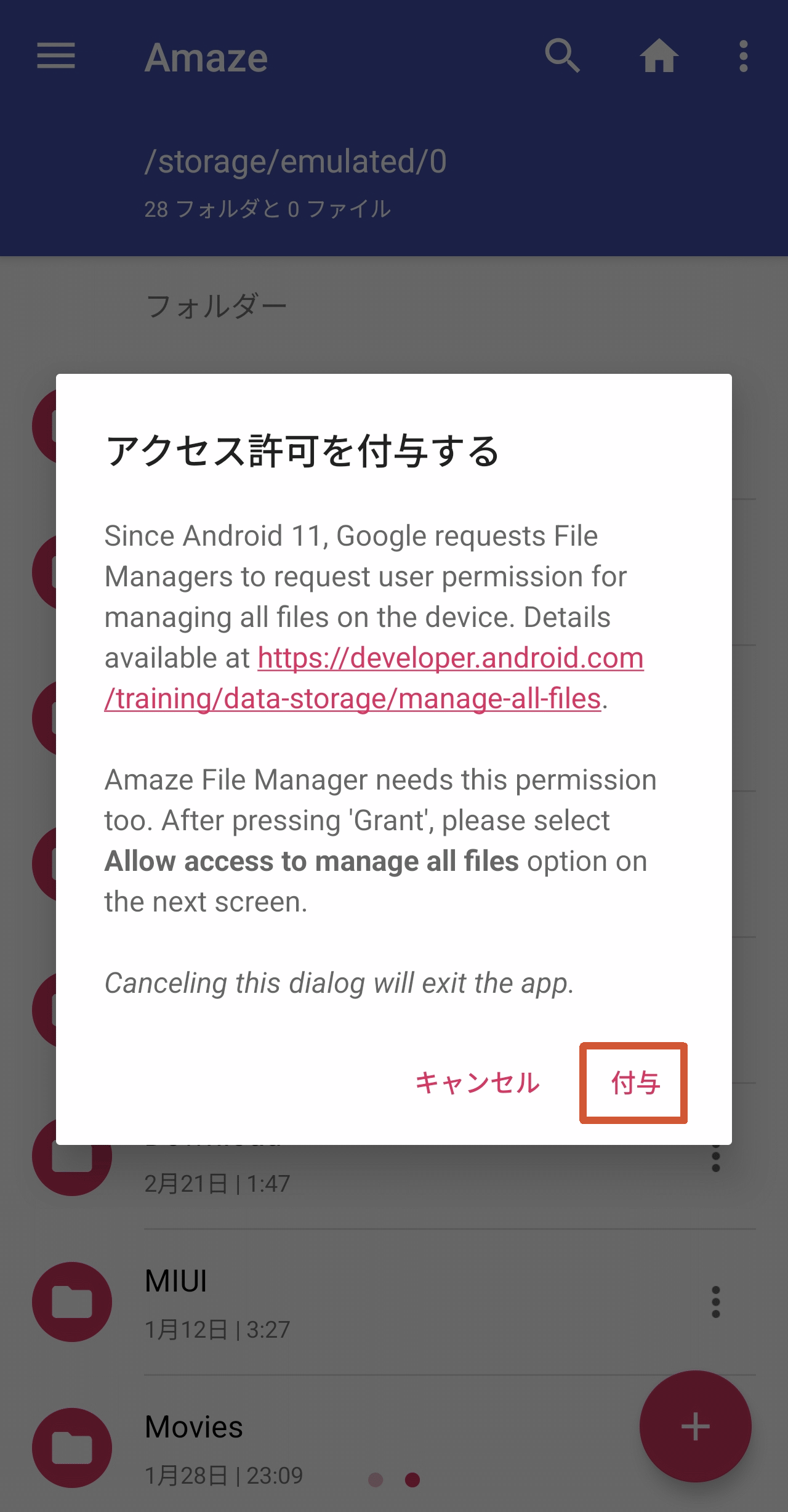
Once the pop-up disappears, a message titled 'Grant Permissions' will appear in the foreground, stating that you are granting access to all files. However, due to the nature of the app, file access is essential, so tap 'Grant' to proceed.
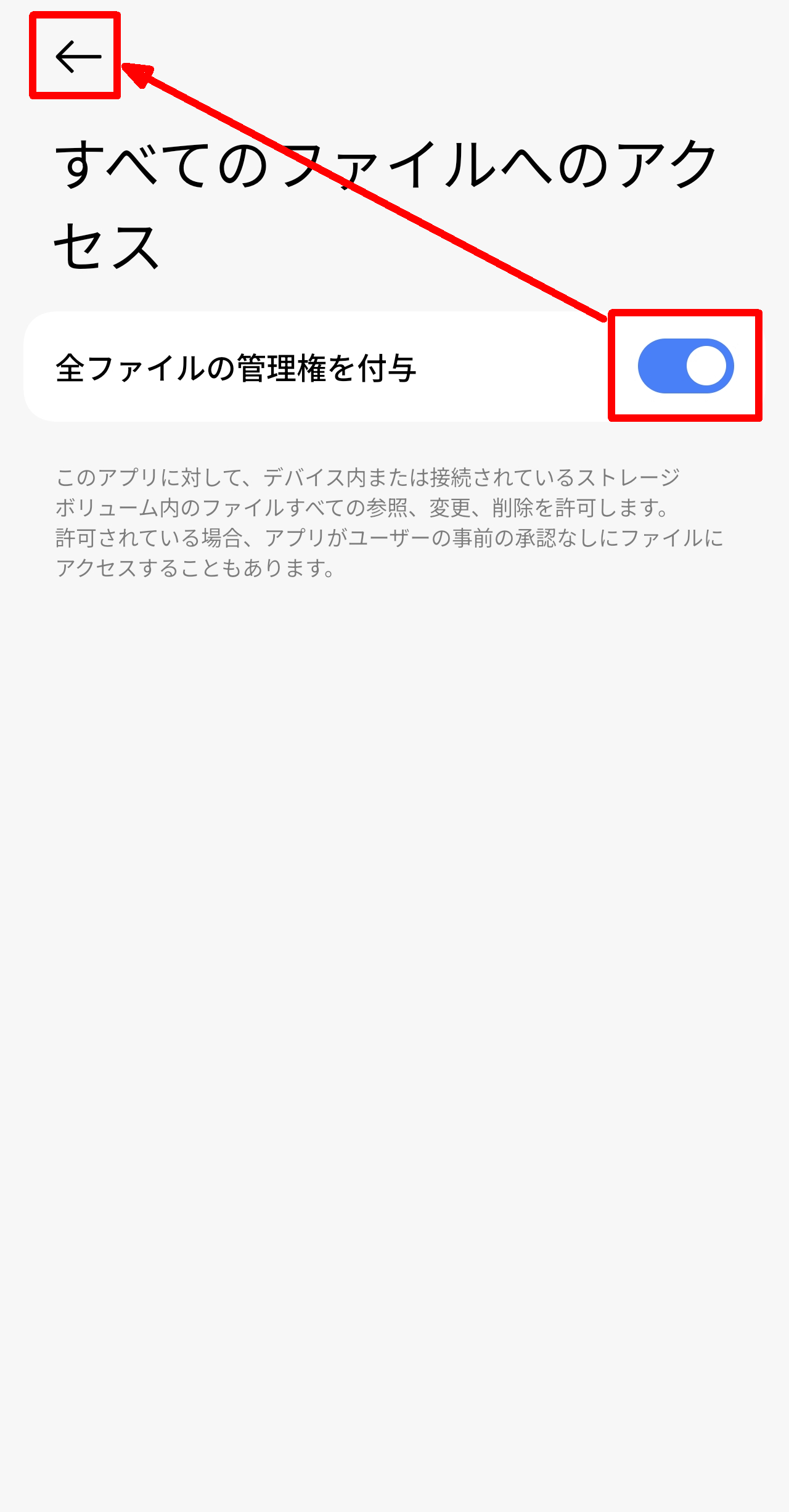
The 'Access to all files' settings screen will appear. Turn on 'Grant control of all files' and then tap the left arrow icon to return to the app.
Here is the screen that appears immediately after launching the app under normal circumstances.
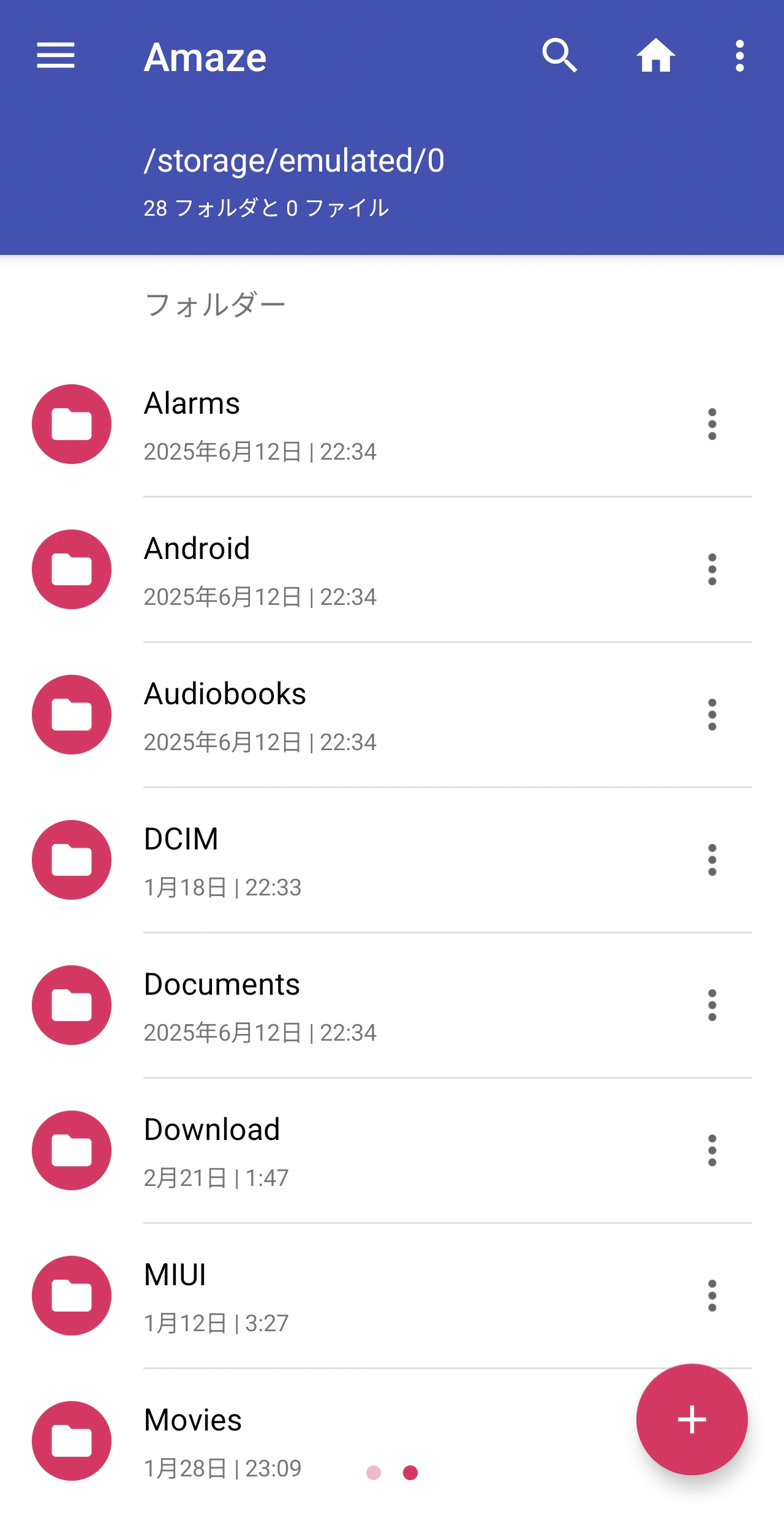
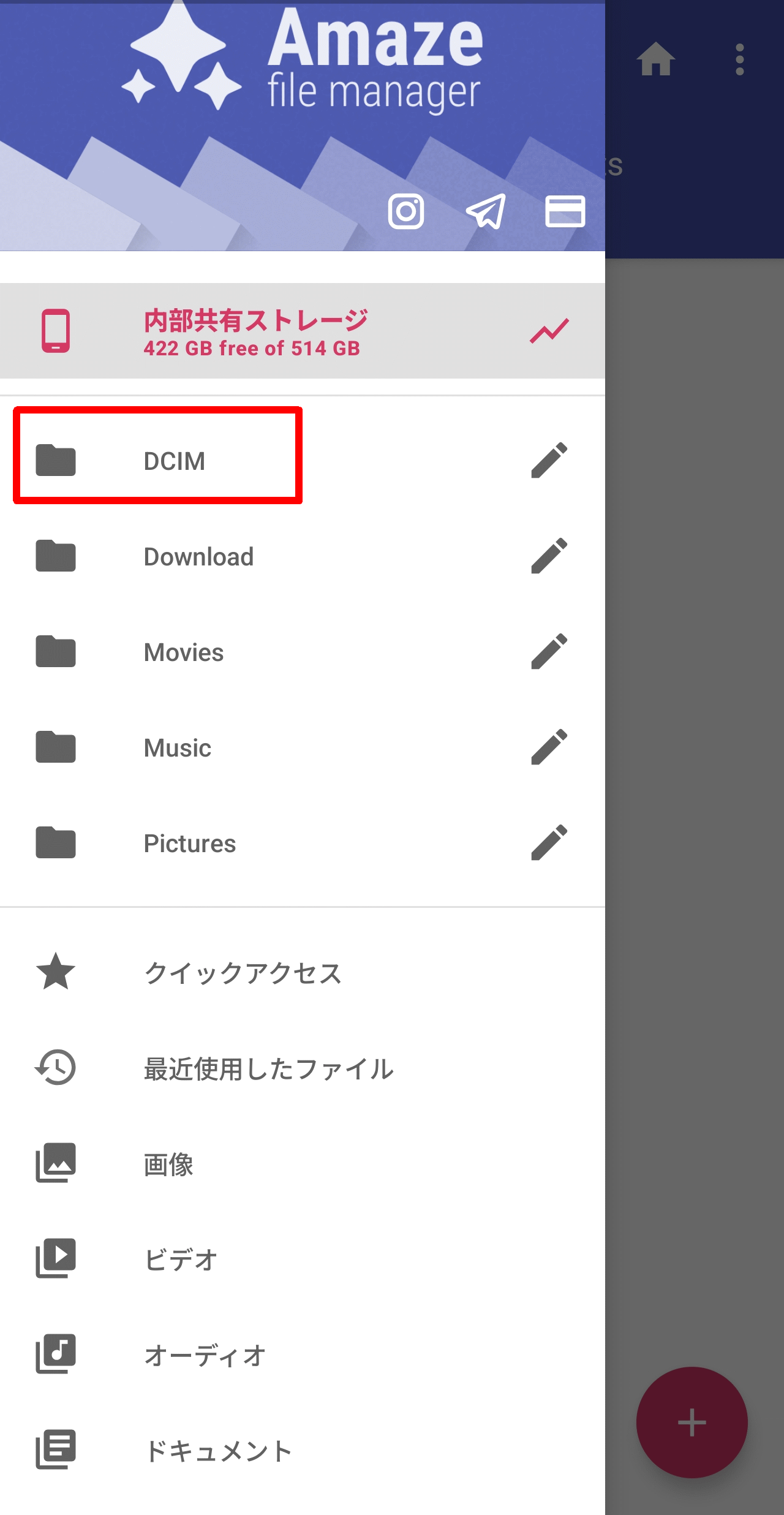
Swipe from the left edge of the screen to the right to display the folders available for quick access, then try tapping 'DCIM.'
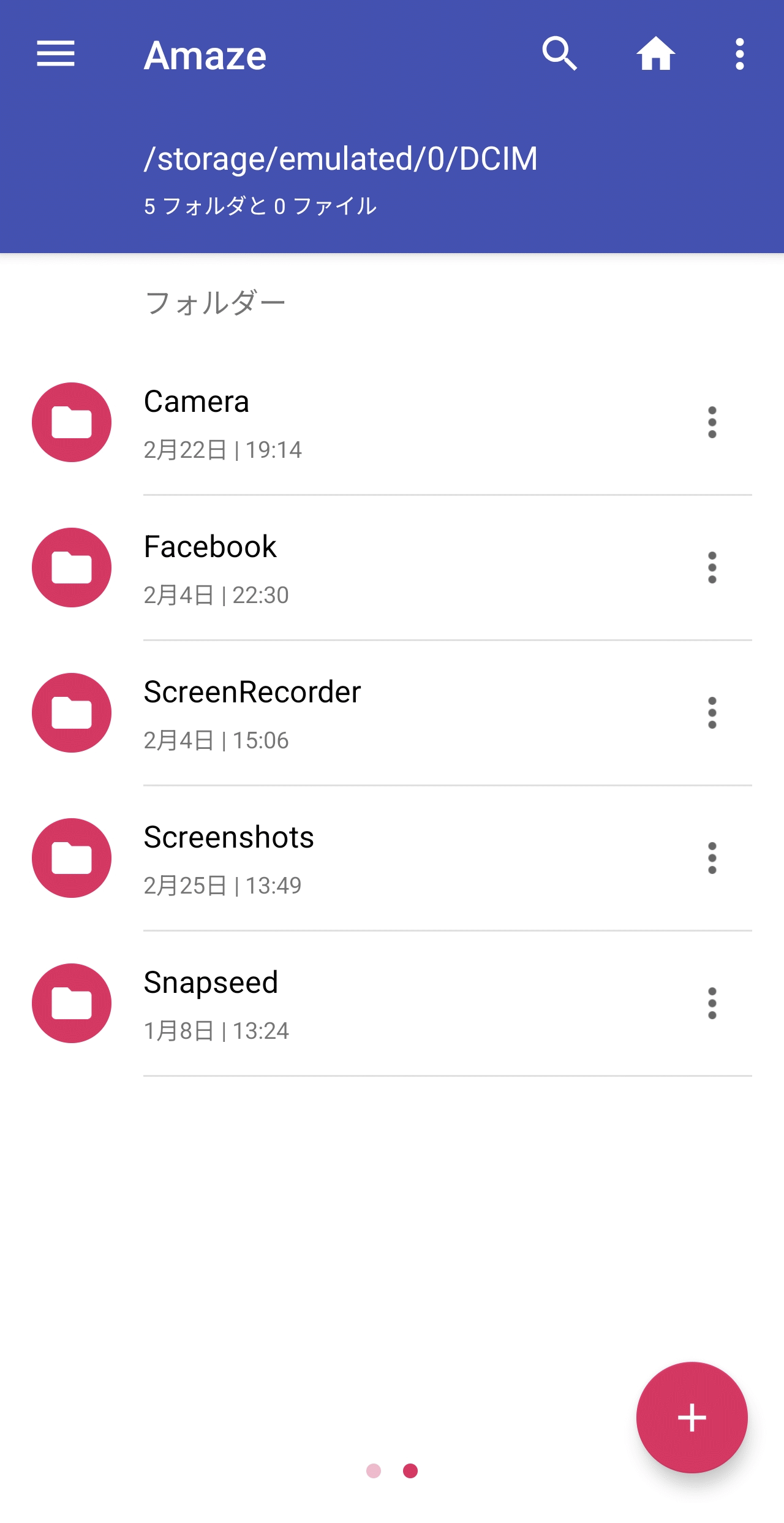
The displayed folder has changed to 'DCIM'.
You can also open two folders at the same time by switching tabs. To switch tabs, swipe left or right on the screen. Two red dots are displayed at the bottom of the screen, and if the right dot is dark, swipe right to switch tabs.
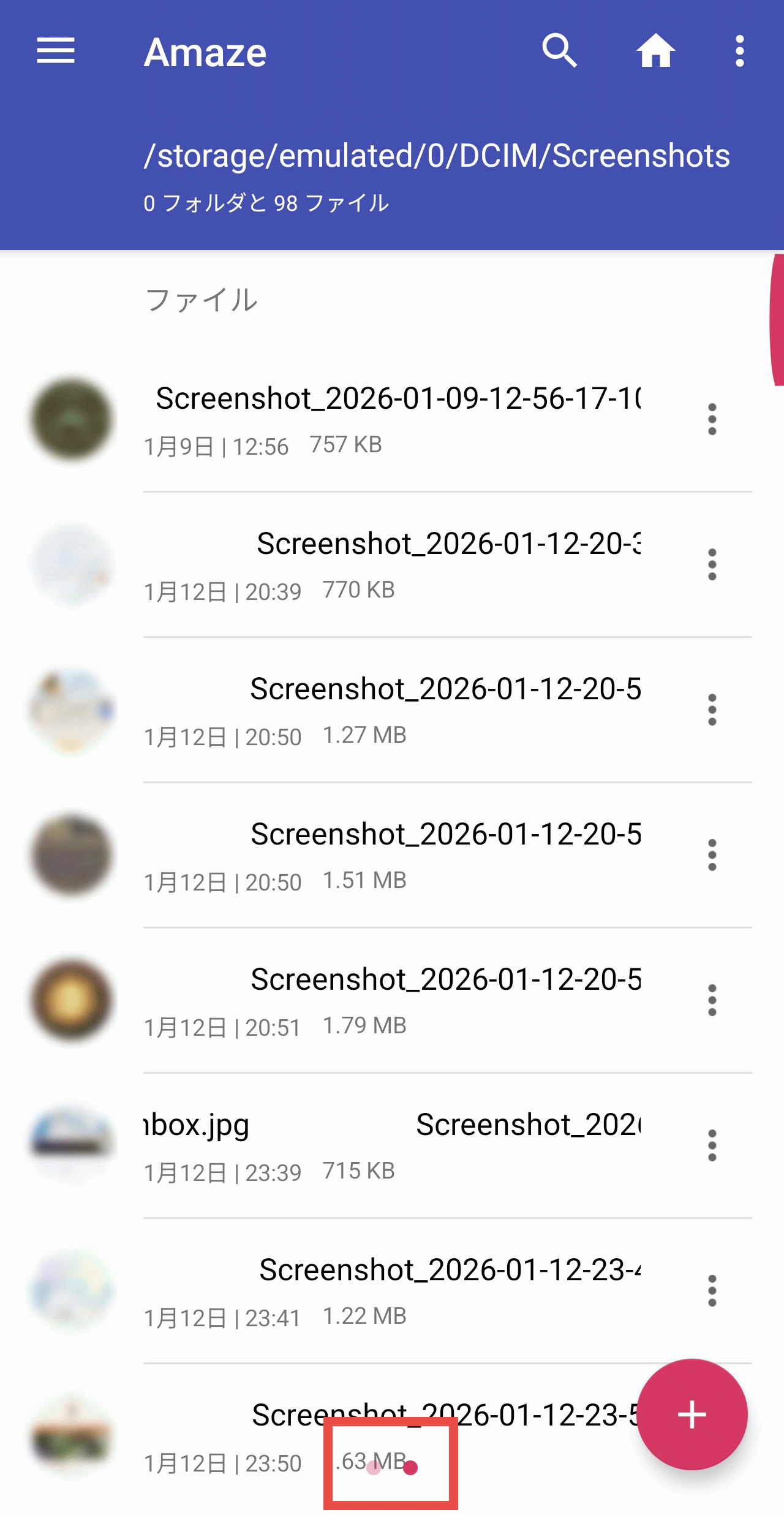
After switching tabs. The dot on the left side is dark, so if you swipe left, the displayed folder will return.
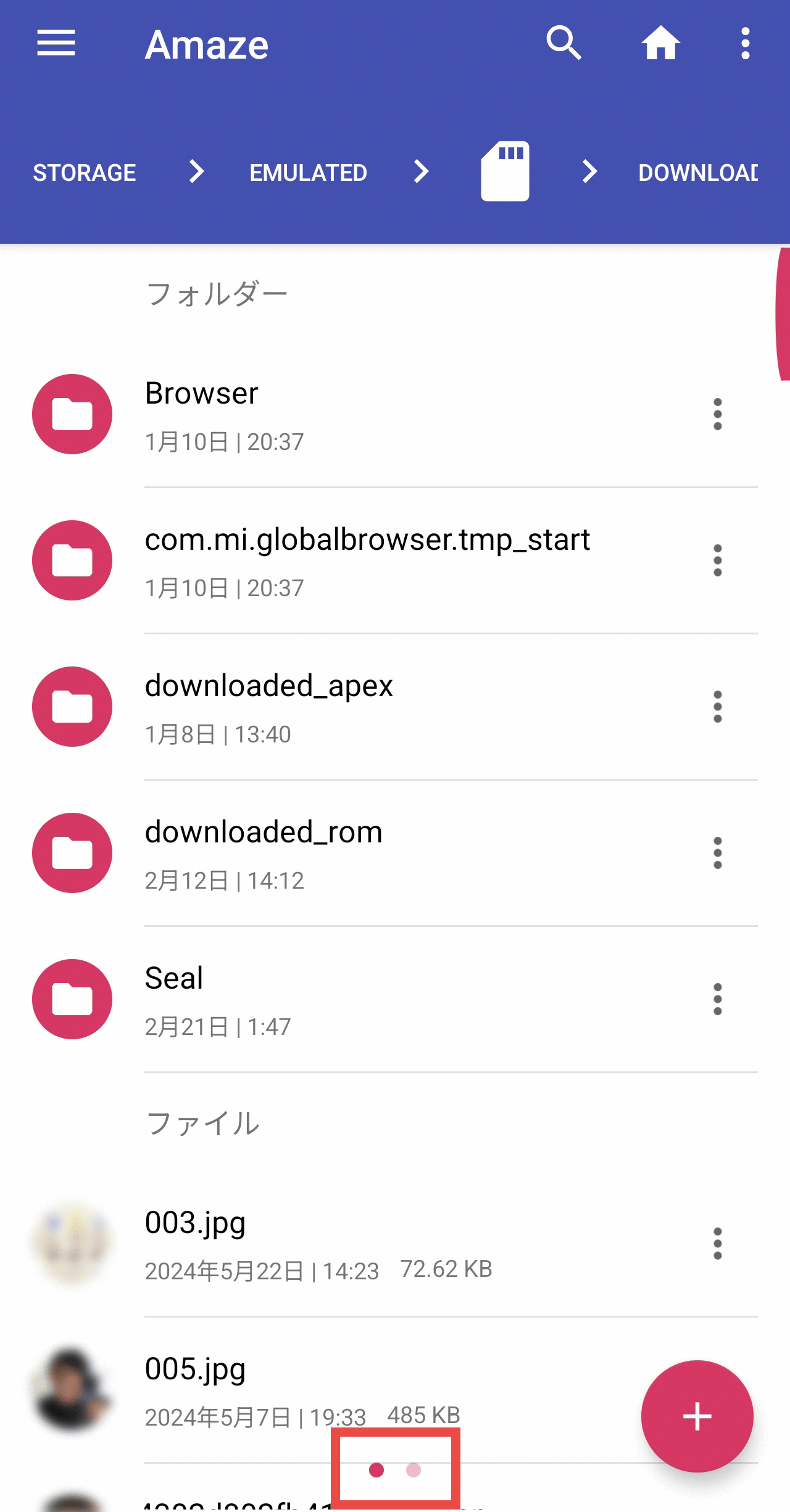
To work with a file, tap the three-dot icon to the right of the file name.
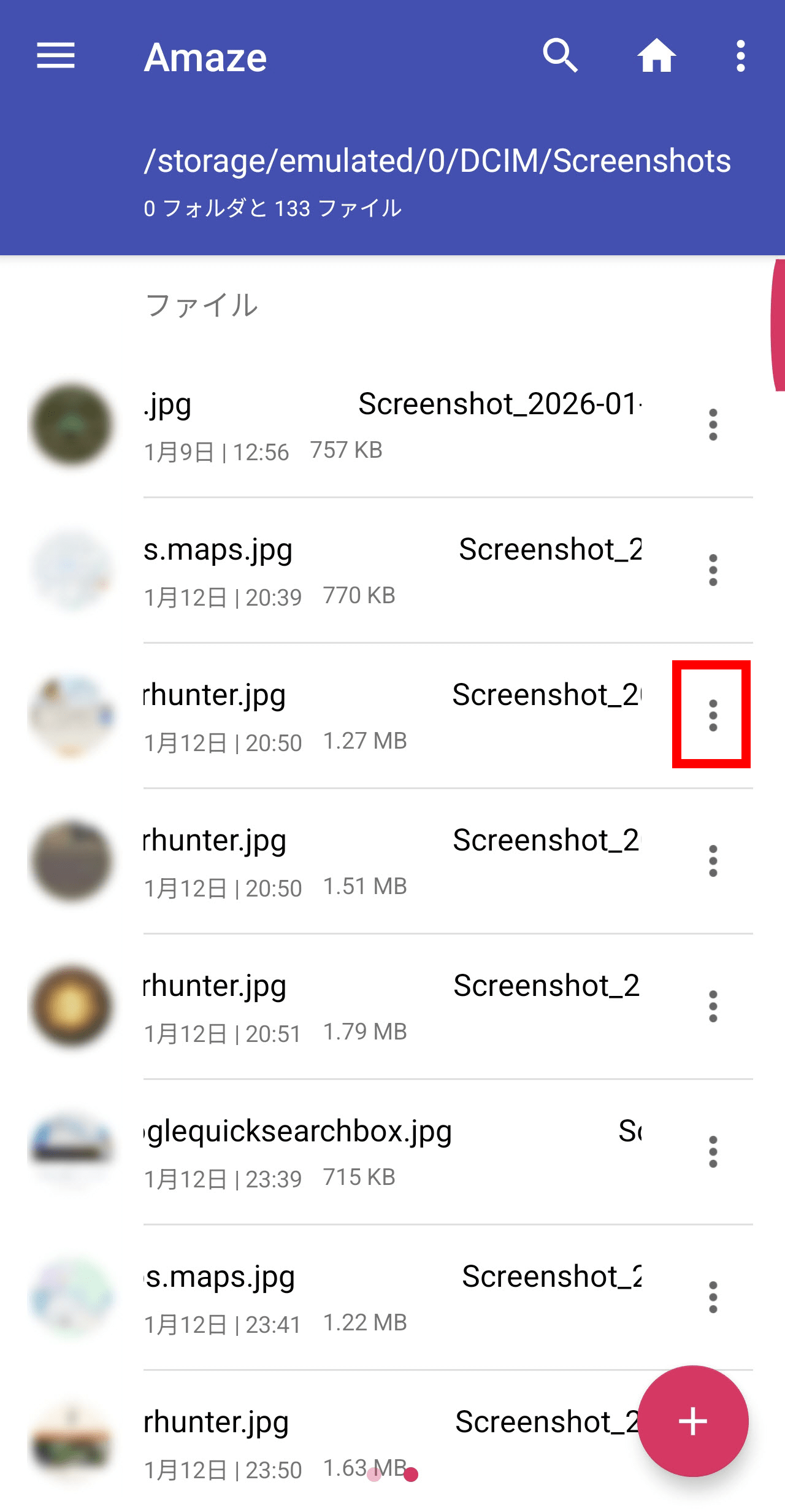
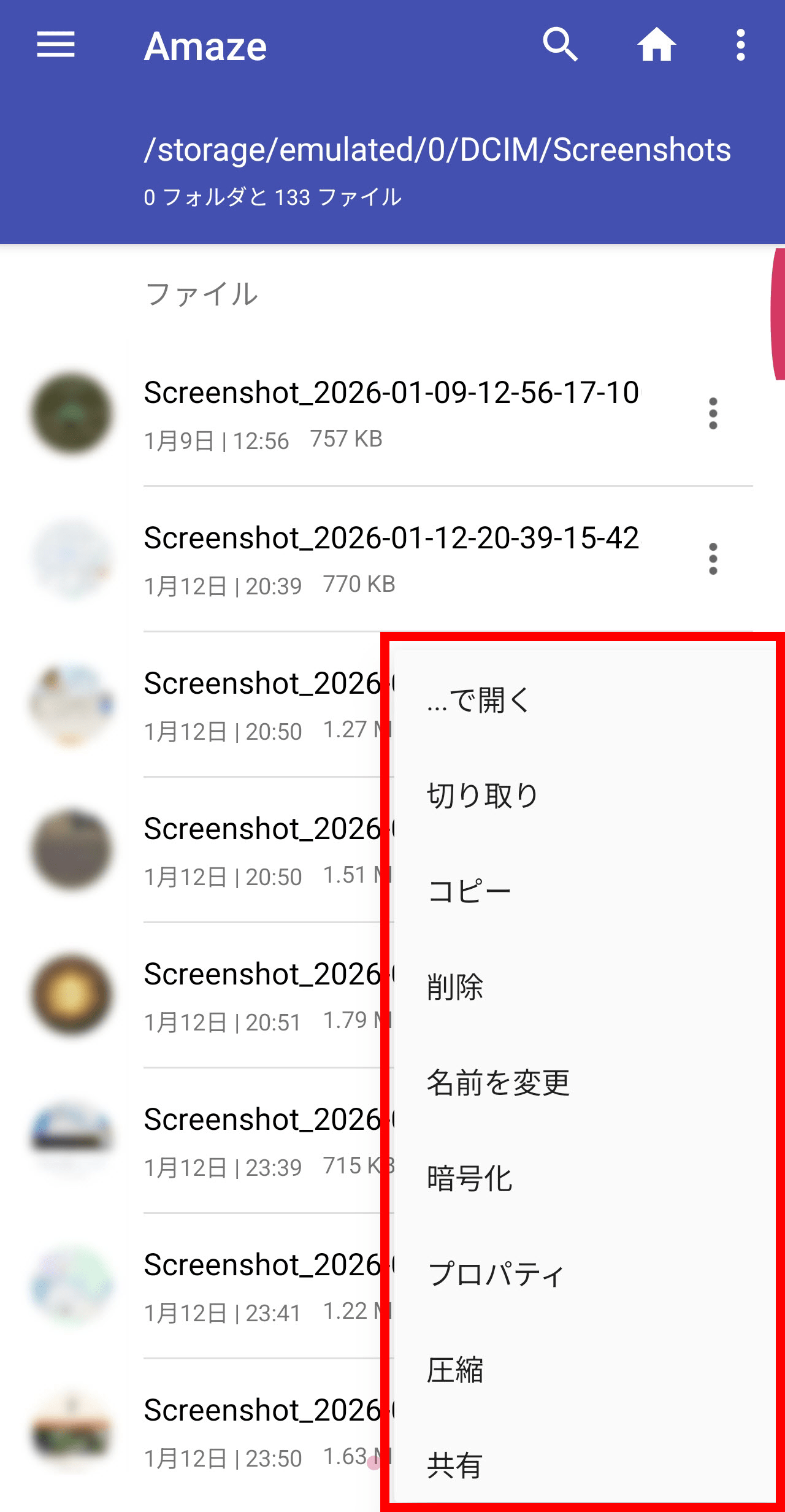
When you tap, a pop-up menu will appear and you can specify the following operations.
・Open with
Cut
· copy
· delete
・Change your name
・Encryption
Properties
· compression
・Share
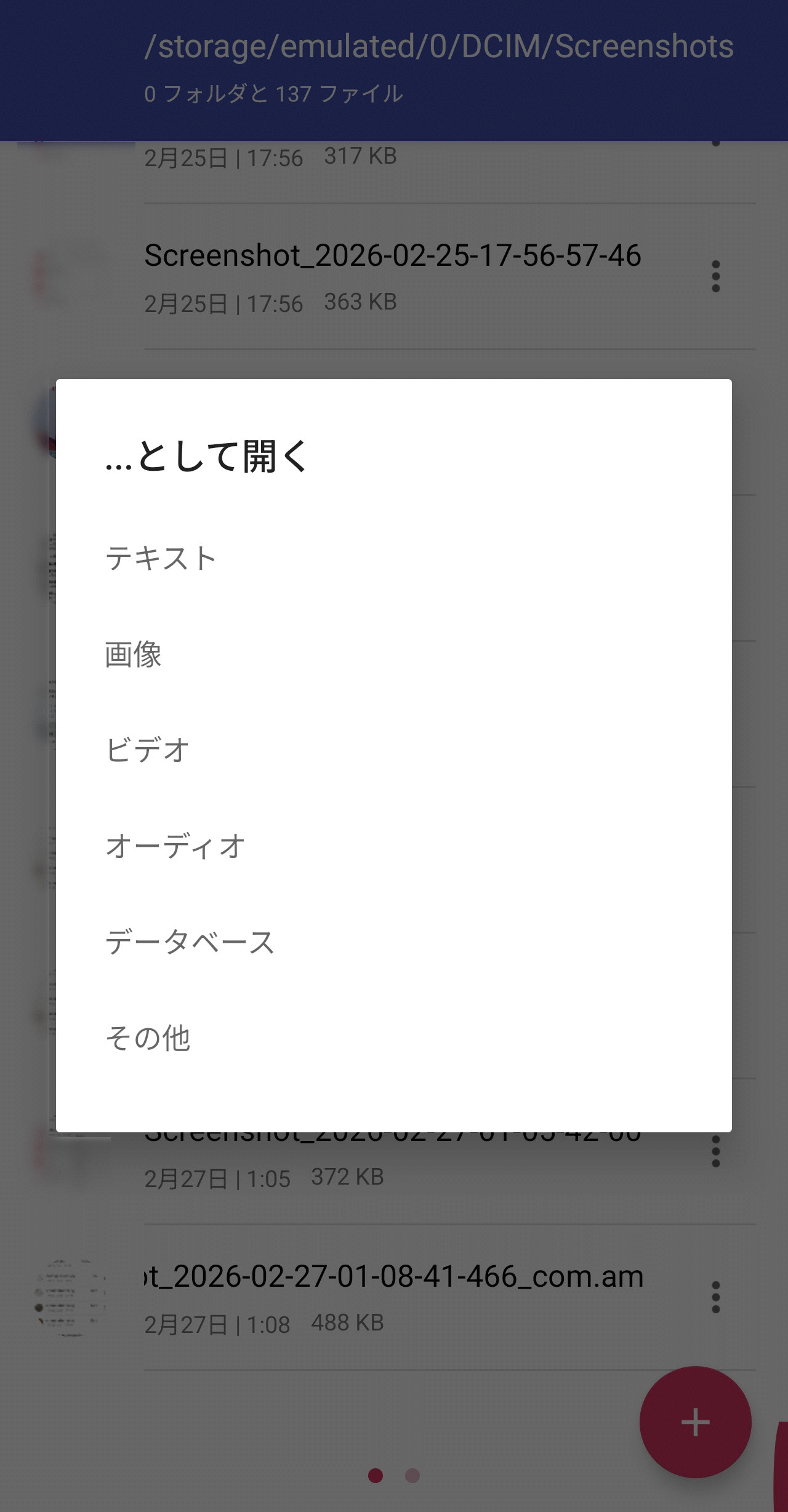
If you select 'Open with...' from the popup menu, a further popup menu will appear, allowing you to choose how you want to open the file.
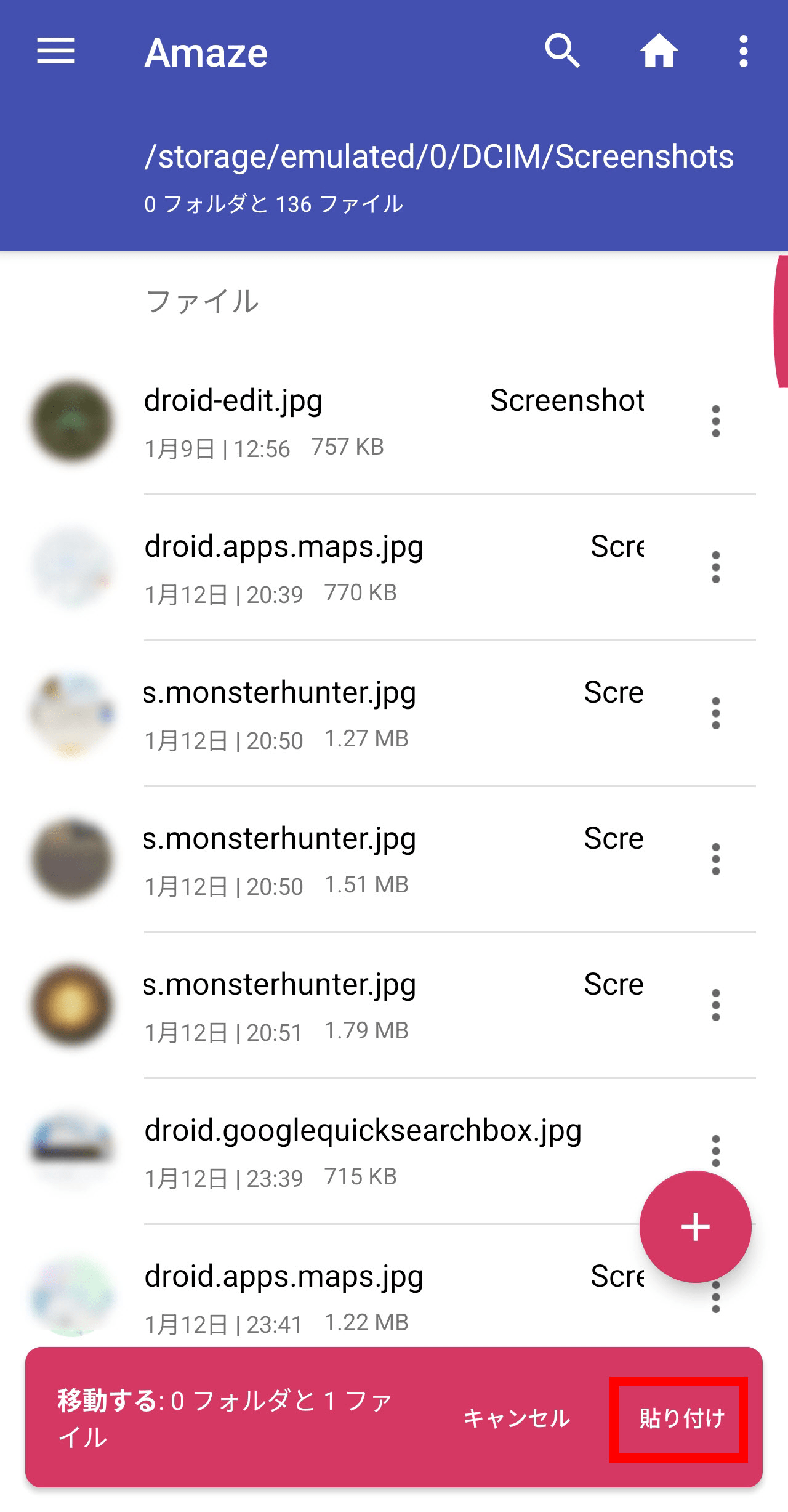
If you select 'Cut' or 'Copy' from the pop-up menu, a pop-up will appear at the bottom of the screen, and you can paste the file by tapping 'Paste' at the destination of the folder.
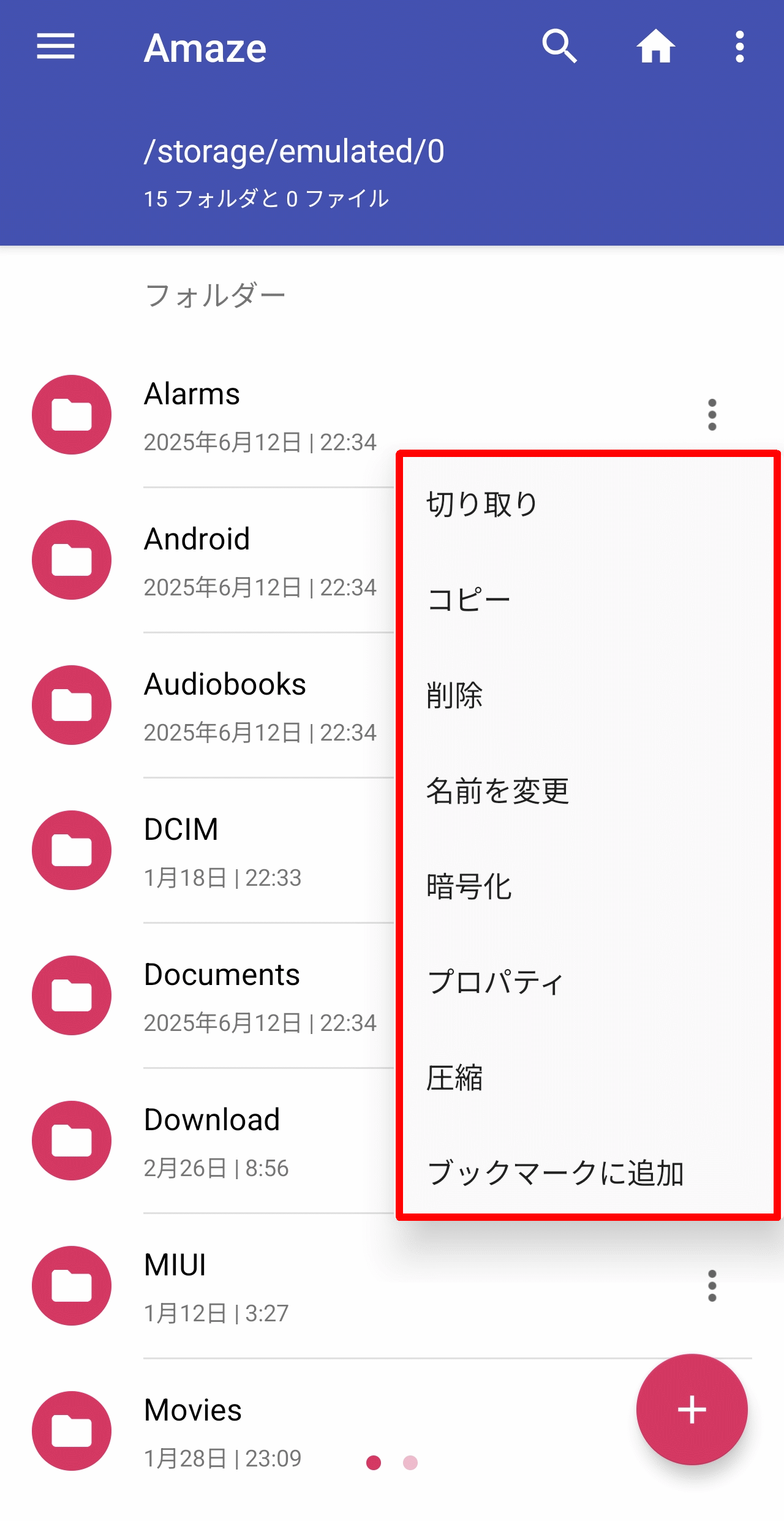
Similarly, to operate on a folder, tap the 'three dots' icon to the right of the folder name and select an operation from the pop-up menu that appears:
Cut
· copy
· delete
・Change your name
・Encryption
Properties
· compression
・Add to bookmarks
In the top right corner of the screen, there are three icons: a magnifying glass, a house, and three dots. Tap the house icon to go to the home folder.

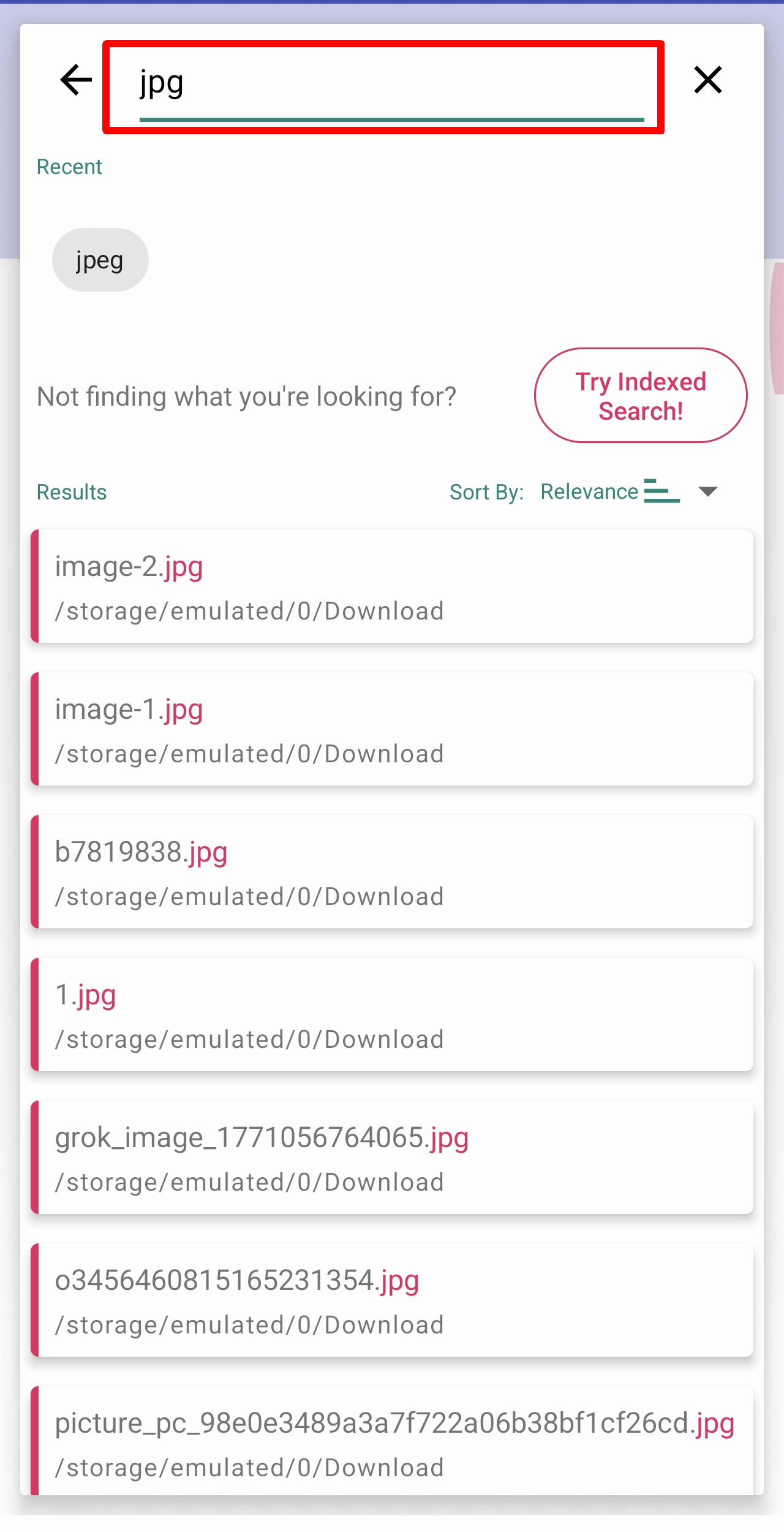
Tapping the magnifying glass icon will display a search pop-up, and entering a search string in the input field at the top will display a list of search results.
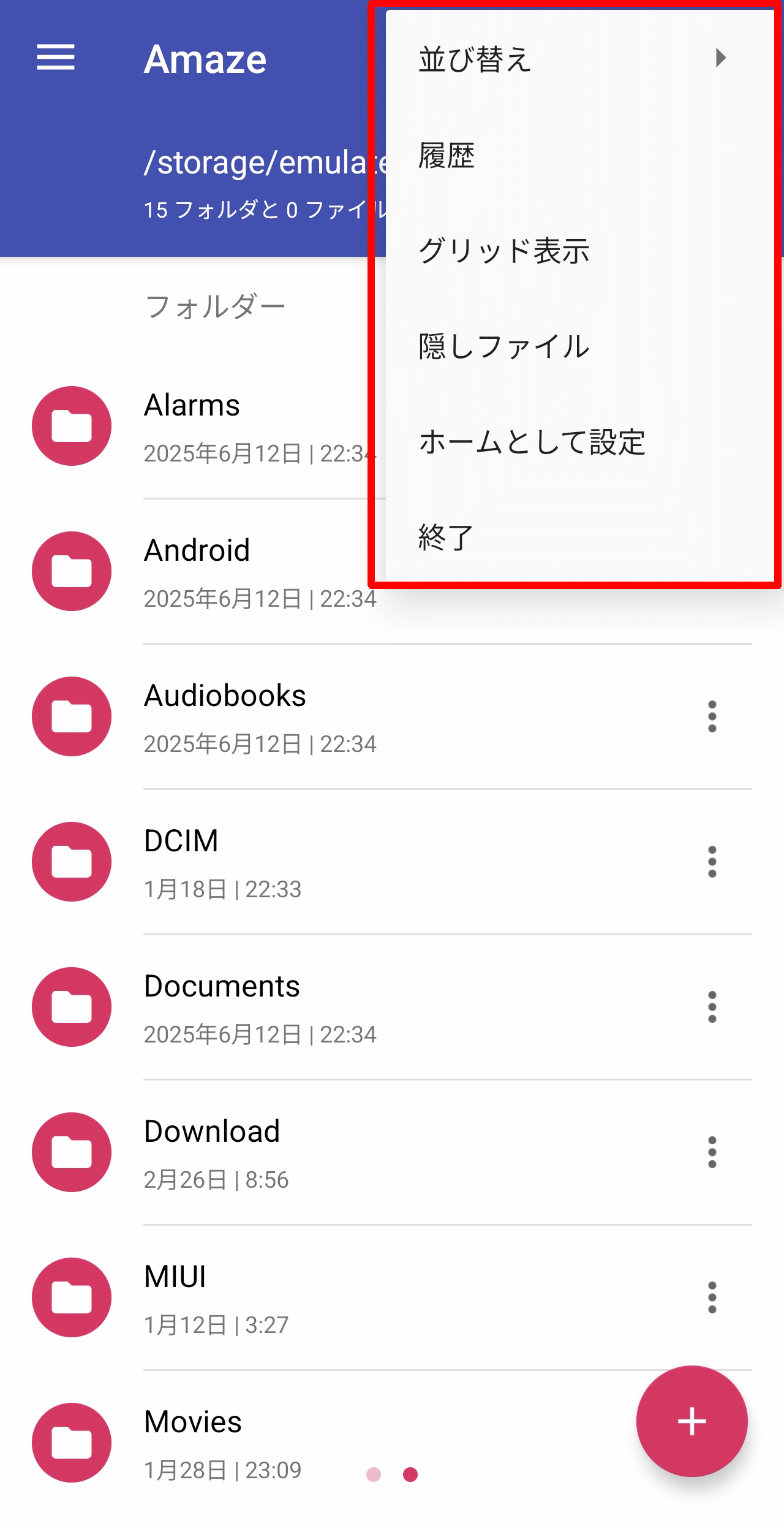
Tapping the 'three dots' icon will display a pop-up menu where you can select the following functions.
· Sort
· history
- Grid display
-Hidden files
- Set as home
· end
◆Settings
To open the Settings screen, swipe right from the left edge of the screen to display Quick Access, then tap Settings at the bottom.
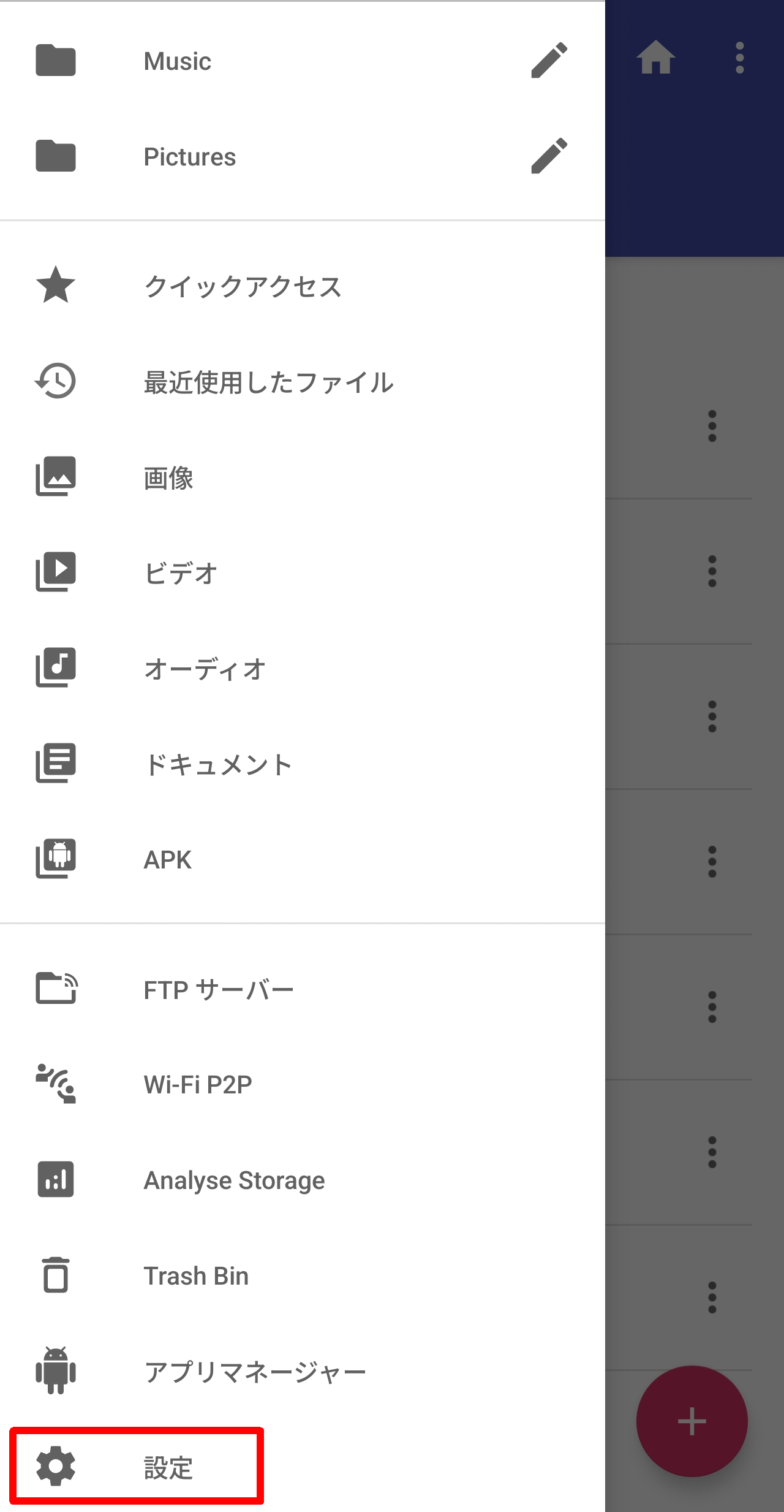
The settings screen consists of six categories.
・Appearance
Interface
・Behavior
Security
· backup
・About Amaze File Manager
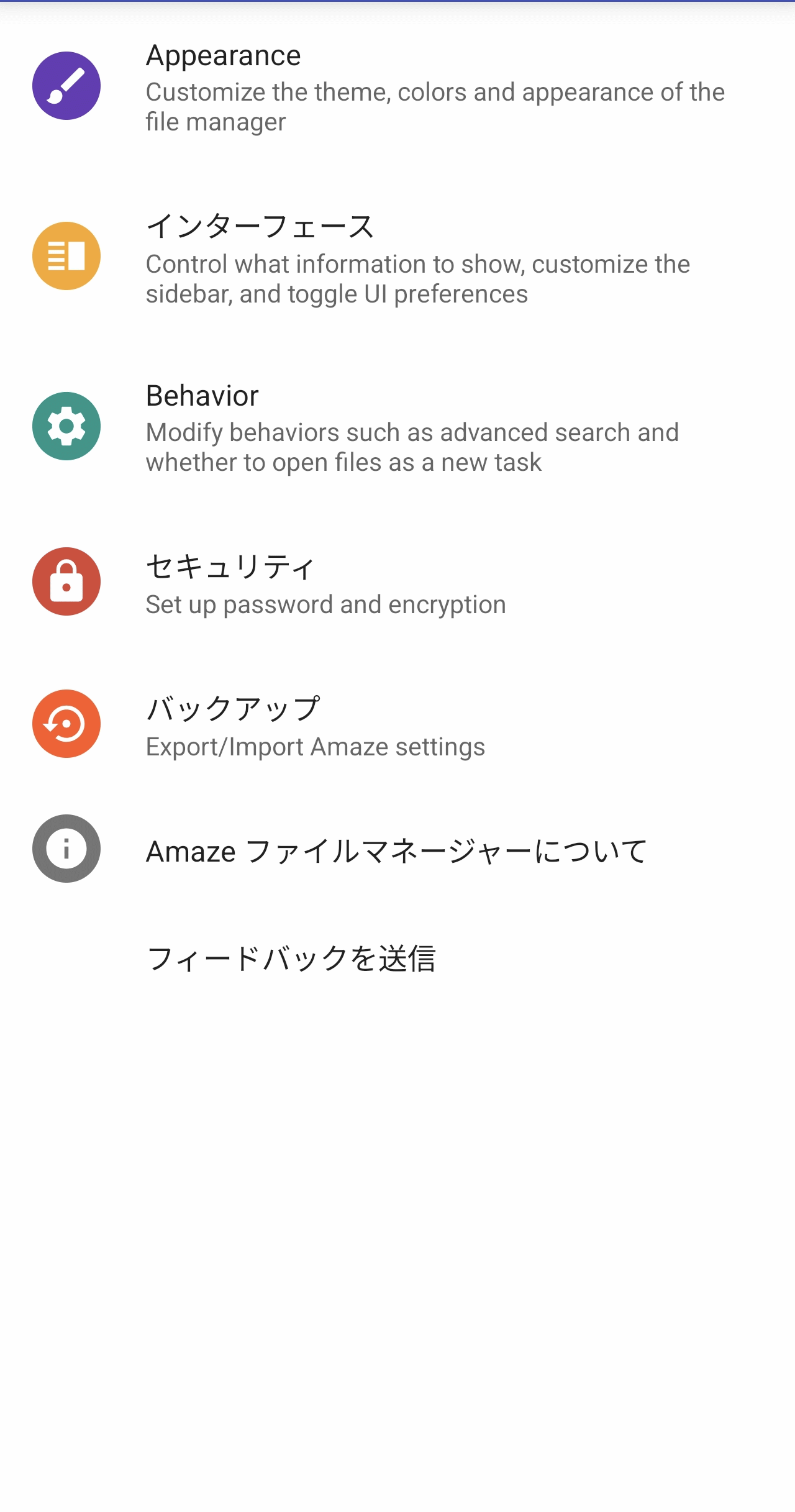
・Appearance
Settings related to the appearance of the app.
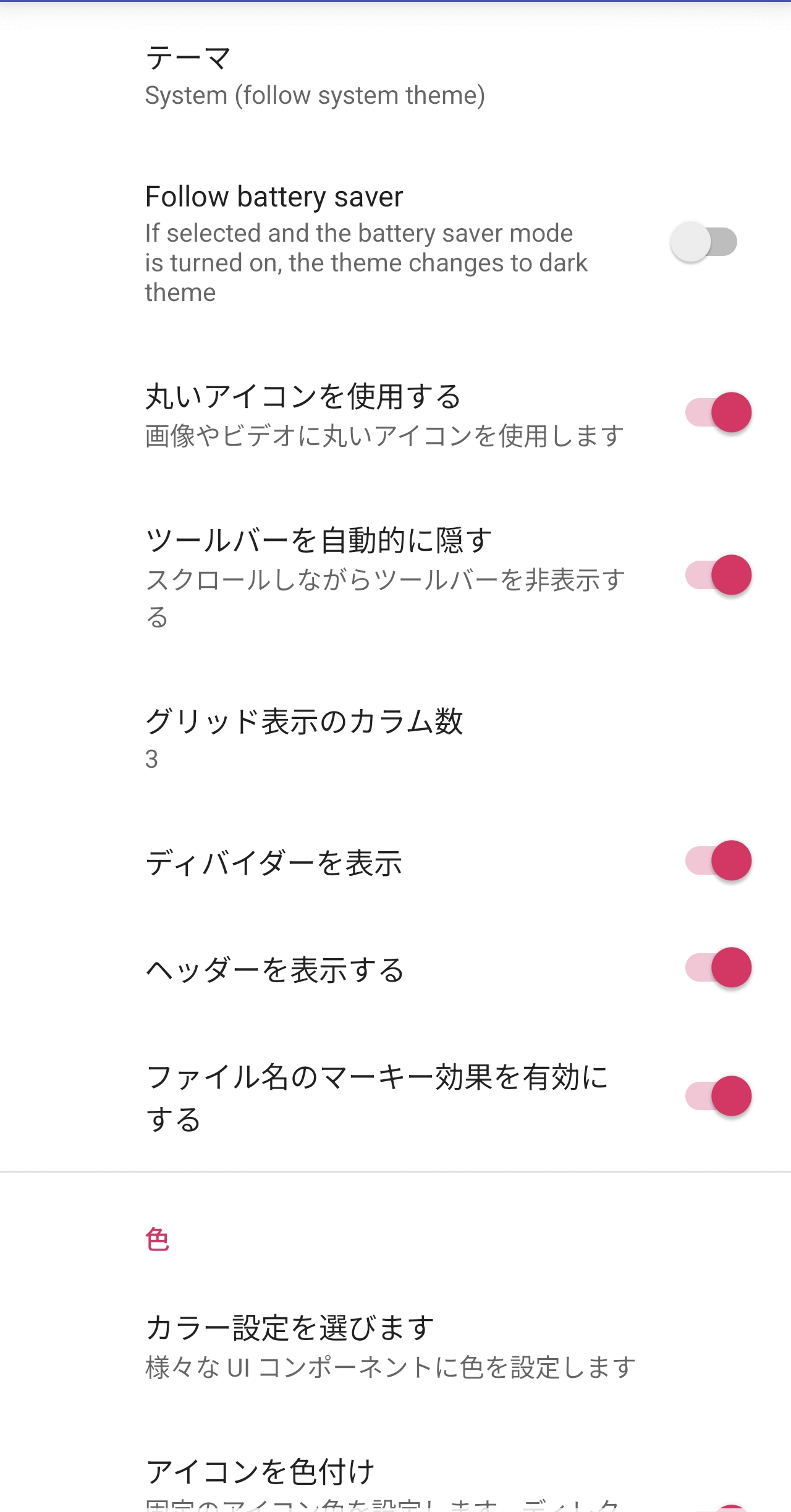
Interface
These are settings related to the UI for operating the app.
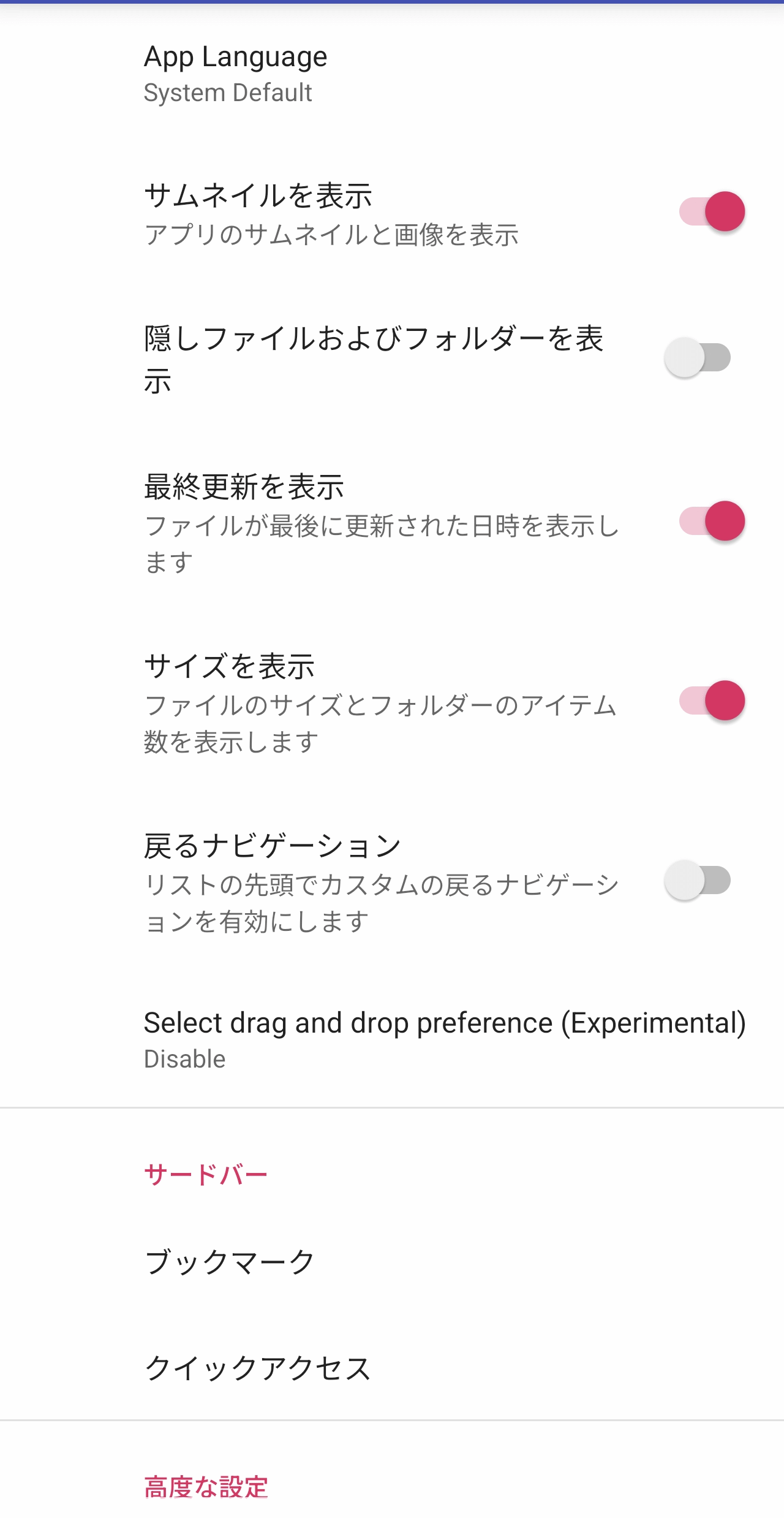
・Behavior
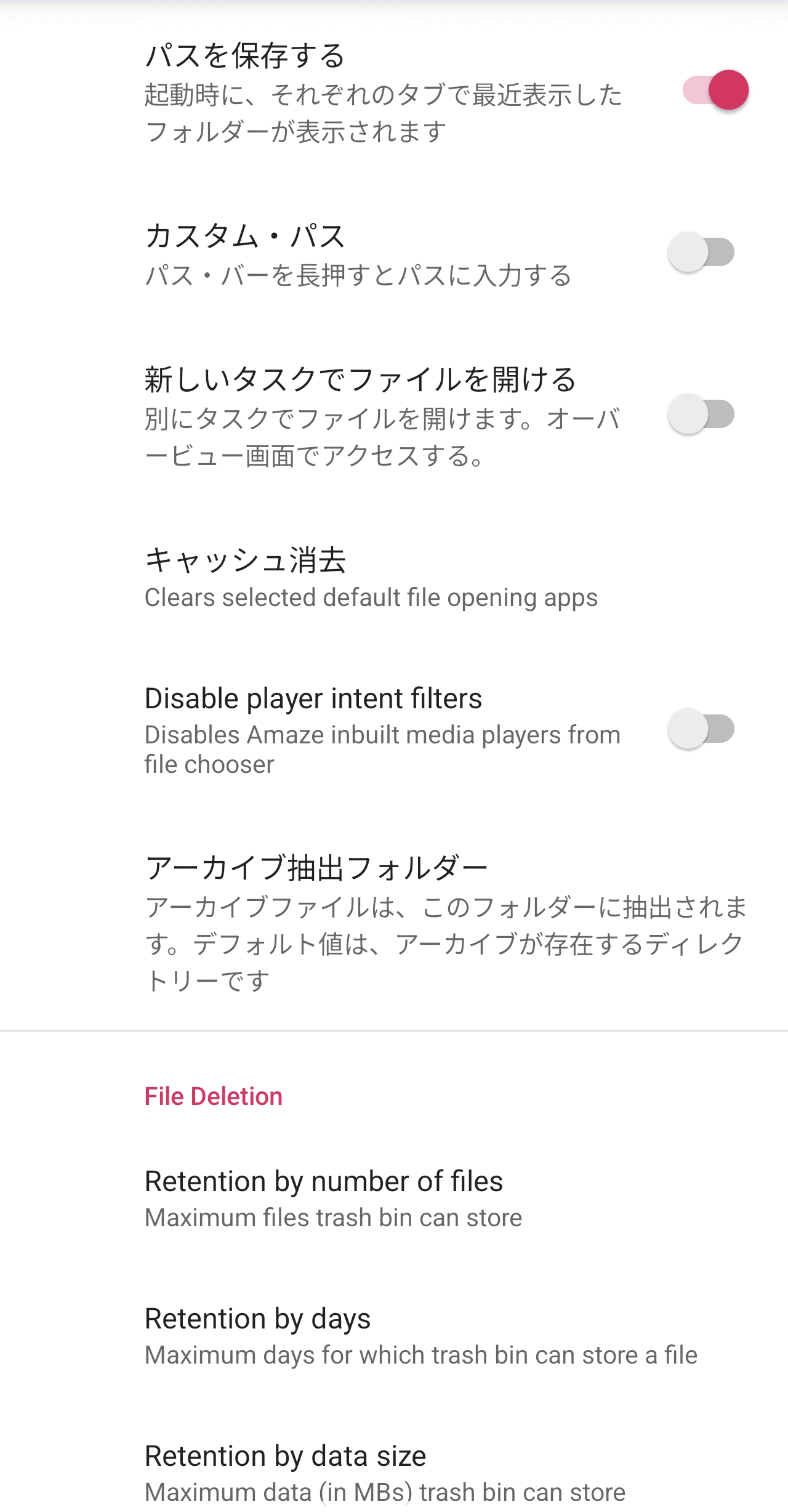
These are settings related to the behavior when operating the app.
Security
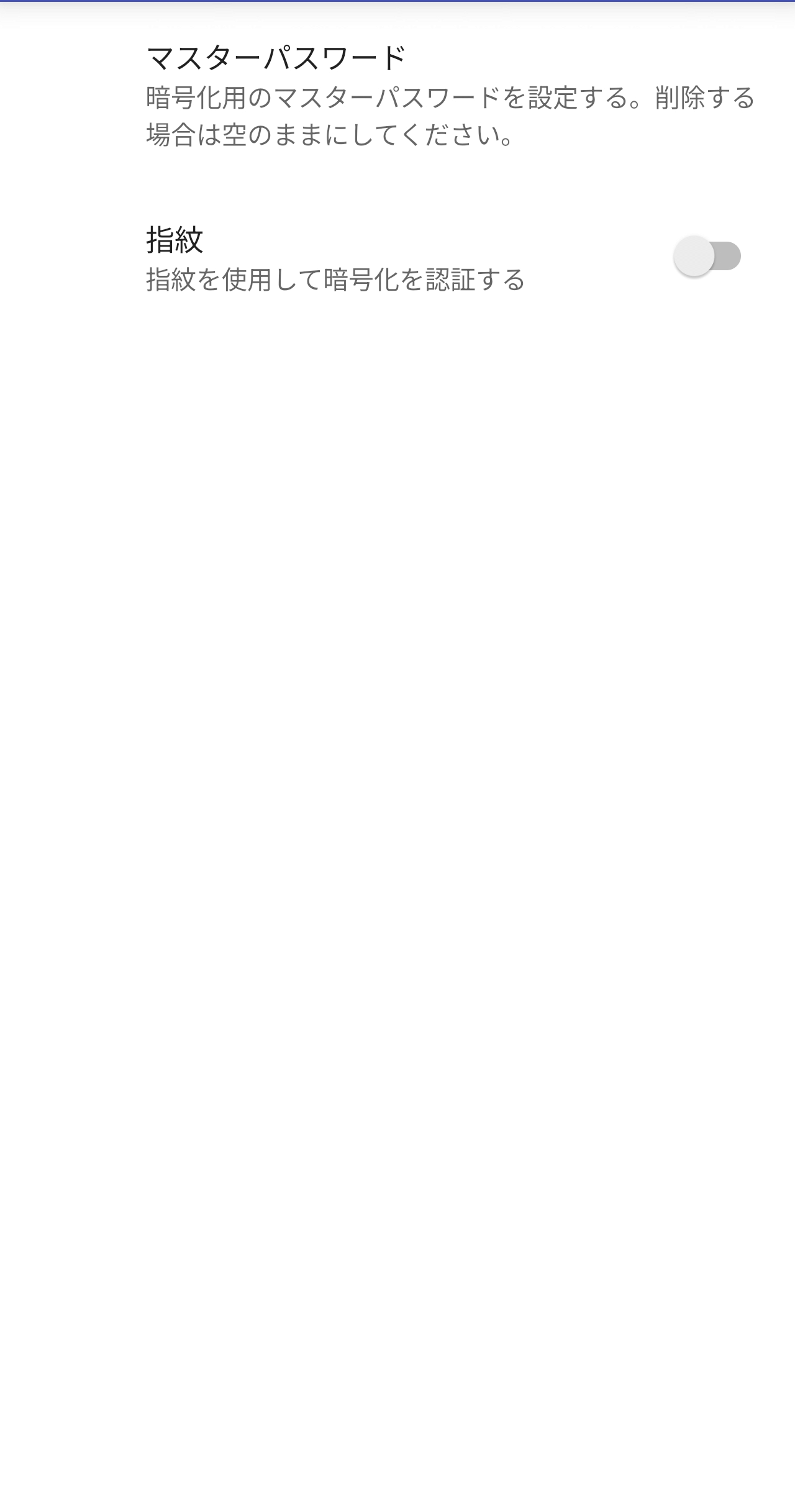
You can set a master password and fingerprint authentication in the app's security settings.
·backup
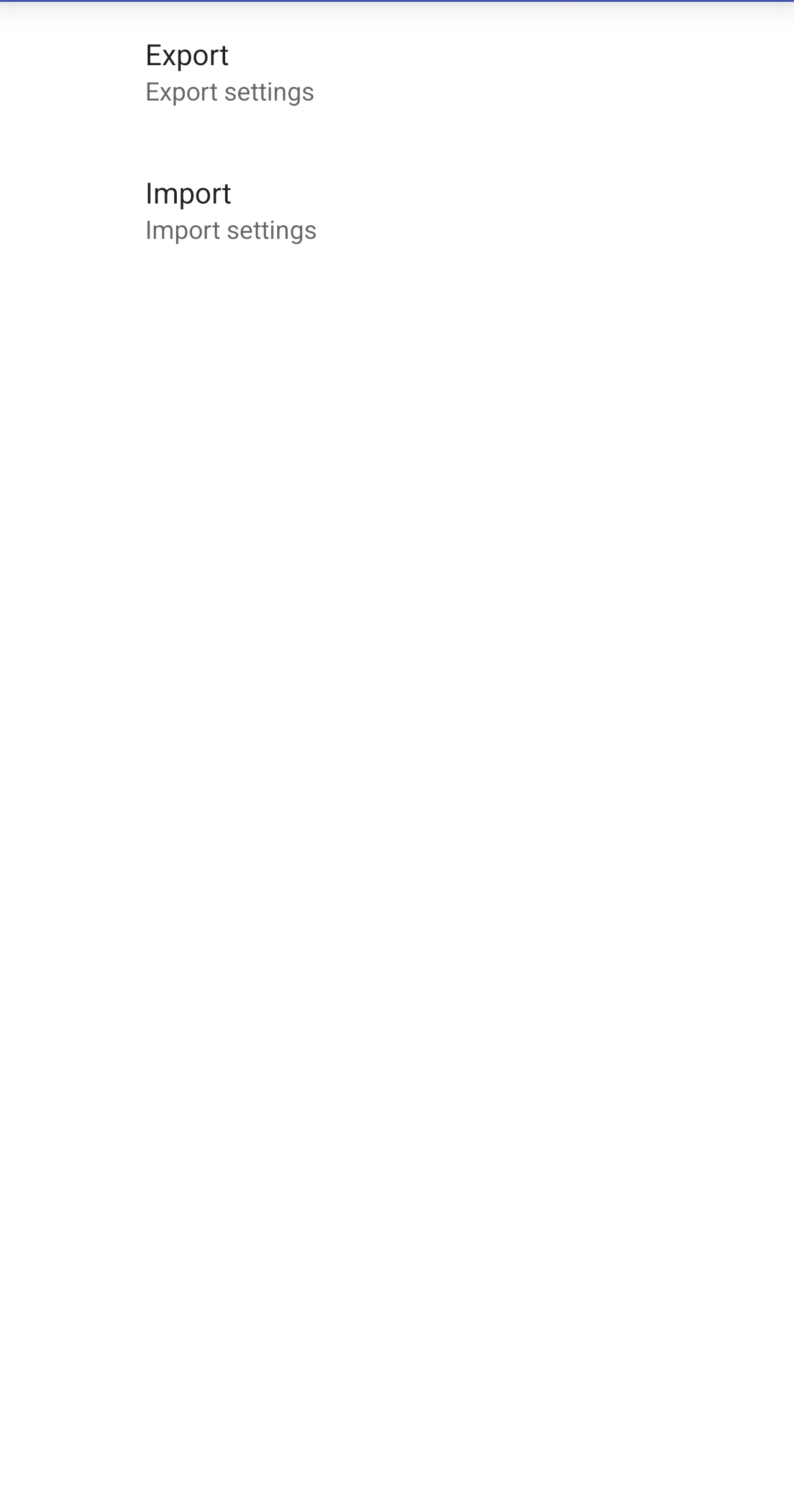
You can export and import settings.
・About Amaze File Manager
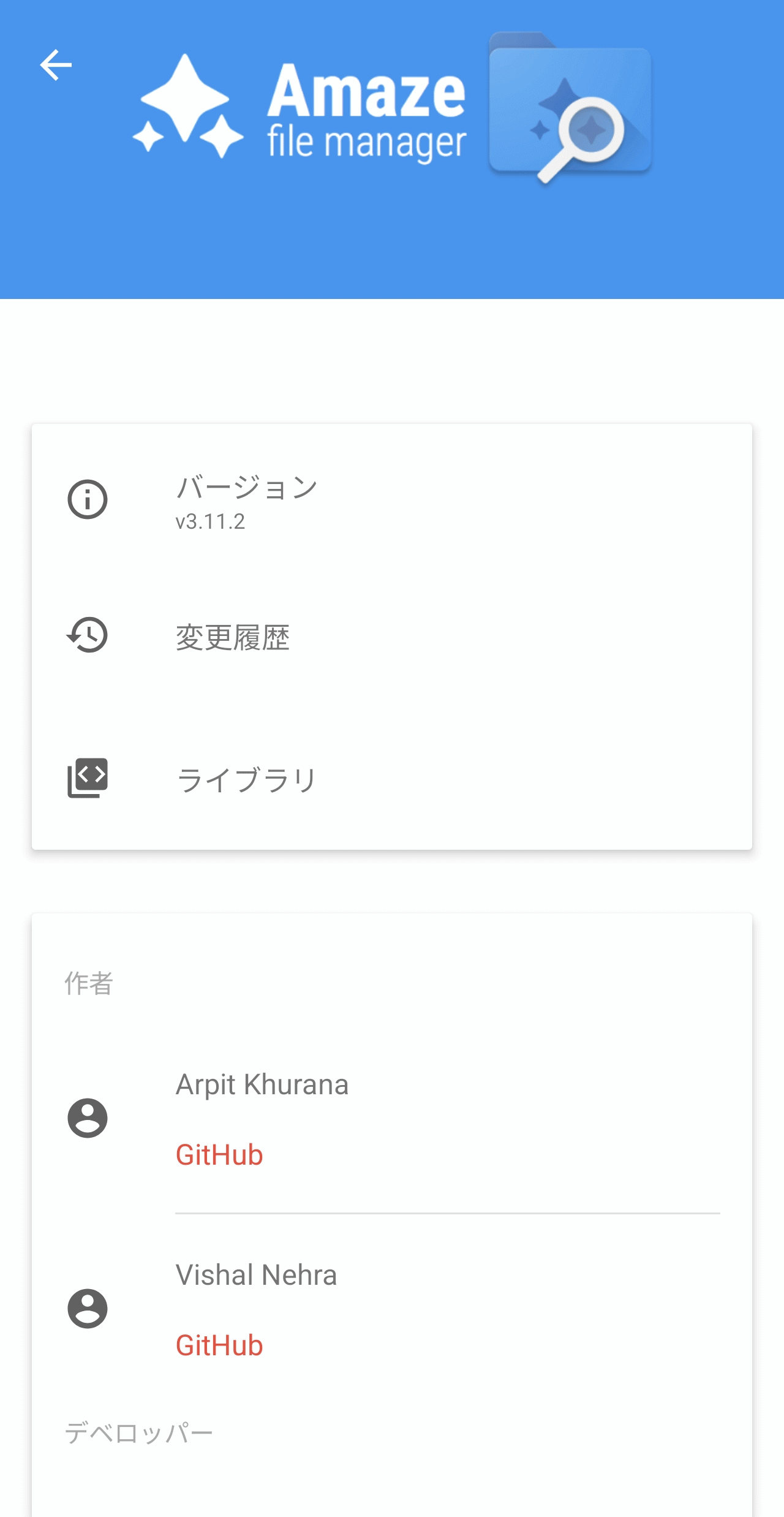
This screen displays information about the app.
Summary
Amaze File Manager is an Android app with exceptional file management capabilities. It's free, has no annoying ads, and can be easily installed from Google Play, so it's definitely worth considering for Android users who are struggling with file management.
Related Posts:


in Software, Smartphone, Review, Posted by log1c_sh