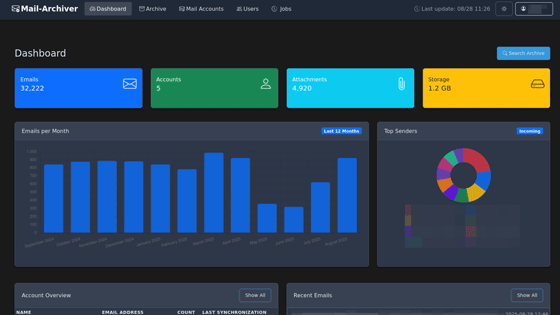
Readeck is a browser extension that lets you easily save pages you're viewing for free and sync with your smartphone, Obsidian, and SingleFile.

Home - Readeck
https://readeck.org/en/
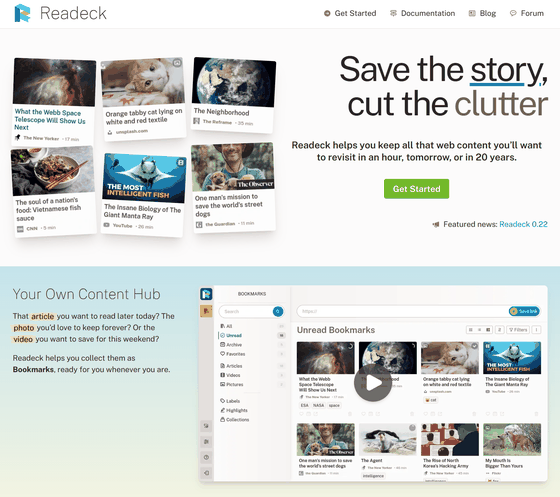
readeck/readeck: Readeck is a simple web application that lets you save the precious readable content of web pages you like and want to keep forever. - Codeberg.org
https://codeberg.org/readeck/readeck
◆Table of Contents
• Readsteering features
How to install Readeck
How to install and use the Firefox Readeck extension
How to install and use the Chrome Readeck extension
How to install and use iPhone apps
How to install and use the Obsidian Readeck plugin
How to install and use the Readeck plugin for SingleFile
◆ReadSeck's functions
- Registration is possible with just a click.
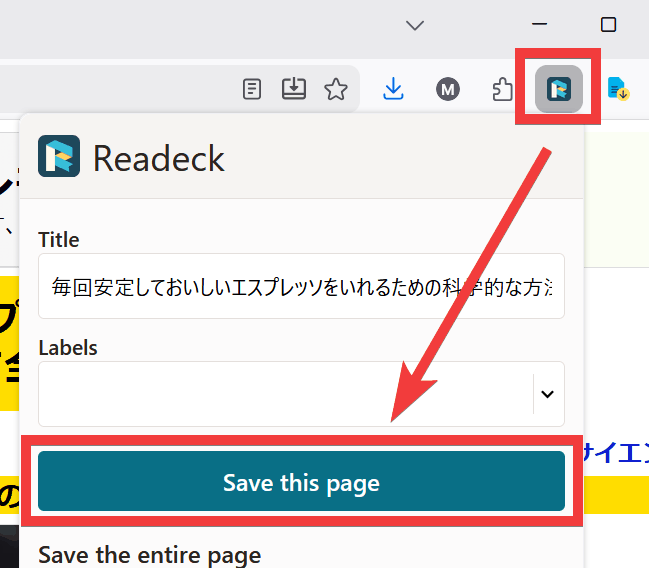
You can easily save pages with just a click by using a browser extension.
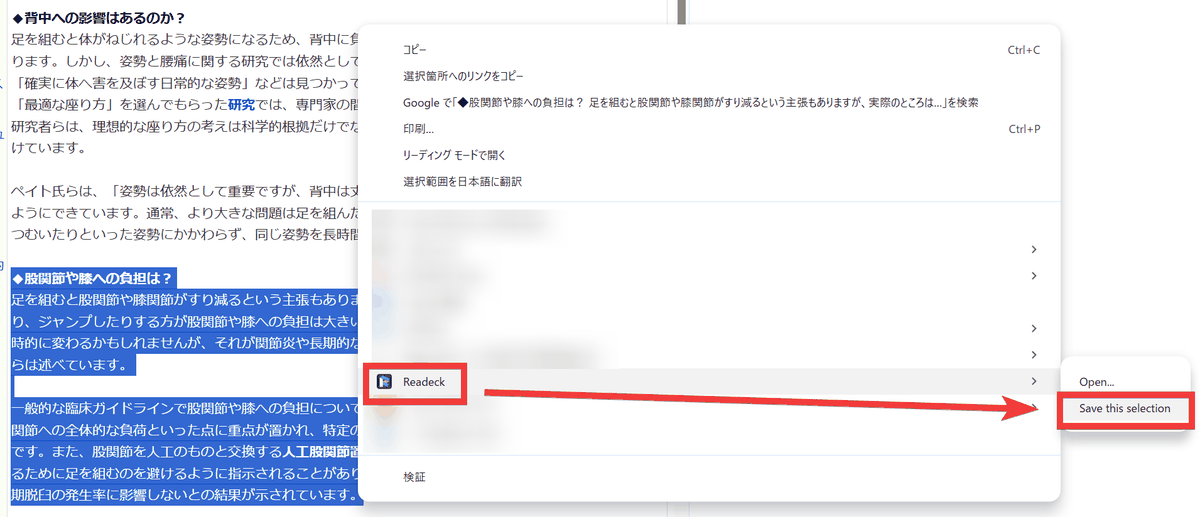
You can save only the selected portion of a page by selecting it and choosing 'Save this selection' from the right-click menu.
- A file format specifically designed for readability
Instead of saving the page as is, only the main text is converted to a proprietary HTML format before saving, resulting in a consistent and easy-to-read appearance.

- Page comments, highlights, and annotations are available.
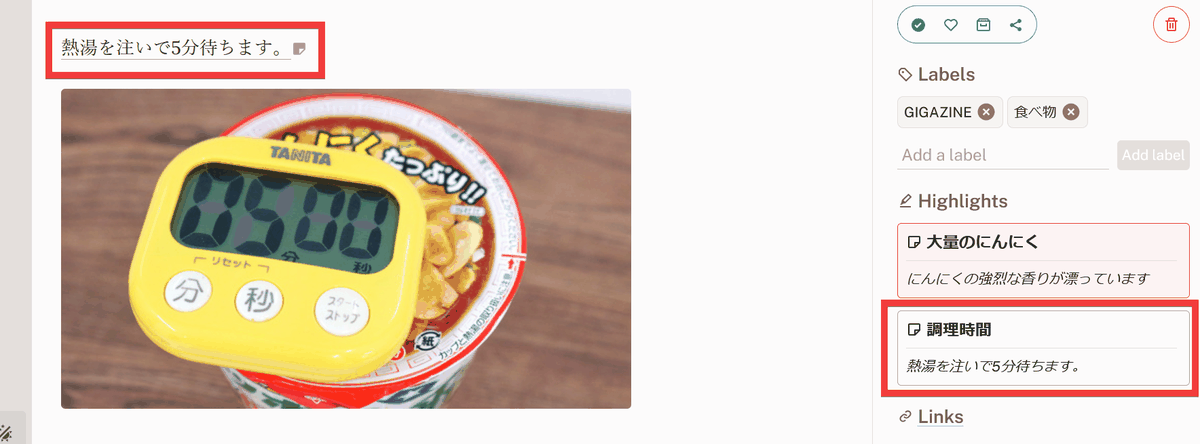
You can add comments and highlights to selected text, and a list of these sections will appear in the sidebar, functioning as links.
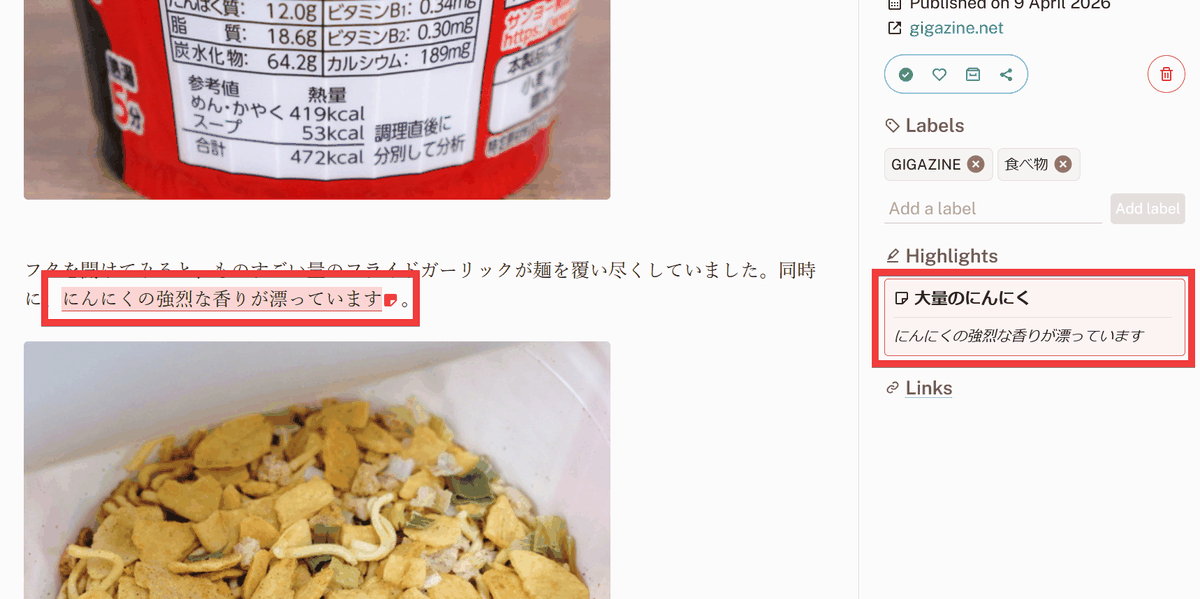
You can also set transparent highlights, allowing you to mark sections that require references or additional explanations while maintaining readability, acting as 'annotations.'
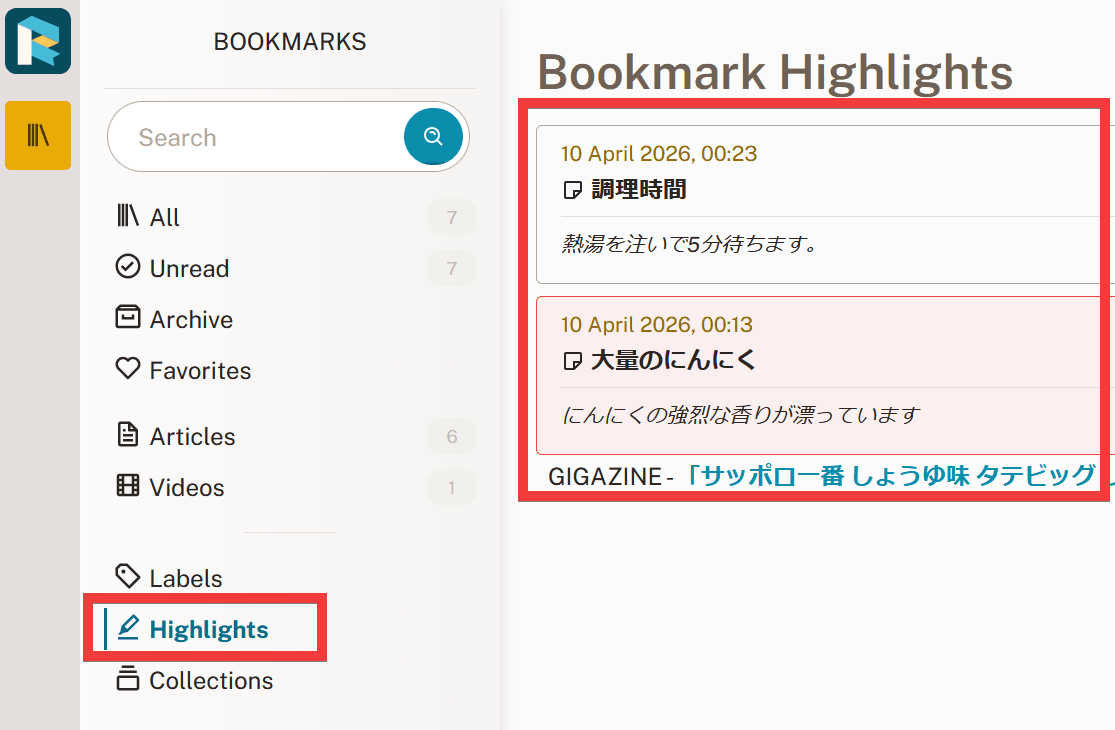
The 'Highlights' page displays a list of highlighted sections, making it convenient to quickly find the information you're looking for.
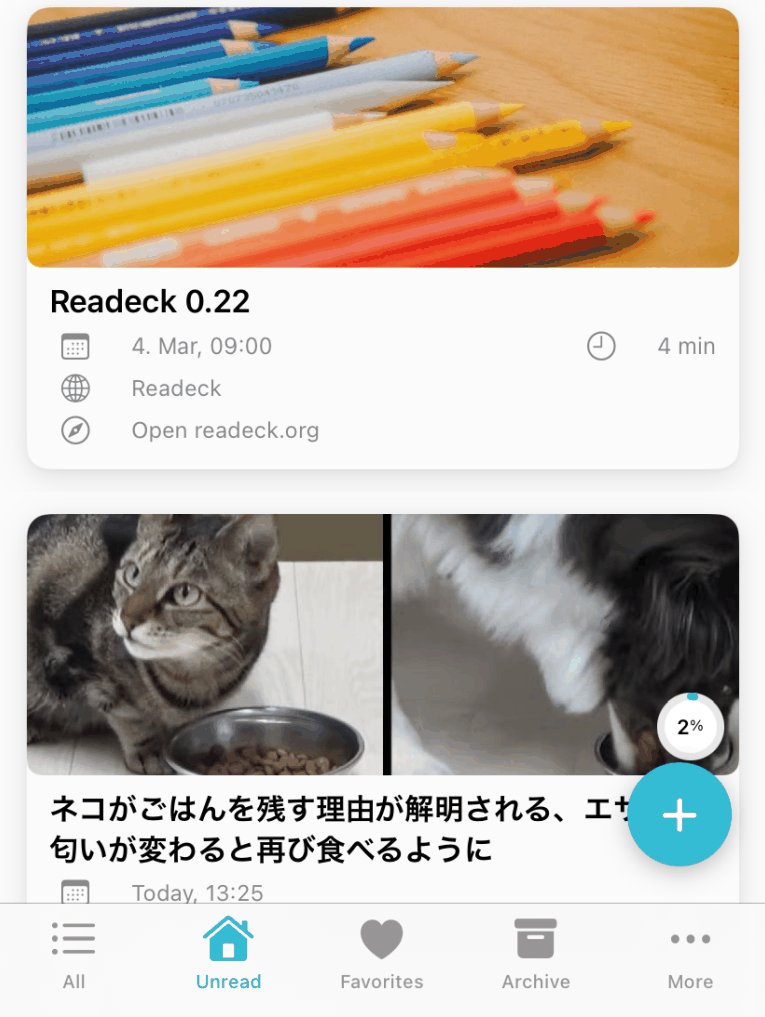
・Sync with smartphone
Official and unofficial apps are available, and they integrate seamlessly with smartphones. You can even turn your Readeck site into an app using
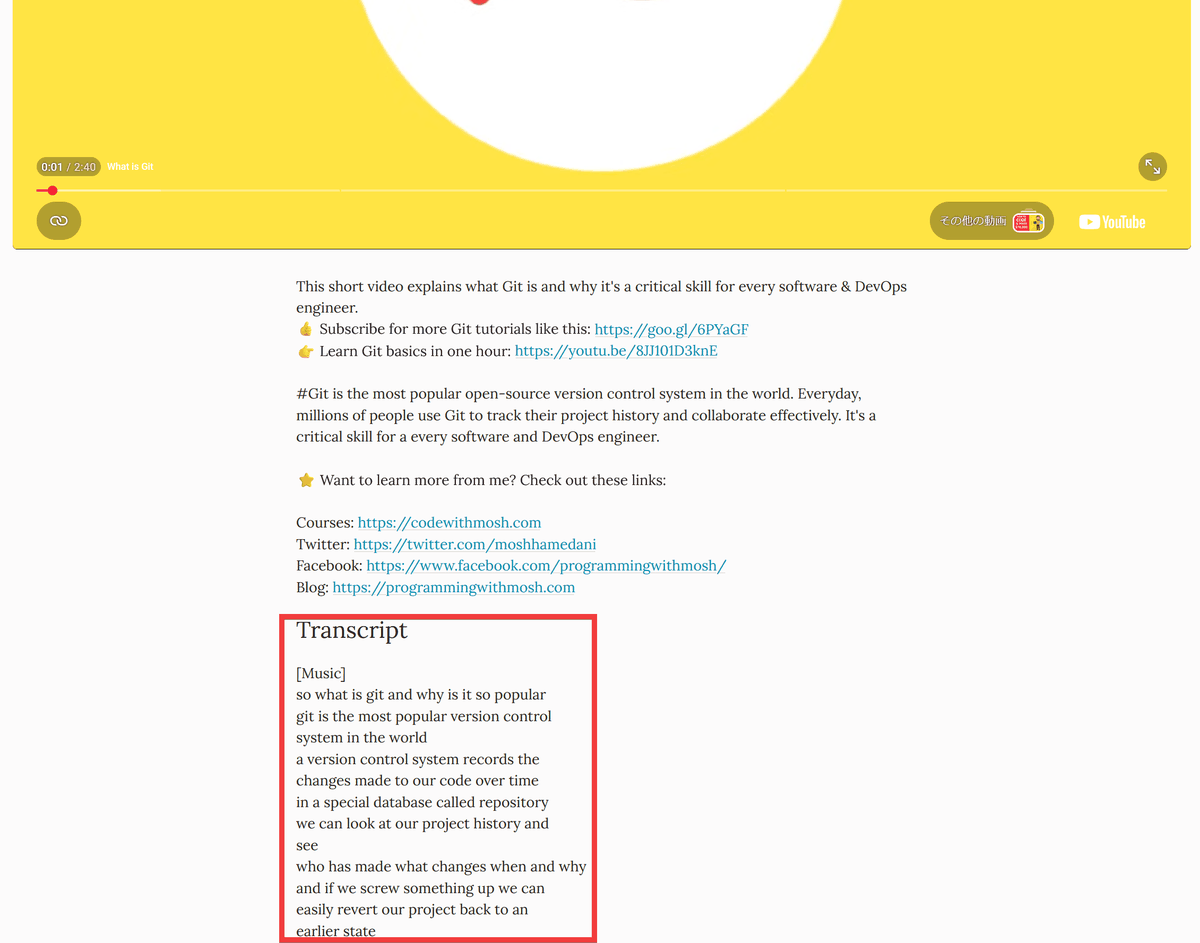
• Save subtitles for the video
When saving videos from sites like
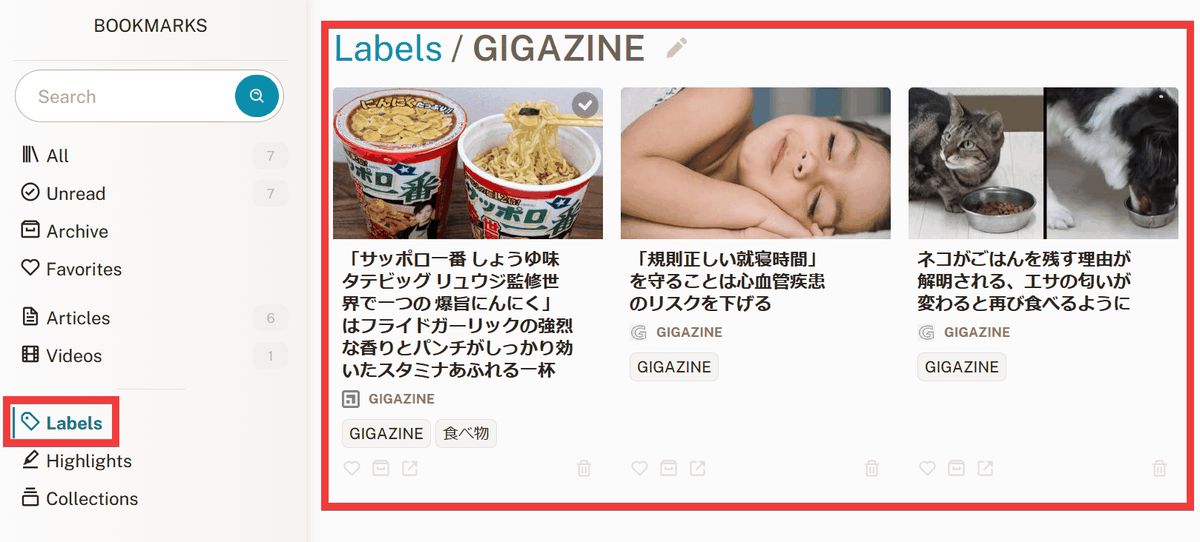
• Label function
By adding labels to pages, you can display a list of pages that share the same label.
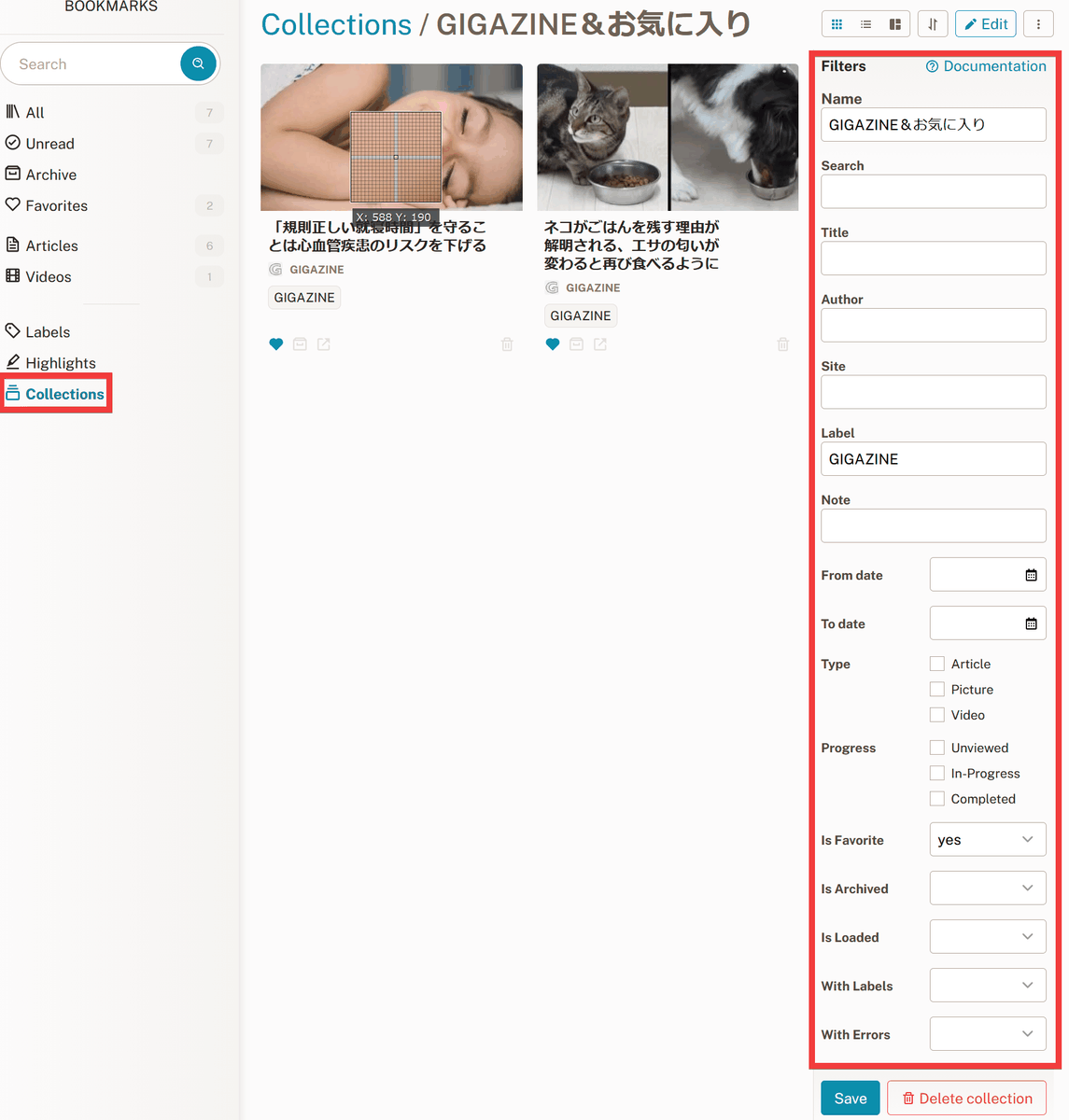
- Filter-type collection
By setting and saving detailed search criteria, the latest search results are displayed as a collection each time.
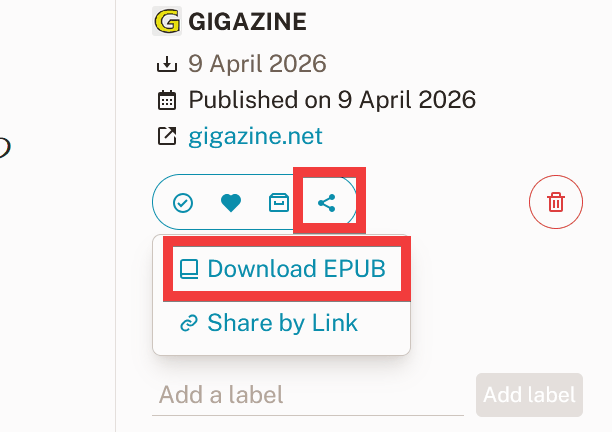
- Offline reading, Kindle integration
By converting saved articles to EPUB format, you can take them with you as ebooks and view them offline on ebooks such as
Sharing without logging in
By generating a shared link, even users who are not logged in can view the page.
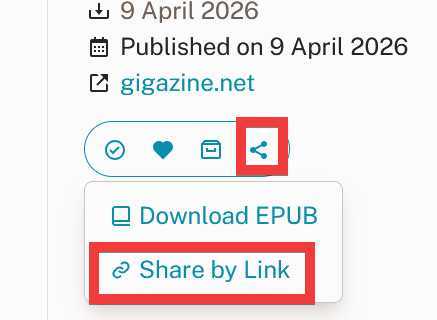
The user who receives the link simply opens it in their browser.

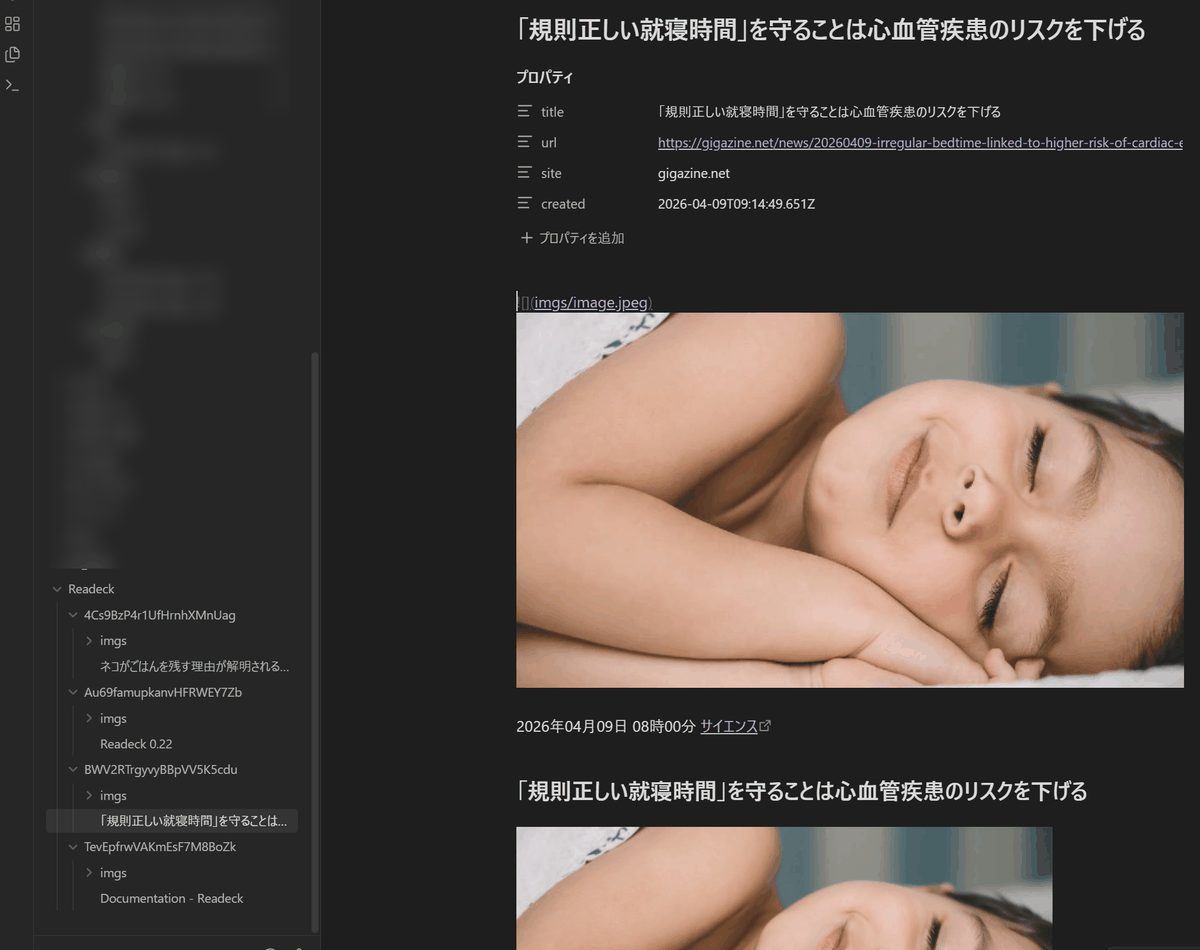
• Integration with Obsidian
Using
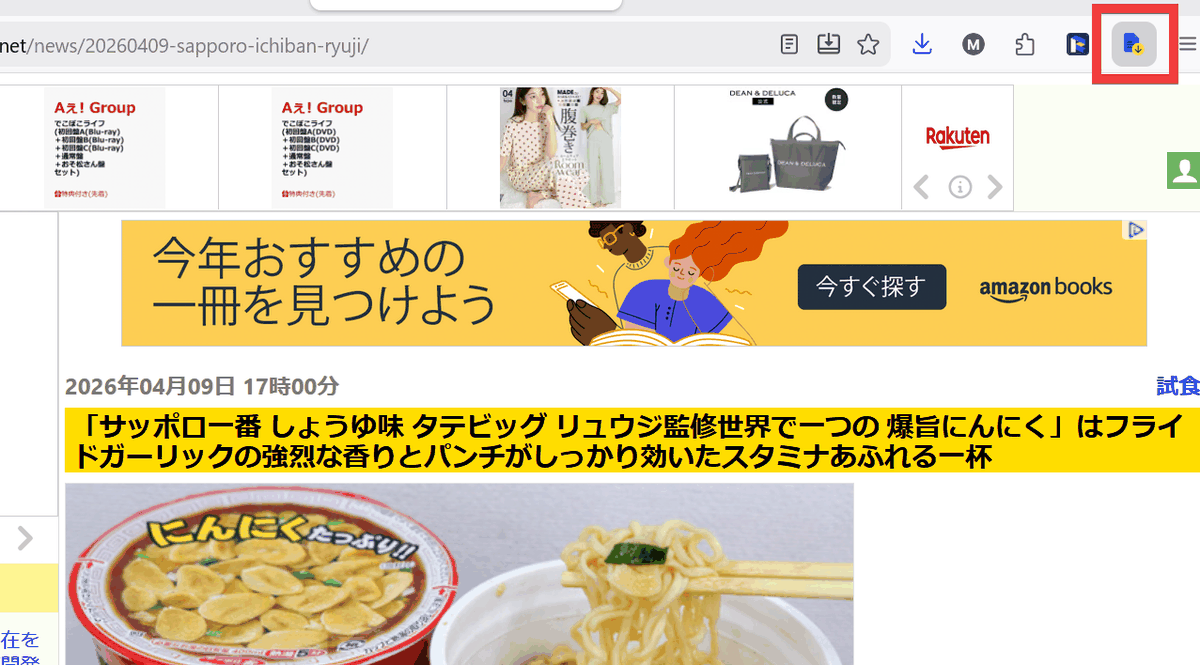
- Integration with SingleFile
You can automatically upload pages saved using
◆How to install Readeck
The following items need to be prepared in advance:
• Server: A server that self-hosts Readeck.
• Domain name: The domain name used to obtain an SSL certificate.
• Docker : A container execution environment for running Readeck containers.
• Nginx Proxy Manager : A reverse proxy for exposing Readeck. It uses Let's Encrypt to obtain SSL/TLS certificates and ensures secure access via HTTPS.
• Container sharing network: A network that allows Readeck and Nginx Proxy Manager containers to run on the same network.
This time, we will set up an environment where Docker and Nginx Proxy Manager can be used on Ubuntu on a Google Cloud VM instance. Create a docker-compose.yaml file in the working folder, referring to the installation instructions on the official website.
 services:
 readeck:
 image: codeberg.org/readeck/readeck:latest
 container_name: readeck
 ports:
 - '8000:8000'
 volume:
 - ./data:/data
 restart: unless-stopped
 networks:
 - default
 - proxy_shared


networks:
 proxy_shared:
 external: true
Start the container.
docker compose up -d
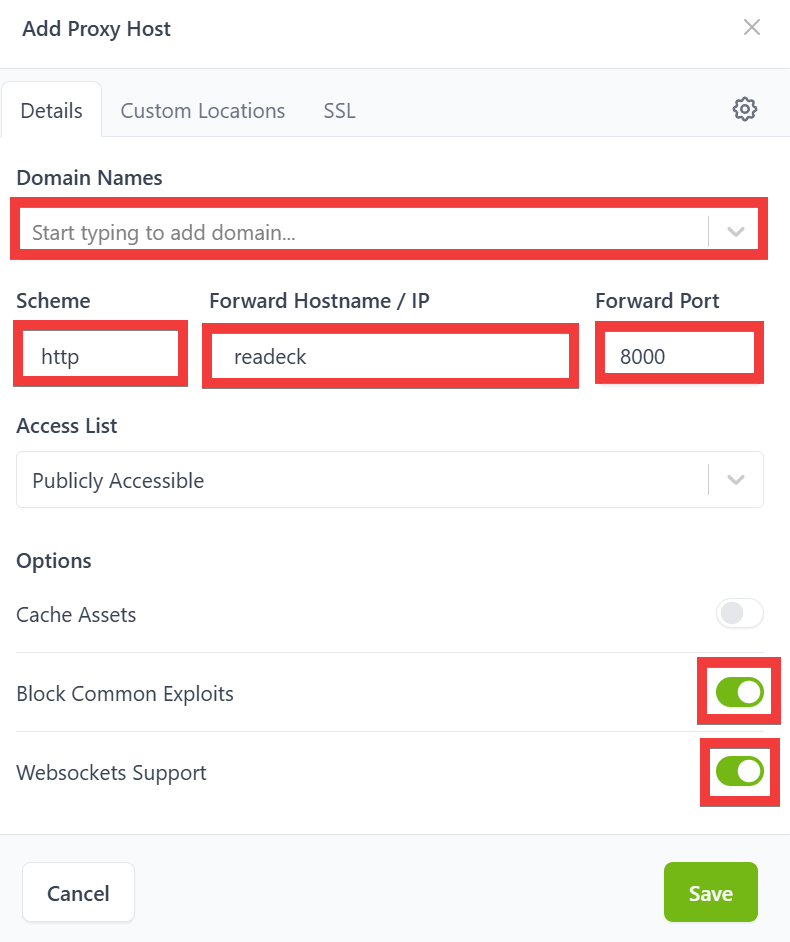
To configure the reverse proxy, access the Nginx Proxy Manager management screen in your browser, click 'Hosts,' then 'Proxy Hosts,' and then click 'Add Proxy Host.'
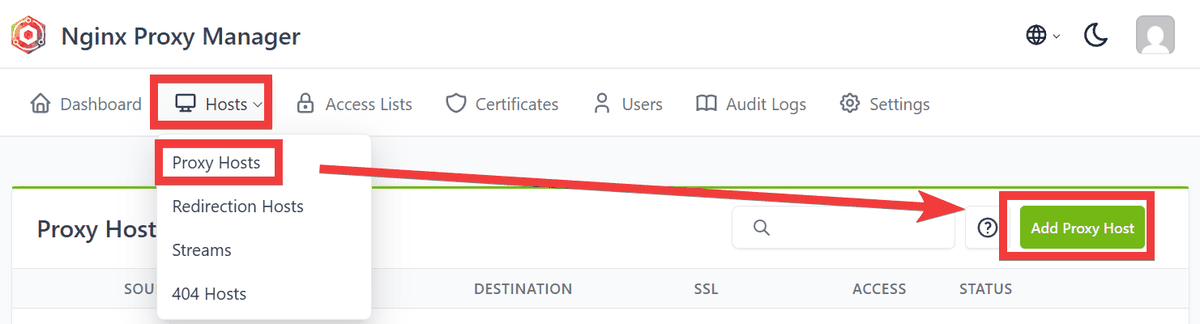
Enter your domain name in 'Domain Names,' select 'http' for 'Scheme,' enter 'readeck' in 'Forward Hostname/IP,' enter '8000' in 'Forward Port,' turn on the toggles for 'Block Common Exploits' and 'Websockets Support.'
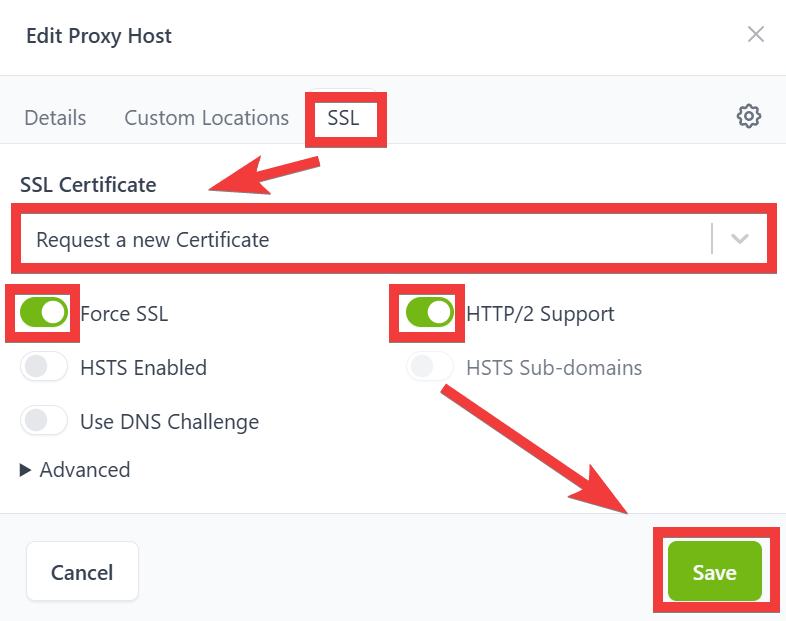
Select the 'SSL' tab, then select 'Request a new Certificate' for 'SSL Certificate,' turn on the toggles for 'Force SSL' and 'HTTP/2 Support,' and click 'Save.'
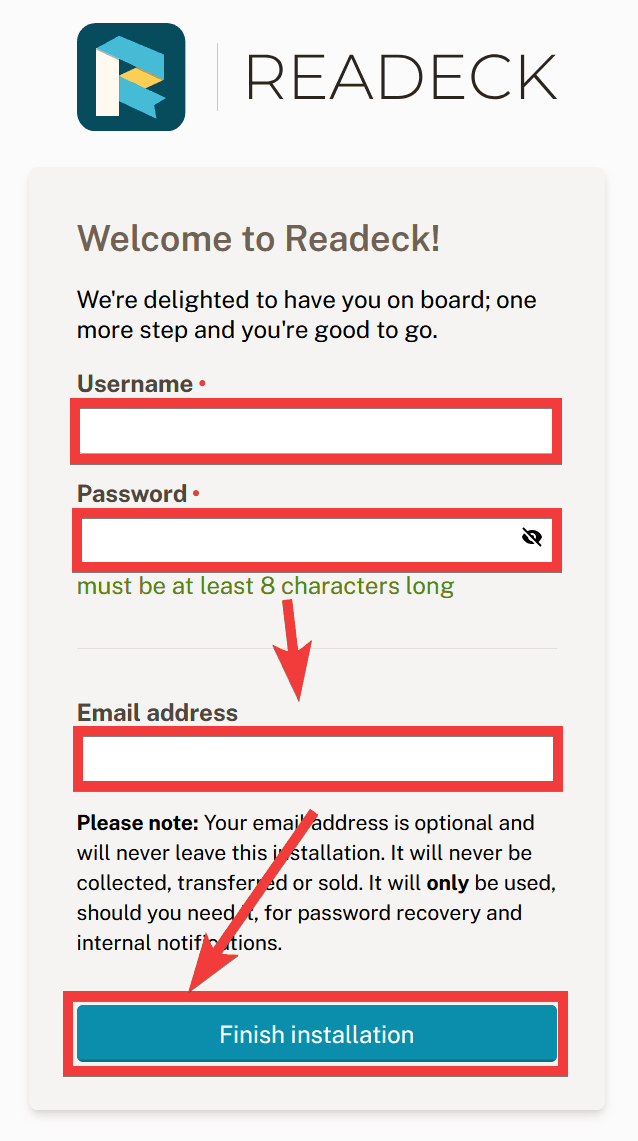
When you access the domain name in your browser, an administrator registration form will appear. Enter your desired username in 'Username', your password in 'Password', and your email address in 'Email address', then click 'Finish installation'.
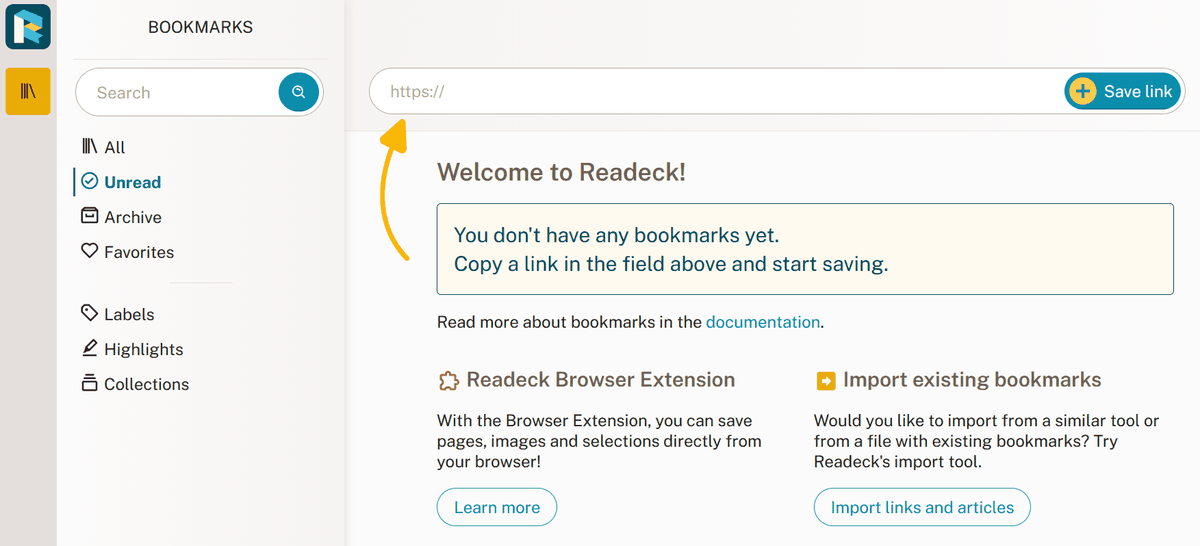
Once registration is complete, the initial screen will be displayed.
◆How to install and use the Firefox Readeck extension
Click the 'GET THE ADD-ON' icon for
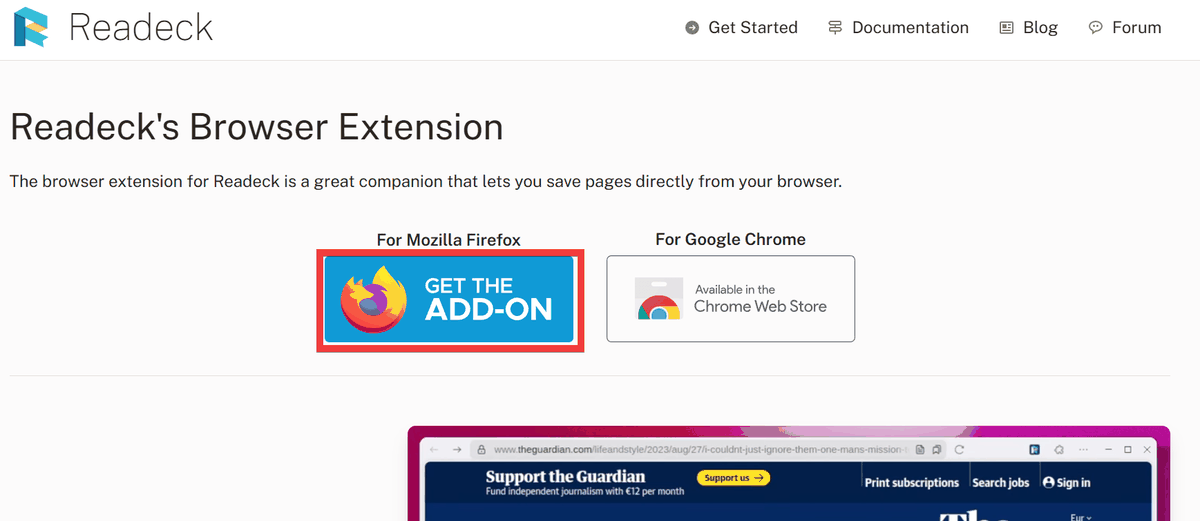
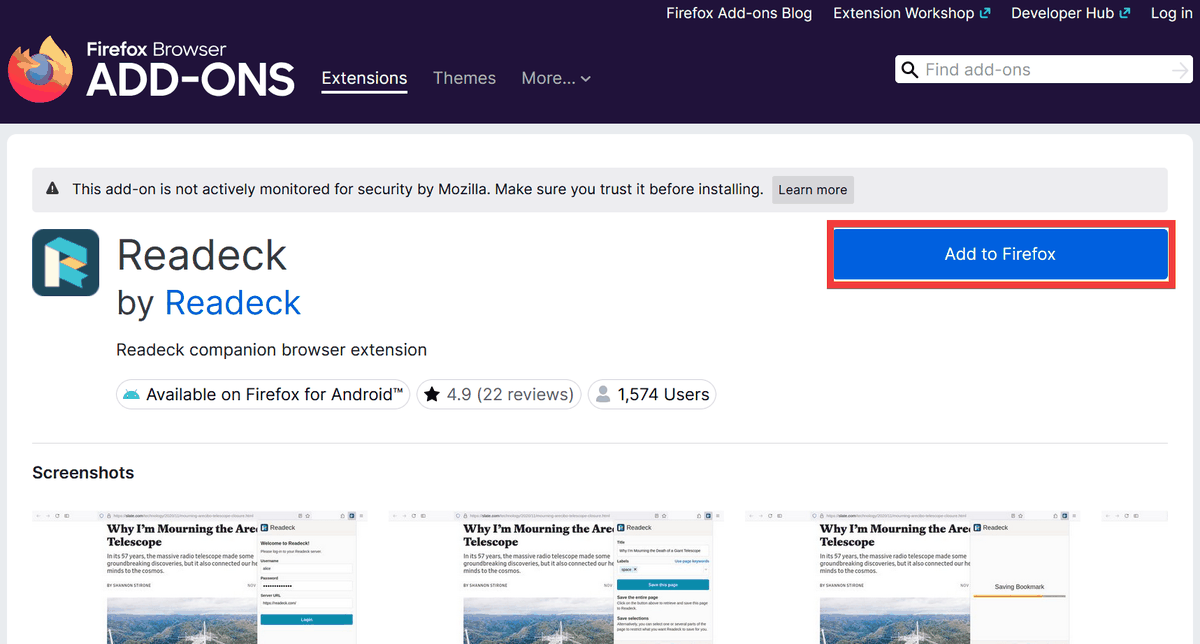
The Readeck extension installation page will appear, so click 'Add to Firefox'.
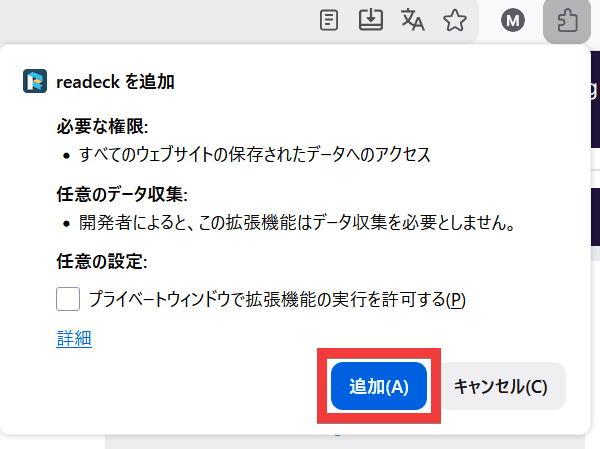
A confirmation dialog for installation will appear, so click 'Add'.
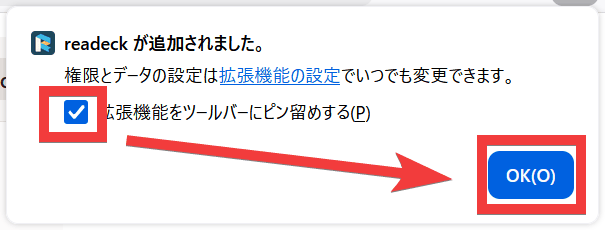
Check the 'Pin extension to toolbar' checkbox and click 'Done'.
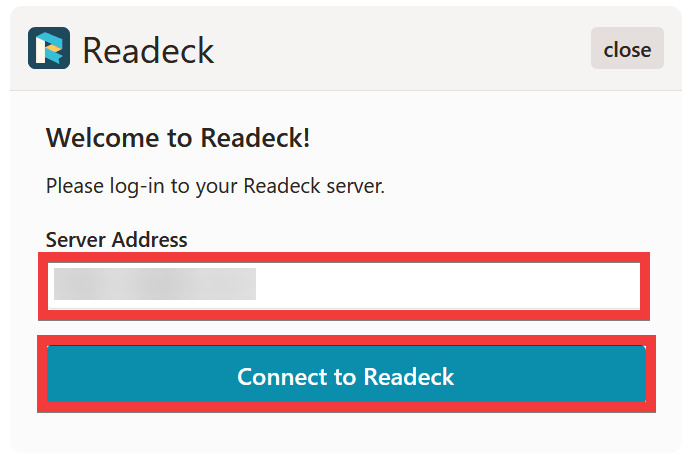
A server connection form will appear. Enter the server's domain name in the 'Server Address' field and click 'Connect to Readeck'.
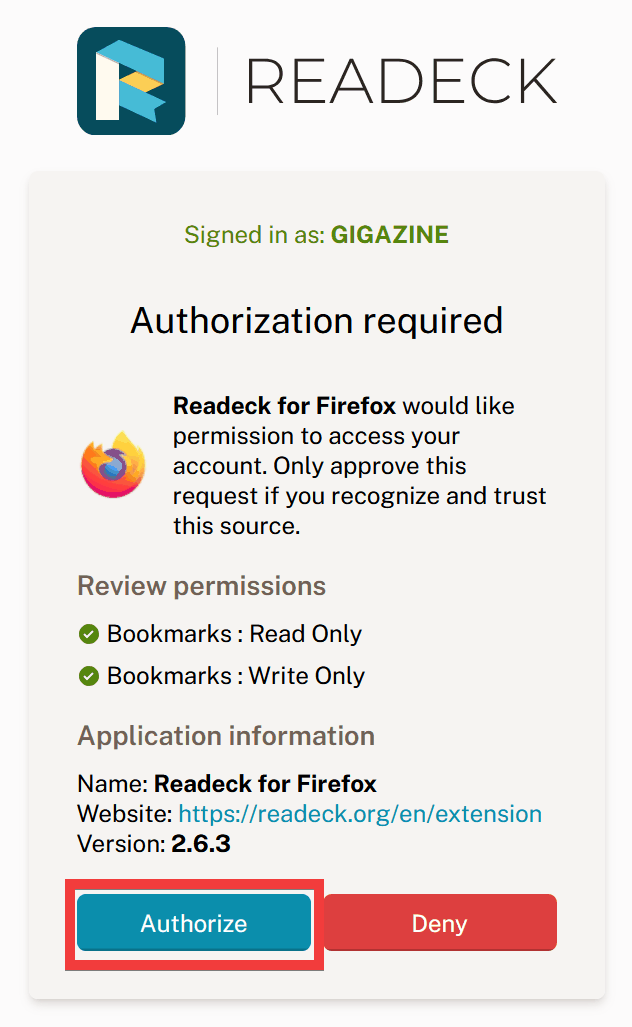
A dialog box for approving the connection will appear, so click 'Authorize'.
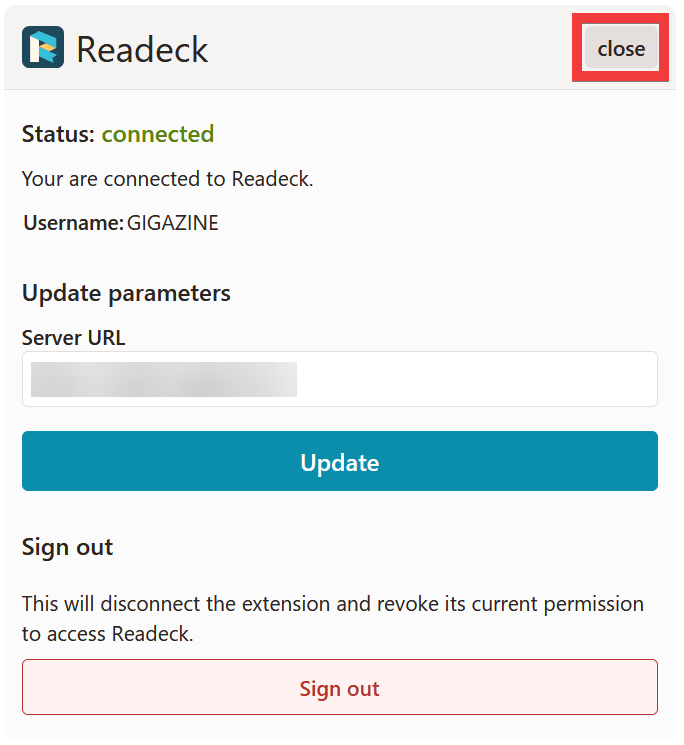
A confirmation screen for the settings will appear, so click 'close' to finish.
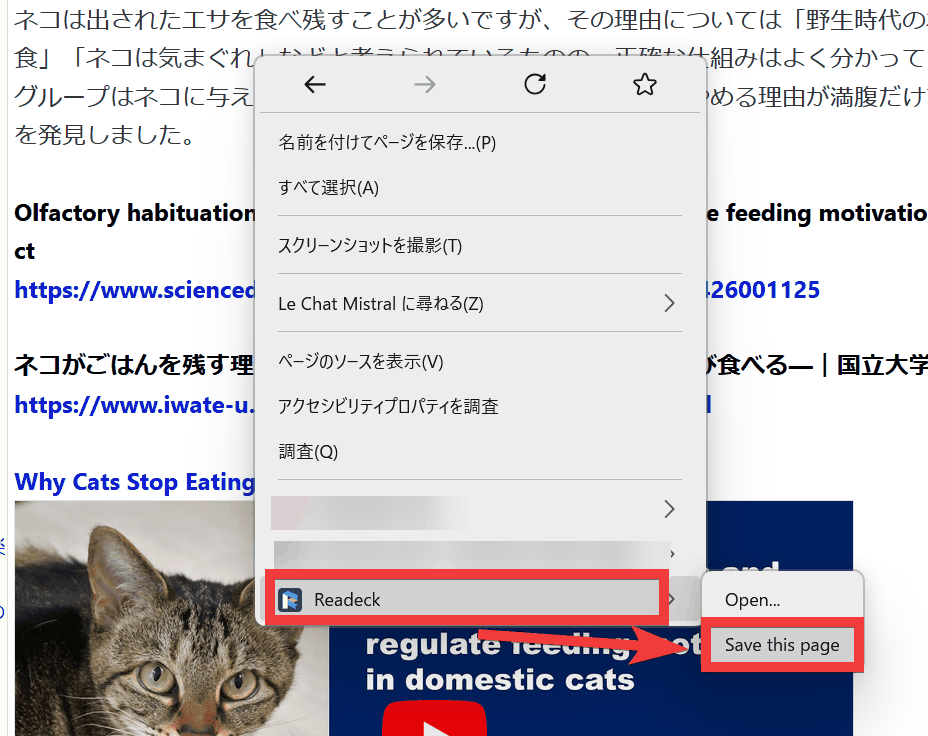
To use it, click the extension icon on the page you want to save, or right-click and select 'Readeck' from the context menu, then click 'Save this page' to save it.
◆How to install and use the Chrome Readeck extension
Click the 'Chrome Web Store' icon for
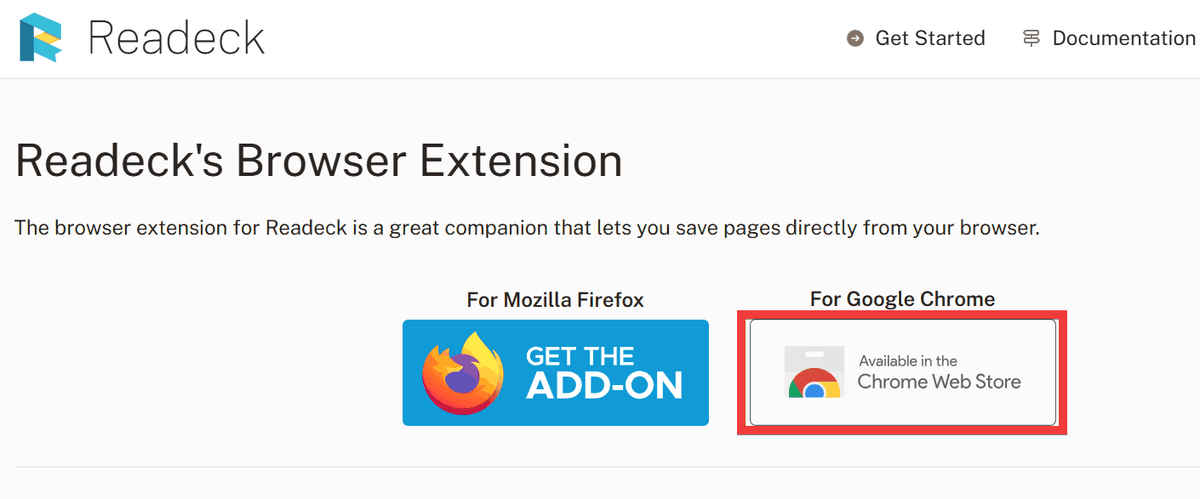
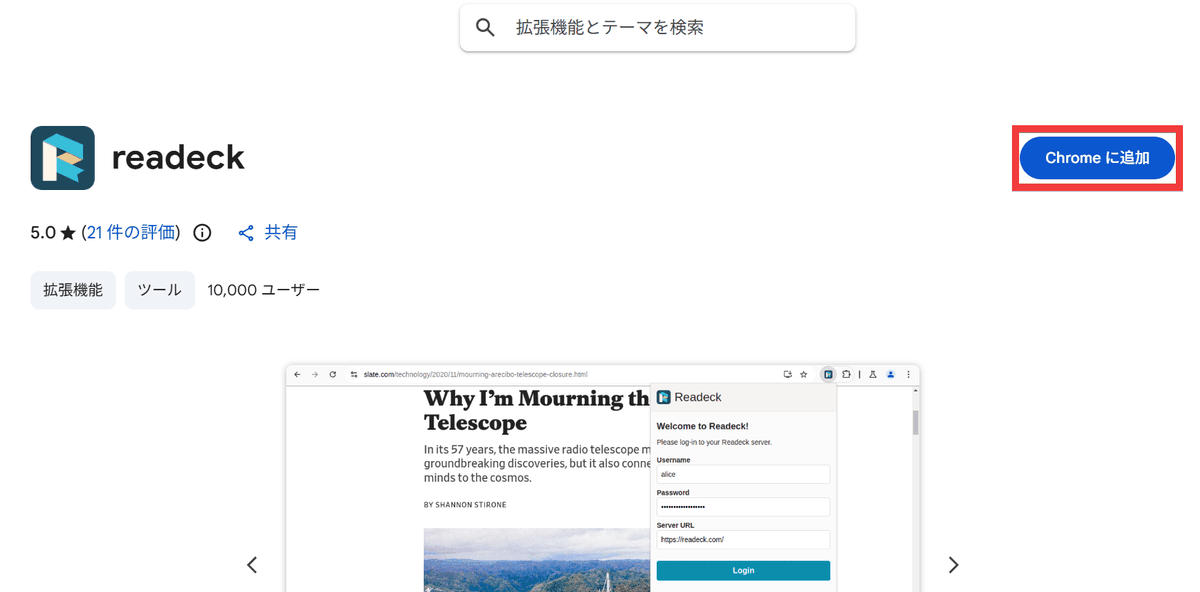
The Chrome Web Store page will appear, so click 'Add to Chrome'.
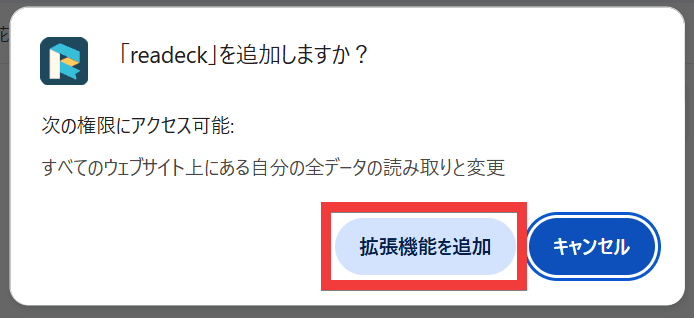
A pop-up will appear, so click 'Add extension'.
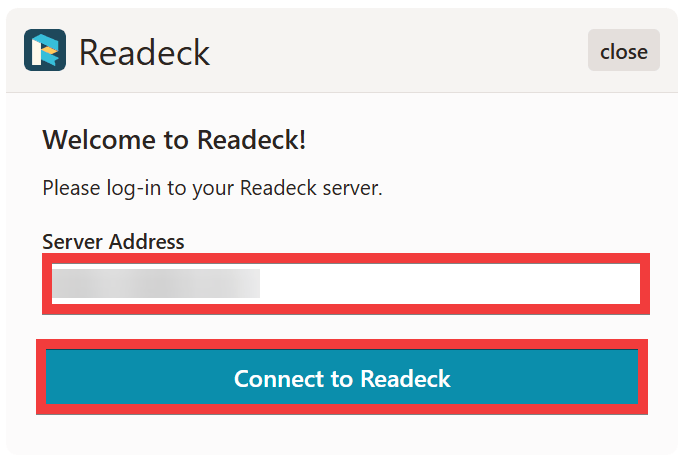
A server connection form will appear. Enter the server's domain name in the 'Server Address' field and click 'Connect to Readeck'.
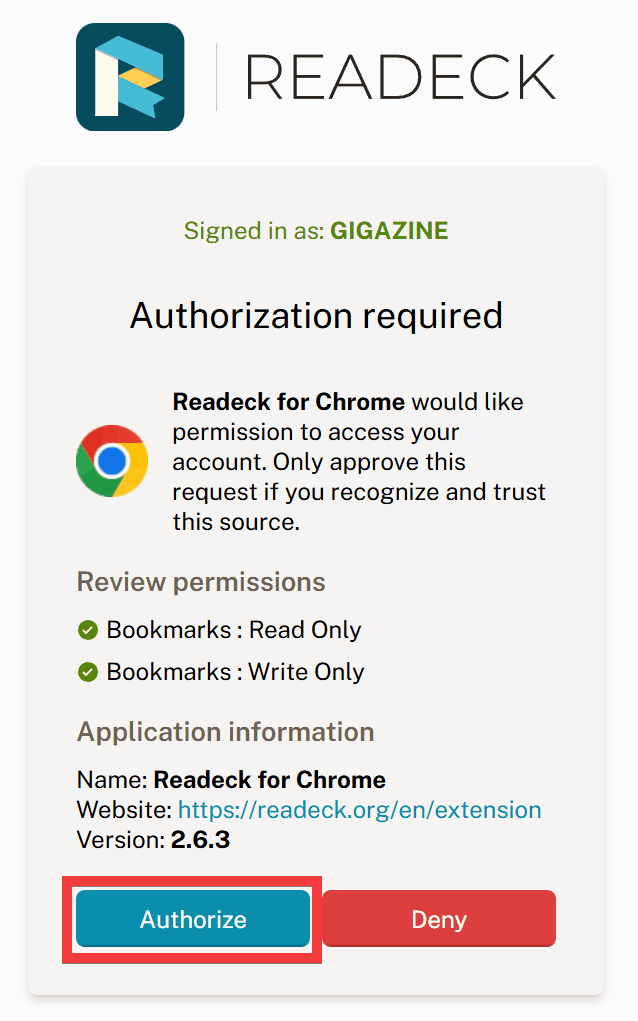
A dialog box for approving the connection will appear, so click 'Authorize'.
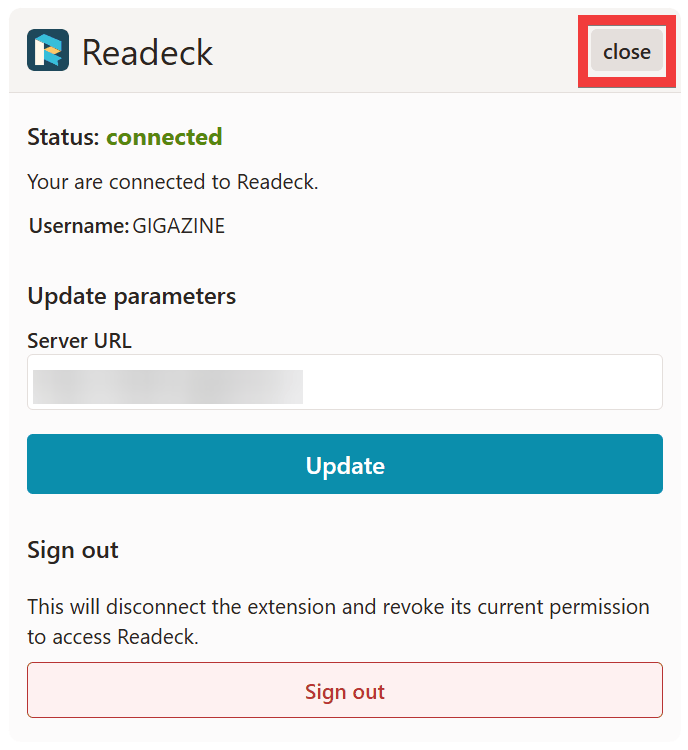
A confirmation screen for the settings will appear, so click 'close' to finish.
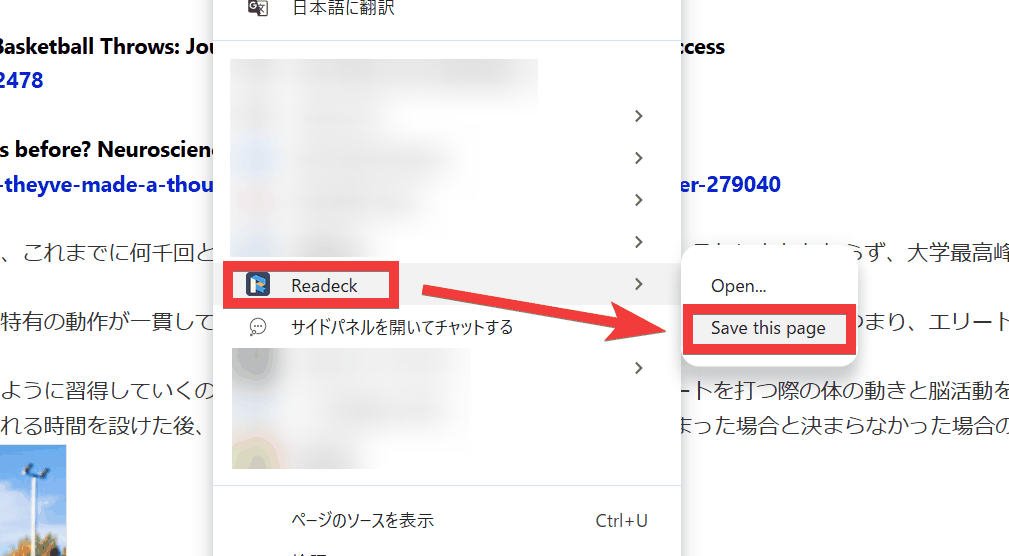
To use it, click the extension icon on the page you want to save, or right-click and select 'Readeck' from the context menu, then click 'Save this page' to save it.
◆How to install and use iPhone apps
Tap
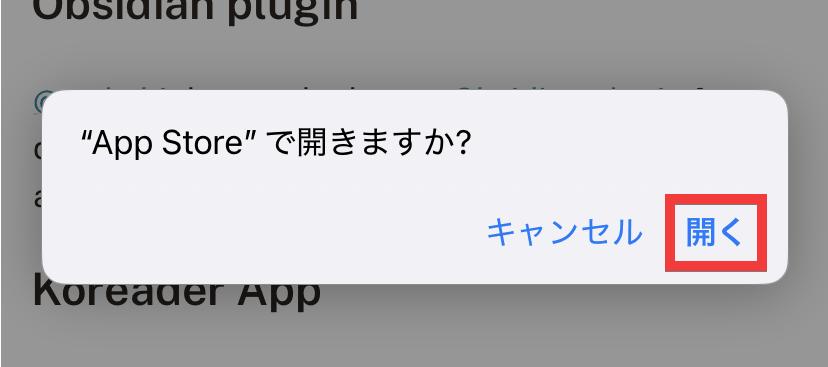
A dialog box will appear asking, 'Do you want to open it in the 'App Store'?' Tap 'Open'.
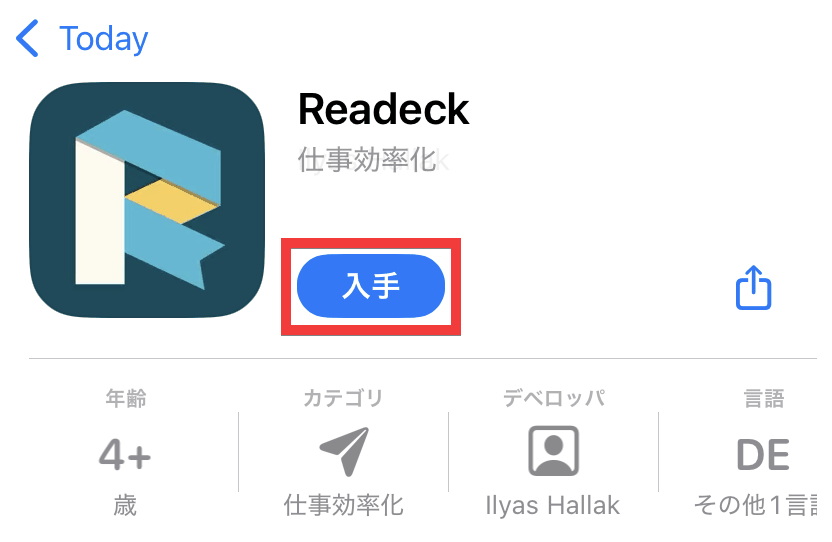
The Readeck app download page will appear, so tap 'Get'.
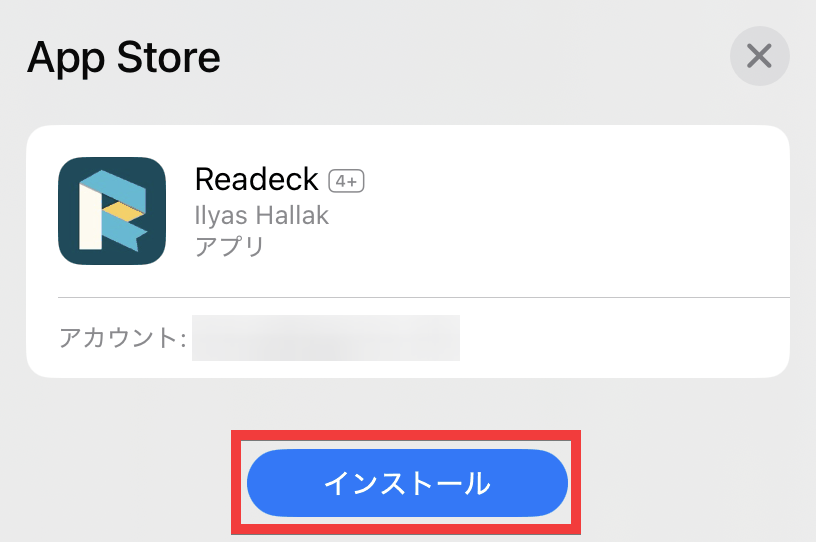
A confirmation dialog for installation will appear, so tap 'Install'.
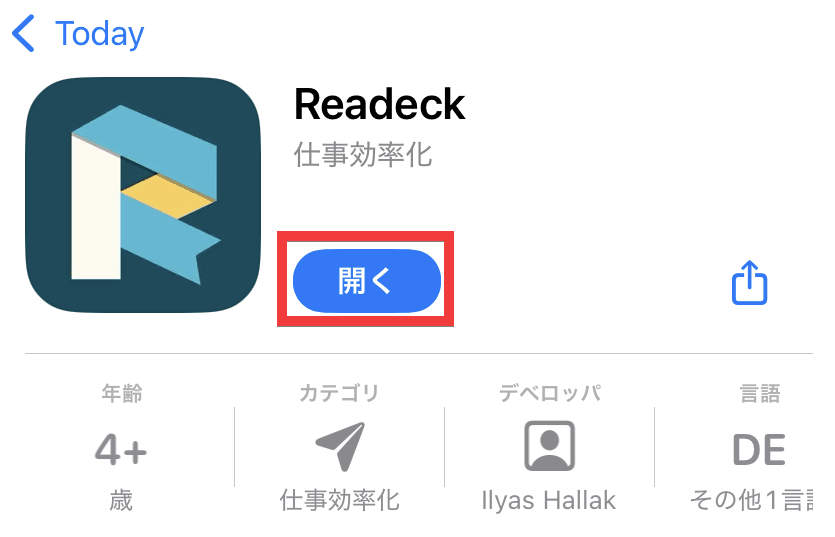
Once the installation is complete, tap 'Open'.
A form for connecting to the Readeck server will appear. Enter the server's domain name in 'Server Endpoint' and tap 'Continue'.
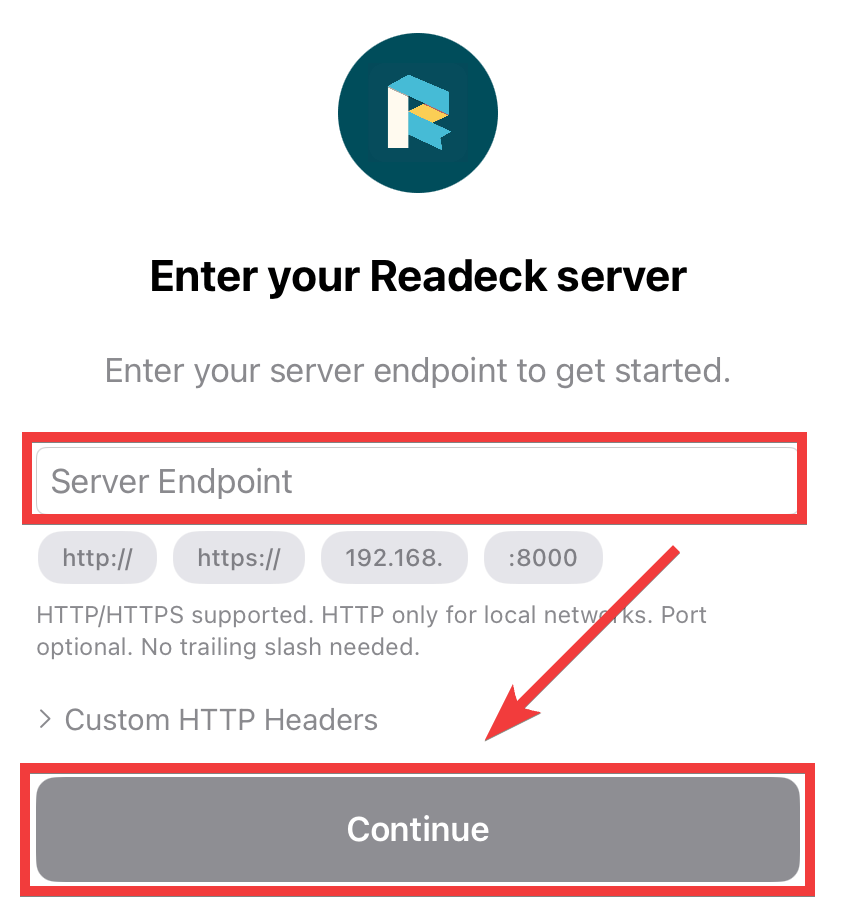
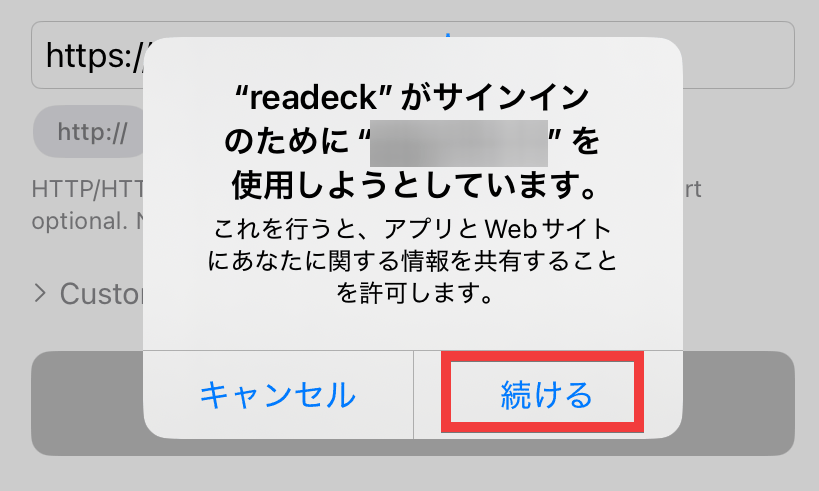
A screen will appear asking you to confirm the use of your privacy information; tap 'Continue'.
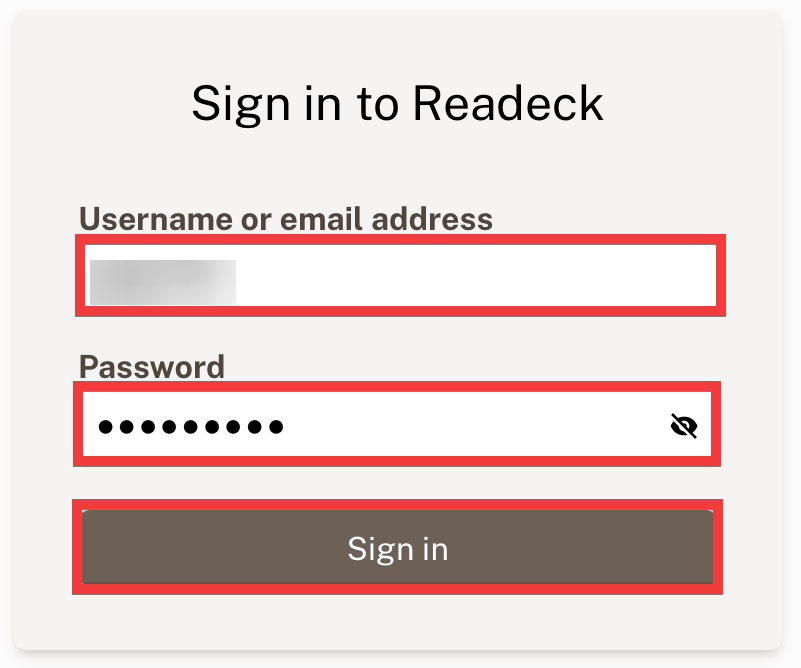
A sign-in form will appear. Enter your username or email address in the 'Username or email address' field and your password in the 'Password' field, then tap 'Sign in'.
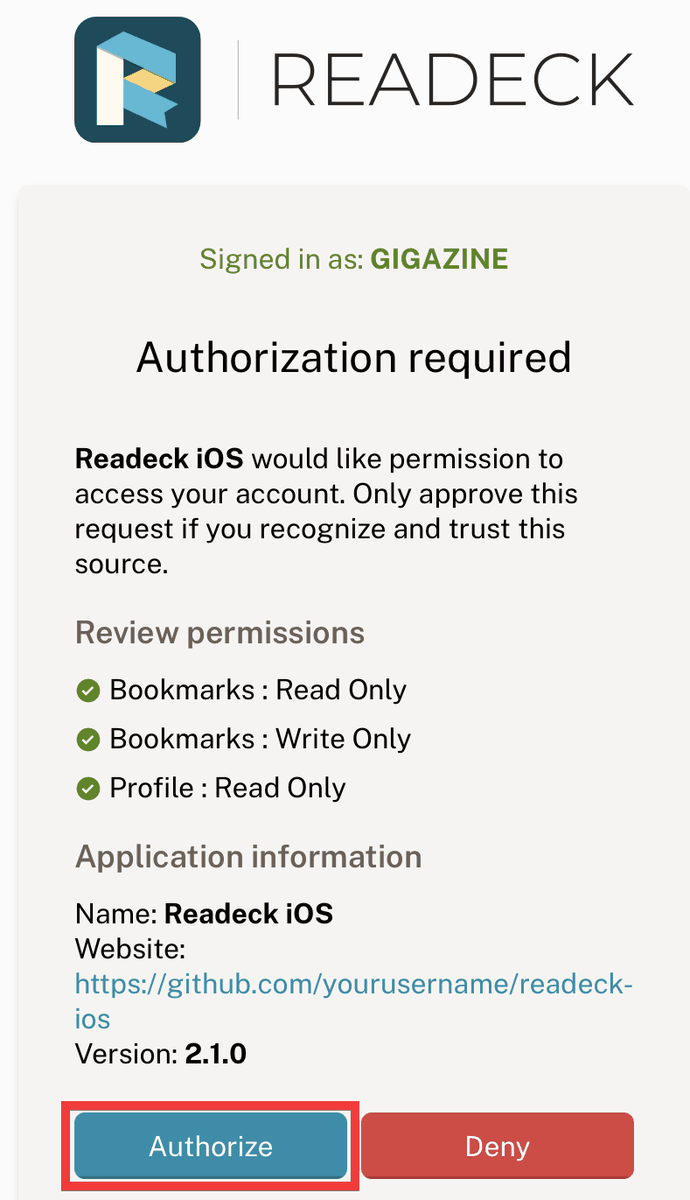
A screen will appear requesting authorization for the connection; tap 'Authorize'.
If the release notes are displayed, tap 'Done'.

The installation is complete when the app's home screen appears.
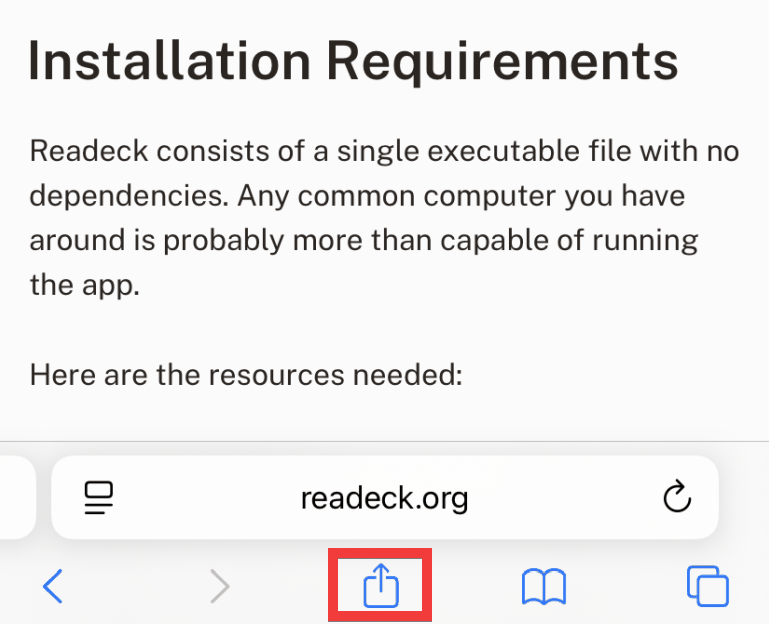
To use it, simply tap the share icon at the bottom of the screen while the page you want to save is displayed in your browser.
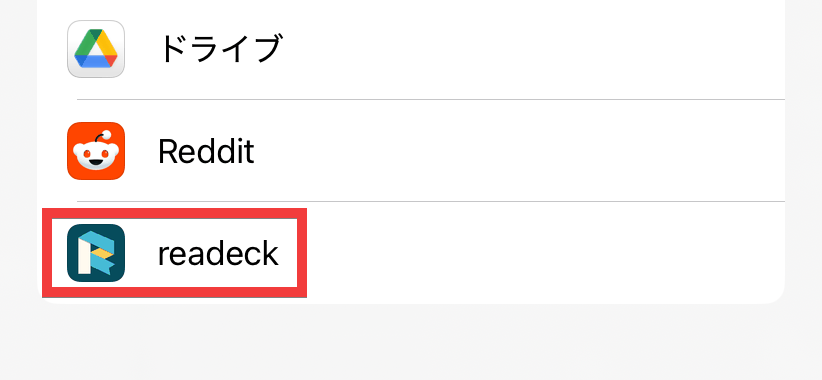
A list of apps will appear, so tap 'readeck'.
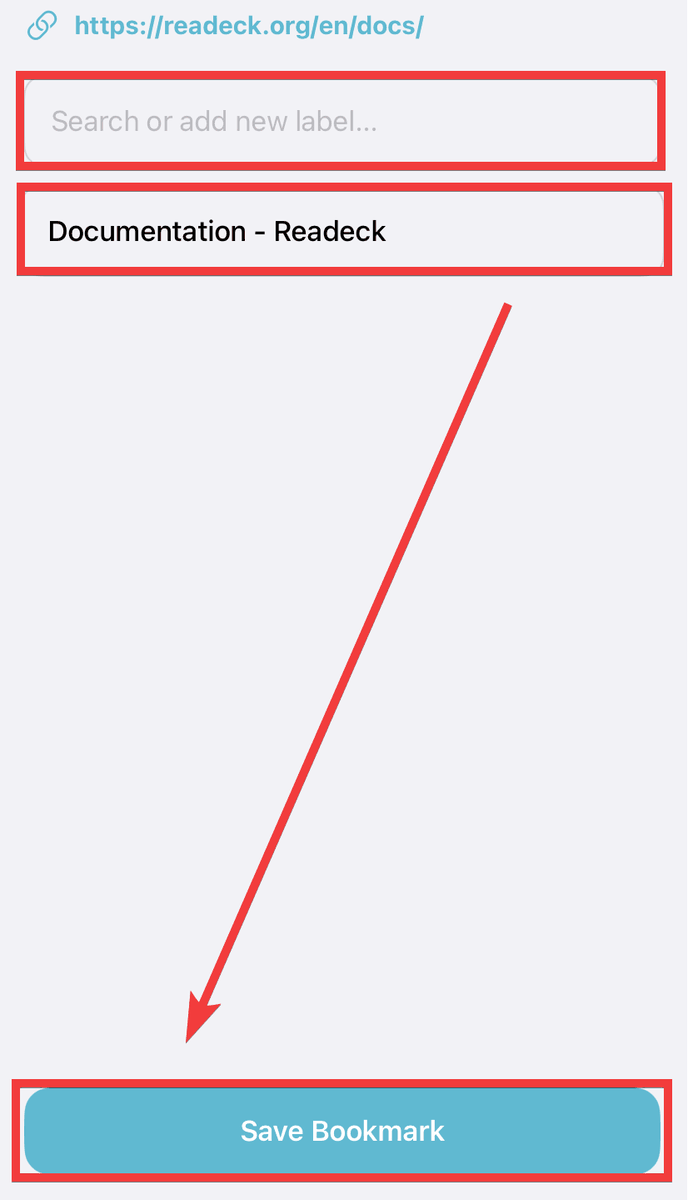
Enter a label of your choice in 'Search or add new label,' adjust the 'Title of the page to retrieve' field as needed, and then tap 'Save Bookmark.'
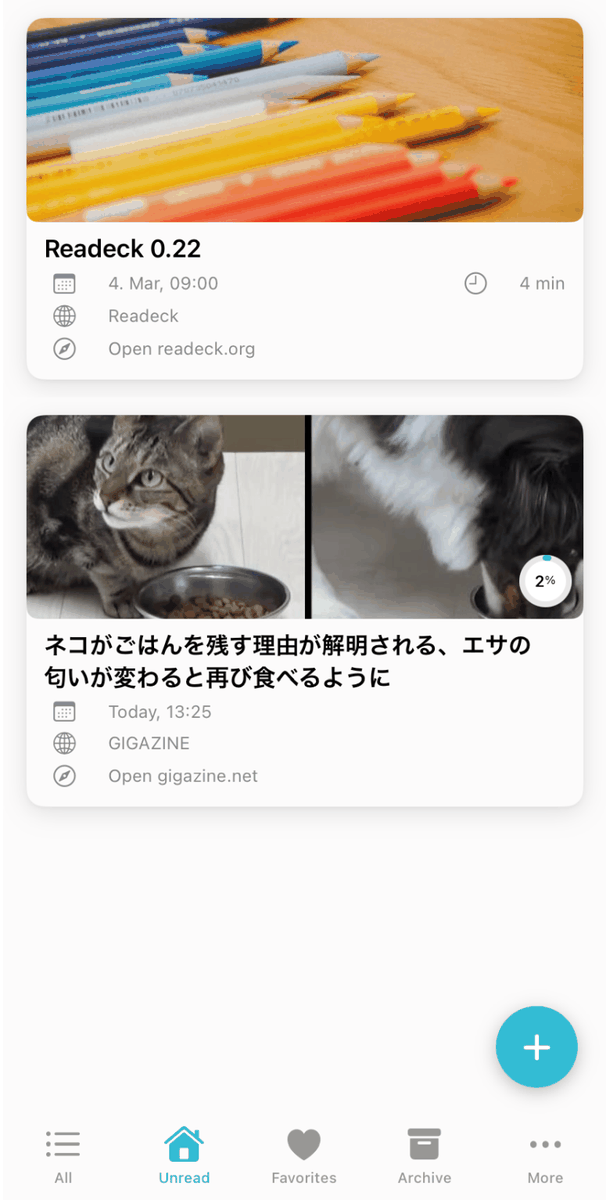
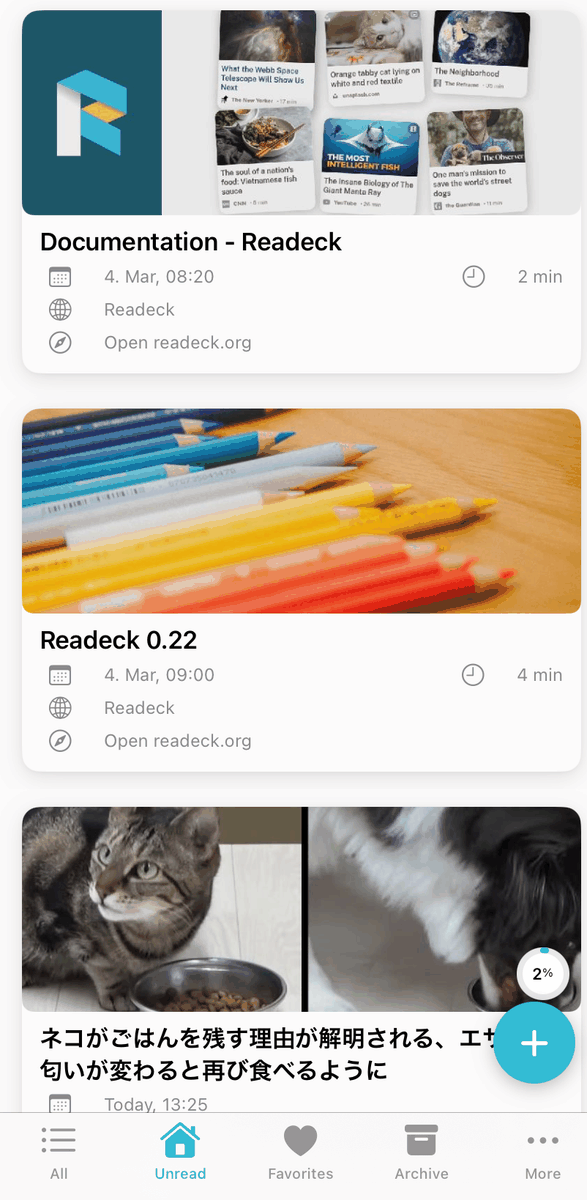
Once saving is complete, the item will be added to the app's home screen.
◆How to install Android apps
Unofficial third-party apps are available. Tap the 'GET IT ON F-Droid' icon at
Tap 'DOWNLOAD F-DROID' to install
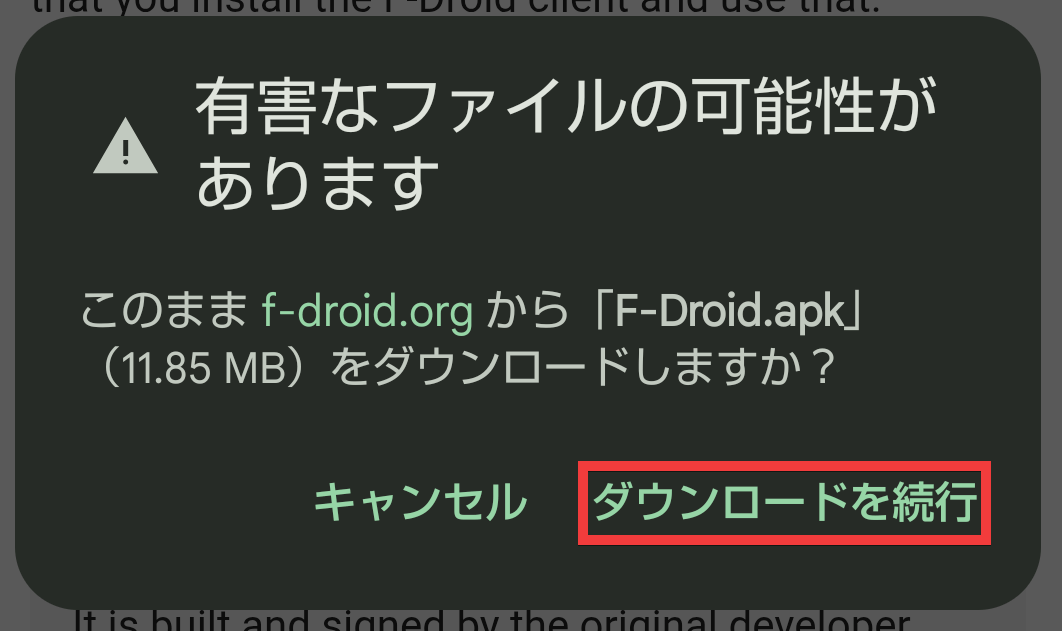
A warning will appear, so tap 'Continue Download'.
Once the download is complete, tap 'Open'.
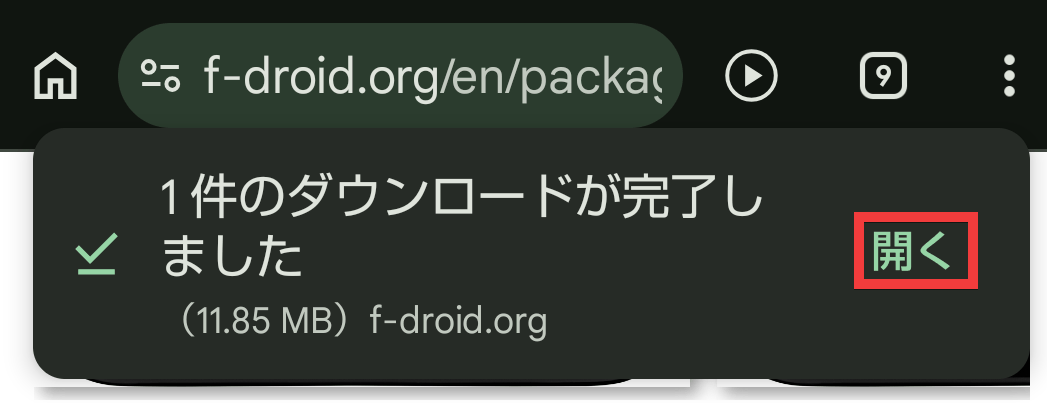
A confirmation dialog for installation will appear, so tap 'Install'.
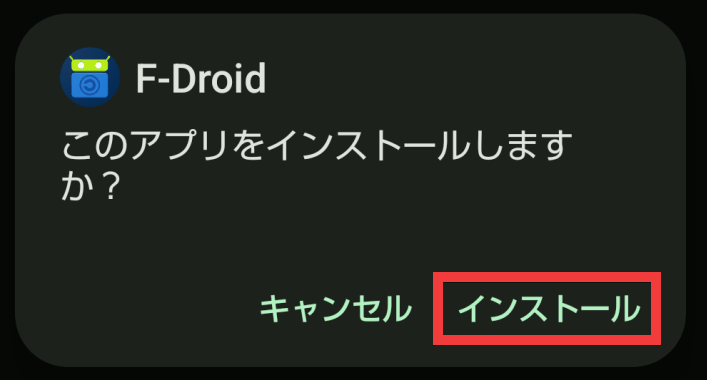
Once the installation is complete, tap 'Done'.
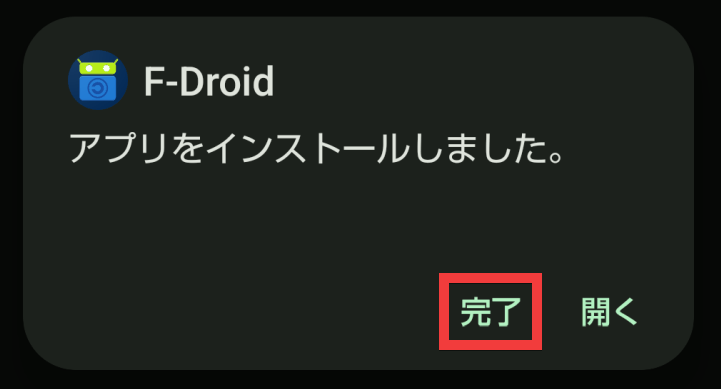
Return to the
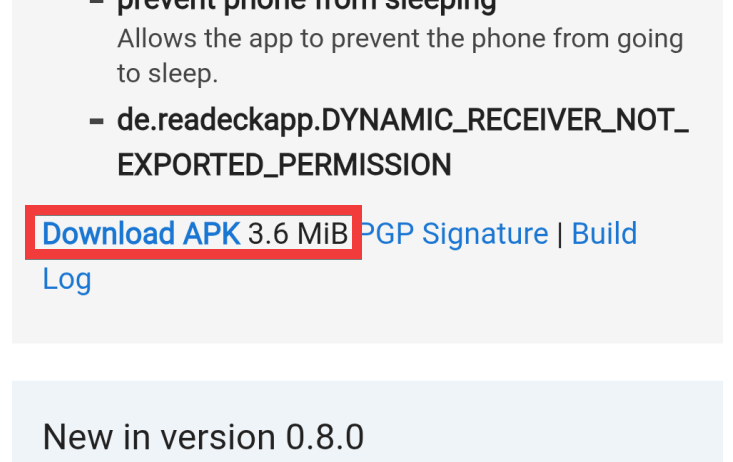
A warning will appear, so tap 'Continue Download'.
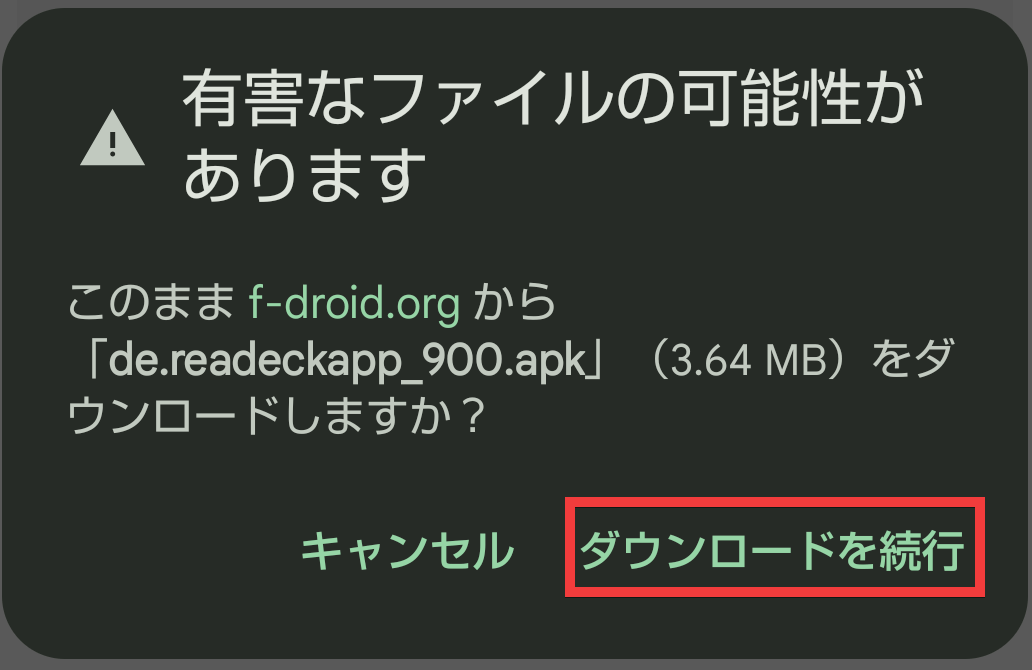
Once the download is complete, tap 'Open'.
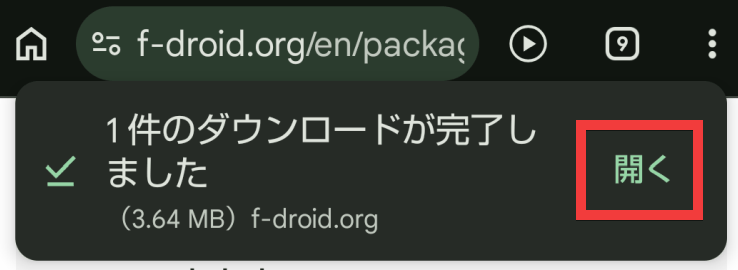
A confirmation dialog for installation will appear, so tap 'Install'.
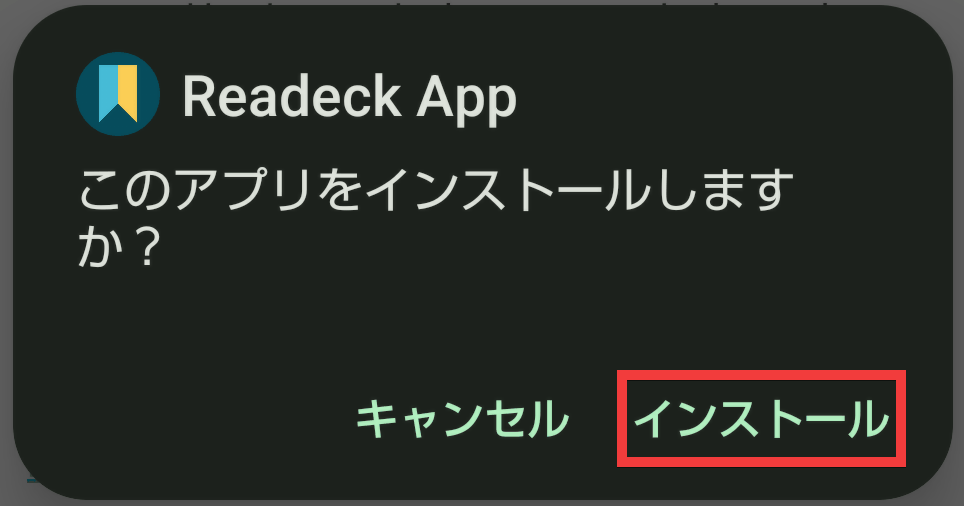
Once the installation is complete, tap 'Open'.
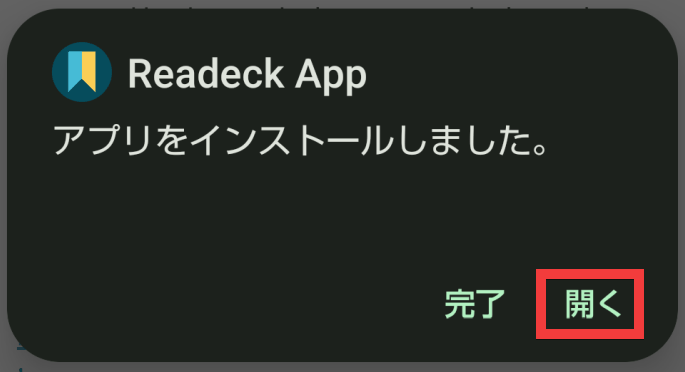
Once the app launches, tap the menu icon in the upper left corner.

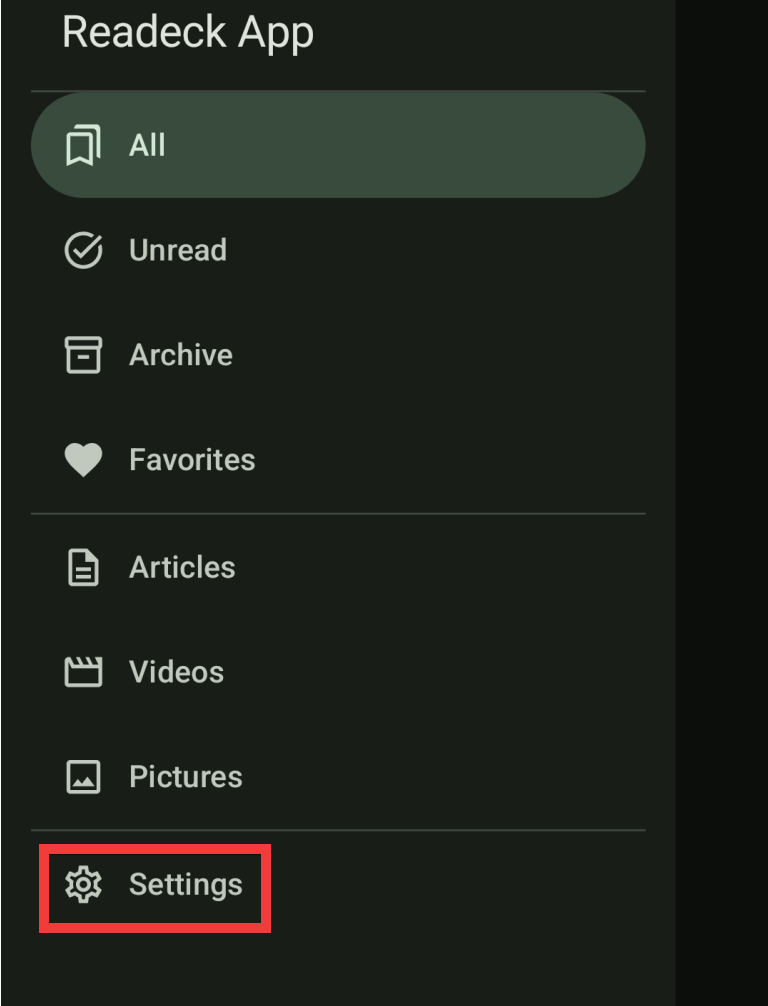
A menu will appear, so tap 'Settings'.
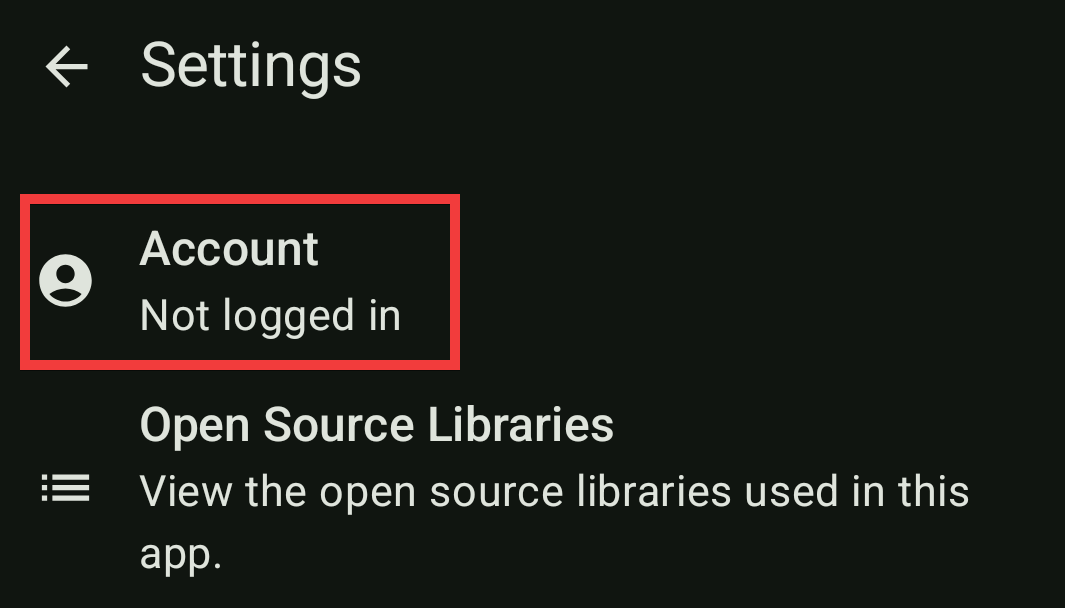
Tap 'Account'.
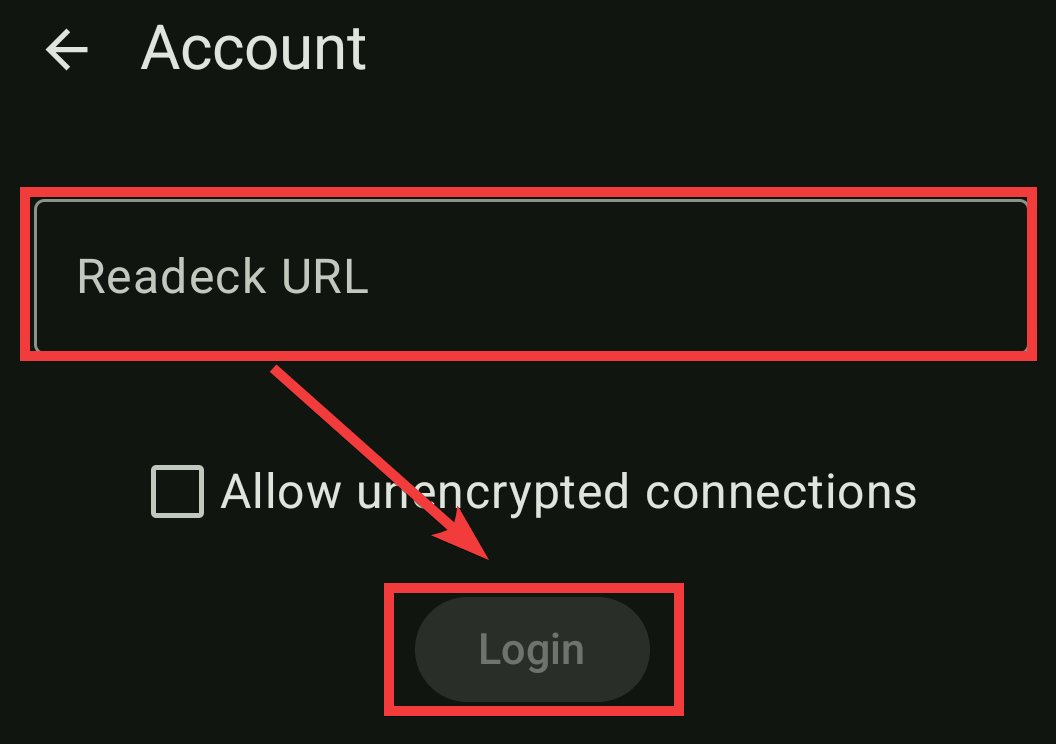
A server connection form will appear. Enter the server's domain name in 'Readeck URL' and tap 'Login'.
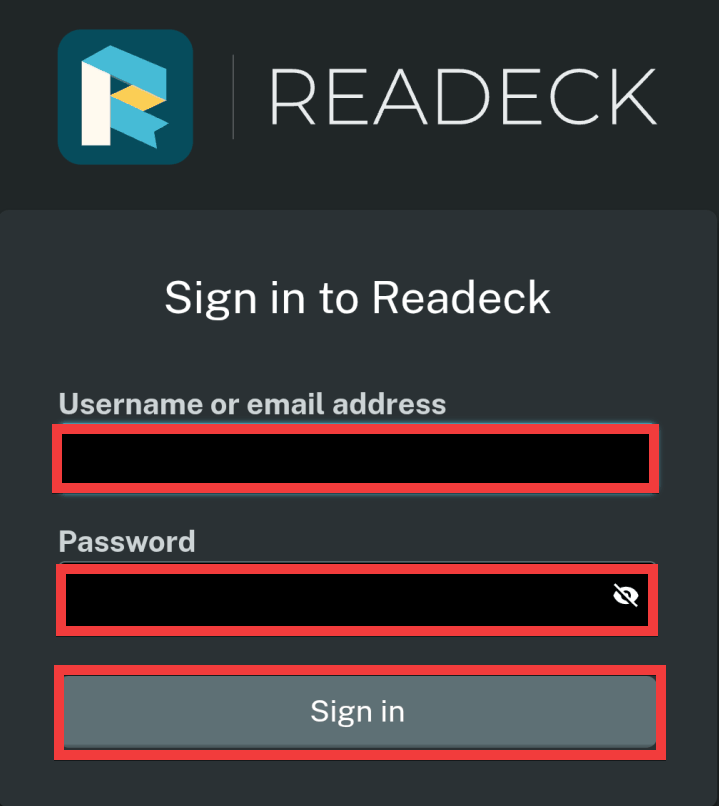
A login form will appear. Enter your username or email address in the 'Username or email address' field and your password in the 'Password' field, then tap 'Sign in'.
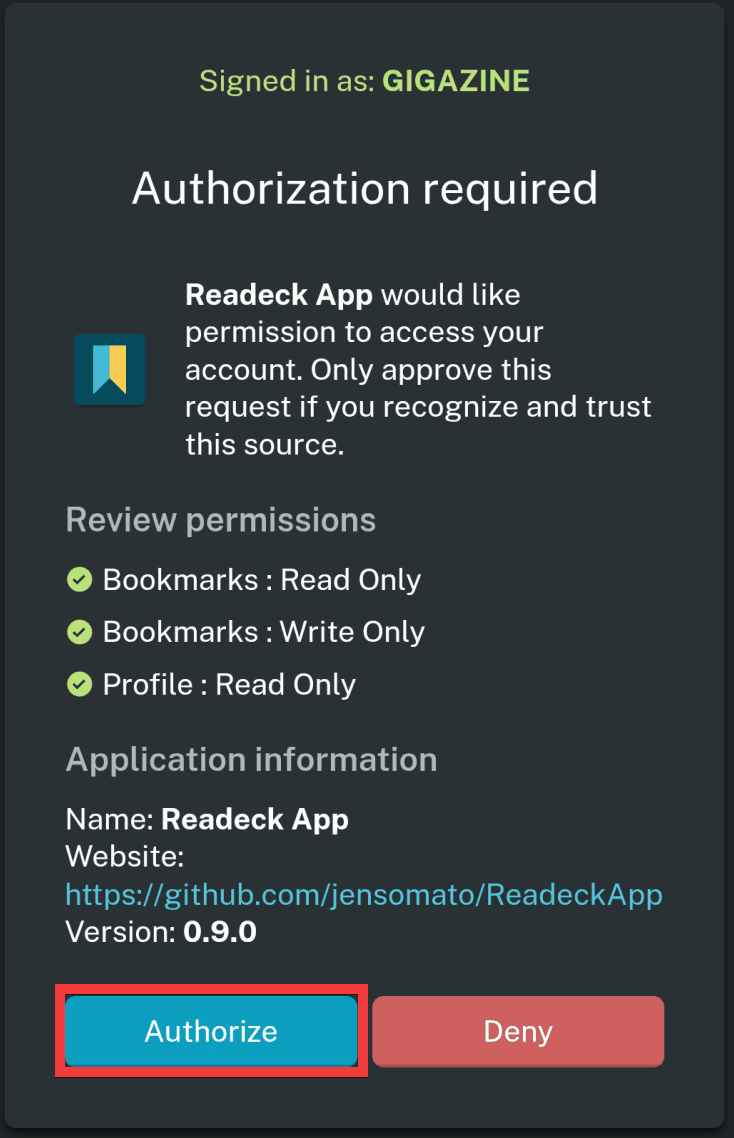
A screen will appear requesting authorization for the connection; tap 'Authorize'.
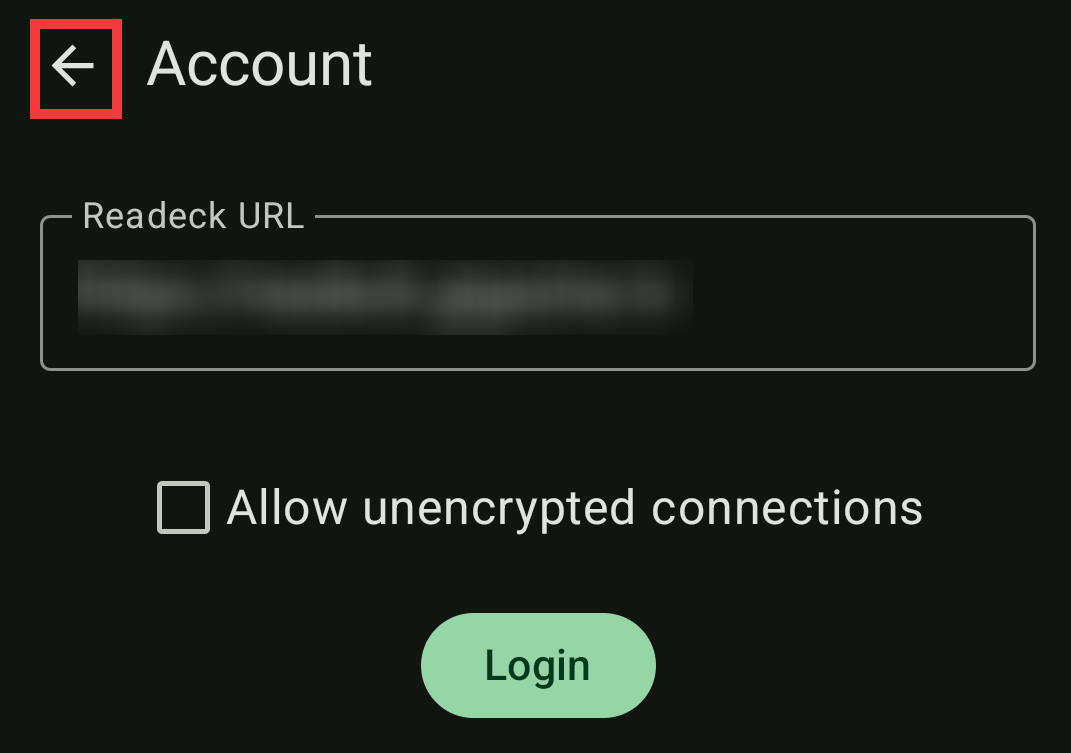
The connection form will reappear, so tap the 'Back' icon.
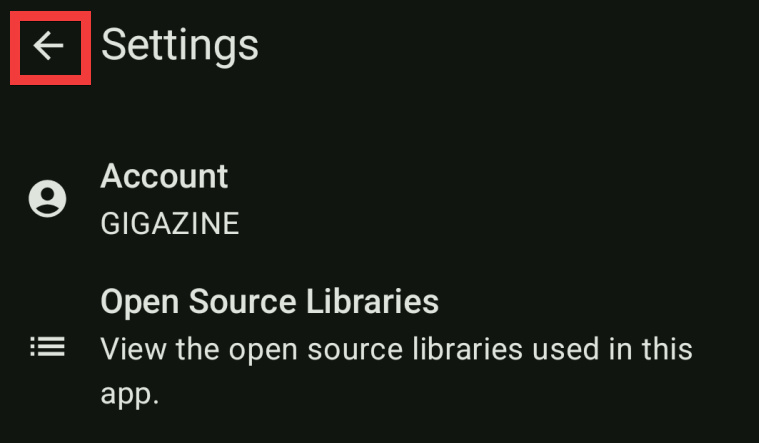
The Settings menu will appear, so tap the 'Back' icon.
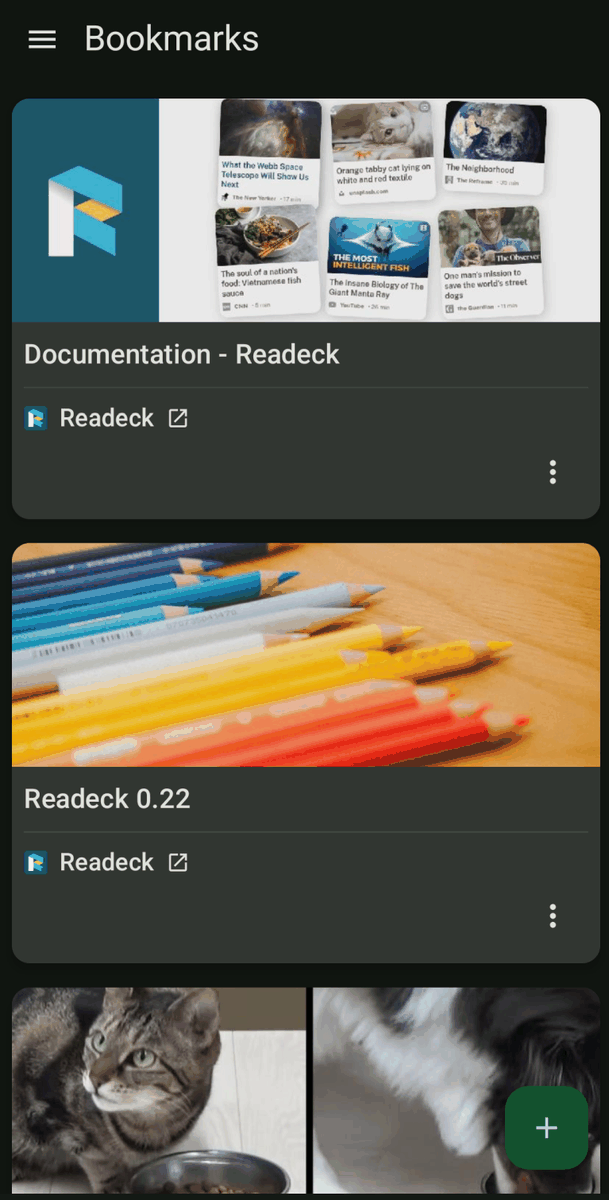
Return to the app's home screen.
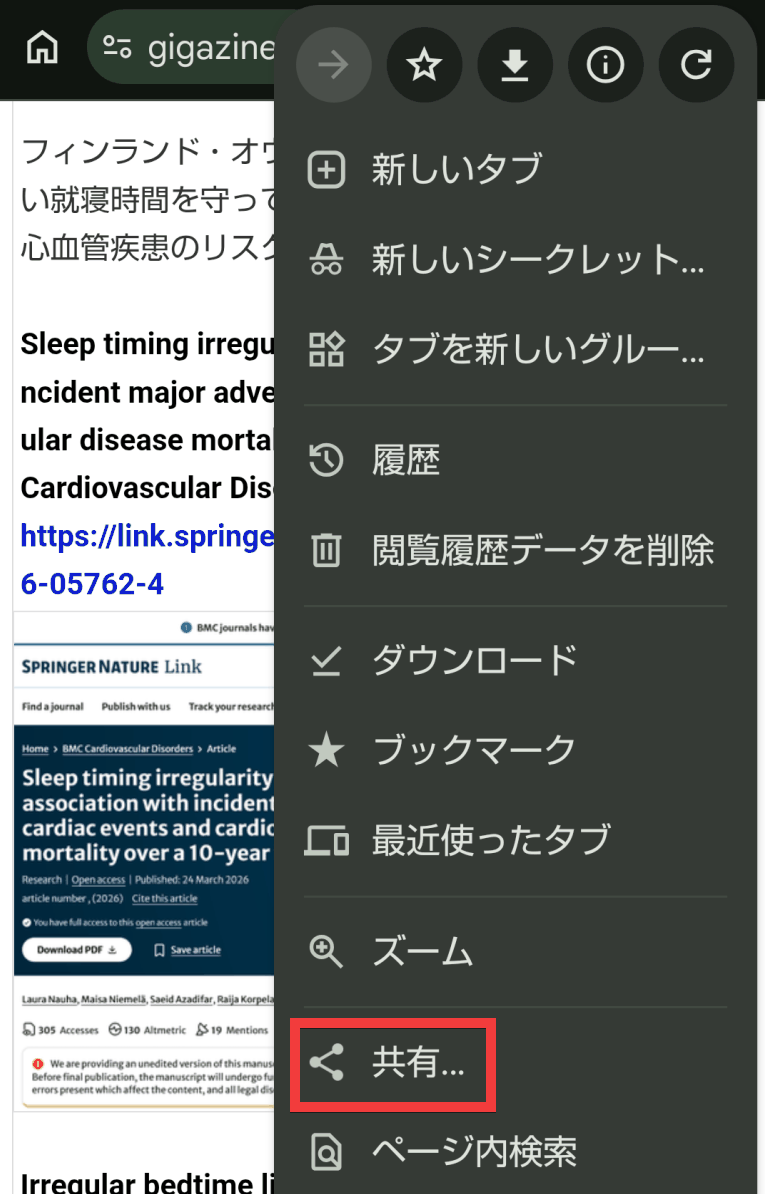
To use it, while the page you want to save is displayed in your browser, tap the menu icon in the upper right corner.

A menu will appear, so tap 'Share'.
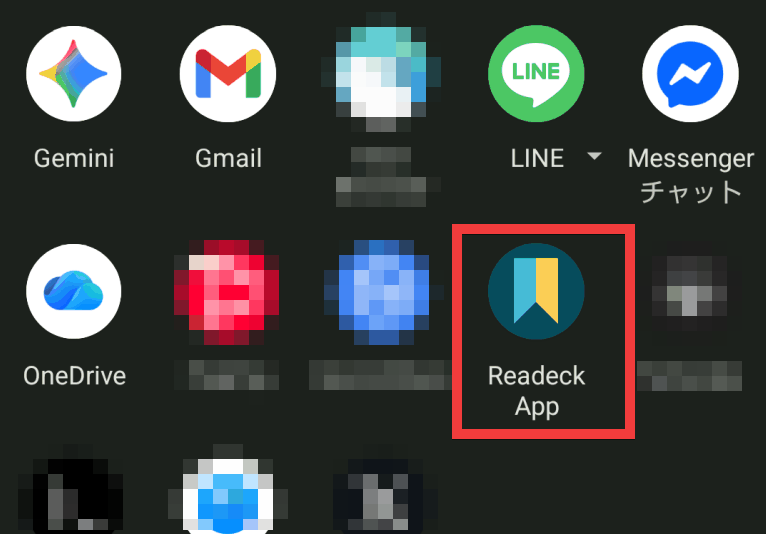
A list of apps will appear, so tap 'Readeck App'.
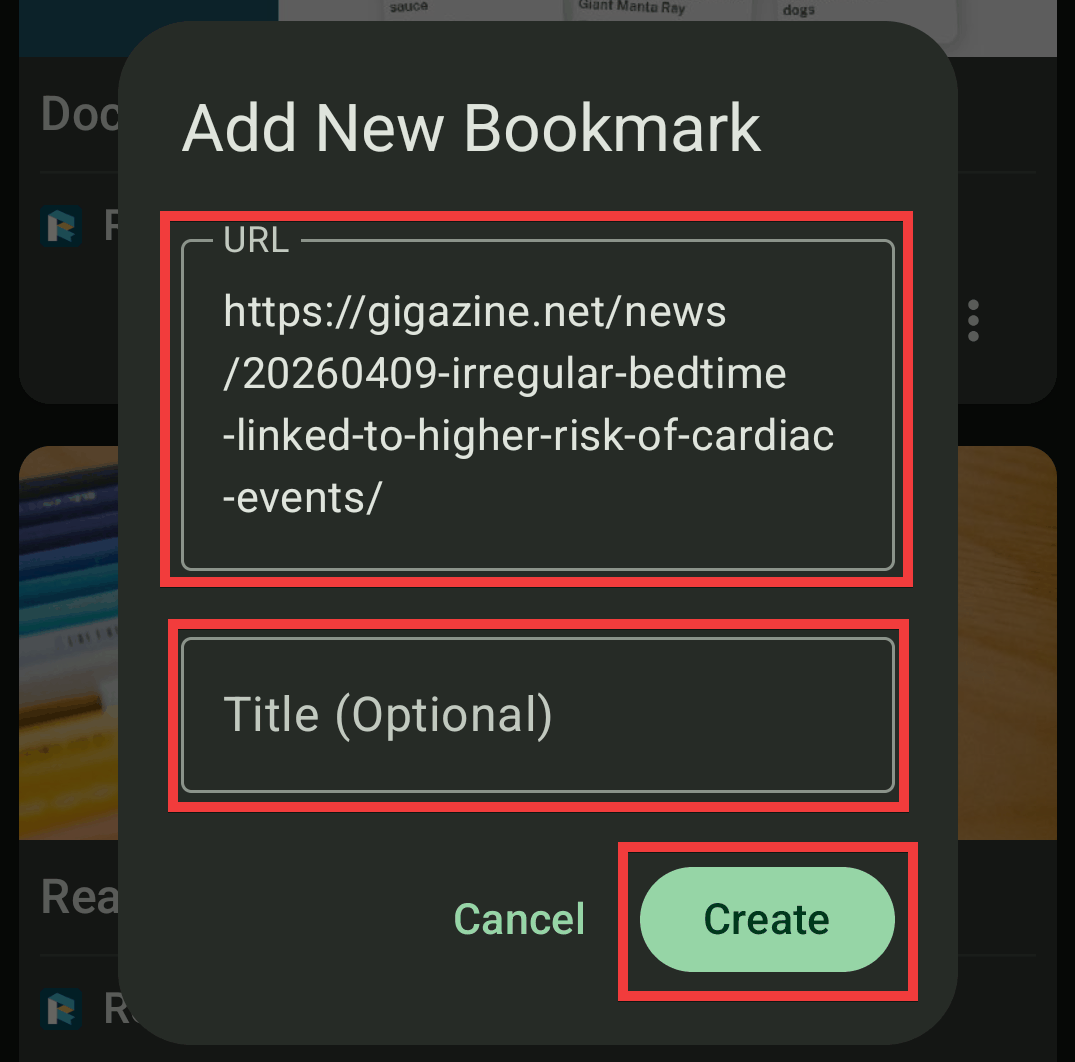
A bookmark registration form will appear. Enter the URL of the page you want to save in the 'URL' field. If you leave the 'Title (Optional)' field blank, the page title will be automatically assigned when you save it. Adjust as needed, then tap 'Create'.
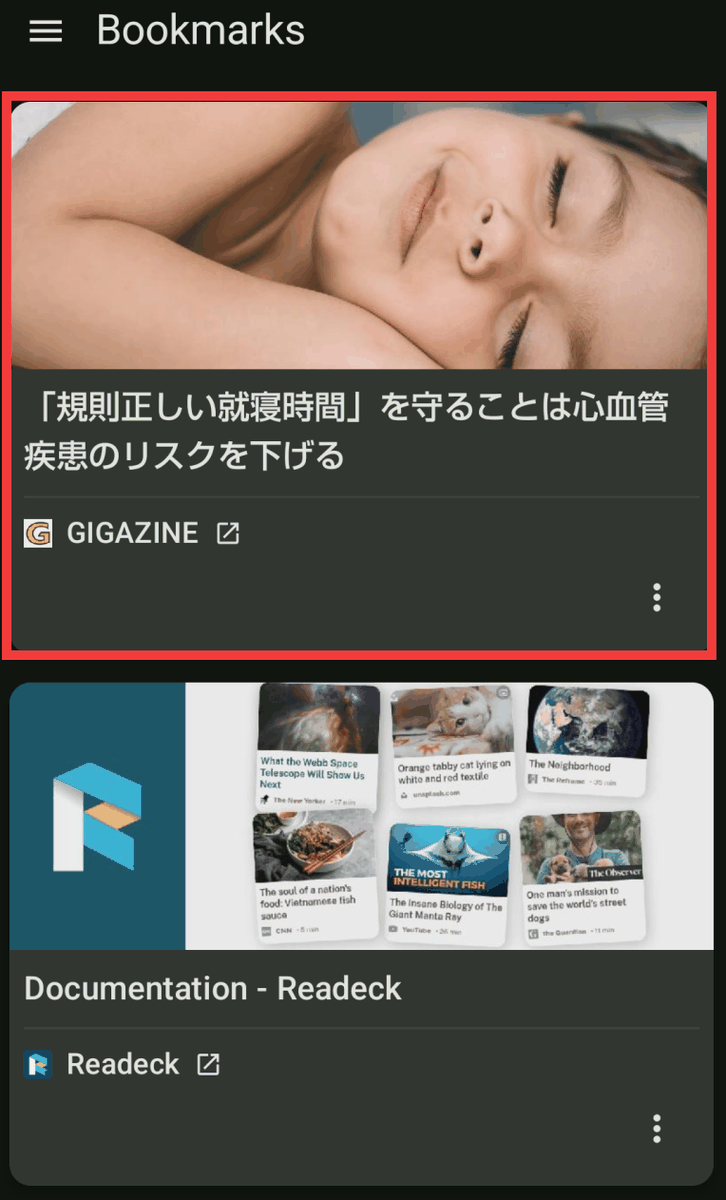
The saved page will be added to the app's home screen.
◆How to install and use the Obsidian Readeck plugin
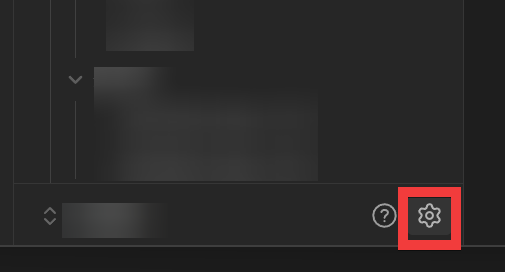
Once you launch Obsidian, click the gear icon.
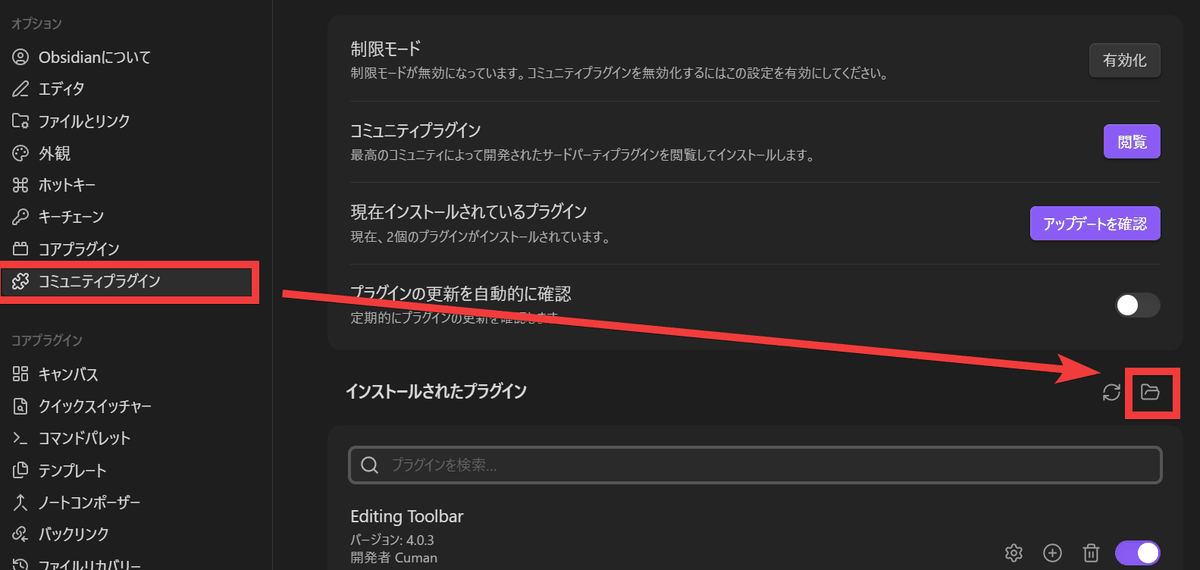
Click 'Community Plugins' from the menu, then click the 'Folder' icon at the far right of the 'Installed Plugins' section.
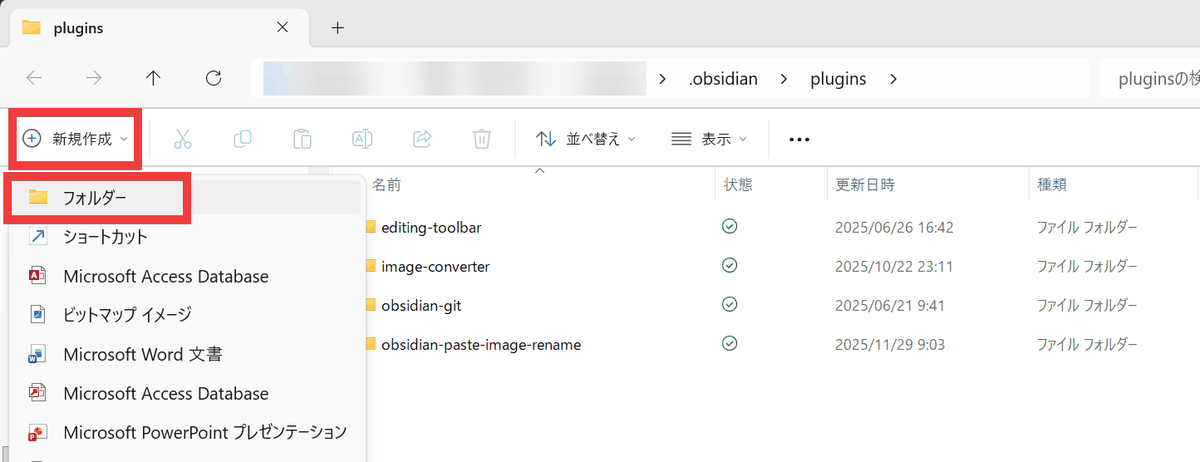
The plugin installation folder will be displayed, so click 'New' and then 'Folder'.
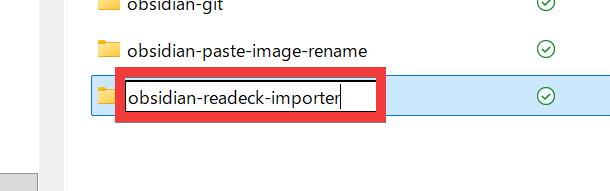
Create the folder 'obsidian-readeck-importer'.
Go to
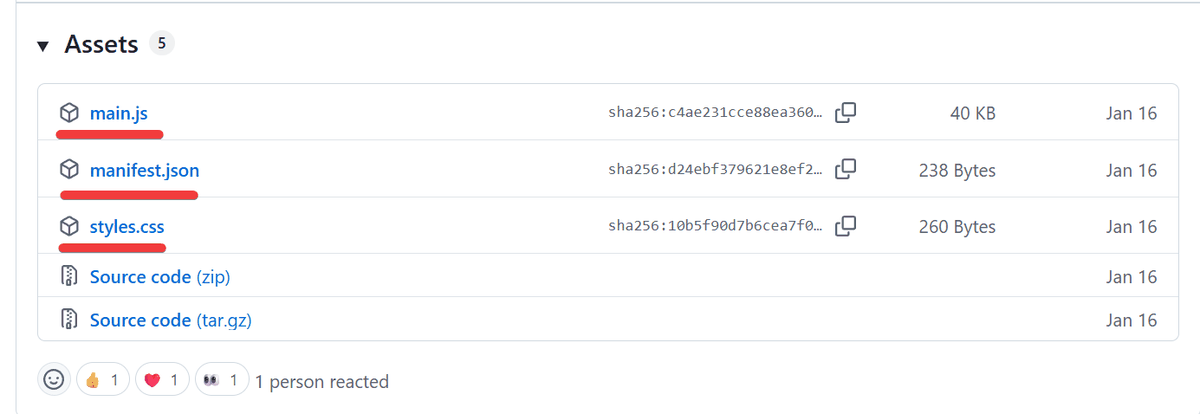
Download the files to the 'obsidian-readeck-importer' folder you created earlier, and download 'manifest.json' and 'styles.css' in the same way.
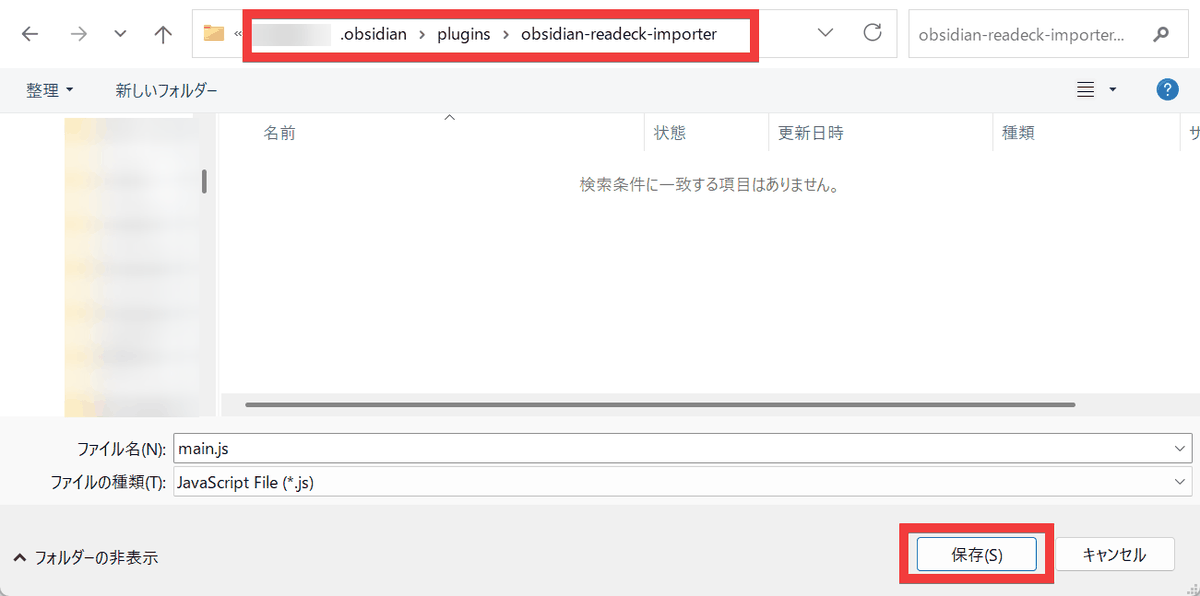
Clicking the 'Reload' icon at the far right of the 'Installed Plugins' section will display the 'Readeck Importer' plugin.
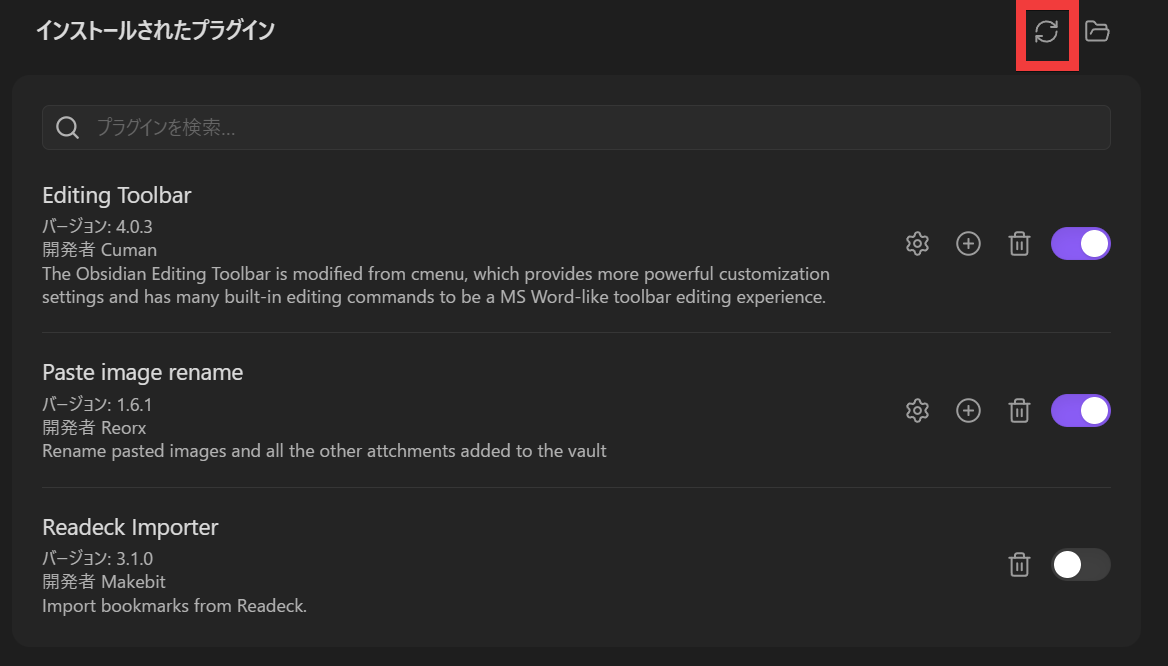
To activate the plugin, turn the toggle switch on the far right of the 'Readeck Importer' plugin to 'On,' then click the gear icon.
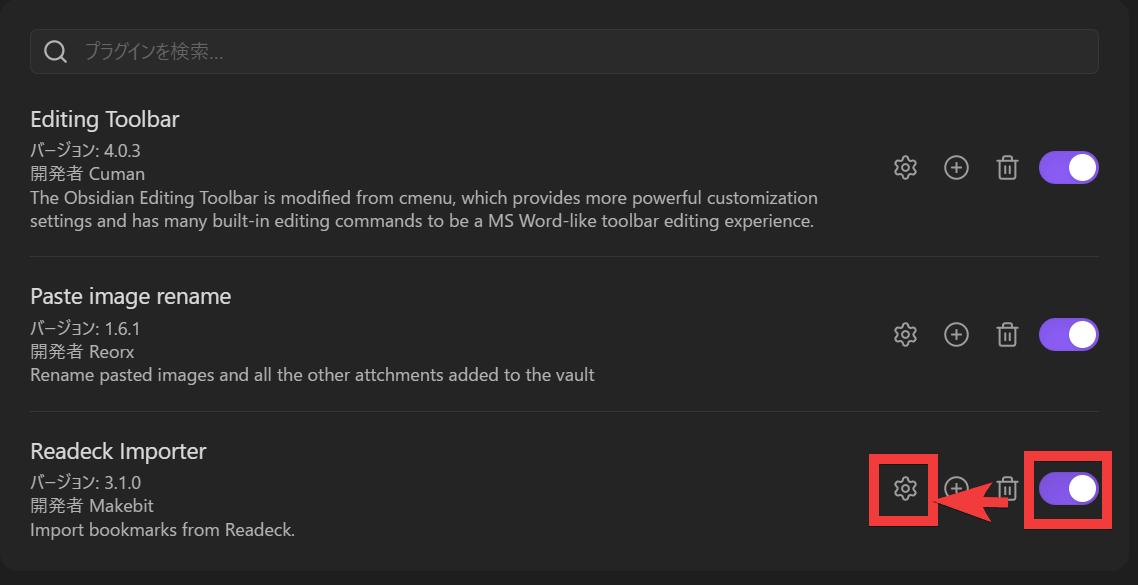
A settings screen will appear. Enter your server's domain name in the 'API URL' field and click 'Login'.
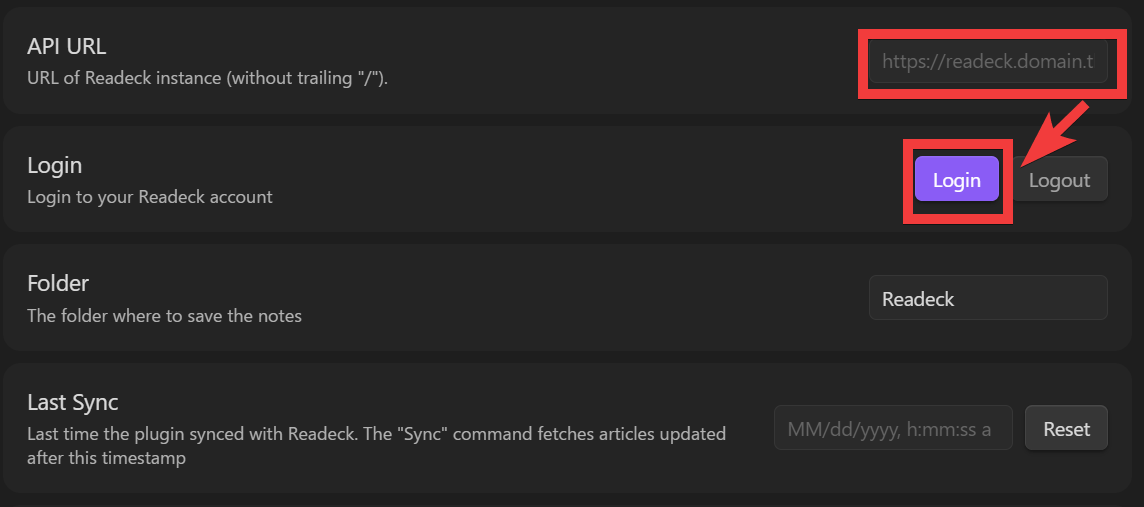
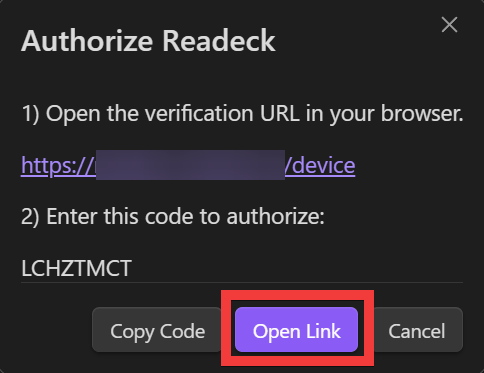
A link and code for approval will be displayed, so click 'Open Link'.
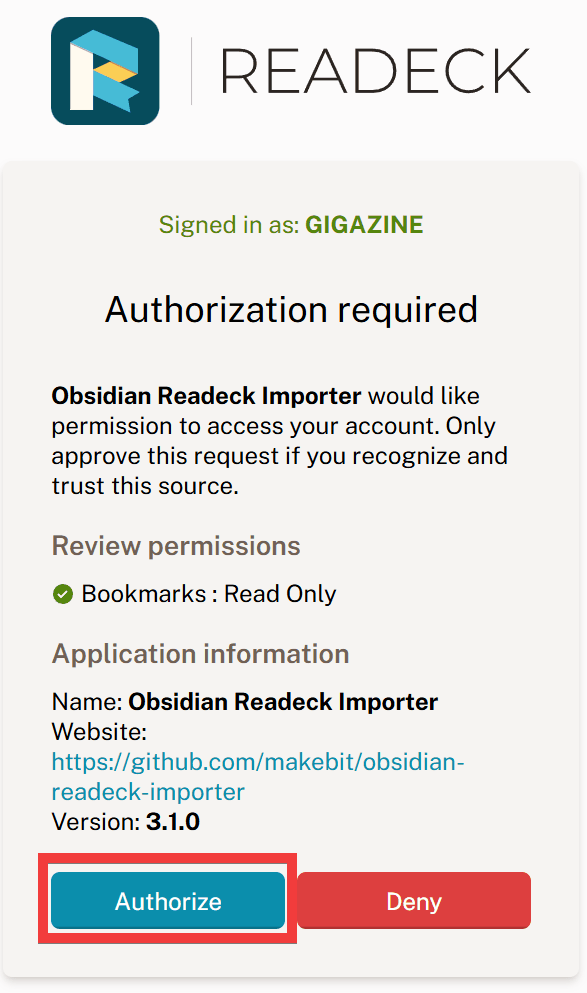
A screen will appear requesting authorization for the connection; click 'Authorize'.
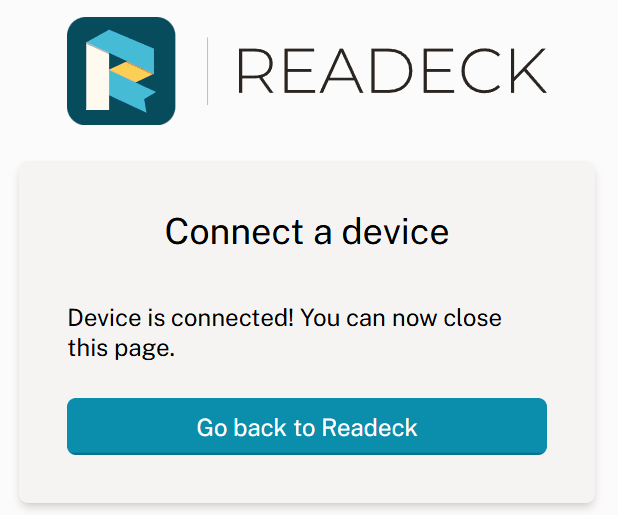
The connection is complete when 'Connect a device' is displayed.
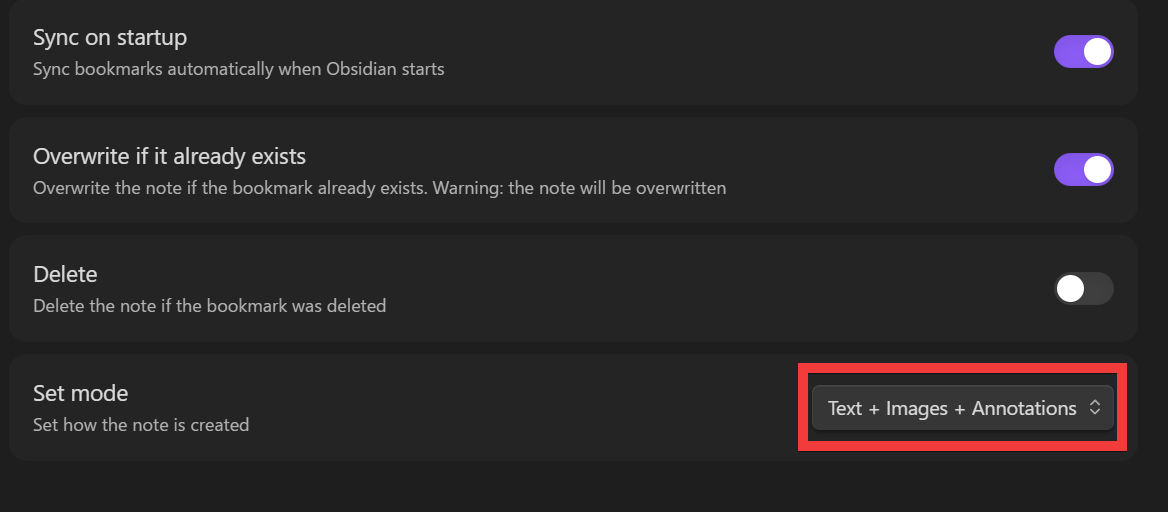
Set 'Set mode' to 'Text+Images+Annotations'.
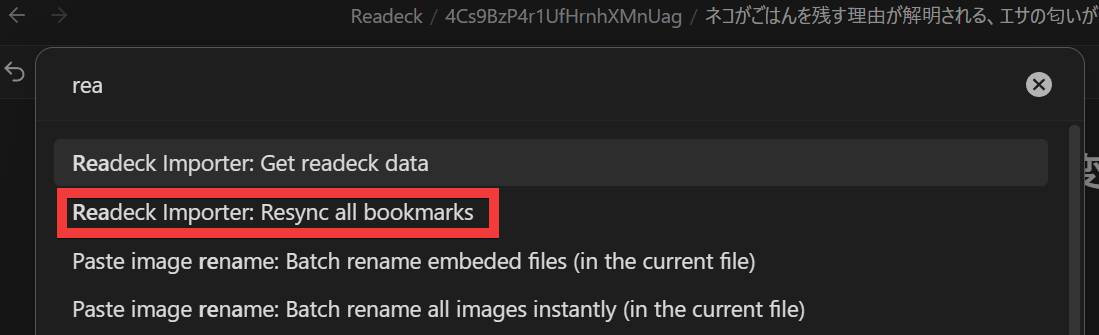
To use it, open the command palette by pressing CTRL+P, type 'Readeck', and click 'Readeck Importer: Resync all bookmarks' to execute it.
All pages stored on the server will be imported in
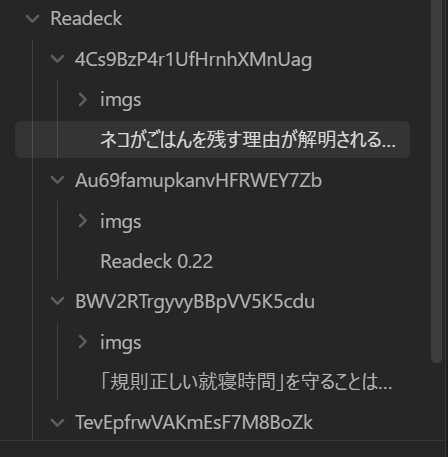
Saved pages will be displayed as follows:

◆How to install and use the Readeck plugin for SingleFile
It can be used in conjunction with the browser extension plugin
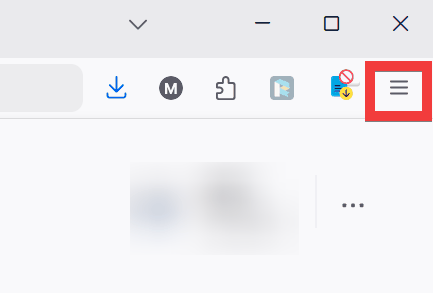
This guide will show you how to configure this in Firefox. After launching Firefox, click the 'Menu' icon.
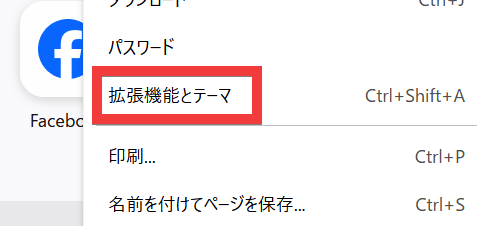
Click on 'Extensions and Themes'.
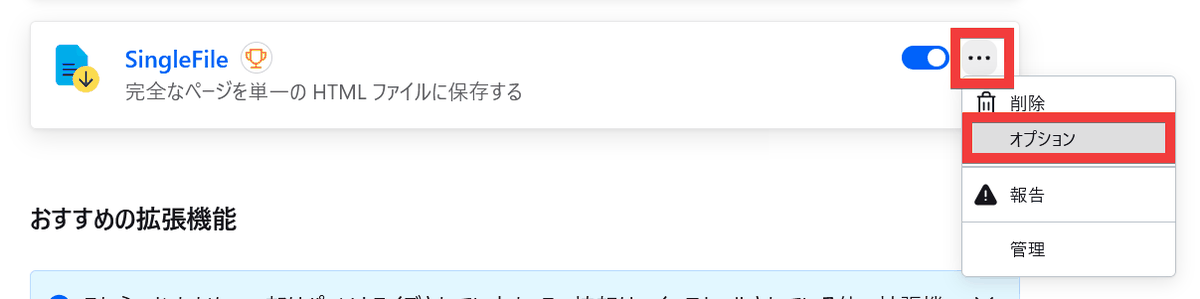
The extension management screen will appear. Click the 'Settings' icon under the 'SingleFile' section, then click 'Options'.
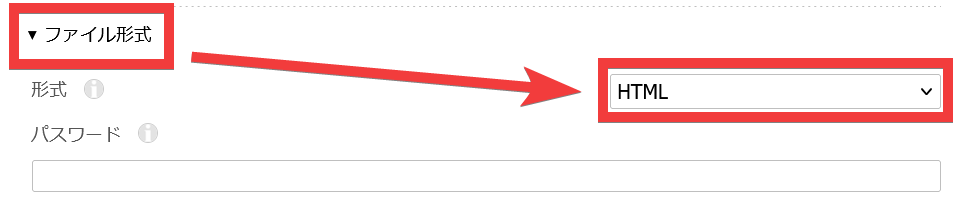
Set the 'File format' to 'HTML'.
Click 'Recipient'.
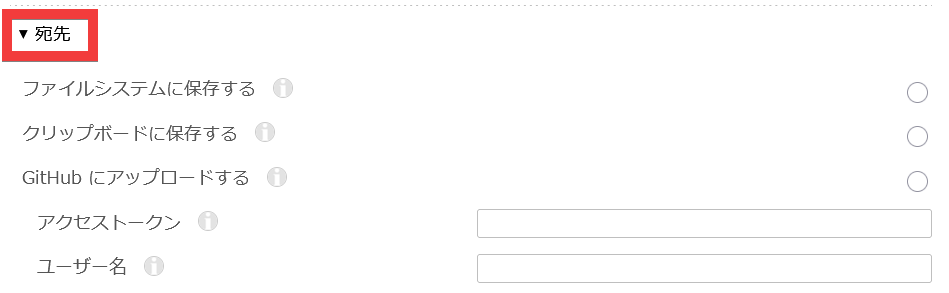
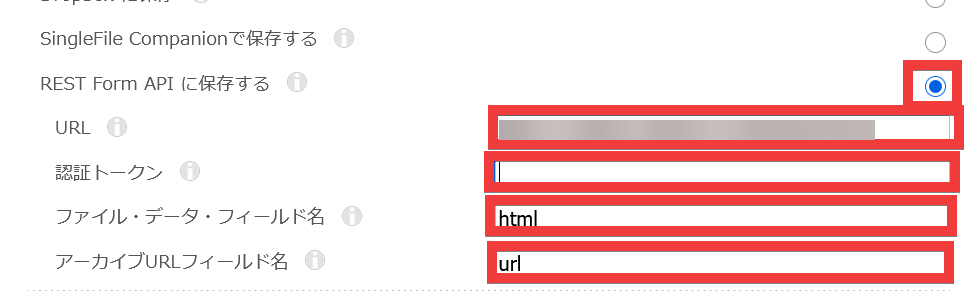
Check 'Save to REST Form API', enter 'https://[server address]/api/bookmarks' in 'URL', enter the token obtained using the method below in 'Authentication Token', enter 'html' in 'File/Data/Field Name', and enter 'url' in 'Archive URL Field Name'.
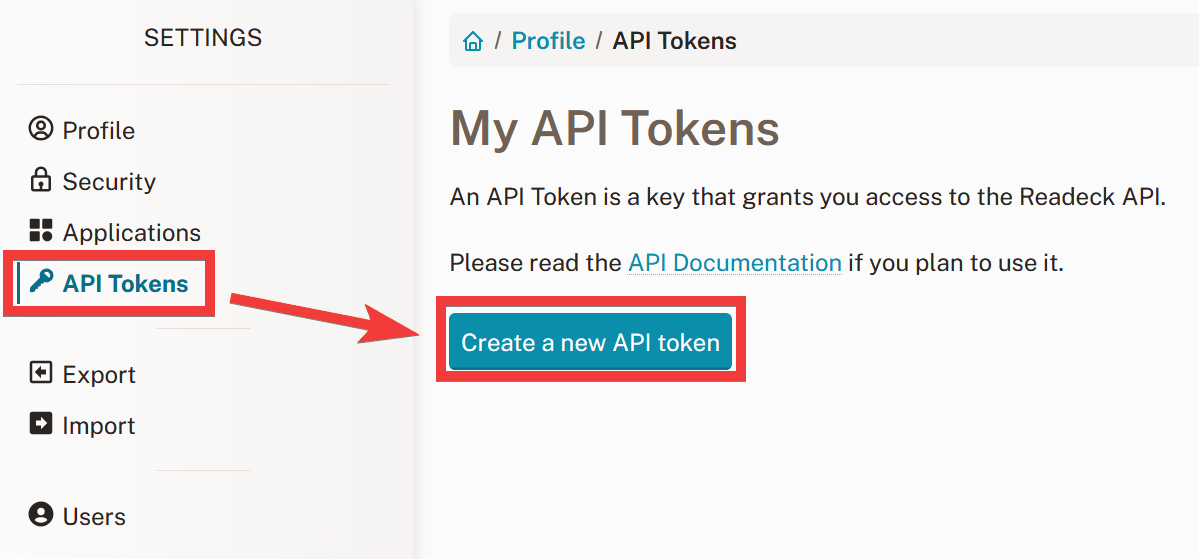
To create an authentication token, click 'API Tokens' in the Readeck settings screen, then click 'Create a new API token'.
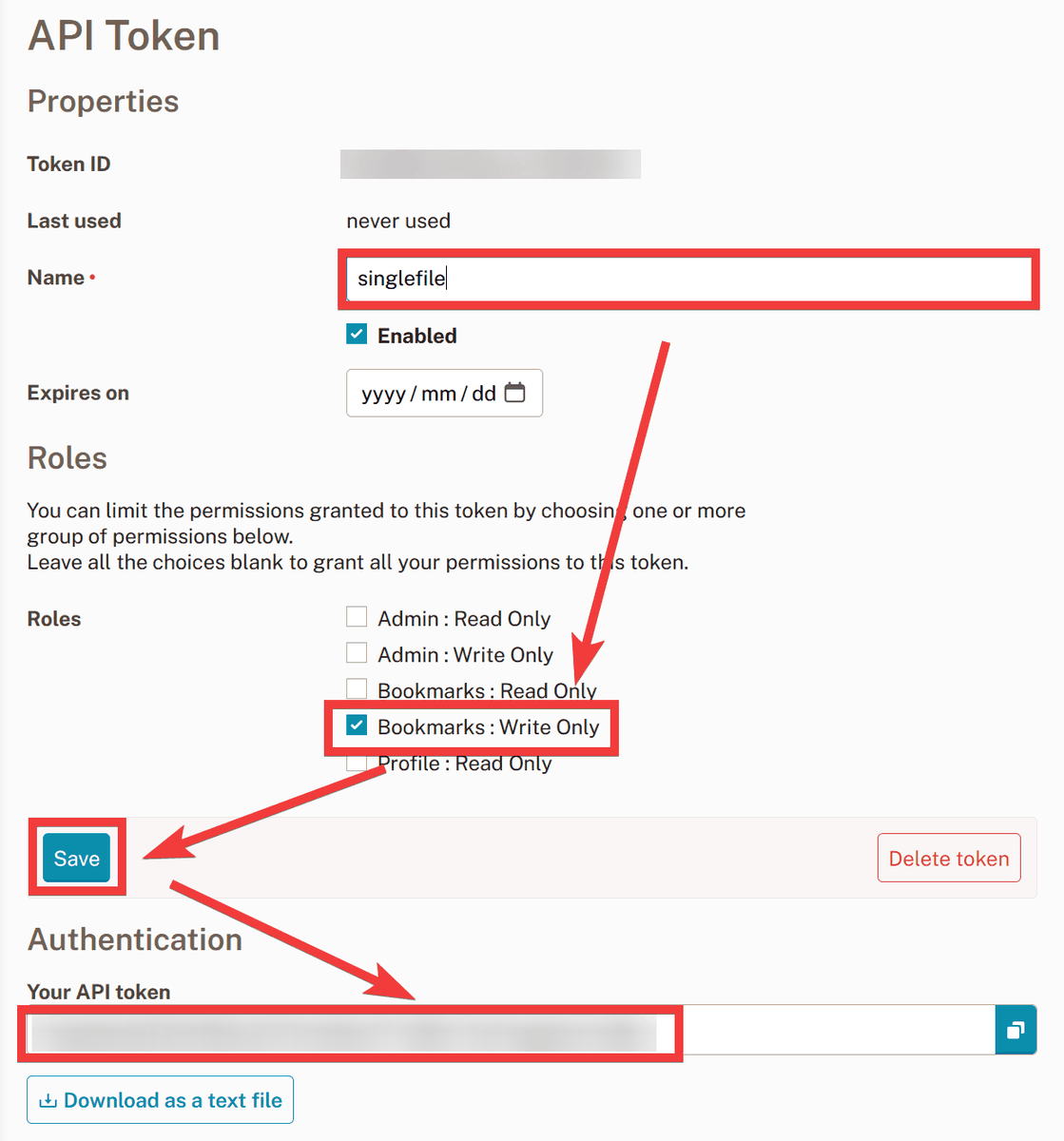
You will be taken to the API Token settings screen. Enter a name of your choice in 'Name,' check 'Bookmarks:Write Only' in 'Role,' click 'Save,' copy the token displayed in 'Your API token,' paste it into the 'Authentication Token' field, and then close the tab.
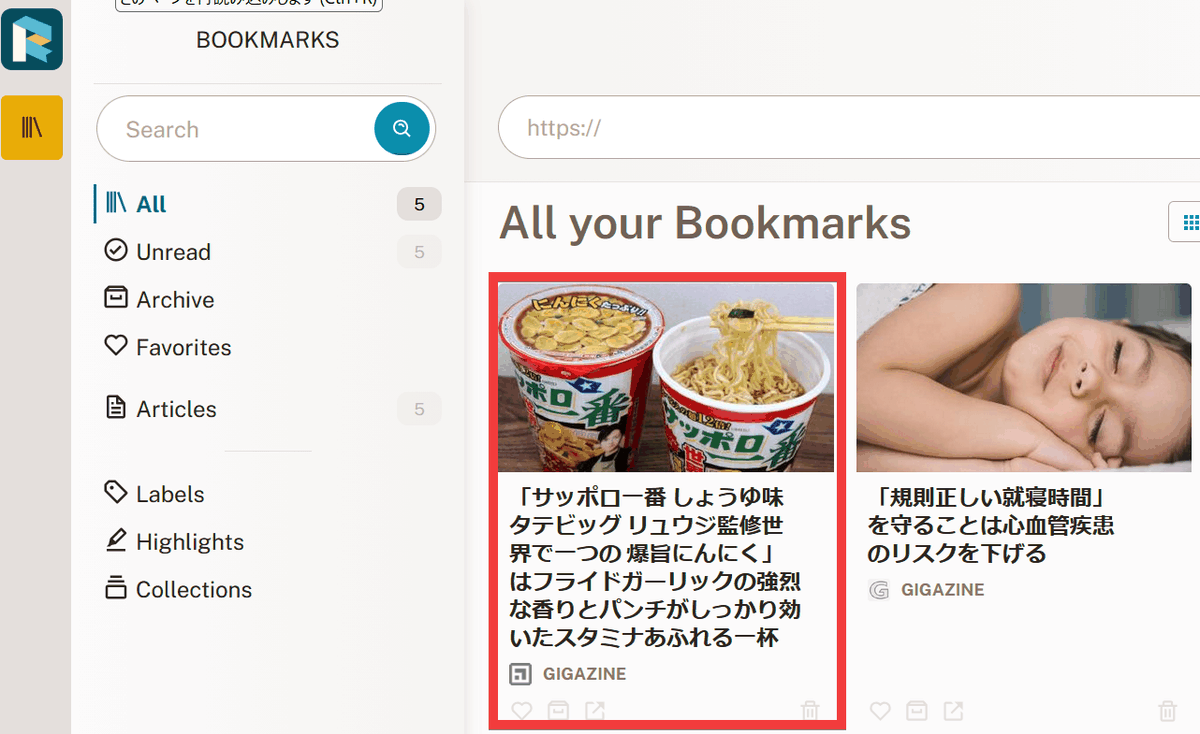
To use it, simply click the 'SingleFile' icon in the upper right corner while viewing the page you want to save, and the page will be automatically uploaded to Readeck.
The saved pages will be added to the Readeck home screen.
Readeck is lightweight and makes it easy to read saved pages, so you can also install it on your local machine and use it as a rich bookmarking tool.
Related Posts: