YTDLnis is an Android app that allows you to download videos and music from YouTube and other sources for free. It is open-source and can be used without ads or user registration.
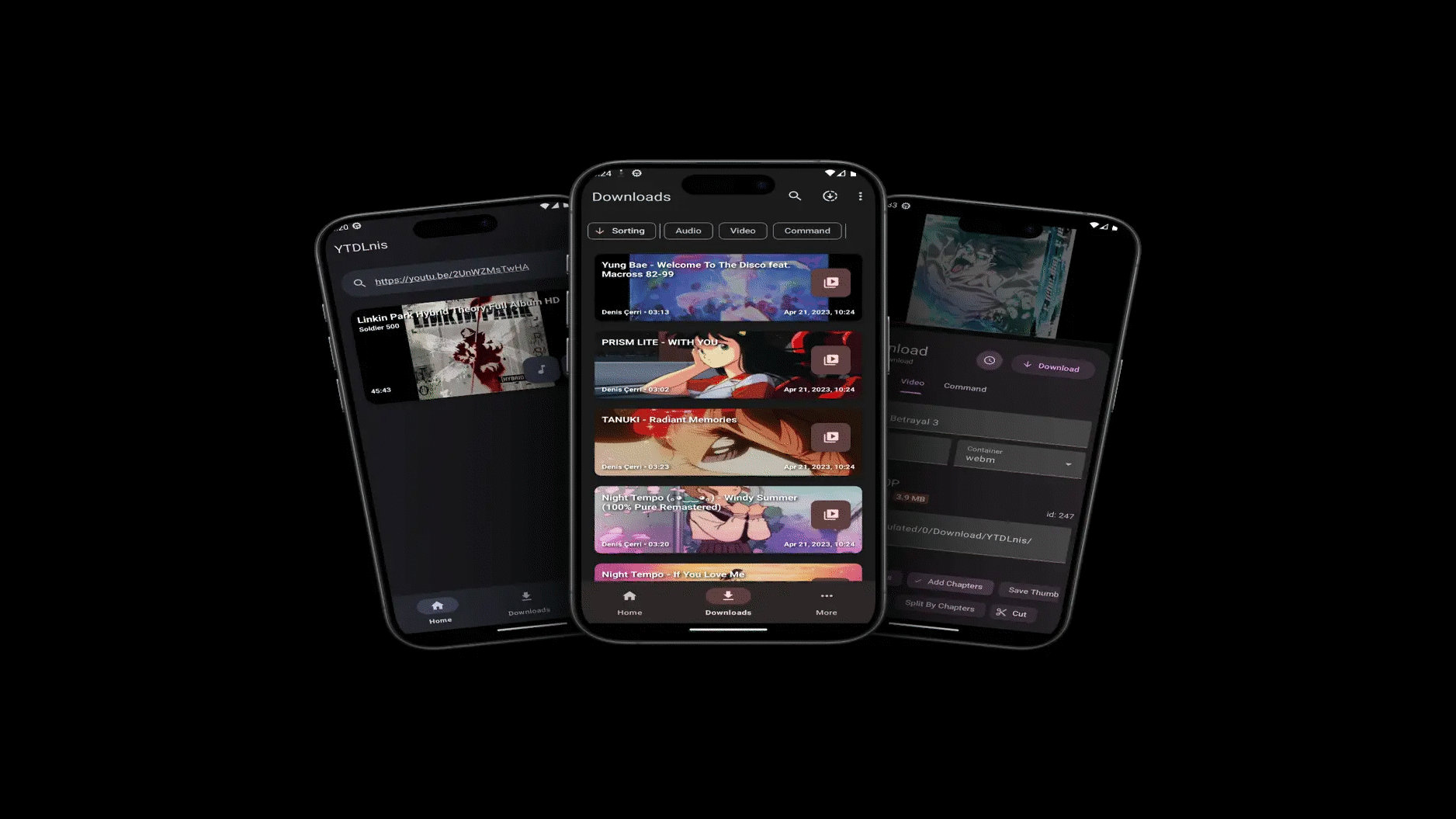
Those who frequently download videos will likely want to adjust the timing of multiple downloads or manage them to download over their home Wi-Fi while they sleep. ' YTDLnis ' is a free, ad-free, and user-unregistered Android app that offers a wealth of features, including download queues and scheduled downloads.
YTDLnis App v1.8.4 Official ➡️ [Direct Download]
◆Features
According to the official website, the features of YTDLnis are as follows:
• Download Queue : You can check the progress, speed, size, and status of each download in the queue, and you can pause, resume, cancel, and delete them.
• Scheduled download : You can individually specify download time, download immediately, download later, or download at a specific time.
- Built-in terminal : Allows direct execution of yt-dlp commands, and output and logs can be viewed.
• Cookie support : Allows downloading of videos that require login.
• Backup and Restore : Templates and settings can be backed up and restored.
• Supports many formats : Supports various formats such as MP4, MKV, WEBM, MP3, M4A, OGC, FLAC, WAV, etc., and allows for conversion between them.
• Ad-blocking feature : Allows you to watch videos without interruptions or ads.
- Incognito mode : Allows downloads without leaving a download history or log.
• Sharing video and audio files : Downloaded video and audio files can be shared with other apps and devices with a single button.
• Supports over 1000 websites : YouTube, Facebook, TikTok, Instagram, Twitch, Vimeo, Dailymotion, SoundCloud, Spotify, etc.
• Quick Download Mode : Downloads are possible by specifying YTDLnis as the sharing destination for videos and audio from apps that support the sharing function.
・MVVM Architecture : By adopting the MVVM architecture (Model-View-ViewModel), the data layer, UI layer, and logic layer of the application are separated.
- Video Cutting : Allows you to download only specific parts of a video, delete unnecessary sections, and split videos into chapters.
• Playlist downloads : Playlists can be downloaded from various platforms and websites.
- Embedding in video and audio files : Downloaded video and audio files can have subtitles, metadata, and chapters embedded in them.
◆Installation
This time, we will use
'F-Droid' allows you to easily install and automatically update free, open-source Android apps other than those on Google Play - GIGAZINE
https://gigazine.net/news/20260504-f-droid/
Launch F-Droid and first install the F-Droid client, '
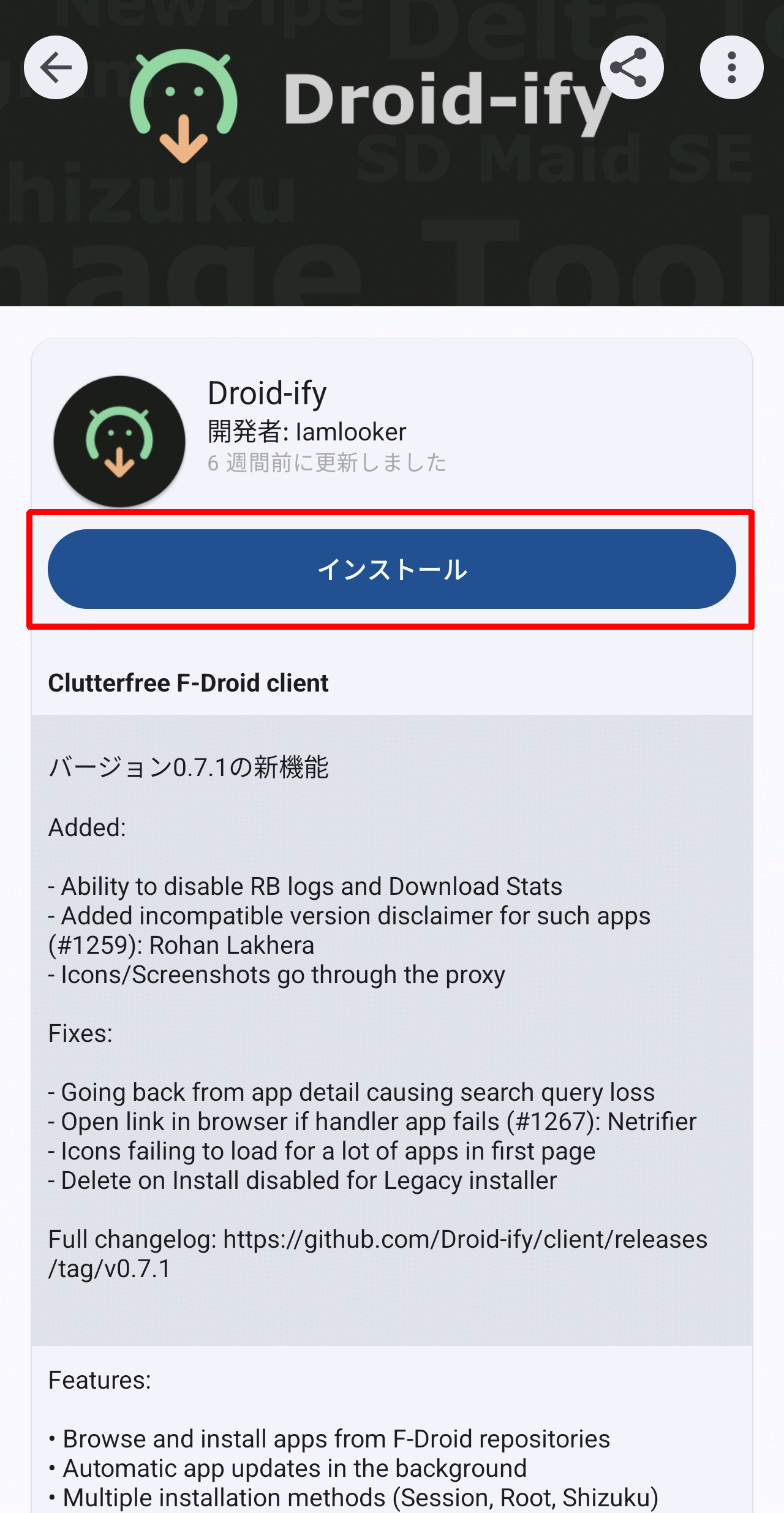
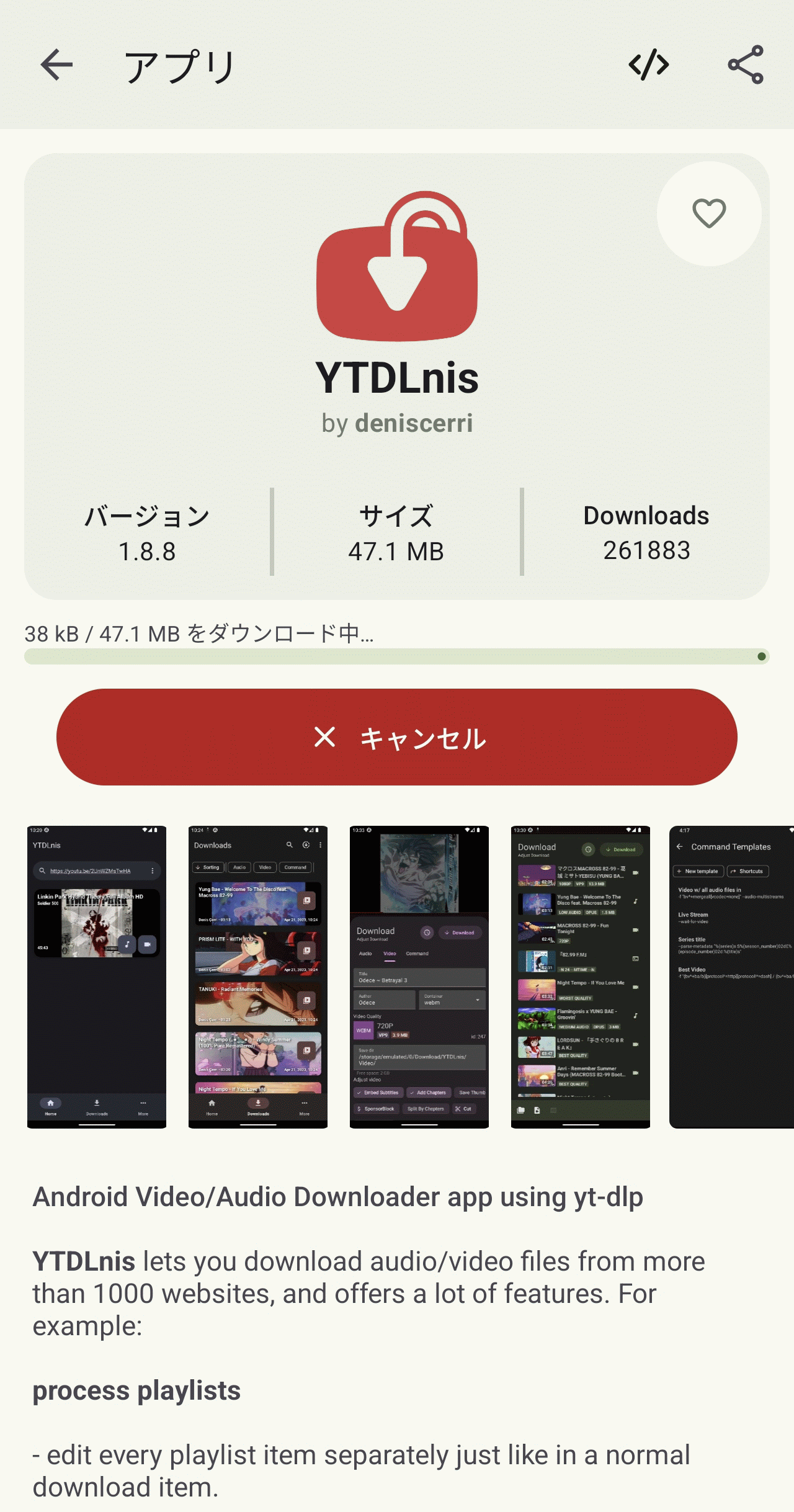
The download will begin and a progress bar will be displayed.
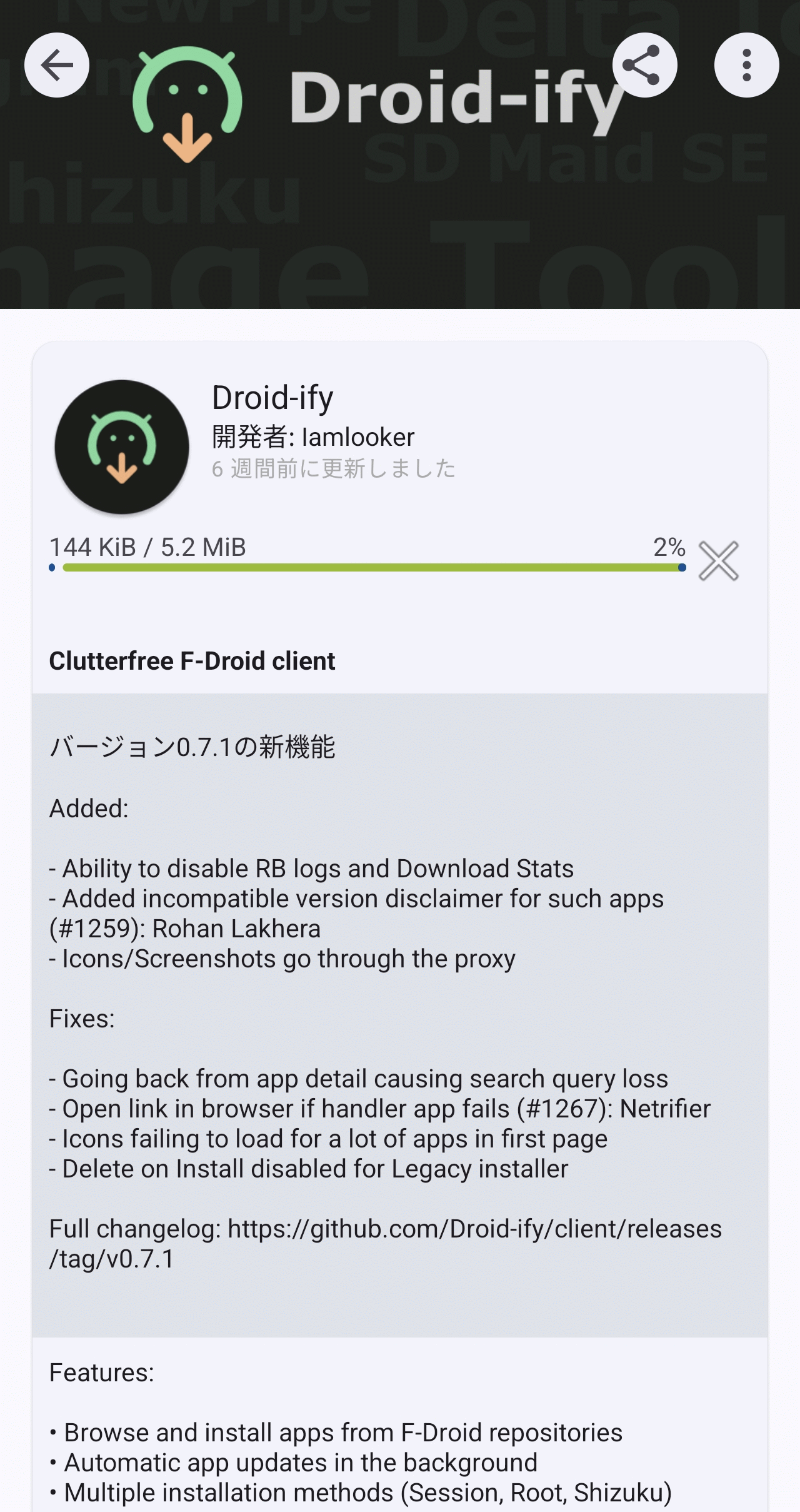
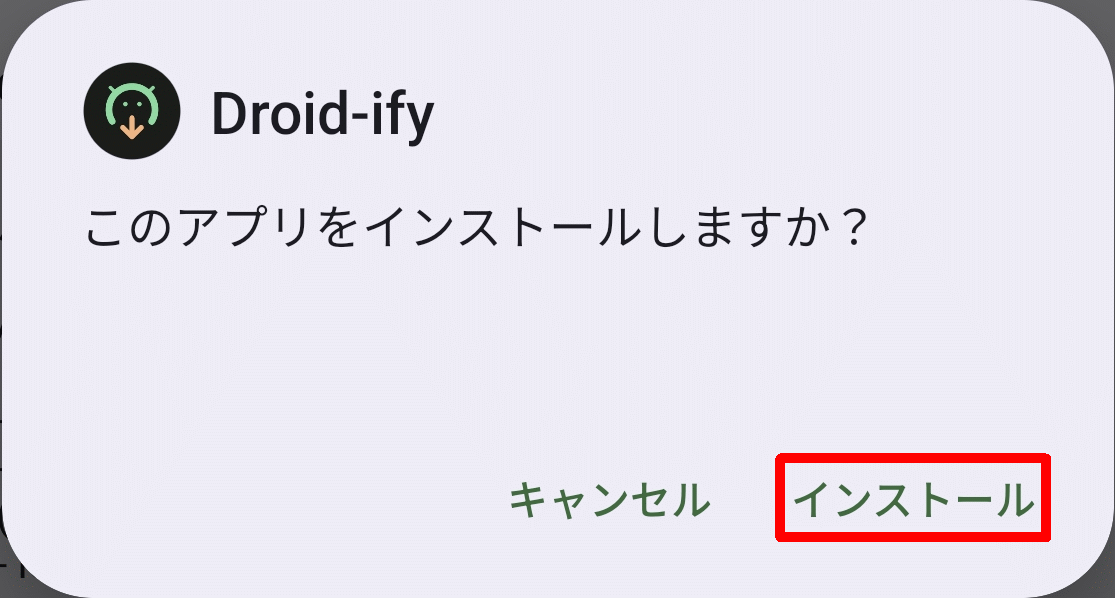
Once the download is complete, a pop-up will appear asking 'Do you want to install this app?'. Tap 'Install'.
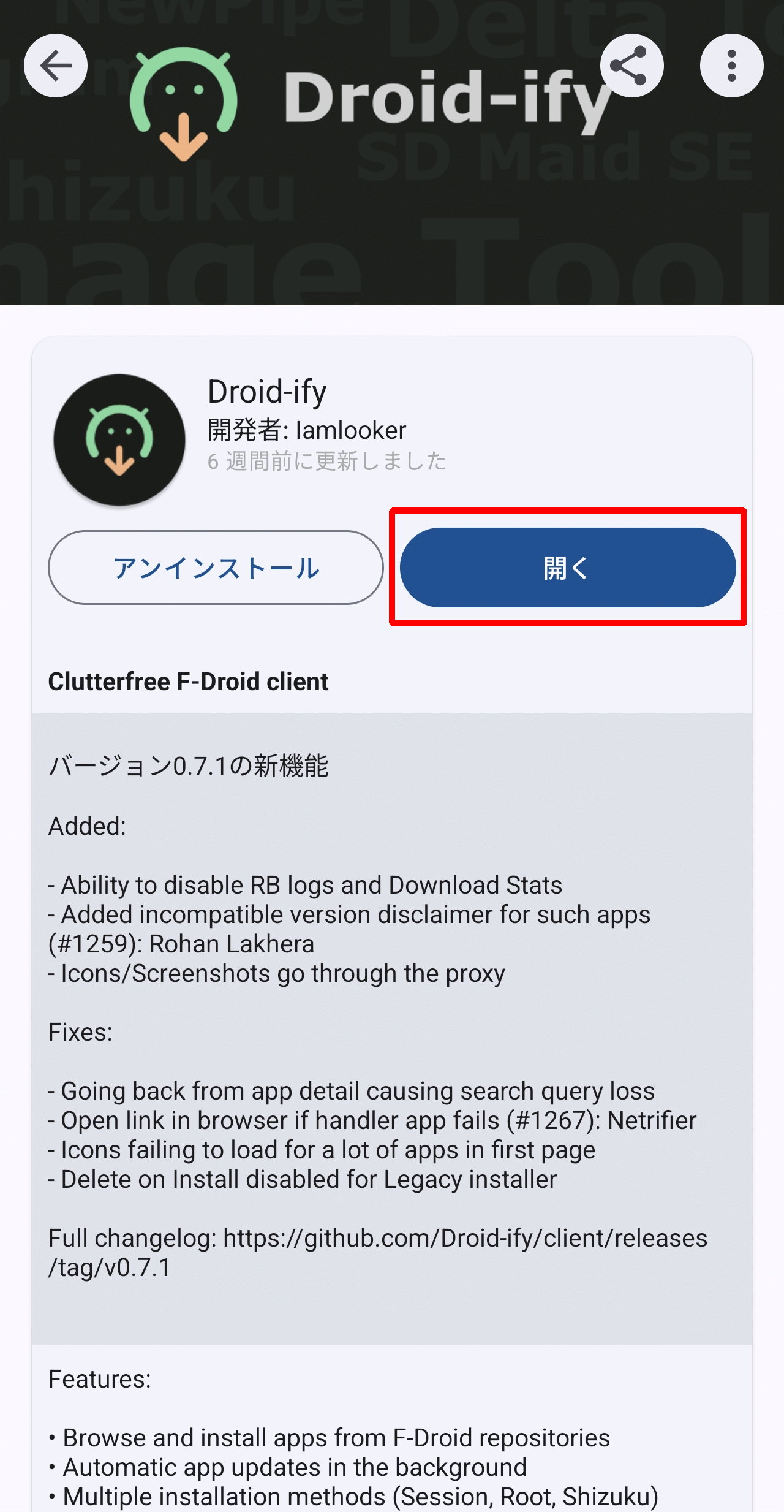
Once the installation is complete, an 'Open' button will appear; tap it.
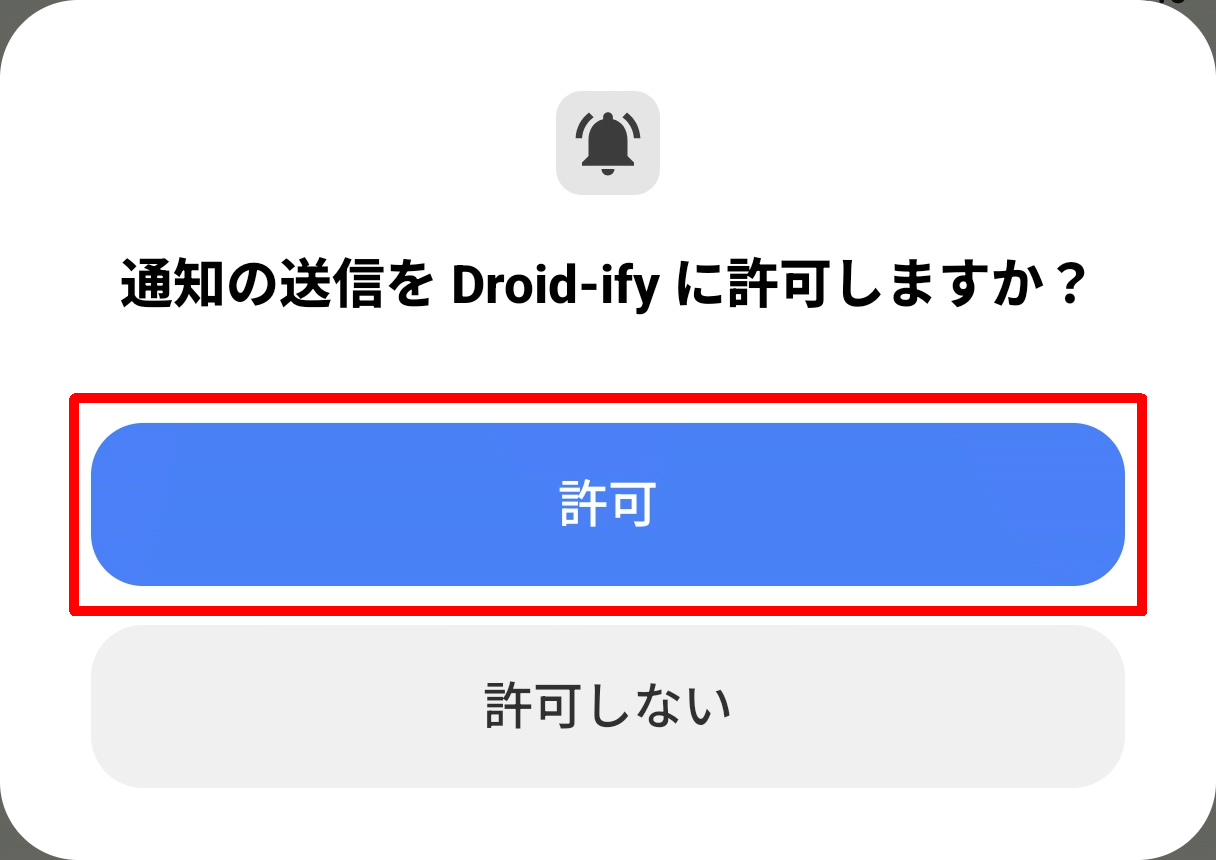
A pop-up will appear asking, 'Do you want to allow Droid-ify to send notifications?' Tap 'Allow'.
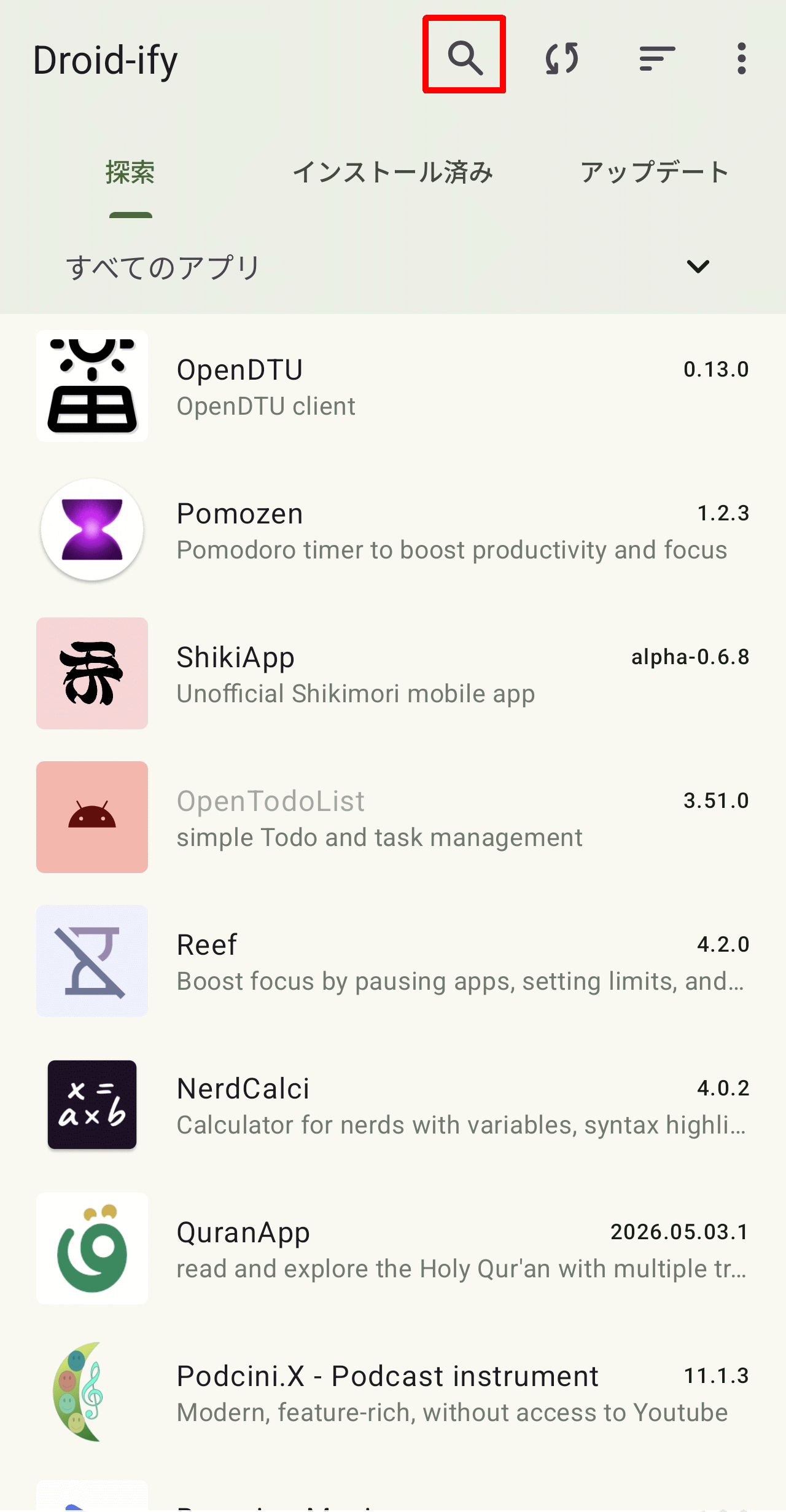
Once the Droid-ify screen appears, tap the magnifying glass icon at the top to display the search screen.
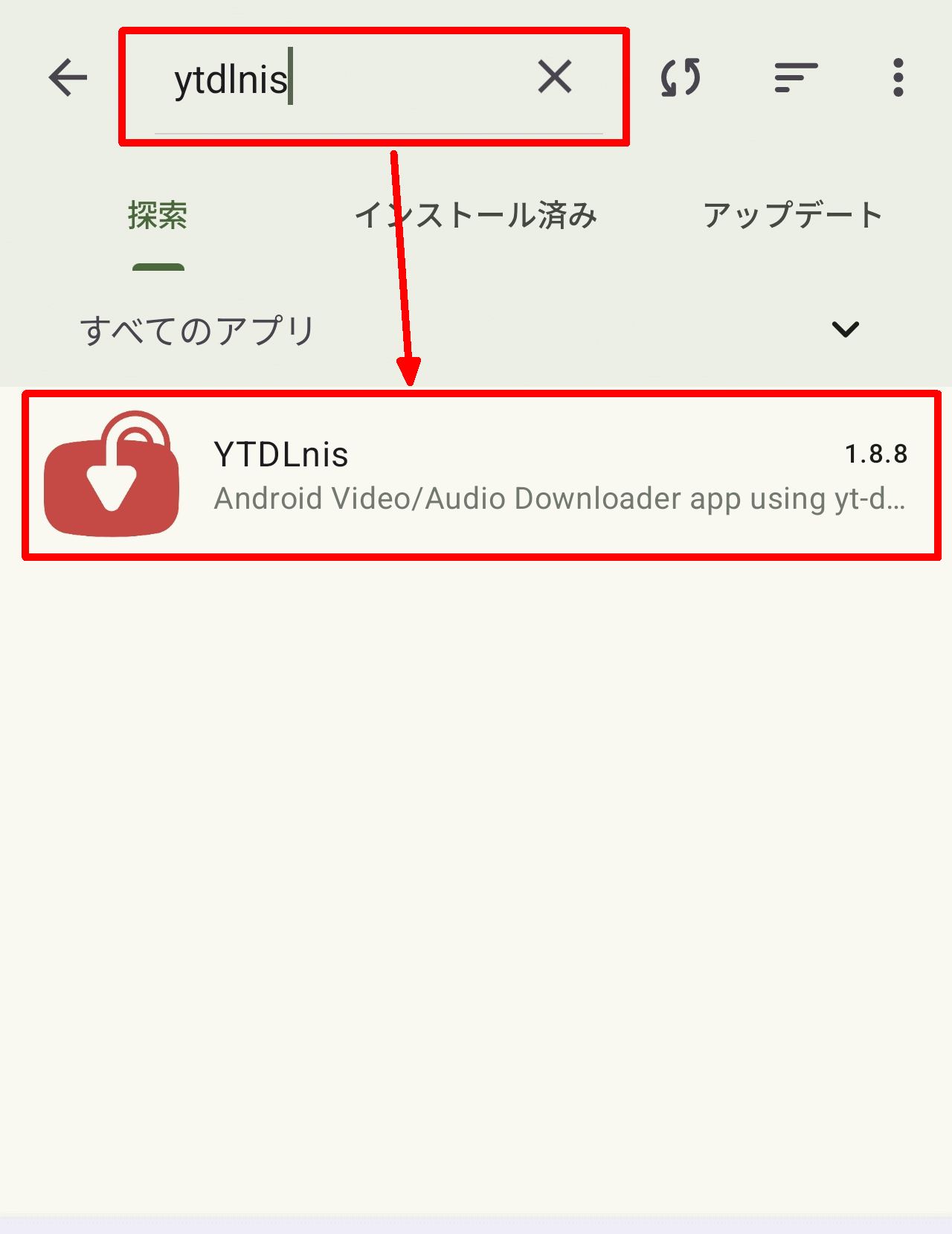
Enter 'YTDLnis' and the desired app will appear in the search results; tap it. Note that the search string is not case-sensitive, so you can enter it in all lowercase.
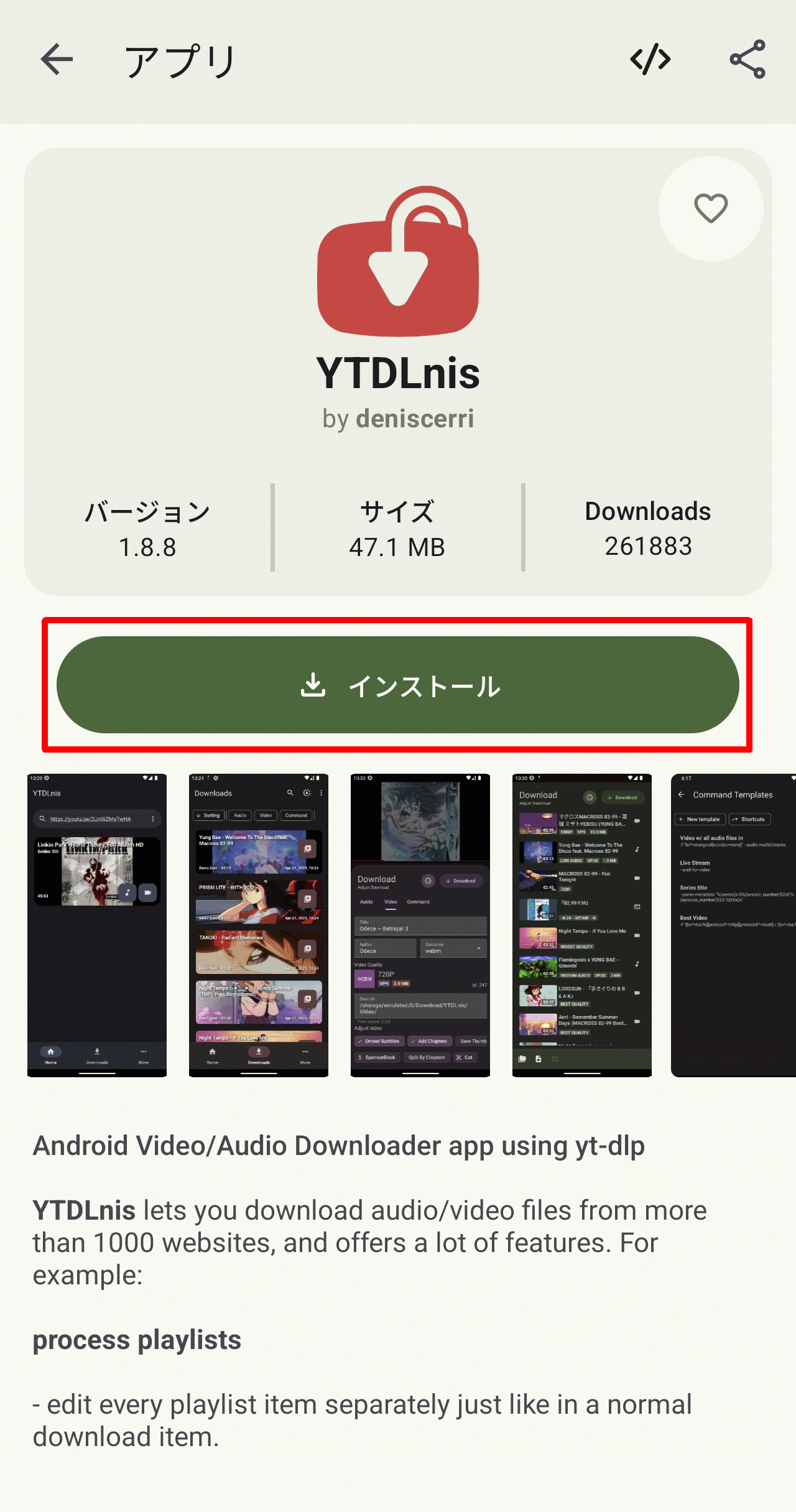
Tap the 'Install' button on the YTDLnis screen.
Download in progress.
Once the download is complete, a pop-up will appear saying 'For security reasons...'. This setting needs to be configured for each app you install, so tap 'Settings'.
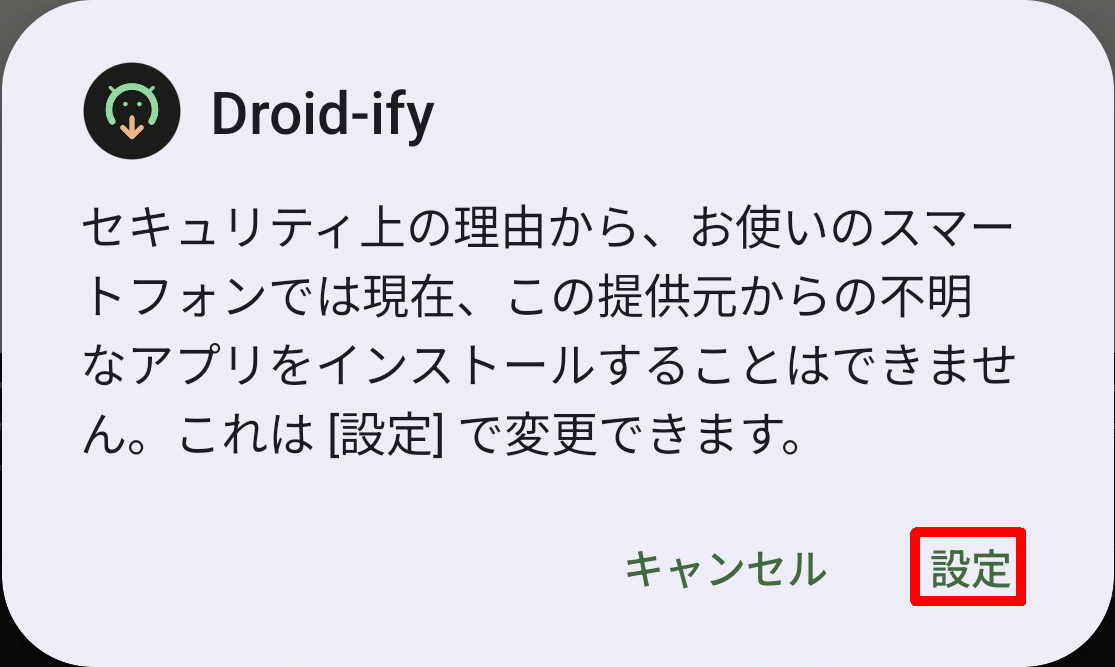
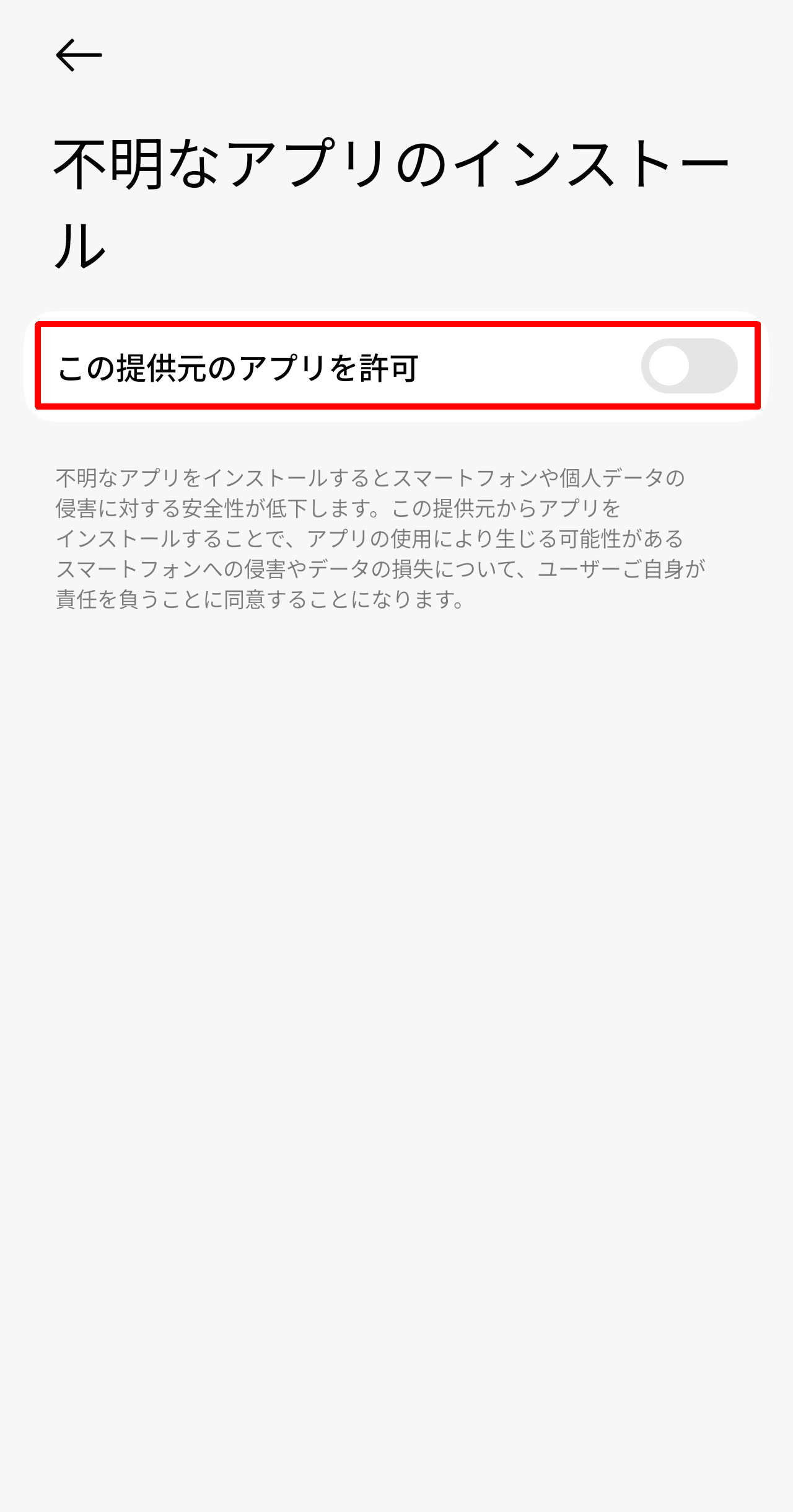
A 'Install Unknown App' screen will appear, so turn on 'Allow apps from this source'.
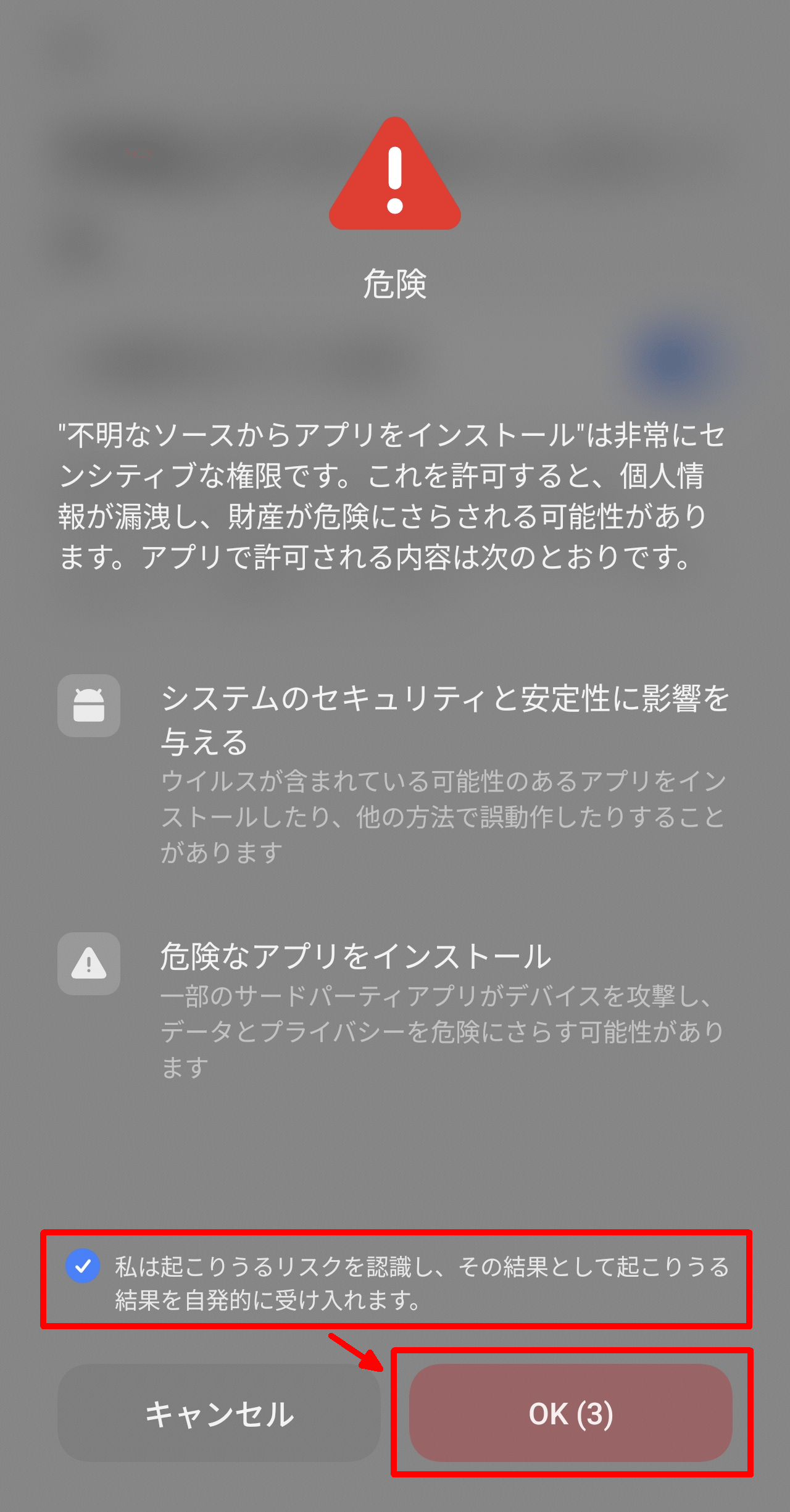
An overlay labeled 'Danger' will appear. Check the box that says 'I understand the potential risks' and tap the OK button. Please note that the OK button will not become active until a few seconds have passed after you check the box to prevent accidental taps.
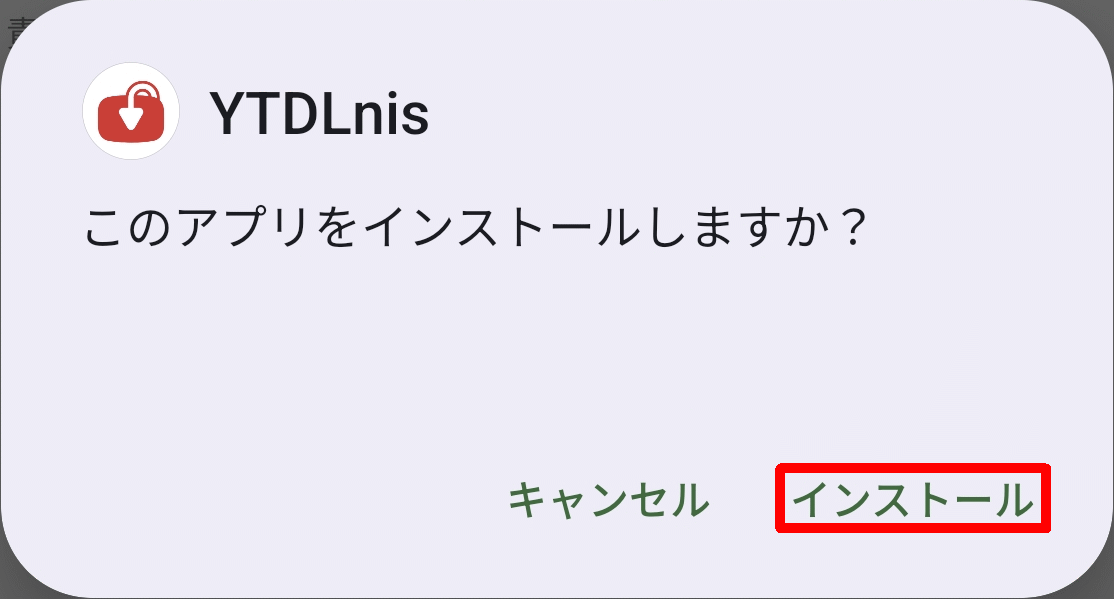
A pop-up will appear asking, 'Do you want to install this app?' Tap 'Install'.
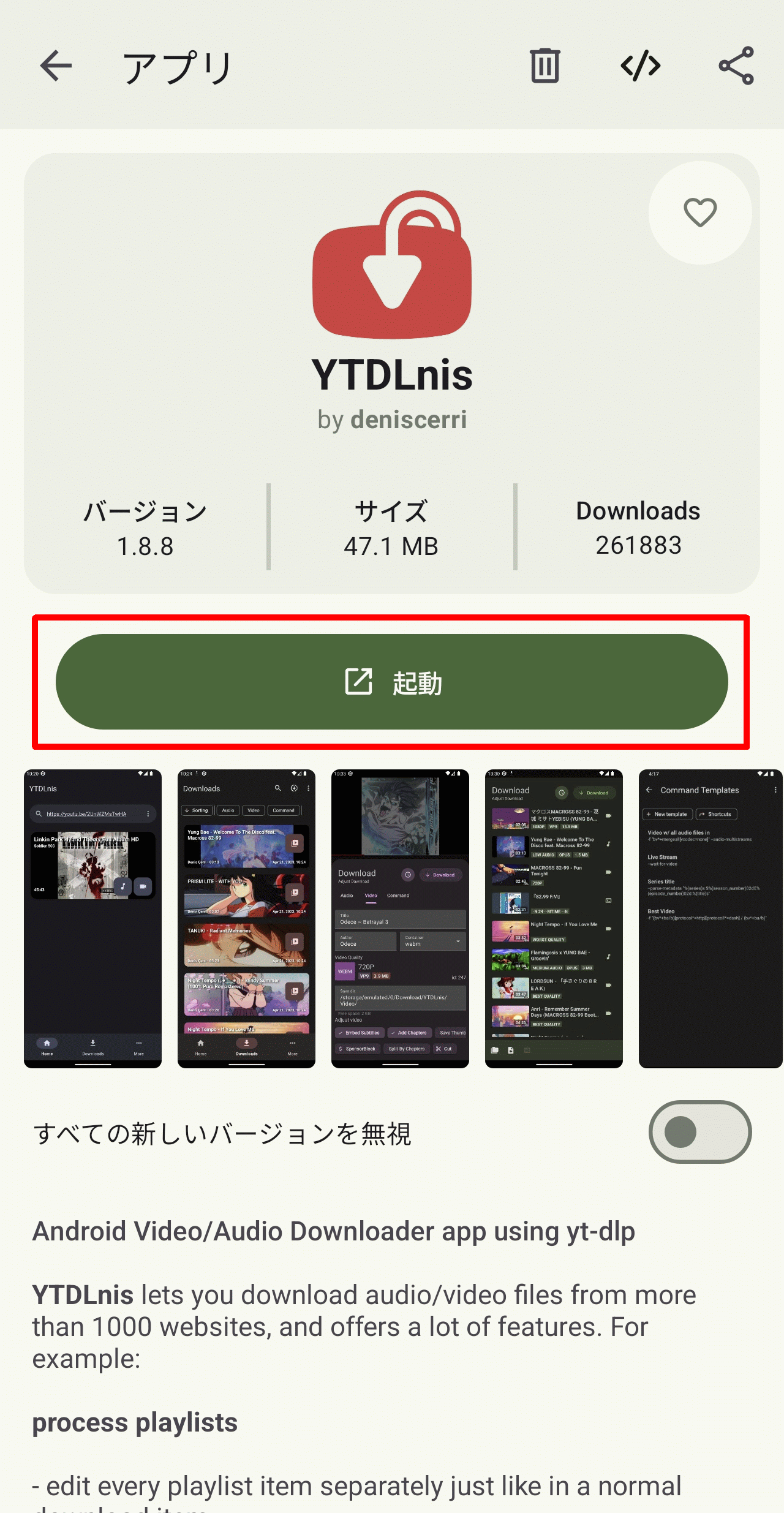
Once the installation is complete, a 'Launch' button will appear; tap it.
◆Download
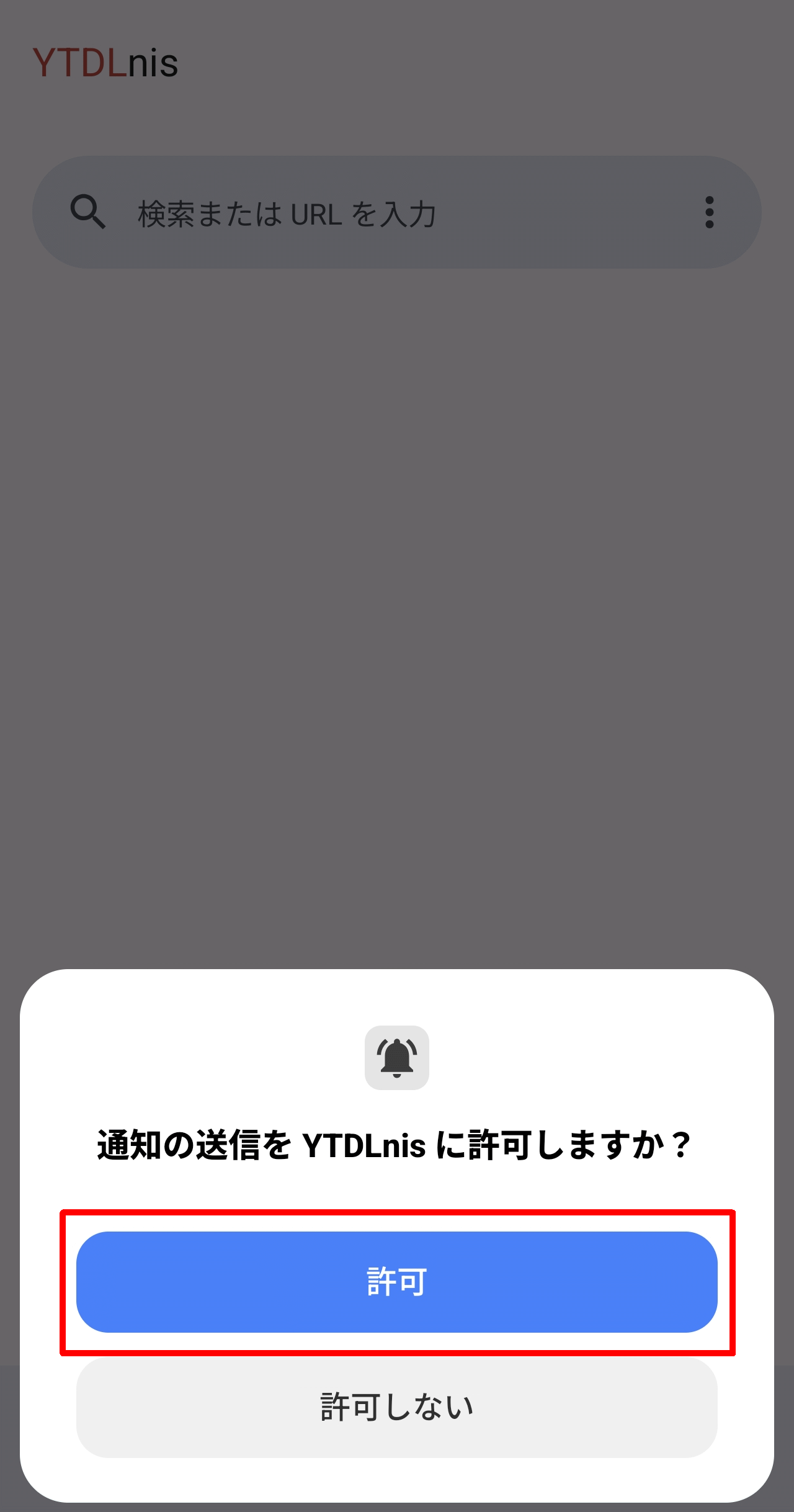
The first time you launch the application, a pop-up will appear asking, 'Do you want to allow YTDLnis to send notifications?' Tap the 'Allow' button.
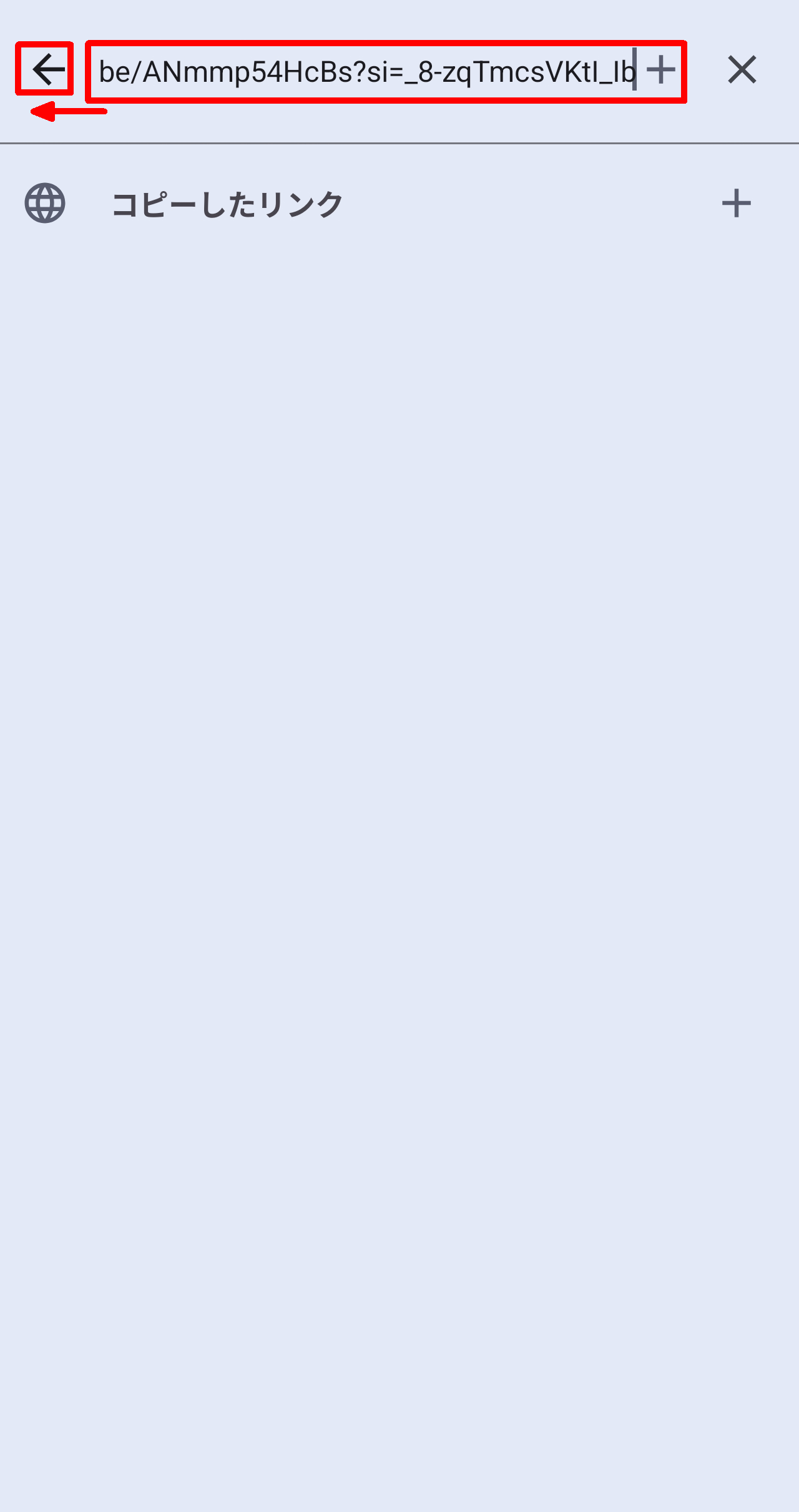
Enter the video or audio URL at the top of the main screen, then tap the left arrow icon. If you have copied the URL to your clipboard, you can also tap 'Copied Link.'
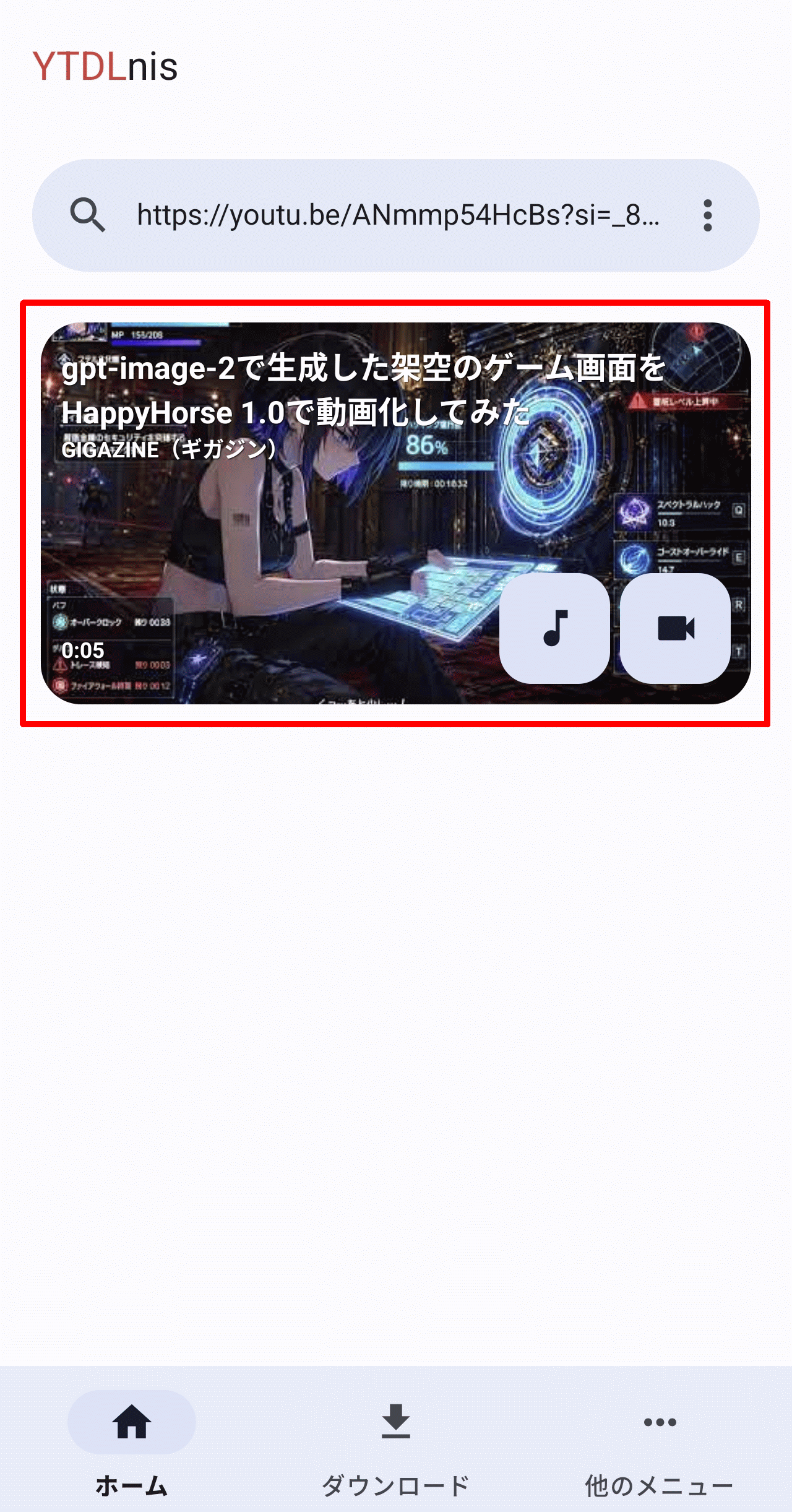
A thumbnail of the video or audio will be displayed, so tap it.
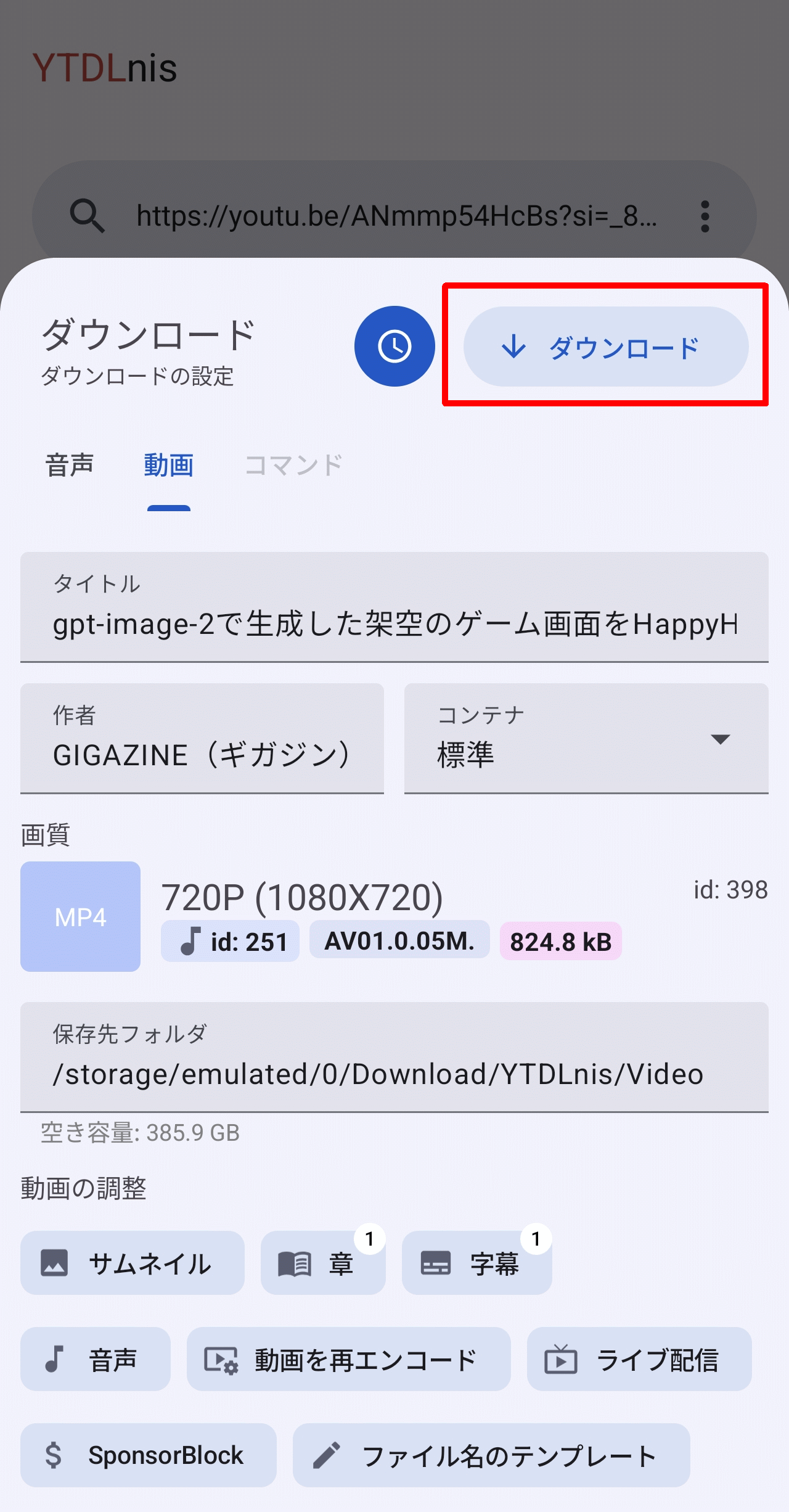
A 'Download' pop-up will appear, so check the contents and, since we'll download it immediately this time, tap the 'Download' button.
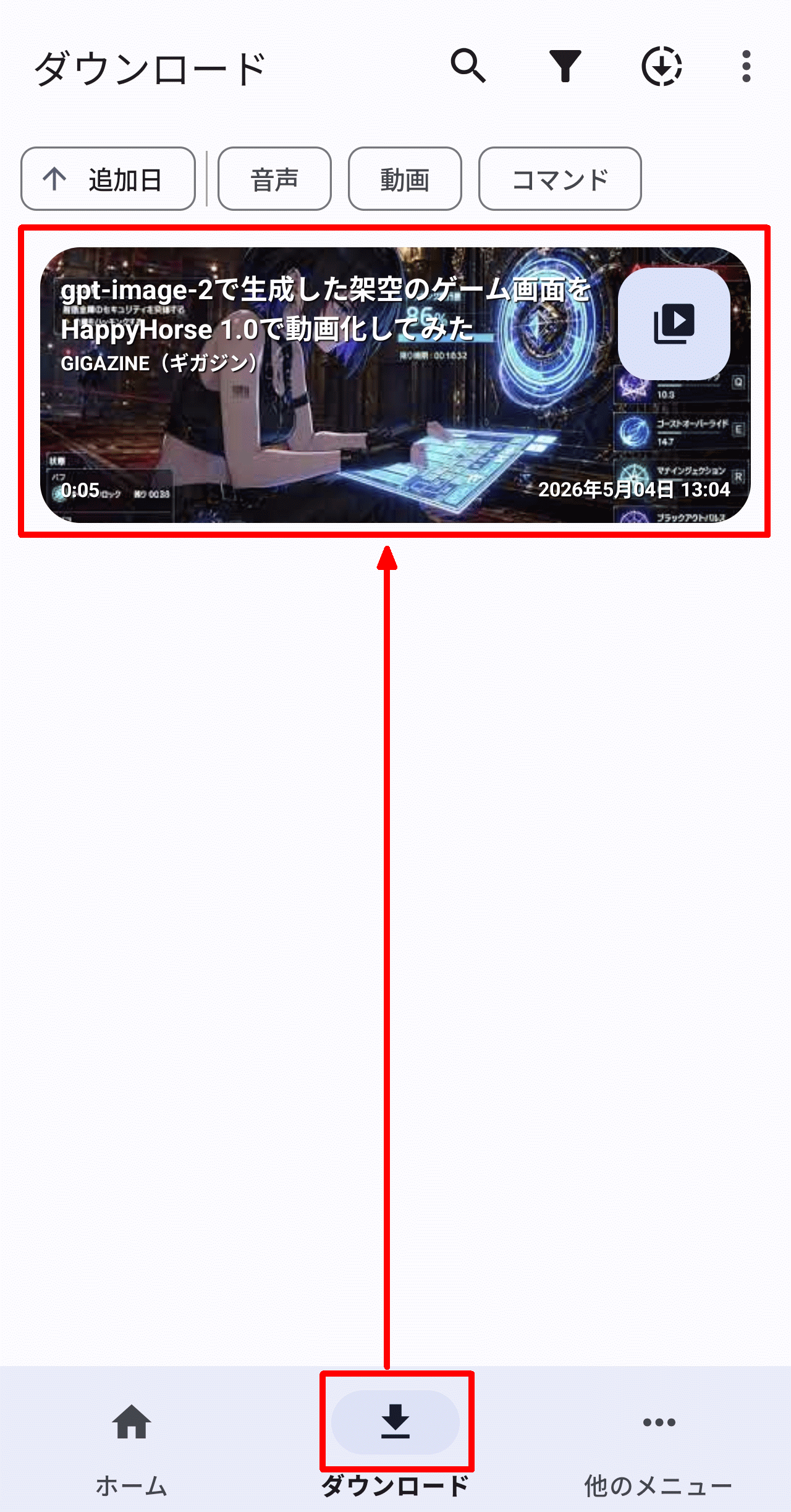
Selecting the 'Downloads' tab displays thumbnails of downloaded videos and audio files. Tapping a thumbnail will open it in the app installed on your smartphone.
◆Schedule
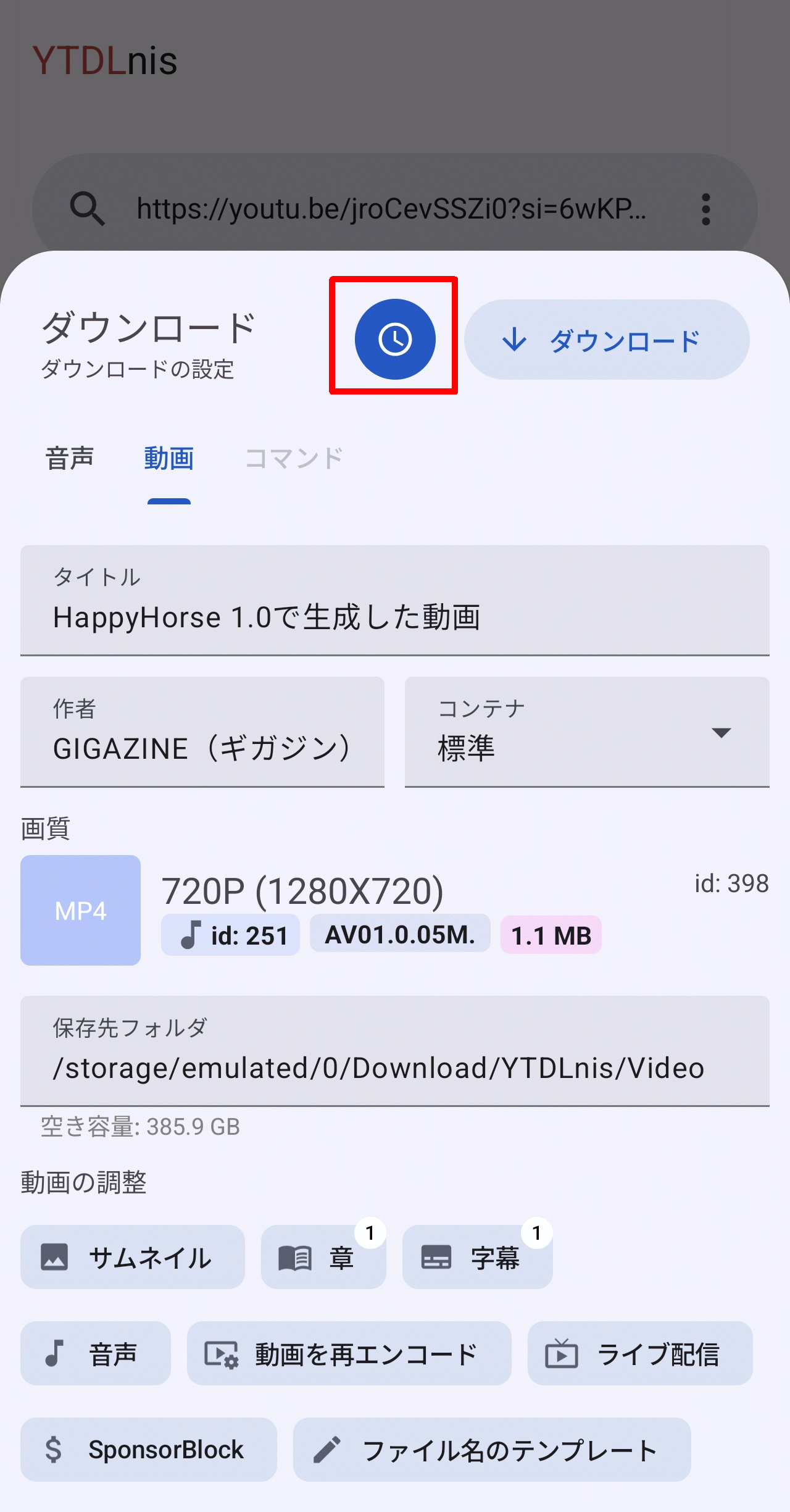
To schedule a download, tap the clock icon in the 'Downloads' pop-up.
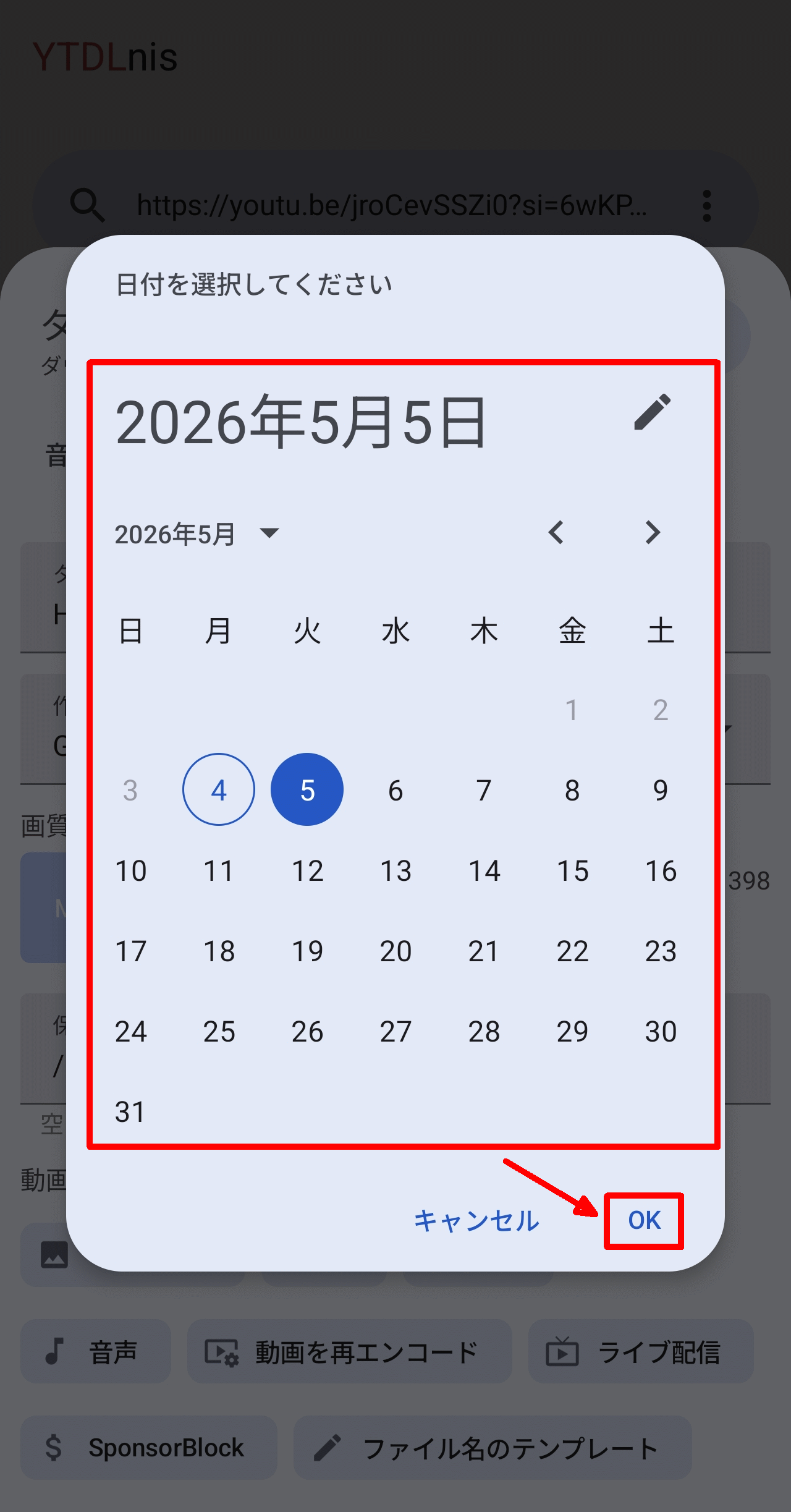
A pop-up window will appear asking you to specify a date. Select a date from the calendar and tap OK.
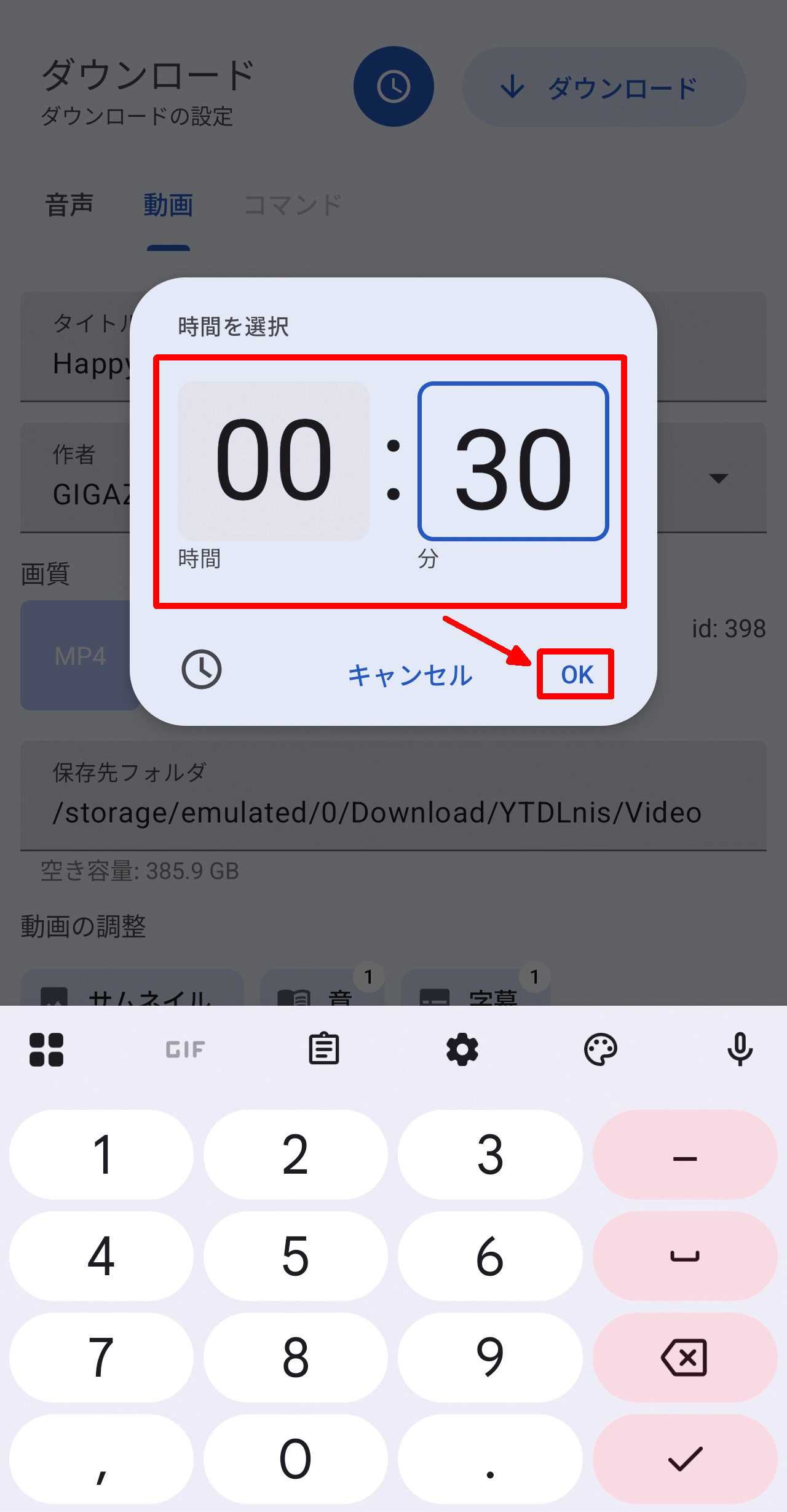
Next, a pop-up window will appear asking you to specify the time. Enter the time and tap OK.
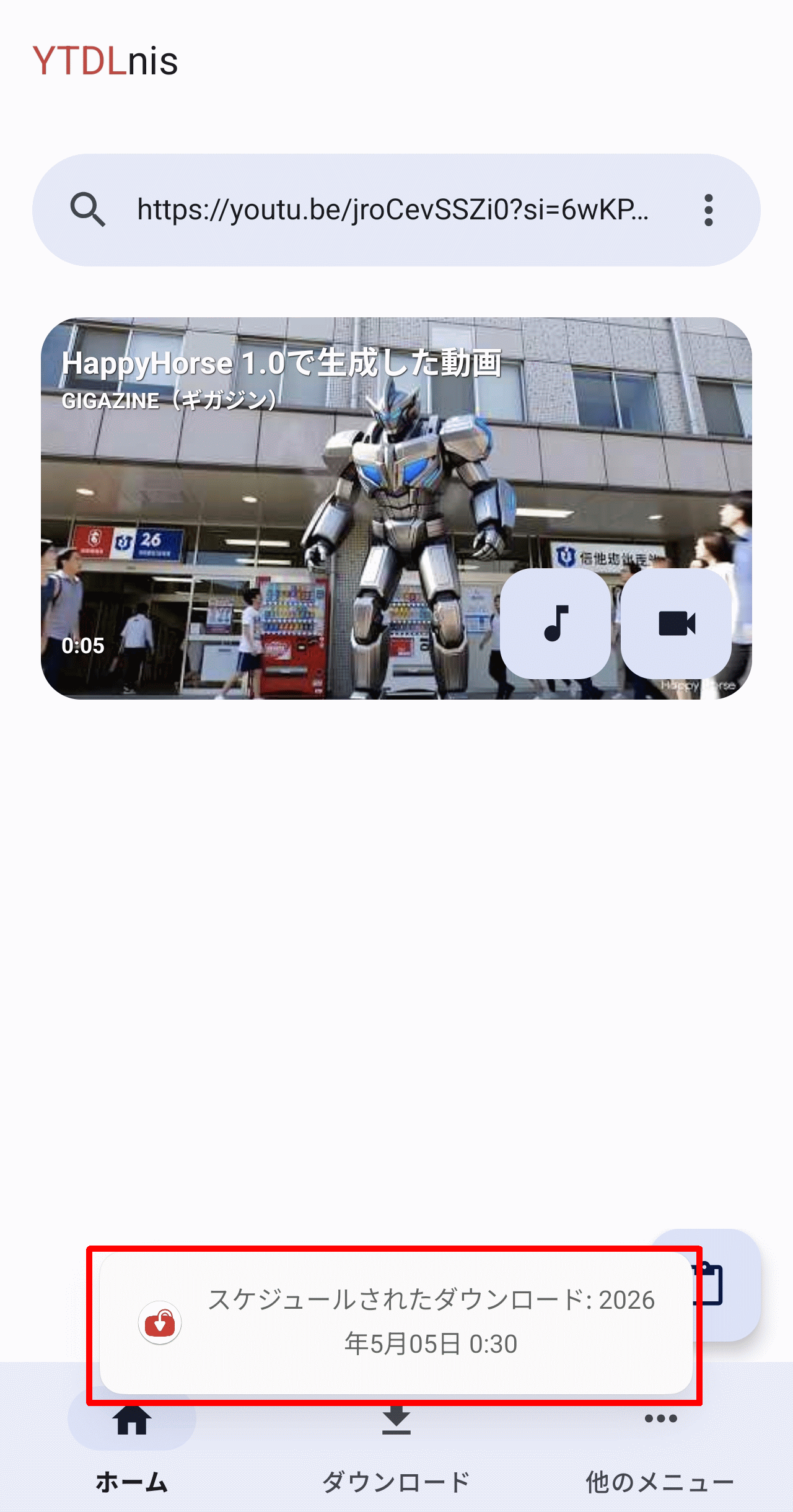
A notification will appear stating that a schedule has been set.
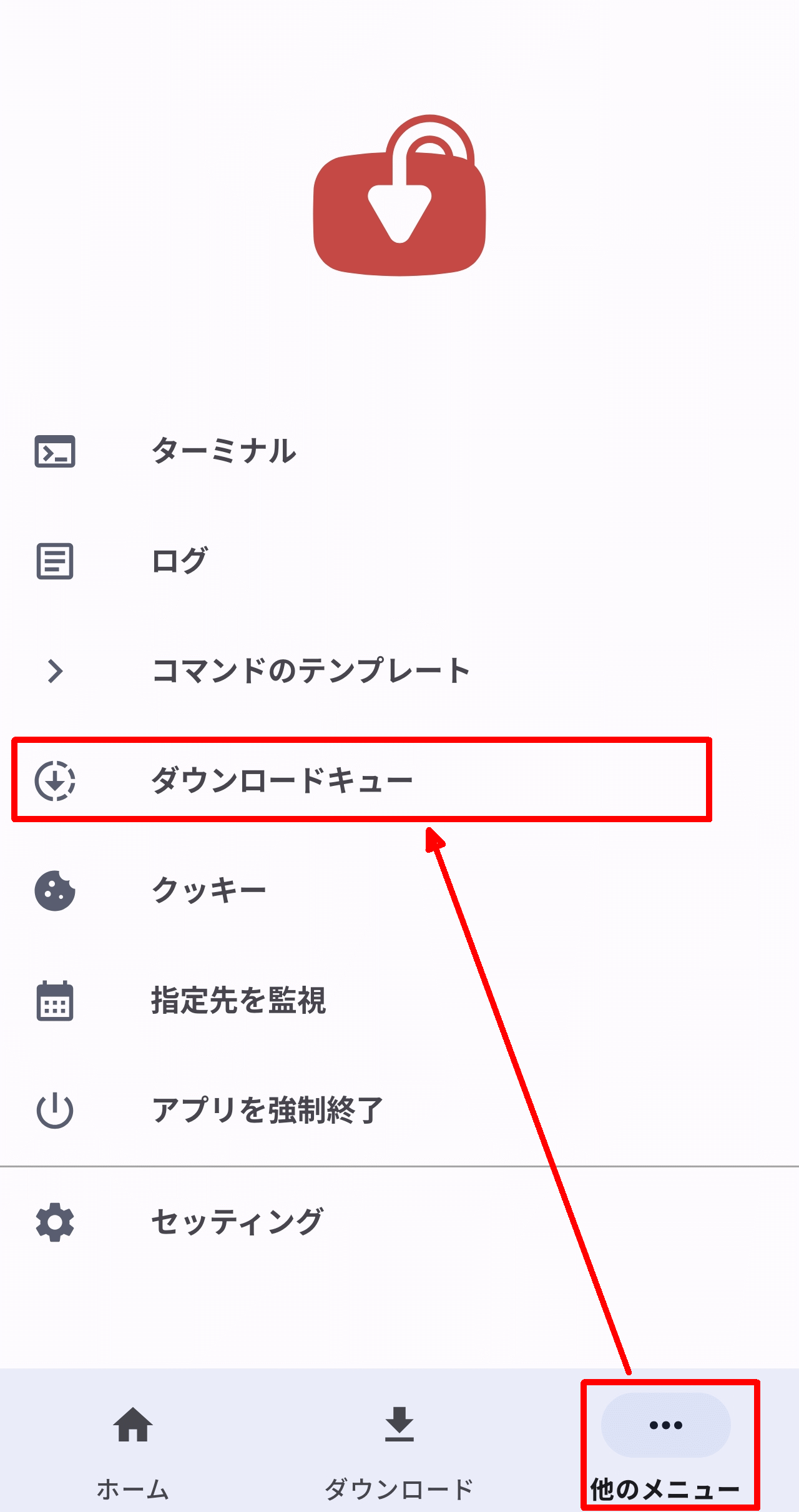
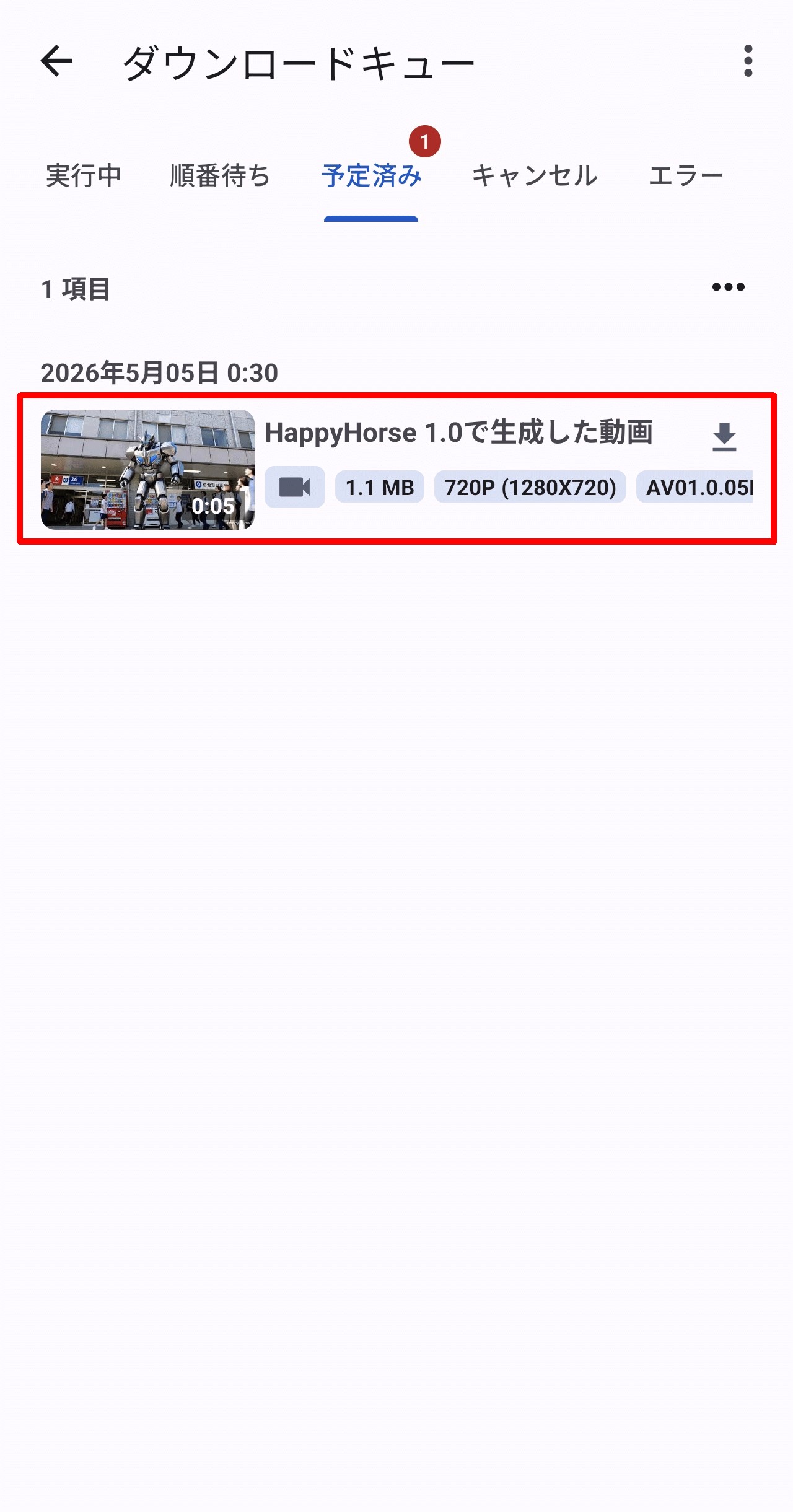
To check the schedule, select the 'Other Menus' tab and tap 'Download Queue'.
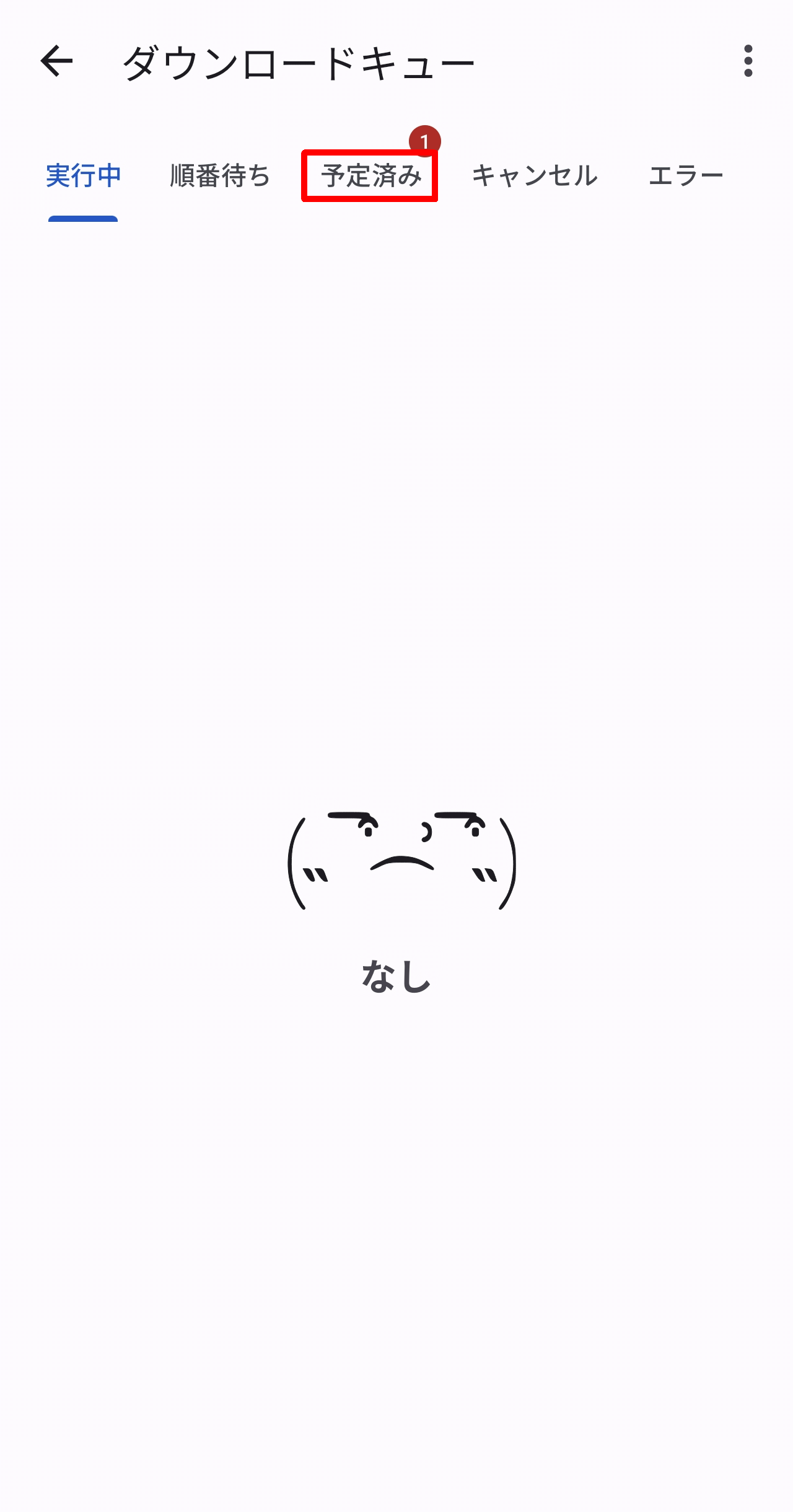
The 'Download Queue' screen will appear, so select the 'Scheduled' tab.
A list of scheduled downloads is displayed. To change the schedule, tap the thumbnail of the desired download.
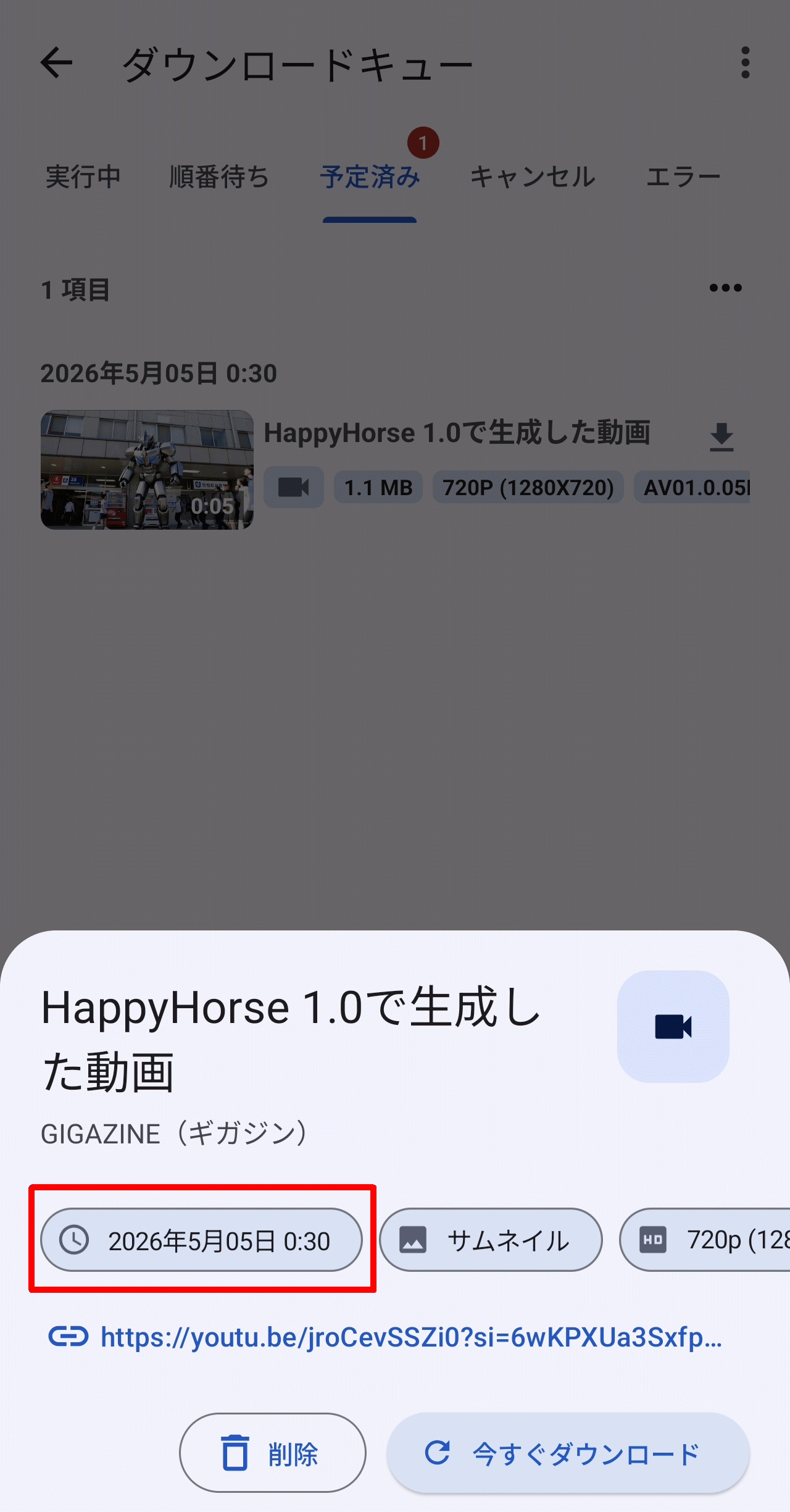
The content of the video/audio to be downloaded will be displayed in a pop-up. To change the schedule, tap the scheduled date and time to reset the date and time settings.
◆Cookie settings
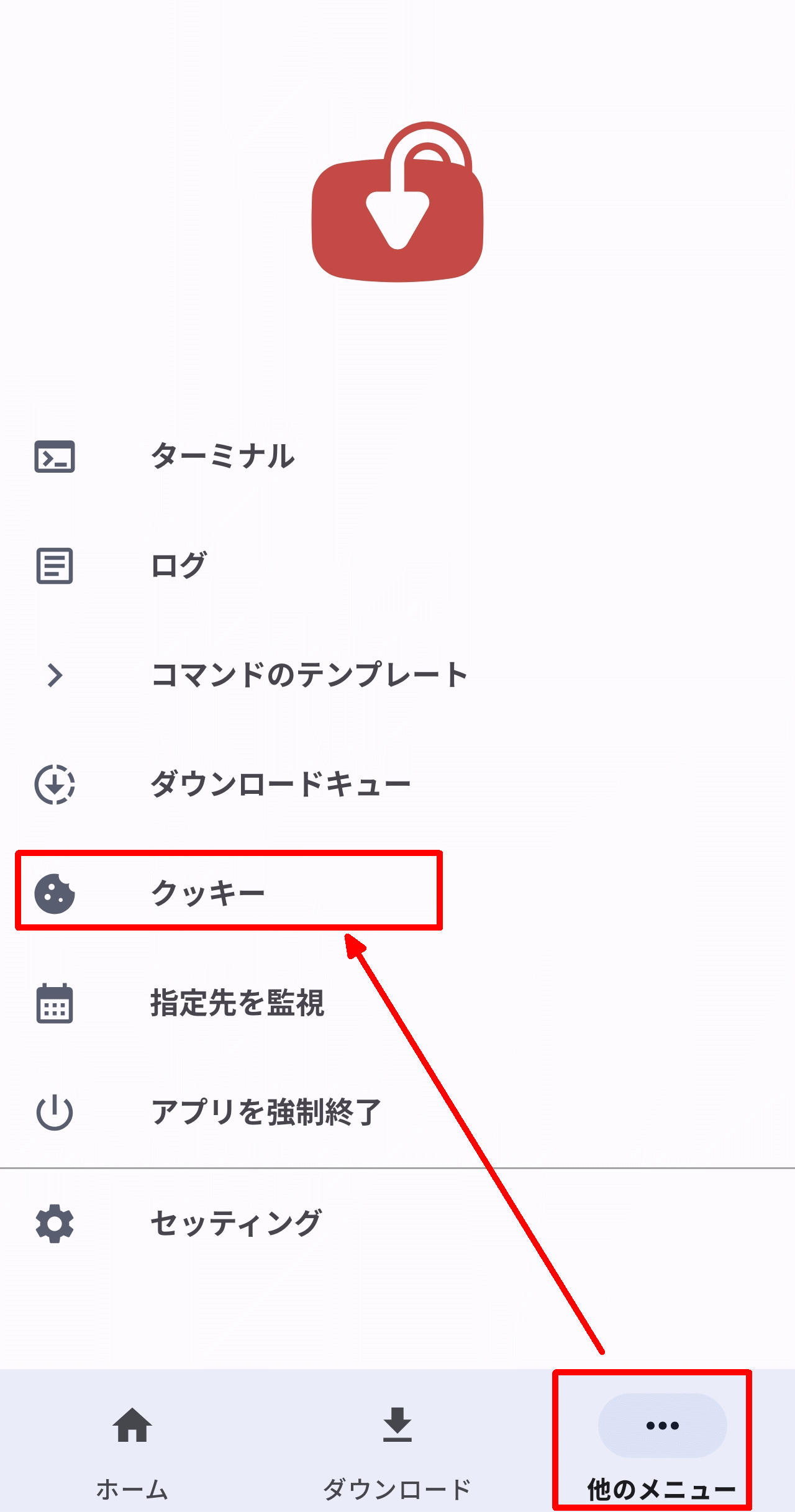
Some websites may require cookies to access videos and audio. To use cookies, tap 'Cookies' from the 'Other Menus' tab.
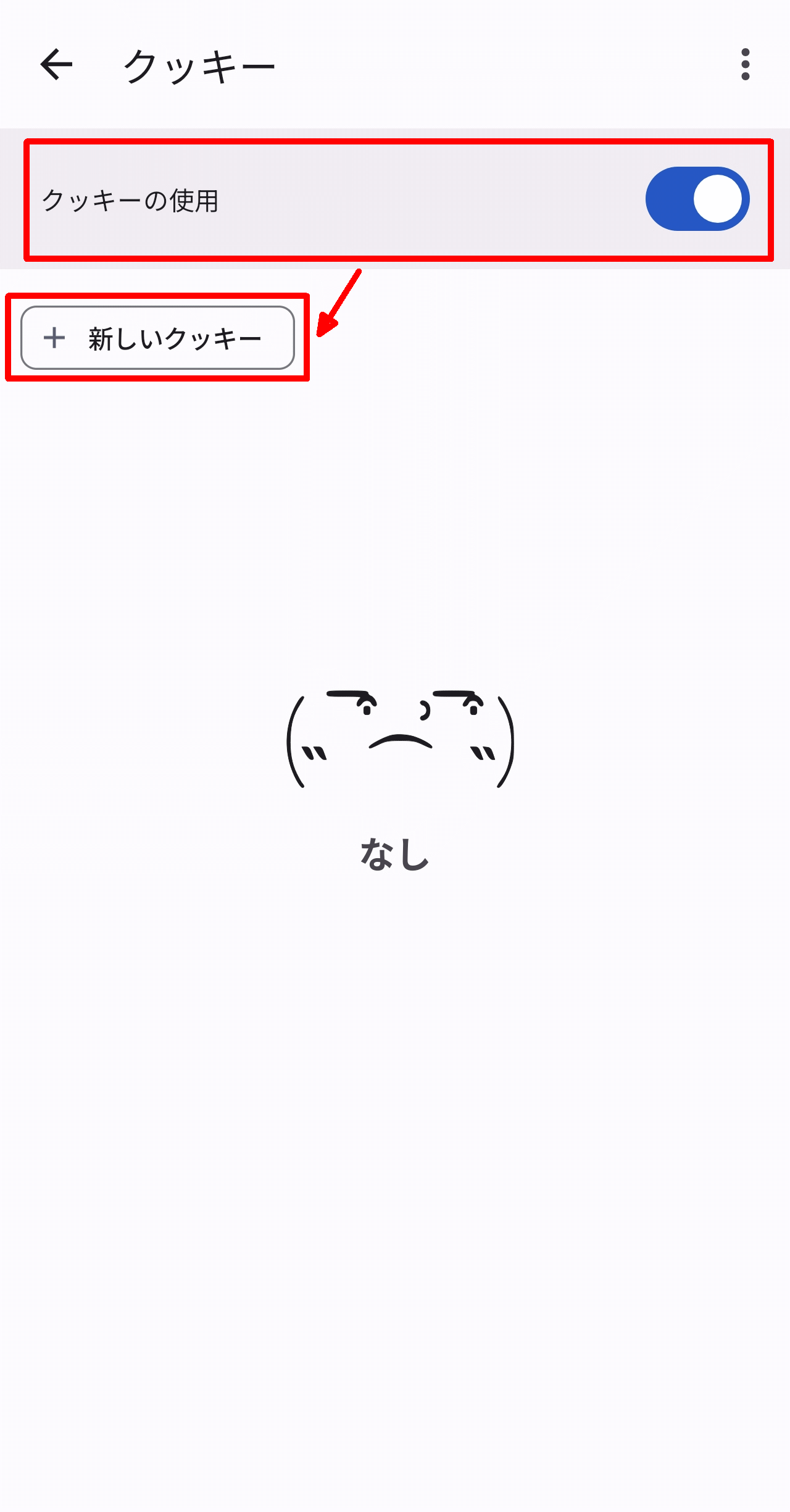
The 'Cookies' screen will appear, so turn on 'Use cookies' and tap 'New cookie'.
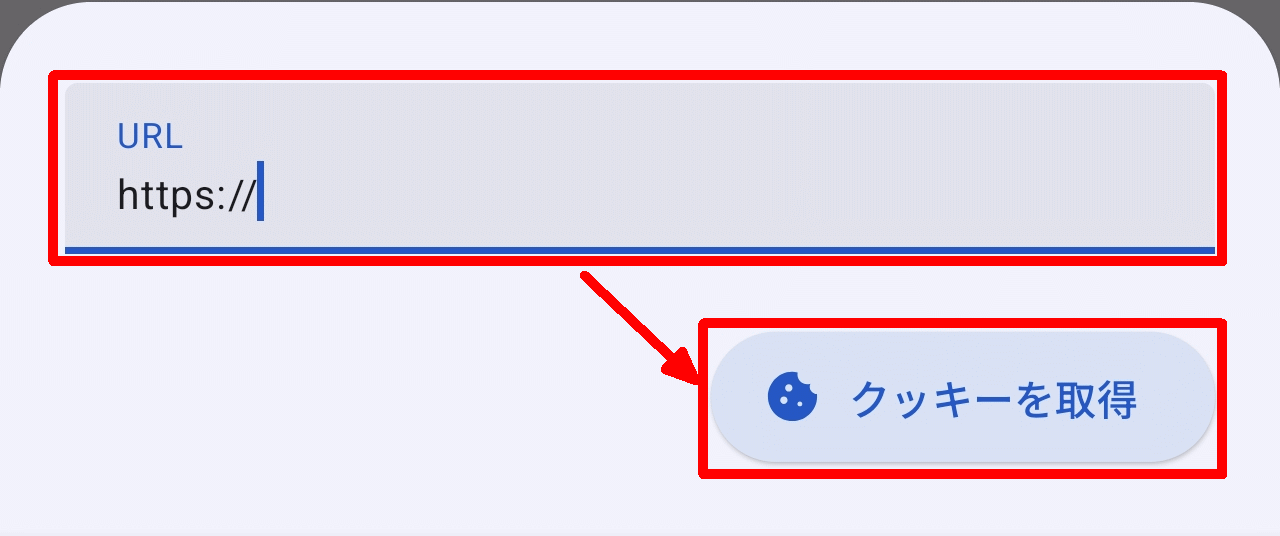
A pop-up window will appear asking you to enter a URL. Enter the website's URL and tap the 'Get Cookies' button.
◆Monitoring the designated location
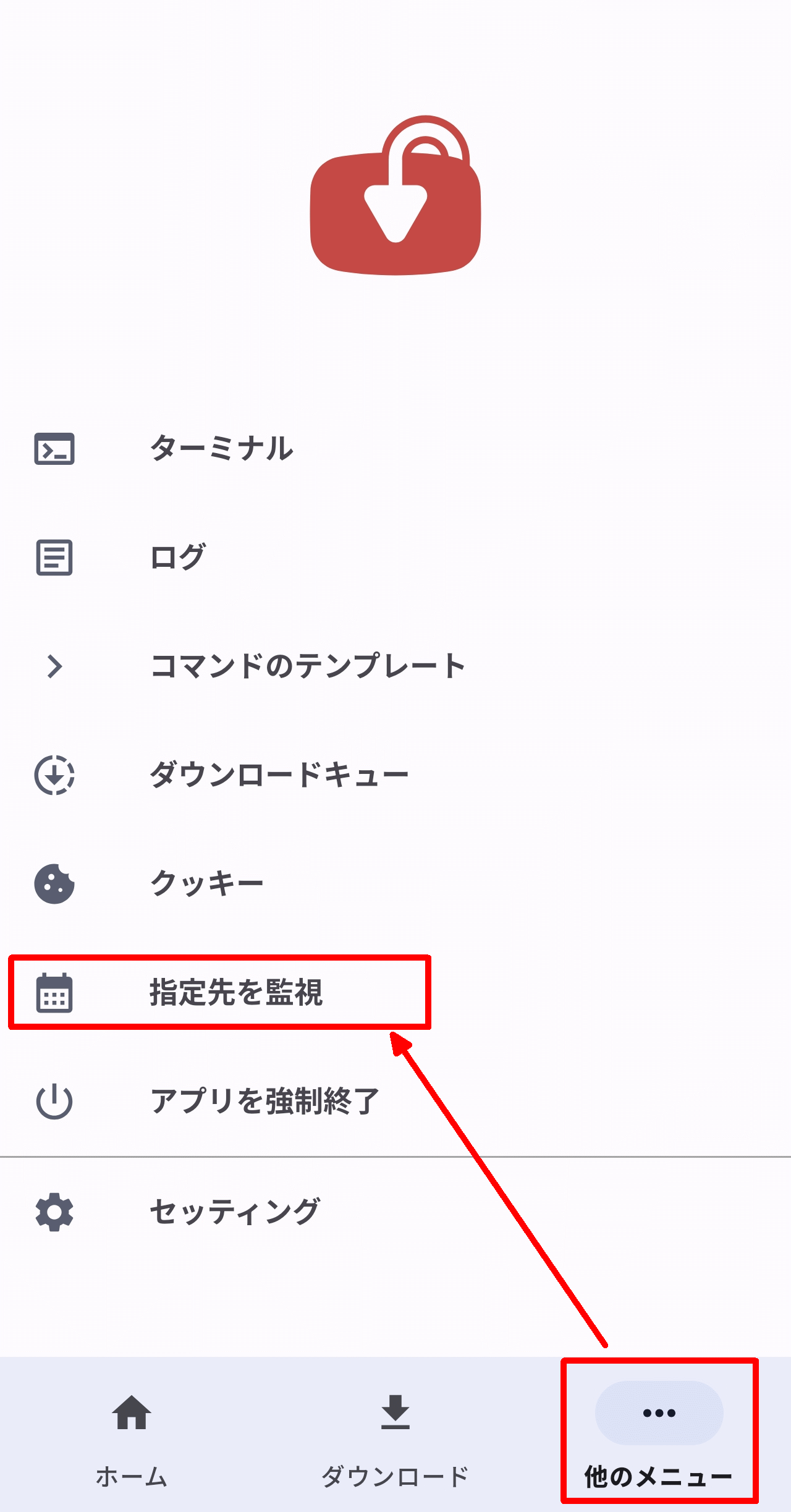
To monitor new content on a specific site, you need to register the site to be monitored. Tap 'Monitor Specified Site' from the 'Other Menus' tab.
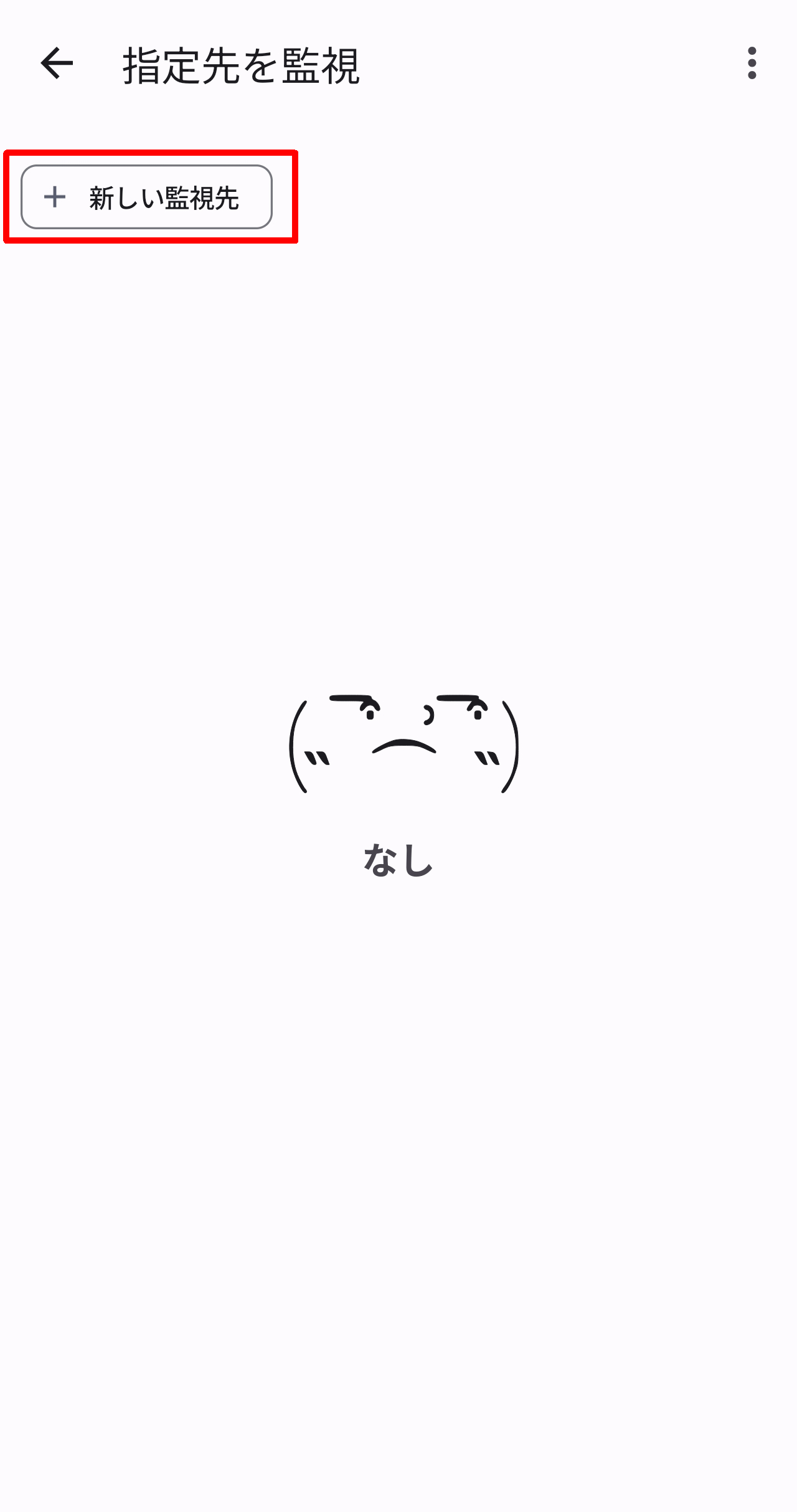
The 'Monitor Specified Destination' screen will appear, so tap the 'New Monitoring Destination' button.
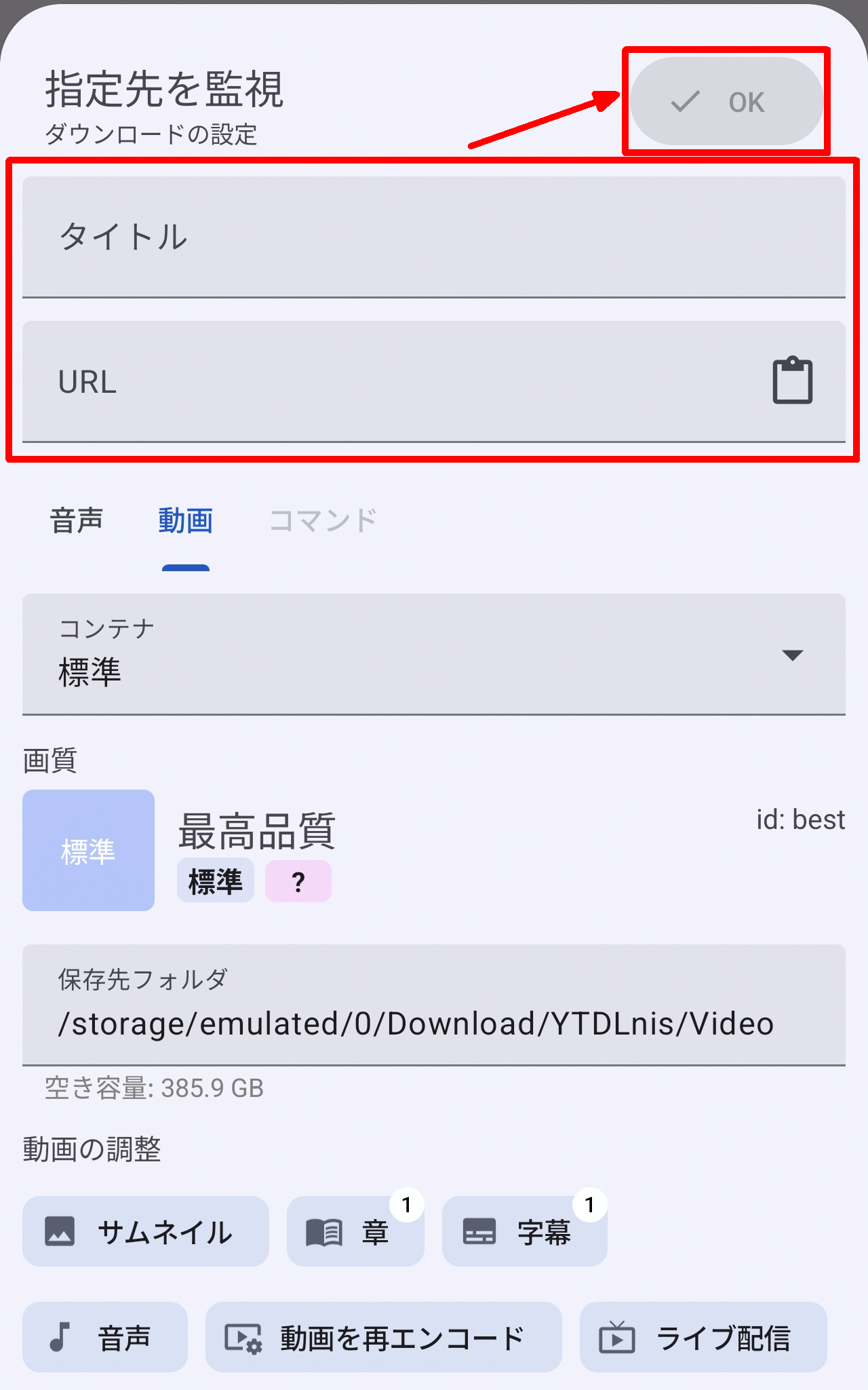
A 'Monitor Specified Location' pop-up will appear. Enter the 'Title' and 'URL' and tap the OK button.
◆Settings
To configure various settings in YTDLnis, tap 'Settings' from the 'Other Menus' tab.
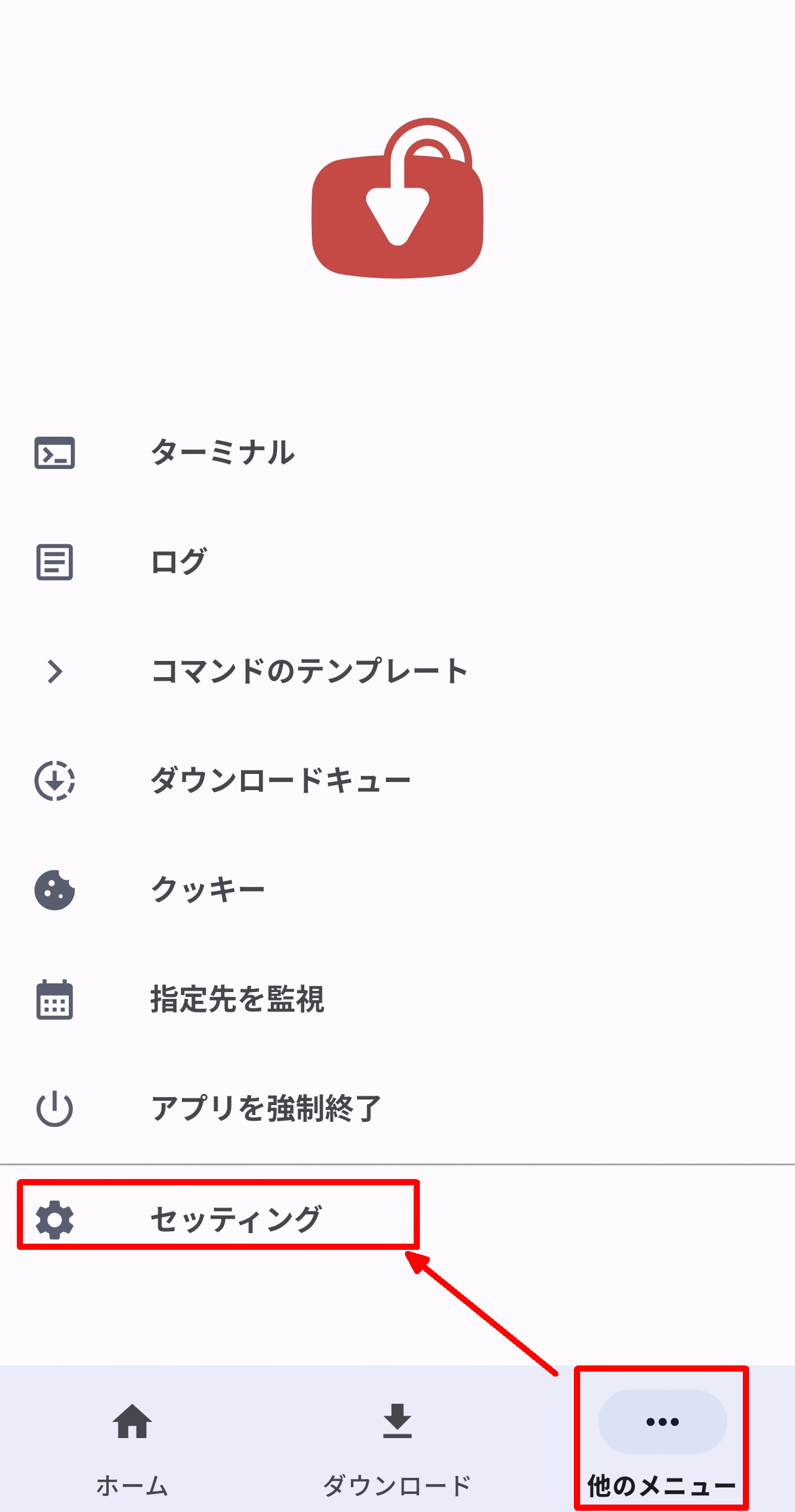
The 'Settings' screen looks like this.
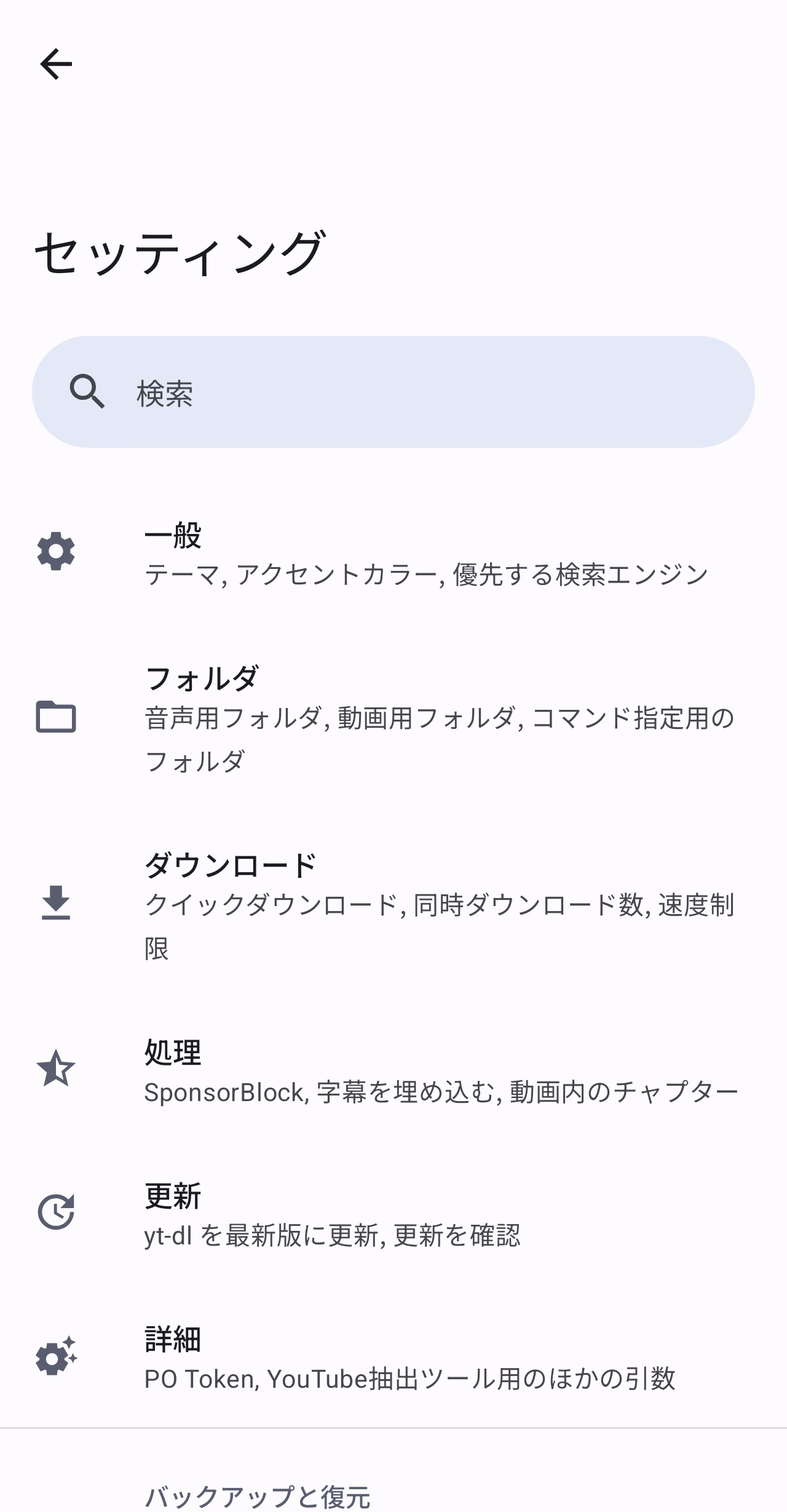
・General
The settings available in the 'General' sub-screen are as follows:
·language
·theme
App icon
• Accent color
• High contrast
Hide thumbnails
- Change download card
Recommended videos
• Data acquisition and extraction tool (YouTube)
Source of format list
- Use the URL of each individual item instead of the playlist URL.
Priority regions
• Preferred home screen
• Label display
• Preferred search engine
Search suggestions
・Swipe gestures
- Swipe gesture on download card
• Use color-coded highlighting for code.
- Display Terminal in the Share menu
- Add a 'Download Now' option to the sharing menu.
- Display the number of people waiting to download.
Ignore battery optimization
·folder
The settings for the 'Folder' sub-screen are as follows:
- Audio folder
・Video folder
- Folder for specifying commands
Cache folder
- Allow access to all directories
Download the cache first.
・Do not download them separately.
- Retain cache fragments
File name templates [video]
File name template [Audio]
File name restrictions
Move temporary files
- Delete temporary files
·download
The settings available on the 'Download' sub-screen are as follows:
・Secret Mode
- Display download options
- Do not retrieve data
- Prevent duplicate downloads
Downloads using a metered connection
- Force IPv4
• Use of cookies
SOCKS5 proxy URL
• Preferred download type
- Remember the type of download
- Split download
• Number of simultaneous downloads
Speed limit
Buffer size
Socket timeout
aria2c
Download log
- Delete any remaining downloads (cancelled or error-prone ones)
Number of retries
- Number of retries for split download
Use AlarmManager instead of WorkManager for time management.
Download according to the schedule.
·process
The settings available in the 'Processing' sub-screen are as follows:
Use SponsorBlock
・SponsorBlock
・SponsorBlock API URL
・Enable mtime
- Retain the description
- Add additional commands
- Force keyframes when cutting.
- Embed metadata
・ bitrate
- Thumbnail cover art
- Crop the thumbnail
- Use playlists as album metadata
• Preferred language for audio
• Preferred audio codec
- When downloading audio, prioritize the container over the codec.
Audio format
• Preferred format ID [Audio]
Prioritize audio DRC
- Embed subtitles
Save subtitles
- Save automatic subtitles
- Delete the subtitle file after embedding it.
Subtitle language
Subtitle format
- Save thumbnail
- Thumbnail cover art
Thumbnail format
Chapters within the video
Video format
- Re-encode the video
Supported video formats
• Preferred video codec
·image quality
• Preferred format ID [Video]
- Delete audio
• Downloadable as audio
Recommended format size
·update
The settings available on the 'Update' sub-screen are as follows:
・yt-dlp version
- Update yt-dlp to the latest version.
• Where to obtain yt-dlp
- Updates to yt-dlp information
Version
Check for updates
Beta version
Packages
・Format order
- Narrowing down the format
- Update the format
·detail
The settings available on the 'Details' sub-screen are as follows:
Player client
- Generate PO tokens
- Use the language of this app for metadata
Data Sync ID
Other arguments for the YouTube extraction tool
- Additional commands for data acquisition
- Use sorting by importance of format
- Do not write JSON for information.
- Do not verify HTTPS certificates
User-Agent header
- Disable flat playlist
- Use the original URL for the playlist URL.
·backup
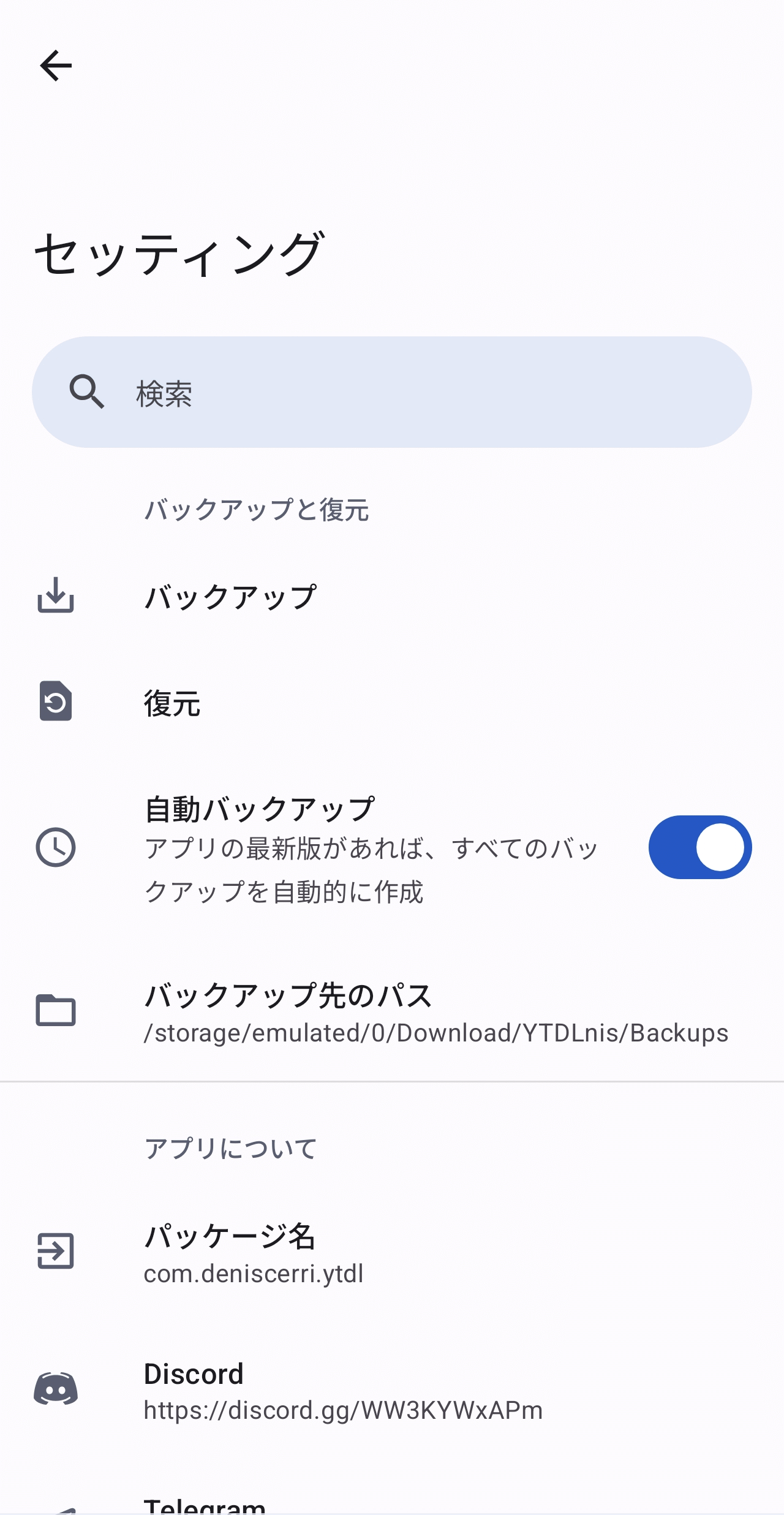
Tapping 'Backup' will display a pop-up where you can select the contents to back up. After making your selection, tapping OK will create the backup file.
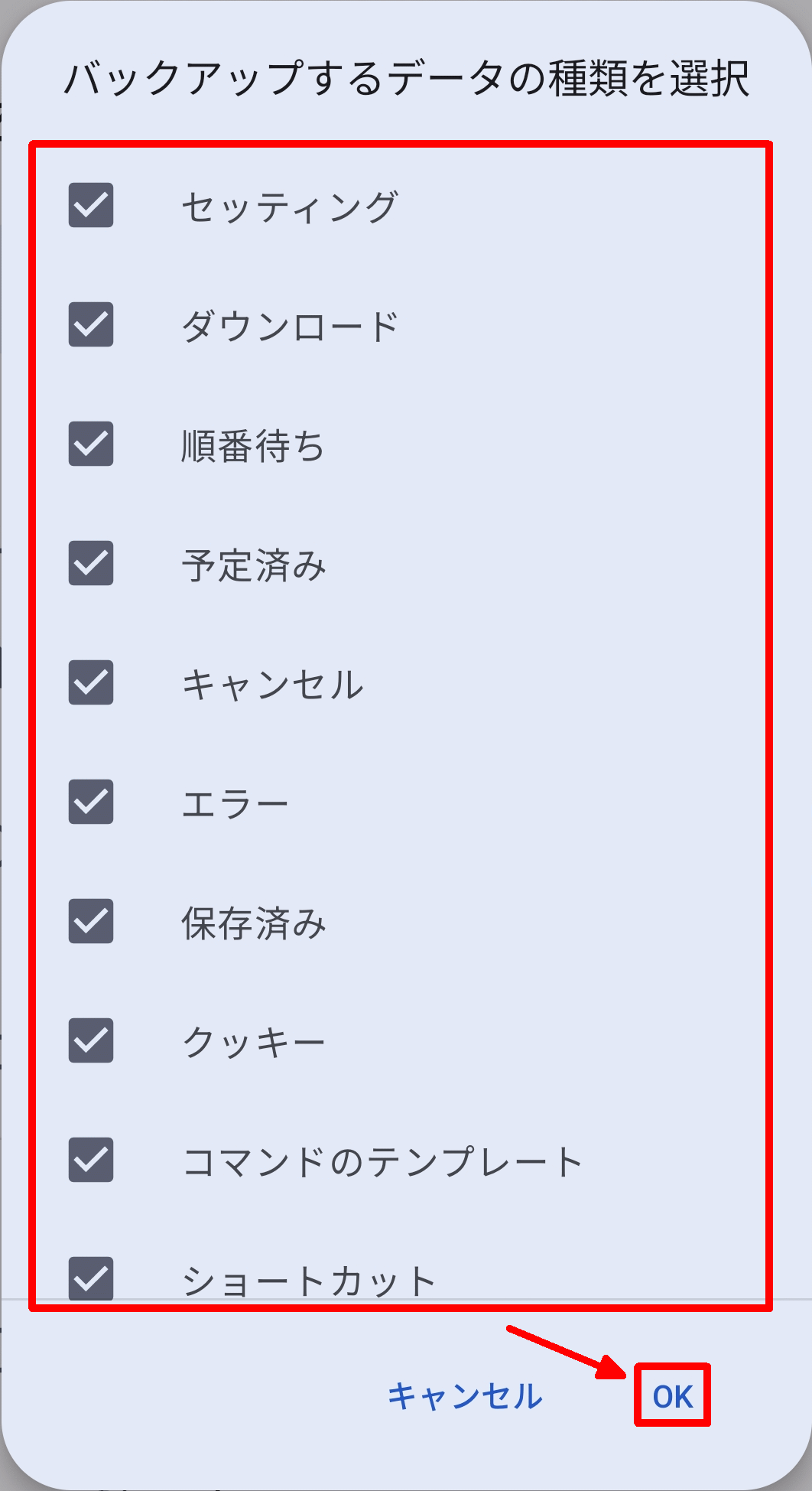
The available backup options are as follows:
• Setting
·download
Waiting in line
・Scheduled
·cancel
·error
Saved
·cookie
Command templates
Shortcuts
Search history
• Monitor the designated location
- Restoration
Tapping 'Restore' will launch a file manager app, allowing you to restore the contents of a backup file by specifying the backup file.
◆Summary
YTDLnis is an app specializing in downloads and offers surprisingly high functionality. Those who frequently download videos and audio will especially appreciate its convenience, so if you're interested, please give it a try.
Related Posts:


in Software, Smartphone, Review, Posted by log1c_sh