'Seal' is an open-source Android app that allows you to download and save videos and music from YouTube for free.

When downloading videos from sites like YouTube
Seal | F-Droid - Free and Open Source Android App Repository
https://f-droid.org/packages/com.junkfood.seal/
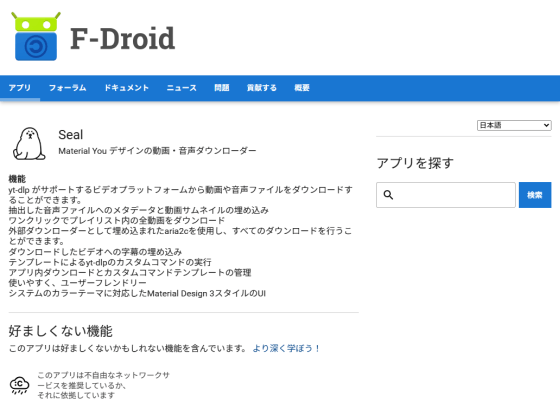
◆Features
The features of Seal are as follows:
- Download videos and audio files from video platforms supported by yt-dlp
- Ability to embed metadata and video thumbnails into extracted audio files supported by
- Download all videos in a playlist with one click
- Built-in aria2c can be used as an external downloader
- Subtitles can be embedded in downloaded videos
- Custom yt-dlp commands can be executed using templates
- Manage in-app downloads and custom command templates
- Easy to use and user-friendly UI
Material Design 3 style UI with dynamic color themes
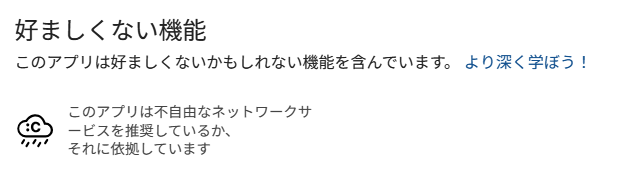
The site also states 'Undesirable Features' and 'This app contains features that may be objectionable,' which may be a bit startling at first, but if you follow the link to ' Learn more! ' it says that the app 'promotes or is completely dependent on non-free network services,' which seems to refer to the app's dependency on YouTube.
◆Installation
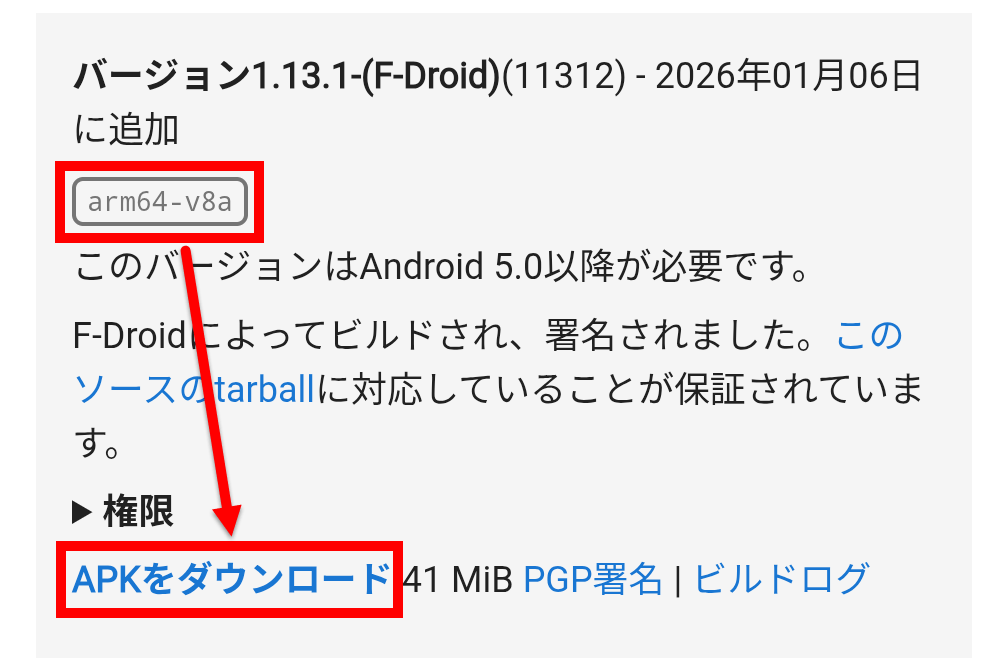
To install, use the apk file provided on the website. While the website recommends installing the 'F-Droid client' first, we will install Seal directly. The latest version at the time of writing is 1.13.1, and there are four identical versions available. We will download the one labeled 'arm64-v8a.'
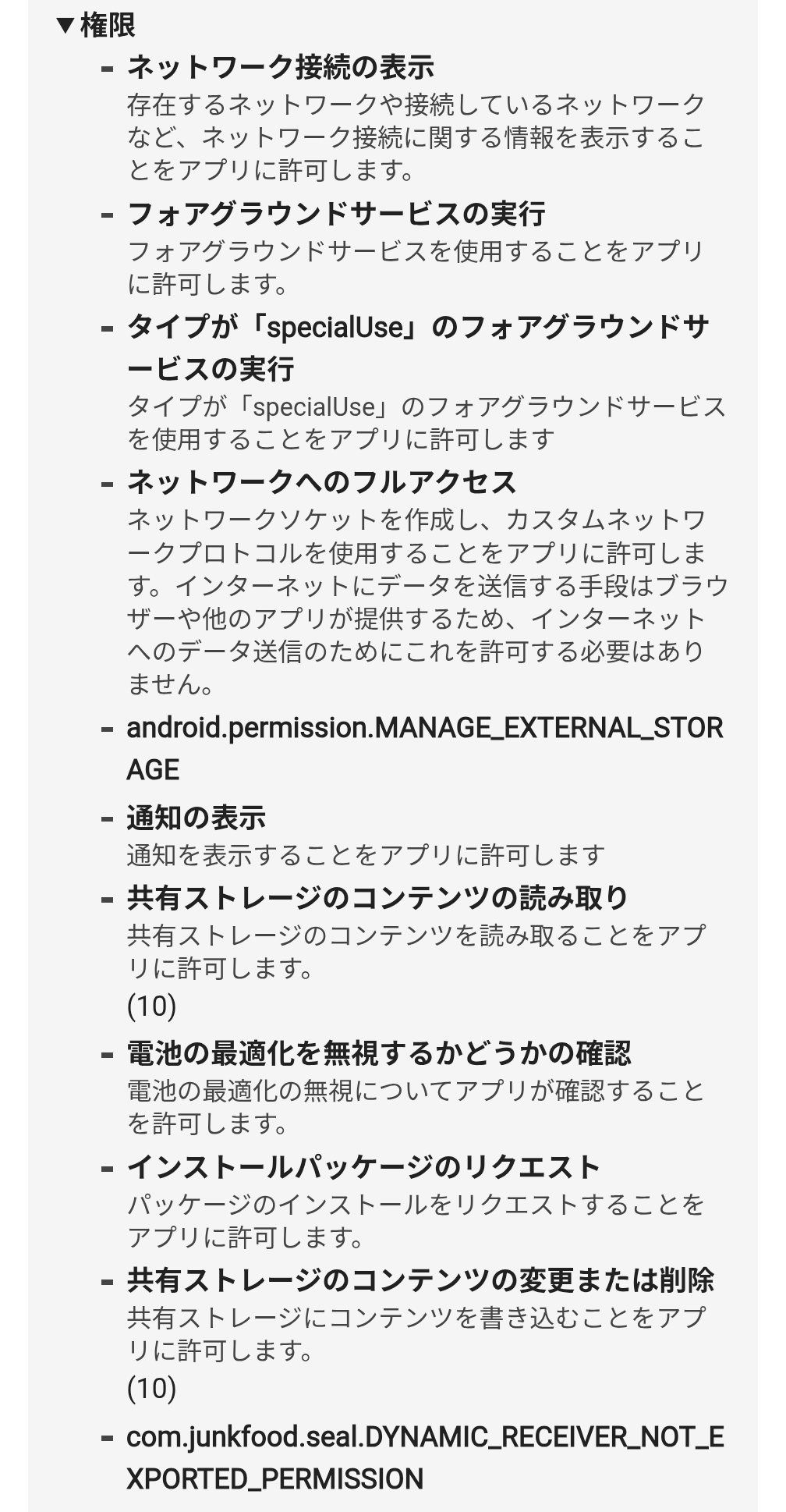
The permissions granted are as follows:
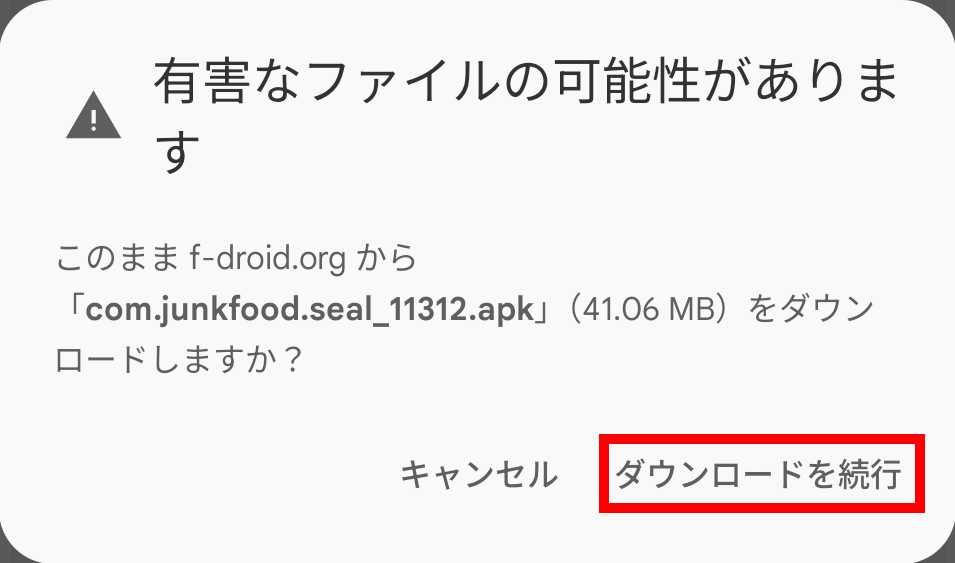
When you try to download, the following message will appear, so tap 'Continue download'.
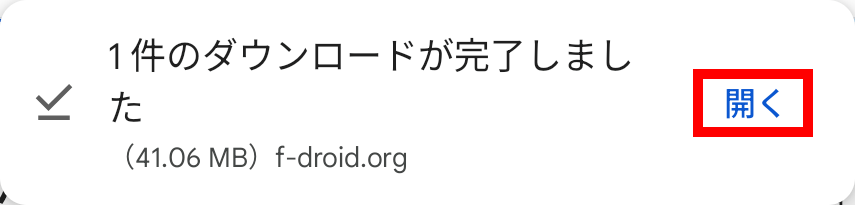
When you see the message '1 download completed,' tap 'Open.'
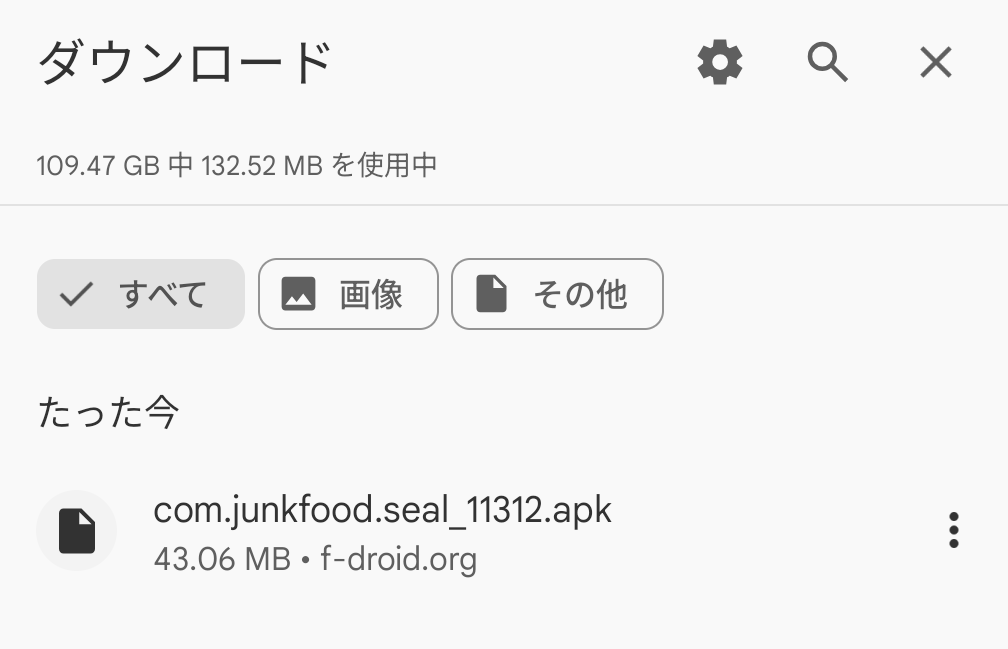
The 'Download' screen will open, so tap the desired apk file.
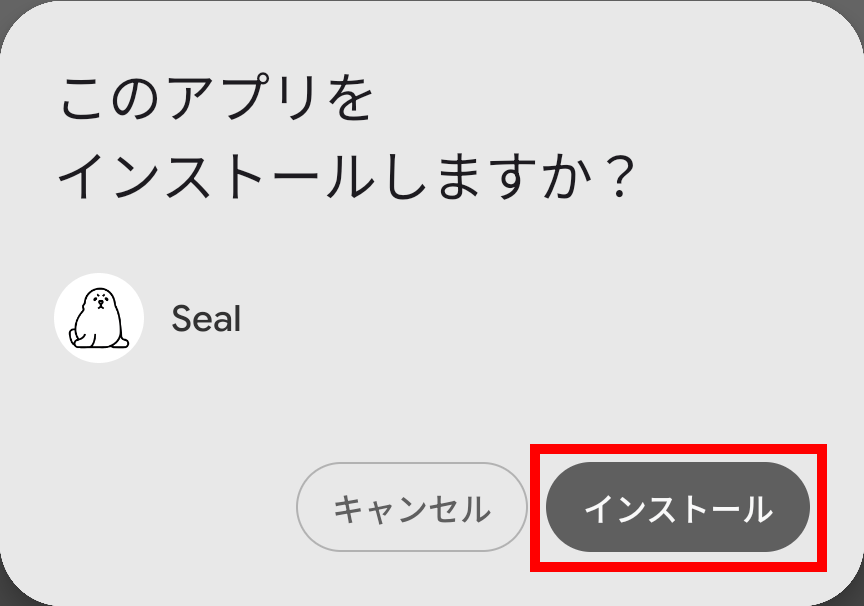
A message will appear asking 'Do you want to install this app?' Tap 'Install'.
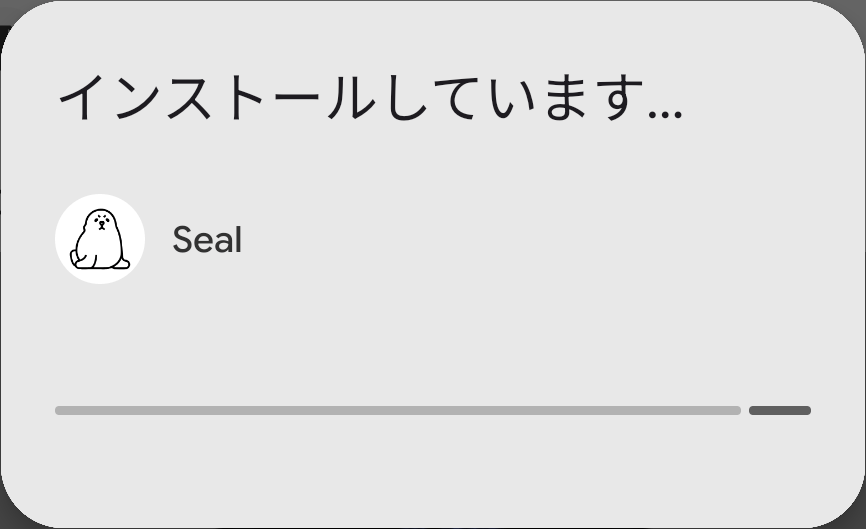
The message 'Installing...' will appear along with a progress bar.
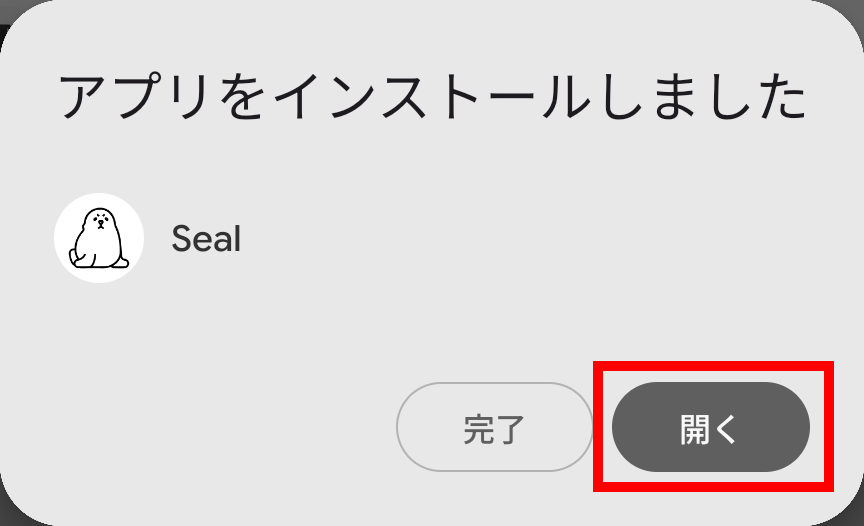
When the message 'App installed' appears, the installation is complete. Tap the 'Open' button to launch Seal.
◆Check the settings screen
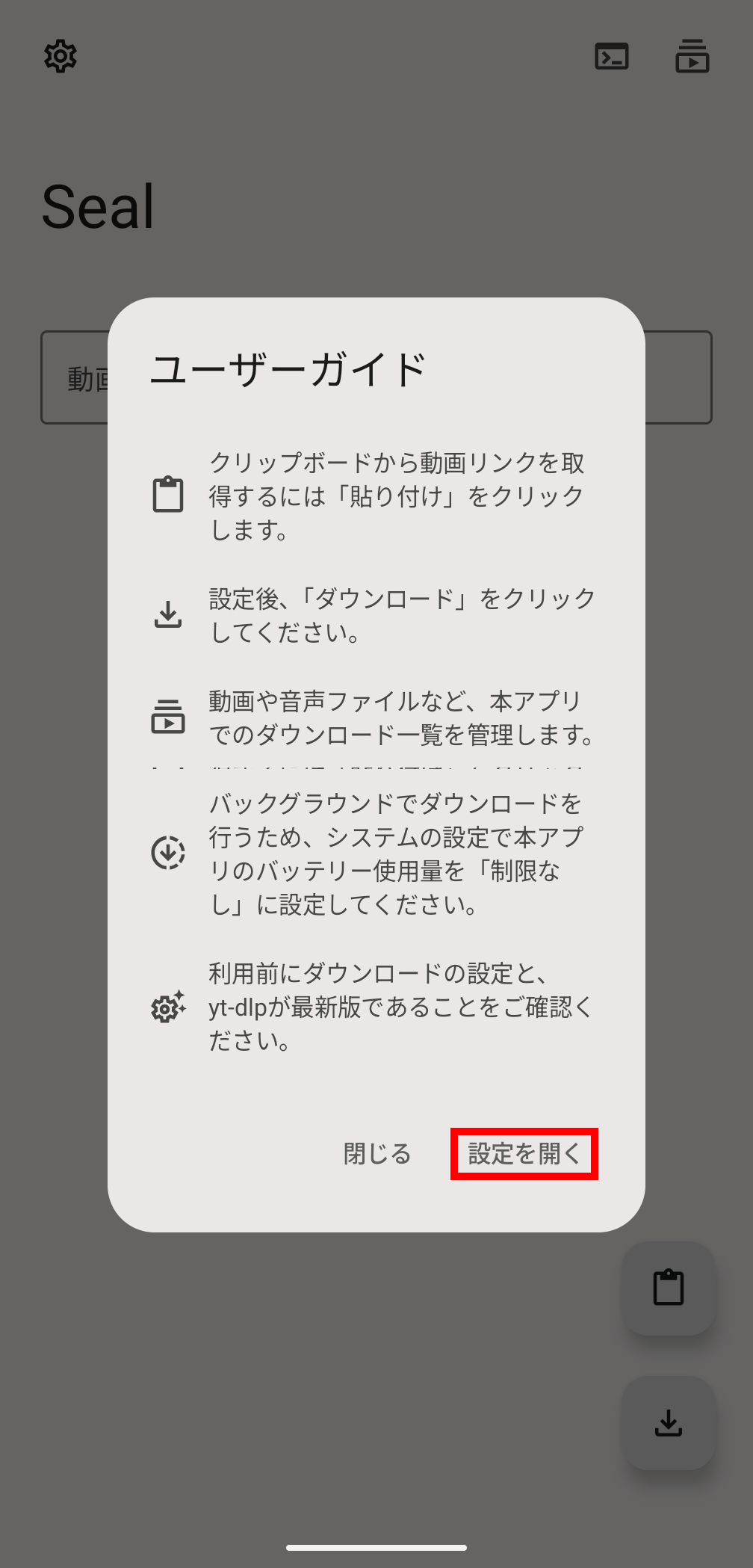
When you first start the app, the 'User Guide' will be displayed, and tapping 'Open Settings' will take you to the settings screen. Normally, you can access the settings screen by tapping the gear icon in the upper left corner of the screen.
The settings screen is structured as follows:
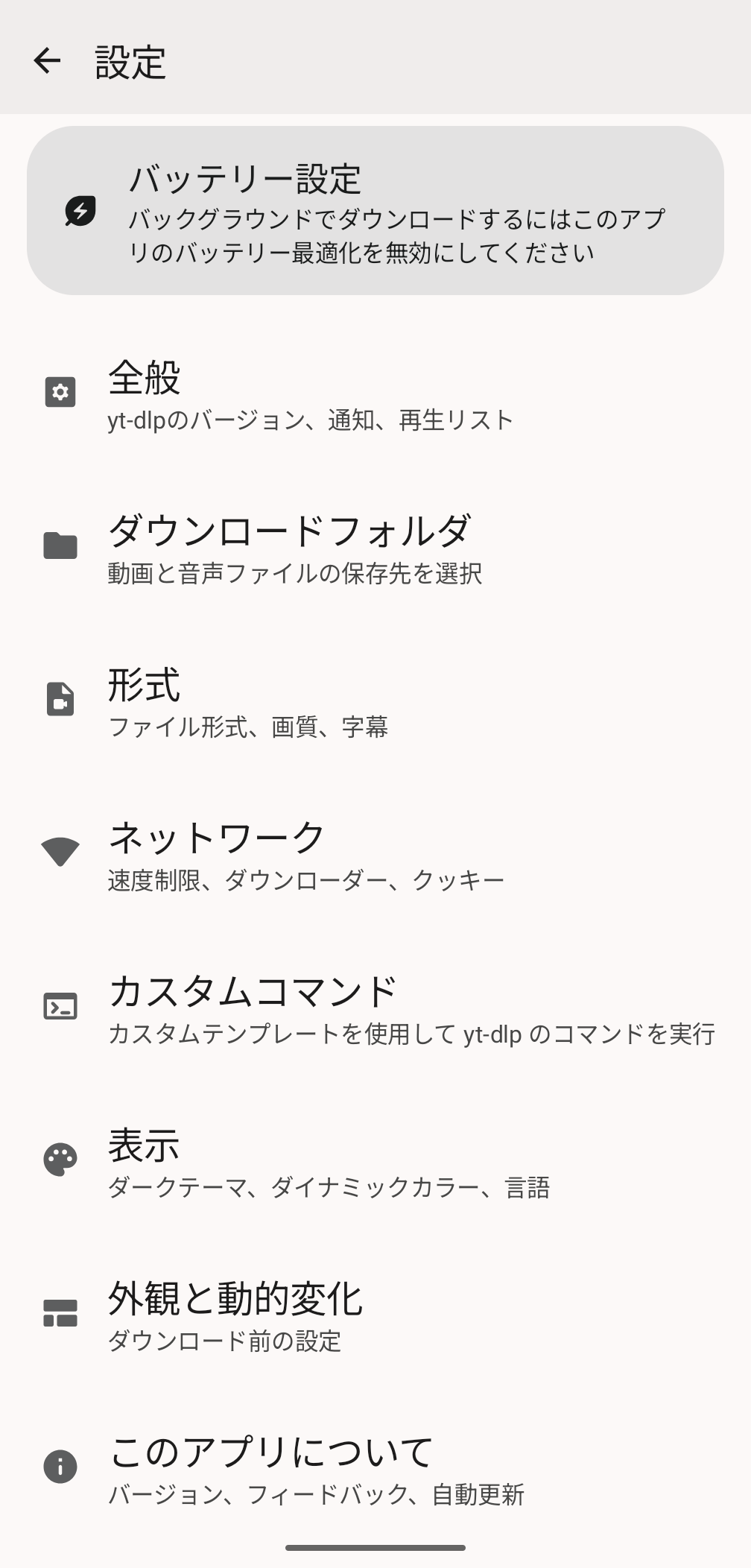
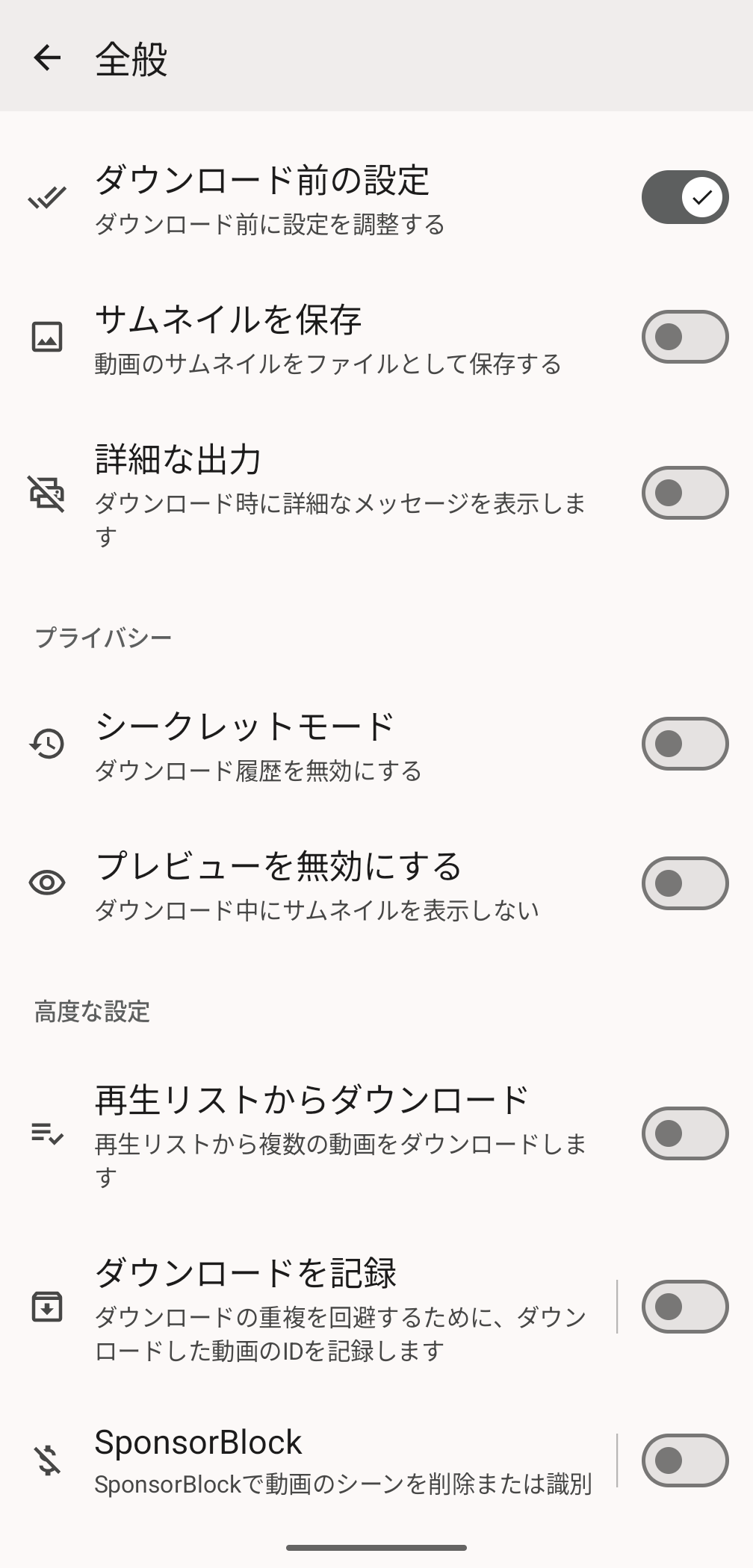
・General
These are settings related to basic functions, and you can also update the yt-dlp used by this software from here.
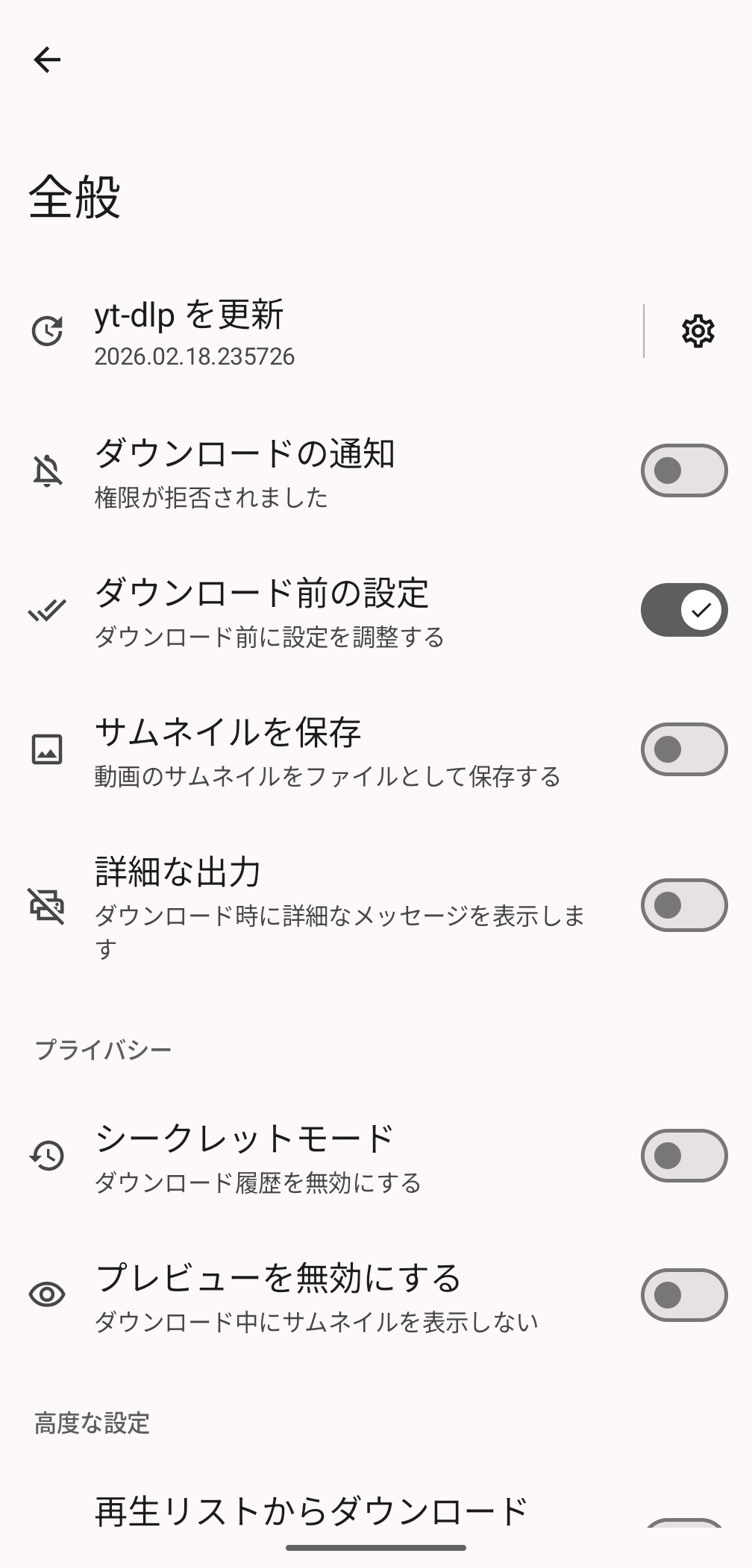
There was also an item related to one of the features, 'You can download all videos in a playlist with one click.'
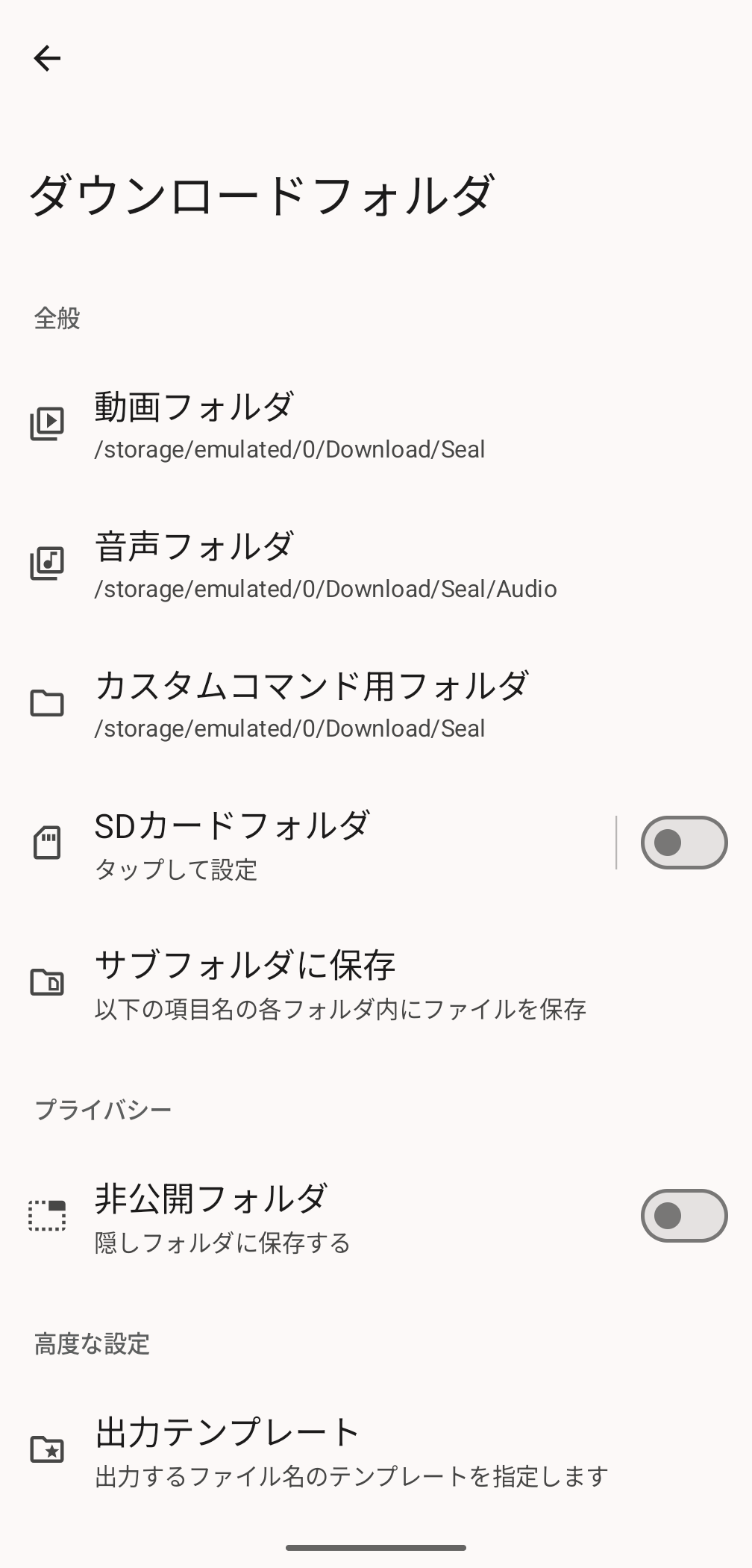
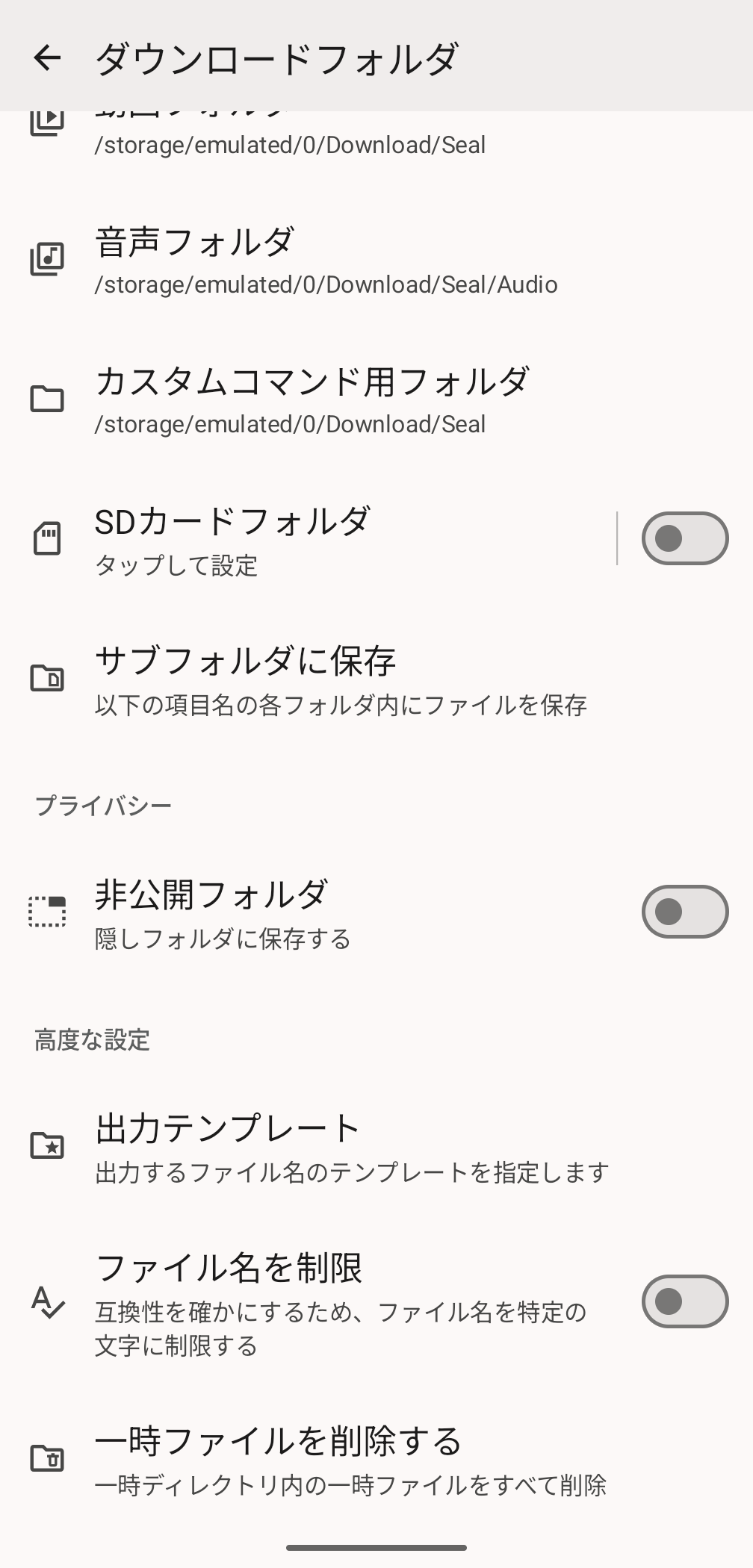
・Downloads folder
You can specify where downloaded video and audio files and custom commands will be saved. You can also specify output templates, which is related to the 'manage in-app downloads and custom command templates' feature.
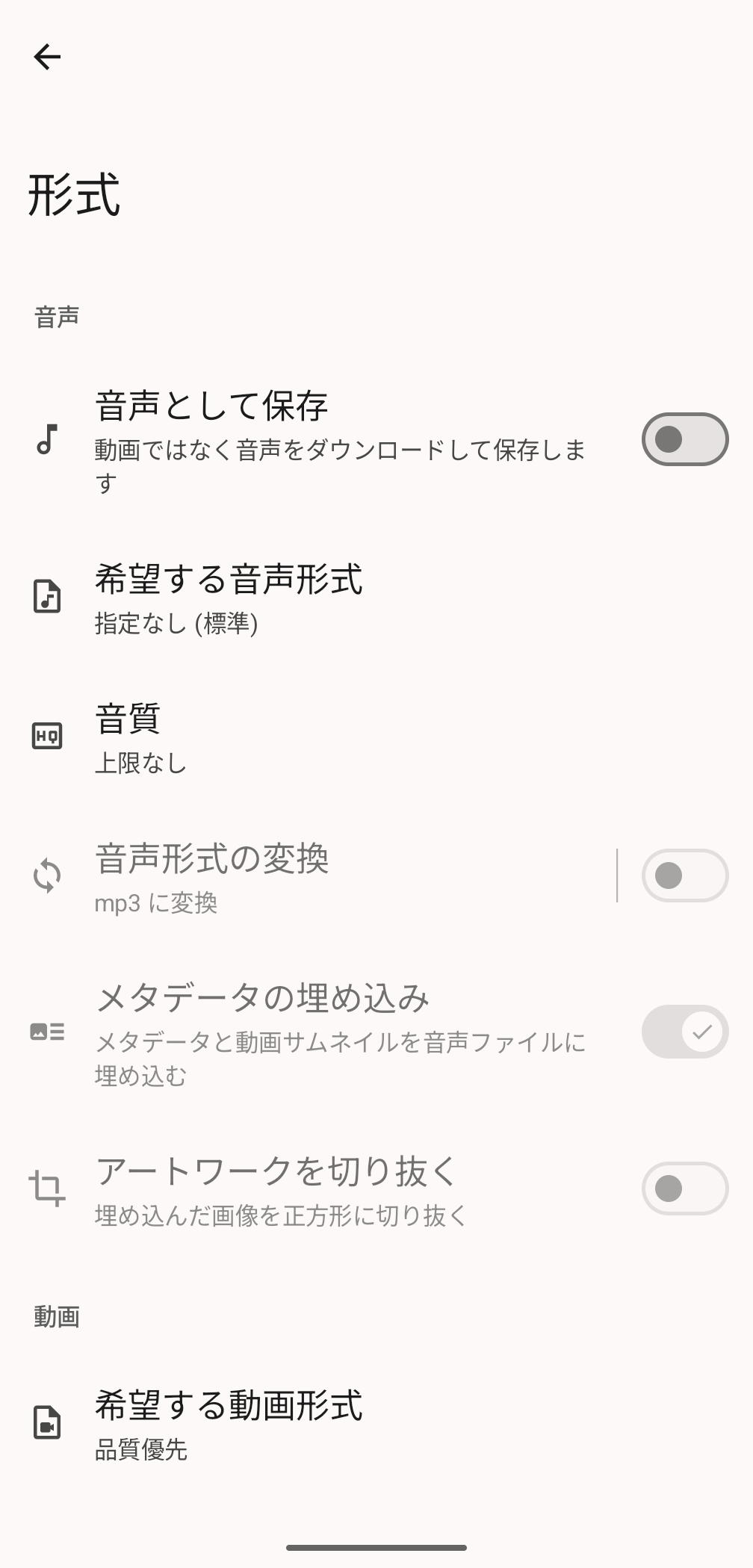
·format
You can specify the video and audio format and quality.
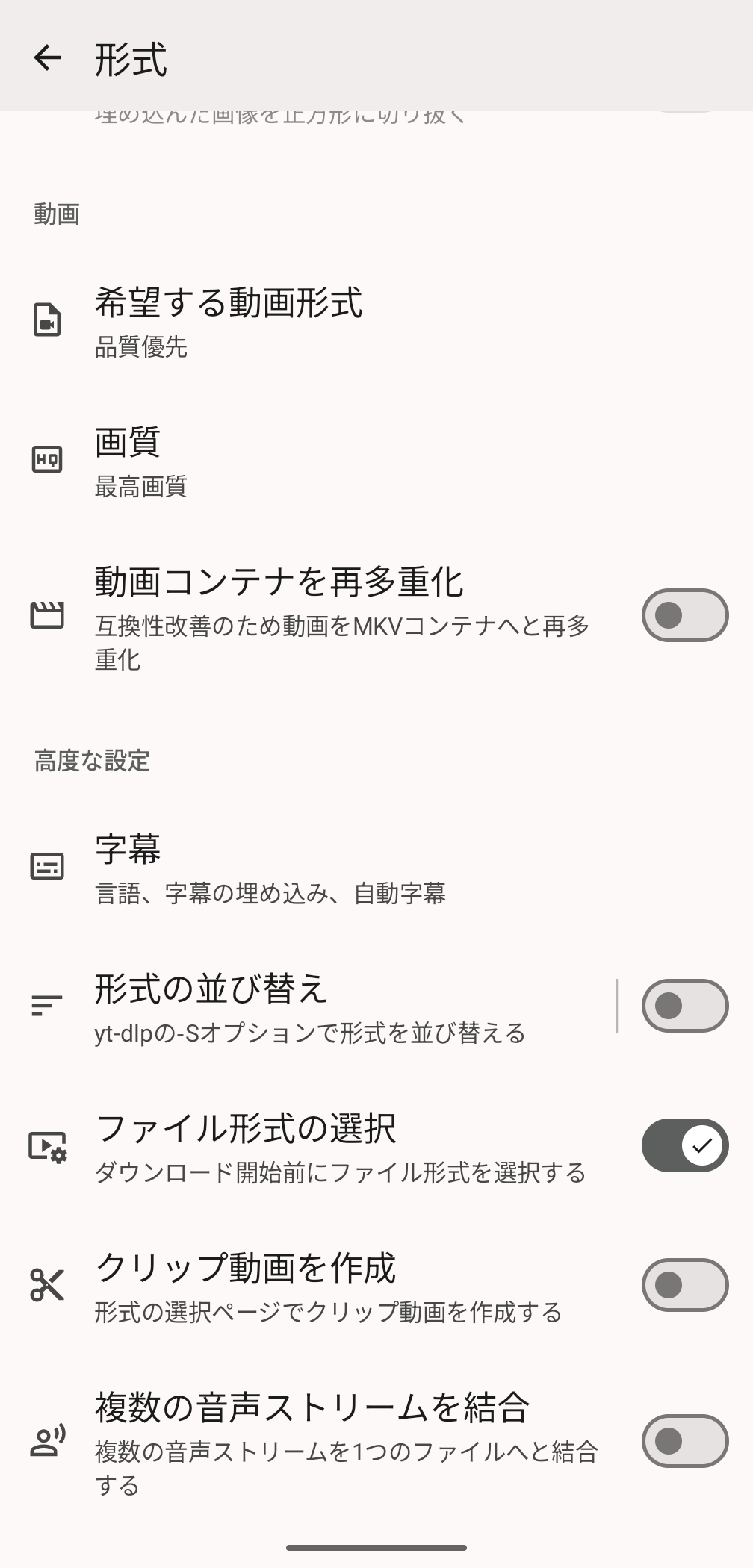
'Select file format' is enabled by default and can be specified when saving. You can also set subtitles and combine multiple audio streams into one file.
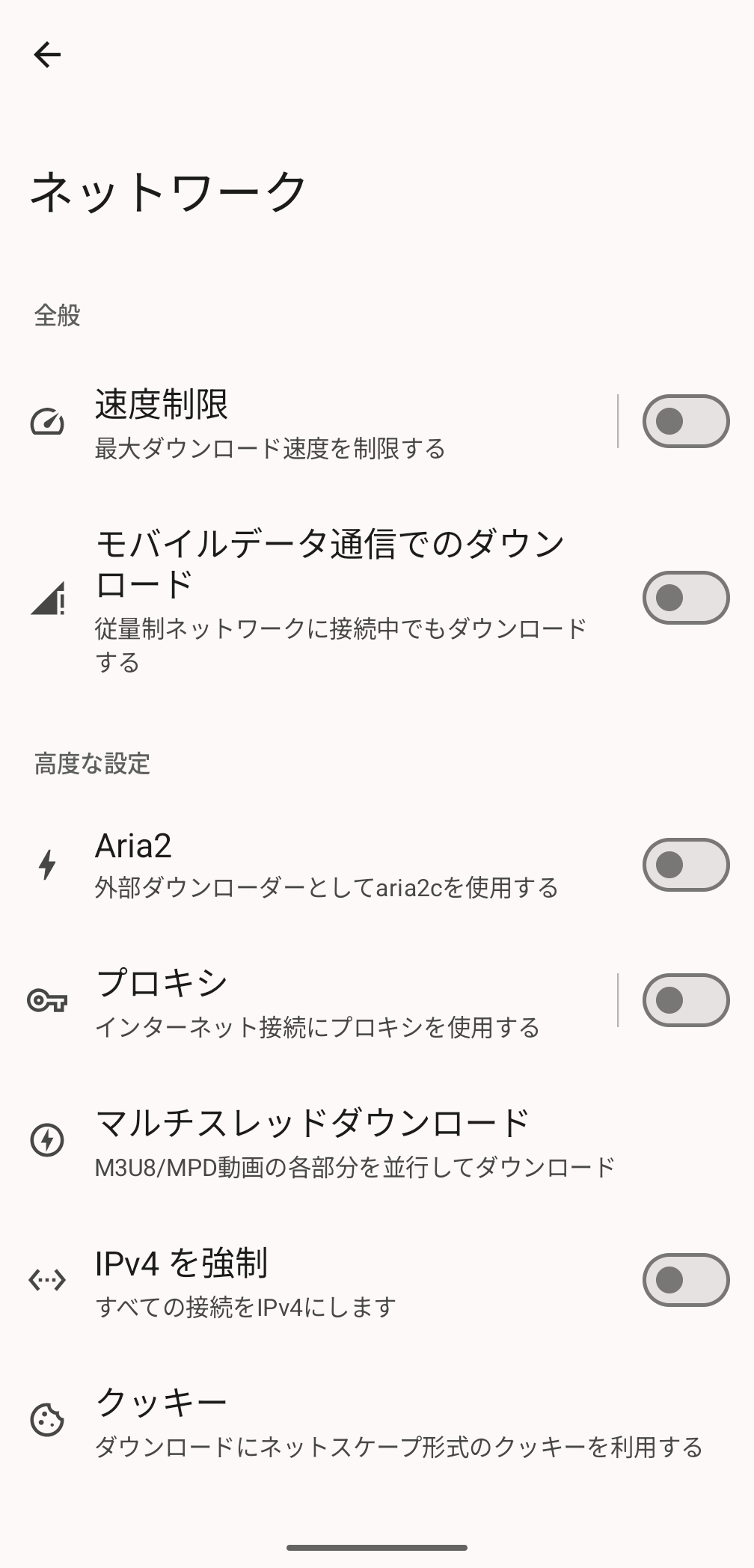
·network
This is a setting item related to the network environment. Here you can specify whether to use aria2c as an external downloader, which is one of its features.
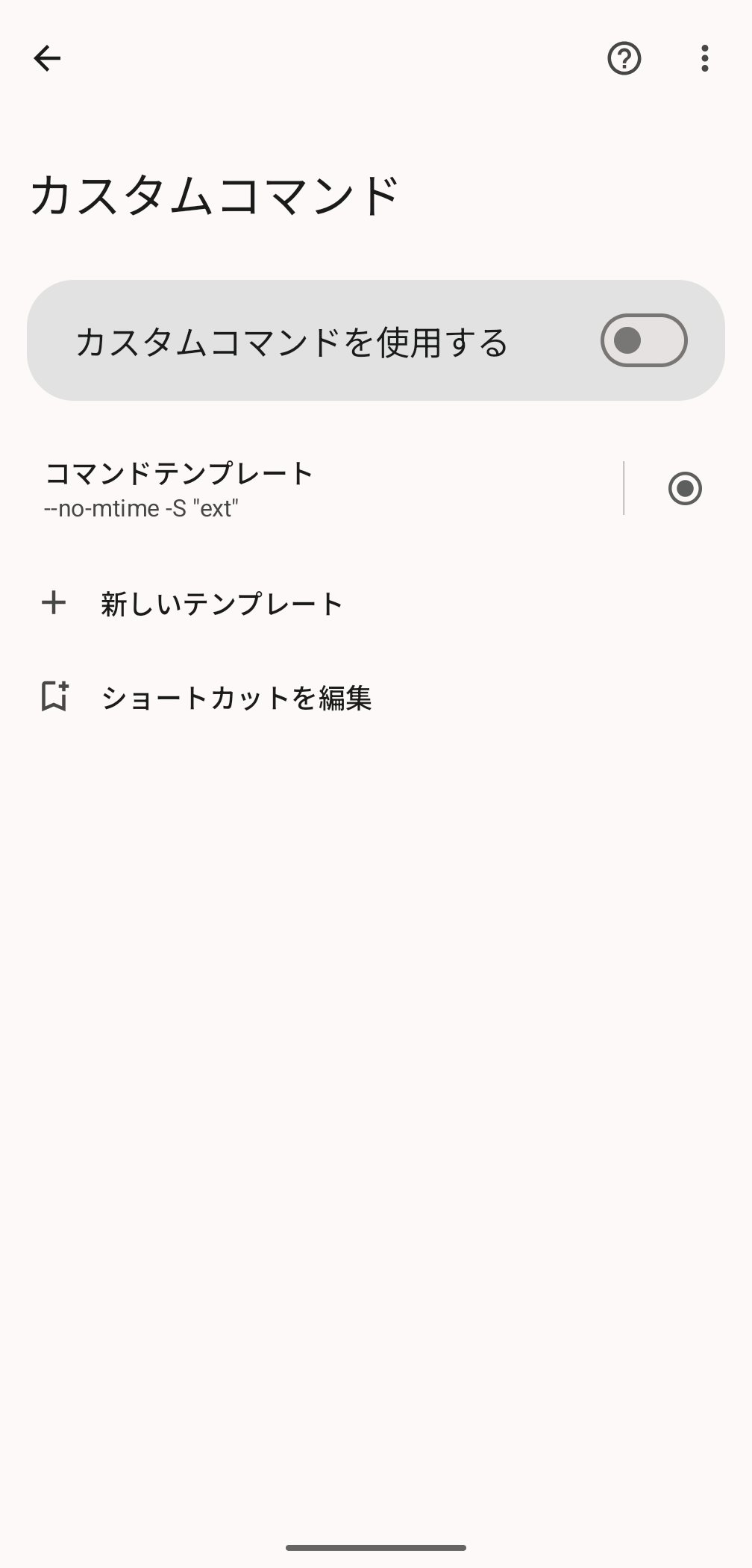
・Custom commands
This is a setting item related to 'custom commands,' which was listed as a feature.
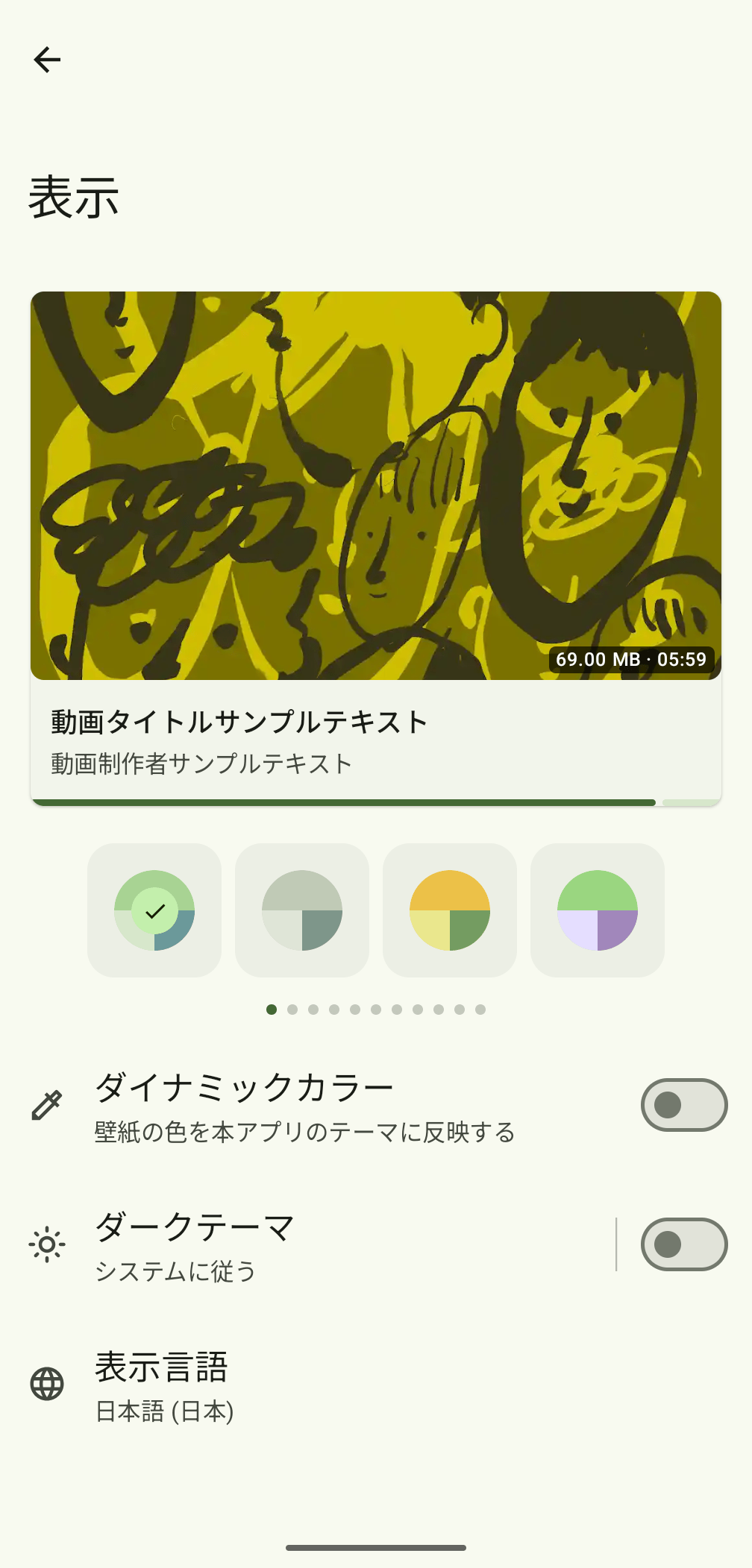
·display
Regarding the appearance of the UI, these settings are related to 'Material Design 3,' which was listed as a feature.
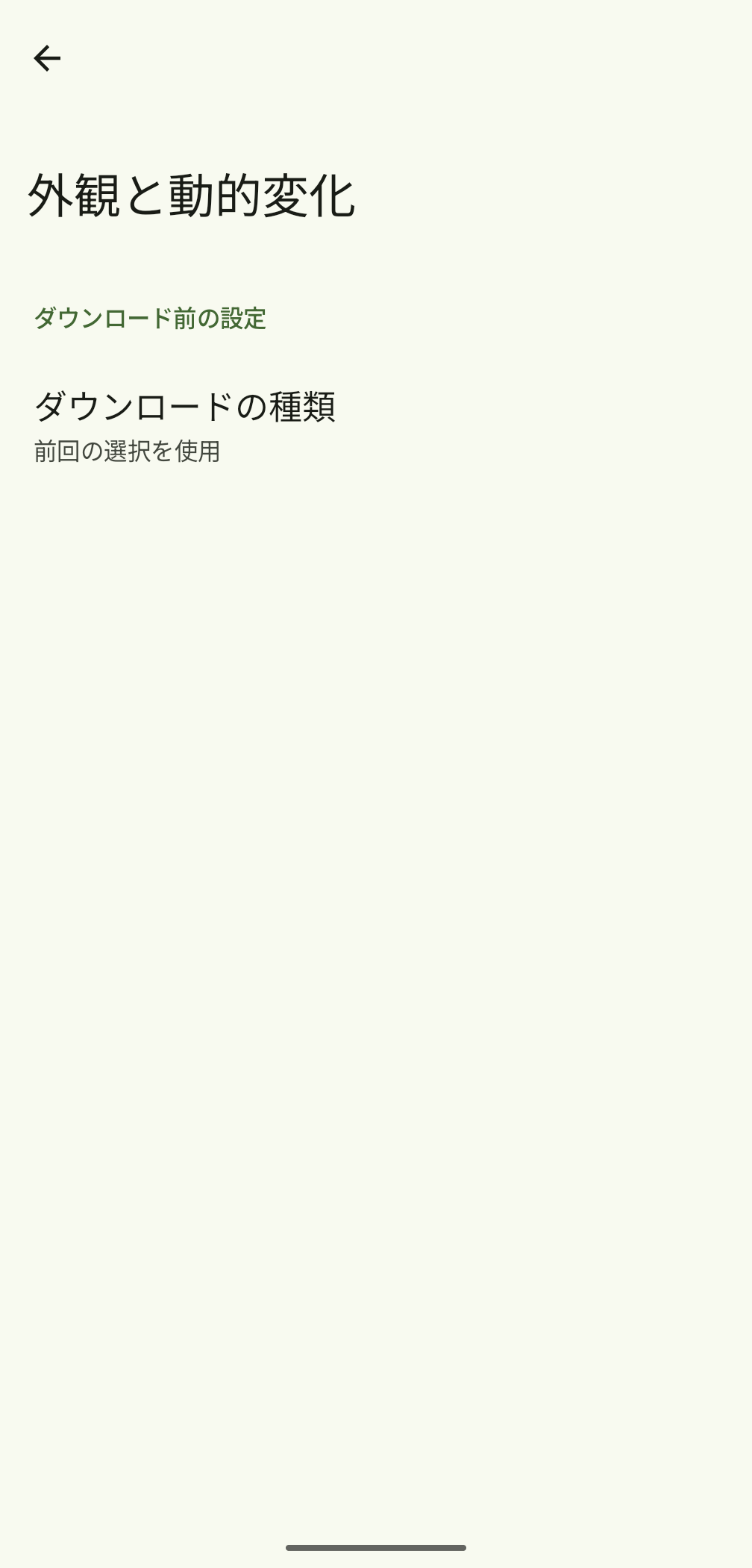
Appearance and dynamic changes
For 'Download type', you can choose 'Use previous selection' or 'None'.
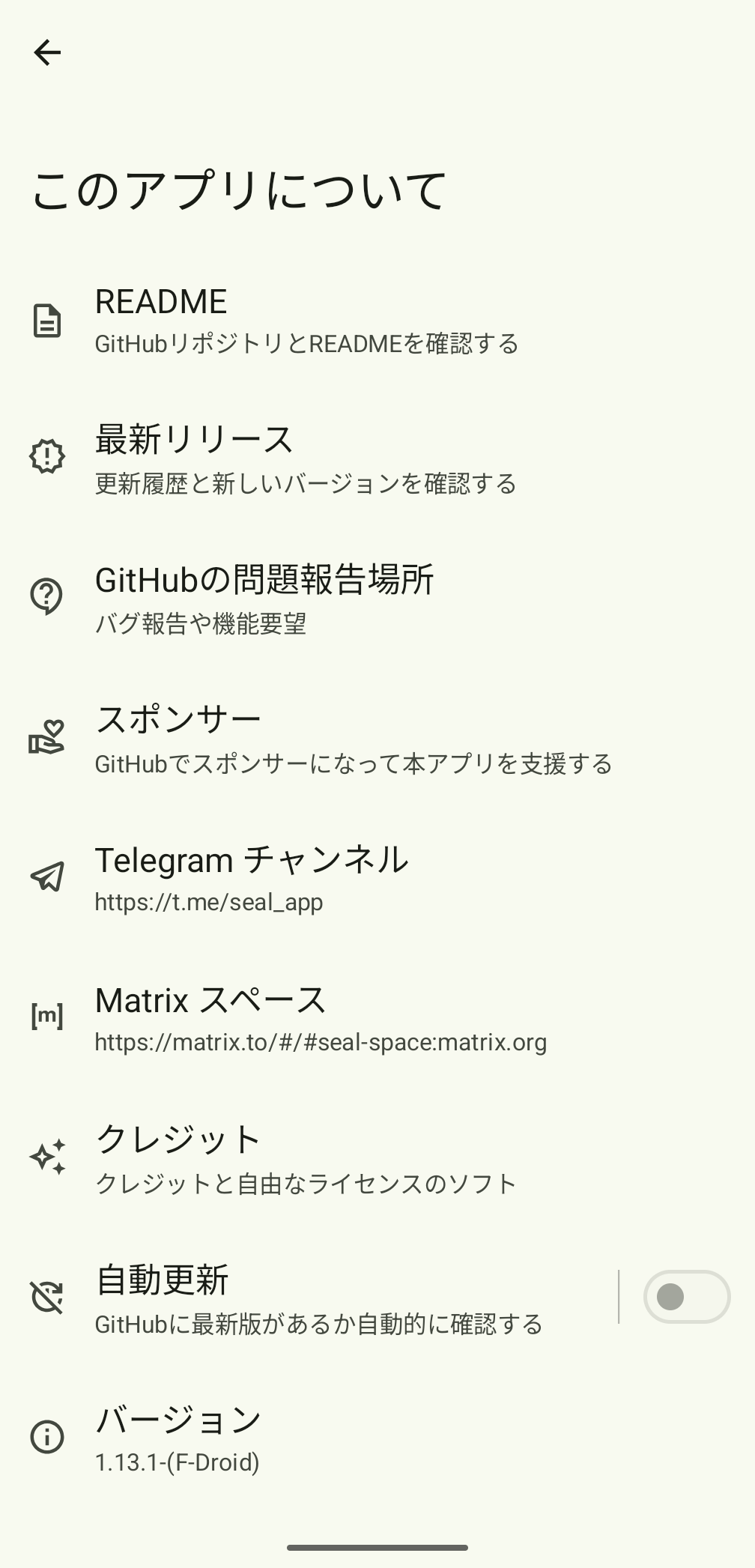
・About this app
Information about the Seal app.
◆Video download
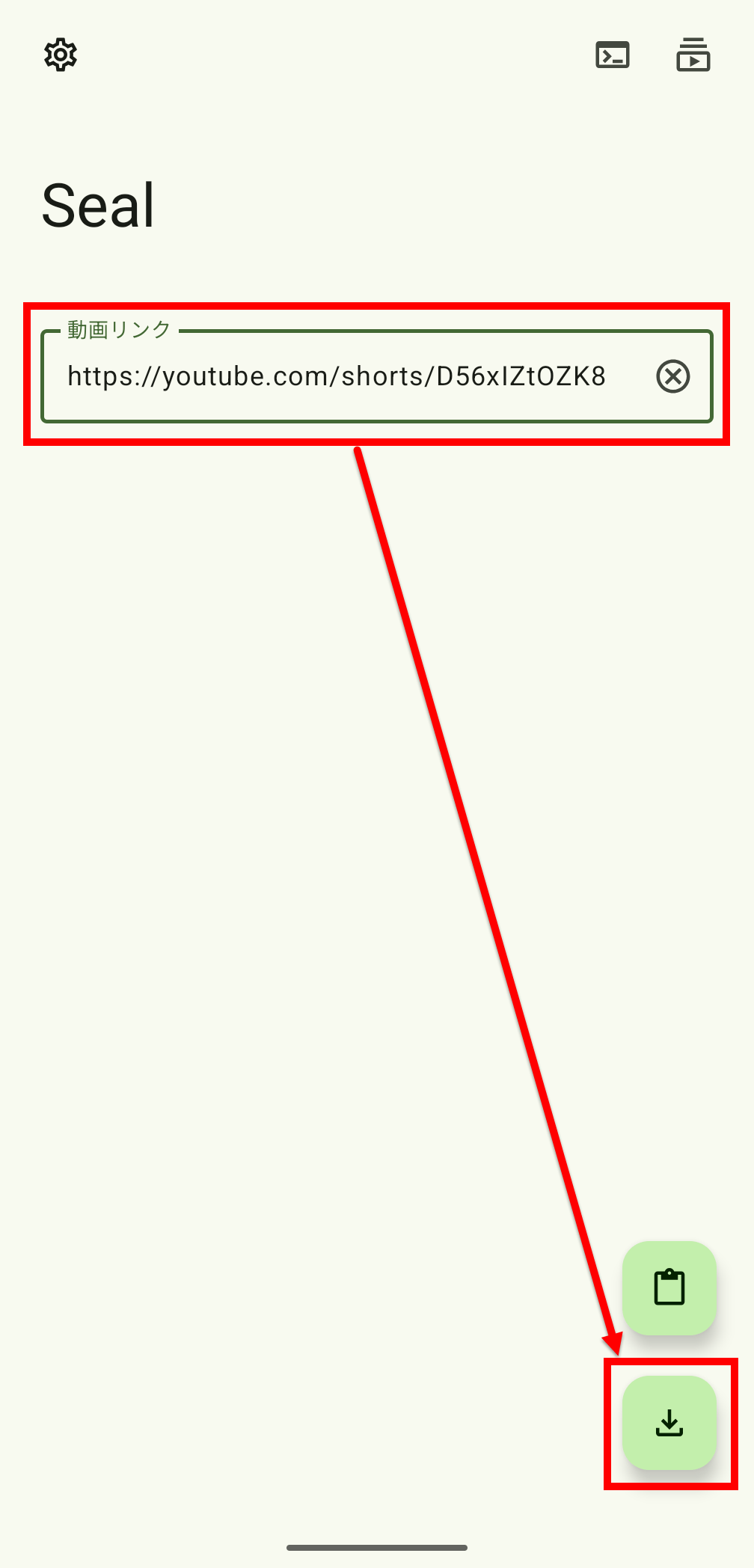
The download procedure is very simple; just paste the copied video URL into the 'Video Link' in the center of the screen and tap the download icon at the bottom right of the screen.
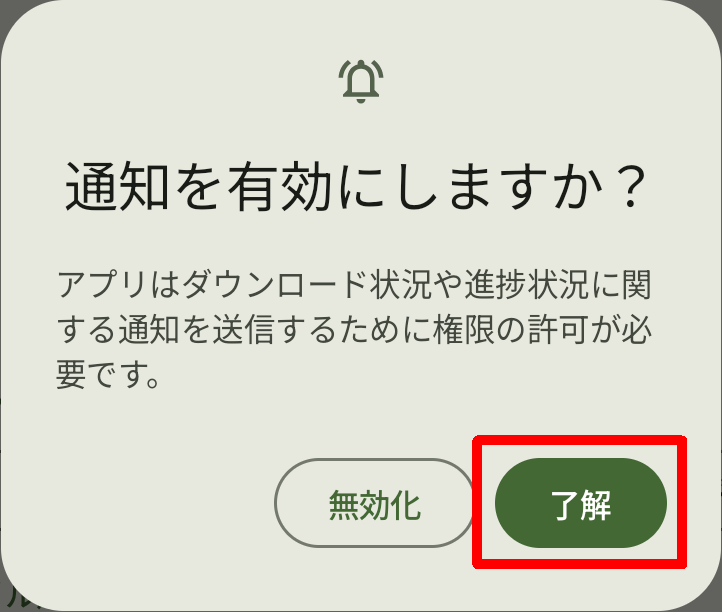
If this is your first time using the app, you will be asked if you want to enable notifications. If you don't mind, tap 'OK.'
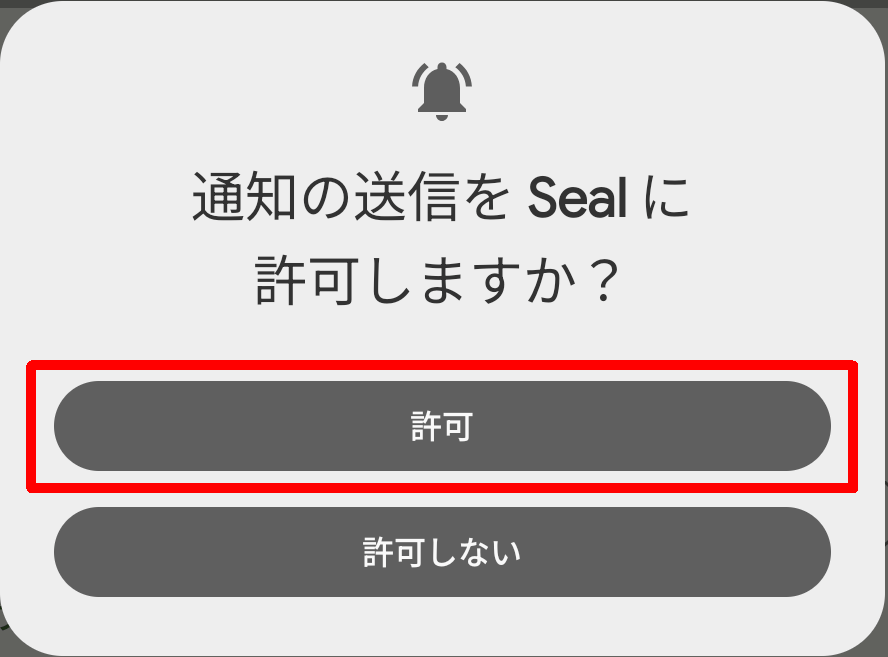
Next, the Android OS will ask you, 'Do you want to allow Seal to send notifications?' Tap 'Allow.'
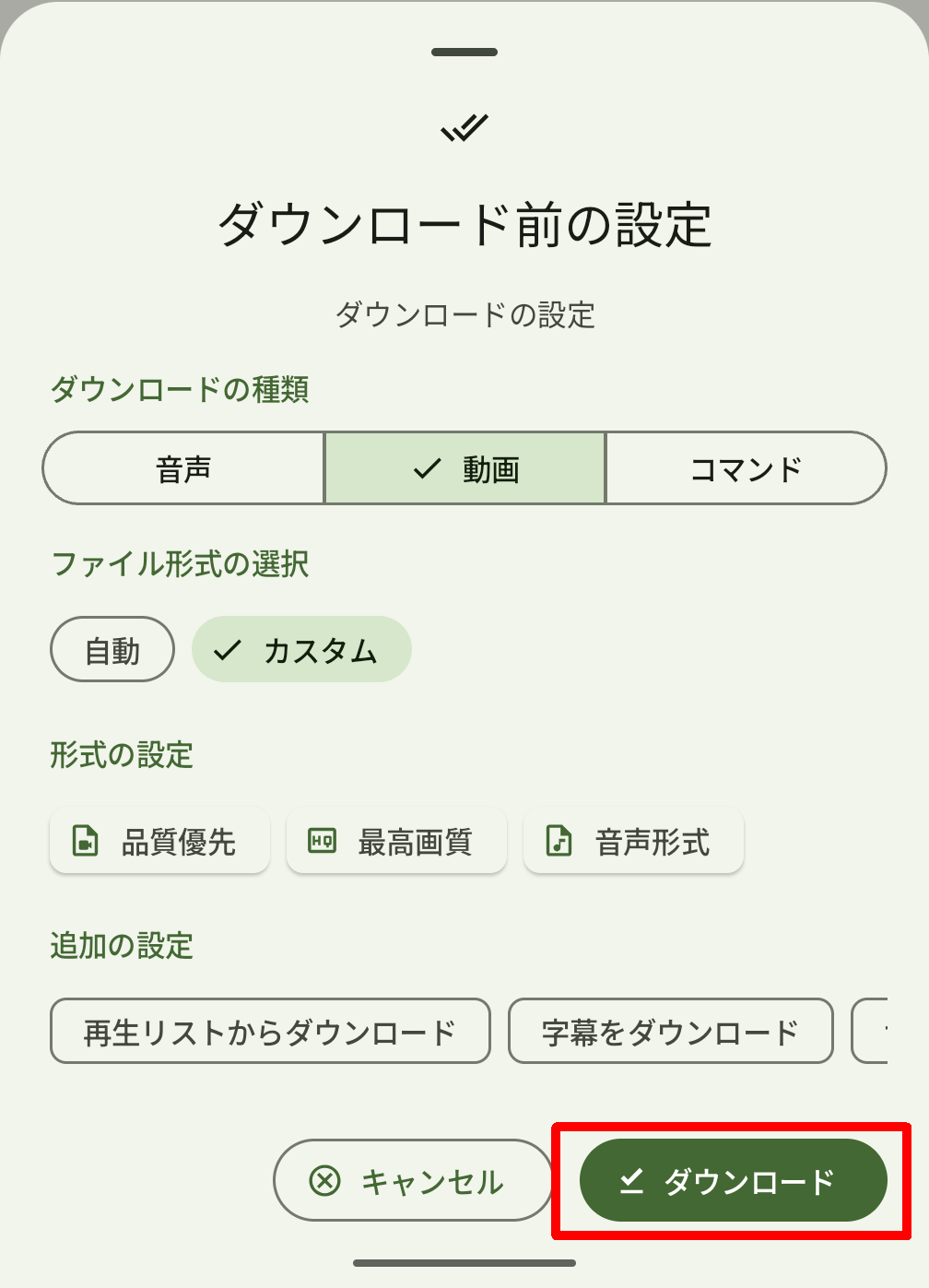
Before starting the download, the 'Pre-download Settings' screen will be displayed. The 'Appearance and Dynamic Changes' setting on the settings screen allows you to specify whether to set this every time or use the same settings from the second time onwards. The 'Download Type' can be selected from the following:
· audio
・Video (default)
· command
If you select 'Video', you can choose from the following options for 'Select file format'. We will explain later what happens if you select a format other than 'Video'.
・Automatic
・Custom (default)
The following sub-items can be changed in 'Format Settings'.
- Desired video format : Choose from 'Old format' or 'Quality priority'
- Image quality : Choose from 'Highest quality', '2160p', '1440p', '1080p', '720p', '480p', '360p', or 'Lowest quality'
・Audio format – Desired audio format : Choose from: “No preference (standard)”, “OPUS”, or “M4A”
・Audio format - sound quality : Choose from 'No limit', '192Kbps', '128Kbps', '64Kbps', or '32Kbps'
In 'Additional Settings' you can turn the following items on or off:
- Download from playlist
- Download subtitles
- Save thumbnails
This time, tap the 'Download' button without changing the settings.
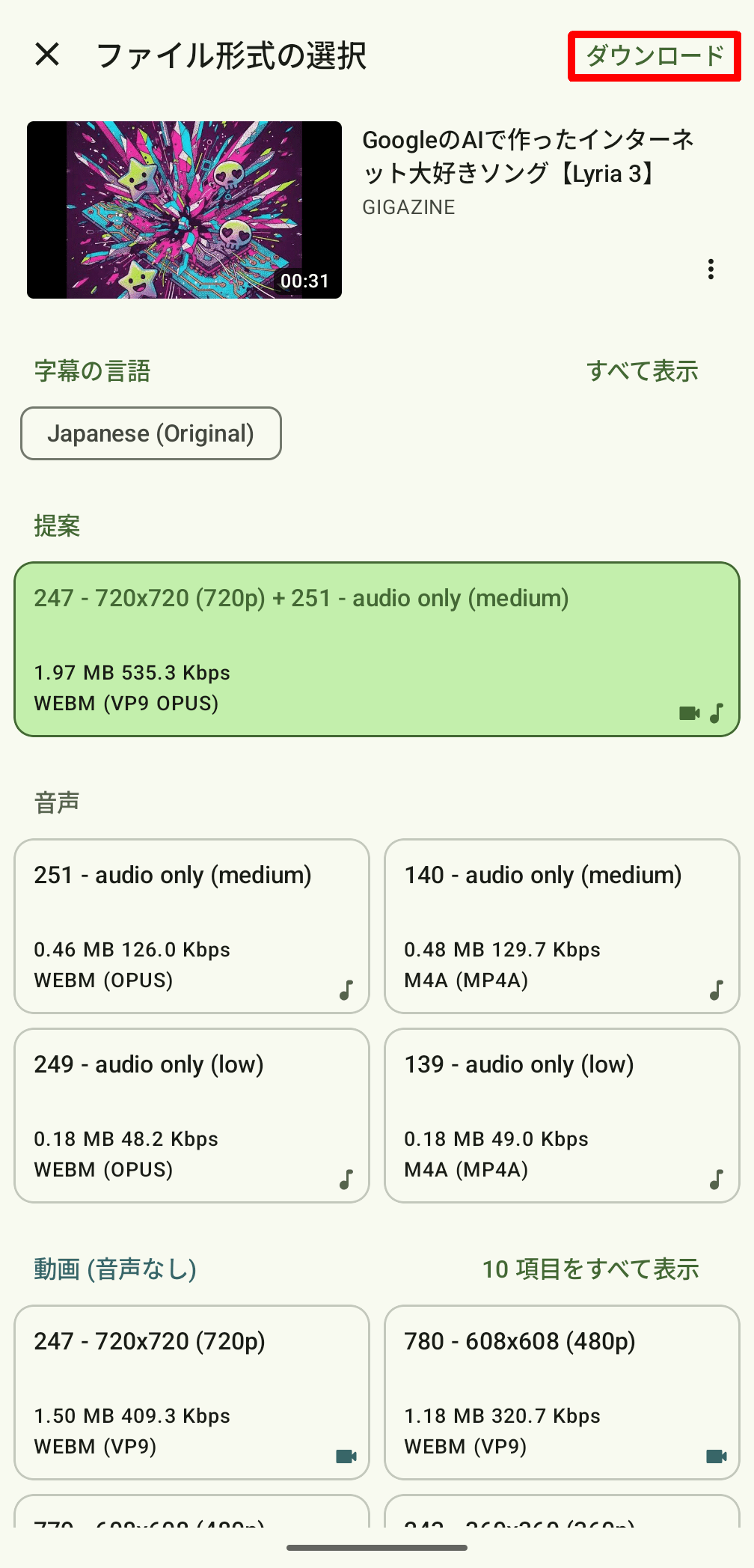
If you set 'Select file format' to 'Custom' in 'Settings before downloading,' the 'Select file format' screen will appear, where you can check the information of the video specified in the URL and specify the file format. Generally, the 'Suggested' file format should be fine, but if you want to download it as an audio file, select the desired file format and tap 'Download.'
Once the download is complete, a thumbnail of the downloaded video will appear in the center of the screen.
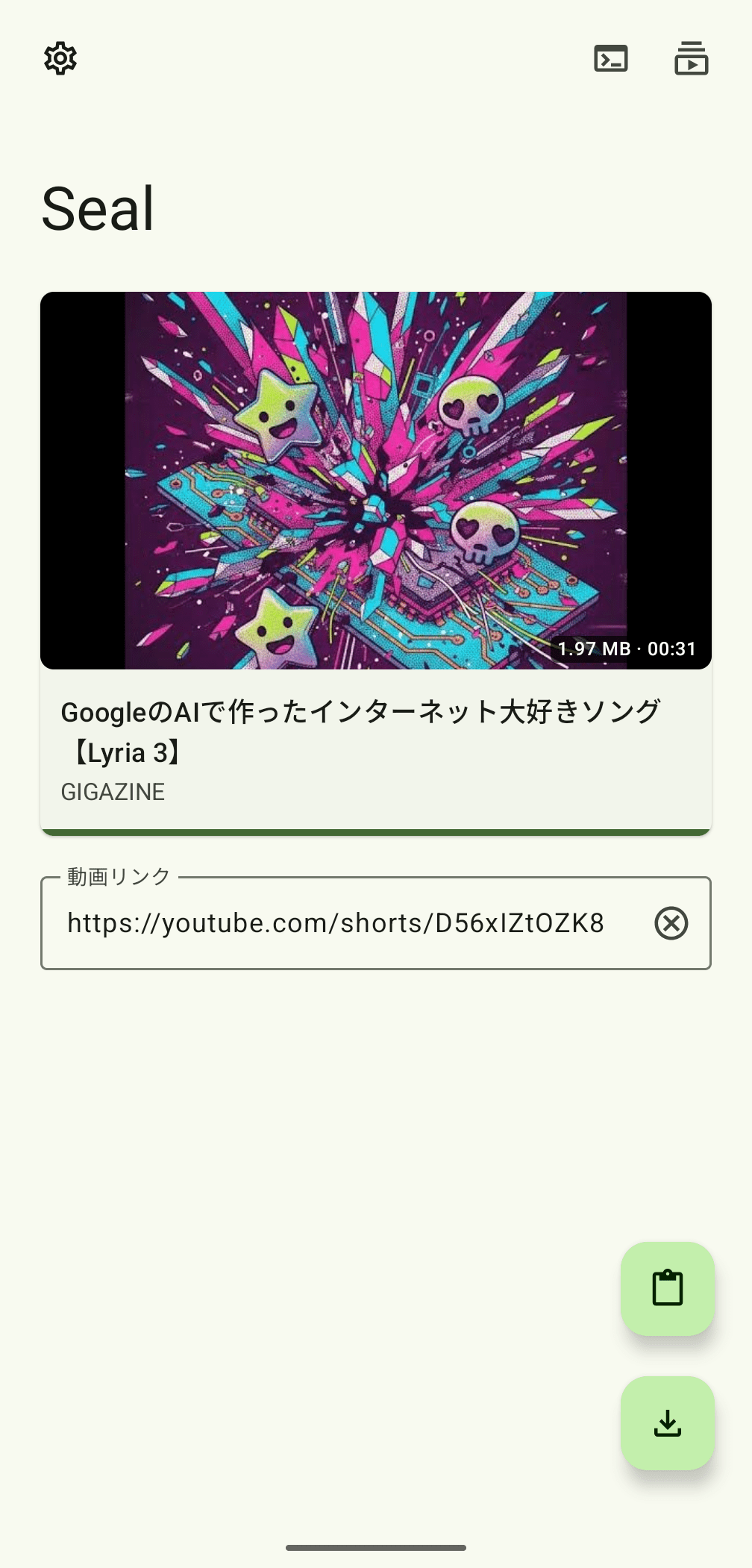
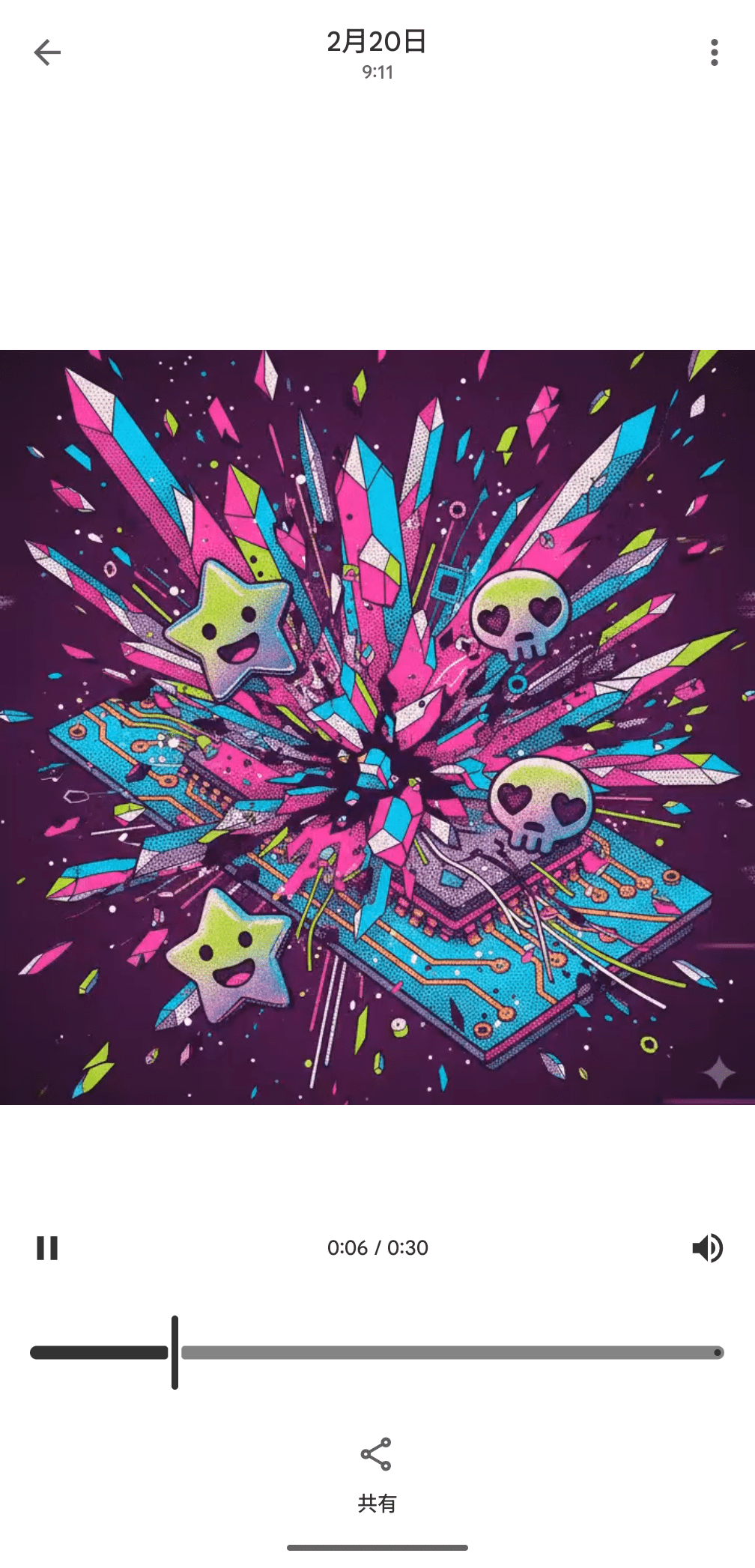
Tap the thumbnail to play the video.
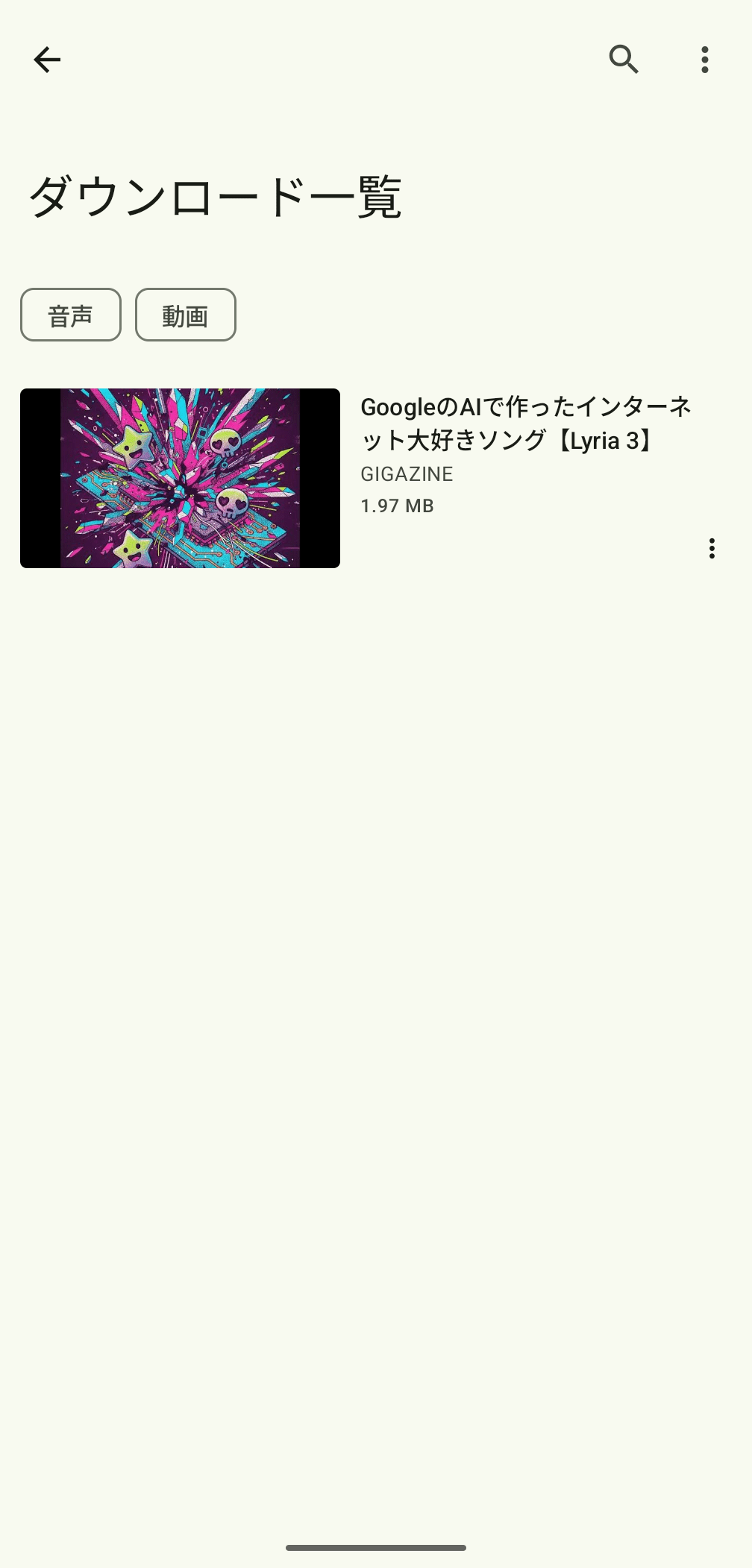
If you tap the video icon in the upper right corner of the screen, you will be taken to the 'Download List' screen, where you can see a list of downloaded files.
◆File format
If you select 'Audio' in 'Select file format' before downloading, the sub-items in 'Format settings' will change as follows:
・Audio format – Desired audio format : Choose from: “No preference (standard)”, “OPUS”, or “M4A”
・Audio format - sound quality : Choose from 'No limit', '192Kbps', '128Kbps', '64Kbps', or '32Kbps'
- Audio format conversion : Choose from 'No conversion', 'Convert to mp3', or 'Convert to m4a'
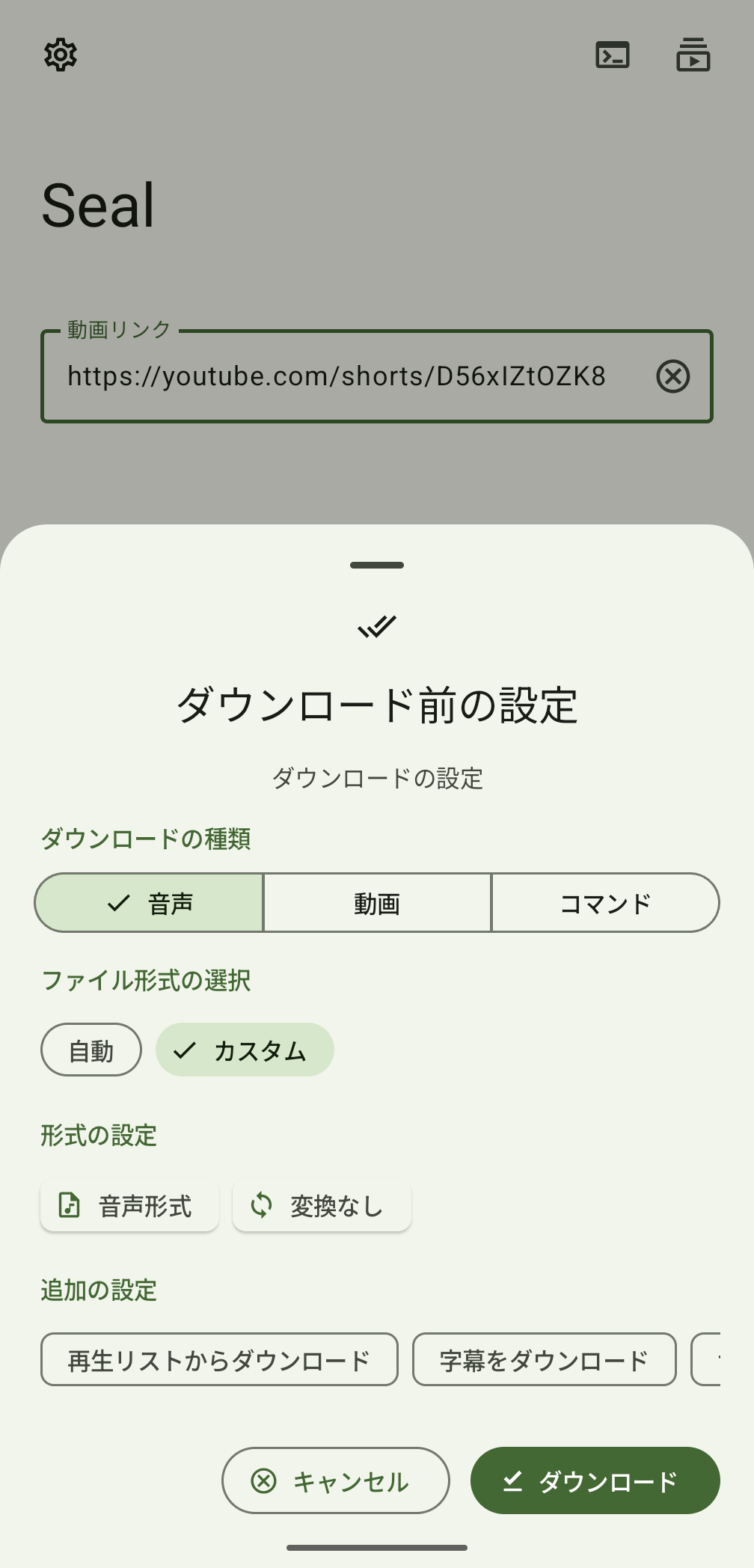
If you select 'Command' for 'Select file format,' 'Select file format' and 'Additional settings' will be disabled, and will be replaced by 'Format settings,' allowing you to set 'Template selection.'
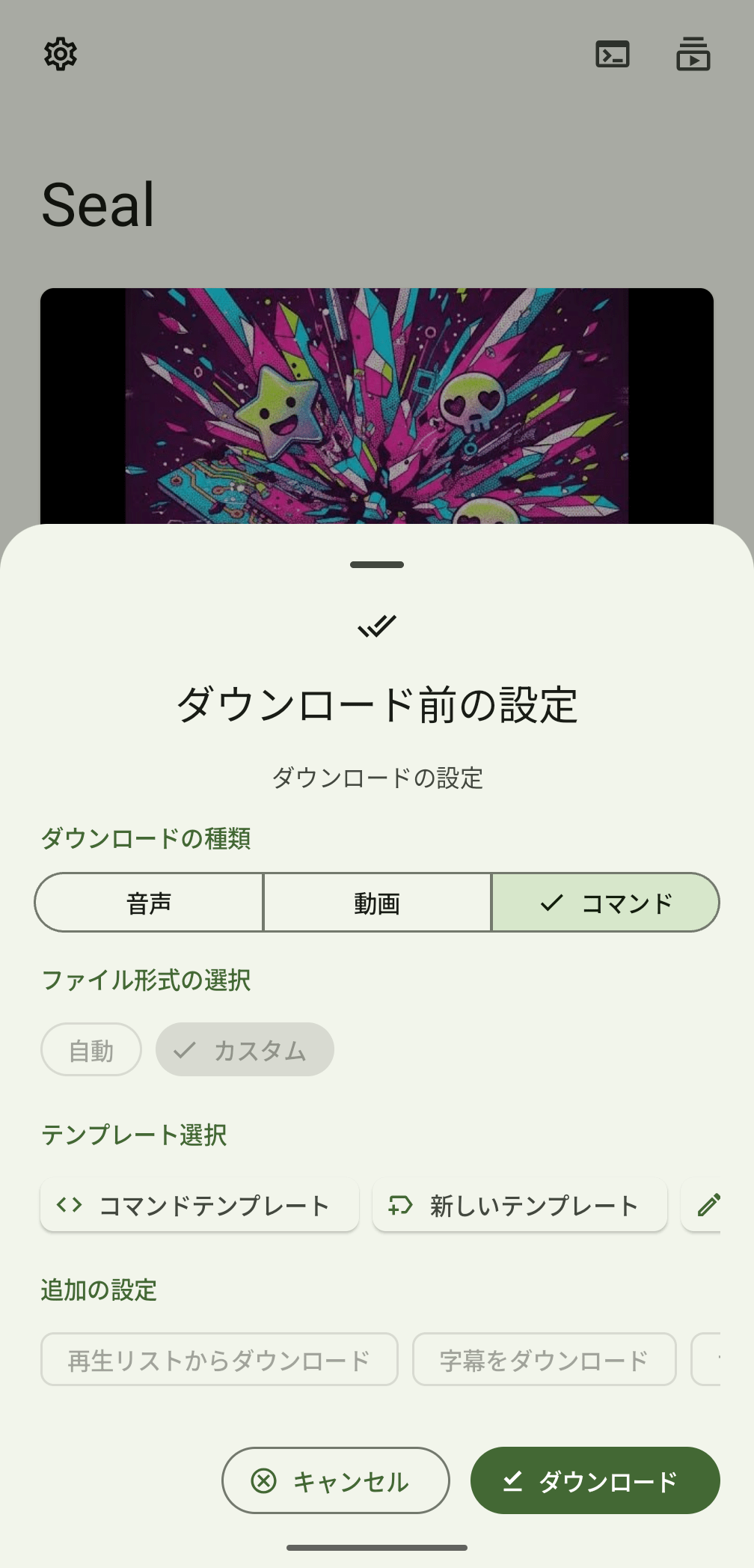
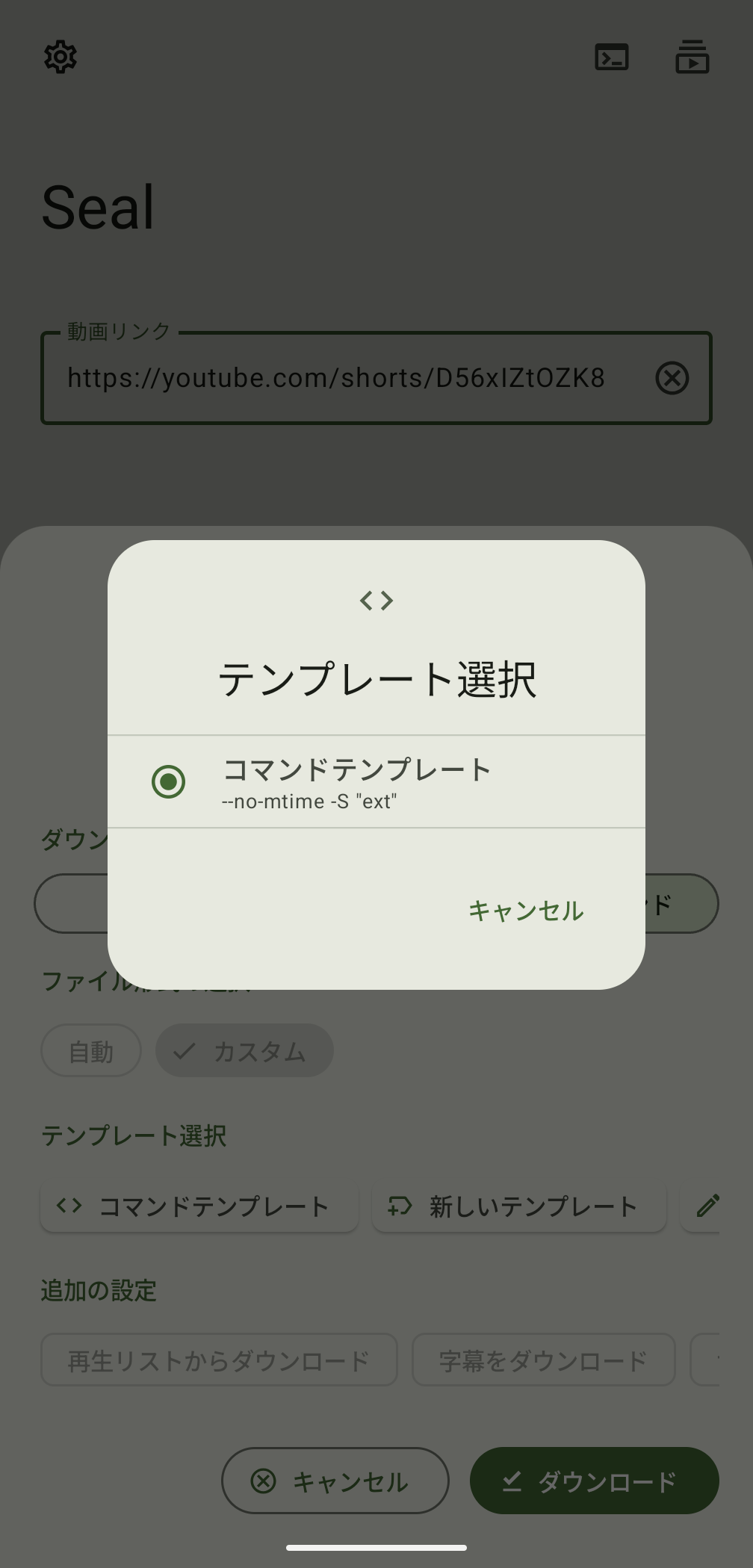
You can select a registered template in 'Template Selection'. Immediately after installation, only the template named 'Command Template' is registered and selected.
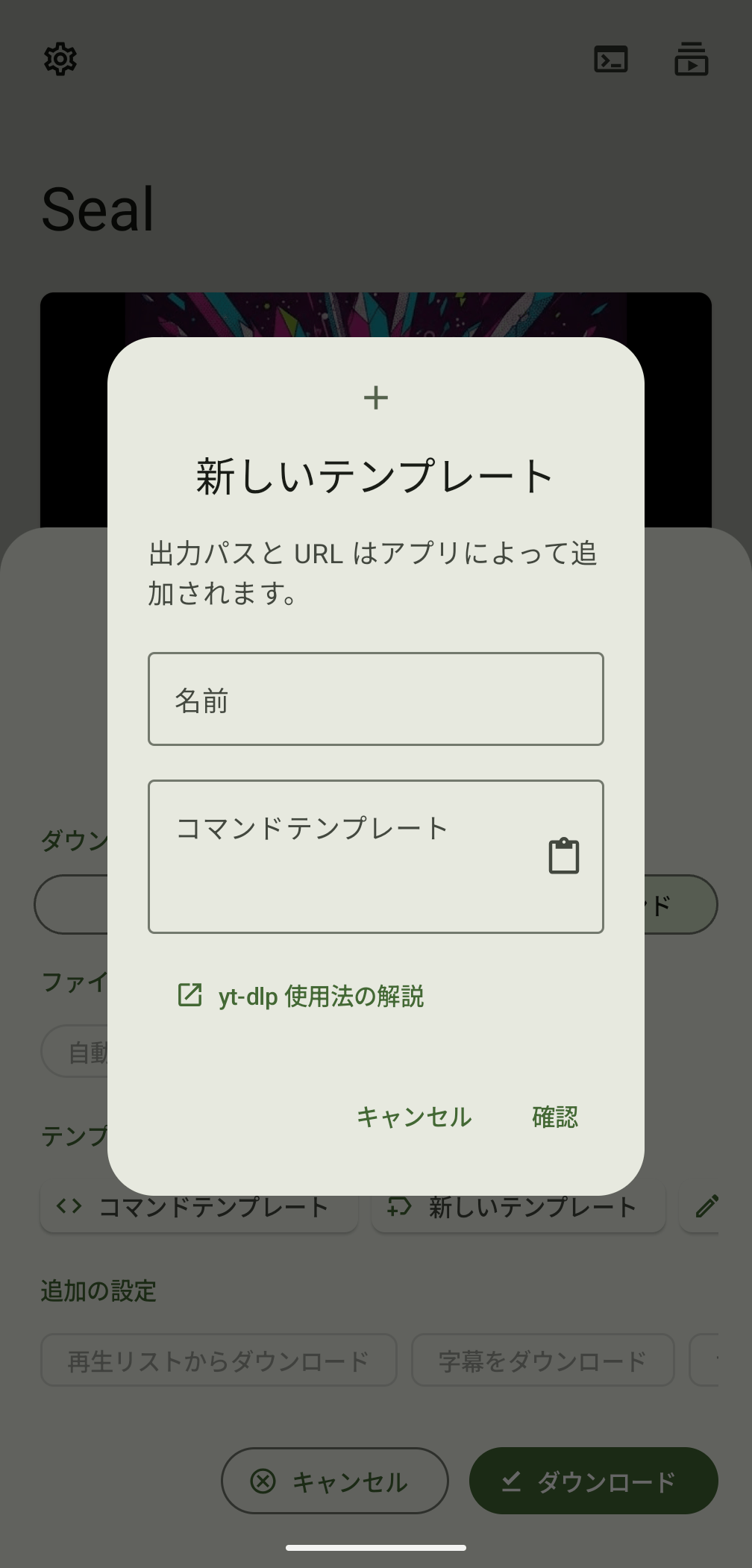
In 'New Template', enter the 'Name' and 'Command Template' to register a new template. The command template can specify yt-dlp options.
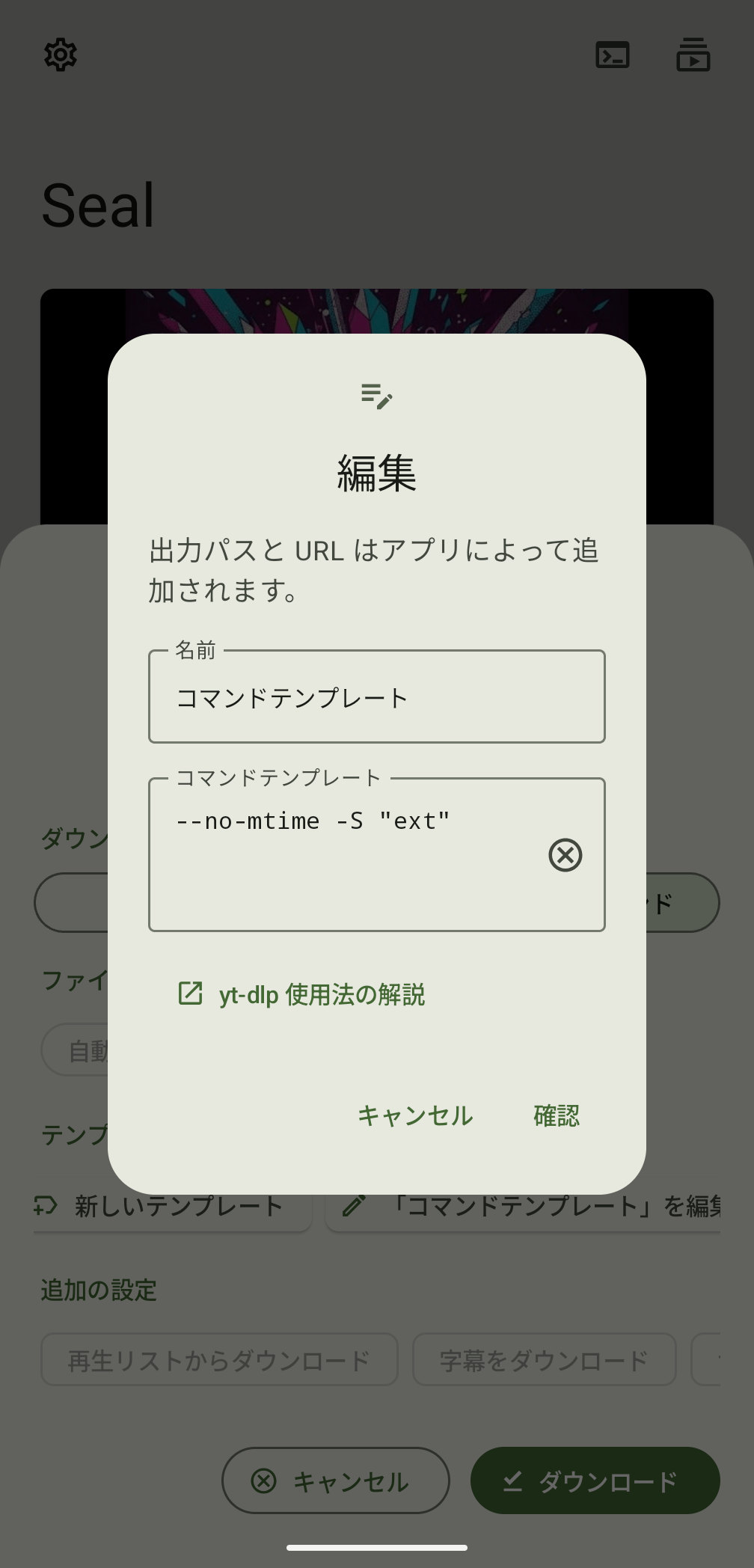
'Edit' allows you to edit the currently selected template.
Summary
'Seal' is a simple, highly functional, and easy-to-use Android app that fully utilizes the capabilities of yt-dlp. It's a highly flexible tool. When I actually tried it out, I found it to be extremely stable, so if you're using an Android smartphone and are looking for a tool to download videos, it's definitely worth considering.
Related Posts:
in Video, Software, Smartphone, Review, Posted by log1c_sh