Review of 'Proton Authenticator,' a free two-factor authentication app that can be synchronized between smartphones and PCs, compatible with Android, iOS, Windows, macOS, and Linux, and easy migration from other apps
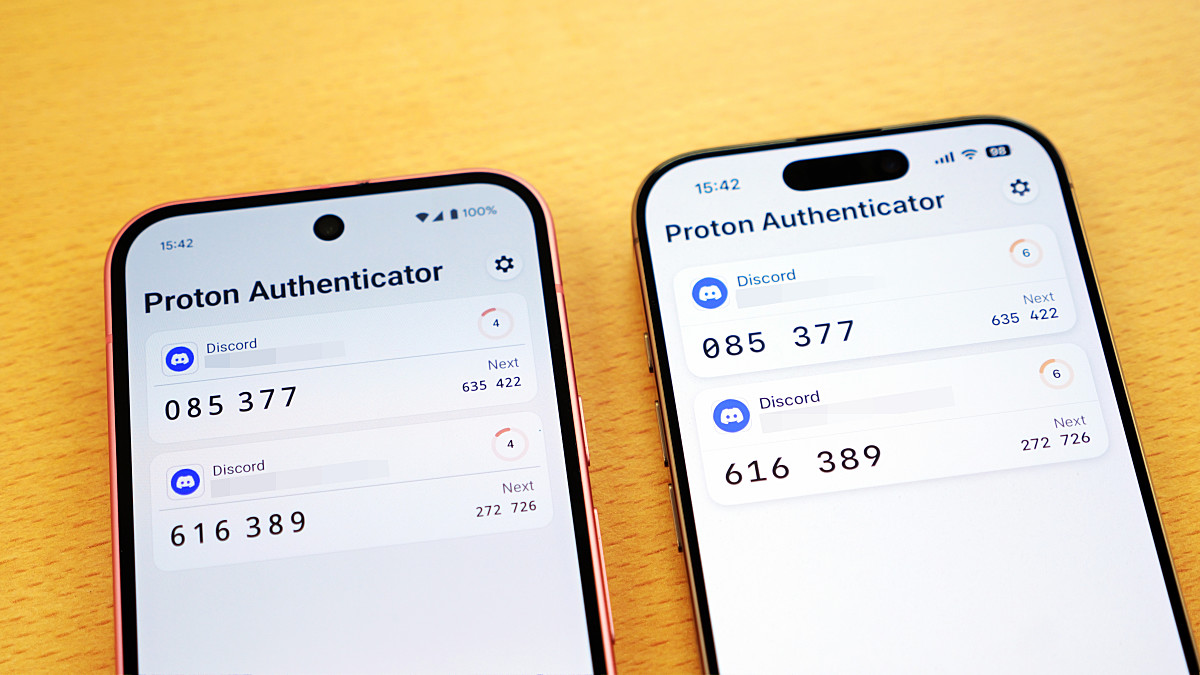
When using a one-time code that changes periodically as a method of two-factor authentication, you also need to select an app that displays the one-time code. While there are many apps that can display one-time codes, including those from Google and Microsoft, many users have experienced the hassle of using them because each app has its own synchronization mechanism and supports different operating systems. Proton's ' Proton Authenticator ' is compatible with Android, iOS, Windows, macOS, and Linux, and is said to also feature export/import and synchronization functions. It sounded convenient, so I decided to test it out on my iPhone, Android smartphone, and Windows PC.
Proton Authenticator: Private, secure 2FA authenticator | Proton
·table of contents
◆1: Features of Proton Authenticator
◆2: Export from other two-factor authentication apps
◆3: Use Proton Authenticator on your iPhone
◆4: Use Proton Authenticator on your Android smartphone
◆5: Use Proton Authenticator on a Windows PC
◆6: There is also a synchronization function
◆1: Features of Proton Authenticator
Proton Authenticator is a two-factor authentication app developed by Proton, a company that provides privacy-focused email and VPN services. Its main features are open source development, encrypted syncing, no ads, no tracking, and export support, and it's compatible with Android, iOS, Windows, macOS, and Linux.
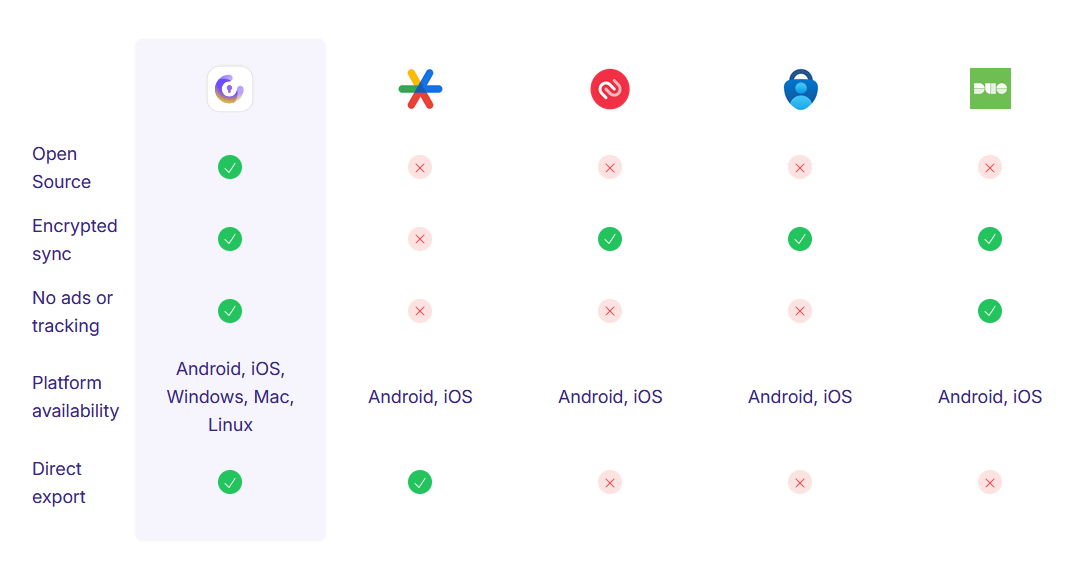
◆2: Export from other two-factor authentication apps
This time, we want to export account information from Google's two-factor authentication app, Google Authenticator, and import it into Proton Authenticator, so we'll start by exporting from Google Authenticator.
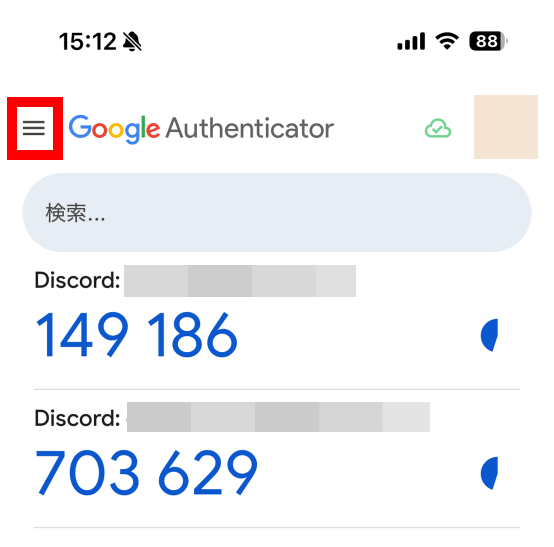
Launch Google Authenticator and tap the menu button in the top left corner of the screen.
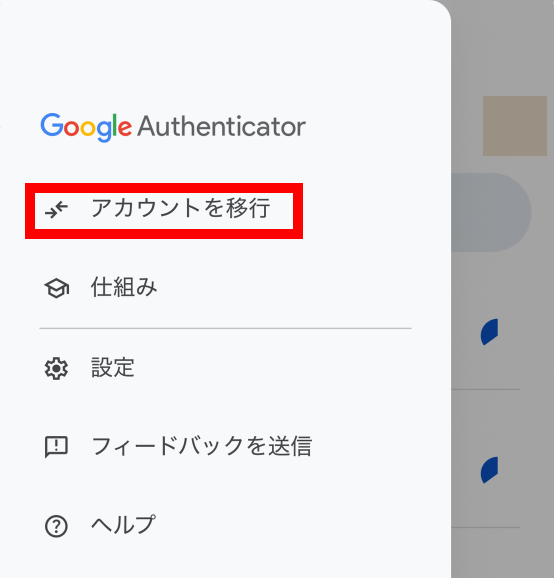
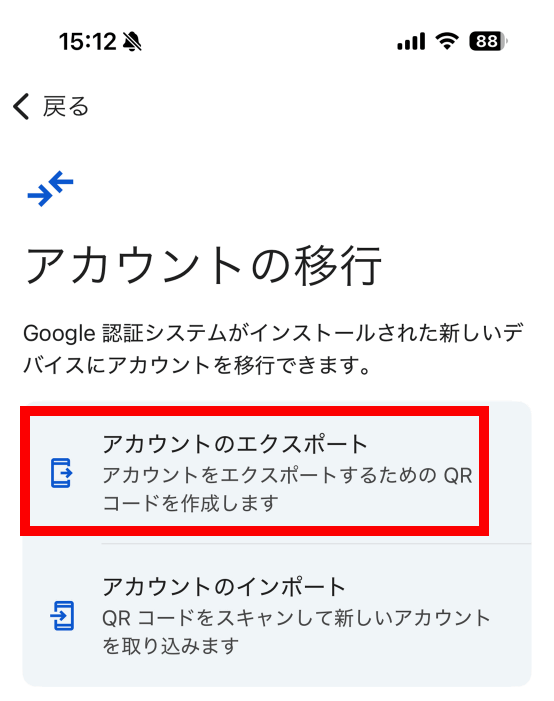
Tap 'Transfer Account.'
Tap 'Export Accounts.'
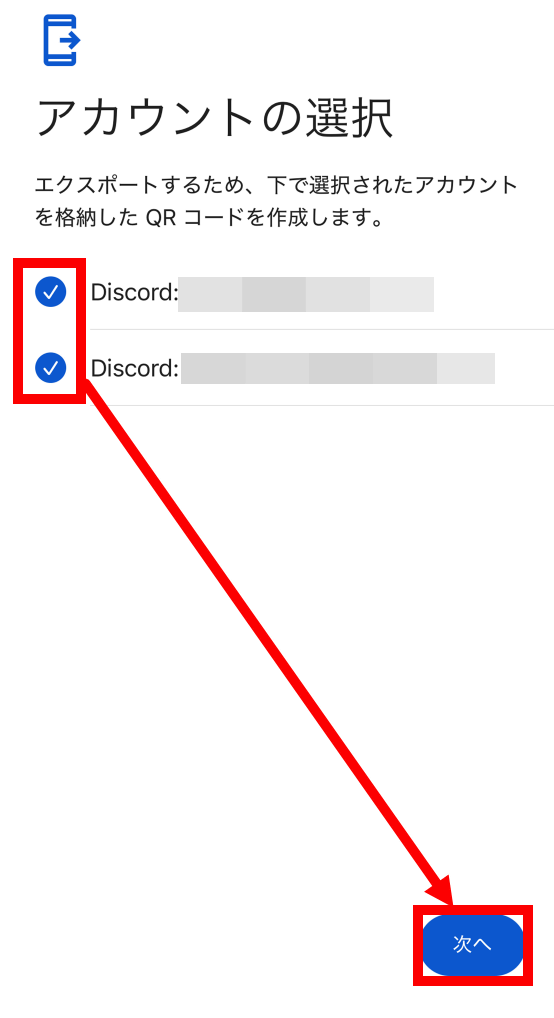
Tap the account you want to export, then tap 'Next.'
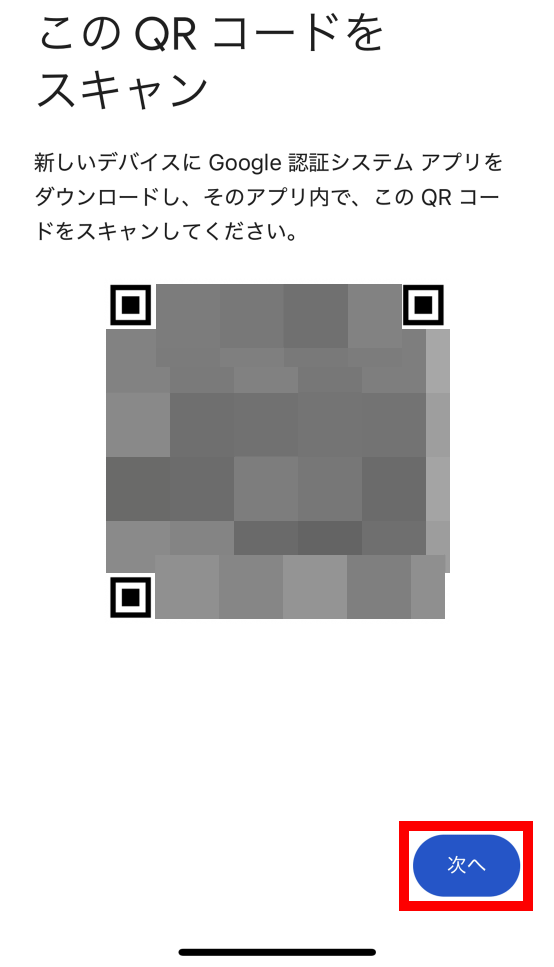
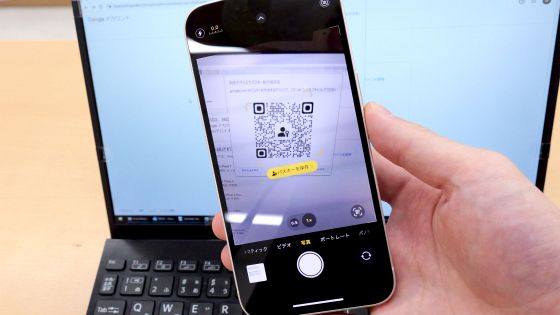
When the QR code appears, take a screenshot and tap 'Next.'
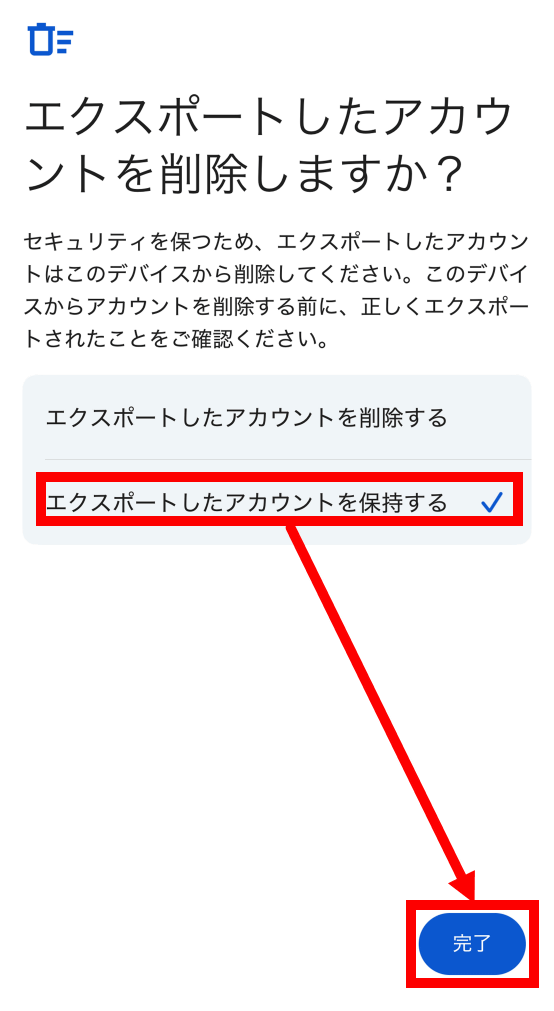
Tap 'Keep exported accounts' and then tap 'Done.' If you don't want to keep your account information in Google Authenticator, just tap 'Delete exported accounts.' If you're transferring to another device, be sure to copy the screenshots you took to the other device as well.
◆3: Use Proton Authenticator on iPhone
Open
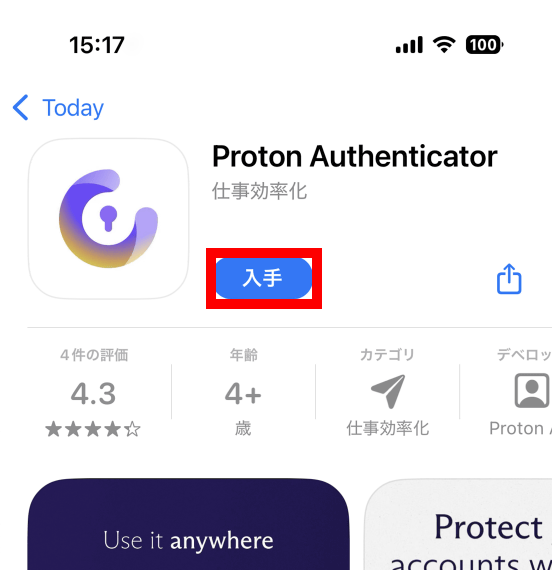
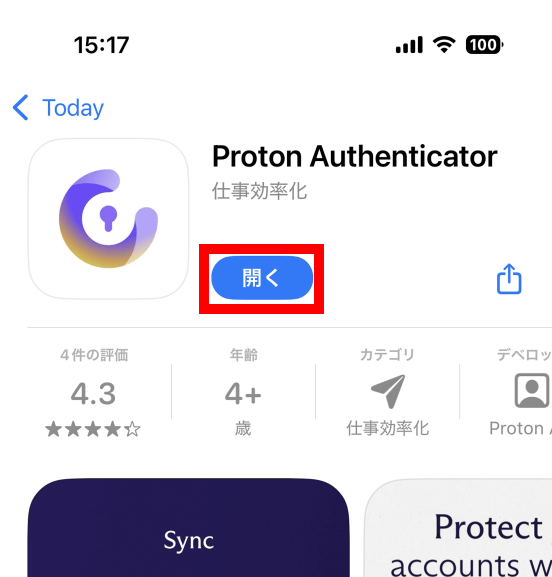
Once the installation is complete, tap 'Open.'
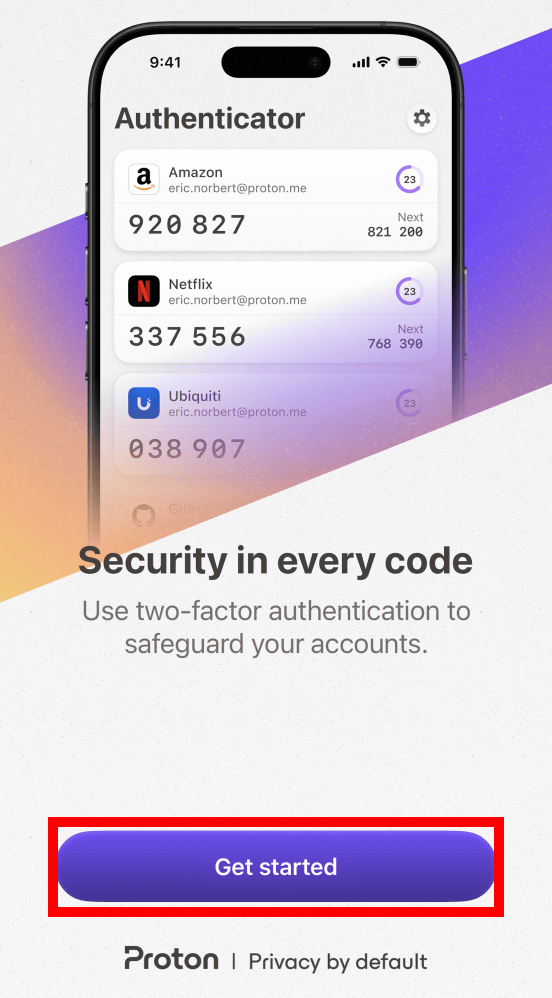
Once Proton Authenticator has launched, tap 'Get started.'
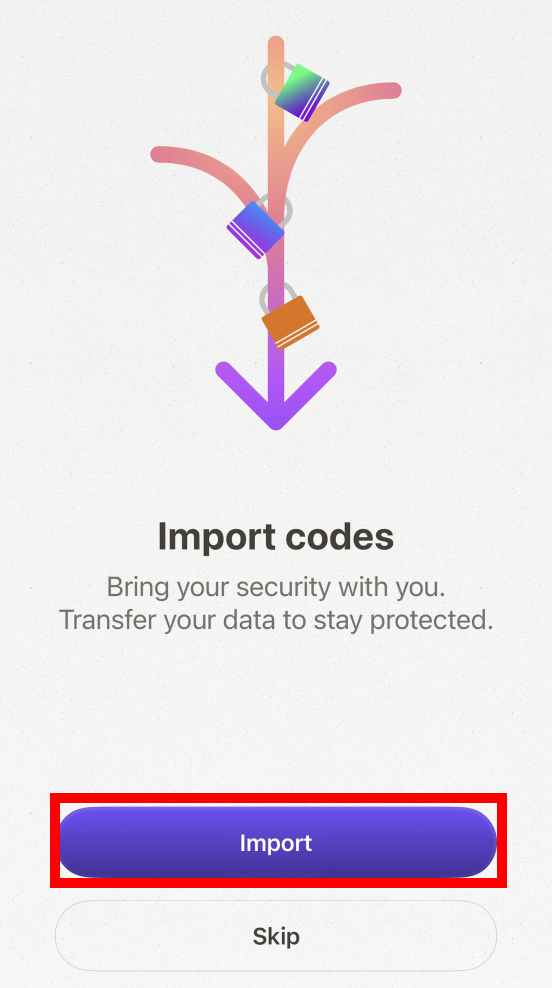
Tap “Import”.
Tap 'Google Authenticator.'
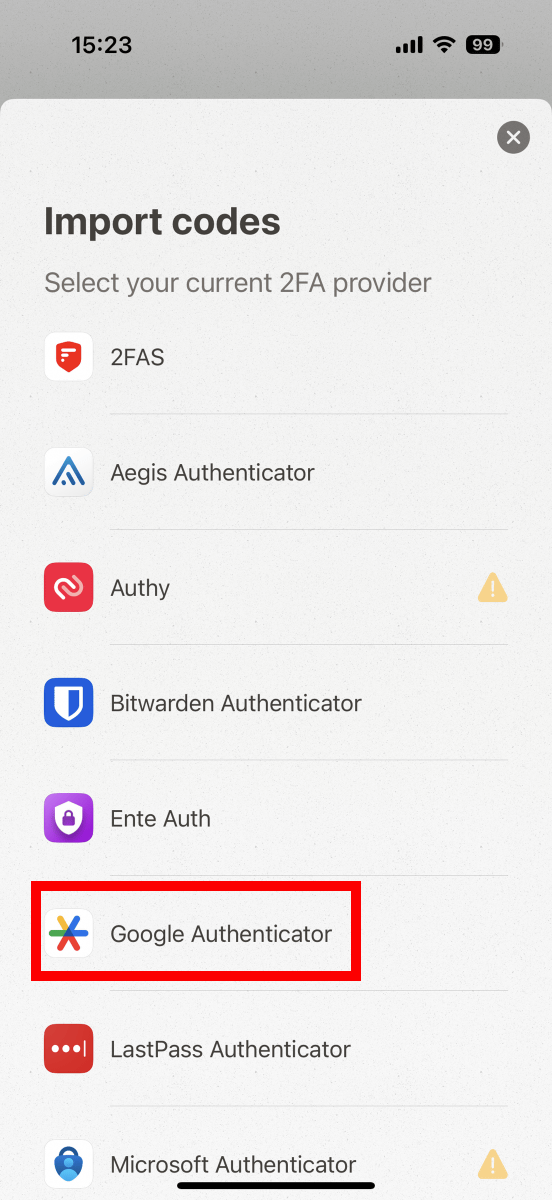
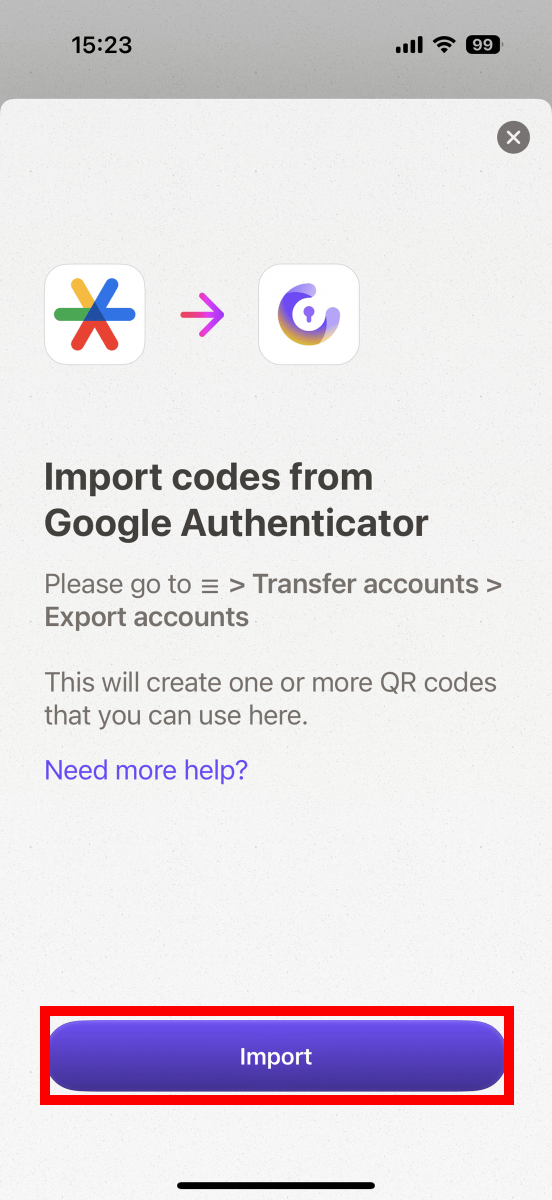
Tap “Import”.
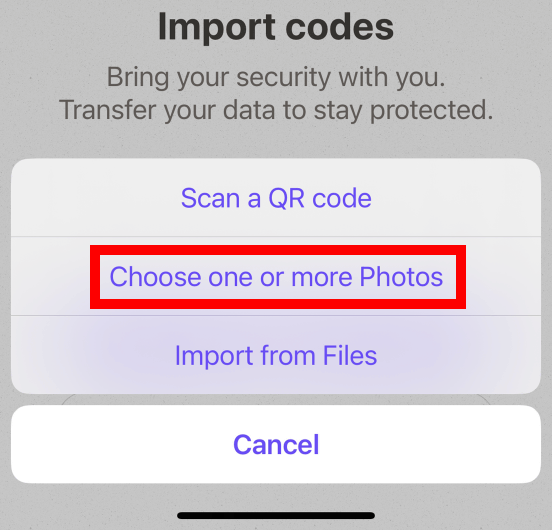
You can choose from the following import methods: 'Scan a QR code with your camera,' 'Choose one or more Photos' or 'Import from Files.' Since I want to use screenshots this time, I tapped 'Choose one or more Photos.'
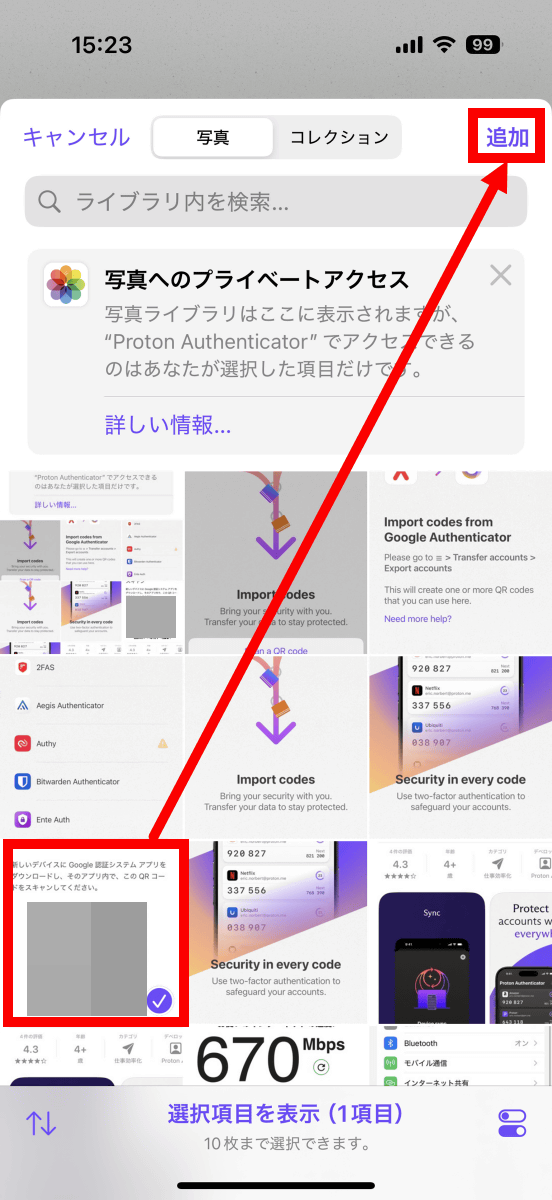
When the image selection screen appears, tap the screenshot of the QR code and then tap 'Add.'
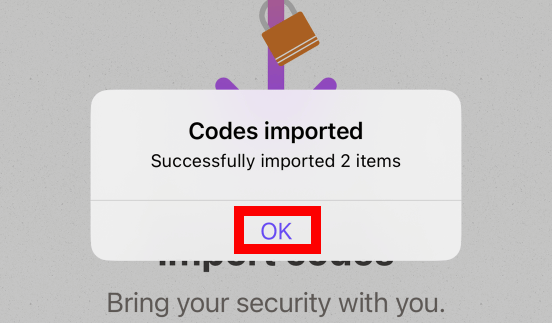
When the import completion notification appears, tap 'OK'.
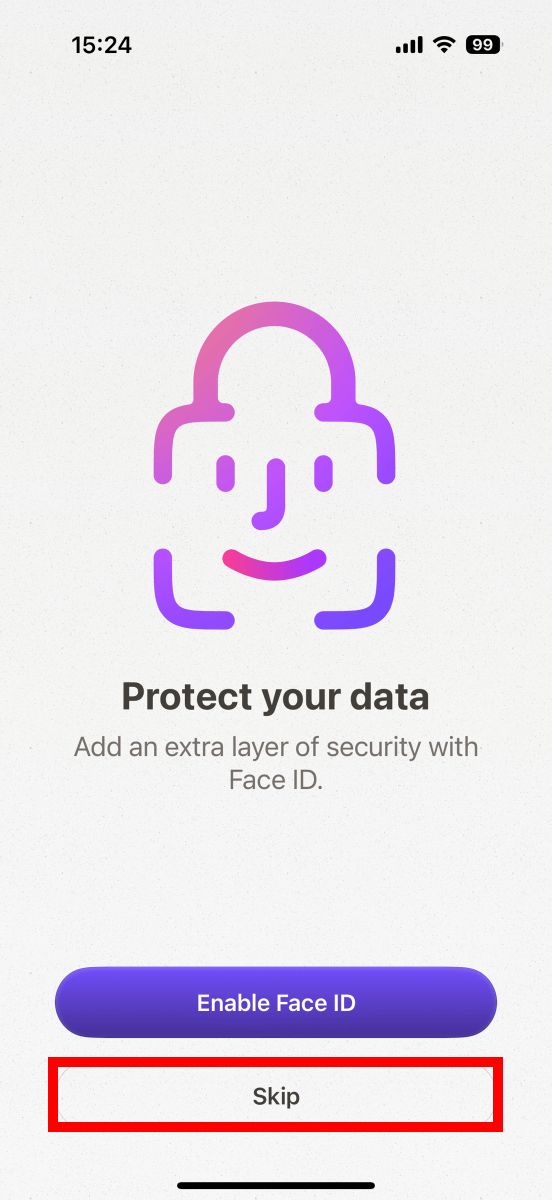
Next, you'll be prompted to choose whether to require Face ID authentication when launching the app. Tap 'Skip' this time.
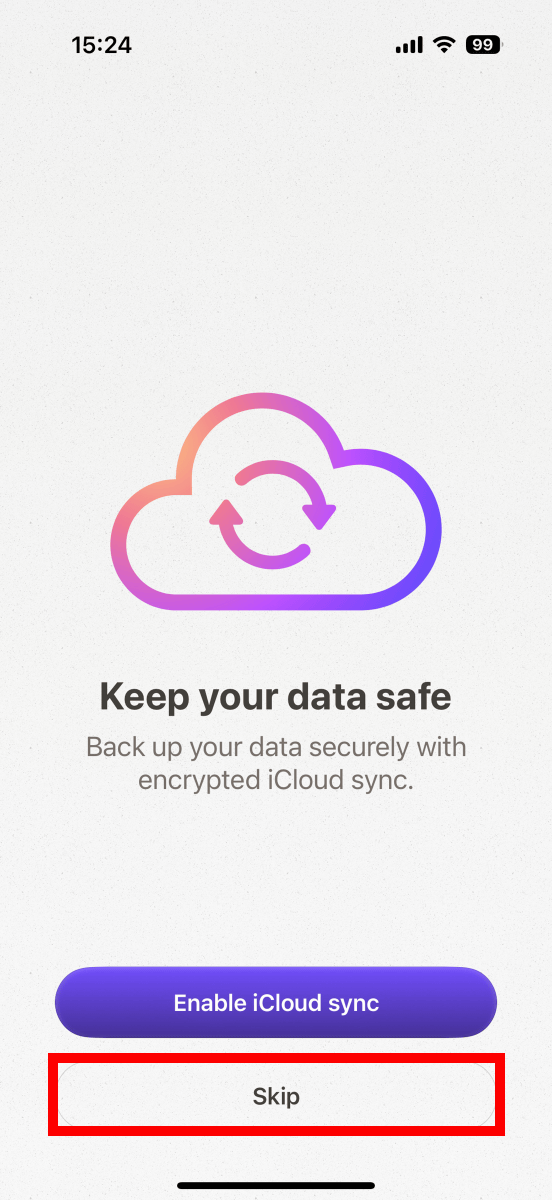
When the iCloud sync settings screen appears, tap 'Skip.'
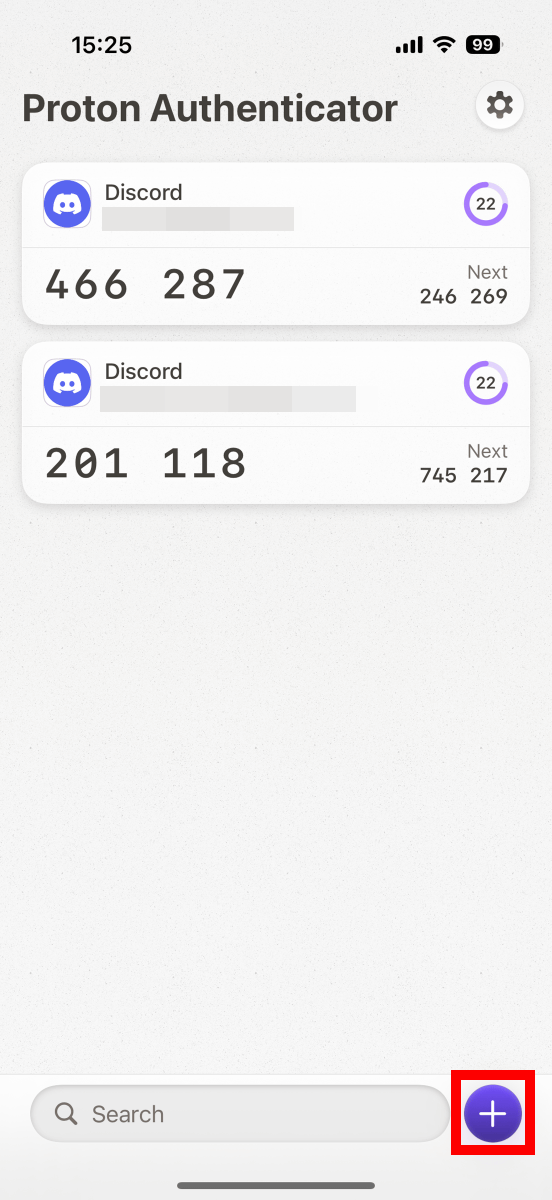
This completes the initial setup. The screen will display the 'One-time code' and 'Next one-time code.'
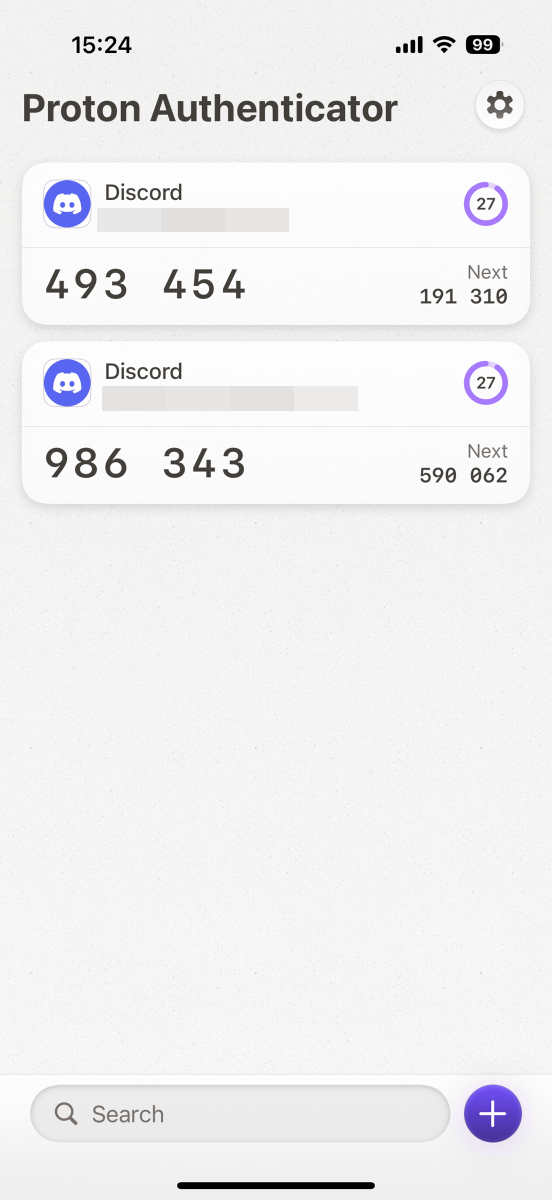
To register a new account, tap the + button at the bottom right of the screen.
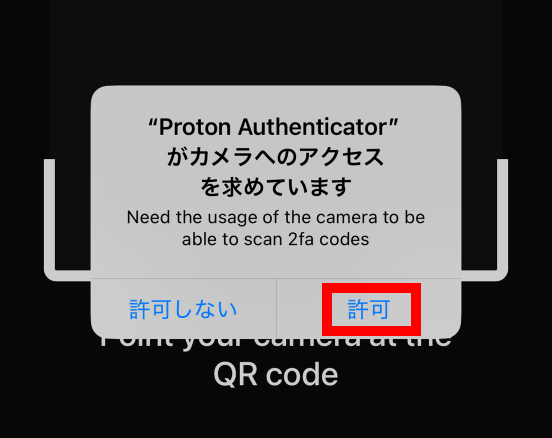
The first time you do this, you will be asked to grant permission to access the camera, so tap 'Allow.'
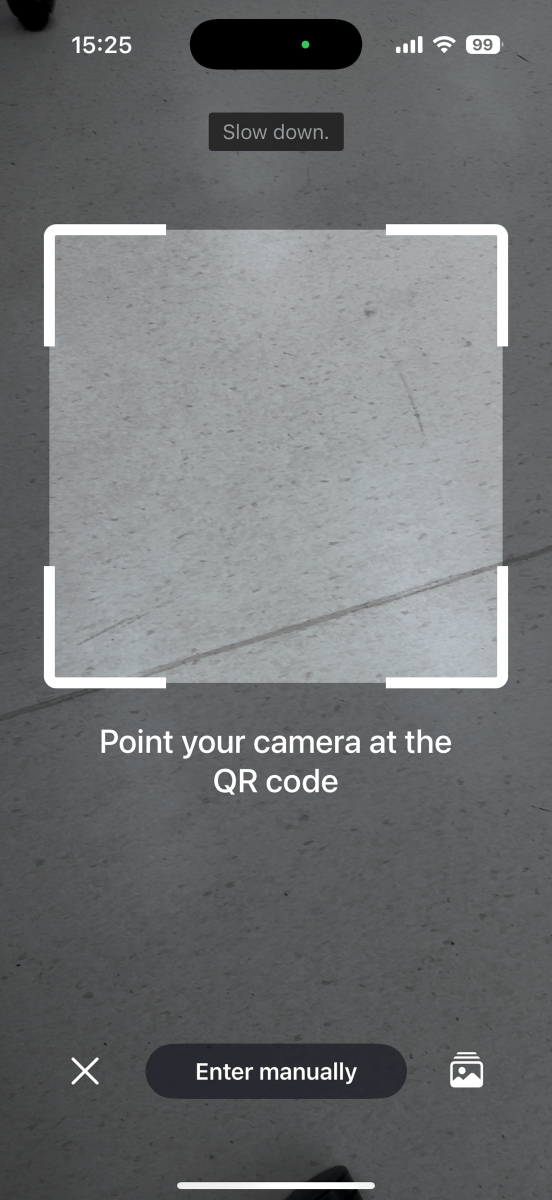
All you have to do is scan the QR code issued by each service.
◆4: Use Proton Authenticator on your Android smartphone
To install the Android version of Proton Authenticator, open
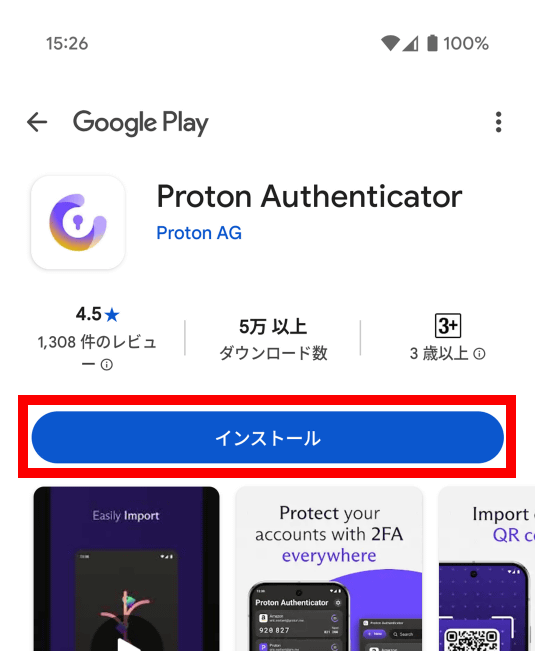
Once the installation is complete, tap 'Open.'
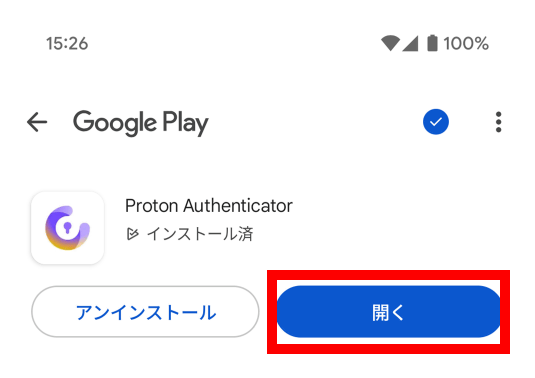
Once Proton Authenticator has launched, tap 'Get Started.'
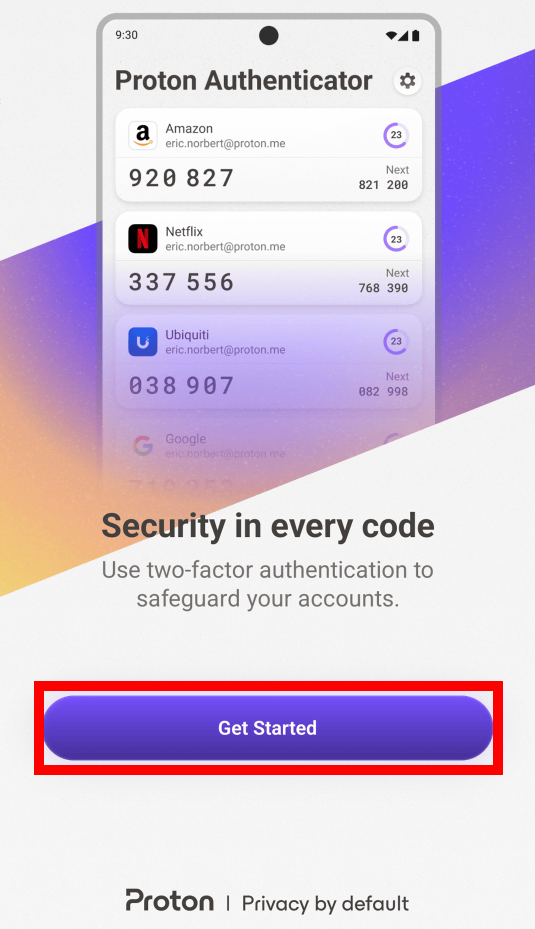
Tap “Import”.
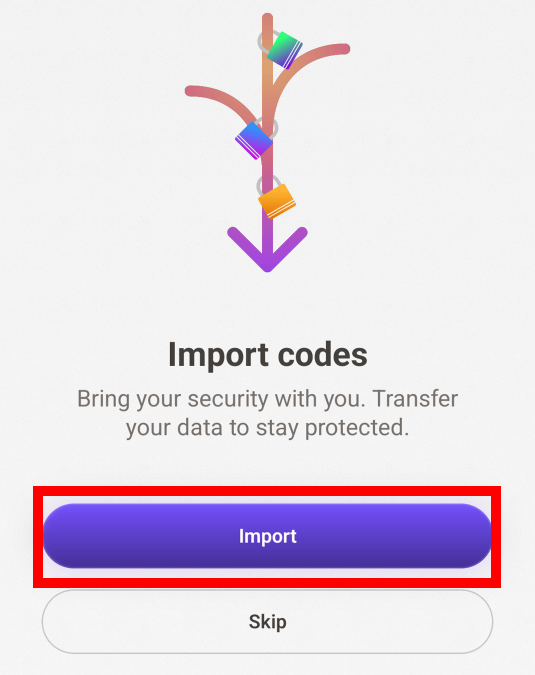
Tap 'Google Authenticator.'
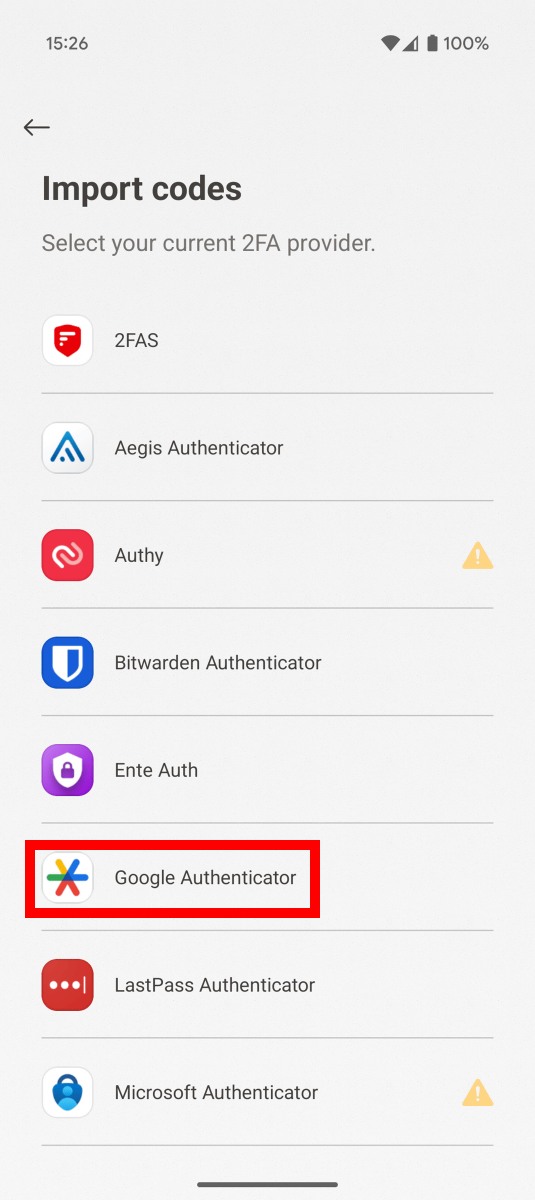
Tap “Import”.
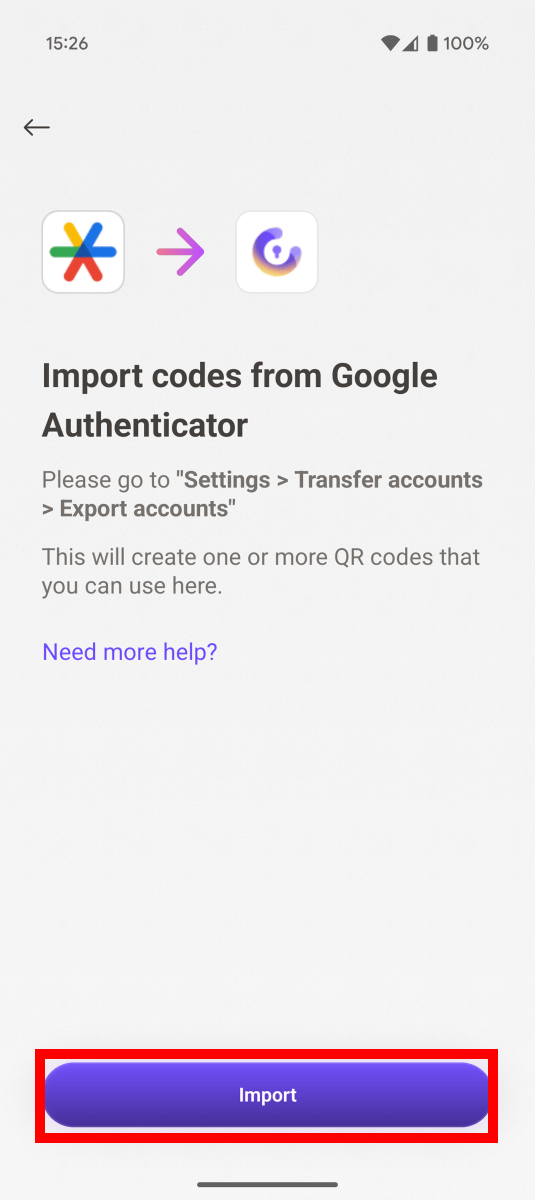
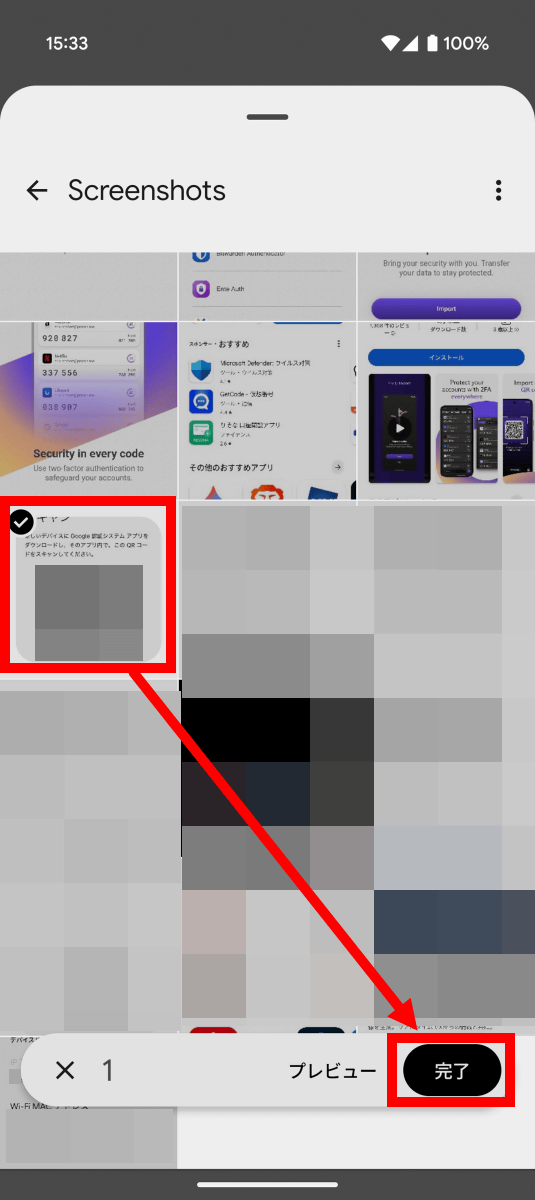
On Android, the Import method option was not displayed, but the image selection screen was displayed. Tap the screenshot of the QR code and then tap 'Done.'
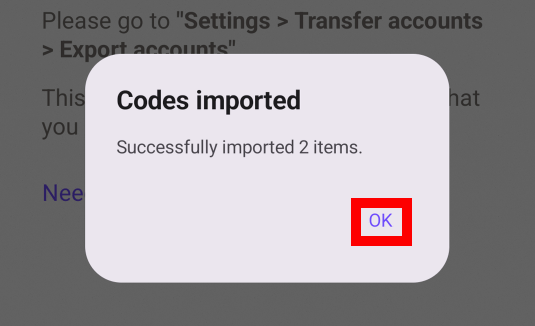
When the import completion notification appears, tap 'OK'.
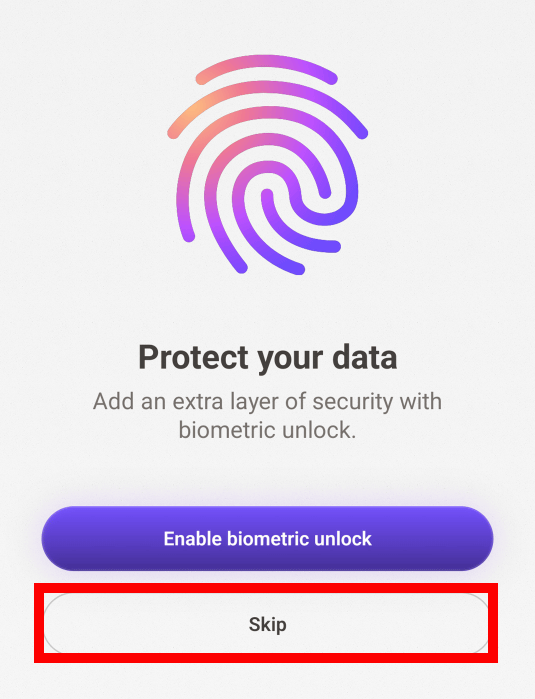
Next, security settings such as fingerprint authentication will be displayed. Tap 'Skip' this time.
This completes the initial setup. After that, the one-time code will be updated at regular intervals.
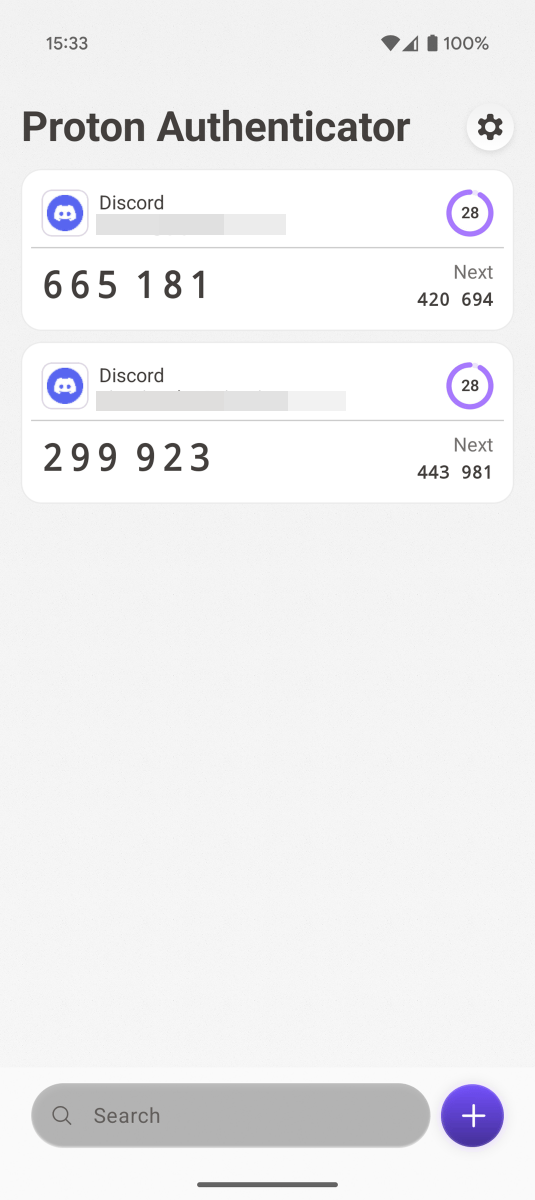
5. Use Proton Authenticator on a Windows PC
To use Proton Authenticator on your PC, visit
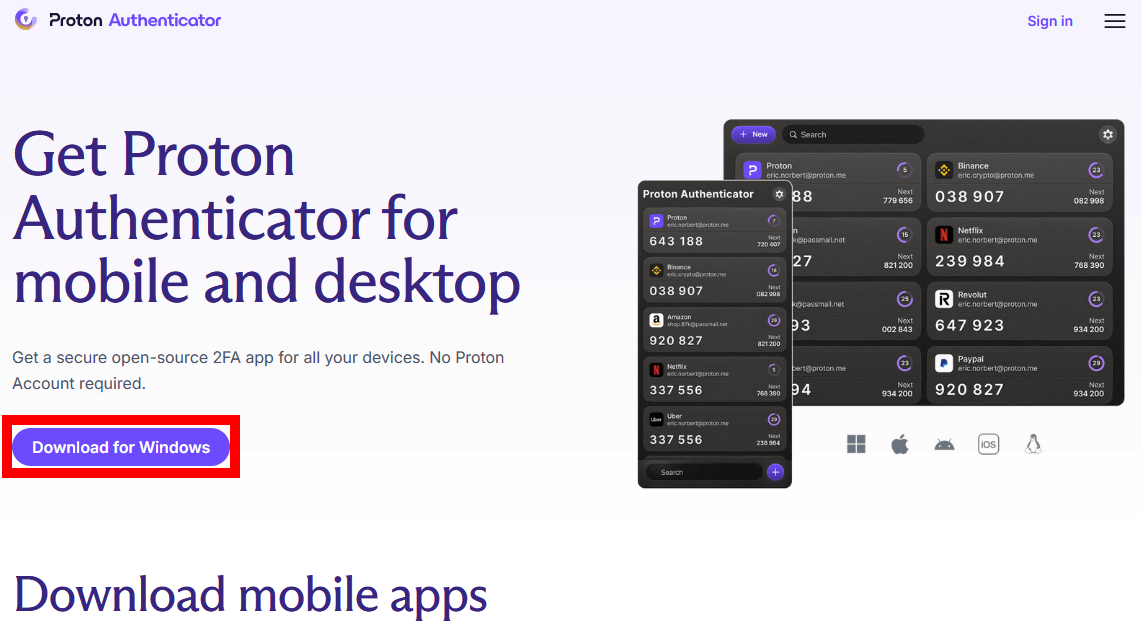
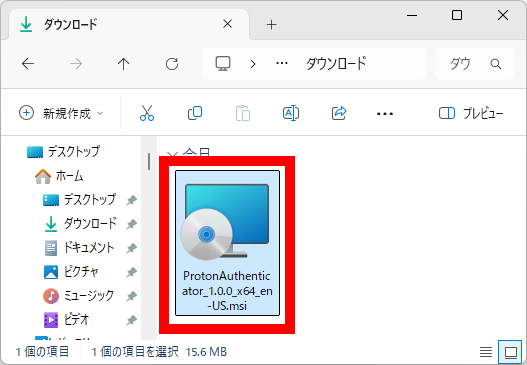
Once the installer has finished downloading, double-click it to launch it.
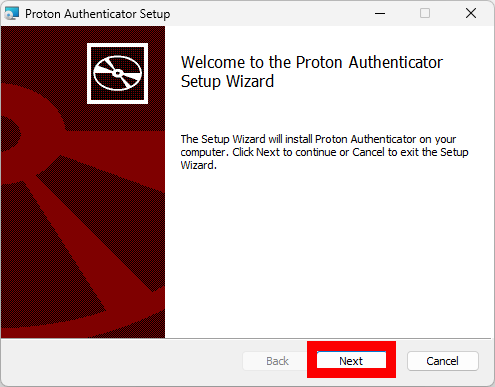
Click “Next”.
When the installation destination screen appears, click 'Next' without changing anything.
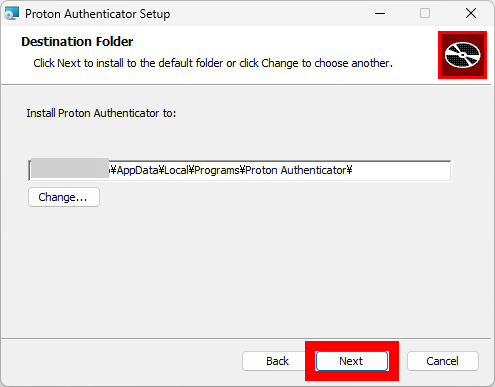
Click “Install”.
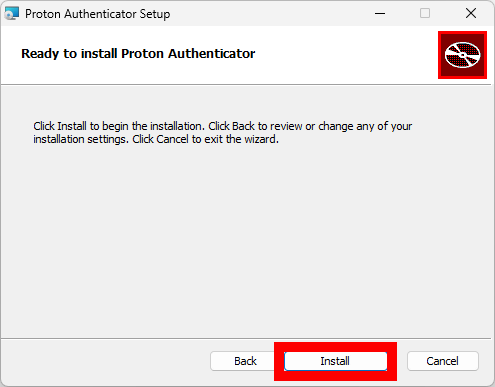
Click 'Finish' to complete the installation.
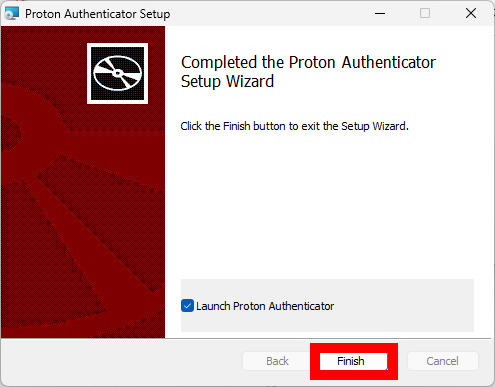
Once the installation is complete, Proton Authenticator will start automatically.
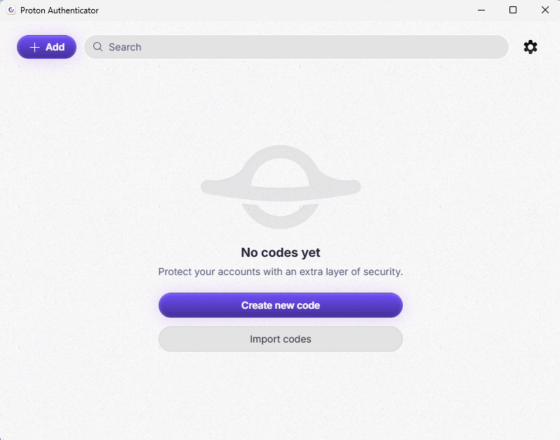
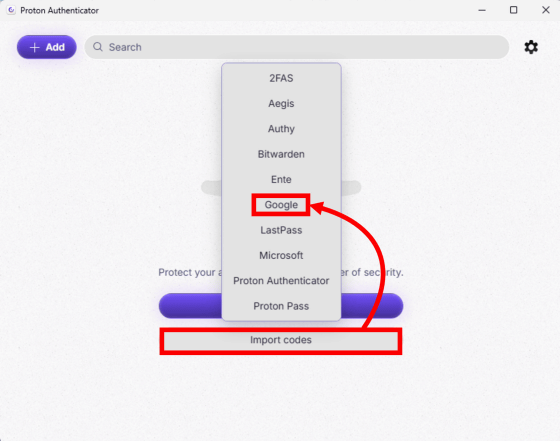
Click 'Import codes' and then 'Google.'
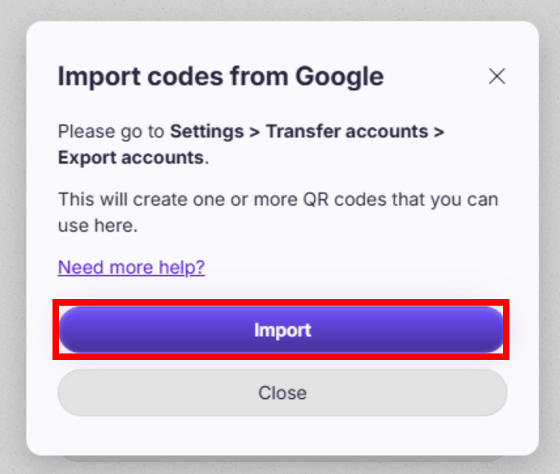
Click “Import”.
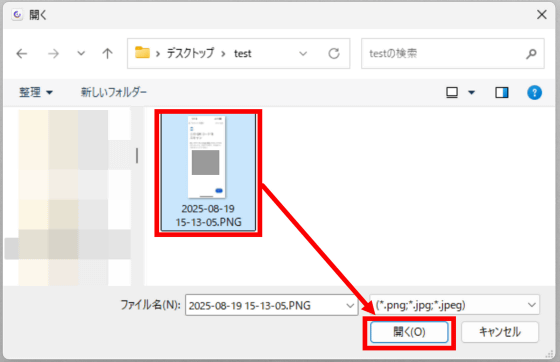
When the file selection screen appears, select the screenshot of the QR code and tap 'Open.'
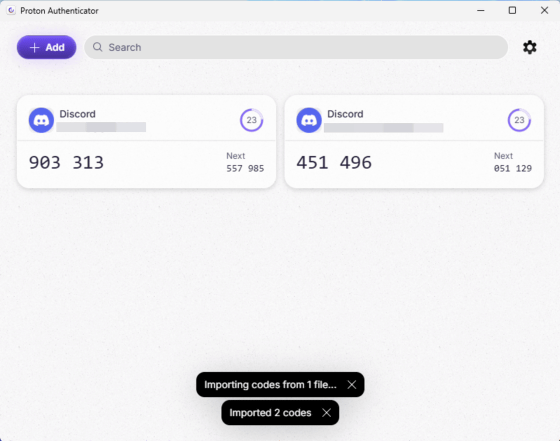
The import is now complete.
◆6: There is also a synchronization function
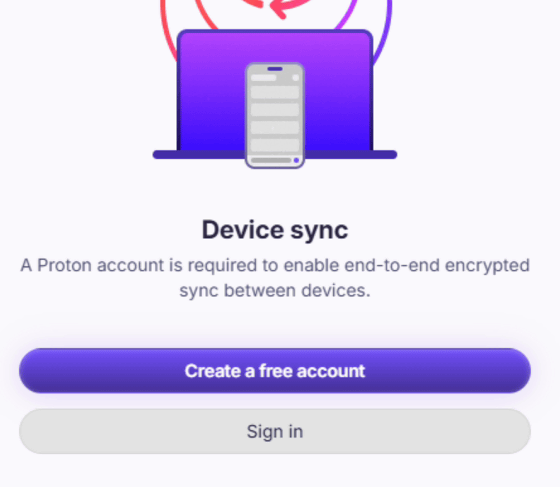
Once you create a Proton account and sign in, you can sync your account information across apps on different operating systems. The syncing process is end-to-end encrypted.
Related Posts:
in Software, Smartphone, Review, Security, Posted by log1o_hf