Wallos, a free, open-source, self-hostable platform for managing personal subscriptions.
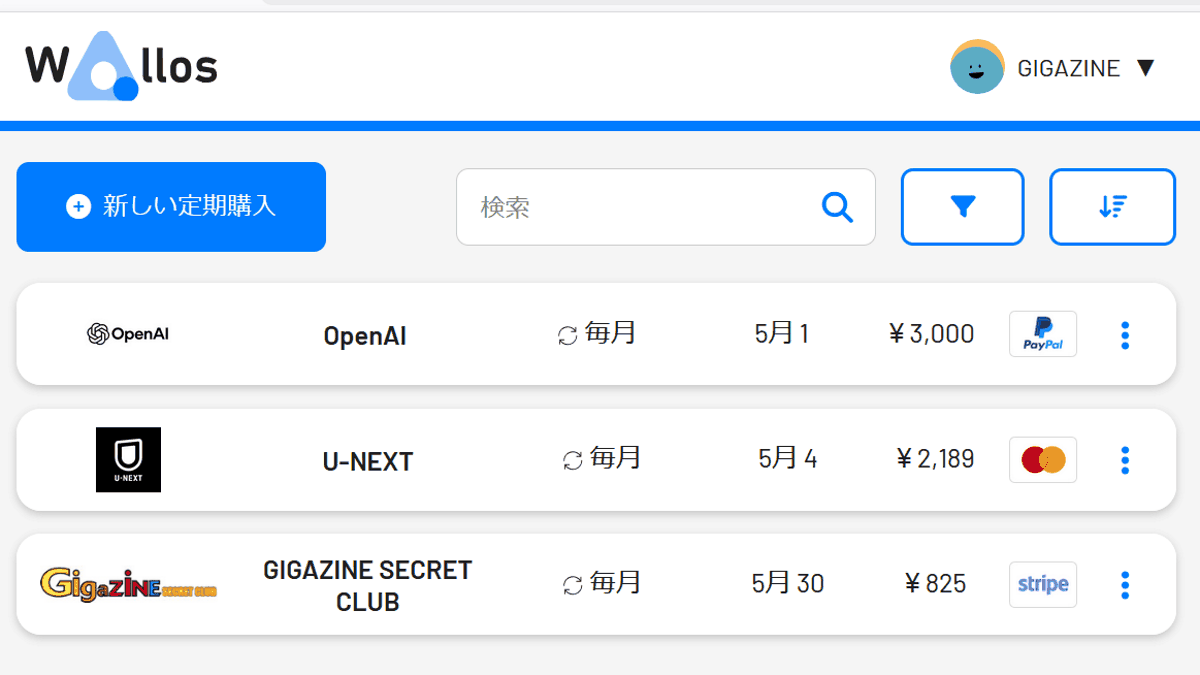
Subscriptions that occur monthly or annually, such as video streaming services, cloud storage, domain renewals, and paid plans for smartphone apps, can easily accumulate without you even realizing it. Wallos is an open-source, self-hosted subscription management tool that lists all your recurring payments, allowing you to check the next payment date, monthly and annual totals, and spending by category.
Wallos: Open-Source Personal Subscription Tracker
ellite/Wallos: Wallos: Open-source, self-hostable personal subscription tracker. Visualize your recurring expenses, manage your budget, and save money.
◆Demo
https://demo.wallosapp.com/login.php
Username: demo
Password: demo
◆Wallos Features
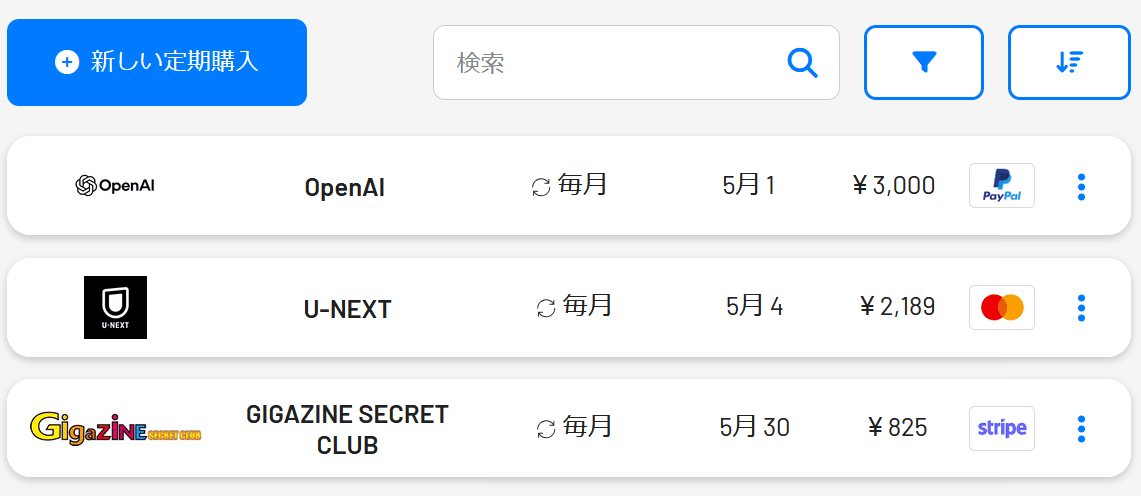
Once you register for the services you subscribe to, they will be displayed in a list.
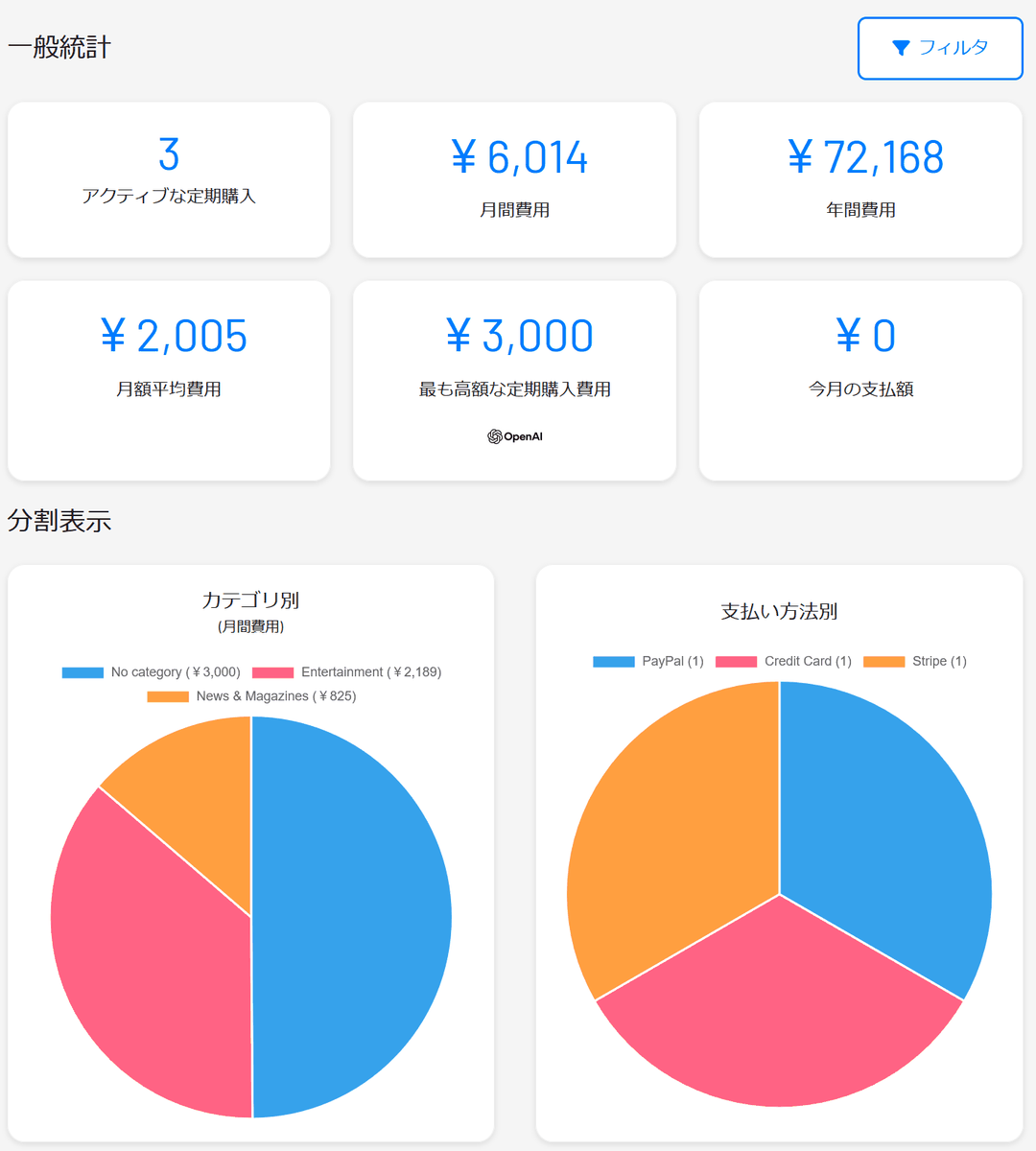
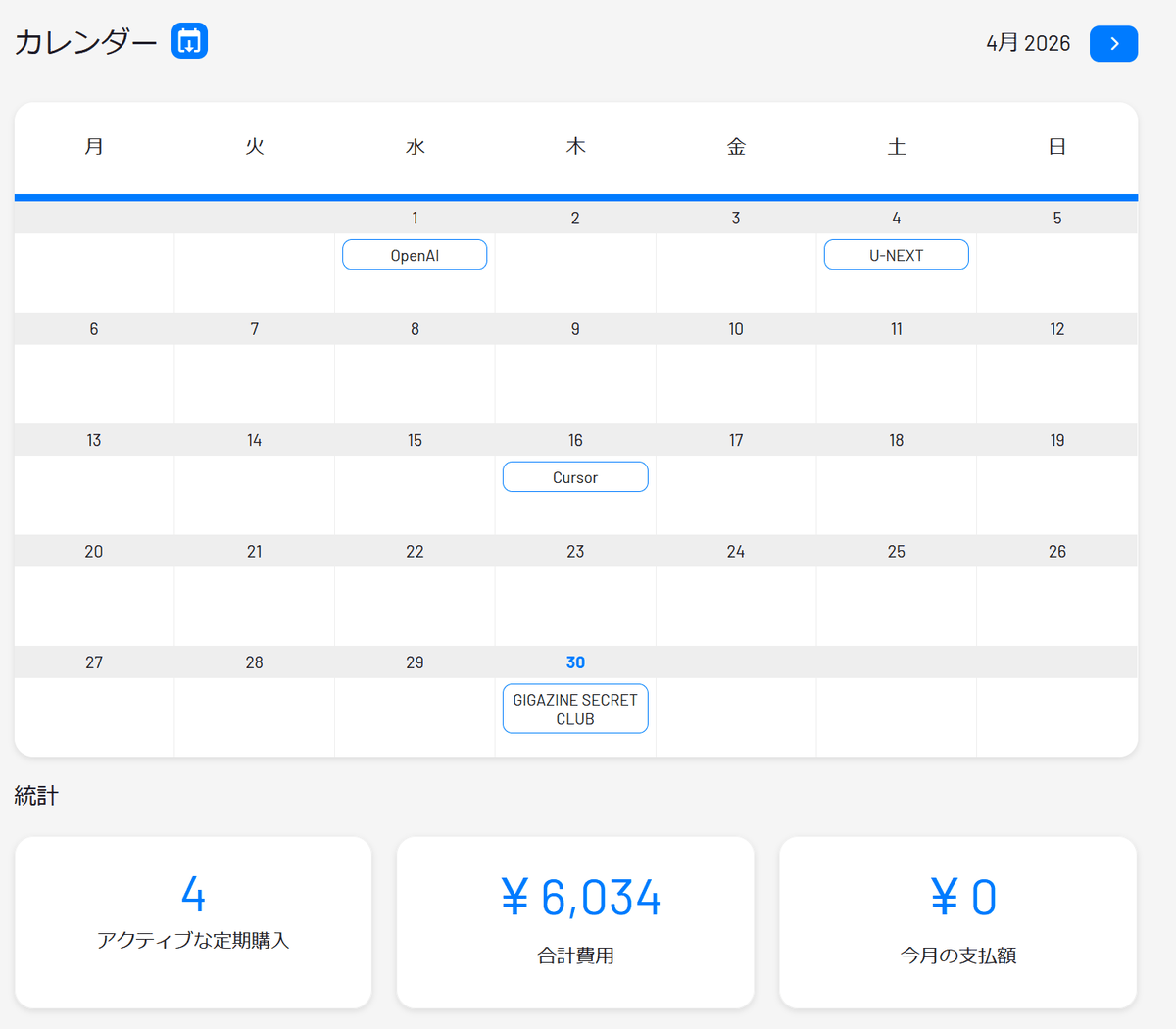
Monthly and annual expenses are displayed, making it easy to check the total amount paid. You can also view expenses by category.
It's possible to mix currencies; for example, mixing yen and dollars is not a problem.
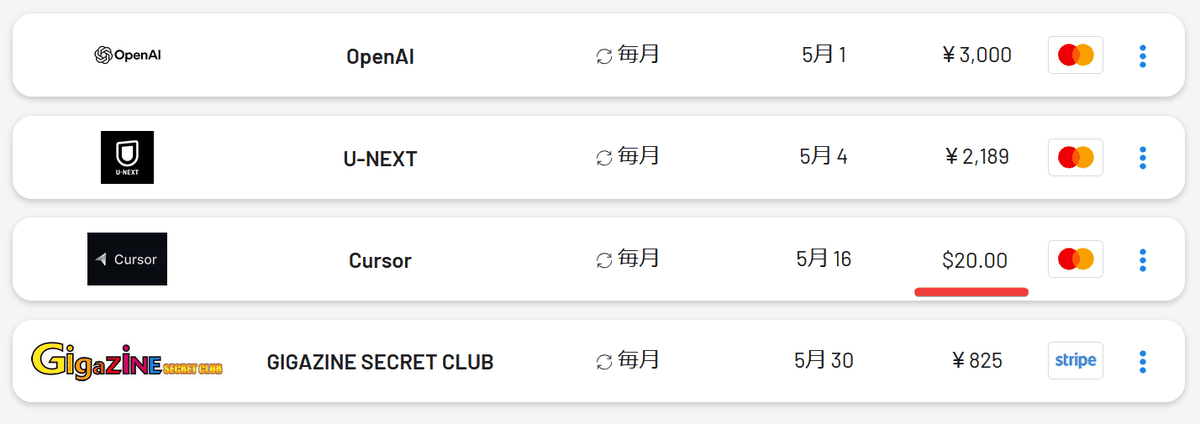
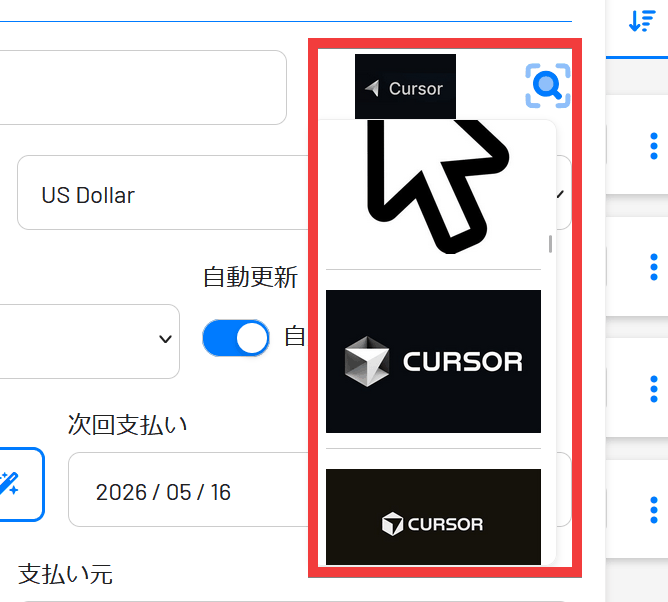
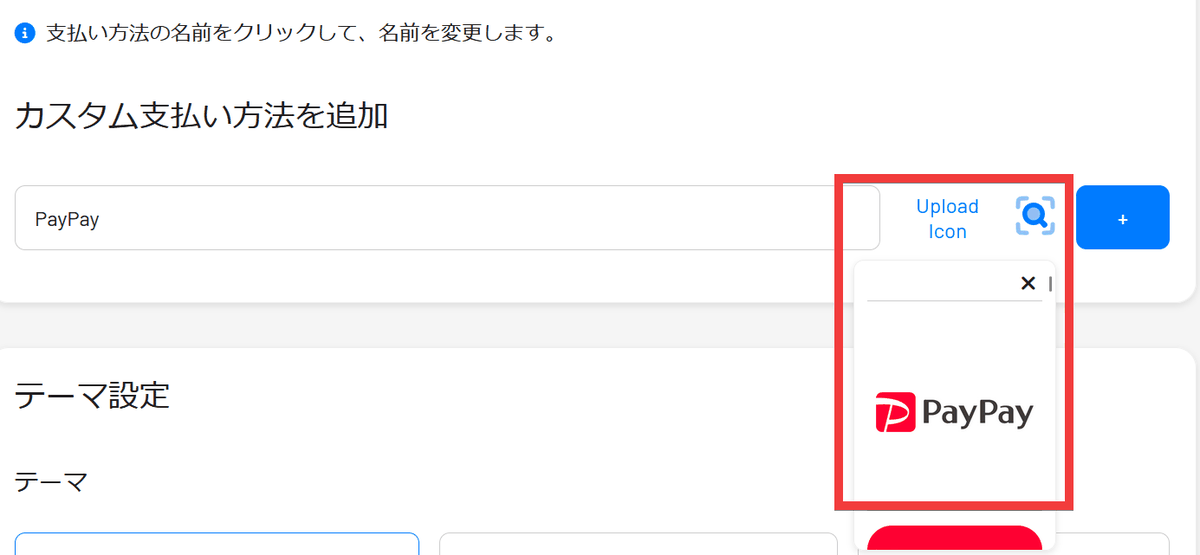
Registration is manual, but the function to search for and retrieve the logos of each service is convenient.
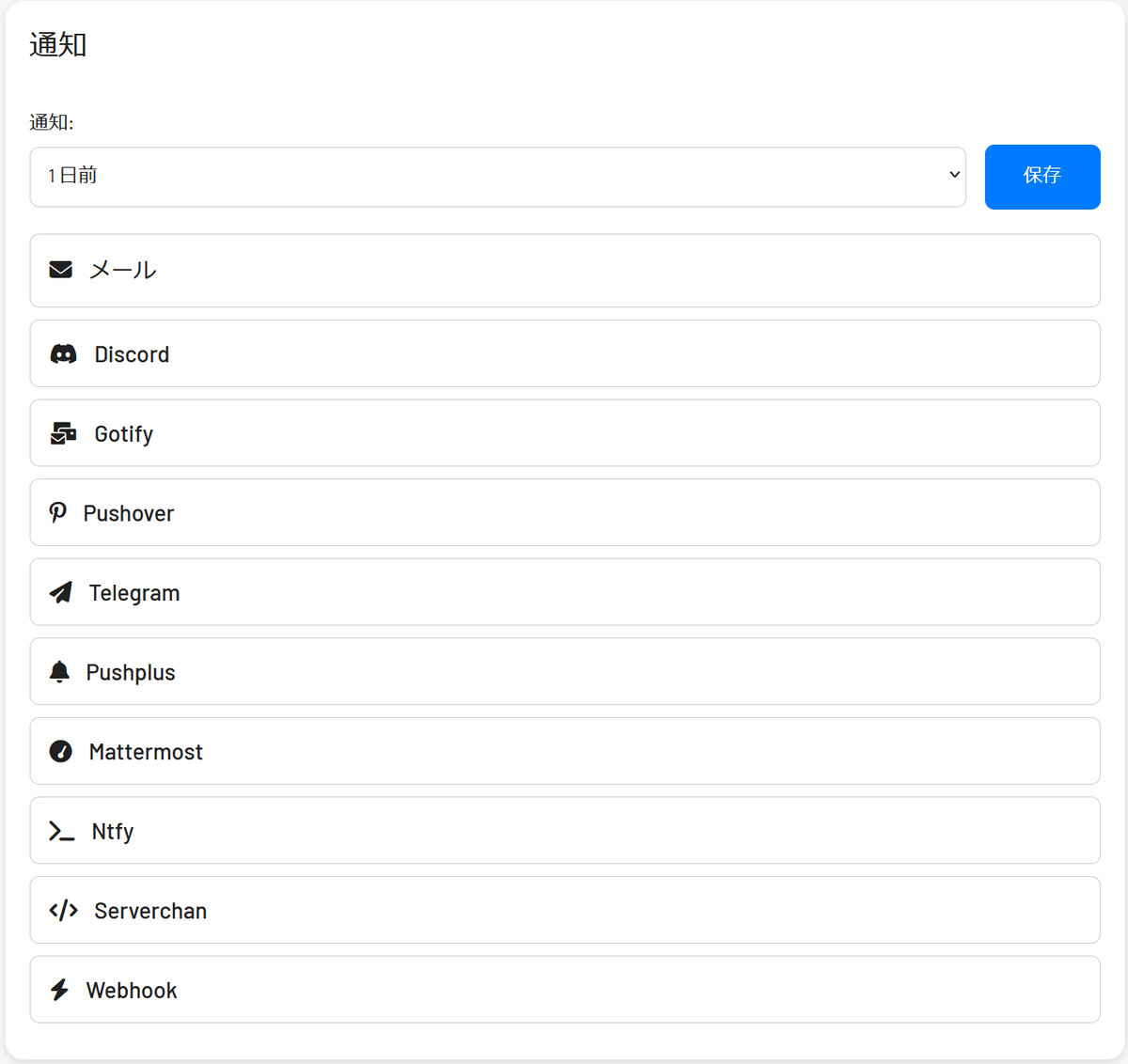
In addition to email, notification methods include
It also supports a calendar view, making it easy to check the update date.
Japanese language support was also fine, and even for services unique to Japan, obtaining logos via web search worked without any problems.
◆How to install Wallos
We will set this up in an environment where
 services:
 wallos:
 container_name: wallos
 image: bellamy/wallos:latest
 ports:
 - '8282:80/tcp'
 environment:
 TZ: 'Asia/Tokyo'
 # Volumes store your data between container upgrades
 volume:
 - './db:/var/www/html/db'
 - './logos:/var/www/html/images/uploads/logos'
 restart: unless-stopped
Start the container.
docker compose up -d
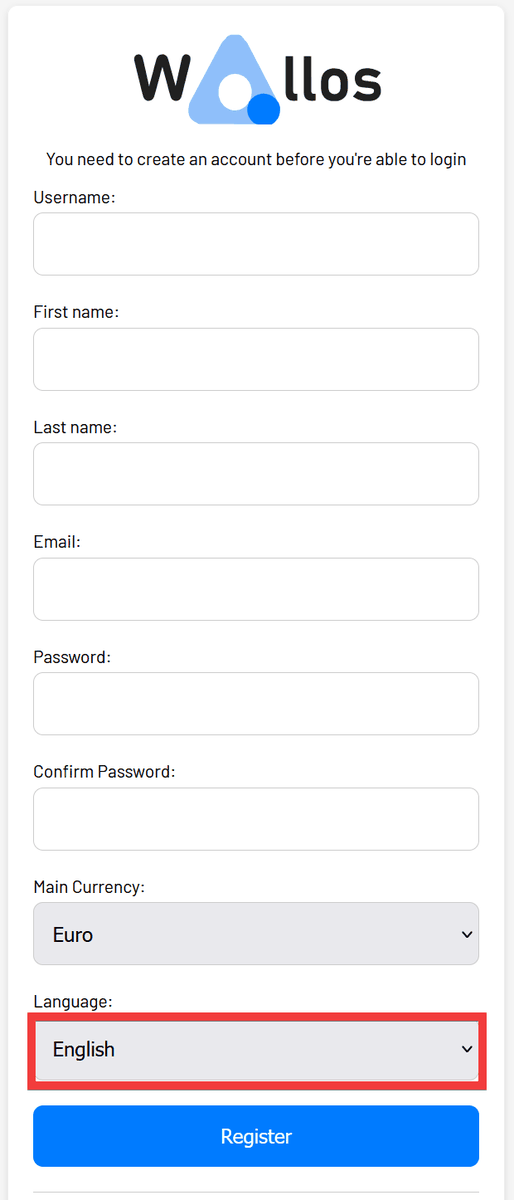
Once the container starts, access 'http://localhost:8282' in your browser to display the administrator registration form, then click on the 'Language' selection option.
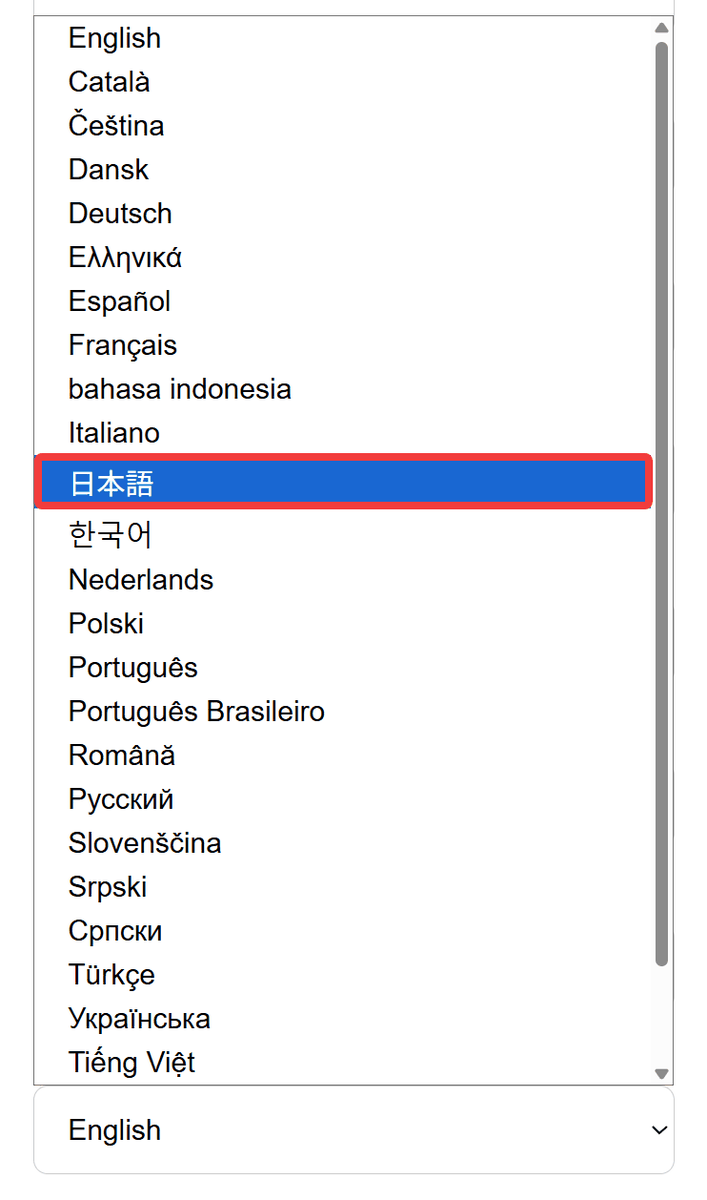
Selecting 'Japanese' from the selection list will change the UI display to Japanese.
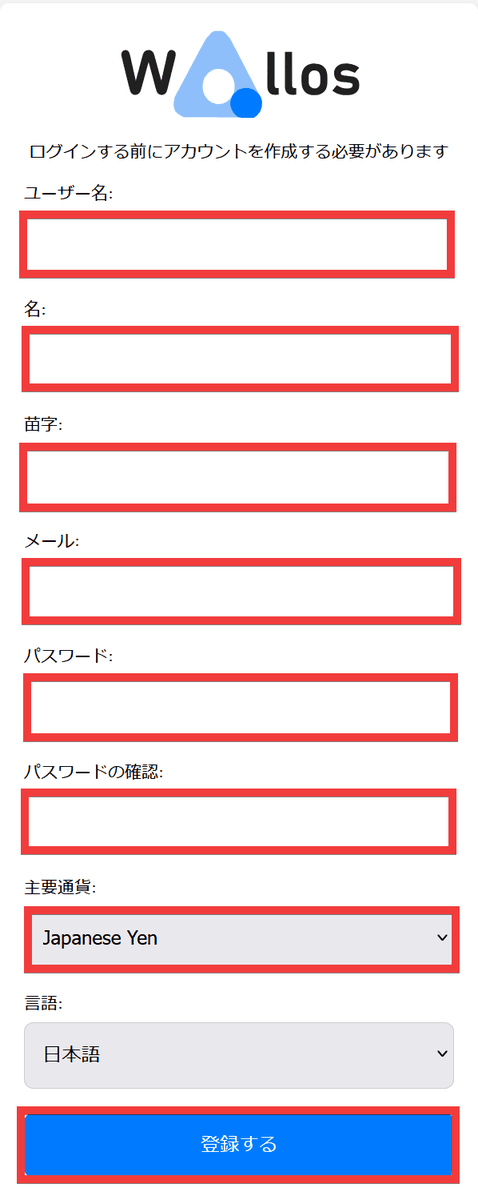
Enter your desired username in 'Username,' your desired first name in 'First Name' and 'Last Name,' your email address in 'Email,' your desired password in 'Password' and 'Confirm Password,' select 'Japanese Yen' for 'Main Currency,' and click 'Register.'
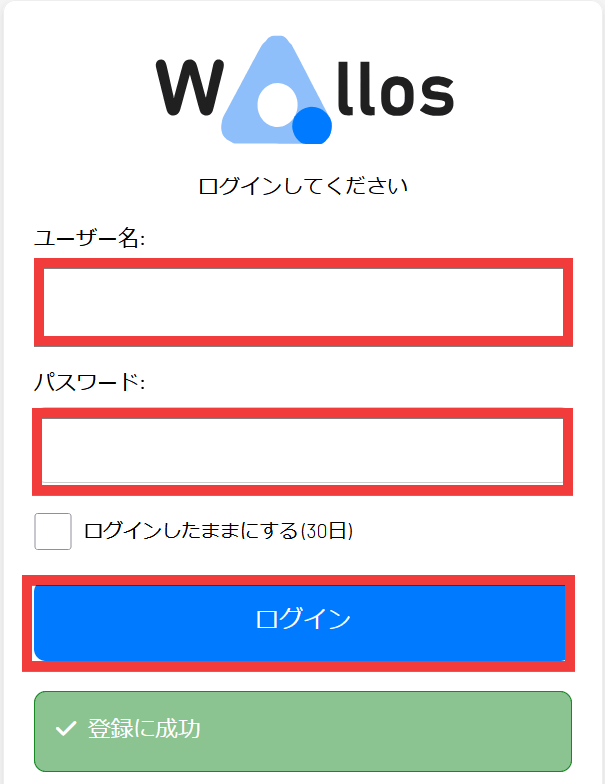
Once registration is complete, the login screen will appear. Enter the username you just registered in the 'Username' field and your password in the 'Password' field, then click 'Login'.
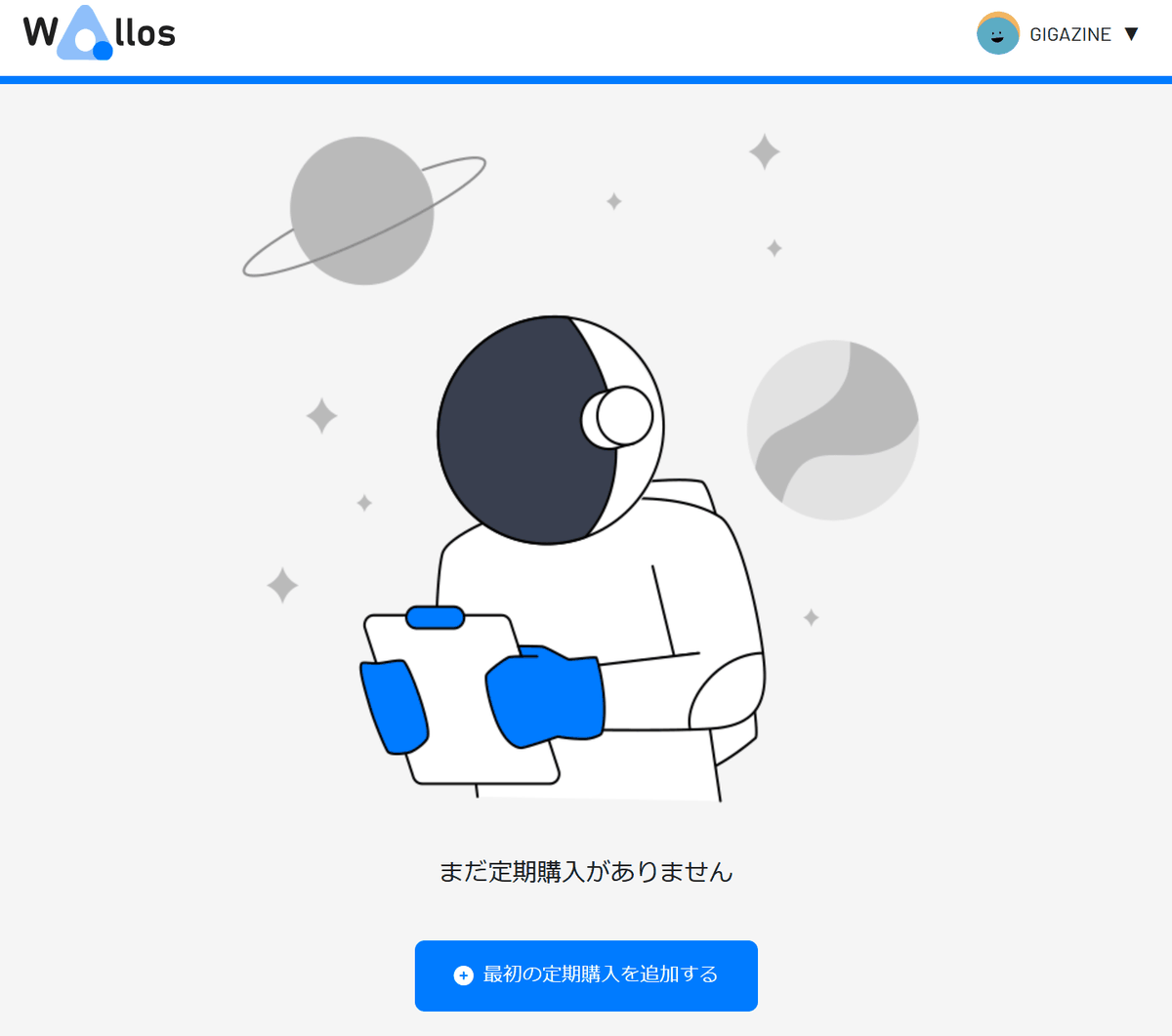
The installation is complete when the homepage is displayed.
Wallos offers 'optimized minimal functionality' rather than 'high functionality,' helping you properly manage subscription costs that can easily add up and reduce unnecessary spending.
Related Posts: