Try out 'Web Search' and 'Automatic Image Generation' using 'LibreChat,' which can combine virtually any AI model. It's free and self-hostable.
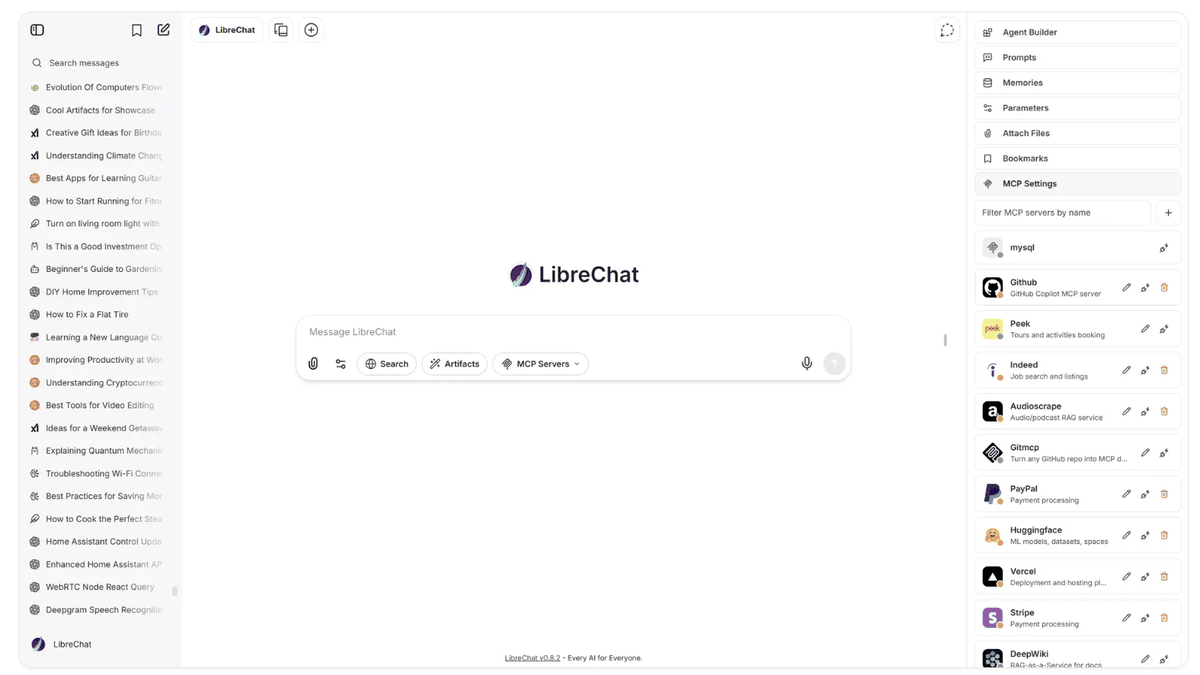
AI chat services like
LibreChat - The Open-Source AI Platform
https://www.librechat.ai/
LibreChat - Open source chat platform for AI-powered conversations
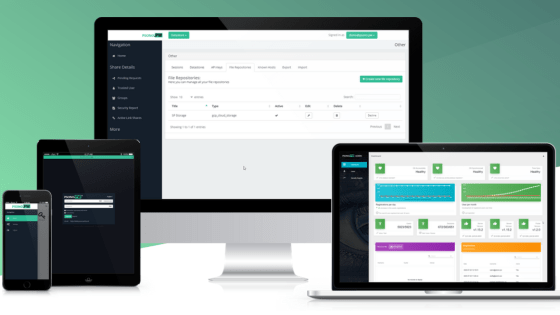
◆Overview of LibreChat
It looks like a browser-based AI chat application similar to ChatGPT, and by setting the API key of the AI provider in the configuration file, you can use the models provided.
◆ How to use the web search function
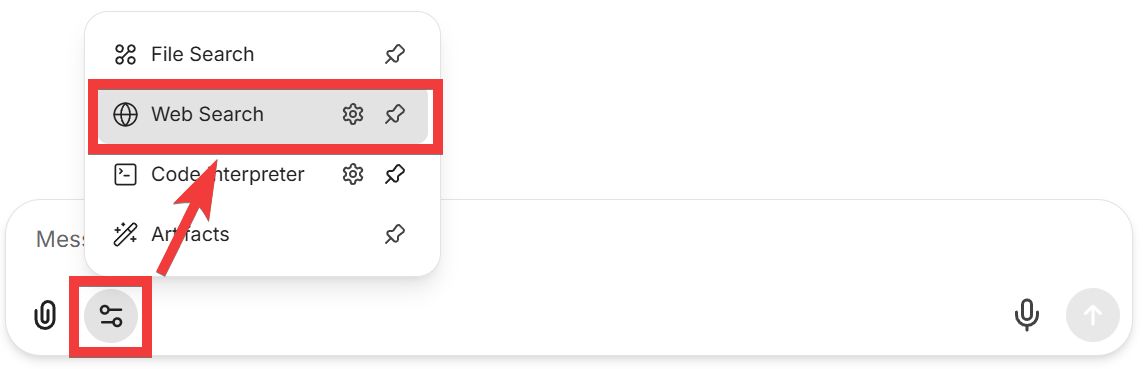
Click the 'Tools' icon in the chat window and select 'Web Search'.
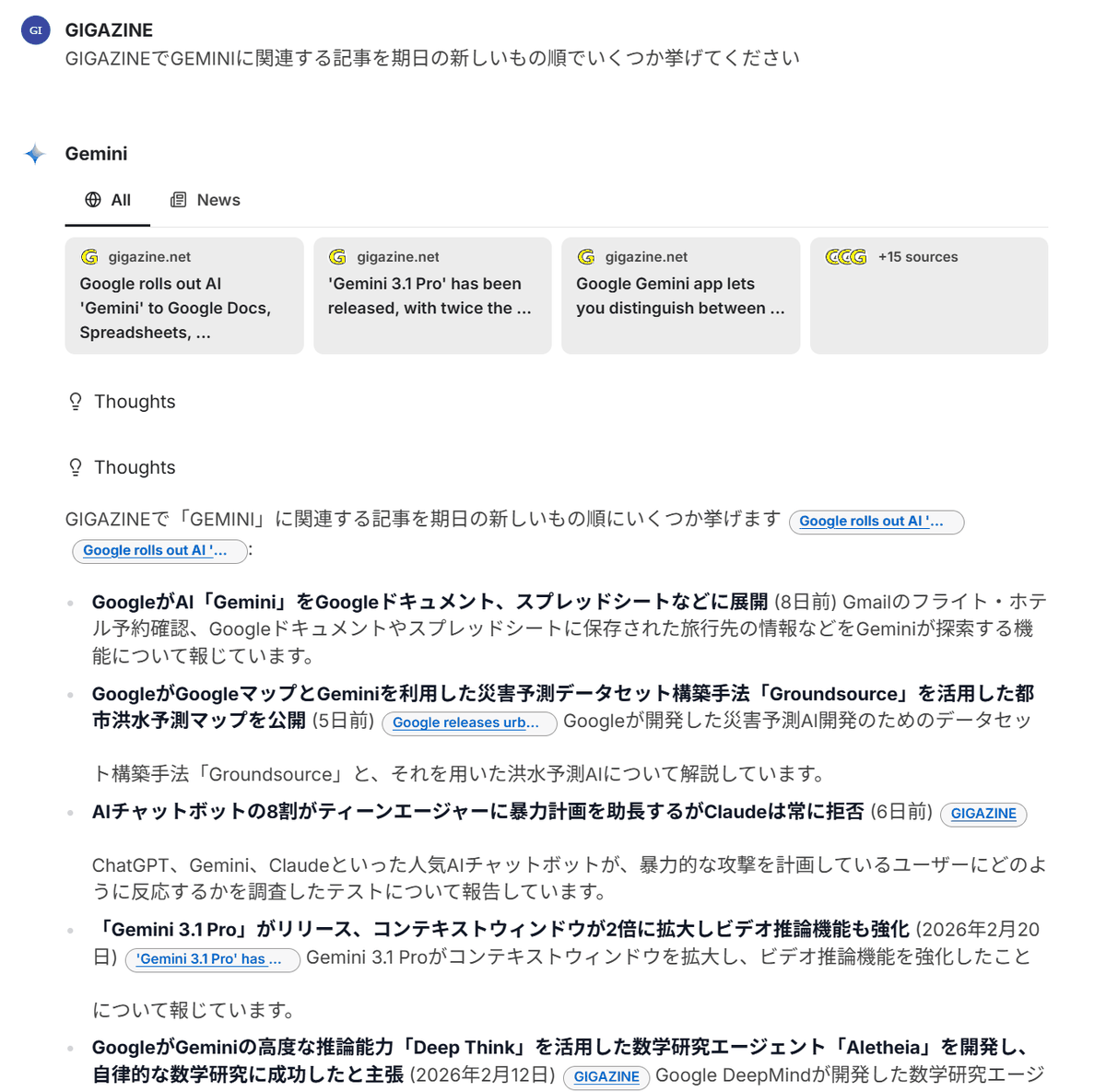
Make sure Web Search is enabled, enter the keywords you want to find, such as 'Please list some articles related to Gemini on GIGAZINE, sorted by date from newest to oldest,' and press Enter...

A web search was performed and the search results were displayed.
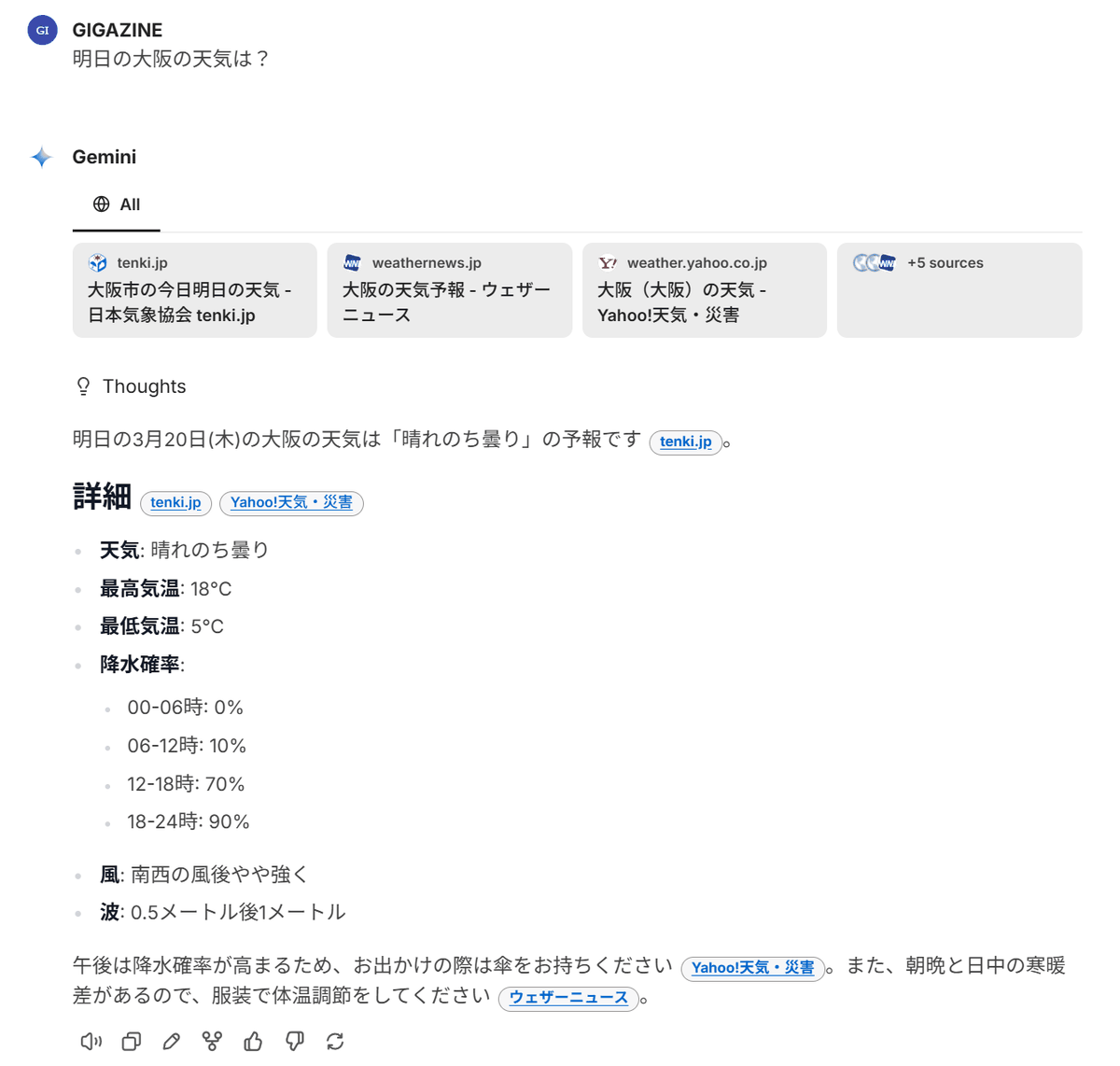
When I instructed it to check the weather forecast, the weather forecast was displayed.
The web search function is a proprietary implementation and requires obtaining an API key from an external service.
◆ How to obtain the API key required for the 'Web Search' function
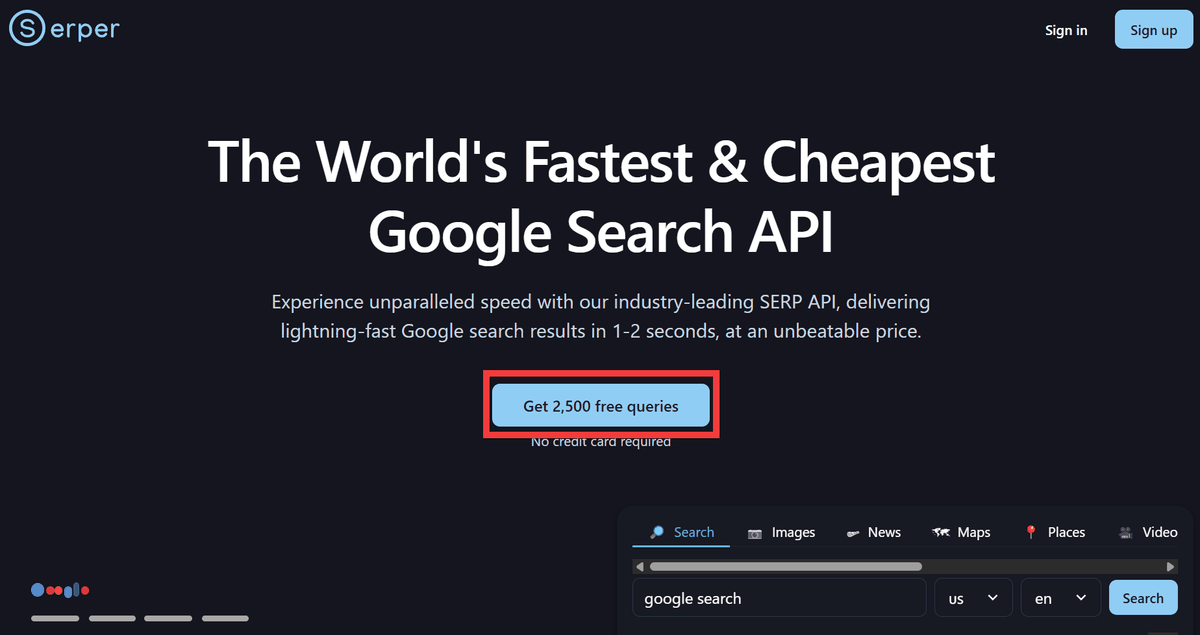
You will need API keys for three services. First, go to
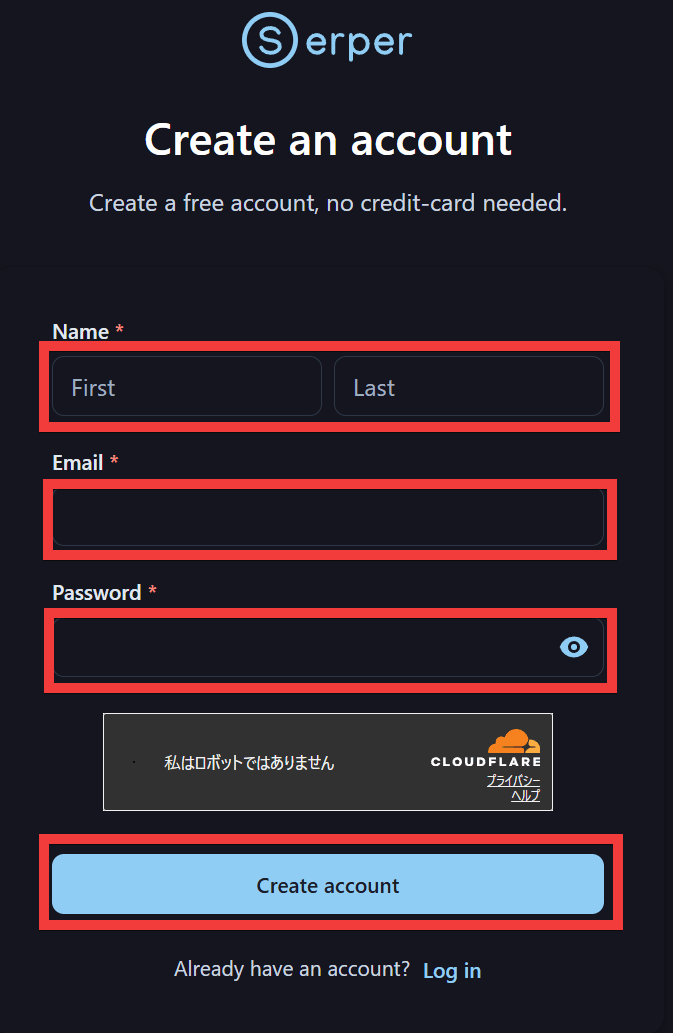
Enter your name in 'Name,' your email address in 'Email,' and your password in 'Password,' then click 'Create account.'
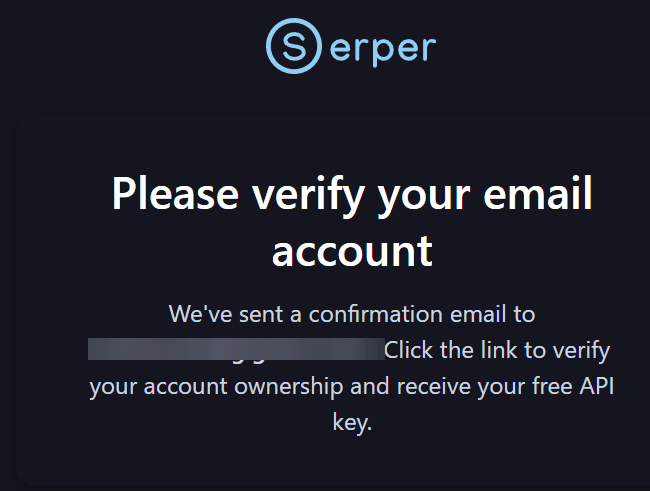
A verification email will be sent to the email address you registered. Please click the link in the verification email to complete the verification process.
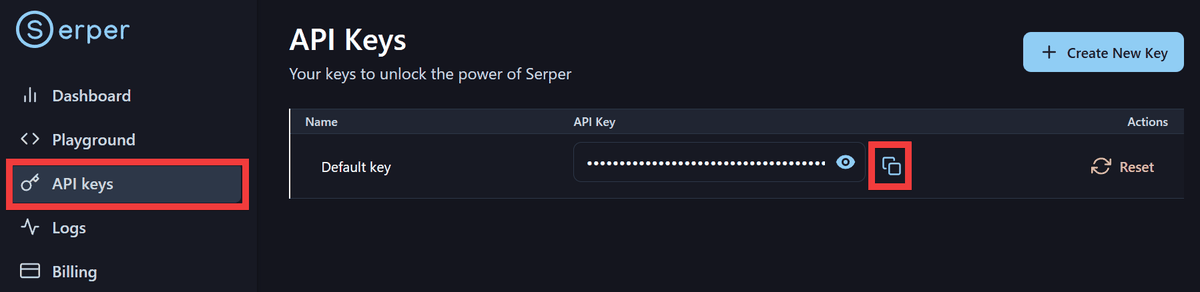
The Serper screen will appear. Click 'API keys' in the menu on the left, copy the displayed API key by clicking the 'Copy' icon, and save it in a notepad.
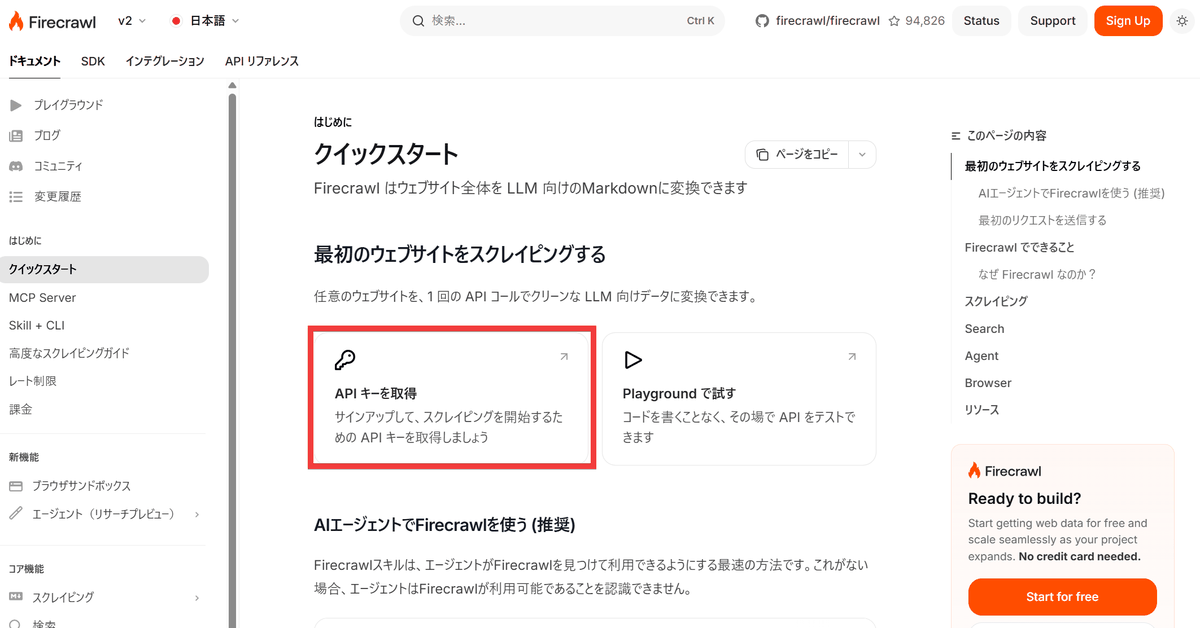
Next, go to
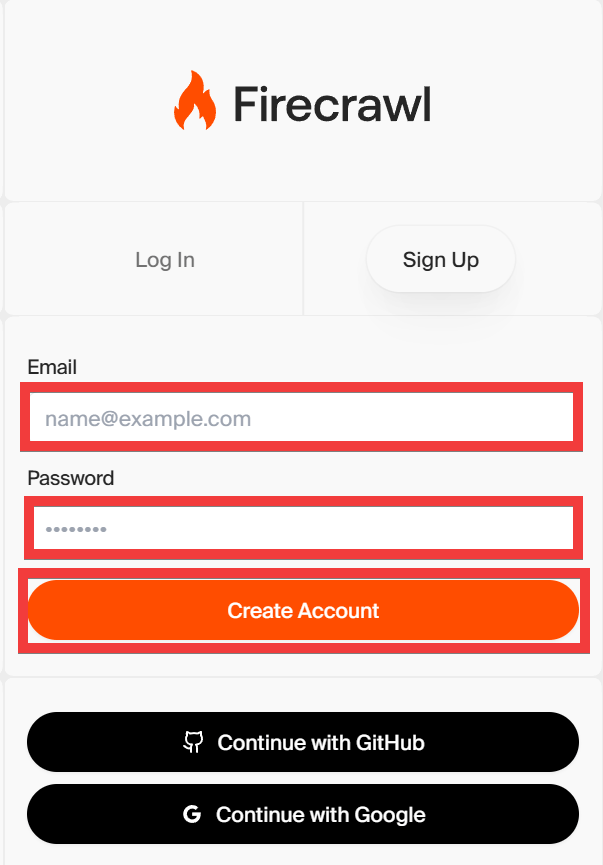
Enter your email address in the 'Email' field and your password in the 'Password' field, then click 'Create Account'.
A verification email will be sent to the email address you registered. Please click the link in the verification email to complete the verification process.
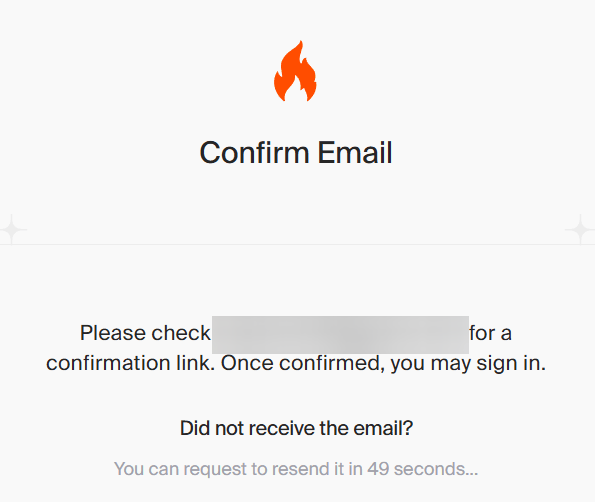
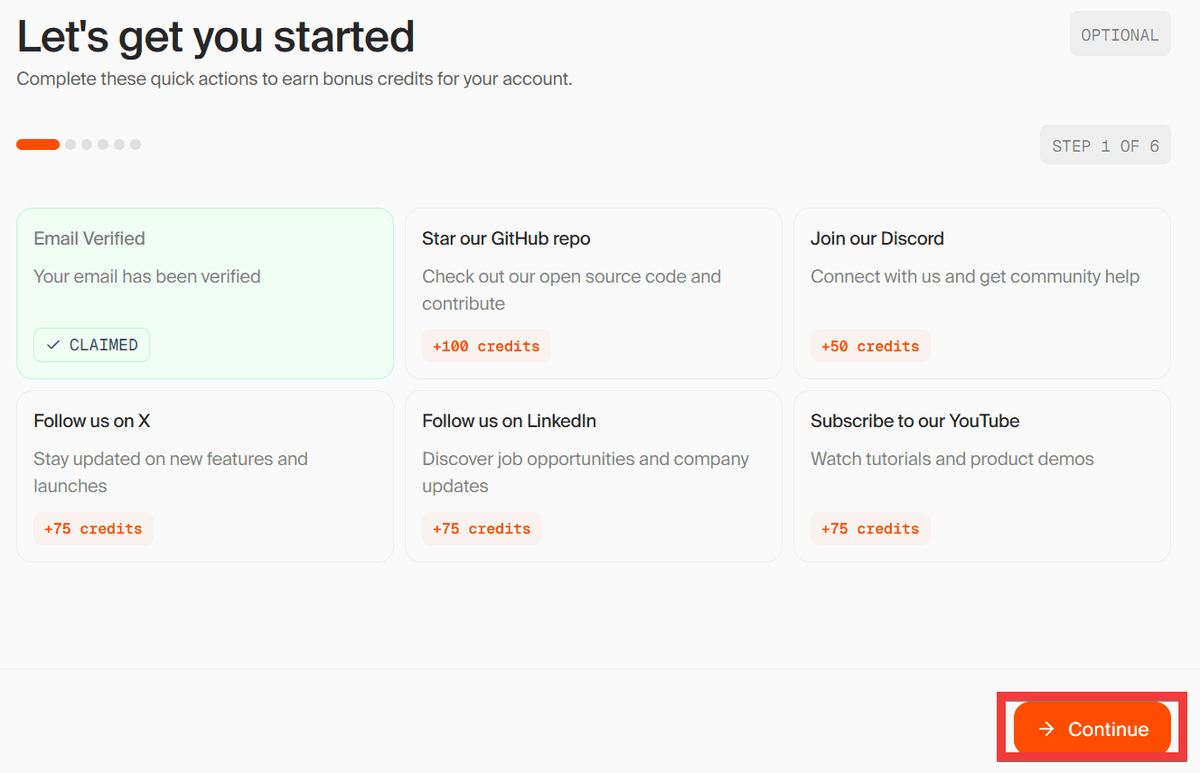
Once authentication is complete, the initial screen will appear, so click 'Continue'.
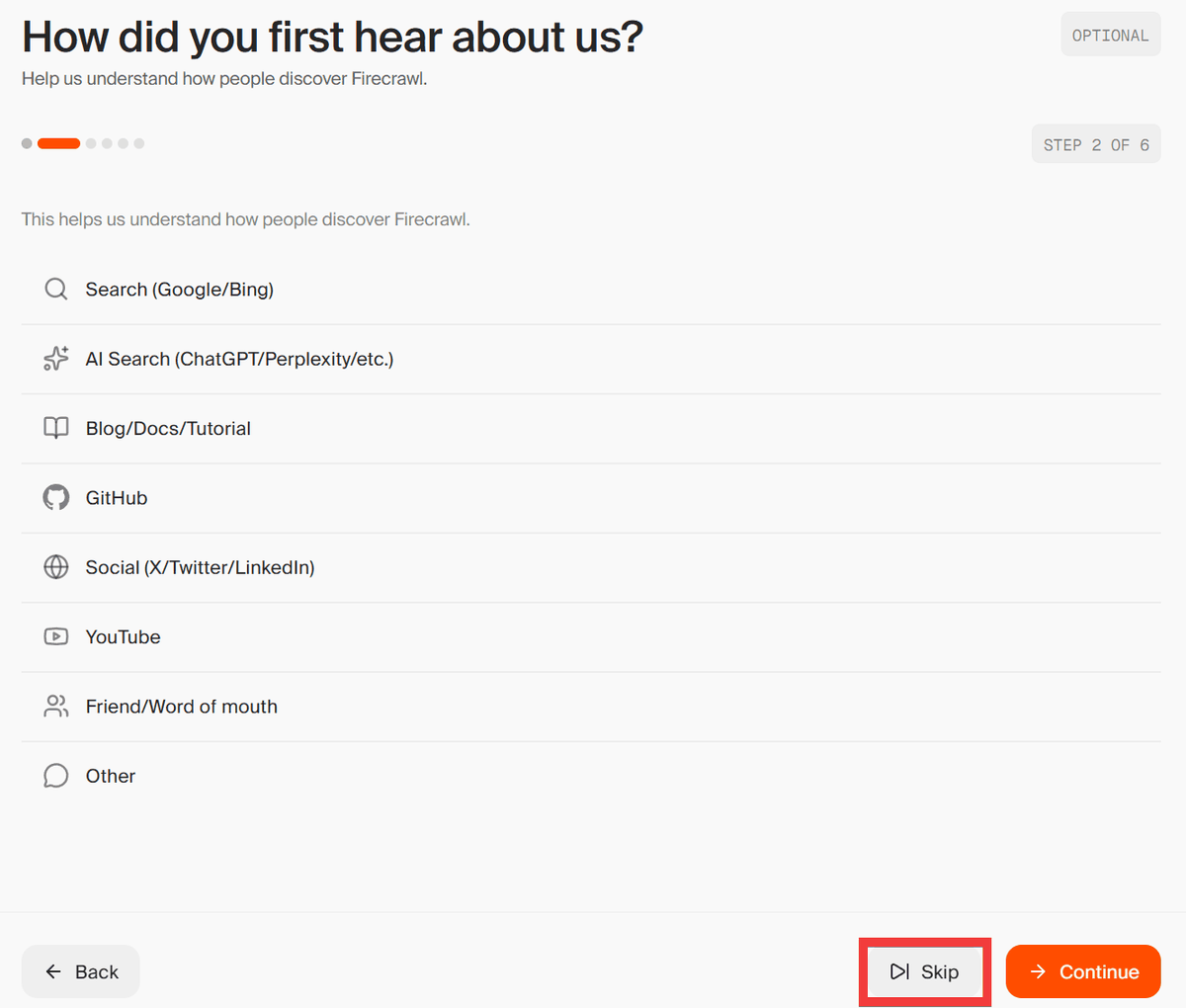
A survey will appear, but this time click 'Skip'.
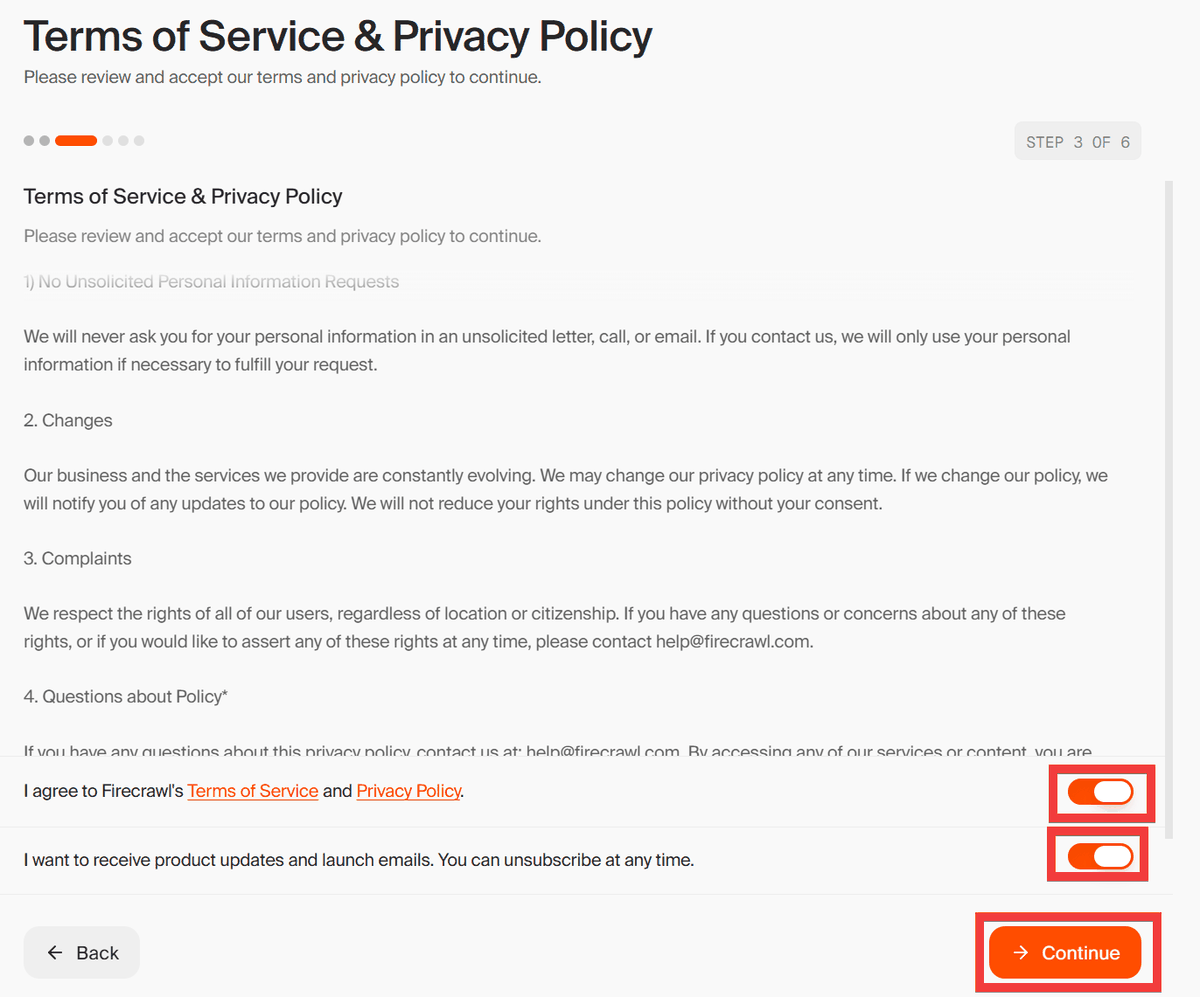
After reviewing the terms and conditions and privacy policy, turn on the respective toggles and click 'Continue'.
A test code will be displayed, so click 'Skip'.
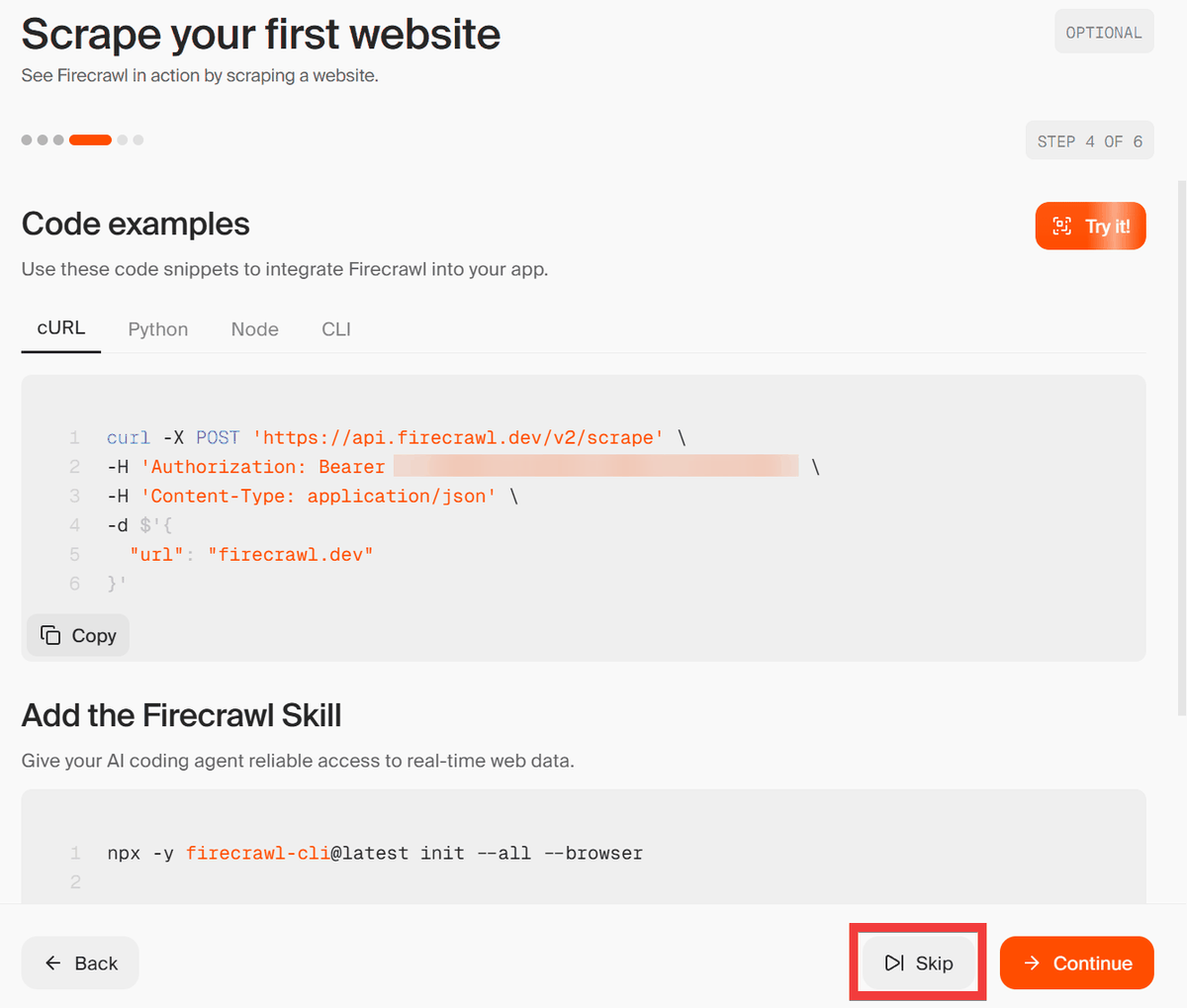
An invitation form will appear, but since it's not needed, click 'Skip'.
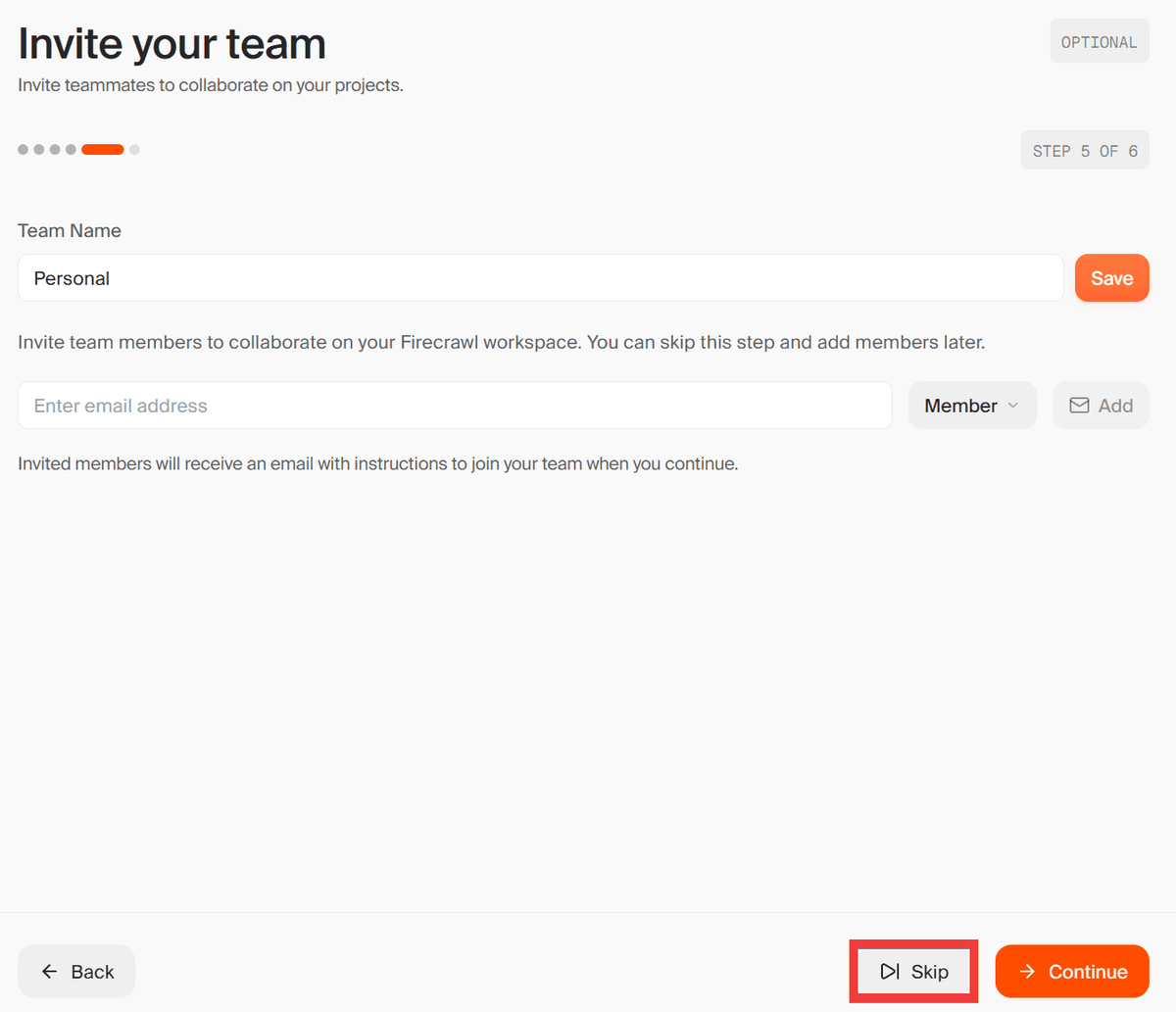
You will be taken to a plan selection screen, so click 'Get started' under 'Free Plan'.
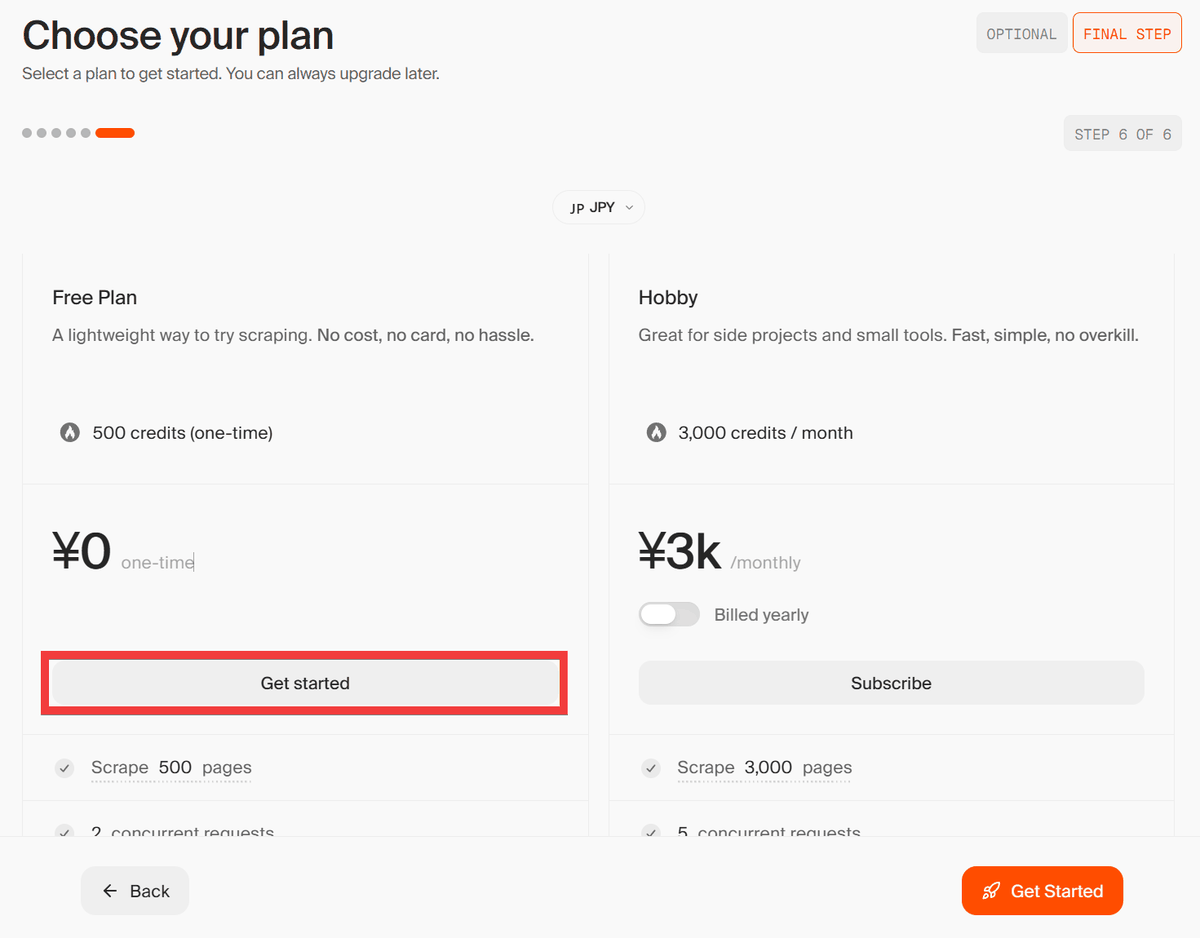
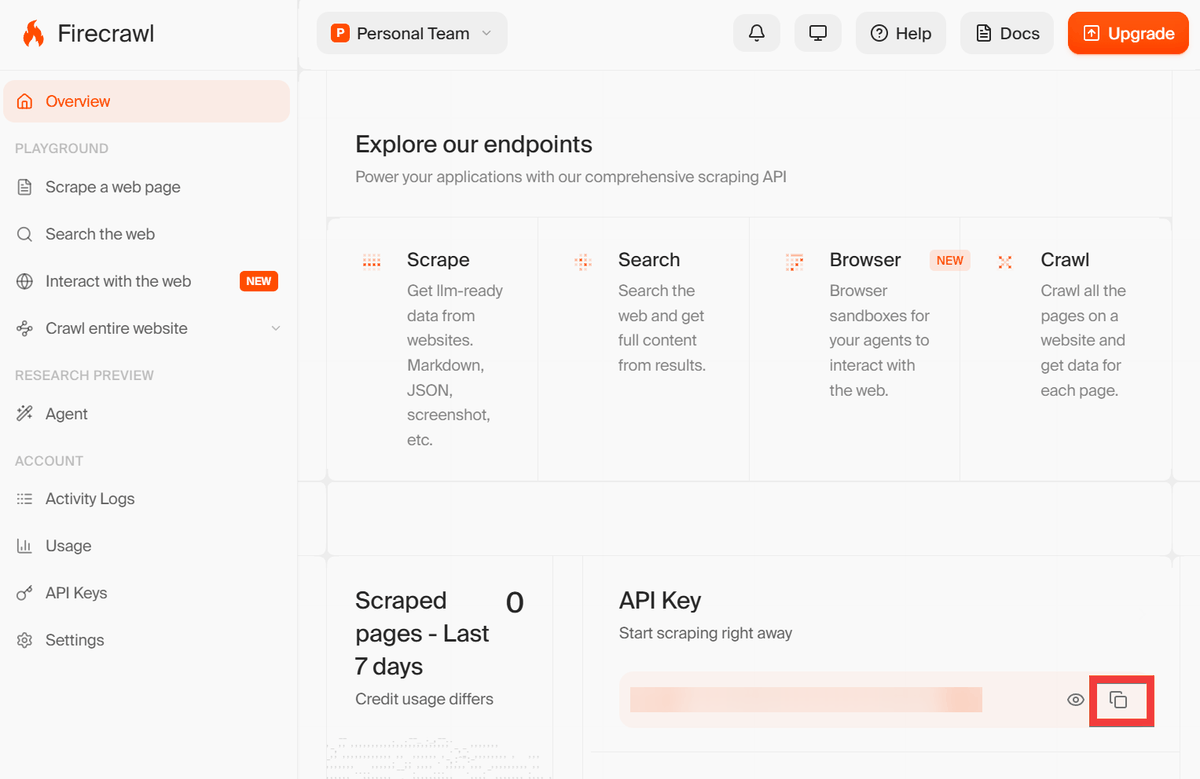
The administration screen will appear, displaying the API KEY. Click the 'Copy' icon to copy it and save it in a notepad.
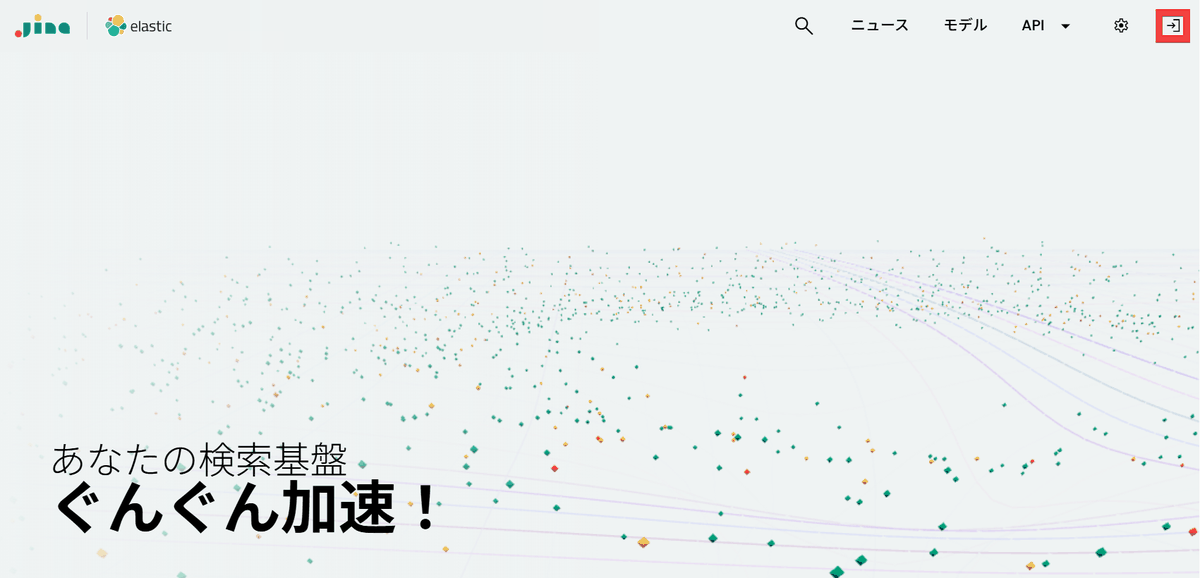
Next, access
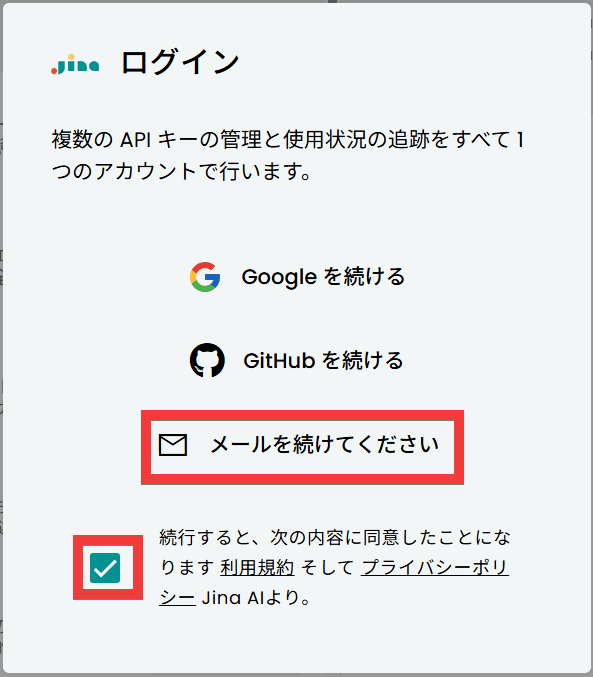
A dialog box for selecting your login method will appear. Check the terms and conditions checkbox and then click 'Continue emailing.'
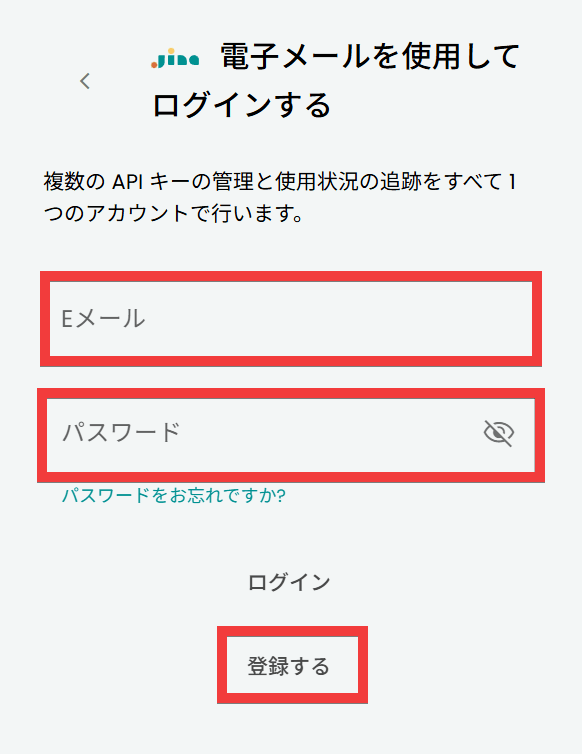
Enter your email address in the 'Email' field and your password in the 'Password' field, then click 'Register'.
A verification email will be sent to the email address you registered. Please click the link in the verification email to complete the verification process.

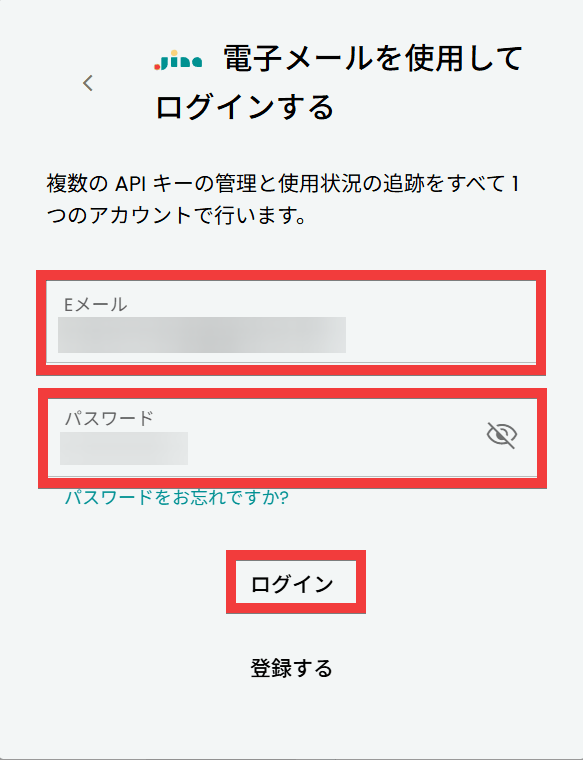
You can log in using the form you just entered, so click 'Login'.
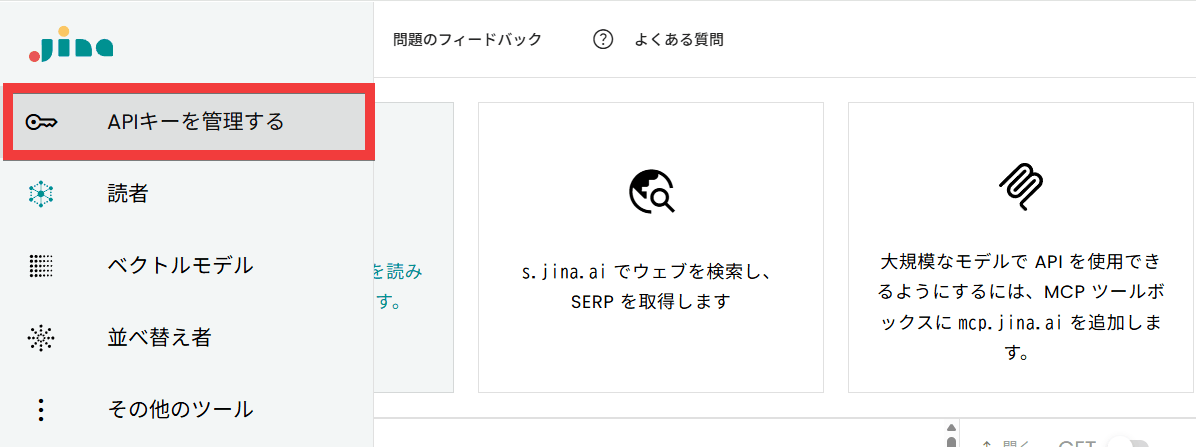
The administration screen will appear, so click 'Manage API Keys' from the menu on the left.
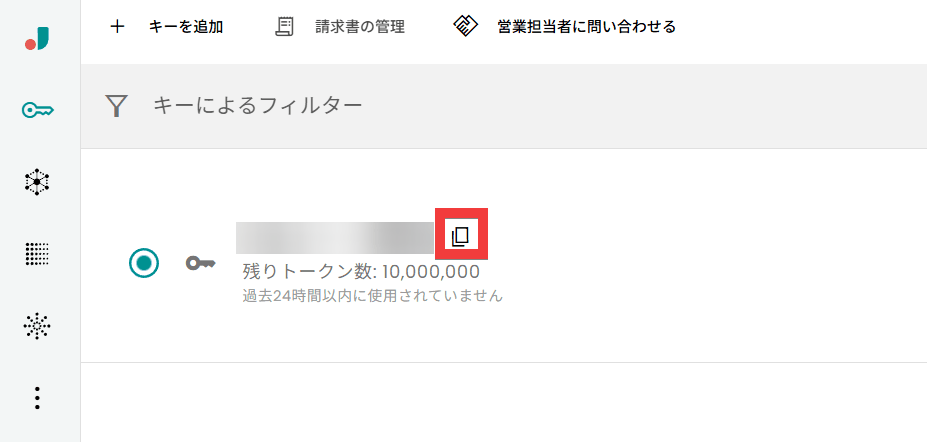
The API key will be displayed, so click the 'Copy' icon to copy it and save it in a notepad.
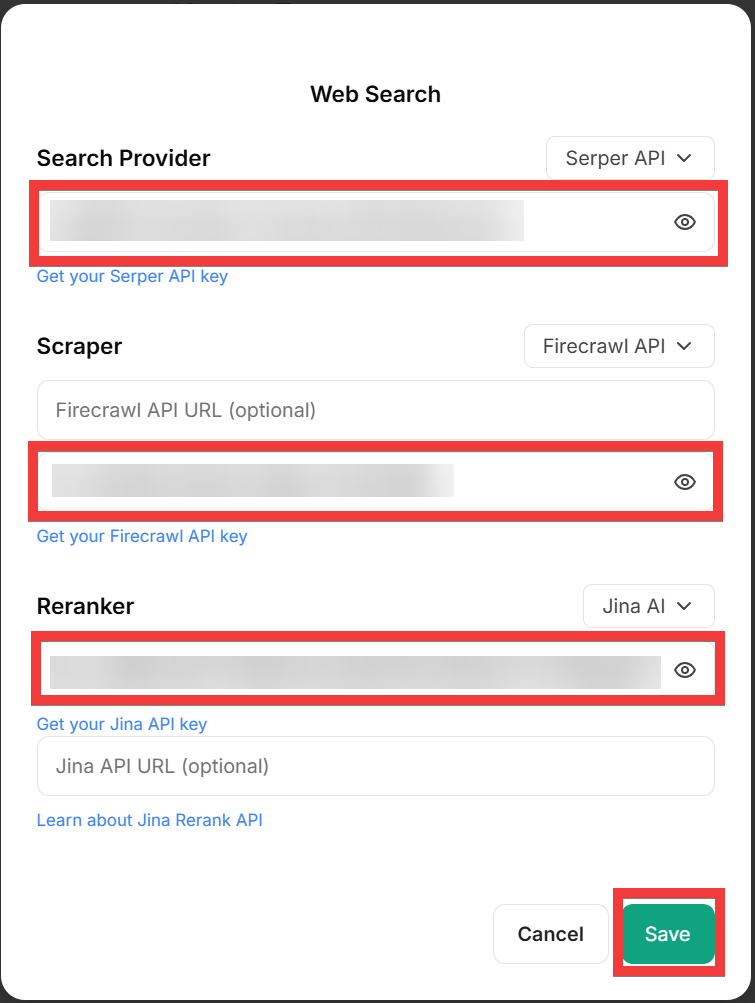
The three API keys you obtained will appear when you select 'Web Search'. Enter the API key you obtained from Serper in 'Search Provider', the API key you obtained from Firecrawl in 'Scraper', and the API key you obtained from Jina AI in 'Reranker', then click the 'Save' button to configure them.
◆ How to register an image generation agent
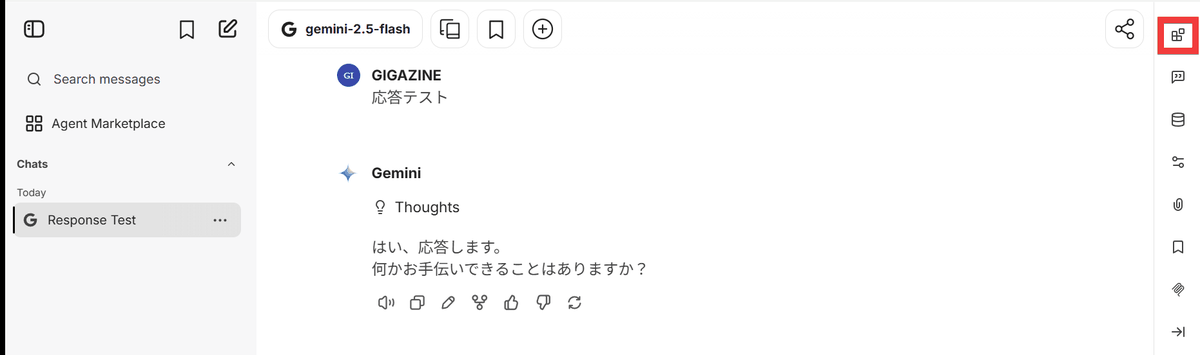
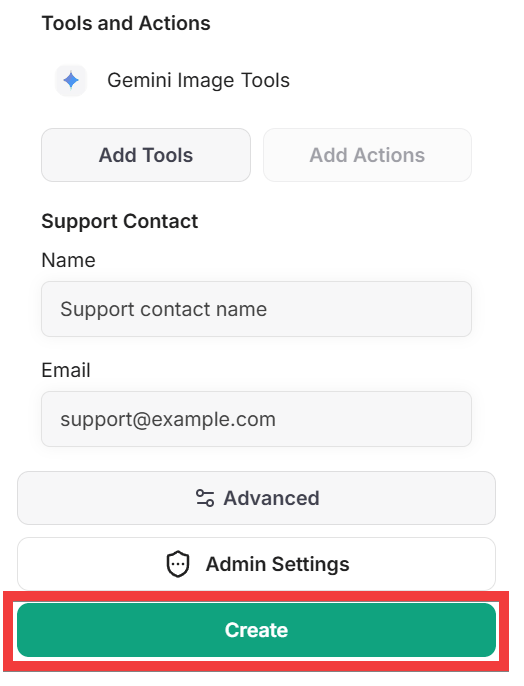
To generate images, you need to register the tool with a new agent. Click the 'Block' icon in the upper right corner of the chat screen.
An agent creation form will appear. Enter a name of your choice in 'Name,' a description in 'Description,' and select 'gemini-2.5-flash' in 'Model.'
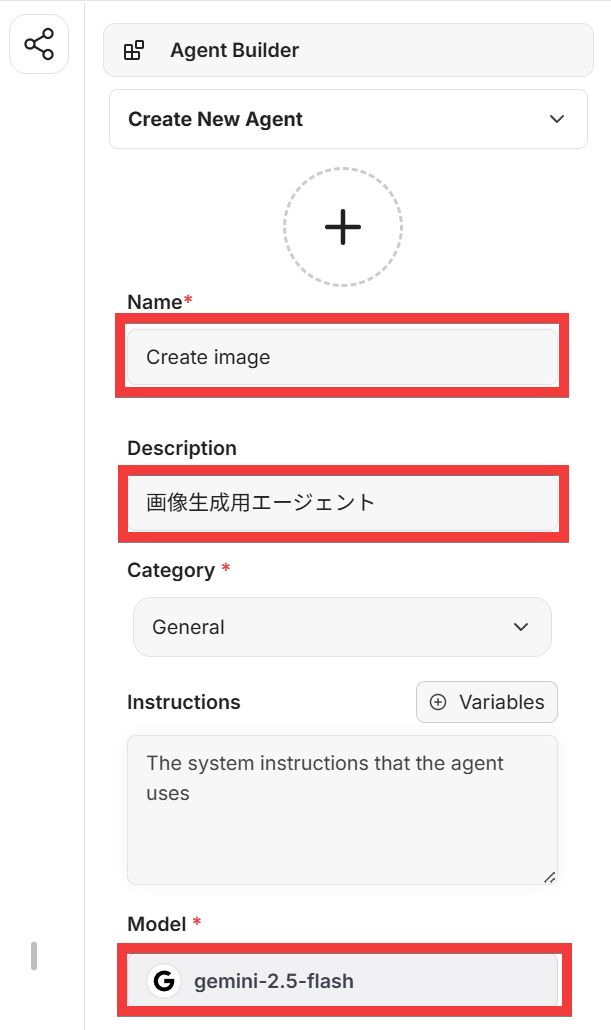
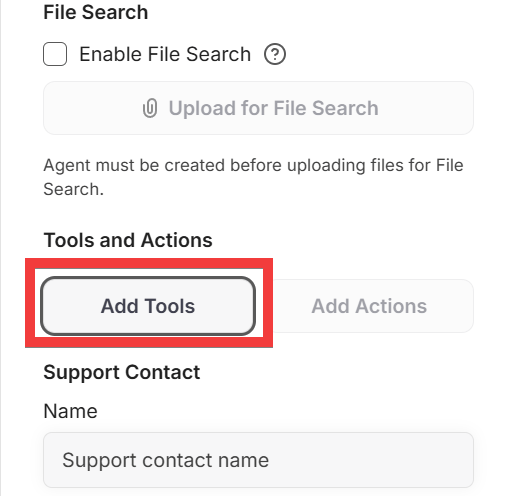
Scroll down and you will see the 'Add Tools' button, so click it.
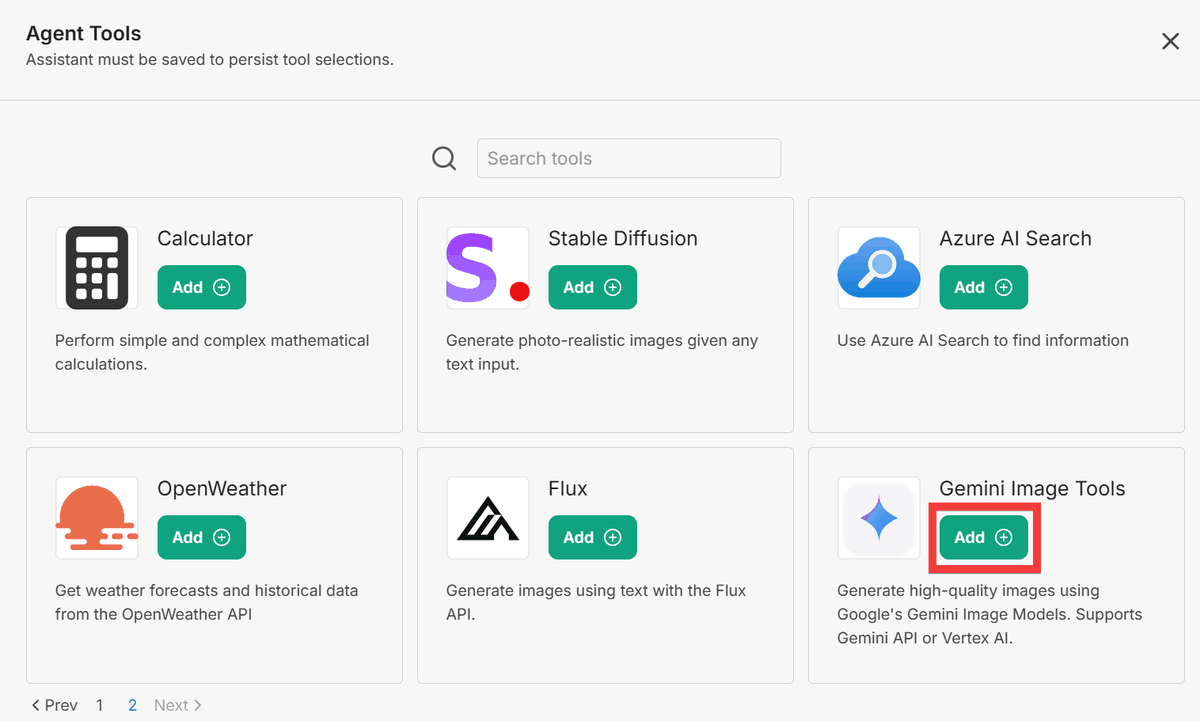
A tool selection dialog will appear, so click the 'Add' button for 'Gemini Image Tools'.
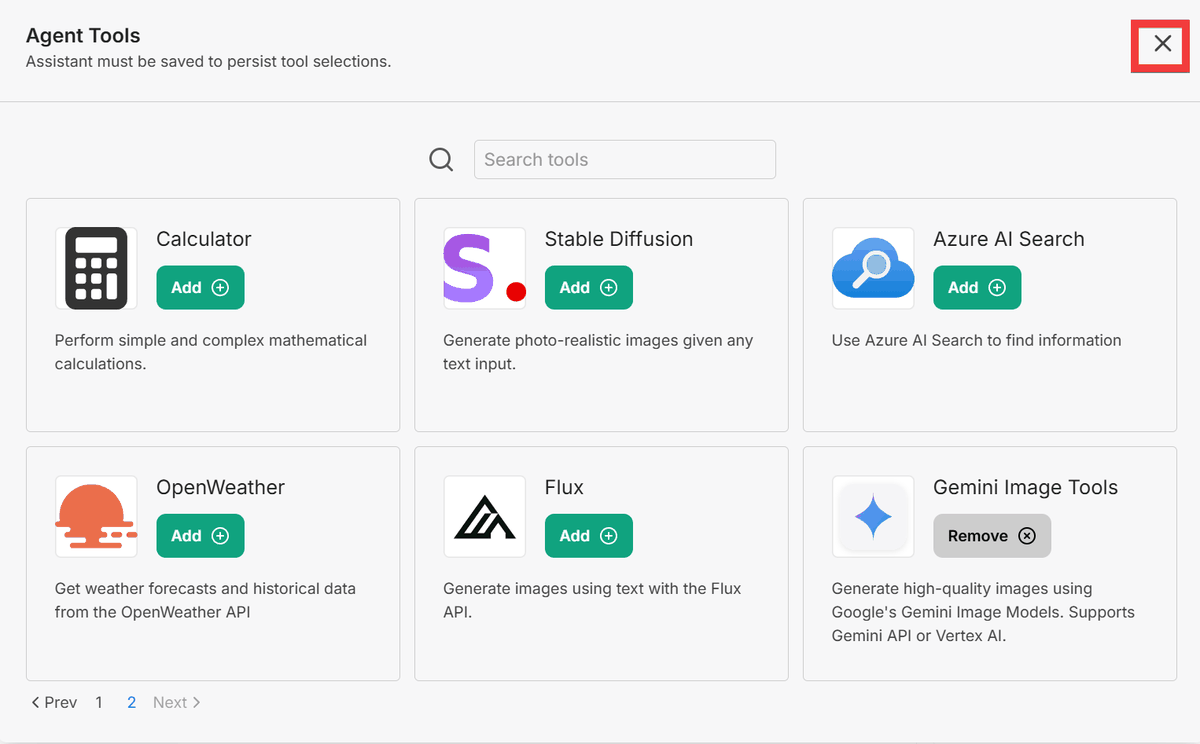
After adding Gemini Image Tools, click the '×' button to close the dialog box.
Click the 'Create' button to create an agent.
◆ How to use the automatic image generation function
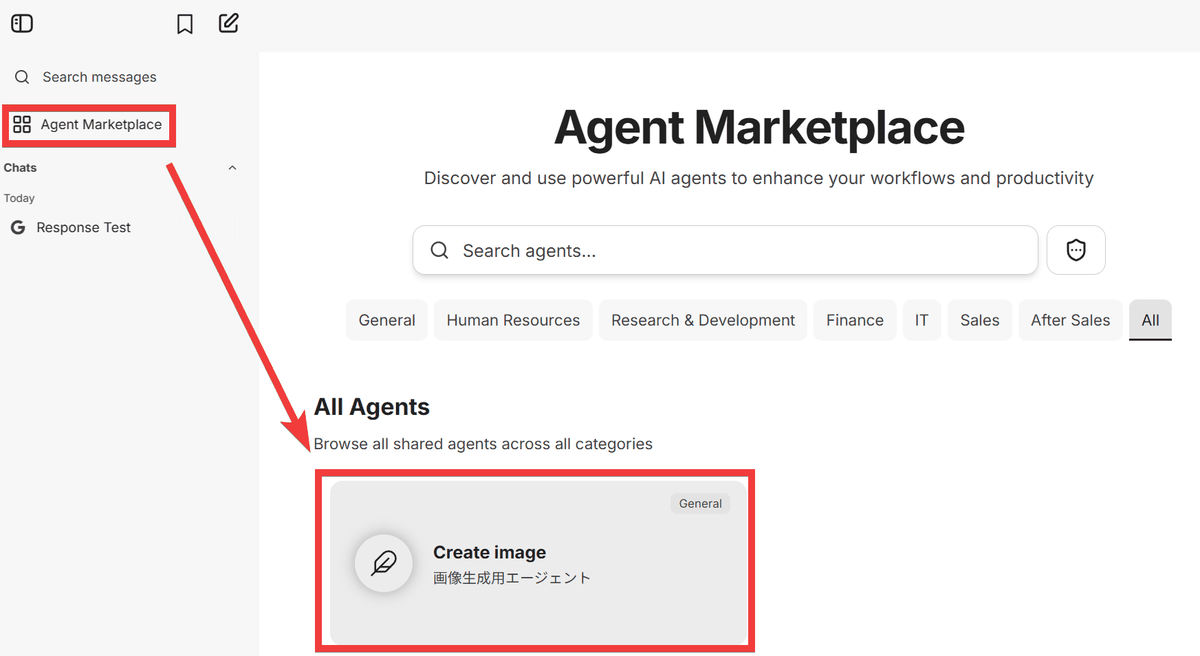
Click 'Agent Marketplace' in the menu on the left side of the chat screen, and the image generation agent you just created will be displayed; click on it.
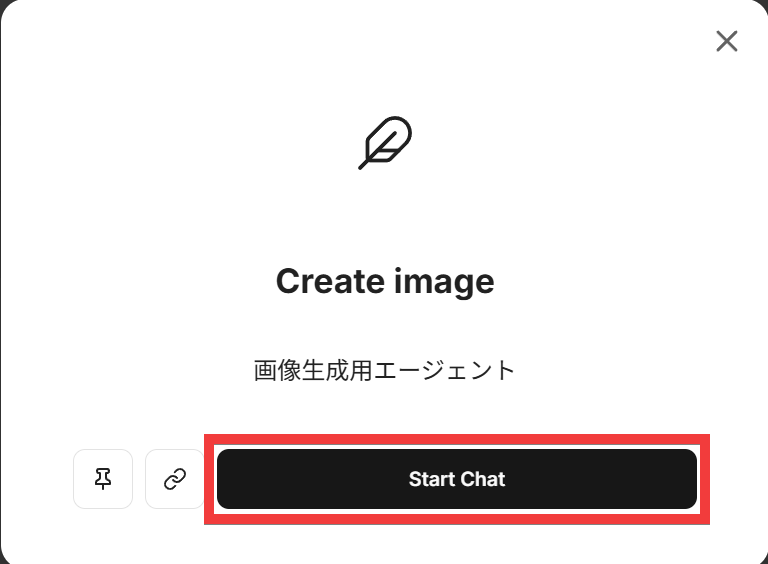
A confirmation dialog will appear, so click 'Start Chat'.
A chat screen appeared, and after entering the image I wanted to display, the image was generated.
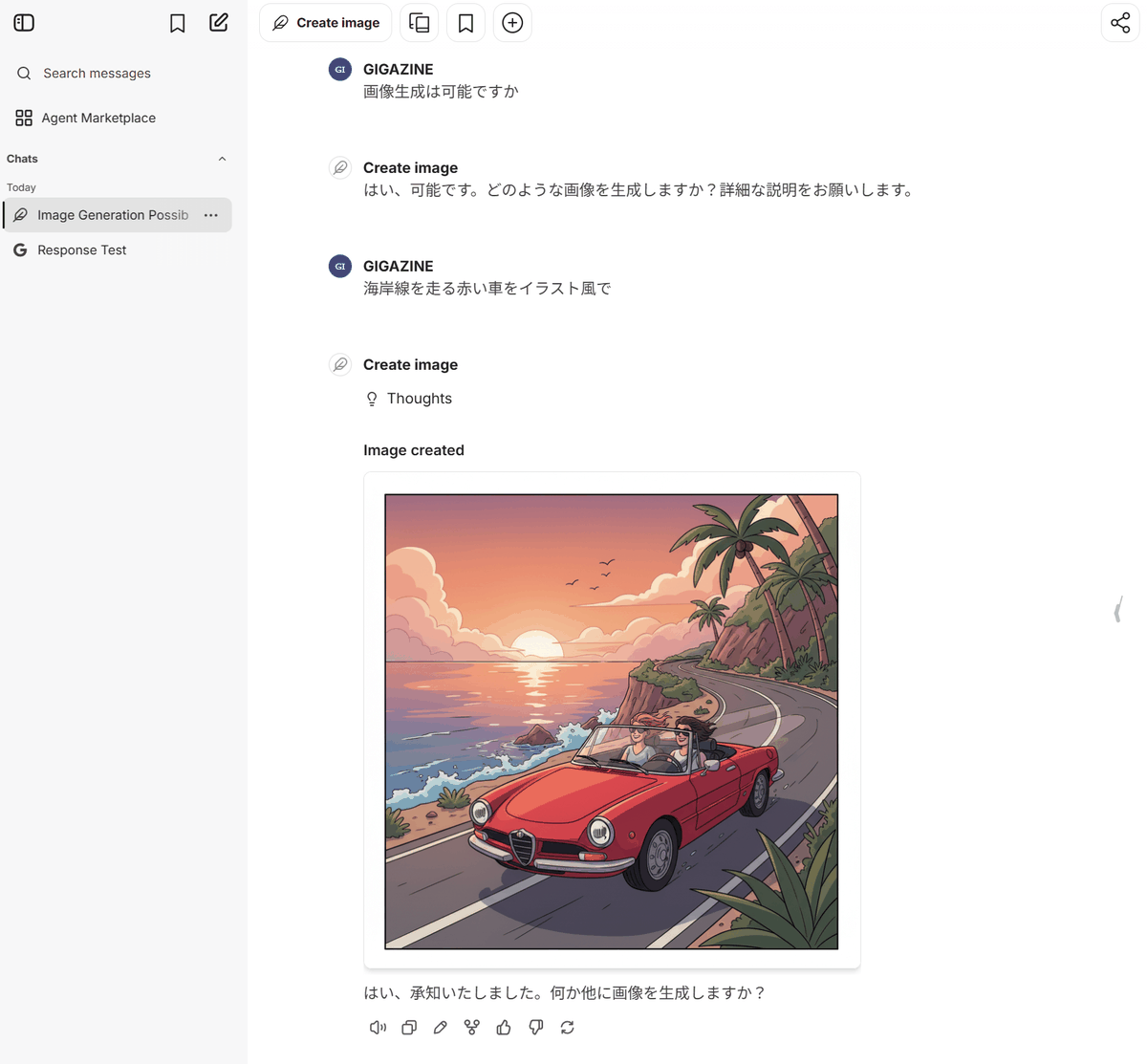
In this way, features such as 'web search' and 'automatic image generation' can be easily implemented.
◆How to set up LibreChat
This time, we will set it up in an environment where
 git clone https://github.com/danny-avila/LibreChat.git
 cd LibreChat
Copy the environment variable file.
cp .env.example .env
◆ How to obtain API keys for regular chat and API keys for image generation
This time, we'll use Gemini for both. Access Google AI Studio and click 'Get Started'.

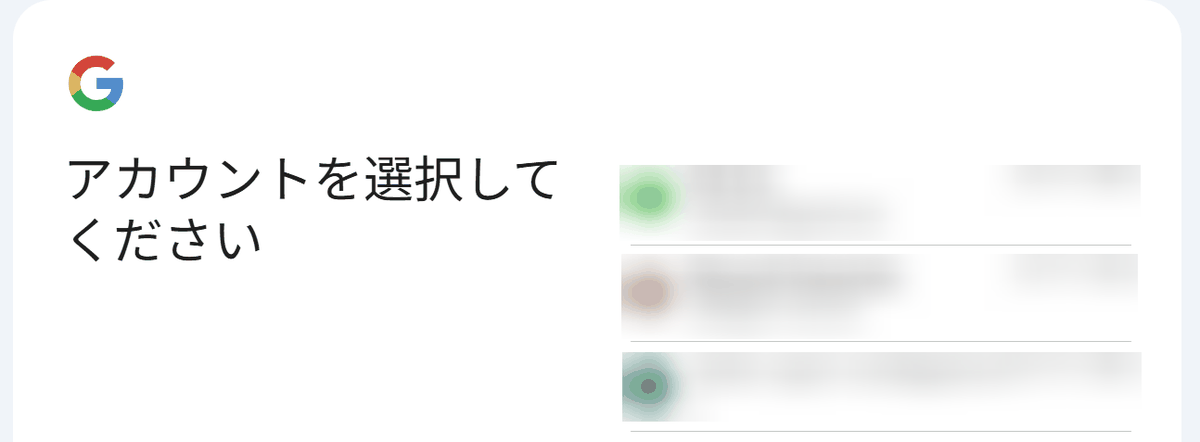
A screen for selecting an account will appear, so click on the account you want to use.
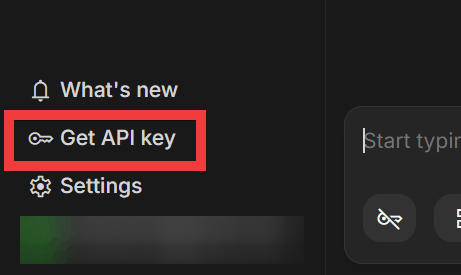
Once you have logged in, the chat screen will appear, so click 'Get API Key' from the menu in the lower left corner.
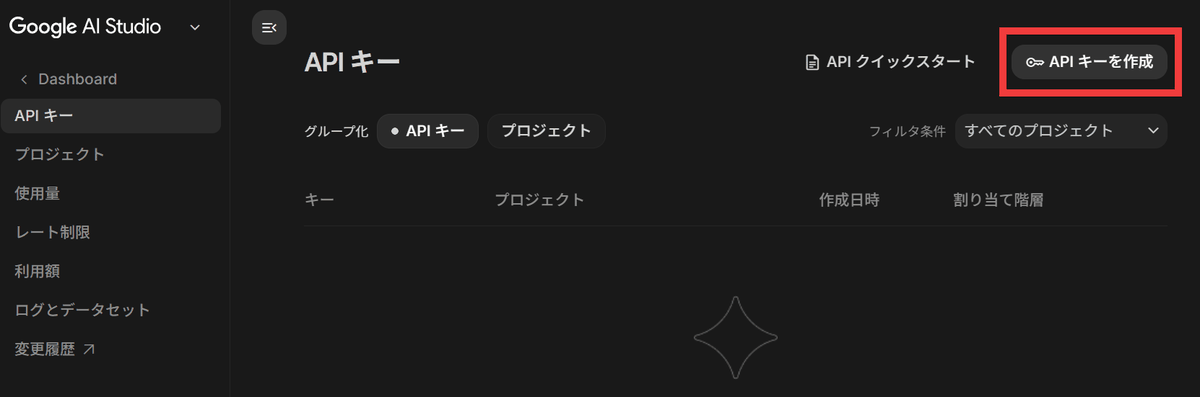
Click 'Create API Key'.
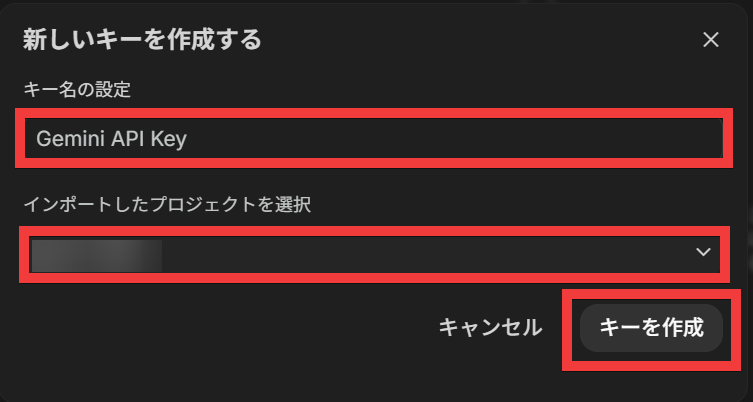
Enter a name of your choice in 'Set Key Name,' create or select a project in 'Select Imported Project,' and click 'Create Key.'
The API key will be displayed, so click the 'Copy' icon to copy it.
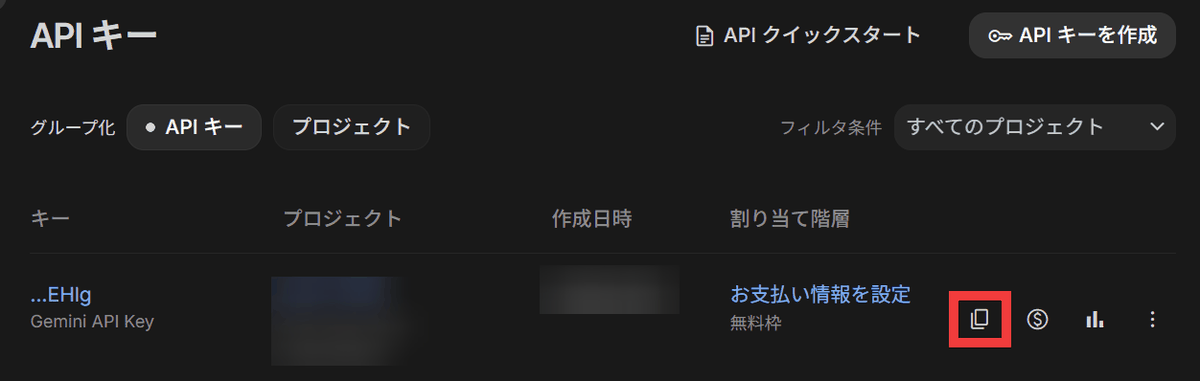
Set this API key in the GOOGLE_API_KEY and GEMINI_API_KEY fields of your .env file.
 GOOGLE_API_KEY=【API KEY】 #For chat
 GEMINI_API_KEY=【API KEY】 #For image generation
◆How to start LibreChat
Start the Docker container.
docker compose up -d
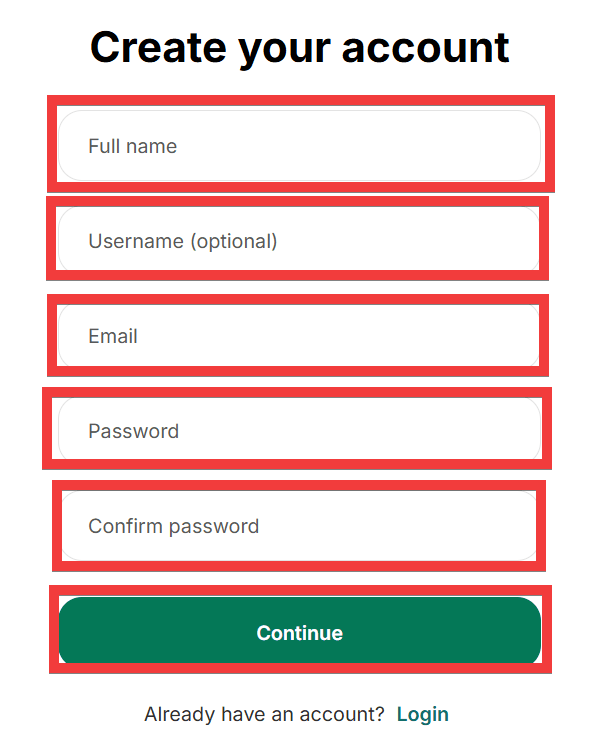
When you access http://localhost:3080/ in your browser, a user registration form will appear. Enter a name of your choice in 'Full name', a username of your choice in 'Username', an email address in 'Email', and a password in 'Password' and 'Confirm password', then click 'Continue'.
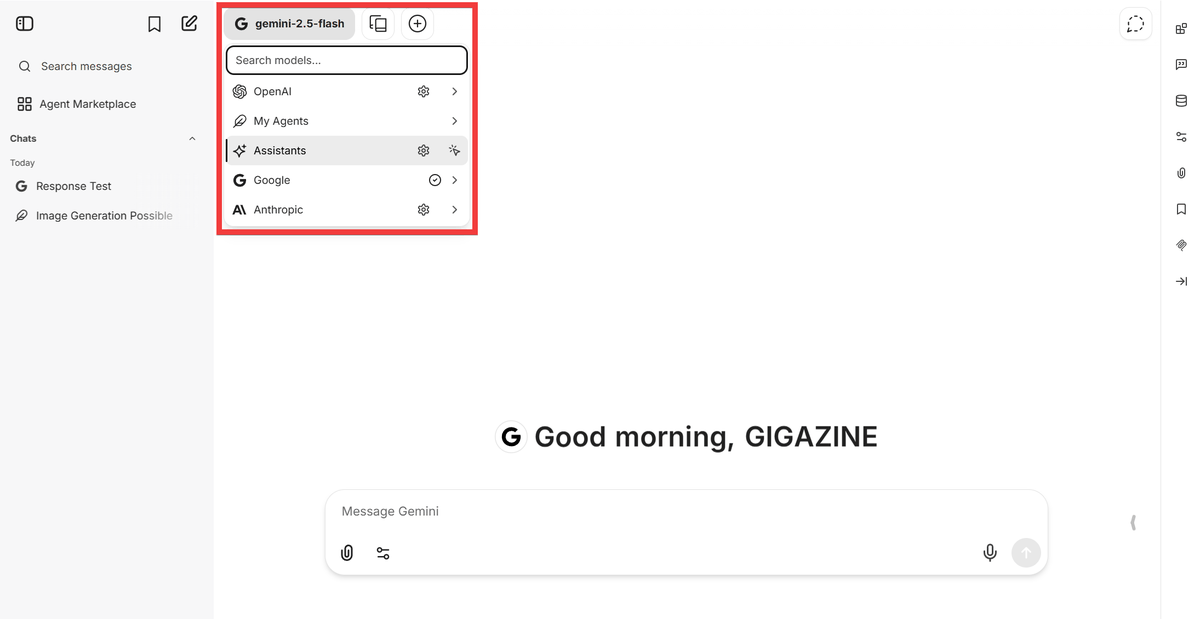
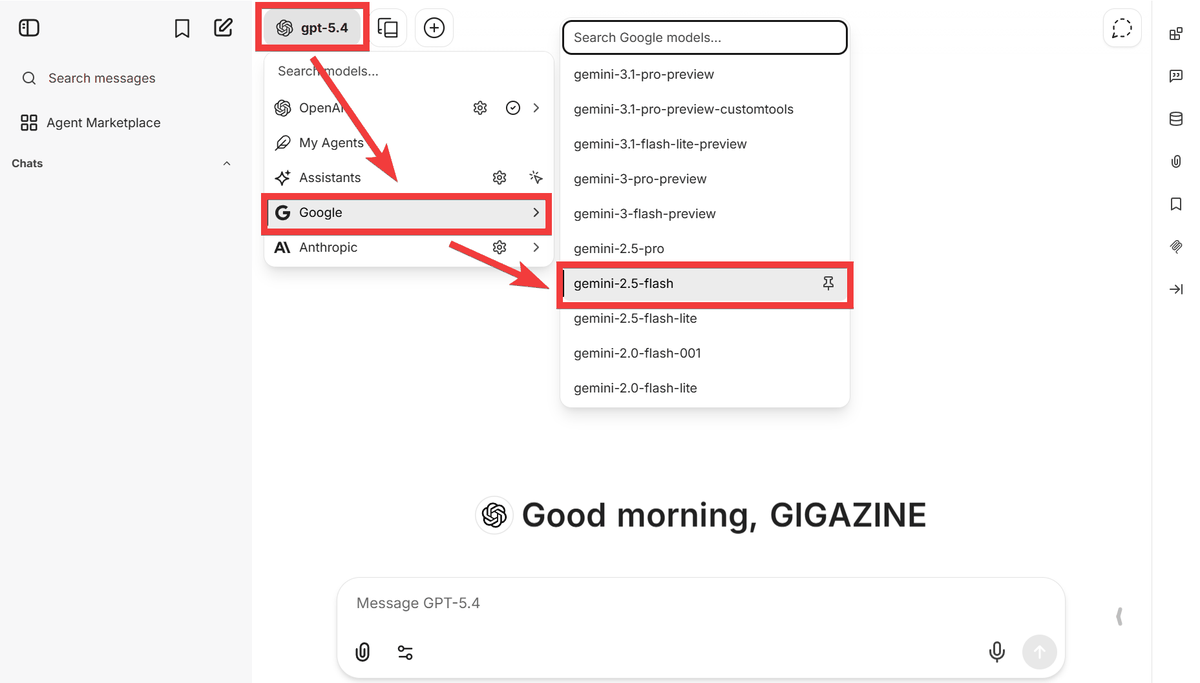
Once you have logged in, a chat screen will appear. Click on the displayed 'Model Name,' select 'Google,' and then click on 'gemini-2.5-flash.'
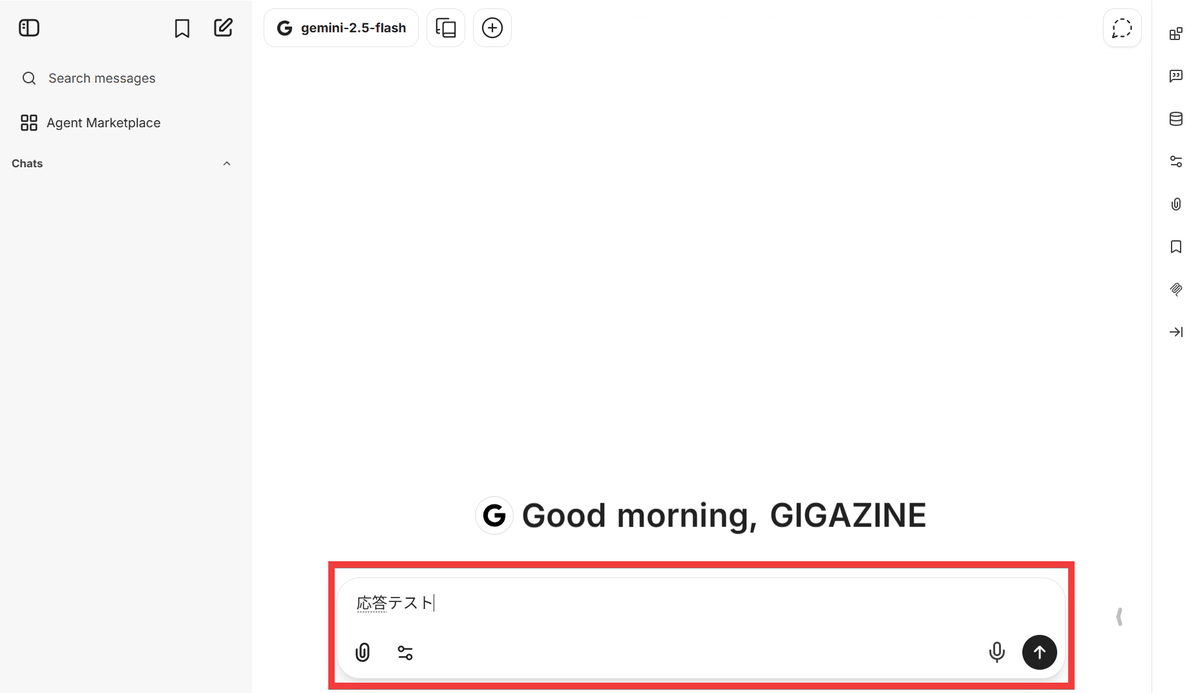
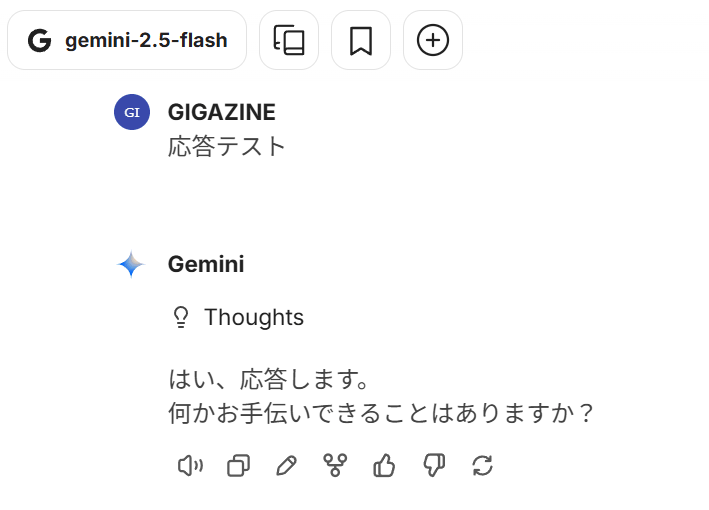
If you type a question in the chat box and press the Enter key...
A response will be displayed, confirming that the build was successful.
When using chats from various AI providers, it can be cumbersome to search through different chats to find a particular conversation. However, LibreChat allows you to manage everything in one chat screen, easily perform web searches and image generation, and offers a wide range of models from free to high-functional paid models, making it a very convenient tool.
Related Posts: