Langflow is a low-code platform that allows you to create AI agents and workflows for free, even without programming expertise.
When creating in-house applications or automation tools that utilize AI, one might use '
Langflow | Low-code AI builder for agentic and RAG applications
https://www.langflow.org/
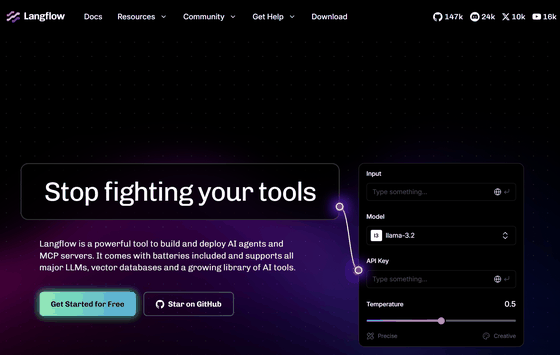
langflow-ai/langflow: Langflow is a powerful tool for building and deploying AI-powered agents and workflows.
◆Starting Langflow and configuring the model provider
This time, we will build the system in an environment where Docker Desktop is set up on Windows. Execute the following Docker command in your working folder.
 docker run -p 7860:7860 \
 -v langflow-data:/app/langflow \
 -e LANGFLOW_CONFIG_DIR=/app/langflow \
 langflowai/langflow:latest
Accessing 'http://localhost:7860/' in your browser will display the initial screen.
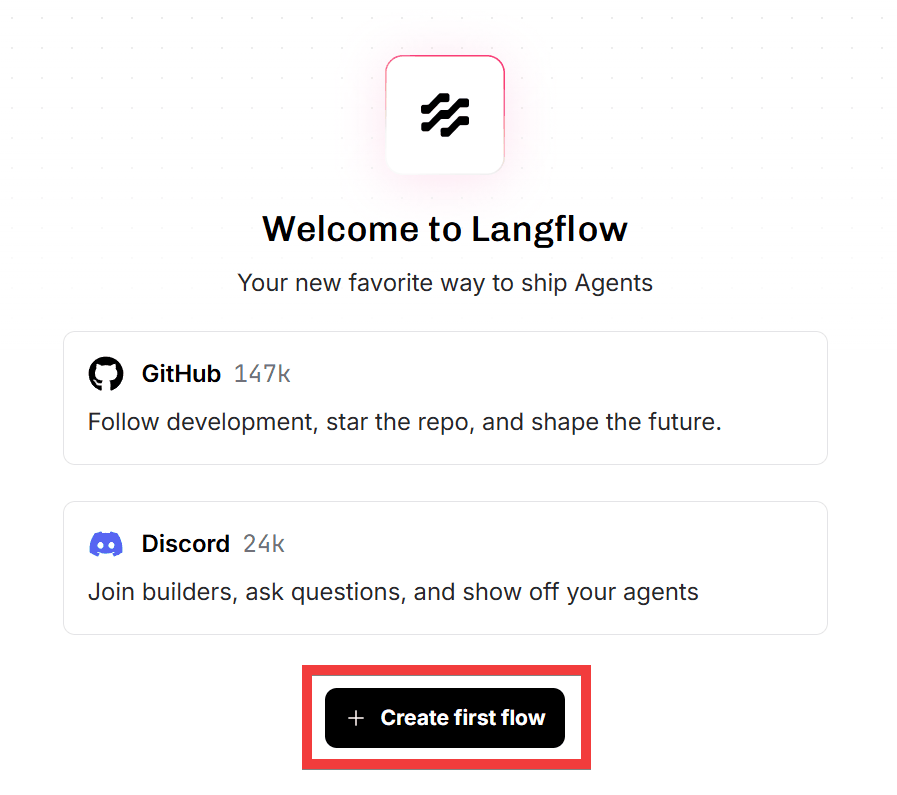
To set the API key for the AI service you will be using as part of the initial setup, click the user icon in the upper right corner of the screen.
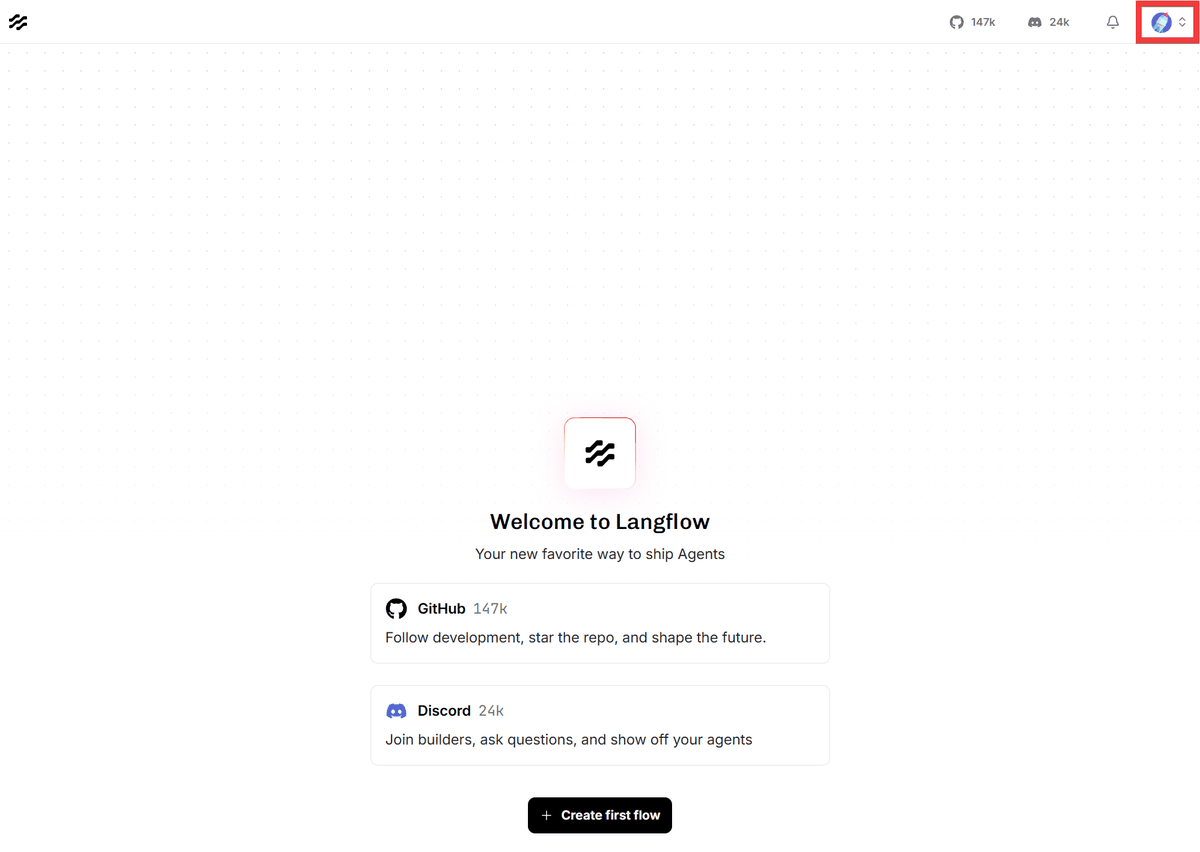
Click 'Settings' from the menu that appears.
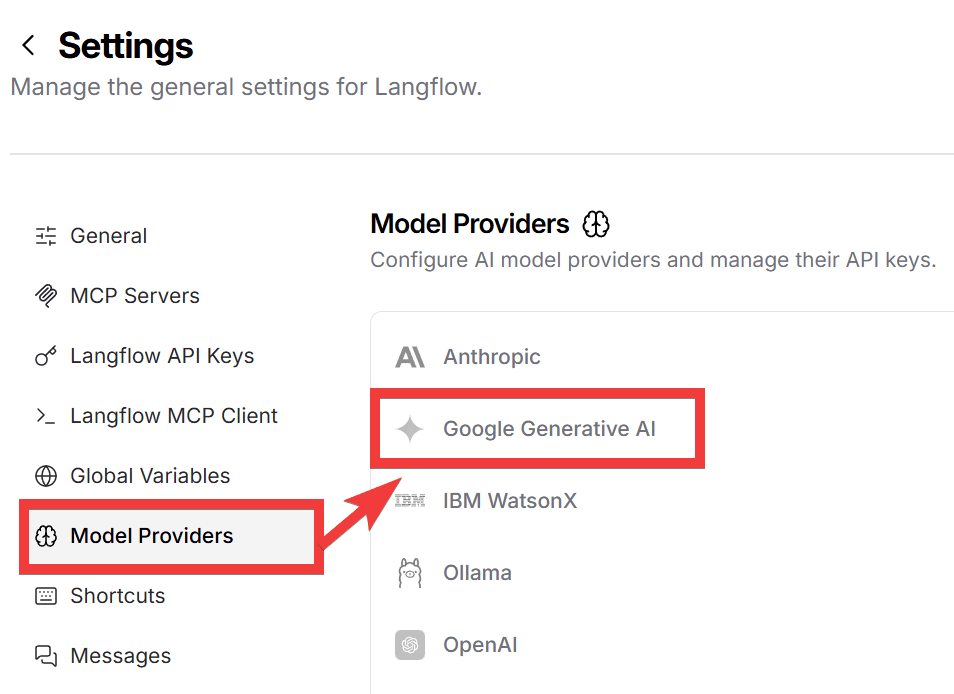
Click 'Model Providers' in the left-hand menu to display the available providers. Select the provider you want to use from ' Anthropic ', ' Google Generative AI ', ' IBM watsonx ', ' Ollama ', and ' OpenAI '.
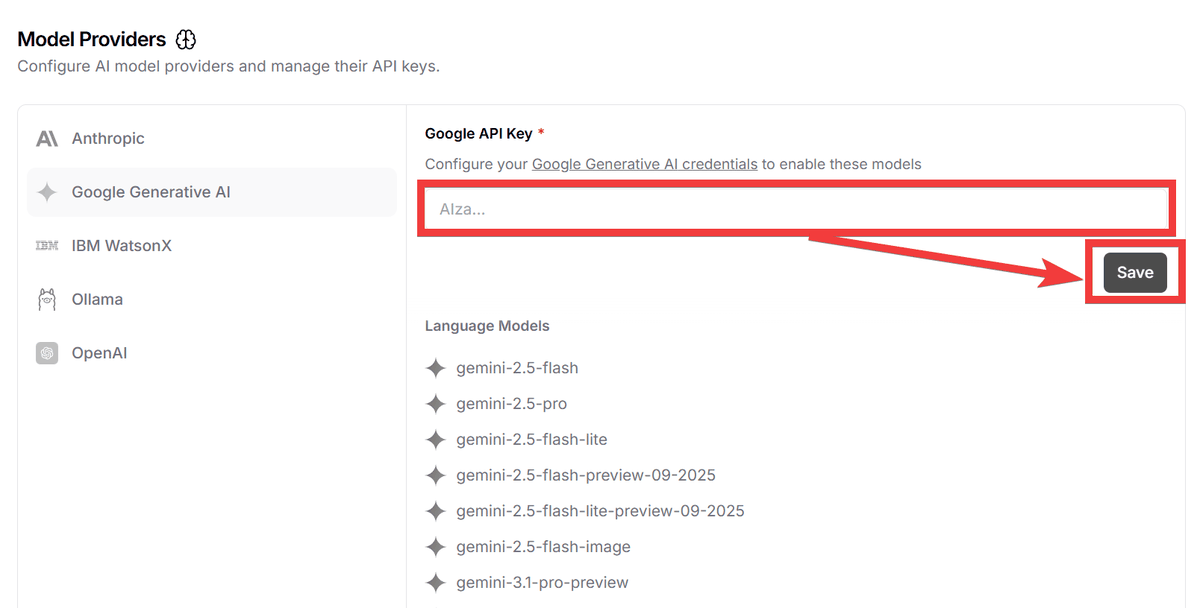
Enter your API key in the form and click the 'Save' button.
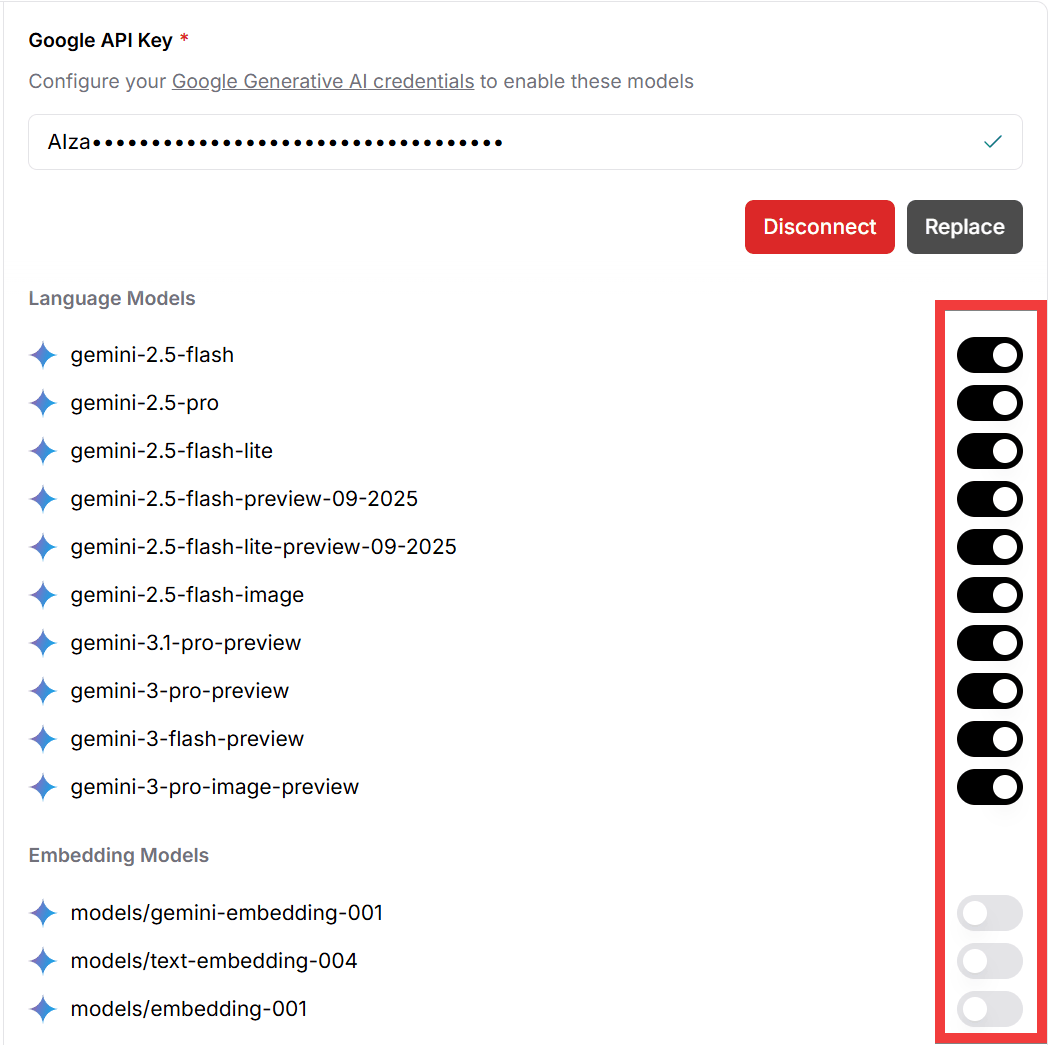
Once your API key is registered, a list of models will be displayed. Turn on the toggle key for the model you want to use.
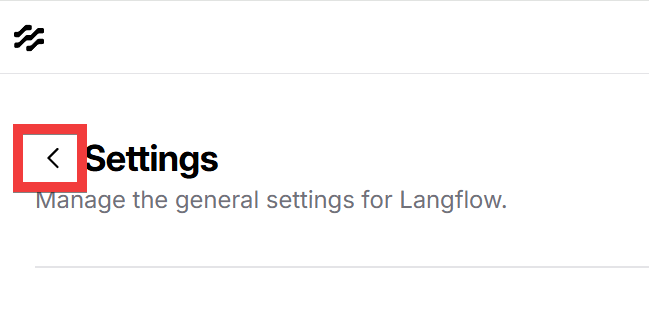
Click the back button to return to the initial screen.
◆ How to use Langflow as a chat agent
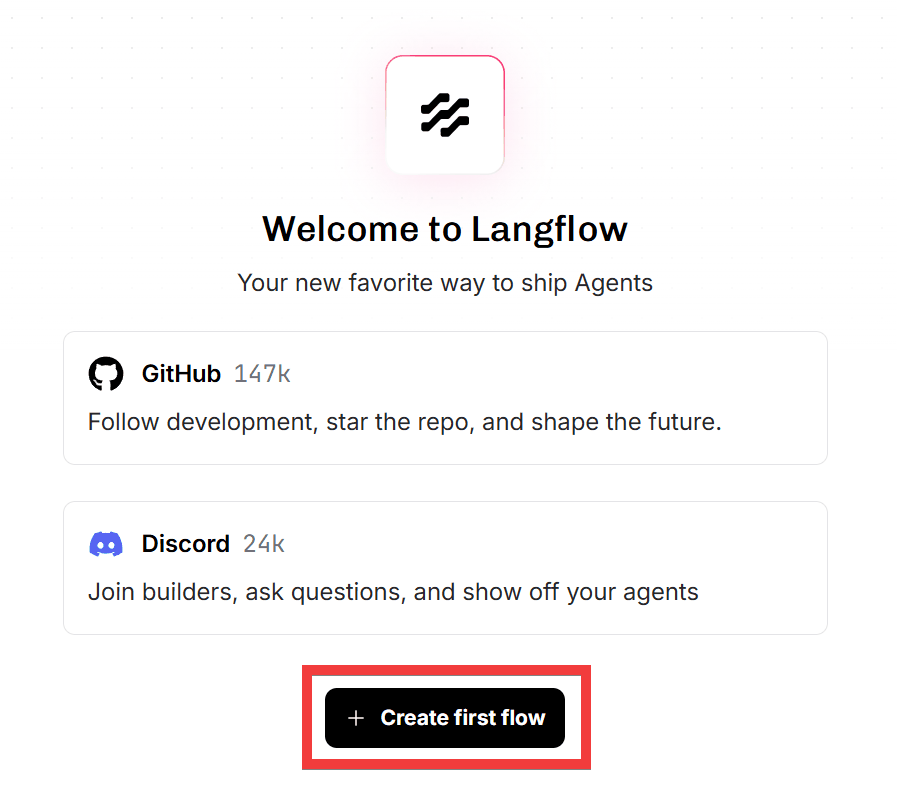
Click 'Create first flow' on the initial screen.
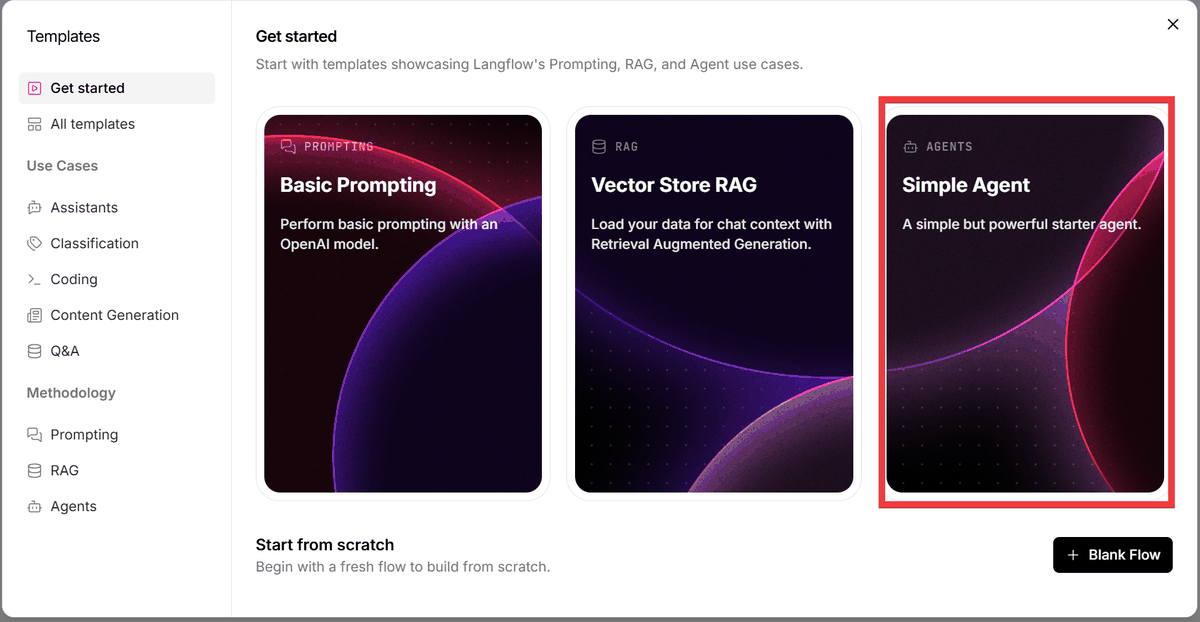
Select the 'Simple Agent' template in the dialog box.
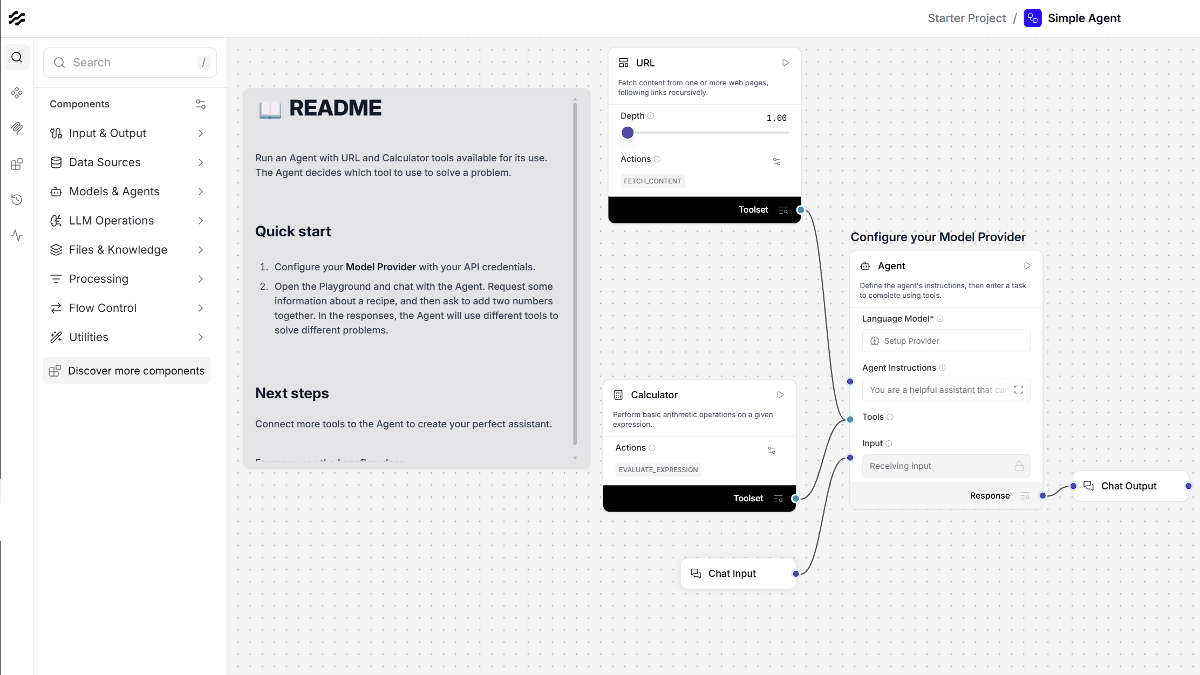
The 'Simple Agent' workspace will be displayed.
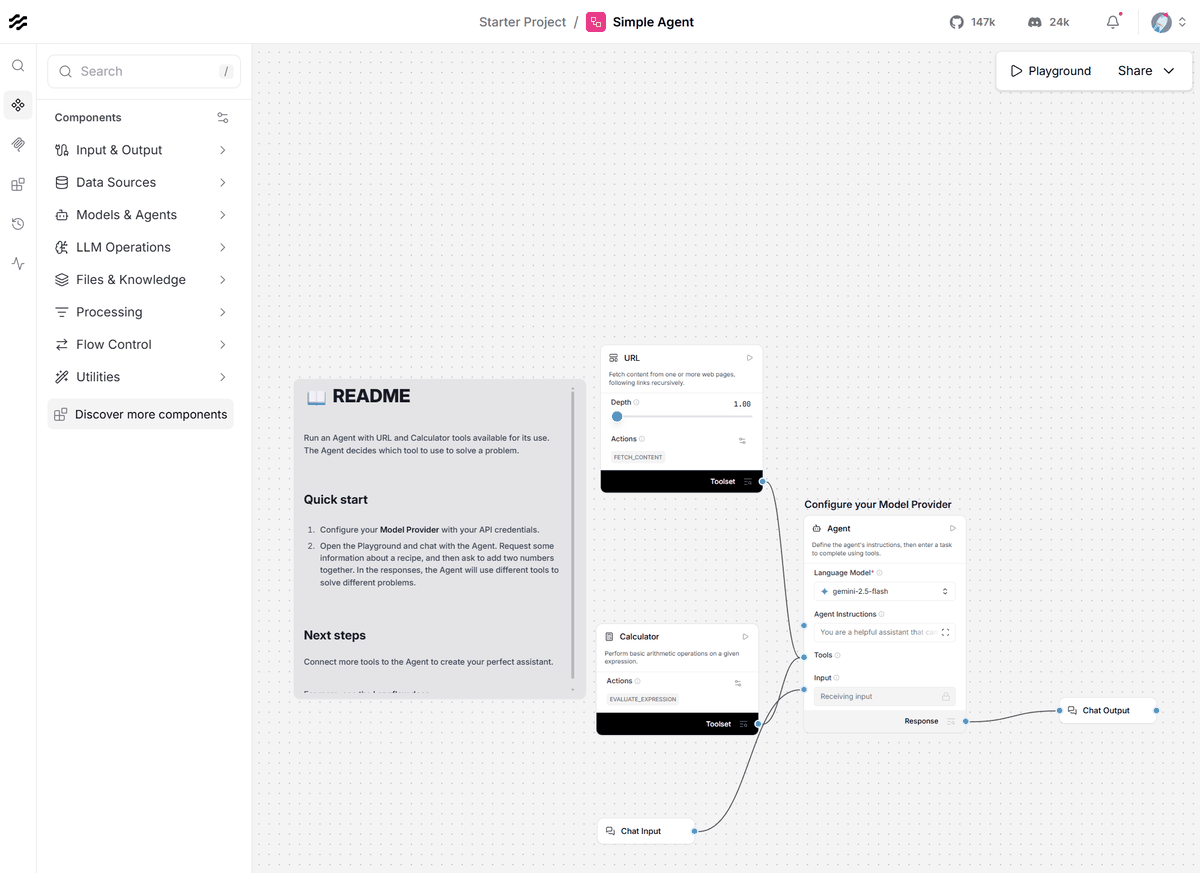
Components that represent their respective roles are connected to the central ' Agent ' component.
• URL: A tool for retrieving the content of a webpage.
• Calculator: A tool for performing calculations.
• Chat Input: A component that receives input from the user.
• Chat Output: A component that returns the agent's response to the user.
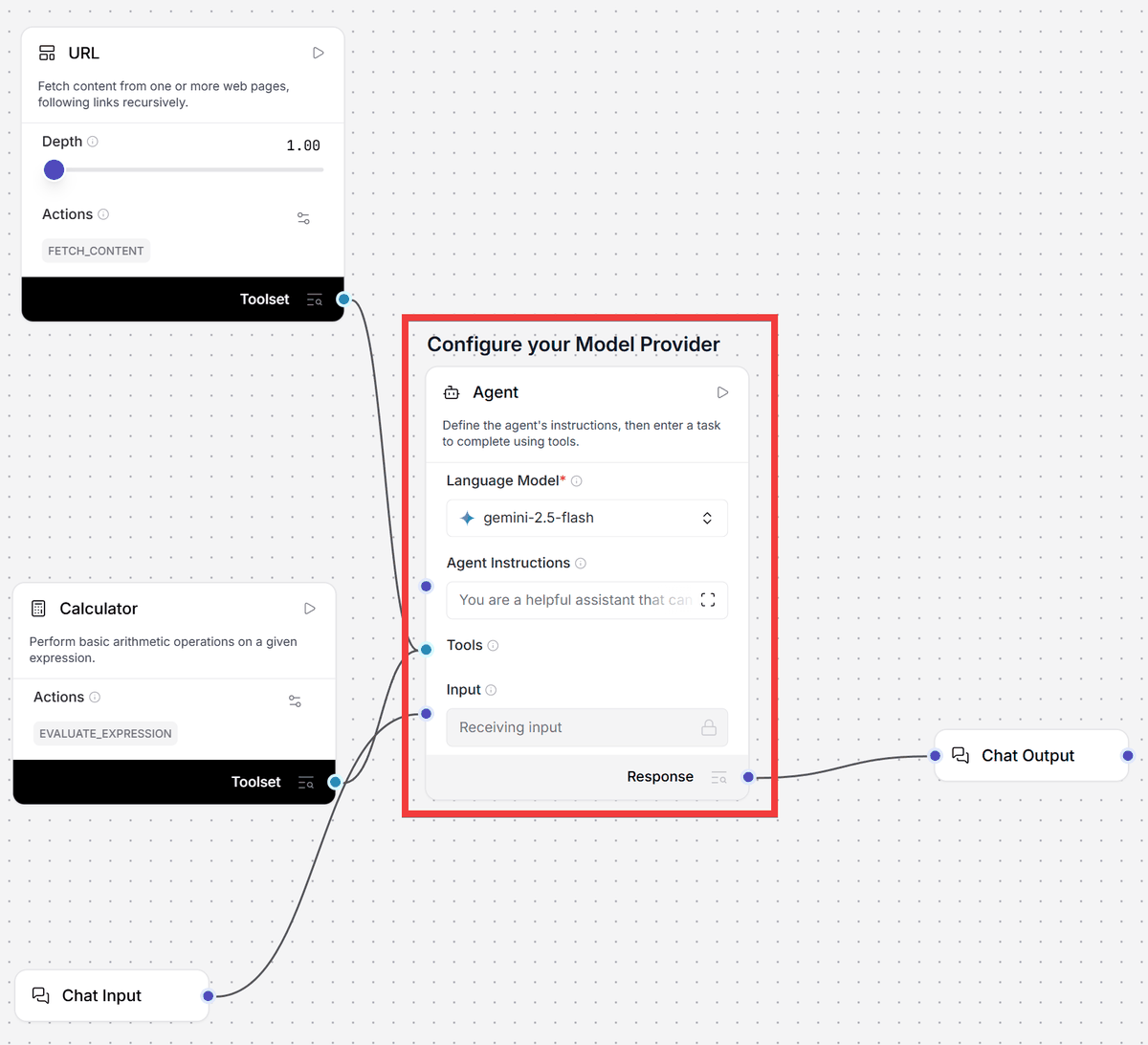
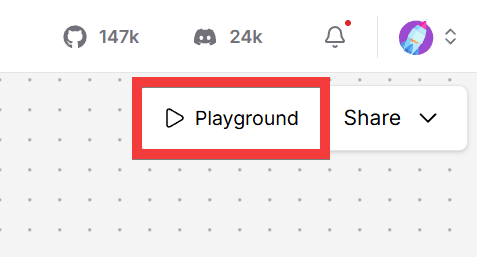
Since the minimum necessary tools are already assembled, click 'Playground' in the upper right corner of the screen.
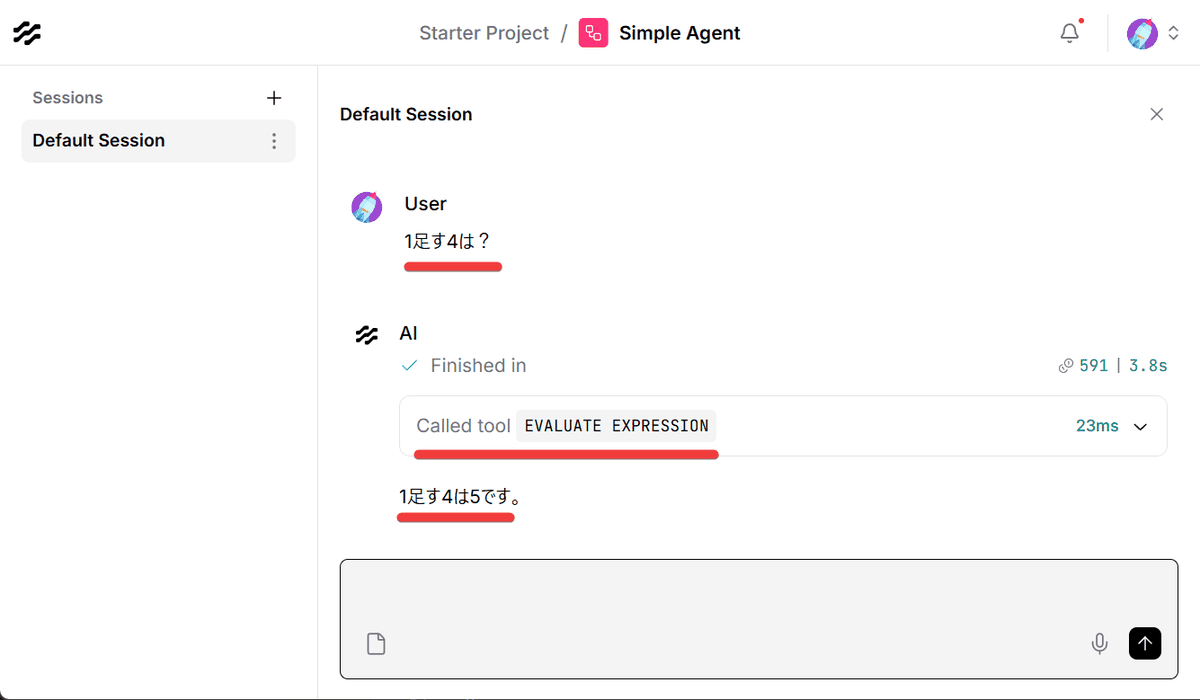
When asked 'What is 1 plus 4?', the calculation tool responded with '5'. If the calculation component is not included, the model will only provide an inference, which may result in an incorrect answer.
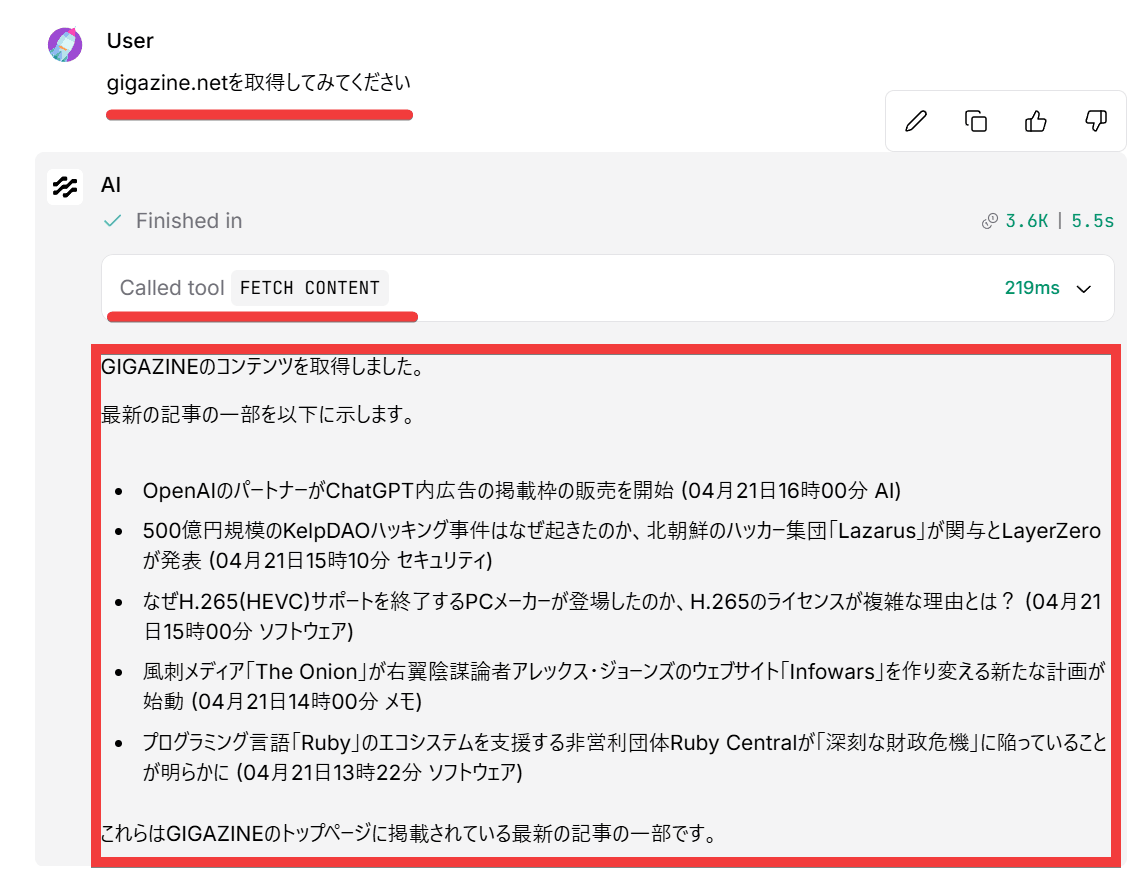
Next, when asked to 'Retrieve gigazine.net,' the URL component was used to retrieve the webpage content, and the content was displayed.
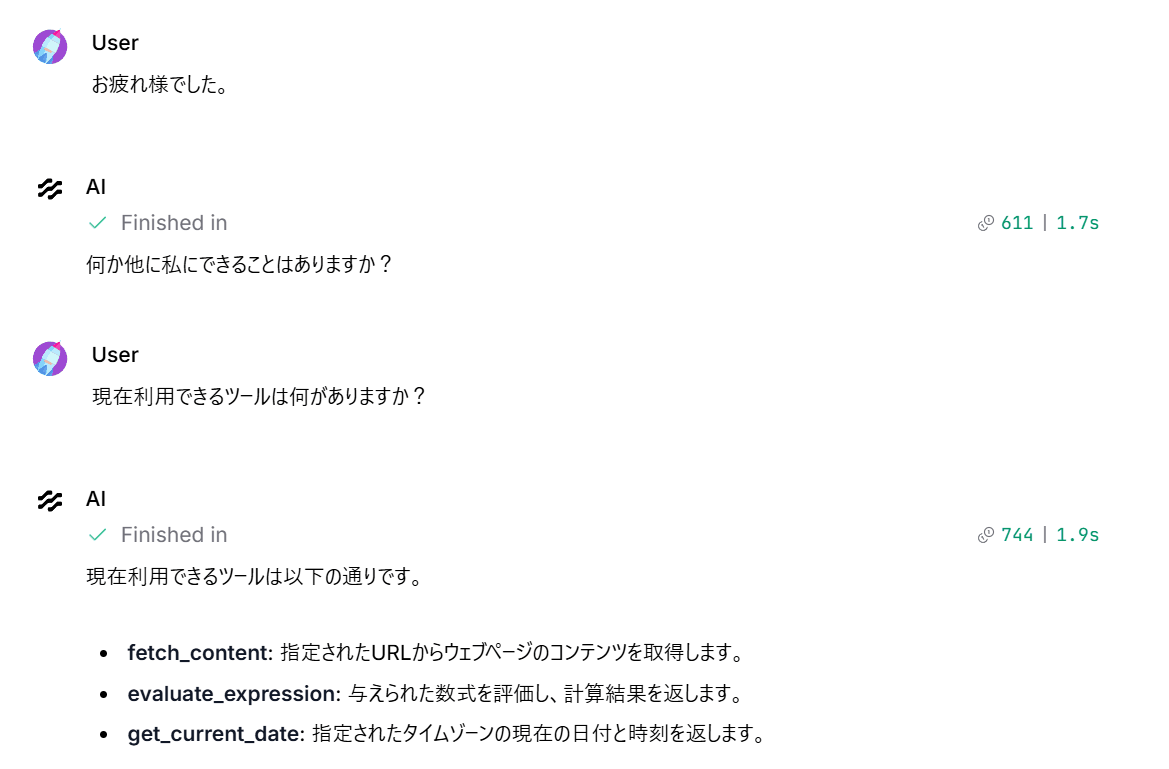
You can also get answers by asking about the connected components.
◆ How to call Langflow via API
Langflow provides
To create a Langflow API key, click the user icon in the upper right corner of the screen.
Click 'Settings' from the menu that appears.
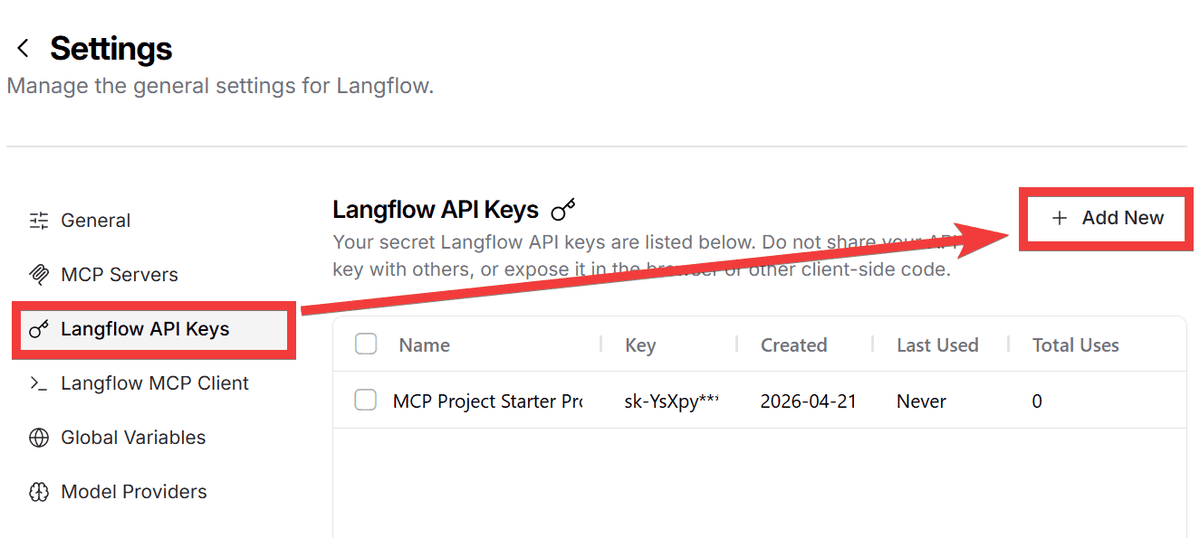
Click 'Langflow API Keys' from the menu on the left, then click 'Add New'.
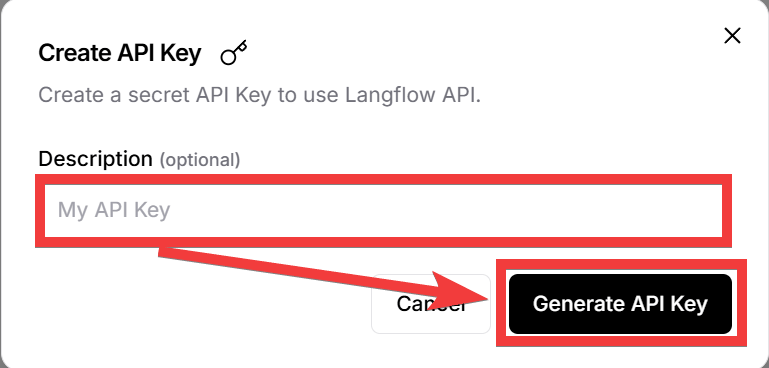
Enter a name of your choice in 'Description' and click 'Generate API Key'.
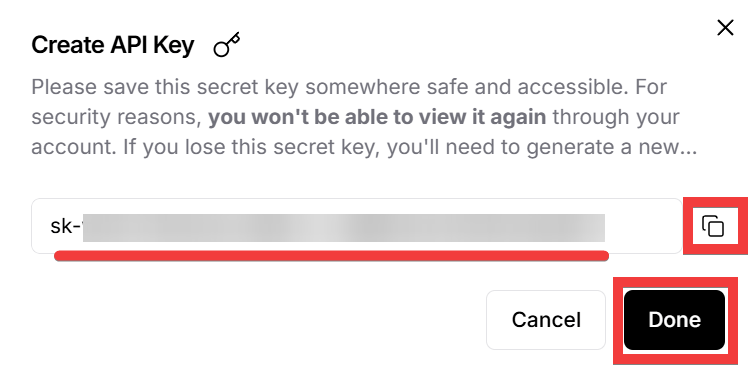
The API key will be displayed, so click the 'Copy' icon to save it to a text editor or similar, and then click 'Done' to close the dialog box.
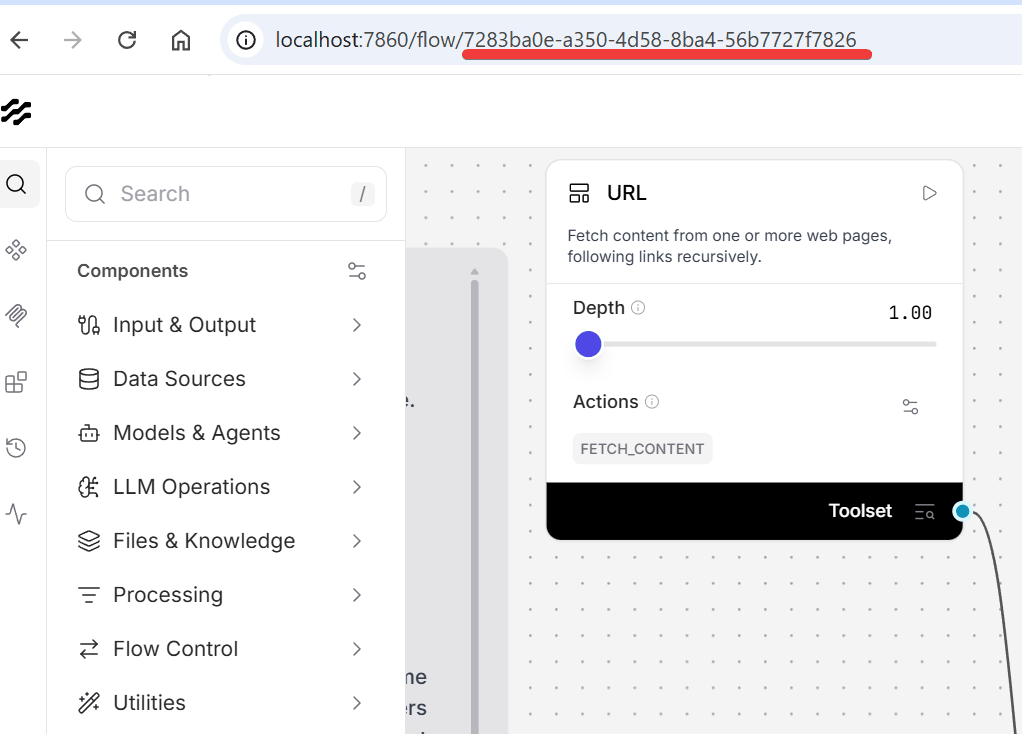
Display the workspace for the 'Single Agent' you just created, and note down the FLOW_ID from the URL.
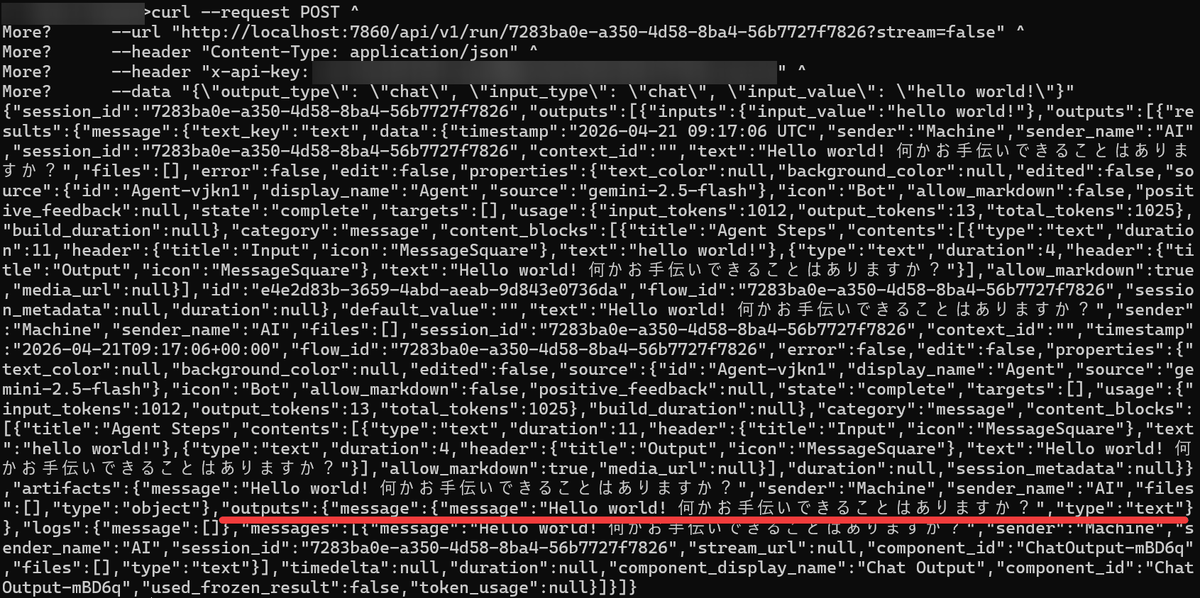
Execute the following command in the command prompt. Replace FLOW_ID with the FLOW_ID obtained from your workspace and LANGFLOW_API_KEY with your API key.
 curl --request POST ^
 --url 'http://localhost:7860/api/v1/run/FLOW_ID?stream=false' ^
 --header 'Content-Type: application/json' ^
 --header 'x-api-key: LANGFLOW_API_KEY' ^
 --data '{\'output_type\': \'chat\', \'input_type\': \'chat\', \'input_value\': \'hello world!\'}'
The result is returned in JSON format. Since I asked 'hello world!', the response was 'Hello world! Is there anything I can help you with?'.
You can override the flow by using the ' tweaks ' key when calling it from a script. For example, to change the model provider to Anthropic, you would write it as follows:
 payload = {
 'output_type': 'chat',
 'input_type': 'chat',
 'input_value': 'hello world!',
 'tweaks': {
 'Agent-ZOknz': {
 'agent_llm': 'Anthropic',
 'api_key': 'ANTHROPIC_API_KEY',
 'model_name': 'claude-opus-4-5-20251101'
 }
 }
 }
For more practical uses, such as building a RAG chatbot or deploying it as an MCP server, please refer to the tutorials in the official documentation. It's recommended to start by trying it out using the free tier of Google Gemini .
Related Posts: