A review of the open source Android application 'Image Toolbox' that allows you to use a ton of functions to process all kinds of photos from free smartphones, from cutting and drawing to filters, OCR, and a wide range of image processing options
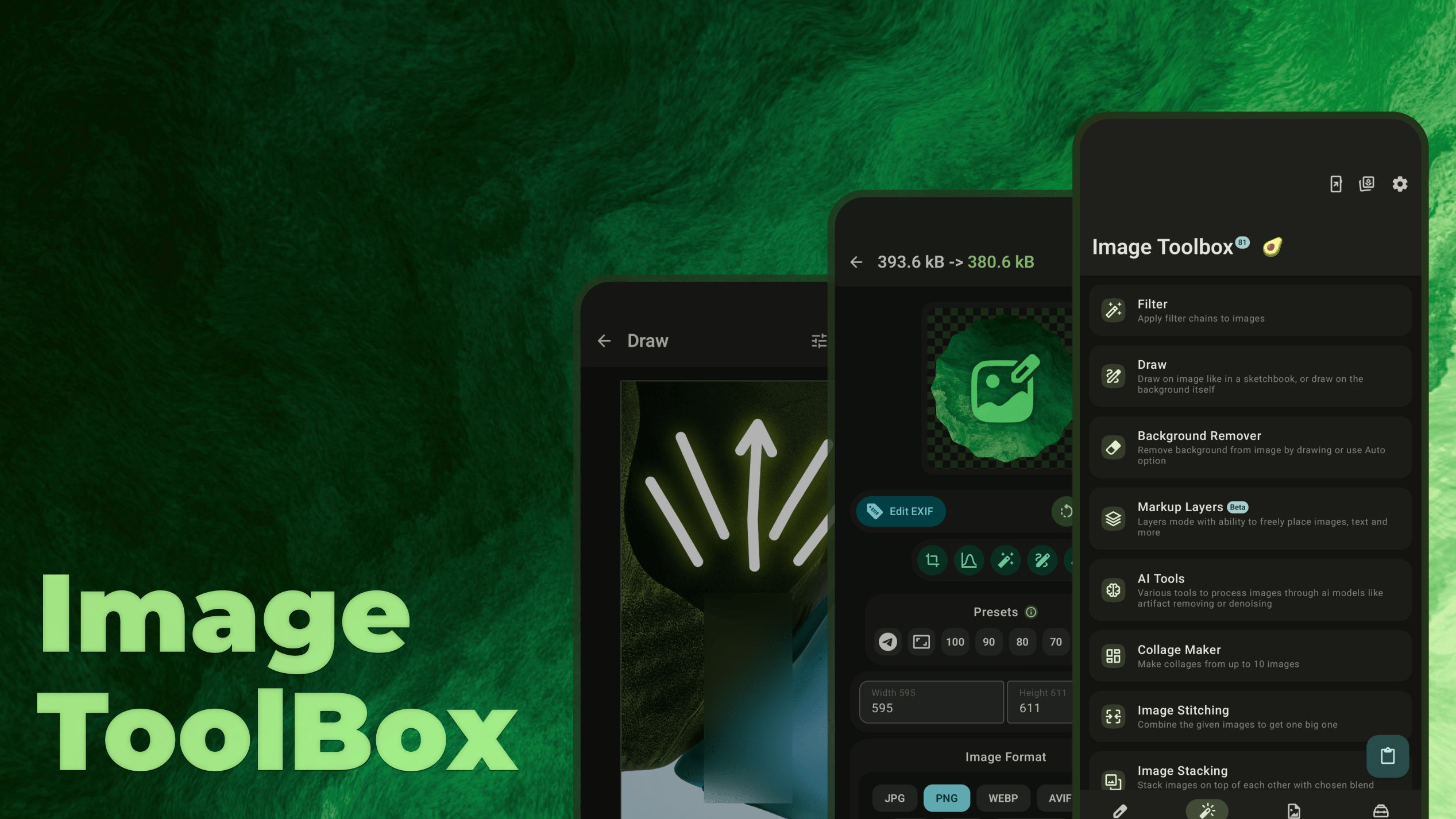
When you want to edit an image, there are high-performance applications like Photoshop and GIMP available on PCs, but when you want to edit an image taken with a smartphone, you have to send it to your PC, which isn't very convenient. And even if you try to do it all on your smartphone, many tools have significantly limited functionality, which can be frustrating for many people. Then, I heard about the free, highly functional Android app 'Image Toolbox,' so I decided to check it out.
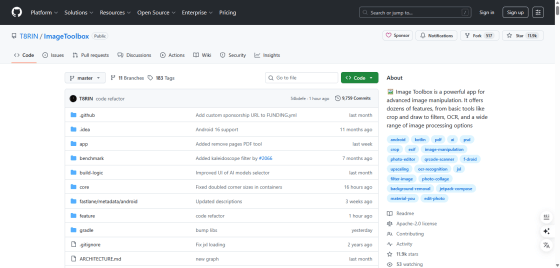
GitHub - T8RIN/ImageToolbox: 🖼 Image Toolbox is a powerful app for advanced image manipulation. It offers dozens of features, from basic tools like crop and draw to filters, OCR, and a wide range of image processing options
◆Features
After checking the official GitHub, we found that it boasts an extraordinary number of features, as it claims.
Batch processing
- Over 310 types of filters can be chained
- Template filters allow you to create custom filters
・Supports file encryption and decryption using over 100 different algorithms
-Add stickers and text (Markup layer mode)
・OCR function
- Edit/delete EXIF metadata
- Acquiring images from the Internet
- Image stitching
- Image stacking
- Image division function
・Background removal function
- Watermark insertion function
・Drawing function
- Image resizing function
- Image format conversion function
・PDF tools
・Document scanning
・AI tools with over 95 models available
- Barcode processing function
- Collage creation function
・Image compression
- Image cropping/cutting
- Trace raster images to SVG
Zip compression
- Image comparison function
- Color utility
- Color library of over 33,000 colors
- Histogram function
-Select image source
・Many additional features
◆Installation
According to the official GitHub, the Image Toolbox can be obtained from the following sources:
・
・F-Droid
・GitHub
・Obtainium
・Obtainium (Pre-release)
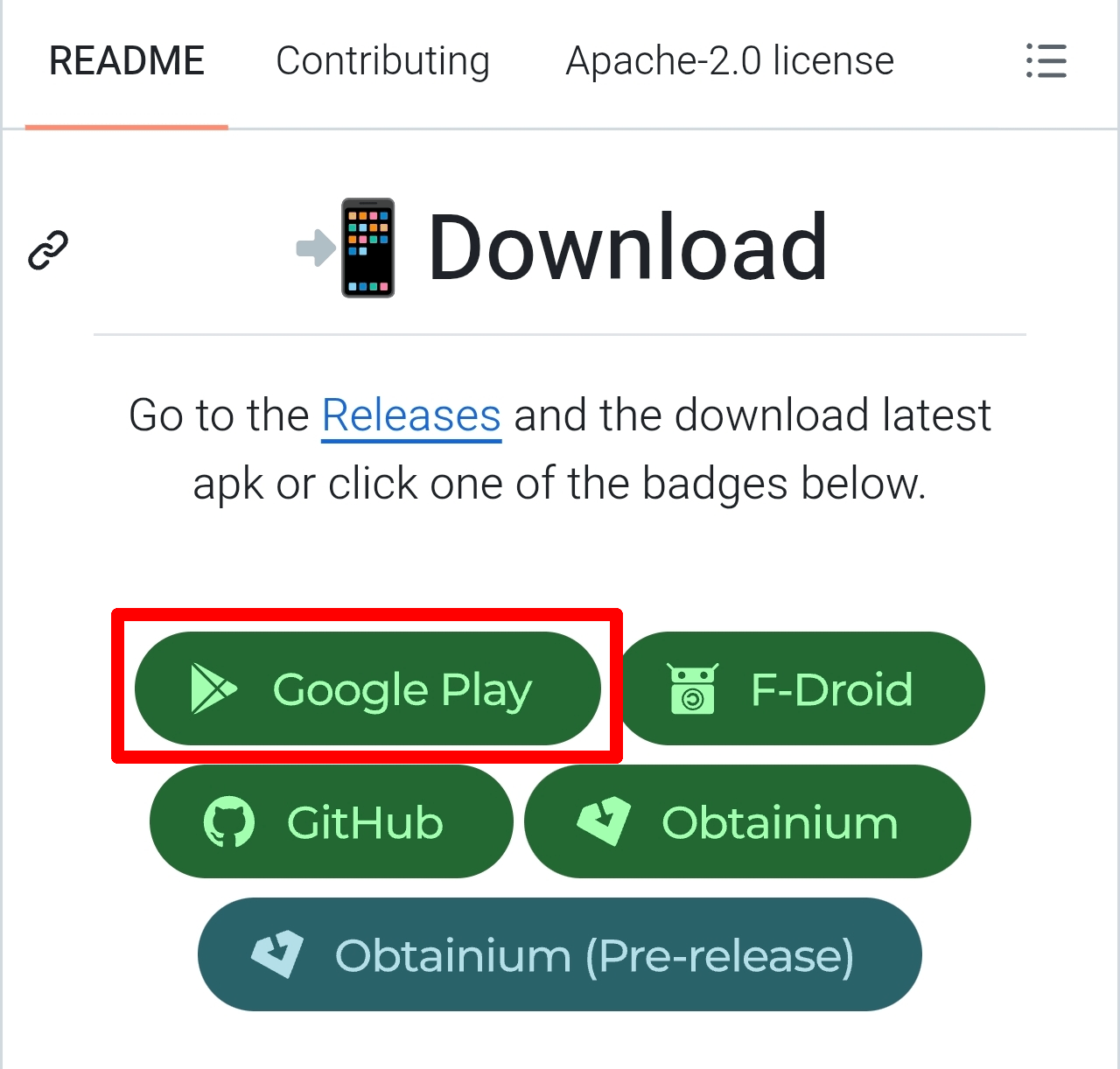
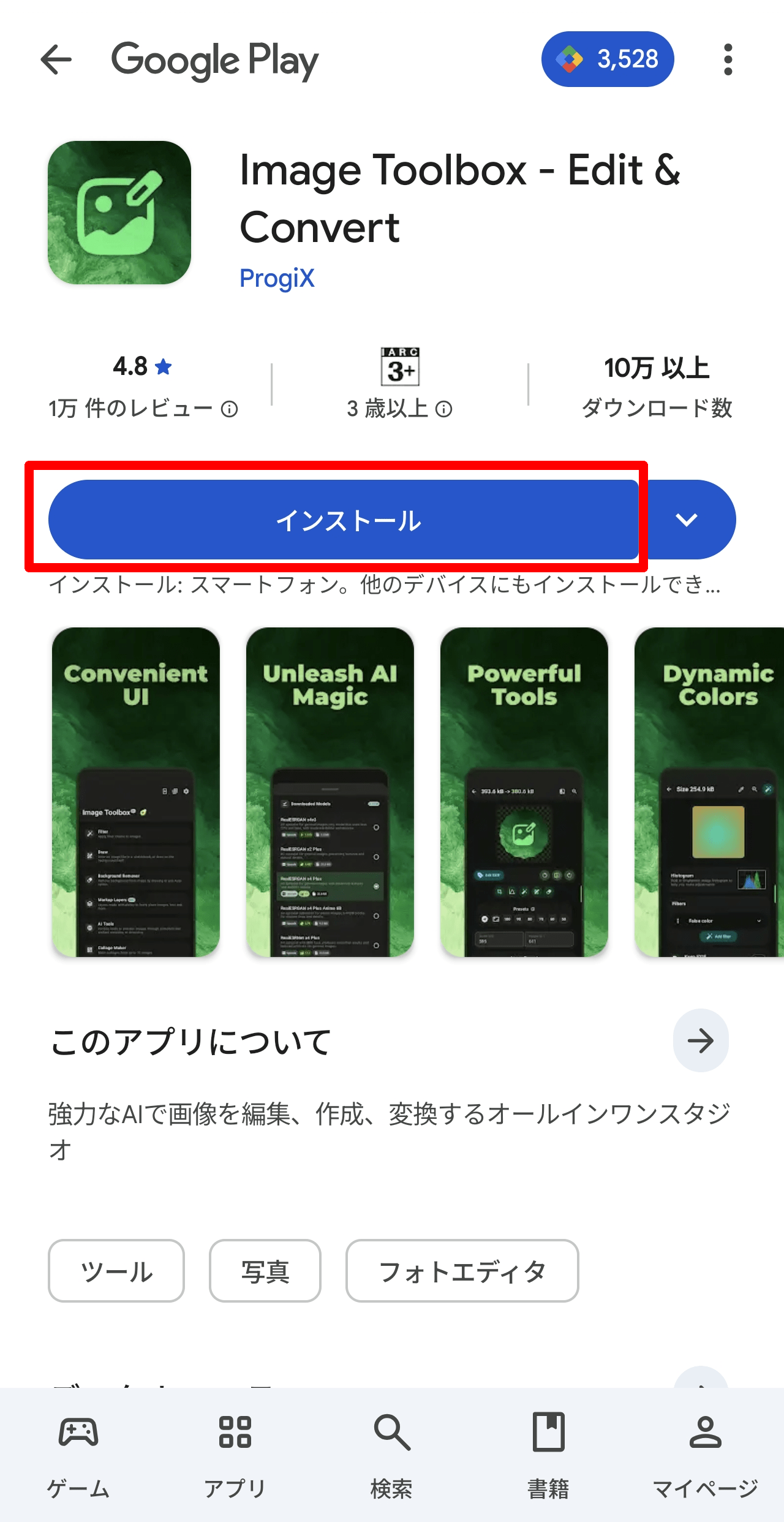
Since we will be installing from Google Play this time, tap the Google Play banner and then tap the 'Install' button on the Image Toolbox page that appears.
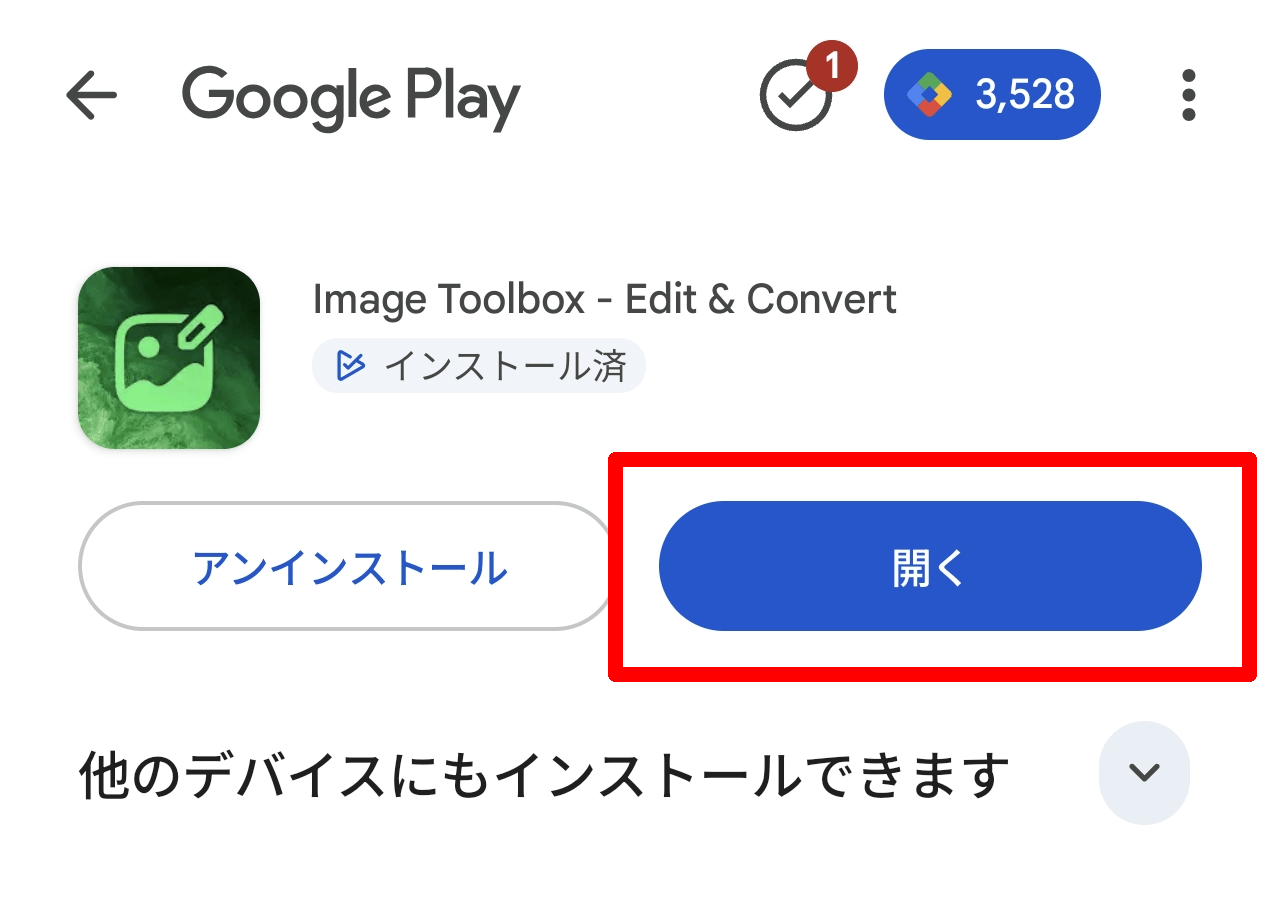
Once the installation is complete, the 'Open' button will appear, so tap it to launch the app.
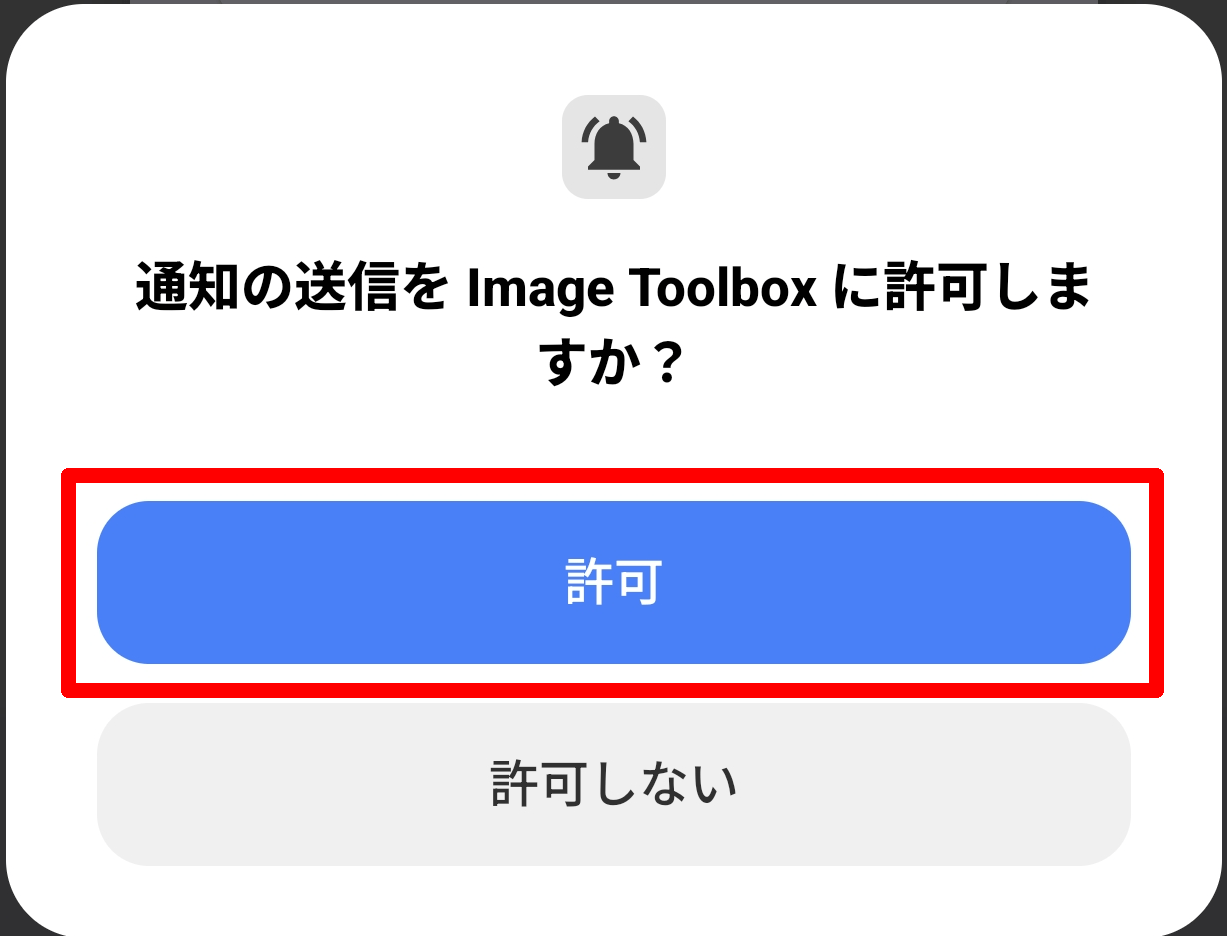
When you start the app for the first time, a pop-up will appear asking, 'Do you want to allow Image Toolbox to send notifications?' If you have no problem with this, tap the 'Allow' button.
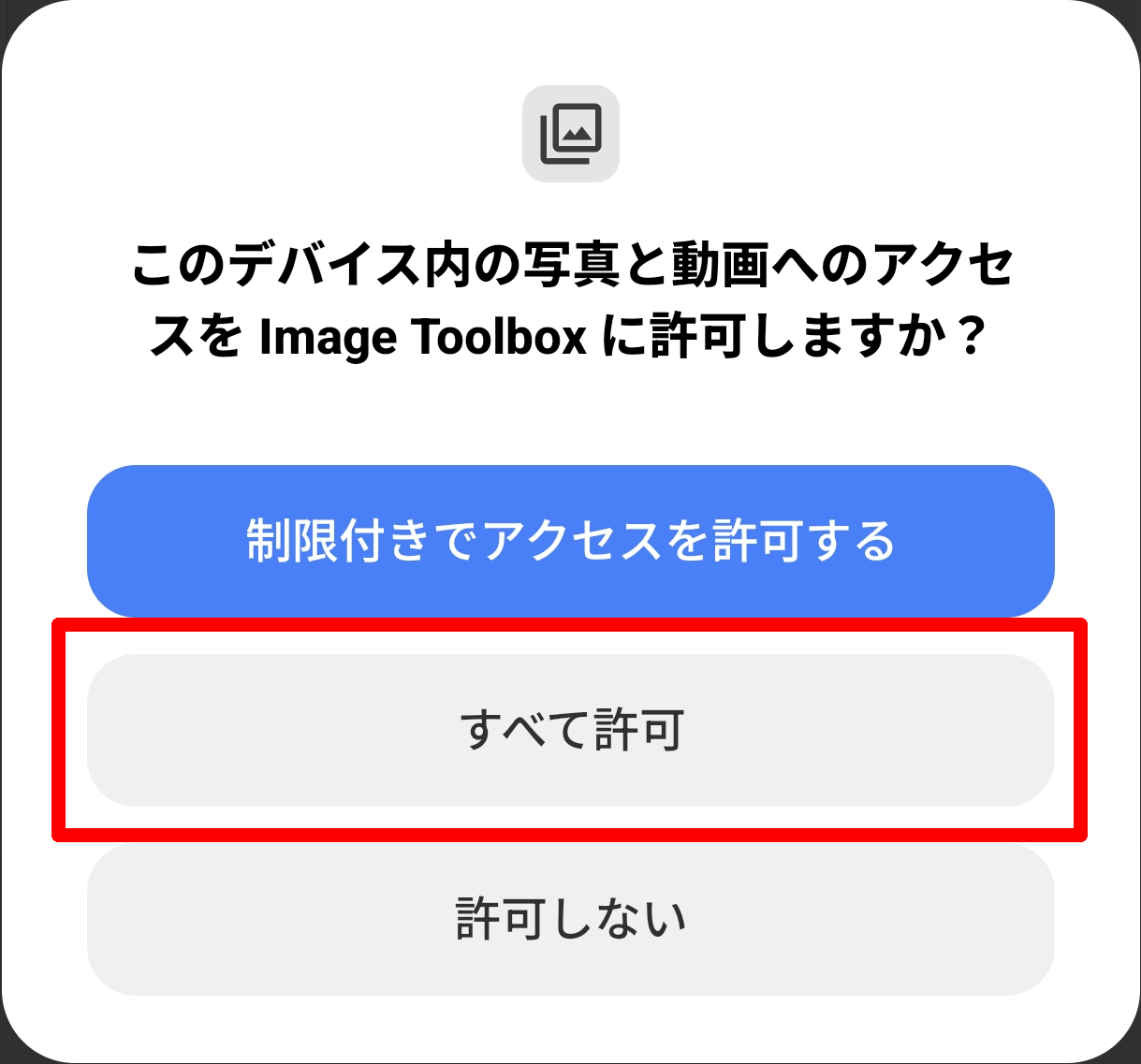
Next, a pop-up will appear asking, 'Do you want to allow Image Toolbox to access photos and videos on this device?' Considering the purpose of the app, it is better to have no access restrictions, so tap the 'Allow all' button.
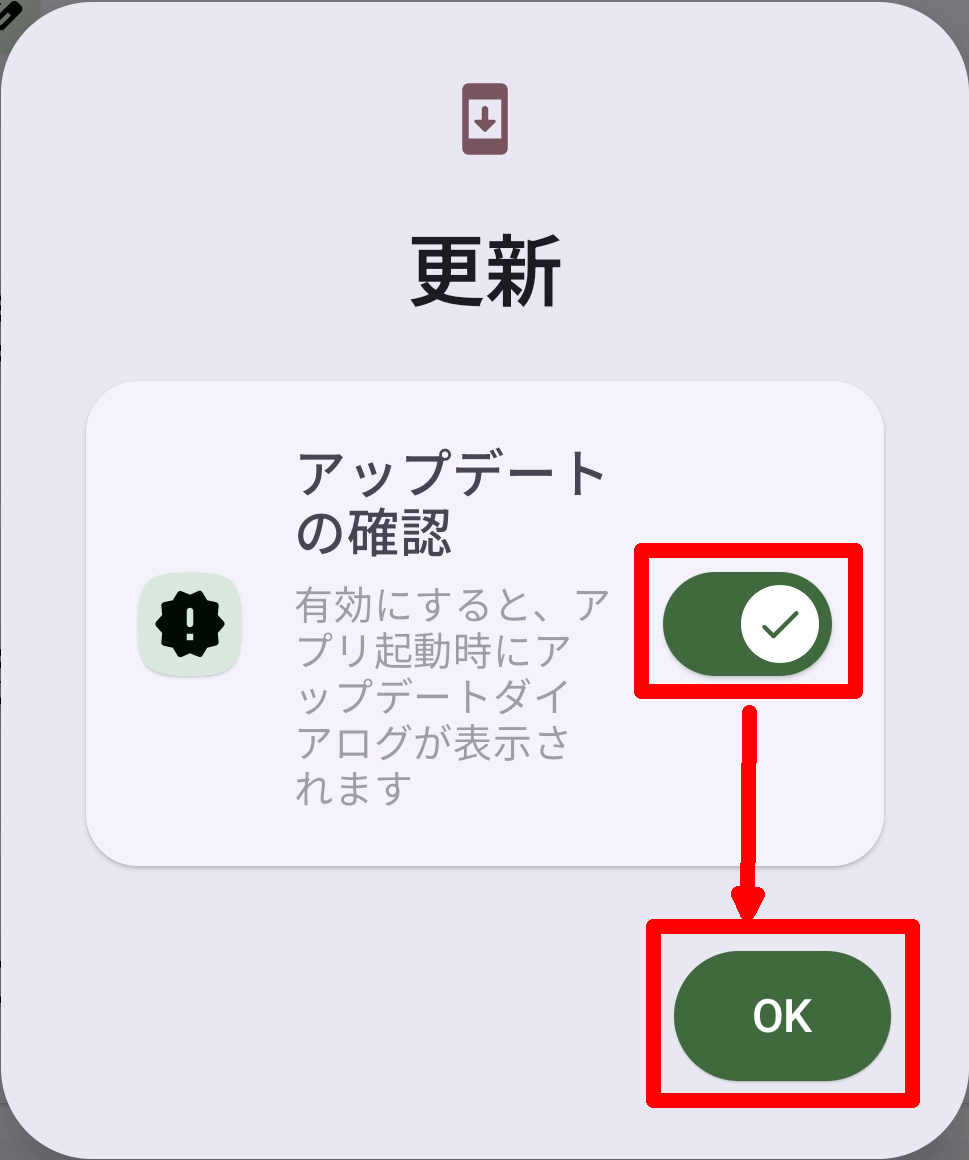
For the 'Update' popup, make sure 'Check for updates' is turned on and tap the 'OK' button.
◆Edit
The home screen of the launched app looks like this, with the 'Edit' tab selected.
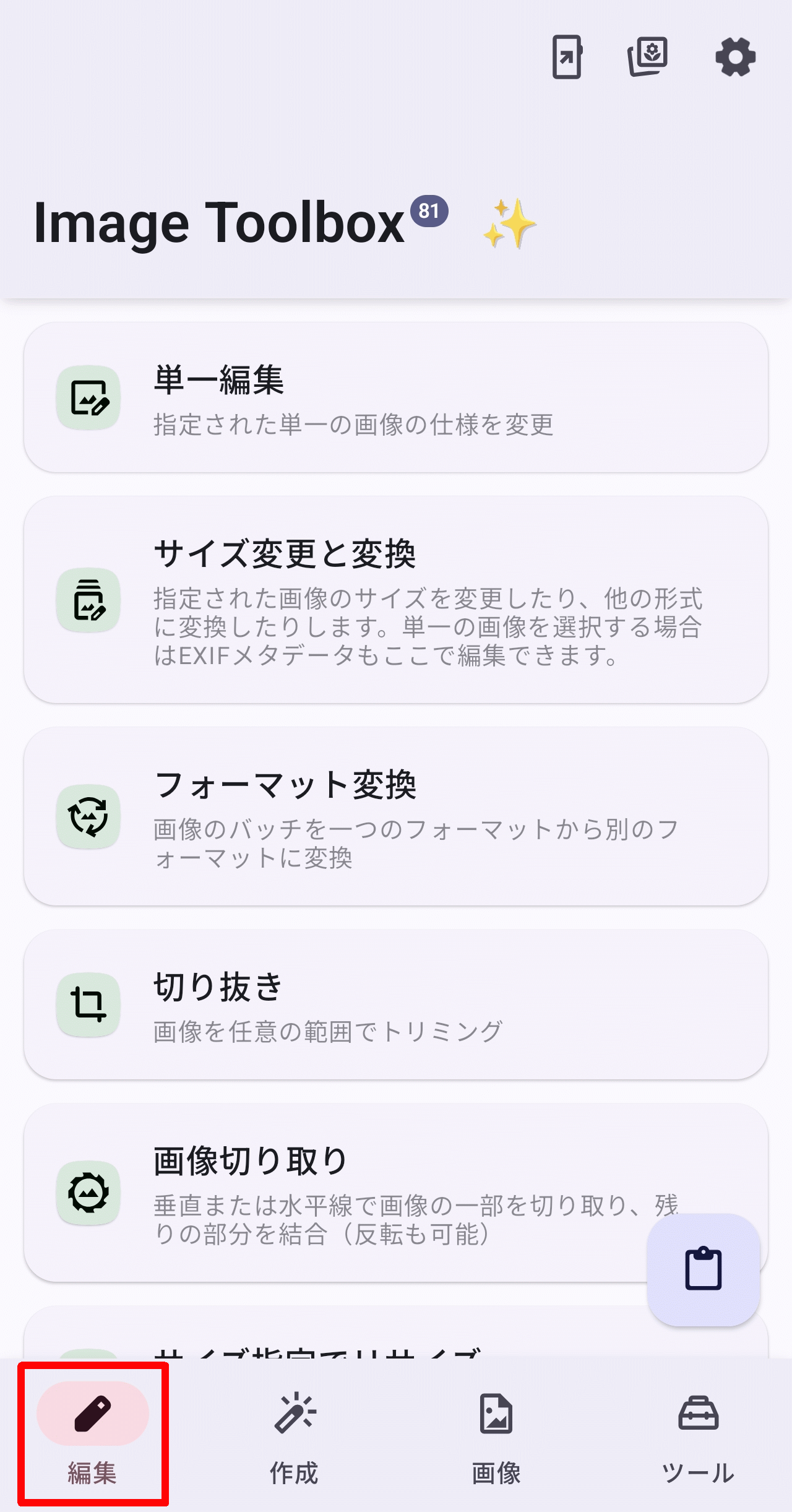
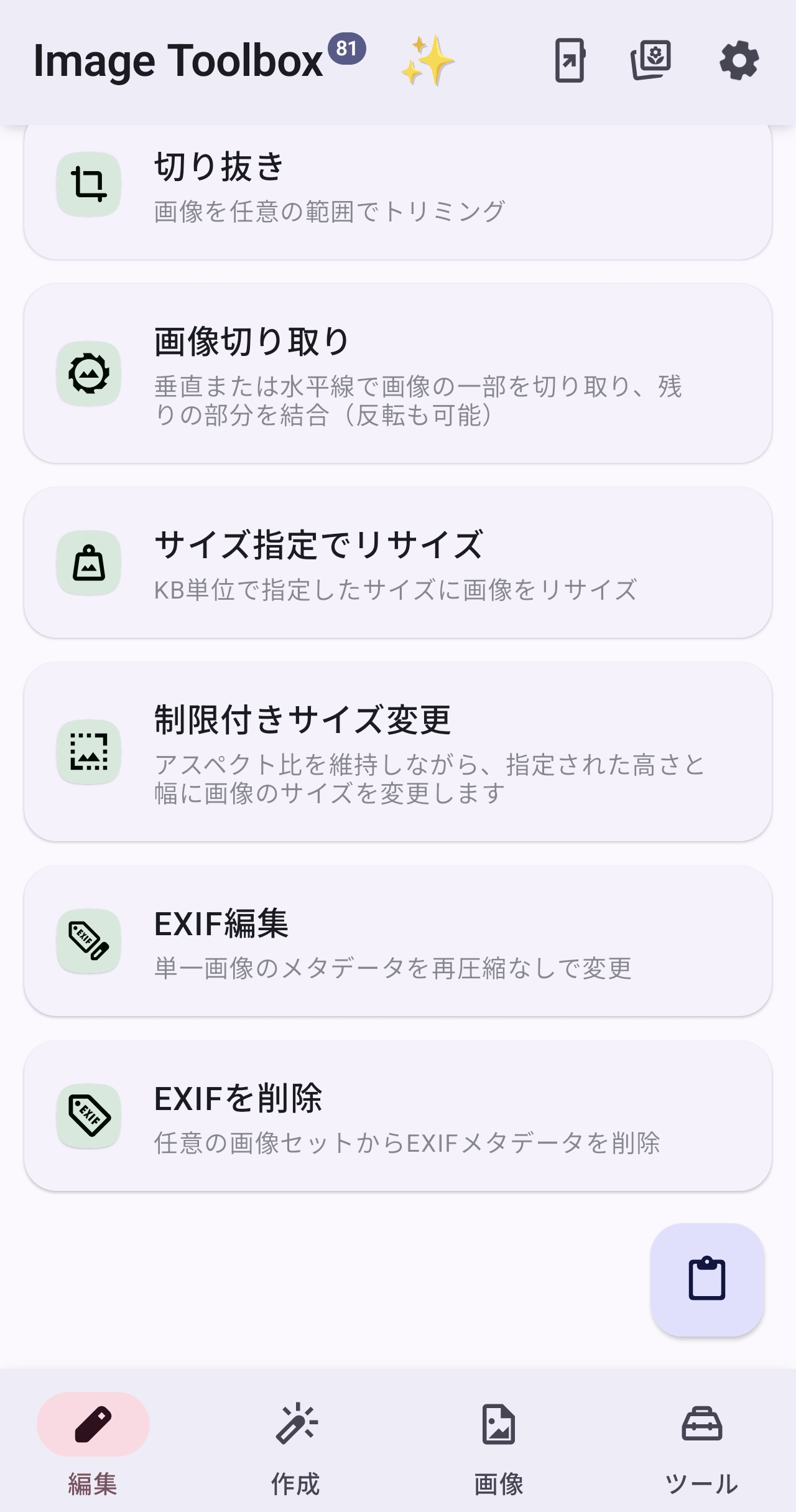
・'Single Edit'
Select 'Single Edit' and tap the 'Select Image' button on the screen that appears.
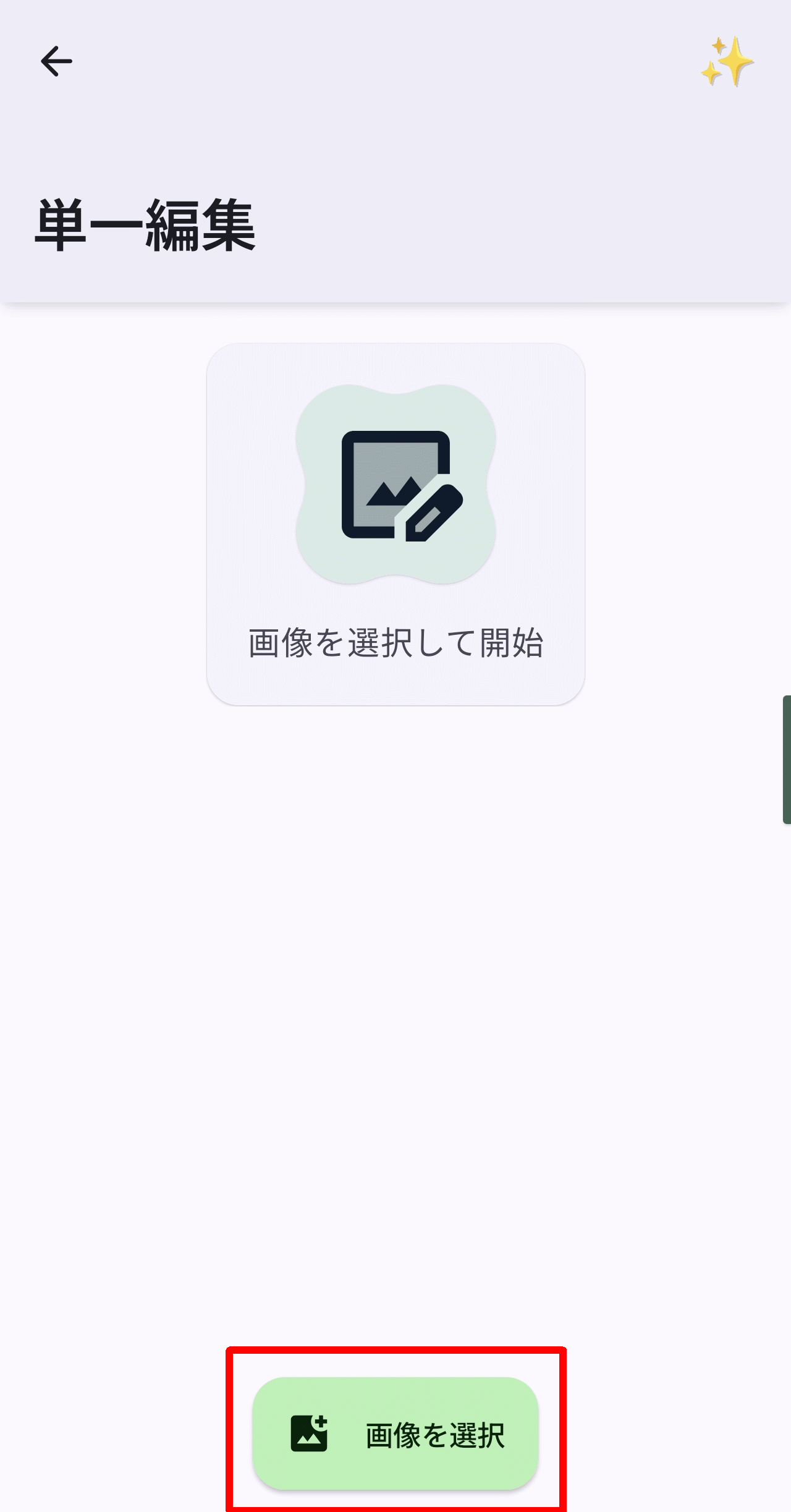
The following screen will be displayed.
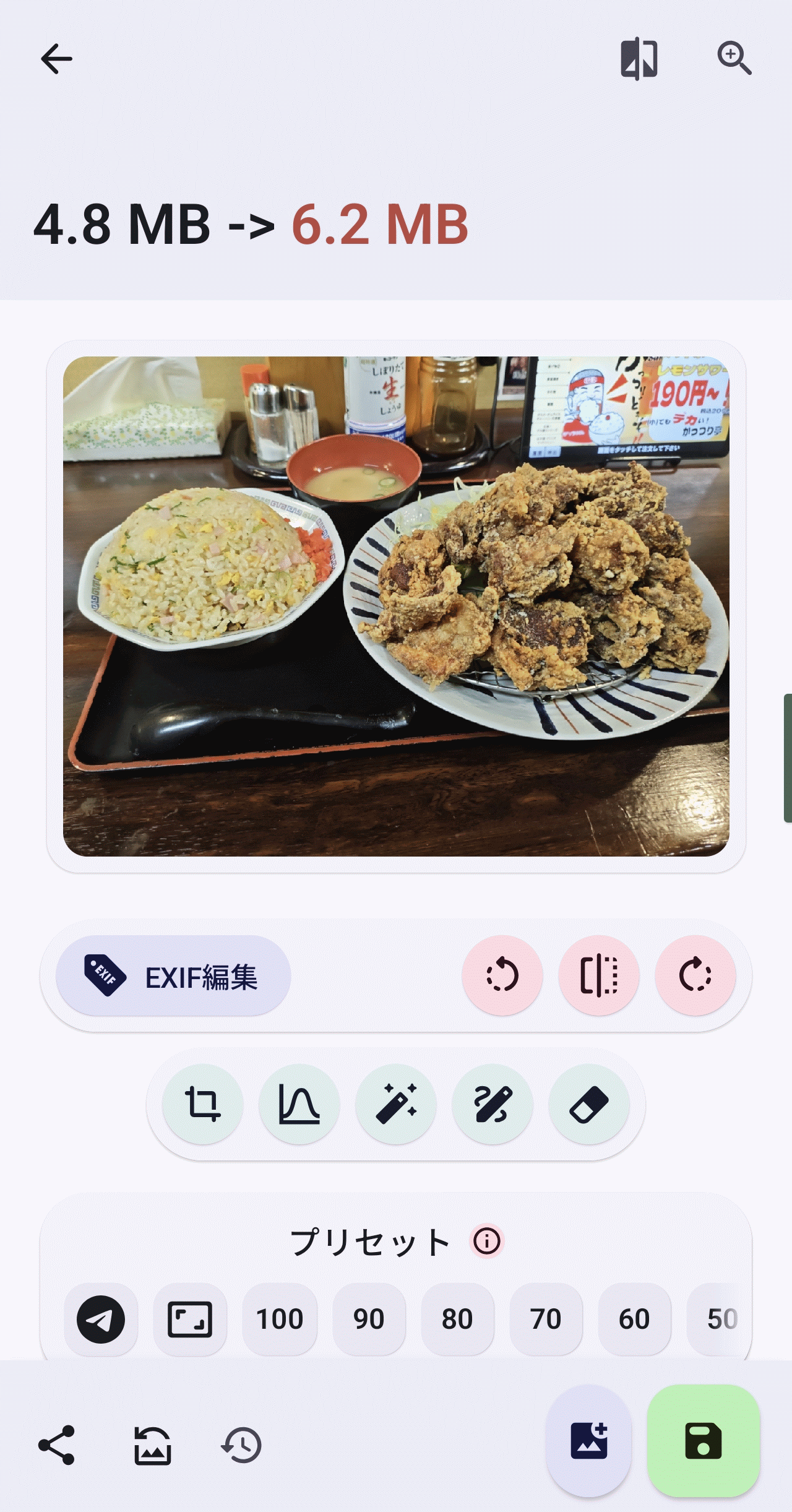
Tapping the four icons located directly below the image will perform the following functions (from left to right): Edit EXIF, Rotate 90 degrees counterclockwise, Flip horizontally, and Rotate 90 degrees clockwise.

If you tap the five icons below it, you will be taken to the 'Crop,' 'Tone Curve,' 'Filter,' 'Draw,' and 'Erase Background' screens (from left to right).

・'Resize and convert'
Select 'Resize and Convert' and then select an image, and the following screen will appear, allowing you to select a preset or specify it directly.
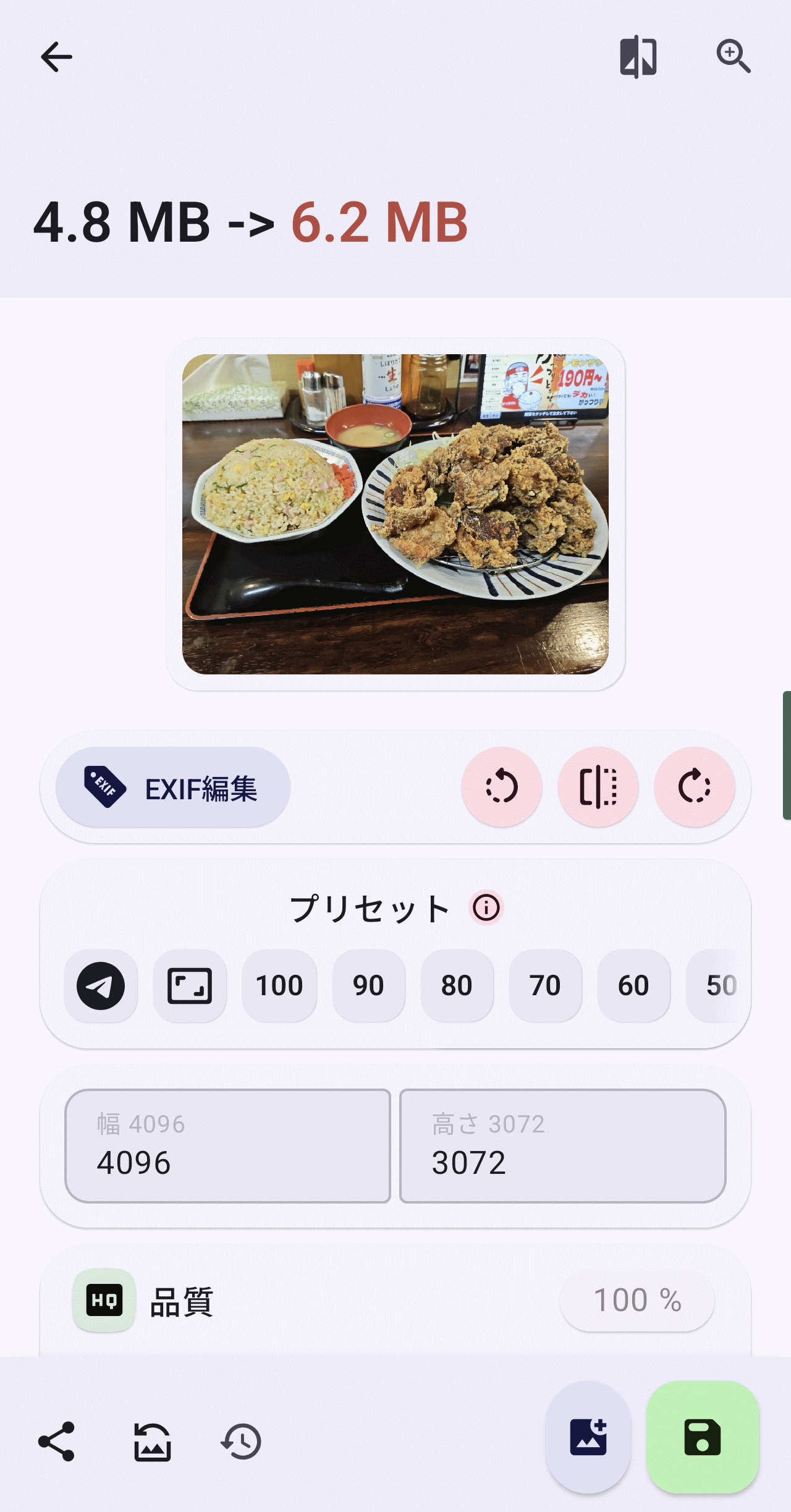
・'Format conversion'
Select 'Format Conversion' and select an image to see the following screen.
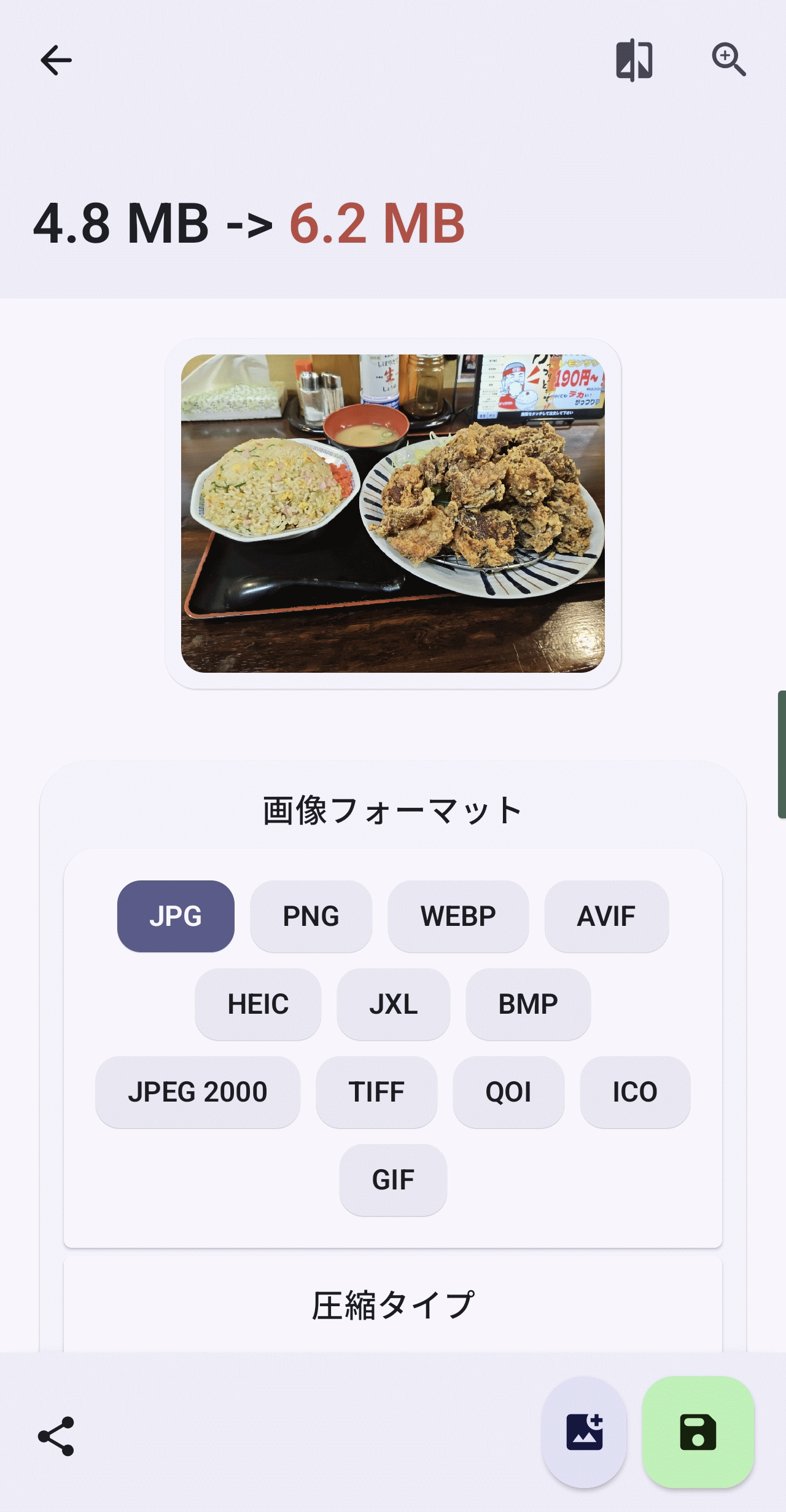
You can specify the following image formats on the screen. If there is a 'compression type' that corresponds to the image format, you can also specify that. You can also specify the background color and quality.
・JPG
・PNG
・WEBP
AVIF
・HEIC
・JXL
・BMP
・JPEG 2000
・TIFF
・QOI
・ICO
・GIF
・Cutout
If you select 'Crop' and then select an image, the following screen will appear, where you can drag the border around the image to specify the crop area.
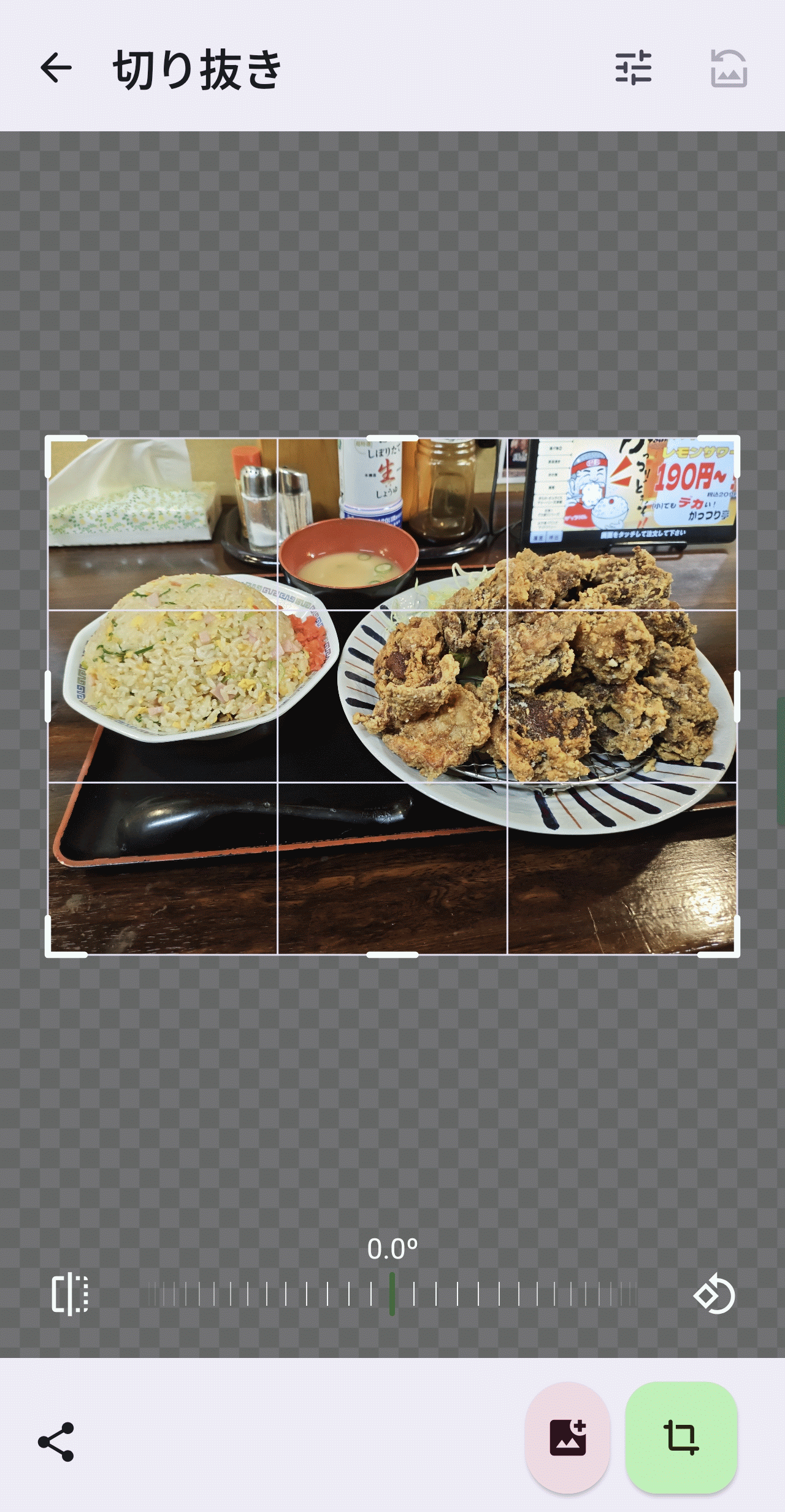
- Image cropping
Select 'Image Crop' and select an image, and the following screen will appear, allowing you to specify the vertical and horizontal pivot lines. You can also invert the selection for the volume pivot line.
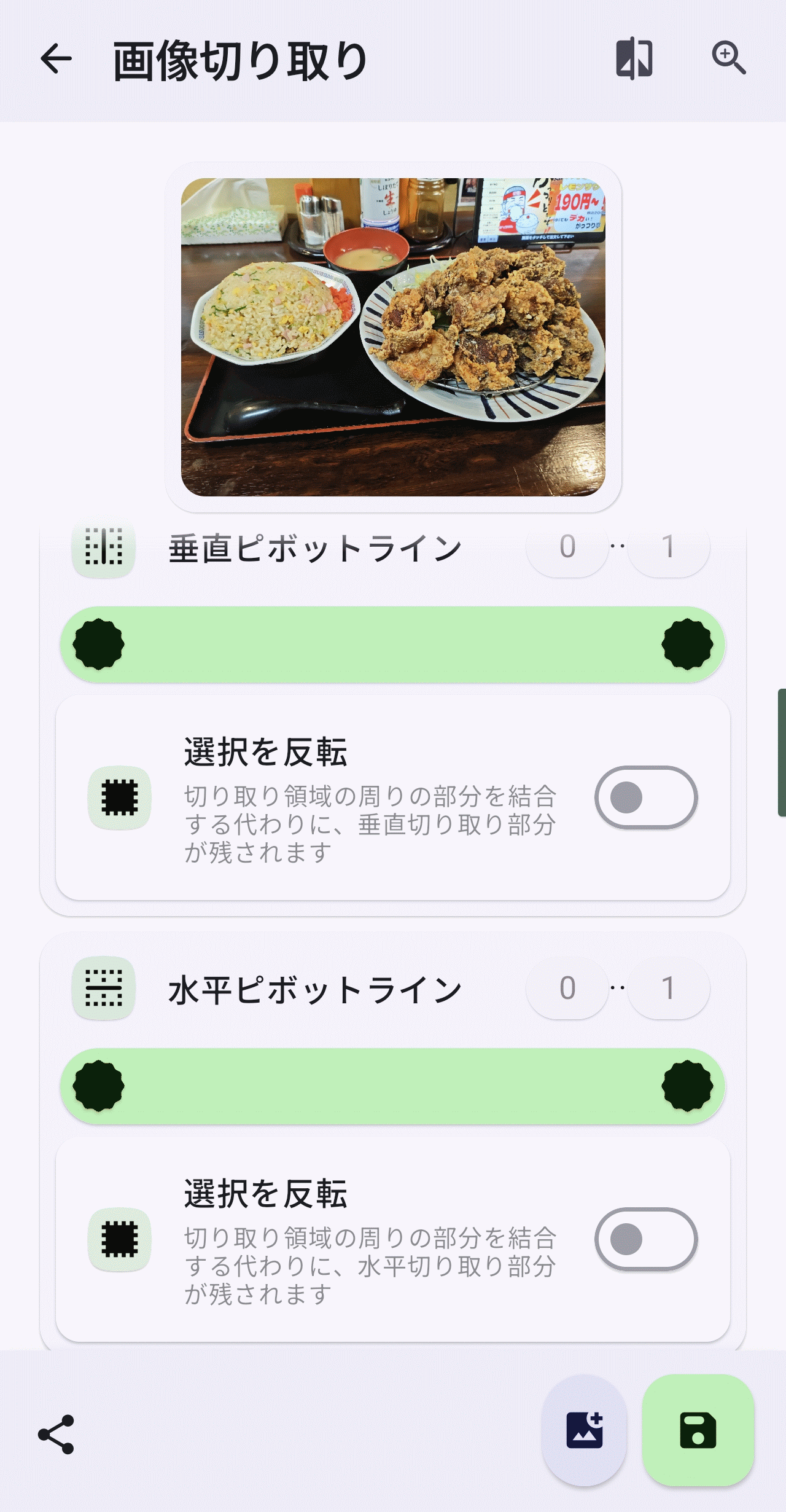
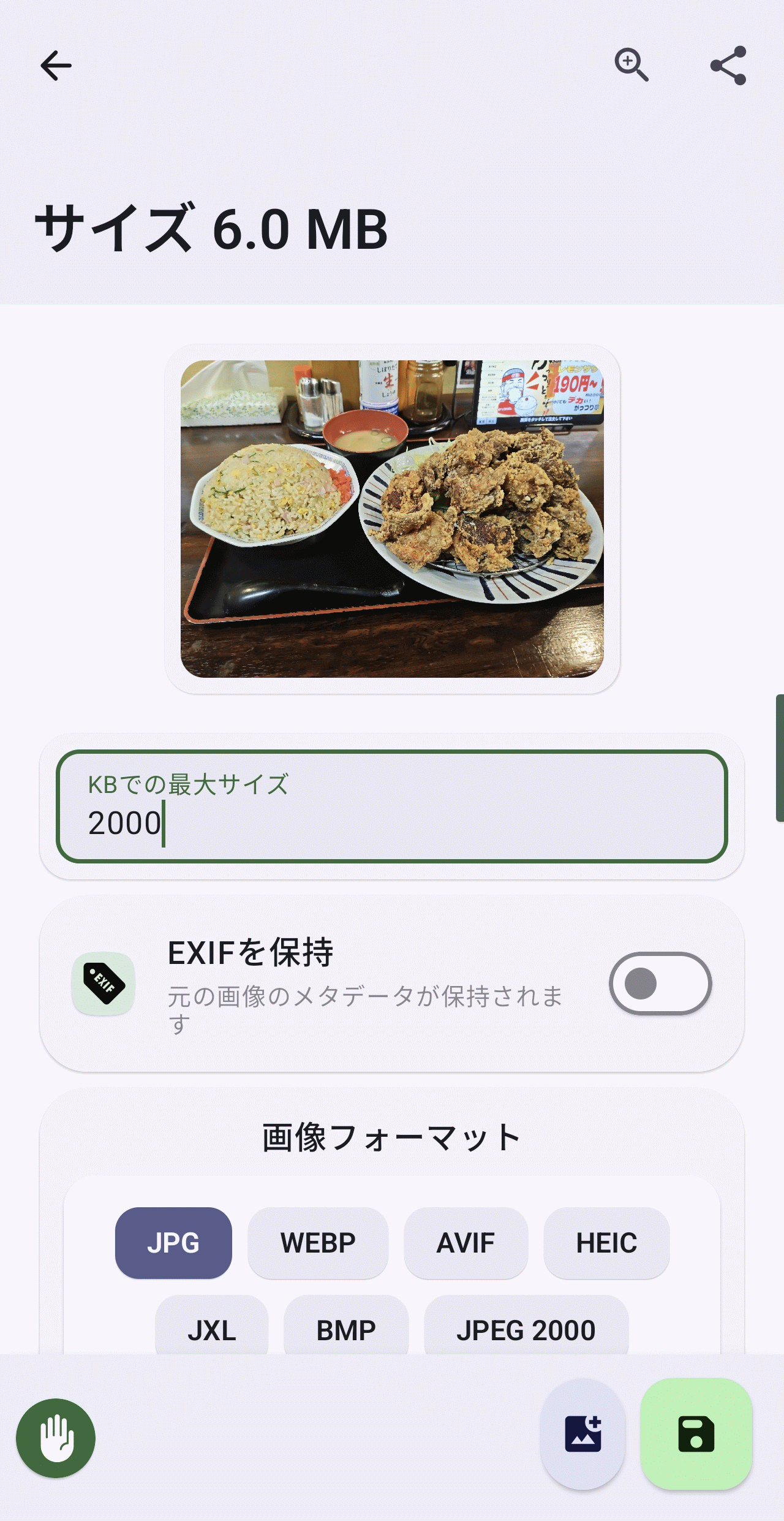
- Resize by specifying the size
If you select 'Resize to specified size' and select an image, the following screen will appear, allowing you to resize the image to a file size specified in KB.
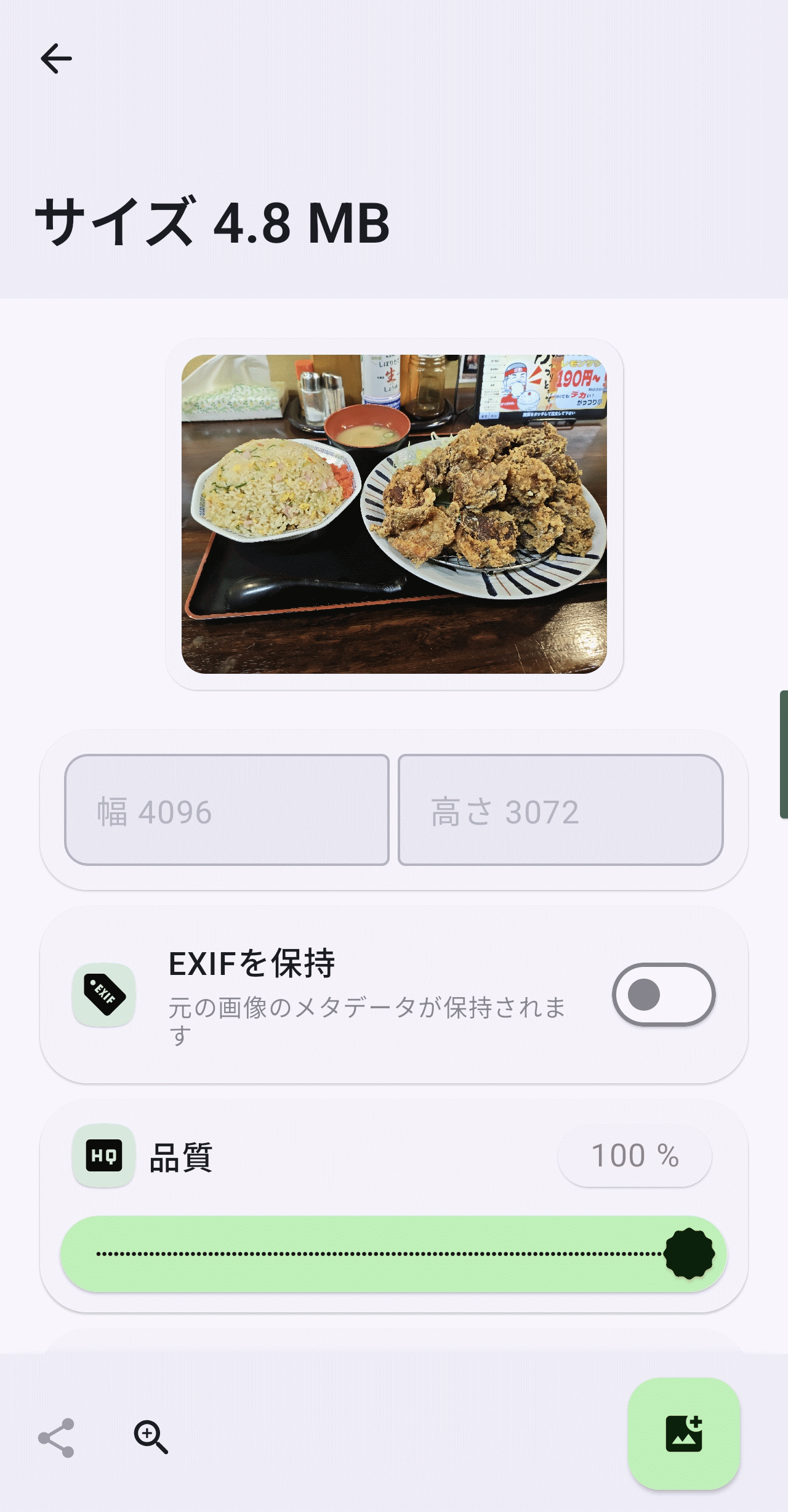
- Restricted resizing
If you select 'Resize with restrictions' and select an image, the following screen will appear, allowing you to resize the image to the size you specify in width and height.
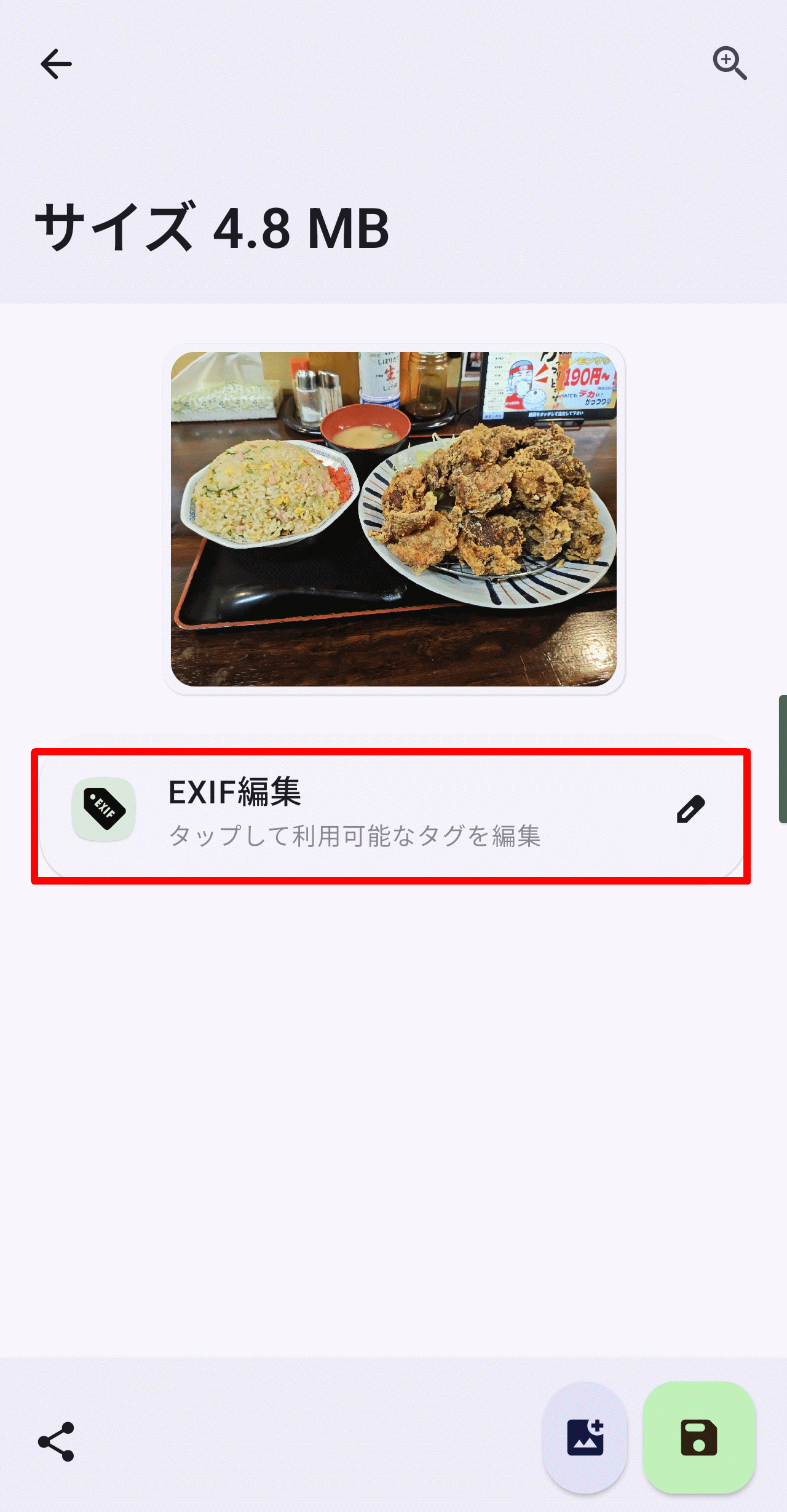
- EXIF editing
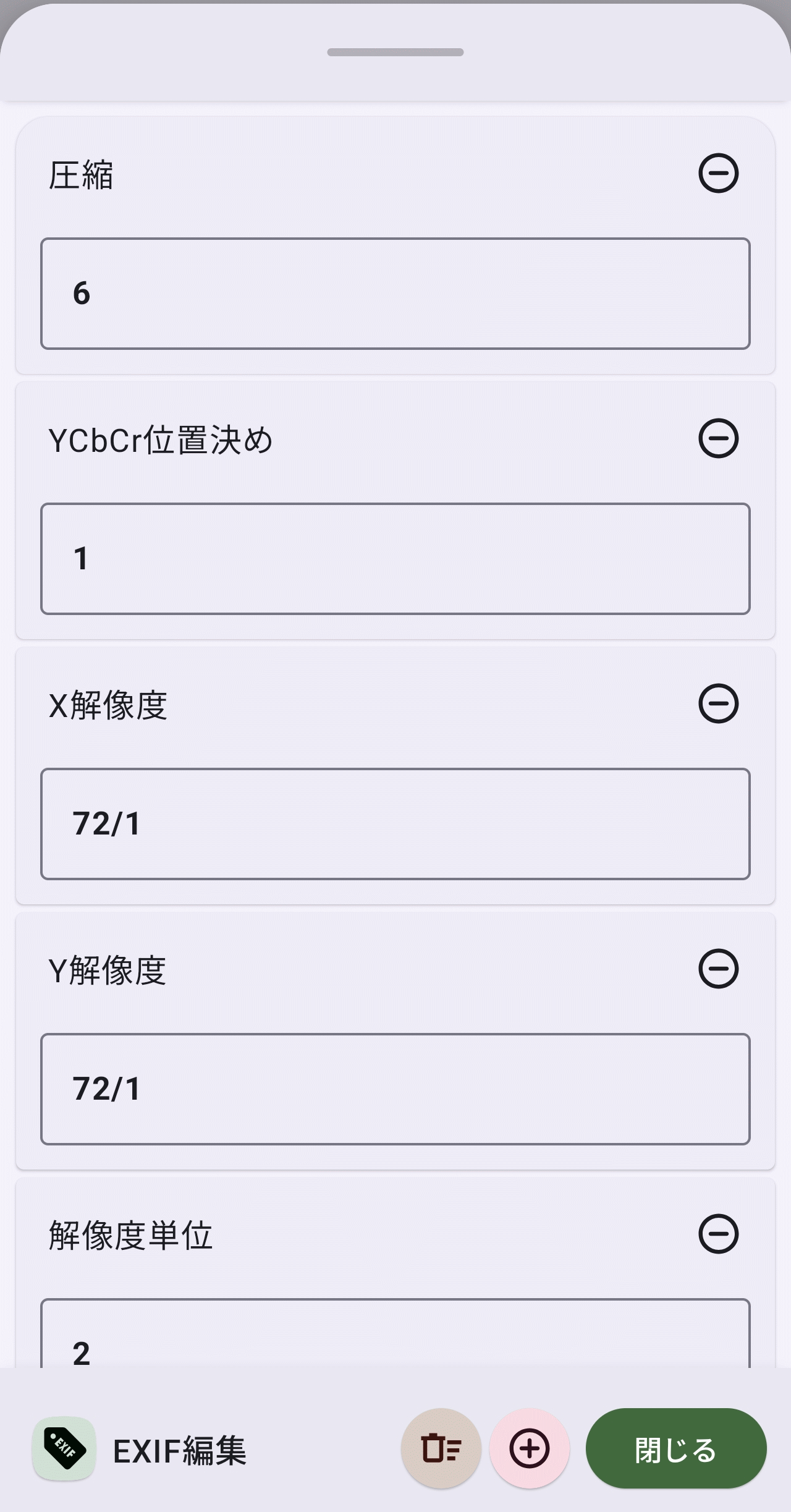
If you select 'Edit EXIF' and select an image, the following screen will appear.Tap the 'Edit EXIF' button in the center to display a pop-up.
A popup allows you to edit the EXIF metadata.
- Delete EXIF
If you select 'Delete EXIF' and select an image, the following screen will appear.Tap the 'Tags to delete' button in the center and a pop-up will appear.
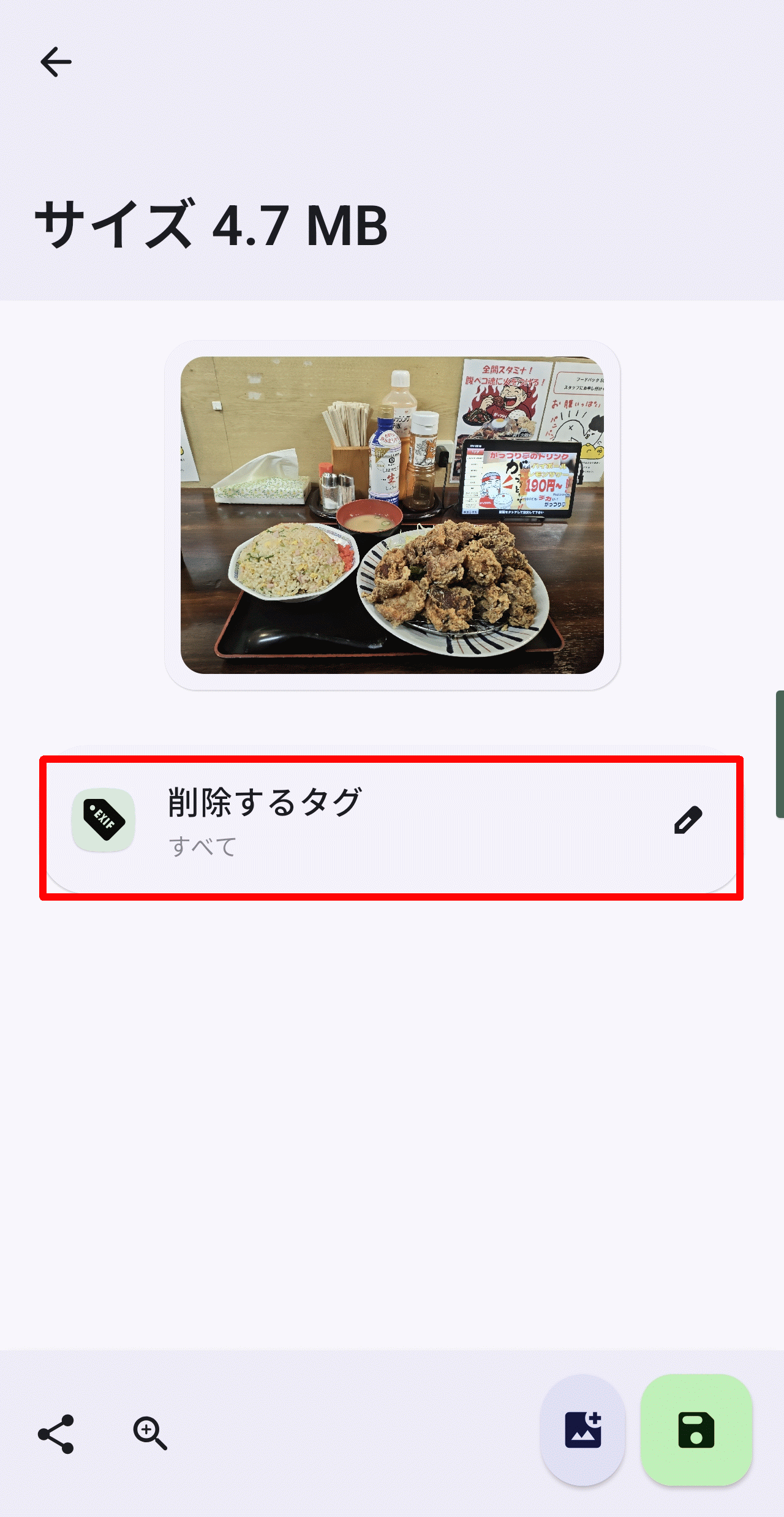
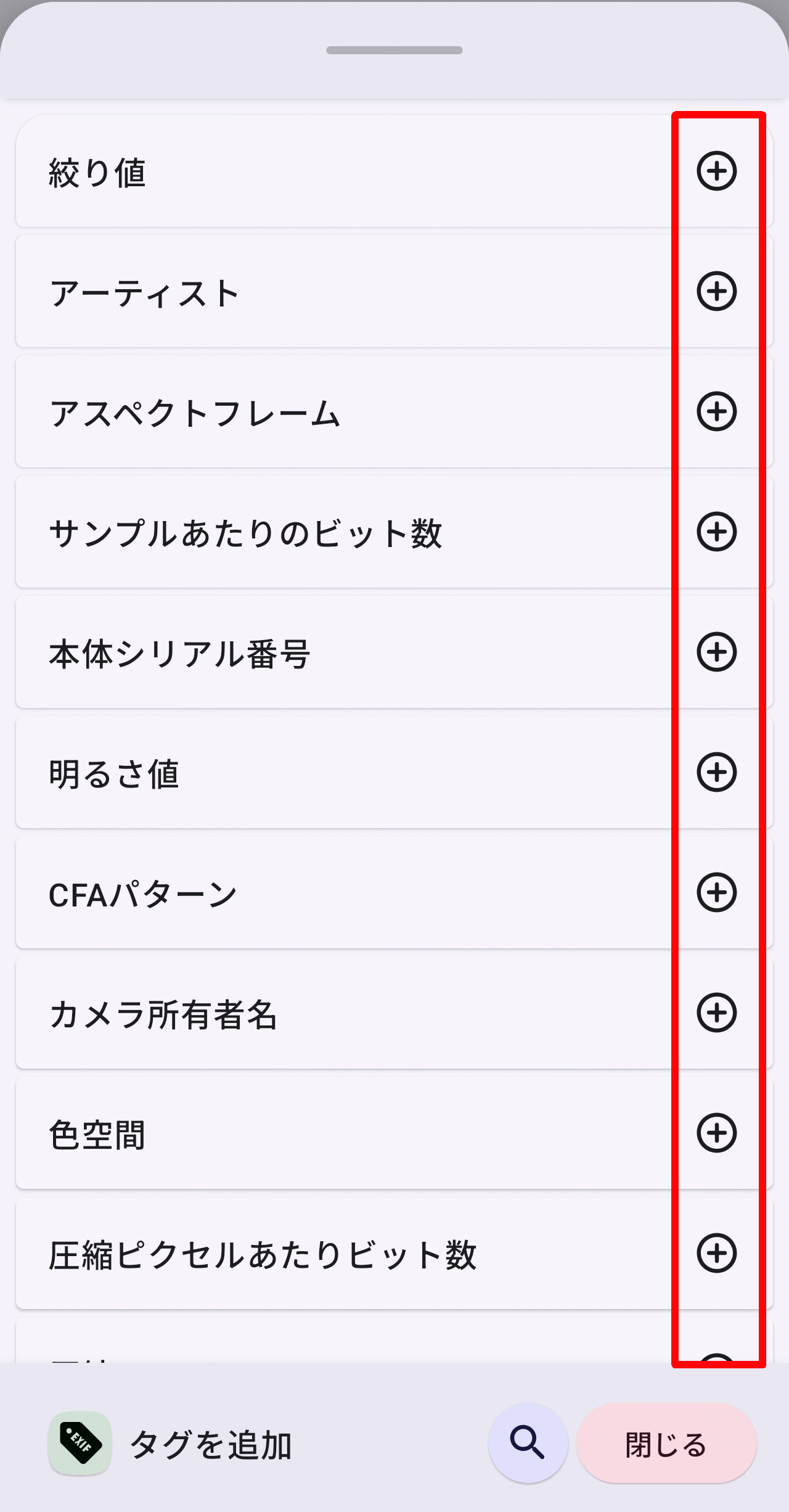
In the popup, you can specify the EXIF tags you want to delete. To exclude a specific EXIF tag from deletion, tap the '+' icon to the right of the EXIF tag name to change it to a '-' icon. Tapping it again will return it to a '+' icon, making it eligible for deletion.
◆ Creation
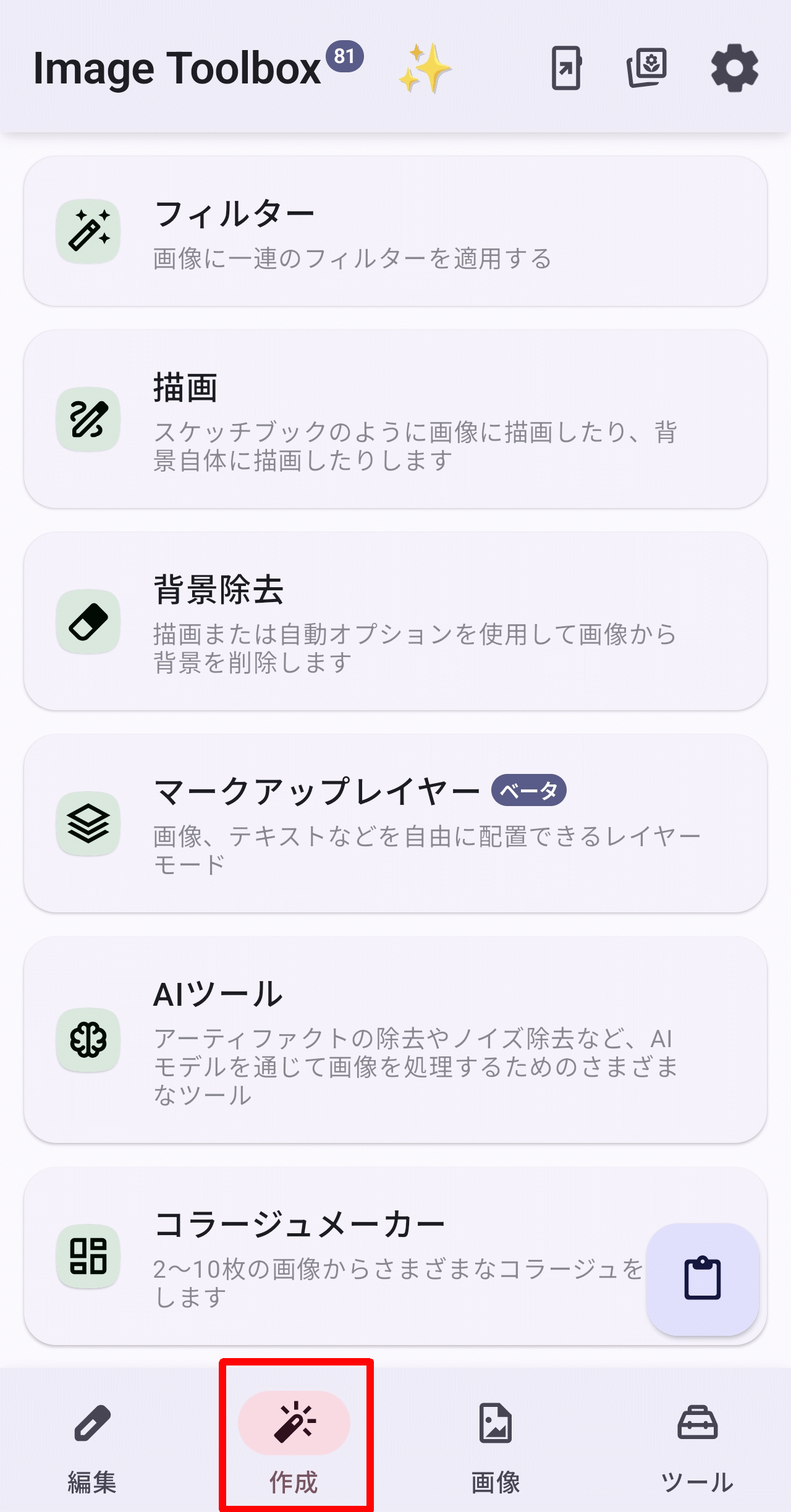
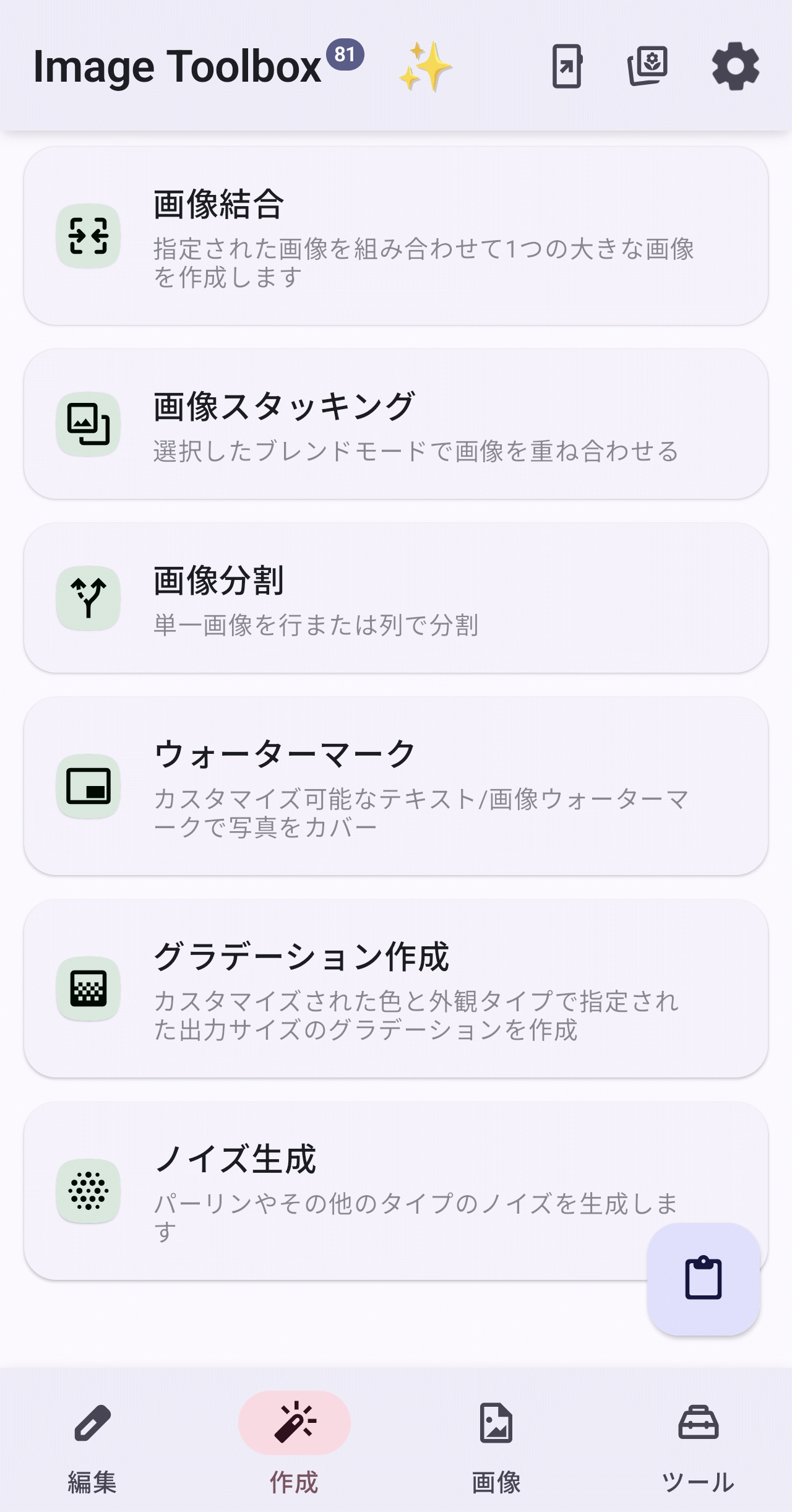
The home screen with the 'Create' tab selected looks like this. It offers powerful features like 'Filters,' 'AI Tools,' and 'Watermark.' While still in beta at the time of writing, 'Markup Layers,' which allows you to place text or other images on top of an image, also seems user-friendly.
◆Image
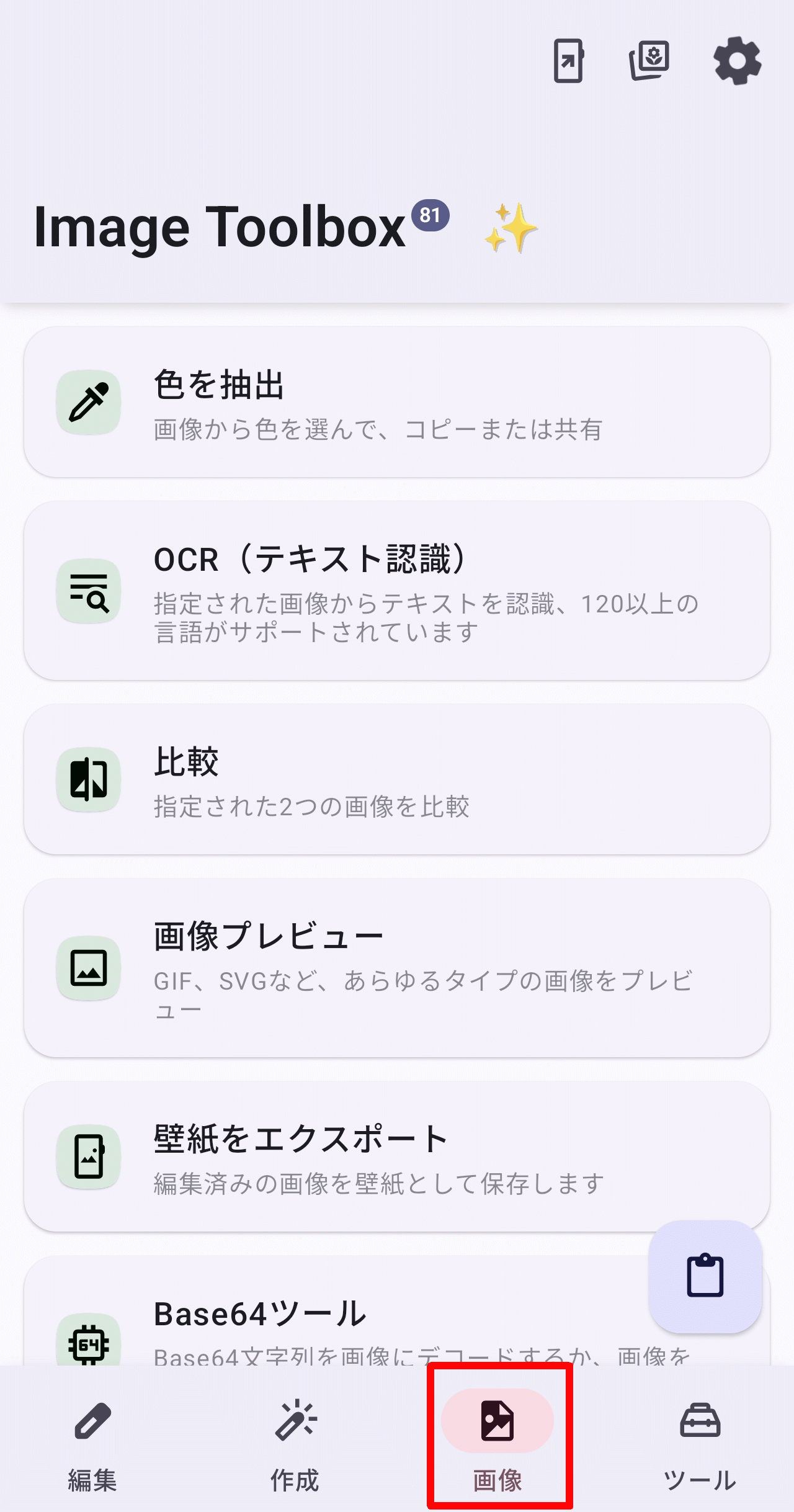
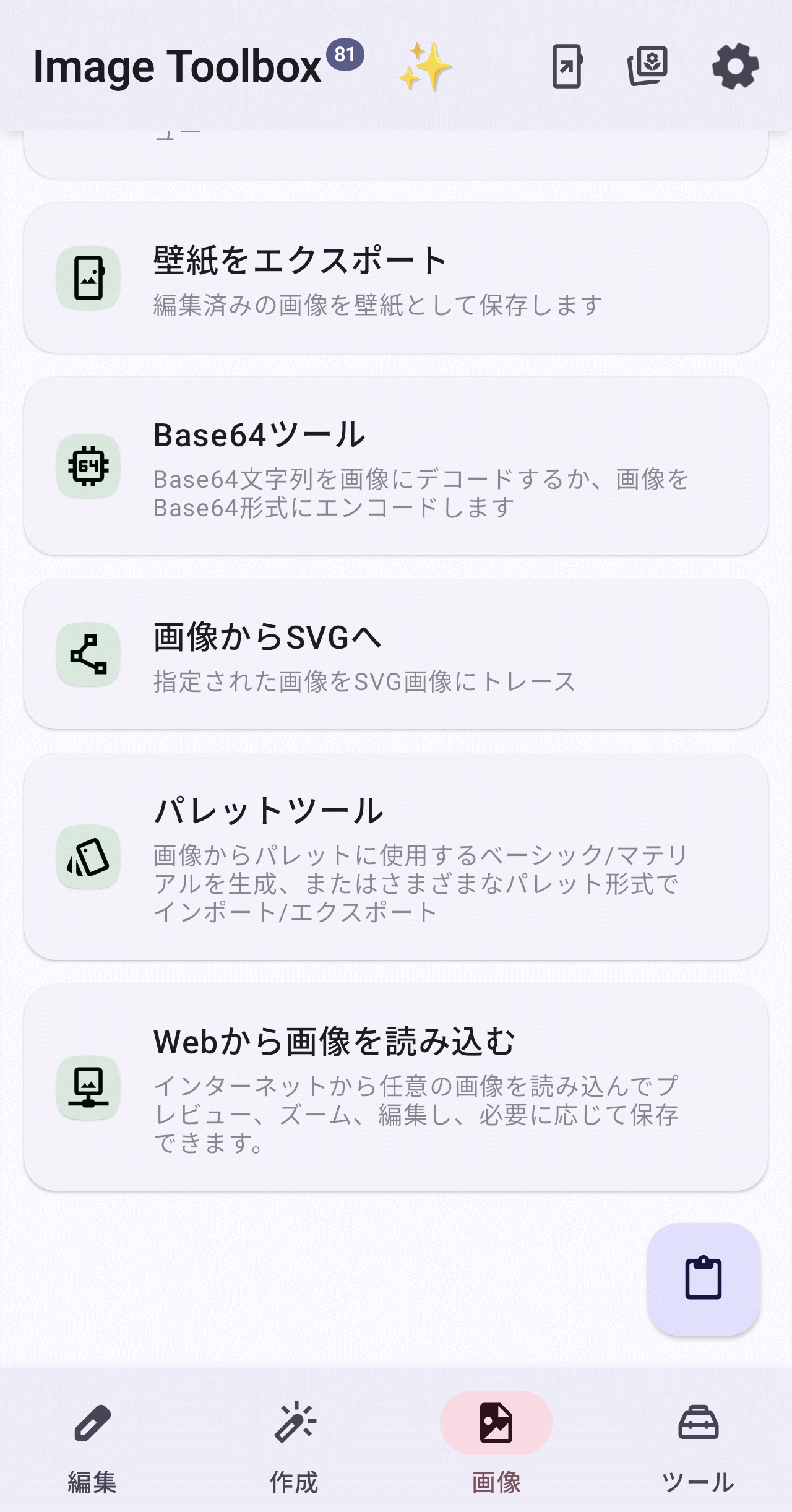
The image below shows the 'Images' tab selected on the home screen. There are some interesting tools that rival those found on PCs, such as 'OCR (Text Recognition),' 'Compare,' and 'Image to SVG.' The 'Wallpaper Export' feature seems like a useful mobile tool.
◆Tools
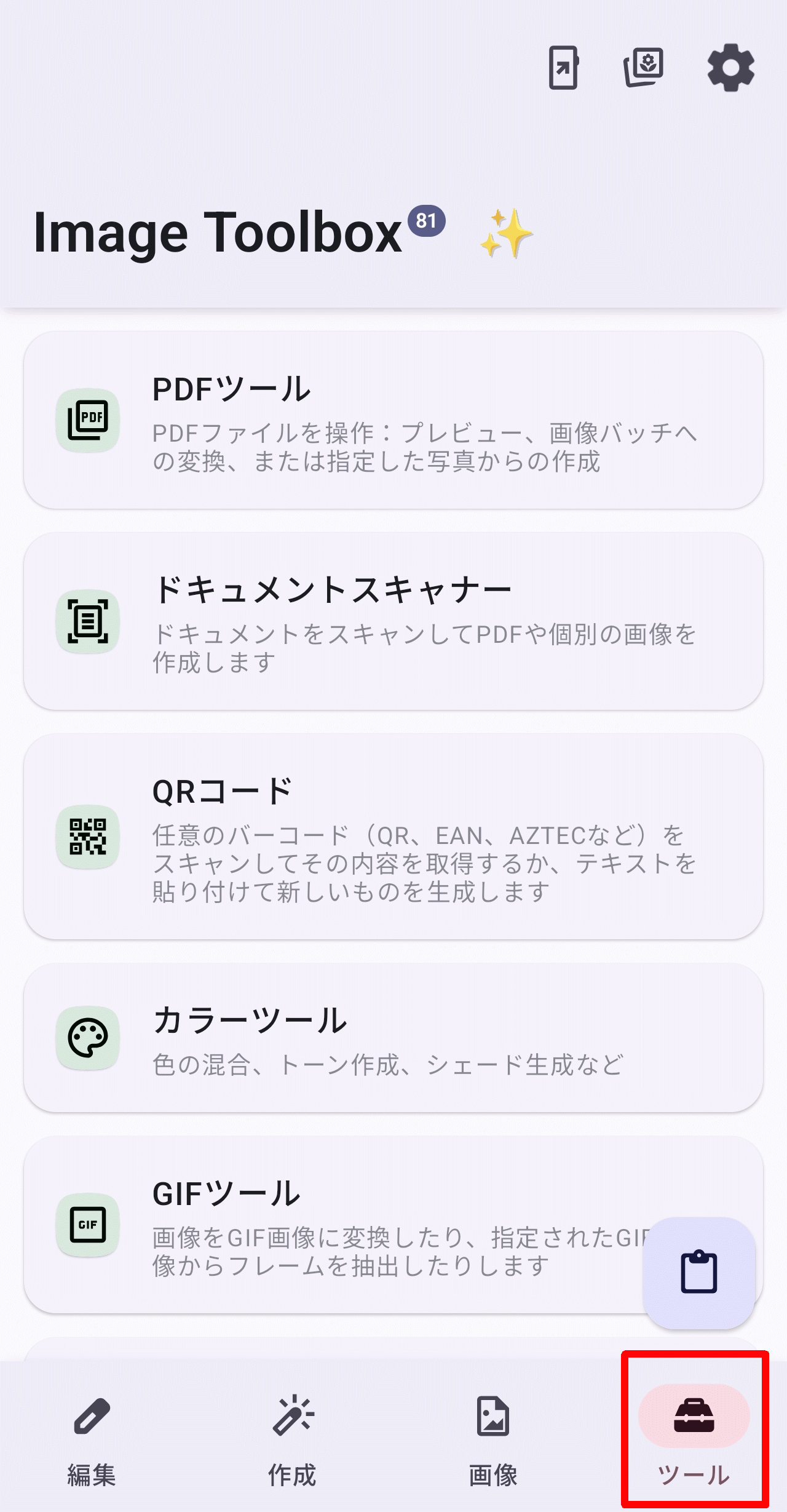
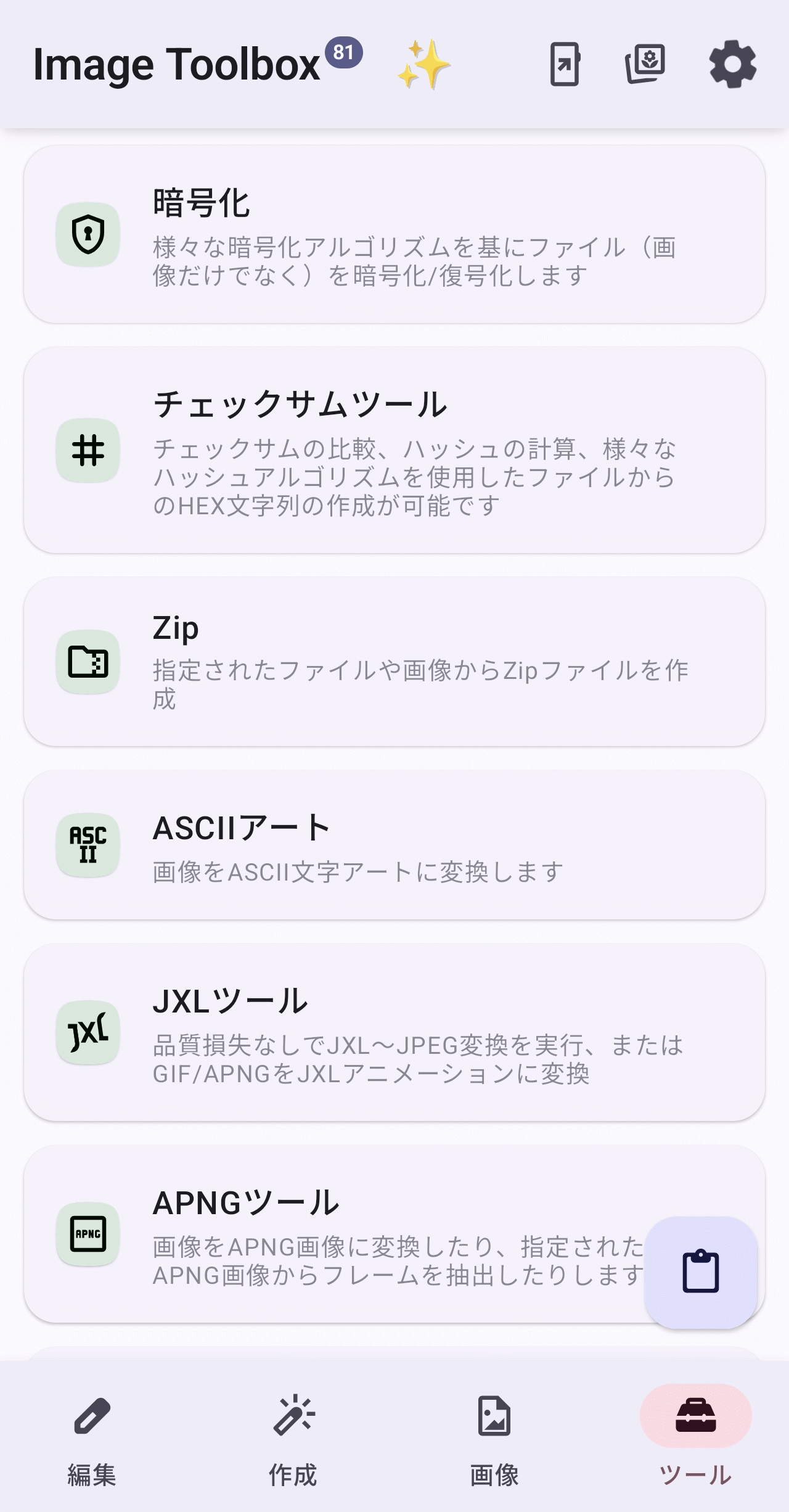
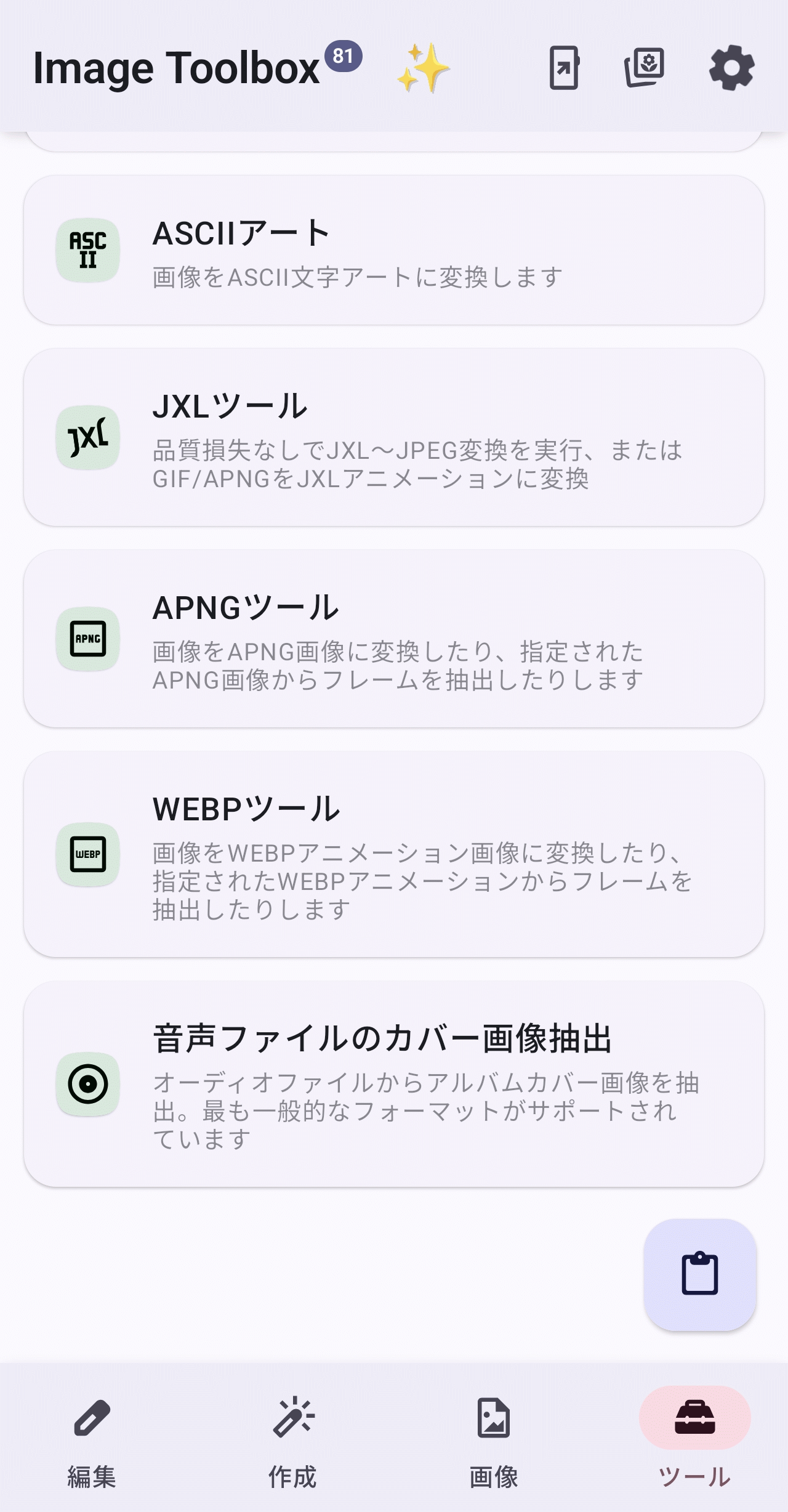
The 'Tools' tab on the home screen appears as shown below. There are PDF-related tools like 'PDF Tools' and 'Document Scanner,' as well as tools that could be useful in business situations like 'QR Code,' which can not only read but also create QR codes. There are also tools targeting specific image formats like 'GIF Tools,' 'JXL Tools,' 'APNG Tools,' and 'WEBP Tools,' as well as more unusual tools like 'ASCII Art' generation from images and 'Extract Cover Images from Audio Files,' which are endlessly interesting.
Summary
As you can see from the above, 'Image Toolbox' is an image editing tool with many attractive features. If you are looking for a high-performance image tool that goes beyond the scope of Android apps, it may be worth considering as one of your options.
Related Posts:



in AI, Software, Smartphone, Review, Posted by log1c_sh