A hands-on review of the official Steam gamepad/controller, the 'Steam Controller': Here's what it's like to actually touch and use it.
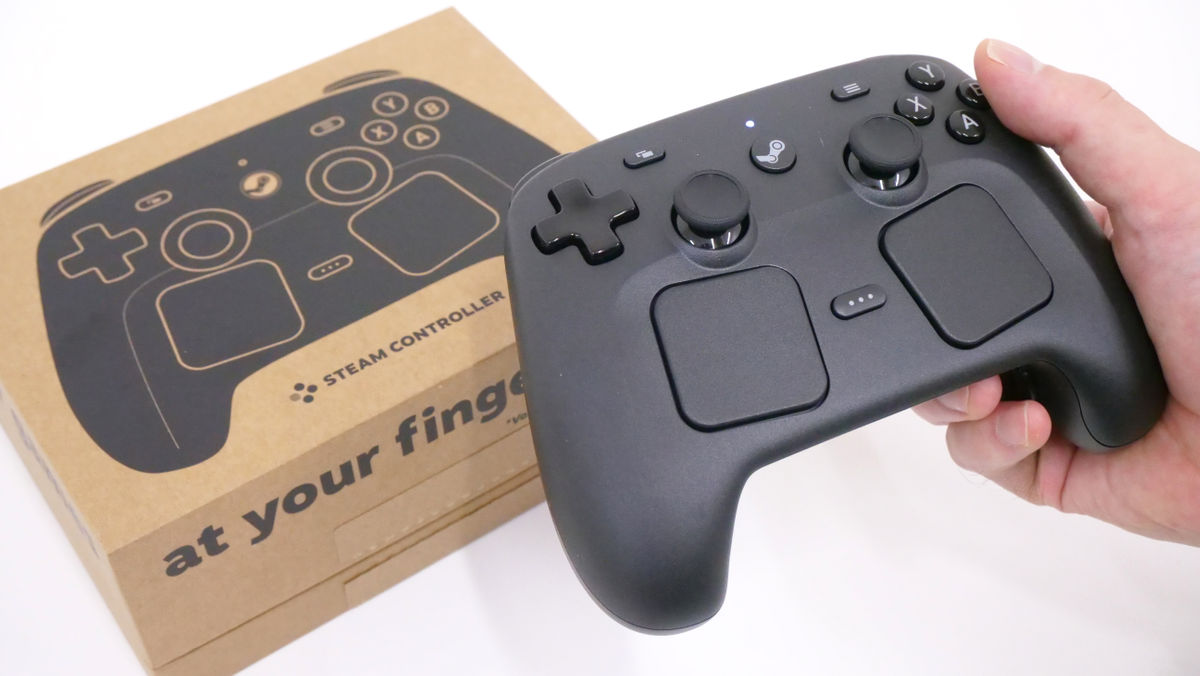
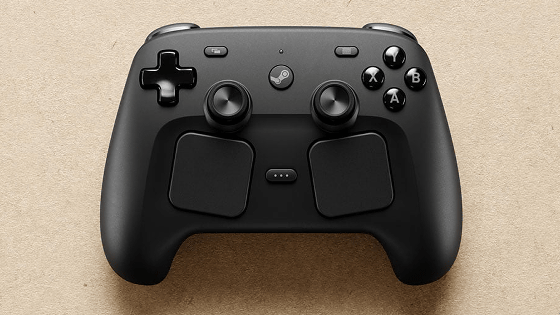
In May 2026, Valve, the company that operates the game distribution platform 'Steam,' released the ' Steam Controller .' This product, which is equipped with all the elements found in a typical controller, such as a gyro sensor, trackpad, and back buttons, was available for loan, so I tried it out.
Steam Controller
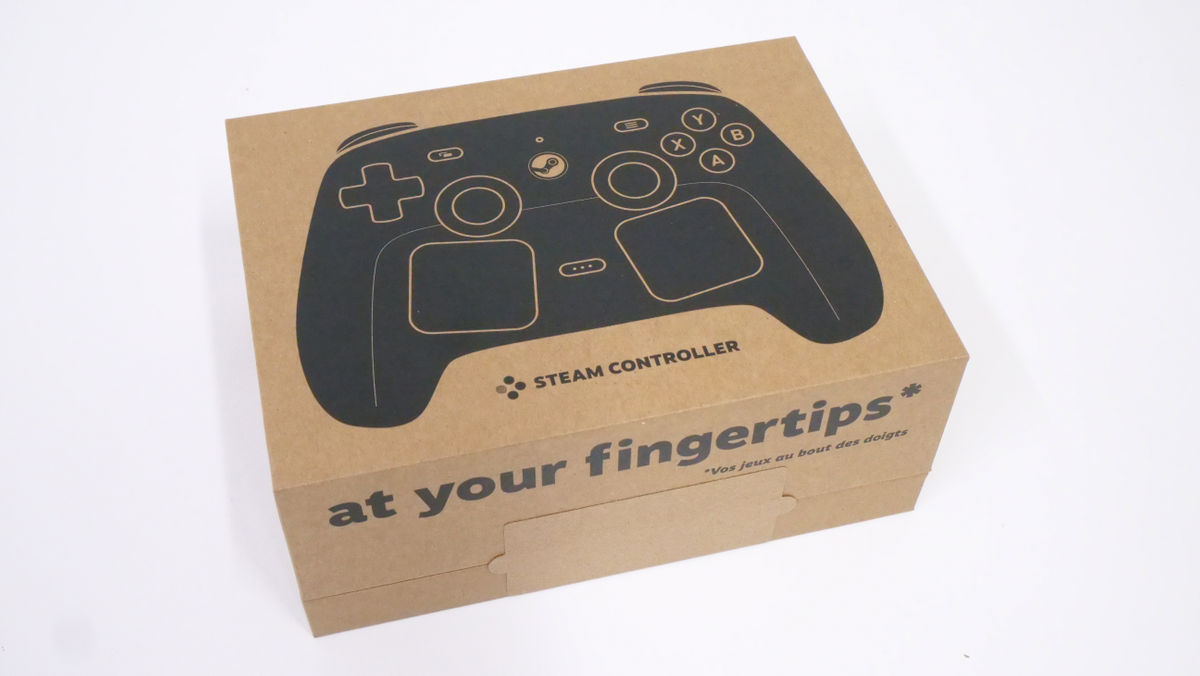
This is the packaging for the 'Steam Controller'.
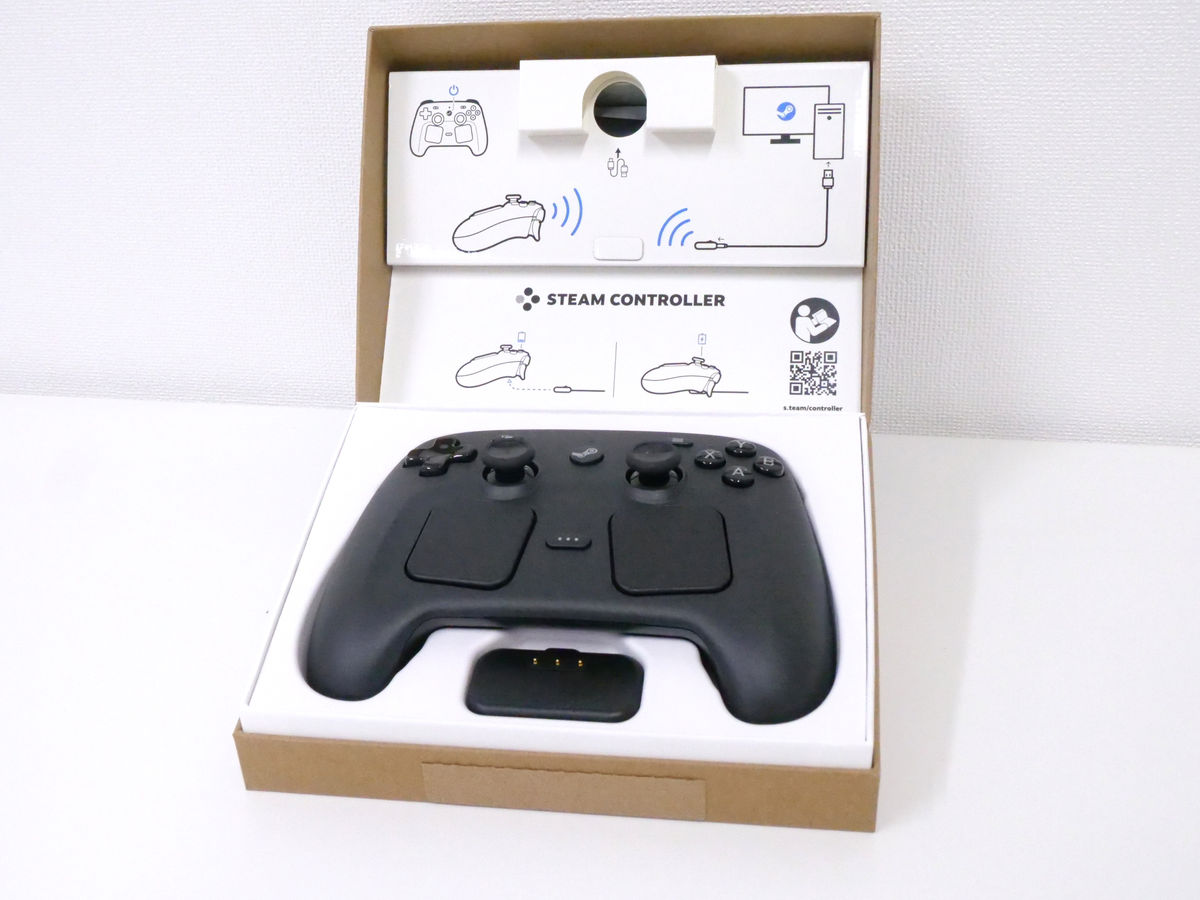
The connection method was written on the inside of the box.
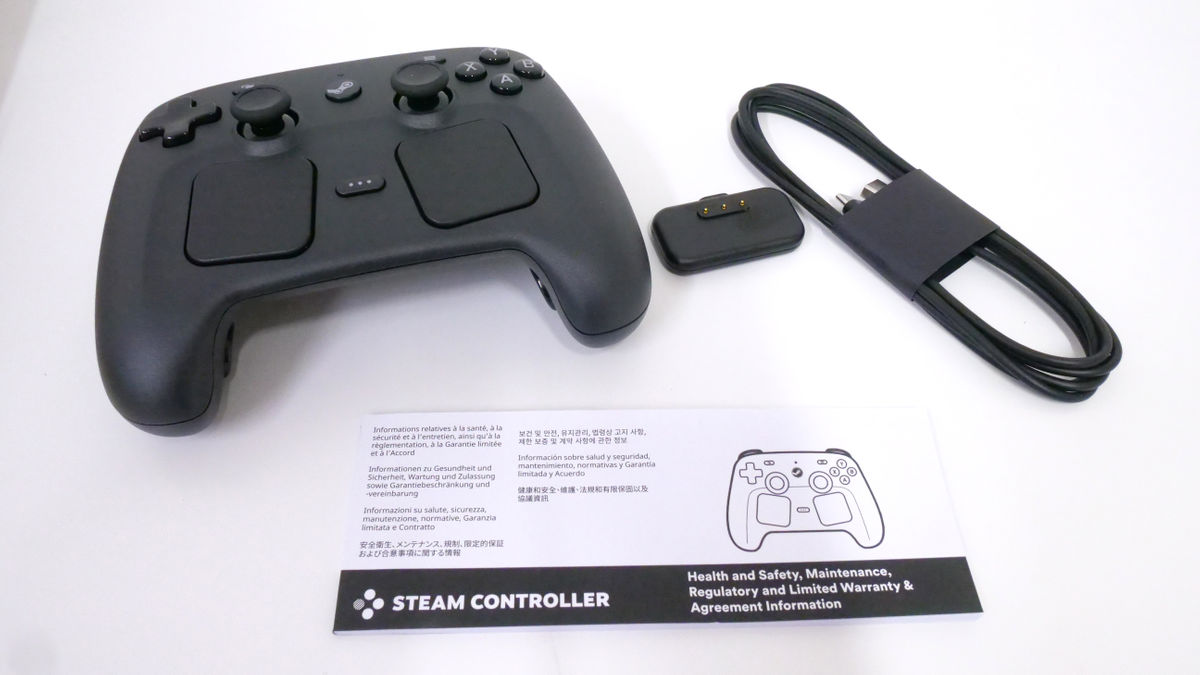
The package contains four items: the controller itself, a wireless transmitter (Steam Controller Puck), a USB Type-A to Type-C cable, and safety documents.
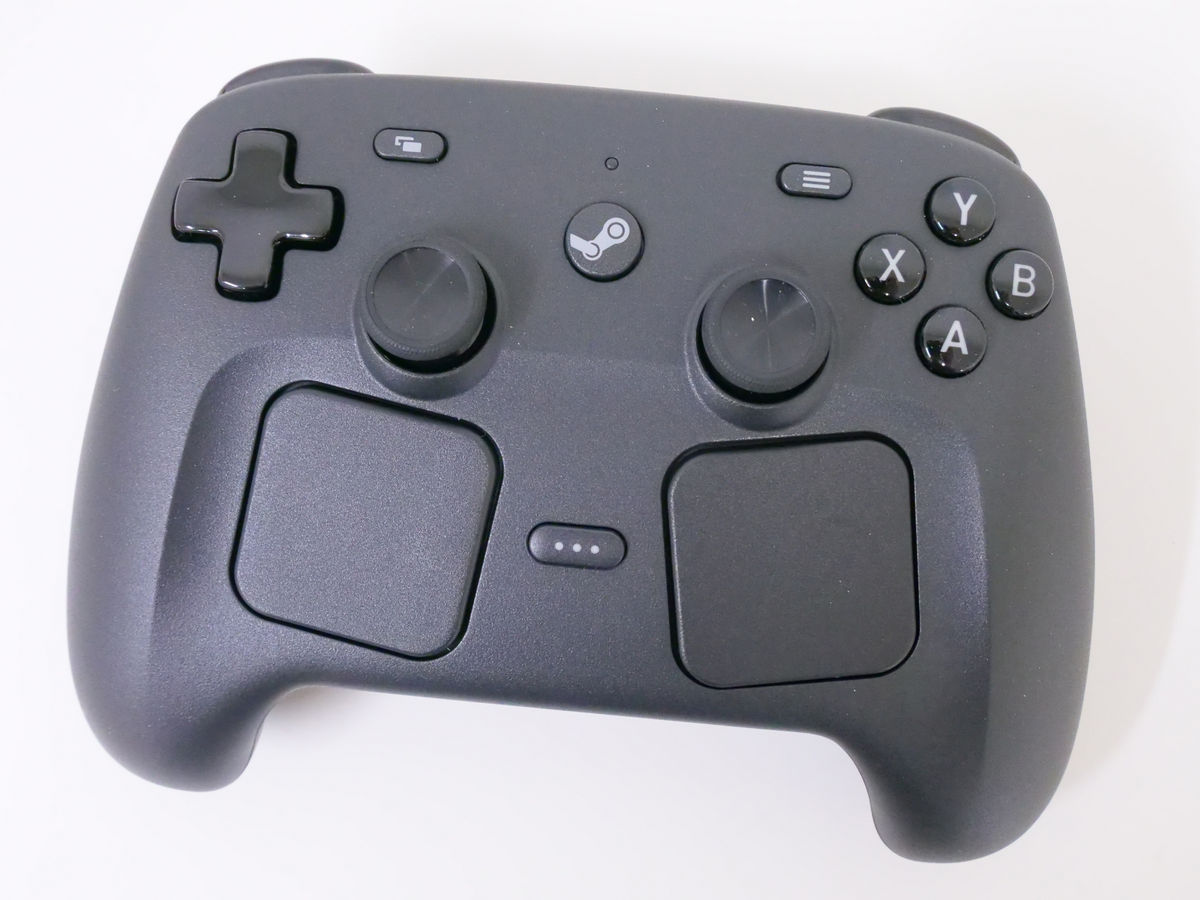
This is the controller itself. Its dimensions are 111mm x 159mm x 57mm, and it weighs 292g.
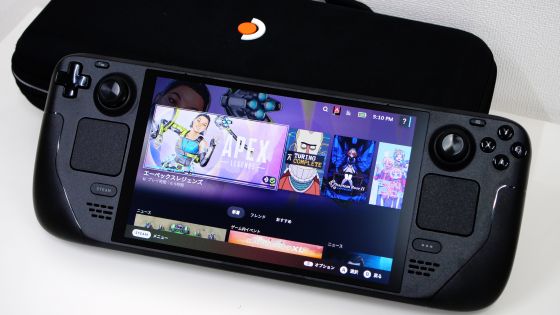
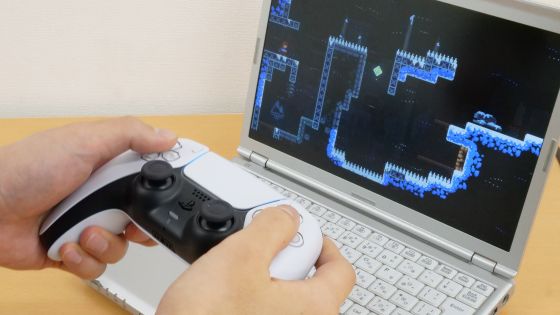
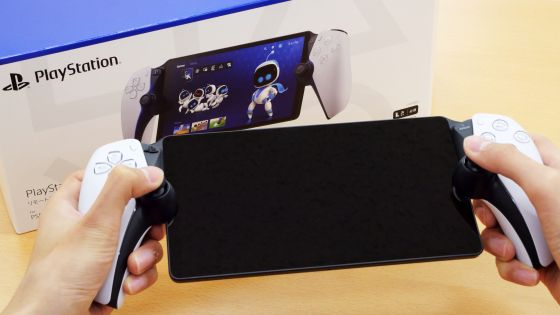
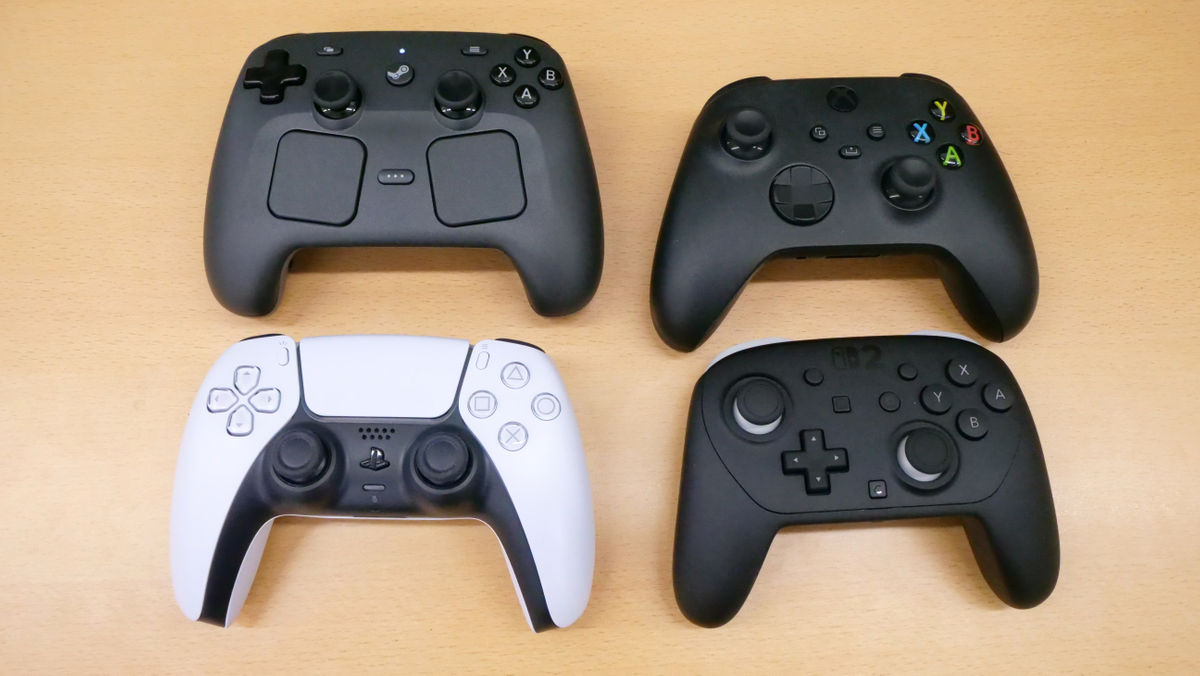
The Steam Controller (top left) has symmetrical thumbstick (analog stick) placement, similar to the PlayStation 5 controller ' DualSense ' (bottom left). The ABXY button layout on the right side is the same as the Xbox controller (top right). In terms of design, it is the most different from the Nintendo Switch 2 Pro Controller (bottom right).
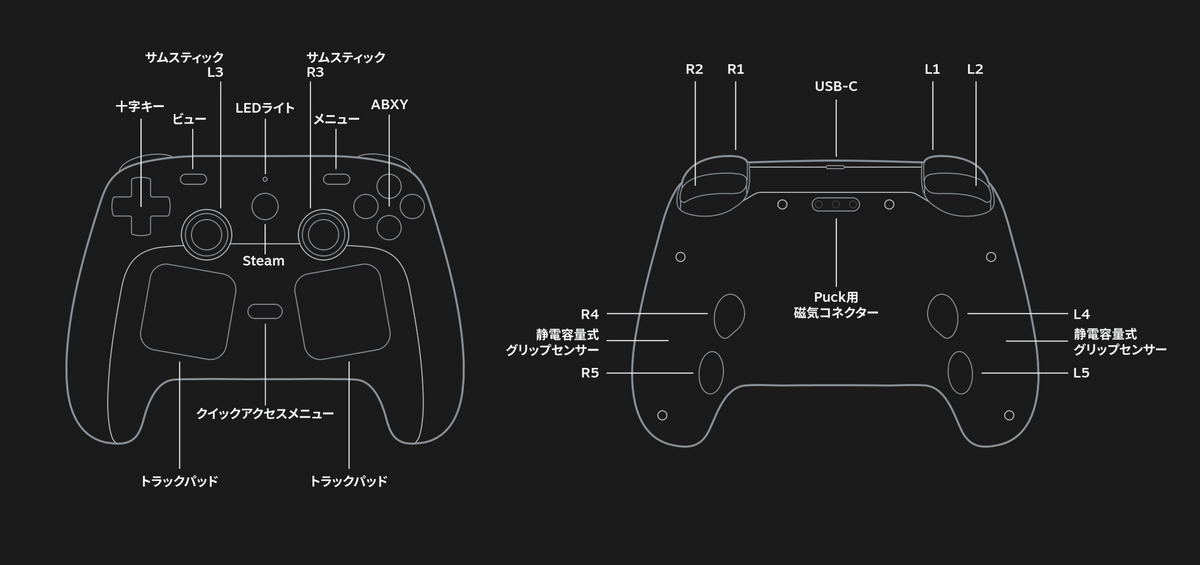
The names of the various buttons are as follows.
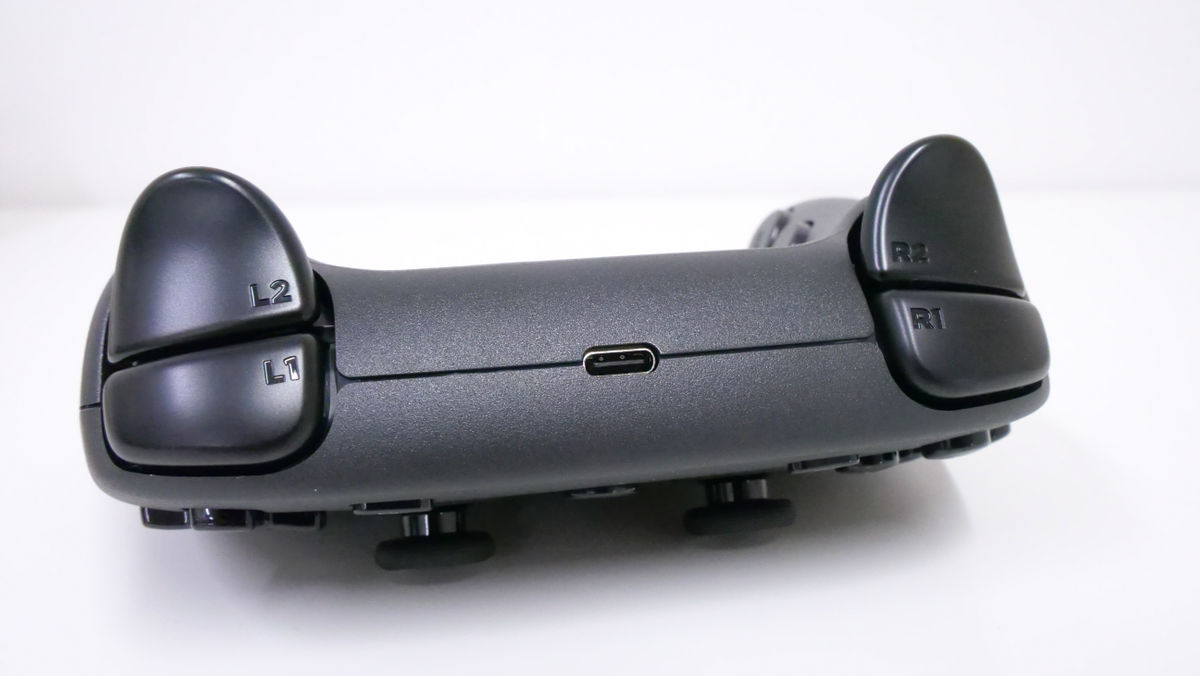
The top features L1/L2 buttons, R1/R2 buttons, and a USB Type-C port.
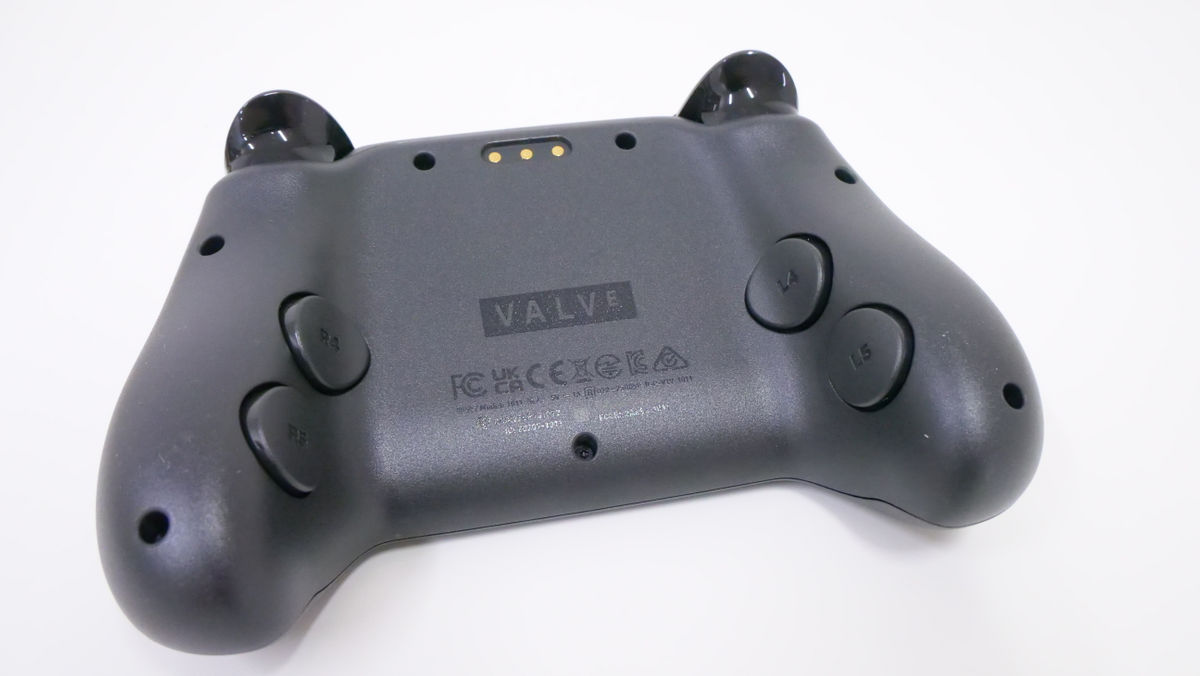
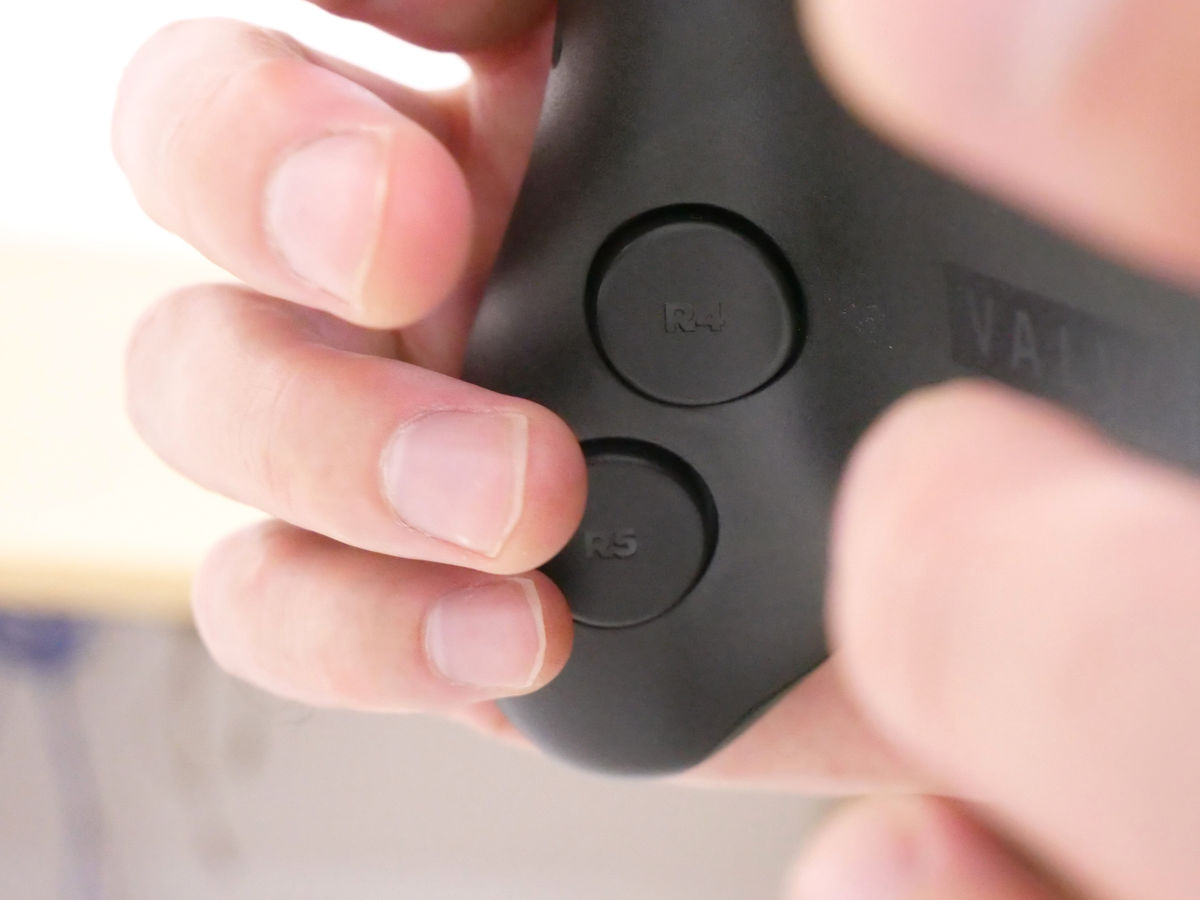
On the back are the R4/R5 buttons and the L4/L5 buttons.
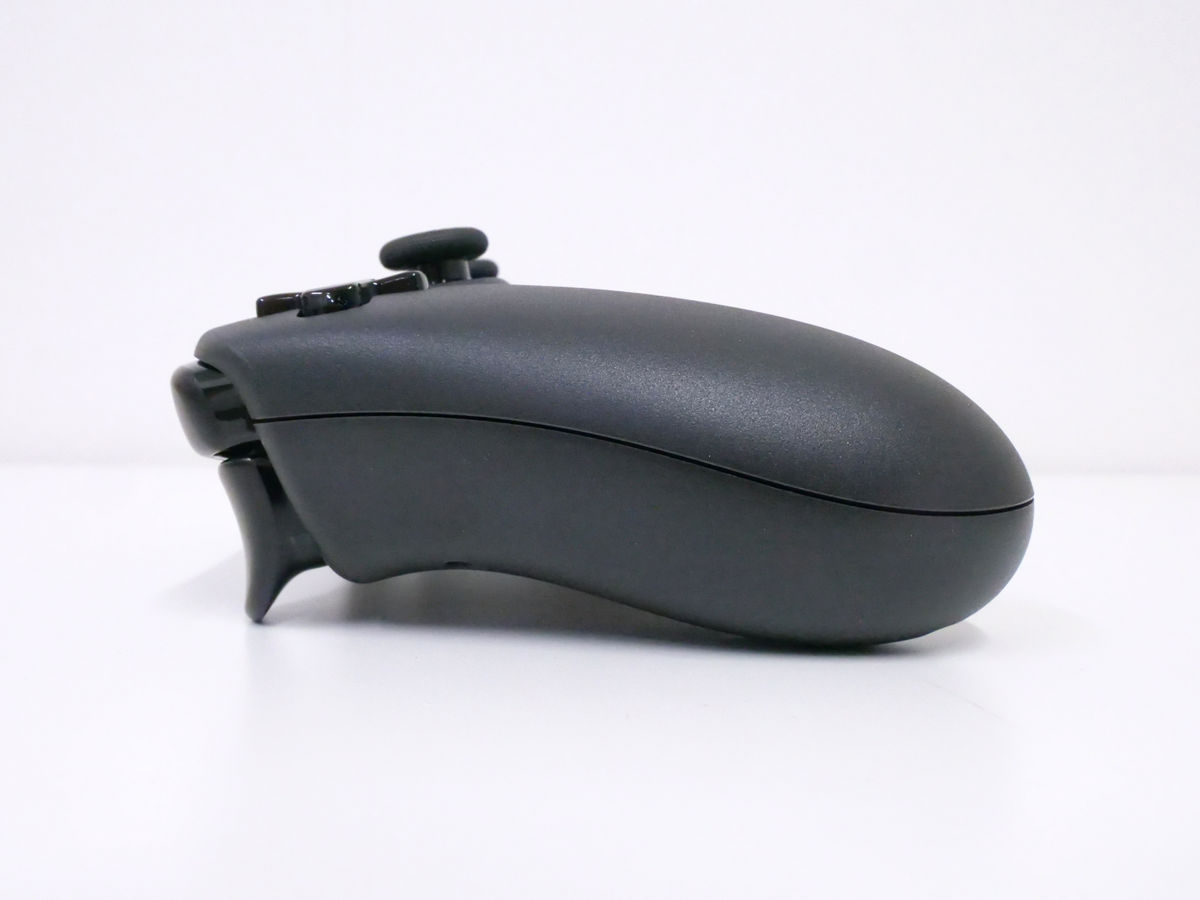
Left side.
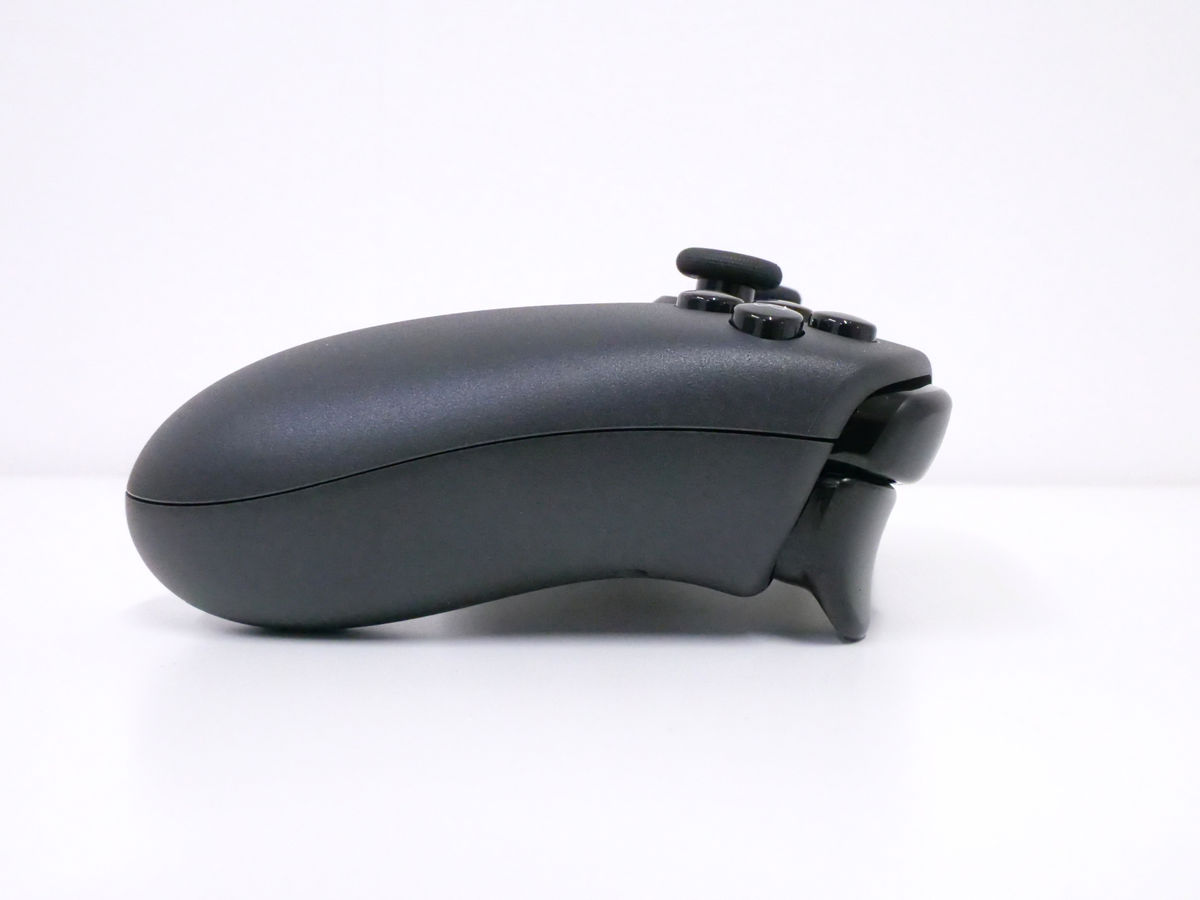
This is the right side.
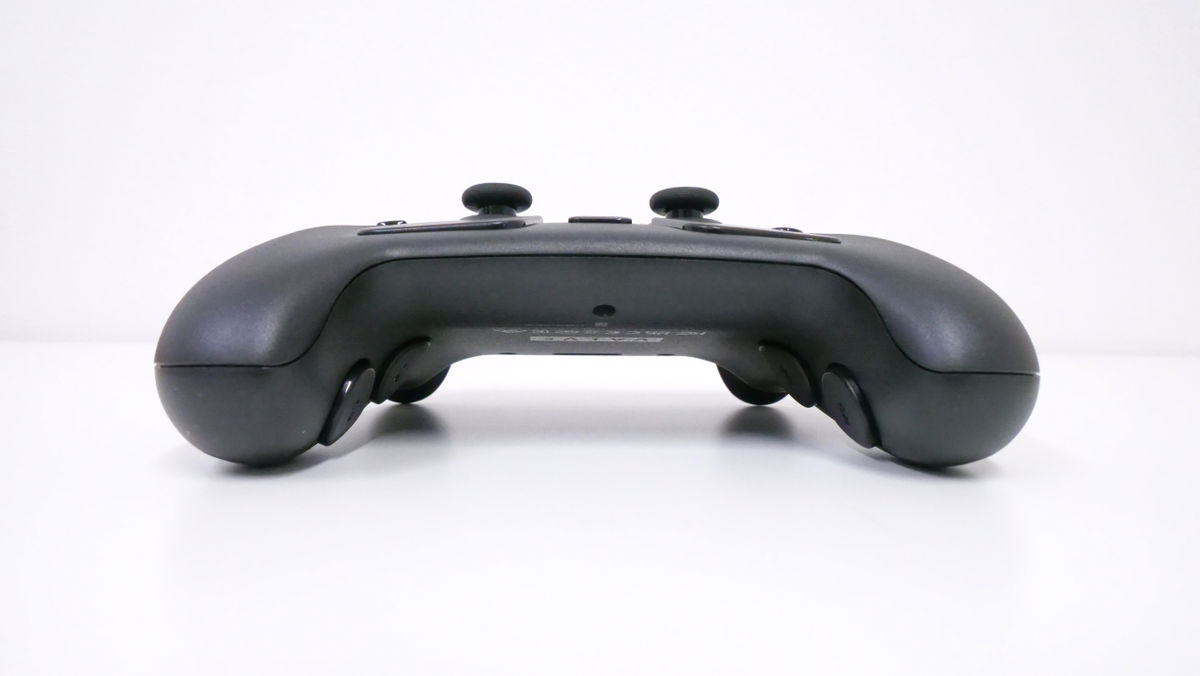
This is what it looks like from below. Like the DualSense, it features a perfectly symmetrical design.
I held it. The surface texture is the same on both the front and back, with a slightly rough, matte feel. It feels almost exactly like an Xbox controller.
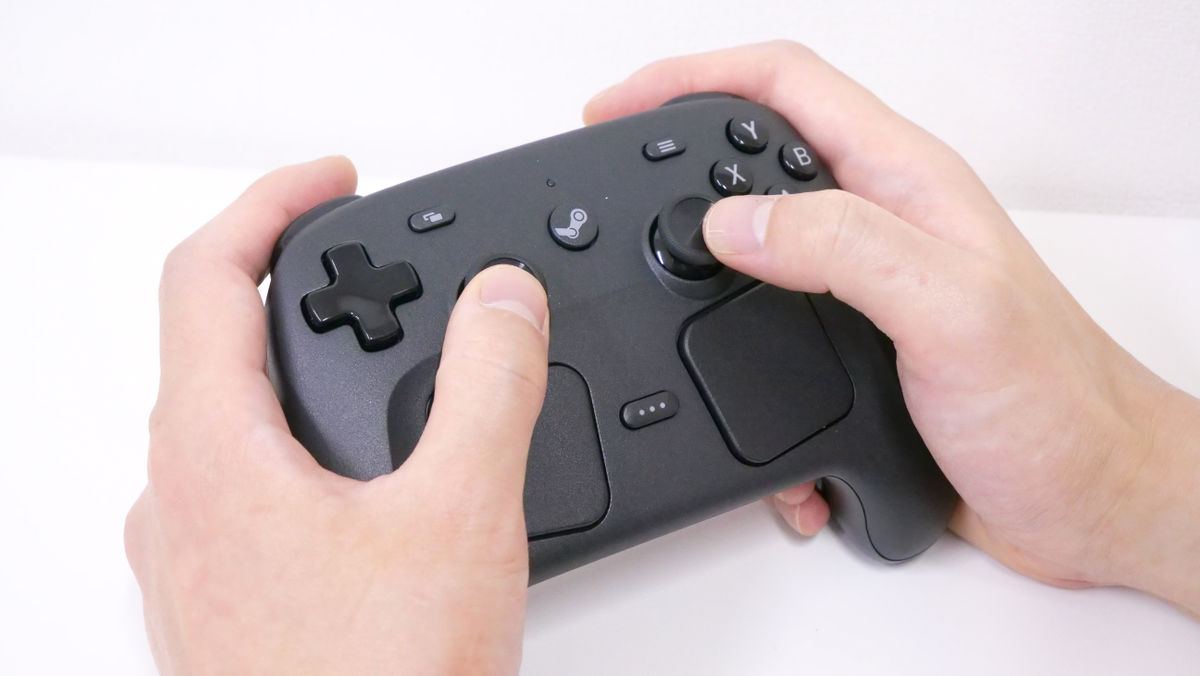
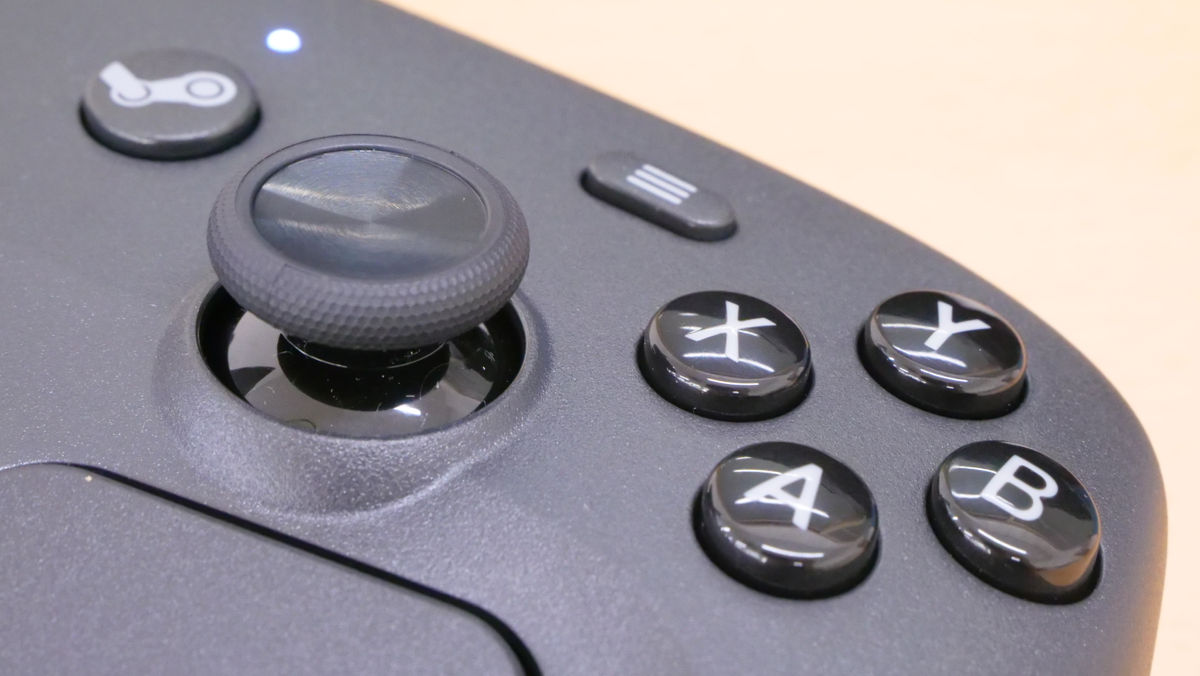
The thumbsticks have a rough, textured surface around their circumference, resembling hard rubber. The center of the thumbsticks has a smooth, non-slip rubber texture. The directional buttons, ABXY buttons, and R1-L2 buttons are smooth. The trackpad and back buttons have the same texture as the controller's surface.
This is what it looks like from the back.
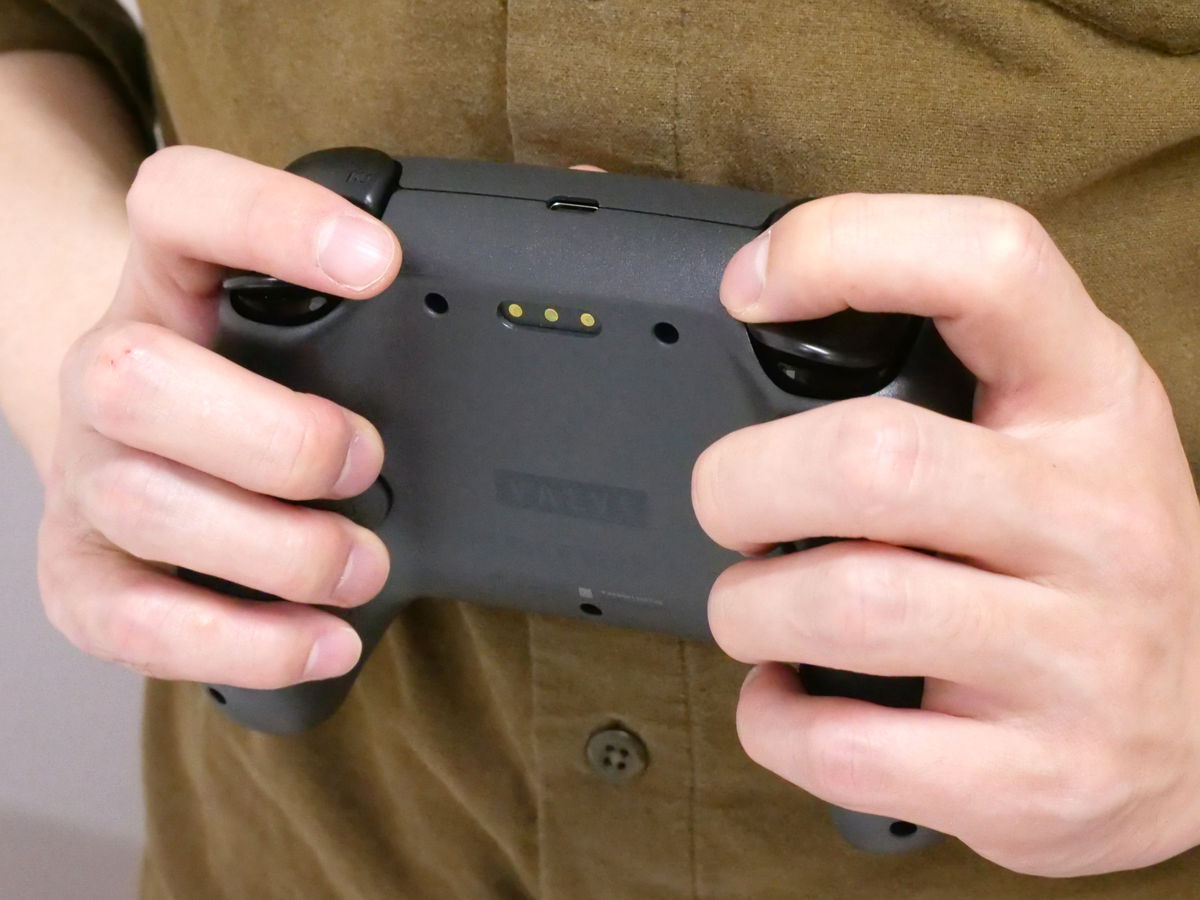
The R4 and L4 buttons are positioned right where your middle finger would be, and the R5 and L5 buttons are somewhere between your ring and pinky fingers.
Next, let's actually connect it to a PC. There are four main ways to connect the Steam Controller: 'wired connection via USB cable,' 'wired connection via wireless transmitter,' 'wireless connection via wireless transmitter,' and 'Bluetooth.'
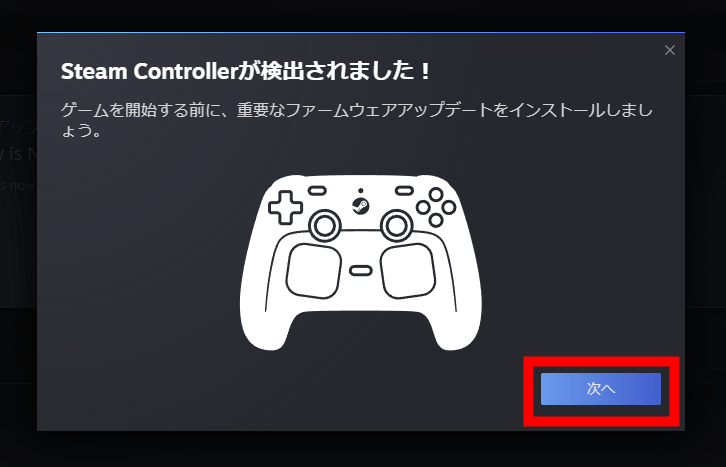
When I connected it to my PC with a USB cable, a notification appeared in the Steam client saying, 'Steam Controller detected.'
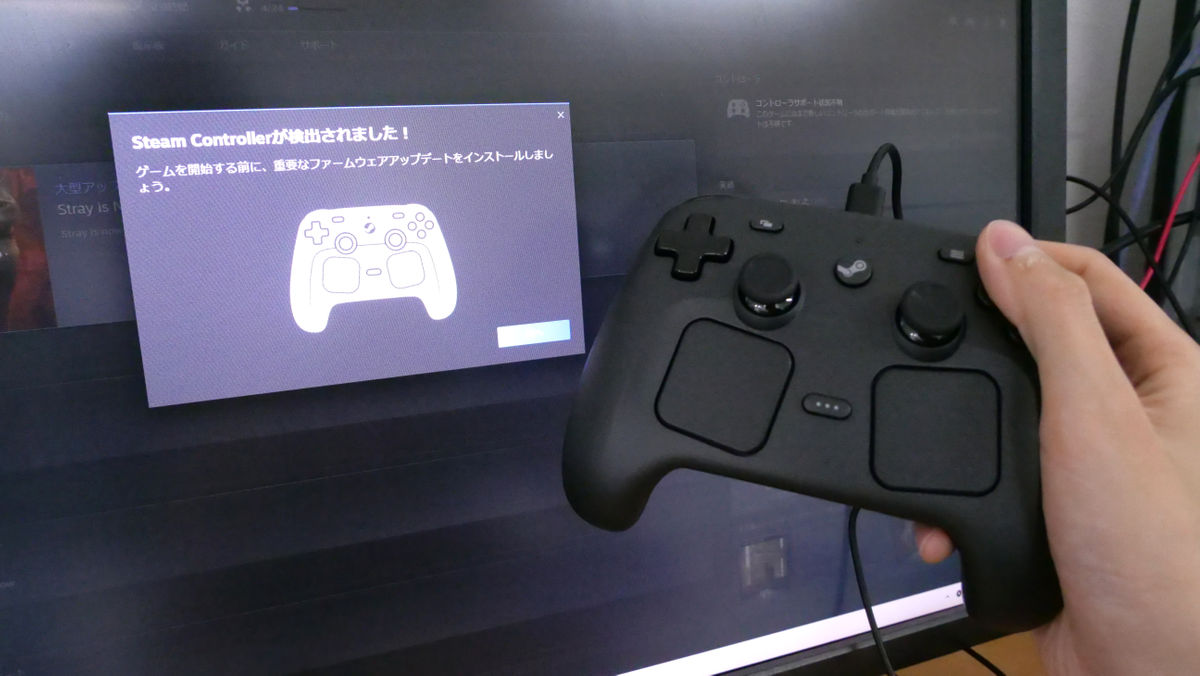
Press 'Next' in the notification.
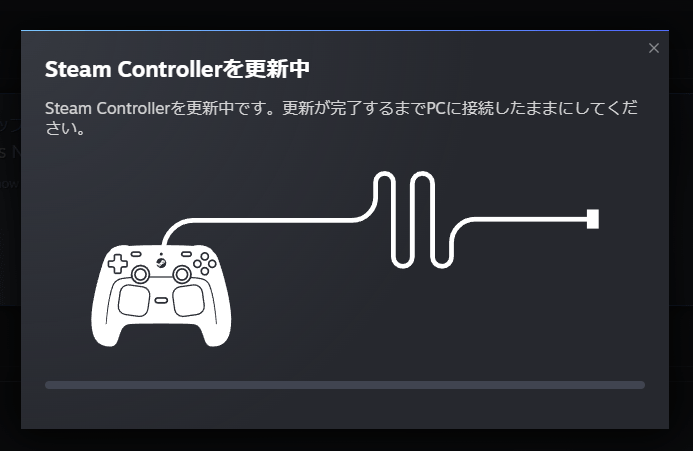
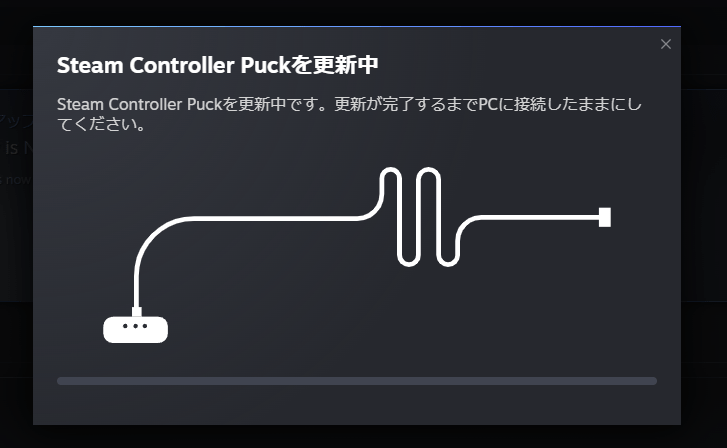
A message saying 'Updating Steam Controller' appeared, and after a while, it was updated.
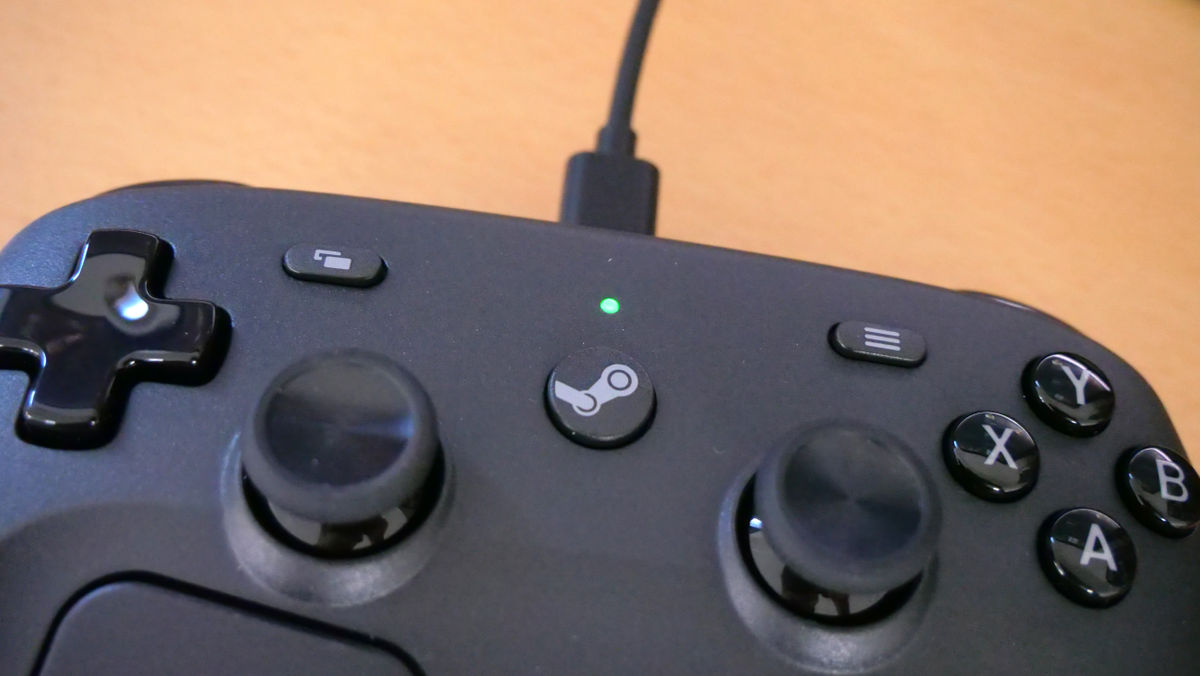
The LED light will glow green when the connection is successful.
If using a wireless transmitter, connect the wireless transmitter to your PC with a USB cable and attach it to the back of the Steam Controller.
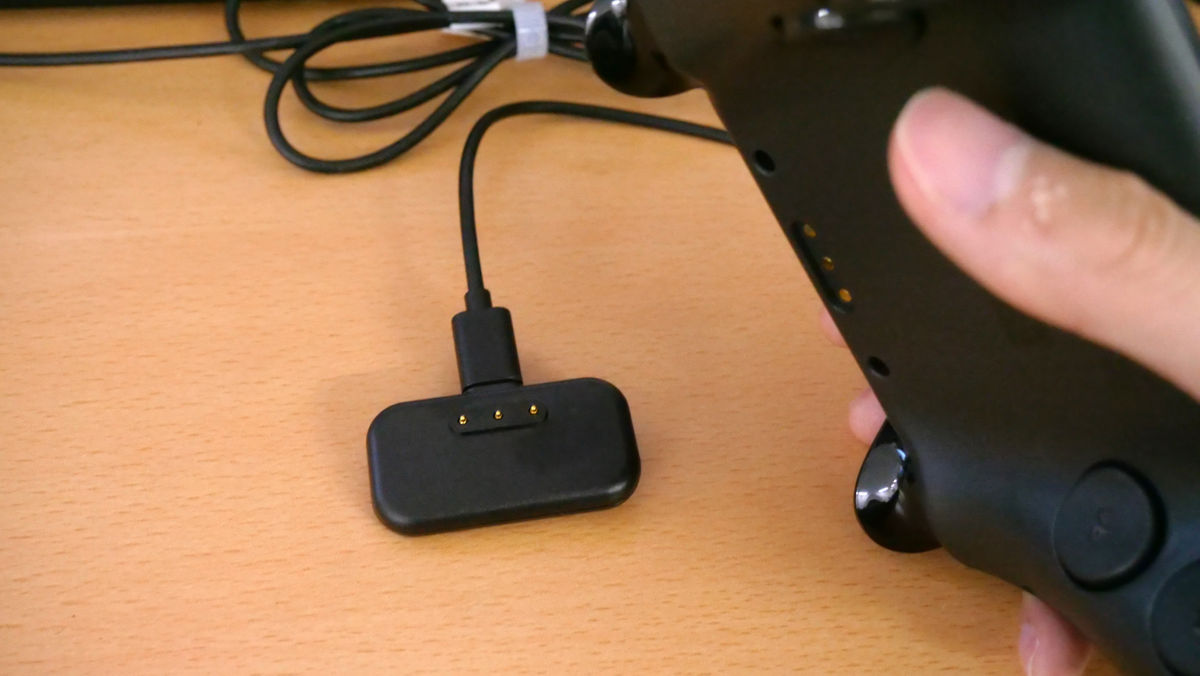
It was easily attached with a magnet.
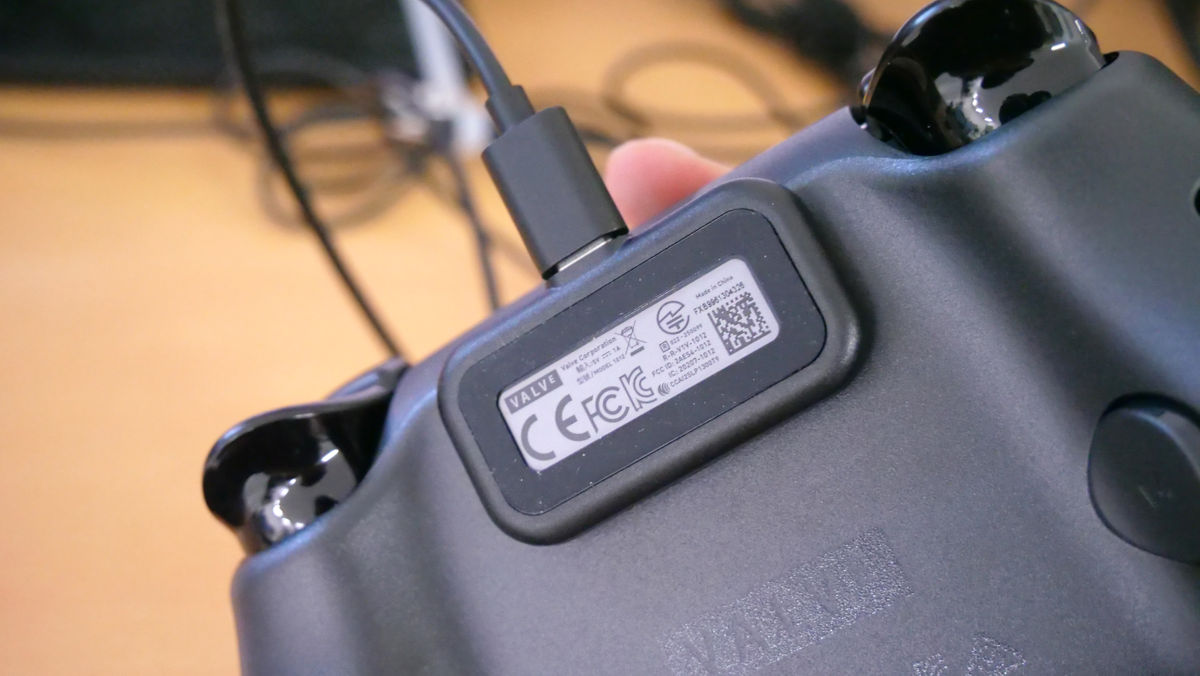
Once the installation is successful, the wireless transmitter will begin updating. After the update, you can continue to operate the controller, and even if you move the wireless transmitter away from the Steam Controller, you can still operate it wirelessly.
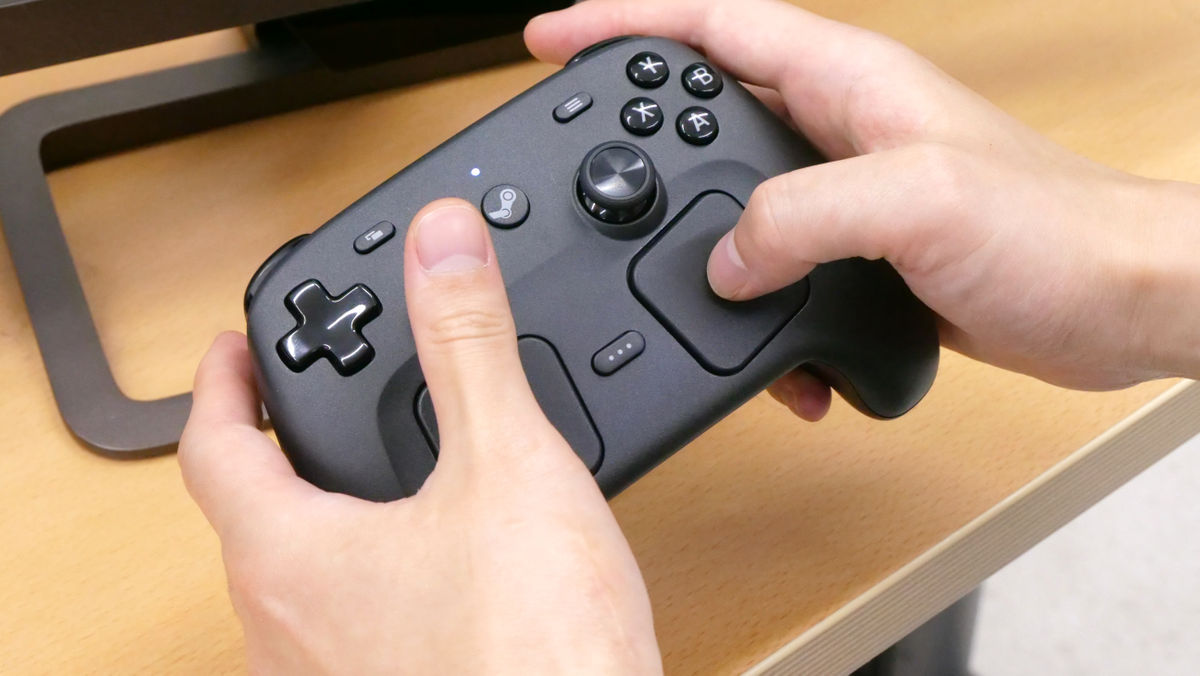
The buttons sound like this. Each button makes a pleasant clicking sound, and the R2 and L2 buttons have a slightly soft rebound, making them easy to press. The surface of the stick is slightly concave towards the center, so when you place your thumb along it and press down, the pad of your thumb fits perfectly, giving the impression that it won't get painful even if you hold it down for a long time. When you trace over the trackpad, you feel a unique, tactile vibration. It's different from the strong vibration similar to the DualSense smartphone or the HD rumble of the Nintendo Switch, and it feels like being gently tapped from the inside with a mild massager. The grip produces a strong vibration similar to the DualSense.
The trackpad allows for mouse-like operation through 'swiping,' and in some games, it can even be used as a substitute for an analog stick to move the camera. It also supports pressing down, and when pressed, you feel a resistance similar to a mouse click.
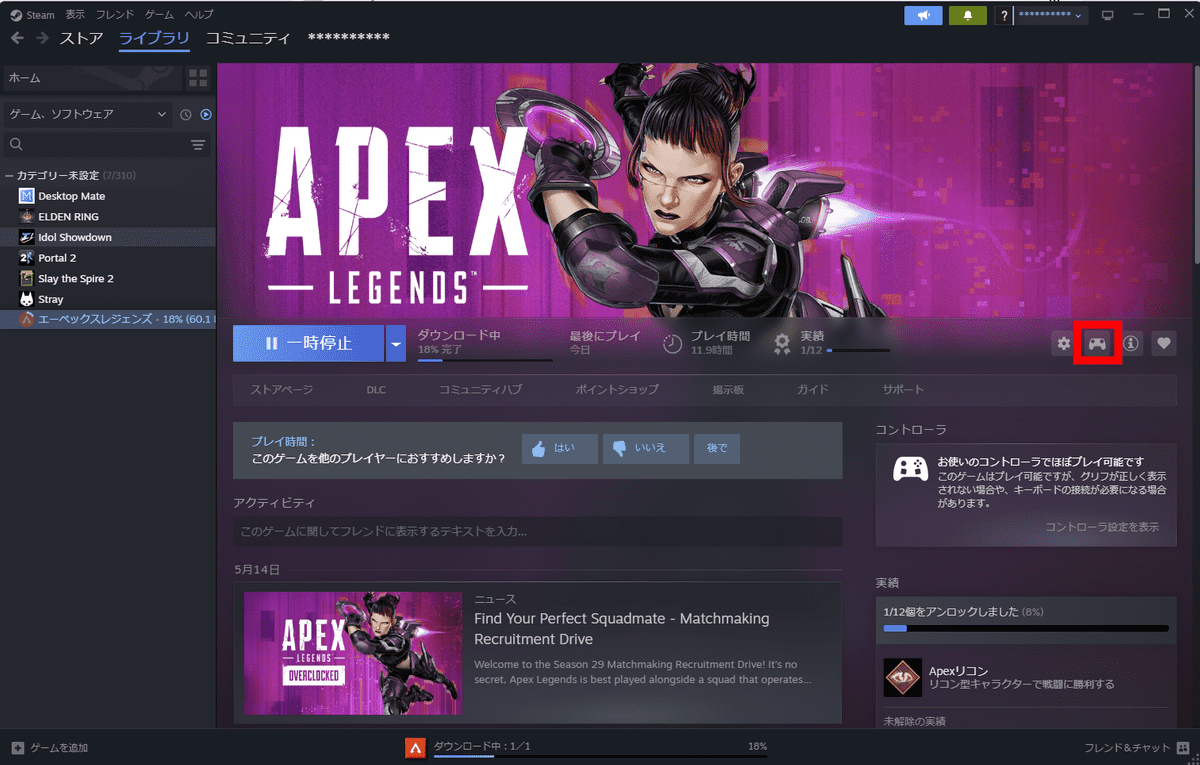
Button assignments and other settings can be configured for each game. First, click the controller icon in the game library.
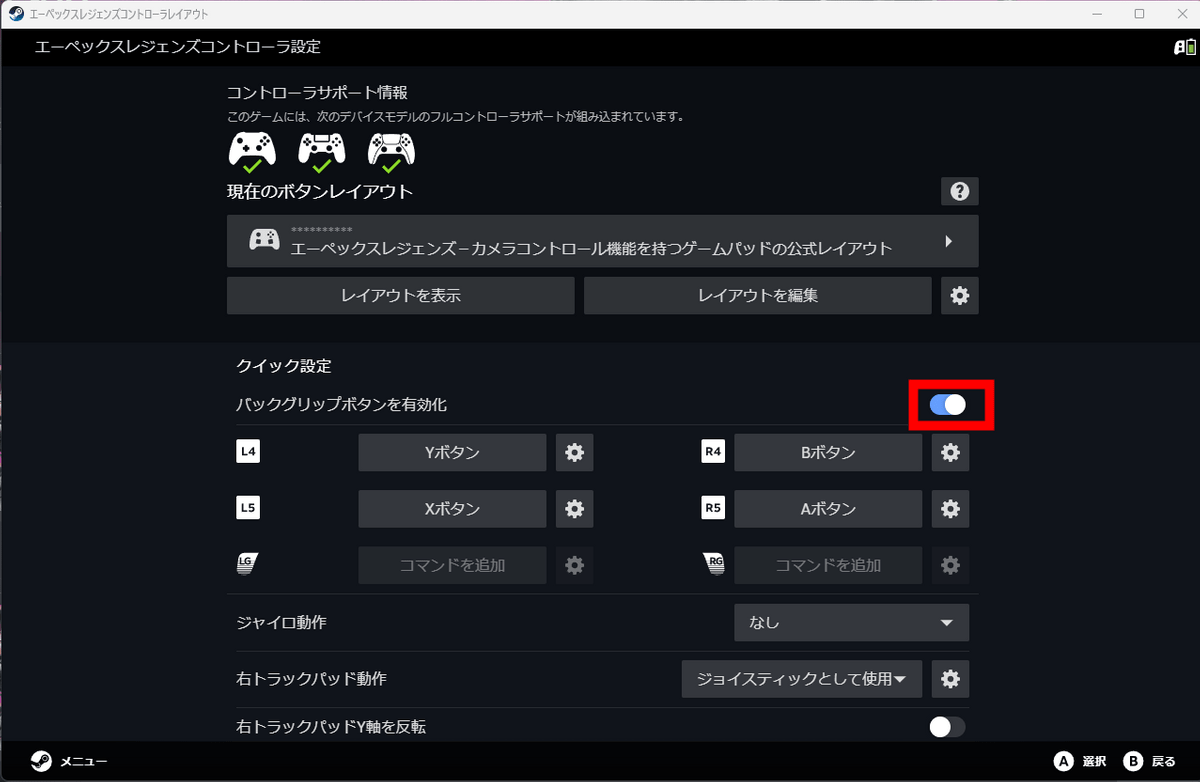
You can configure the settings from the following screen. If the back buttons are not enabled, you will need to turn on the 'Enable back grip buttons' toggle switch.
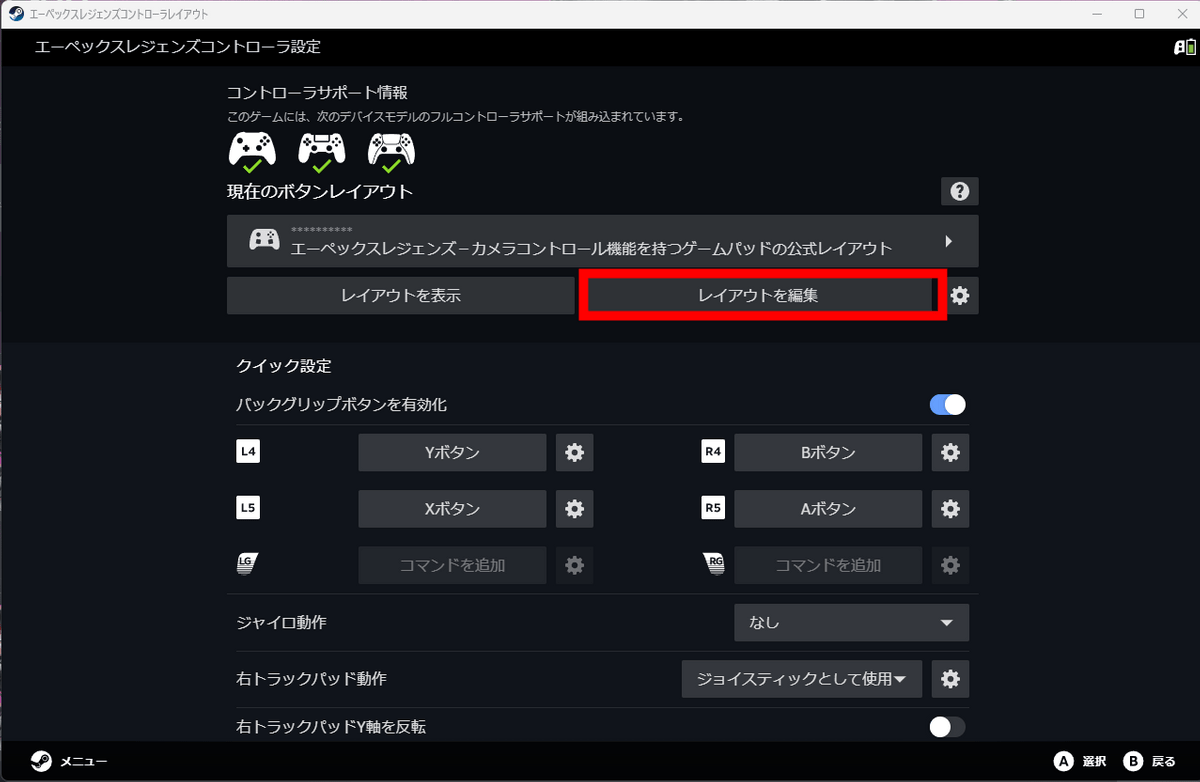
Detailed editing is possible from 'Edit Layout'.
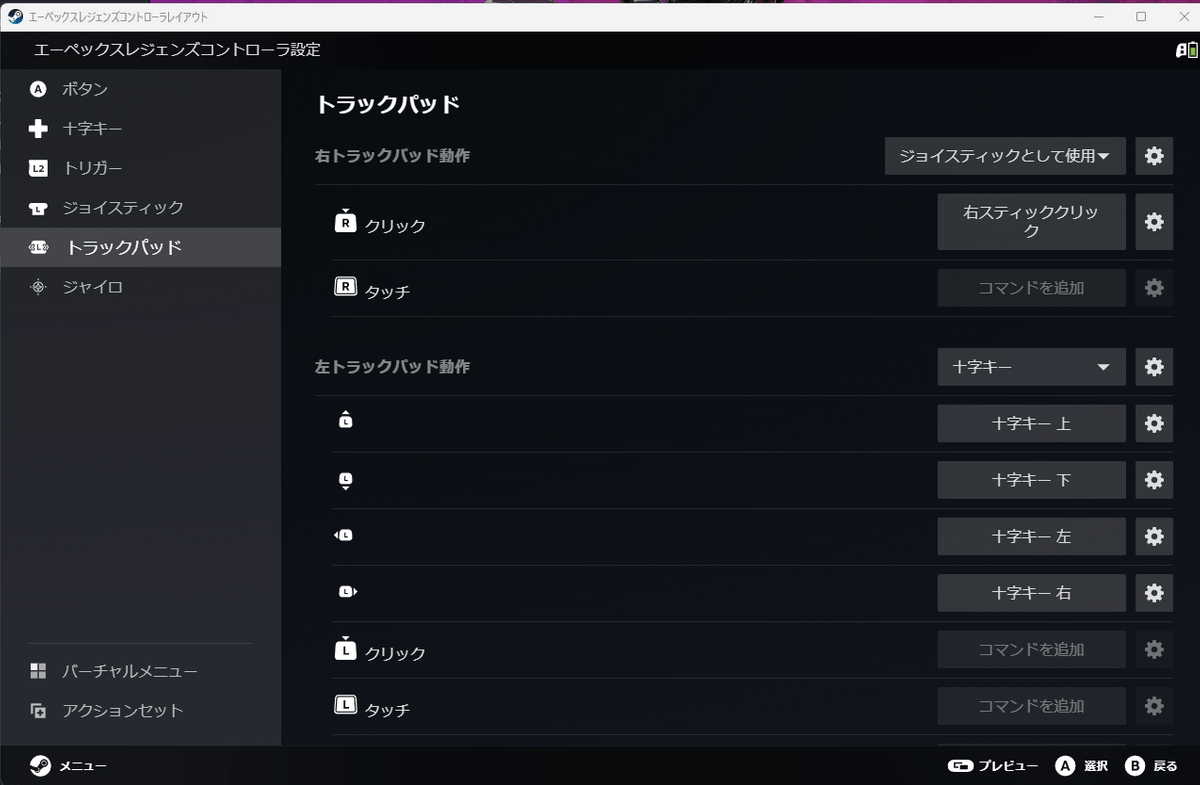
You can change the button functions and adjust the sensitivity of the analog sticks.
Another feature of the Steam Controller is its support for 'gyro' controls. To configure this, click 'Gyro Controls' on the screen.
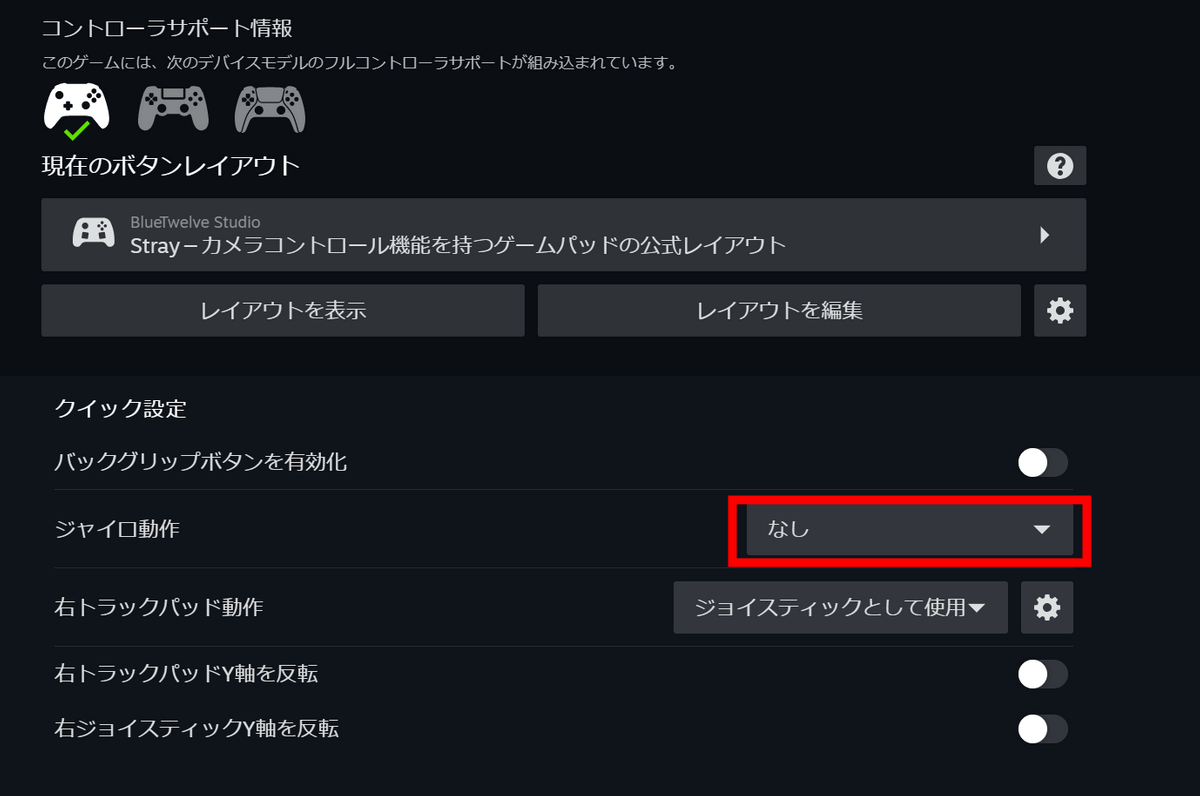
Click the action you want to set.
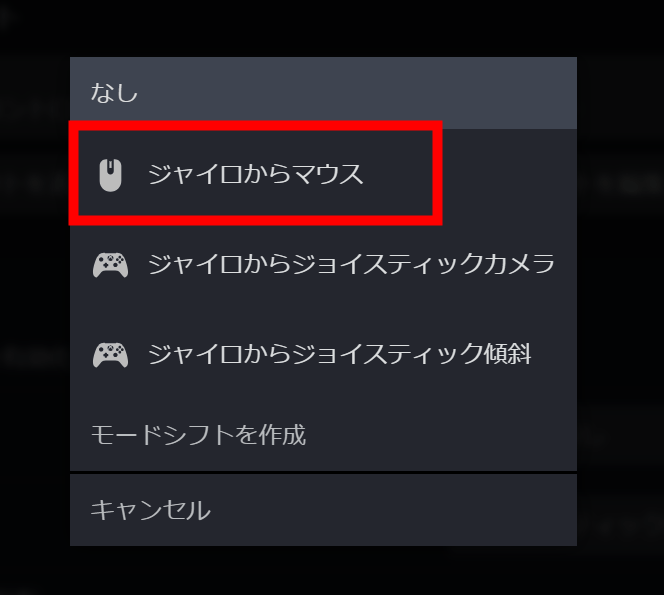
Next, click the settings icon.
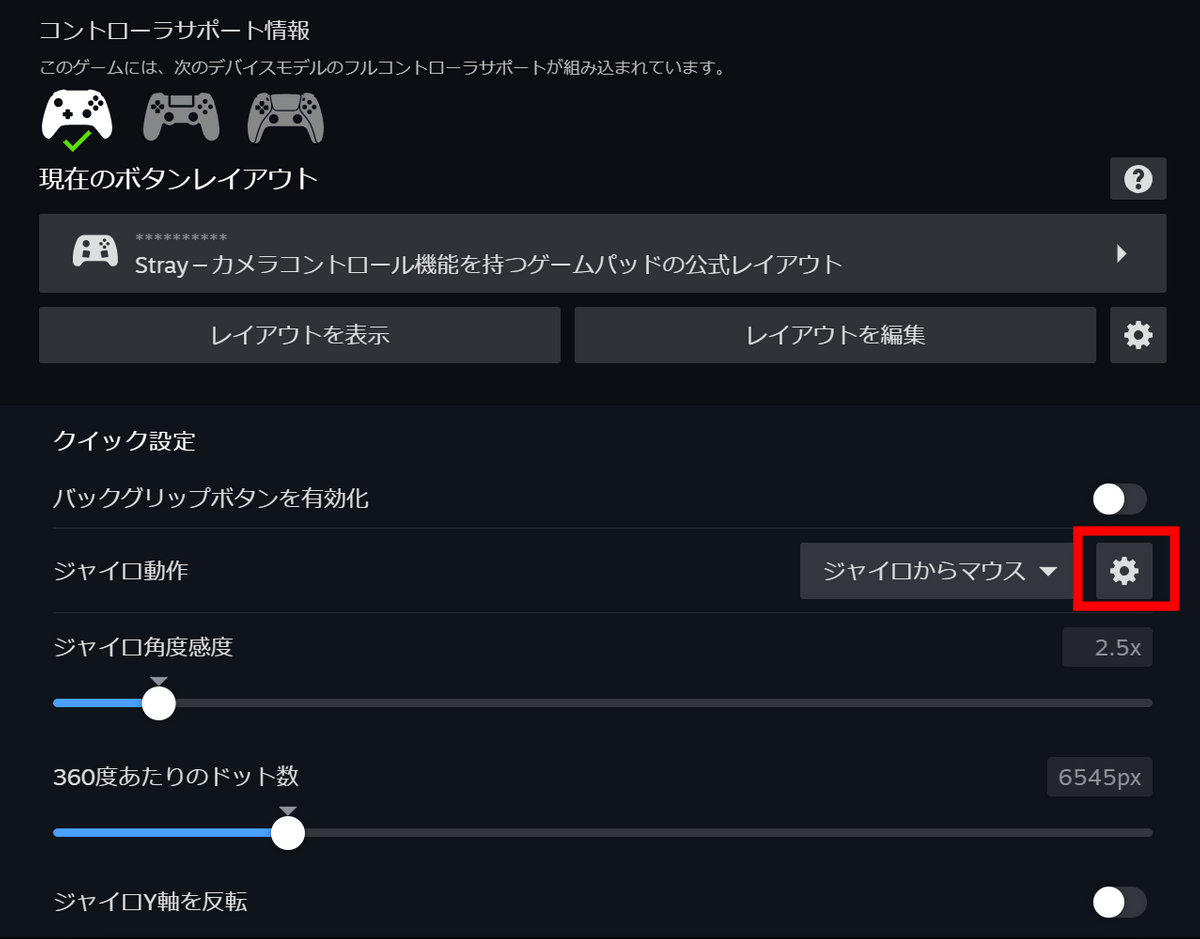
You can change the settings from here. By default, the gyro function is enabled when you touch a specific button. To change this, click 'Select Gyro Button'.
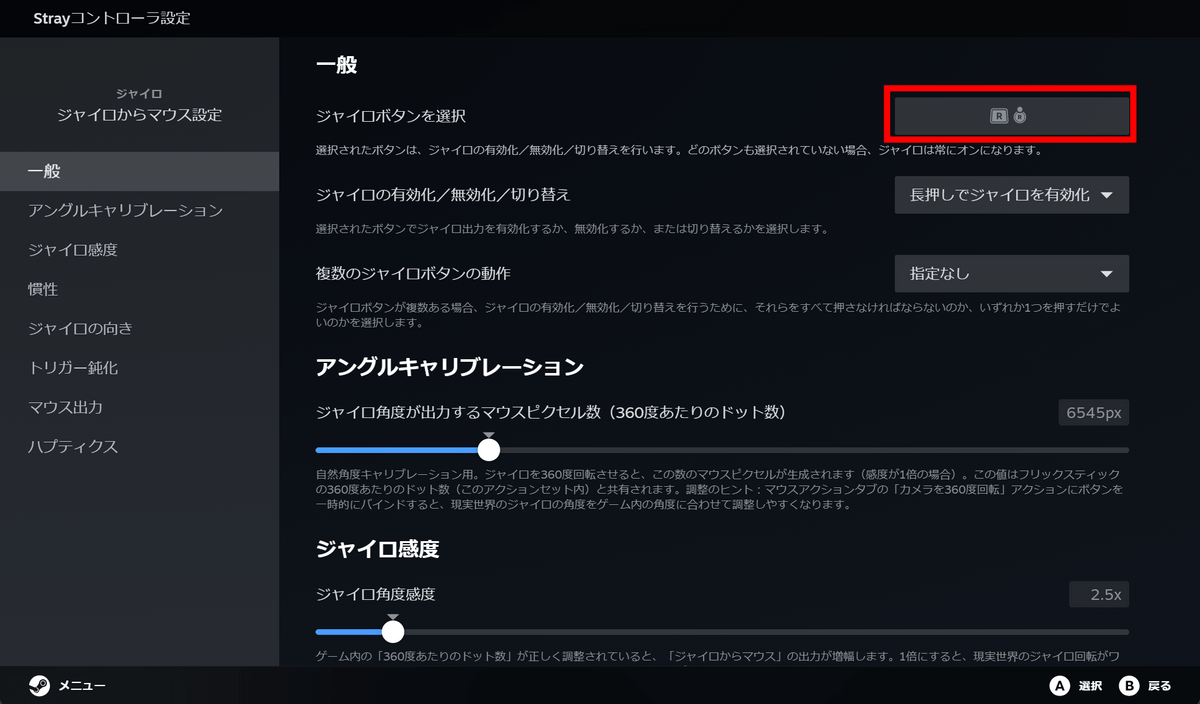
Below, you can configure settings to enable or disable the feature only when a specific button is pressed or touched.
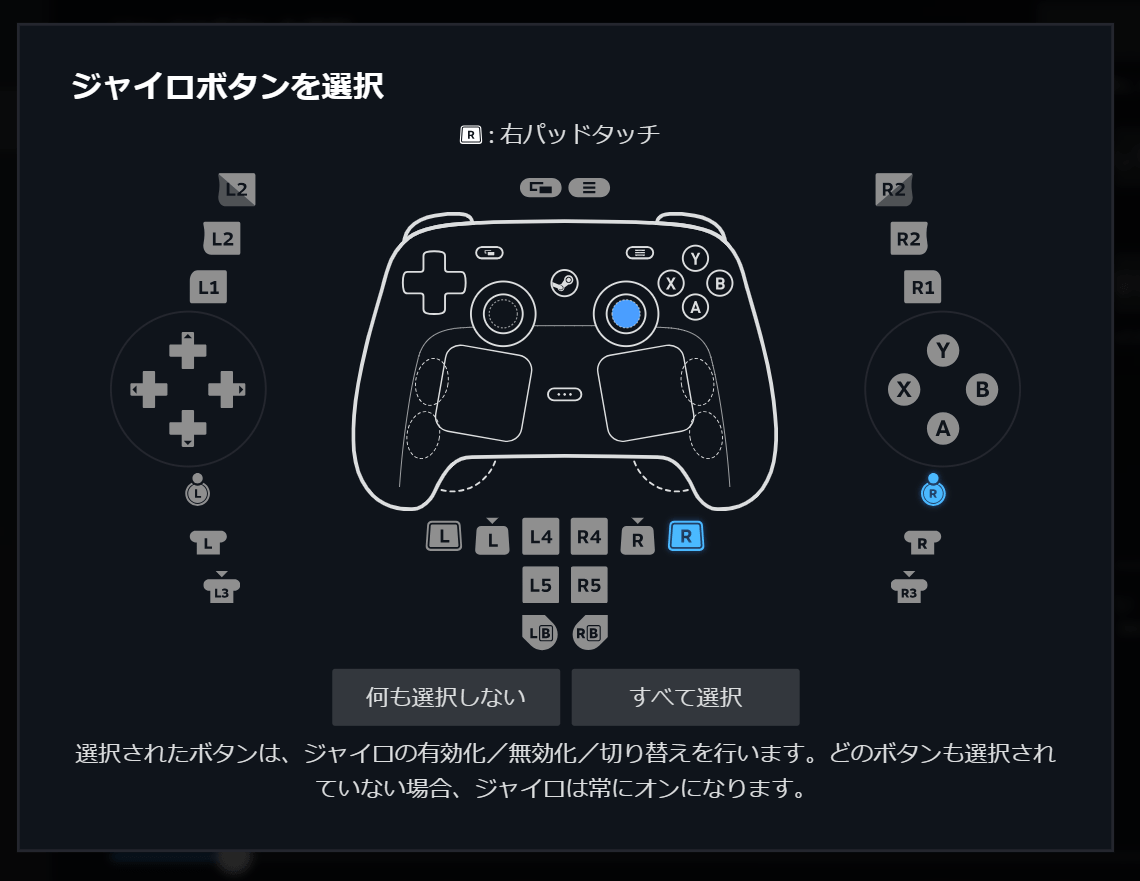
I tested the default behavior of 'only active when the right trackpad and right stick surface are touching.' It does not work when neither area is touching, and only accepts gyro input when either area is touching.
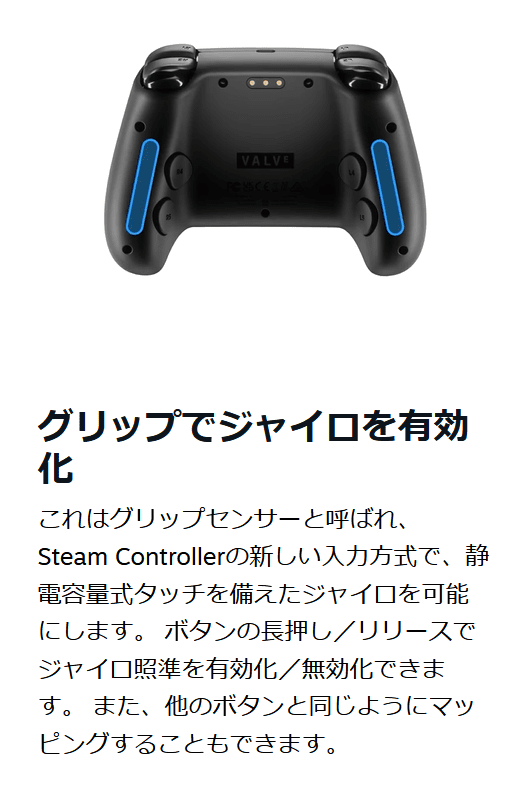
The above actions are achieved by a grip sensor embedded in the grip.
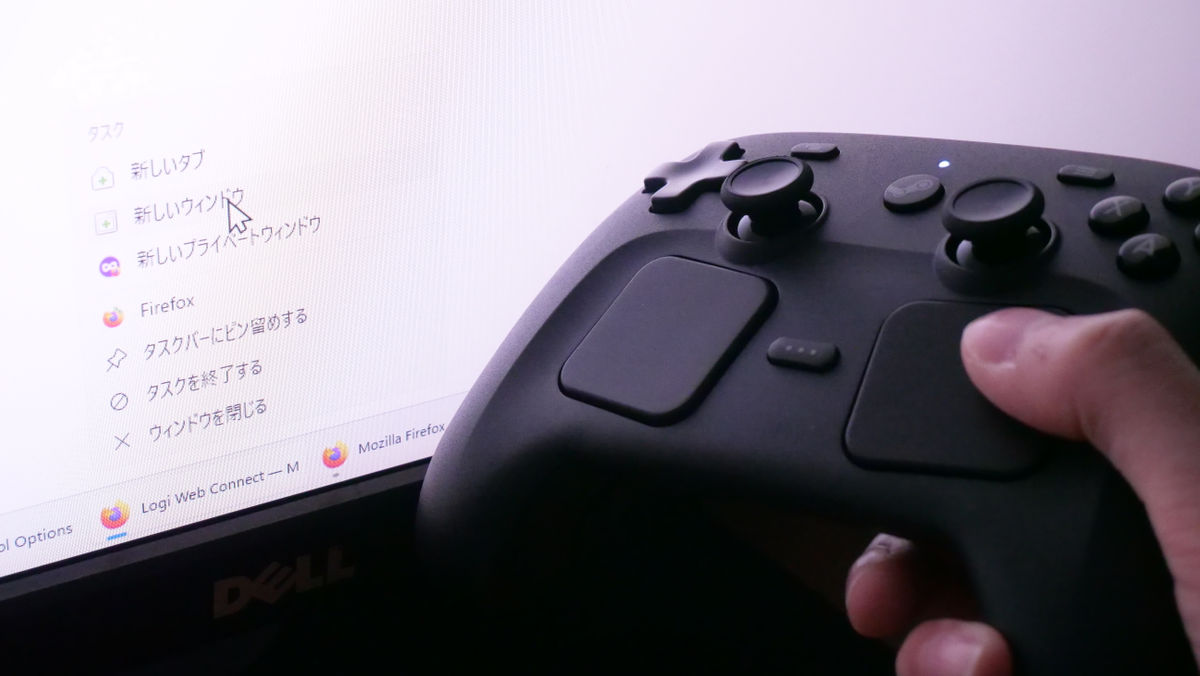
The Steam Controller supports not only operations within Steam, but also mouse operations on your desktop.
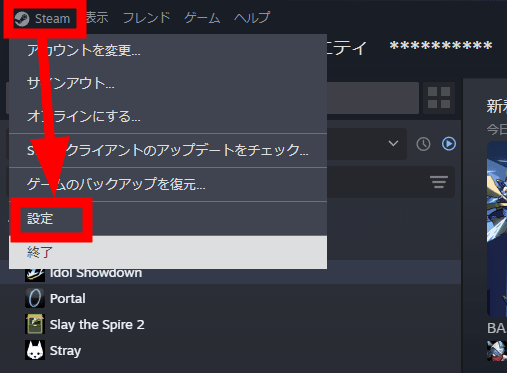
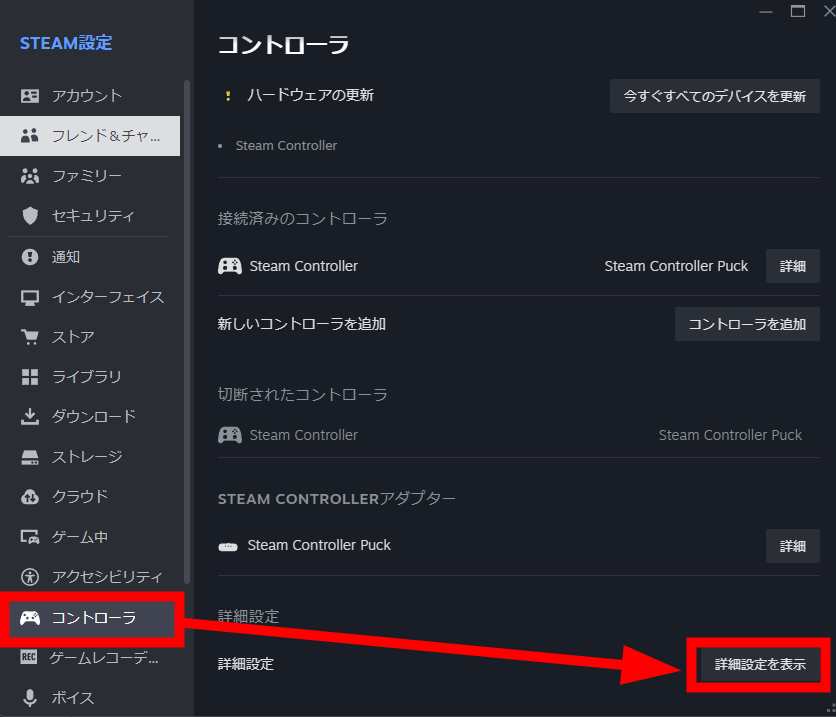
To change desktop settings, click 'Steam' in the upper left corner of the Steam client, then click 'Settings'.
Click 'Controller' and then click 'Show advanced settings'.
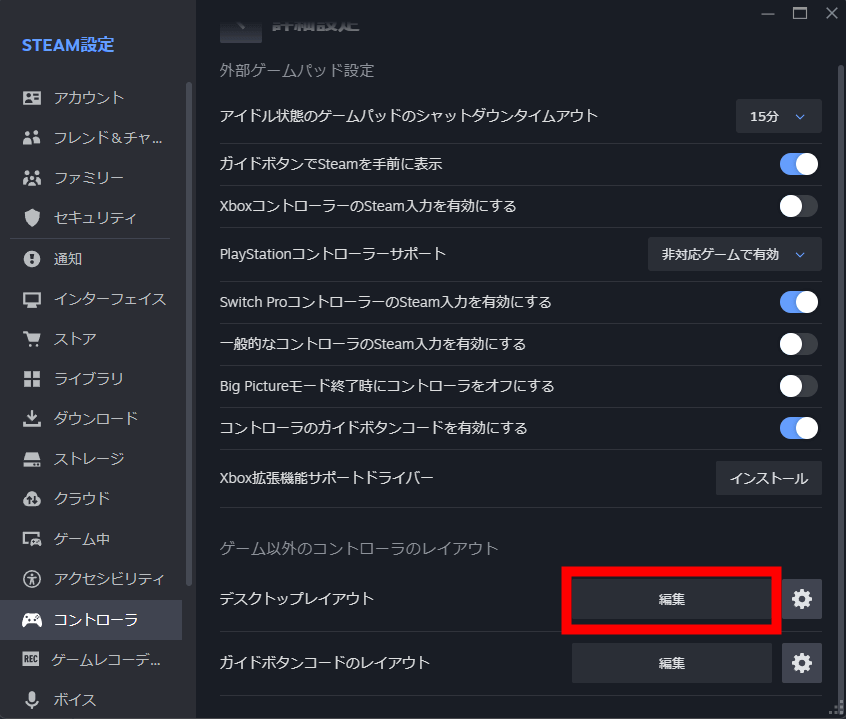
Click 'Edit' in the desktop layout.
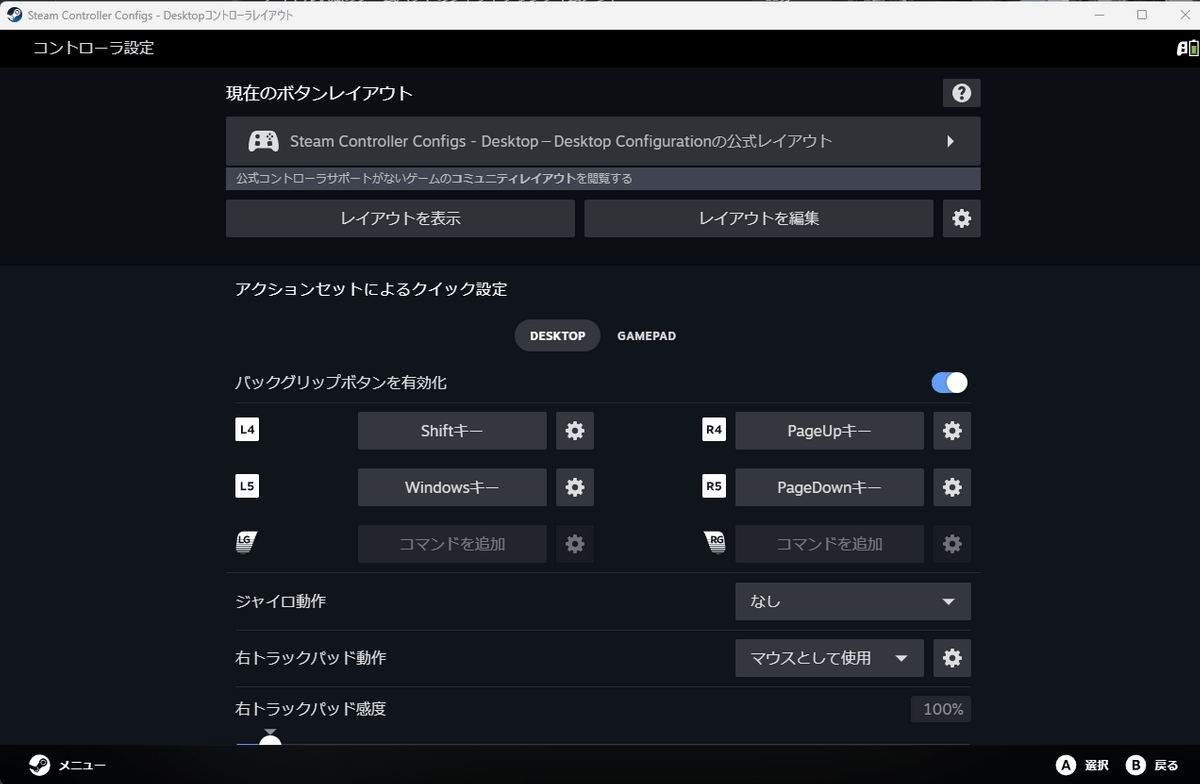
Similar to game-specific settings, you can change the settings from the following screen.
When we had our gamer editors try it out, one commented that it was 'light,' 'the buttons have a clicky feel,' and 'the trackpad is difficult to use, but I think I'll get used to it.' Another commenter said they 'accidentally press the back buttons when gripping it tightly,' but an editor who regularly uses controllers with back buttons said that 'it's a little firm, the position isn't strange, and once you get used to it, it seems like there will be fewer accidental presses than with other controllers.'
Also, the Steam Controller will scream ( Wilhelm's scream ) if dropped from a certain height.
Steam Controller screams when dropped from a height - YouTube
The Steam Controller is sold by the official distributor KOMODO and is priced at 17,800 yen (tax included).
Steam Controller – KOMODO STATION
https://komodostation.com/product/steam-controller_jpy/
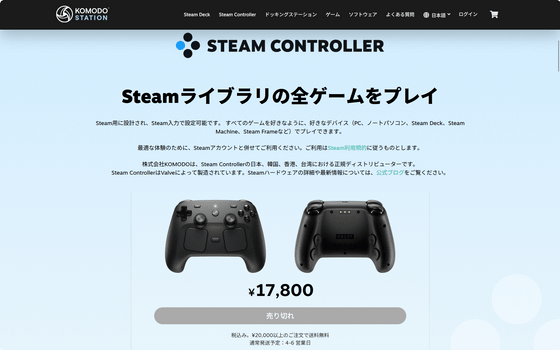
Although it is sold out at the time of writing, it is scheduled to be restocked on May 19, 2026 at 12:00 PM.
[Notice Regarding Restock of Steam Controllers]
— KOMODO Japan Official (@KOMODO_Games_JP) May 15, 2026
The Steam Controller, which ships from Japan, South Korea, Hong Kong, and Taiwan, is expected to be restocked at KOMODO STATION around 12:00 PM (Japan time) on Tuesday, May 19th.
*The start time of sales may vary.
*Purchases are limited to one unit per person.
Related Posts: