Google Chrome now features a 'vertical tab' function, making it easier to see the titles of individual tabs even when many tabs are open.

Google's web browser, Google Chrome, has now implemented a vertical tab feature that arranges tabs vertically, as well as a full-screen reading mode.
Get more done with new vertical tabs and immersive reading mode in Chrome
The vertical tab feature may not have been fully rolled out yet, as it didn't appear in the settings on our editor's PC even after updating to Google Chrome 147, released on April 7, 2026. However, the internal implementation is complete, and the vertical tab feature can be used by enabling the flag.
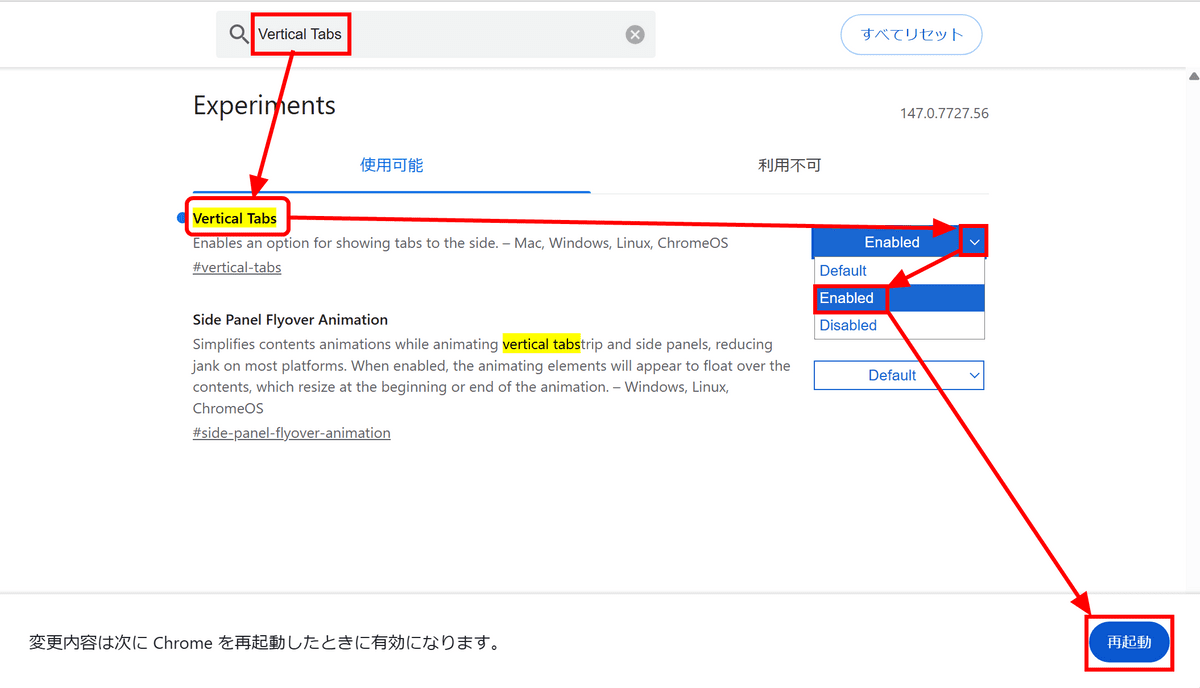
Enter 'chrome://flags/' into the address bar to open a page that lists experimental features.
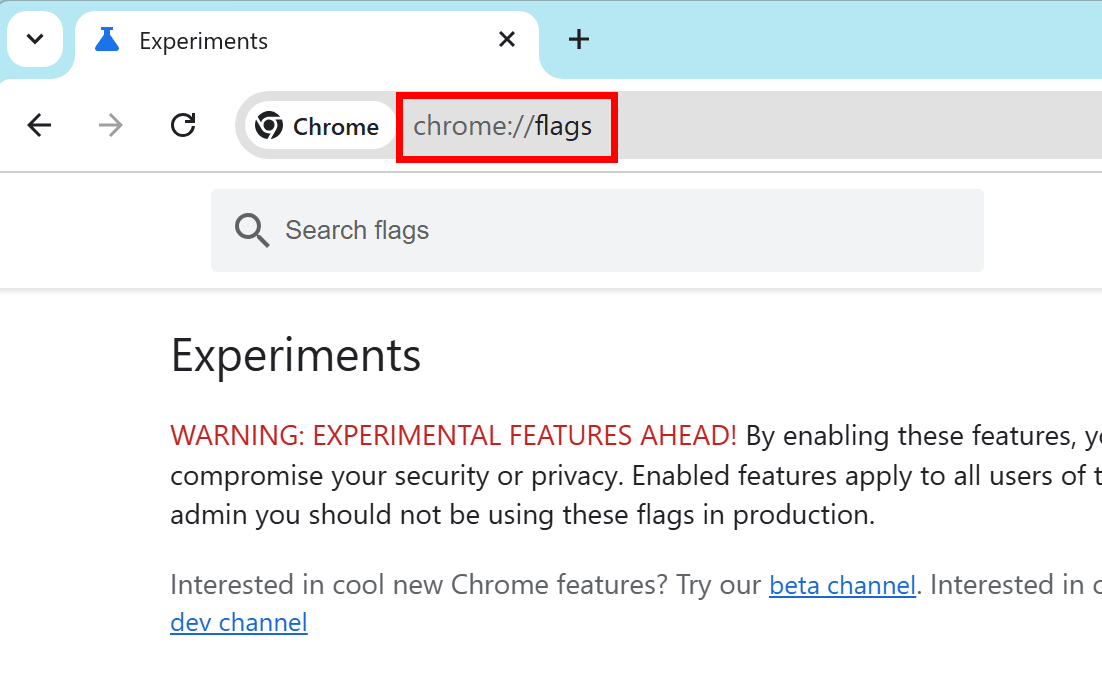
Enter 'Vertical Tabs' in the search bar at the top, click the down arrow to the right of the setting with the same name, select 'Enabled,' and then click 'Restart.'
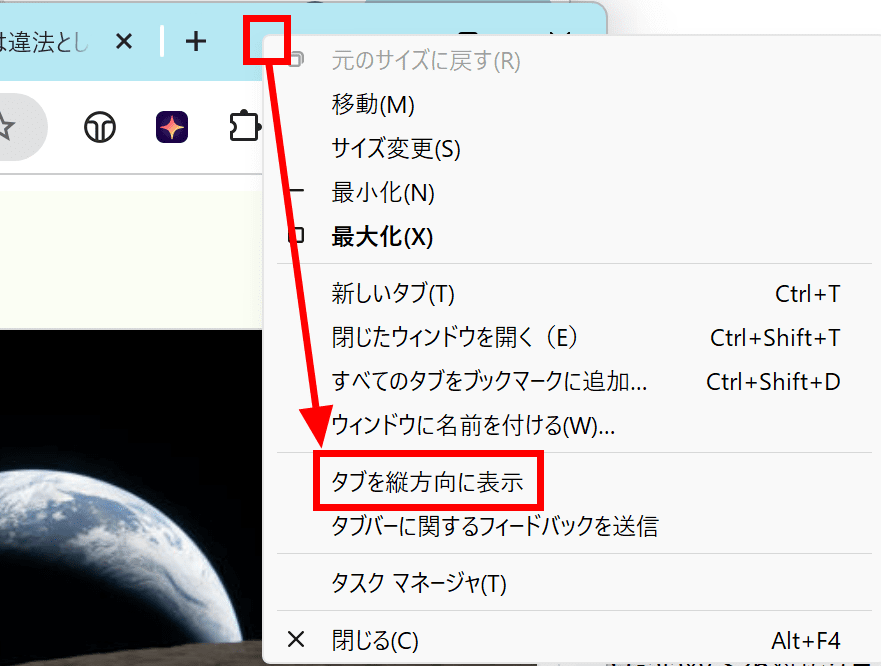
Right-click on the tab area, and an option called 'Show tabs vertically' will appear; click on it.
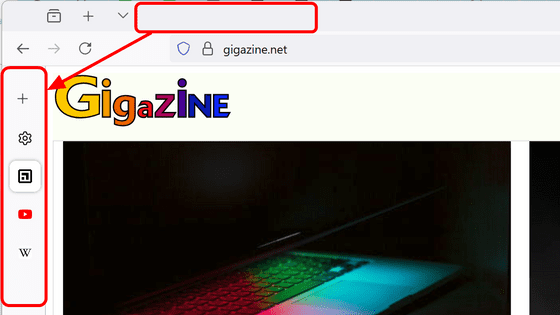
The tabs are now arranged vertically on the left edge of the screen. Even with a large number of tabs open, part of the title is displayed, making them easier to distinguish.
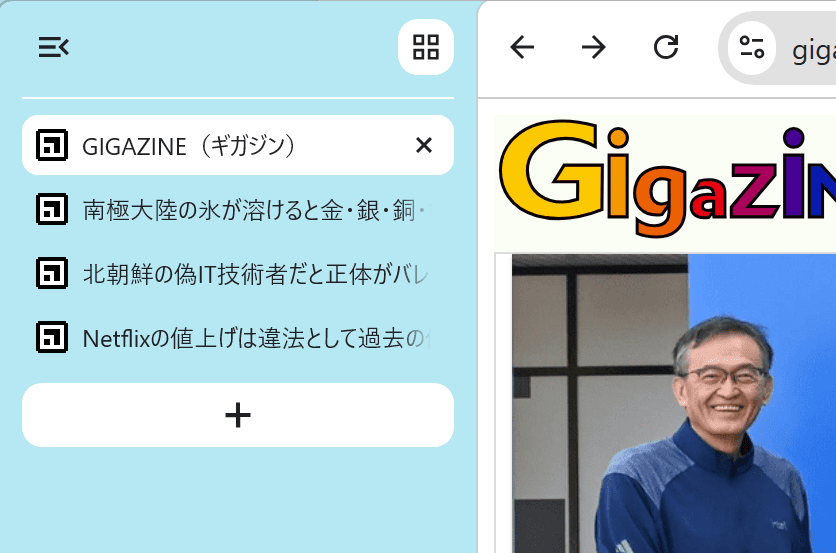
Clicking the button in the upper left corner made the tabs thinner. If you have content you want to display on a larger screen, the thinner tabs might be easier to view.

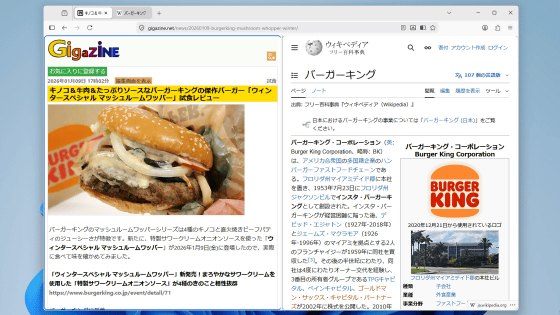
I'll also try the full-screen reading mode. First, here's what the existing reading mode looks like. It formats the webpage to make it easier to read and displays it on the right side of the screen.

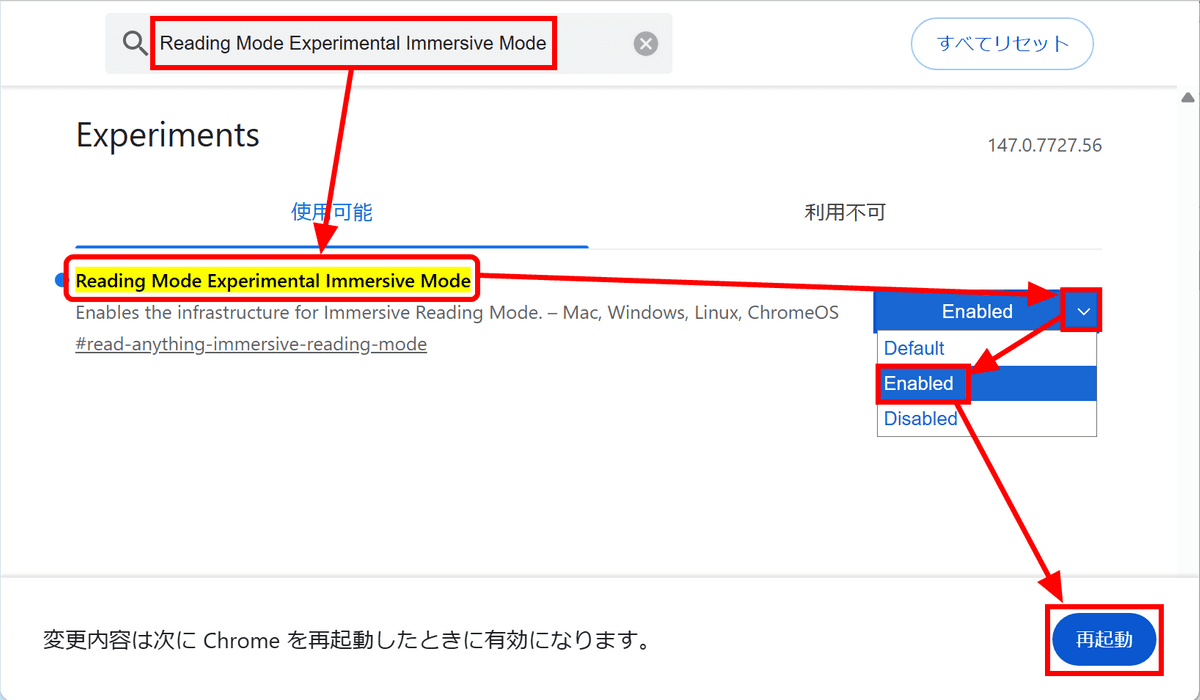
Full-screen reading mode can also be enabled from the experimental features. Type 'chrome://flags/' to open the experimental features page, search for 'Reading Mode Experimental Immersive Mode', change the option with the same name to 'Enabled', and click 'Restart'.
When I opened the same page in reading mode, the entire screen was filled with the reading mode display. Because the screen width is wider, more text is displayed on the screen, making it feel easier to read.
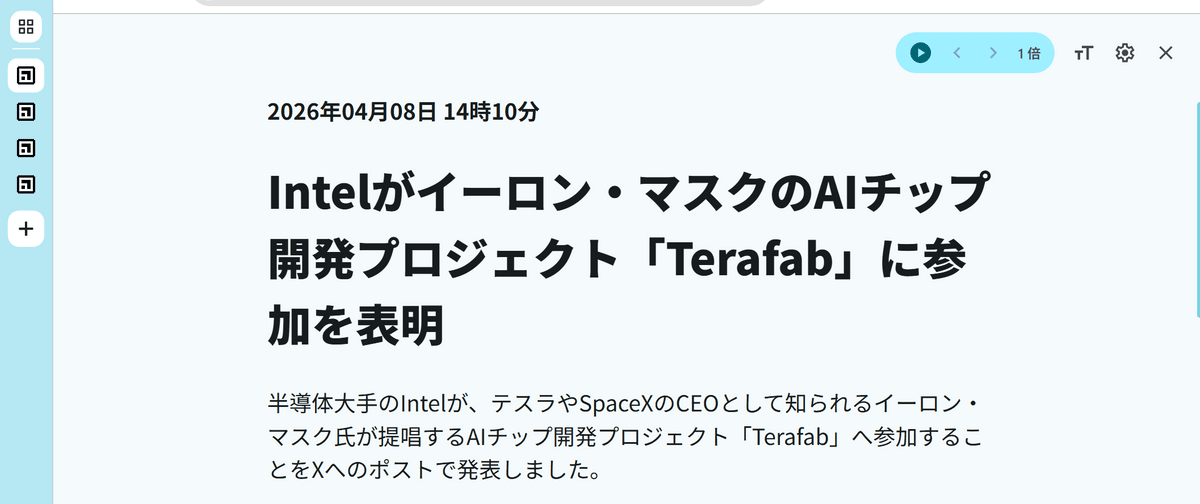
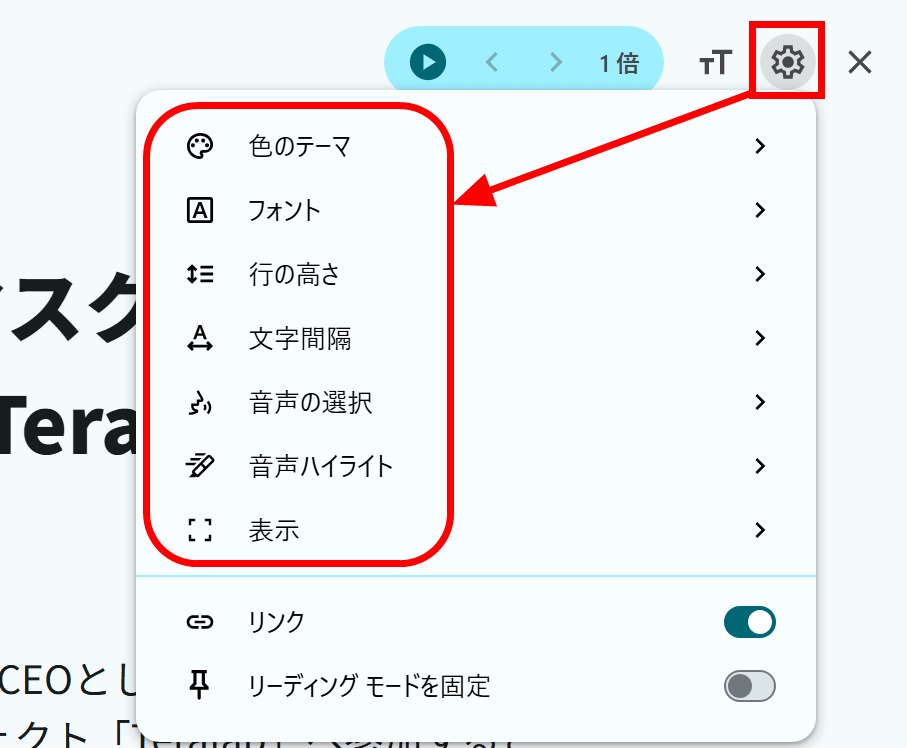
Clicking the settings button in the upper right corner of the screen allows you to change the background color, text color, and adjust the font size.
Related Posts: