'imapsync' is a free service that allows you to transfer your entire IMAP mailbox to another IMAP address; it's compatible with Windows, Linux, and Mac, and works with Gmail as well.
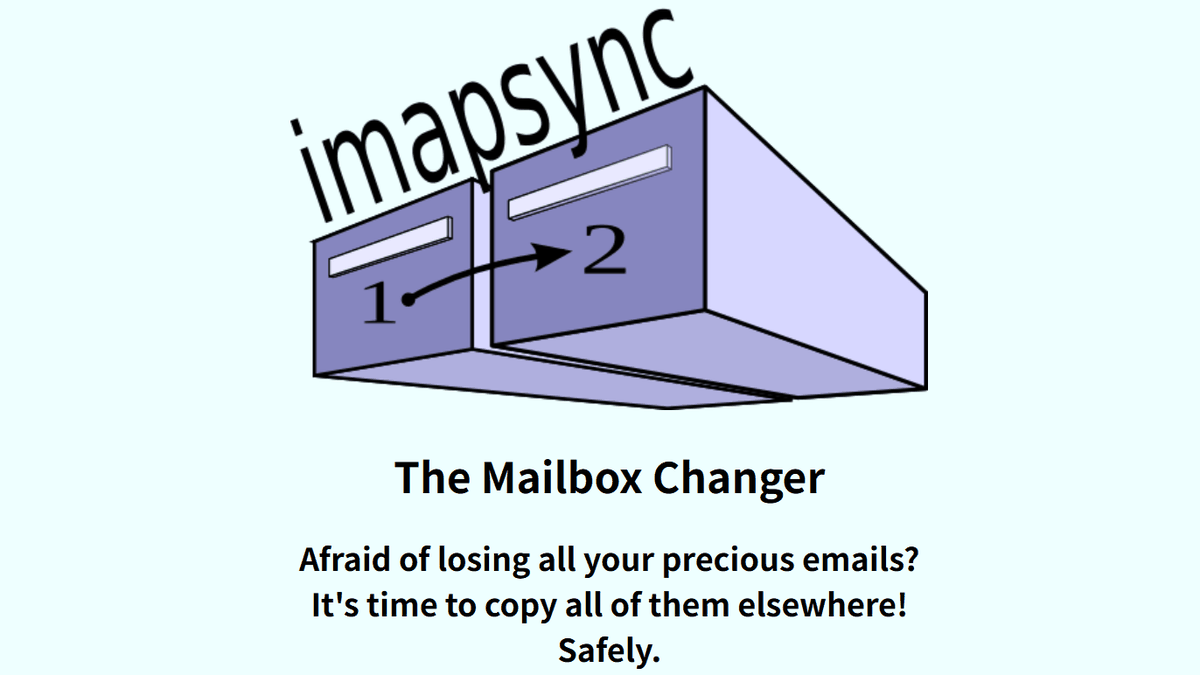
Migrating and backing up email systems can be complex due to varying specifications across different environments. ' imapsync ,' an IMAP transfer tool compatible with Windows, Linux, and Mac, simplifies email system migration and backup.
Official imapsync migration tool (release 2.314)
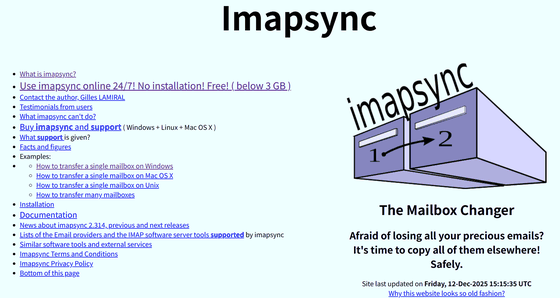
imapsync/imapsync: imapsync tool
◆ Overview of imapsync
imapsync is a tool that directly forwards emails from the source IMAP server to the destination IMAP server.
◆How to use imapsync
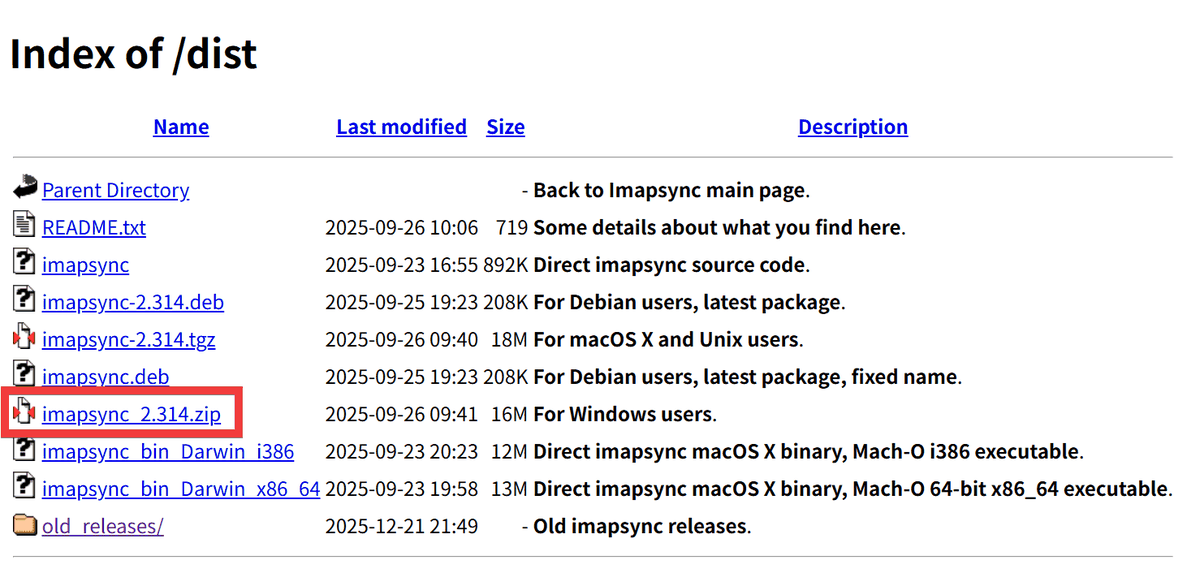
For Windows users, download the ZIP file from the official distribution page .
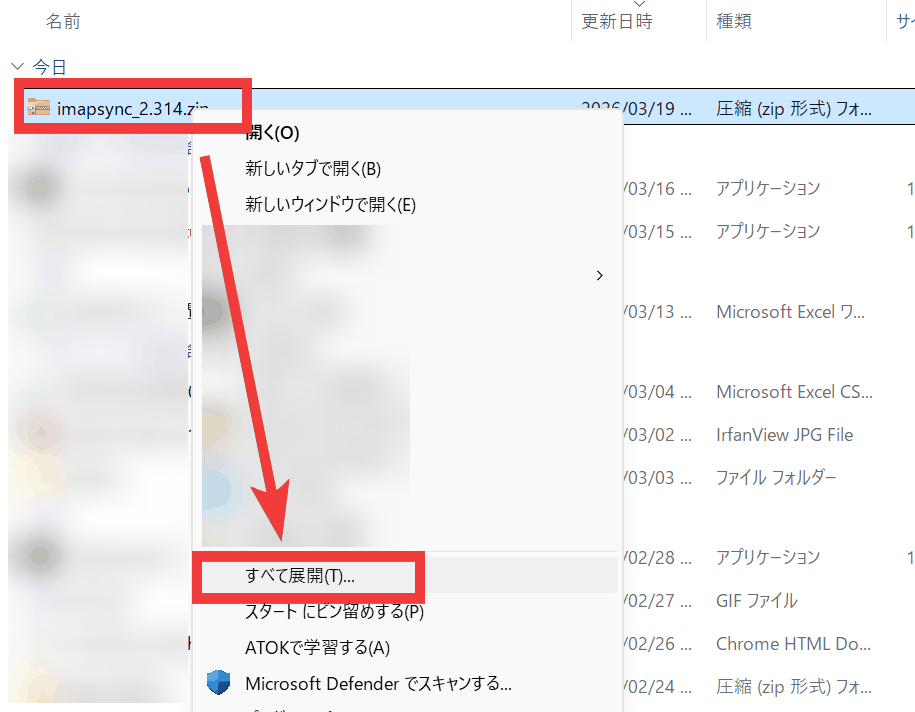
Right-click the downloaded ZIP file and select 'Extract All'.
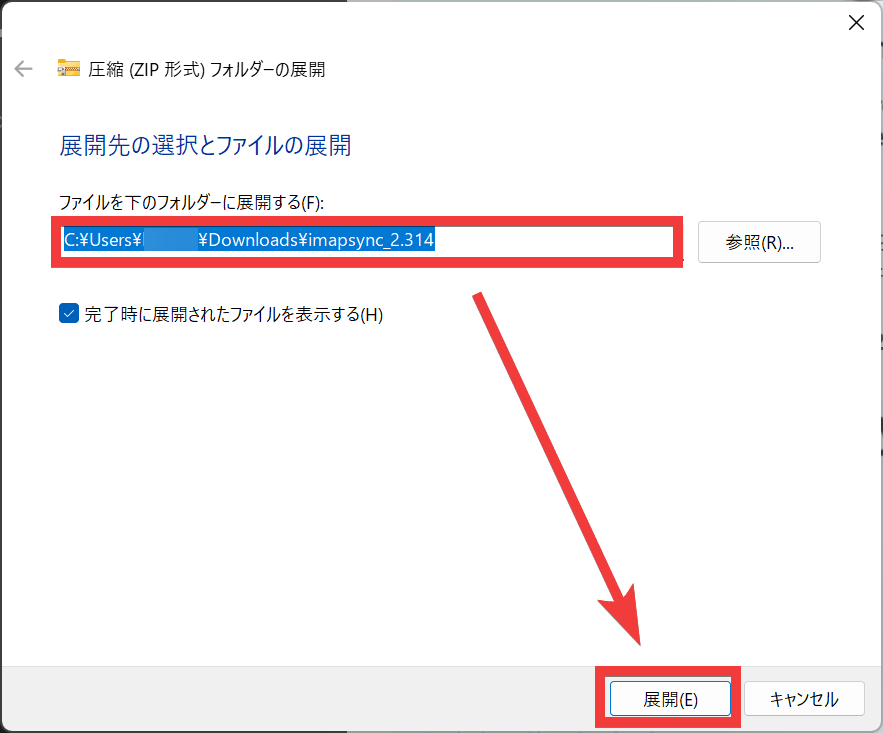
Specify the destination folder and click 'Extract'.
With the destination folder displayed, type 'cmd' into the address bar of File Explorer and press Enter.
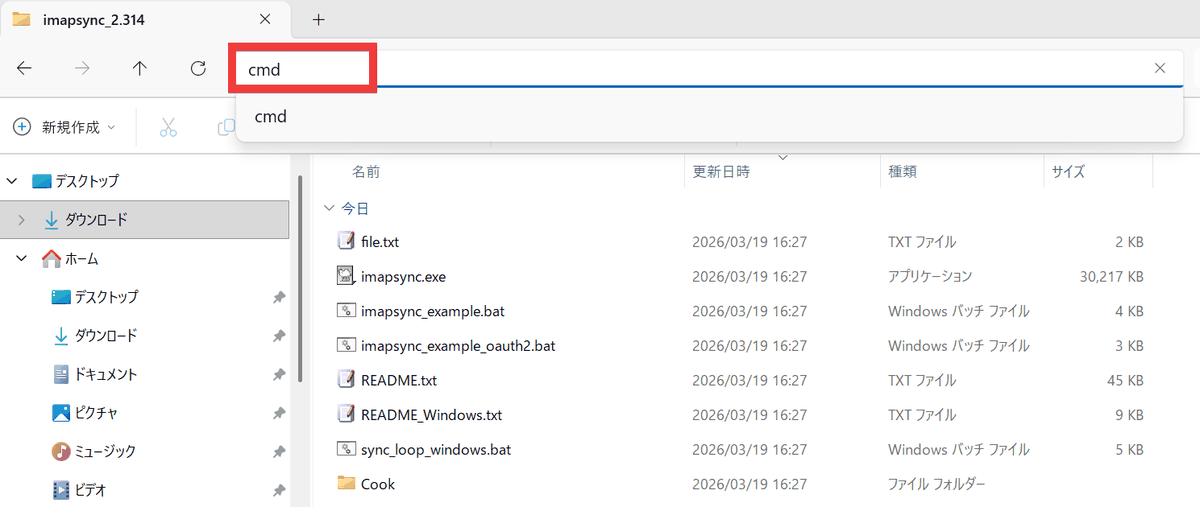
The command prompt will open, and you are ready to run imapsync.
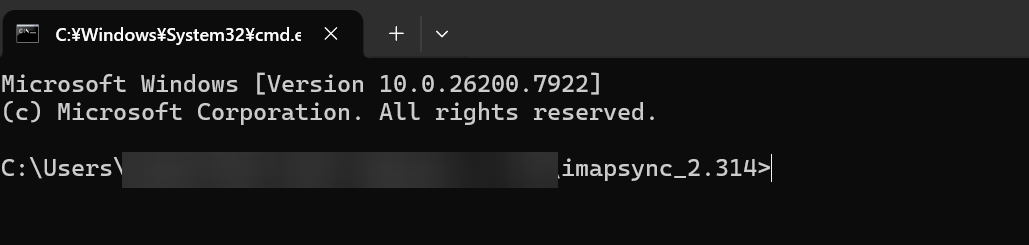
A demo server is available, so let's try running the following command.
 imapsync.exe --host1 'test1.lamiral.info' --user1 'test1' --password1 'secret1' ^
 --host2 'test2.lamiral.info' --user2 'test2' --password2 'secret2'
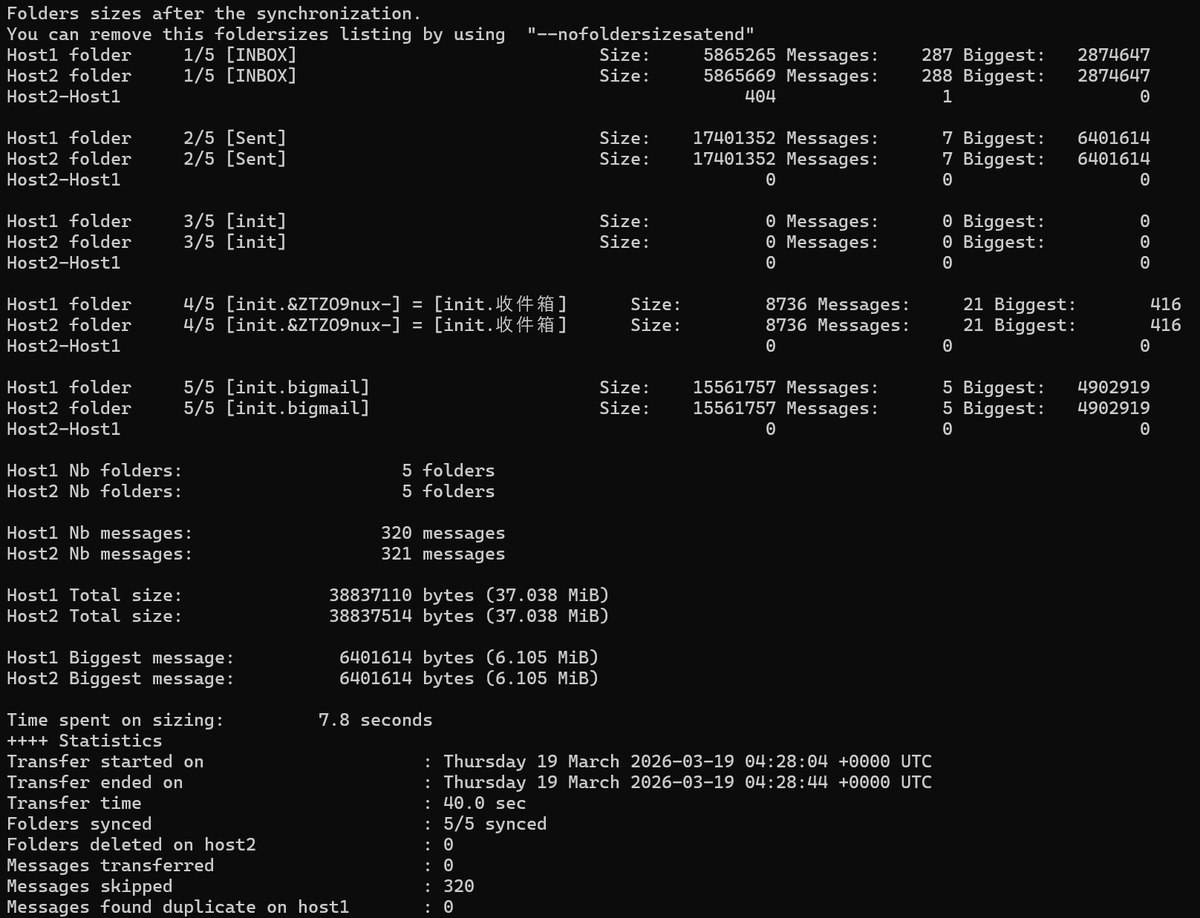
The progress of the forwarding process and the number of forwarded emails will be displayed as a log.
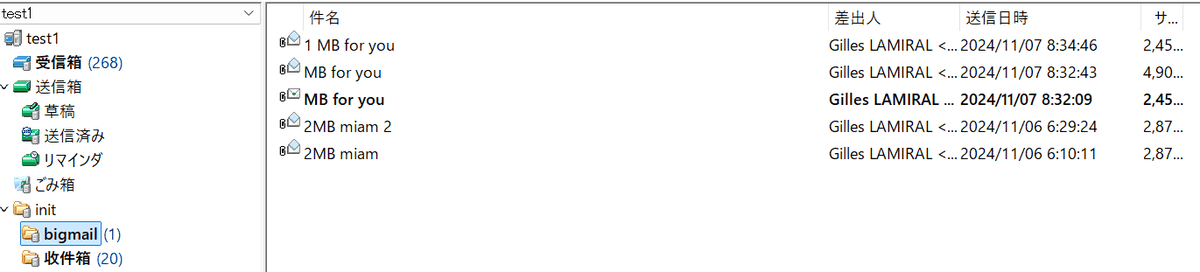
Let's actually check the mailbox using email software. First, the source server, test1.
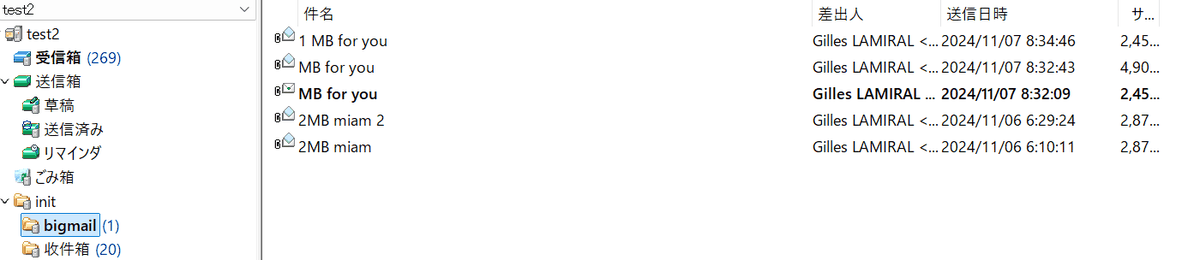
On the forwarding server, test2, you can confirm that emails from test1 are being forwarded.
◆ How to use with Docker
A Docker version is also available; you can run imapsync in a Docker container by executing the following command.
 docker run --rm gilleslamiral/imapsync imapsync \
 --host1 test1.lamiral.info --user1 test1 --password1 'secret1' \
 --host2 test2.lamiral.info --user2 test2 --password2 'secret2'
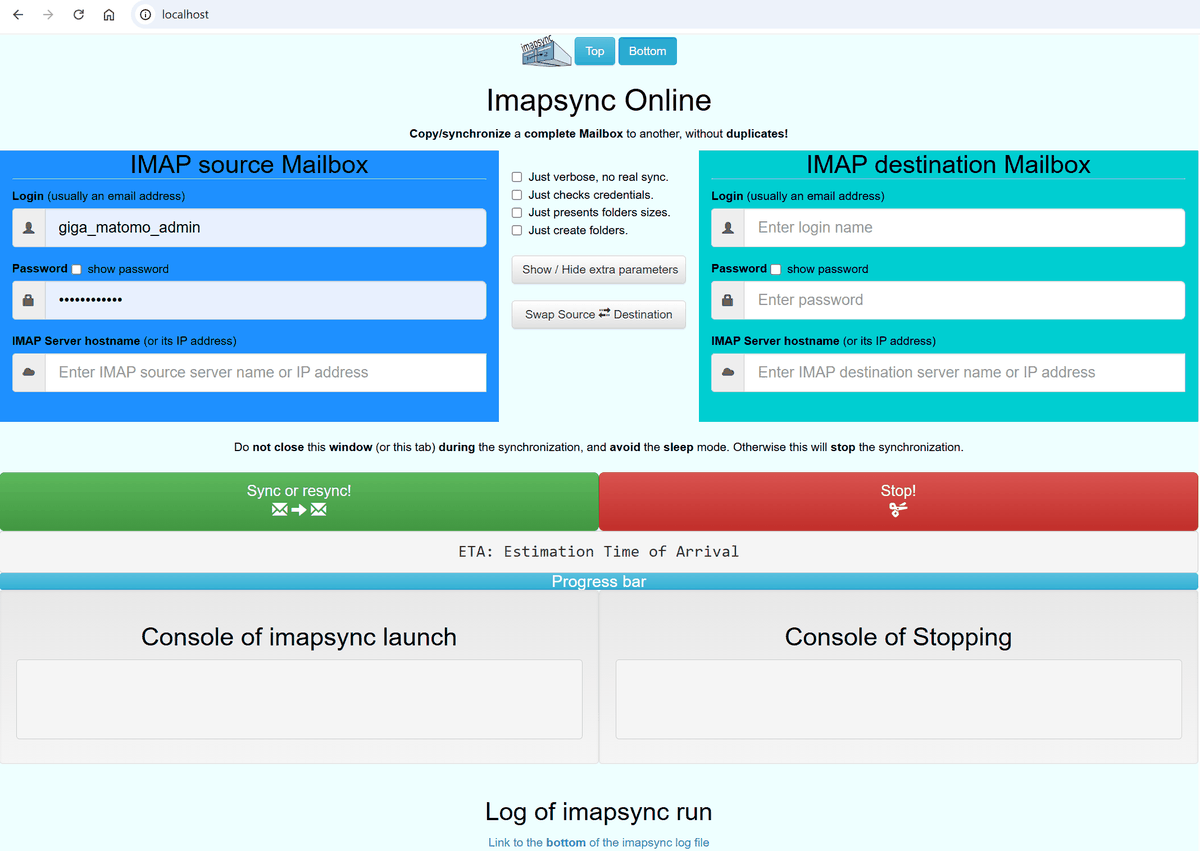
The Docker version allows for GUI-based operation, and you can start the imapsync server with the following command.
docker run -p 80:8080 -p 443:8443 gilleslamiral/imapsync /servimapsync
When you access 'localhost' in your browser, the imapsync page, which allows for GUI-based operation, will be displayed.
◆Points to note when using Gmail
When setting Gmail as the source or destination for forwarding emails, you cannot connect using only a username and password. According to the official
Enable IMAP .
• Use an app password with two-factor authentication.
- Due to bandwidth limitations, set the transfer volume option.
With imapsync, you can use the '--gmail1' and '--gmail2' options, which support Gmail forwarding, to omit specifying the server and setting the transfer limit.
 imapsync --user1 [email protected] \
 --password1 gmailsecret1 \
 --user2 [email protected]
 --password2 gmailsecret2 \
 --gmail1 --gmail2
◆Application Examples
By forwarding emails from multiple source accounts to a single account, you can back up all your emails at once. Setting up an IMAP server on your local machine also allows you to back up to local storage.
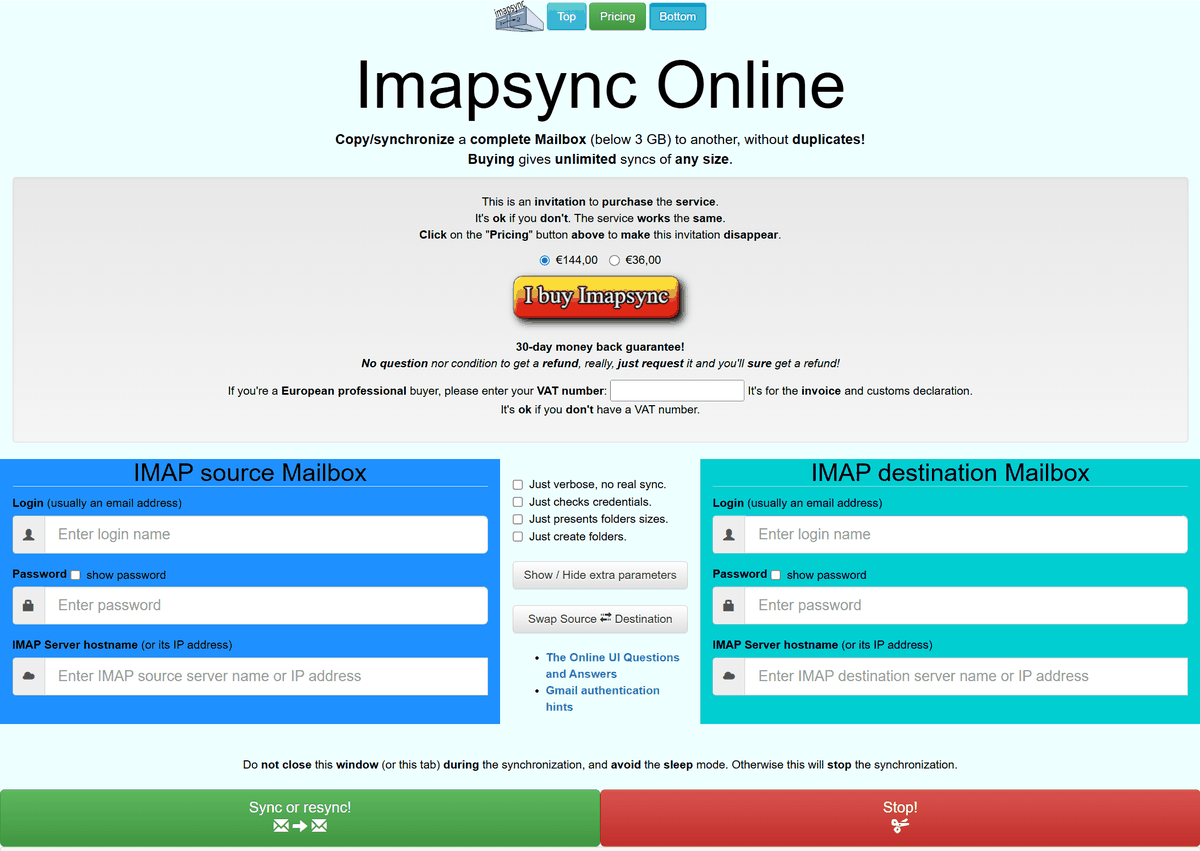
Furthermore, using Mailbox Imapsync Online , you can transfer up to 3GB of data for free directly through your browser.
Related Posts: