Paseo is a free, self-hostable, open-source application that allows you to manage and control all kinds of coding AI agents from your smartphone, desktop PC, or terminal.
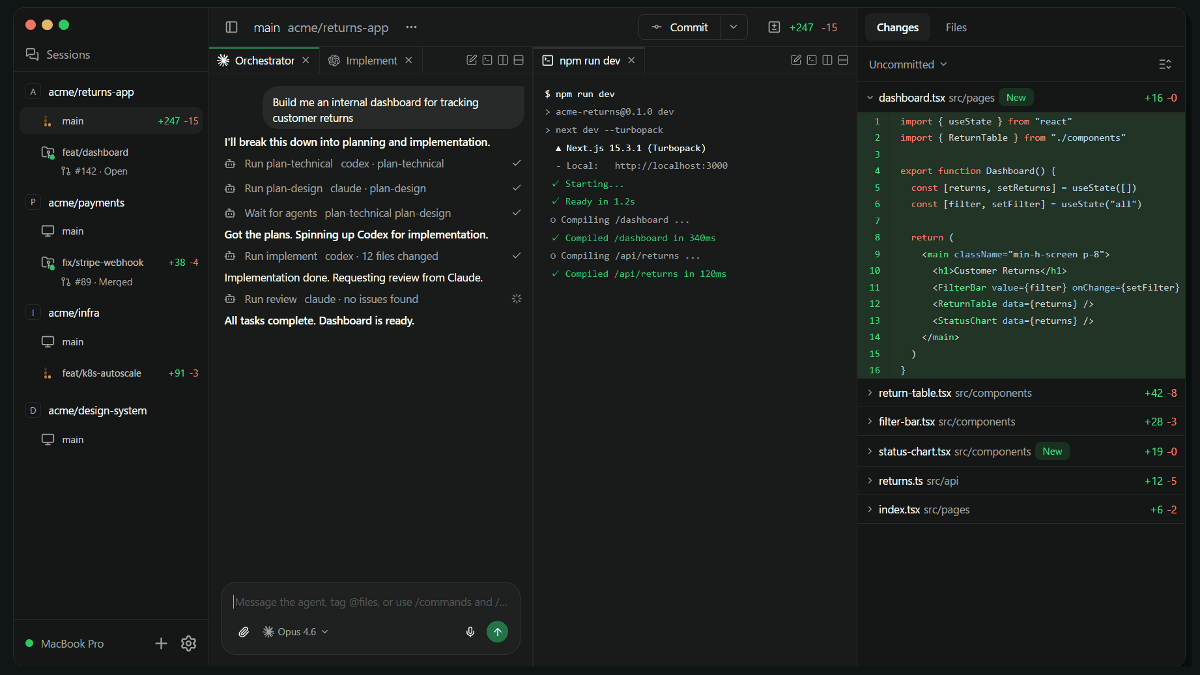
When using an AI coding agent as a development tool and wanting to continue working remotely, setting up an environment for easy remote operation can be difficult, as connecting to your PC from an external source can be cumbersome, and remote screen sharing can be slow. 'Paseo' has been released to easily configure external connections and manage and control CLI-type coding AI agents such as
Paseo – Run Claude Code, Codex, Copilot, OpenCode from anywhere
https://paseo.sh/
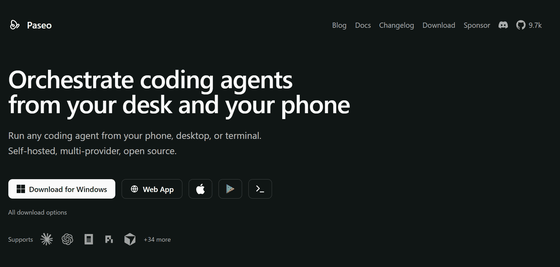
◆Features of Paseo
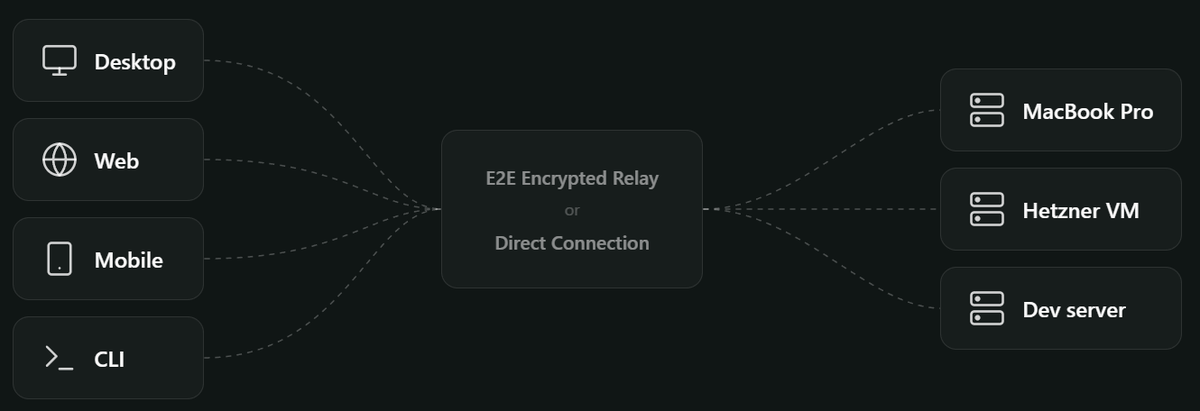
The coding AI agent can be accessed from various devices by directly accessing the daemon running on the host machine or by using a relay connection with encrypted communication.
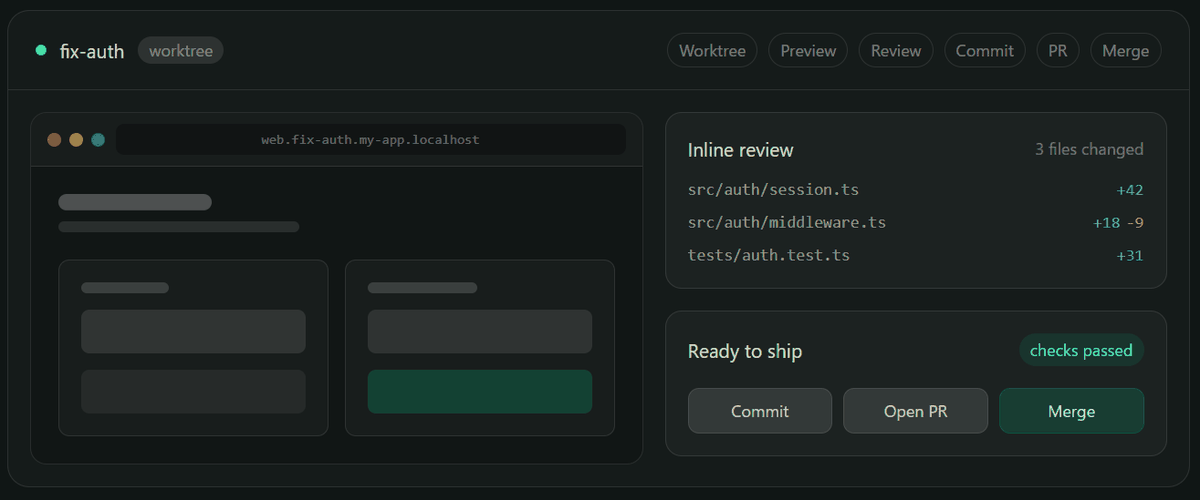
It's possible to perform all development tasks, including creating branches, reviewing applications via a browser, checking differences, and committing changes.
The screen can be split and tabbed.
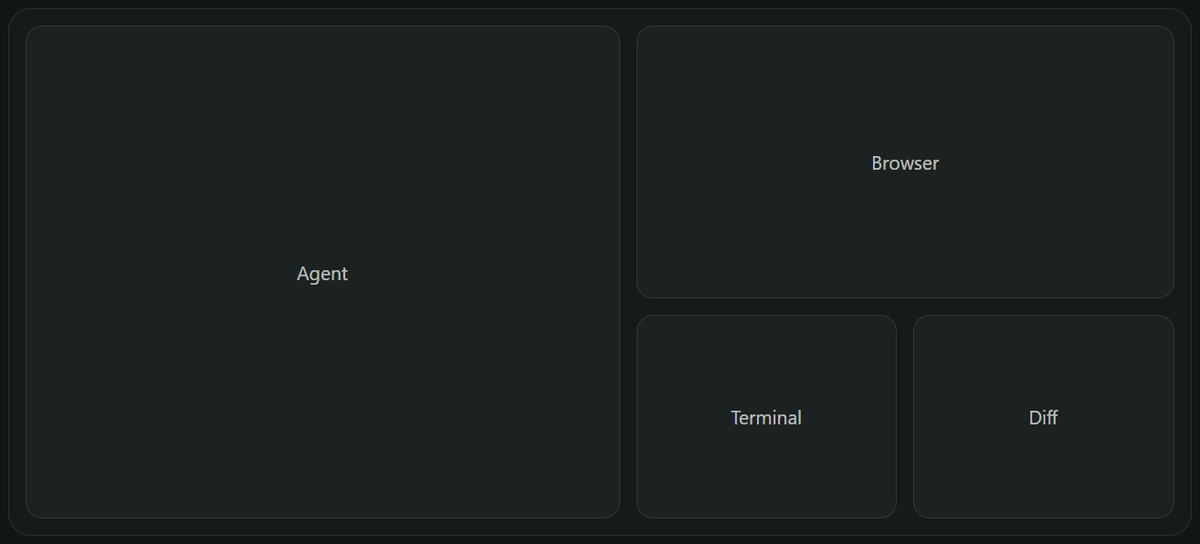
Even when running development servers simultaneously in multiple work trees, you can access them using branch name-based URLs.

Panel switching, split-screen display, new agent creation, command palette, and more can all be operated using shortcuts.

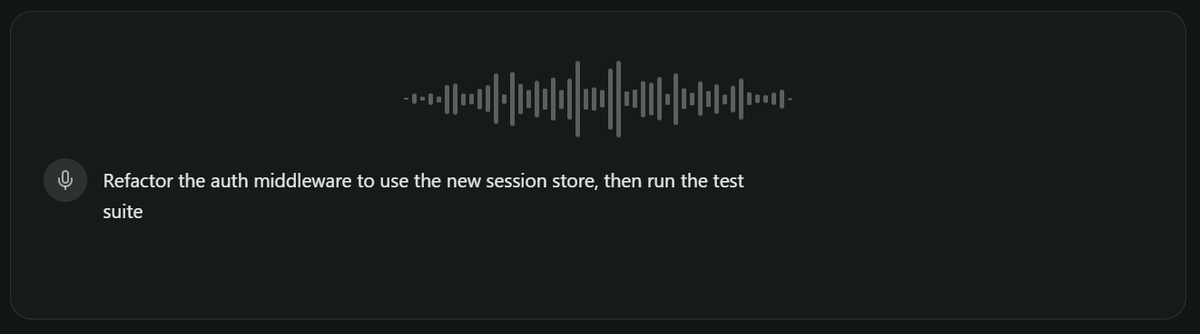
Voice data, such as voice input and text-to-speech, is processed locally and not transmitted externally.
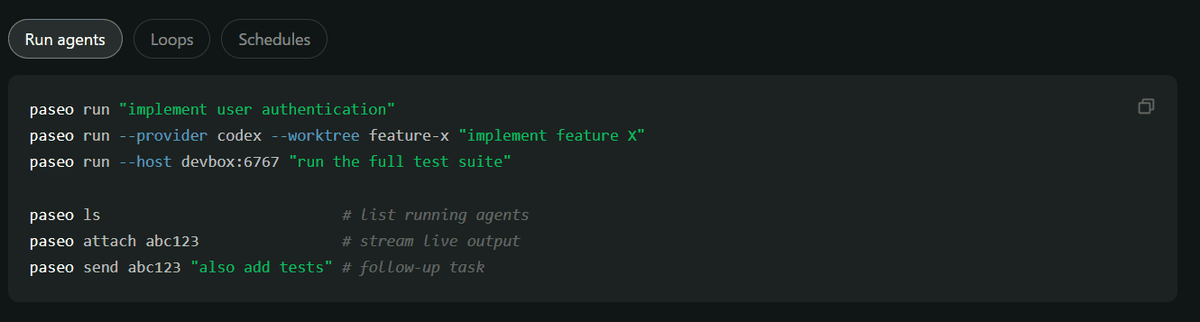
If you can connect via SSH or similar terminal, you can perform operations that can be done in the application, such as starting agents, listing them, connecting, and adding agents, using the command line interface (CLI).
◆How to use Paseo
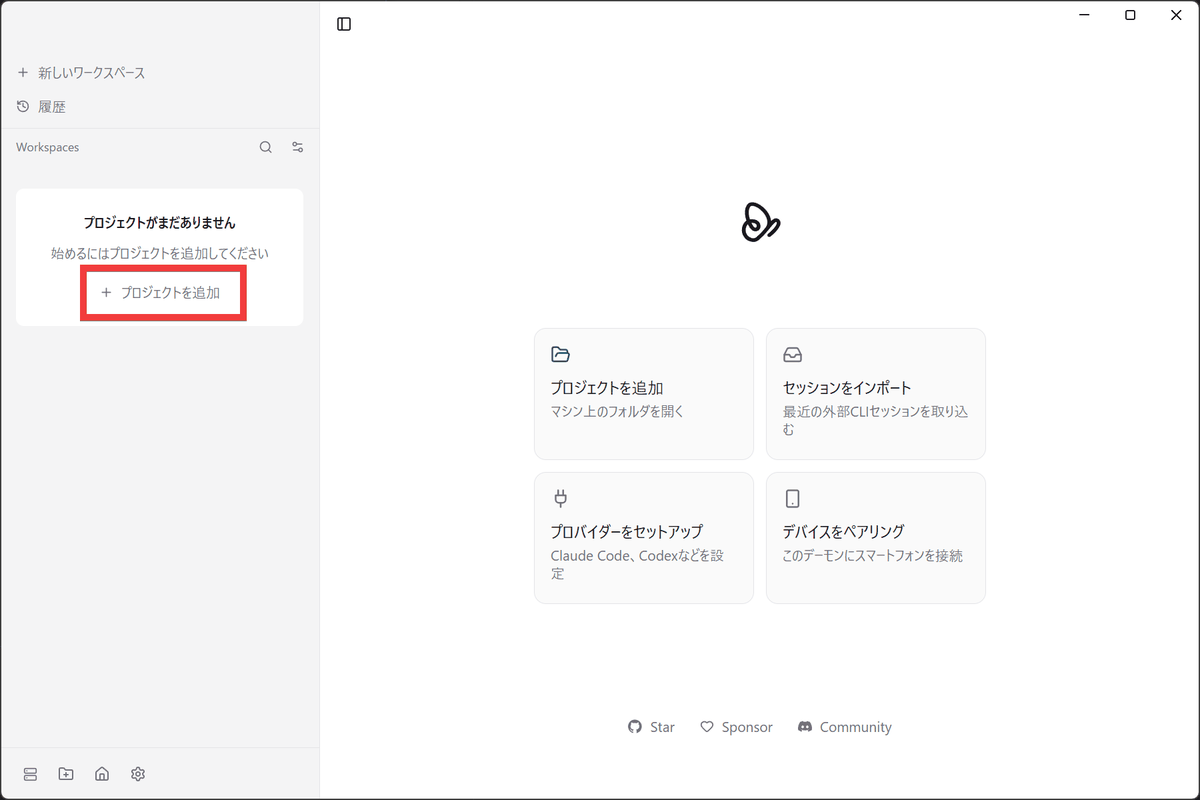
Launch Paseo and click 'Add Project'.
Enter the project path in the 'Enter directory path' field.
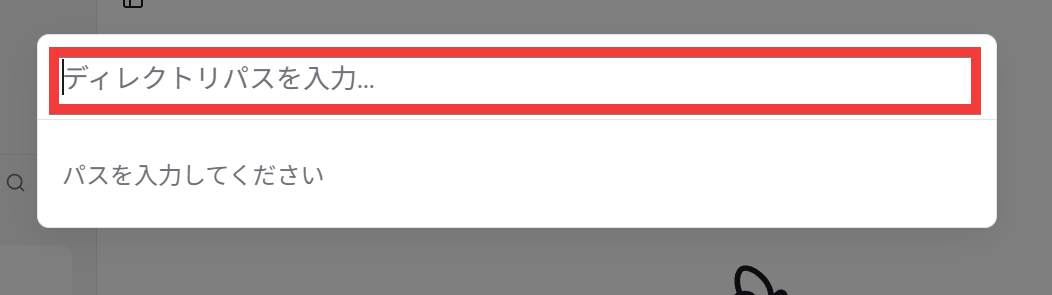
The project will be registered in the side menu, so click 'New Workspace' below the project name.
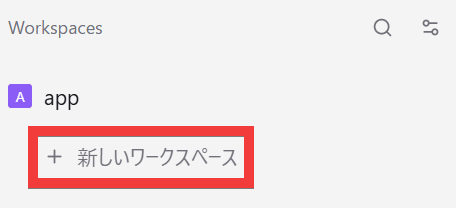
A chat screen will appear as a new workspace, so click 'Select Model'.
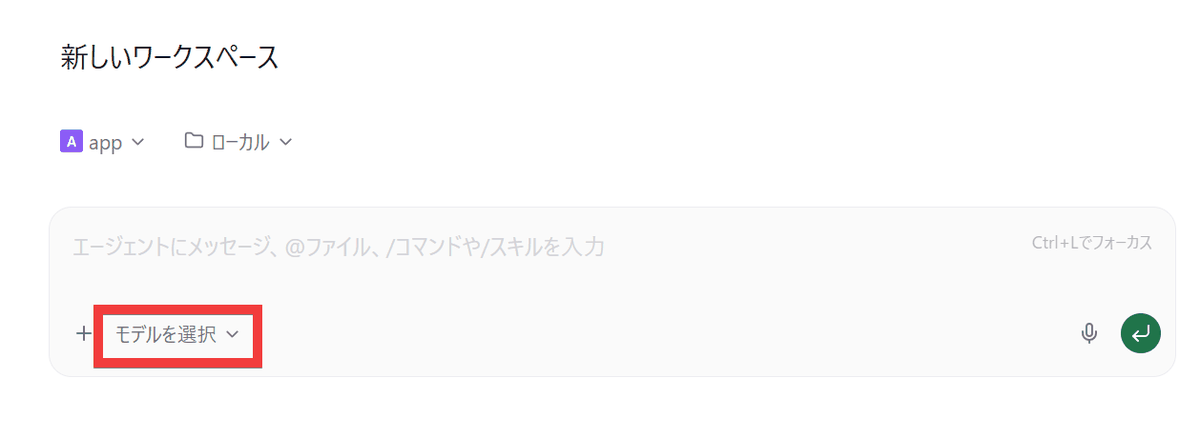
The available agents and models will be displayed, so select one.
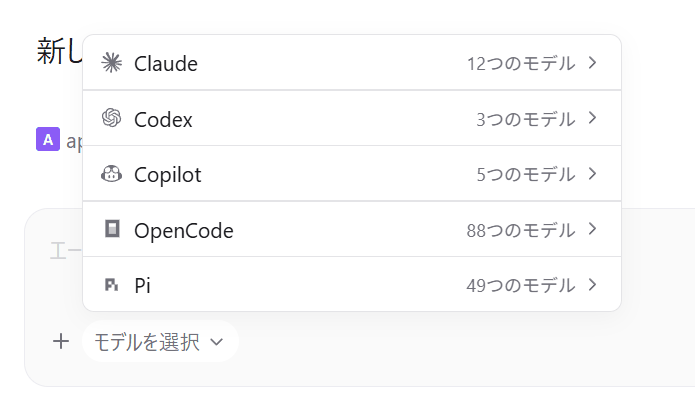
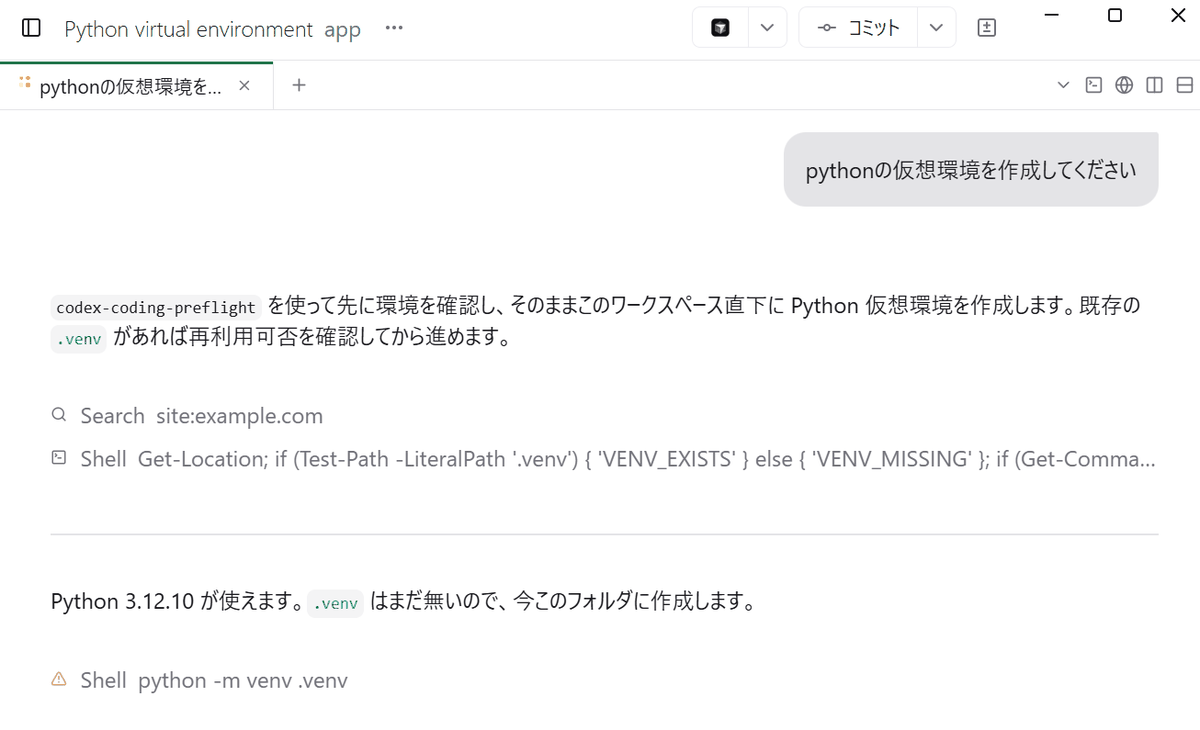
When you give instructions via chat, an agent starts up in the background and performs the task, and you can check the output, such as logs, on the Paseo screen.
◆ Operation from a smartphone
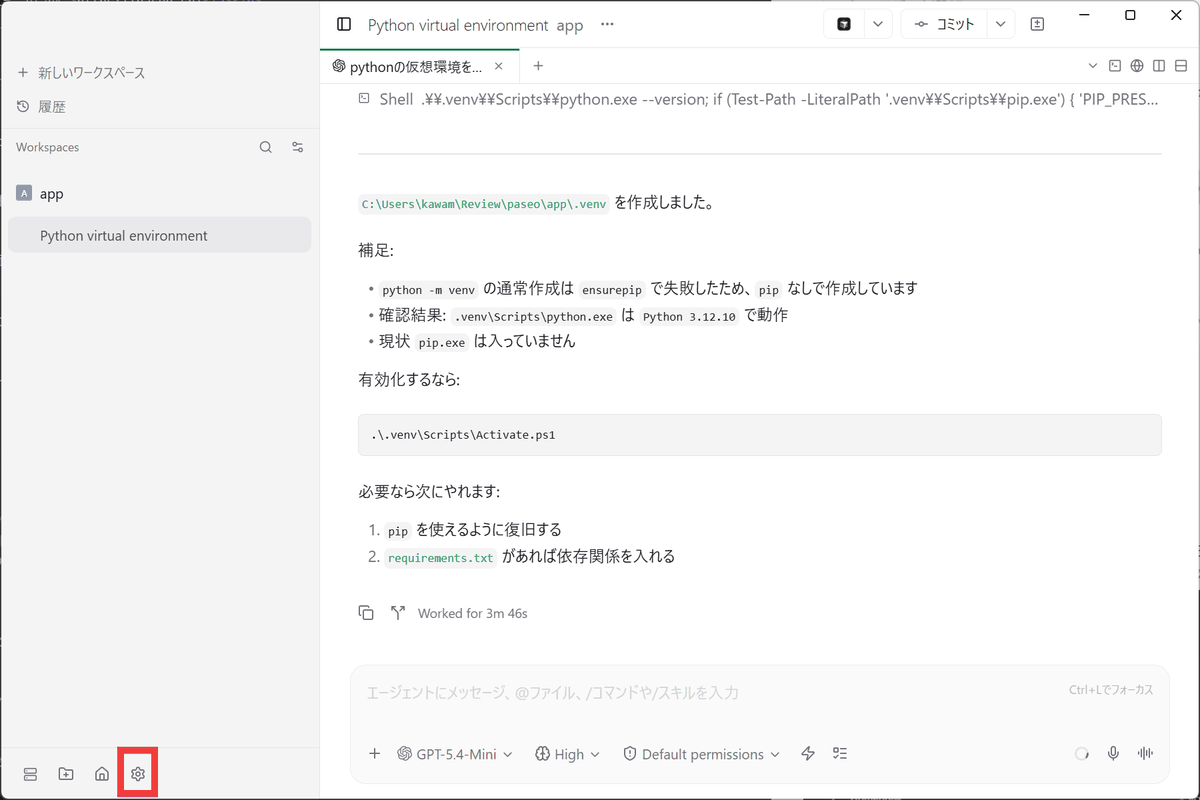
To pair the devices, click the 'gear' icon in the Paseo section on the host PC.
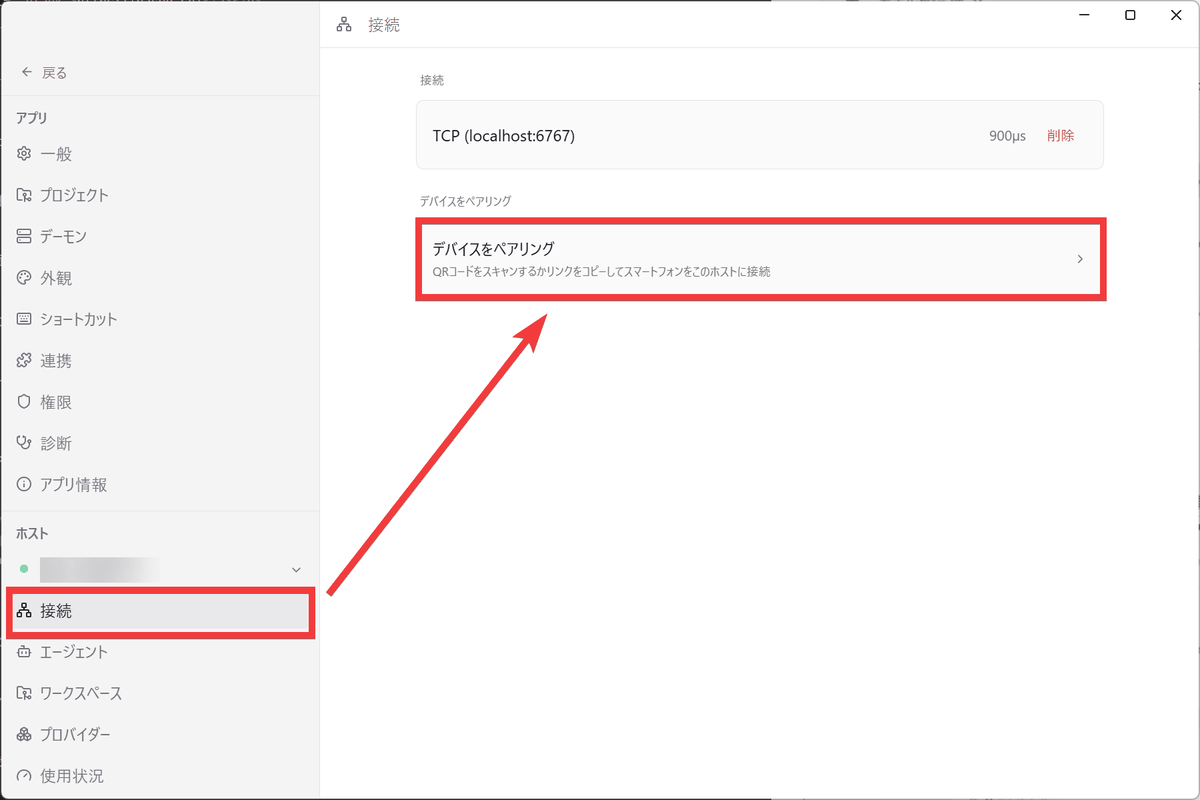
From the side menu, click 'Connect' and then 'Pair Device'.
A QR code will be displayed.
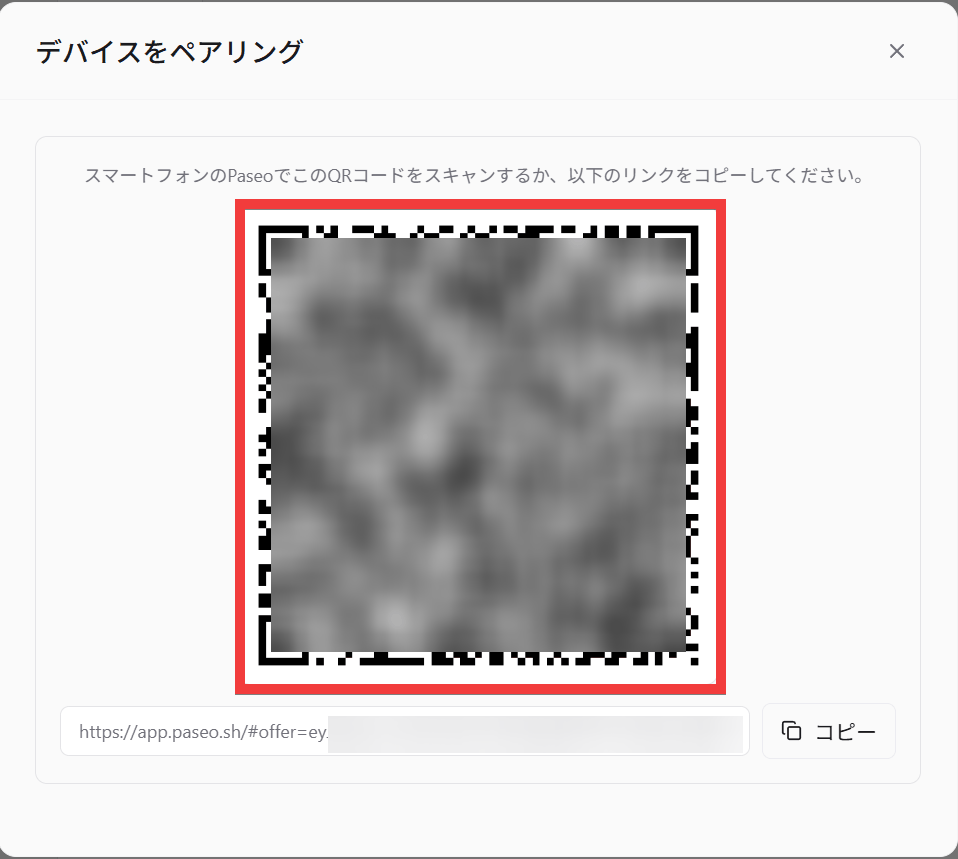
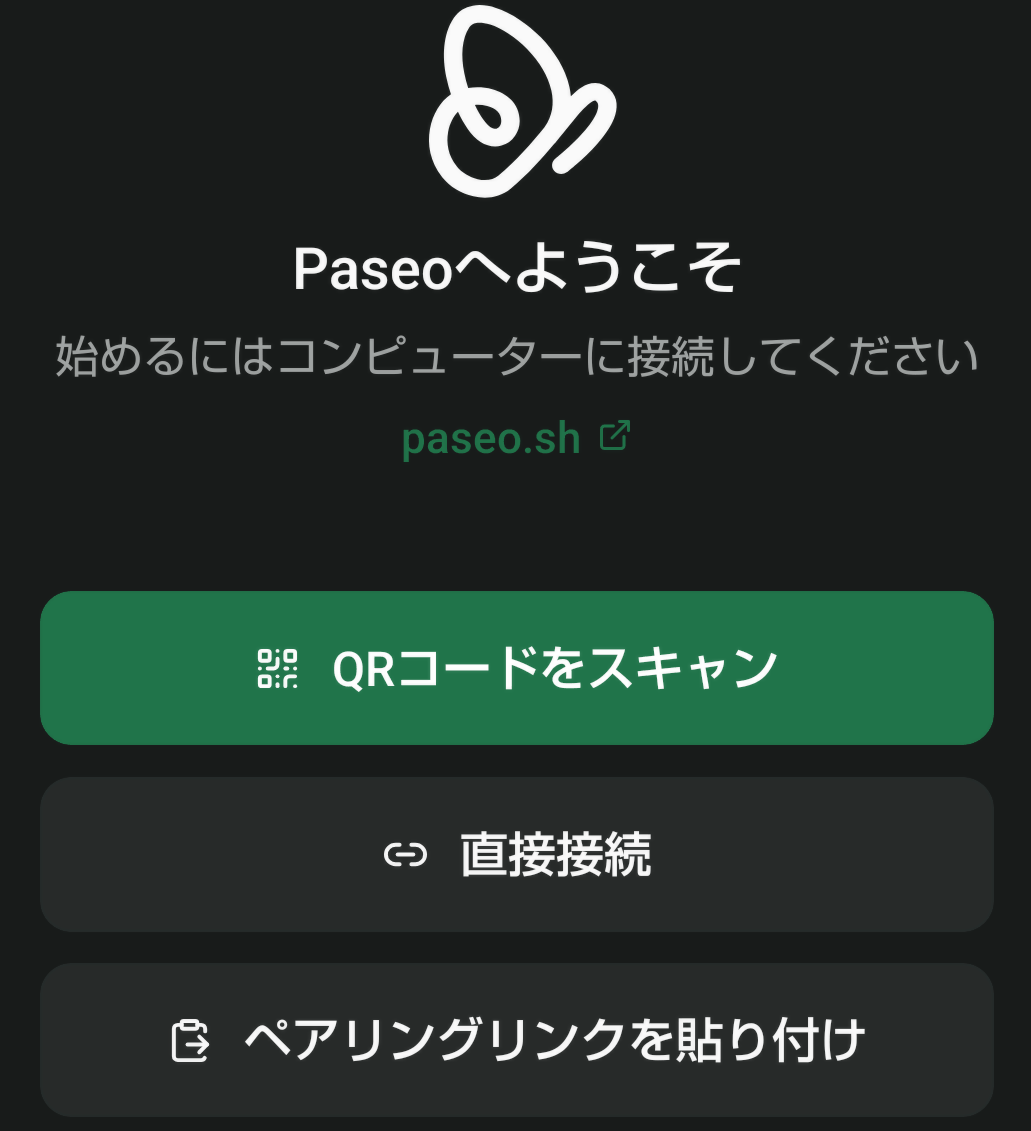
Launch Paseo on your smartphone and tap 'Scan QR code'.
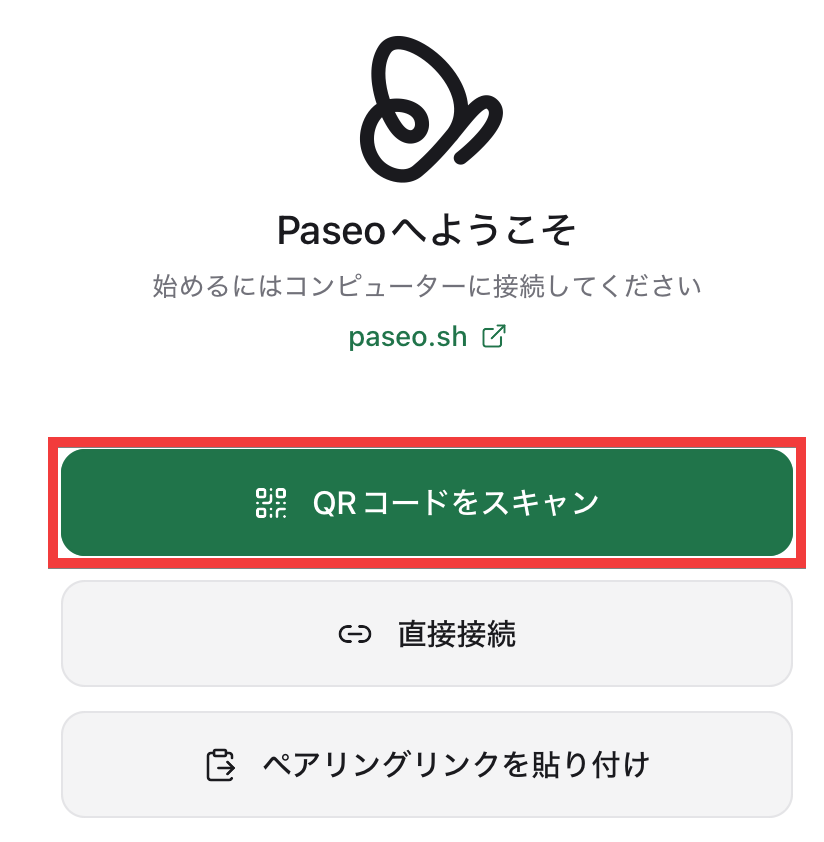
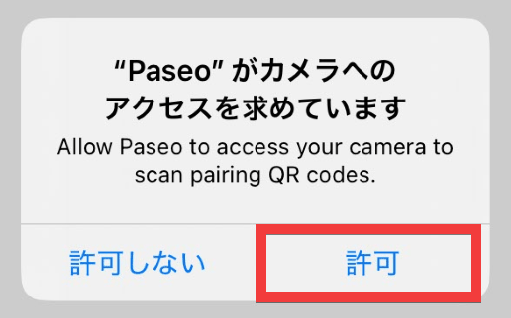
If you are asked for permission to use the camera, tap 'Allow' and scan the QR code.
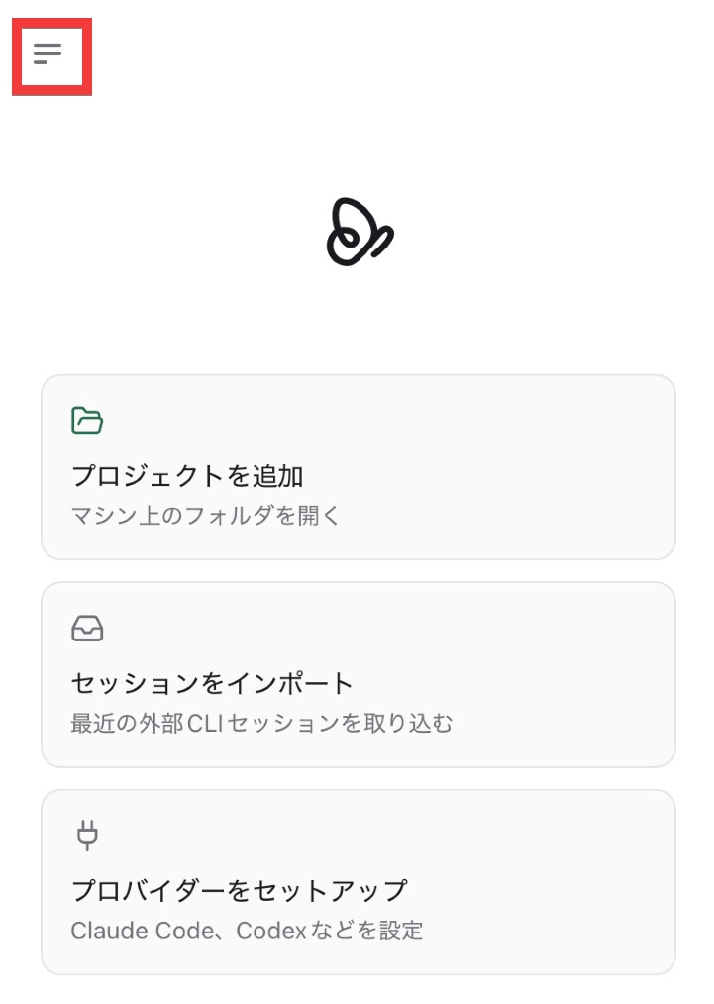
Once the initial screen appears, pairing is complete. Tap the 'Menu' icon in the upper left corner.
The chats you've worked on as the host will be displayed, so tap the chat you want to work on.
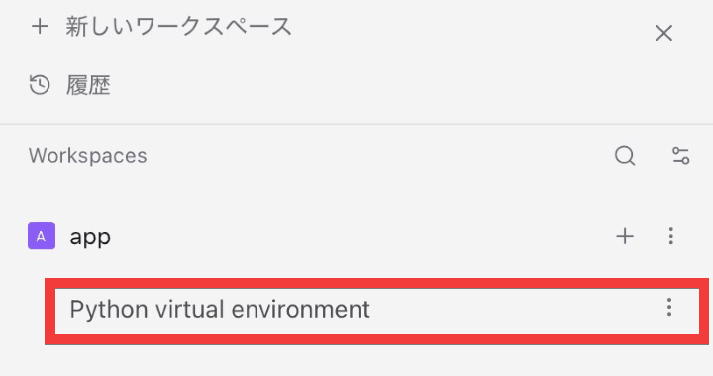
The host's chat will be imported, and you will be able to resume your work.
Scanning the QR code automatically configures the settings for external connections. While it utilizes Paseo's official relay server, the relay server only has access to the IP address, timing, message size, and session ID; other message content and program code are encrypted and cannot be read by the relay server.
On the social news site
◆How to install Windows applications
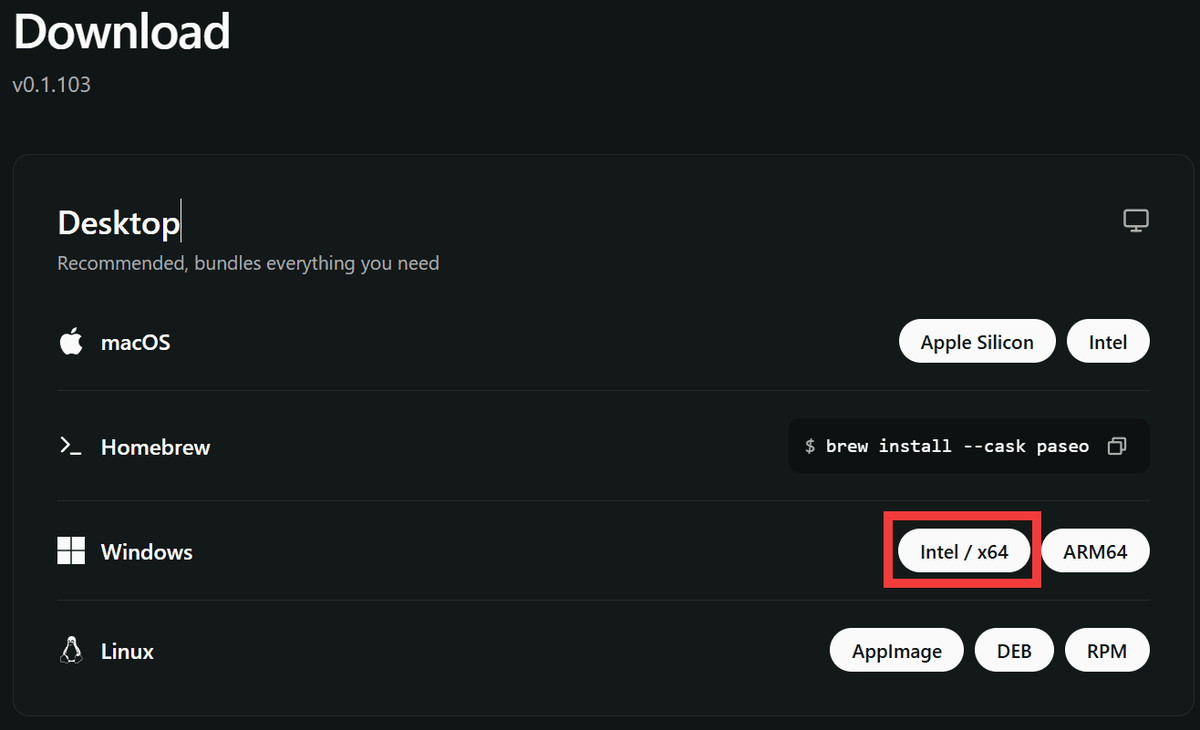
The desktop version of the application includes client and daemon functions and needs to be installed on the main PC; in this case, we will install it on Windows 11. Download and save the installer from the official download page .
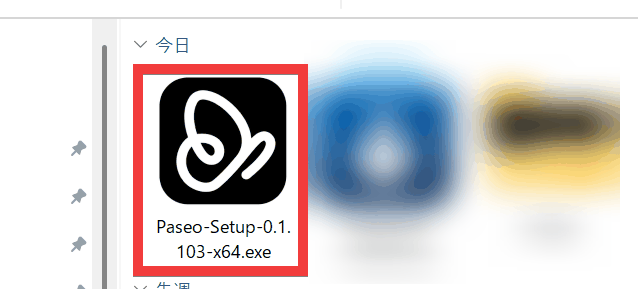
Double-click the saved installer to launch it.
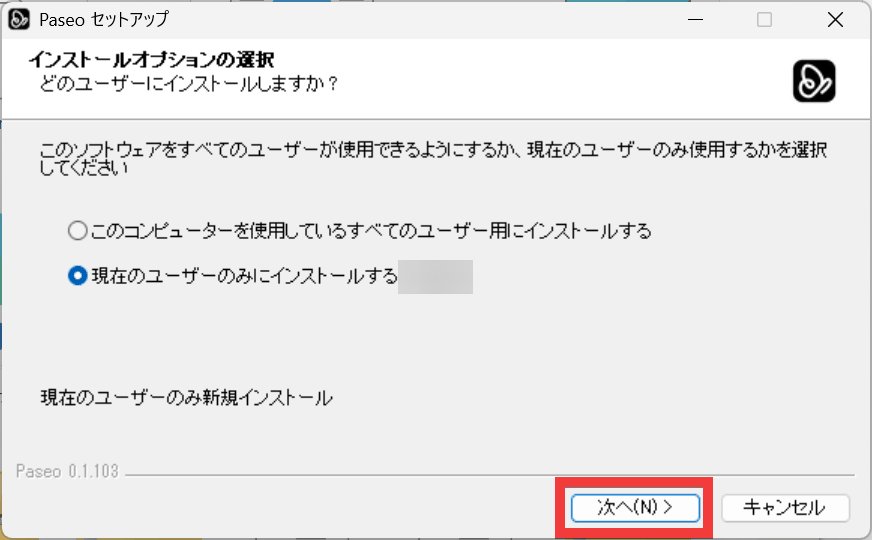
Choose either 'Install for all users using this computer' or 'Install for the current user only,' and then click 'Next.'
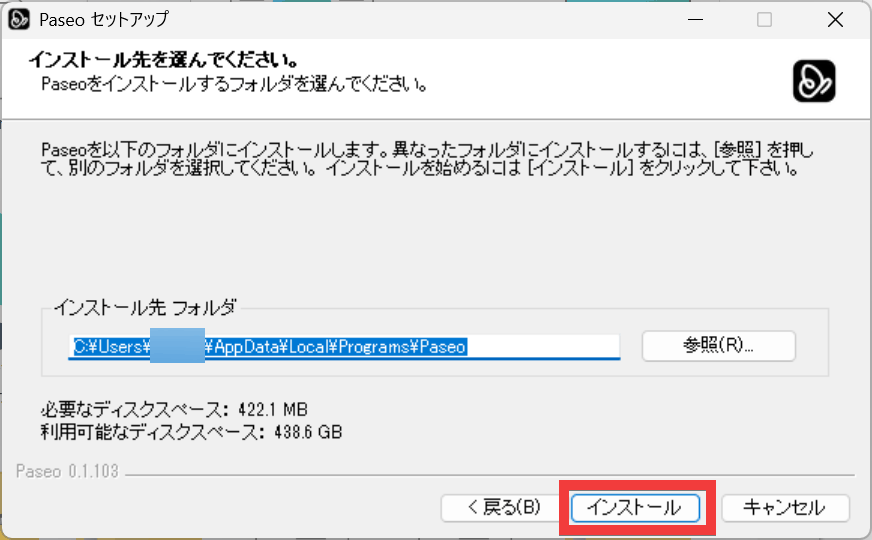
Select the 'Installation folder' and click 'Install'.
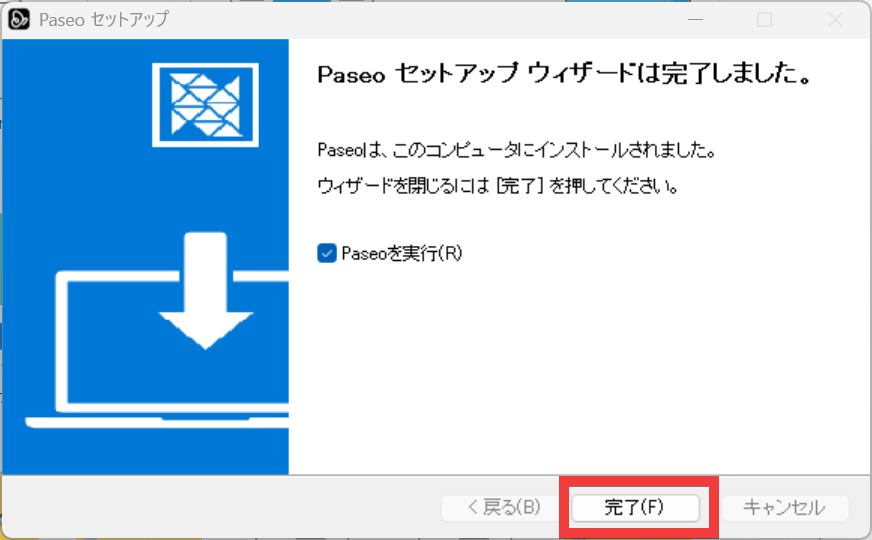
Once the installation is complete, click 'Finish'.
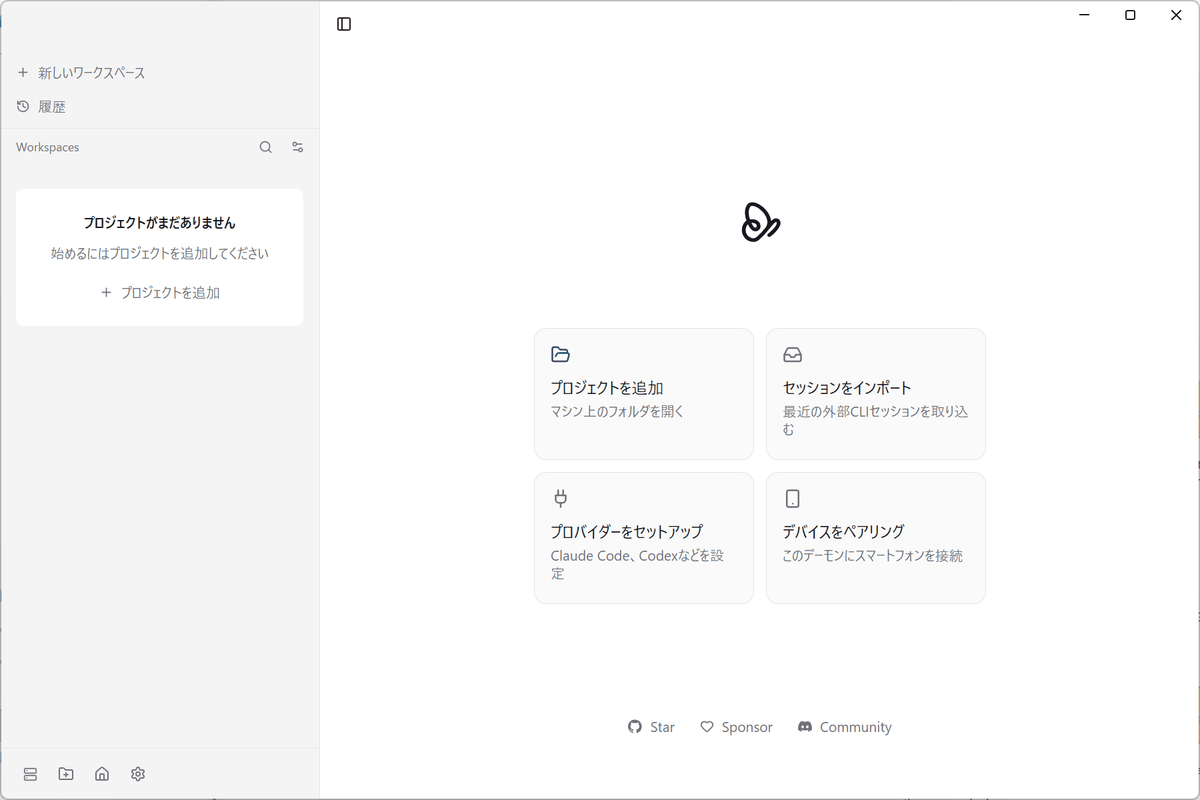
Once Paseo starts automatically and the initial screen appears, the installation is complete.
◆How to install iOS apps
Paseo - Remote Coding Agents app - App Store
https://apps.apple.com/jp/app/paseo-remote-coding-agents/id6758887924
Access
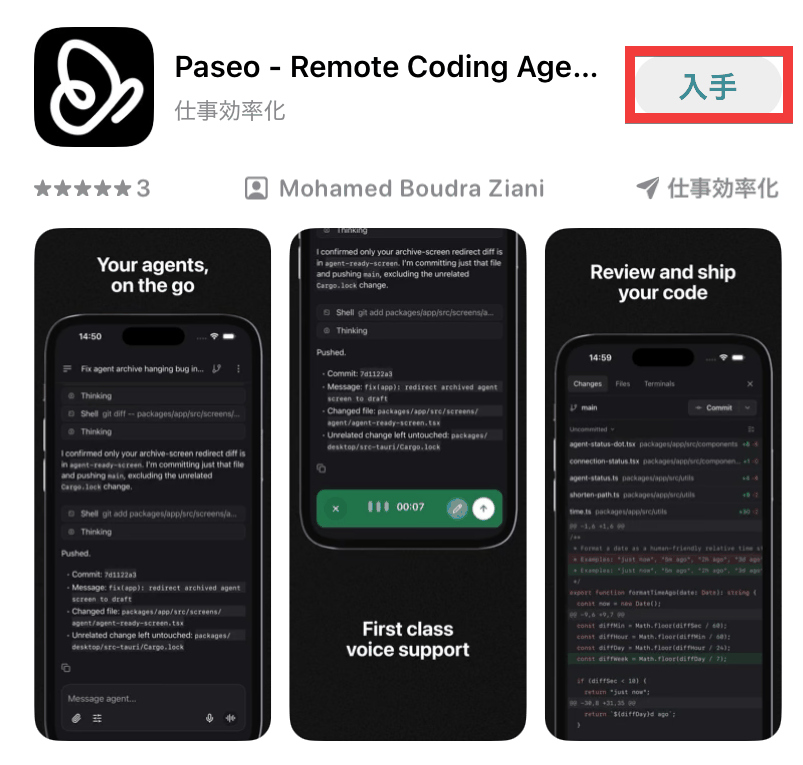
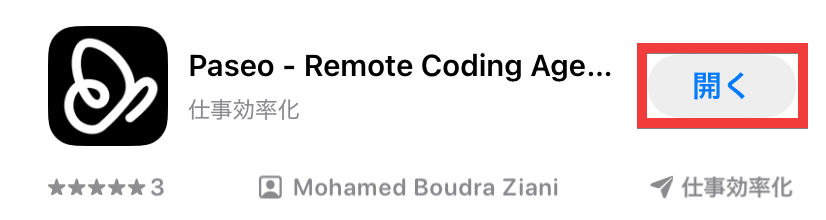
Once the installation is complete, tap 'Open'.
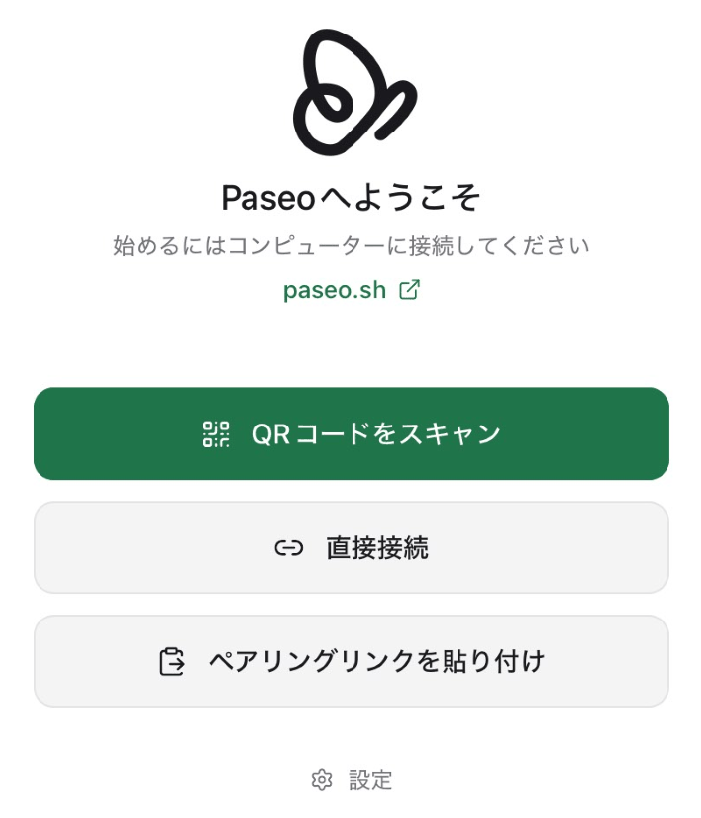
The installation is complete when the initial screen appears.
◆How to install Android apps
Paseo - Claude Code & Codex - App on Google Play
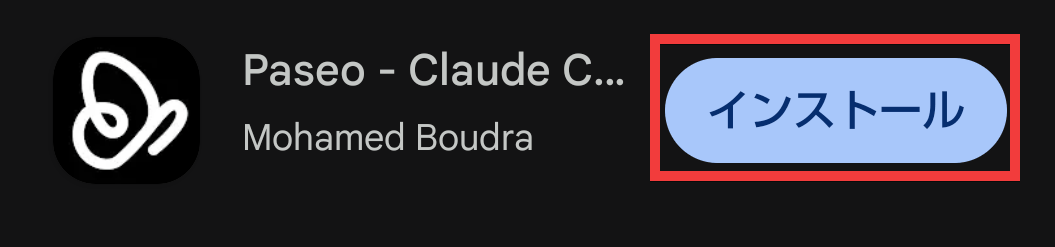
Go to the Play Store distribution page and tap 'Install'.
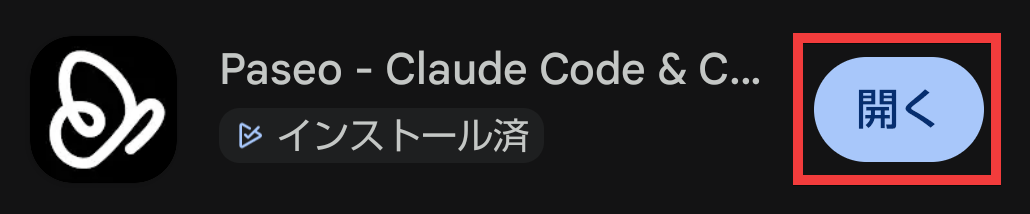
Once the installation is complete, tap 'Open'.
The installation is complete when the initial screen appears.
Related Posts: