GitHub Copilot now supports browser operations within VS Code, allowing the AI agent to open and test web applications.
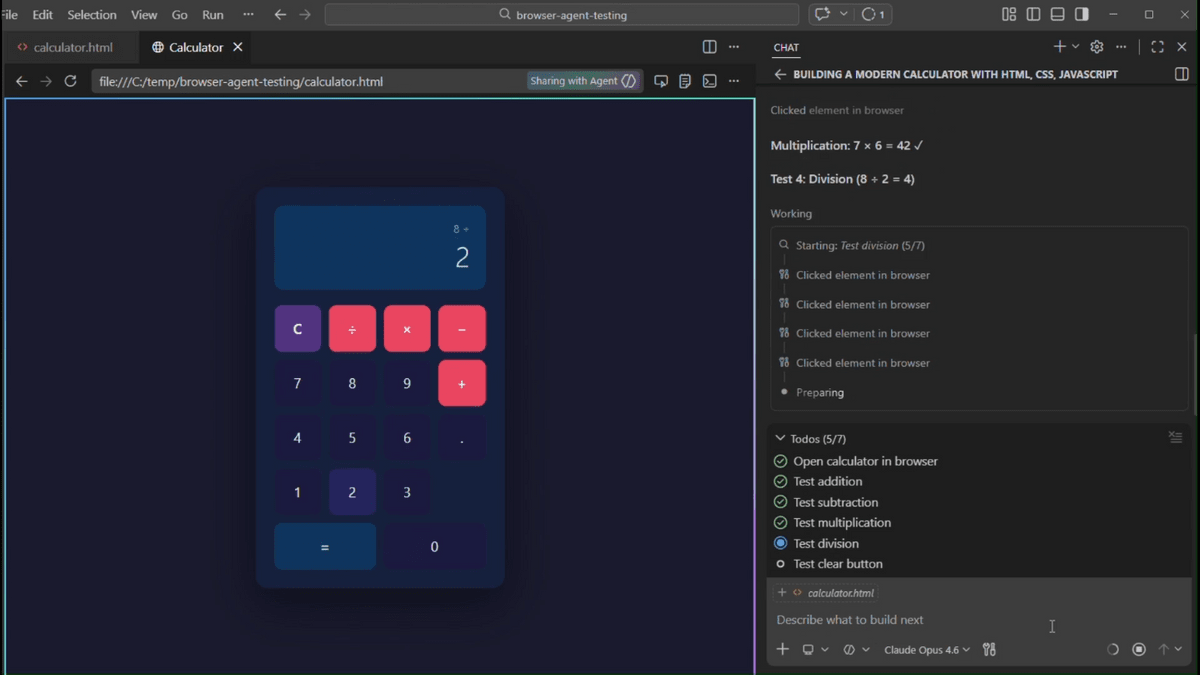
GitHub has announced the general availability of its GitHub Copilot browser operation tool for Visual Studio Code (VS Code). This feature, which was previously available in preview, allows users to open a browser within VS Code and test the operation of web applications while interacting with them using GitHub Copilot's AI agent.
Browser tools for GitHub Copilot in VS Code are generally available - GitHub Changelog
When creating a web application, after writing the code, you need to interact with the actual screen to check if it works as intended. GitHub Copilot is expanding its functionality to include code completion, chat consultation, and the ability to handle multiple tasks simultaneously as an AI agent. However, traditionally, it couldn't directly manipulate the browser, and the final check had to be done by a human.
The browser operation tool, now generally available, is a feature designed to make it easier to entrust GitHub Copilot with tasks such as 'interacting with the actual screen to verify its operation.' Using the browser operation tool, the AI agent can perform operations such as 'opening pages,' 'clicking links,' 'entering text,' 'mouse over,' 'dragging,' and 'processing dialogs.' It also supports 'reading page content,' 'retrieving console errors,' and 'taking screenshots.'
For example, if you request GitHub Copilot to 'open a web application running in a local environment and check everything from login to the settings screen,' it will actually operate the browser and perform the verification. It can also execute scripted sequences for tasks with defined procedures, making it useful for situations where the same checks need to be repeated multiple times. DevTools are also available in the browser toolbar, allowing developers to debug while checking elements and console output.
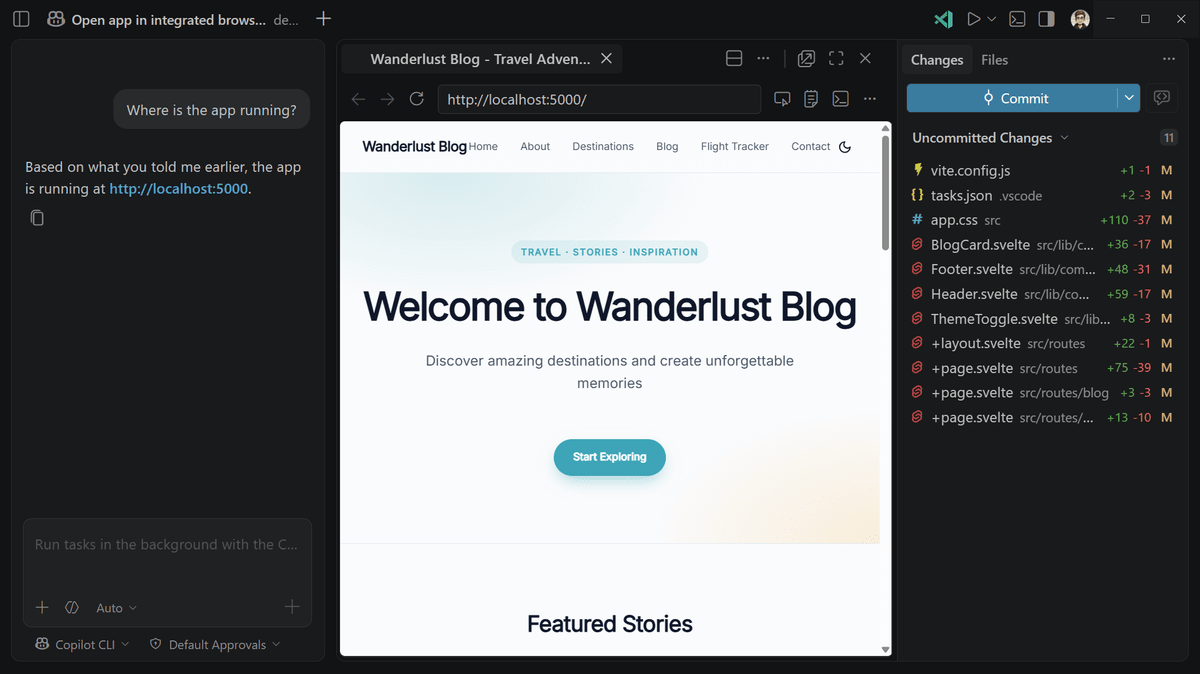
The browser manipulation tool will be enabled by default upon general availability. After updating VS Code, you can use it by asking the AI agent to open or test a page. It can be used from both the VS Code editor and the Agents window.
On the other hand, if an AI agent can control the browser, concerns arise about whether it might access tabs you normally use or services you're logged into without your permission. According to GitHub, tabs that a user has opened themselves are not visible to the AI agent by default, and cannot be read or manipulated until you select 'Share with Agent.' Tabs opened by the AI agent also operate in a new session separate from the normal browsing environment, and it cannot access saved cookies or similar data.
For enterprise users, management features are also available, allowing administrators to enable or disable browser control tools in bulk, and restrict the domains that the AI agent and integrated browser can access using allow and deny lists.
Additionally, GitHub announced on the same day a feature that allows users to set session limits for AI credits in the Copilot CLI and GitHub Copilot SDK.
Set AI credit session limits in Copilot CLI and SDK - GitHub Changelog
https://github.blog/changelog/2026-07-01-set-ai-credit-session-limits-in-copilot-cli-and-sdk/
AI credits are the usage limits for AI processing. Setting session limits helps prevent AI agents from running longer than intended during automated tasks. You can specify limits using the '/limits' command interactively or '--max-ai-credits' non-interactively. AI credit session limits are available as a public preview.
Related Posts:


in AI, Posted by log1d_ts