Review of 'ebook2audiobook,' a service that can convert ebooks into text-to-speech files in over 1000 languages, including Japanese.
Audiobook streaming services like
DrewThomasson/ebook2audiobook: Generate audiobooks from e-books, voice cloning & 1158+ languages!
https://github.com/DrewThomasson/ebook2audiobook
◆Features
According to the official GitHub repository, the features of ebook2audiobook are as follows:
Supported TTS engines: XTTSv2, Bark, Fairseq, VITS, Tacotron2, Tortoise, GlowTTS, YourTTS
Supported eBook file formats: .epub, .mobi, .azw3, .fb2, .lrf, .rb, .snb, .tcr, .pdf, .txt, .rtf, .doc, .docx, .html, .odt, .azw, .tiff, .tif, .png, .jpg, .jpeg, bmp
- Directly convert short text in the text area to speech.
OCR scanning of files containing text pages as images
• High-quality text-to-speech
- Create an audio clone using your own audio file (optional)
- Supports 1158 languages , including 28 major languages.
• Can operate even with low resources
Audiobook output formats: aac, flac, mp3, m4b, m4a, mp4, mov, ogg, wav, webm
- Supports SML tags: Allows for fine-grained control over breaks, pauses, audio switching, etc.
- Custom models using models you have trained yourself (optional, XTTSv2 only)
• A finely tuned preset model trained by the E2A team.
◆Environmental requirements
According to the official GitHub repository, ebook2audiobook can be run in the following environments:
RAM : Minimum 2GB, Recommended 8GB
VRAM : Minimum 1GB, Recommended 4GB
• Virtualization : Docker compatible
• CPU/XPU : Supports Intel, AMD, and ARM.
• OS : Compatible with Windows, macOS, and Linux
Frameworks : Supports CUDA , ROCm , JETSON , and MPS .
Note that the latest TTS engines are extremely slow when run on a CPU, so if speed is a concern, you should use lower-quality TTS engines such as YourTTS or Tacotron2.
◆Installation
This time, we'll clone the repository locally on a Windows PC and run it directly. First, install Git for Windows and add it to your system's PATH. Next, right-click on the command prompt icon and select 'Run as administrator' from the pop-up menu that appears.
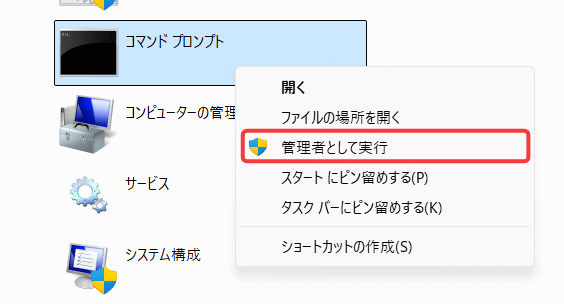
In the opened command prompt, execute the following command to clone the repository and set it as the current directory.
[code]
git clone https://github.com/DrewThomasson/ebook2audiobook.git
cd ebook2audiobook
[code]
Executing the following command will launch ebook2audiobook, but if there are no dependent programs or libraries, such as on the first run, they will all be installed.
[code]
ebook2audiobook.cmd
[code]
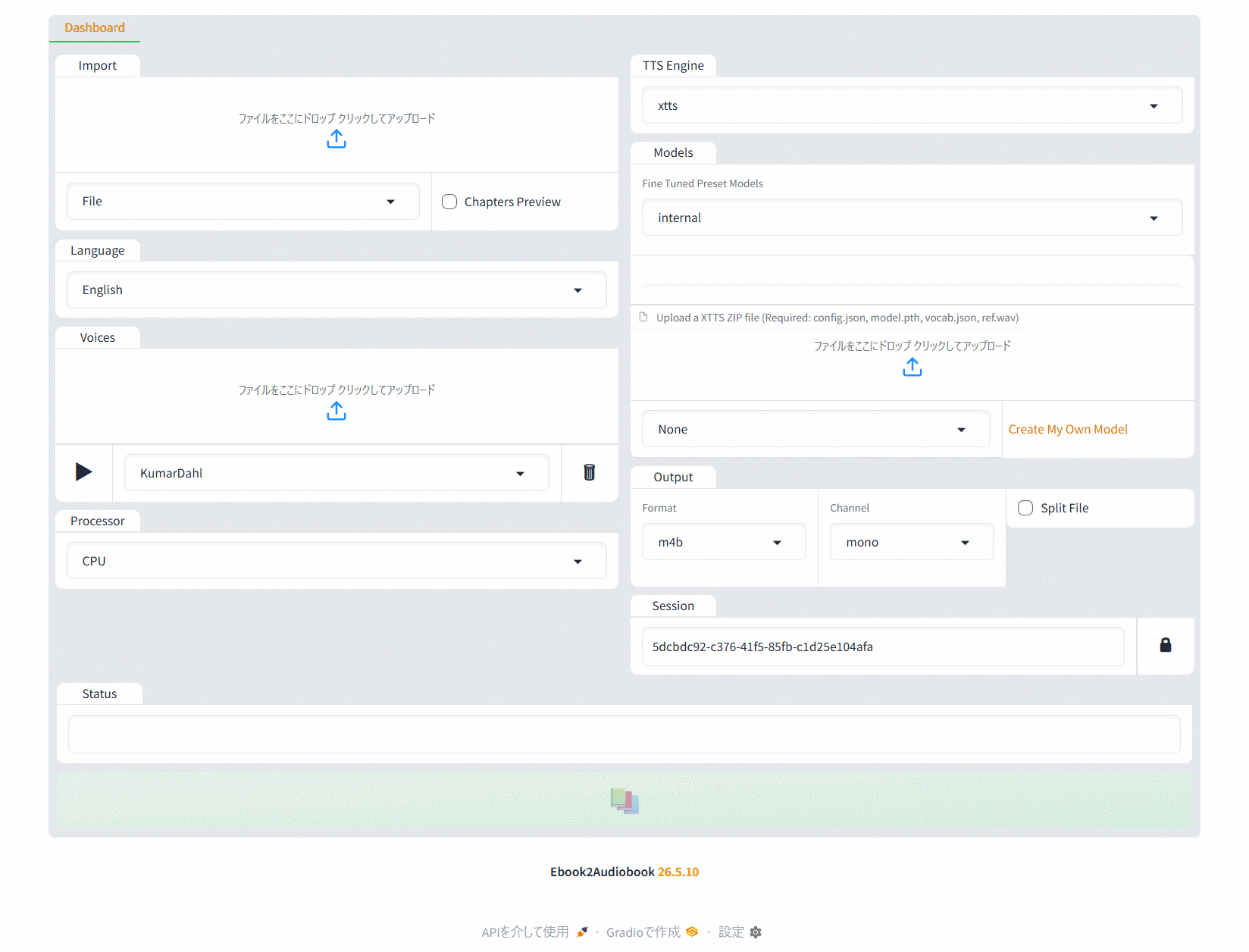
The installation may take some time as it may perform a build, but after a while the UI (http://127.0.0.1:7860/) will automatically appear in your browser and the installation will be complete.
◆ How to use
First, you need to prepare an ebook file. This time, we will use the epub file that the GIGAZINE editorial department used to create their ebook.
Amazon.co.jp: Play Review of 'Electric Town Cafe,' an ADV game where you play as the manager of a maid cafe in Osaka's Nipponbashi district, helping to liven up the shop while spending time with unique maids. eBook: GIGAZINE: Kindle Store
This time, we followed the procedure that we thought was feasible with the minimum requirements.
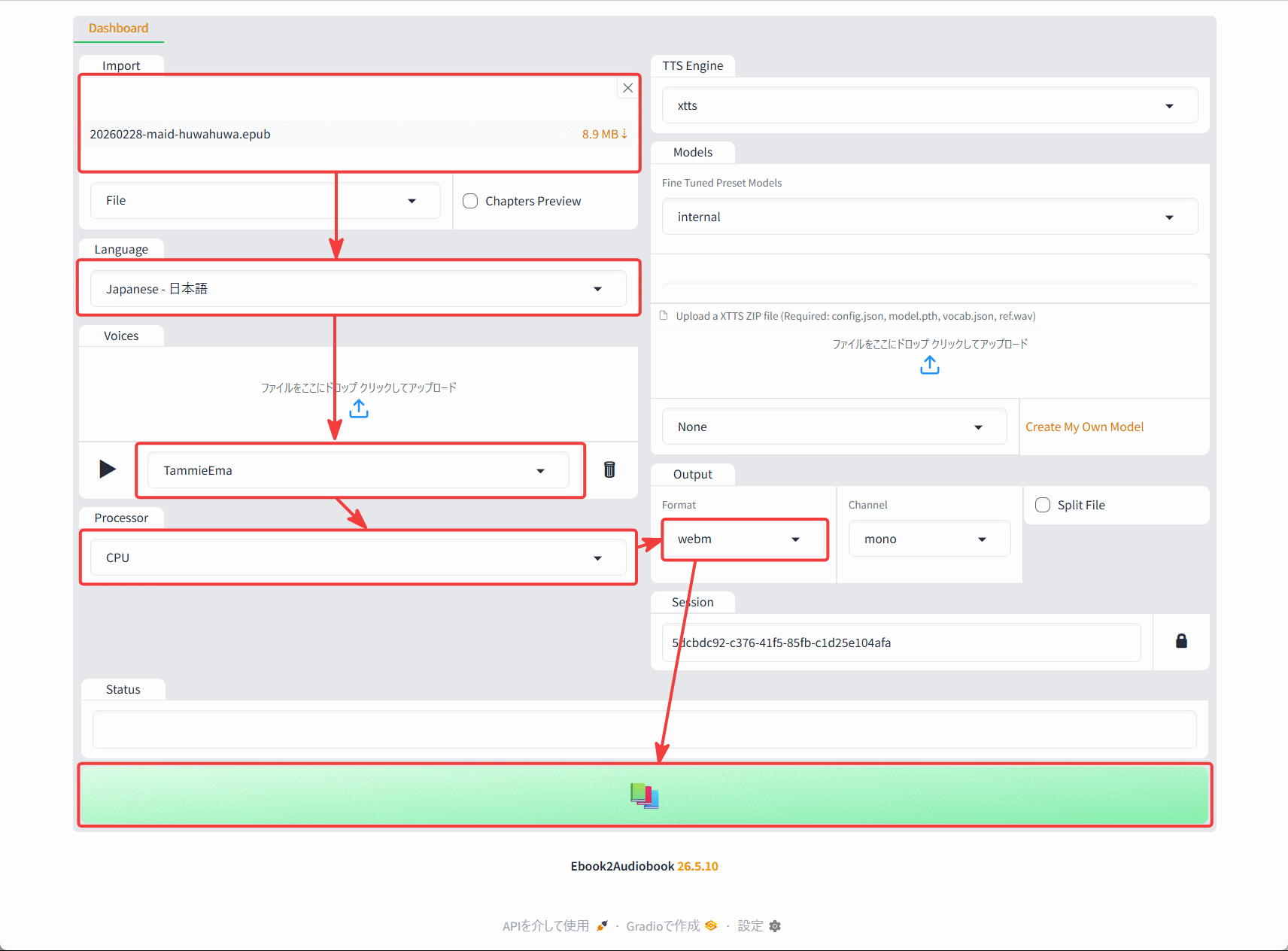
1. Drag and drop the epub file into 'Import' and configure the settings.
2. Select Japanese under 'Language'.
3. Select a voice in 'Voices' (you can check a sample voice using the play icon on the left).
4. Select 'CPU' under 'Processor'.
5. Select 'webm' under 'Output' (audio files such as 'm4b' are also acceptable).
6. Click the book icon button.
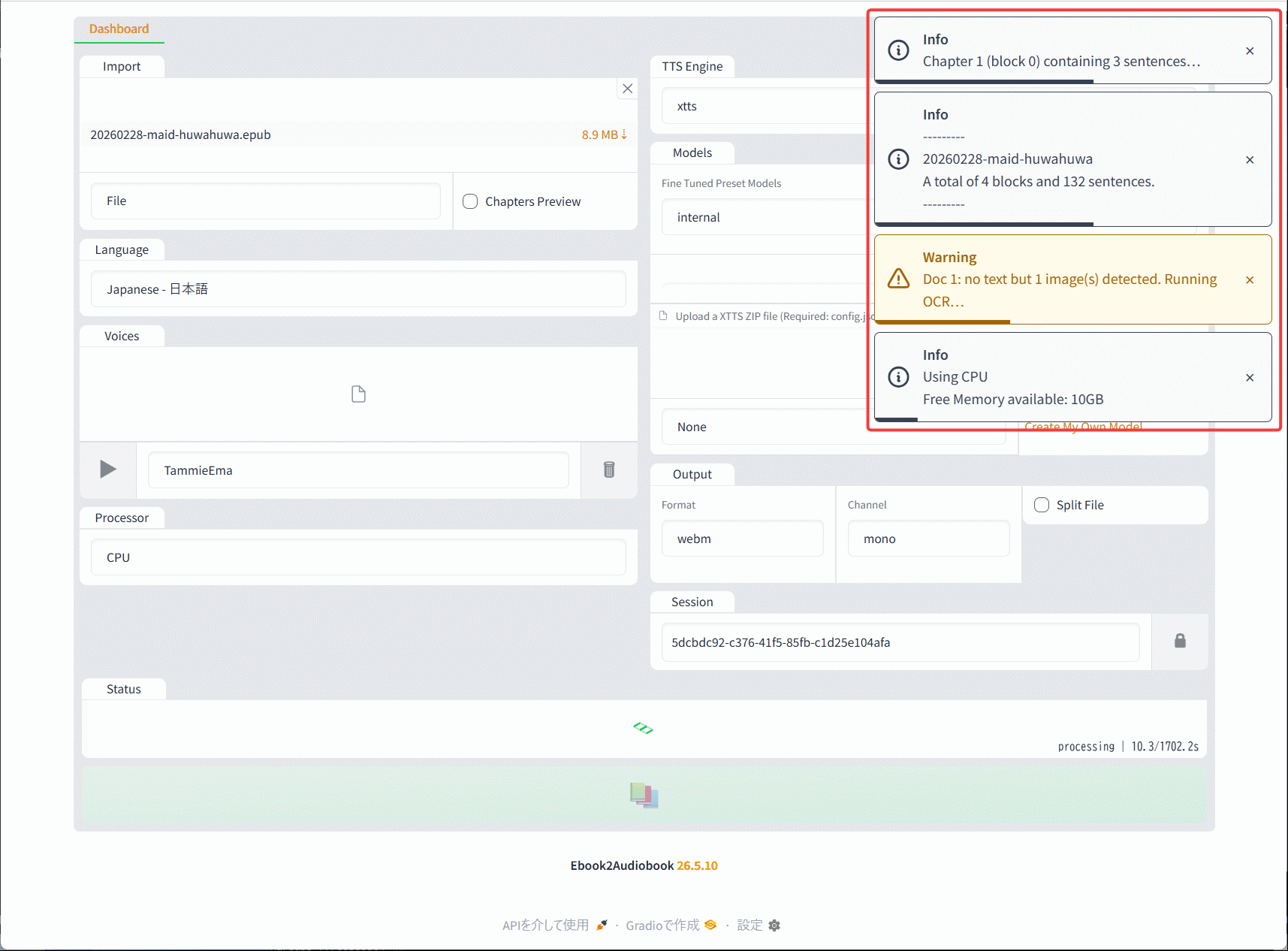
When you click the button, a series of notifications will appear in the upper right corner of the screen. A warning message saying 'OCR will be used' is displayed because there are images in the epub file, but it also contains text, so it's okay to ignore it.
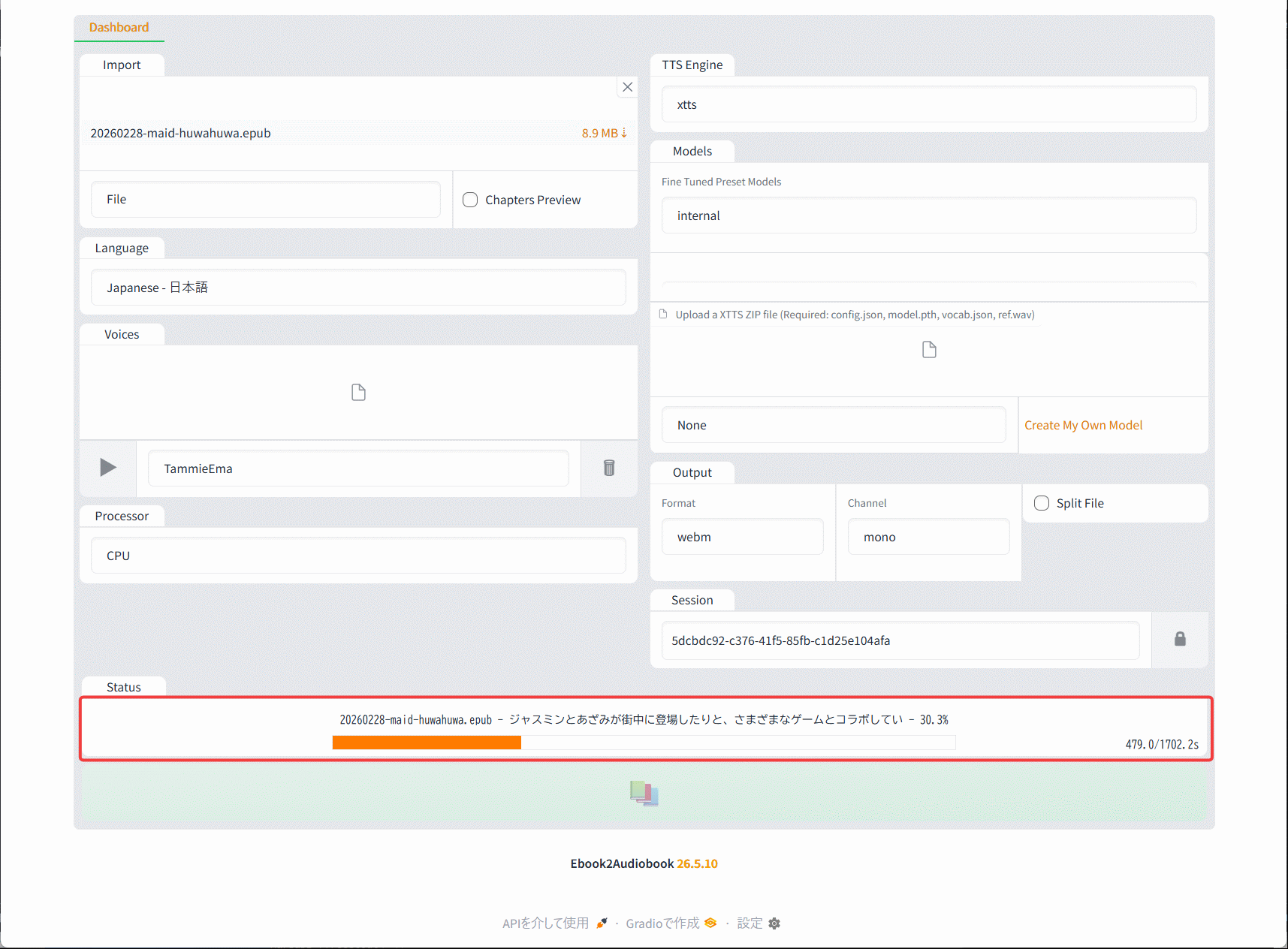
Once processing begins, the current processing details and progress will be displayed under 'Status.' The estimated time is just under 30 minutes, so we'll wait patiently.
The PC used is the GEEKOM GT13 Pro (equipped with a Core i9-13900HK) featured in the following article, so please refer to it for specifications and other details.
I tried adding storage to my mini PC, and here's how to reconnect the Wi-Fi cable if it comes loose during the process - GIGAZINE
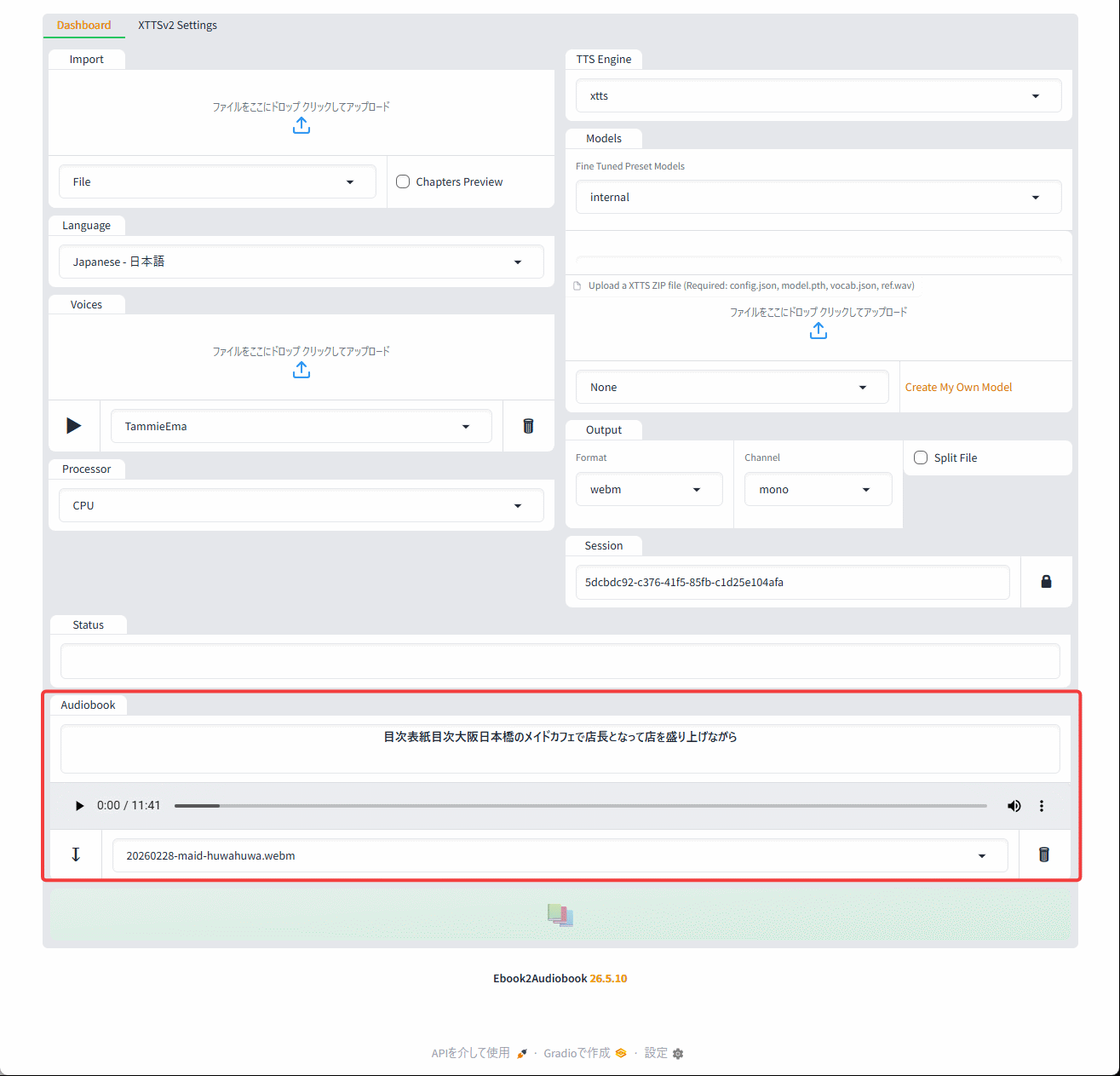
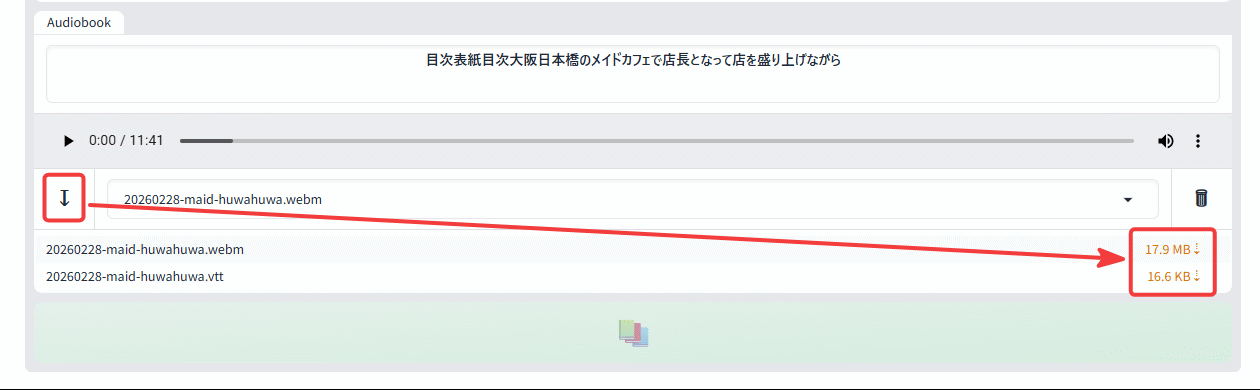
Once processing is complete, the 'Audiobook' section will appear. A seek bar and play button are provided, allowing you to play the audio directly from the UI.
Additionally, tapping the download icon will display the audio file and VTT file, and the size displayed to the right of each file is a link that can be clicked to download them individually.
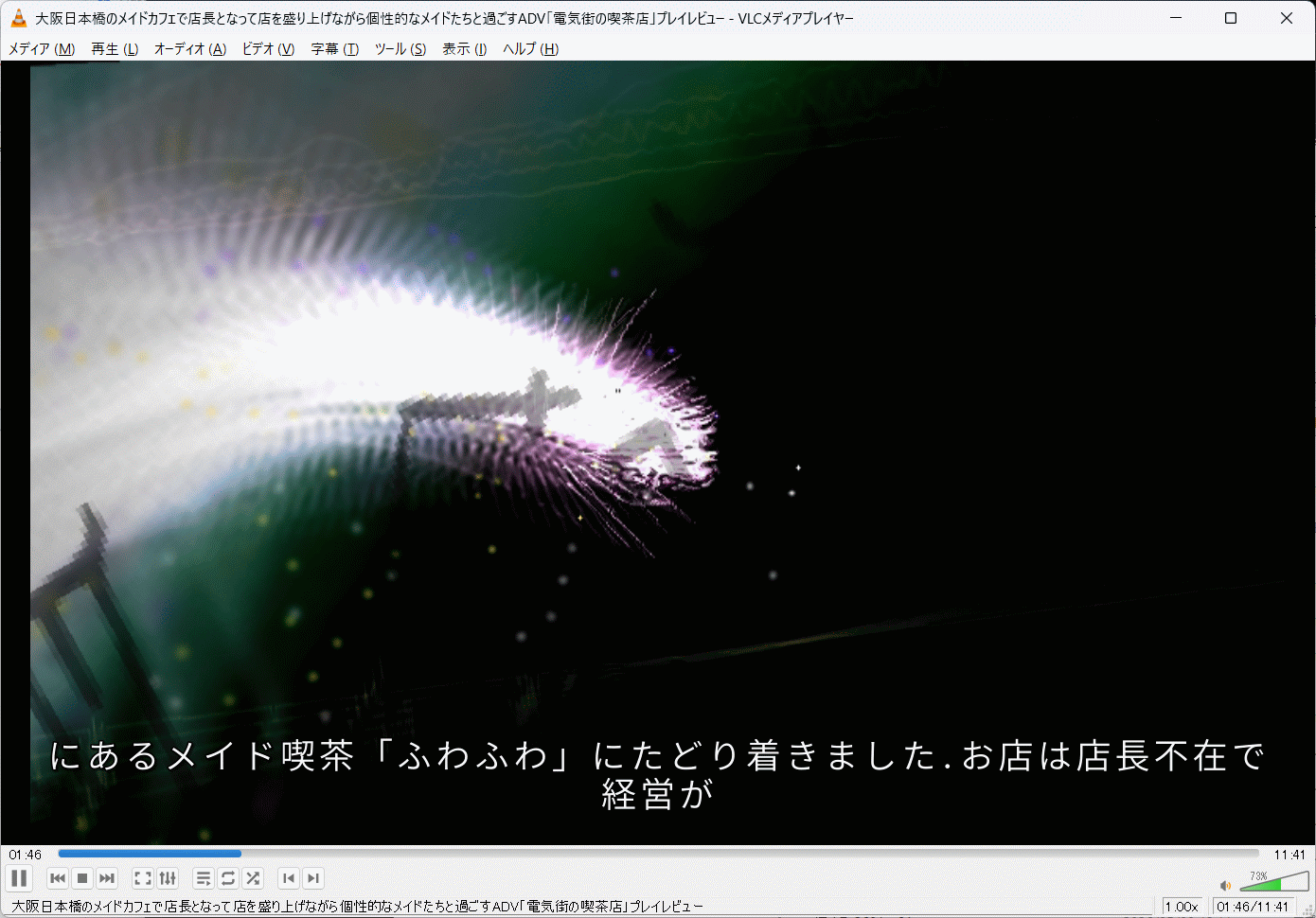
VTT files contain subtitle information, and when loaded simultaneously with an audio file using a player that supports subtitle display, such as
◆My impressions after listening to the audio playback
You can see below how the generated text-to-speech audio file and VTT file sound when played back using VLC Media Player.
I tried converting an ebook to an audio file using 'ebook2audiobook'. - YouTube
• Overall, the voice sounds natural.
- Because the text is divided into smaller parts for speech synthesis, the transitions between sections have a slightly unnatural accent.
- For some reason, the pronunciation of some loanwords is incorrect (e.g., 'made' is pronounced 'made').
- The way they read the Arabic numerals is strange and I have no idea what they're saying.
◆Summary
Even without using a high-performance PC and employing the default built-in TTS engine, I was able to confirm that ebook2audiobook can convert ebooks into Japanese audio at a sufficiently clear level. If you are considering converting your ebook files into audio files, I highly recommend trying ebook2audiobook.
Related Posts: