'Puget Systems Docker App Packs' allows you to instantly build and continuously run a Docker environment that runs local AI models on a GPU using 'ComfyUI,' 'Open WebUI,' and other tools, all for free.
When starting to use AI on a local PC, configuring Docker and resolving GPU driver dependencies can sometimes be time-consuming. Puget Systems Docker App Packs , released by workstation manufacturer Puget Systems , is an open-source setup tool that automatically builds execution environments for generative AI and large-scale language models with just one command. From image generation with ComfyUI to local LLM servers for teams, you can start your AI workflow immediately by simply choosing from multiple environment templates to suit your needs.
Puget-Systems/puget-docker-app-packs: Puget Systems App Pack is Designed to Get AI & Data Scientists
https://github.com/Puget-Systems/puget-docker-app-packs
◆Minimum requirements
Docker is available on x86_64 systems .
Ubuntu 24.04 is recommended .
・WSL2 is also possible
◆Recommended conditions
・NVIDIA GPU 8GB or more
CUDA 12.6 or higher
◆Installation Procedure
This time, we will install it on WSL2 , which is a Windows 11 system with an NVIDIA GPU and Ubuntu set up on it. Execute the following command.
curl -fsSL https://raw.githubusercontent.com/Puget-Systems/puget-docker-app-pack/main/setup.sh -o setup.sh && bash setup.sh
After the installer starts and checks the environment, you will be asked if you want to install ' NVIDIA Container Toolkit '. Answer 'Y'.
 ============================================================
 Puget Systems Docker App Pack - Universal Installer
 ============================================================

 [Preflight] Checking dependencies...
 Docker found.
 Docker Compose Found

 NVIDIA Driver found: 595.79 (NVIDIA GeForce RTX 2060 SUPER)
 Would you like to install NVIDIA Container Toolkit now? (Y/n): Y
 Installing NVIDIA Container Toolkit...
Choose what kind of environment you want to build. This time, we'll select 'comfy_ui'.
 [Step 1] Select Application Flavor
 Different flavors are optimized for different use cases:
 --------------------------------------------------------
 1 comfy_ui
 2 docker-base
 3 personal_llm
 4 team_llm
 Select a flavor (enter number): 1
 Selected Flavor: comfy_ui
Specify the directory name for installation. The default 'comfy_ui' is fine, so press Enter.
 [Step 2] Configuration
 Enter installation directory name [comfy_ui]:
The following message will be displayed once the installation is complete.
Success! Application installed to 'comfy_ui'.
Next, select the model you want to use. This time, we'll select 'SDXL Turbo (FP16)'.
 GPU Configuration:
 Found 1x NVIDIA GeForce RTX 2060 SUPER (8 GB each, 8 GB total)

 Select a model for your workflow. More models are available inside
 ComfyUI via the Manager extension and built-in templates.

 -- Pro Image (Extreme detail, production quality) --
 1) Flux.2 Dev (FP8) - Requires ~16 GB VRAM
 2) Flux.1 Dev - Requires ~16 GB VRAM
 3) HiDream I1 Dev (FP8) - Requires ~16 GB VRAM

 -- Standard Image (Fast iterations, good quality) --
 4) Flux.2 Klein (4B) - 1-2s on 50-series (~8 GB) [Recommended]
 5) Flux.1 Schnell - Fast Flux generation (~12 GB)
 6) SDXL Turbo (FP16) - Fastest SDXL, real-time (~3 GB)
 7) SD 3.5 Medium - Latest SD3 arch (~5 GB)
 8) Z-Image Turbo - Fast, high quality (~16 GB)

 -- Pro Video --
 9) LTX-Video 2B - Best open-source video (~4 GB)

 10) Skip - Download models from ComfyUI Manager

 Select [1-10]: 6
 Downloading SDXL Turbo (FP16)...
Once the model download is complete, answer 'Y' to the question asking if you want to build and start the container.
 [Step 5] Launch
 Would you like to build and start the container now? (Y/n): Y
Once the container build is complete, the container will start and the access URL will be displayed.
 Container started successfully!


Access ComfyUI at:
 Local: http://localhost:8188
 Network: http://[IP_ADDRESS]:8188
When I launched my browser and accessed 'http://localhost:8188', ComfyUI started up.
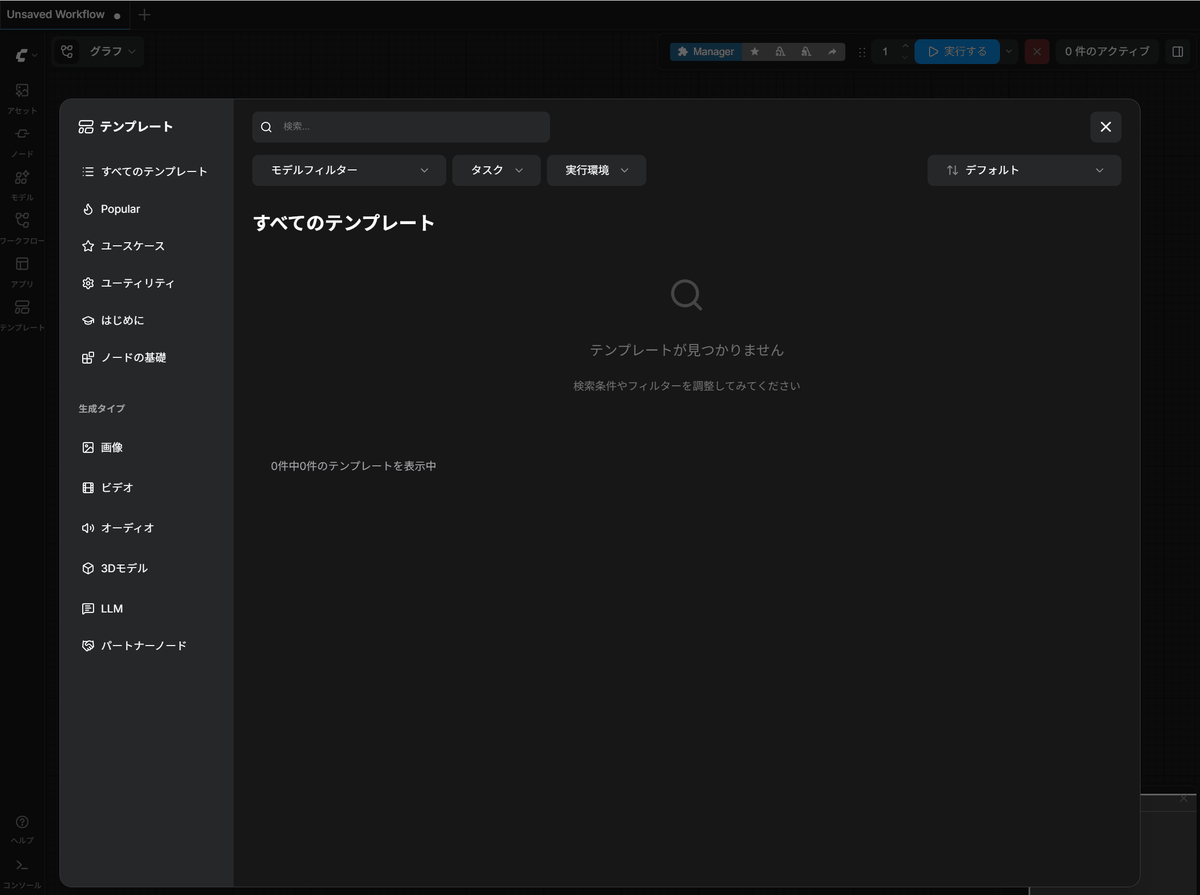
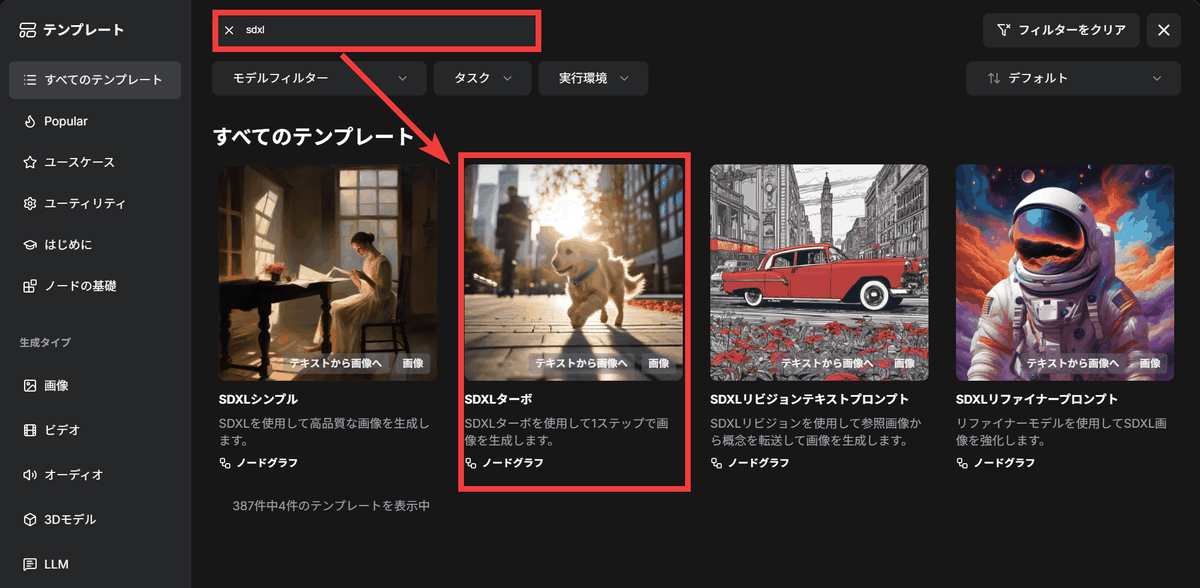
Open the template search window, type 'sdxl', and click 'SDXL Turbo'.
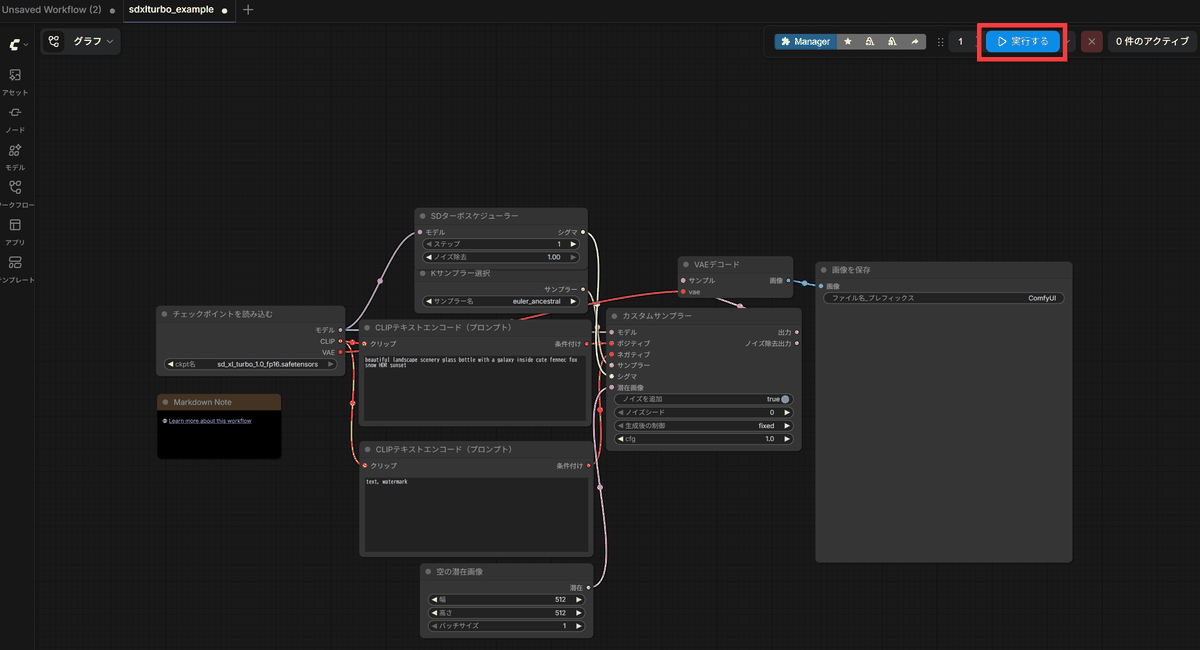
The sample prompt is already entered, so just click 'Execute'.
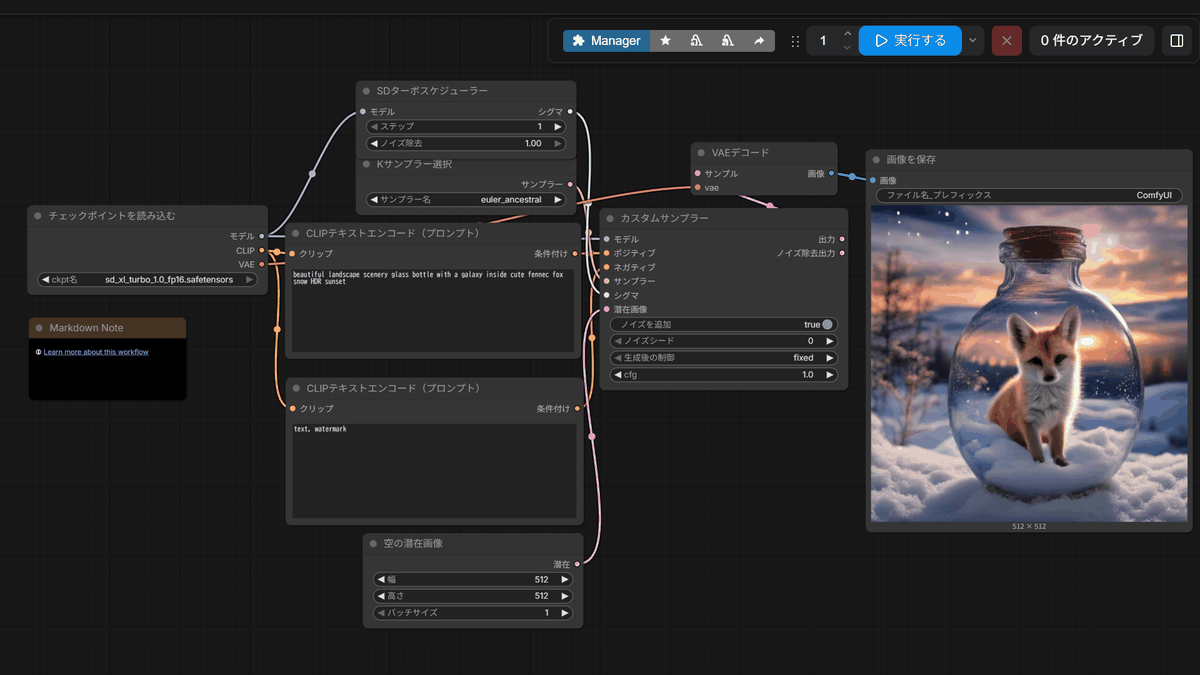
A test image will be created.
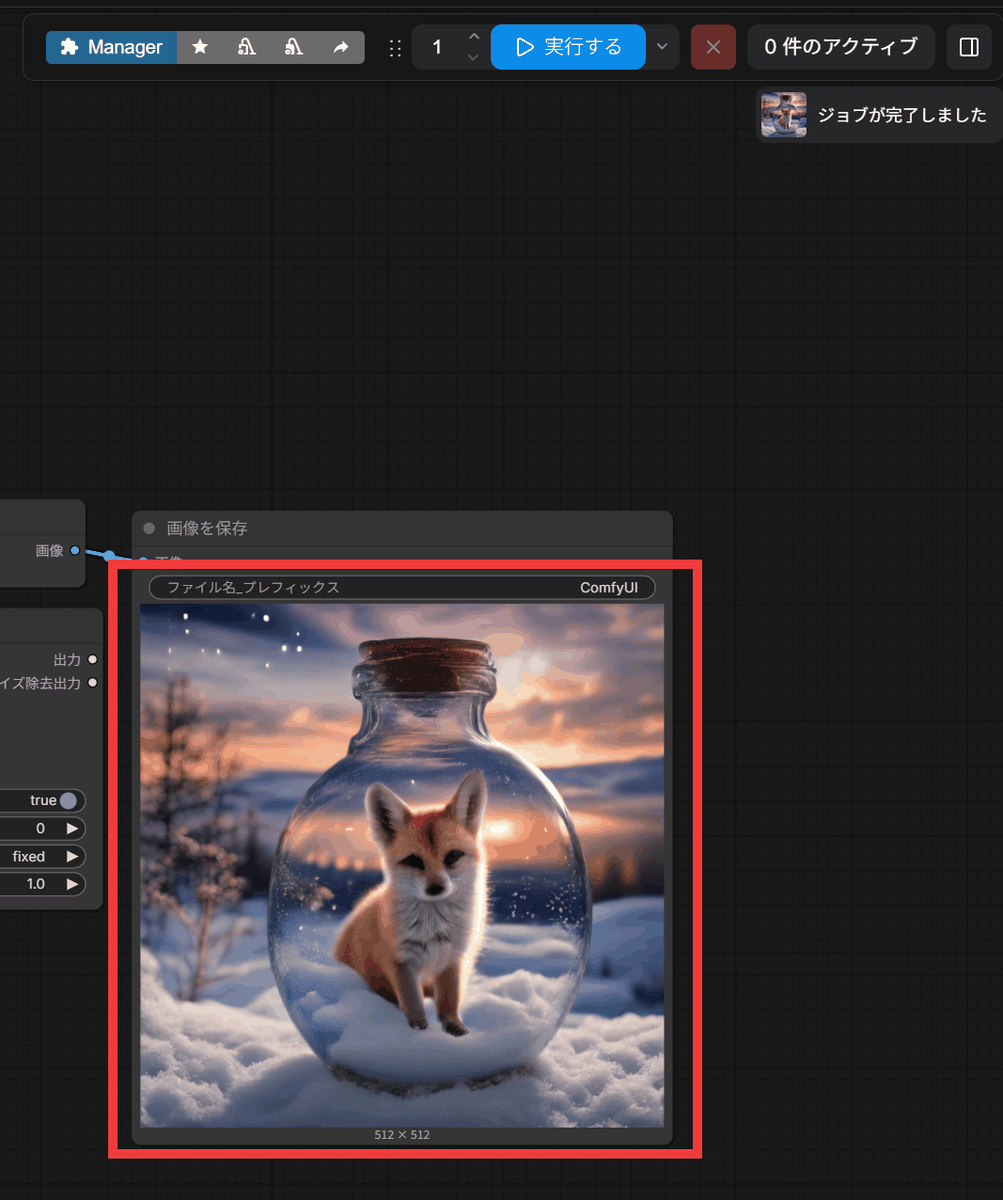
While the ' Summary of Installation Procedures and Steps to Generate the First Image for 'ComfyUI,' an Image Generation AI that Can Be Easily Run on a PC ' required many steps, Puget Systems Docker App Packs allow setup to be completed with a single command. Therefore, even those who 'gave up because the procedure was too complicated' or 'got frustrated by errors along the way' can start using it immediately with this method.
Related Posts: