iCloud Photos Downloader is a command line tool for downloading photos from iCloud.
A tool called `` iCloud Photos Downloader '' has been released that allows you to easily download and sync photos and videos stored in
icloud-photos-downloader/icloud_photos_downloader: A command-line tool to download photos from iCloud
https://github.com/icloud-photos-downloader/icloud_photos_downloader
Main features of iCloud Photos Downloader
- Cross-platform support: Available on the command line for Windows, macOS, and Linux.
-Three copy modes: Copy all iCloud contents, Sync local contents with iCloud, and delete from iCloud after downloading.
- Customizable save folders: By default, folders are divided by date, but you can customize this to save everything in one folder.
- Monitoring mode: Checks the contents of iCloud at specified times and automatically downloads any new photos or videos that have been added.
◆Preparation on iCloud side
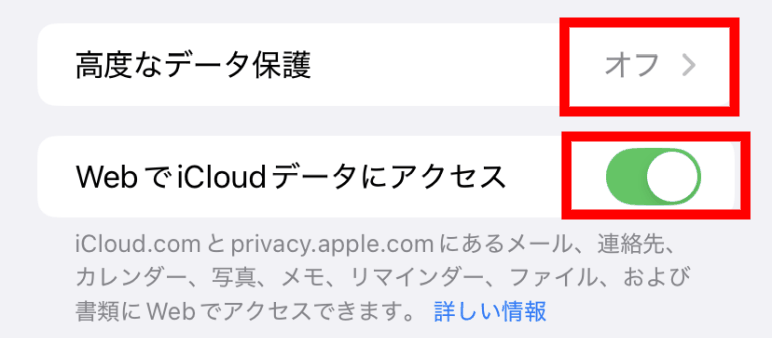
To allow data download from iCloud, tap 'iCloud' from 'Settings' on your iPhone.
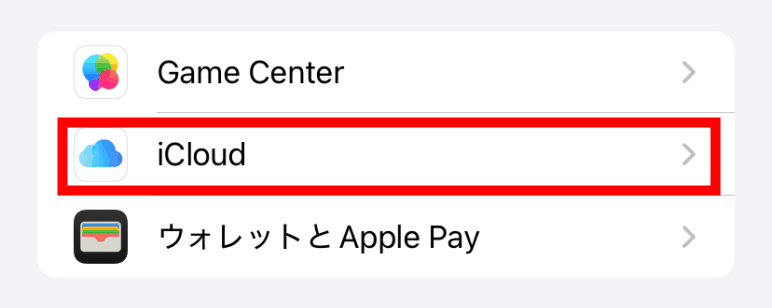
At the bottom of the Settings screen, turn off 'Advanced Data Protection' and turn on the switch for 'Access your iCloud data on the web.'
◆How to obtain and use
This time, we will be working in a Windows environment. Open the repository’s
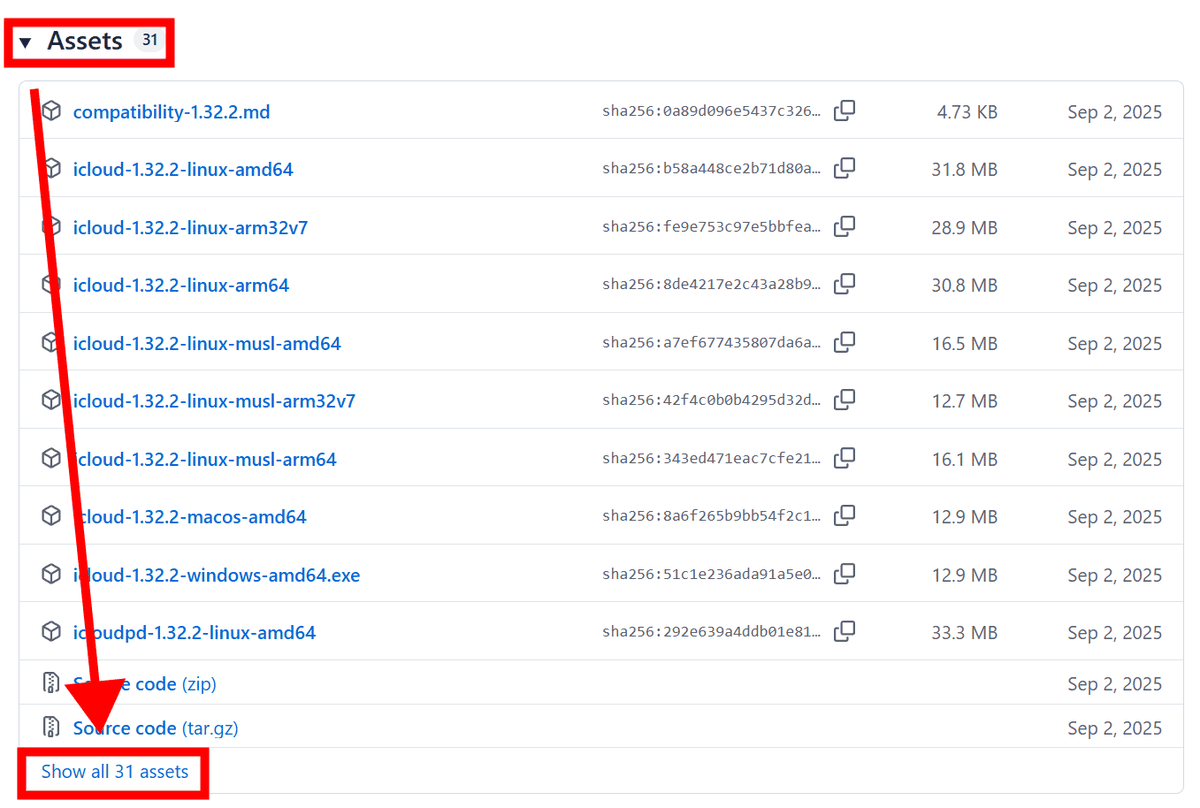
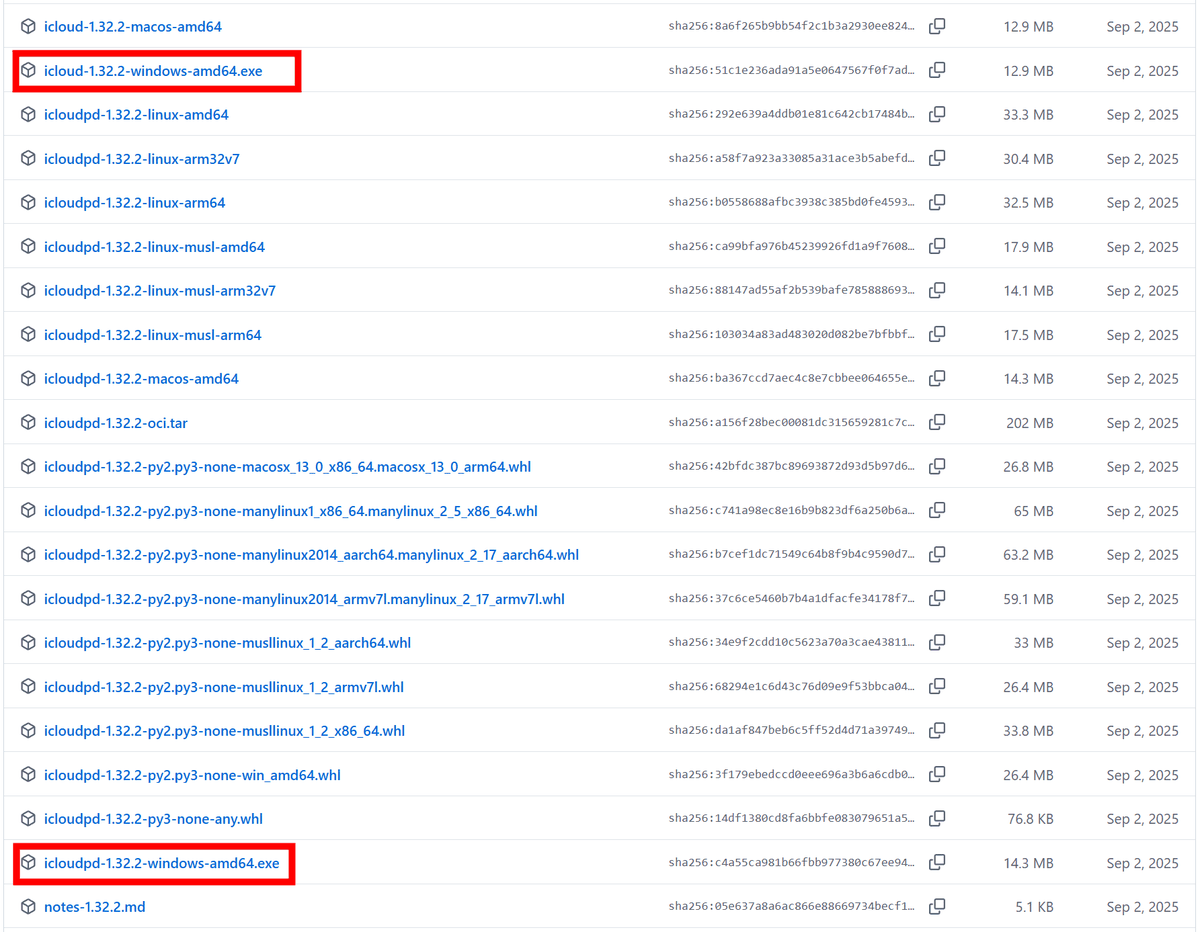
Download the 'icloud' and 'icloudpd' files with 'windows' in the filename to a working folder.
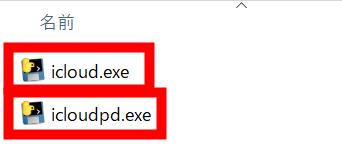
To make the command easier to understand, remove the version and OS name from the name of the downloaded file.
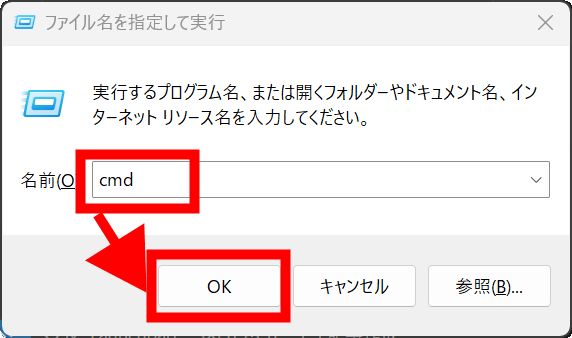
Press Windows key + R to open the 'Run' dialog box, enter 'cmd' in 'Open' and click 'OK'.
Navigate to your working folder.
cd 'path to working folder'
Make sure 'icloudpd' is in your working folder.
dir
To check the operation, run 'icloud -h' and 'icloudpd -h' to display help.
 icloud -h
 icloudpd -h
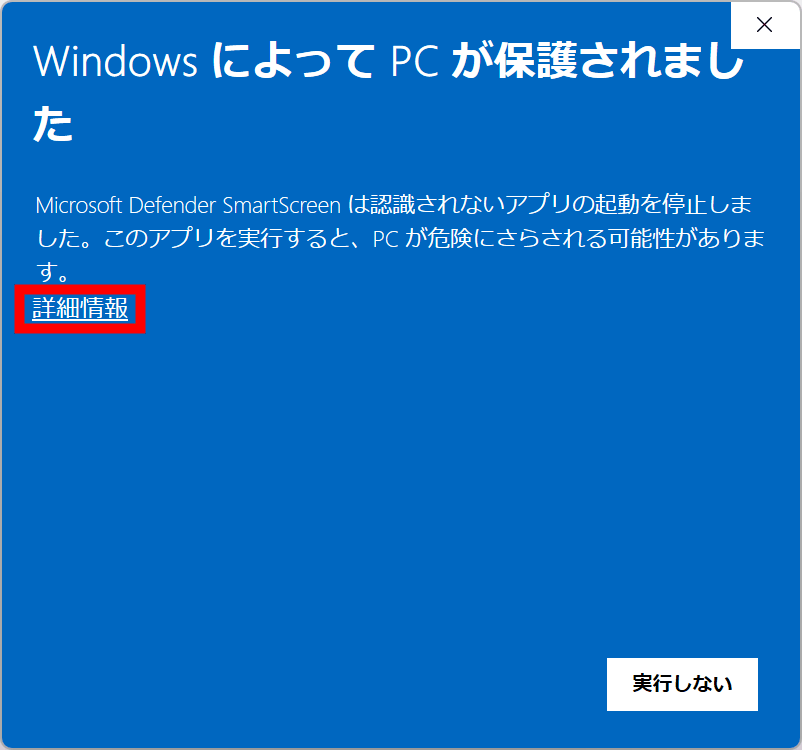
If a warning appears, click 'More information.'
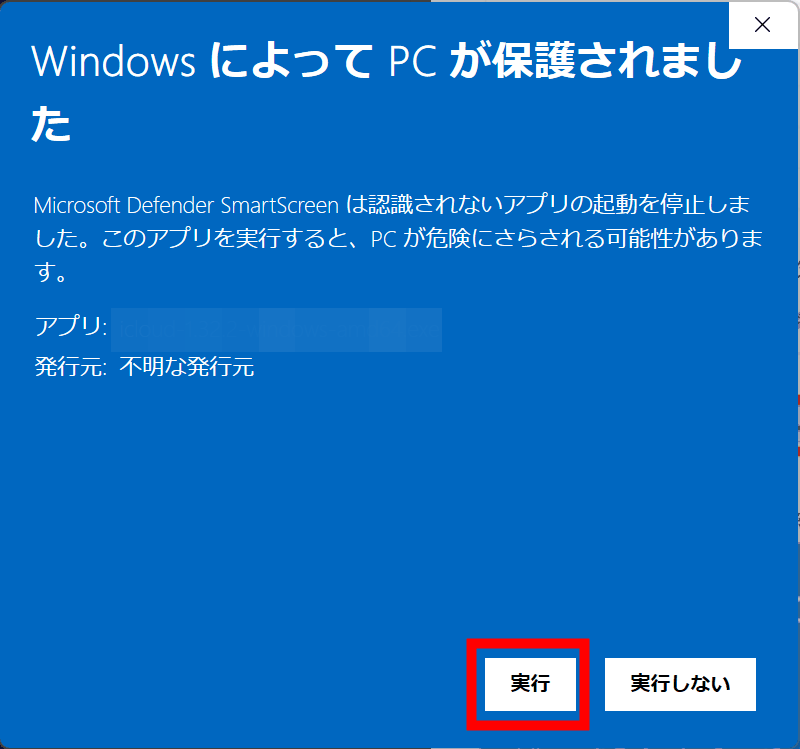
Click Run.
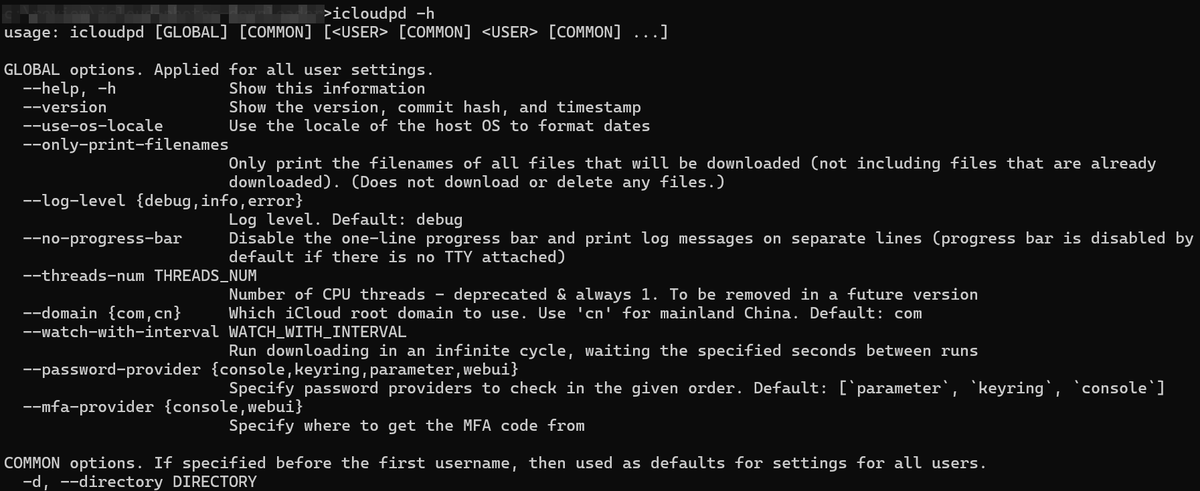
The help message was displayed and I was able to confirm that the command worked.
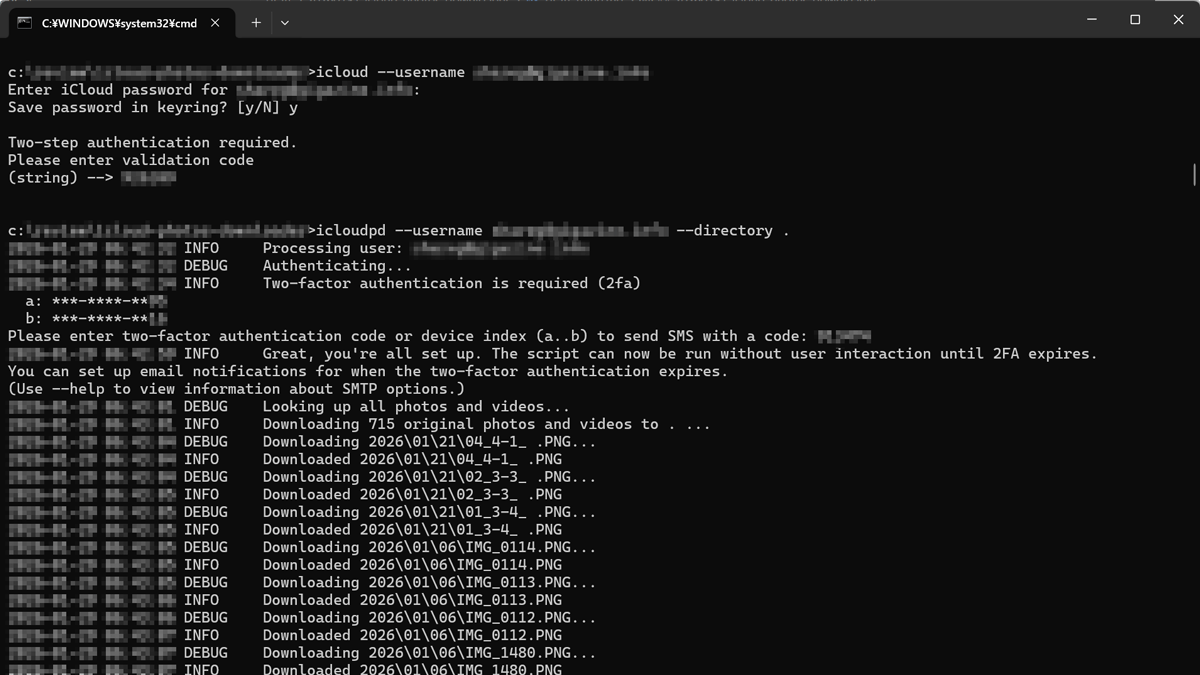
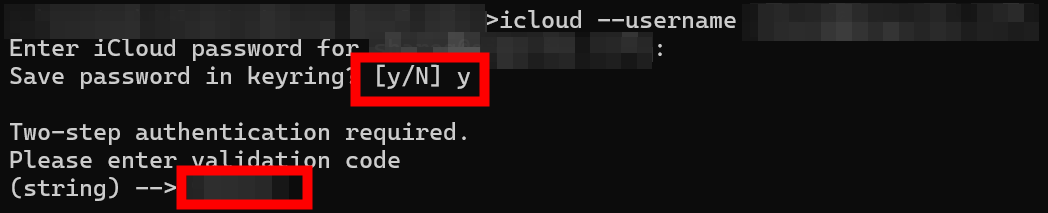
Run 'icloud --username 'registered address'' to register your authentication information before downloading.
icloud --username 'registered address'
You will be asked if you want to save your password, so enter 'Y' and press ENTER. If you have enabled two-step authentication, you will receive a notification on your iPhone or other device, so enter the displayed authentication code and press ENTER.
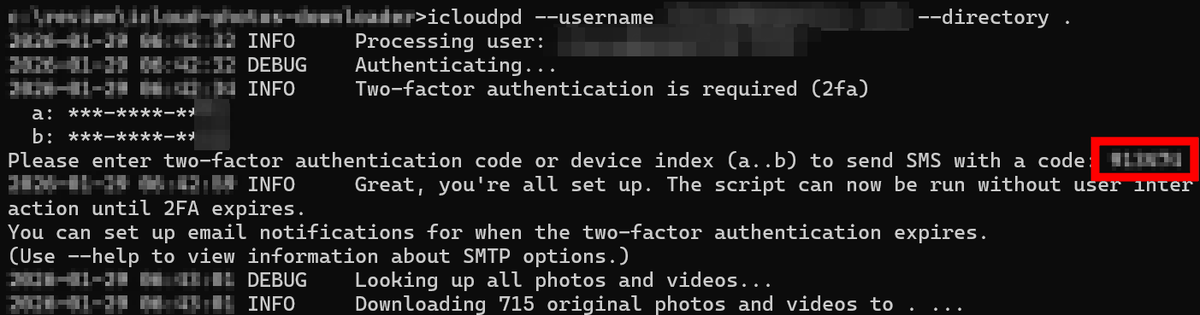
Next, run 'icloudpd --username 'registered address' --directory 'save destination''.
icloudpd --username 'registered address' --directory 'save destination'
If two-step authentication is required, enter the authentication code displayed in the notification and press ENTER to begin the download.
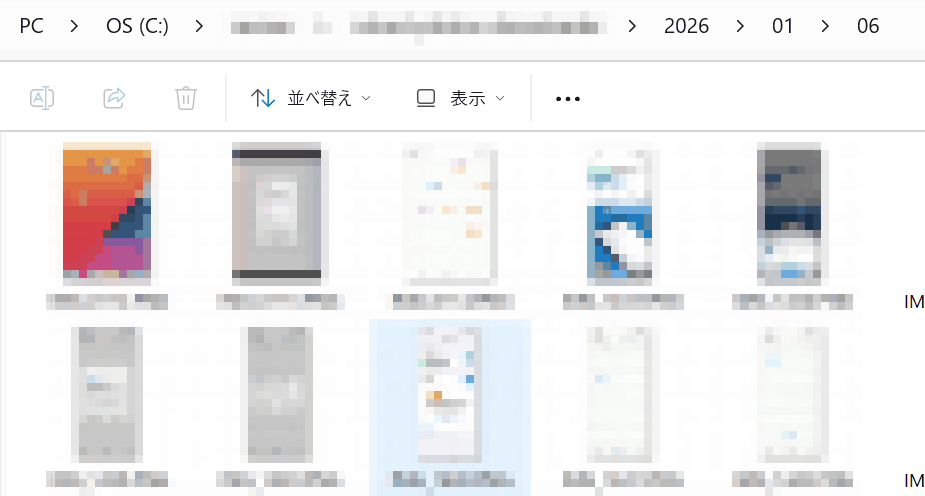
After waiting for a while, the download was completed.

Folders are created by date and time, and photos and videos are stored in them.
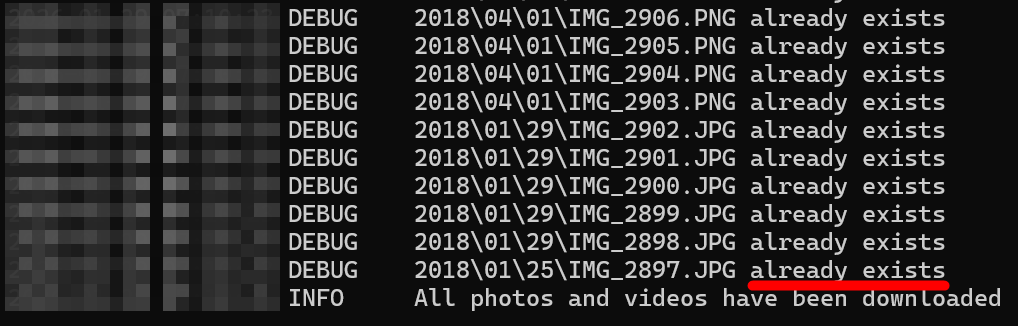
When I ran the command again, the downloaded files were skipped.
◆ iCloud Photos Downloader operation mode
You can change the operating mode by adding options to the above command.
・Copy (no additional options): Download all photos and videos stored in iCloud.
・Sync (--auto-delete): Delete photos and videos deleted from iCloud from the saved folder.
・Move (--keep-icloud-recent-days): After downloading from iCloud, photos and videos in iCloud will be deleted after keeping them for the specified number of days.
When downloading photos from the official iCloud, there is a limit of 1,000 photos at a time, but by using this tool you can download them all with a single command.
Related Posts: