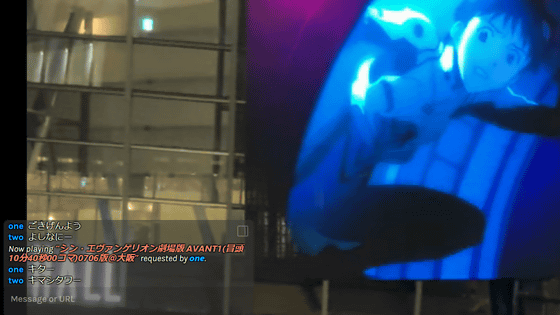
'n.eko' allows multiple people to log in at the same time for video viewing parties and interactive presentations
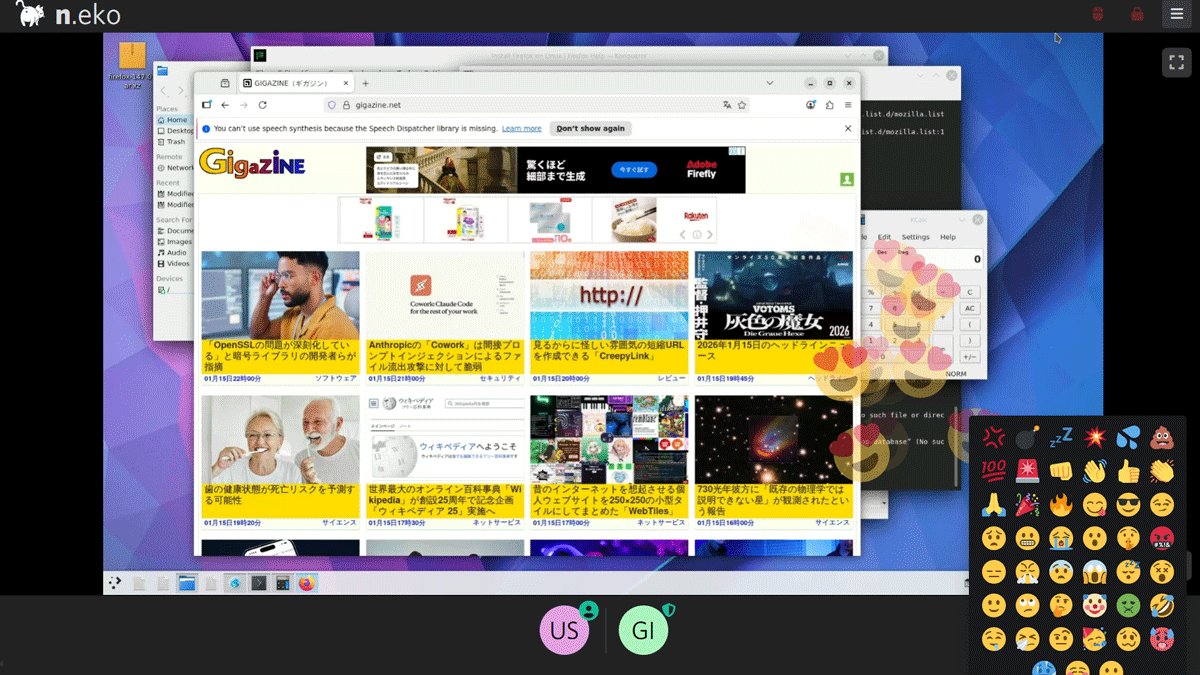
The shorter the latency in video conferencing and remote work, the more stress-free the work. n.eko , a service that uses
n.eko
https://neko.m1k1o.net/
m1k1o/neko: A self hosted virtual browser that runs in docker and uses WebRTC.
◆How to build a host server
This time, we will build an Ubuntu environment on a VM instance on Google Cloud and start a neko container with Docker available. First, clone the repository to your working folder.
git clone https://github.com/m1k1o/neko.git
Go to the neko folder and edit docker-compose.yaml. By default, it is set to share Firefox, so adjust the resolution, host IP, etc. to suit your environment.
 services:
 neko:
 image: 'ghcr.io/m1k1o/neko/firefox:latest'
 restart: 'unless-stopped'
 shm_size: '2gb'
 Ports:
 - '8080:8080'
 - '52000-52100:52000-52100/udp'
 environment:
 NEKO_DESKTOP_SCREEN: 1280x720@30
 NEKO_MEMBER_MULTIUSER_USER_PASSWORD: neko
 NEKO_MEMBER_MULTIUSER_ADMIN_PASSWORD: admin
 NEKO_WEBRTC_EPR: 52000-52100
 NEKO_WEBRTC_NAT1TO1: 'Host IP or Domain'
 NEKO_WEBRTC_ICELITE: 1
Start the container.
docker compose up -d
◆Access the shared screen from your browser
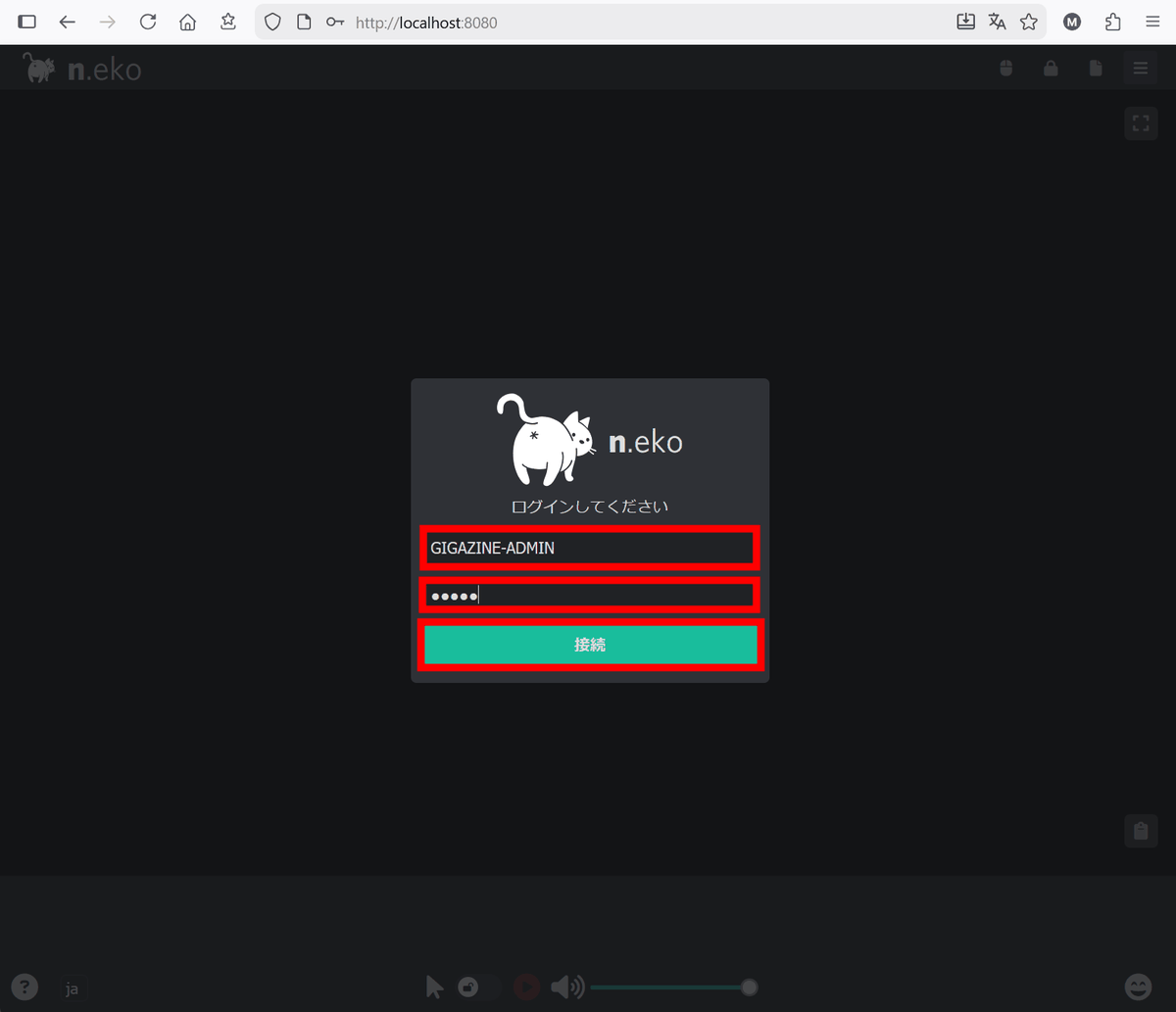
Once the container has started, access port 8080 on the host in your browser. A login screen will appear, so enter any name and the administrator password you set in docker-compose.yaml to log in as an administrator and click 'Connect'.
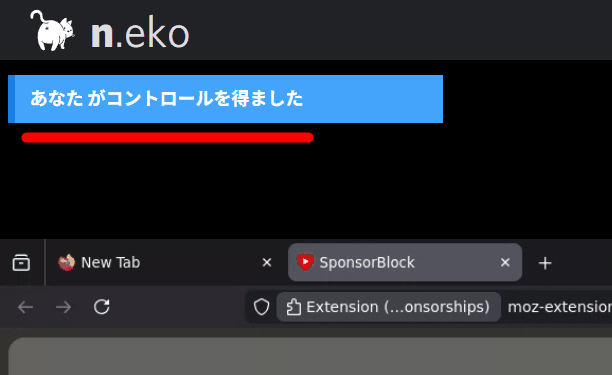
The shared screen will be displayed. Click the 'Keyboard' icon at the bottom of the shared screen to gain permission to operate the screen.
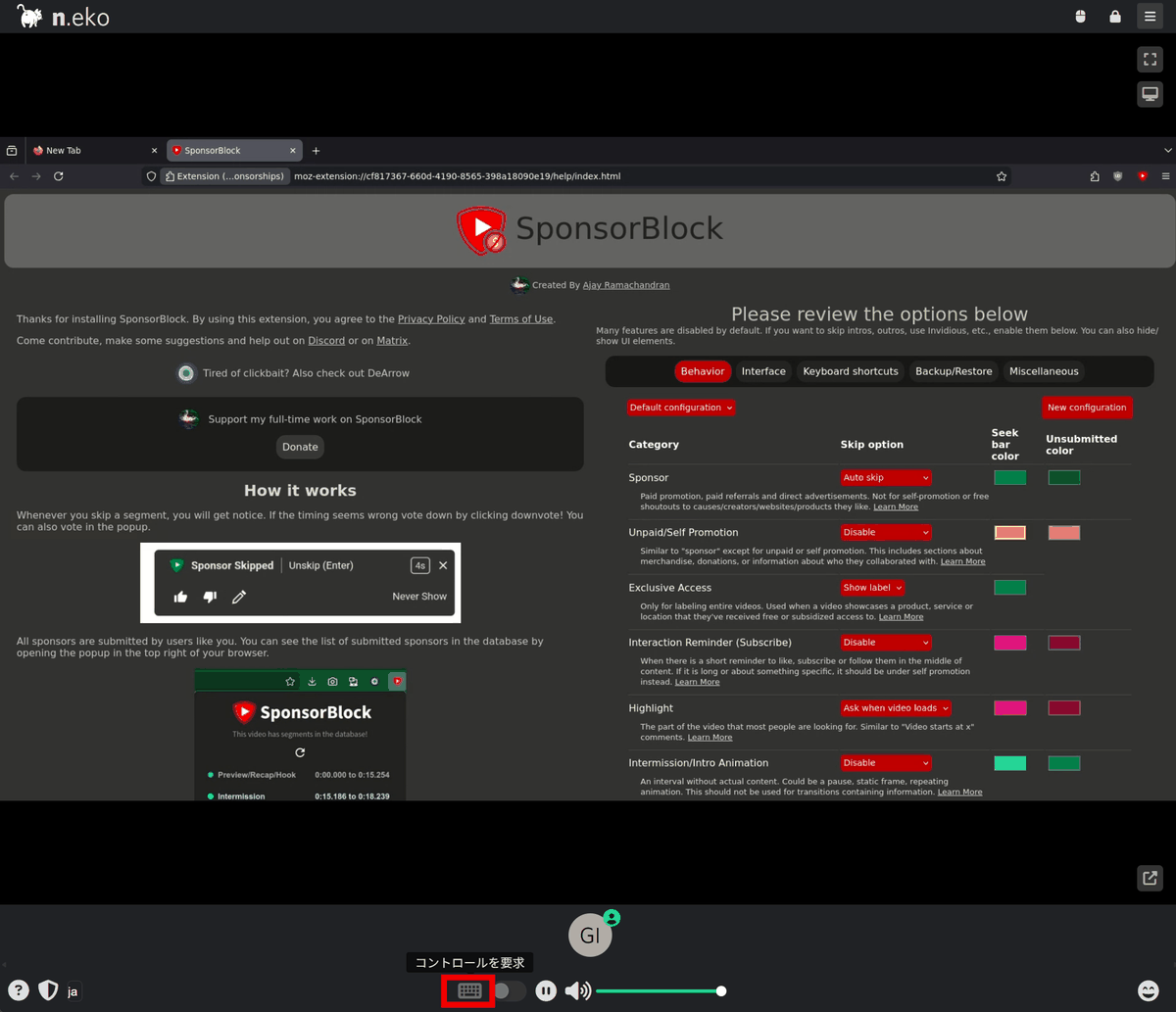
You will be granted control rights and will be able to operate freely within the screen.
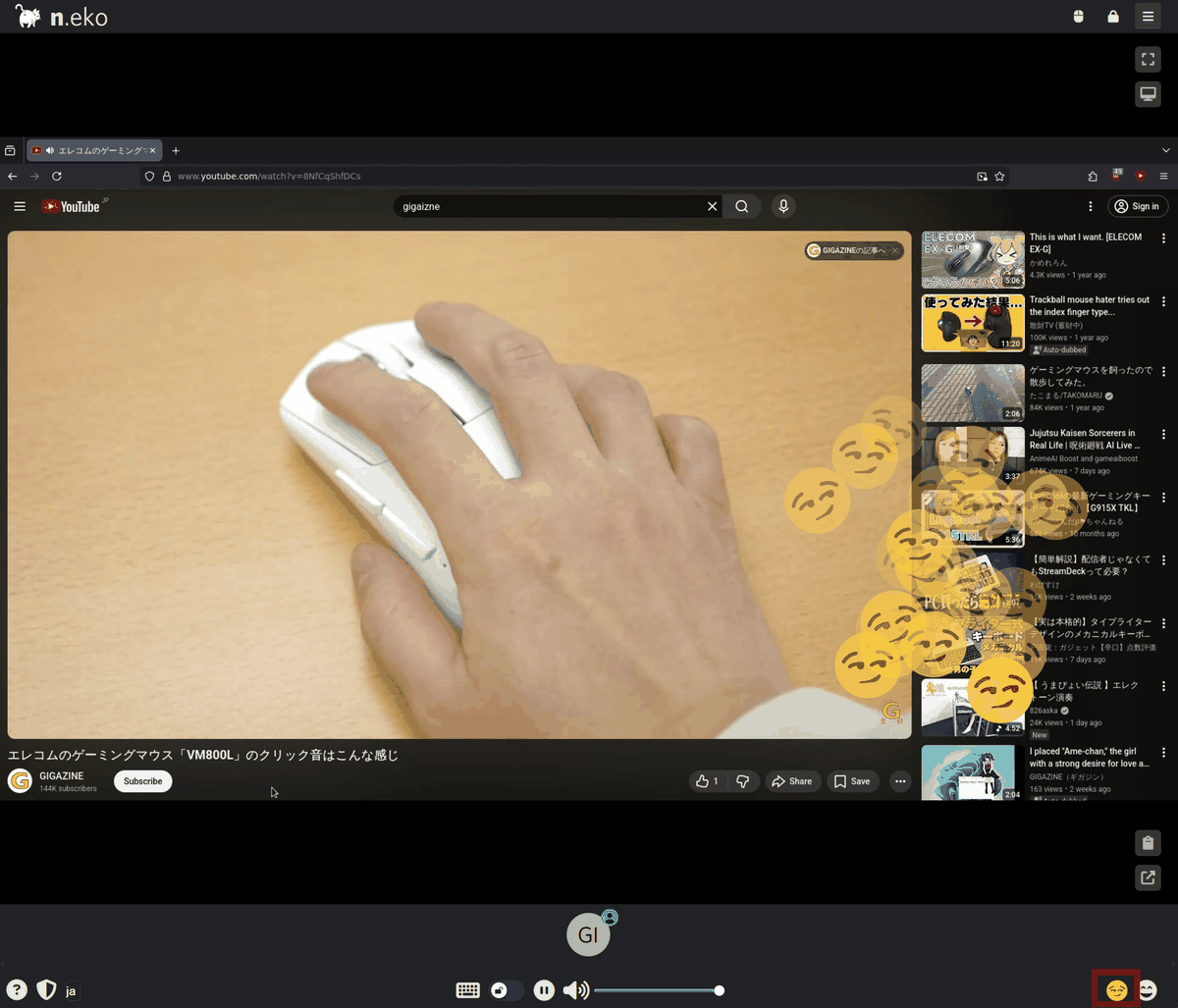
When I played a YouTube video, the video and audio were clear. Clicking on the reaction icon displayed an effect on the shared screen.
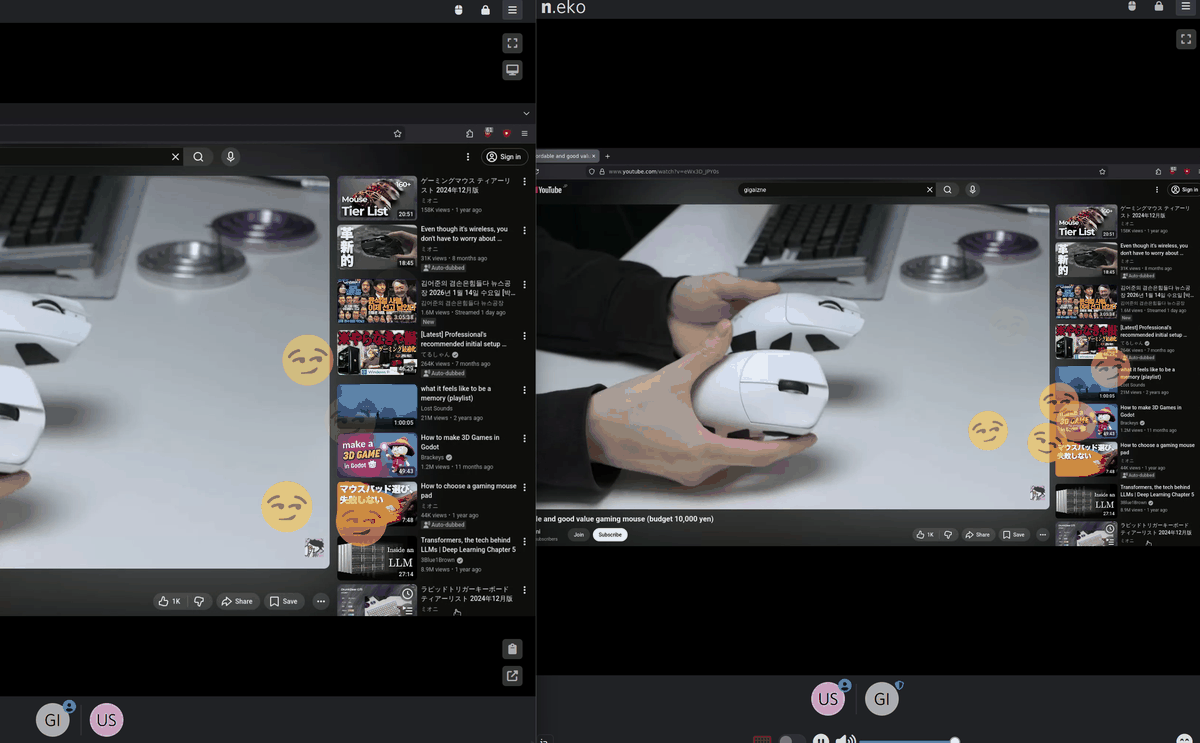
When I prepared a different browser and logged in as a general user, the same shared screen as the administrator was displayed. When I clicked the reaction icon in the administrator's browser on the left, the effect was immediately reflected on the general user's shared screen on the right.
When a user clicks on the keyboard icon to request control, the administrator will see a notification that says 'User is requesting control.'
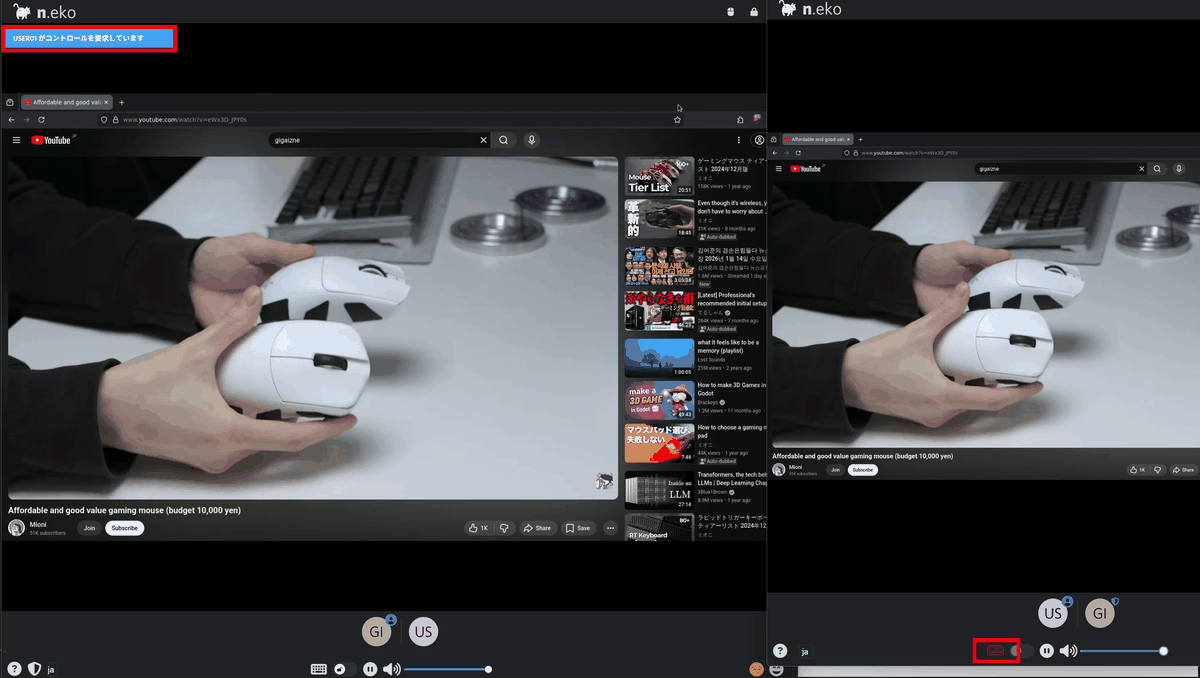
To transfer control, click the 'keyboard' icon to release control.
When control permission is released, the 'Keyboard' icon will change from red to gray, so click the gray 'Keyboard' icon.
I was able to gain control.
However, administrators can control control permissions by clicking the 'mouse' icon in the upper right corner.
If control permissions are restricted, the 'Keyboard' icon will disappear and you will no longer be able to gain permissions.
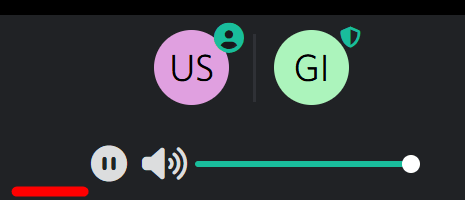
Additionally, you can click the 'lock' icon to set whether to allow new participants.

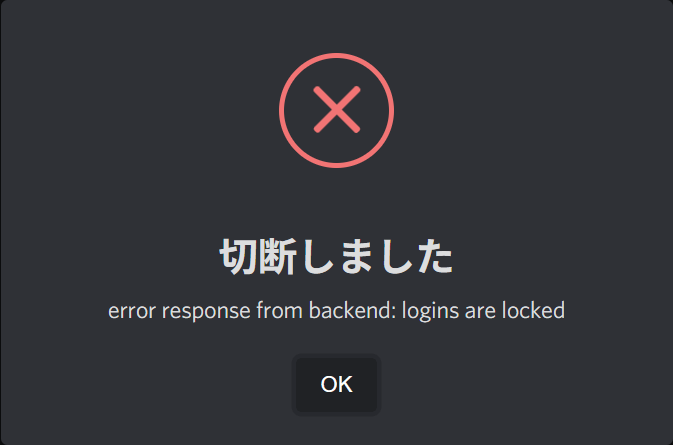
If new participants are denied, you will not be able to log in.
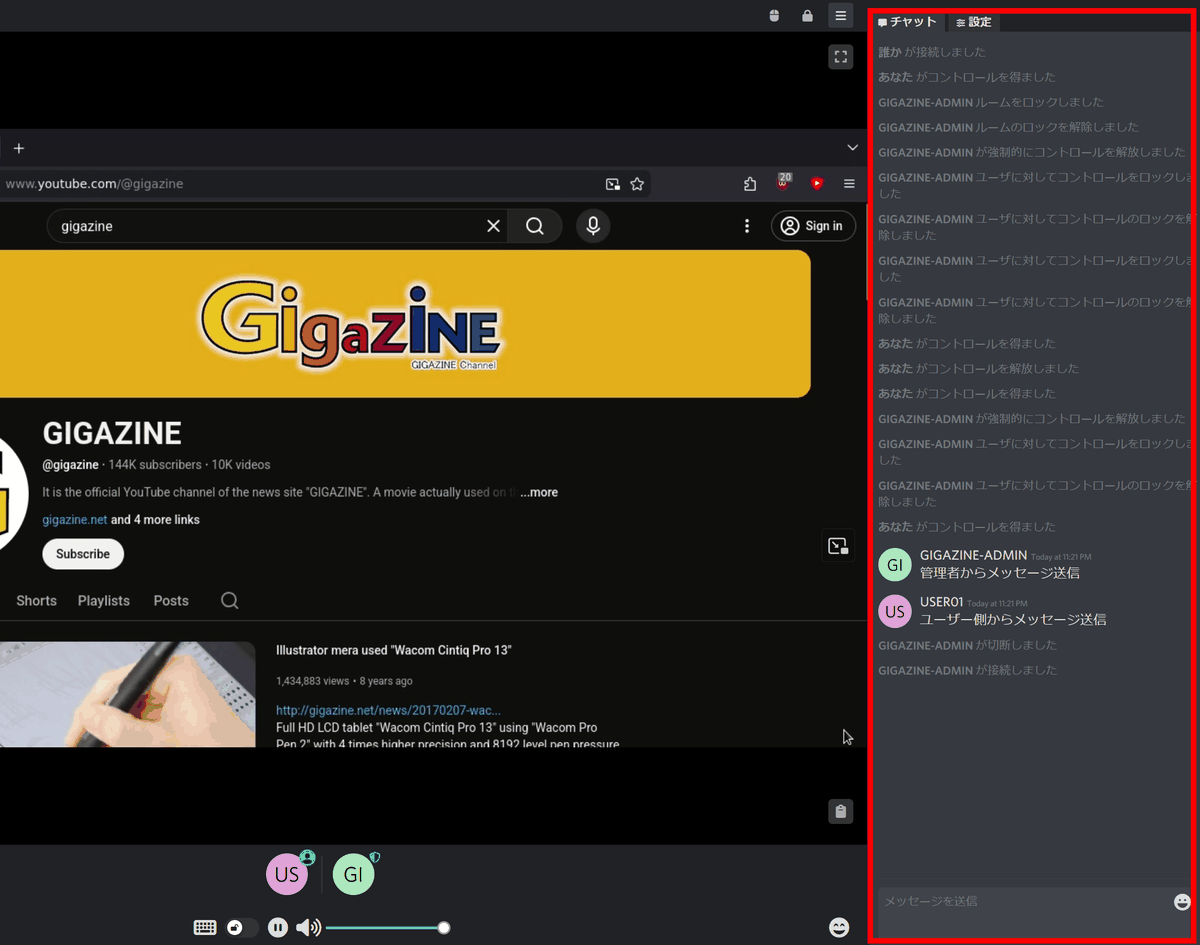
Another feature is the chat function for all participants to communicate, separate from the shared screen.
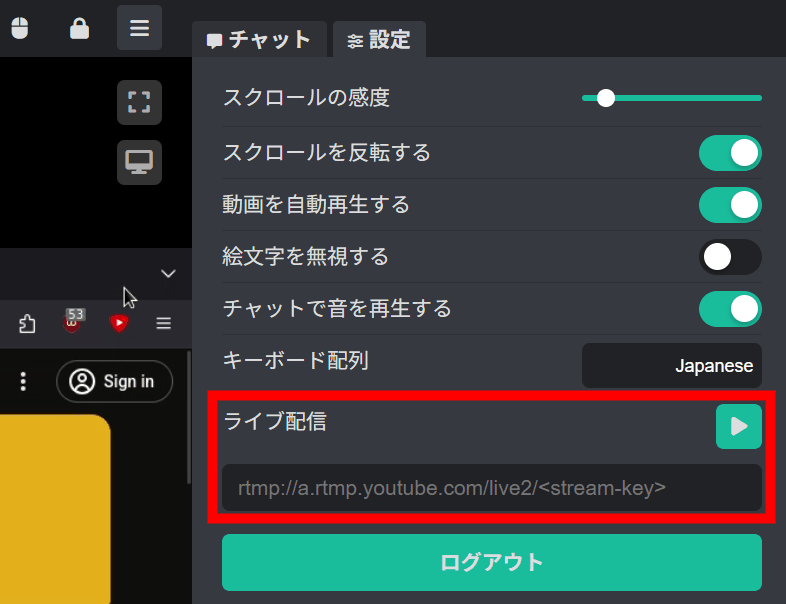
It is also possible to stream the shared screen via a streaming service.
In addition to Firefox, you can share the following browsers:
・
・Google Chrome
・ungoogled-chromium
Microsoft Edge
Brave
・Vivaldi
・Opera
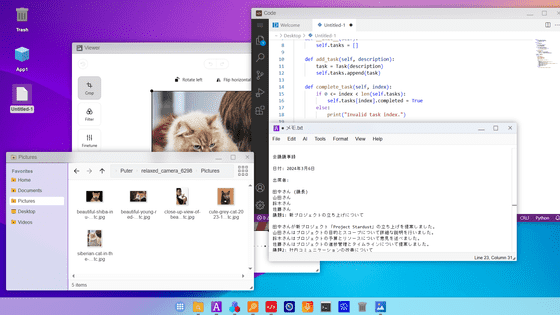
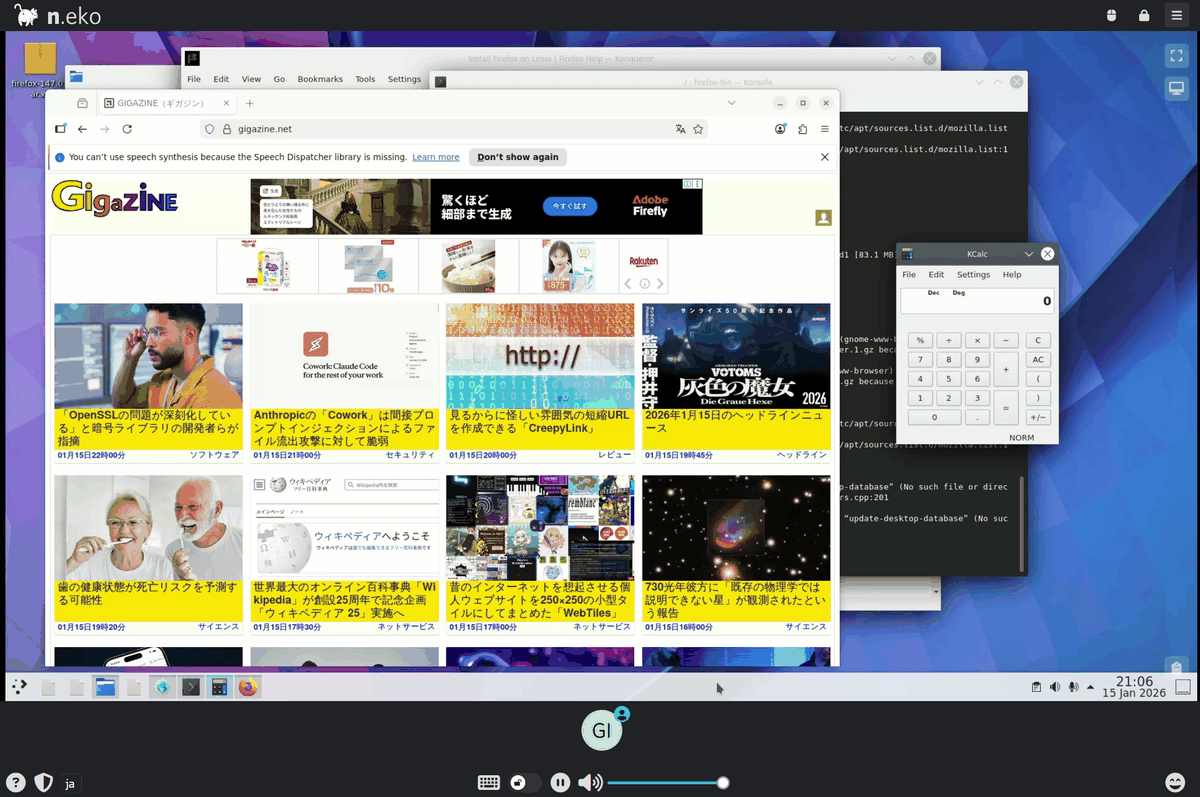
In addition to browsers, you can share individual apps such as the remote client Remmina and the video player VLC , and you can also install and share a variety of apps on the desktop environments Xfce and KDE Plasma .
Related Posts: