I tried out the Google Fitbit Air, a Google fitness tracker without a display.
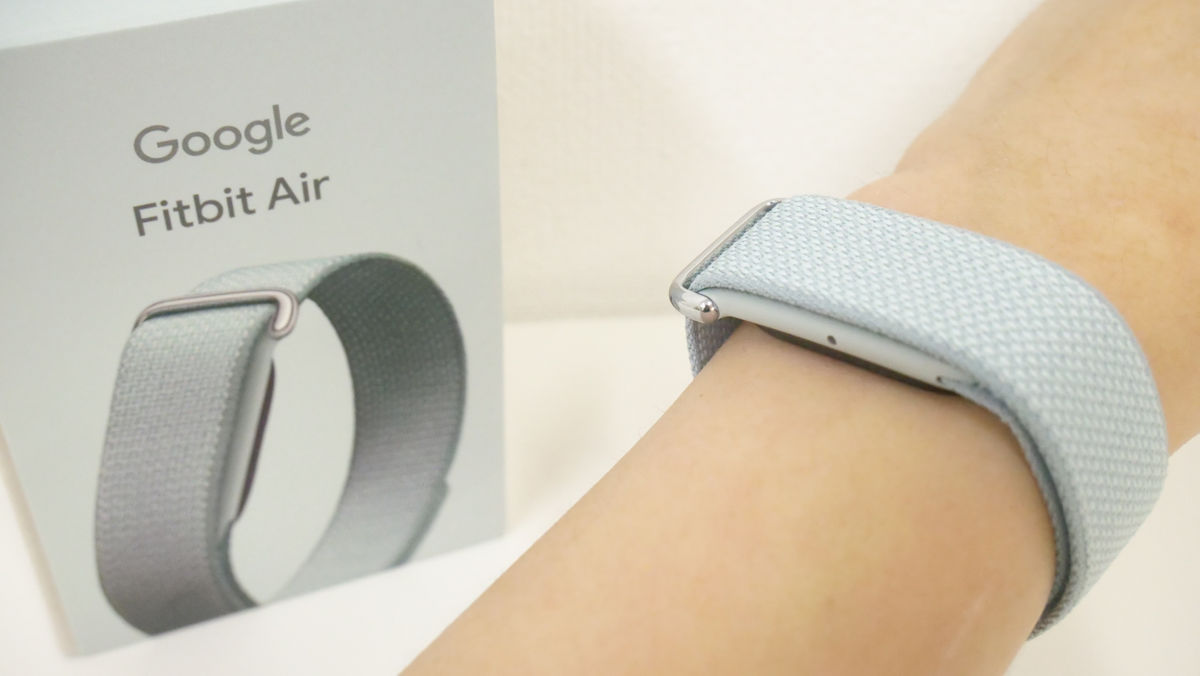
The Google Fitbit Air, a lightweight fitness tracker that eliminates the need for a display on the device itself and manages all data via a smartphone, has been released. I wore it for a while to collect exercise and sleep data.
Google Fitbit Air, Fitness Activity Tracker Band
Introducing the ultra-lightweight Google Fitbit Air, powered by the AI 'Gemini' for health management.
https://store.google.com/jp/magazine/google-fitbit-air?hl=ja
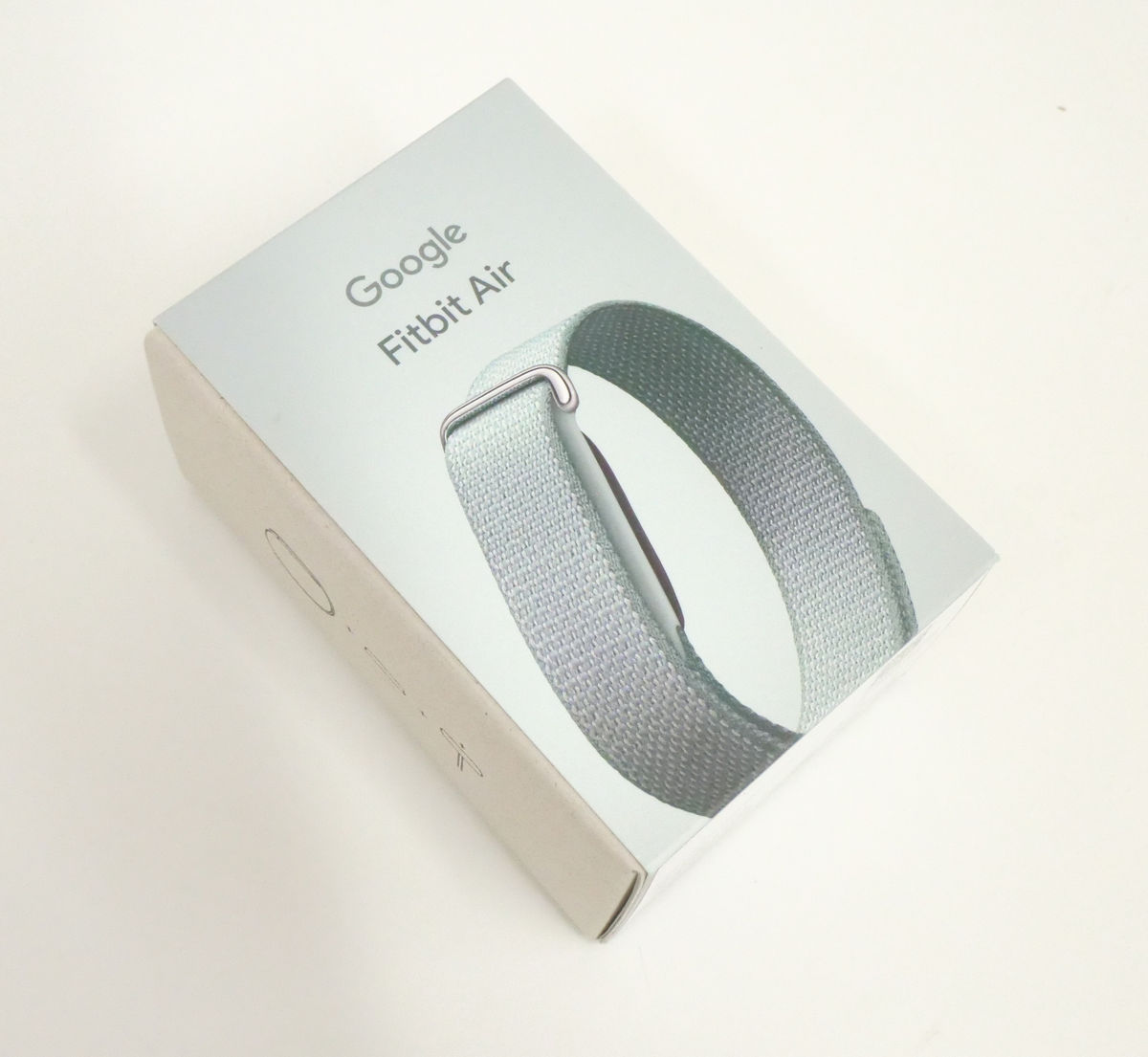
This is the packaging for the Google Fitbit Air.
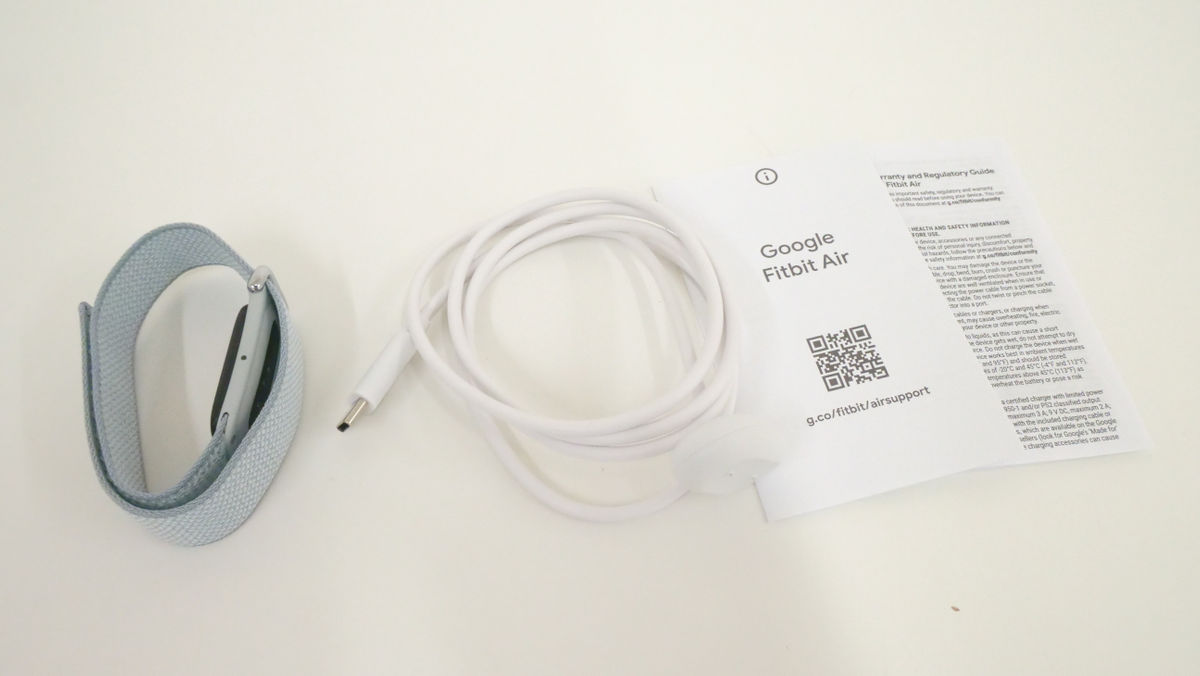
The contents include a Google Fitbit Air, a charging cable, and various documents.
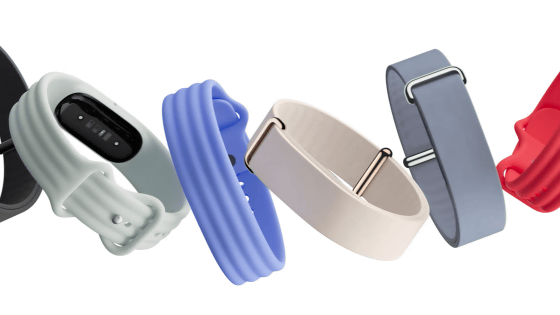
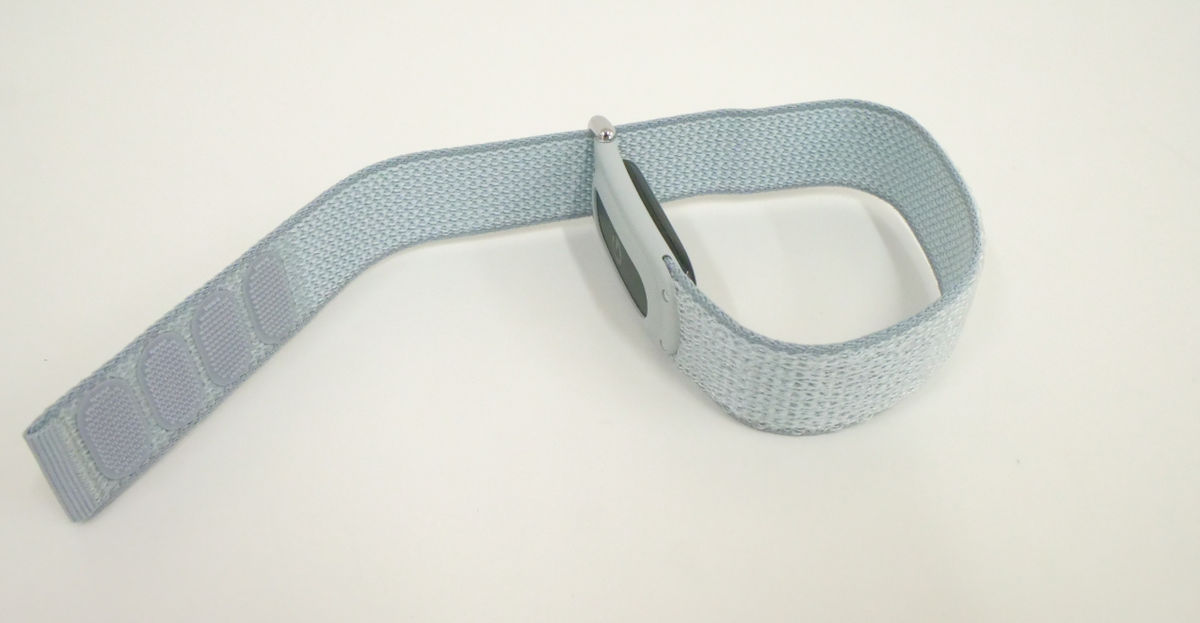
The Google Fitbit Air features an adjustable band with Velcro closures. The band is made from recycled polyester and nylon fibers called 'Performance Loop Bands' and is also replaceable.
The surface of the main unit looks like this.
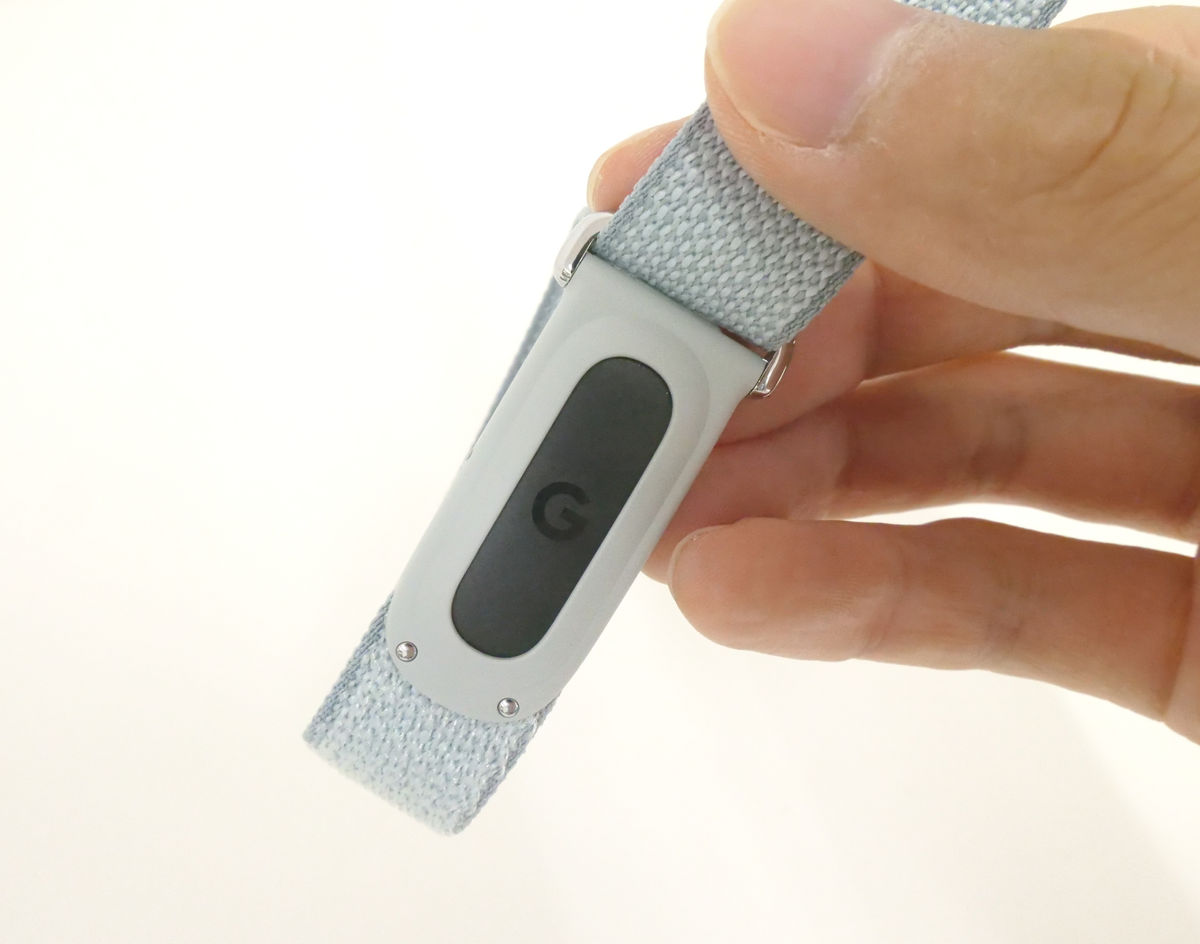
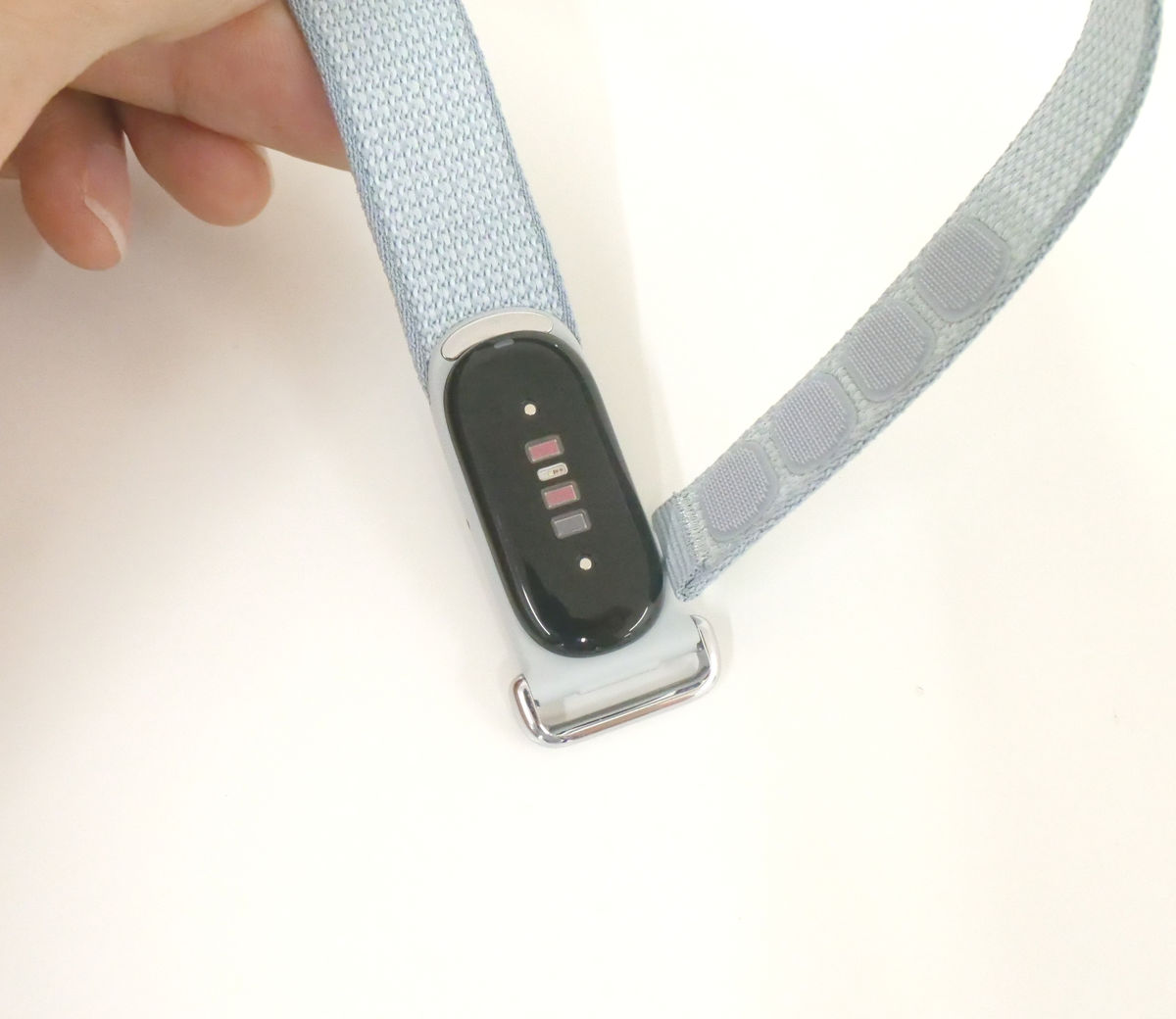
This is the back side. The sensor on the back measures your physical condition.
The main unit can be removed from the case by pushing it out.
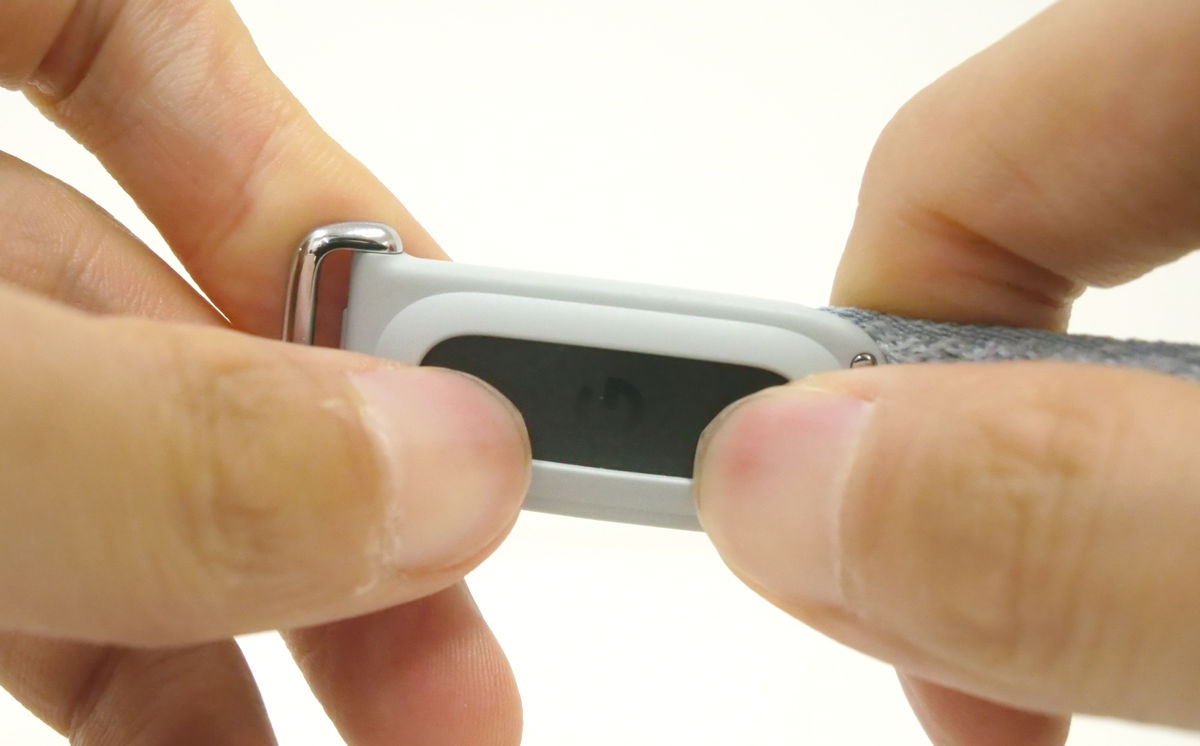
That's right.
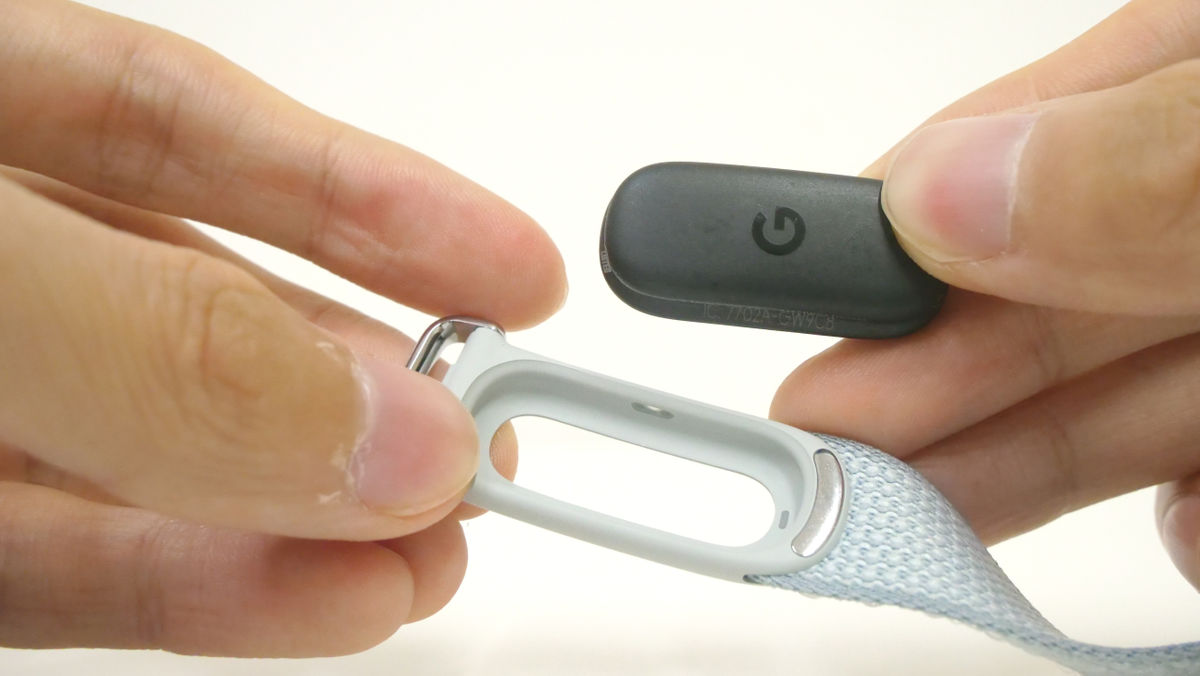
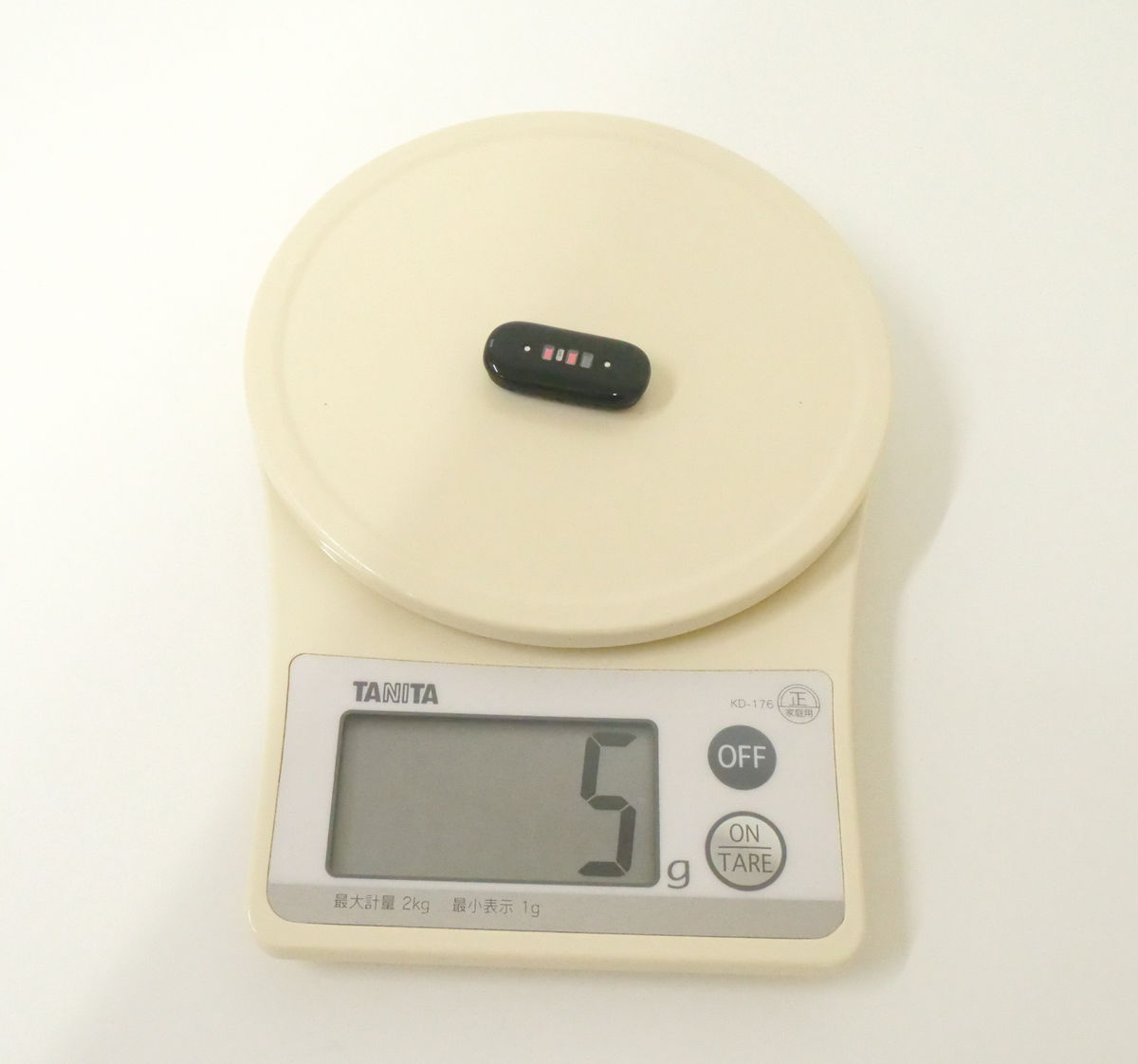
The main unit alone weighs 5g.
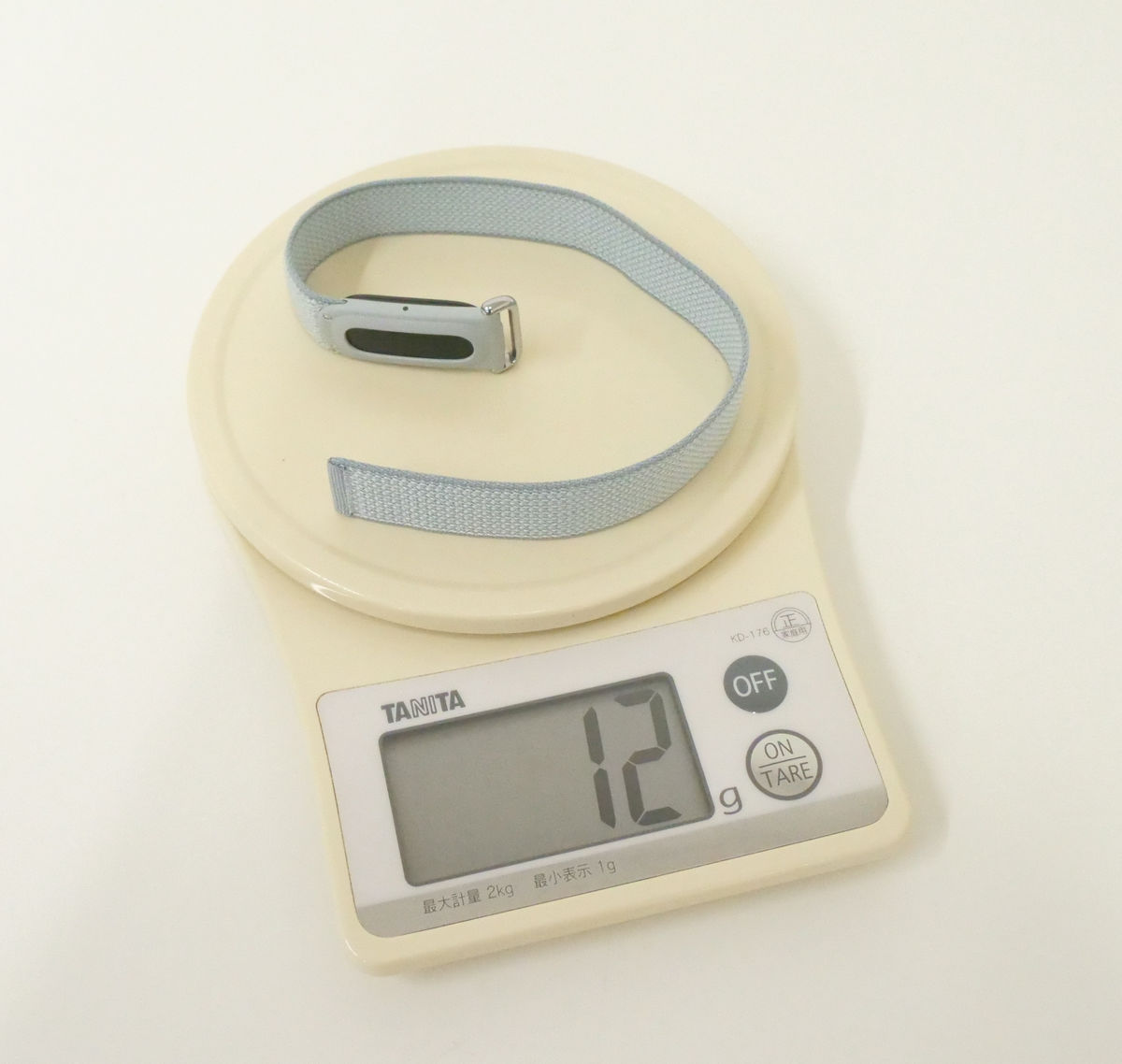
It's extremely lightweight, weighing only 12g even with the band.
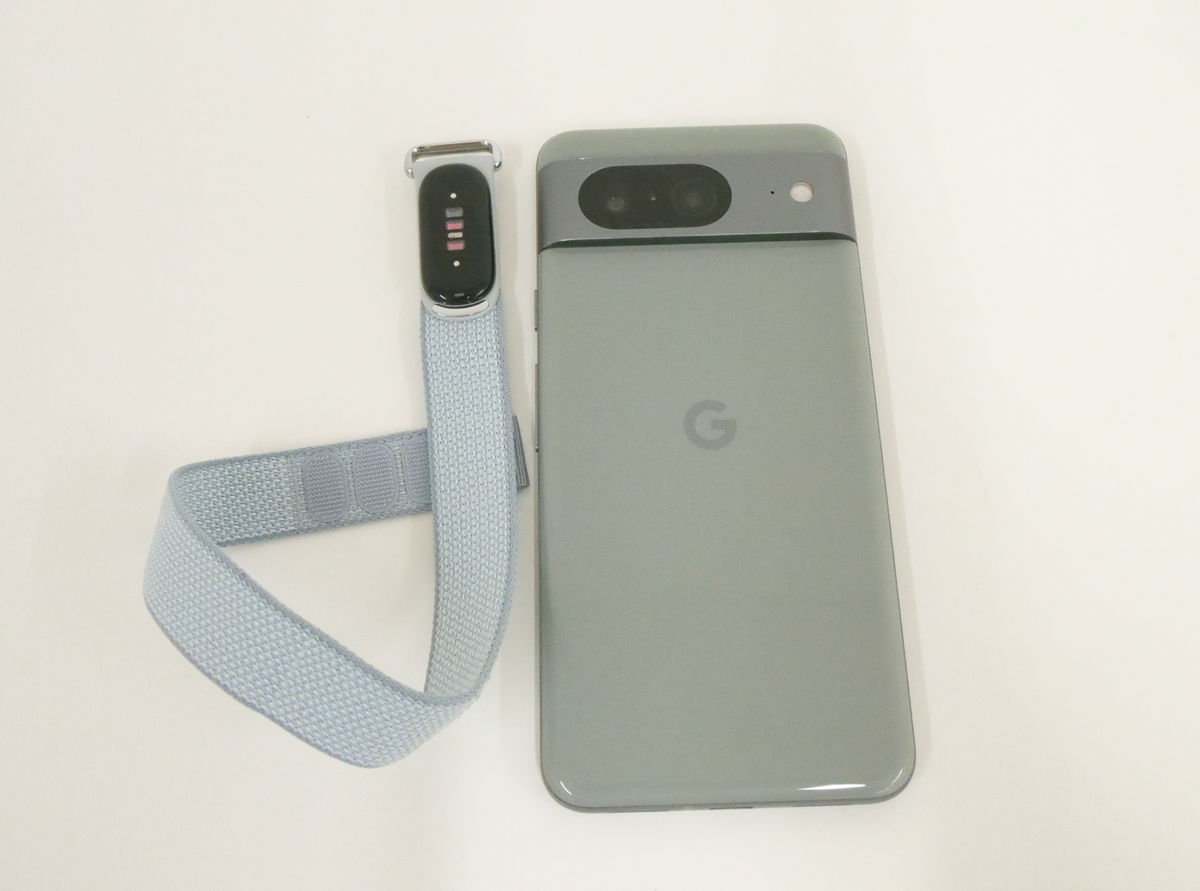
Here's a size comparison. It's shown in comparison to the Pixel 8, which measures 150.5mm in height and 70.8mm in width.
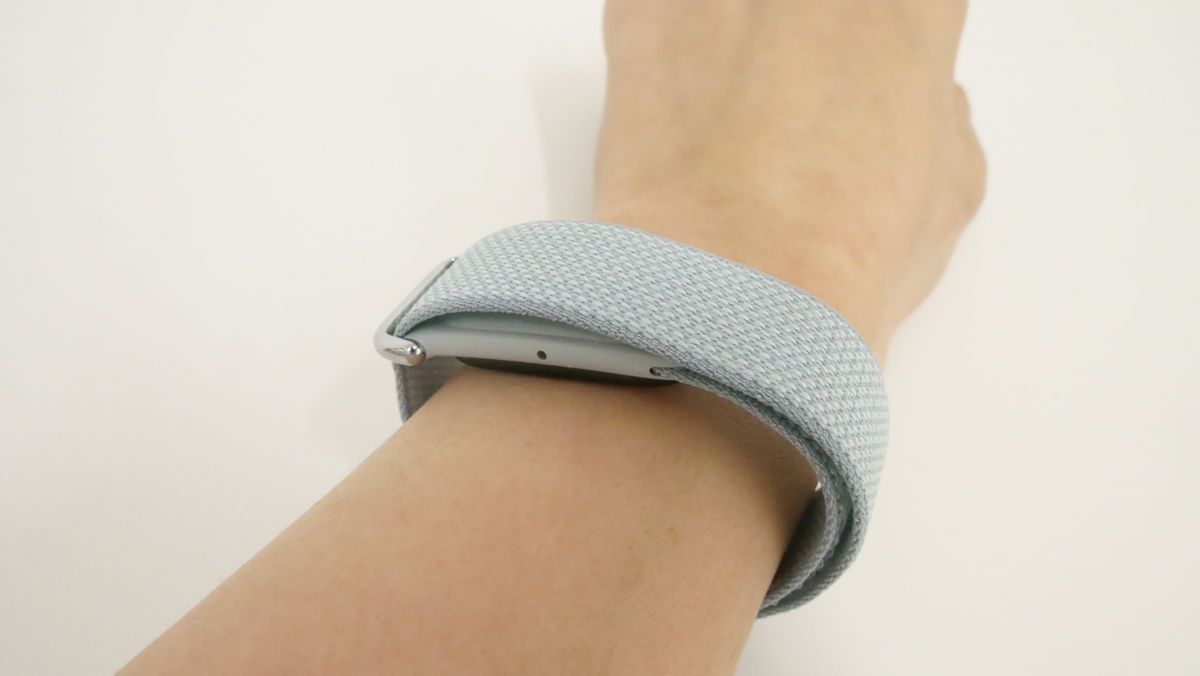
I actually tried it on. The band is adjustable in length for people with a wrist circumference of 130-210mm, so it fits comfortably even on slender wrists.
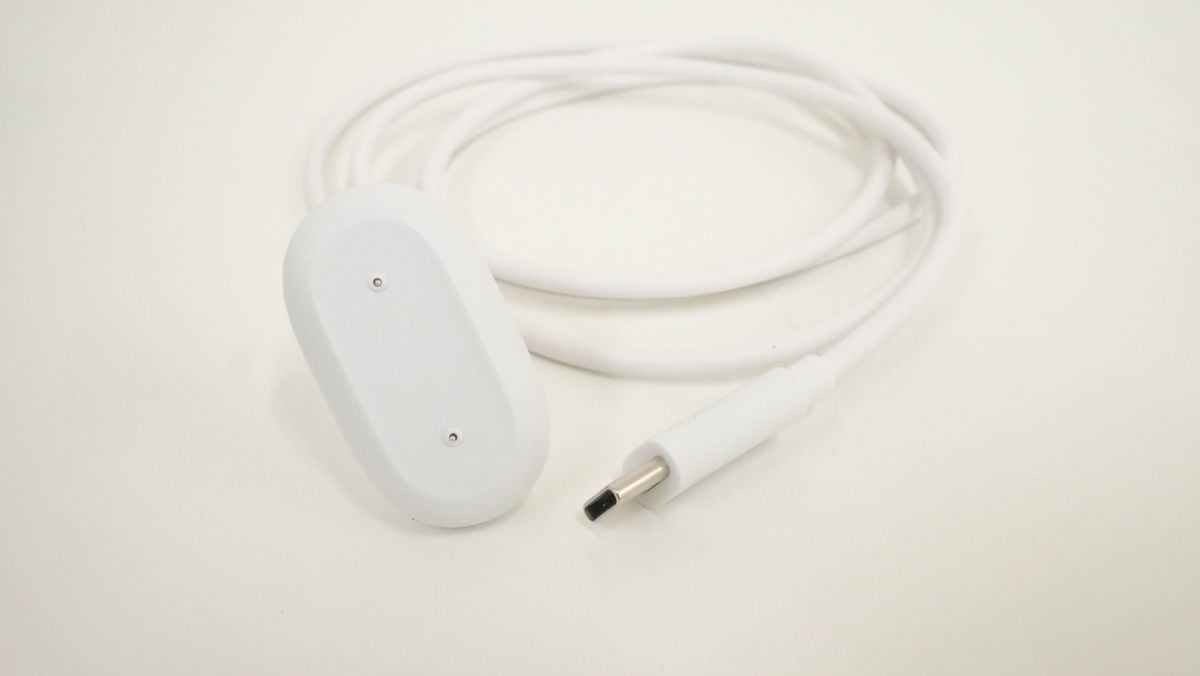
The charging cable has a USB Type-C connector on one end.
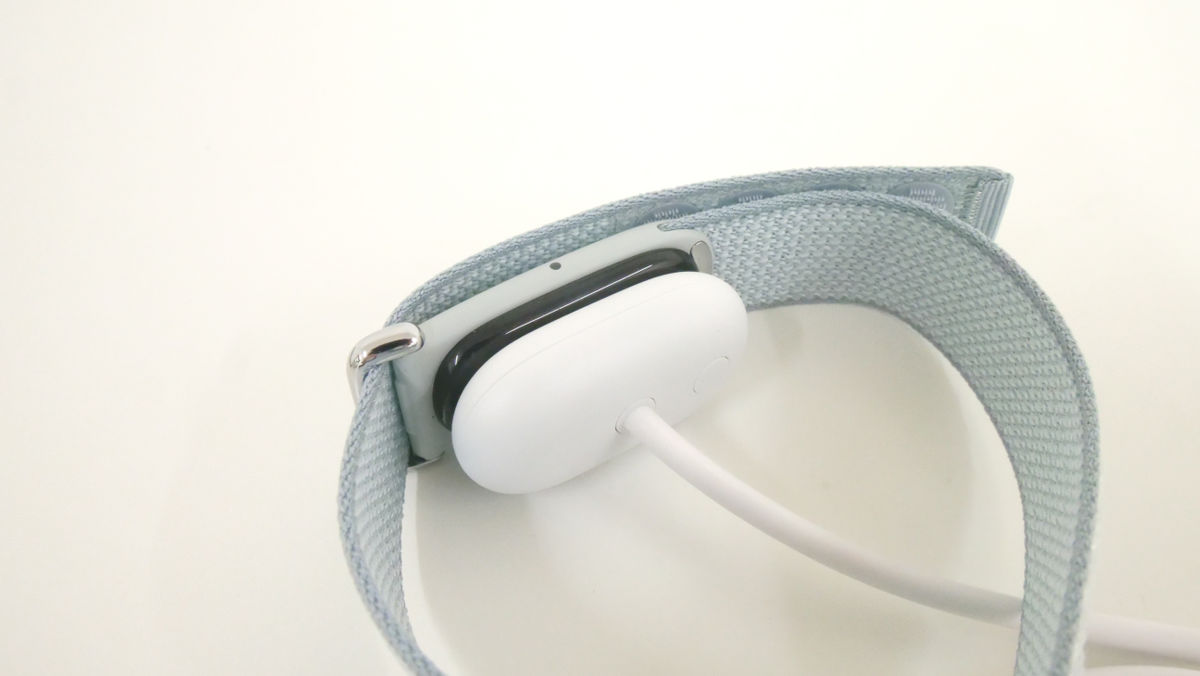
It attaches securely to the back of the device for charging.
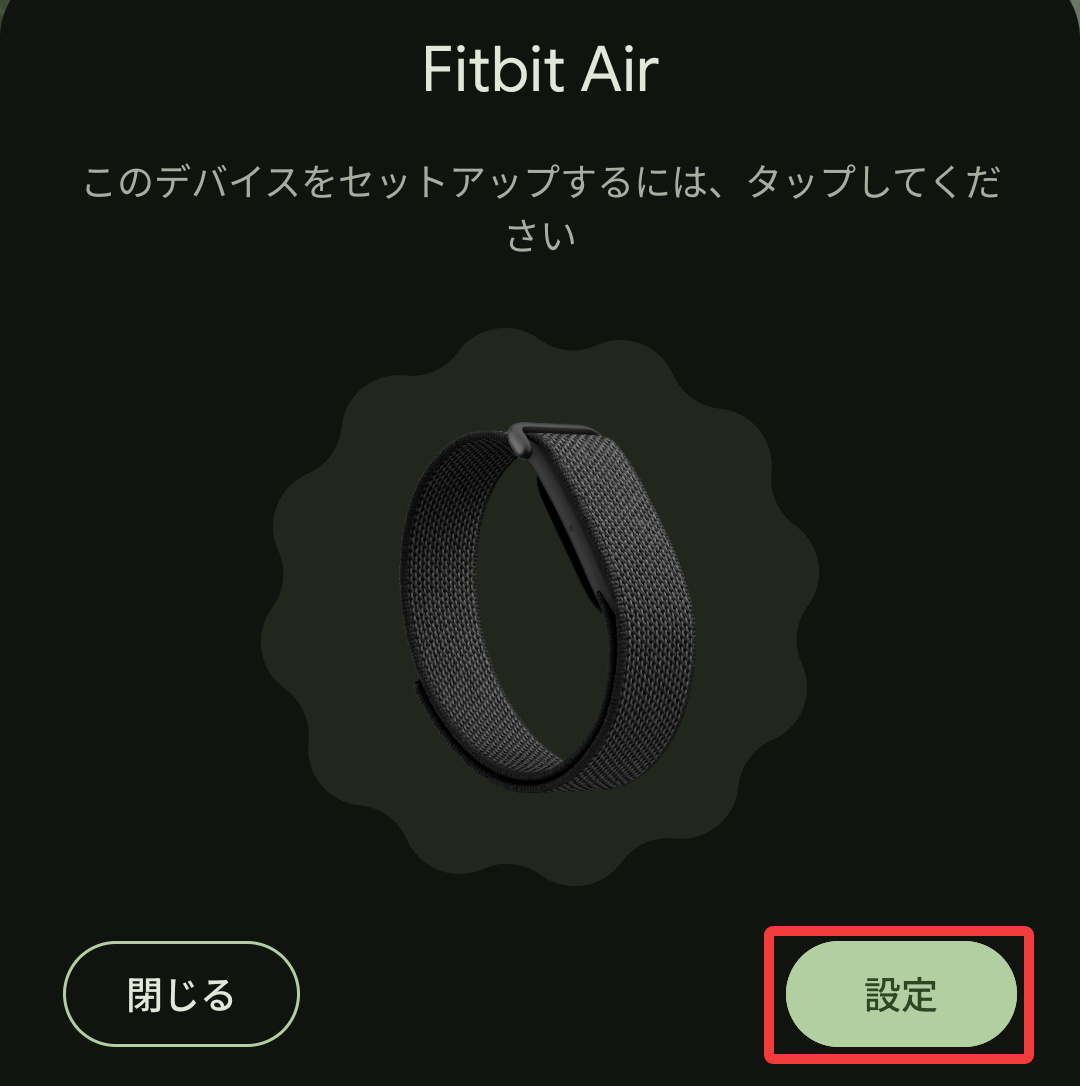
The Google Fitbit Air doesn't have a display; all data is managed on your smartphone. It's compatible with most smartphones running Android 11 or later, or iOS 16.4 or later, and this time I used a Pixel 8 running Android 16. After turning on Bluetooth on my smartphone, a notification prompting me to set it up appeared on the screen, so I tapped 'Settings' to proceed.
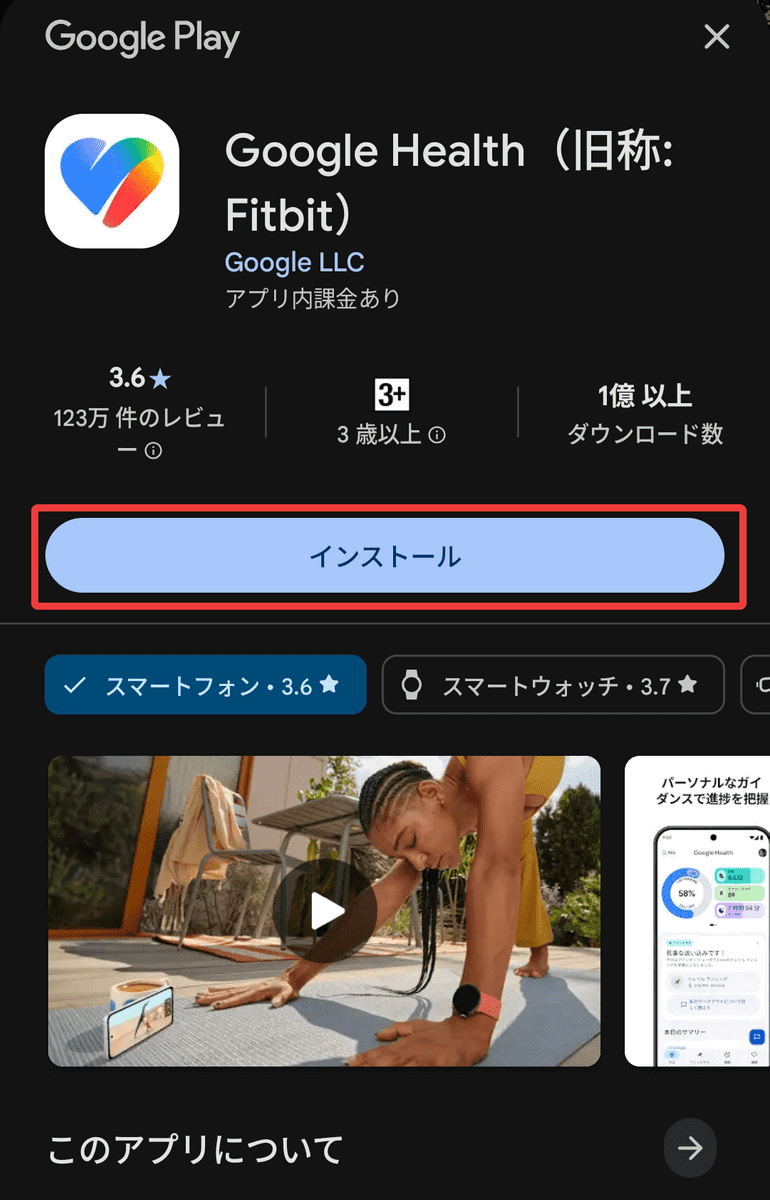
To use Google Fitbit Air, you need a Google account and the '
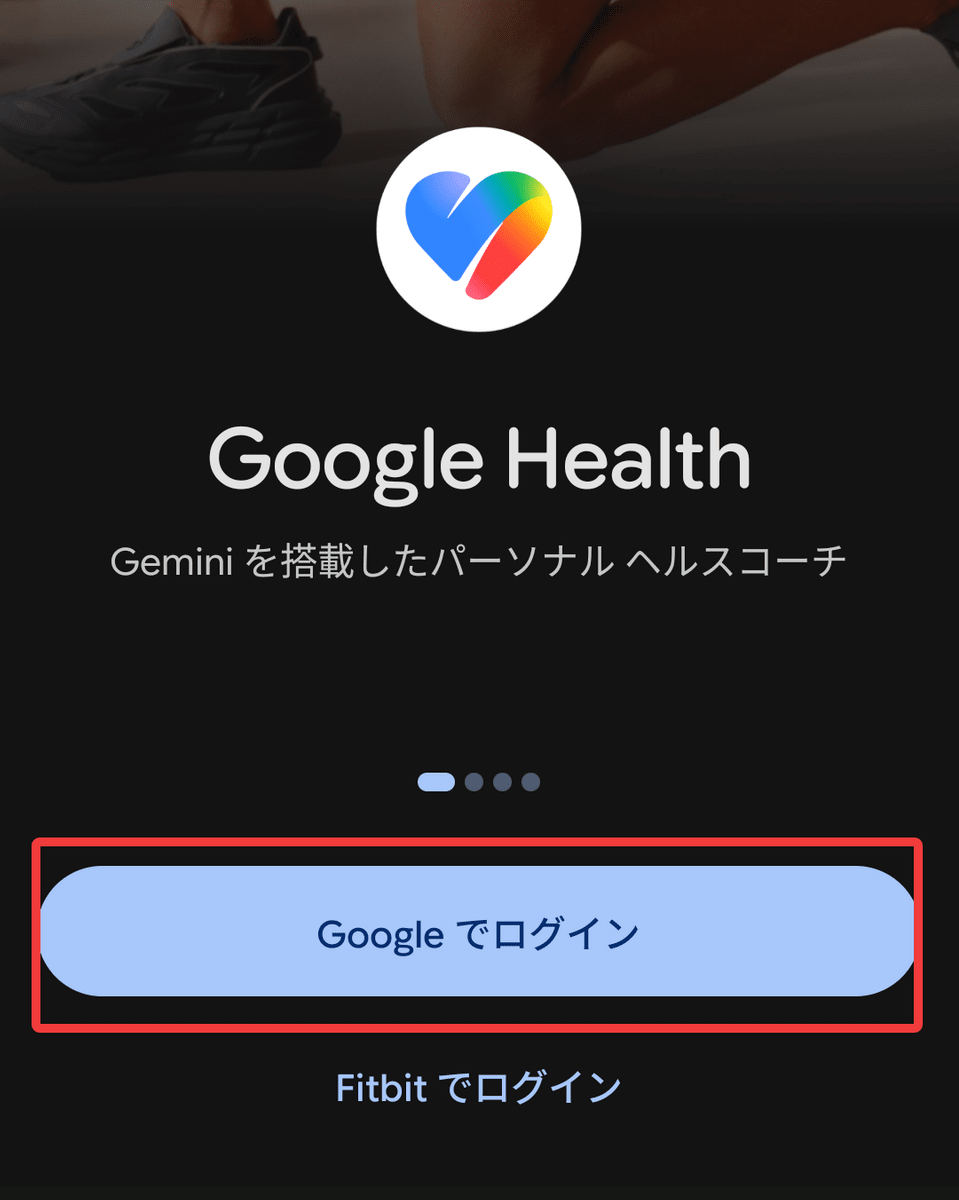
When you open the app, you'll be prompted to log in, so tap 'Sign in with Google'.
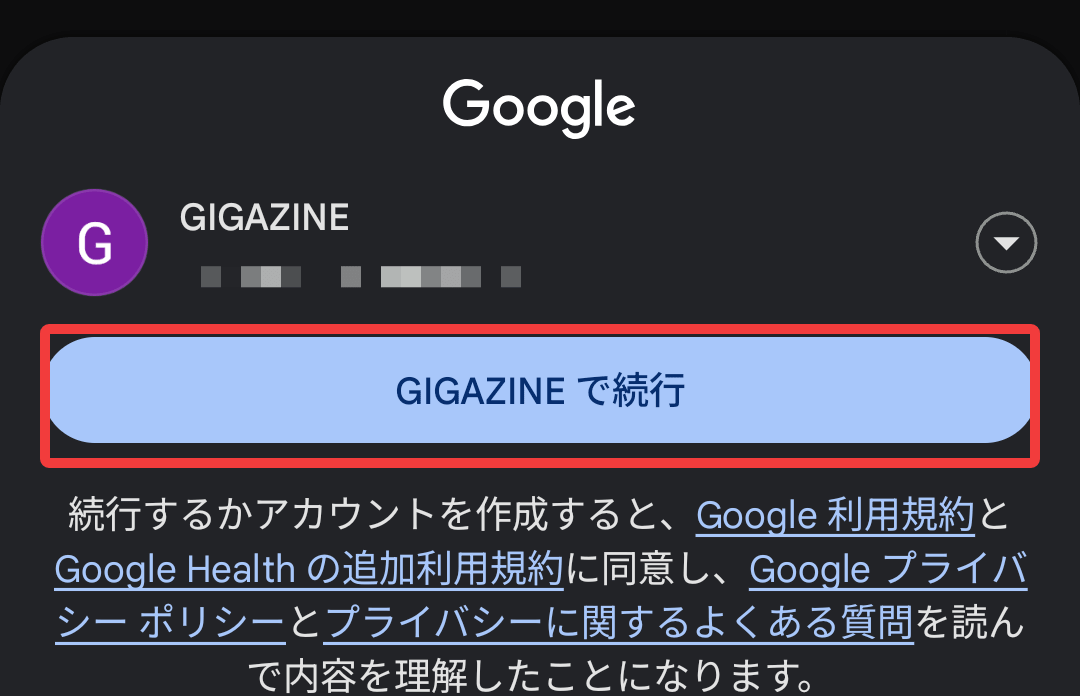
Select an account.
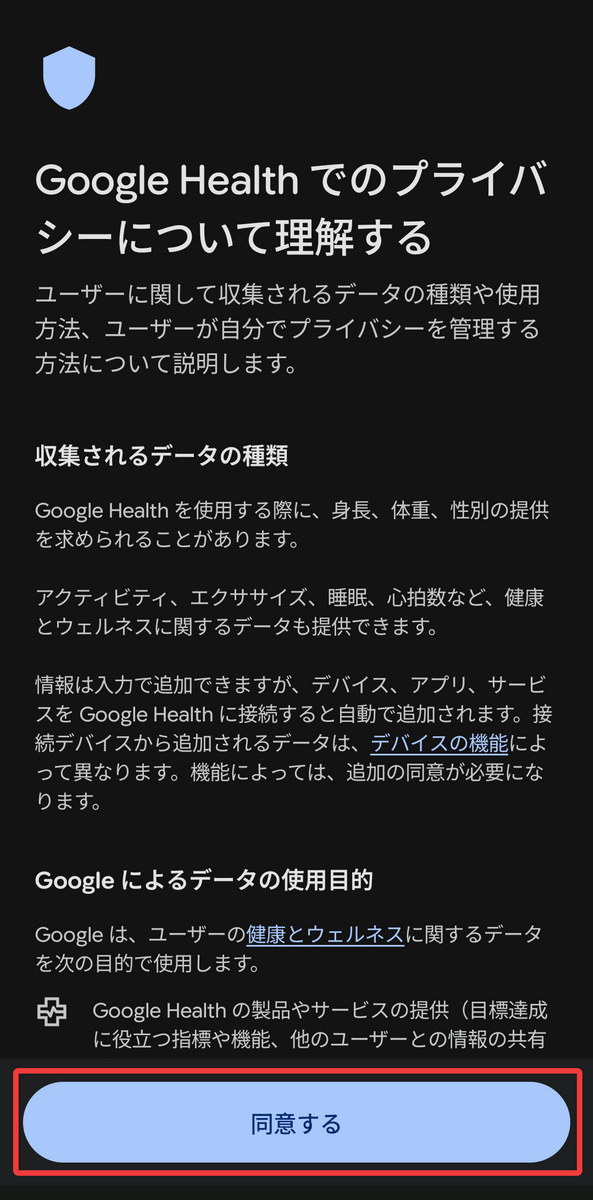
A privacy policy will be displayed, so tap 'Agree'.
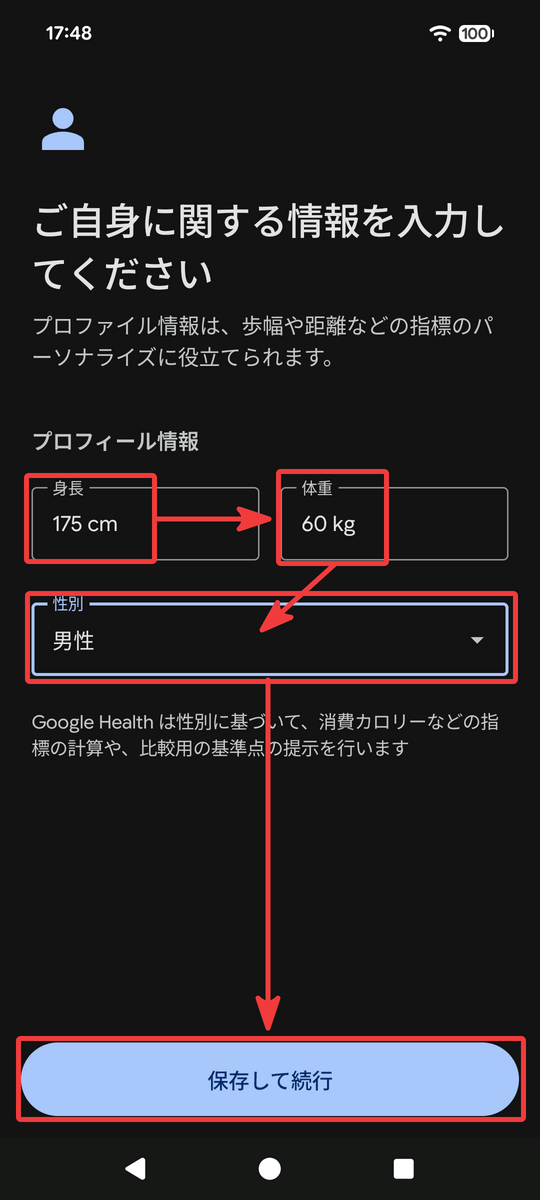
Enter your height, weight, and gender, then tap 'Save and Continue'.
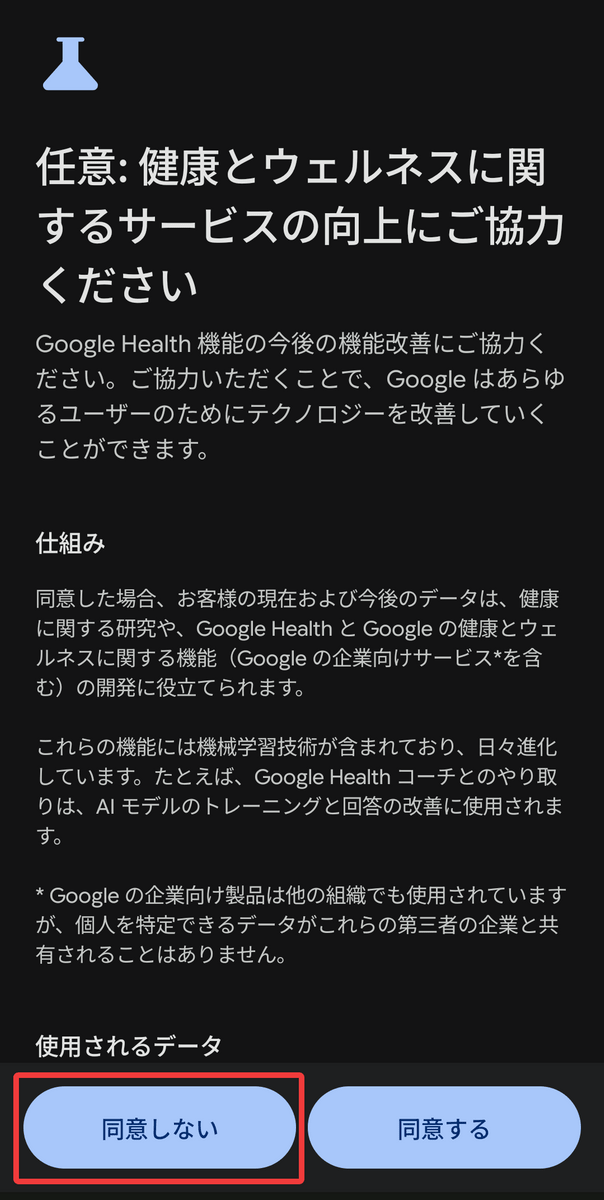
Regarding data sharing, I selected 'Do not agree' this time.
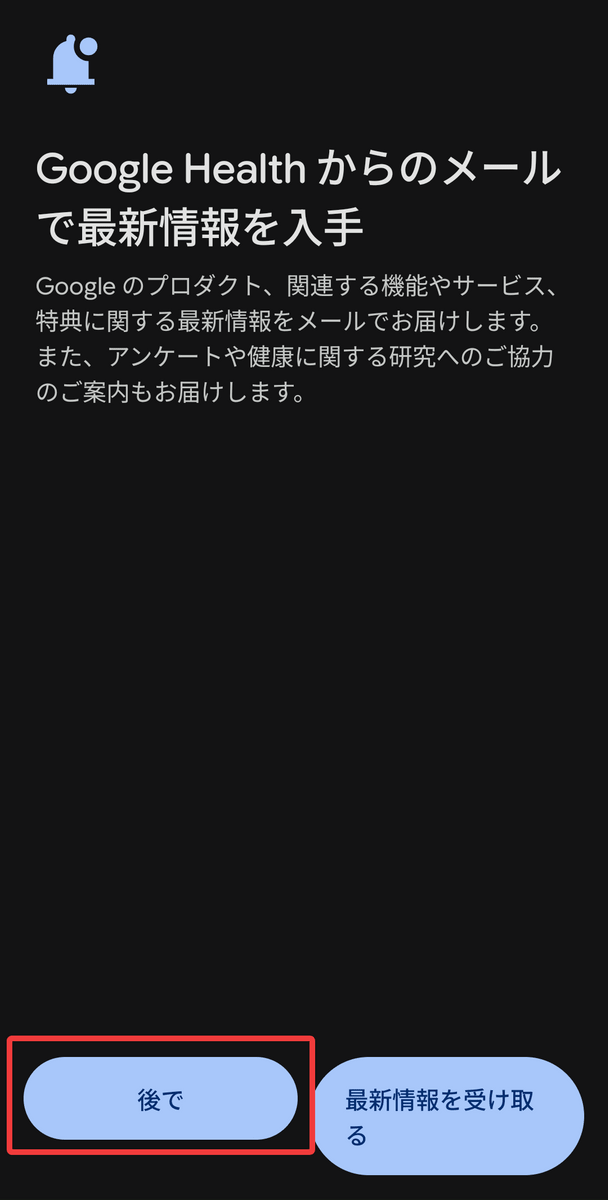
I'll set the email notification to 'later'.
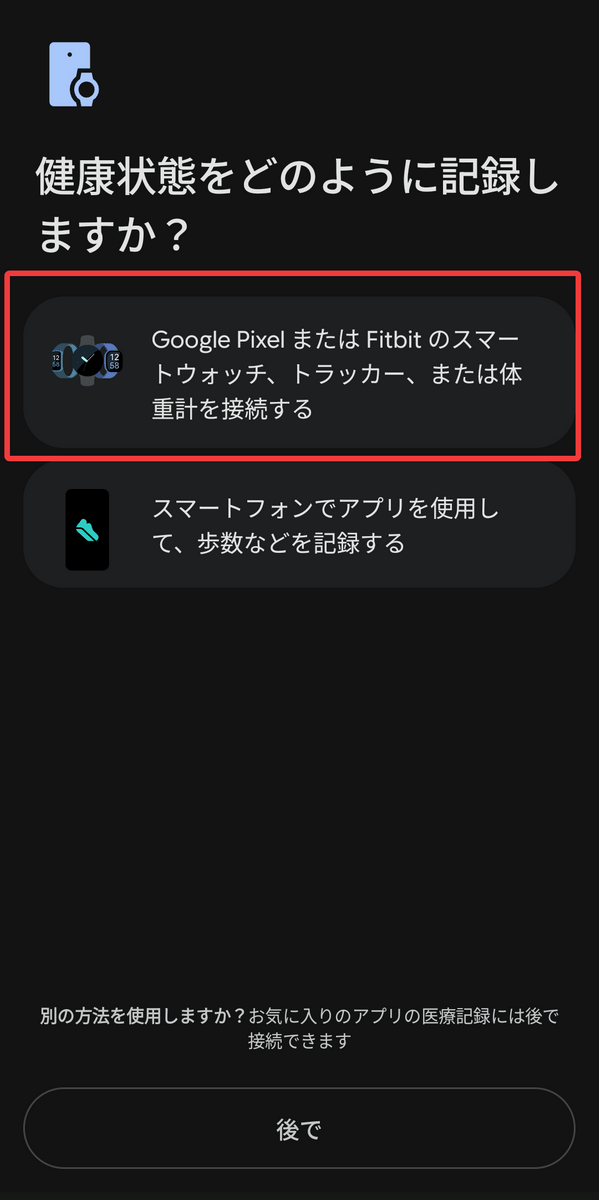
I was asked whether I wanted to record my health status using a tracker or a smartphone app, so this time I tapped the option 'Connect a Google Pixel or Fitbit smartwatch, tracker, or scale.'
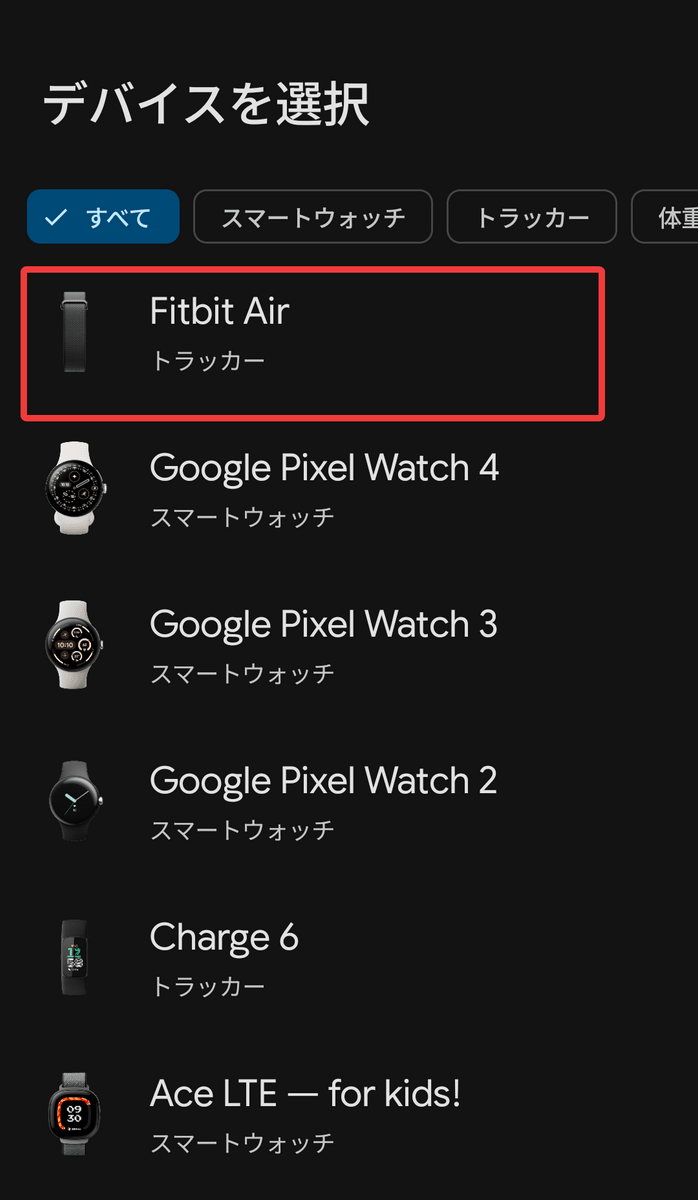
Next, tap 'Fitbit Air' from the list of devices that appears.
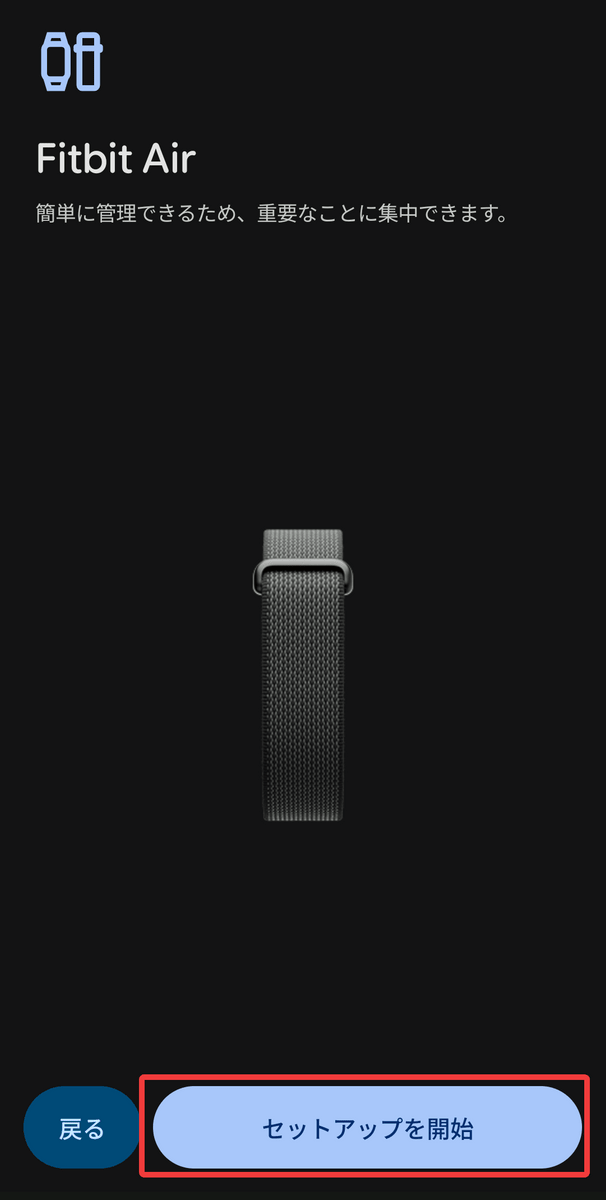
Tap 'Start Setup'.
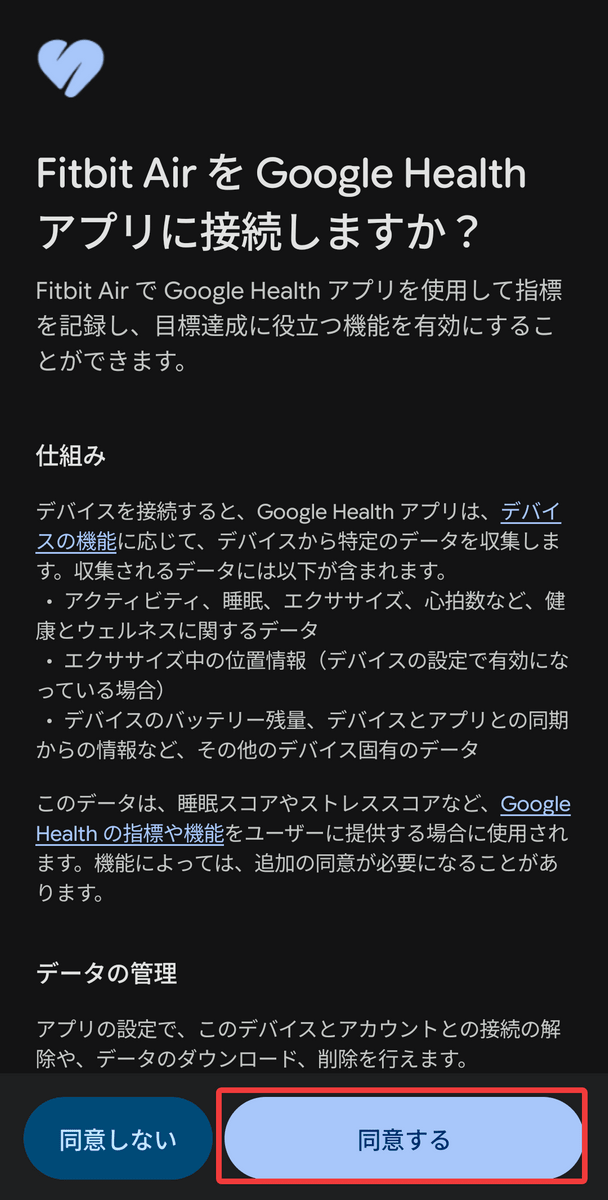
Tap 'Agree' to connect.
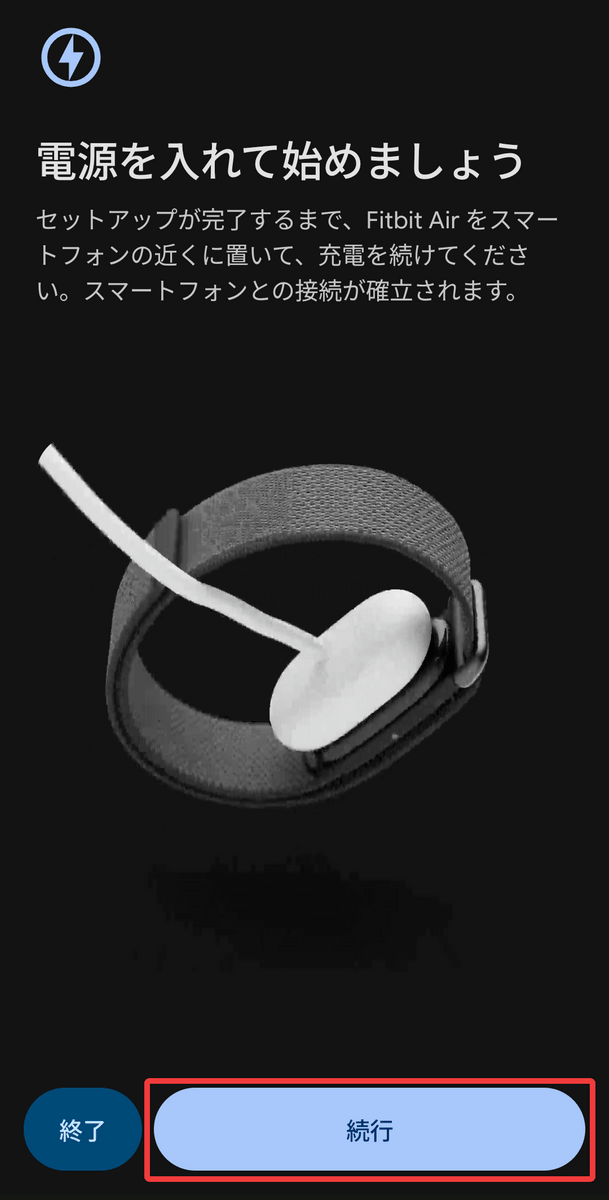
You will be prompted to charge your Google Fitbit Air, so do so and tap 'Continue'.
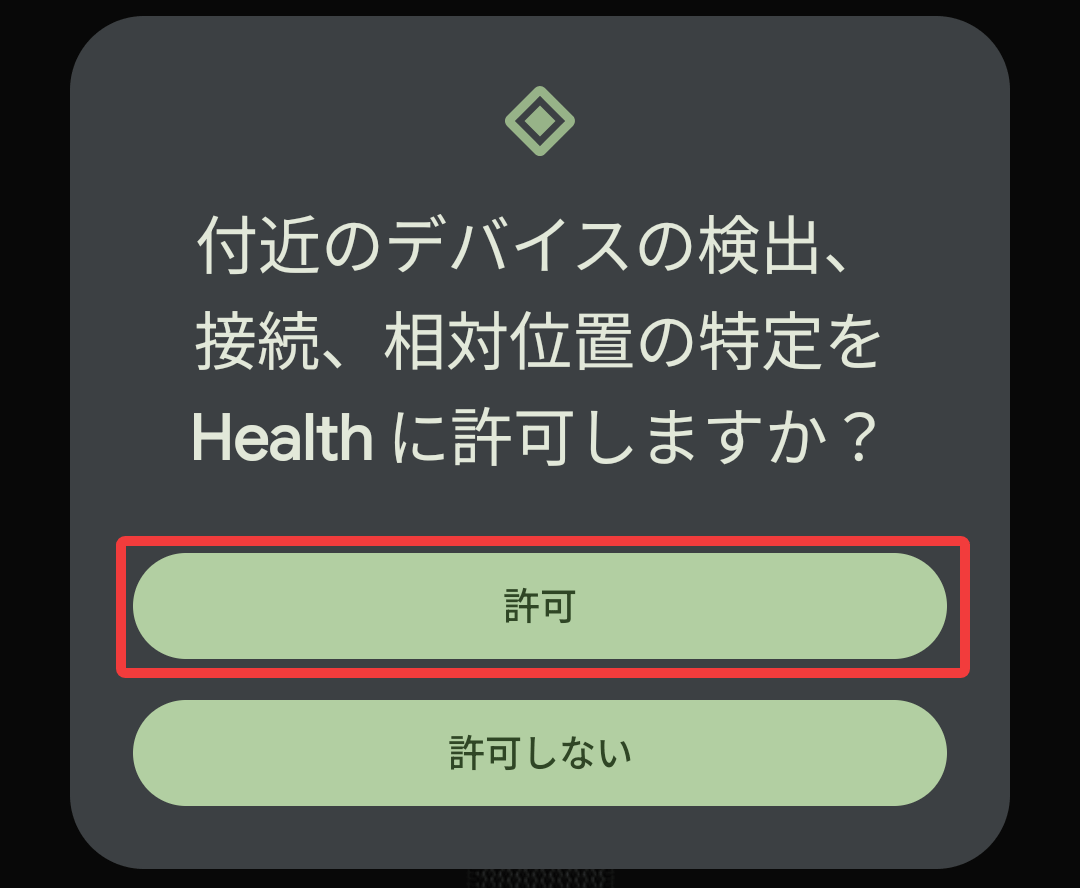
Allow the detection of nearby devices.
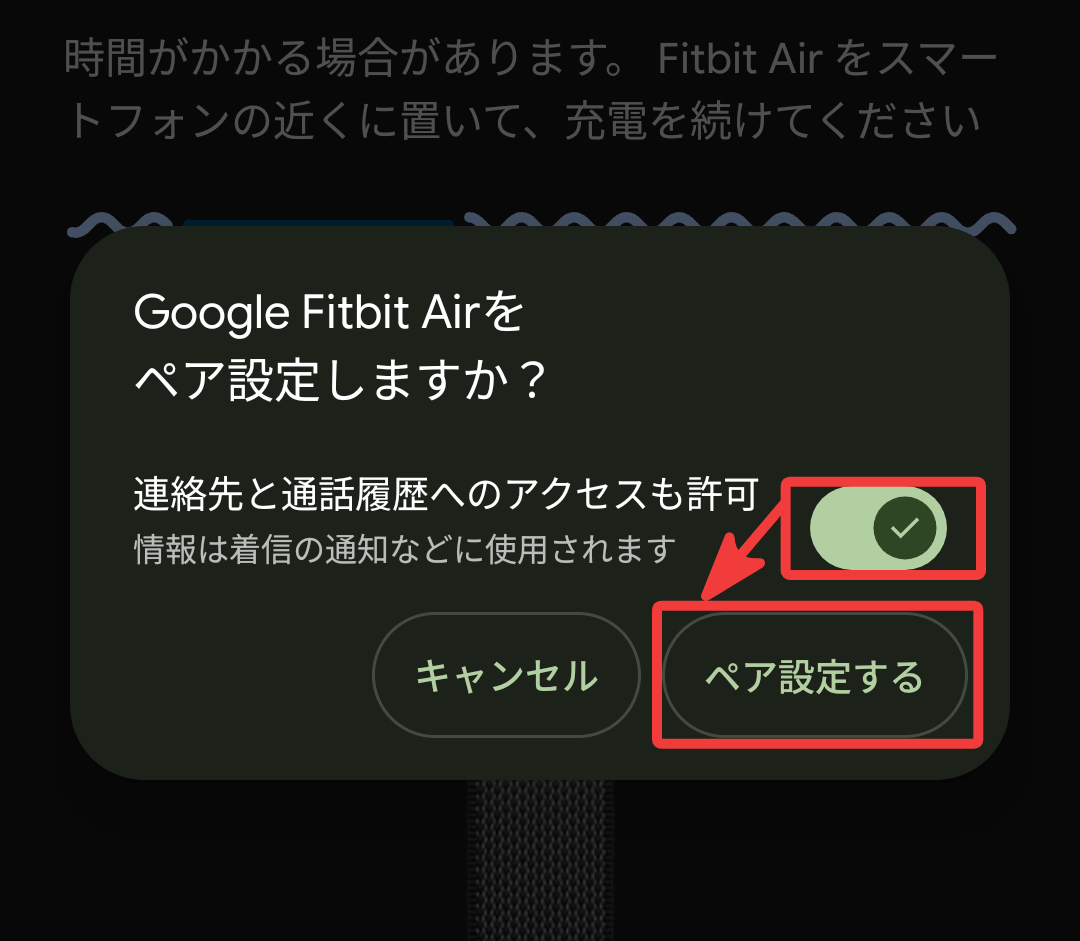
In the next screen that appeared, I checked the pairing settings and made sure to enable 'Allow access to contacts and call history' before pairing.
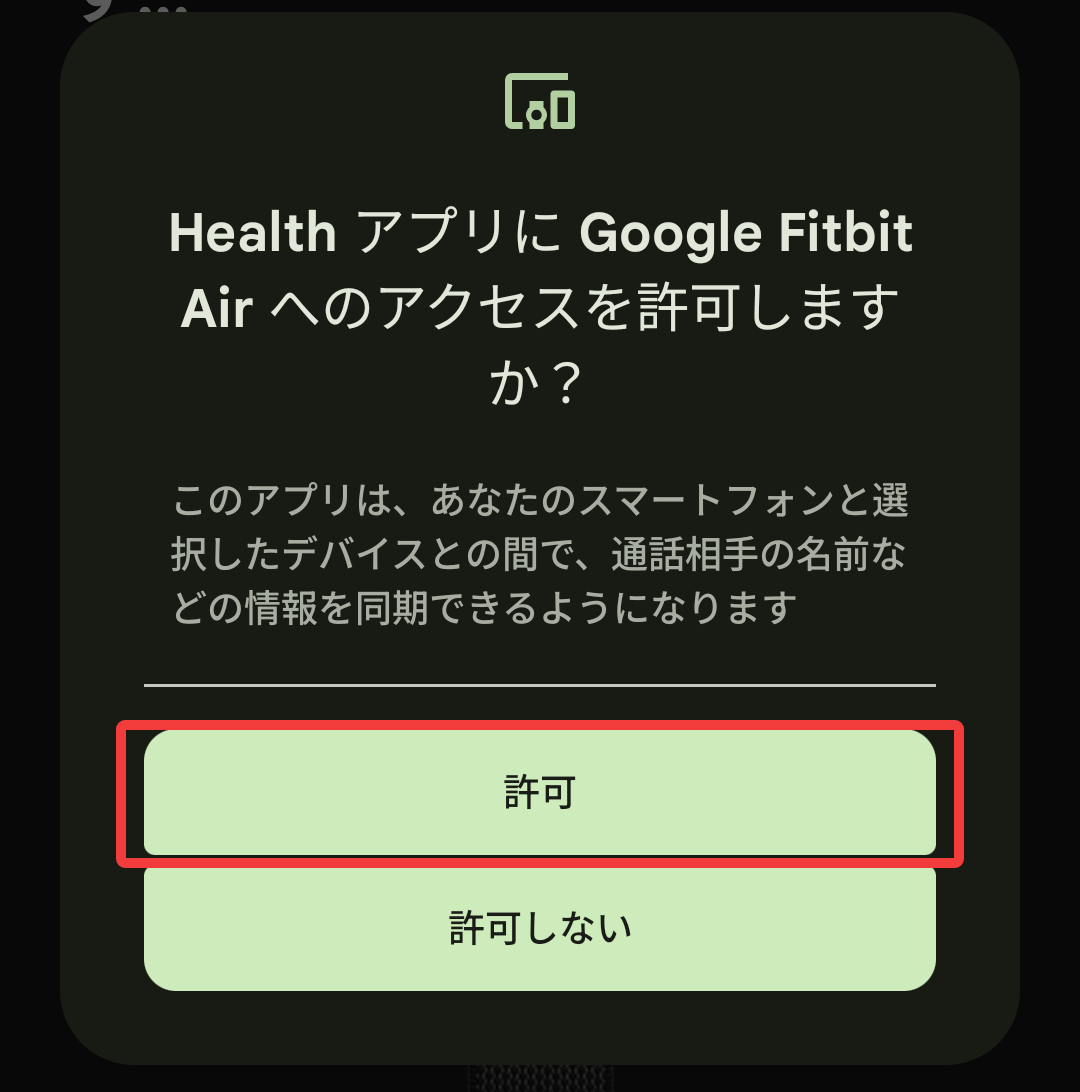
I tapped 'Allow' in the next notification.
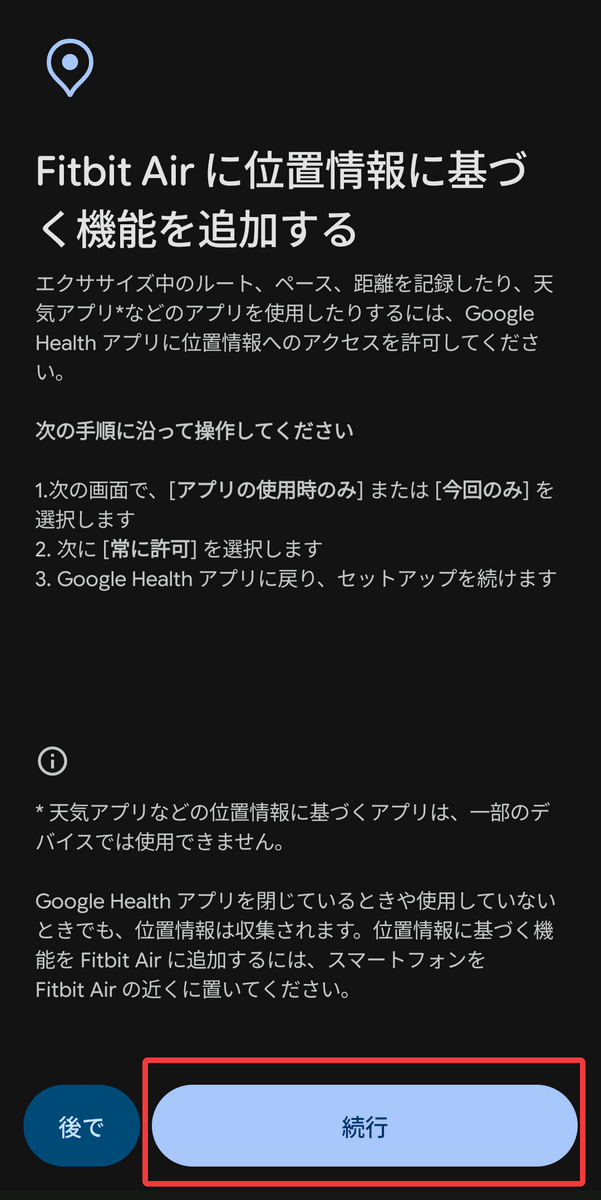
Location information: 'Continue'.
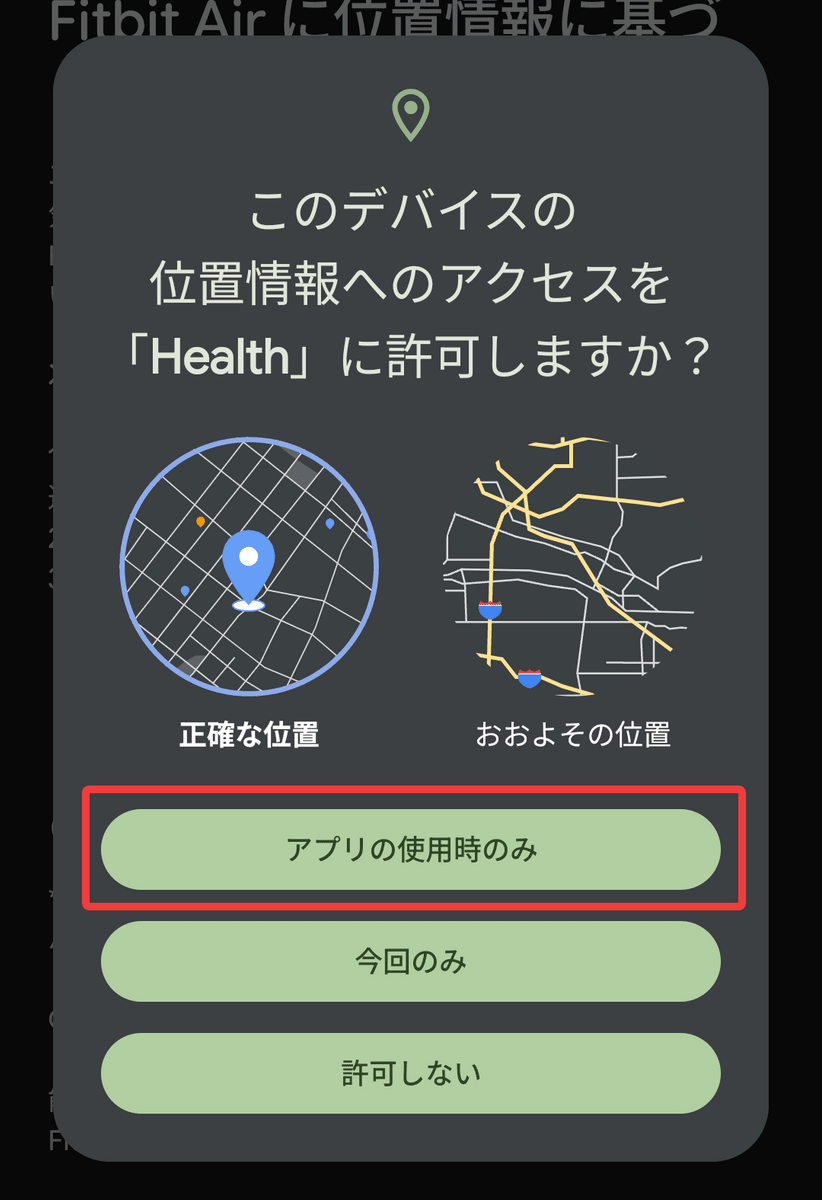
And allow it 'only when using the app'.
The notification also says 'Continue.'
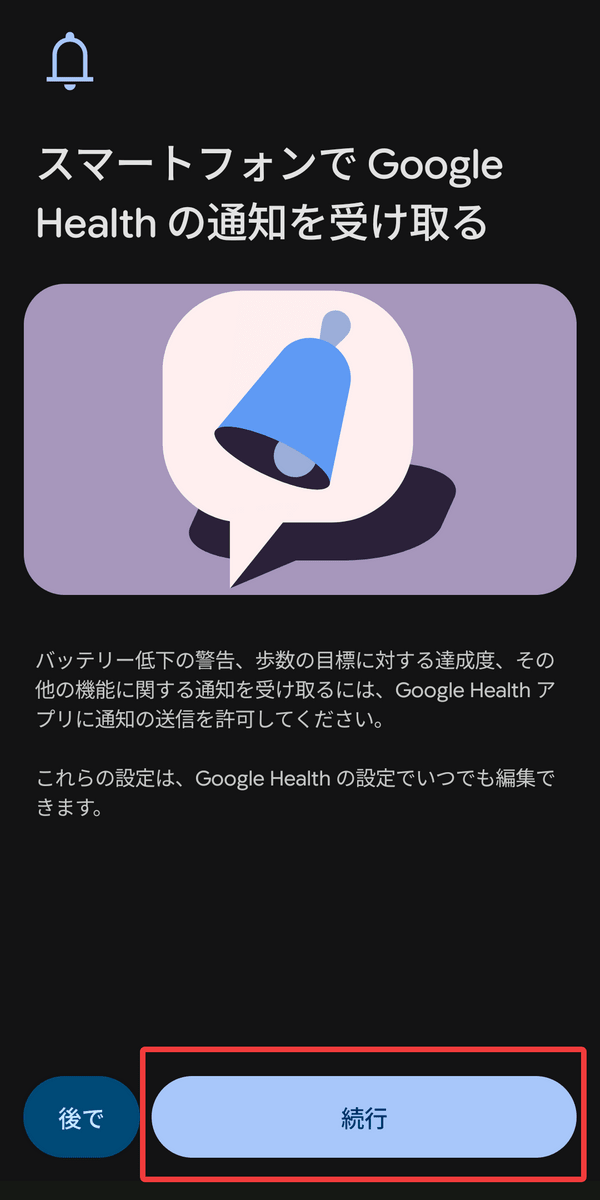
Tap 'Allow'.
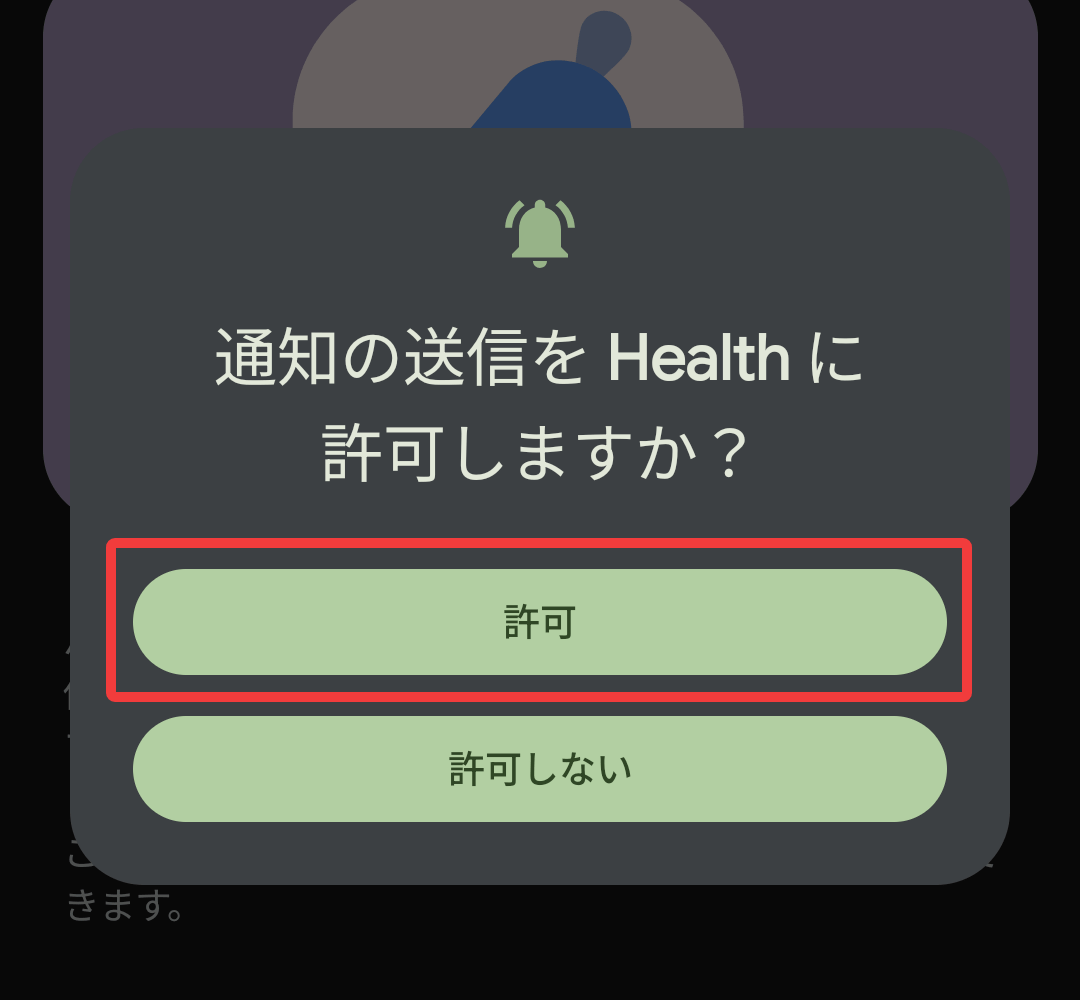
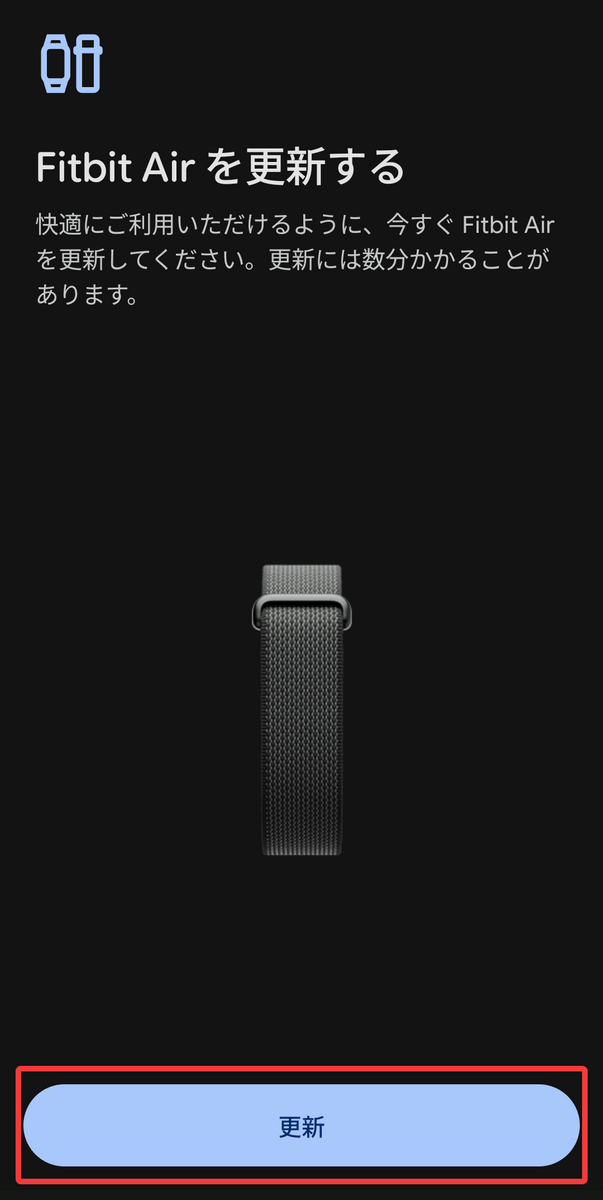
Since there was a system update available, I tapped 'Update' to continue.
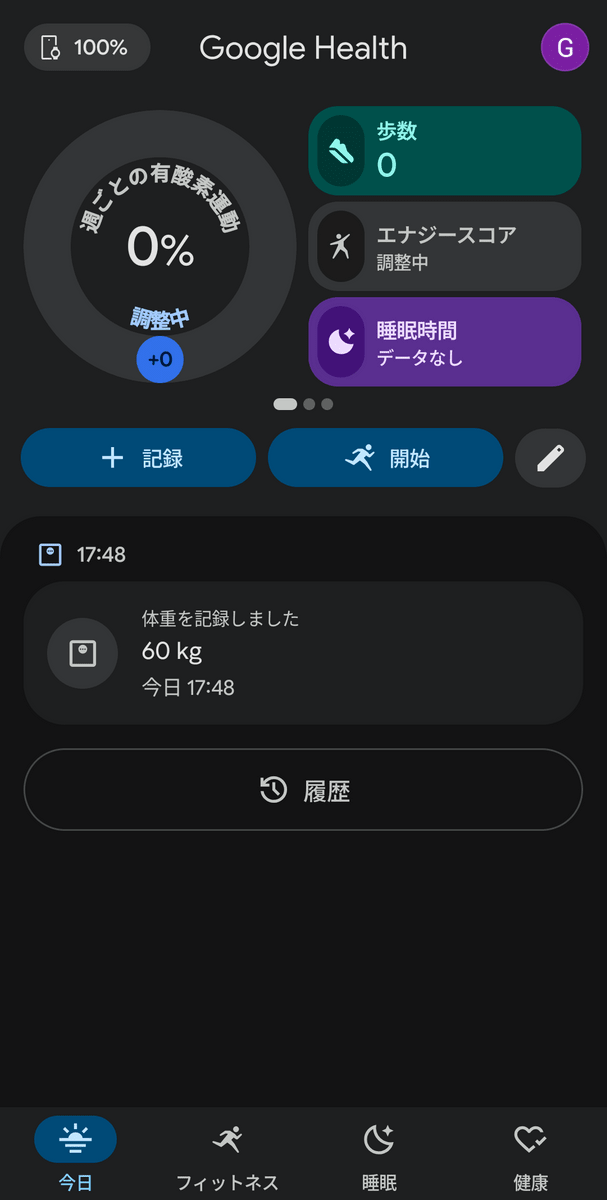
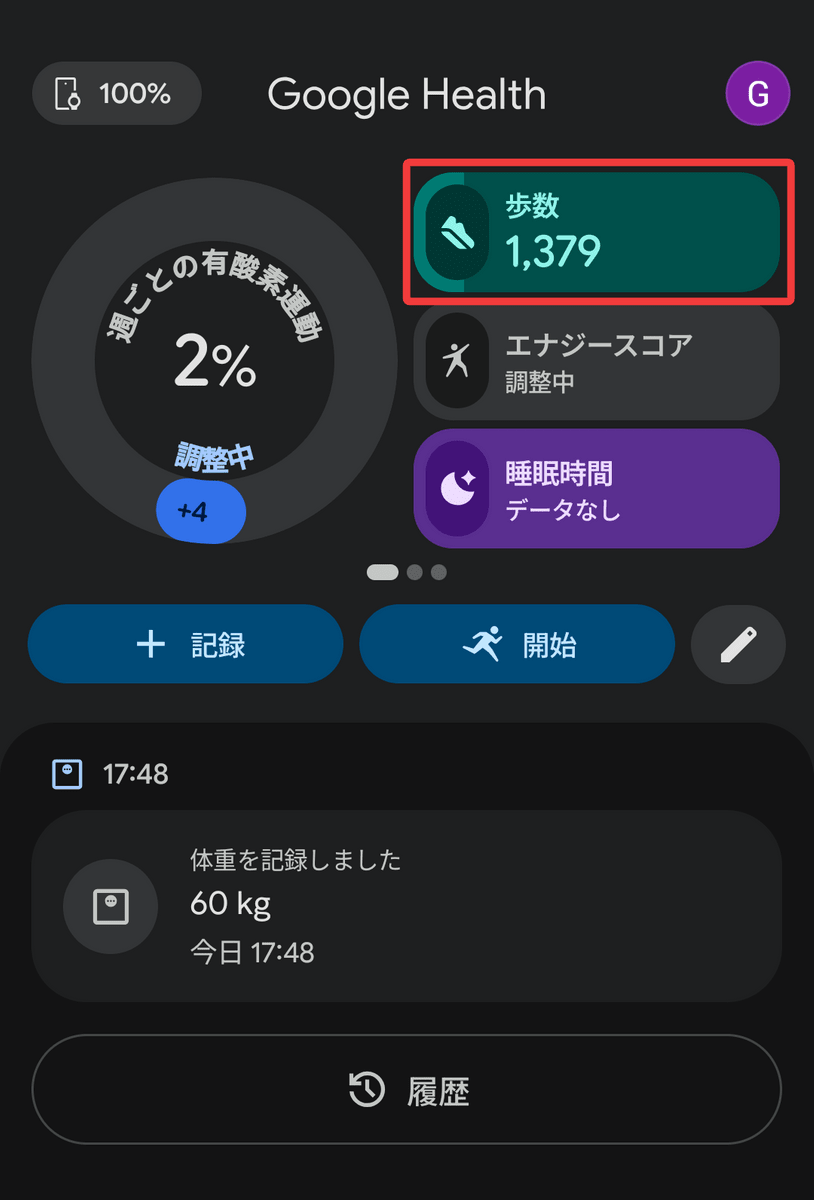
This is what the app's home screen looks like after setup is complete. You can see your weekly cardio workout, steps, energy score, and more at a glance.
I wore my Google Fitbit Air and walked around for a while without changing any settings in the app. It automatically started tracking my steps, and the number of steps was displayed in the app.
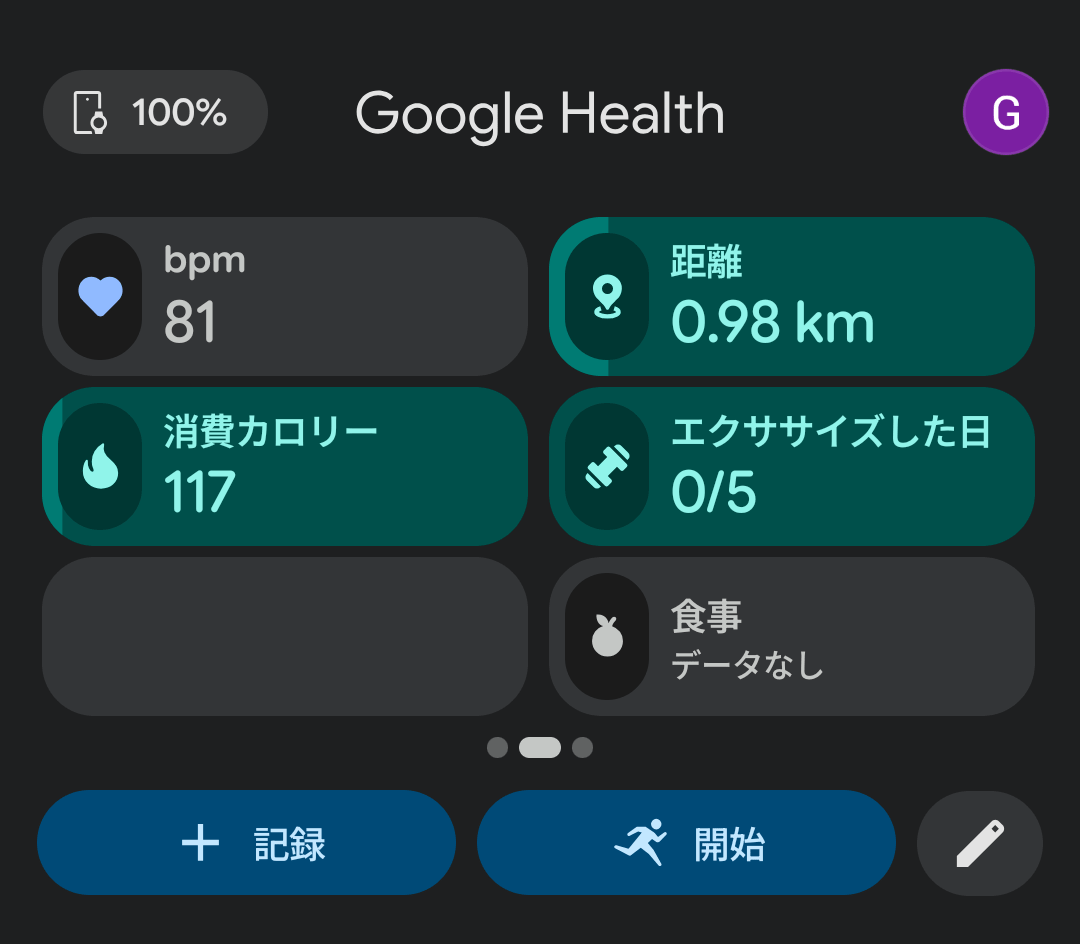
Swiping left or right on an item will allow you to view other information such as BPM and distance. These items can be freely rearranged.
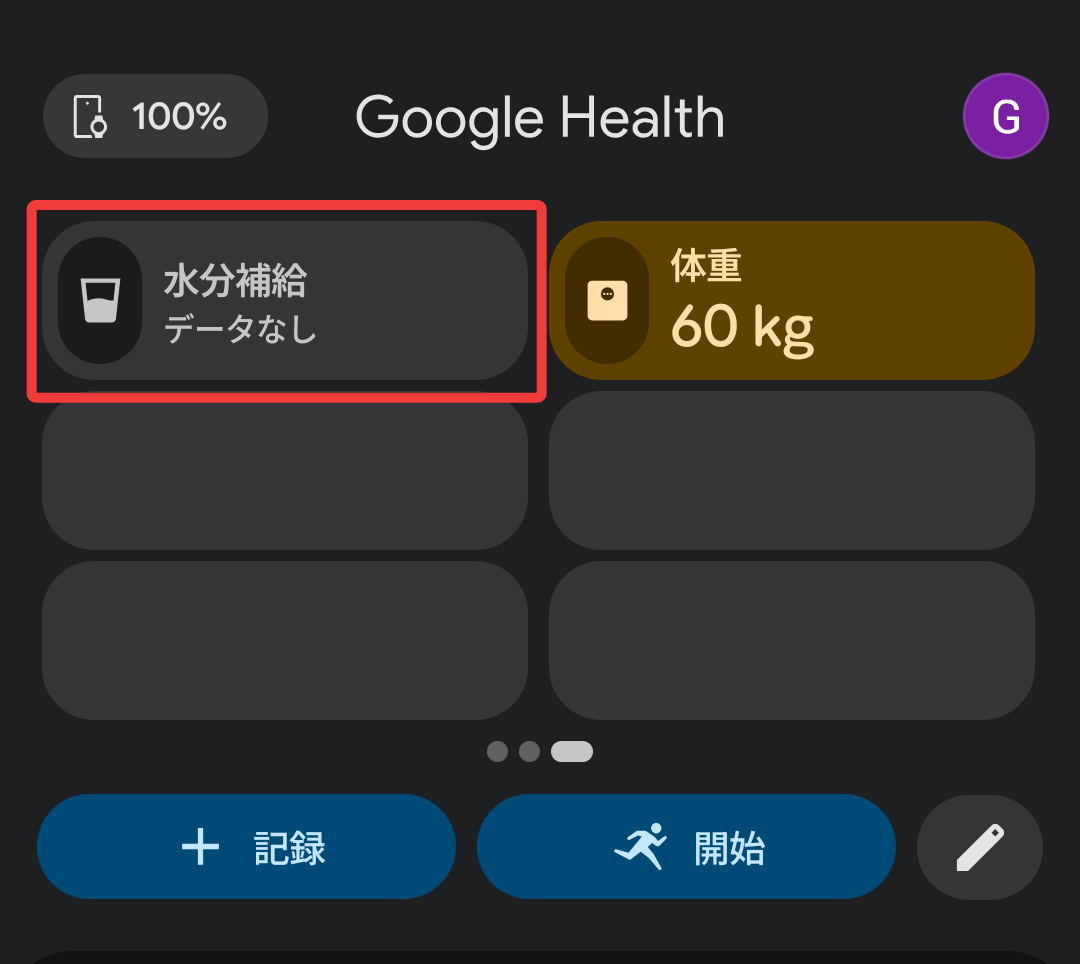
The last column had 'Hydration' as the default option.
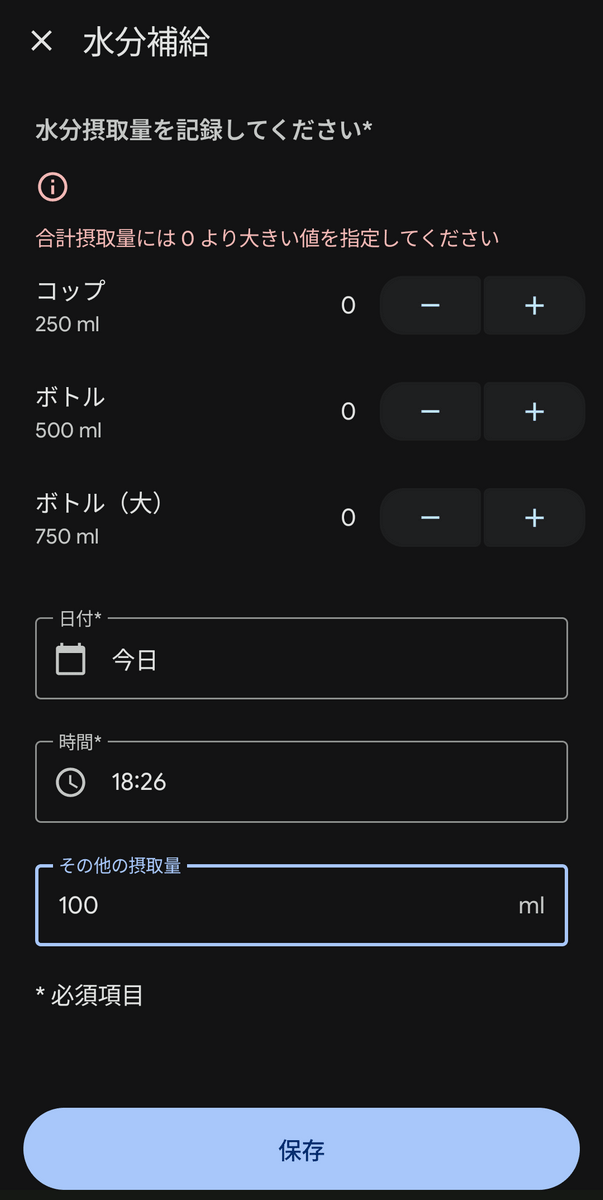
I was curious, so I tapped on 'Hydration' and discovered it was a function to manually input and record the amount of water you drank when you hydrated.
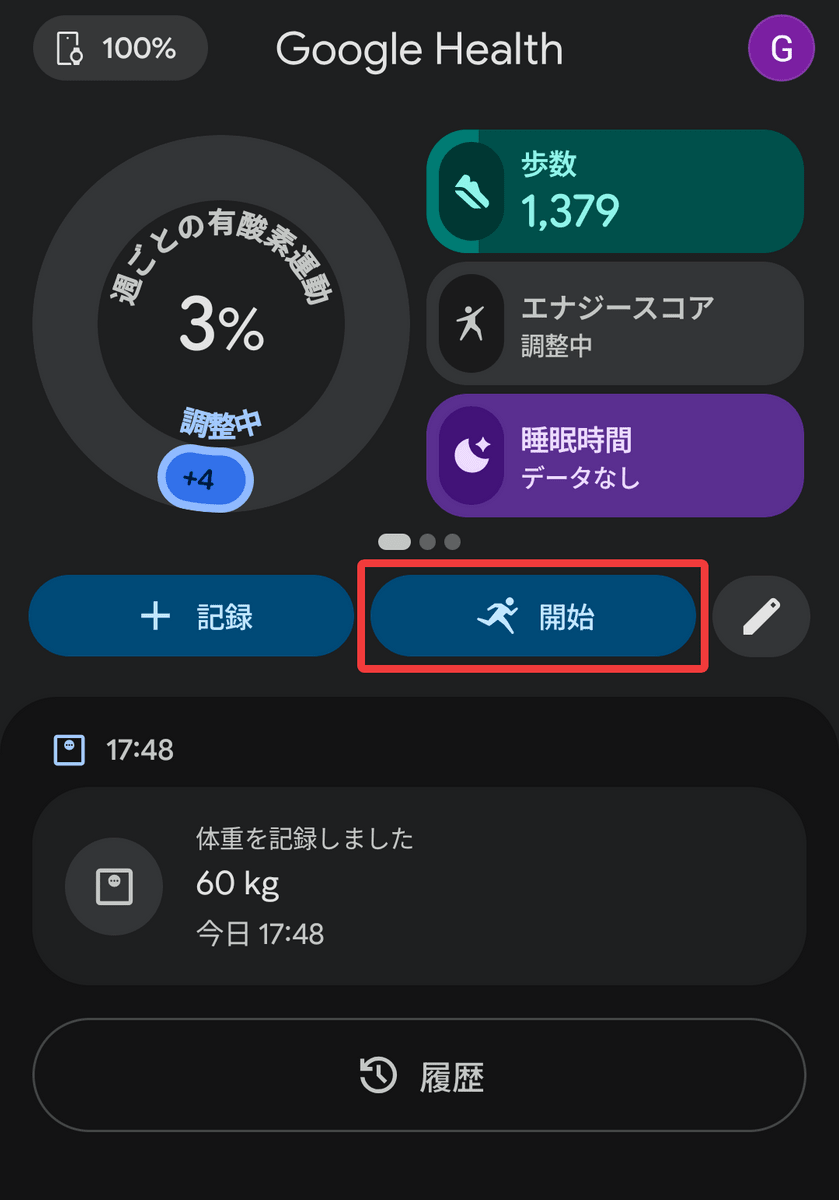
Next, I'll try playing '
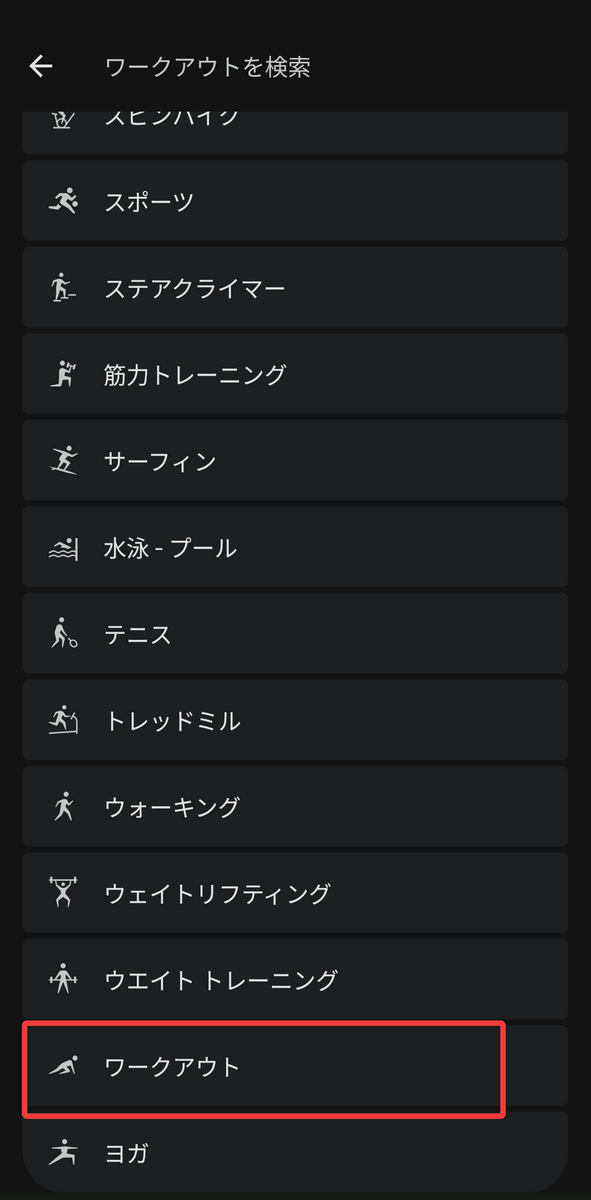
I chose the type of exercise. There were so many options that I was confused, but since Ring Fit Adventure involves multiple exercises like running and sit-ups, I chose 'Workout.'
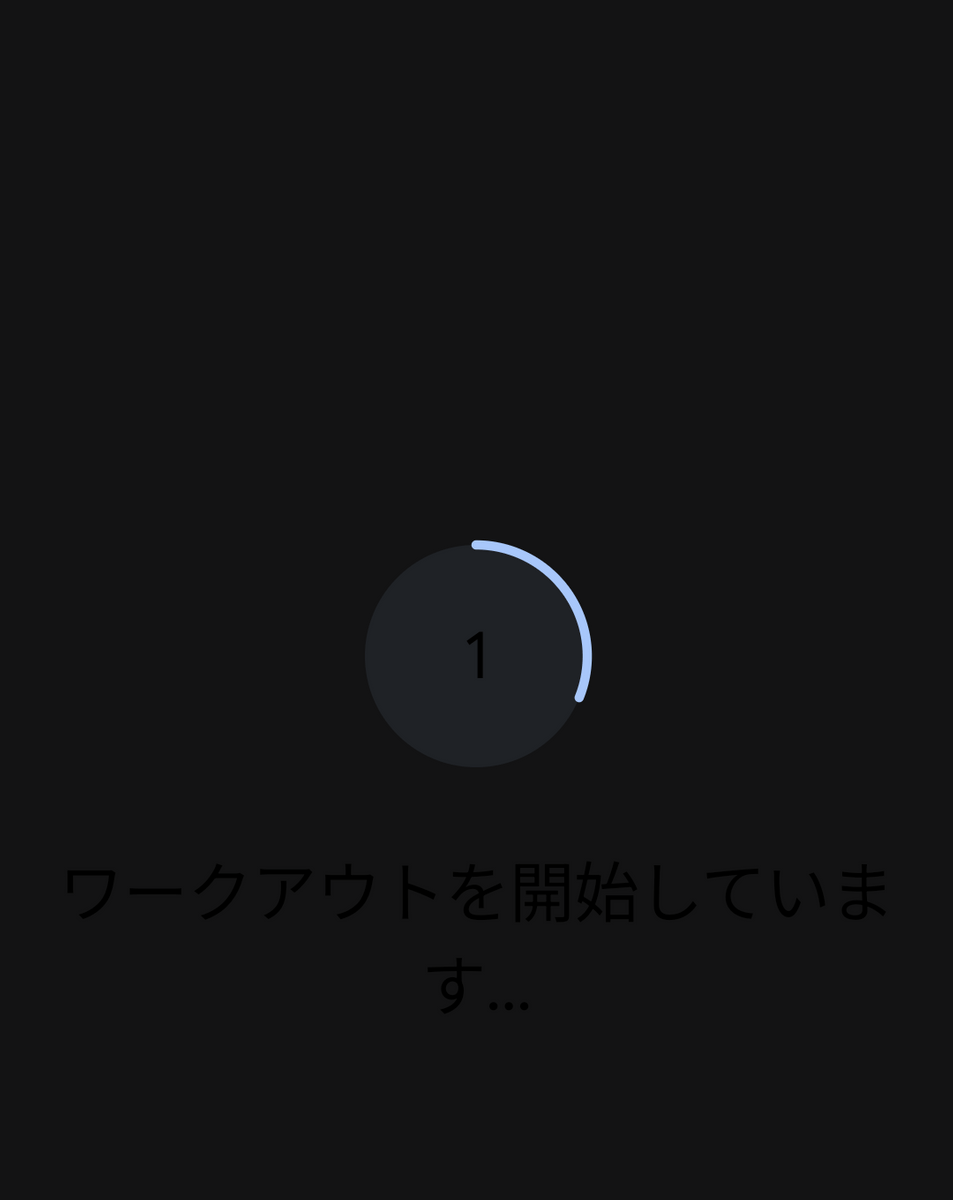
The countdown will begin and the measurement will start.
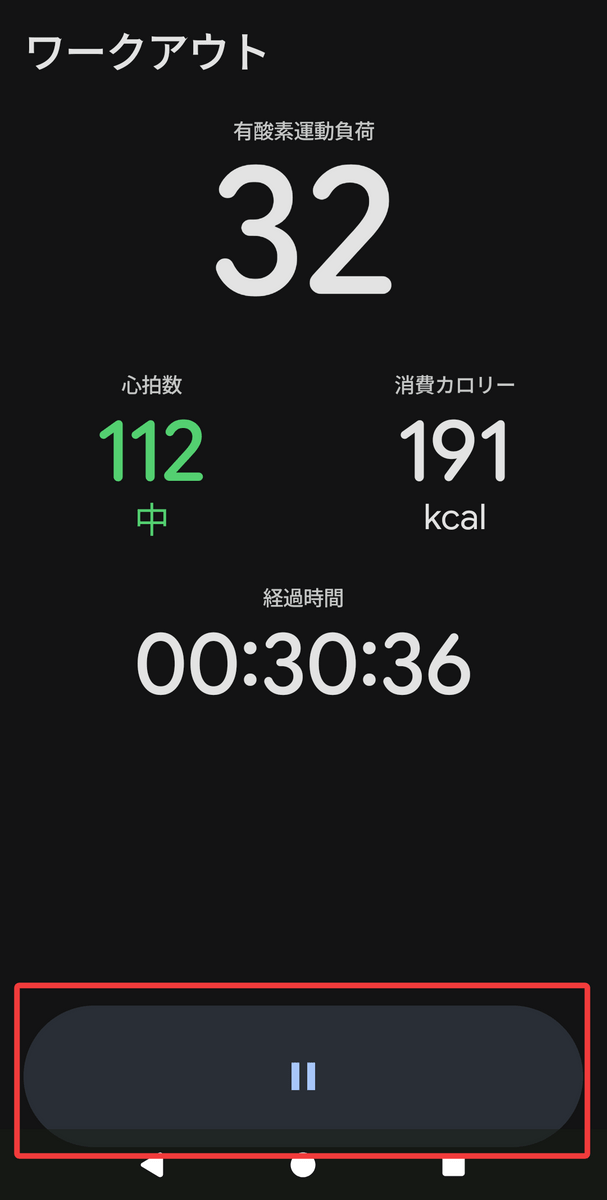
During measurement, your current heart rate, calories burned, and elapsed time will be displayed on your smartphone screen.
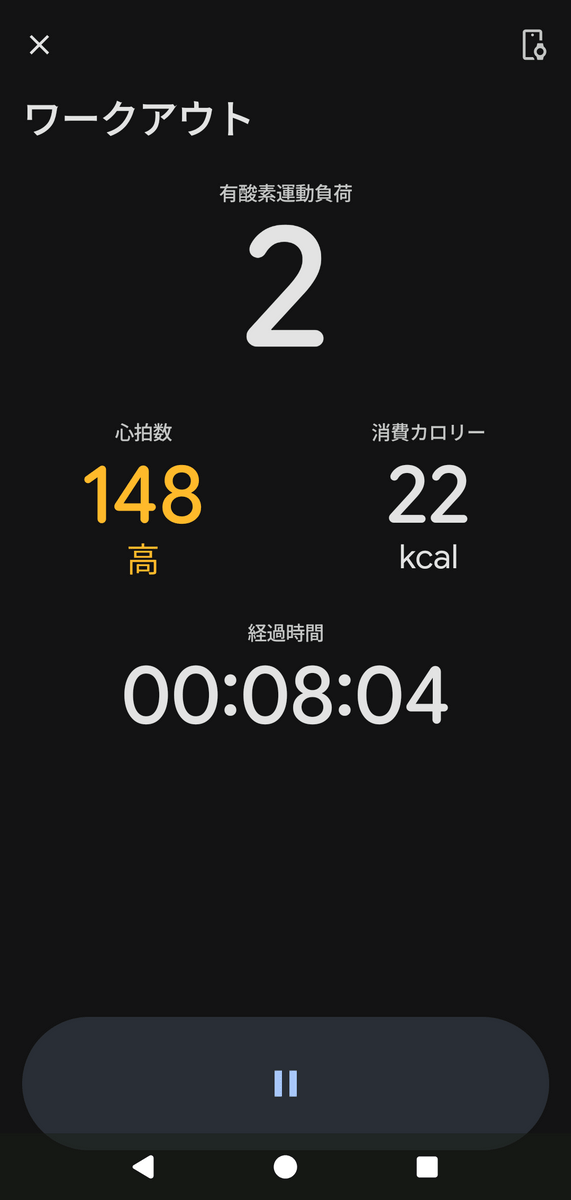
Tap the pause button when you've finished exercising.
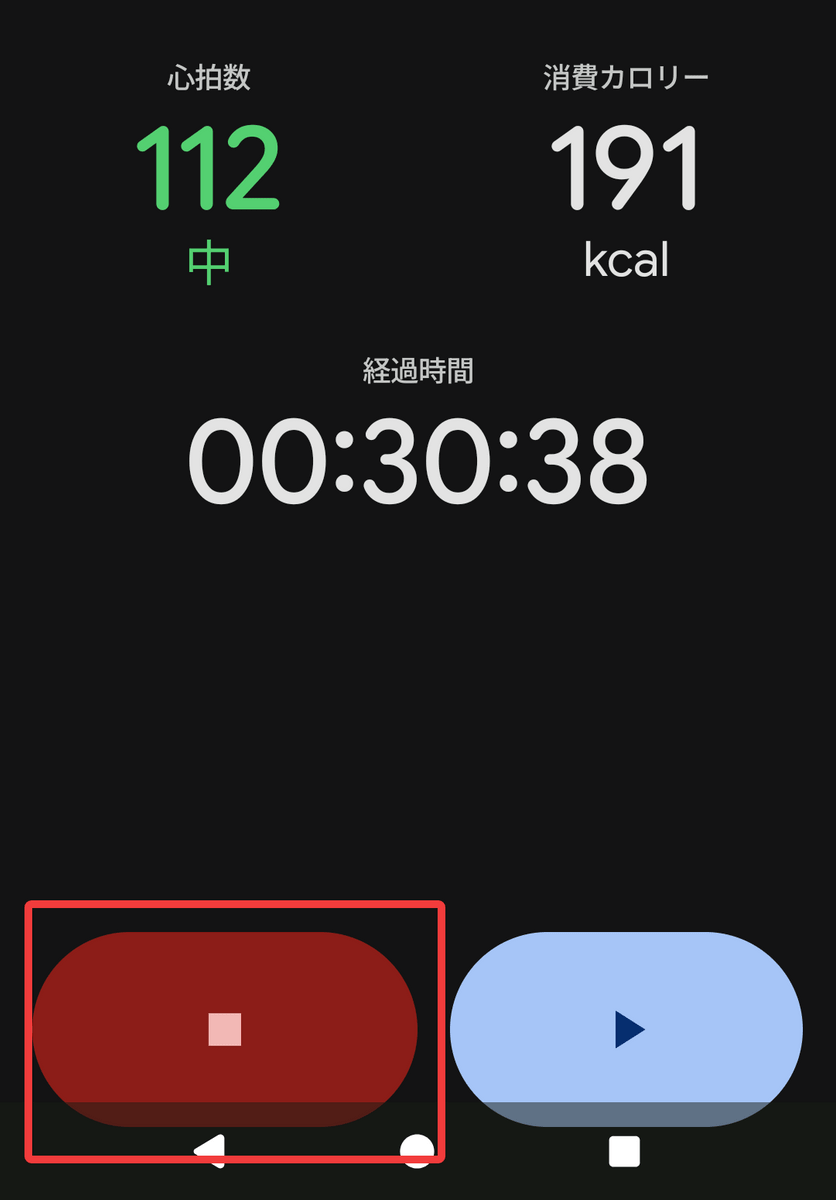
Next, tap the stop button.
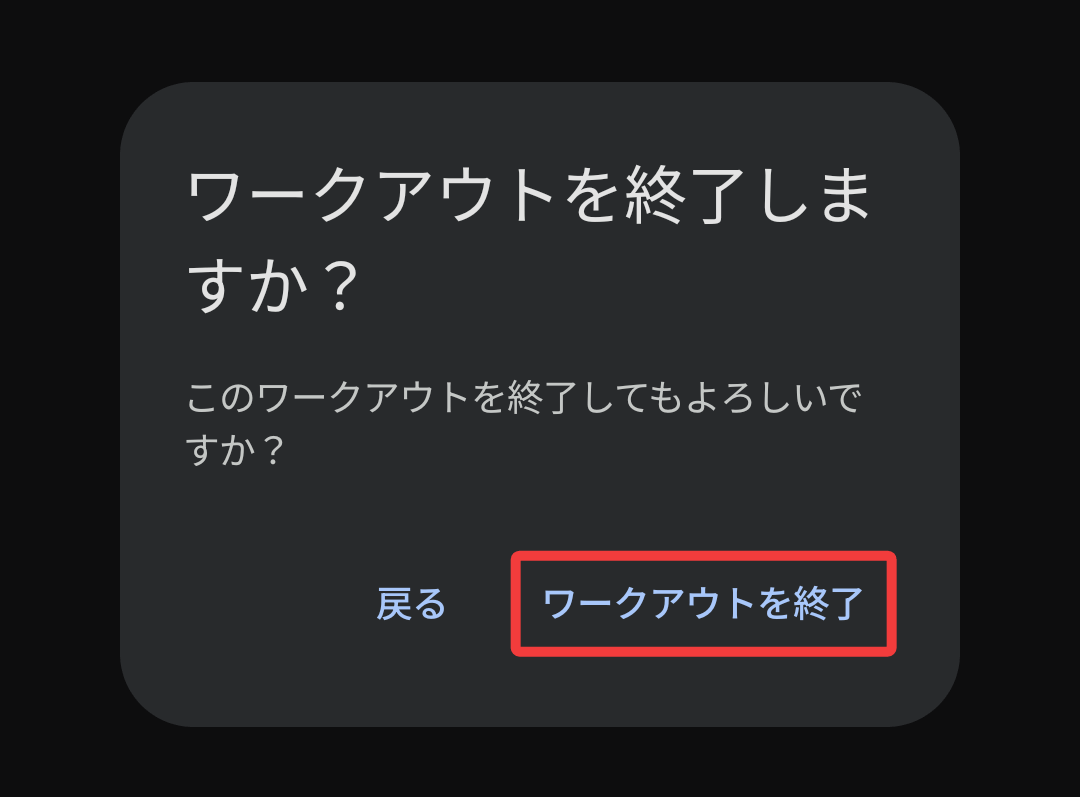
A confirmation screen will appear, so tap 'End Workout'.
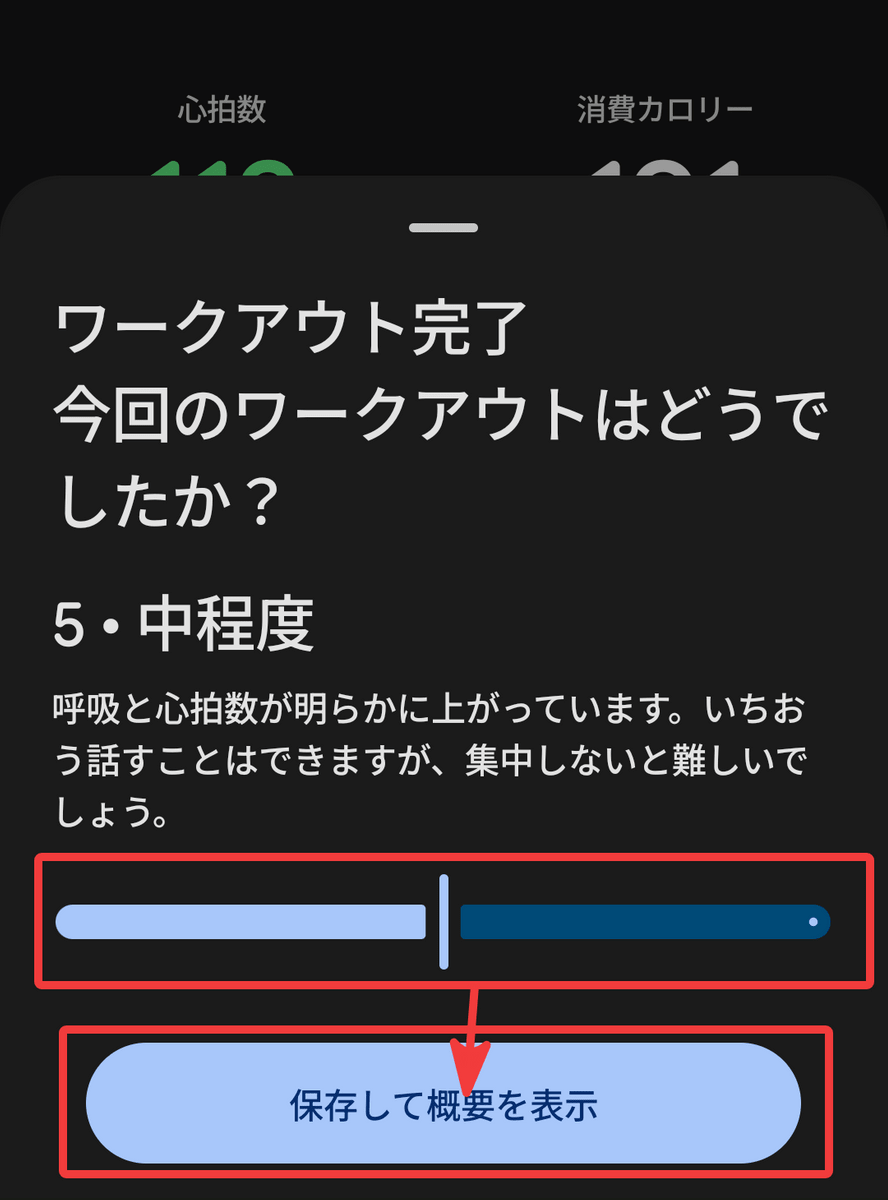
I was asked to choose a workout difficulty level from 1 (easy) to 10 (hard). This time, I selected '5 - Medium' and tapped 'Save and view summary.'
On the next screen, you can check your activity time, calories burned, average heart rate, and more.
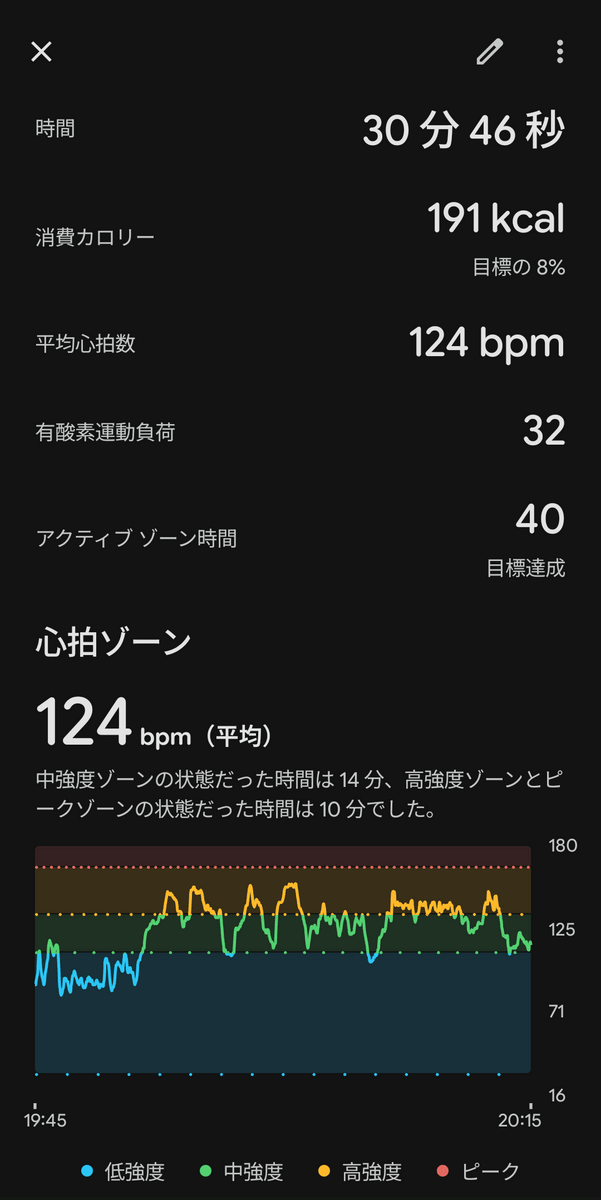
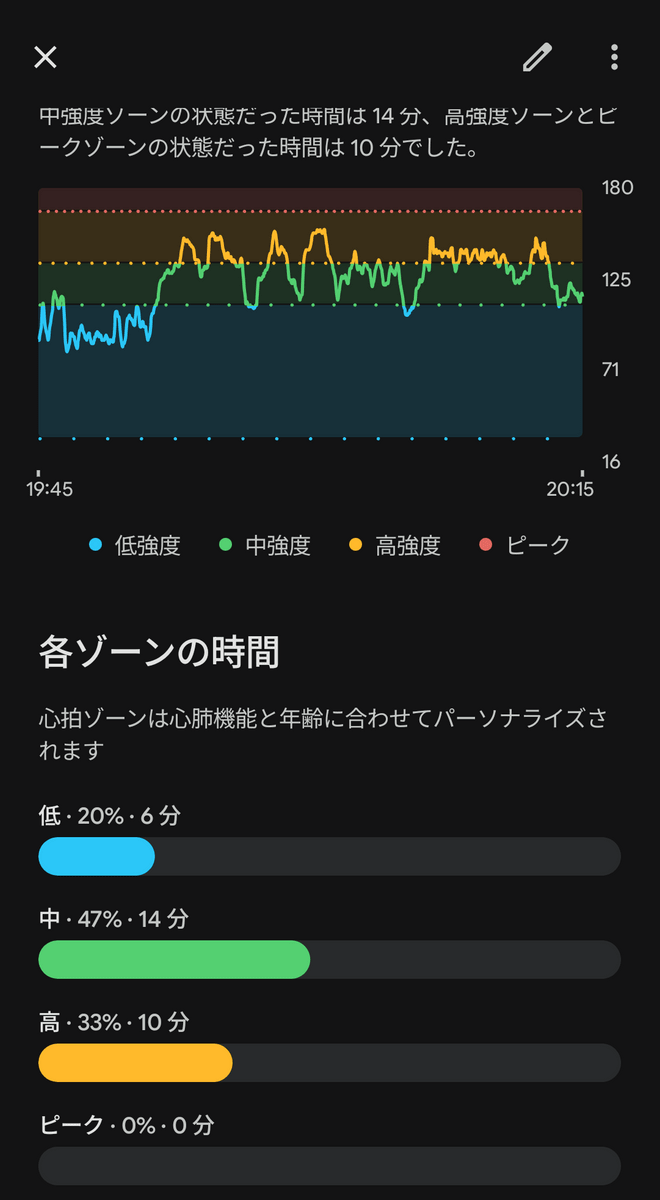
It's also possible to view the intensity of exercise over time in a graph.
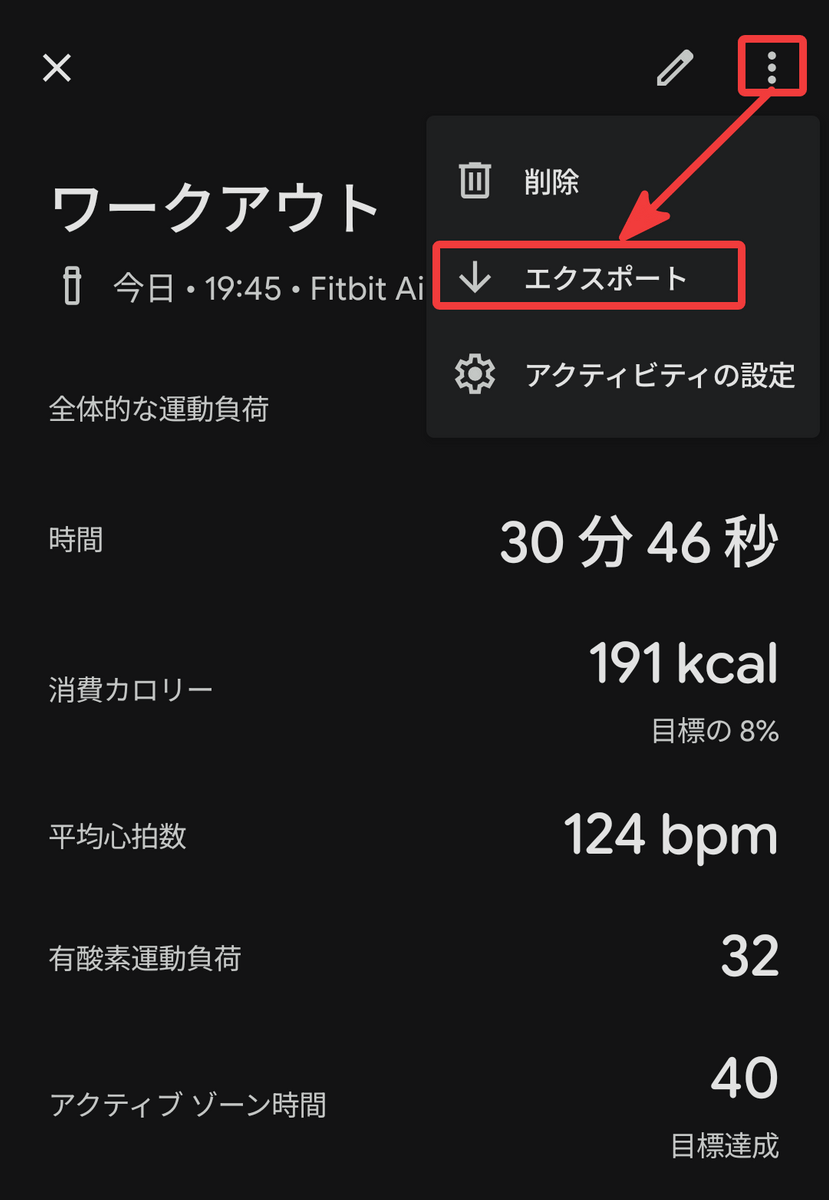
You can also export the data in tcx (Training Center XML) format.
This time I manually recorded my exercise, but it will automatically detect and record any activity that occurs.
Now that I know it can track exercise, I'll try tracking sleep next. The recording method is simple: just wear your Google Fitbit Air while you sleep. In addition to sleep duration, it records REM sleep, light sleep and deep sleep, and sleep efficiency.
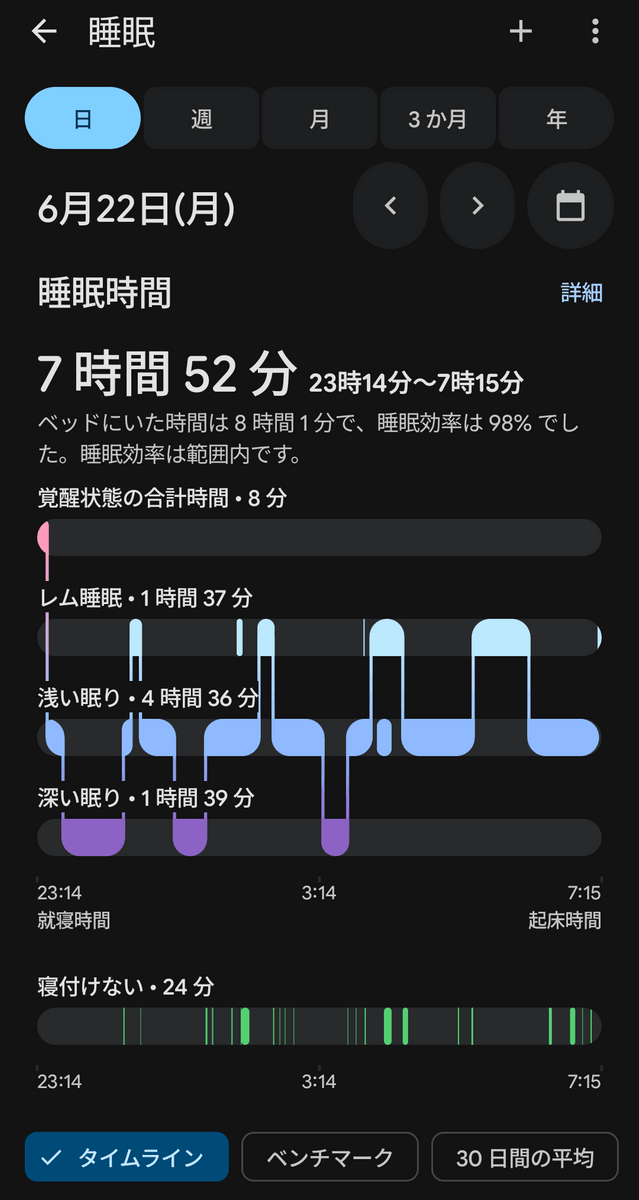
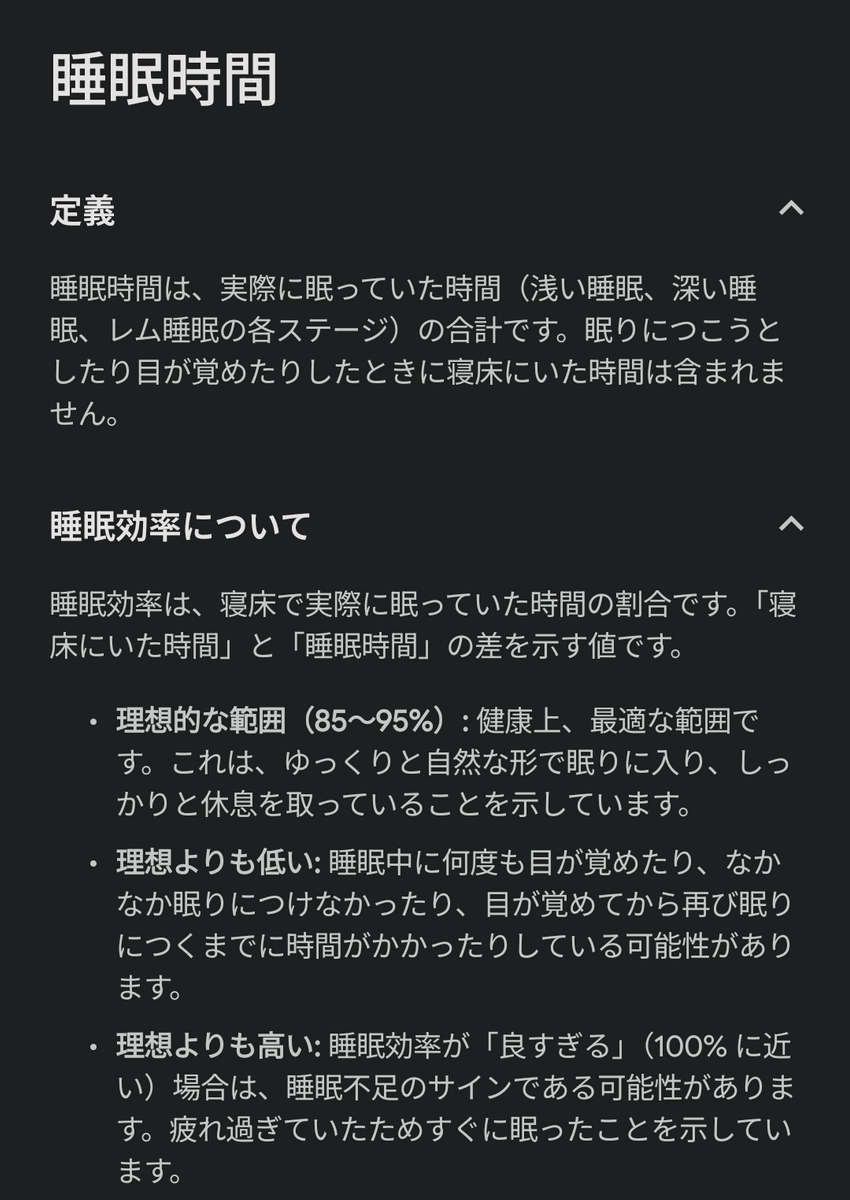
Sleep efficiency is apparently a value that shows the difference between 'time spent in bed' and 'actual sleep time.'
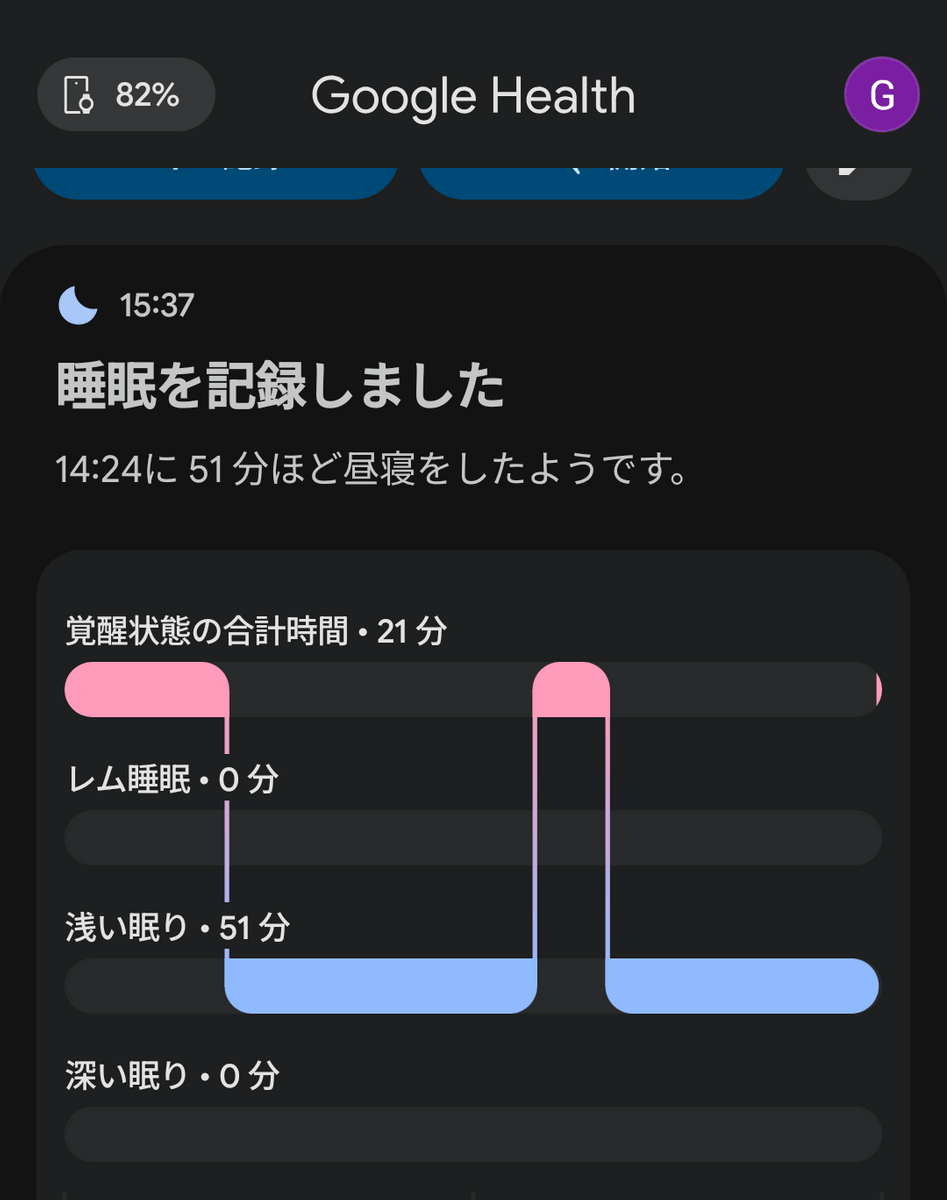
Incidentally, it also detected when I was napping.
The app allows you to check various information such as your heart condition, metabolism, respiratory system, nutrition, and mental health.
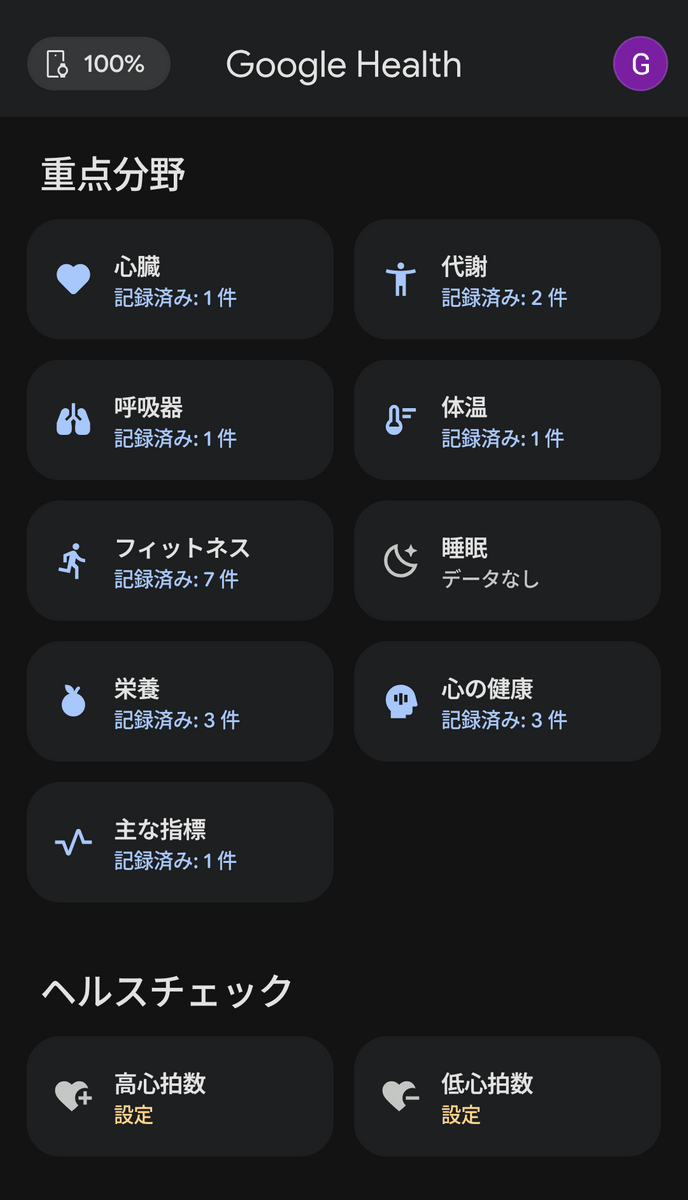
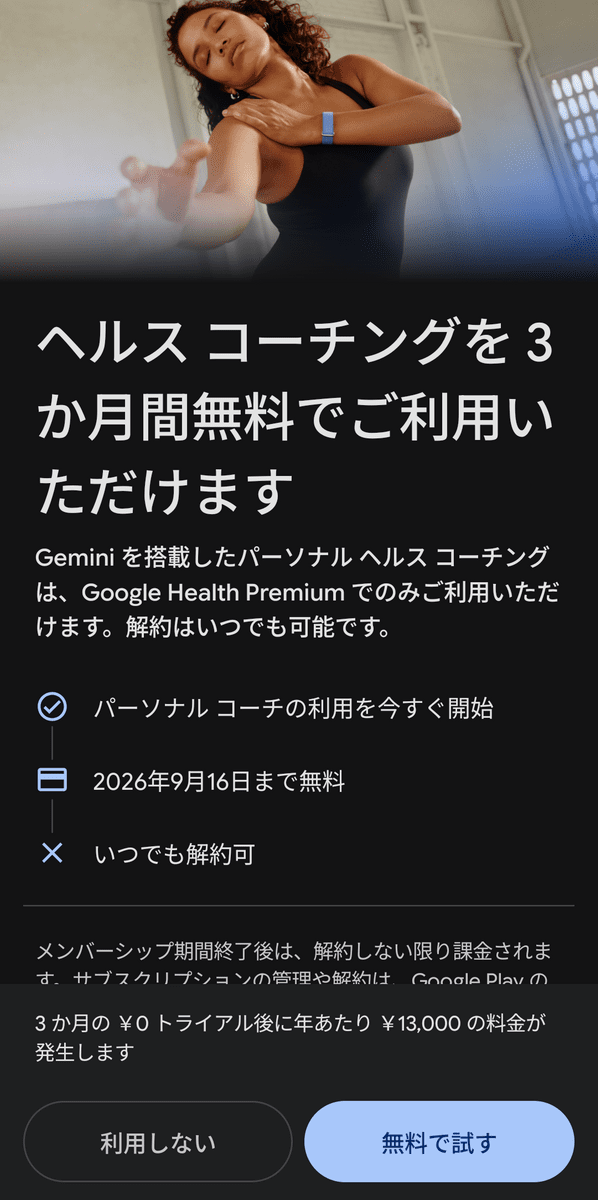
However, some features, such as 'Health Coaching using Gemini,' require a monthly subscription to '
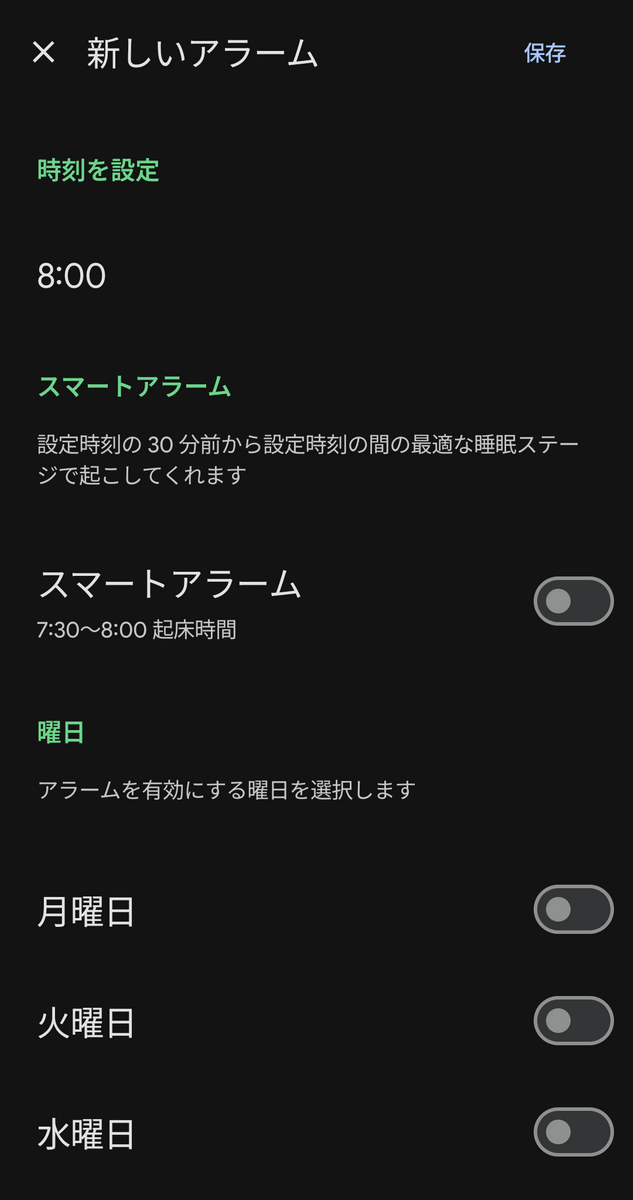
Features such as the alarm function that wakes you up with vibrations from the device are available for free.
After putting it on and taking it off for about a week, the battery was almost completely drained. The specifications state a 'maximum battery life of 7 days.'
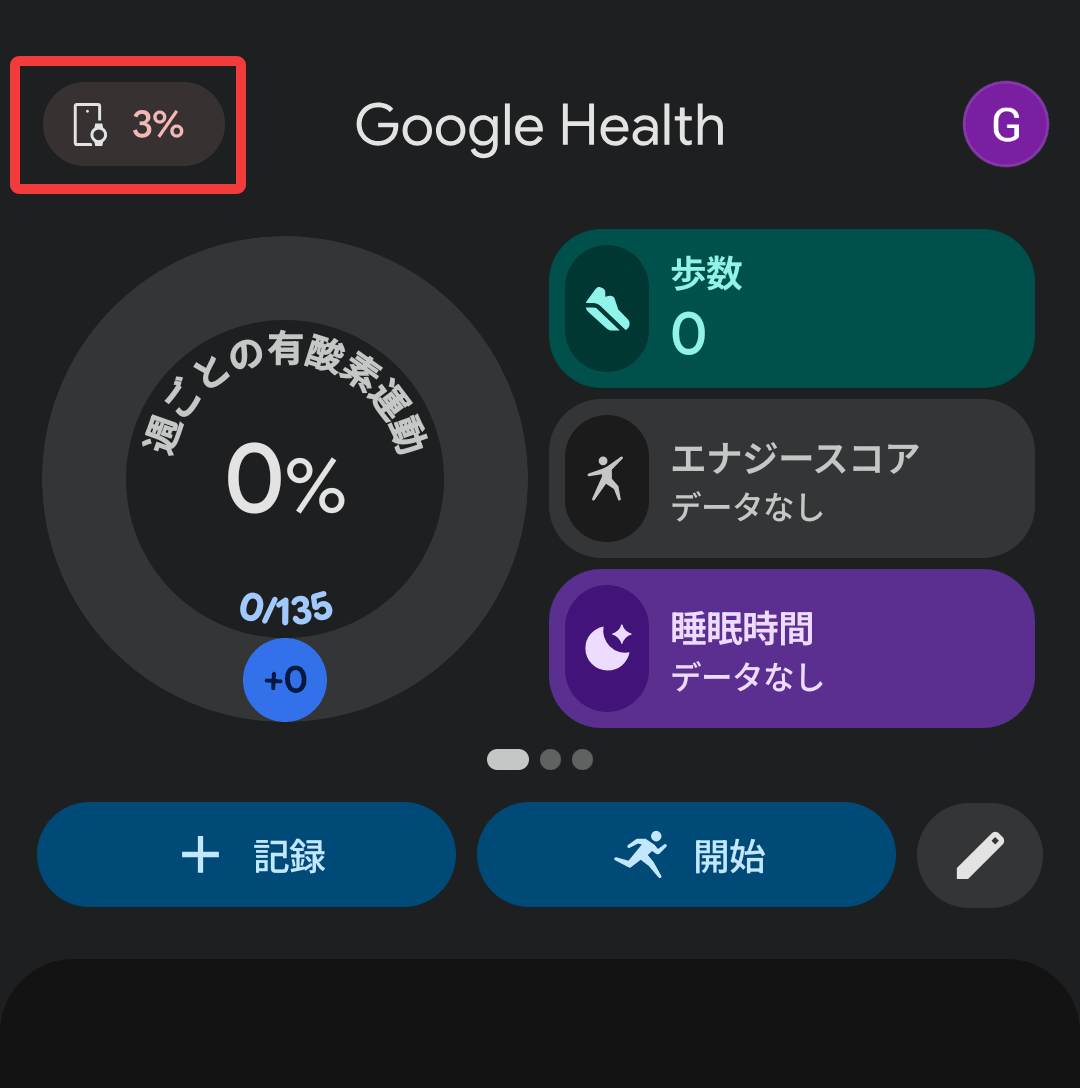
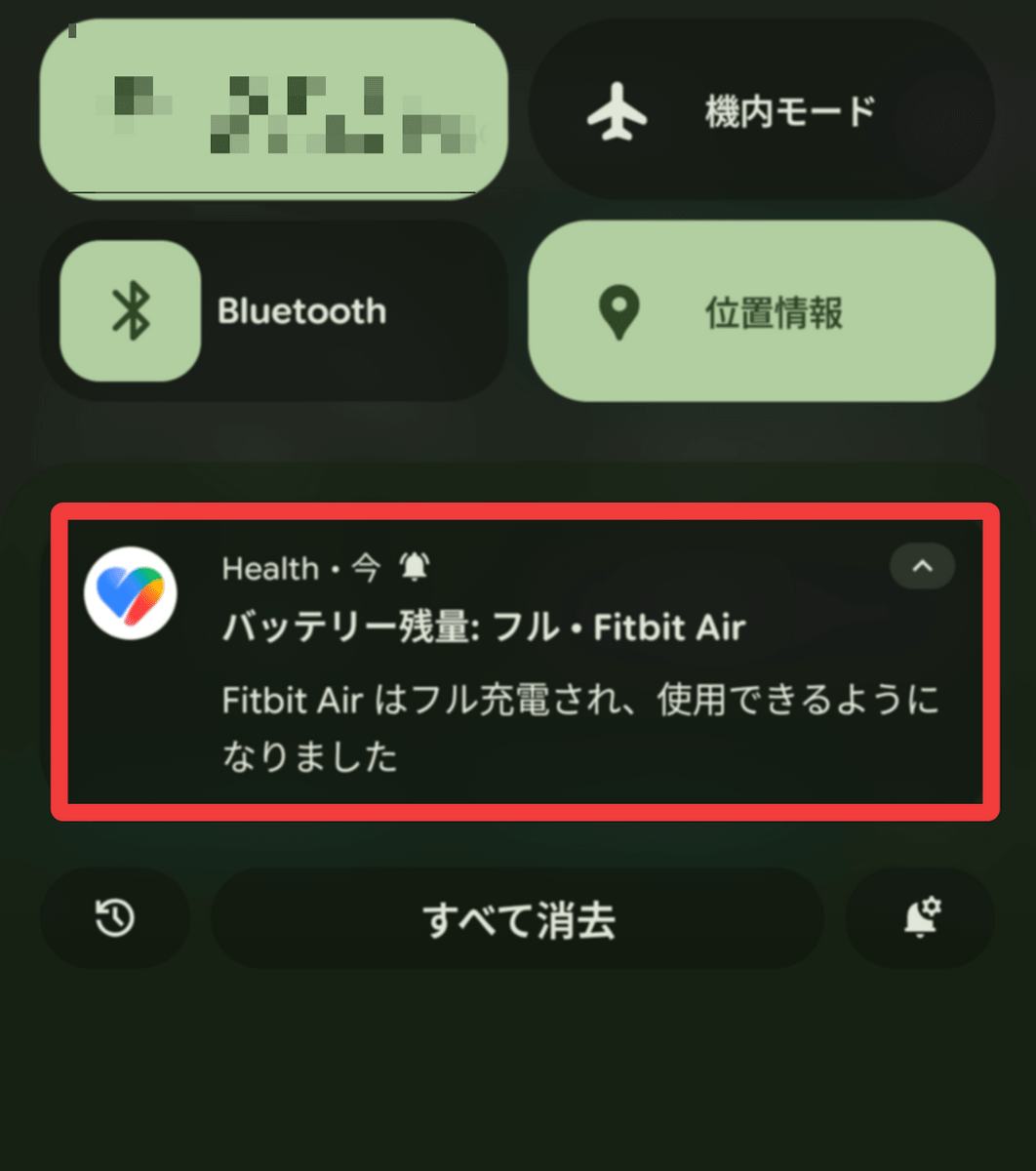
When I measured the charging speed, it went from 3% to 66% in 15 minutes from the start of charging, reached 90% in 30 minutes, and a 'fully charged' notification appeared after 1 hour. The specifications state that 'it takes about 90 minutes to charge from 0% to full, and 5 minutes of charging provides up to a day's worth of battery life.'
Compared to fitness trackers with displays, the lightness is immediately apparent, and I was impressed by how much less cumbersome it felt to wear in everyday life. The fact that it automatically records various things just by wearing it, without needing to operate it each time, is also a plus. I would recommend it to anyone who wants both a 'genuine Google product' and 'lightness.' The price on the official website is 16,800 yen (tax included), and the band comes in four colors: Obsidian, Lavender, Berry, and Fog.
Related Posts: