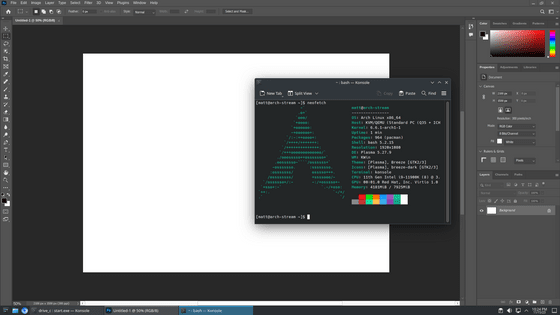
PhotoGIMP is a free, high-performance image editing software that lets you customize the UI of GIMP to look like Photoshop.
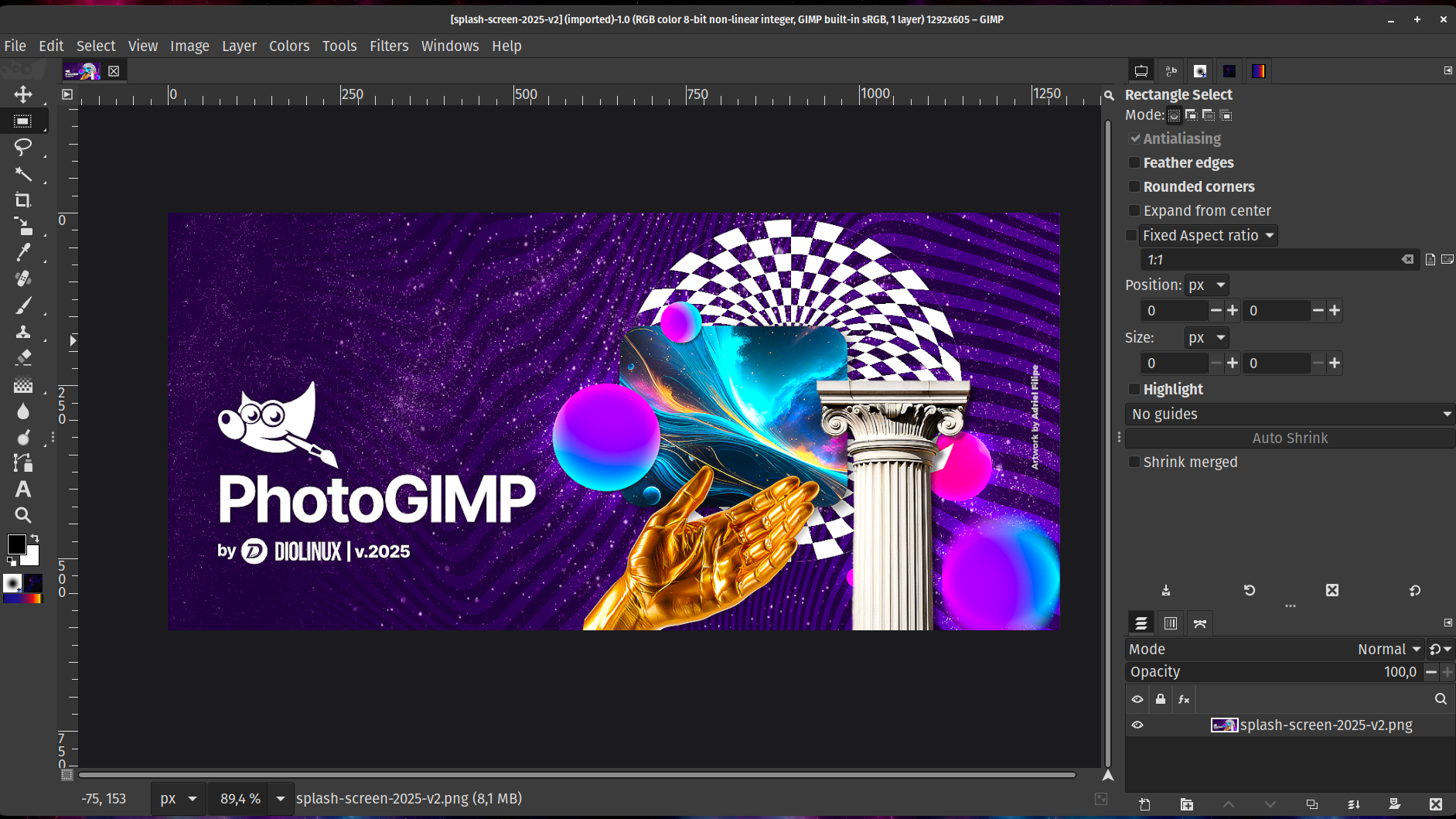
A patch called ' PhotoGIMP ' has been released that transforms
GitHub - Diolinux/PhotoGIMP: A Patch for GIMP 3+ for Photoshop Users · GitHub
https://github.com/Diolinux/PhotoGIMP
First, install GIMP. Stable versions for Windows, macOS, and Linux are available at the following website.
GIMP - Download
https://www.gimp.org/downloads/
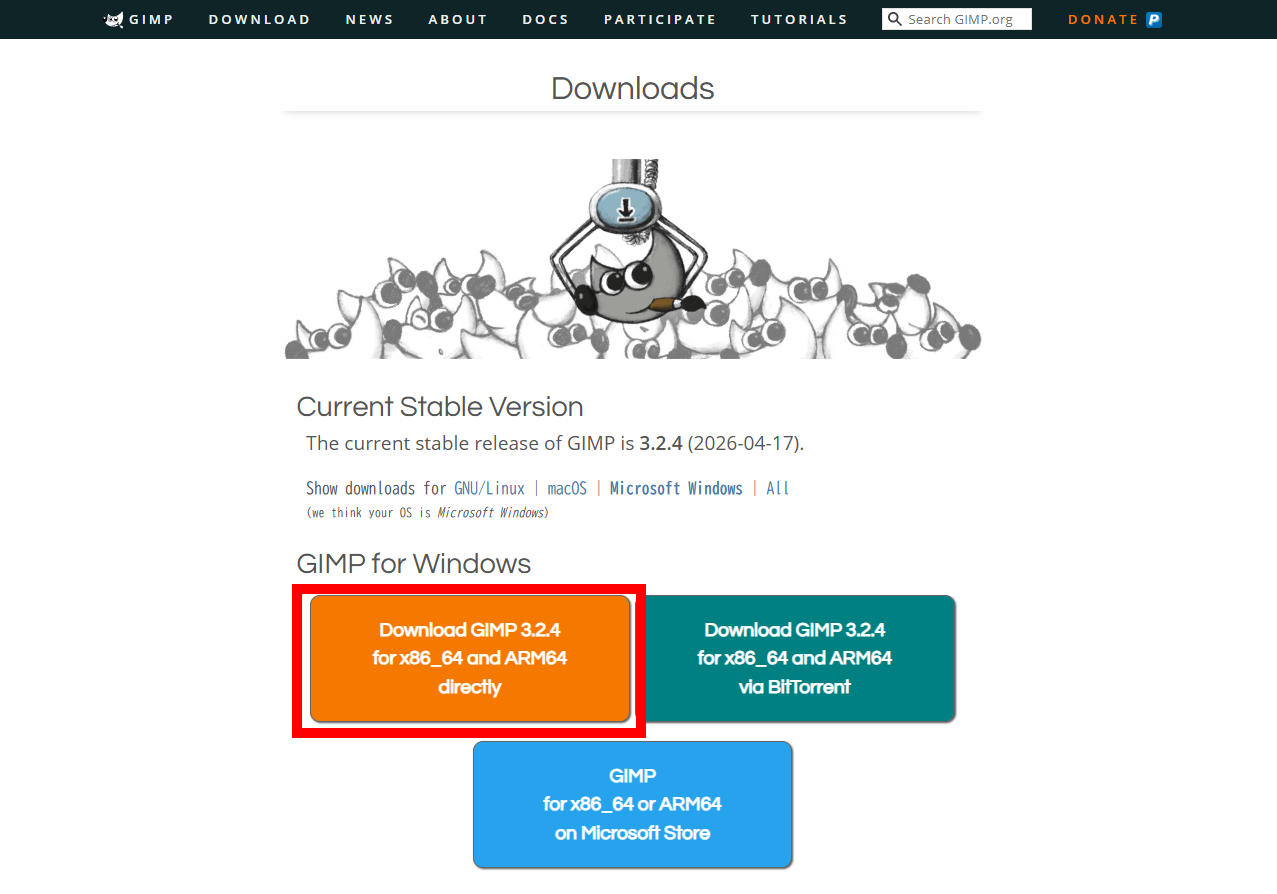
This time, we will directly download the Windows version, 'x86_64 and ARM64'. As of the time of writing this article, the latest stable version is 3.2.4. The installer is in EXE format, and the file size is approximately 180MB.
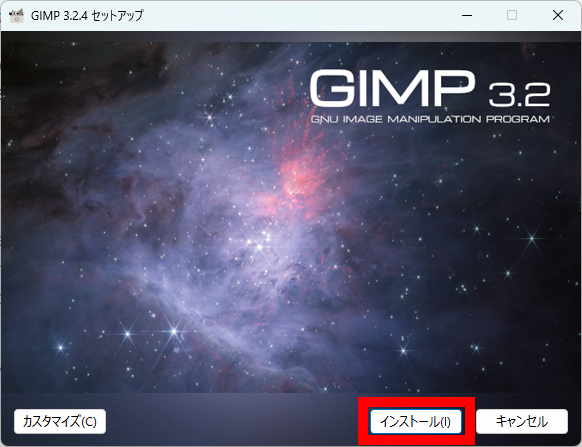
Launch the installer and click 'Install'.
Once the installation is complete, click 'Finish'.
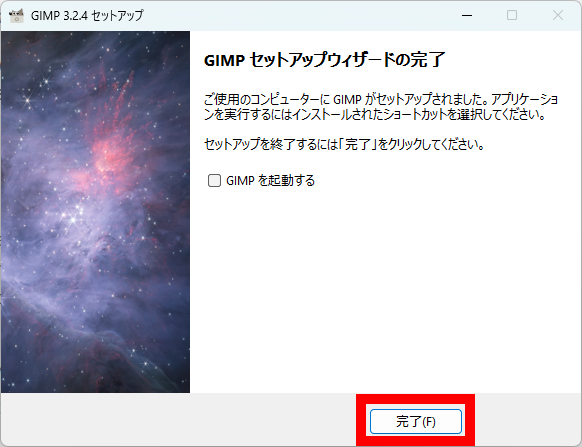
After installation is complete, you need to launch GIMP once before installing PhotoGIMP.
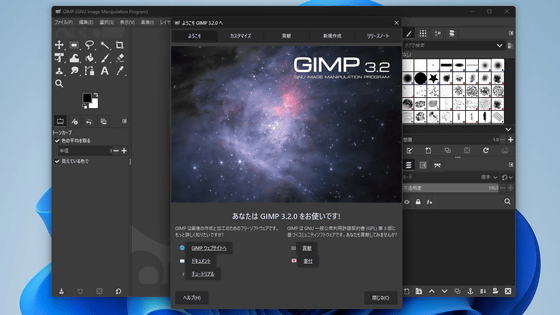
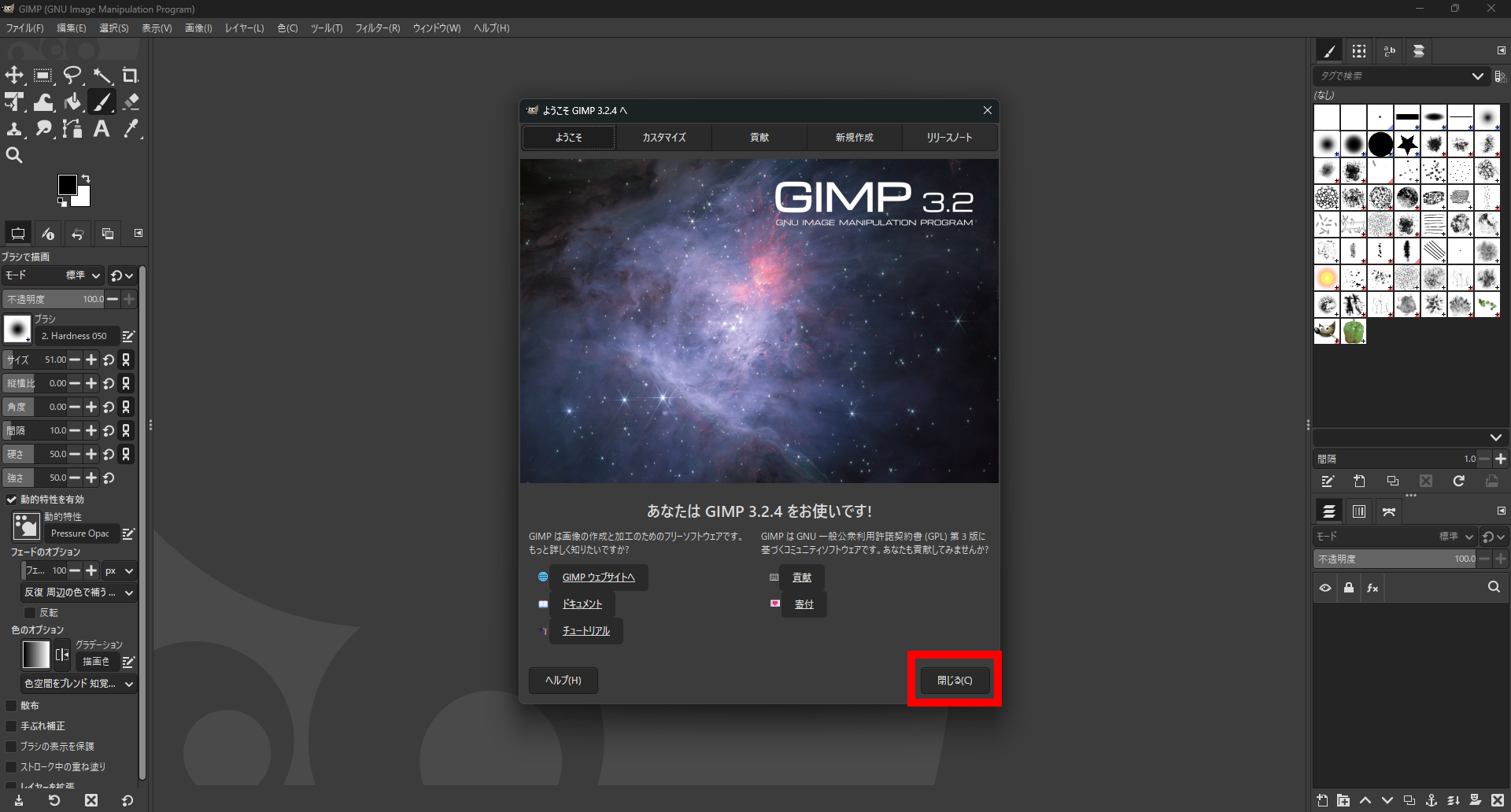
A window displaying a welcome message will appear; click 'Close'.
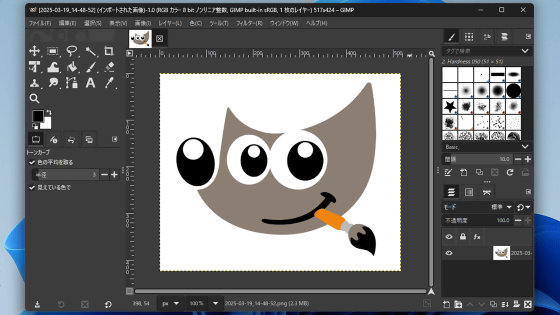
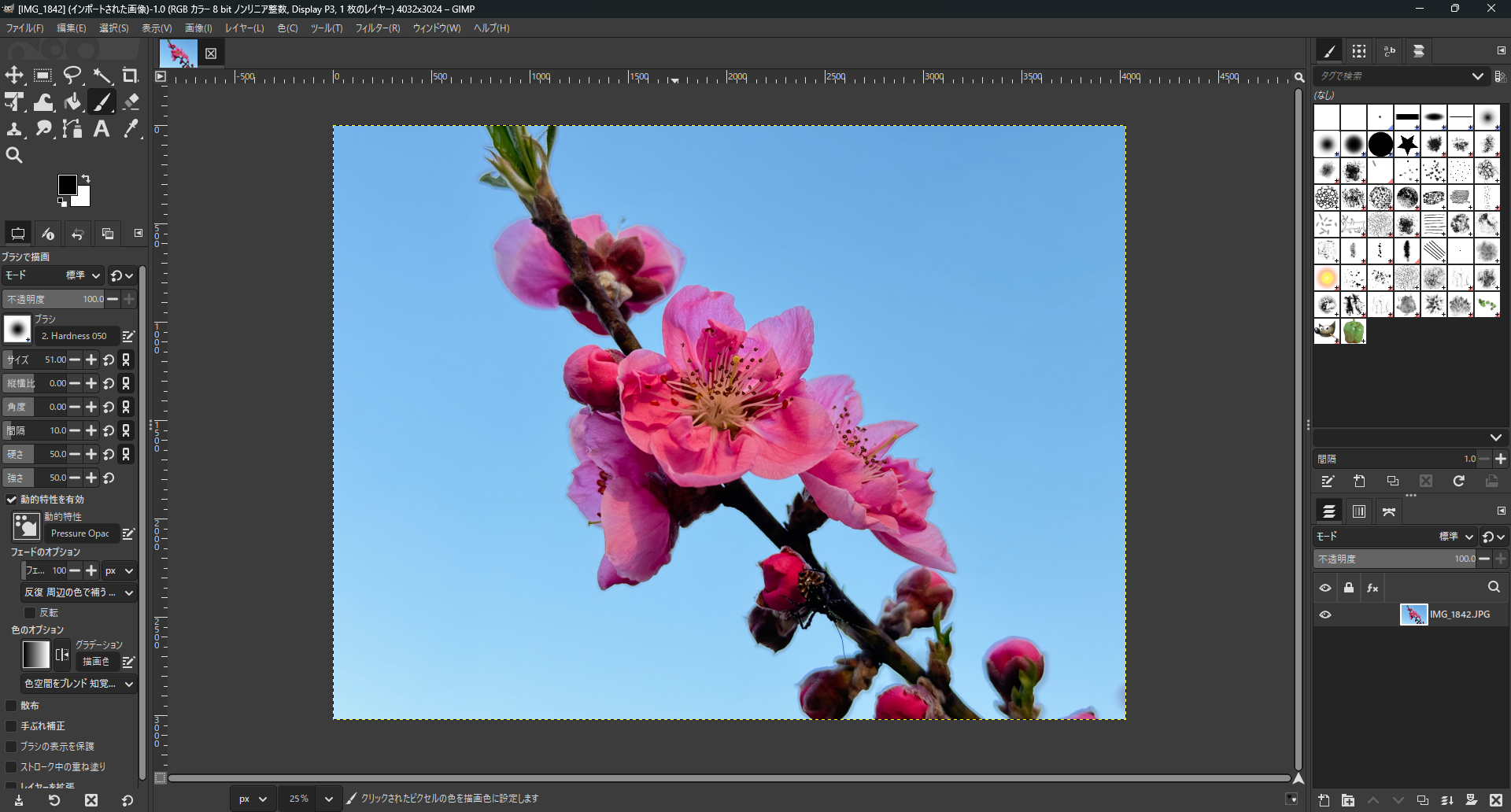
I tried loading a single photo into the standard GIMP. The UI is as follows. While it has advanced image editing features such as level adjustment and layer functionality, the UI is significantly different from Photoshop, and the various shortcut keys are also different, which can be a barrier to transition for users accustomed to Photoshop.
After closing GIMP, proceed with installing PhotoGIMP. From the PhotoGIMP
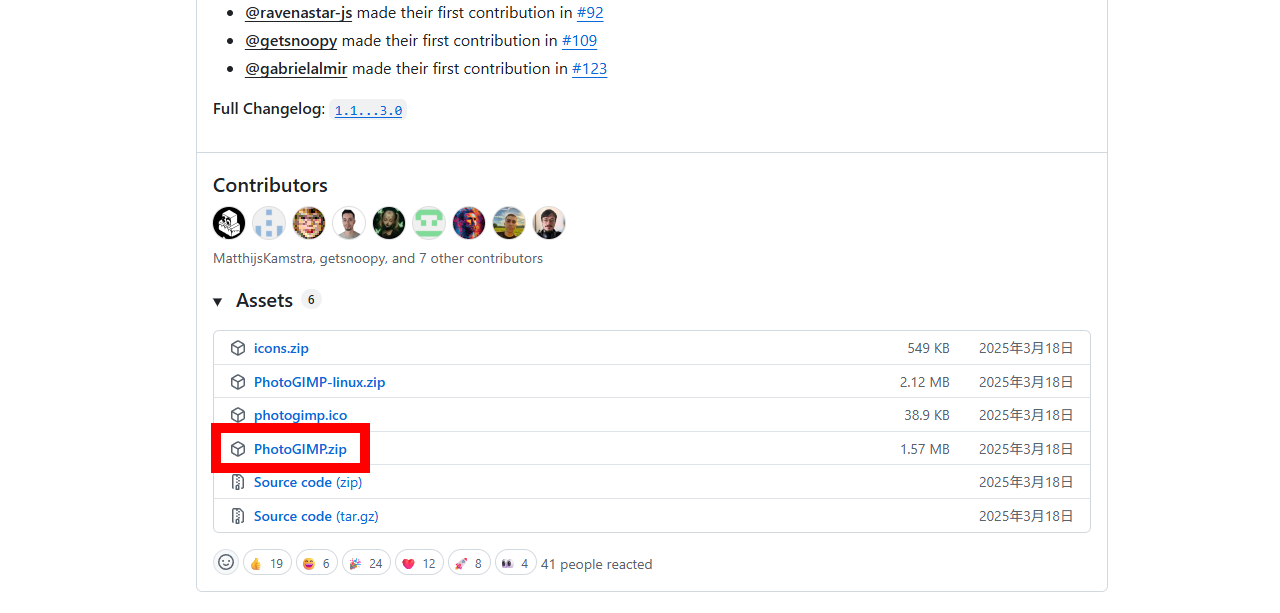
Unzip the downloaded PhotoGIMP.zip file using Windows' built-in functions or a tool like
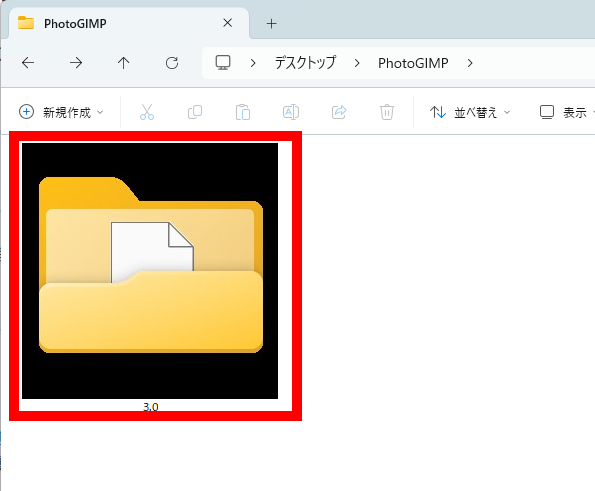
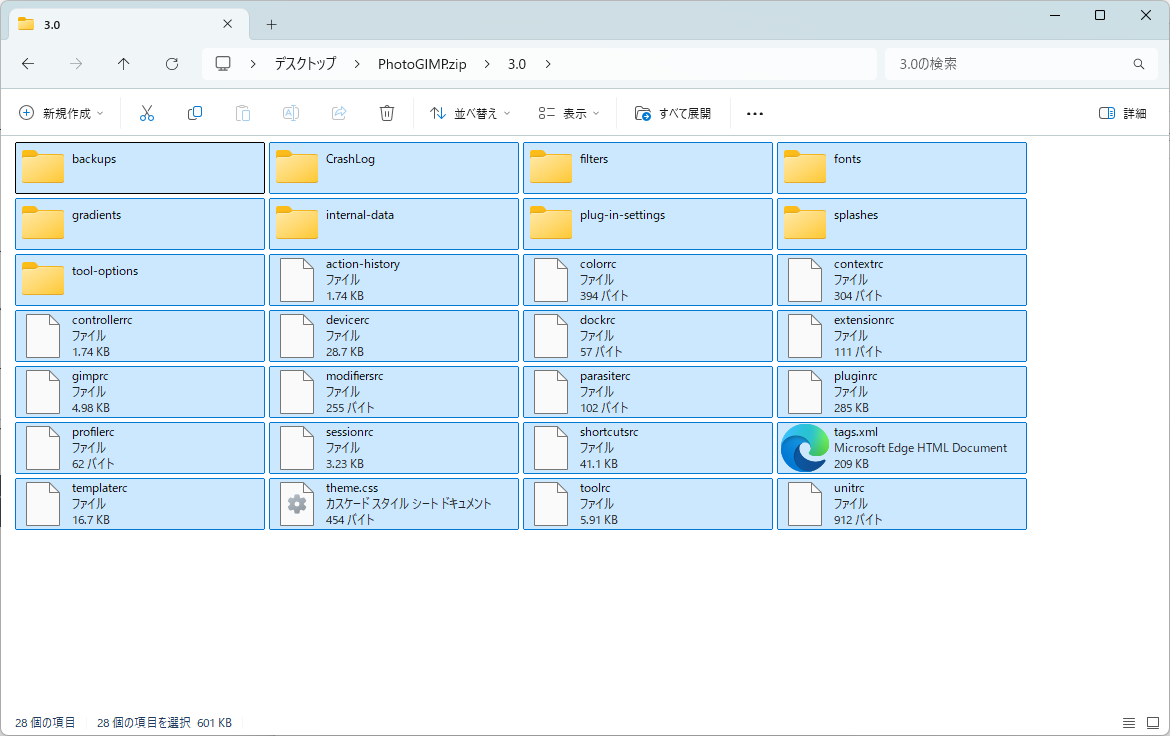
Copy all the files in the '3.0' folder.
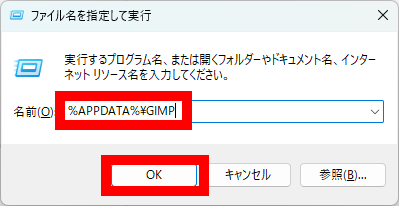
Open the 'Run' dialog box using the Windows key + R shortcut, type '%APPDATA%GIMP', and click 'OK'.
The folder containing your installed GIMP will open, so open the '3.2' folder.
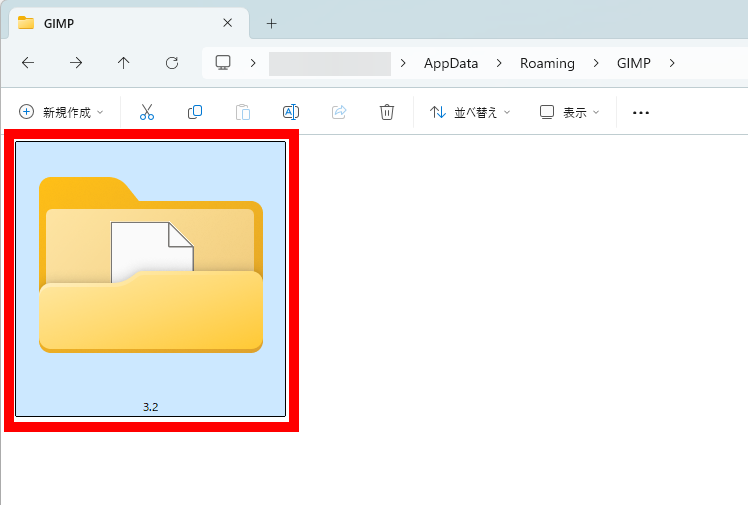
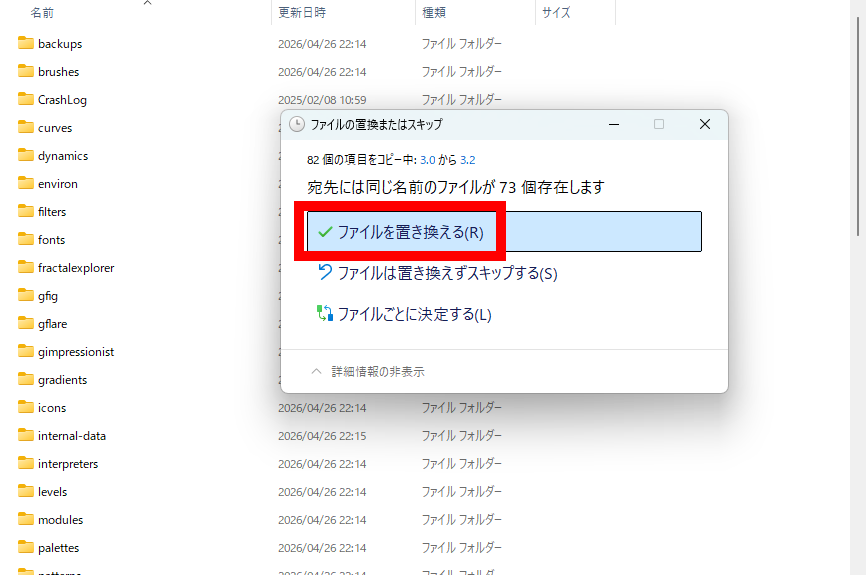
Paste the contents of the PhotoGIMP '3.0' folder that you copied earlier into this '3.2' folder. Replacing the existing files is OK.
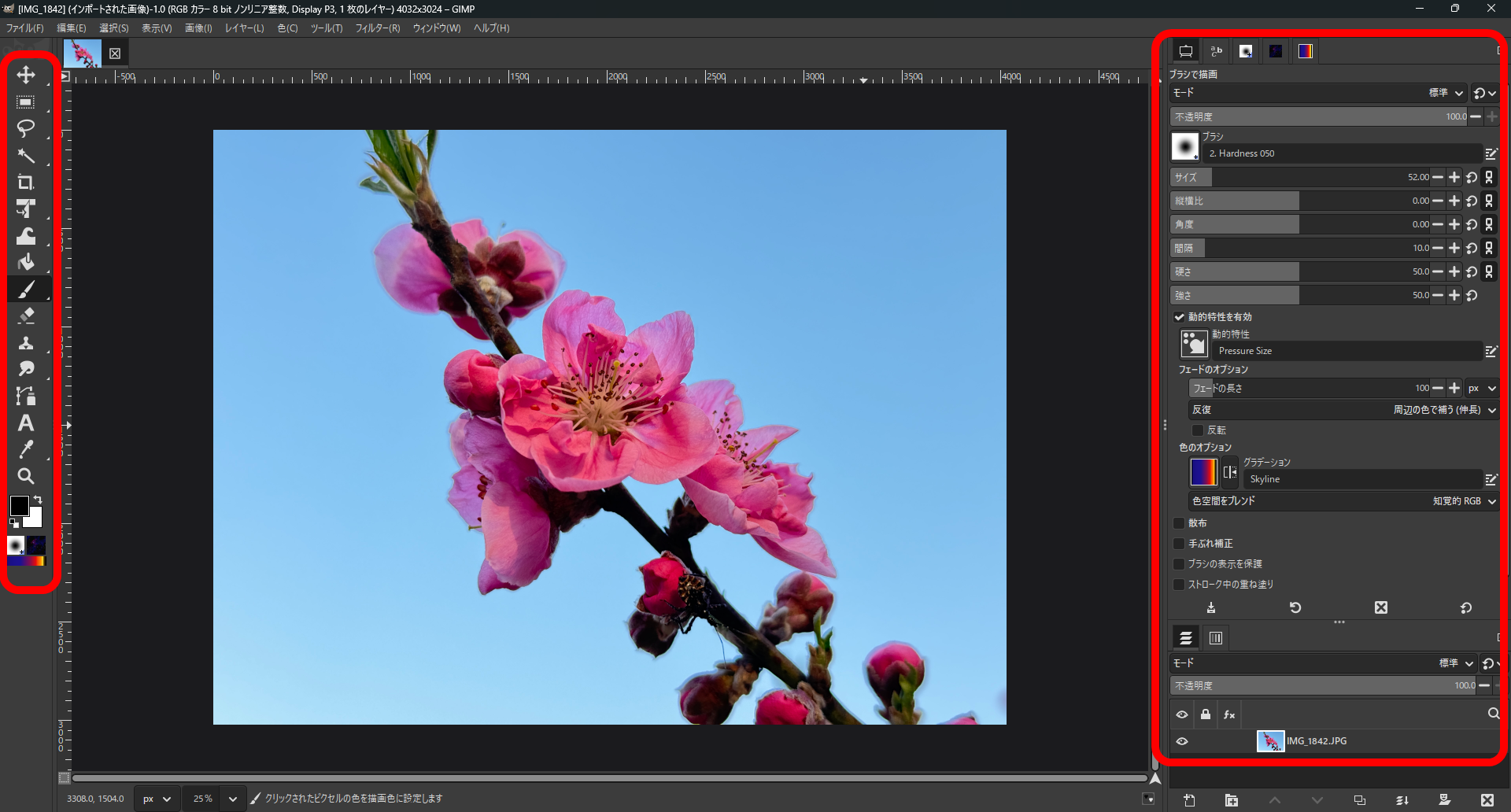
After launching GIMP, the UI layout changed to a Photoshop-like configuration, with a single-column toolbar on the left and tool adjustments and layer windows on the right. The shortcuts were also replaced with Photoshop shortcuts, making the transition to GIMP considerably easier for those familiar with Photoshop.
Related Posts: