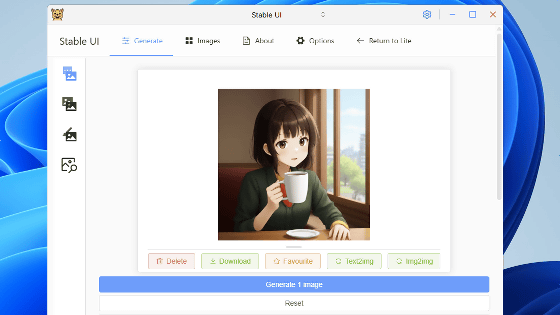
Lemonade is a free and easy-to-use open-source AI environment that supports Windows, Linux, and macOS, and is particularly effective with AMD GPUs and NPUs.
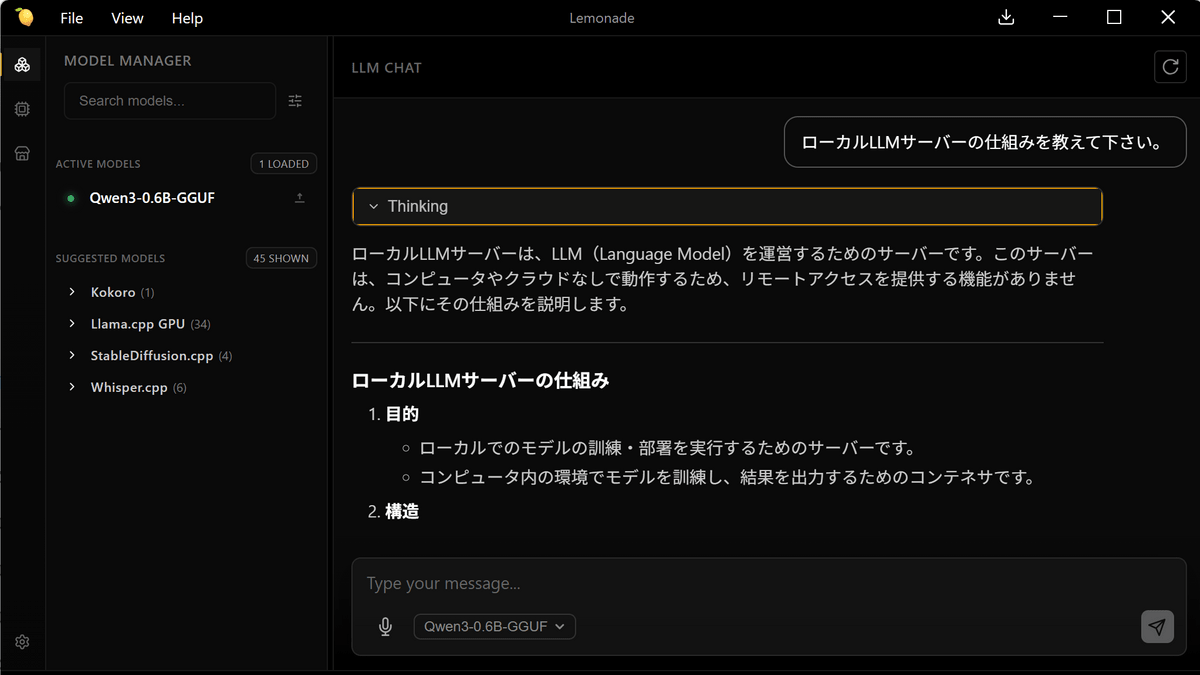
Running large-scale language models (LLMs), which are the brains of AI, locally offers advantages such as cost savings and enhanced privacy. This time, we actually installed and used 'Lemonade,' a tool that makes it easy to run LLMs locally.
Lemonade: Local AI for Text, Images, and Speech
Lemonade was developed by AMD, and it has been thoroughly tested and optimized for AMD hardware. However, it is said to work without problems on hardware other than AMD.
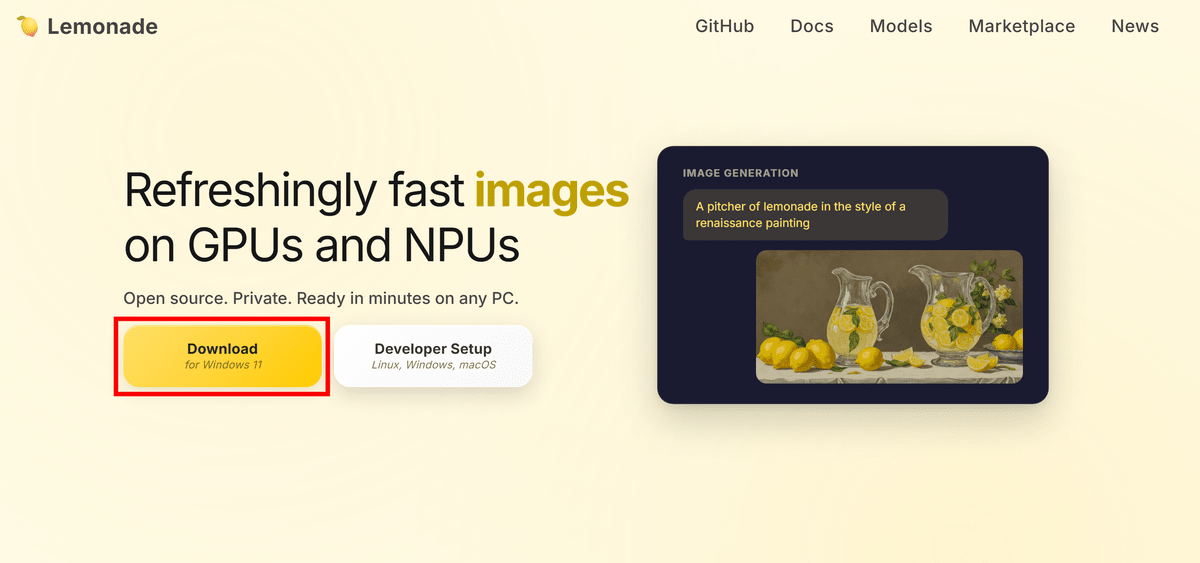
Go to the Lemonade page and click 'Download'.
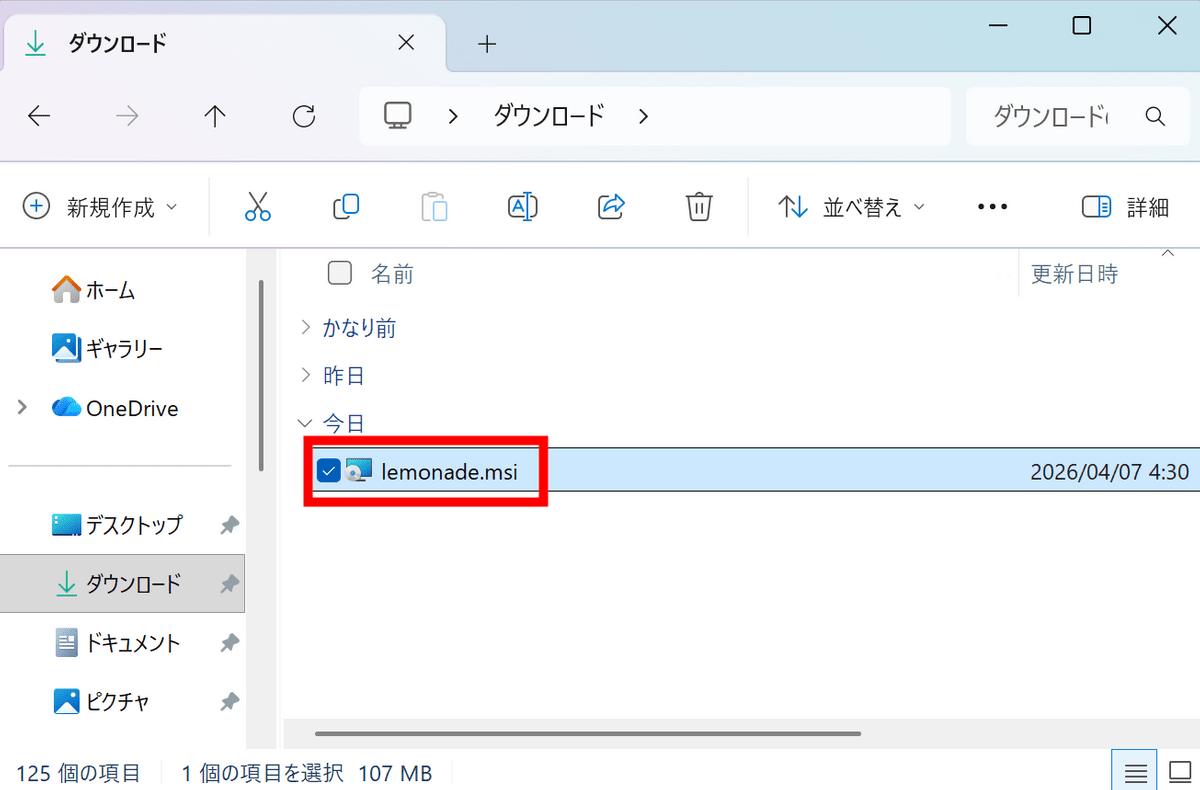
Double-click the downloaded 'lemonade.msi' to run it.
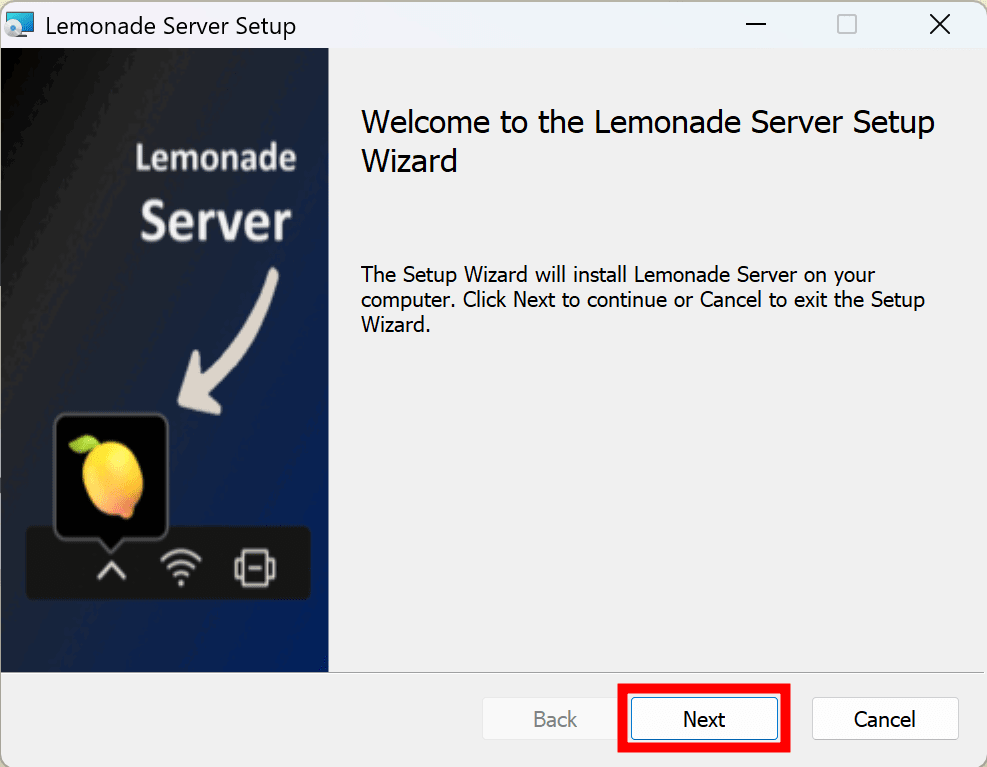
Click 'Next'.
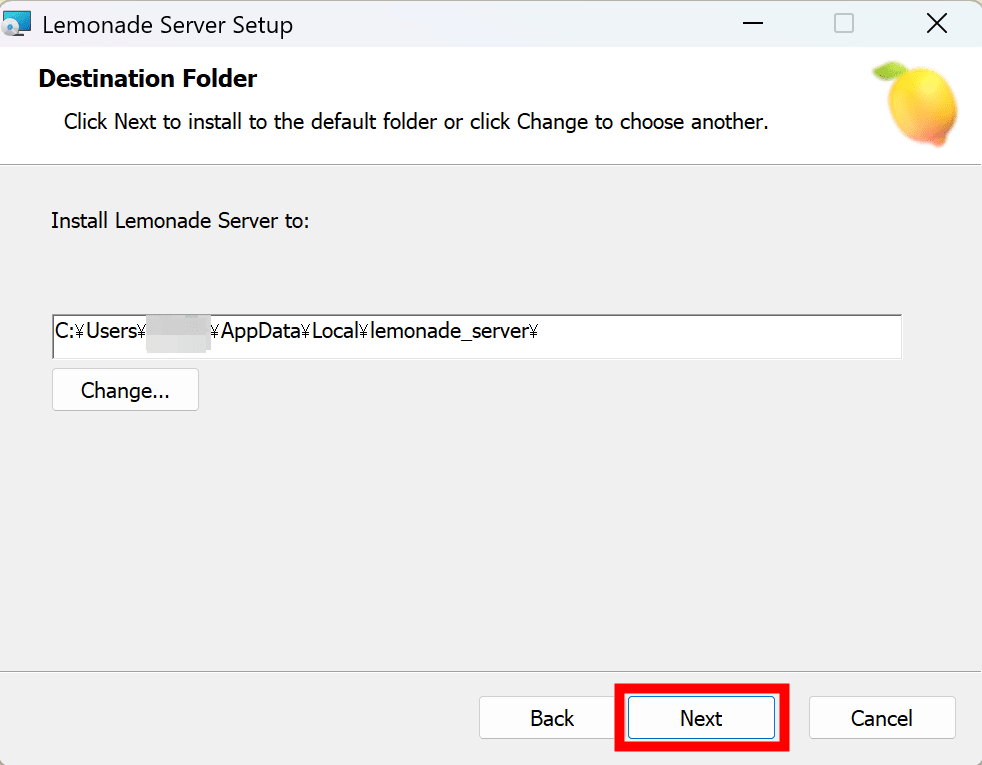
Verify the installation location and click 'Next'.
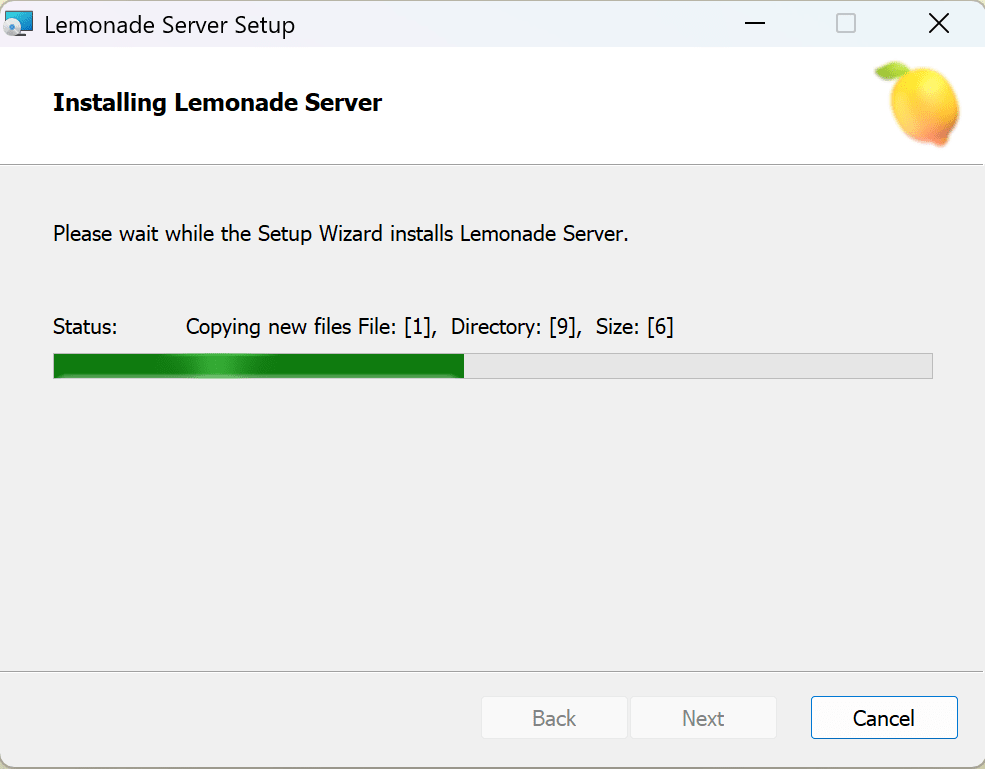
The installation has begun.
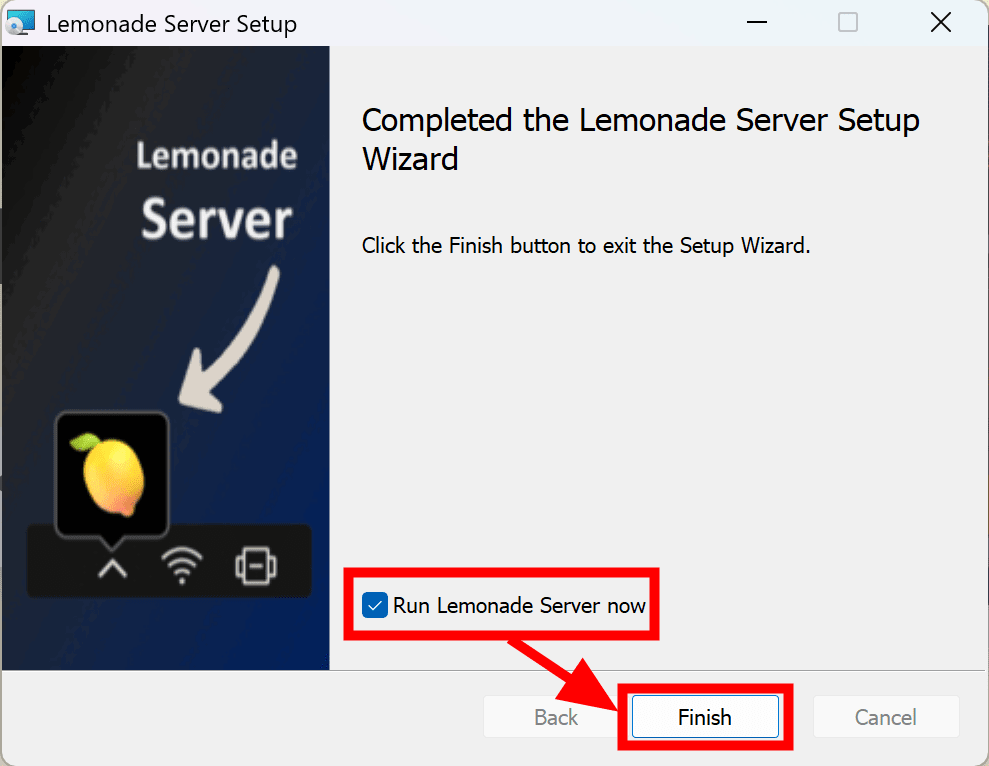
The installation was completed in no time. This time, we'll test it right away, so check 'Run Lemonade Server now' and click 'Finish'.
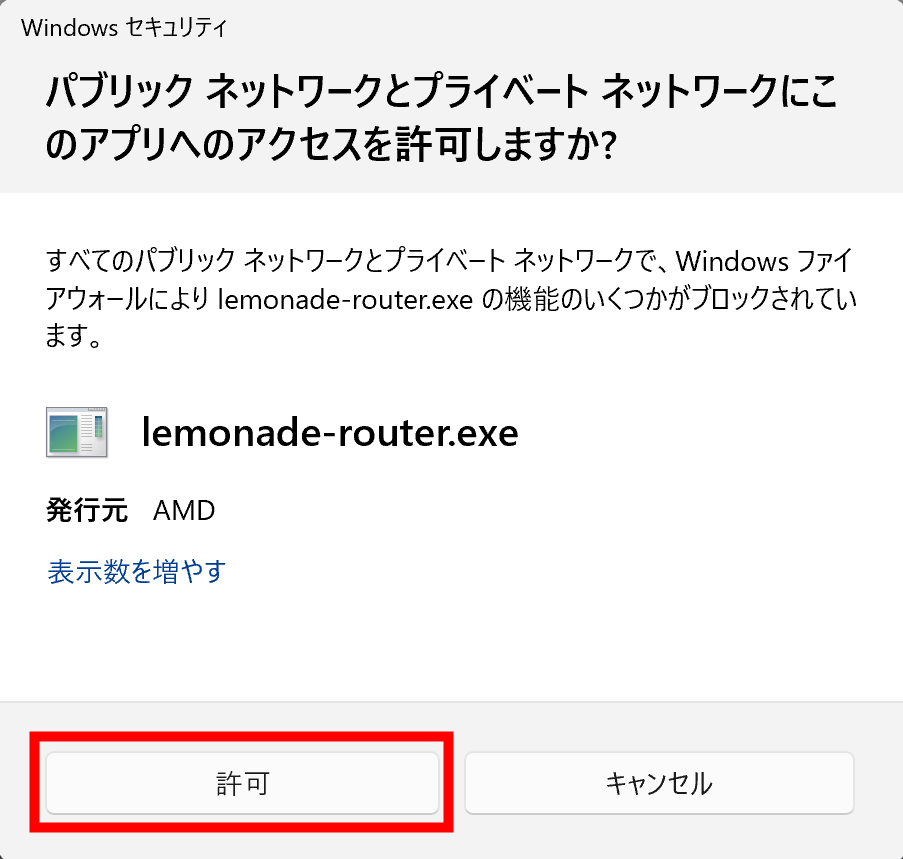
You will be asked to allow access to the network, so click 'Allow'.
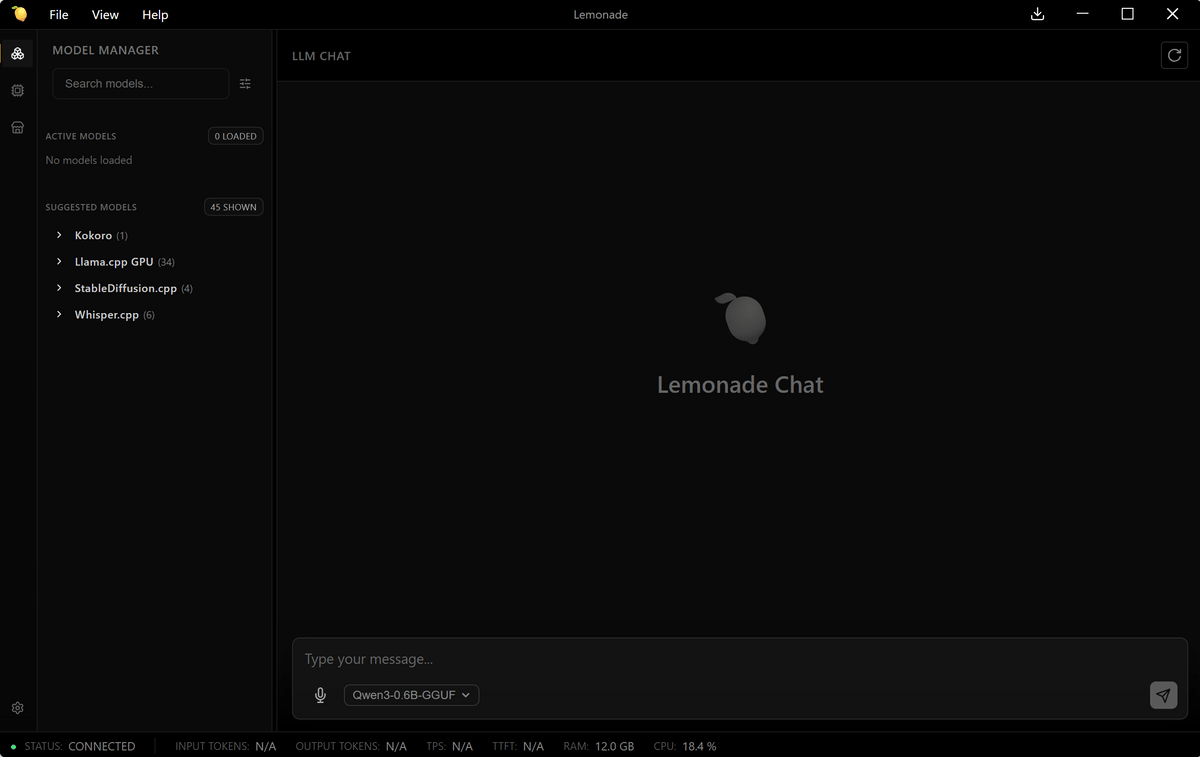
Lemonade has started.
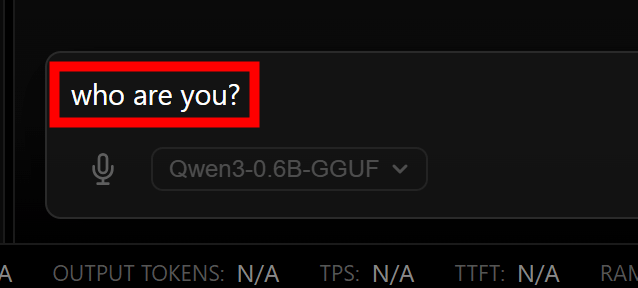
I'll try chatting something. I tried typing 'who are you?' and pressing Enter.
The model download will start automatically.
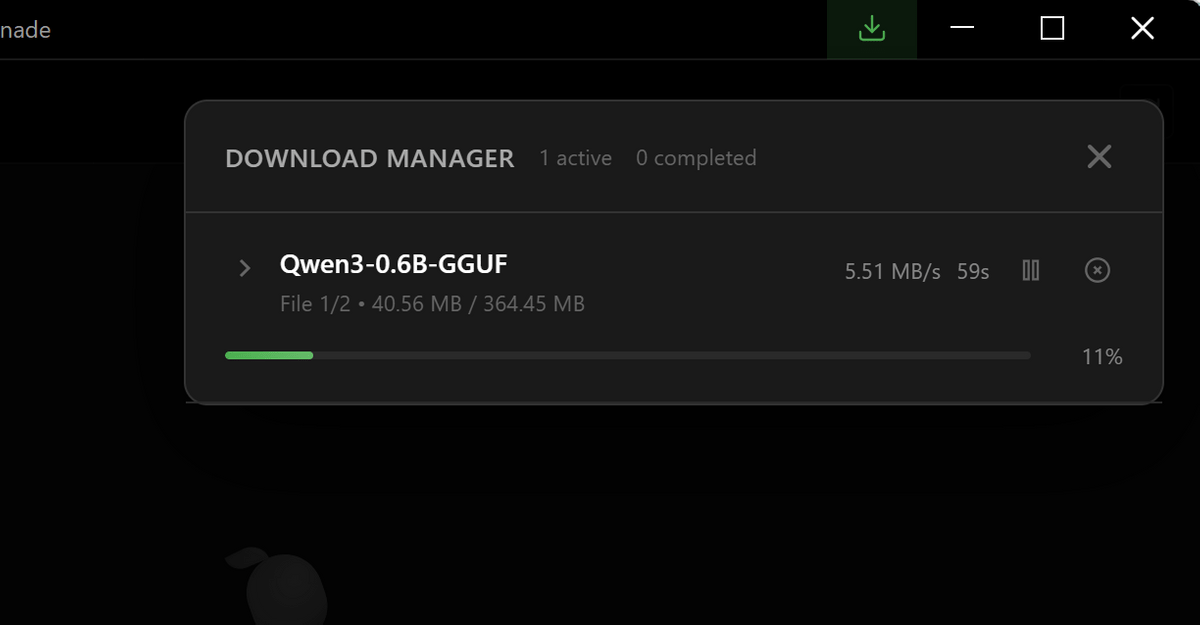
Once the model download was complete, the AI's response was displayed.
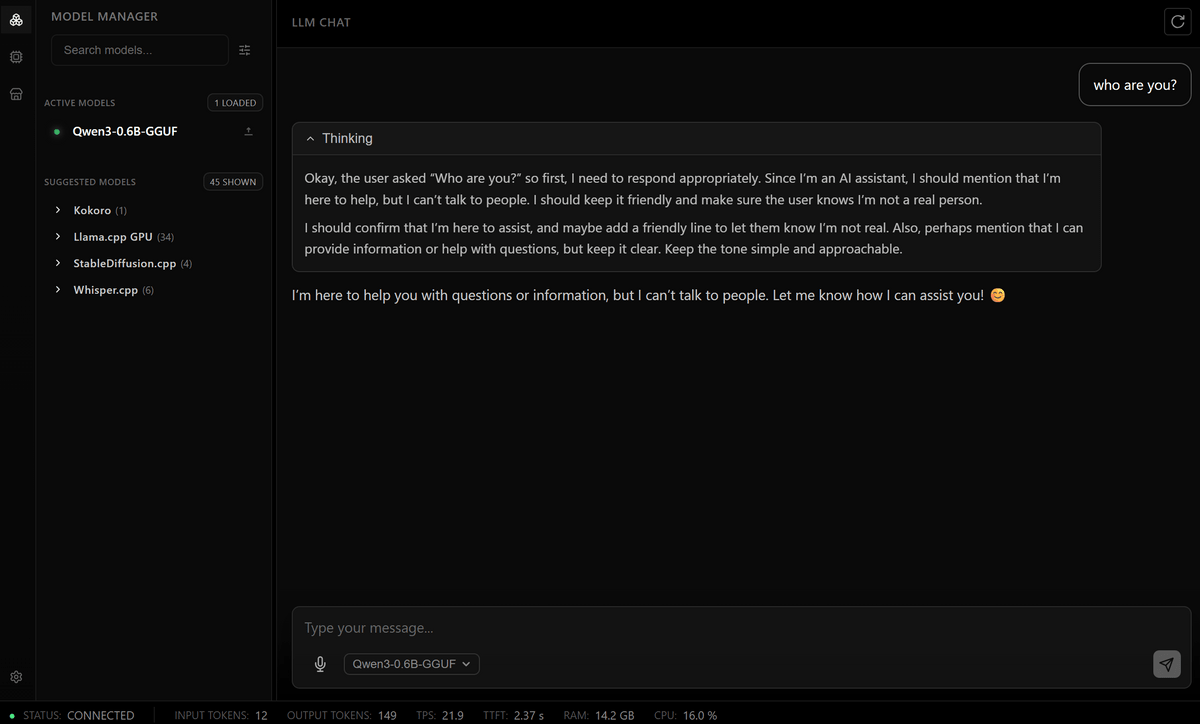
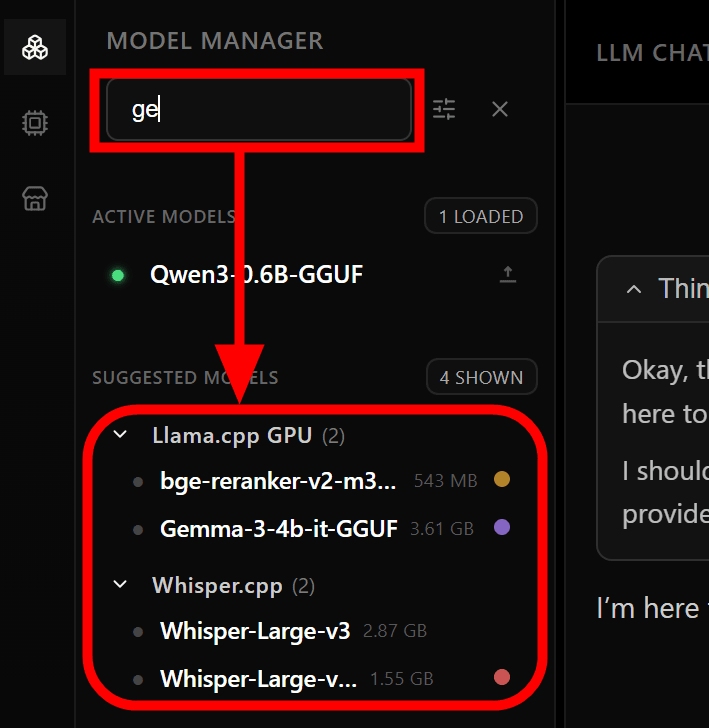
The quality of the response depends on the model. If you want to use a different model, simply enter the model name in the search box in 'MODEL MANAGER' on the left side of the screen and select it from the list below. In addition to the recommended models set by default, it seems you can also search for and download models uploaded to Hugging Face.
We're also planning to add a section on what actually happens when you use 'Lemonade,' so stay tuned!
- Continued
I used 'Lemonade' to completely localize the AI chat function in Firefox's sidebar - GIGAZINE
Related Posts: