The Windows 11 UI is truly awful; sliders that should be there have disappeared, leaving only '0' and '3' as selectable options, and the item names are incomprehensible.
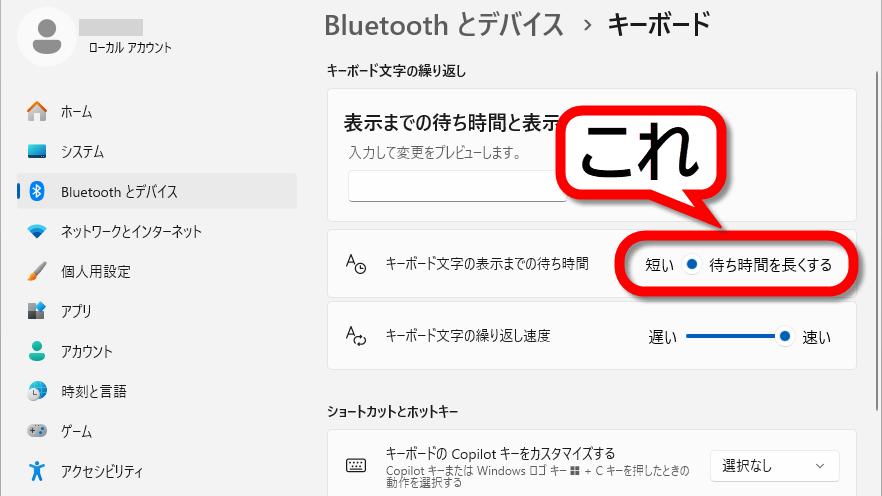
While customizing Windows 11 settings, I discovered a problem where the slider wasn't displaying correctly in the keyboard settings screen. I've also included the steps for reporting this issue to Microsoft via the Feedback Hub.
Send feedback to Microsoft using the Feedback Hub app - Microsoft Support
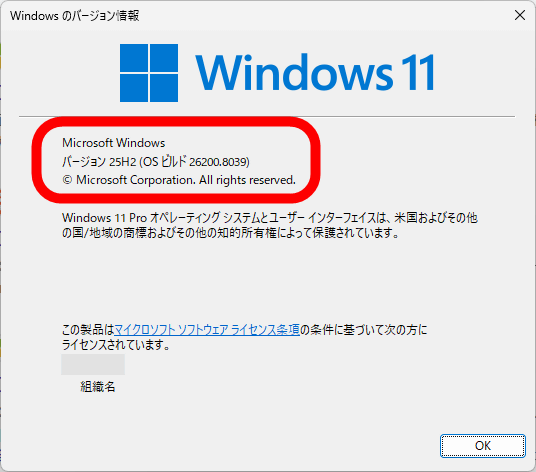
The problem was discovered on Windows 11 Pro version 25H2, build 26200.8039, which had the March 2026 monthly Windows Update applied.
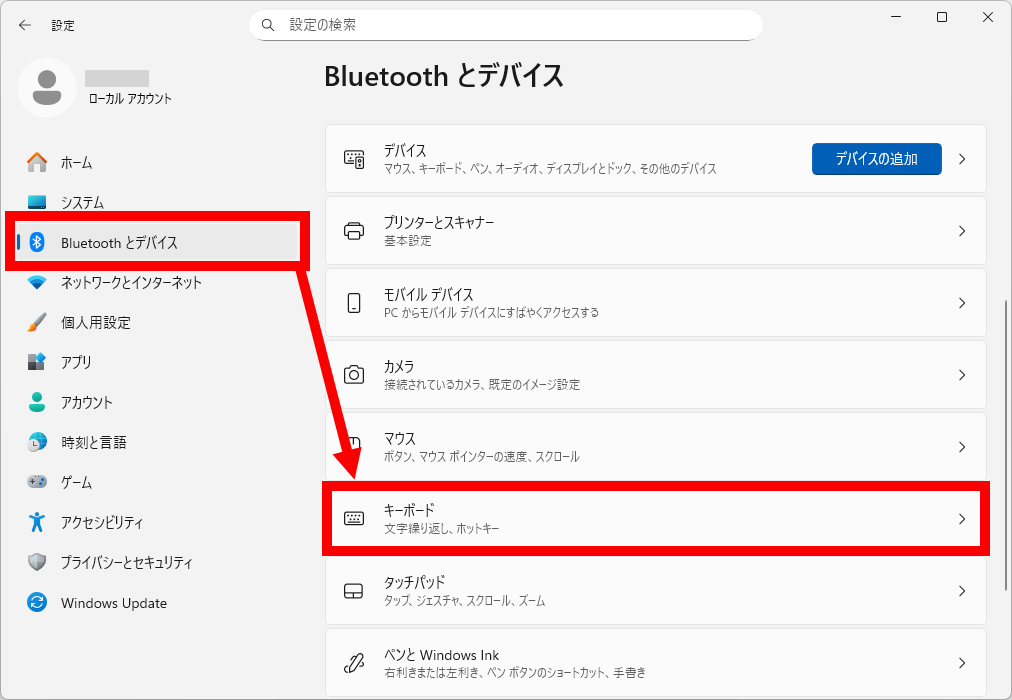
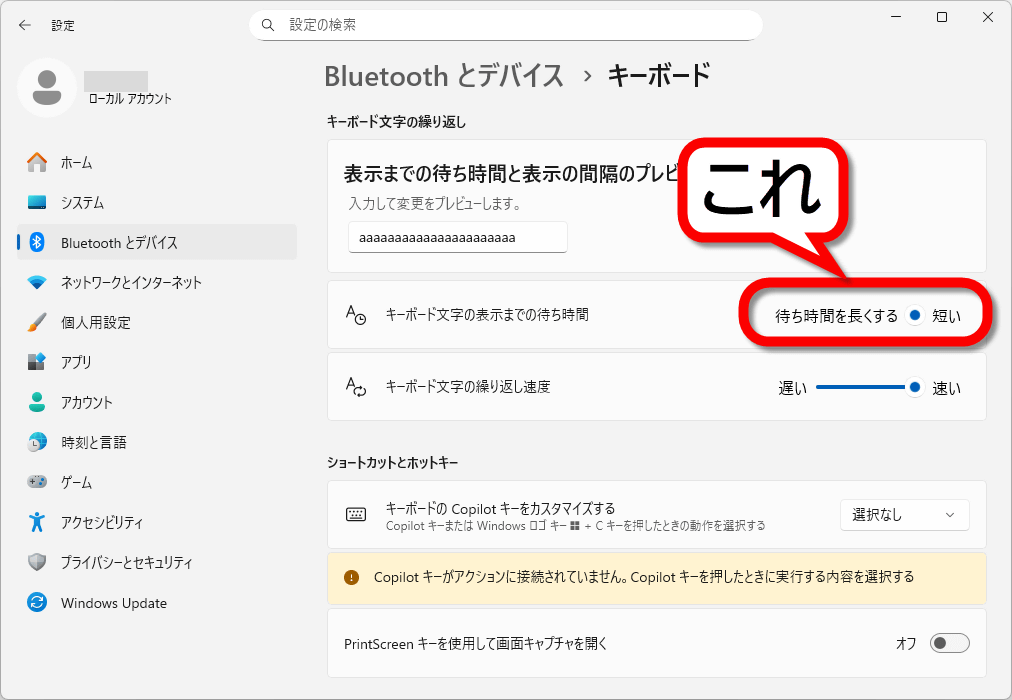
Open the Settings app, click 'Bluetooth & Devices,' and then click 'Keyboard.'
The problematic area is the setting item called 'Wait time before keyboard characters appear.' This setting item is supposed to set the 'wait time before a series of characters like 'aaaaa...' are entered after holding down a key on the keyboard,' but instead of a slider, a long piece of text saying 'Increase wait time' is placed where the slider should be, and the slider disappears except for its circular part. Furthermore, the item name 'Wait time before keyboard characters appear' does not match the actual setting and is meaningless. This setting item has had the unintuitive name 'Wait time before display' since Windows 10.
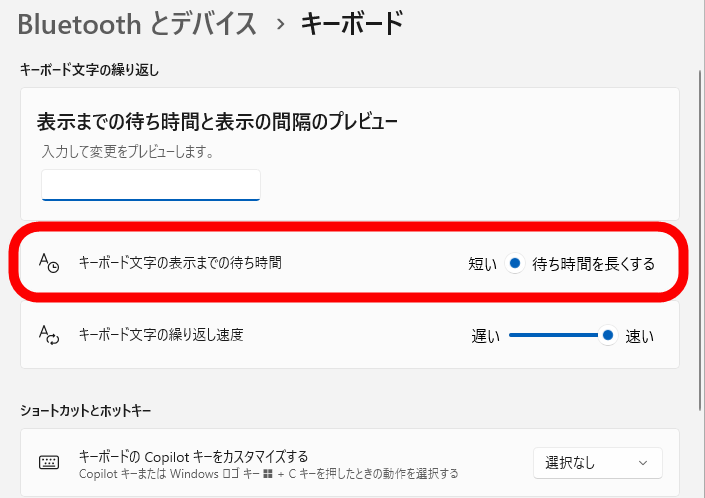
Clicking the blue circle and sliding it to the left will set the value to '0,' although the slider itself will not change.
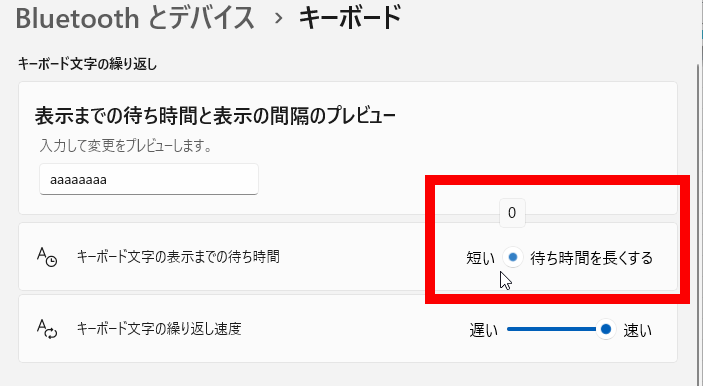
Sliding to the right will set it to '3'. Using the mouse, you can only set it to either '0' or '3'.
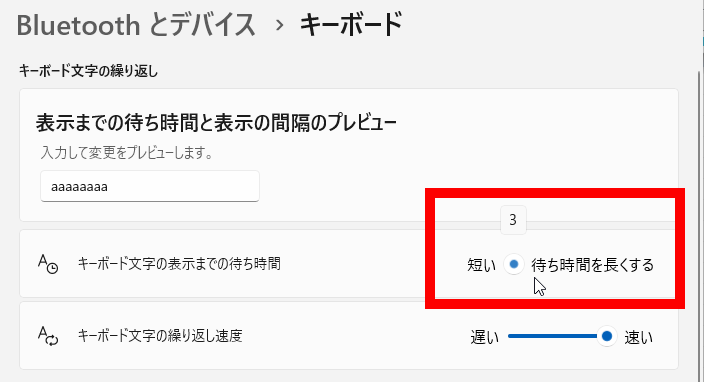
Click the blue circle and then press the left or right arrow key on your keyboard to select from four levels: '0', '1', '2', and '3'.
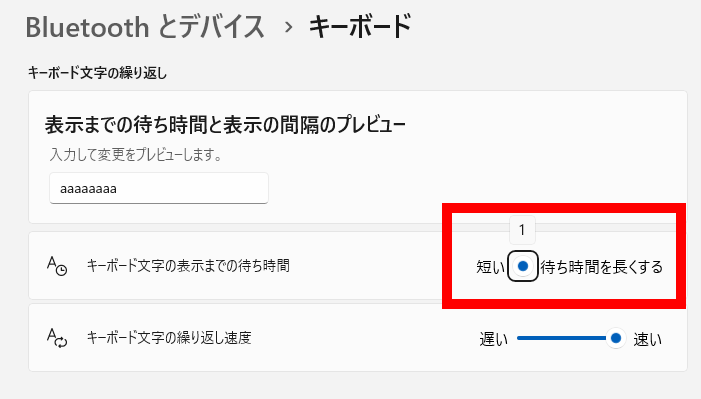
Incidentally, in the case of Windows 11 Pro build 26200.7623 with the January 2026 Windows Update applied, the positions of 'Short' and 'Longer waiting times' were reversed, resulting in a bizarre and complicated state.
There's no point in complaining about the problem, so I'll report it to Microsoft using Windows' built-in 'Feedback Hub.' First, with the problematic screen displayed, press the 'Windows key' and 'F' simultaneously on your keyboard.
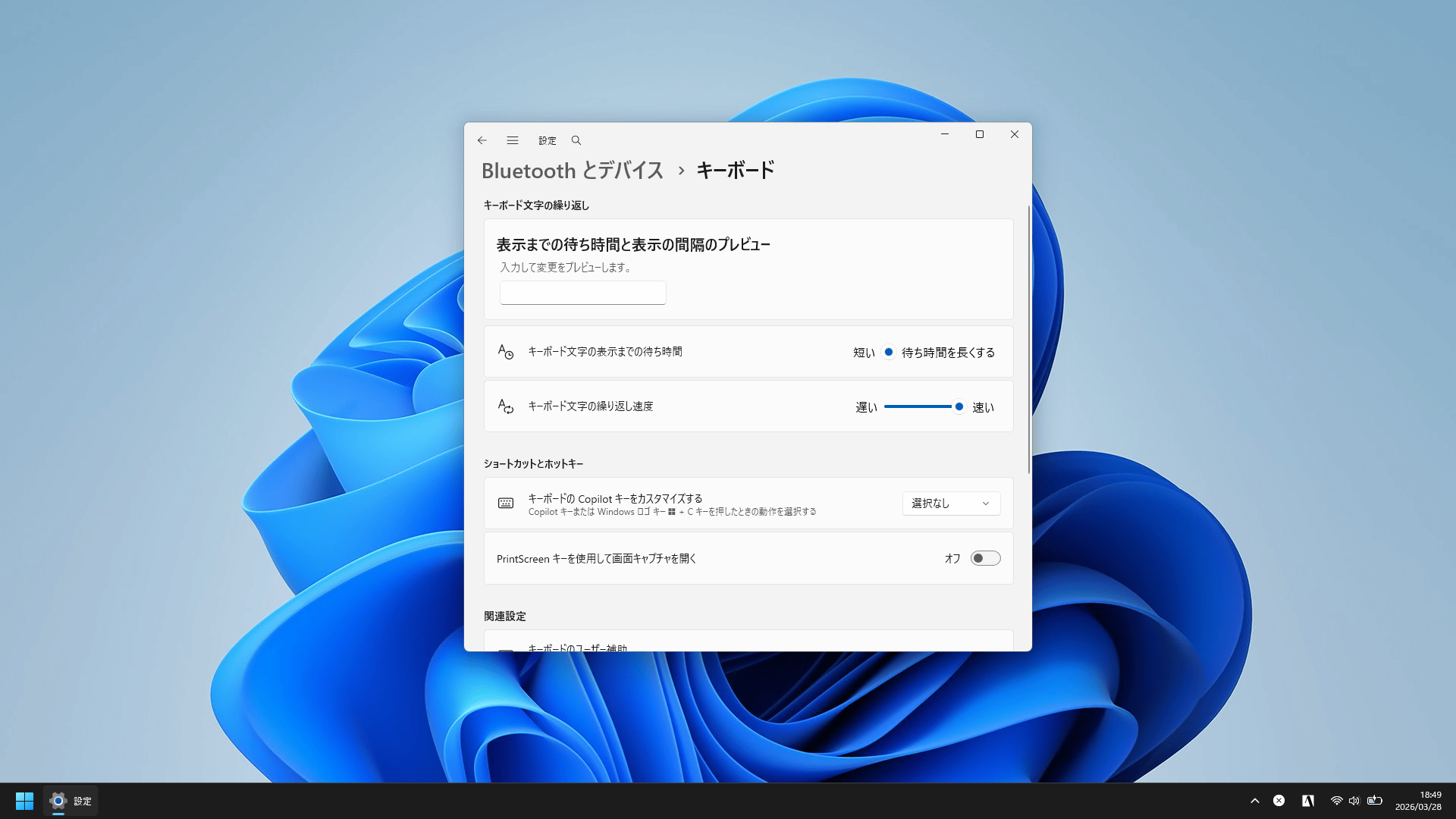
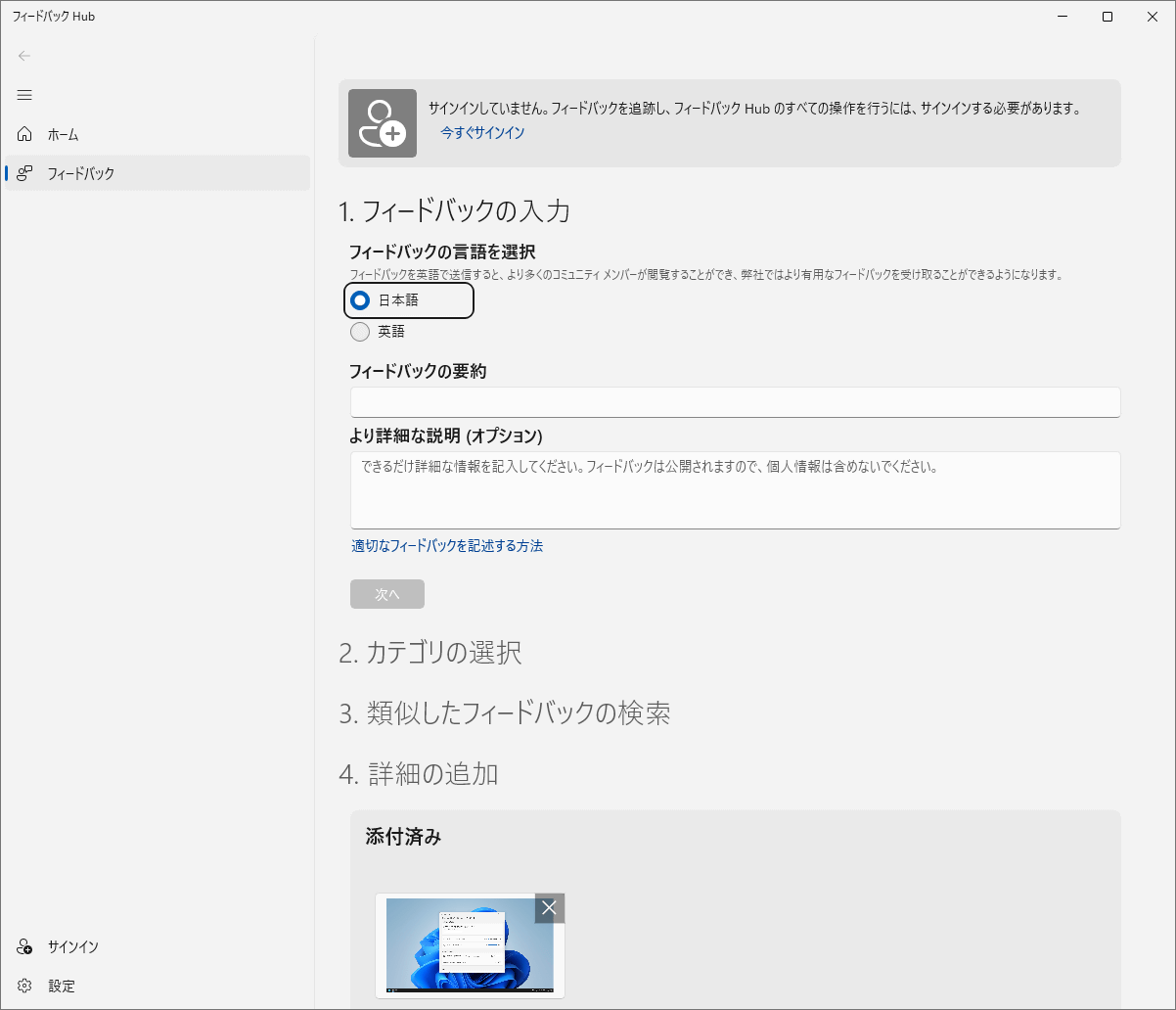
Then, the Feedback Hub will launch with the screenshot of the screen already registered.
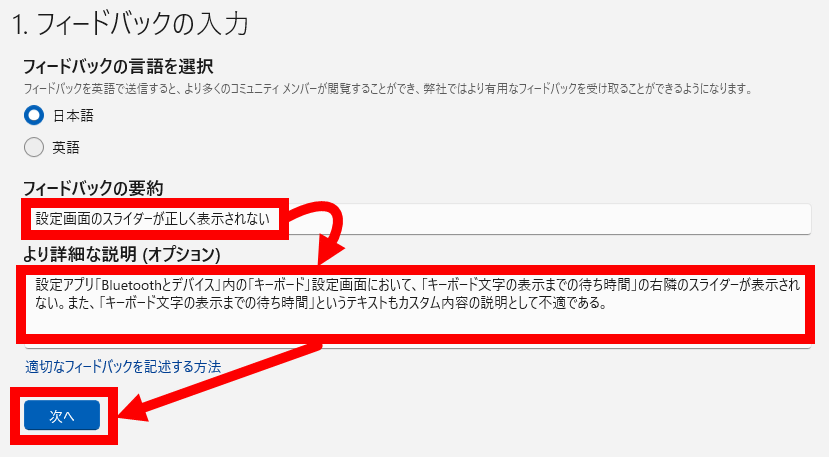
Enter a summary and detailed explanation of your feedback, then click 'Next'.
Select the appropriate category and click 'Next'.
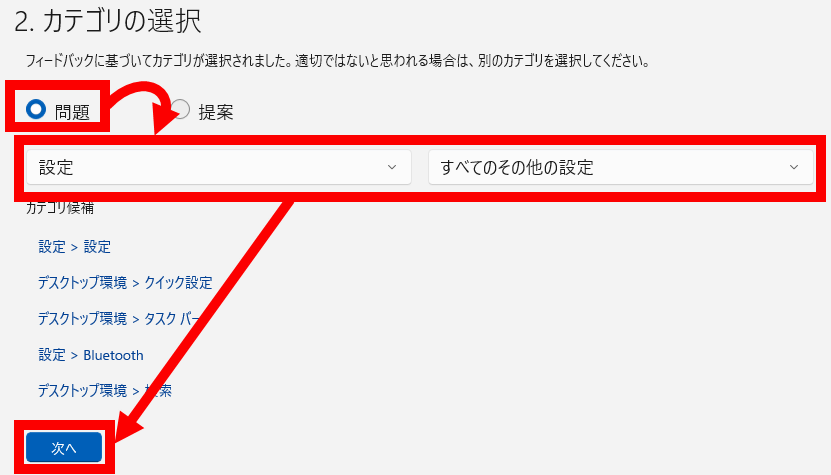
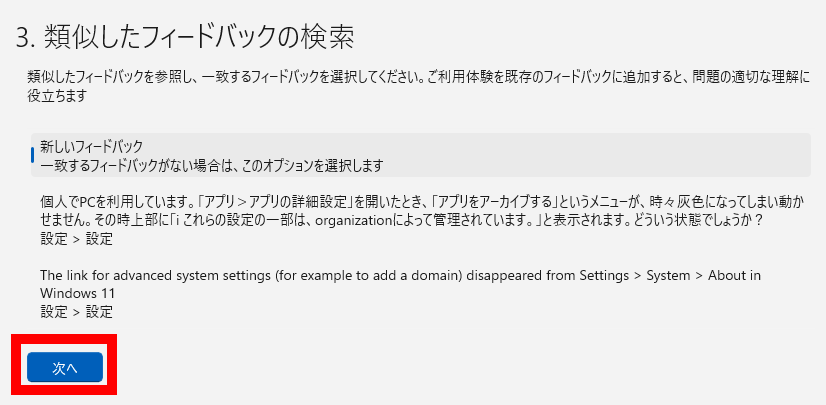
Next, a screen for selecting similar feedback will appear. In this case, there was no similar feedback, so I clicked 'Next' without selecting anything.
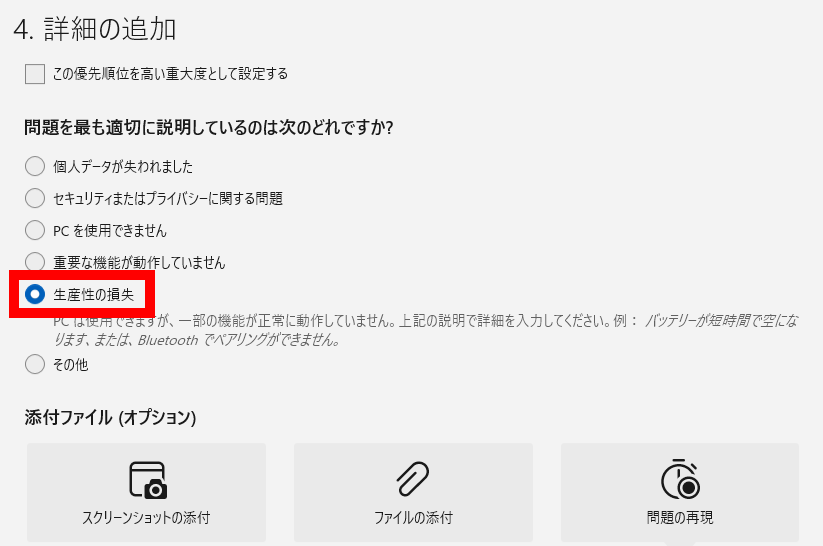
For the problem description, I selected 'loss of productivity.'
I added a screenshot of the Settings app, checked 'This is a problem with how text is translated or displayed,' then checked the consent box for submission and clicked 'Submit.' This time, I also wanted a copy of the diagnostic results, so I checked 'Save a local copy of the diagnostic and attachments created when I submit feedback.'
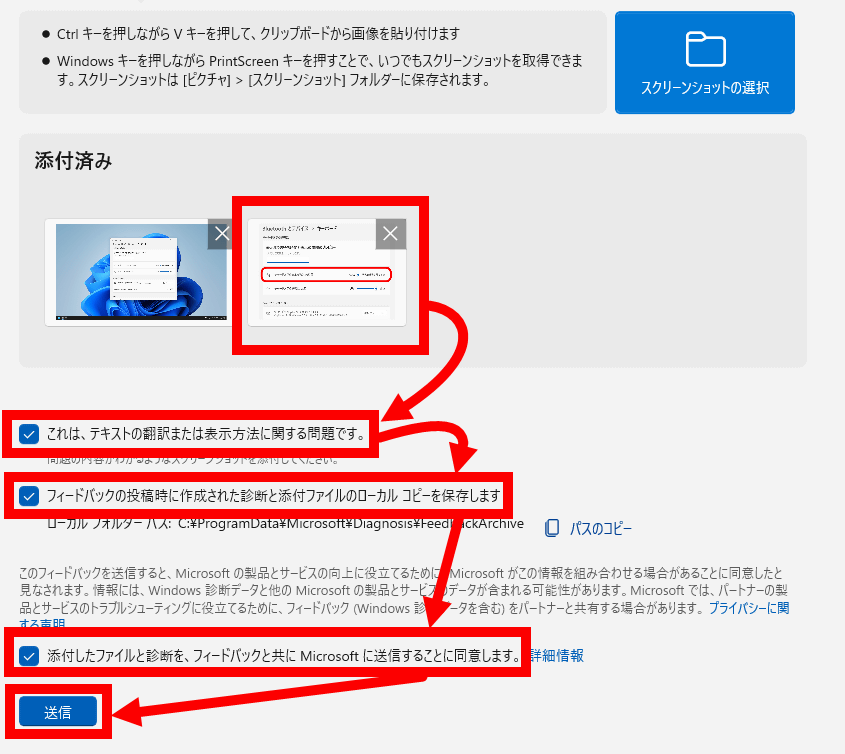
Click 'Submit'. Signing in to your Microsoft account allows you to track the processing status of your submitted feedback, but you can also submit it using a local account.
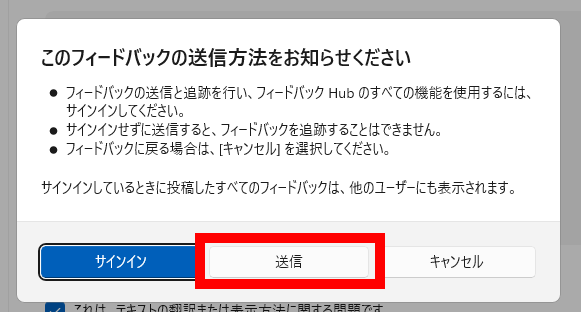
The sending process is complete when the following screen is displayed.
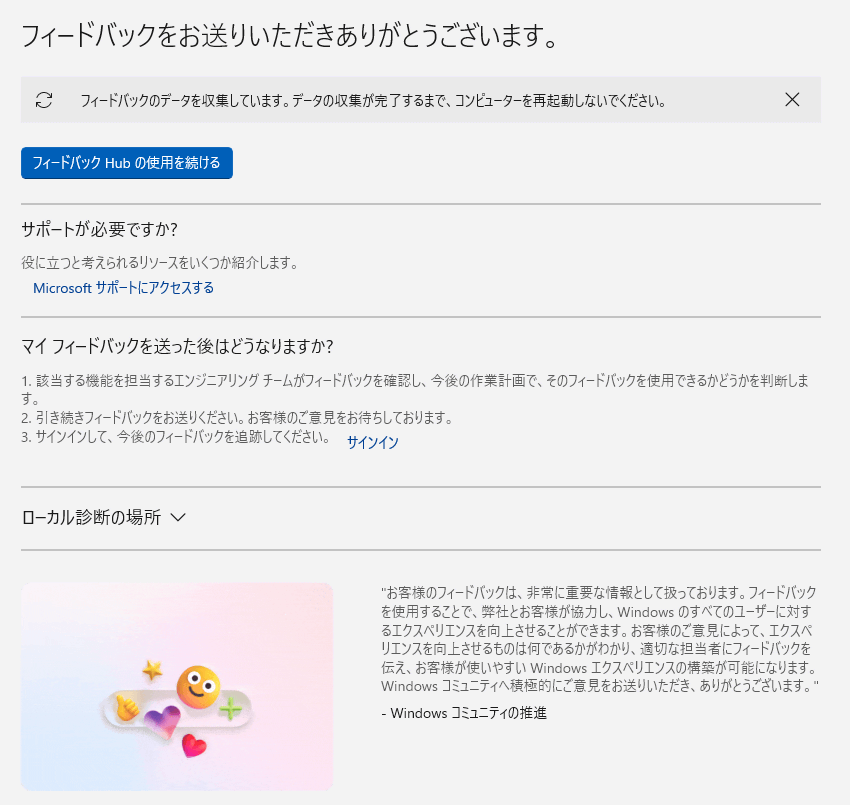
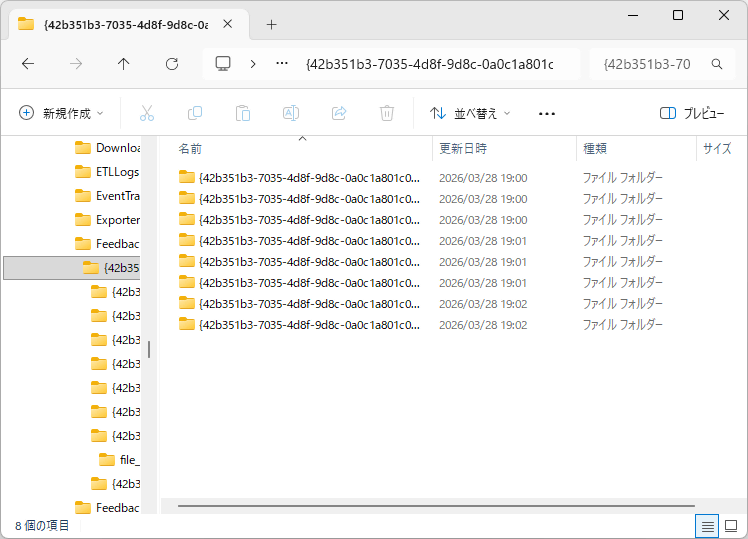
A copy of the data you sent to Microsoft is stored in 'C:\ProgramData\Microsoft\Diagnosis\FeedbackArchive'.
Related Posts: