'Sophia Script for Windows' allows you to customize Windows settings all at once, and you can create presets for actions such as 'Installing WSL' and 'Disabling Tracking' and execute them in batches.

Immediately after setting up Windows, you need to configure settings such as 'disable tracking' and 'install WSL' to create your preferred environment. However, it's tedious to go through Windows' scattered settings one by one every time you set up a new PC or reinstall the OS. That's where ' Sophia Script for Windows ,' a tool for changing Windows settings all at once, comes in handy.
GitHub - farag2/Sophia-Script-for-Windows: :zap: The most powerful open source tweaker on GitHub for fine-tuning Windows 10 & Windows 11 · GitHub
Sophia Script for Windows is a tool that allows you to manage the vast number of Windows settings all in one place. While Sophia Script for Windows itself is developed as a PowerShell script, a GUI wrapper called 'Sophia Script Wrapper' that allows you to operate it with a mouse is also available, so this time we will try using Sophia Script for Windows in combination with Sophia Script Wrapper.
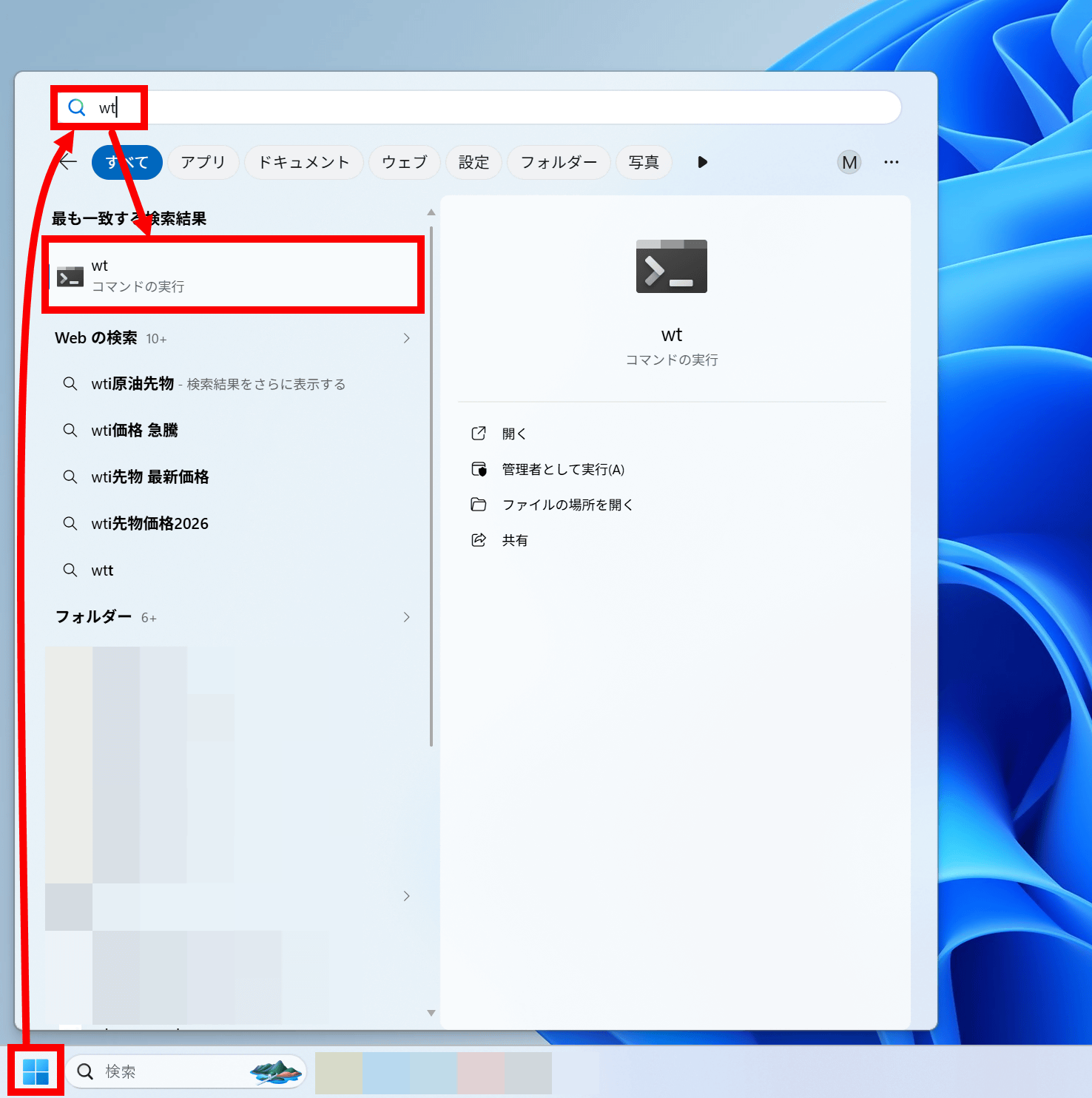
First, you need to check the version of PowerShell installed on your PC, so open the Start menu, type 'wt', and launch Windows Terminal.
Once the Windows terminal starts, execute the command ' $PSVersionTable '.
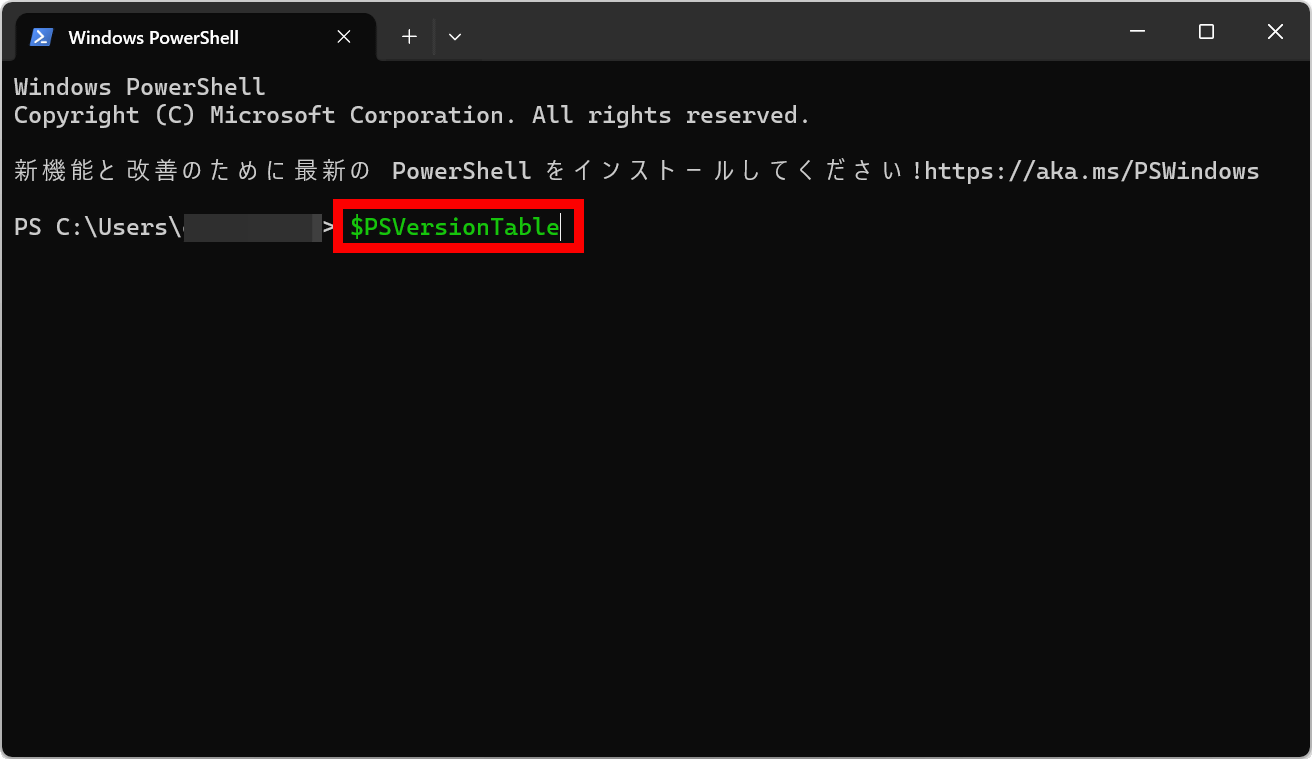
The number in the 'PSVersion' column of the command execution result is the version number. In the case of the PC being used, it can be seen that PowerShell 5.1 is installed.

After checking the version, click the link below to access the Sophia Script for Windows distribution page.
Releases · farag2/Sophia-Script-for-Windows · GitHub
Download the latest versions of Sophia Script for Windows and Sophia Script Wrapper. This time, I downloaded 'Sophia Script for Windows for PowerShell 5.1 on Windows 11' and 'Sophia Script Wrapper, common to all variations.'

The tool is compressed in ZIP format, so you will need to extract it using Windows' standard functions or a compatible archiver.

Double-click the Sophia Script Wrapper folder.
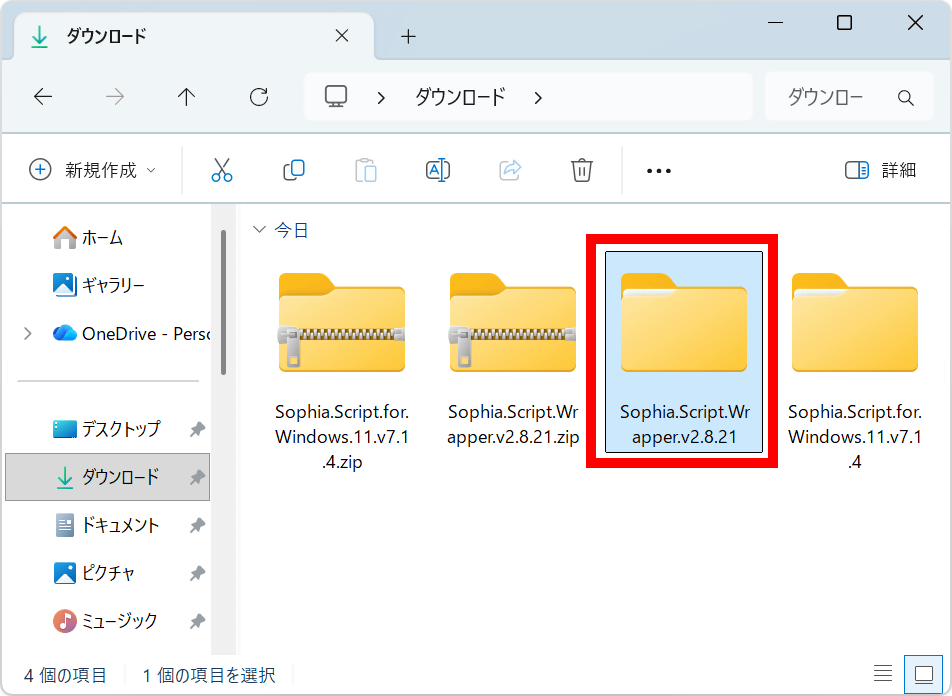
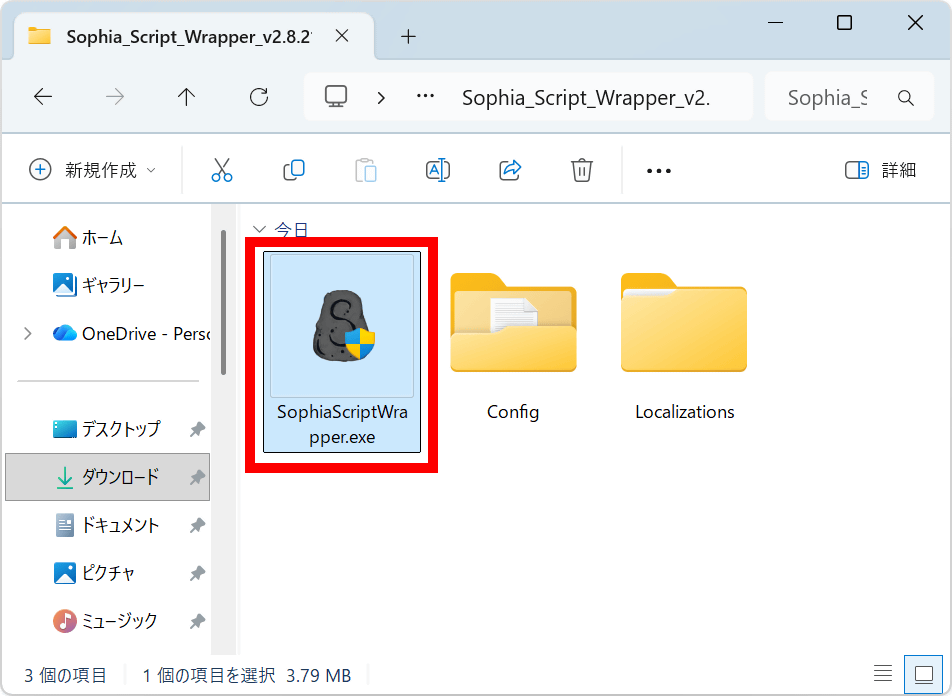
Double-click 'SophiaScriptWrapper.exe' to run it.
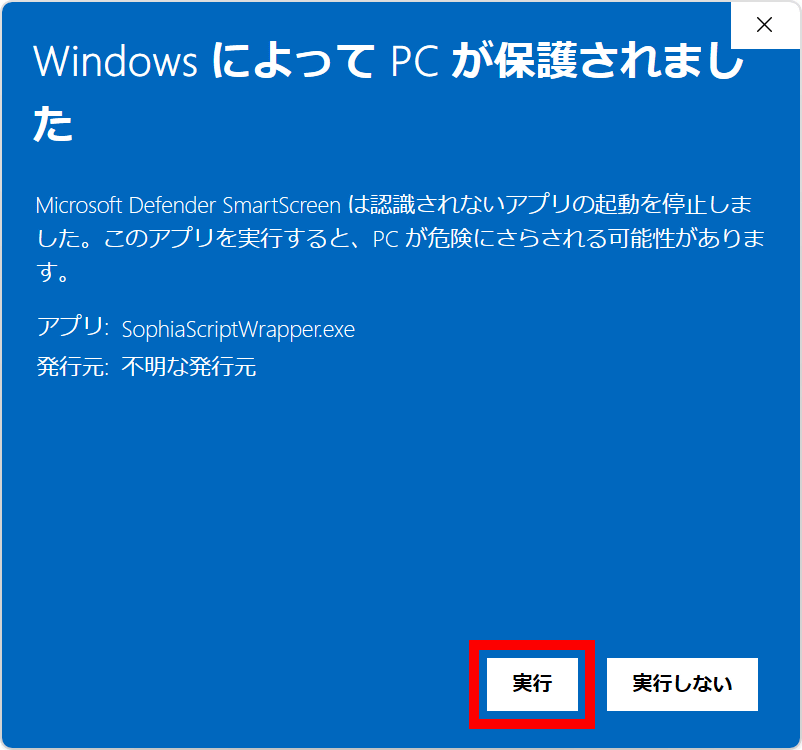
If a warning screen appears, click 'More information'.
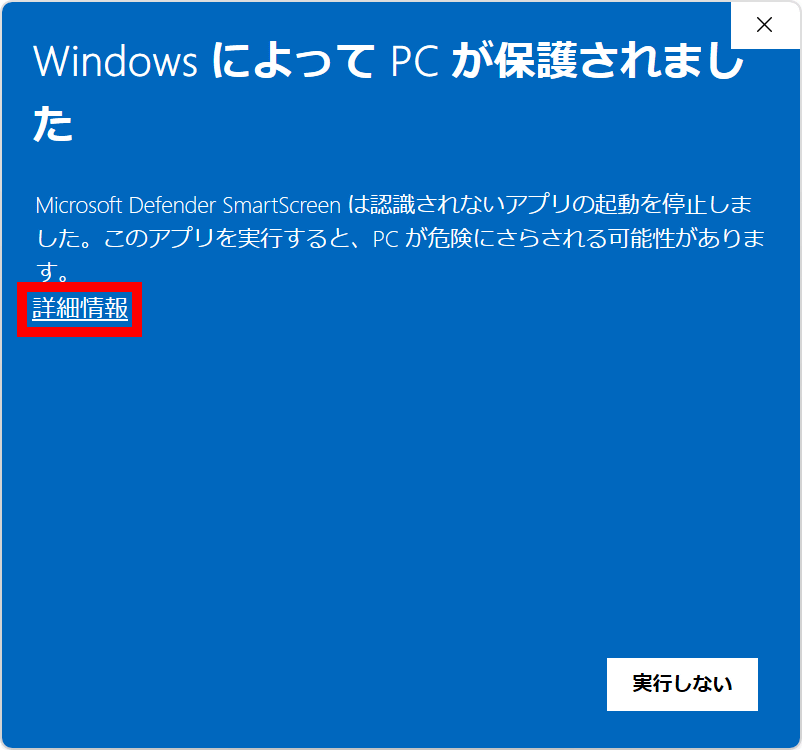
Click 'Execute'.
Sophia Script Wrapper has started.
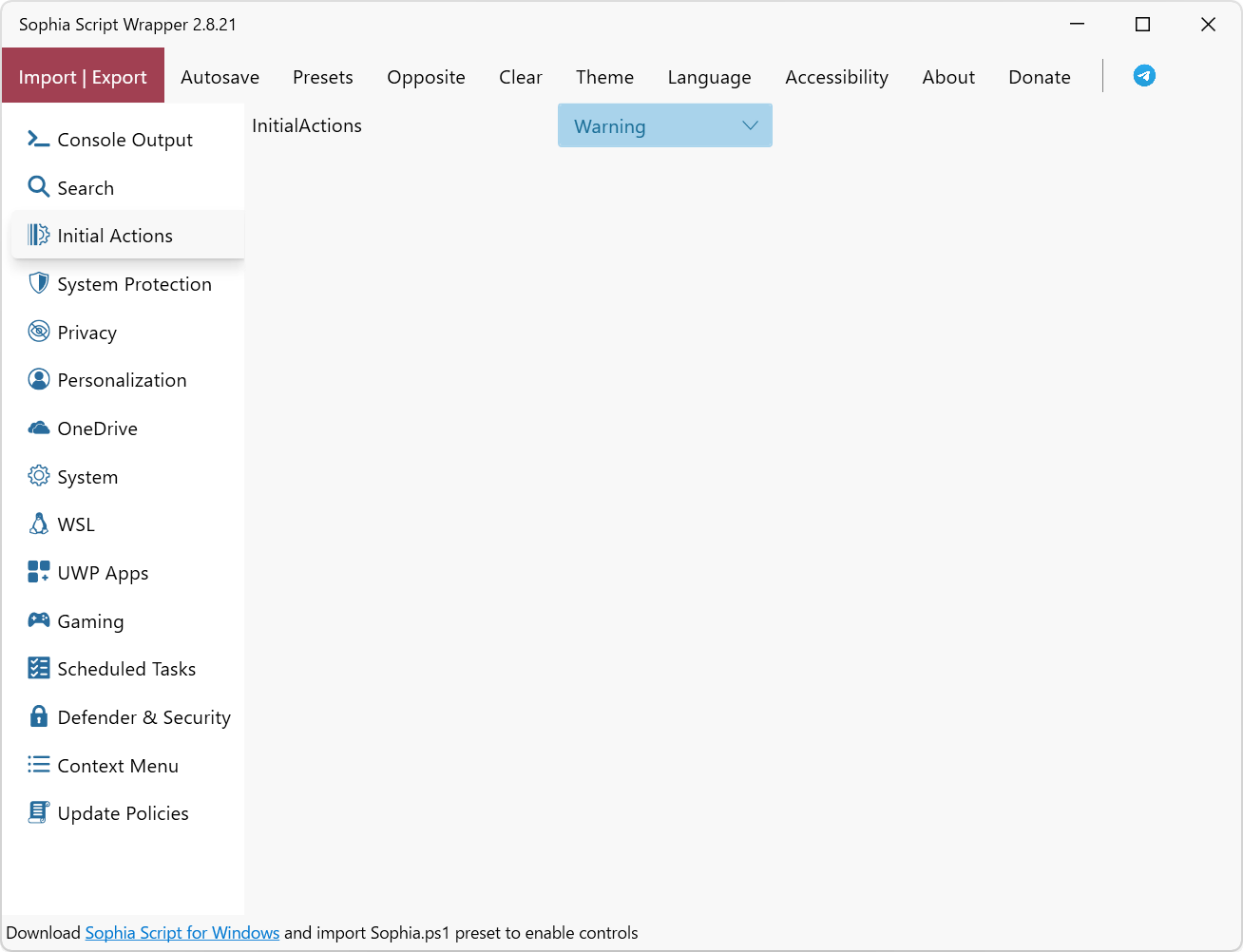
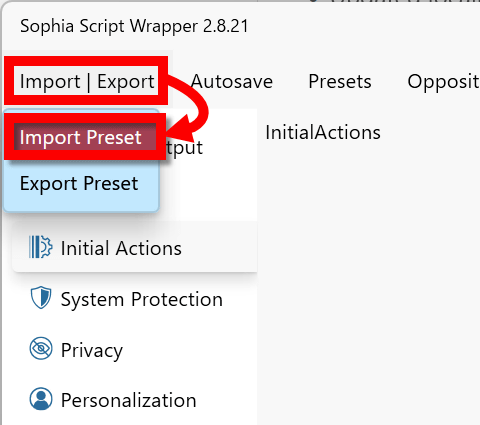
Next, to link Sophia Script Wrapper with Sophia Script for Windows itself, click 'Import|Export' and then click 'Import Preset'.
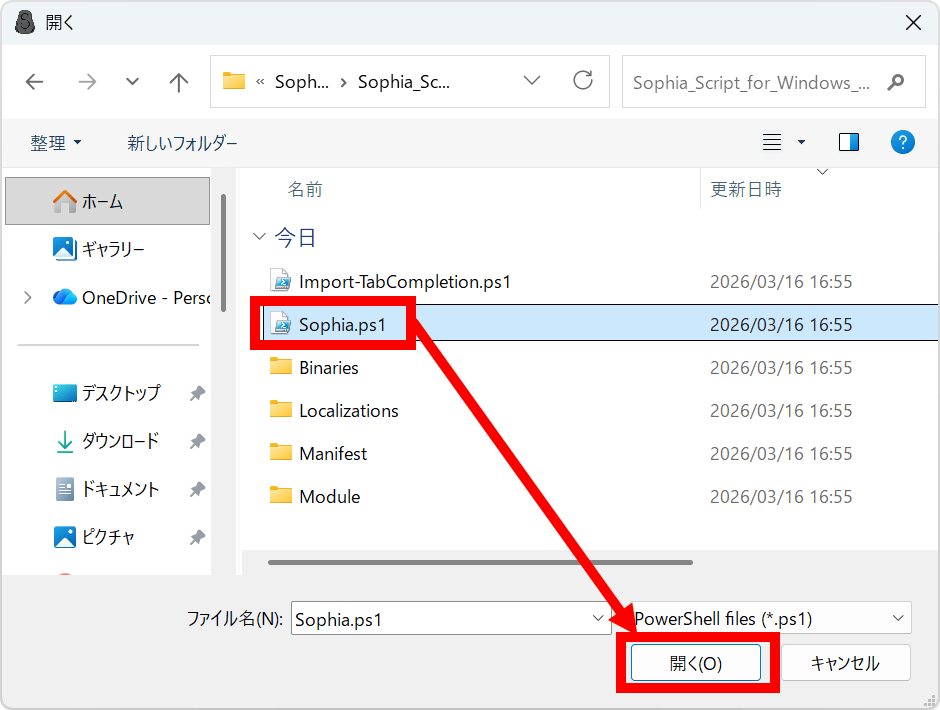
Open 'Sophia.ps1' located in the Sophia Script for Windows folder.
Now you're ready to customize Windows.
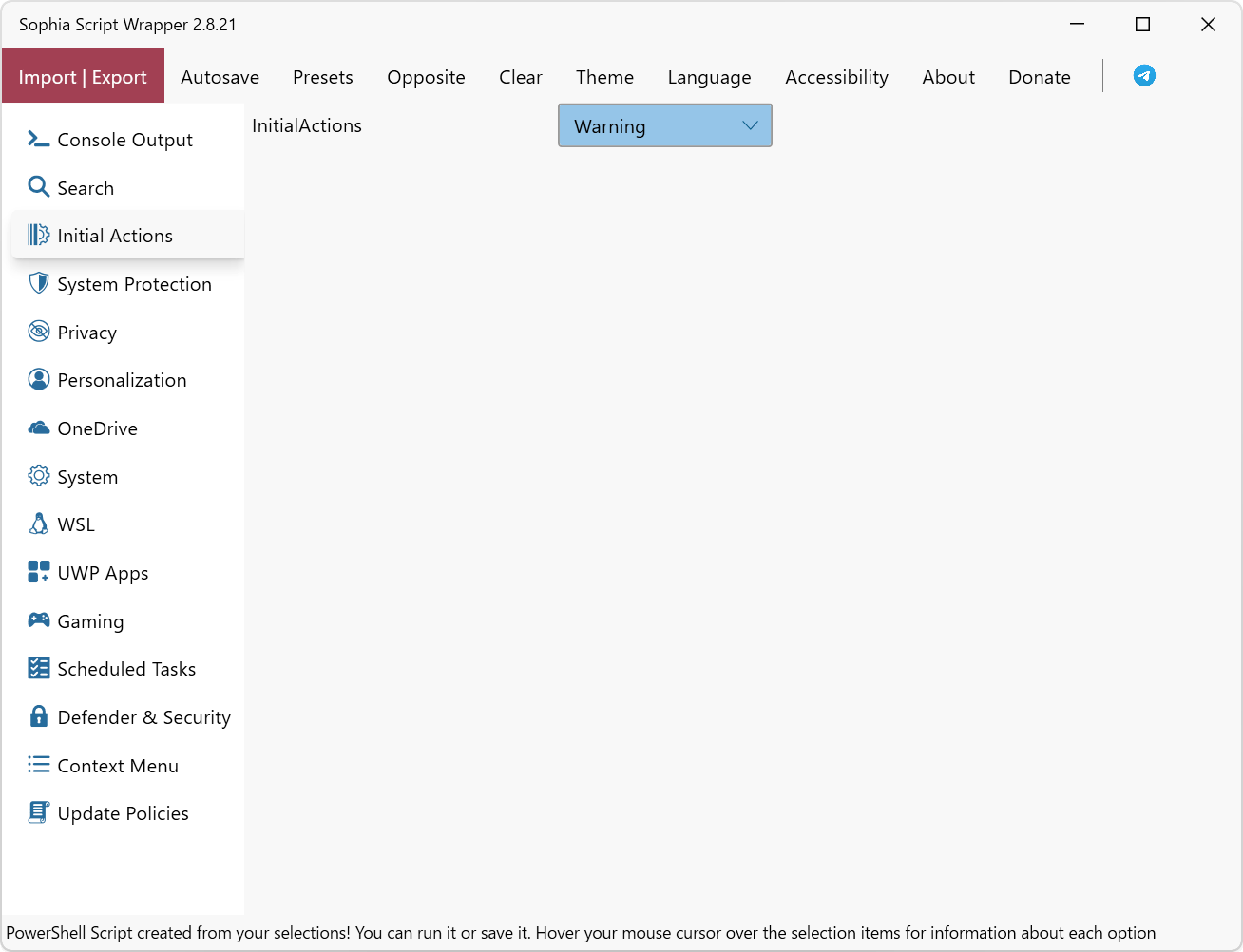
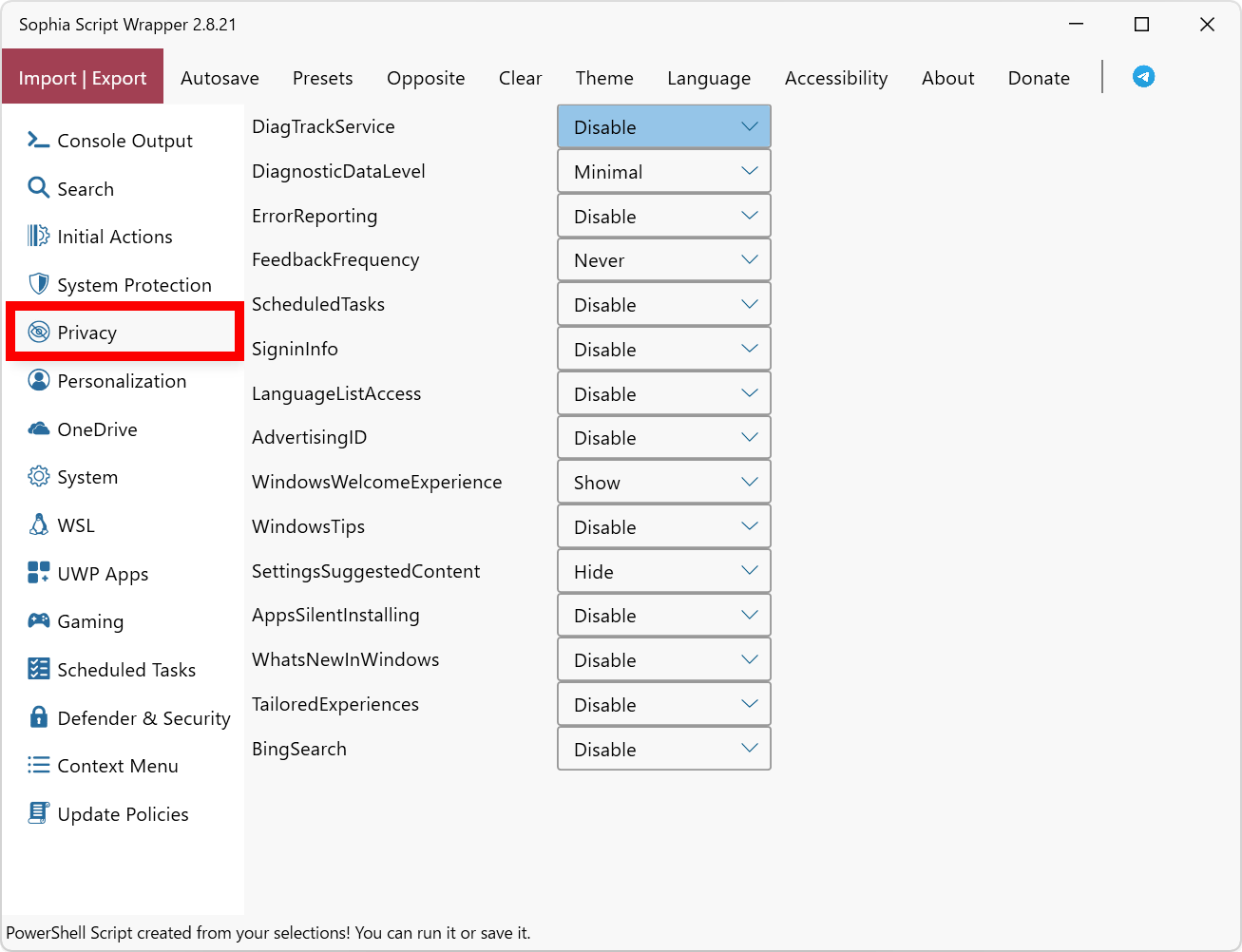
On the left side of the Sophia Script Wrapper screen, there are categories of settings, and each category contains a large number of settings. For example, under 'Privacy,' you'll find settings such as 'Enable/Disable Tracking,' 'Enable/Disable Advertising ID,' and 'Enable/Disable Windows New Feature Suggestion.'
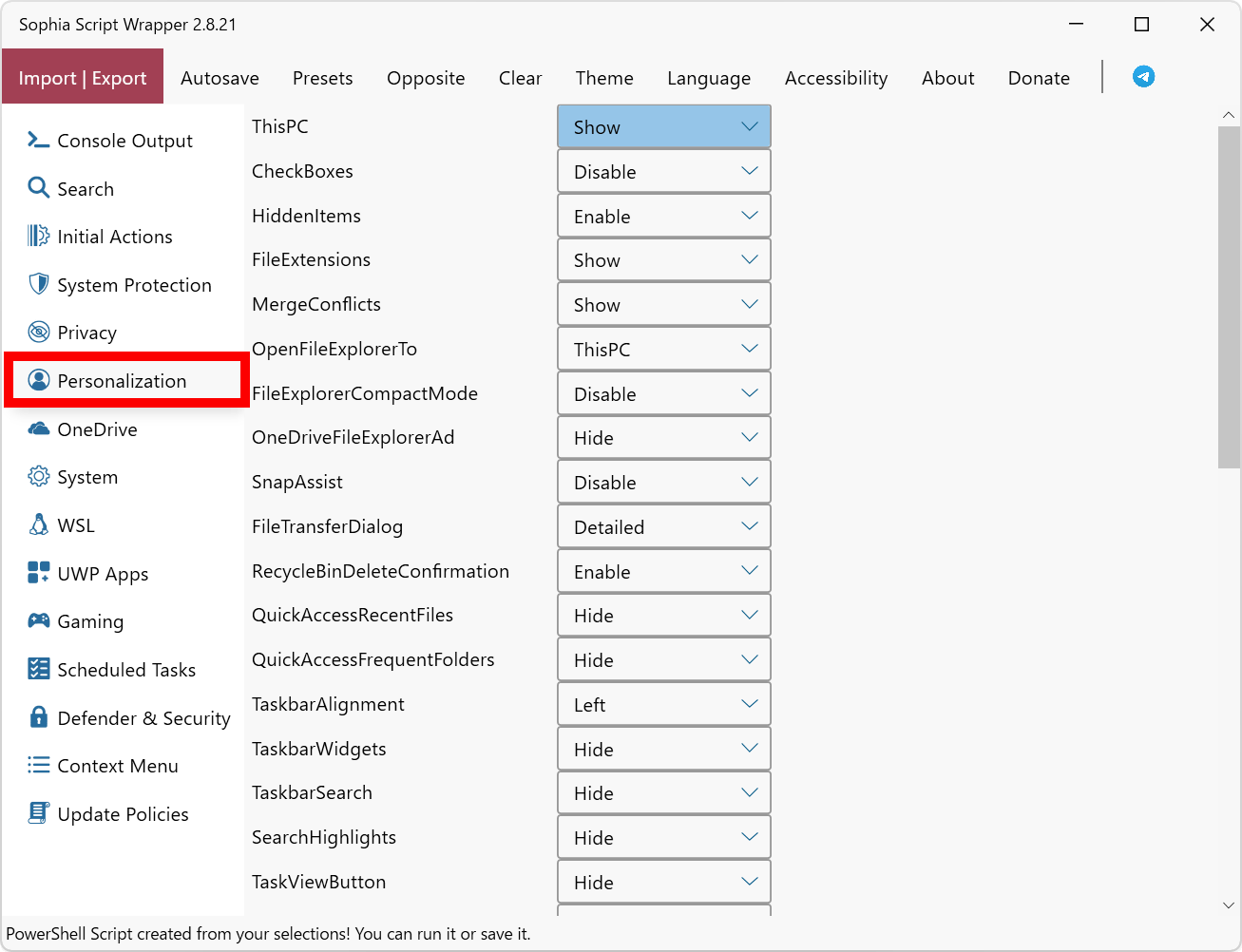
Under 'Personalization,' you can configure settings such as 'showing/hiding checkboxes in Explorer' and 'showing/hiding file extensions.'
With OneDrive, you can choose to install or uninstall it.

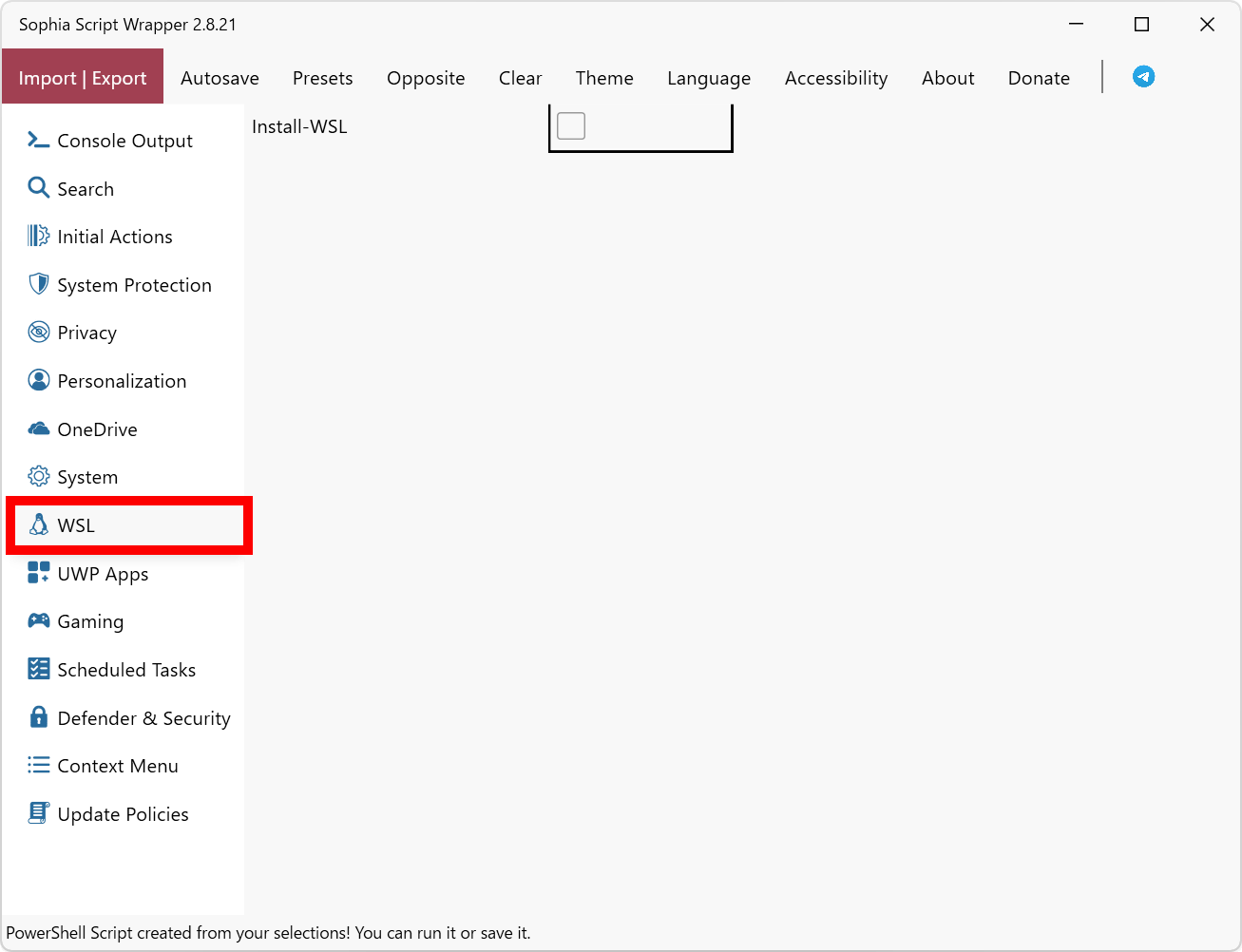
You can also choose whether or not to install WSL from 'WSL'.
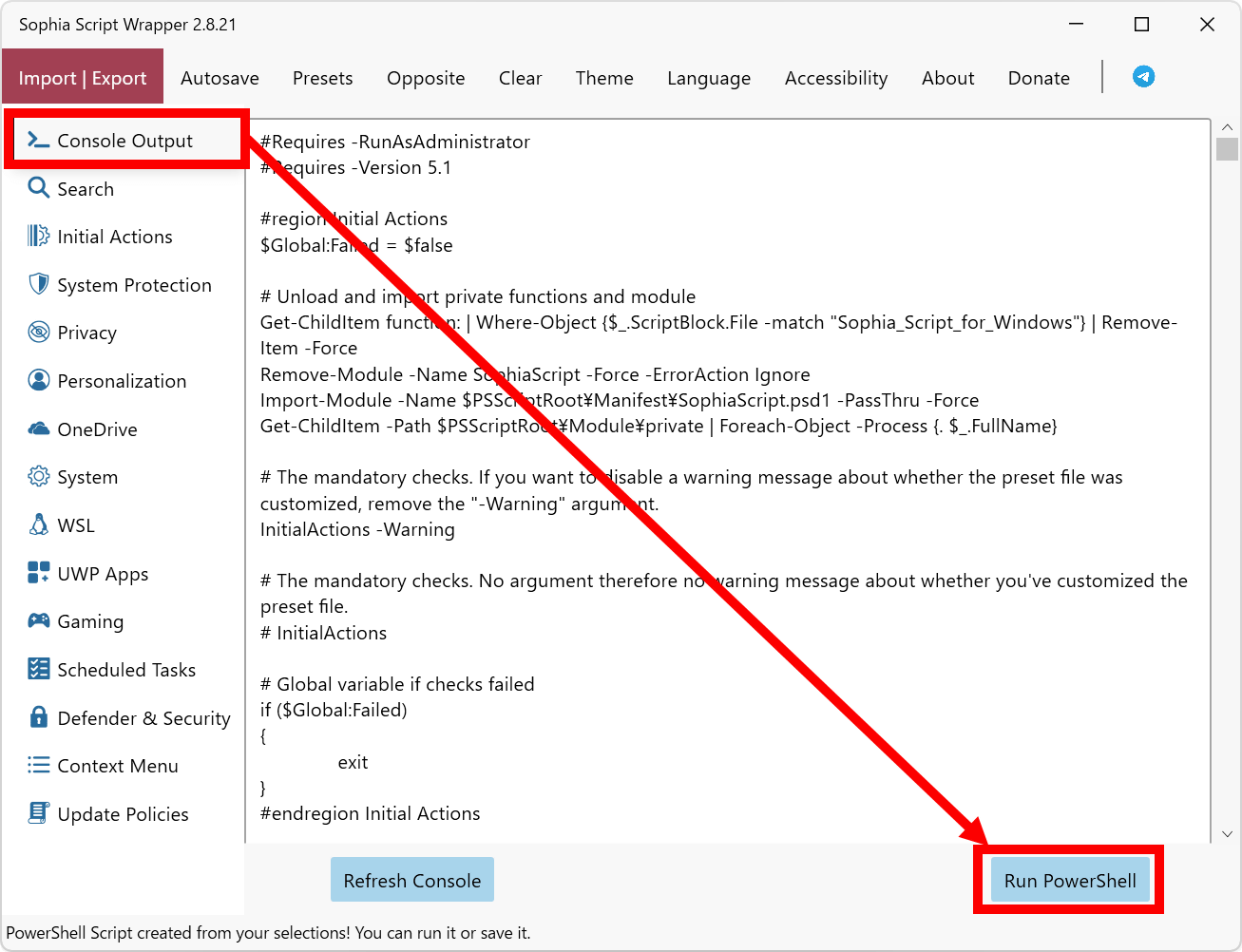
After customizing the various items to your liking, you can execute the configuration changes by clicking 'Console Output' and then 'Run PowerShell'.
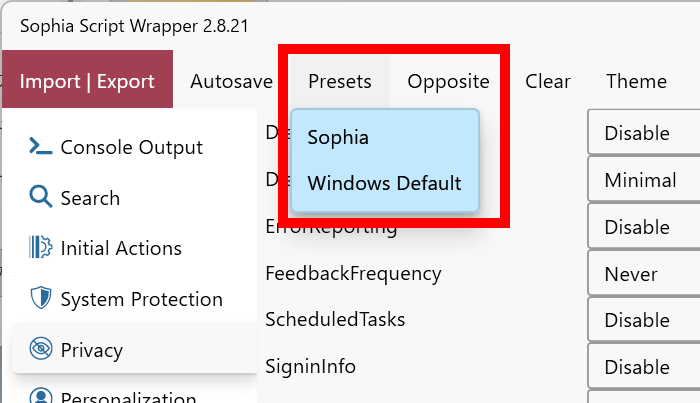
Settings can be saved as presets, and you can also recall Windows' default settings from 'Preset' at the top. Saving presets is convenient because you can quickly recall your favorite settings when setting up a new PC or reinstalling the OS.
Related Posts: