Summary of how to use the free app 'CapFrameX' that can measure the FPS of any game and display an overlay
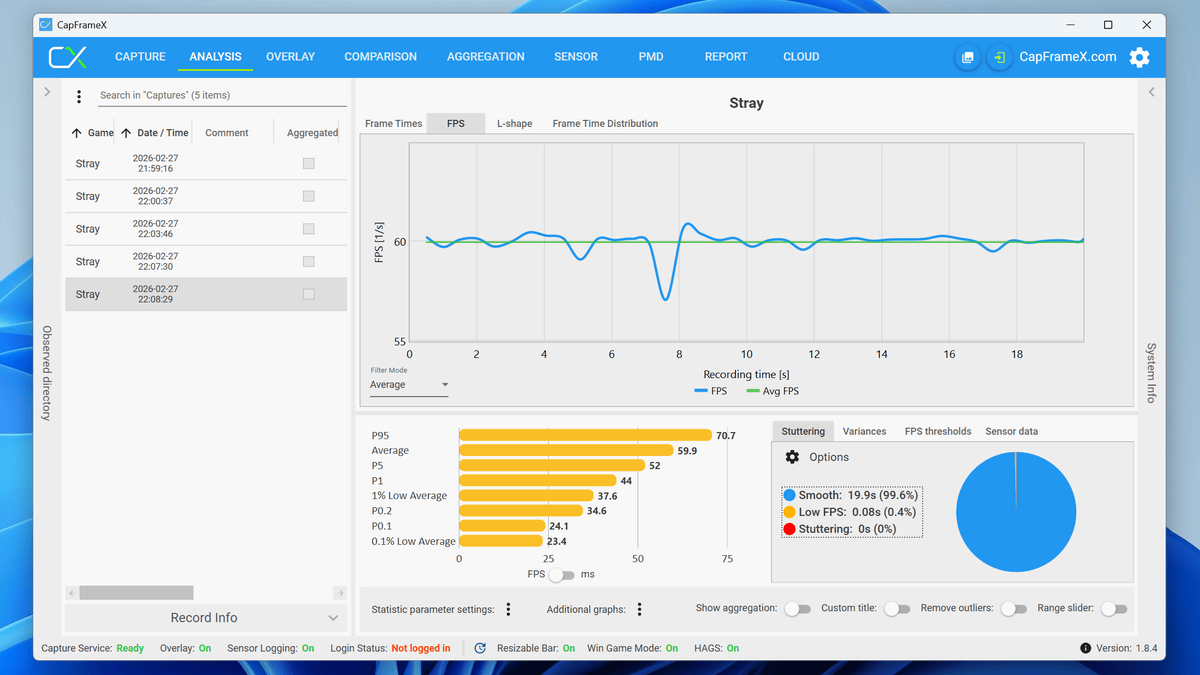
' CapFrameX ' is a tool that can measure the frame rate (fps) and display latency of any game. By connecting to an external app, you can overlay the measurement results on the game screen in real time. It seems useful for knowing the performance of your PC and adjusting the graphics settings of games, so I tried it out.
CapFrameX
·table of contents
◆1: Install CapFrameX
◆2: Measuring frame rate with CapFrameX
◆3: Display measurement results as an overlay
◆1: Install CapFrameX
First, click the link below to access the CapFrameX download page.
CapFrameX - Downloads
https://www.capframex.com/download
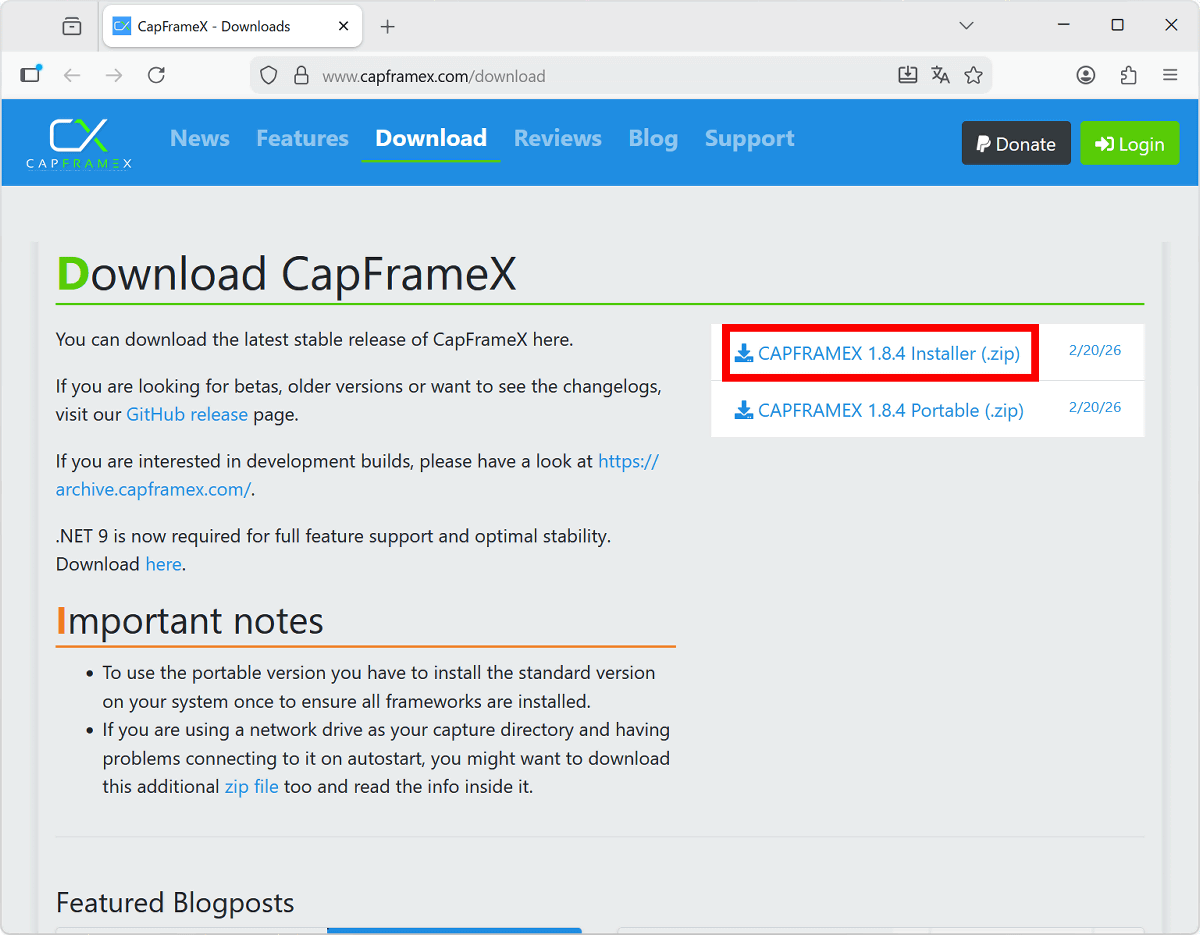
The download page offers both an installable and a portable version. Since I want to use the installable version this time, I clicked on 'CAPFRAMEX 1.8.4 Installer' to download the installer.
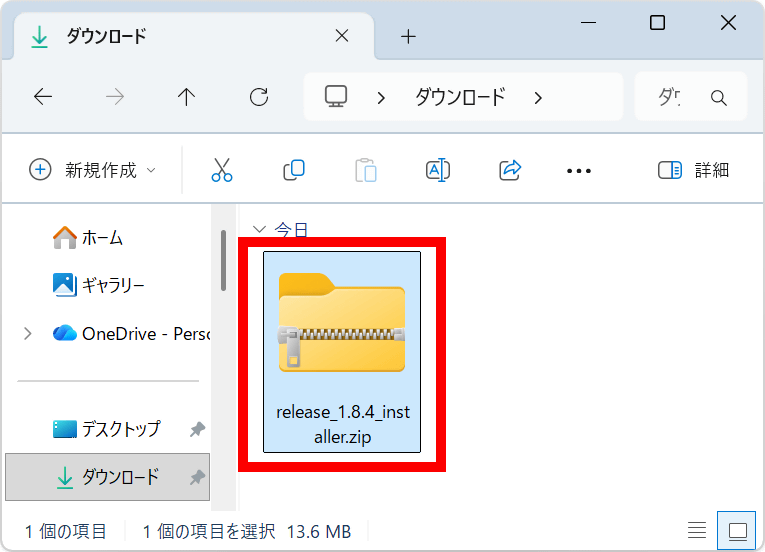
The installer is distributed in ZIP format, so after downloading it, you can extract it using standard Windows functions or a compatible archiver.
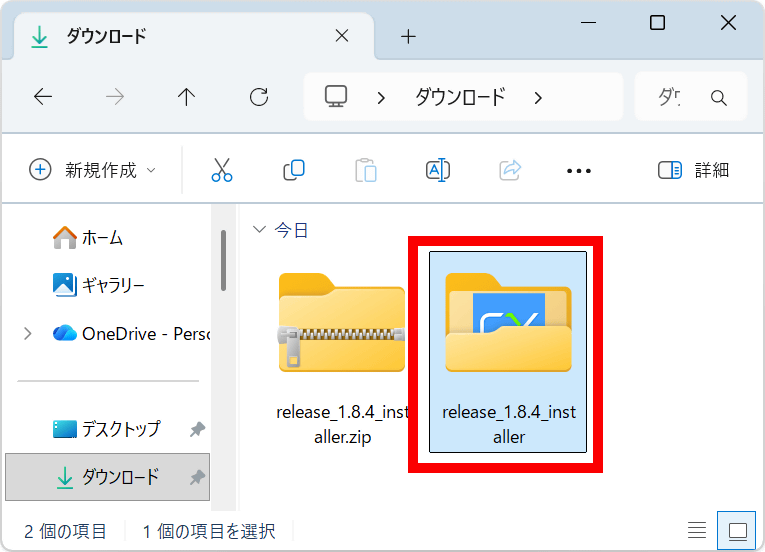
Double-click the extracted folder.
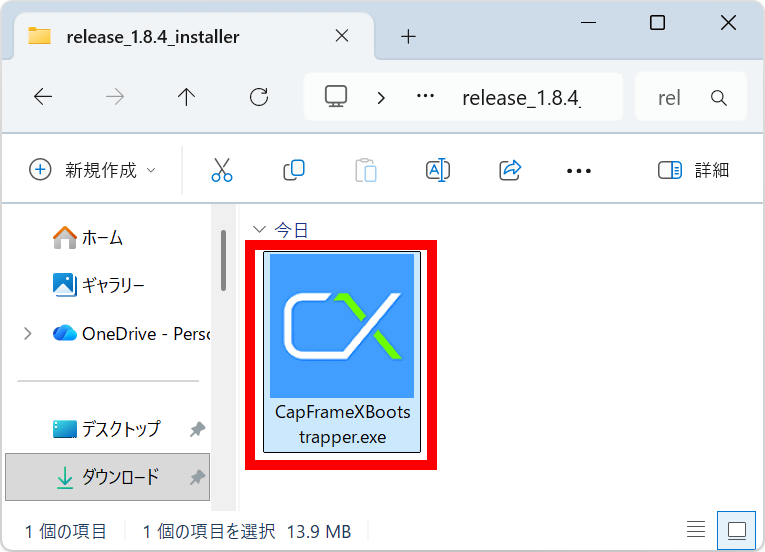
Double-click the installer to run it.
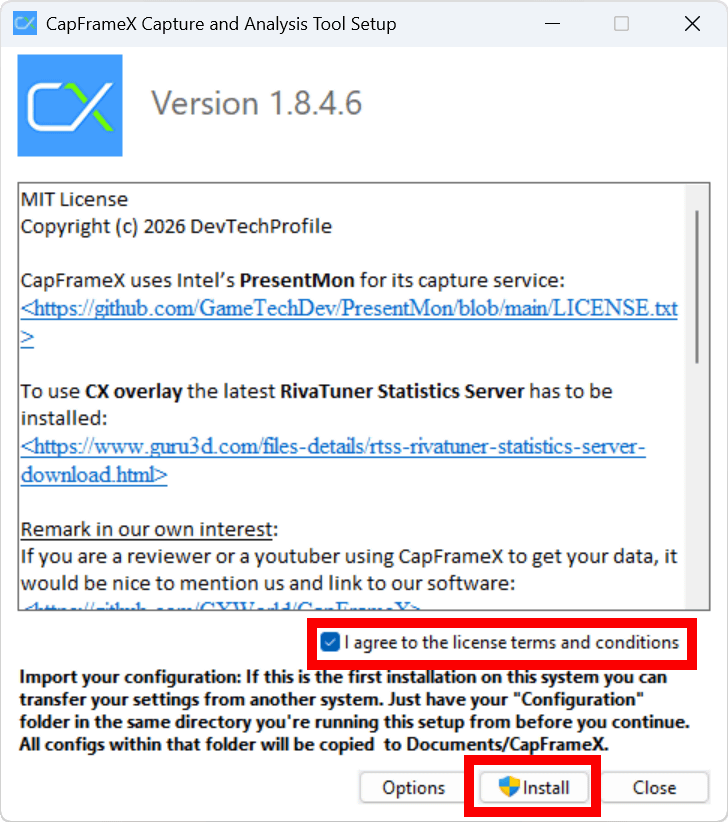
Read the license carefully, then check 'I agree to the license terms and conditions' and click 'Install.'
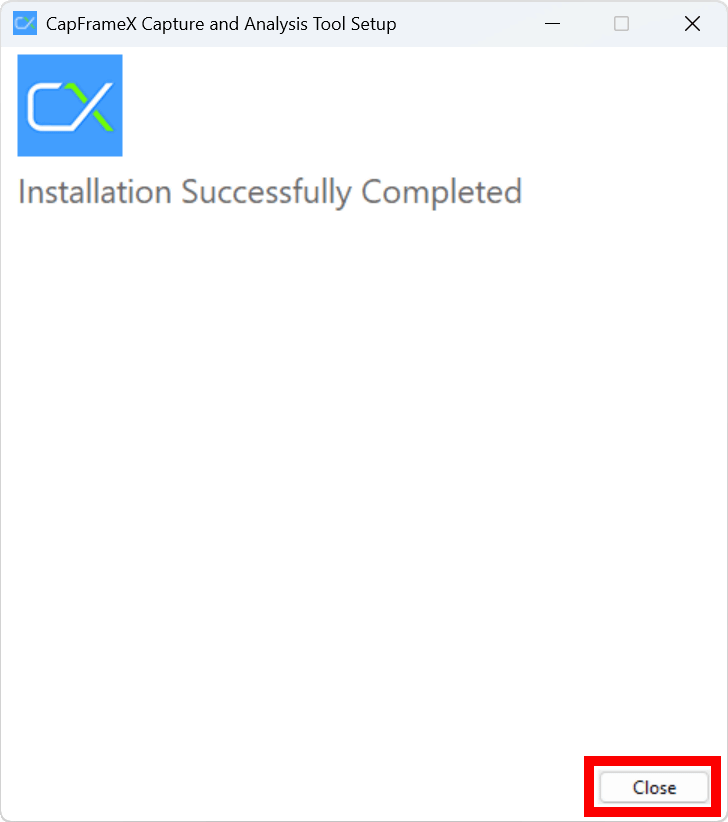
Click “Close”.
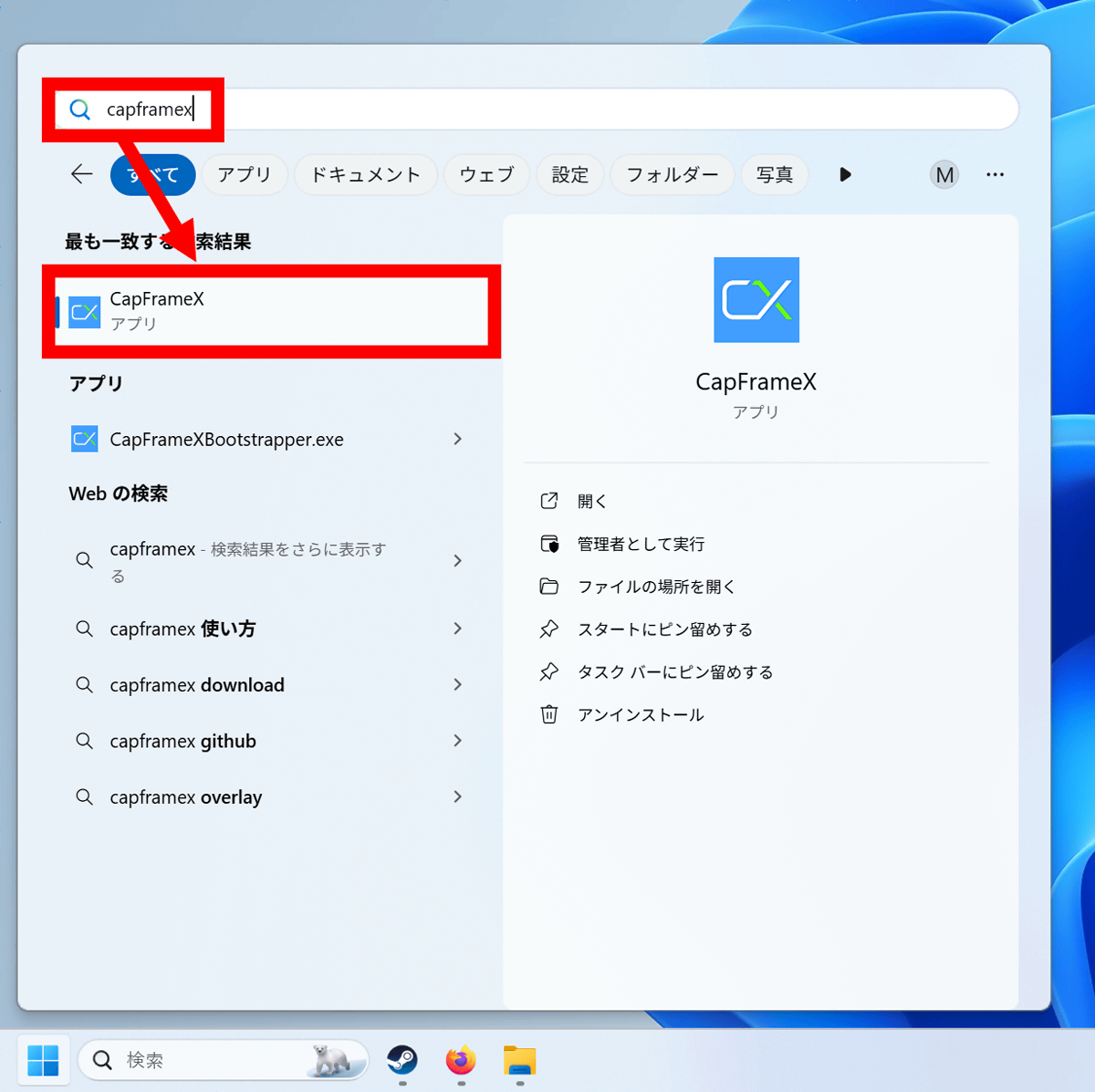
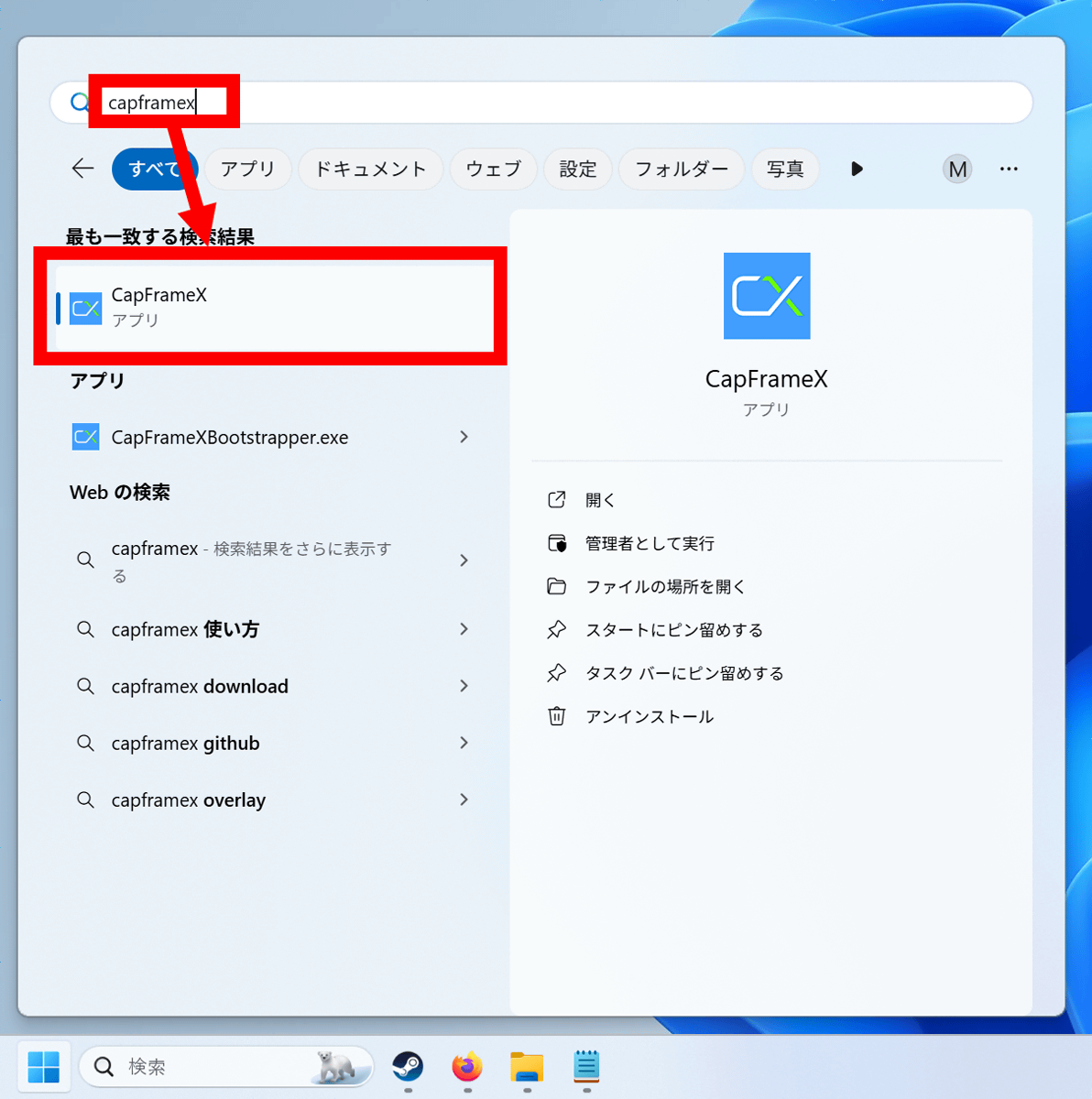
Search for CapFrameX in the Start menu and launch it.
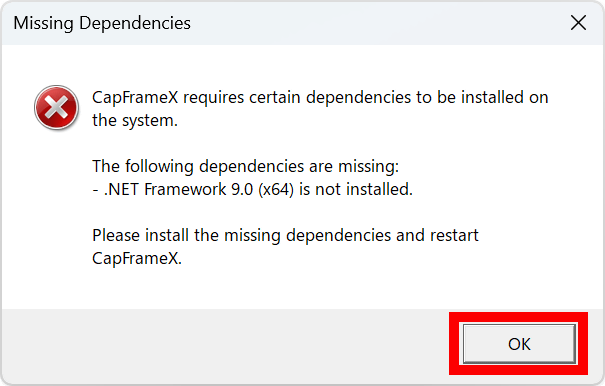
CapFrameX requires the .NET Framework 9.0 runtime. If you do not have the runtime installed on your PC, the following warning will appear. Click 'OK.'
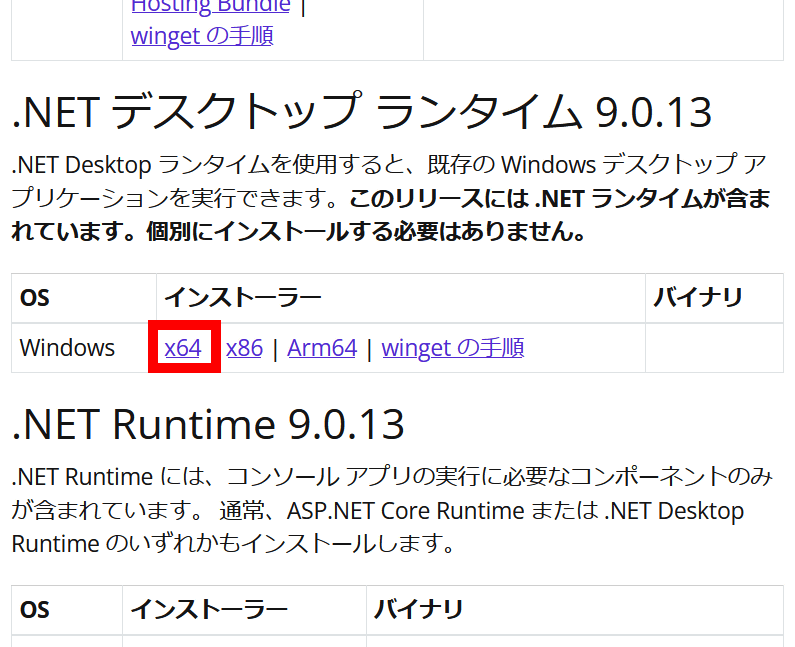
To install the .NET Framework 9.0 runtime, click the link below to go to the official Microsoft page.
Download .NET 9.0 (Linux, macOS, Windows) | .NET
Click 'x64' in the '.NET Desktop Runtime 9.0.13' column.
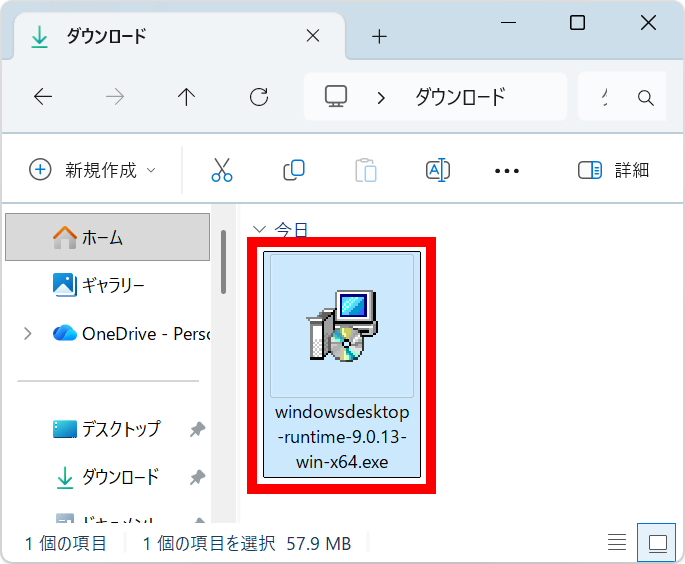
Once the installer has finished downloading, double-click it to launch it.
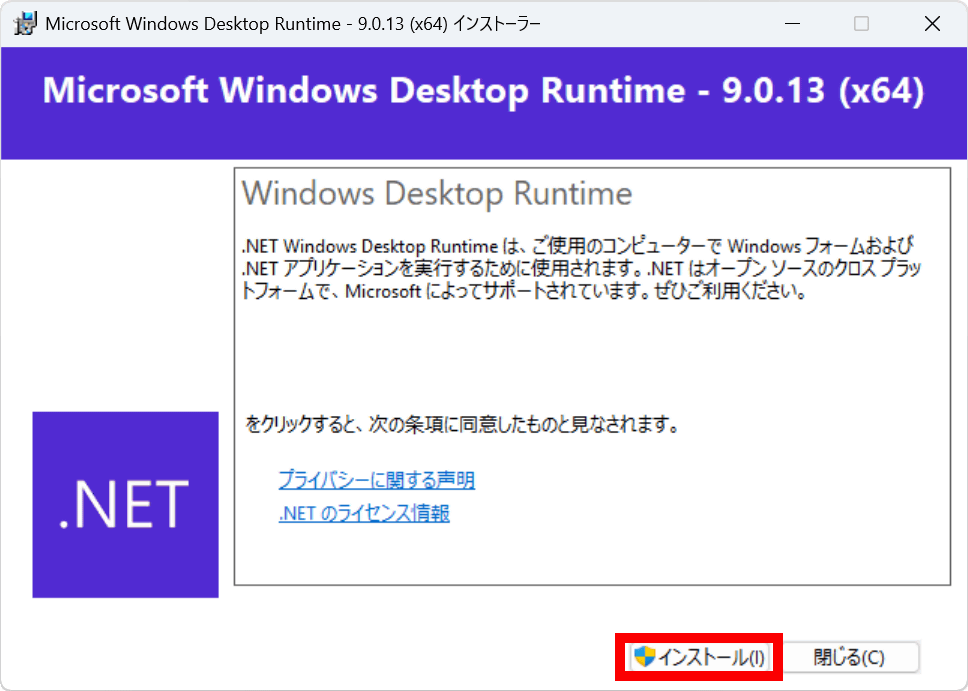
Click 'Install'.
Click “Close”.
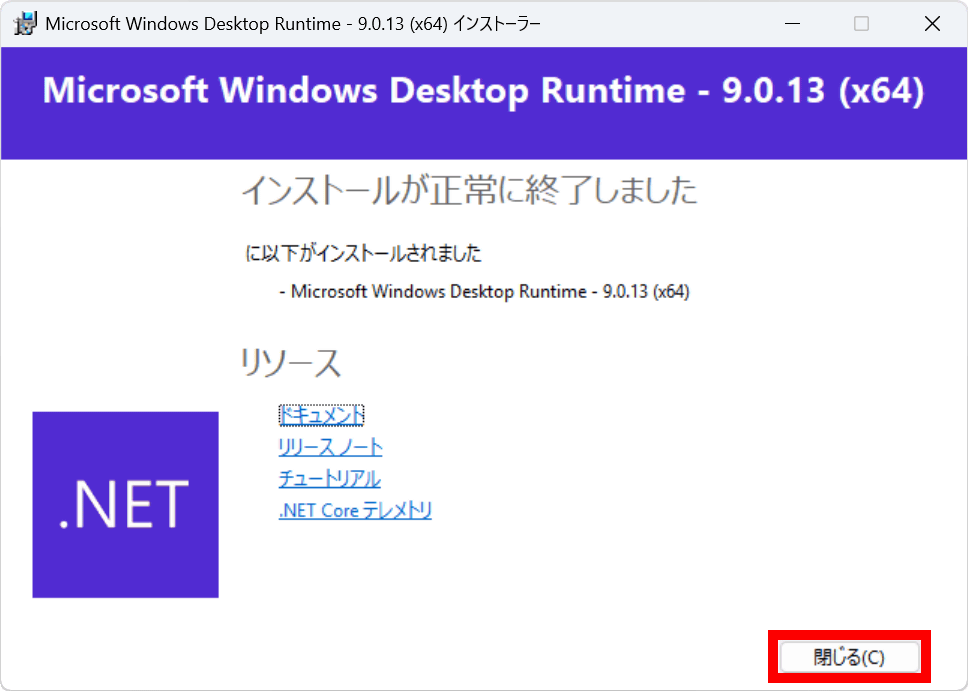
Start CapFrameX again.
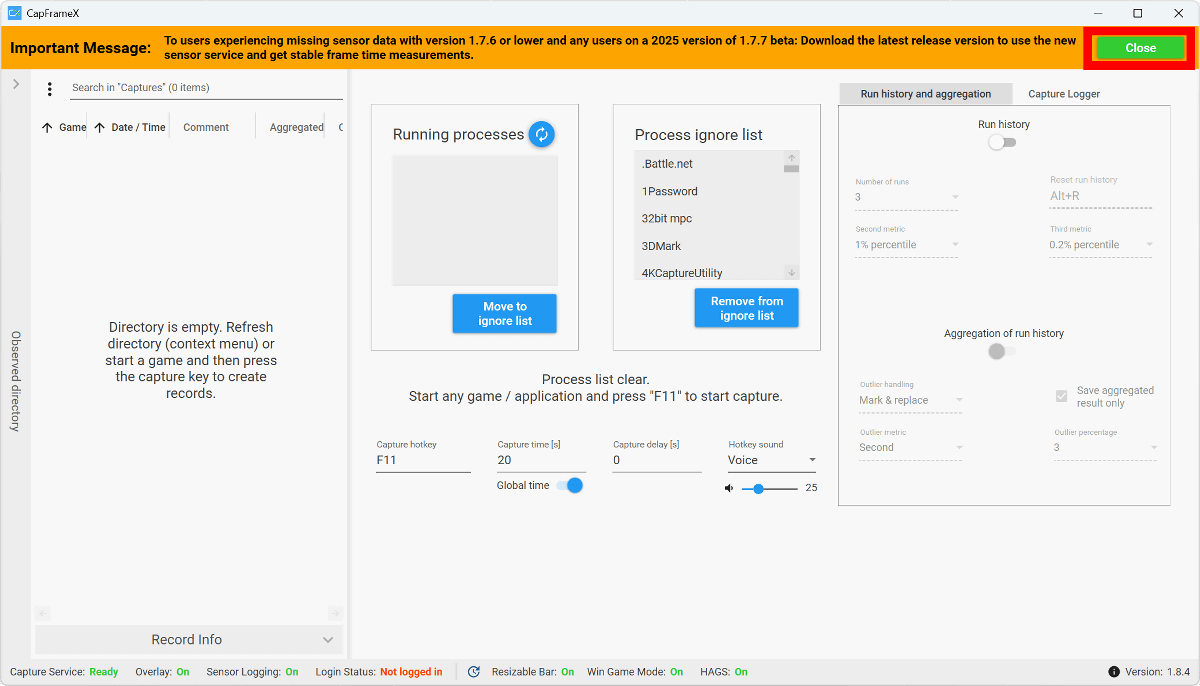
It started up successfully. At the top of the screen, a message appears saying, 'Data recording will fail if version 1.7.6 or lower is installed.' Since we're using version 1.8.4, there's no problem. Click 'Close' to close the message.
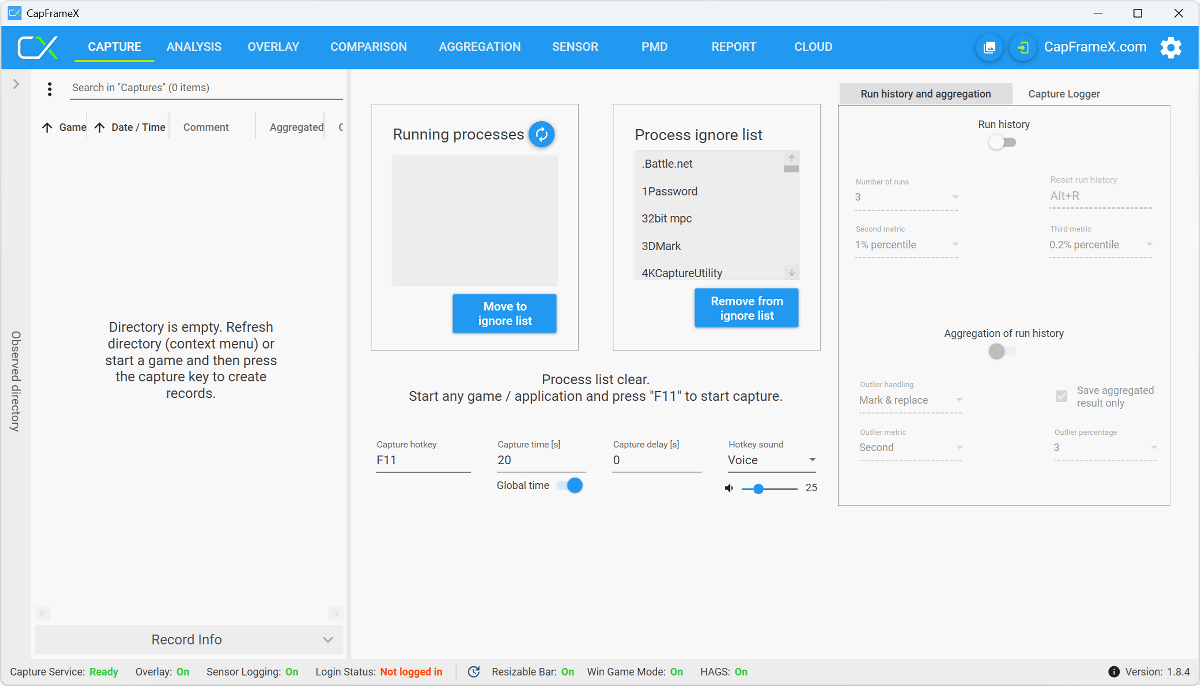
You are now ready to use CapFrameX.
◆2: Measure frame rate with CapFrameX
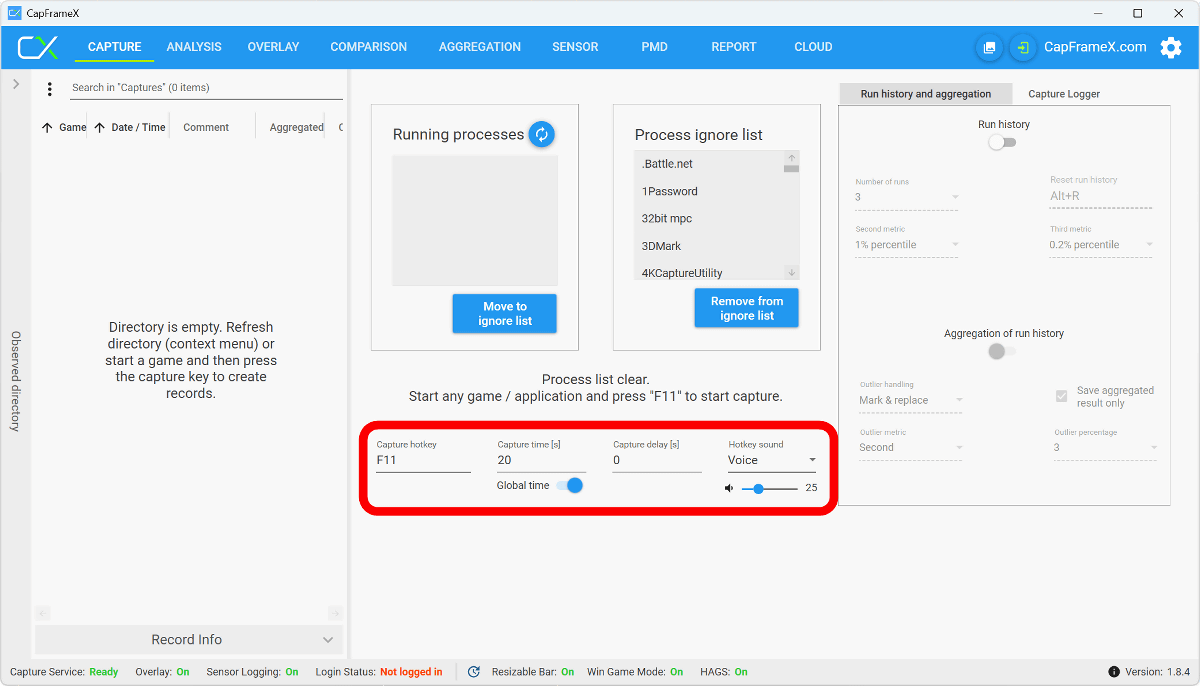
CapFrameX is an app that allows you to measure things like frame rate by pressing any key during gameplay. The default settings are: 'Pressing F11 during gameplay will perform a 20-second measurement. There will be no waiting time before measurement, and a sound will be played at the start and end of the measurement.' You can customize the 'key type,' 'measurement time,' 'waiting time before measurement,' and 'sound type and volume.'
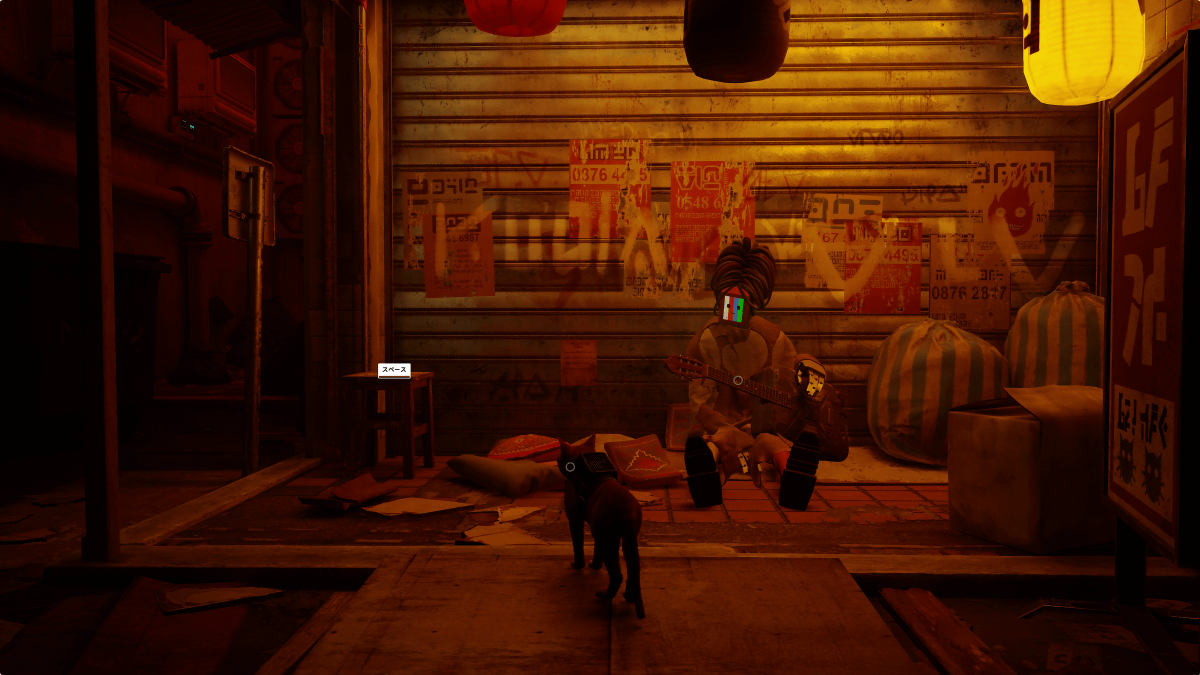
Let's actually measure the frame rate using CapFrameX. This time, we'll try playing the adventure game '
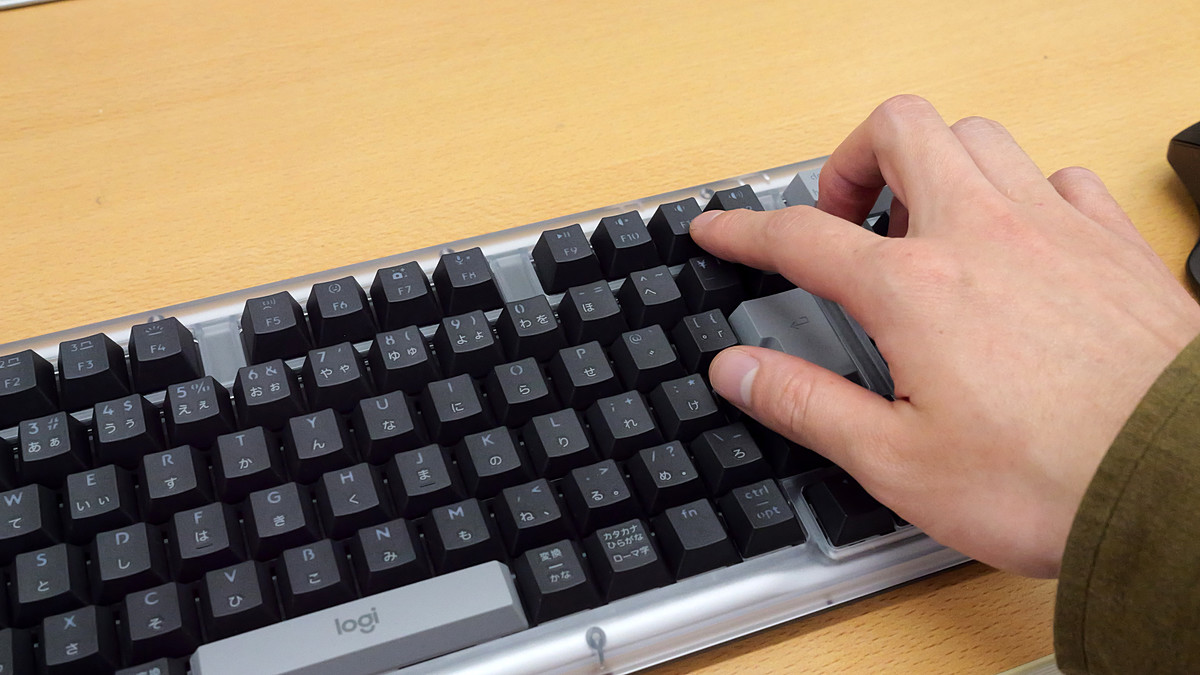
Press F11 on your keyboard during gameplay and you will hear the voice message 'Capture Started,' followed by the voice message 'Capture Finished' after 20 seconds.
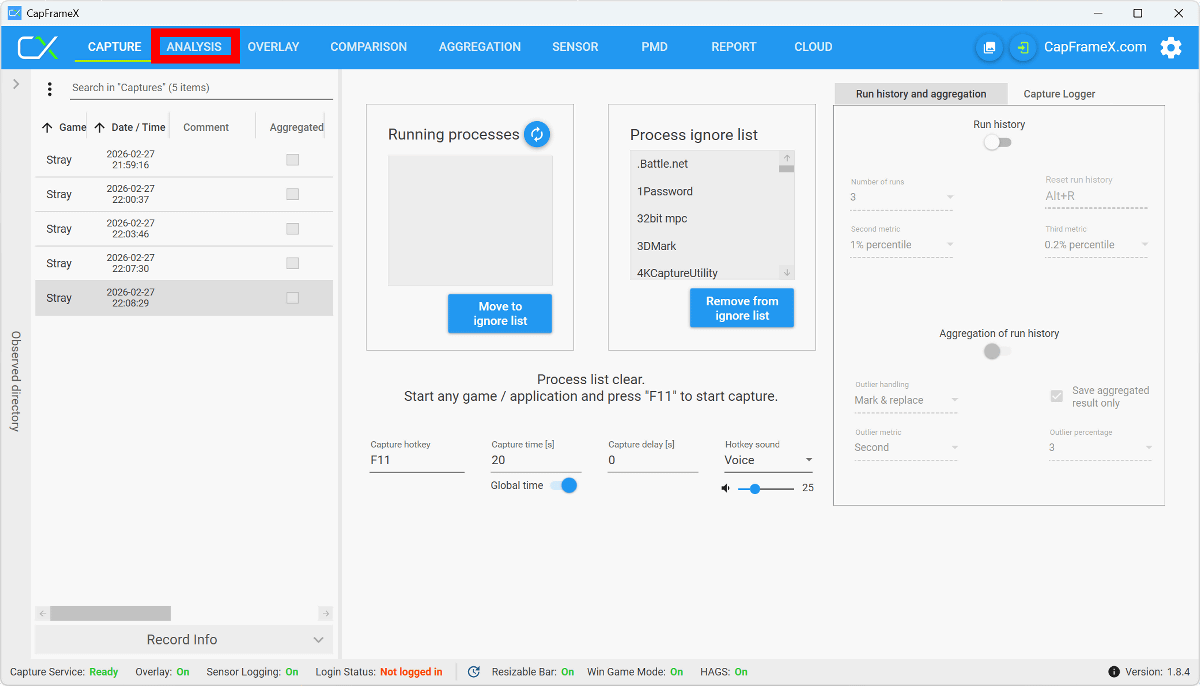
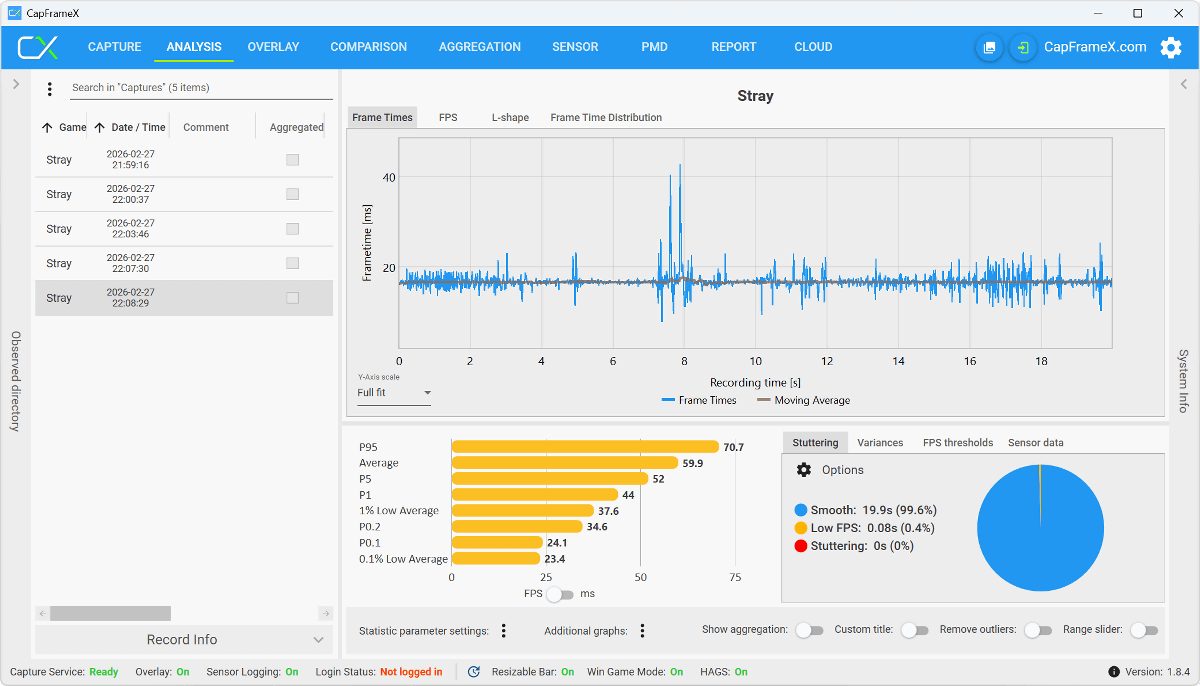
After the measurement was completed, I opened CapFrameX and the measurement records were displayed on the left side of the screen. To view the results, click 'ANALYSIS' at the top of the screen.
The results screen looks something like this. The graph at the top shows the display time for each frame, and a bar graph summarizing the frame rate is displayed at the bottom. Various frame rate values are displayed, but basically, you just need to check 'Average' and '1% Low Avarage.' Average, as the name suggests, is a value that shows the average FPS over 20 seconds. 1% Low Avarage shows the average value of the bottom 1% of FPS values sorted from top to bottom during the measurement period, allowing you to see the 'frame rate during high-load scenes.'
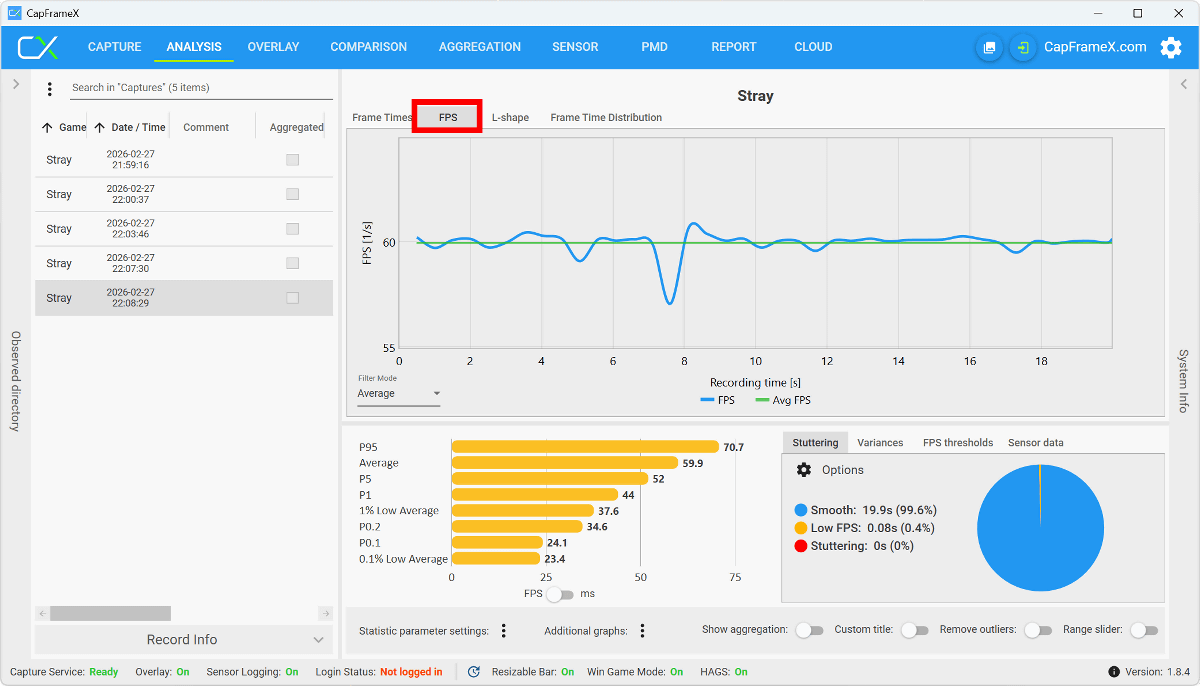
Click 'FPS' at the top of the screen to check the FPS trend during the measurement period.
◆3: Display measurement results as an overlay
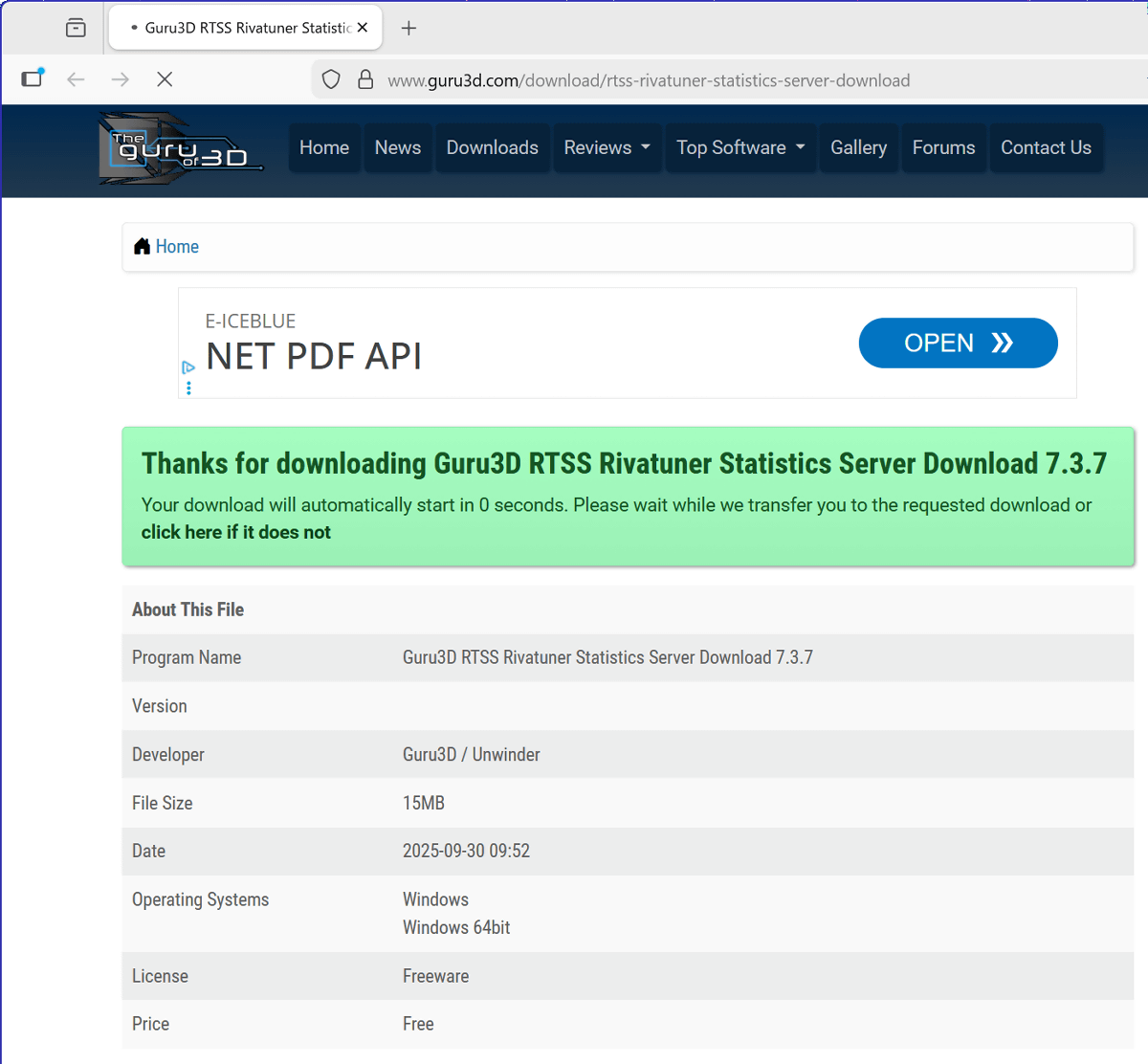
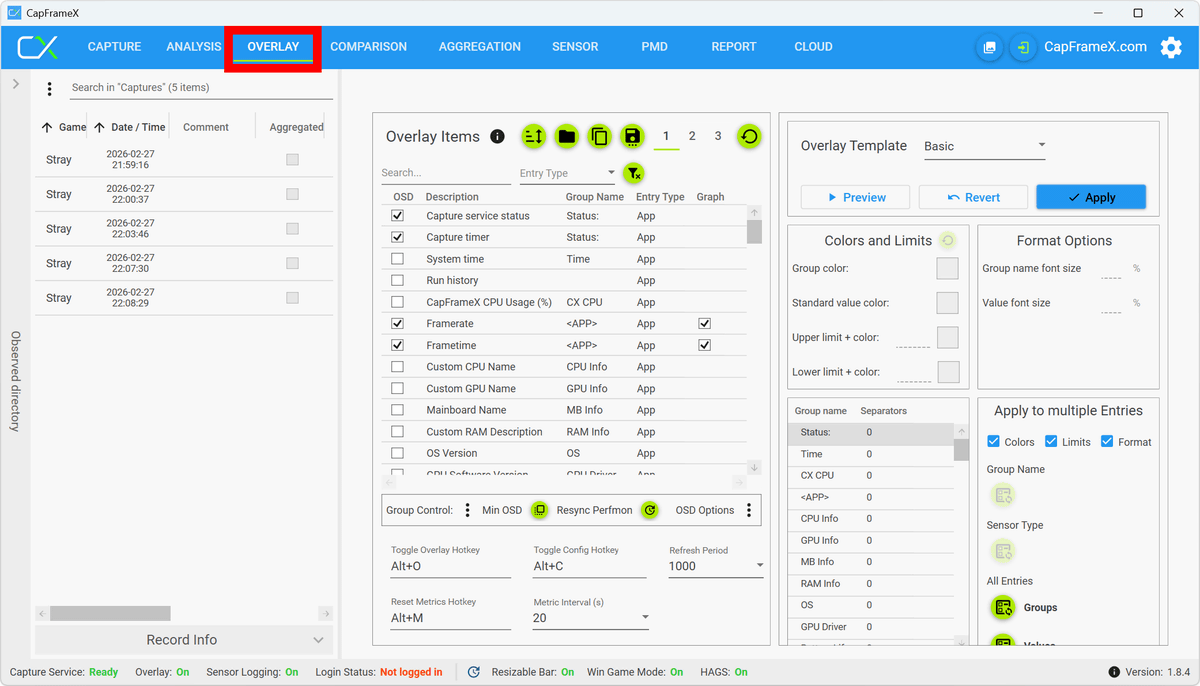
CapFrameX can overlay measurement results on the game screen by linking with the external application Rivatuner Statistics Server (RTSS). First, to install RTSS, click OVERLAY at the top of the CapFrameX screen, then click 'Rivatuner Statistics Server (RTSS)'.
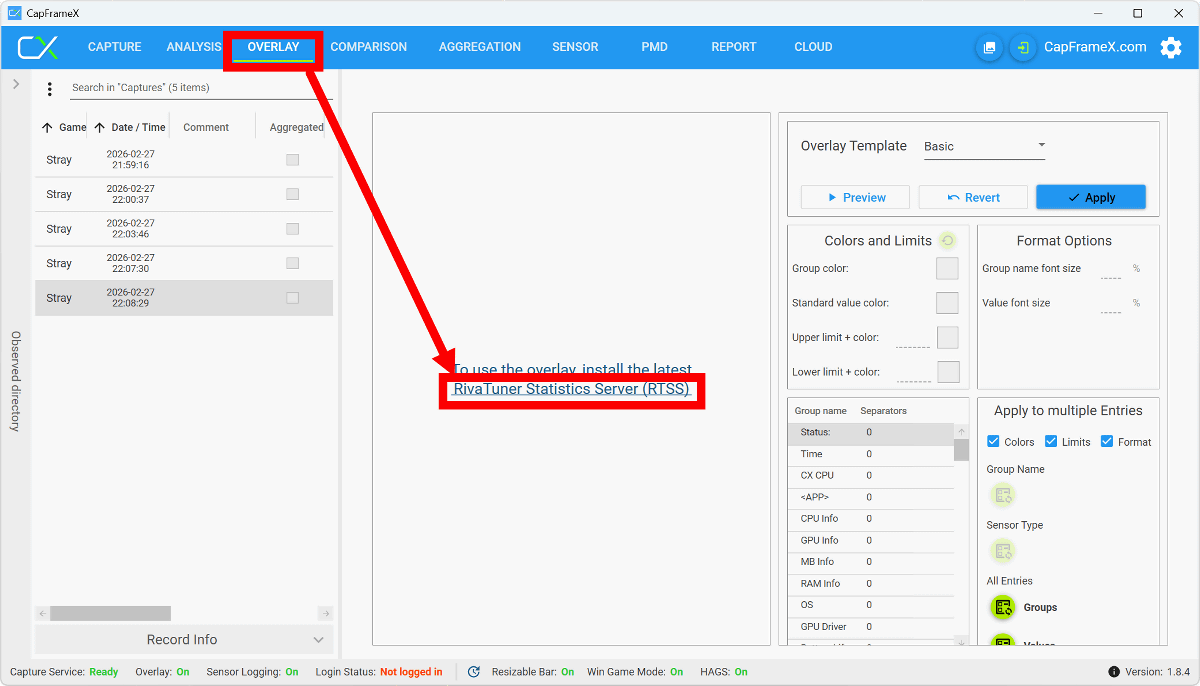
The browser will launch and
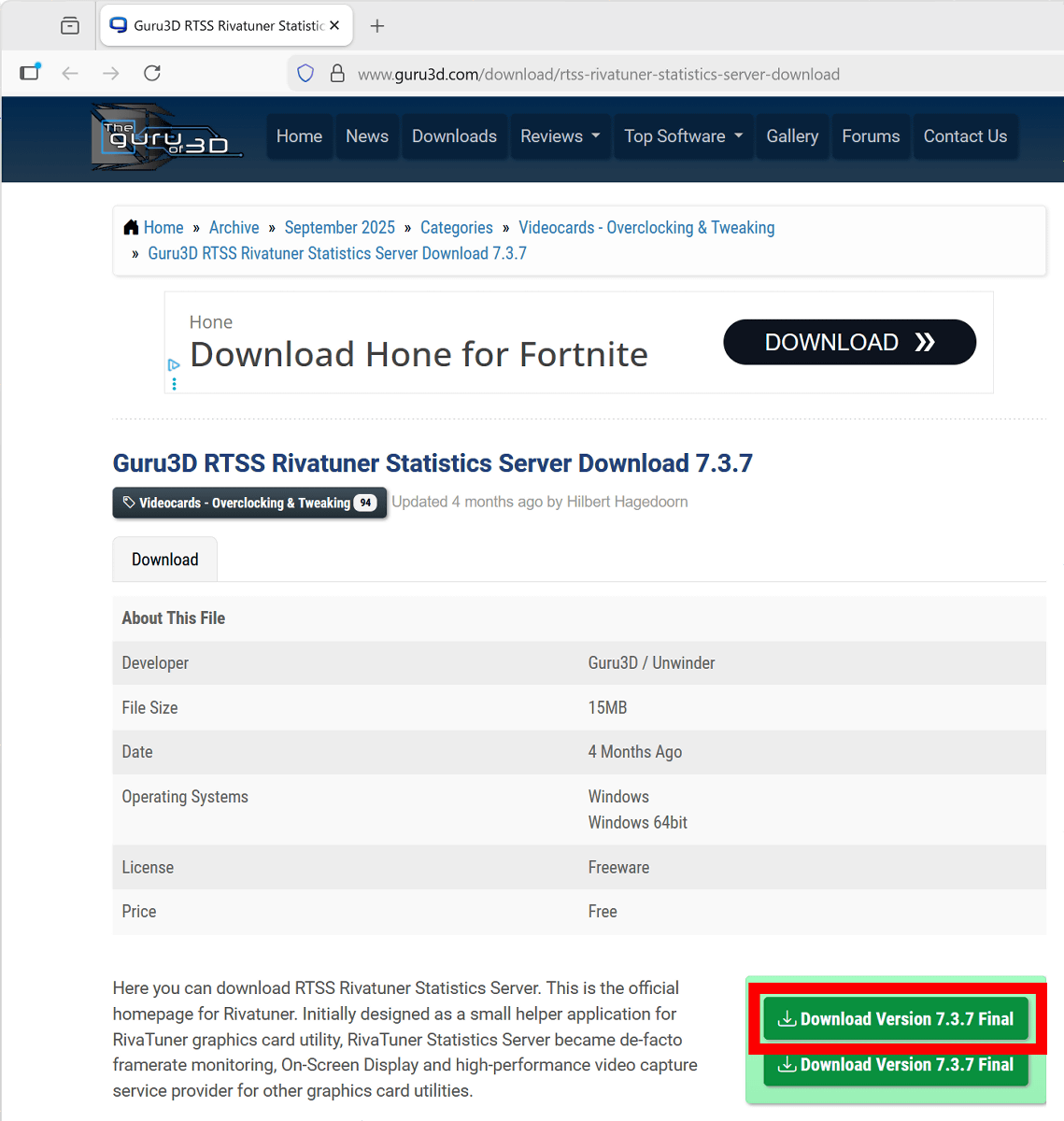
The following screen will appear, so wait a while and the installer will begin downloading.
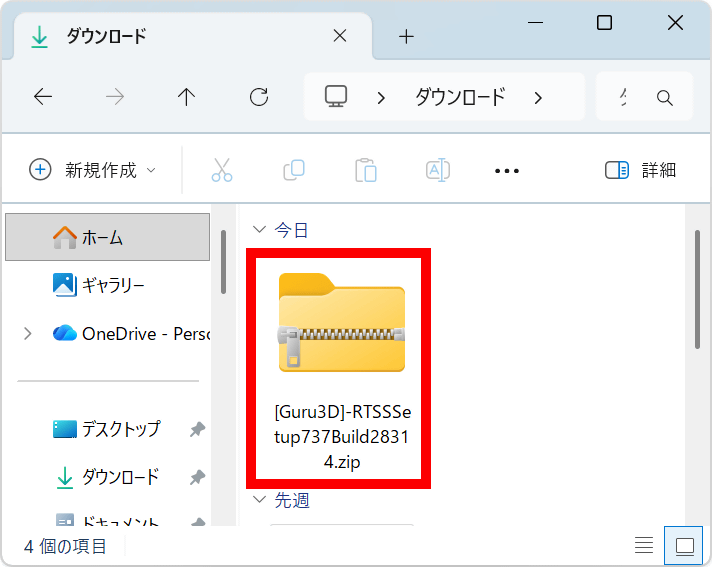
Once the download is complete, extract the ZIP file.
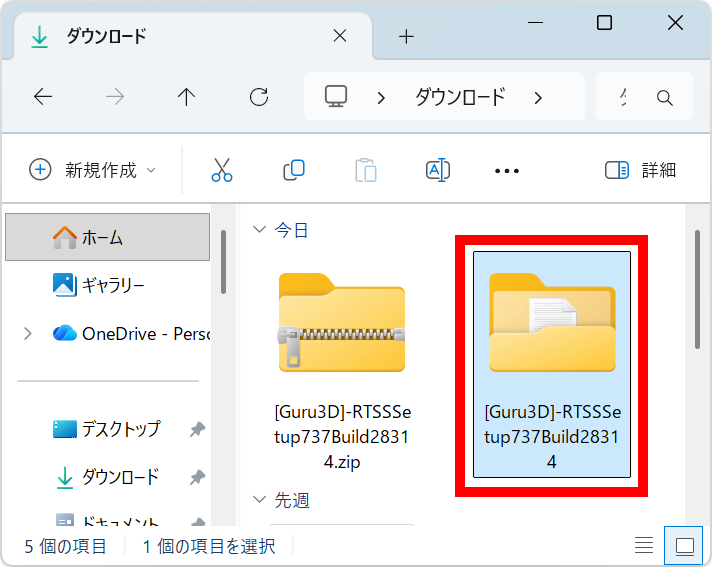
Open the extracted folder.
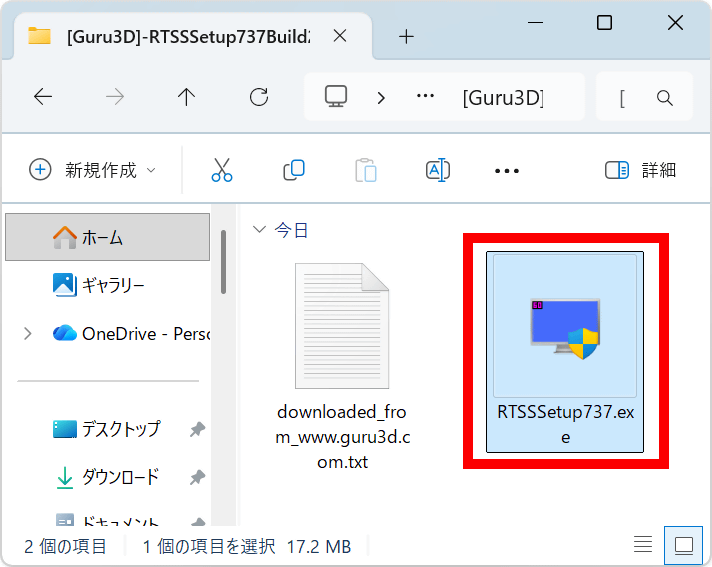
Double-click the installer to start it.
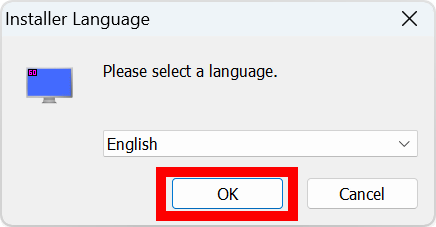
First, the language selection screen will appear. Since Japanese is not supported, leave it in English and click 'OK.'
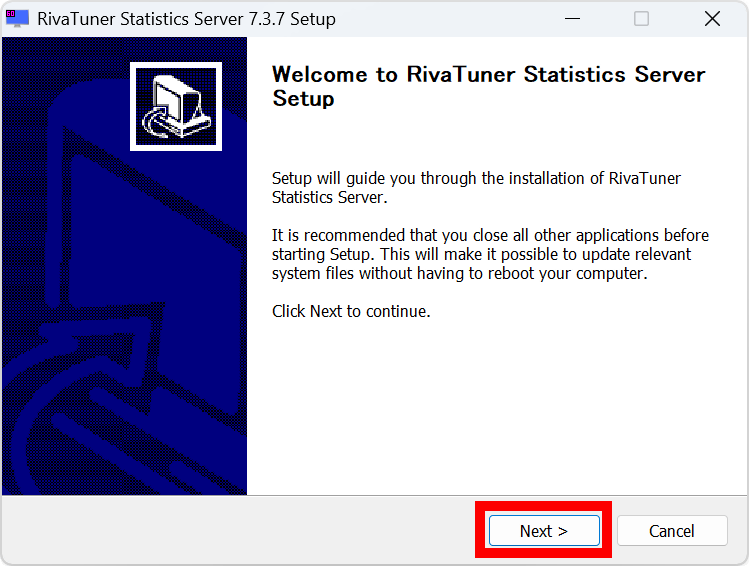
Click “Next”.
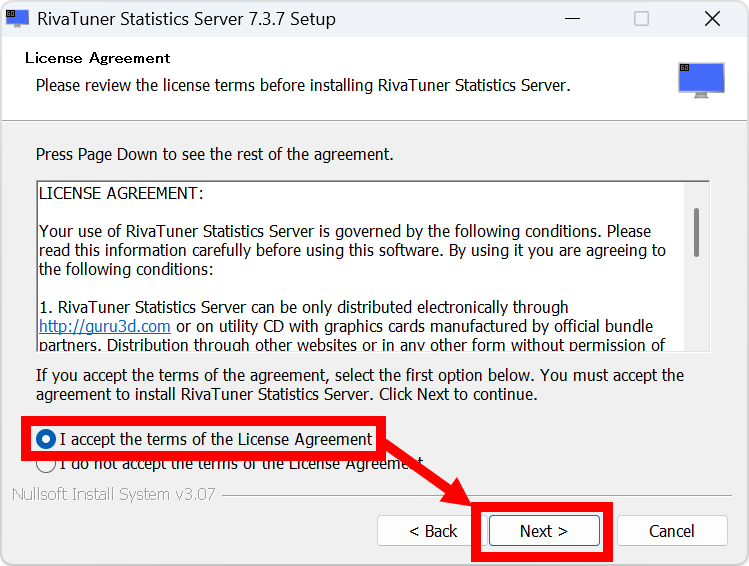
Read the license carefully, then check 'I accept the terms of the License Agreement' and click 'Next.'
Click “Next”.
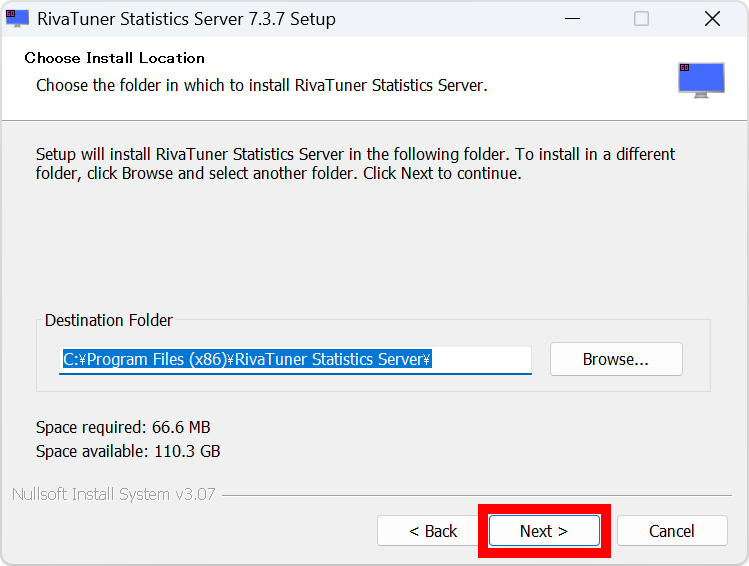
Click “Next”.
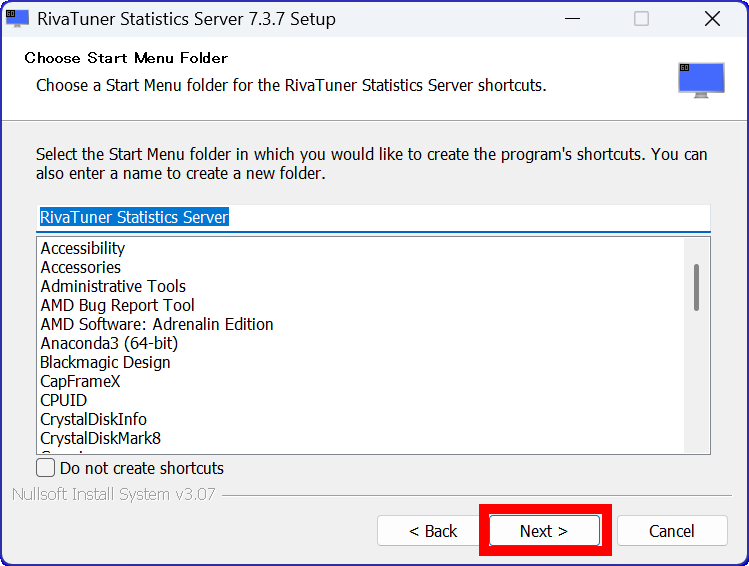
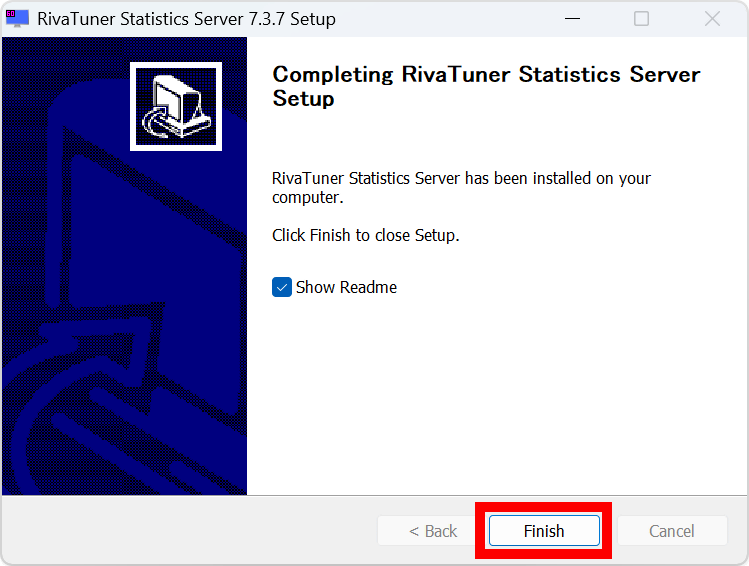
When the installation is complete, click 'Finish'.
When you restart CapFrameX, various settings will be displayed on the OVERLAY screen. By default, the frame rate and GPU information will be displayed.
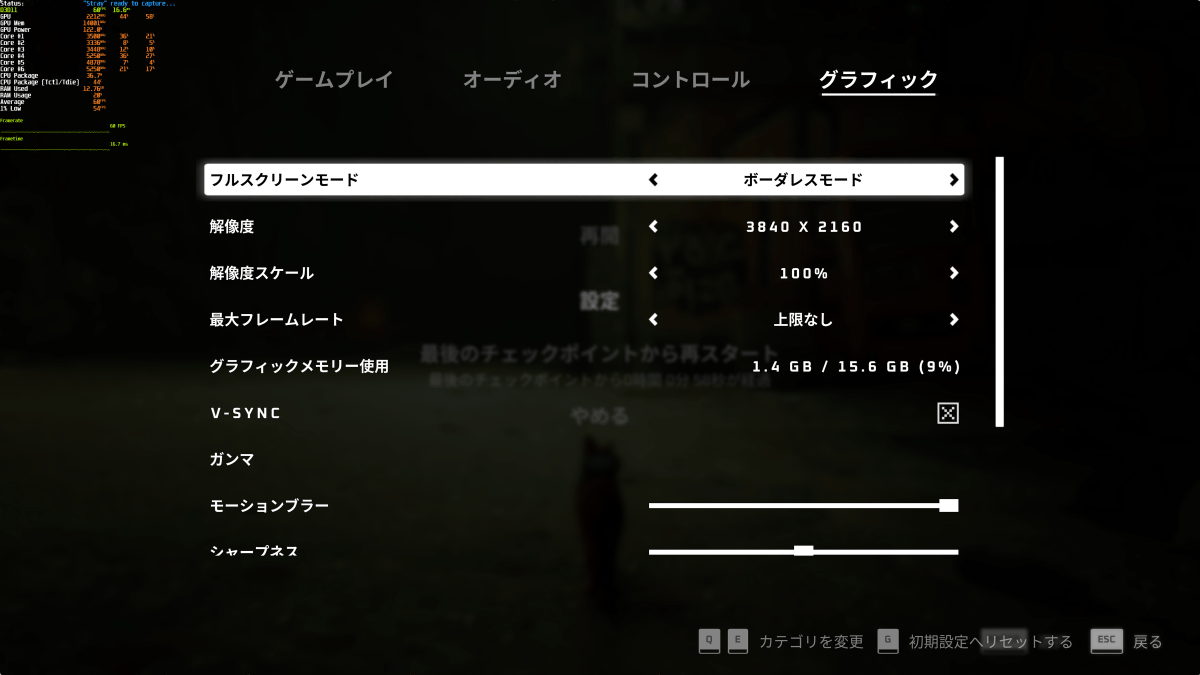
When I actually played Stray, the measurement results were overlaid in the upper left corner of the screen.
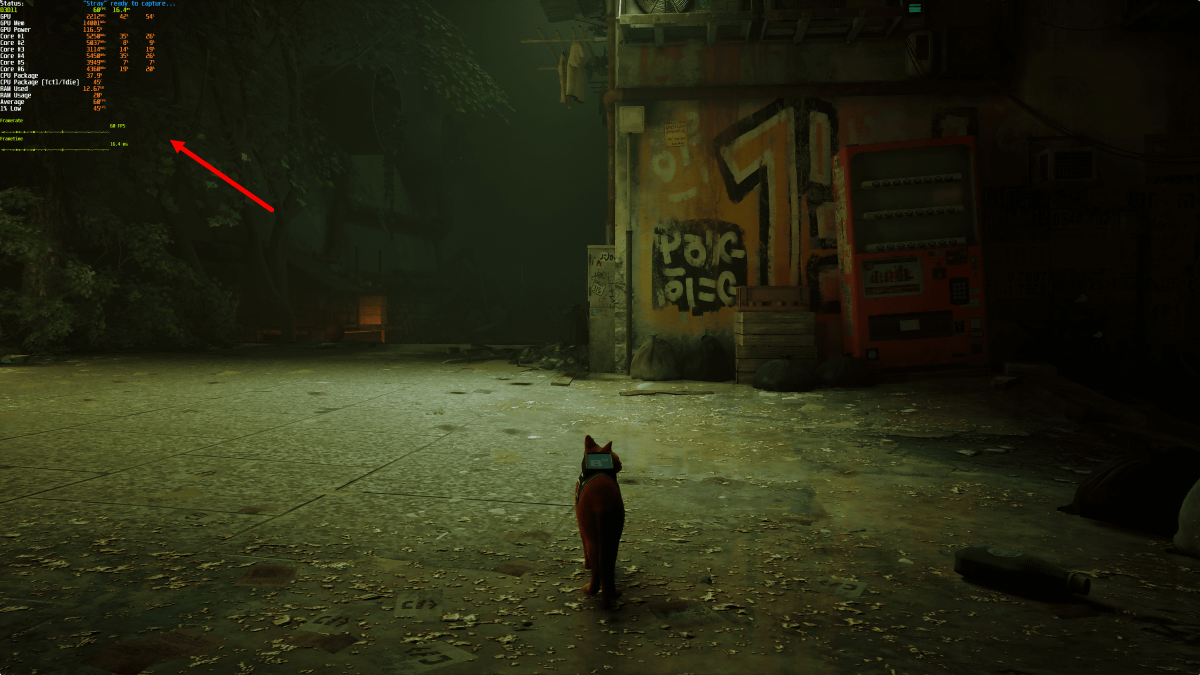
The measurement results are displayed as follows: 'CapFrameX Status,' 'Current Frame Rate,' 'GPU Frequency,' 'GPU Temperature,' 'VRAM Frequency,' 'GPU Power Consumption,' 'CPU Frequency,' 'CPU Temperature,' 'CPU Usage,' 'RAM Consumption,' 'RAM Usage,' 'Average FPS,' and '1% Low.' The frame rate and frame display time are also displayed in a graph at the bottom.
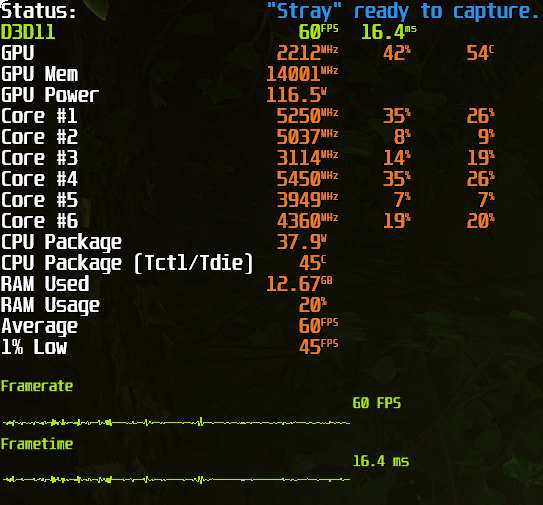
The measurement results are displayed in real time, so you can check the frame rate while changing the game's graphics settings, and refine your settings to achieve high image quality and high frame rates.
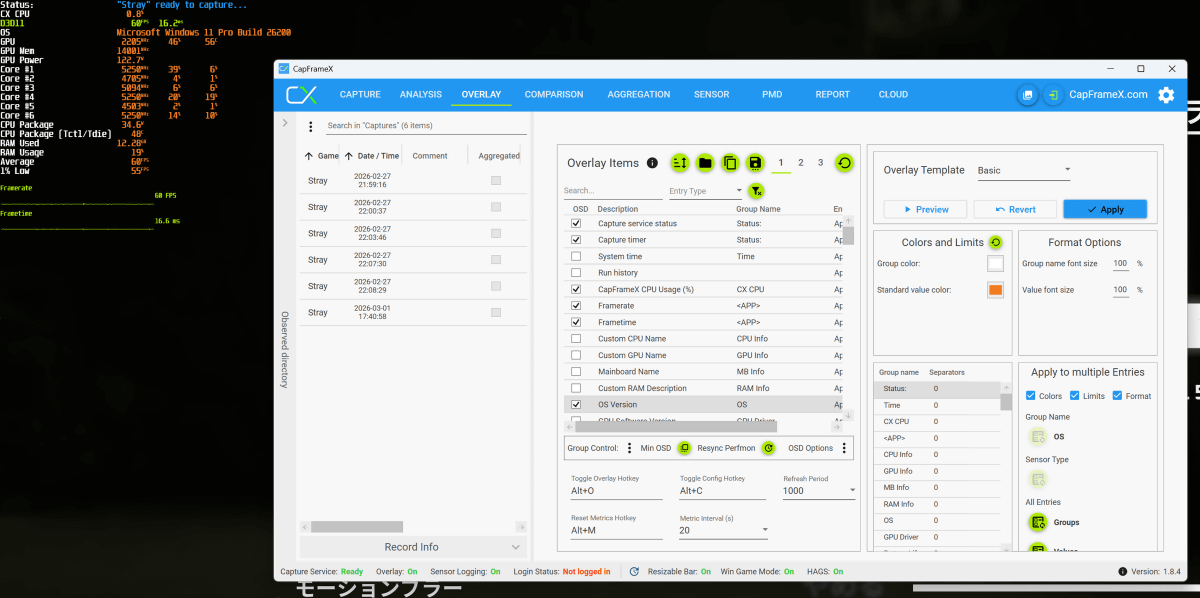
The items and text color displayed in the overlay can be customized on the CapFrameX OVERLAY screen. The customization results are reflected in the overlay display in real time. You can also display information such as the OS version and the CPU consumption rate of CapFrameX itself, so try customizing it in various ways.
Related Posts: