Dockhand is a completely free and self-hosted Docker container management tool for personal use.
Dockhand - Modern Docker Management
https://dockhand.pro/#screenshots
◆Introduction
Like Portainer, Dockhand can also be run on Docker. To start it on Docker, run the following command:
[code]
docker run -d \
--name dockhand \
--restart unless-stopped \
-p 3000:3000 \
-v /var/run/docker.sock:/var/run/docker.sock \
-v dockhand_data:/app/data \
fnsys/dockhand:latest
[/code]
You can also use the Docker Compose command, by creating a 'docker-compose.yaml' file with the following content:
[code]
services:
dockhand:
image: fnsys/dockhand:latest
container_name: dockhand
restart: unless-stopped
Ports:
- 3000:3000
volumes:
- /var/run/docker.sock:/var/run/docker.sock
- dockhand_data:/app/data
volumes:
dockhand_data:
[/code]
When using the Docker Compose command, you can easily use PostgreSQL instead of the default SQLite. To do so, create a 'docker-compose.yaml' file with the following content:
[code]
services:
postgres:
image: postgres:16-alpine
environment:
POSTGRES_USER: dockhand
POSTGRES_PASSWORD: changeme
POSTGRES_DB: dockhand
volumes:
- postgres_data:/var/lib/postgresql/data
dockhand:
image: fnsys/dockhand:latest
Ports:
- 3000:3000
environment:
DATABASE_URL: postgres://dockhand:changeme@postgres:5432/dockhand
volumes:
- /var/run/docker.sock:/var/run/docker.sock
- dockhand_data:/app/data
depends_on:
- postgres
volumes:
postgres_data:
dockhand_data:
[/code]
The minimum operating environment configuration is as follows:
| Docker Engine | 20.20 and later |
|---|---|
| Docker API | 1.41 or later |
| memory | 512MB or more (1GB or more recommended) |
| browser | Chrome・Firefox・Safari・Edge |
| Database | SQLite (default) or PostgreSQL 14 or later |
◆Dashboard
The dashboard that appears when you start it up looks like this:
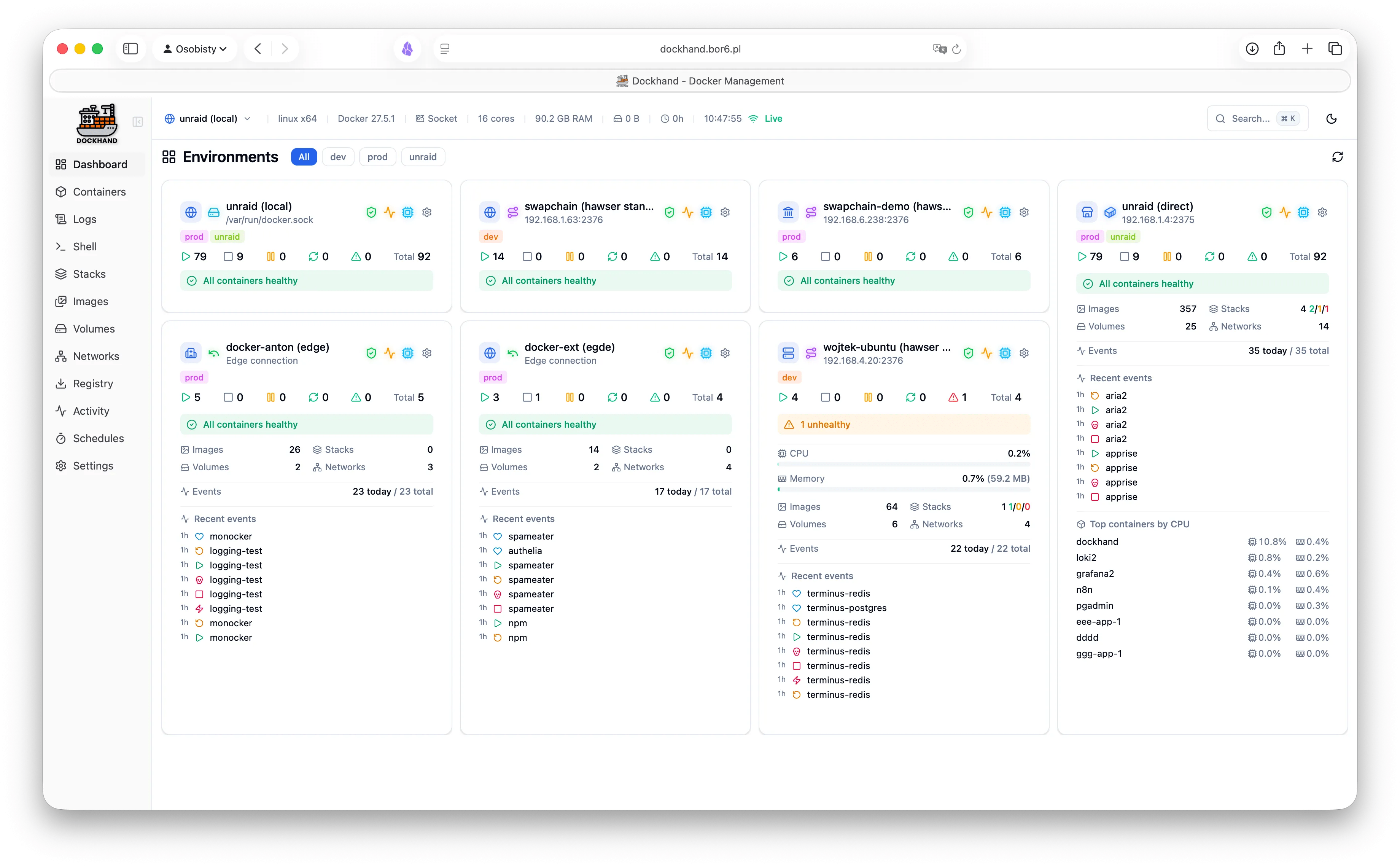
Each Docker environment under your management is displayed as a tile, with key information displayed at a glance.
・Header : Environment name, icon, connection status
・Number of containers : Operating, stopped, total number of containers
・Resource metrics : progress bar, CPU usage, memory usage
Health status : Warning banner for abnormal/restarting containers
・Activities : Today's events and recent activities
・Container list : A list of containers sorted by CPU usage (large tiles only)
The status indicated by the icon is as follows:
・Shield (green) : Vulnerability scanning is enabled
・Graph (Amber) : Tracking container events
・Disconnected (red) : Inaccessible
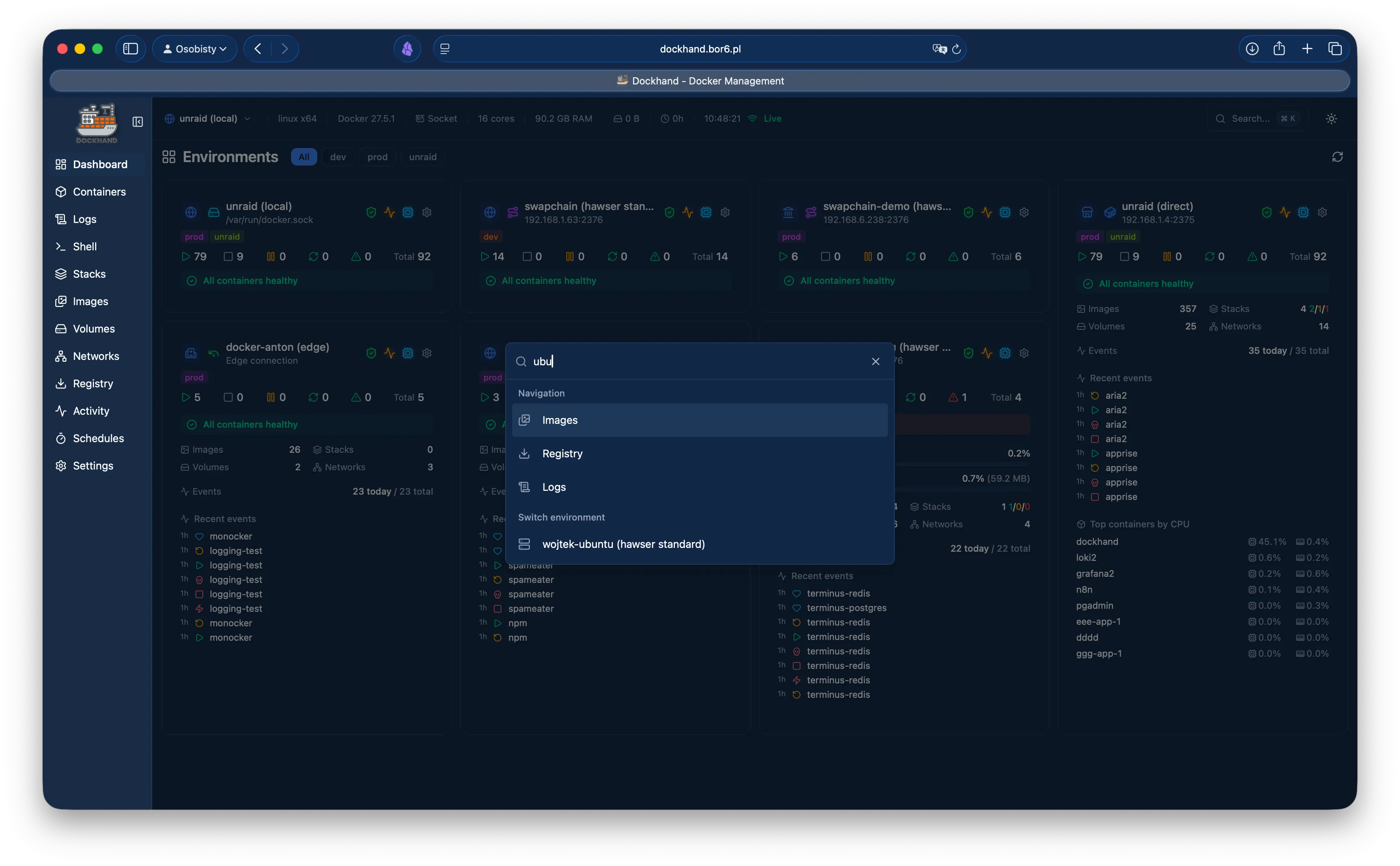
You can also narrow down the display by name.
◆Container
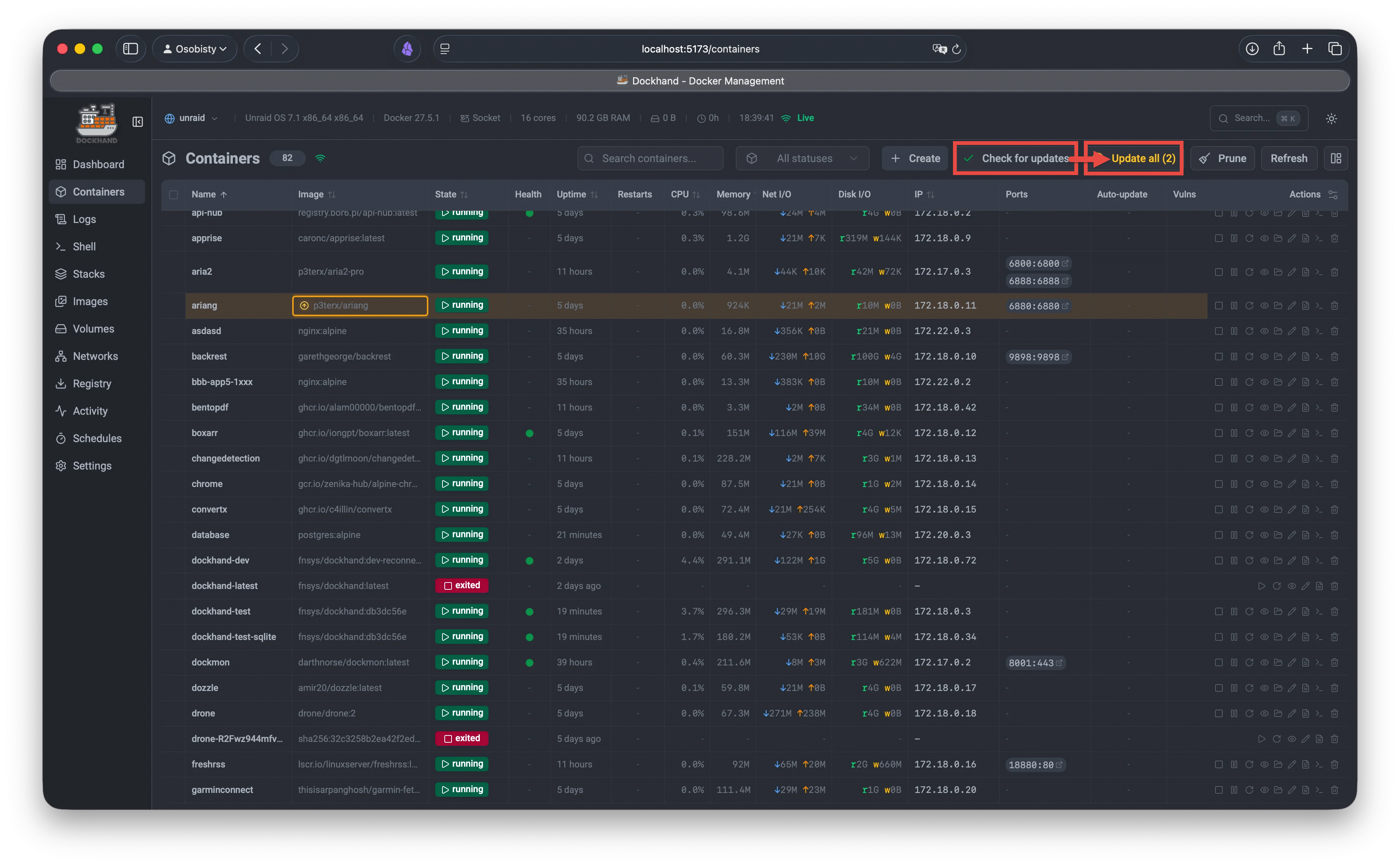
The Containers page gives you comprehensive management of all Docker containers across your environment.
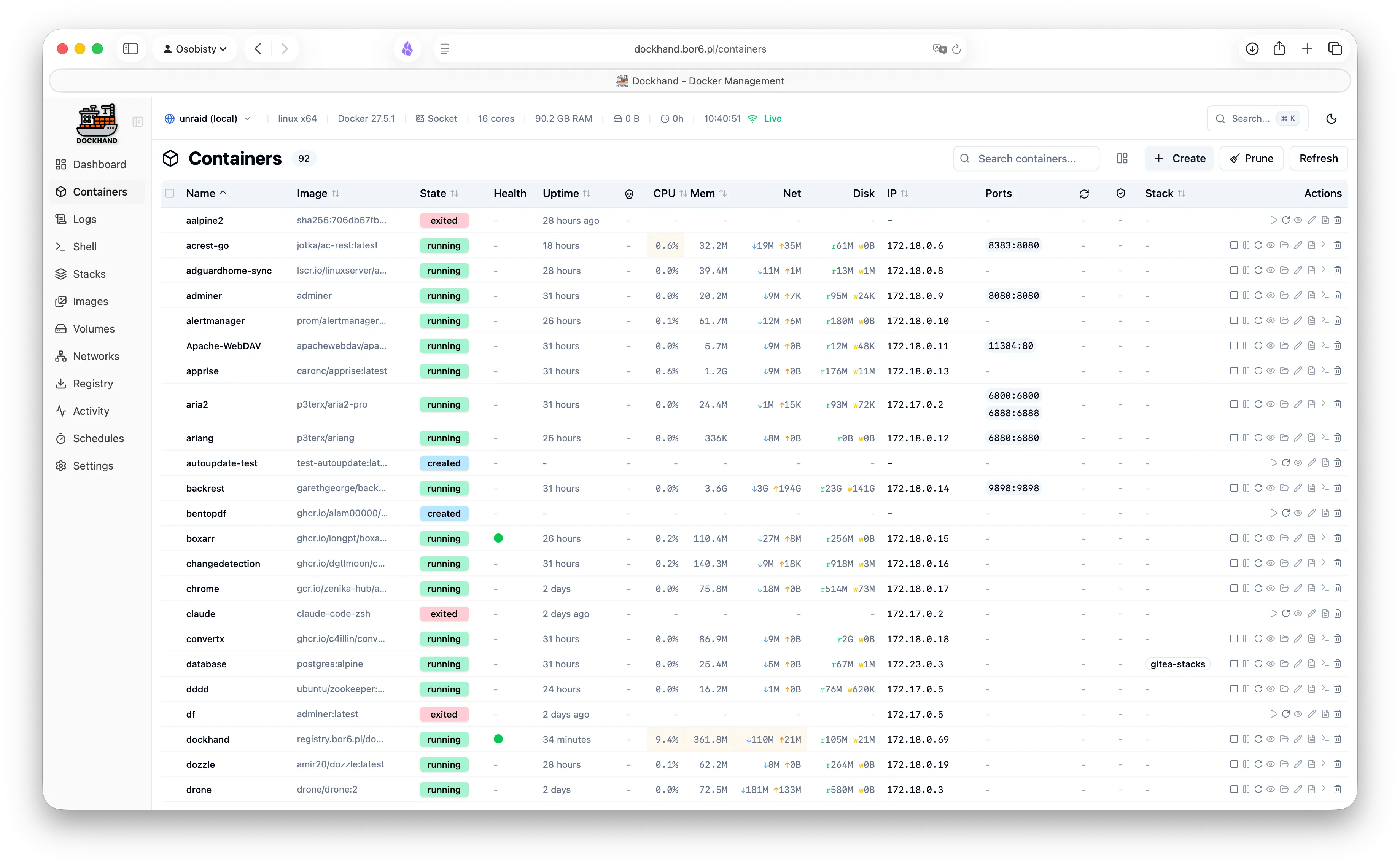
The following information is displayed for each container displayed in the list view:
・Name : Container name (click to display details)
Image : The image tag used in the container
・State : Status (Running, Stopped, Paused, Restarting, Created)
・Health : Health check status (if configured)
・Uptime : Time elapsed since the container was started/stopped
・CPU % : Real-time CPU usage
・Memory : Current memory usage
・Network I/O : Number of bytes received/sent
・Disk I/O : Number of read/write bytes
・IP Address : Container IP address
・Ports : public port mapping (host:container)
・Stack : Compose project name (only if part of a stack)
・Actions : Icons for actions that can be performed (start, stop, restart, delete, display log, etc.)
Click the icons in the Actions column to perform the following actions:
・Start : Start a stopped container
・Stop : Stop a running container (with confirmation)
Pause : Pause a running container
・Restart : Restart the container (confirmation required)
Inspect : View detailed container settings
・Browse Files: Display a file browser (only for running containers)
・Edit : Edit the container settings
・Logs : Display the log panel
・Terminal : Open an interactive shell
・Delete : Delete a container (confirmation required)
If you want to update a container, click the 'Check for updates' button to check for containers with updates, then click the 'Update all' button to update all containers with updates.
◆Automatic update schedule management
To meet the demand for always running the latest containers, Dockhand has an automatic container update function. You can list and manage automatic update schedules on the Schedule page.
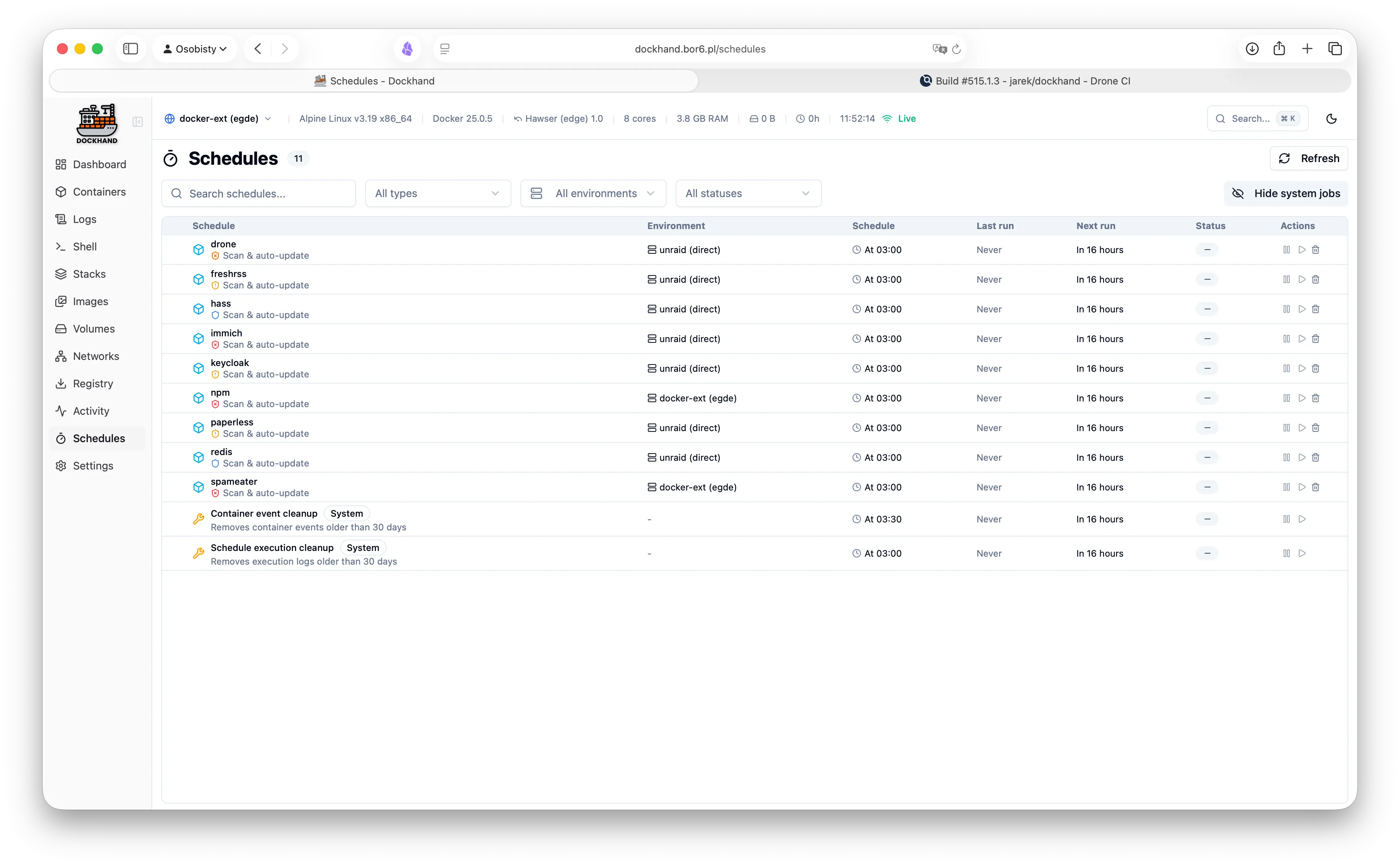
When automatic updates are enabled, Dockhand will periodically check Docker Hub and other registries and automatically update your containers if new images become available. Automatic updates can be configured on a per-container basis, and you can customize the frequency and timing of updates.
・Daily : Updated once a day at the specified time
・Weekly : Updates on the specified day and time
・Custom : Specify the schedule in cron format
When vulnerability scanning is enabled, you can control when automatic updates are blocked by setting 'vulnerability criteria,' allowing you to fine-tune the balance between staying up-to-date and avoiding newly introduced security issues. The available vulnerability criteria are:
| Vulnerability criteria | Update Block Conditions | subject |
|---|---|---|
| Never block | No blocking, always updates | Non-critical containers, development environments |
| Any vulnerability | If a vulnerability (critical, high, medium, low) exists in the new image | Security-focused zero-tolerance environment |
| Critical or High | If the new image has critical or high severity vulnerabilities | Production environment (recommended) |
| Critical only | If the new image has a critical vulnerability | Emphasis on balance, allowing high, medium and low |
| More than current | If the new image has more total vulnerabilities than the current image | Incremental Improvement Approach |
◆Stack
The Stacks page allows you to manage stacks deployed using Docker Compose, including creating, editing, and deleting stacks.
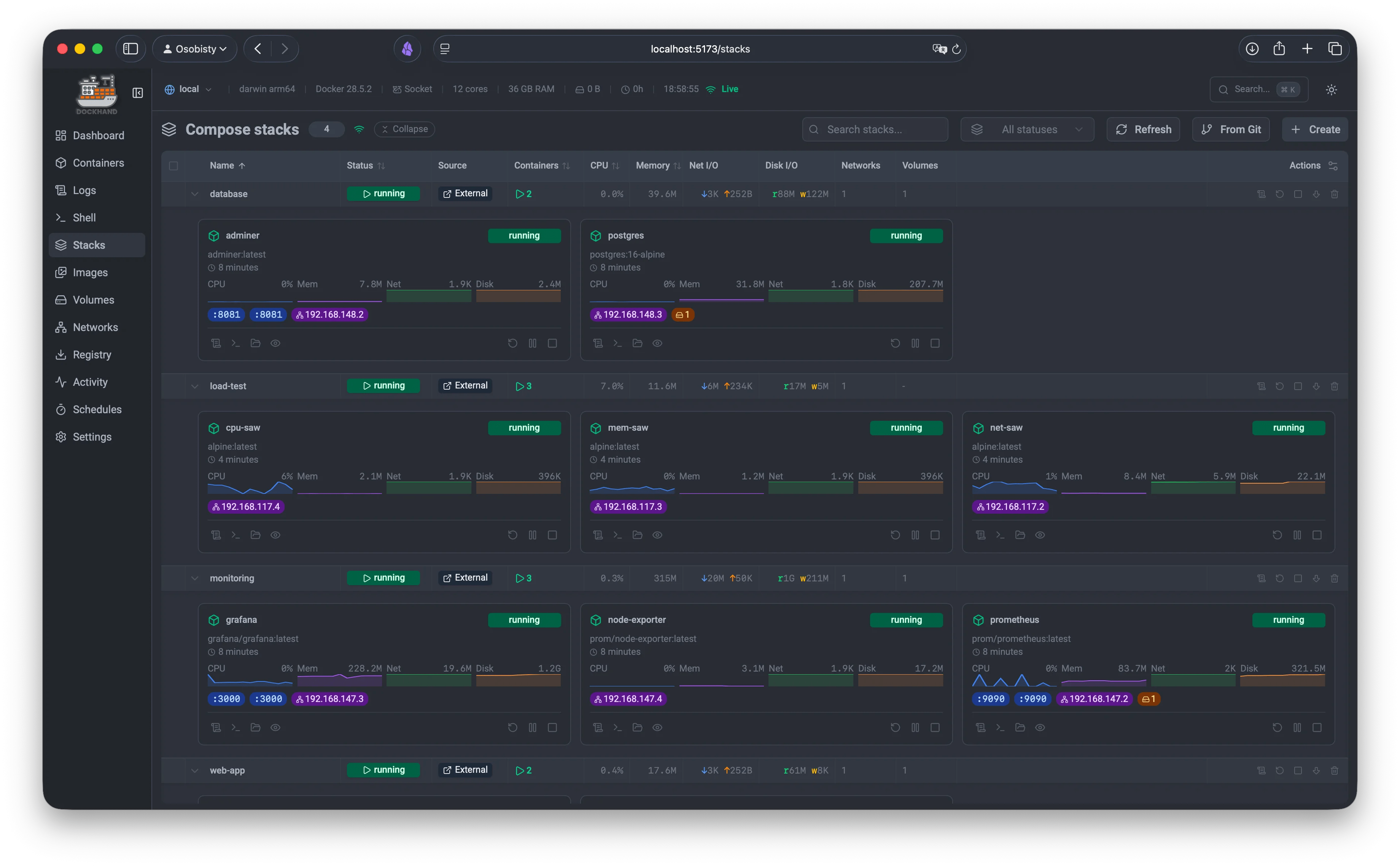
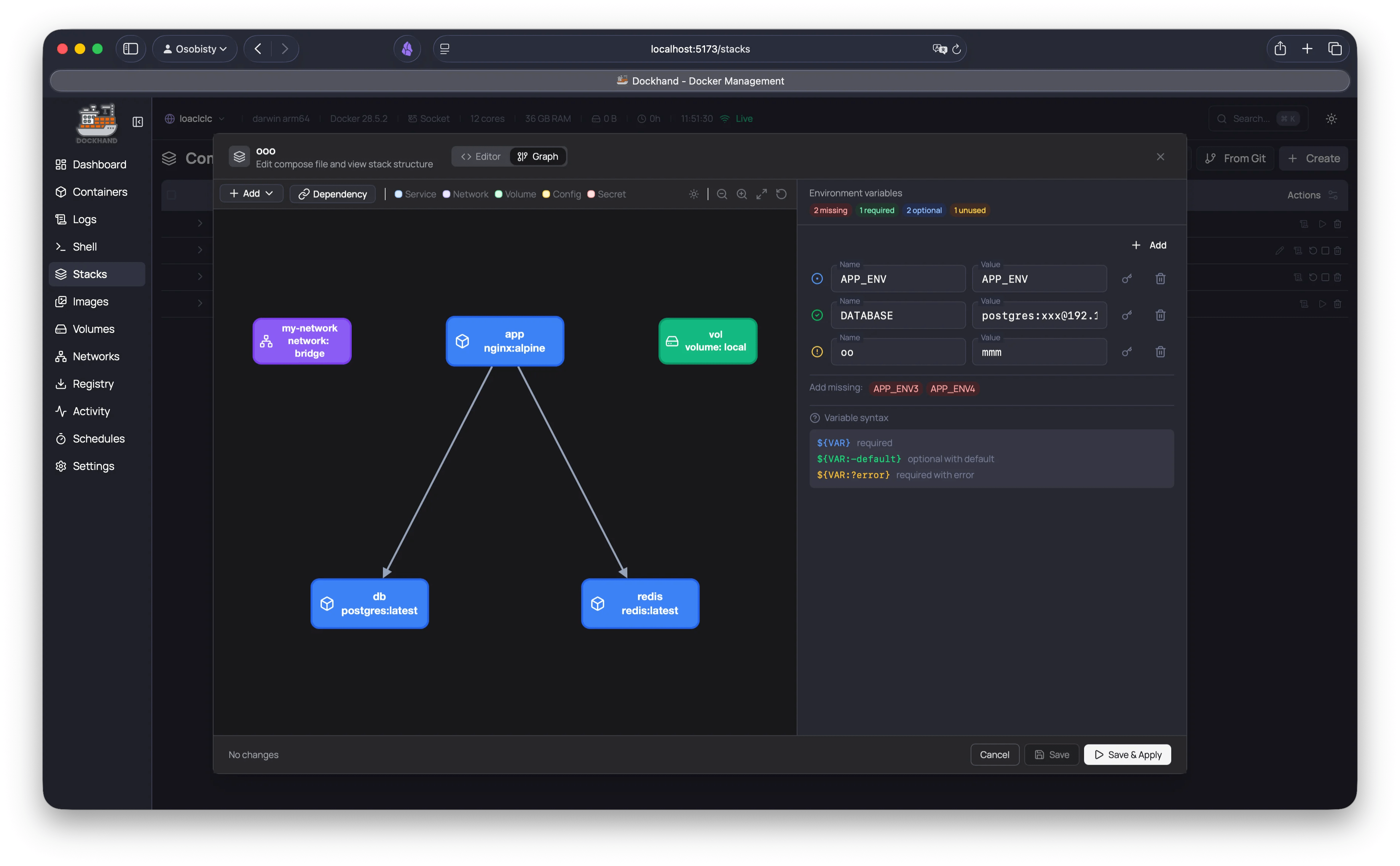
To create a stack, click the 'Create' button, which will open the YAML editor. Paste the contents of the docker-compose.yaml file and click the 'Create' button. To edit a stack that has already been created, click the stack name to open the YAML editor, edit the contents, and click the 'Save & Apply' button.
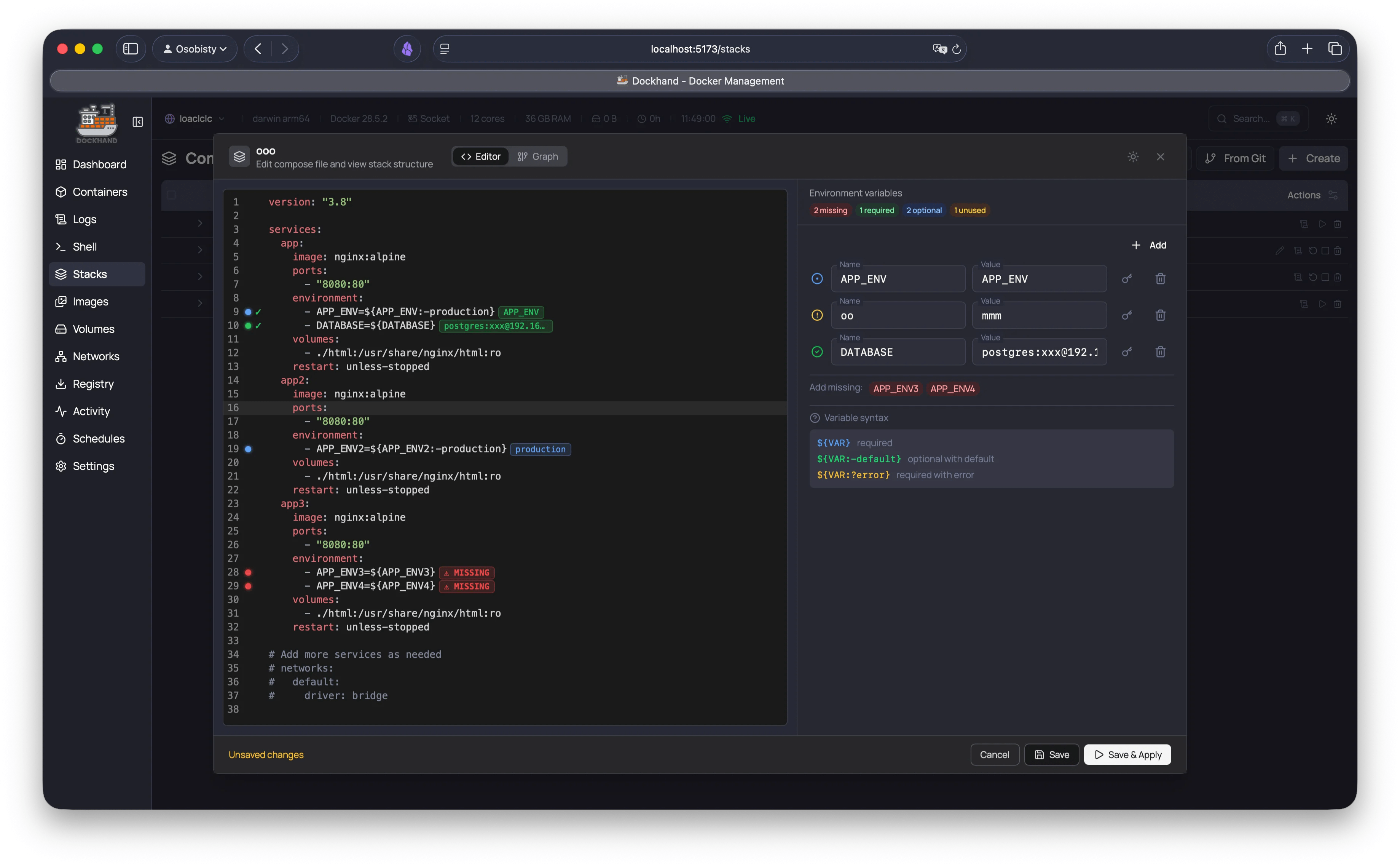
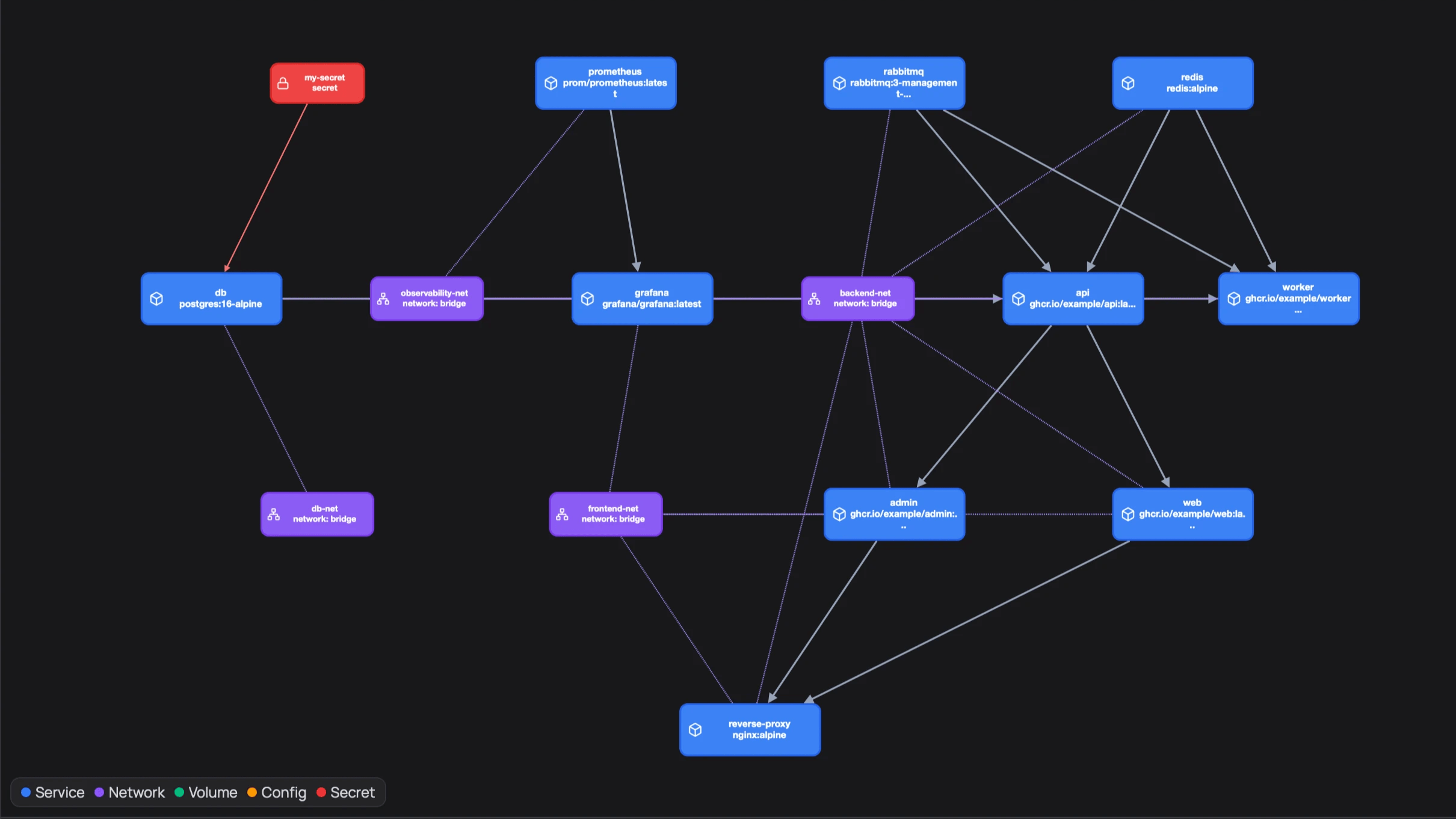
Switching the view to 'Graph' allows you to visually understand the relationships between services in the stack.
◆Image
The Images page allows you to manage all the Docker images that exist on your Docker host.
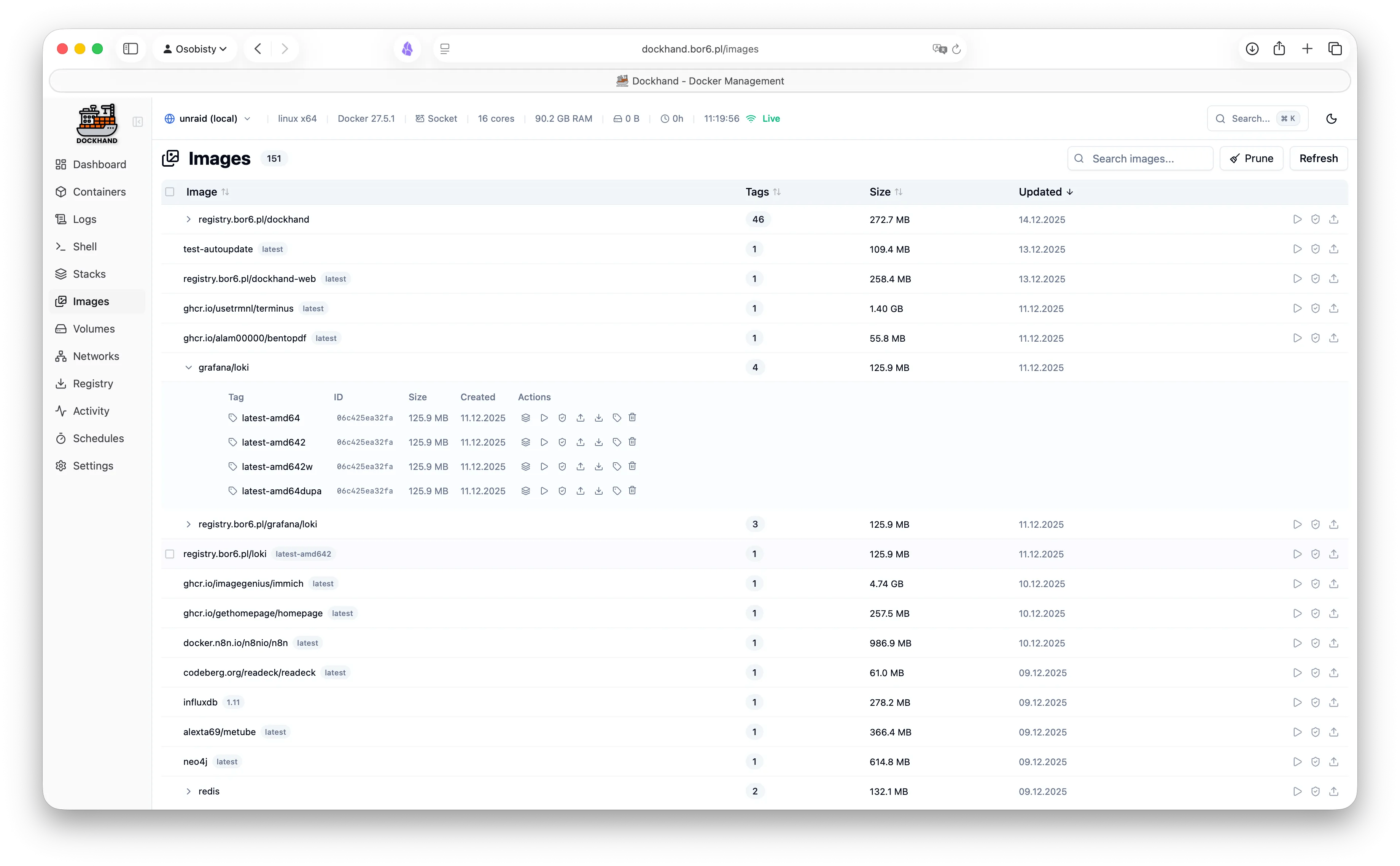
You can perform the following operations on each image displayed in the list view.
Run : Create a new container from this image
・Scan : Scan for vulnerabilities (only if a scanner is configured)
・Tag : Add a new tag to this image
・Push : Push to the configured registry
・Export : Download as a tar/tar.gz archive
・History : Shows the layer history of the image
・Delete : Delete the image
You can also delete unused images by clicking the Prune button.
◆Activity log
Track Docker container events in real time across all your environments.
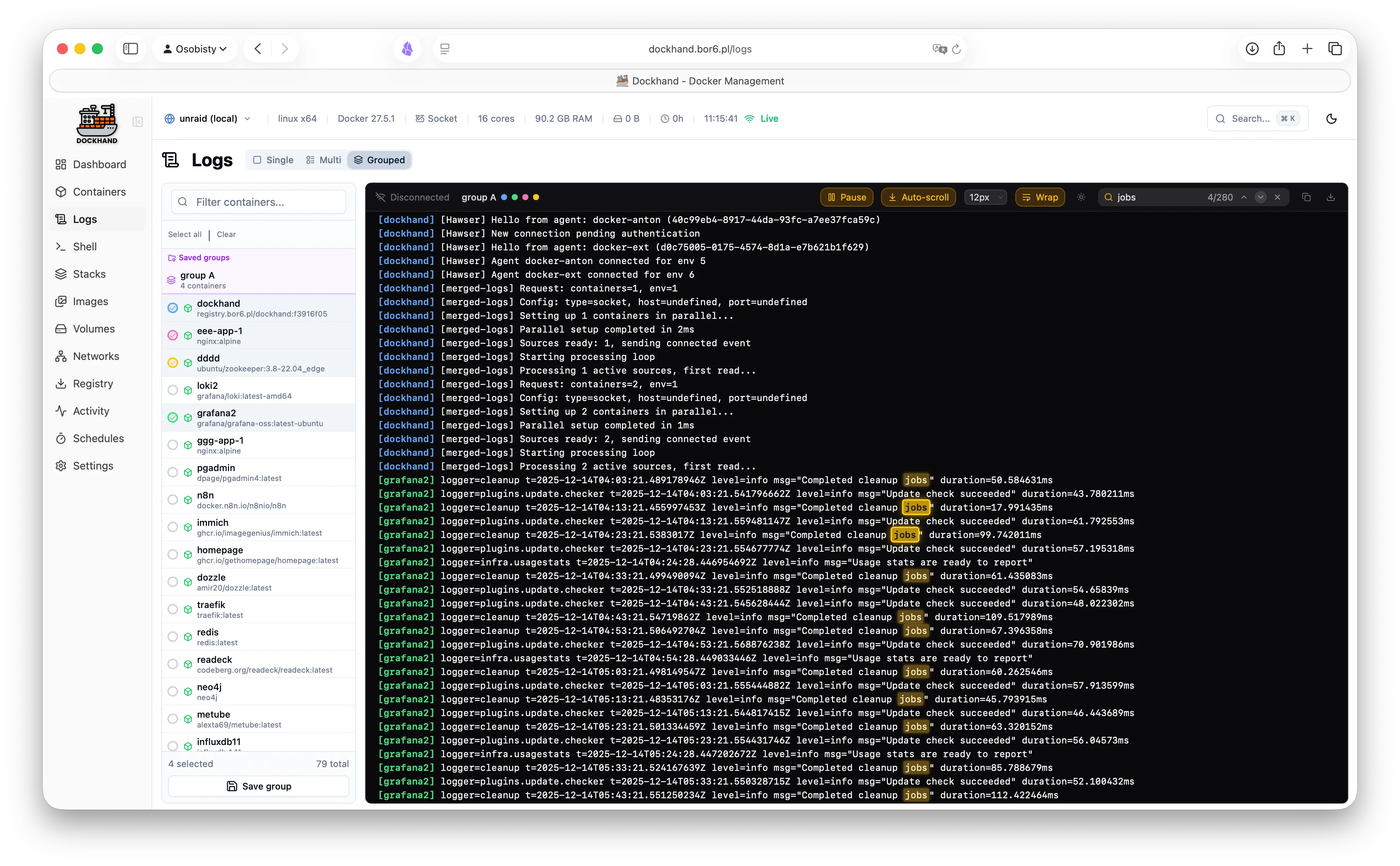
Log event types include:
・create : Create a container
・start : Start a container
・stop : Stop the container
・die : Container termination
・kill : Forcefully terminate the container
・restart : Restart the container
・pause : Container pause
・unpause : Unpause a container
・oom : Out of memory
・health_status : Health check result
You can also filter the log display by the following criteria:
・Container name : Text search
・Event type : Select a specific event type
・Environment : Filter by environment
・Labels : Filter by environmental labels
Date range : preset or custom range
Summary
If you are able to self-host in a private environment such as at home, Dockhand is a very attractive option. It has features comparable to Portainer, and its automatic update and vulnerability scanning functions provide peace of mind in terms of security. With an intuitive interface and extensive management functions, Dockhand is a tool suitable for a wide range of users.
Related Posts:
in Software, Posted by log1c_sh