I tried shooting videos and transferring data with the lightweight and compact DJI action camera 'Osmo Nano,' which can shoot 4K 60fps videos for under 50,000 yen
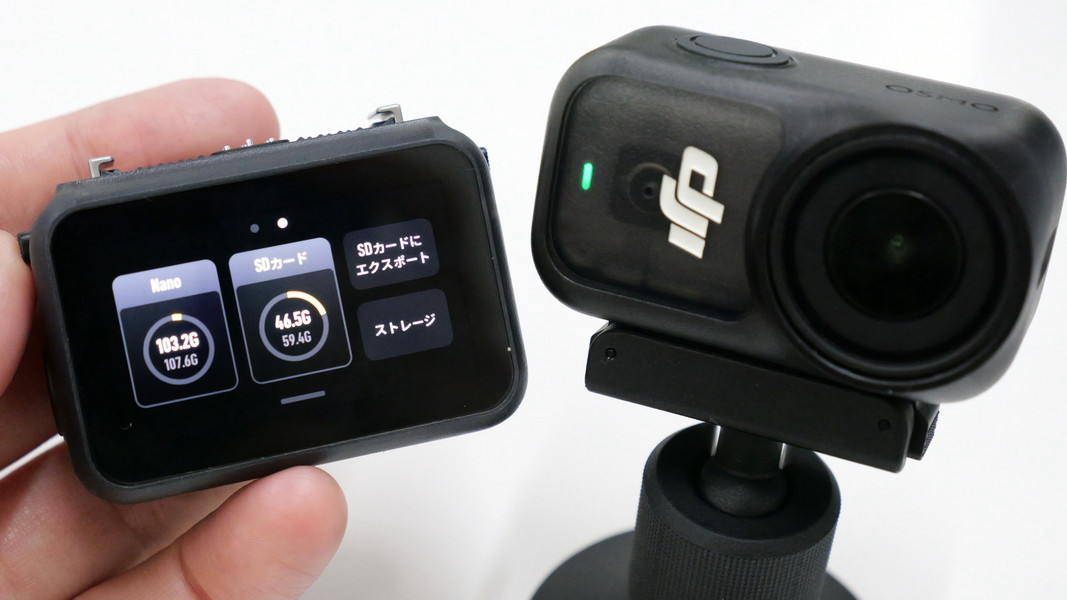
DJI, a manufacturer of drones and action cameras, released the Osmo Nano , a compact wearable action camera, on Tuesday, September 23, 2025. The camera features a modular design that allows the camera body to be detached using magnets. The camera itself is lightweight and compact, weighing just 65g, and is capable of shooting video at up to 4K resolution at 60fps. We were able to get a sneak peek at the Osmo Nano, so we checked out the settings and actually shot some video with it.
Osmo Nano - Own the Moment - DJI
You can get a better understanding of the Osmo Nano's design, spec sheet, and included accessories by reading the article below.
DJI's magnetically detachable compact action camera 'OSMO Nano' quick photo review - GIGAZINE
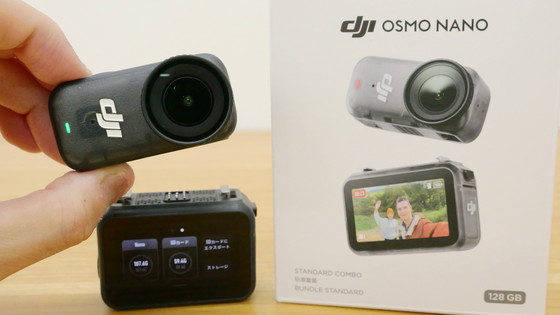
The Osmo Nano consists of a camera and a multi-functional Vision Dock.
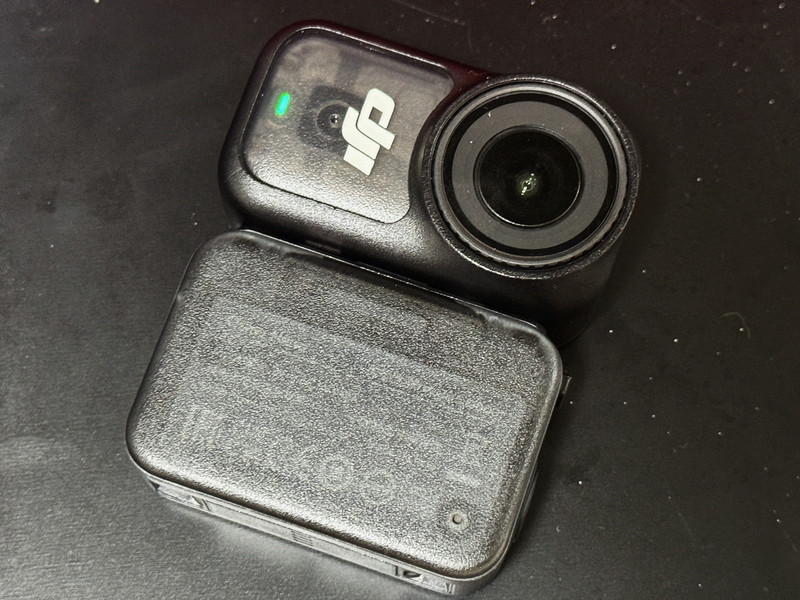
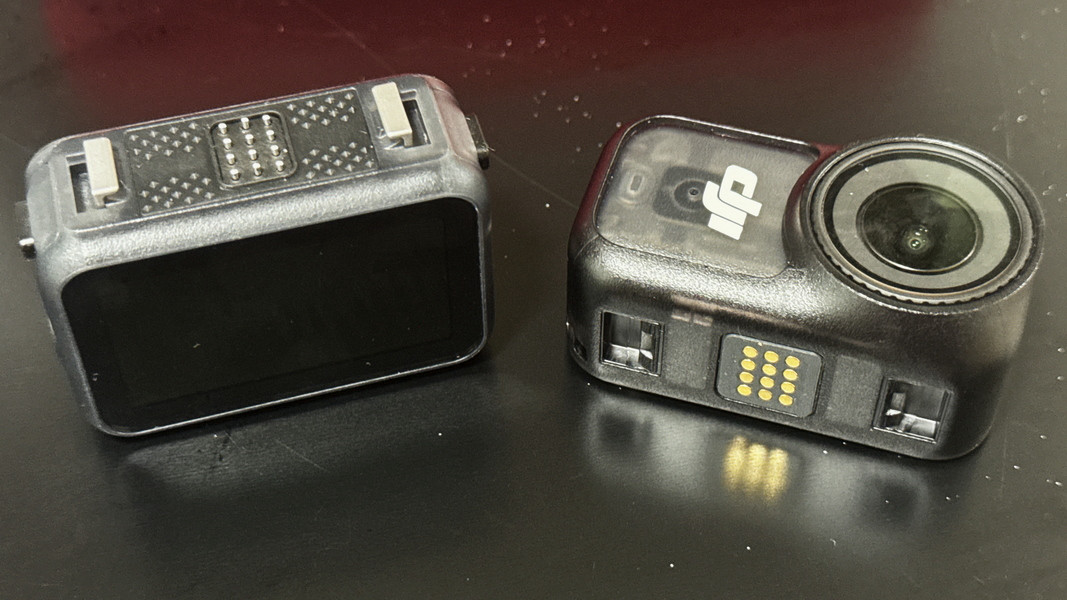
The camera and multi-function Vision Dock can be separated.
Check the settings for the DJI Osmo Nano
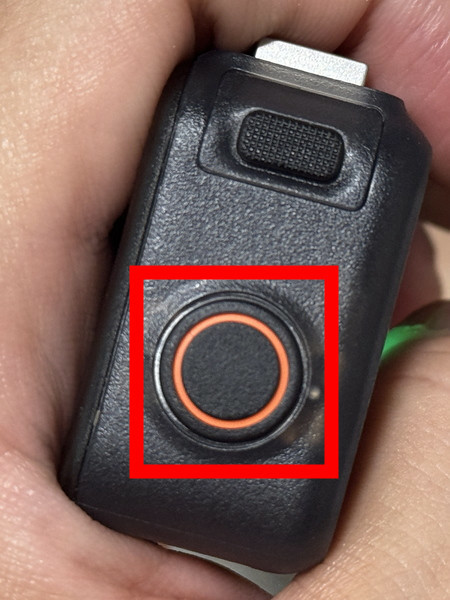
Press and hold the button on the left side of the multi-function Vision Deck to turn it on.
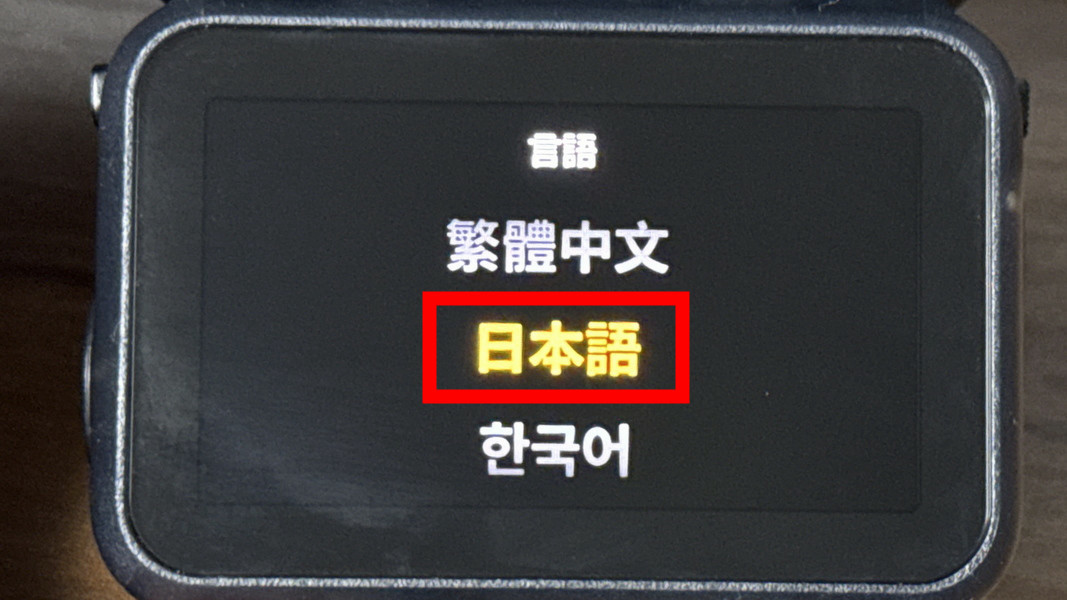
When you start the app for the first time, you will need to select the language.
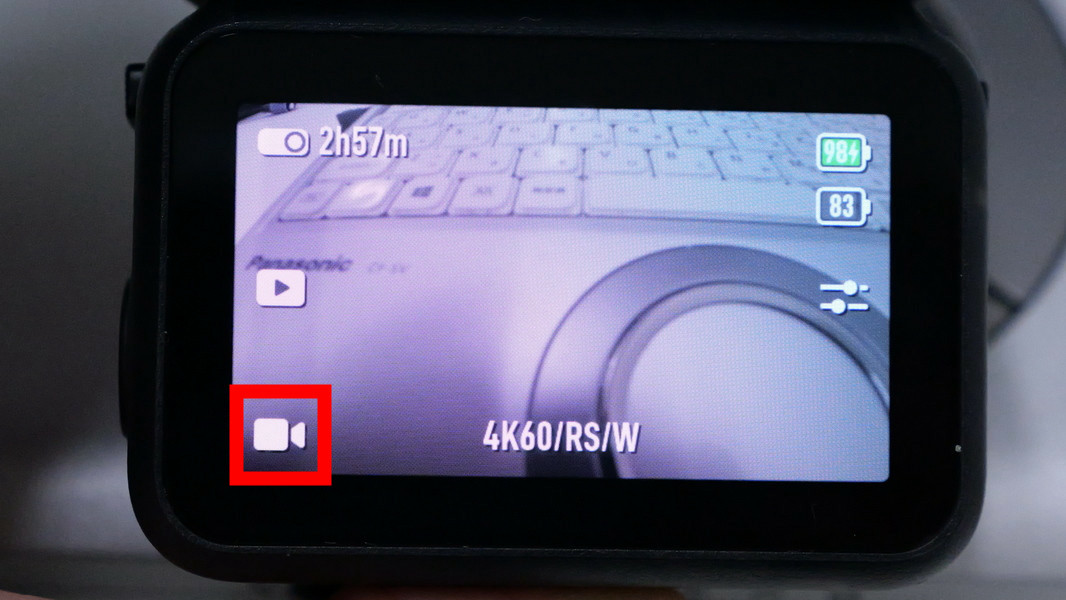
The multi-functional Vision Dock displays the image captured by the camera. Tap the icon on the bottom left.
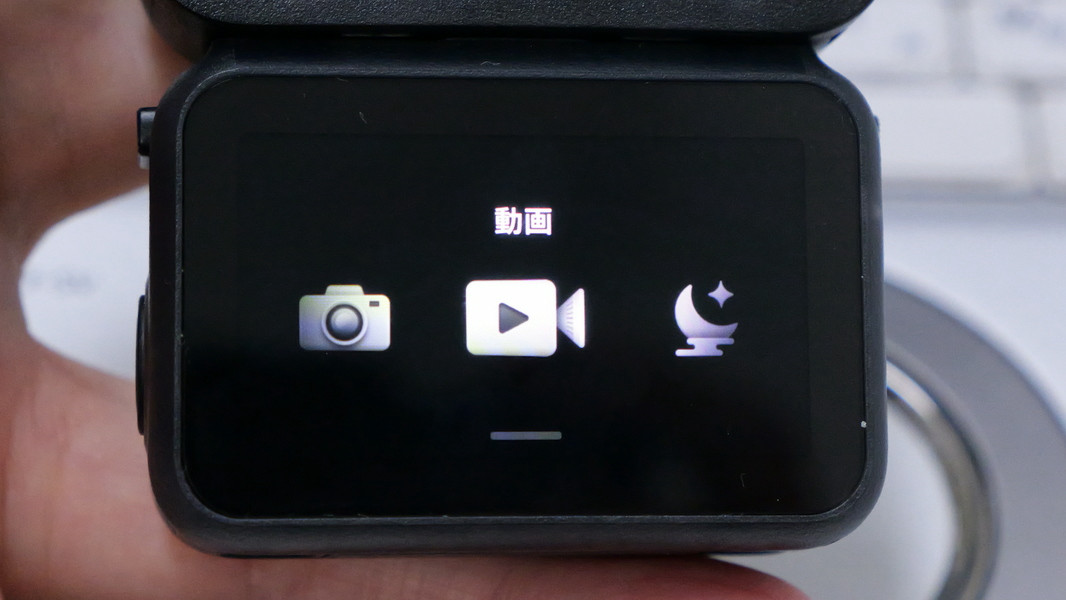
You can choose from the following shooting modes: Photo, Video, SuperNight, Slow Motion, and Time Lapse.
Swipe up from the bottom of the screen to select the resolution and frame rate.
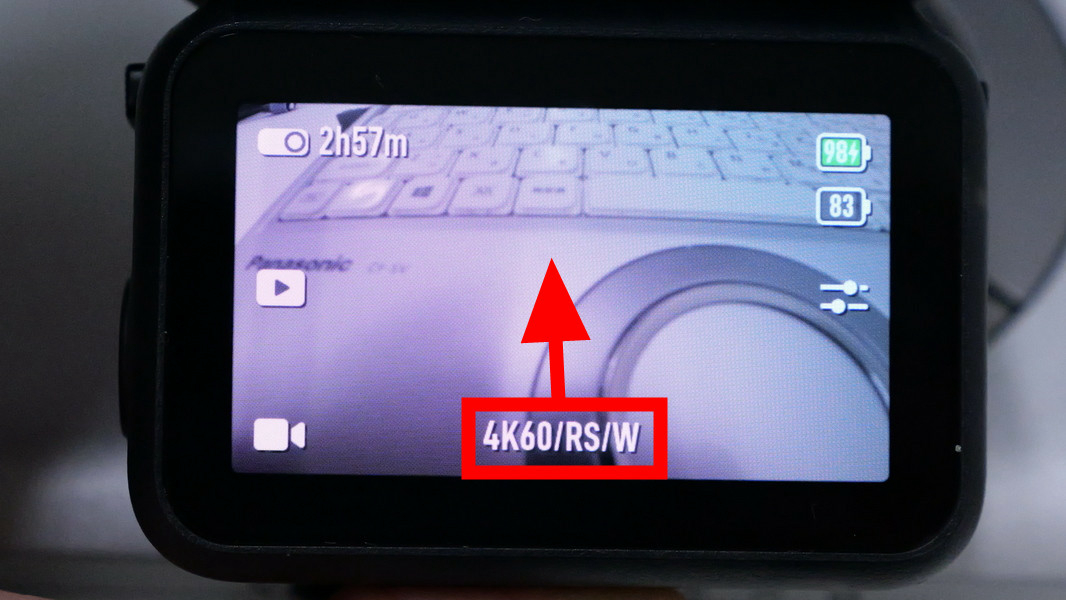
The selectable resolutions, frame rates, formats and maximum video bitrates are as follows:
| photograph | Single shot: 12 MP Countdown: Off/3/5/7 seconds |
| movie | 4K (4:3): 3840 x 2880 pixels @ 24/25/30/48/50/60 fps 4K (16:9): 3840 pixels x 2160 @ 24/25/30/48/50/60/100/120 fps 2.7K (4:3): 2688×2016 pixels @ 24/25/30/48/50/60fps 2.7K (16:9): 2688×1512@24/25/30/48/50/60/100/120fps 1080p (16:9): 1920 x 1080 pixels @ 24/25/30/48/50/60/100/120/200/240 fps |
| Slow Motion | 4K: 4x (120fps) 2.7K: 4x (120fps) 1080p: 8x (240fps), 4x (120fps) |
| Video Format | MP4 (H.264/HEVC) |
| Maximum Video Bitrate | 150 Mbps |
On the resolution and frame rate selection screen, tap the top right to select image stabilization and angle of view.
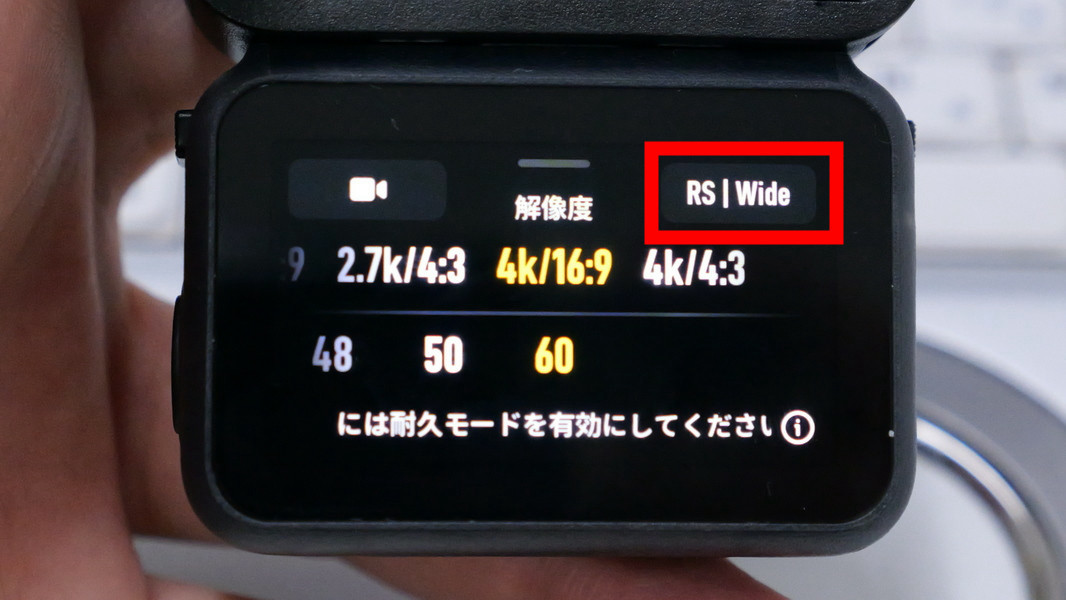
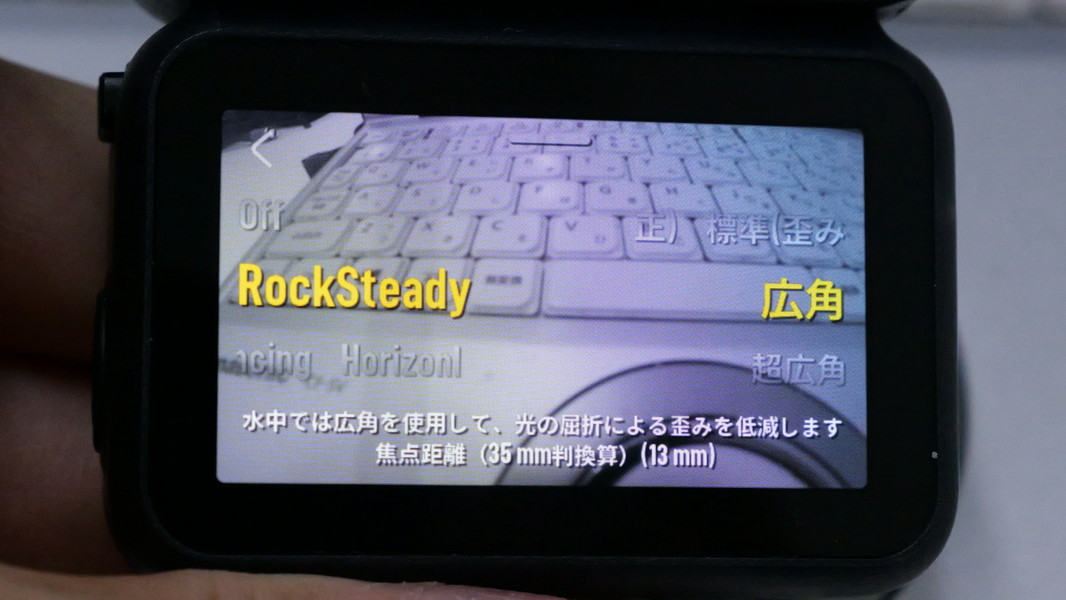
There are three image stabilization settings: 'Off,' 'RockSteady,' and 'Horizon Balancing,' and three angle of view settings: 'Standard (Distorted),' 'Wide Angle,' and 'Ultra Wide Angle.' However, 'Horizon Balancing' only allows you to select 'Standard' angle of view.
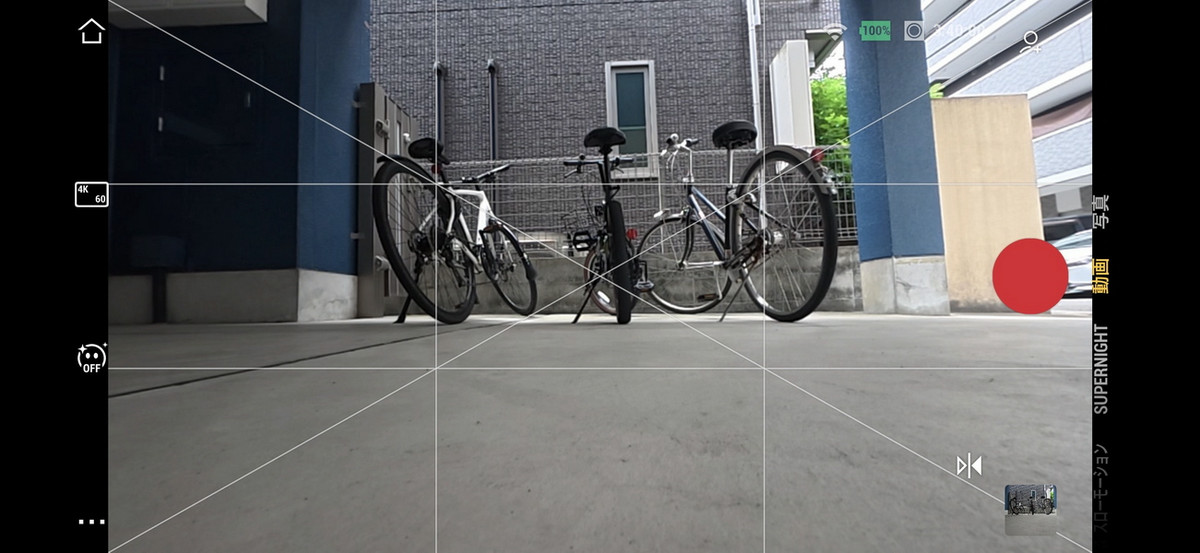
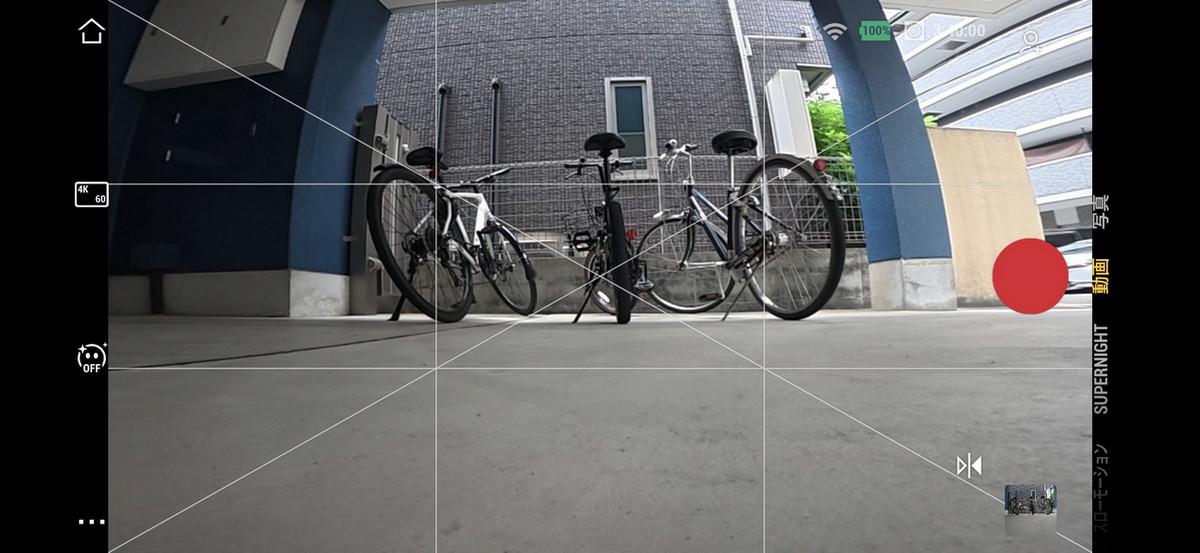
This is what it looks like with image stabilization 'Off' and angle of view 'Standard'.
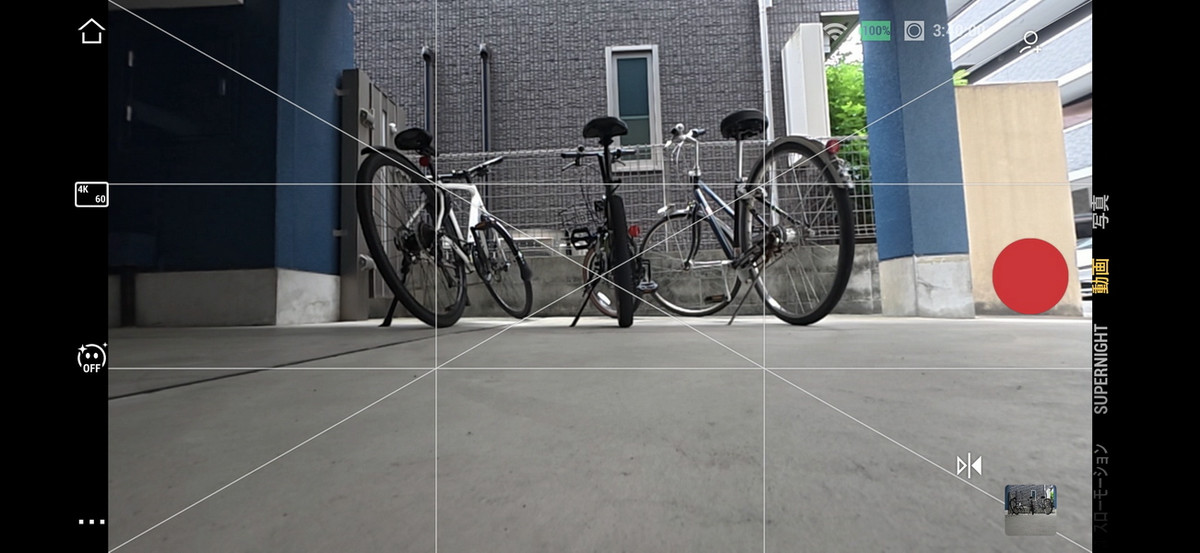
This is what it looks like with RockSteady stabilization and standard angle of view. Compared to the same angle of view with stabilization off, the image is slightly cropped.
The crop rate will be even higher if you use the image stabilization function 'Horizon Balancing' and the angle of view 'Standard'.
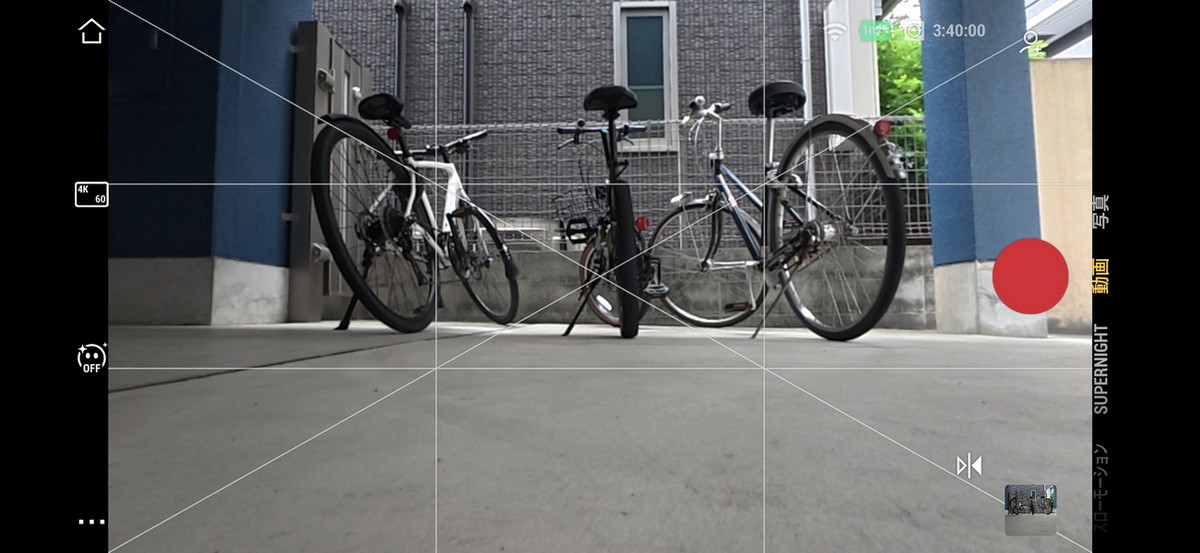
Image stabilization 'Off' / Angle of view 'Wide angle'
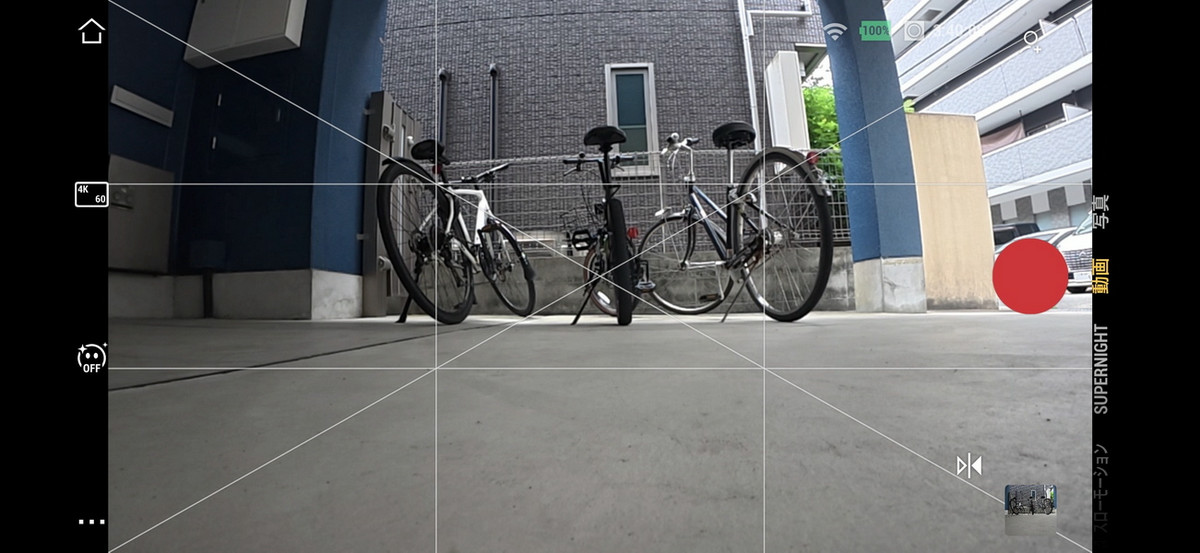
Image stabilization 'RockSteady' and angle of view 'Wide angle'
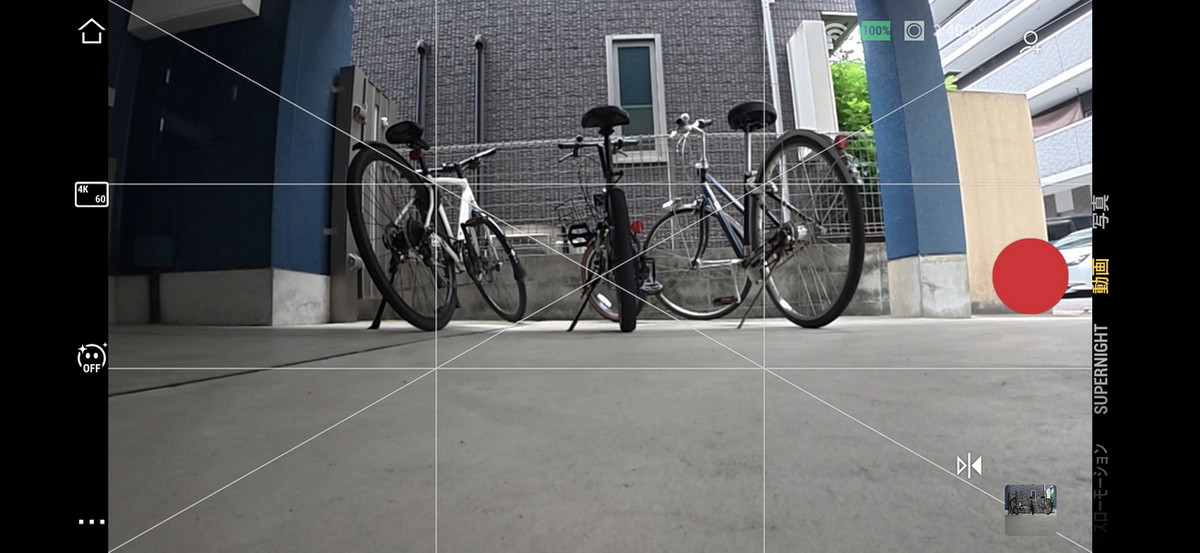
Image stabilization 'Off' / Angle of view 'Ultra wide angle'
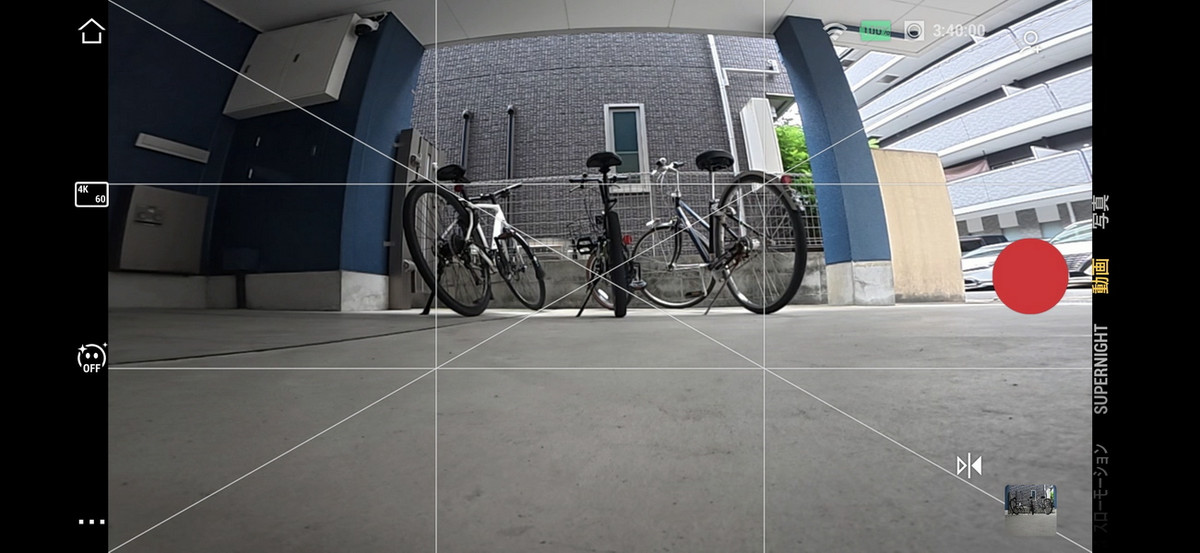
Image stabilization 'RockSteady' and angle of view 'ultra-wide angle'
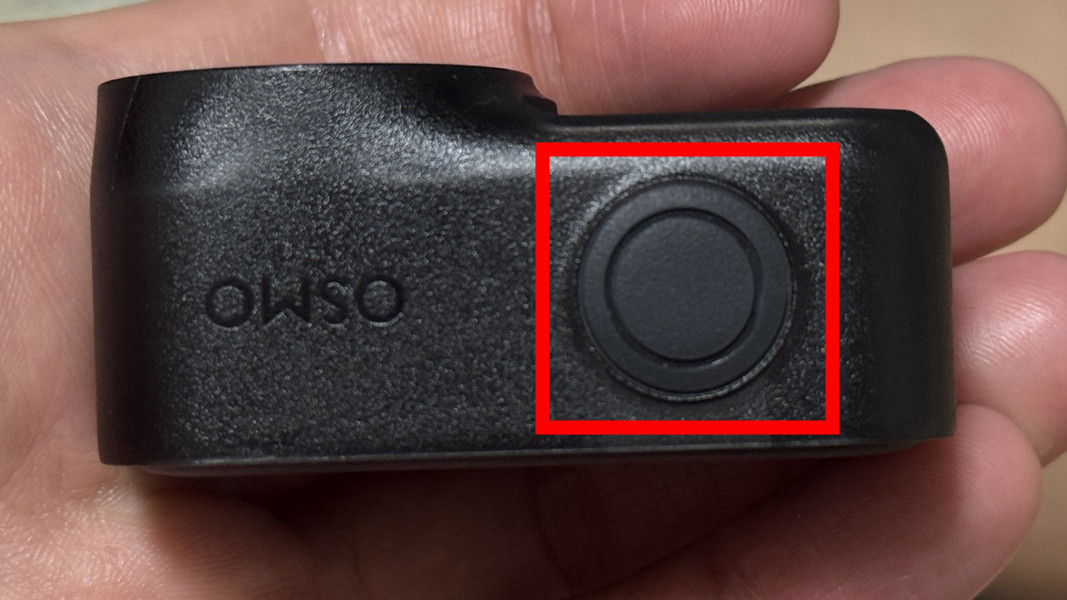
To start recording a video, simply press the button on the top of the camera.
By hanging the magnetic strap from your neck and attaching it to the camera so that it pinches your clothes, you can fix the camera to your chest as follows. To check the difference in image stabilization, I shot a movie of me riding a bicycle with image stabilization 'Off', image stabilization 'RockSteady', and image stabilization 'HorizonBalance'.

◆ Check the camera shake of the video you can shoot
The following video was shot with the image stabilization setting 'Off.' To compare it with 'Horizon Balancing,' the angle of view was set to 'Standard.' Looking at it, you can see that the vibrations of the bike and the shaking of the body are transmitted directly to the camera, causing the video to blur so violently that it almost makes you feel a little dizzy. Note that in the example footage shown below, there may be some block noise along the way, but this is due to YouTube's specifications and is not included in the original recording data.
Below is a shot of the same course with the image stabilization 'RockSteady' and the angle of view 'standard.' The shake is significantly reduced, and you can watch it without any problems.
DJI's compact action camera 'Osmo Nano' shoots 4K 60fps video with image stabilization 'RockSteady' - YouTube
With the image stabilization setting 'Horizon Balancing' and the angle of view set to 'Standard,' camera shake is almost completely eliminated, and you can see that the screen is incredibly stable.
DJI's compact action camera 'Osmo Nano' shoots 4K 60fps video with image stabilization 'Horizon Balancing' - YouTube
◆ Nighttime shooting and D-Log M shooting
To see what happens when shooting in dark places at night, I used the Osmo Nano to film myself riding a bicycle on a dark road at night, with the resolution set to 4K, the frame rate at 60fps, the image stabilization set to 'RockSteady,' and the field of view set to 'Standard.'
DJI's compact action camera 'Osmo Nano' shoots 4K 60fps video while riding a bicycle on a dark road at night - YouTube
And here's a video shot in 'SuperNight' mode, which is specialized for shooting in low light. The resolution was 4K, the frame rate was 30fps, the image stabilization was set to 'RockSteady,' and the field of view was set to 'Standard.' Compared to the regular video mode, there's less noise, and you can see that it captures beautiful images even in low-light conditions.
DJI's compact action camera 'Osmo Nano' shoots 4K 30fps 'SuperNight' video while riding a bicycle on a dark road in the middle of the night - YouTube
You can change the shooting settings by tapping the right side of the multi-function Vision Dock.
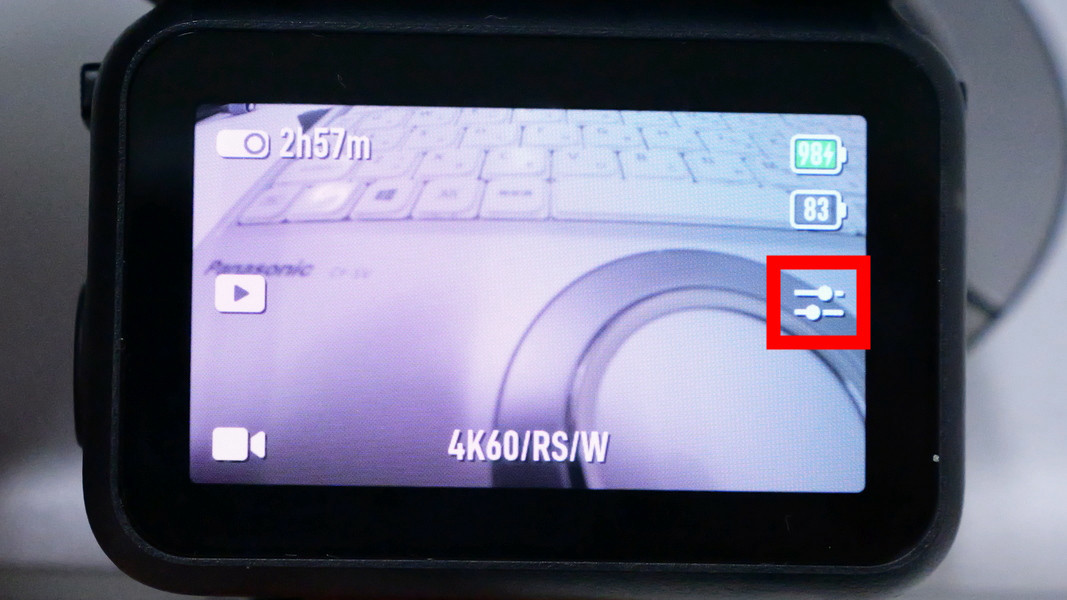
In the shooting settings, you can set 'App Beauty' and 'Stabilization Scenario.' 'App Beauty' is a mode that whitens the skin of the face captured by the camera, and 'Stabilization Scenario' allows you to change the strength of
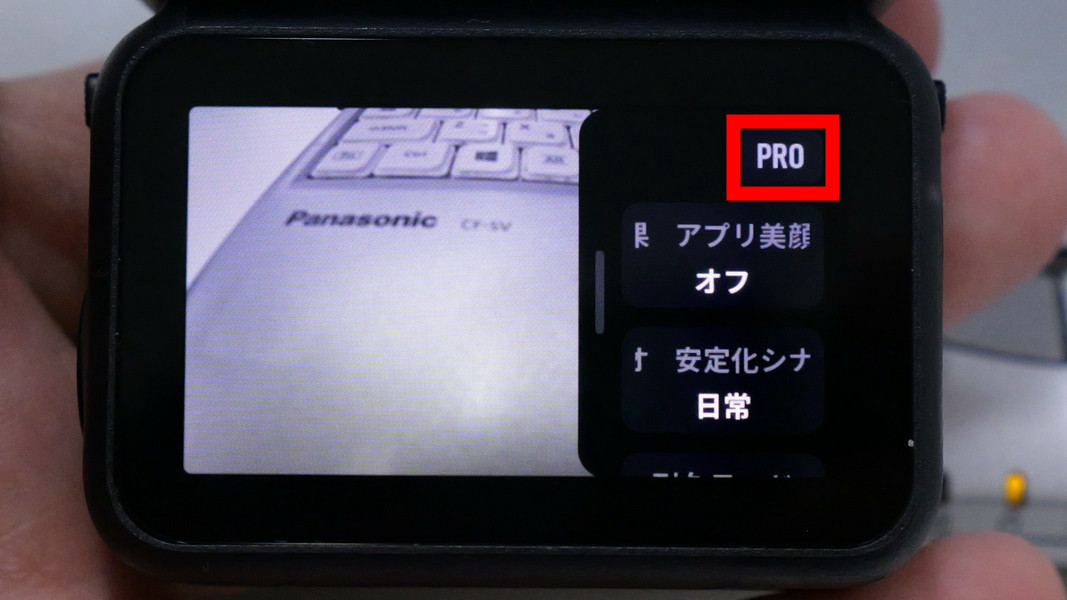
'PRO' allows you to select the color of the recorded video.
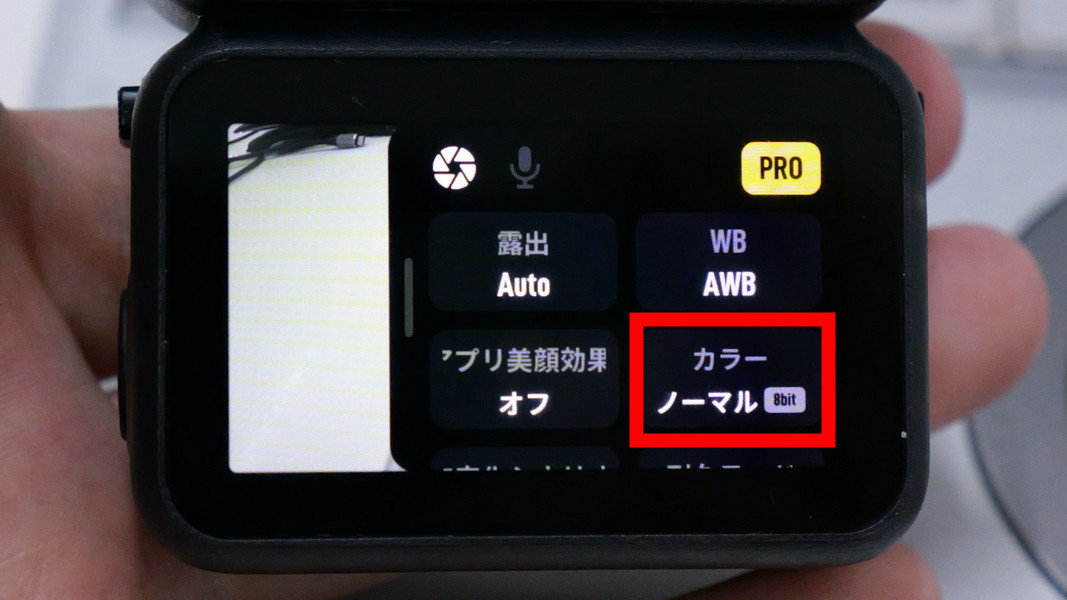
Color can be selected from 'Normal 8bit,' 'Normal 10bit,' and 'D-Log M 10bit.' D-Log M 10bit is a color setting intended for editing with LUTs and color correction, and is selected when you want to match the color of footage shot with other cameras.
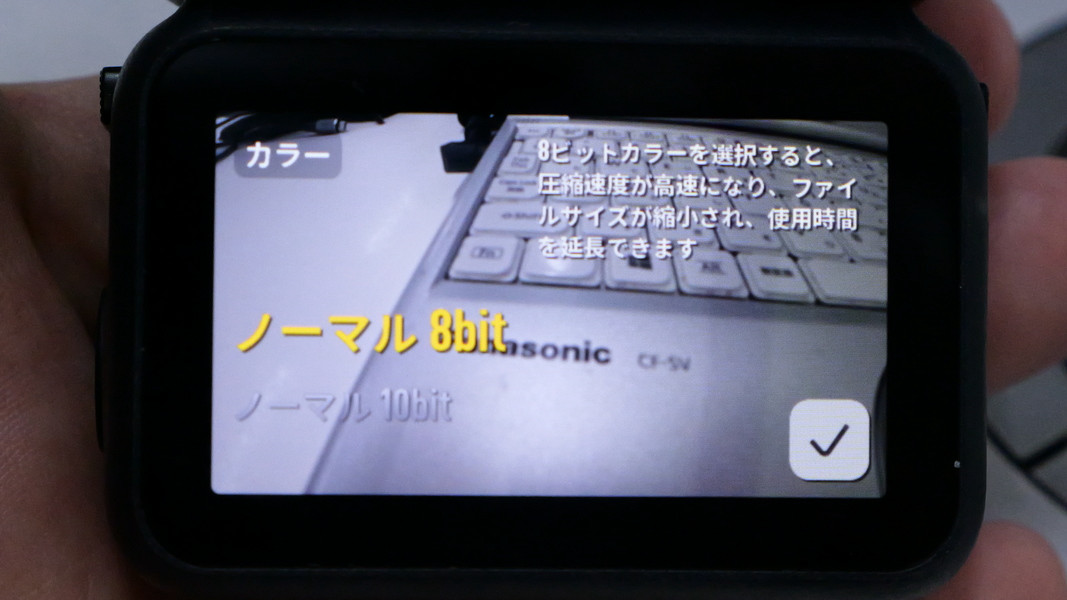
D-Log M 10bit is a type of
I walked around Pontocho, Kyoto using DJI's Osmo Nano's D-Log M (10-bit) shooting - YouTube
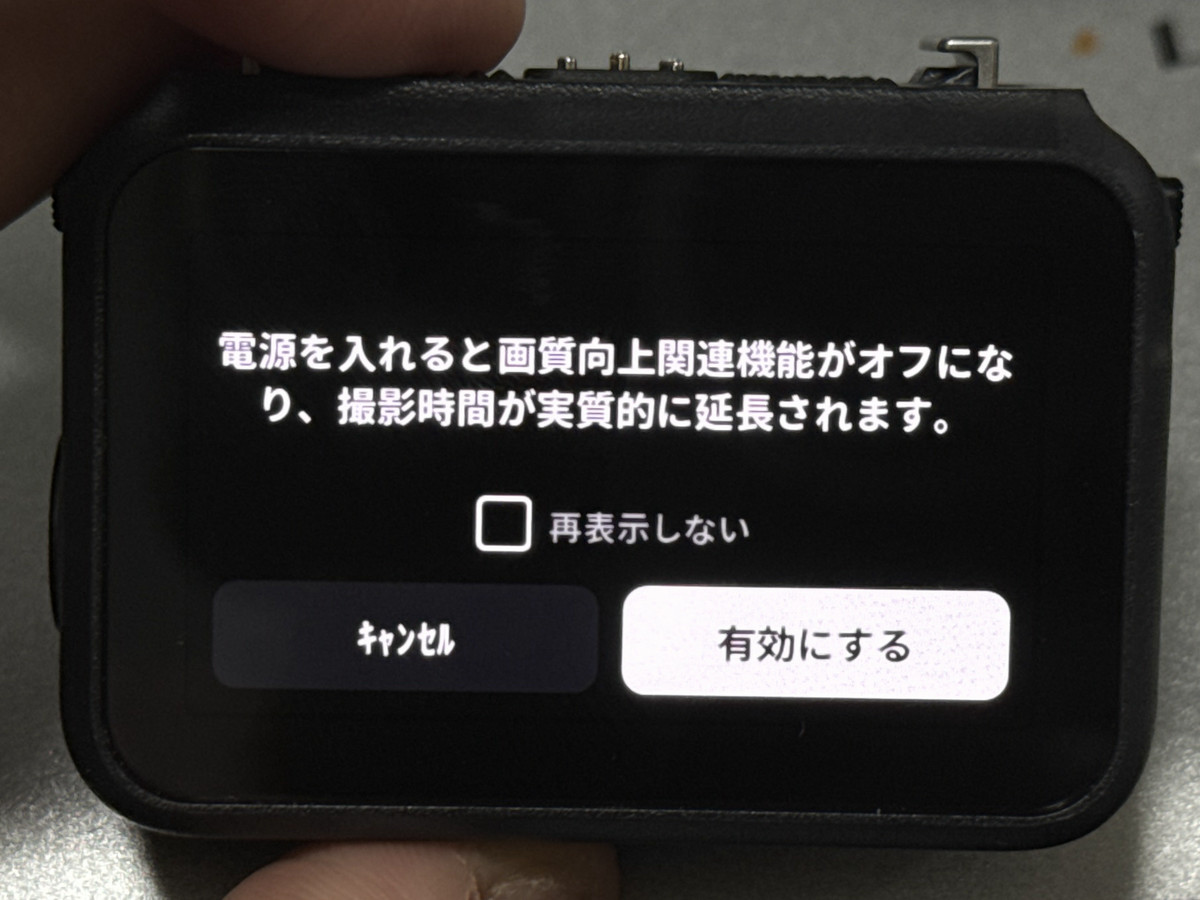
Switching 'Endurance Mode' to 'On' in Settings will improve battery life.
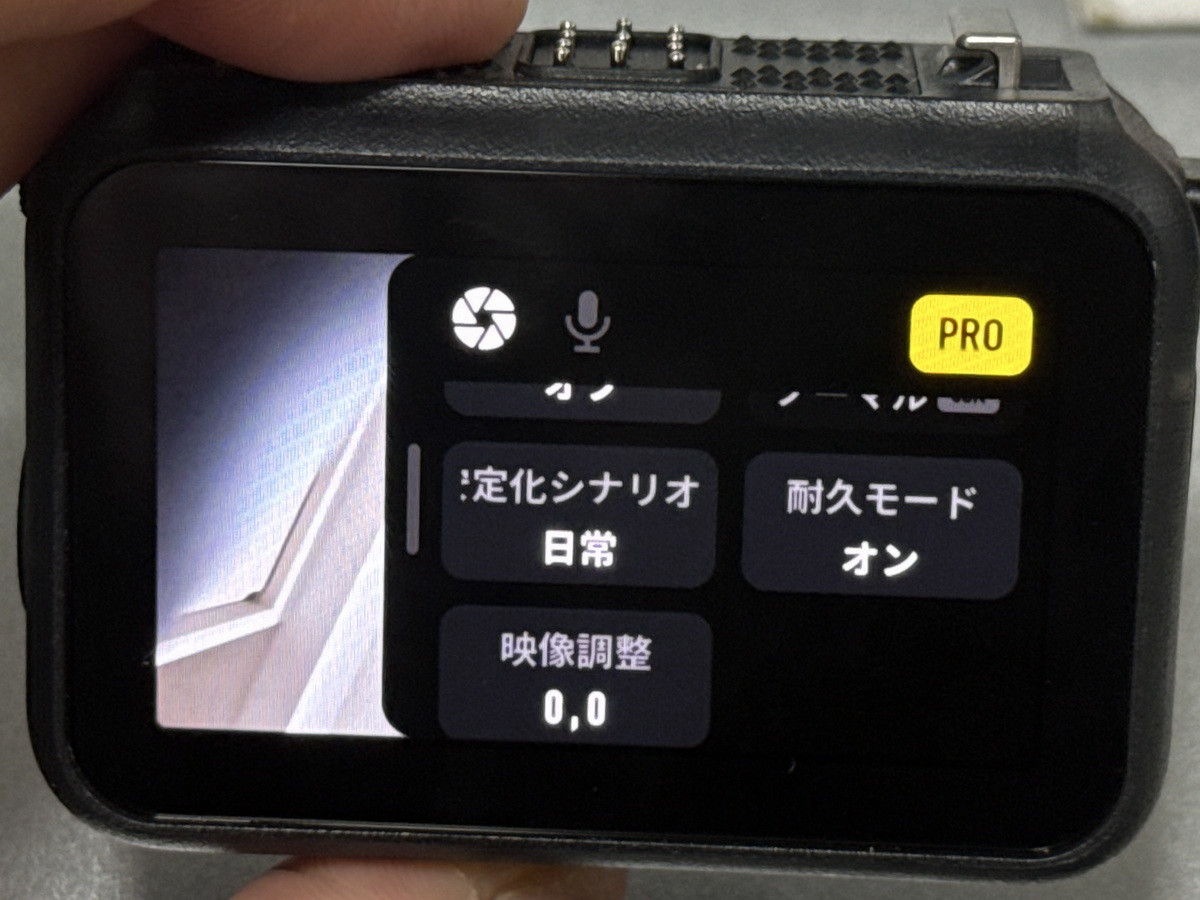
However, please note that turning on durability mode will turn off image quality improvement functions such as color mode switching.
◆ Transferring shooting data
Data captured with the Osmo Nano is stored in the camera's built-in storage and can be transferred in three ways: via a microSD card, via a smartphone app, or via a USB-C cable.
To transfer via microSD card, swipe down from the top of the screen while the camera is connected to the multi-function Vision Deck.
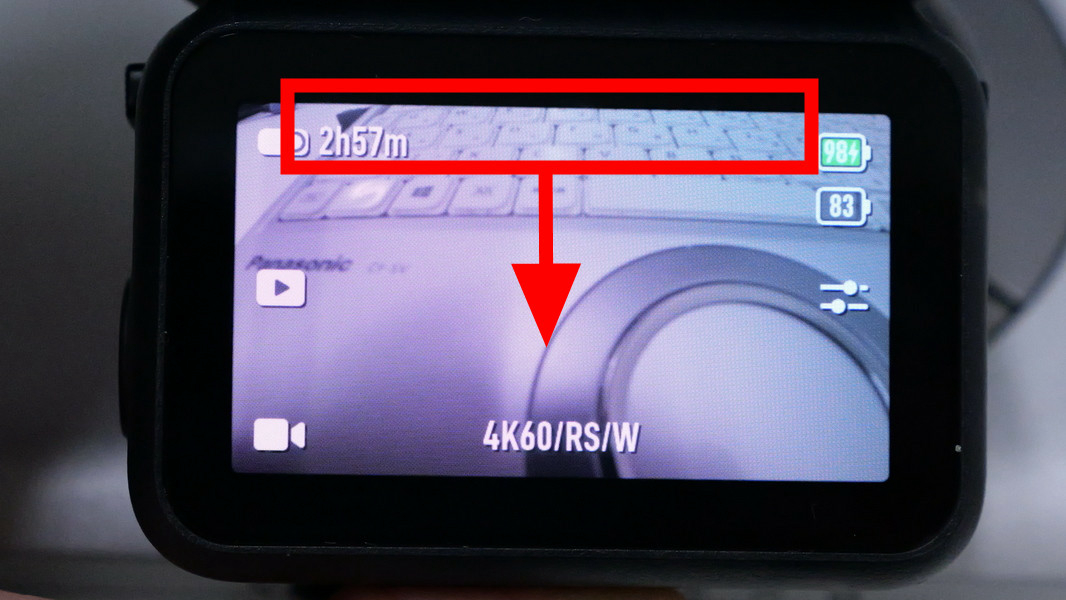
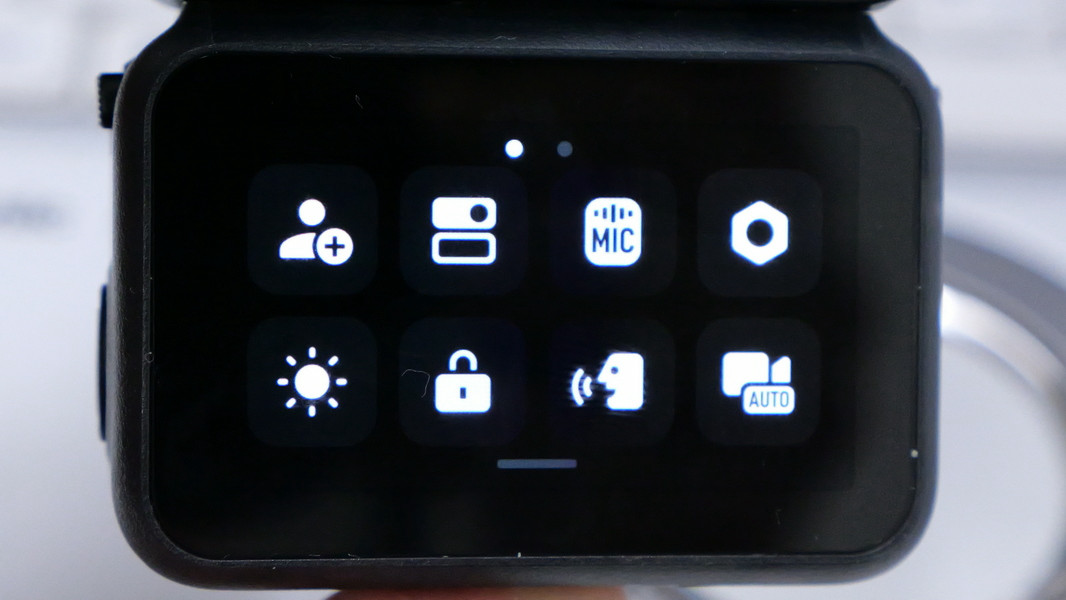
The control panel is displayed.
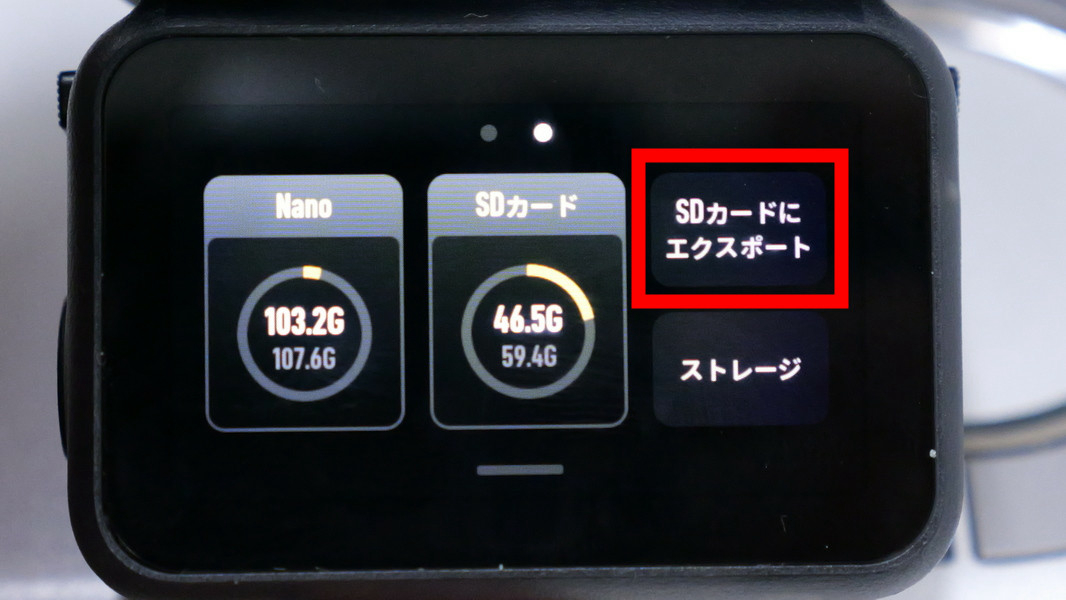
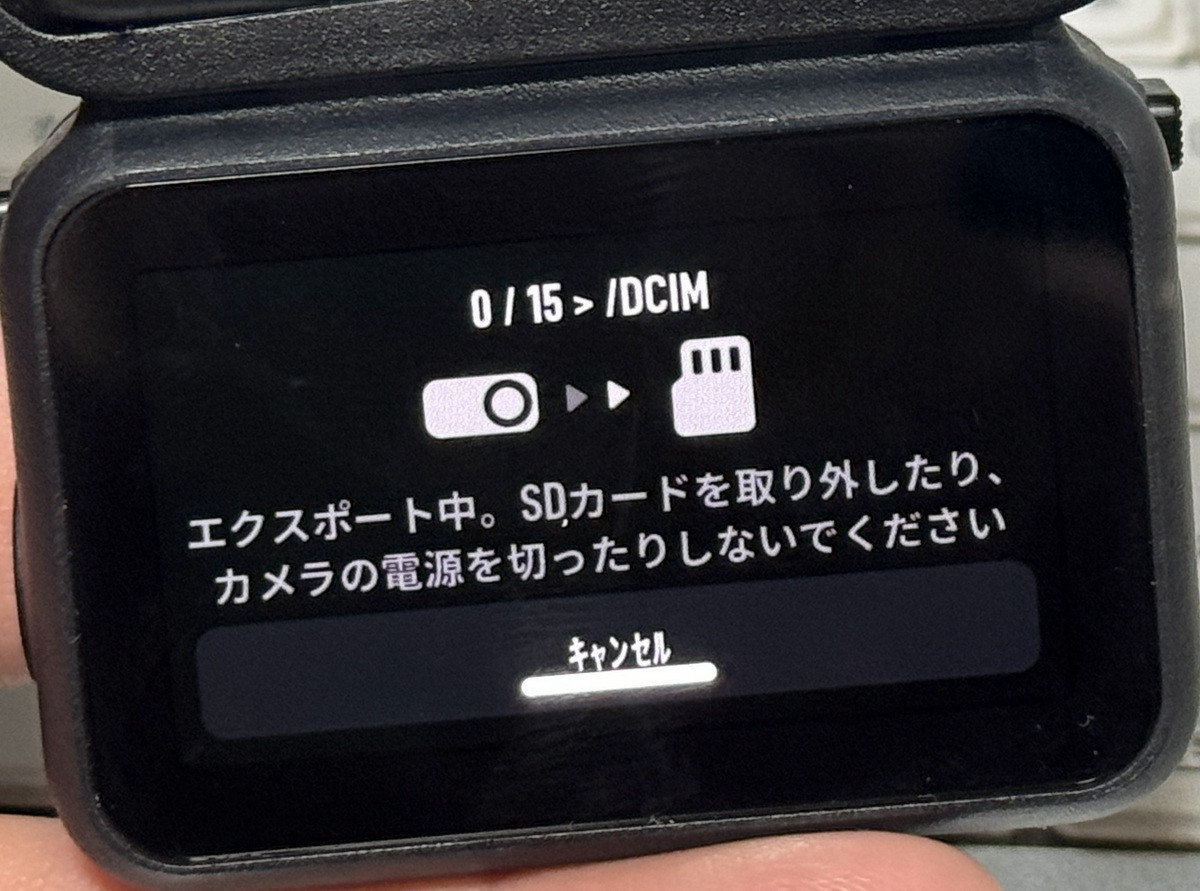
Swiping the control panel further to the left brings up a screen showing storage capacity. 'Nano' indicates data stored on the camera's internal storage, while 'SD card' indicates data stored on the microSD card. Tap 'Export to SD card' on the right.
Tap 'Confirm.'
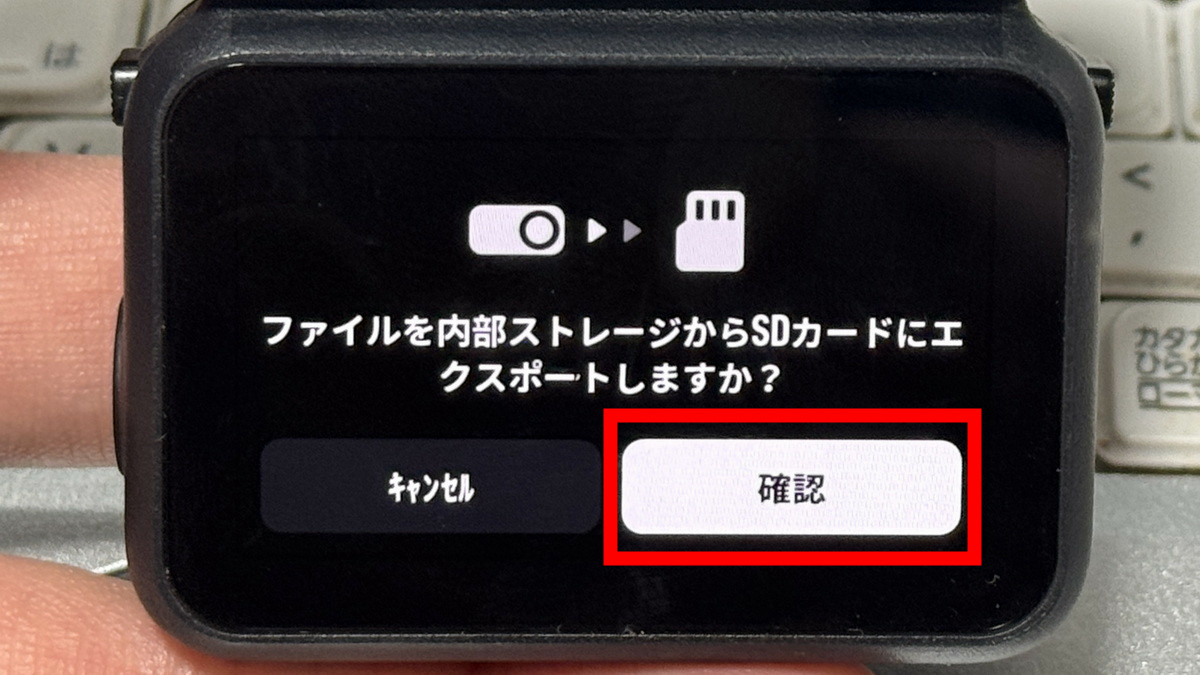
The captured data stored in the camera's built-in storage will then be written to the microSD card. However, please note that exporting to the microSD card is a 'movement' of data, not a copy, and the original data stored in the camera's built-in storage will be deleted.
If you have a smartphone, simply connect it to the Osmo Nano using the smartphone app 'DJI Mimo.'
'DJI Mimo' on the App Store
Mimo – Apps on Google Play
https://play.google.com/store/apps/details?id=mimo.sz&hl=ja
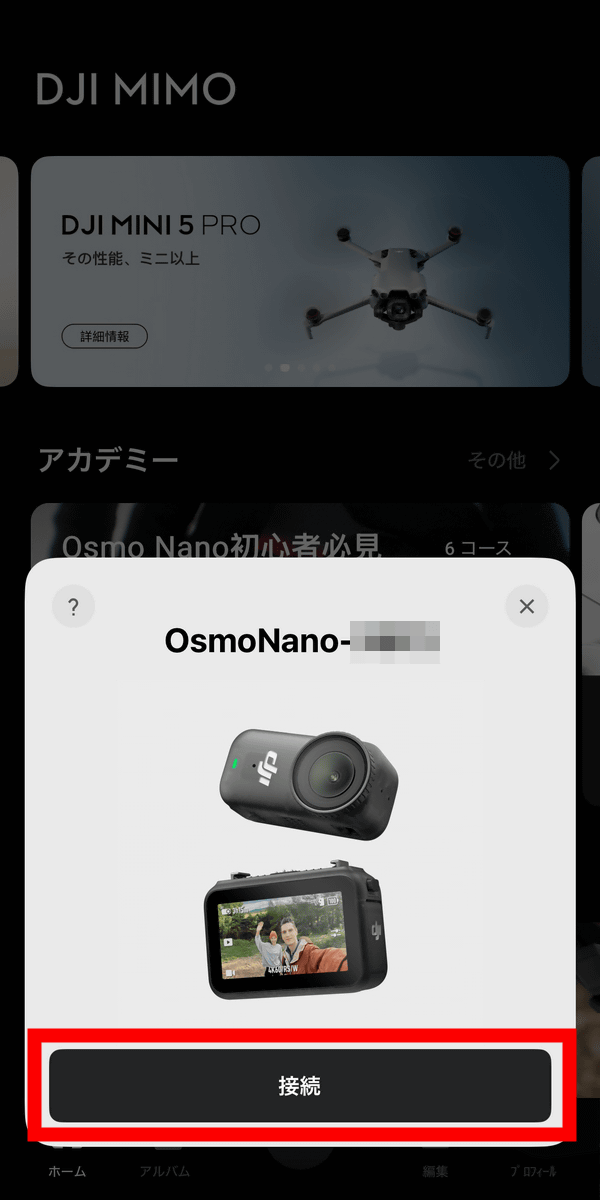
When you start DJI Mimo near Osmo Nano, Osmo Nano will ask you to connect, so tap 'Connect'.
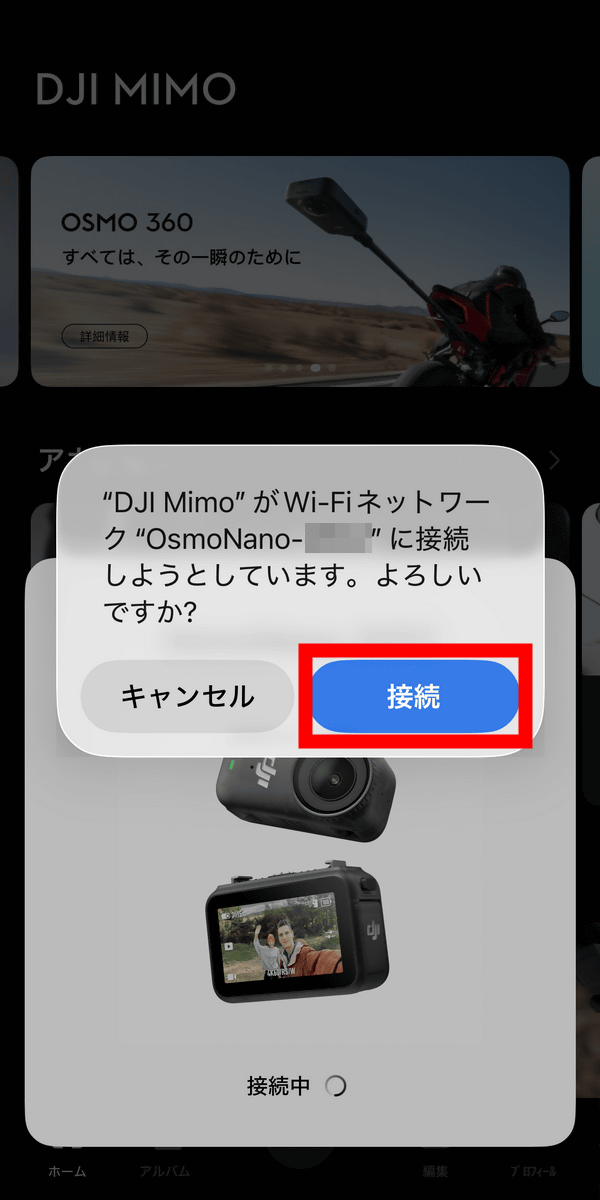
You will be asked to confirm, so tap 'Connect'.
This will automatically load the data stored on the Osmo Nano. This data can be from both the internal storage and the microSD card. Tap the check mark in the upper right corner.
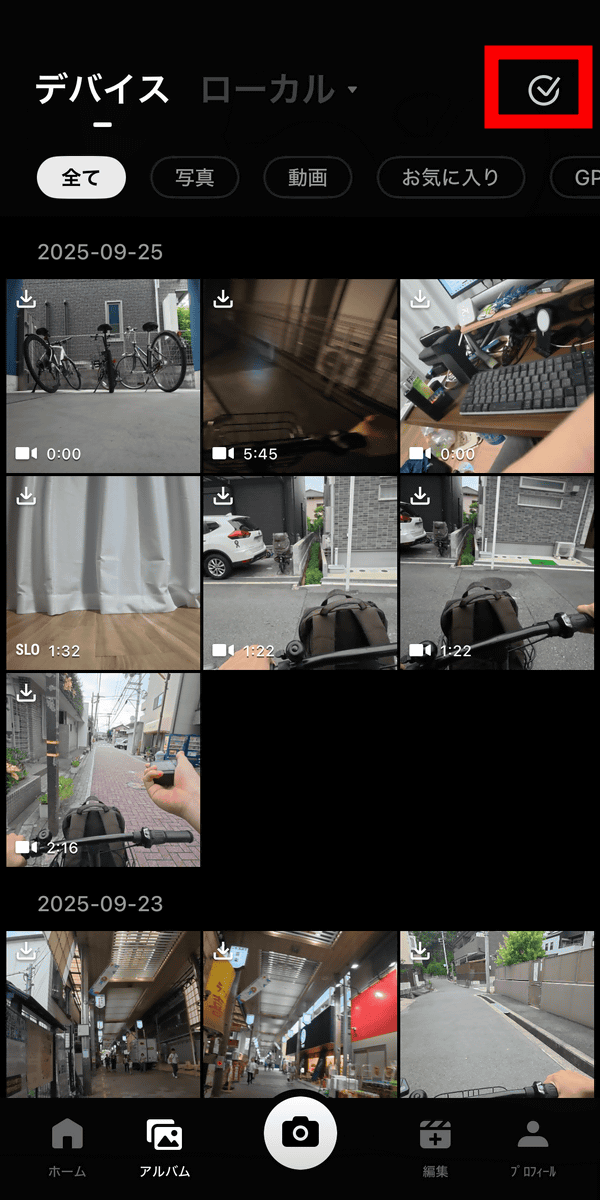
Tap the thumbnail of the video you want to save to your smartphone to select it, then tap the download icon in the center of the bottom row.
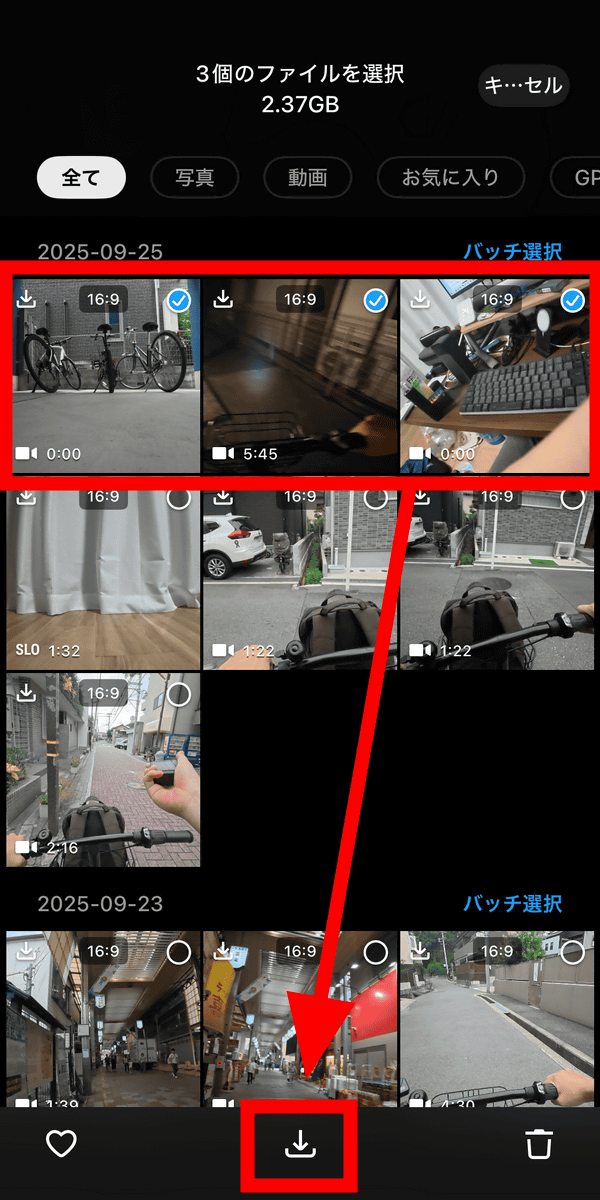
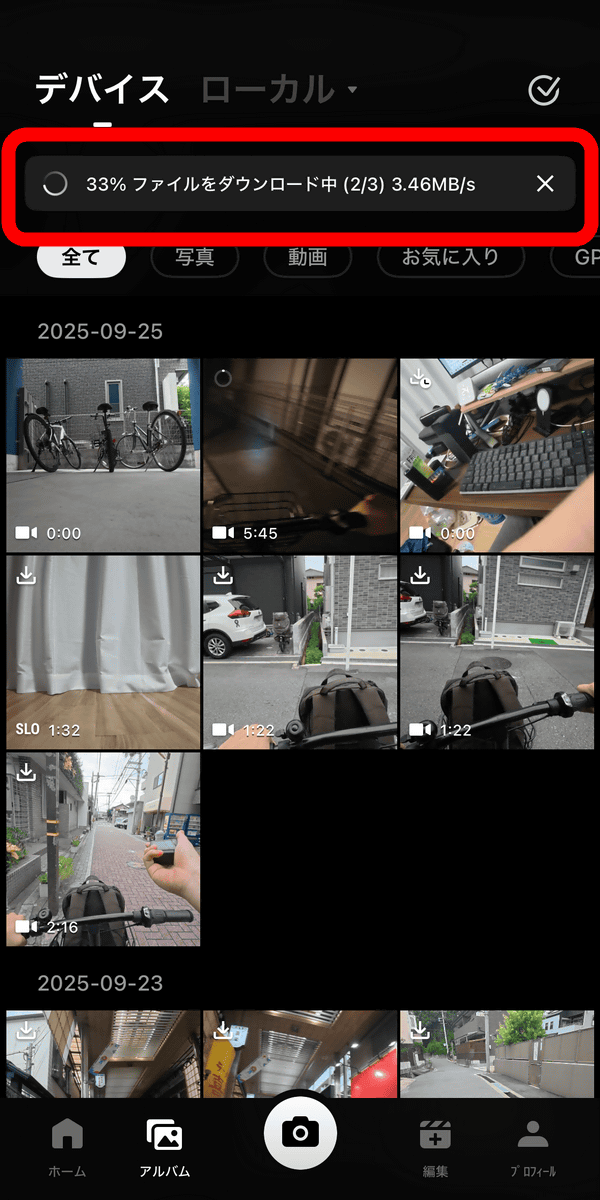
The selected video will be downloaded. Because the Osmo Nano and smartphone are connected one-to-one via Wi-Fi, you will need to use a mobile phone network to connect to the internet on your smartphone while connected to the Osmo Nano.
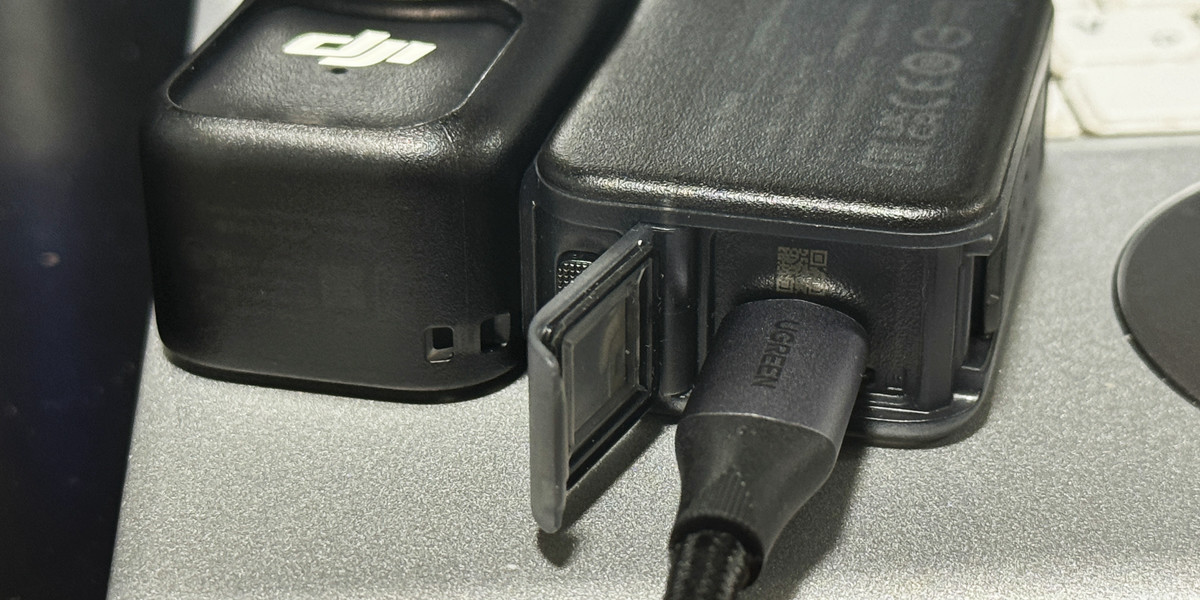
The USB-C port on the right side of the multifunctional Vision Dock allows you to transfer data to your PC via USB by connecting it to a PC with a USB-C cable.
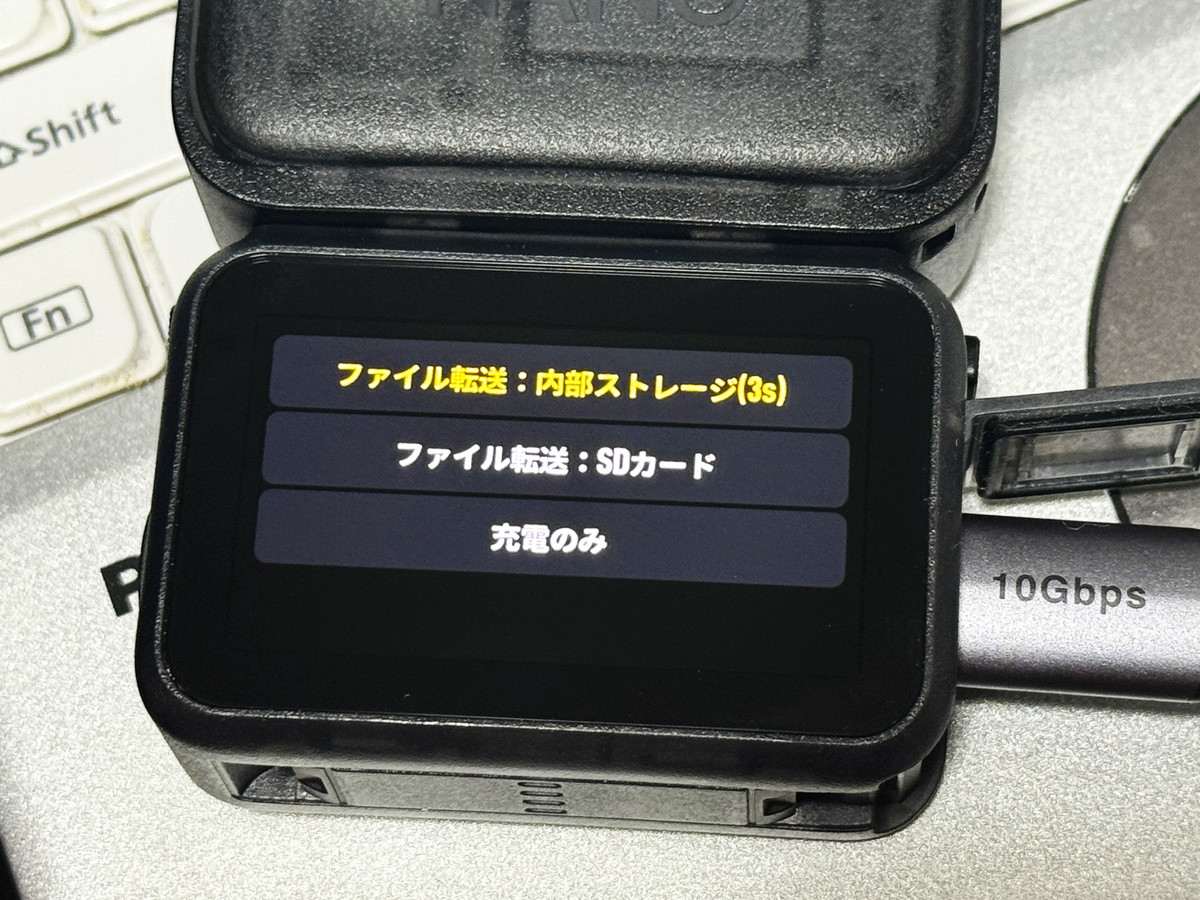
The file transfer menu will appear. If you don't do anything, you can automatically access the internal storage in 3 seconds. You can also access data on the microSD card. The transfer speed is equivalent to USB 3.1, so if you use a high-speed cable, you can transfer data to your PC at lightning speed. If you plan to edit the videos you shoot on your PC, the USB-C cable is the fastest transfer method.
Next, we plan to actually check the battery life of the Osmo Nano, so stay tuned.
[to be continued]
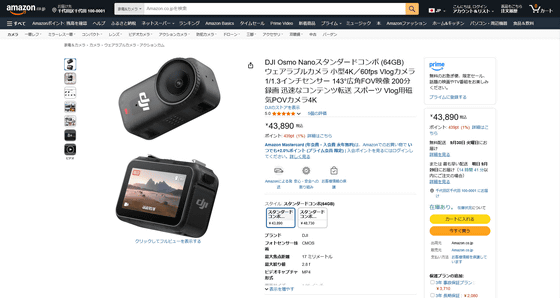
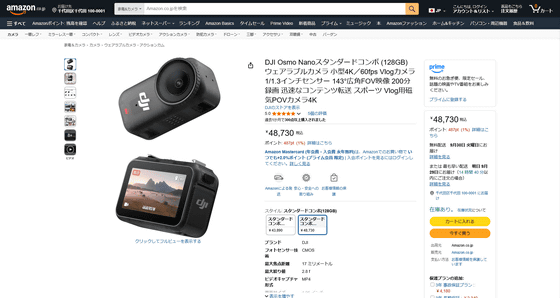
The OSMO Nano comes in two models, a 64GB model and a 128GB model, depending on the camera's internal storage. The 64GB model is priced at 43,890 yen (tax included), while the 128GB model is priced at 48,730 yen (tax included). The release date is Tuesday, September 23, 2025, and it can be purchased from the official DJI store . It can also be purchased from Amazon.co.jp.
Amazon | DJI Osmo Nano Standard Combo (64GB) Wearable Camera, Compact 4K/60fps Vlog Camera with 1/1.3-inch Sensor, 143° Wide-Angle FOV, 200 Minutes of Recording, and Fast Content Transfer, Magnetic POV Camera 4K for Sports Vlogging | Wearable Cameras & Action Cams
Related Posts: