Review of 'BrowserBee,' an extension that turns Chrome into a browser with an AI agent, supports ChatGPT, Gemini, and Claude APIs, and can also use local AI models via Ollama

'BrowserBee' is an extension developed for Chrome that automatically operates Chrome to search for information on the Internet and output the information collection results. It supports ChatGPT, Gemini, and Claude APIs, allowing you to use your preferred AI model depending on your purpose. Furthermore, if you prioritize privacy, you can also use AI models downloaded locally. It seemed useful, so I tried it out.
BrowserBee 🐝 - Chrome Web Store
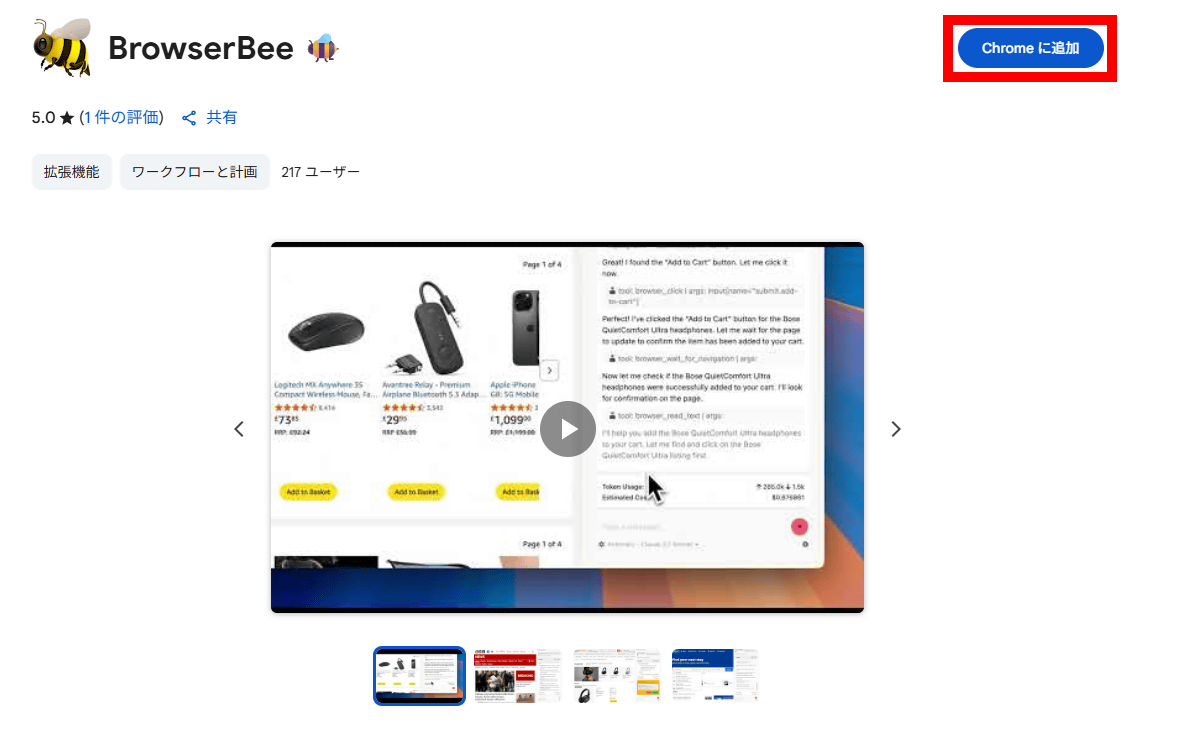
First, access the link above in Chrome and click 'Add to Chrome.'
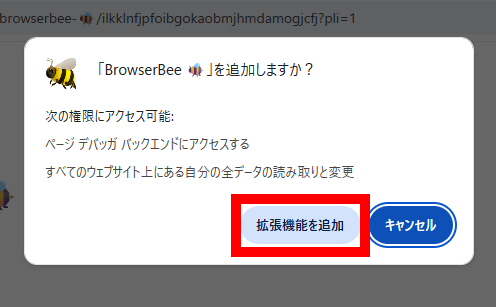
Click 'Add extension'.
Once the installation is complete, the settings screen will automatically appear. This is where you can register various AI APIs.
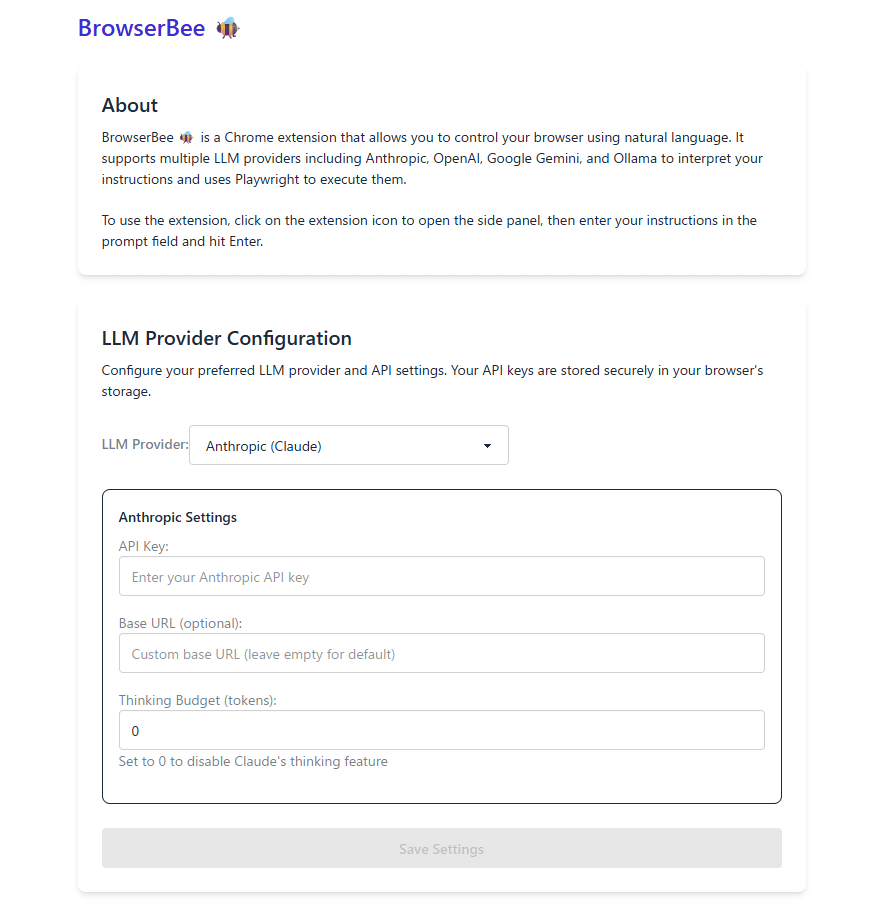
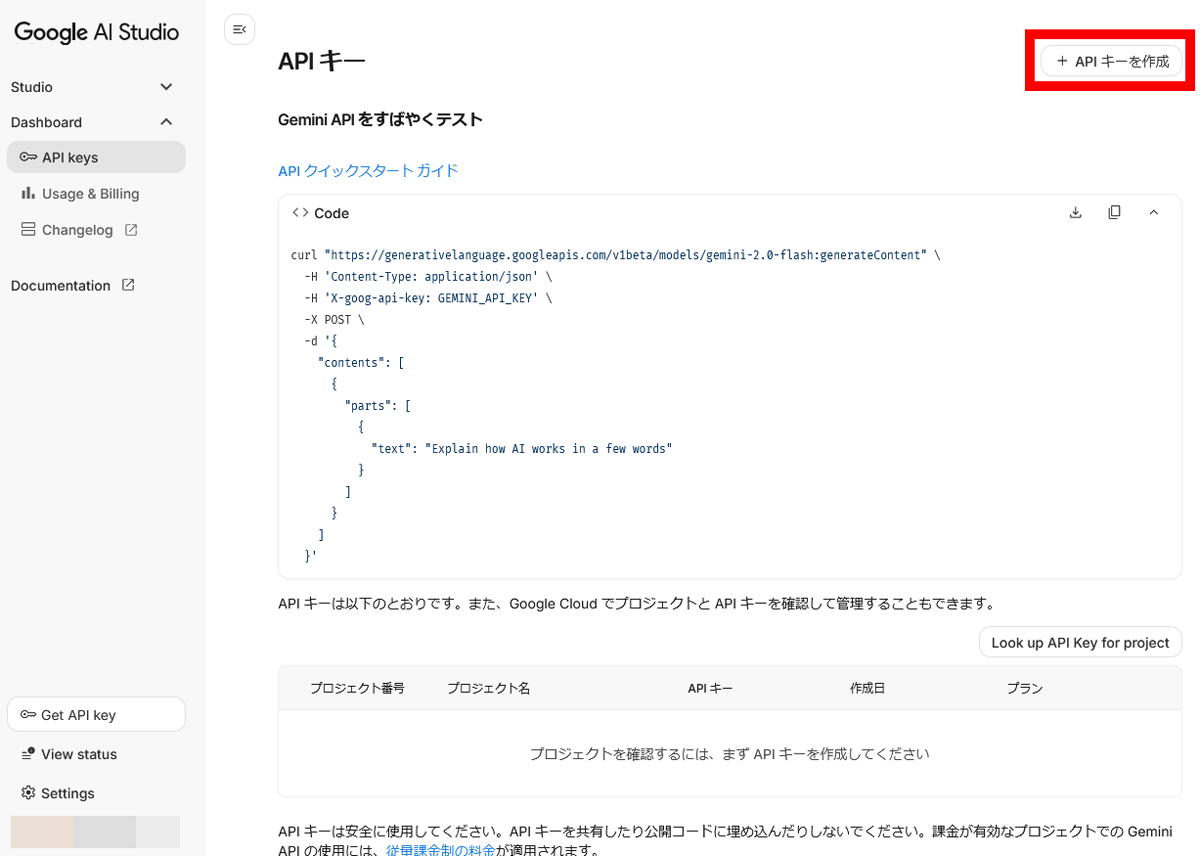
This time, we will use Gemini's API. The free plan is sufficient for light operations. To obtain an API key, go to the following link.
Google AI Studio
Click 'Create API Key' in the top right corner of the screen.
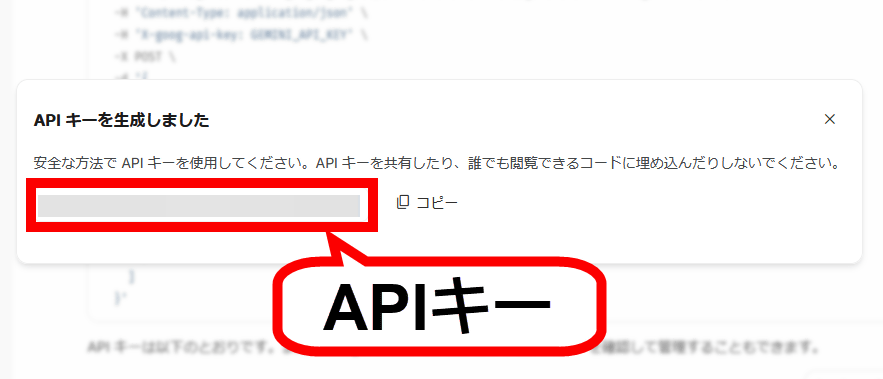
When the API key appears, copy it.
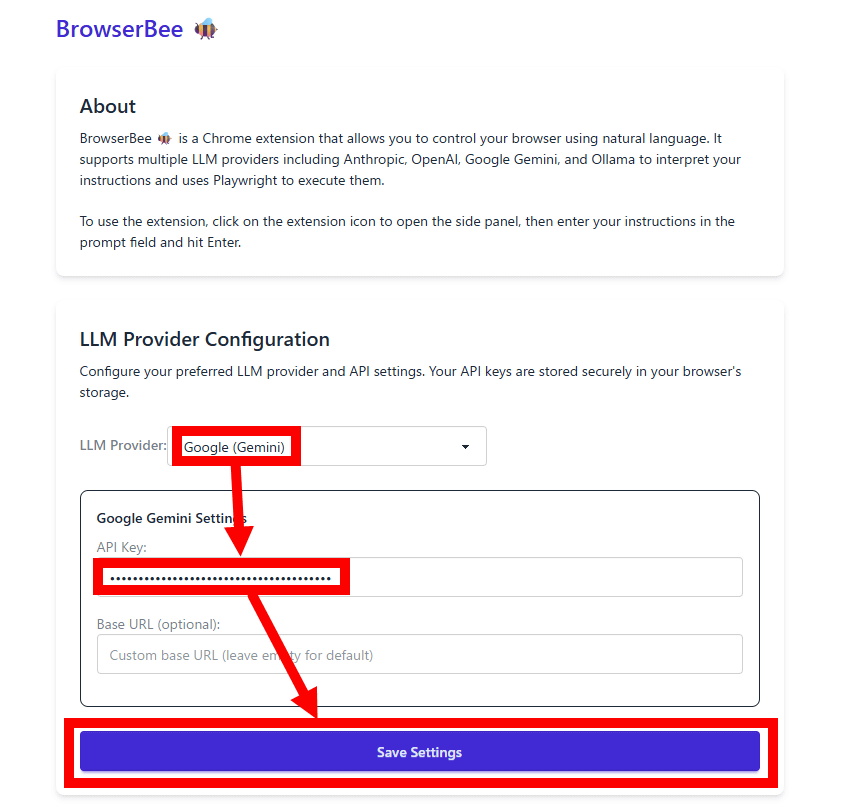
Return to the BrowserBee settings screen, select 'Google (Gemini)' in the 'LLM Provider' field, paste the API key into 'API Key', and click 'Save Settings'.
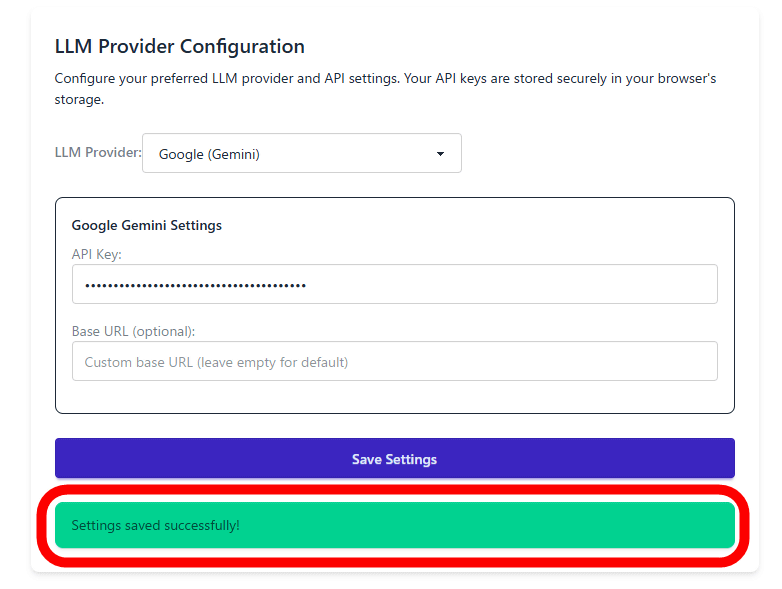
The settings are complete when you see the green notification 'Settings saved successfully.'
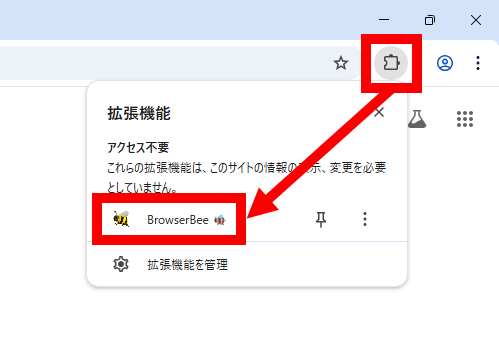
Let's try using BrowserBee right away. First, click the extension button in the upper right corner of the screen and then click 'BrowserBee'.
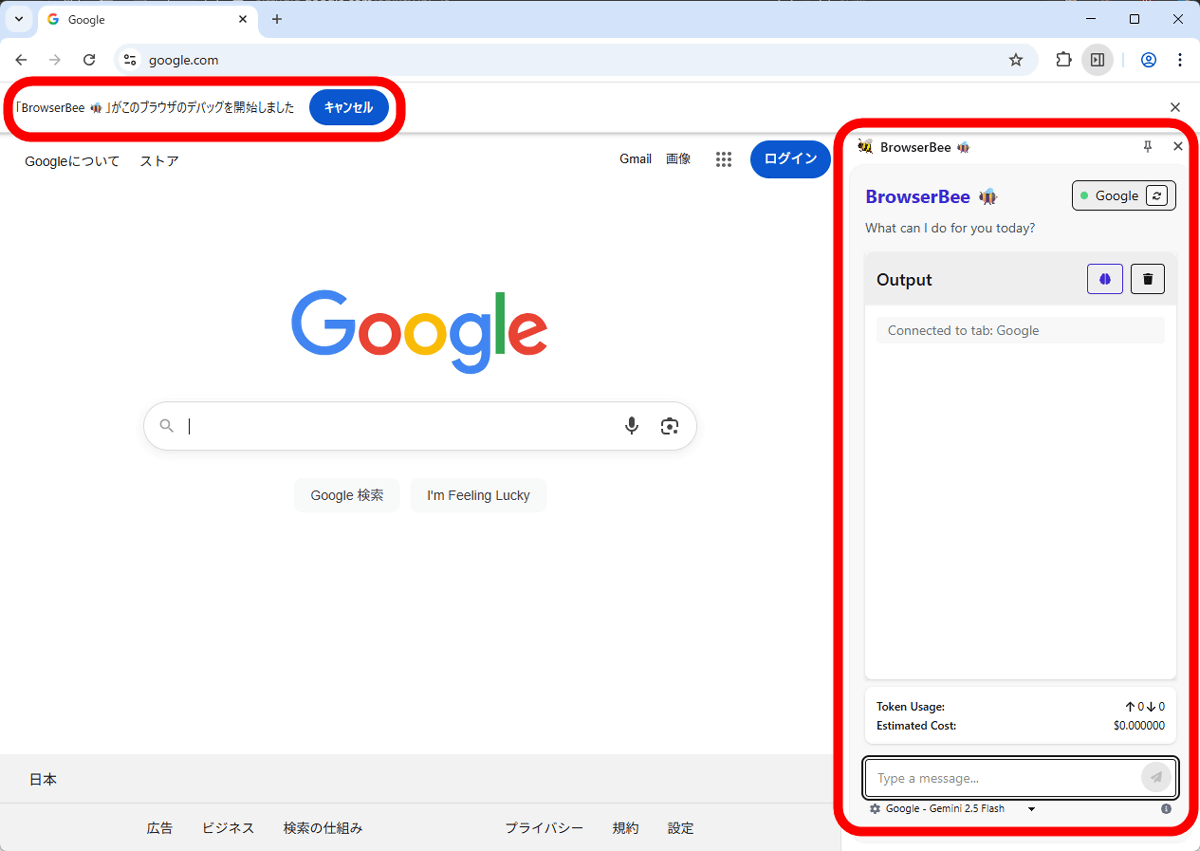
The BrowserBee sidebar will then appear on the right side of the screen, and a notification will appear at the top of the screen saying 'BrowserBee has started debugging this browser.' If you dismiss this notification, you will no longer be able to use BrowserBee, so leave it displayed.
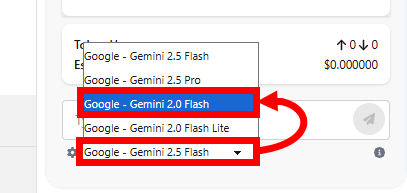
By default, 'Gemini 2.5 Flash' is selected as the AI model, but for some reason it didn't work properly, so I changed it to 'Gemini 2.0 Flash.'
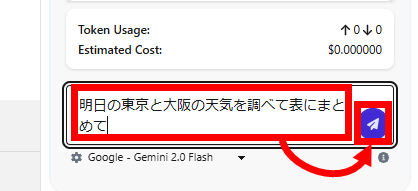
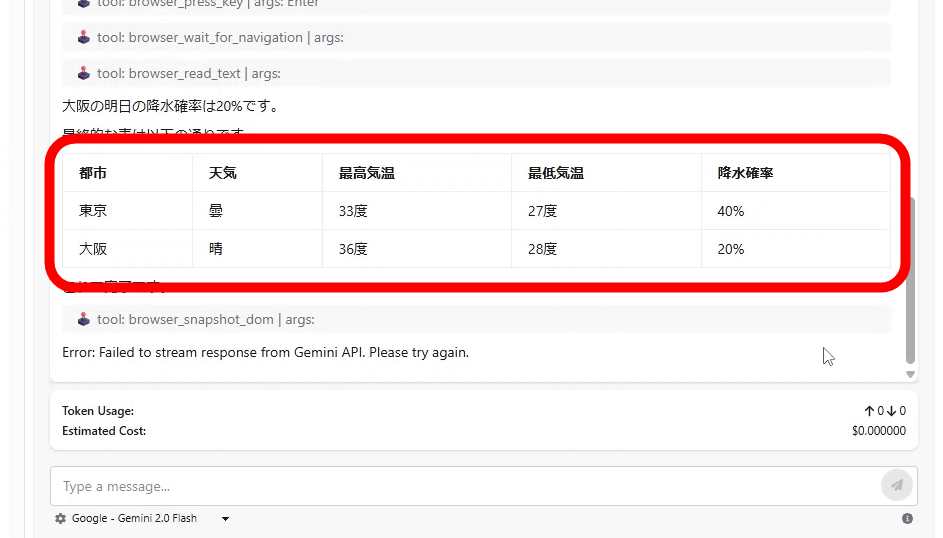
All you have to do is enter your instructions for the AI in the input field at the bottom right of the screen and click the send button, and it will automatically operate the browser to carry out the task. In this case, I entered 'Check tomorrow's weather for Tokyo and Osaka and summarize it in a table.'
Click on the video below to see how AI automatically conducts weather forecast research.
An AI that automatically searches. The AI's thoughts are displayed in the BrowserBee sidebar.
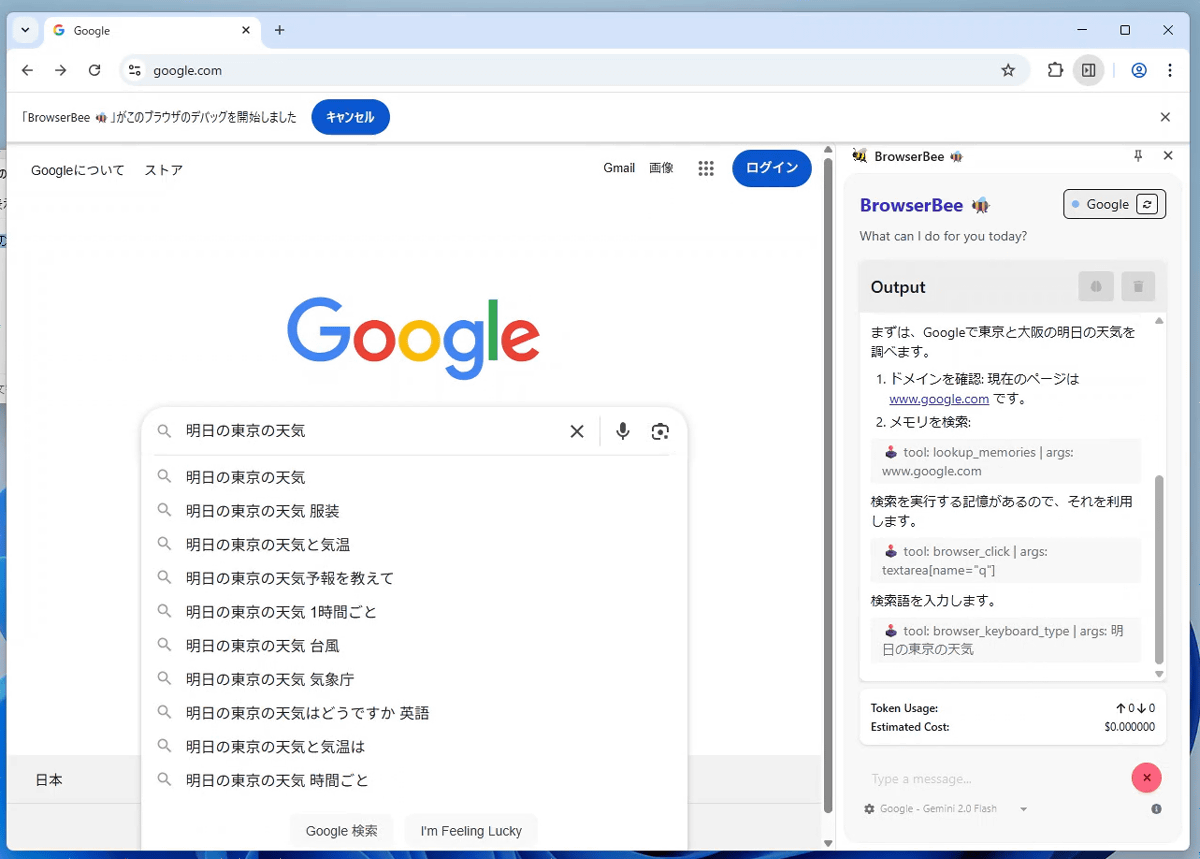
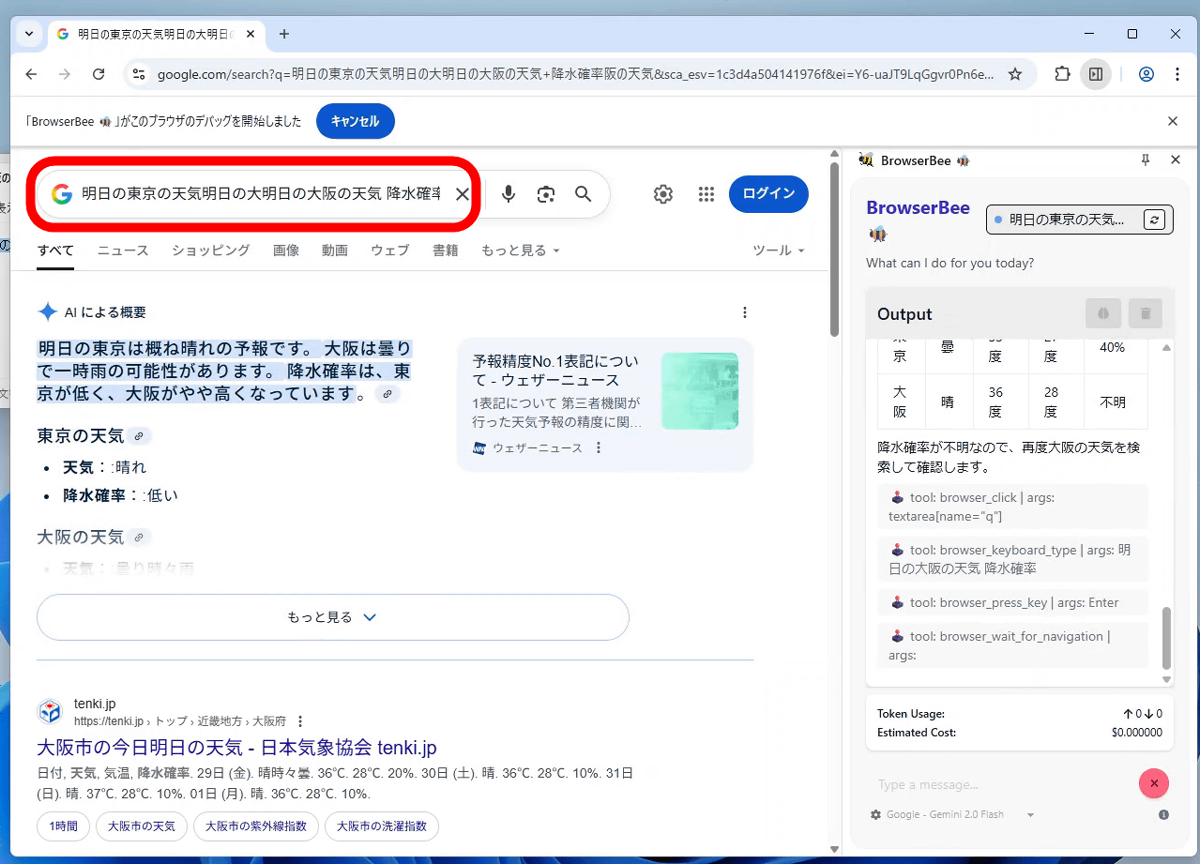
The search engine would search for 'Tokyo weather,' 'Osaka weather,' 'Chance of precipitation in Tokyo and Osaka,' etc., but it behaved strangely by adding new search phrases in appropriate positions without erasing the contents of the input field. Nevertheless, thanks to the high performance of Google Search itself, it was able to gather the necessary information without any problems.
Finally, the desired table was completed in about 30 seconds.
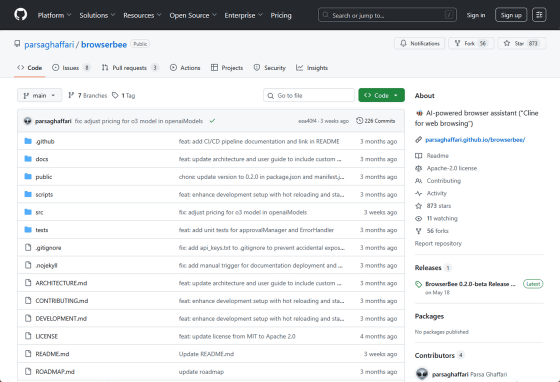
The source code for BrowserBee is available at the following link:
GitHub - parsaghaffari/browserbee: 🐝 AI-powered browser assistant ('Cline for web browsing')
https://github.com/parsaghaffari/browserbee
Related Posts: